






An additional display for phone navigation: Android Auto – how do you pair it? Tests and impressions
TL;DR
- A 7-inch auxiliary touchscreen adds Android Auto, Apple CarPlay, PhoneLink mirroring, USB/TF playback, reversing-camera support, and audio output via FM transmitter or AUX.
- It pairs either by USB plug-and-play or wirelessly through Bluetooth/Wi‑Fi, with the phone connecting to the screen’s Android Auto menu in a few taps.
- The kit costs just over 100 zł, uses the Bluetooth name “BT_CAR_BD39E0”, and the factory settings password is 779822.
- In use, Google Maps, hands-free calls, music, and messaging apps work well, but the plastic feels cheap and the bigger screen is not a huge upgrade.
AI summary based on the discussion. May contain errors.
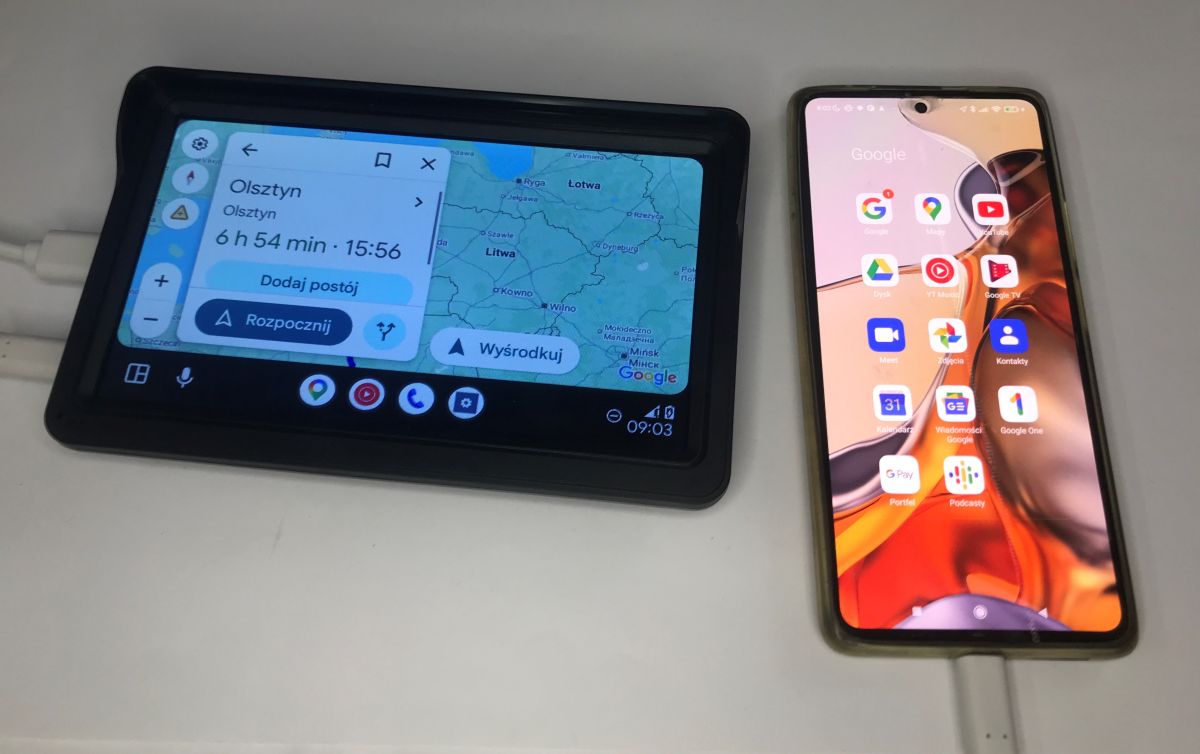
What is Android Auto and how do you pair it with your phone? Android Auto is an app and standard developed by Google that allows you to transfer key smartphone functions (such as GPS navigation, music player, messaging apps and voice assistant) directly to your car’s screen. This makes using your phone whilst driving much easier and safer.
In this particular case, the demonstration will be based on an Android Auto-compatible auxiliary display kit, purchased for just over 100 zł with free delivery from China.
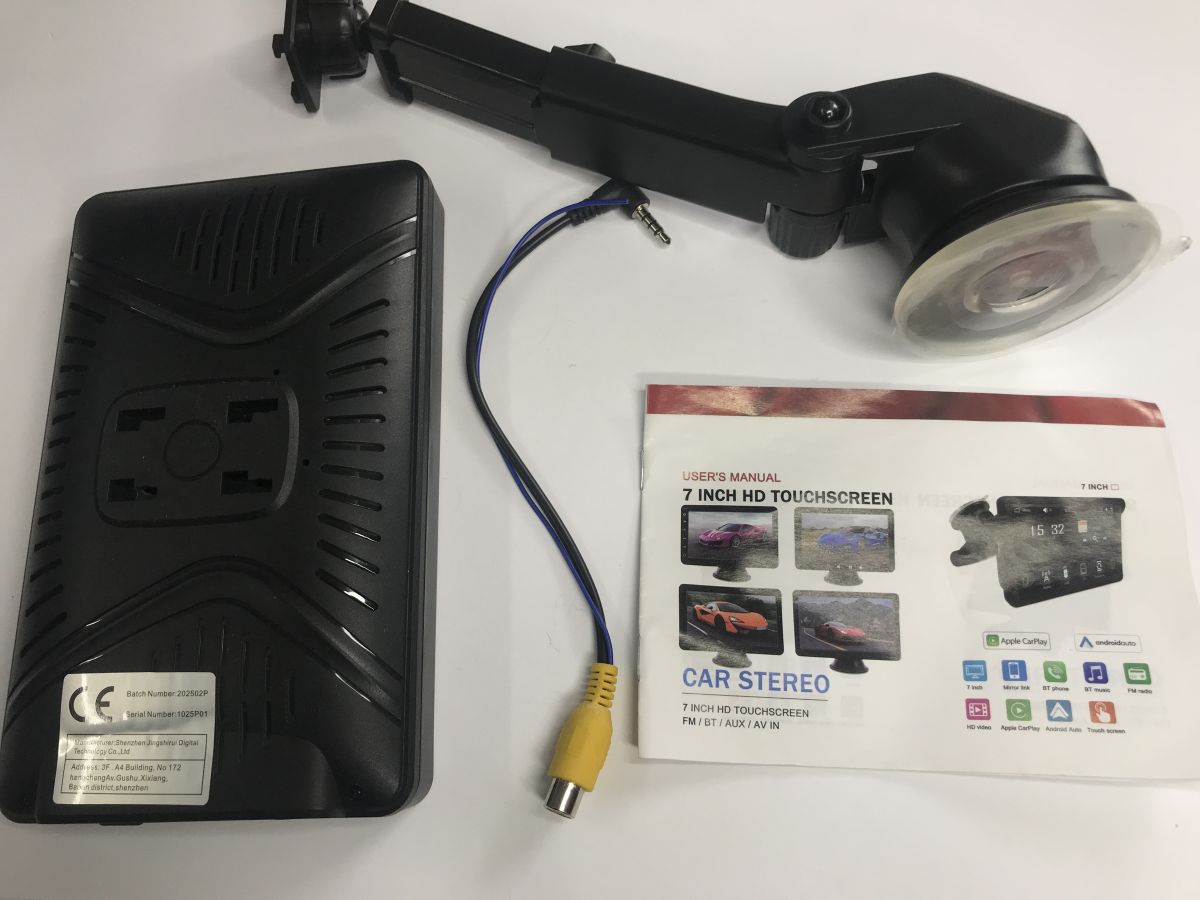
Let’s start with the contents of the pack. You get the 7-inch touchscreen itself, a sturdy and adjustable suction-cup mount for attaching to the windscreen or dashboard, an AV-IN adapter (3.5mm jack to RCA connector) for connecting an optional reversing camera, and a USB cable, which isn’t shown in the photo. And, of course, the instruction manual:
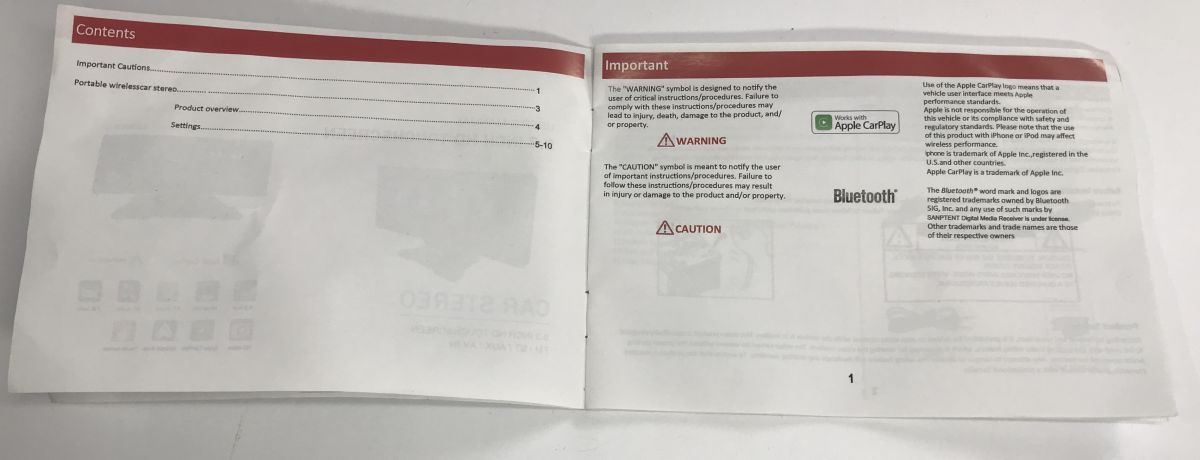
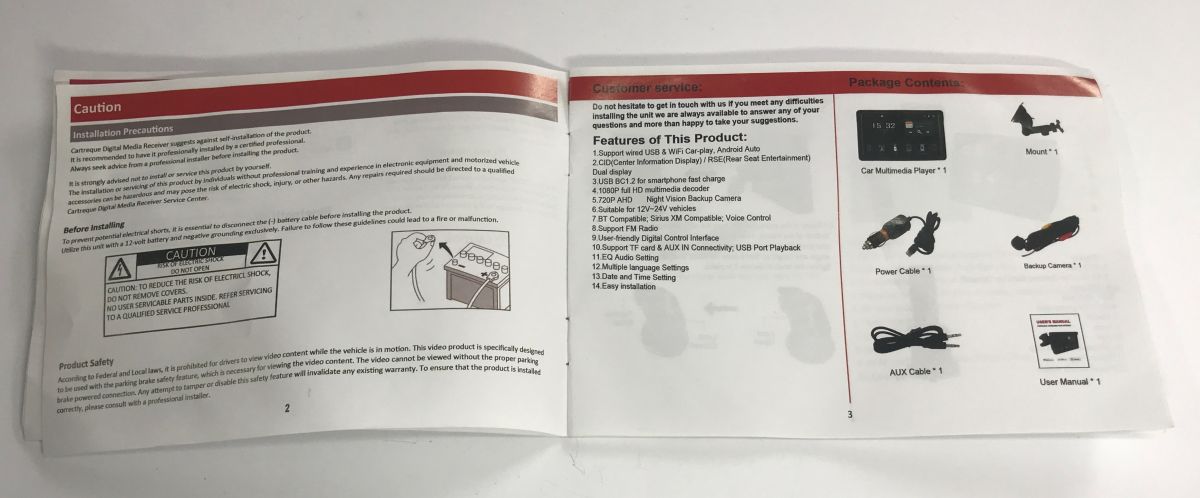
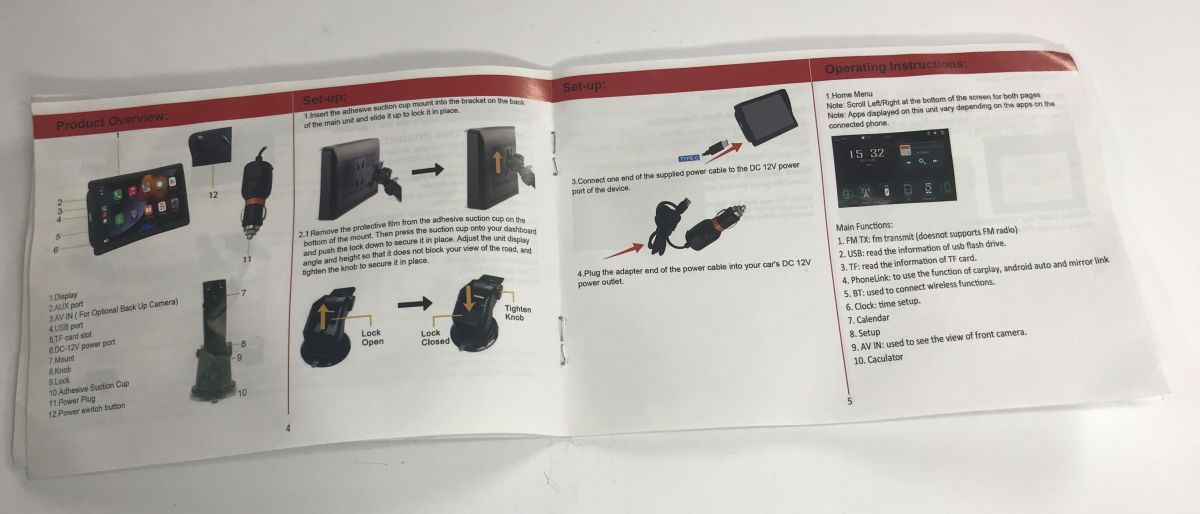
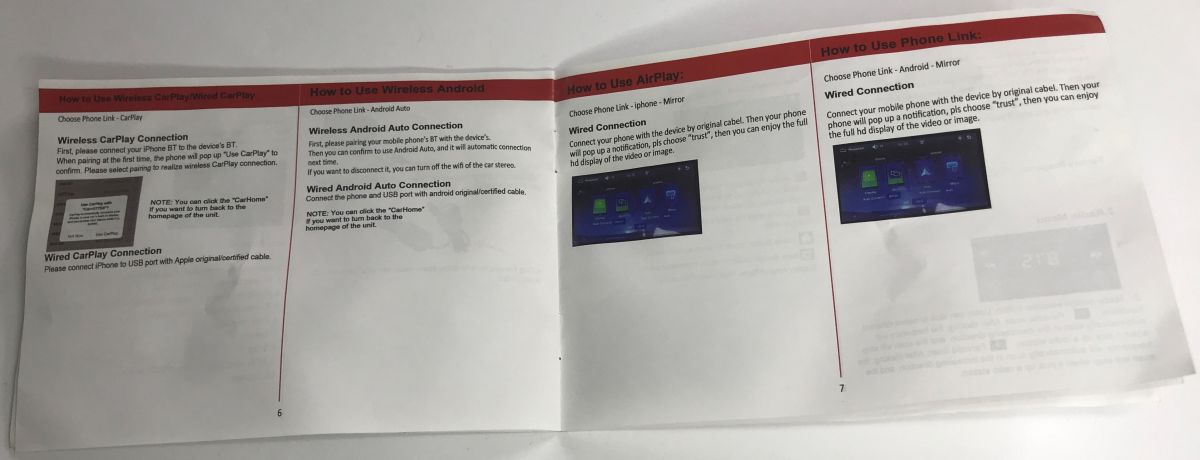
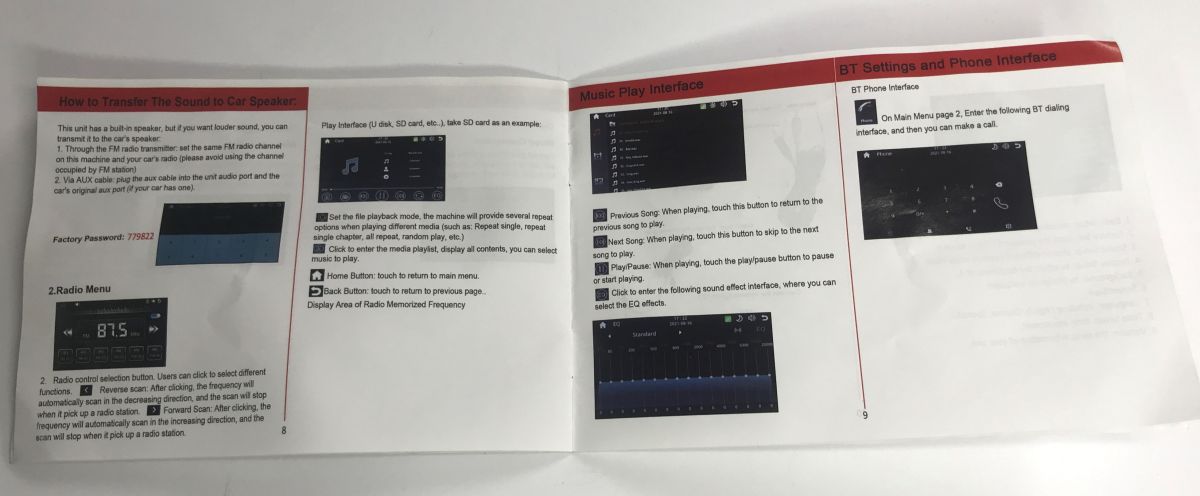
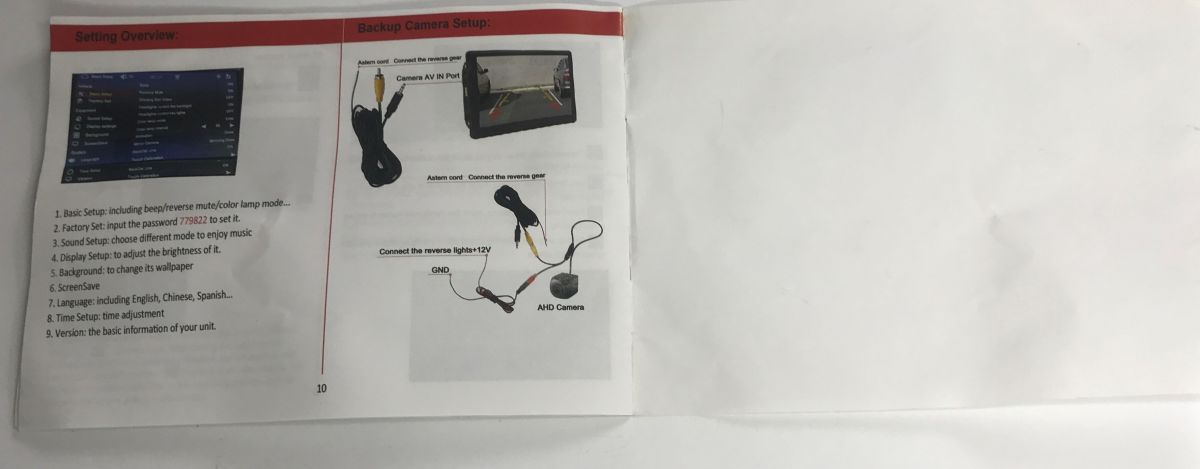
The manual tells us quite a lot about the device’s functionality. As well as full support for Android Auto and Apple CarPlay (both via a cable and via Wi-Fi/Bluetooth), the device offers, amongst other things, the PhoneLink function (phone screen mirroring – MirrorLink), multimedia playback from USB/TF memory cards, and support for a dedicated reversing camera. We also learn from it that we can send the audio back to our car’s speakers using the built-in FM transmitter (radio) or the AUX output. It also contains the factory password for the settings: 779822.
So let’s try pairing it.
Method 1 – cable:
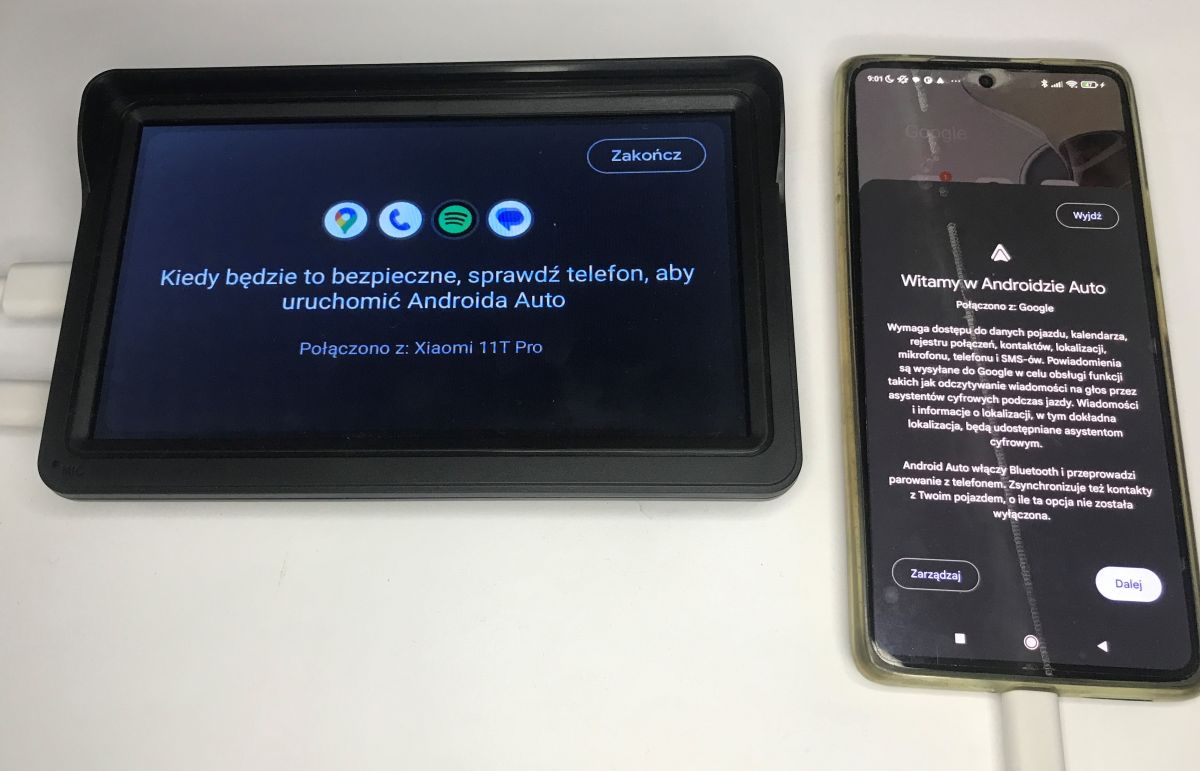
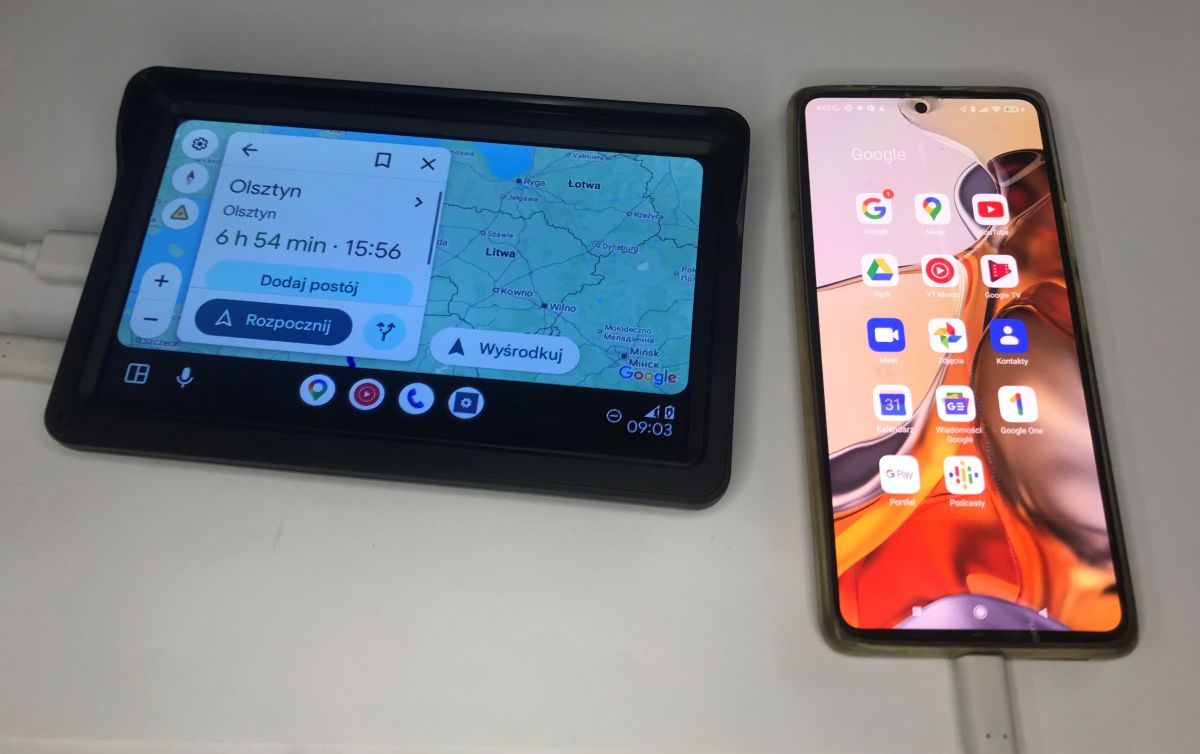
Wired pairing is very simple and works on a ‘plug & play’ basis. Simply connect your smartphone to the screen using a USB cable. A message will appear on the main unit confirming a successful connection with the phone (in my case, a Xiaomi 11T Pro), whilst on the smartphone screen itself, an Android Auto welcome message will pop up asking you to grant the necessary permissions (access to location, calendar, microphone, etc.). Once you’ve confirmed by tapping “Next”, the phone’s display will instantly switch to the large screen and you can immediately start using Google Maps, for example.
Method 2 – Bluetooth:
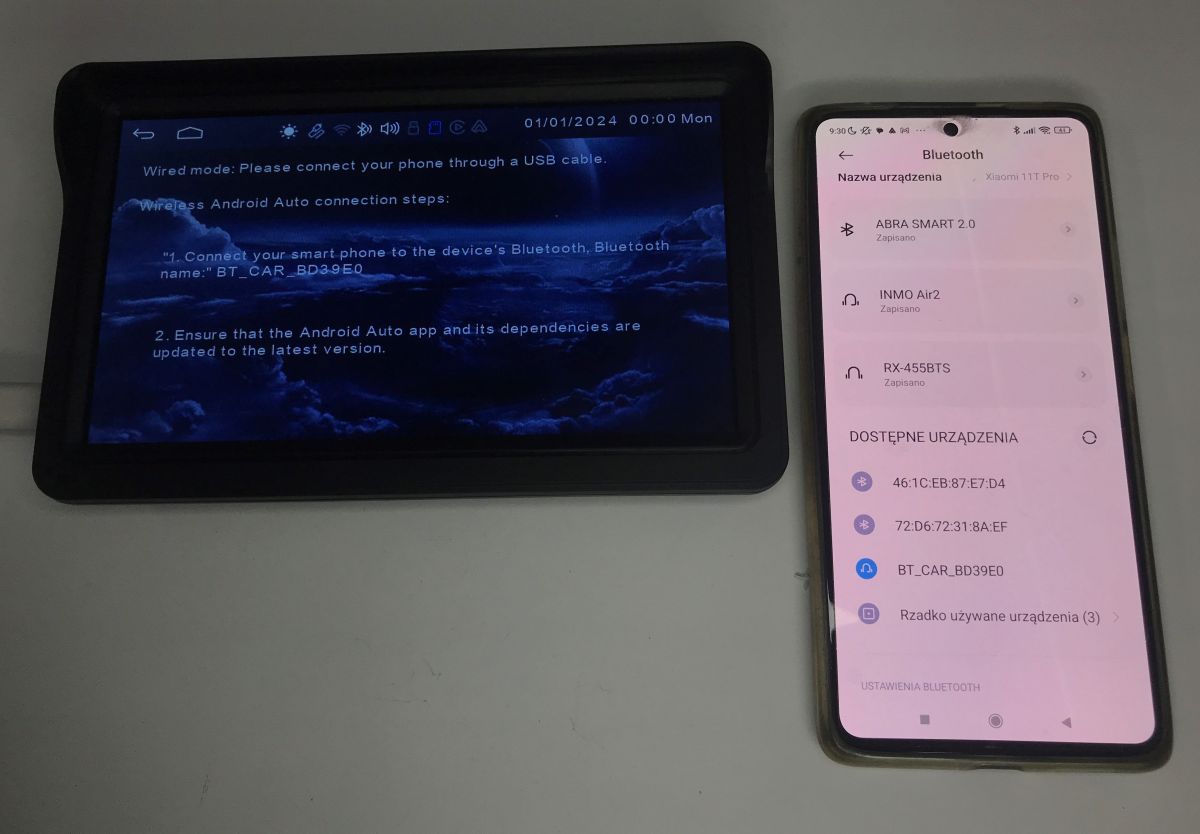
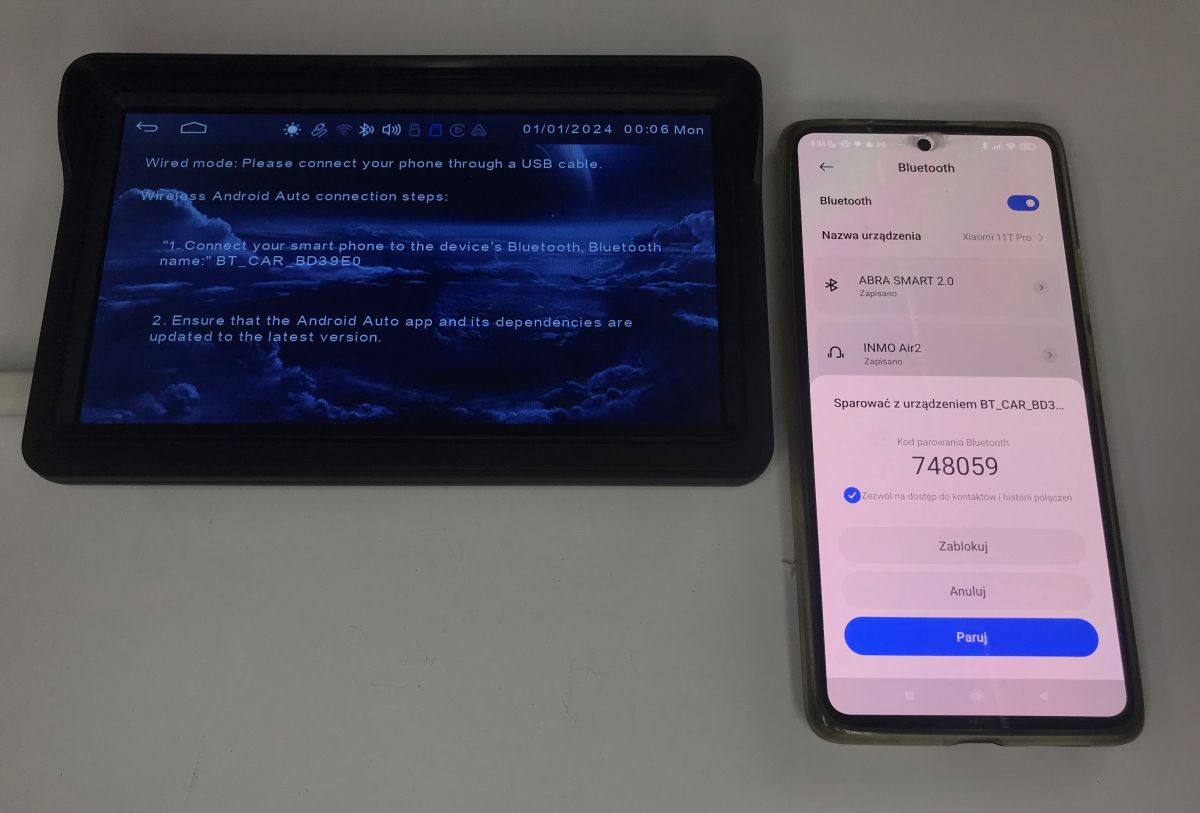
If you prefer convenience and a cable-free setup (Wireless Android Auto), select the appropriate wireless connection option from the on-screen menu, which will display brief instructions. The process simply involves finding the Bluetooth device with the specified name on your phone (in this model, it is “BT_CAR_BD39E0”). Once you tap this entry on your phone, a standard pop-up window with a pairing code will appear; here, you agree to grant access to your contacts and tap the “Pair” button. After a moment, a wireless connection is established, and from then on the device will connect to your phone automatically whenever you’re nearby.
Now the question is, what exactly does this device offer?
The main dashboard gives you convenient access to a range of compatible apps that you already have installed on your smartphone. The interface is designed to be easy to use whilst driving.
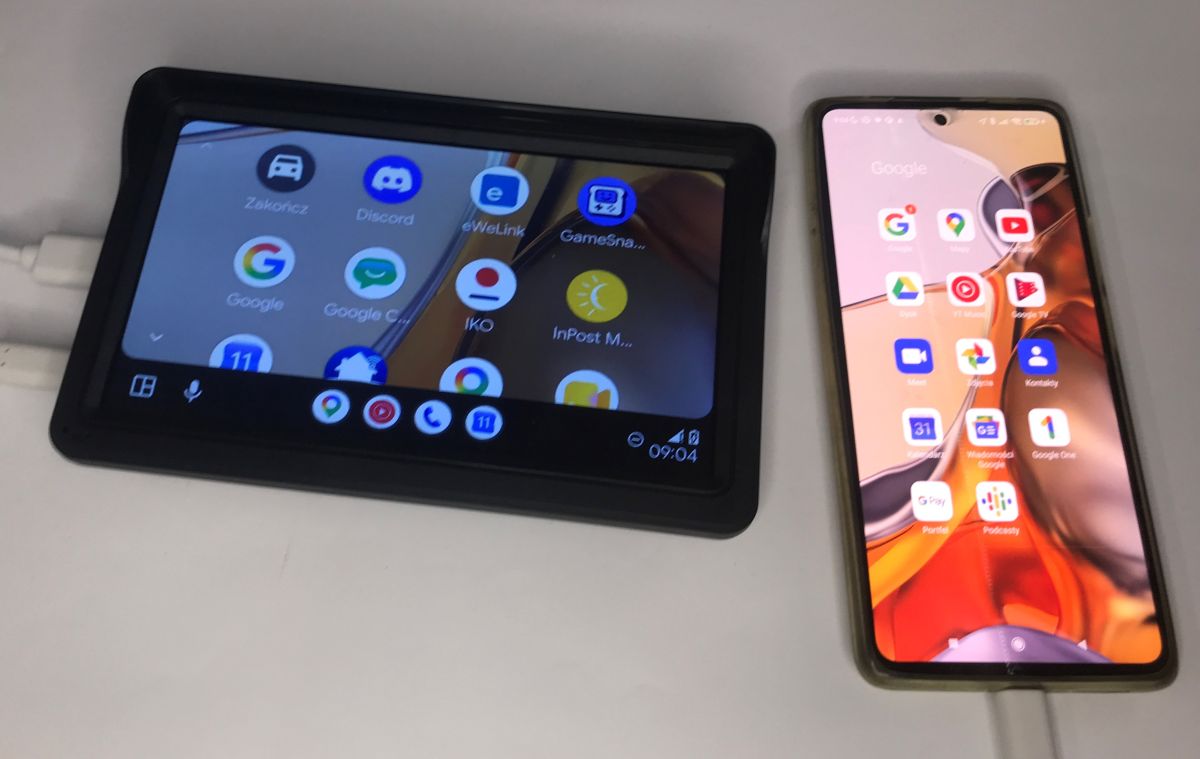
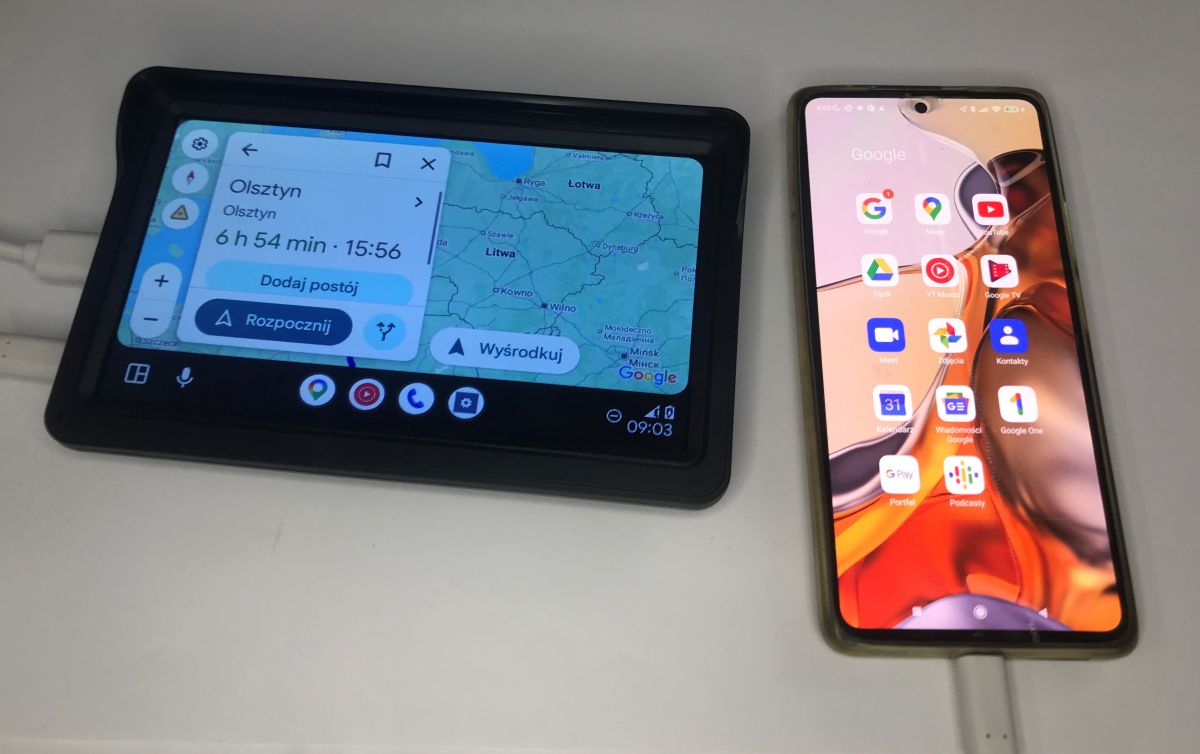
The most important and most frequently used feature is, of course, navigation. The screen is ideal for using Google Maps – the interface is easy to read, the directions are clear, and we can instantly check the route and journey time on the large screen without having to glance at the phone itself.
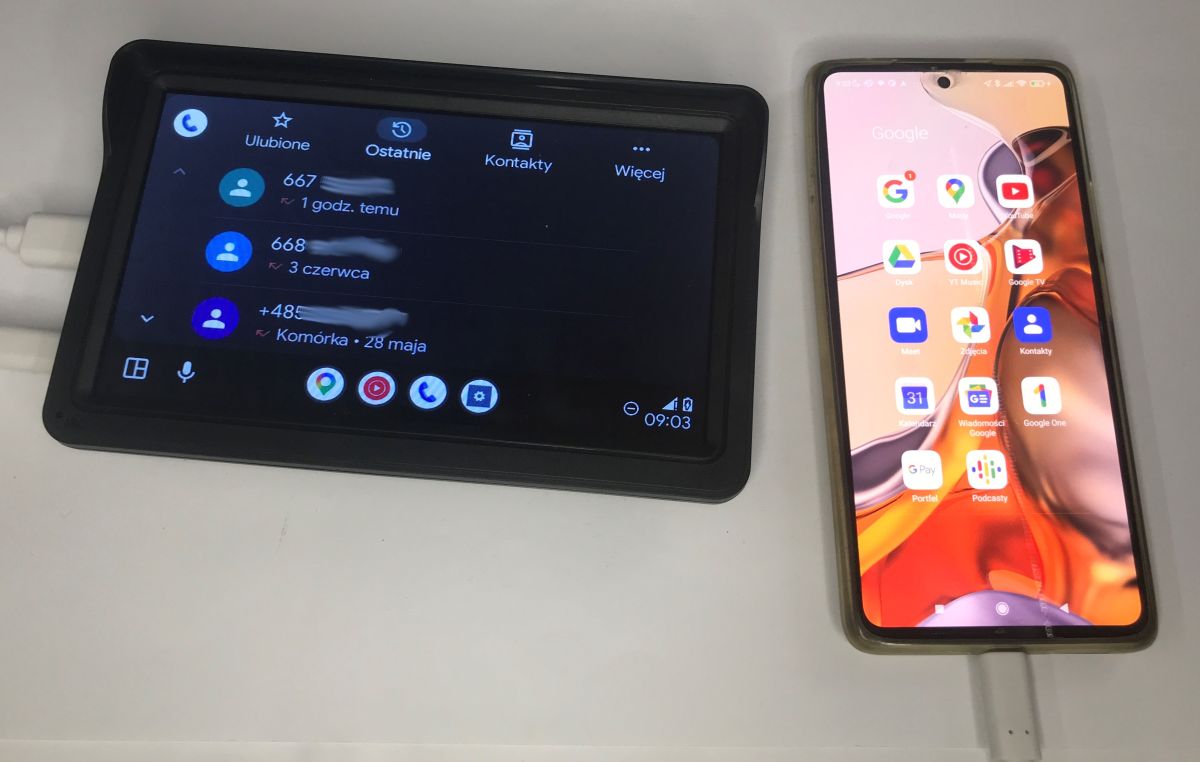
Another major advantage is the integration with your phone. You get a clear overview of your call history, quick access to your favourite contacts, and the large buttons make handling hands-free calls in the car incredibly simple.
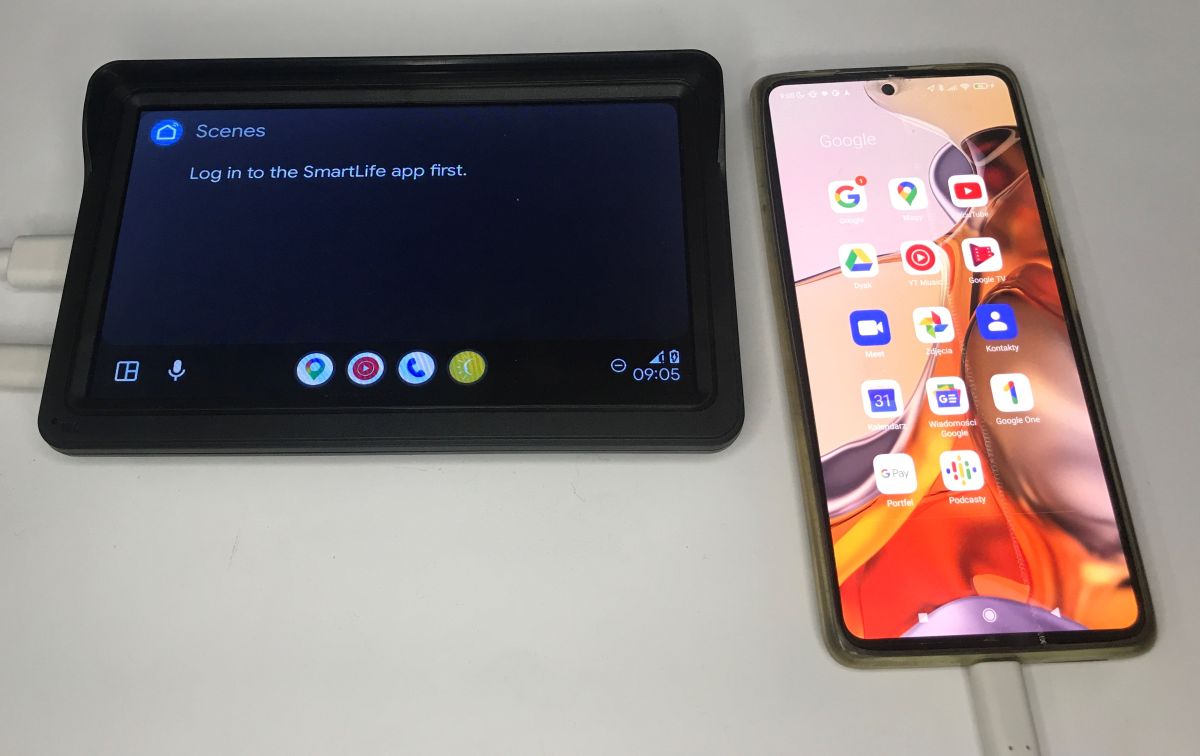
In addition, Android Auto offers a host of other integrations, some of which even surprised me. Using the in-car screen, you can, amongst other things, manage smart home scenes (via the SmartLife app), check directly within the system (via the InPost Mobile app) whether a parcel is waiting for you at a parcel locker, and receive notifications from messaging apps such as Discord.
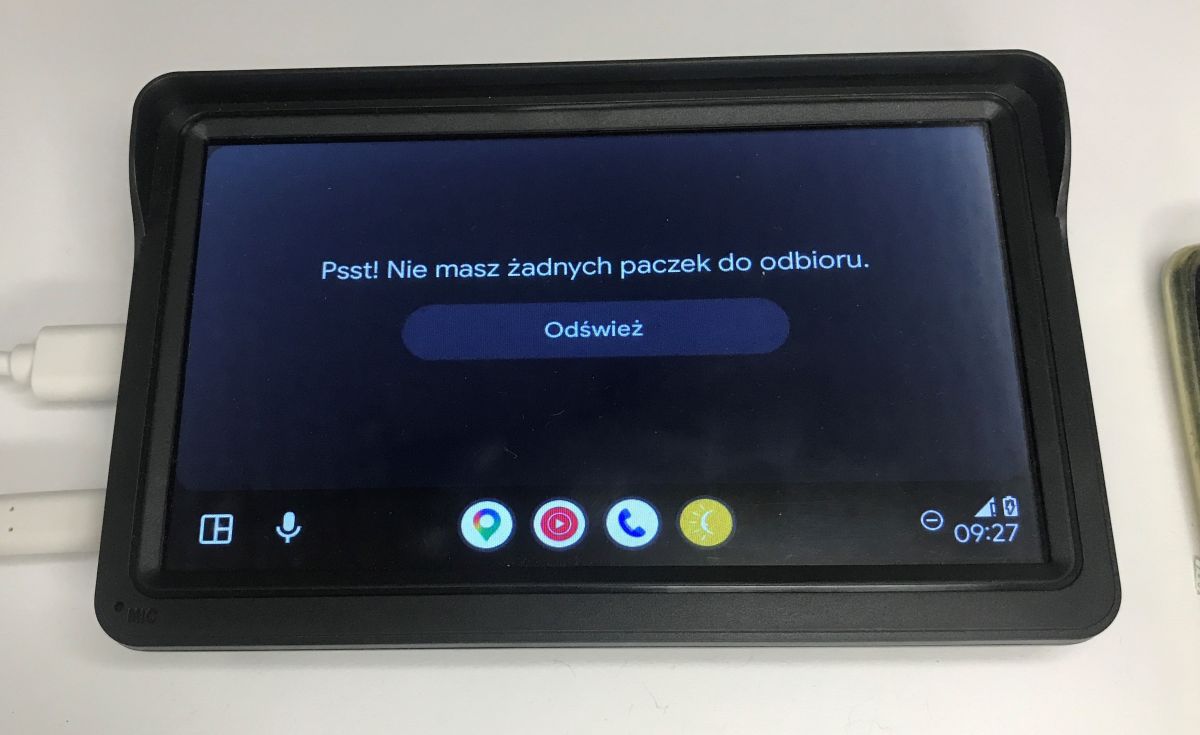
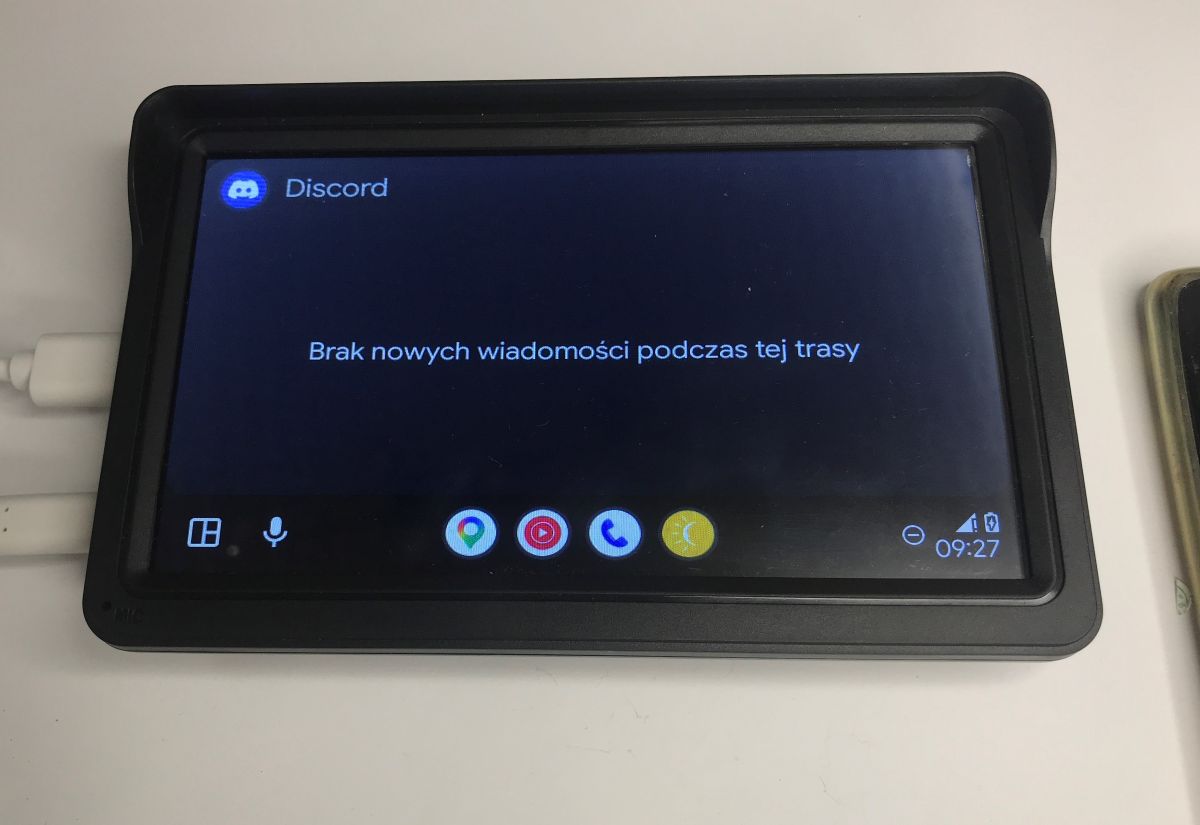
All in all, this Chinese screen surprisingly does the job, although the plastic itself undoubtedly feels cheap and low-quality. This doesn’t change the fact that it’s a simple and cheap (around 100 zł) solution for those who want to modernise their older car without having to dismantle the dashboard. What you get here is a fully functional Android Auto (and Apple CarPlay) system which, after very quick and simple pairing with your phone (via a cable or wirelessly via Bluetooth), offers access to the most important apps for your journey. You can conveniently use Google Maps navigation on the large 7-inch screen, safely answer calls, play music, and view notifications from messaging apps. Given its low price and the ease of fitting it to the windscreen using a suction cup, the device might be worth considering, although it’s hard not to acknowledge that a slightly larger screen doesn’t really make that much of a difference. What do you think? Do you use Android Auto?
p.kaczmarek2 wrote 14750 posts with
rating 12862 , helped 659 times.
Been with us since 2014 year.
Comments