logo elektroda
logo elektroda
X
logo elektroda

An additional display for phone navigation: Android Auto – how do you pair it? Tests and impressions

p.kaczmarek2 1731 5

TL;DR LABEL_AI_GENERATED

  • A low-cost 7-inch auxiliary display adds wired and wireless Android Auto and Apple CarPlay to an older car without dashboard disassembly.
  • Pairing works plug-and-play over USB, or wirelessly by Bluetooth pairing with “BT_CAR_BD39E0”; the display then reconnects automatically when the phone is nearby.
  • The kit cost just over 100 zł and includes a suction-cup mount, AV-IN adapter for a reversing camera, USB cable, FM transmitter, and AUX audio output.
  • A Xiaomi 11T Pro successfully ran Google Maps, calls, music, messaging notifications, SmartLife scenes, and InPost Mobile through the large touchscreen.
  • Cheap, low-quality plastic and only a modest screen-size benefit limit the appeal despite straightforward installation and functional Android Auto.
AI summary based on the discussion. May contain errors.
ADVERTISEMENT
This content has been translated flag-pl » flag-en View the original version here
Listen:
  • An additional display for phone navigation: Android Auto – how do you pair it? Tests and impressions
    What is Android Auto and how do you pair it with your phone? Android Auto is an app and standard developed by Google that allows you to transfer key smartphone functions (such as GPS navigation, music player, messaging apps and voice assistant) directly to your car’s screen. This makes using your phone whilst driving much easier and safer.

    In this particular case, the demonstration will be based on an Android Auto-compatible auxiliary display kit, purchased for just over 100 zł with free delivery from China.
    An additional display for phone navigation: Android Auto – how do you pair it? Tests and impressions
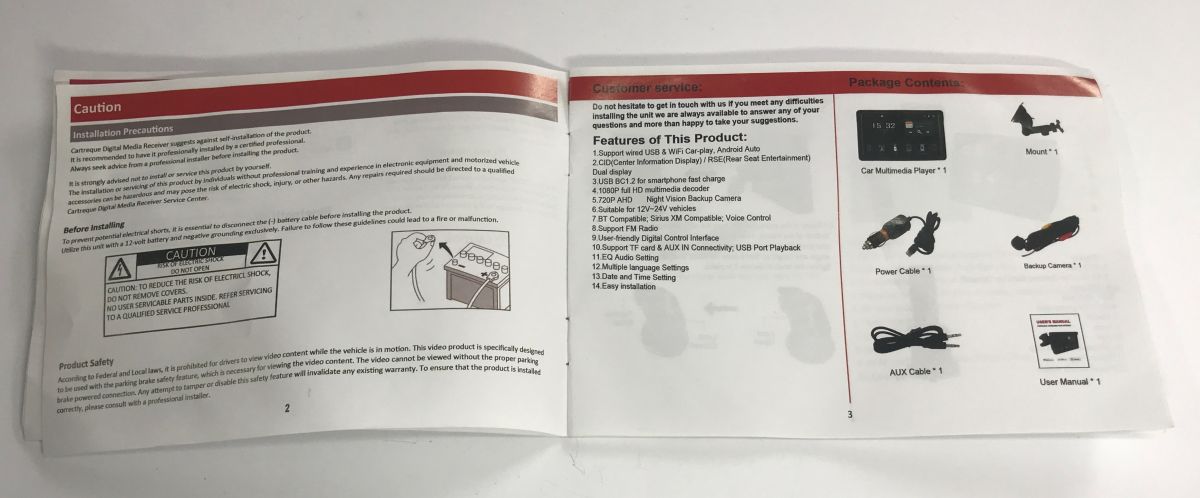
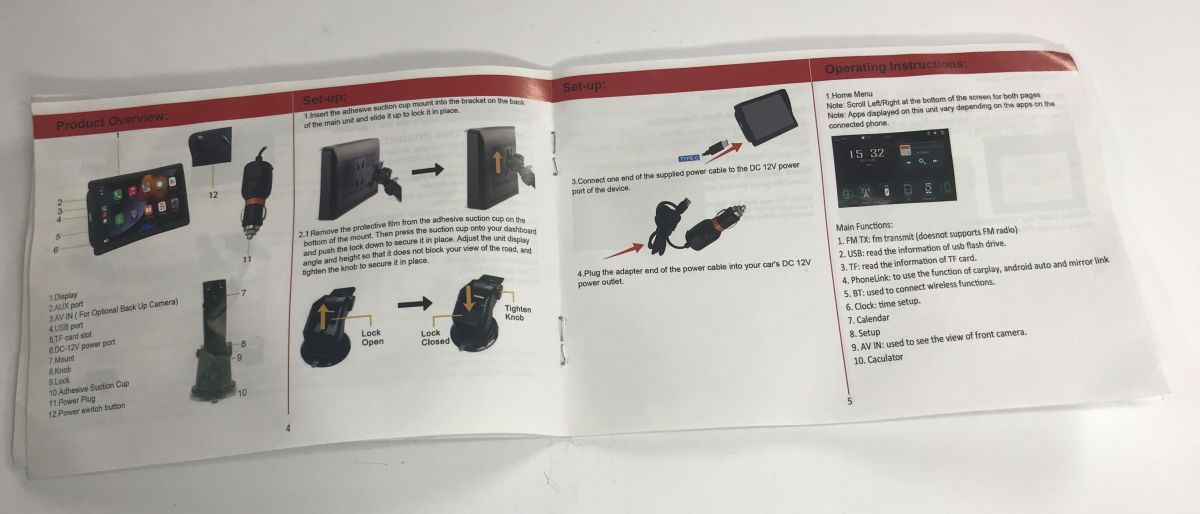
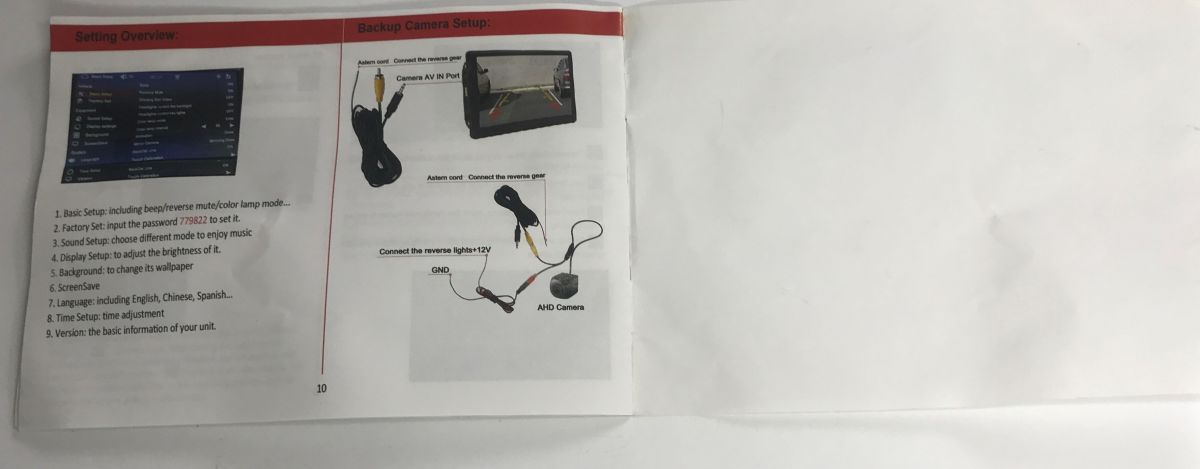
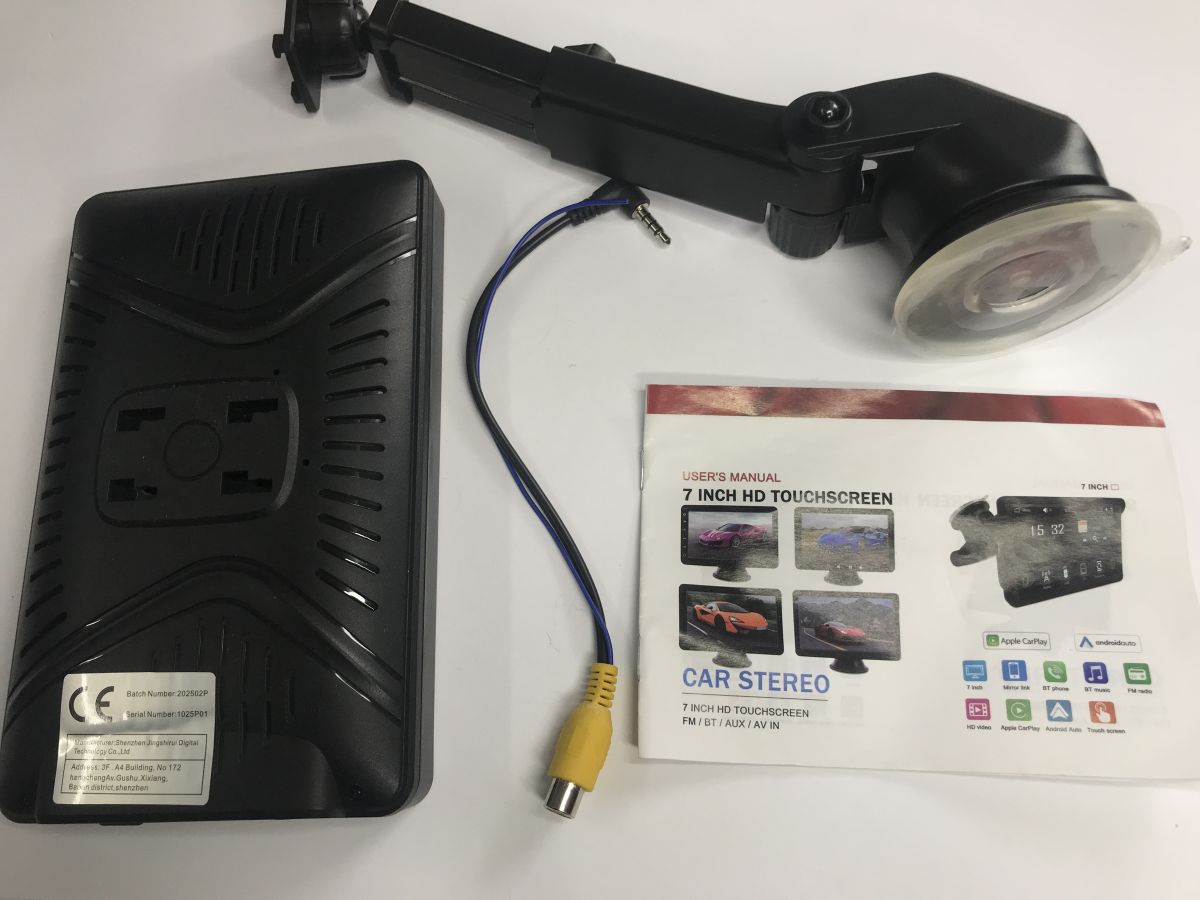
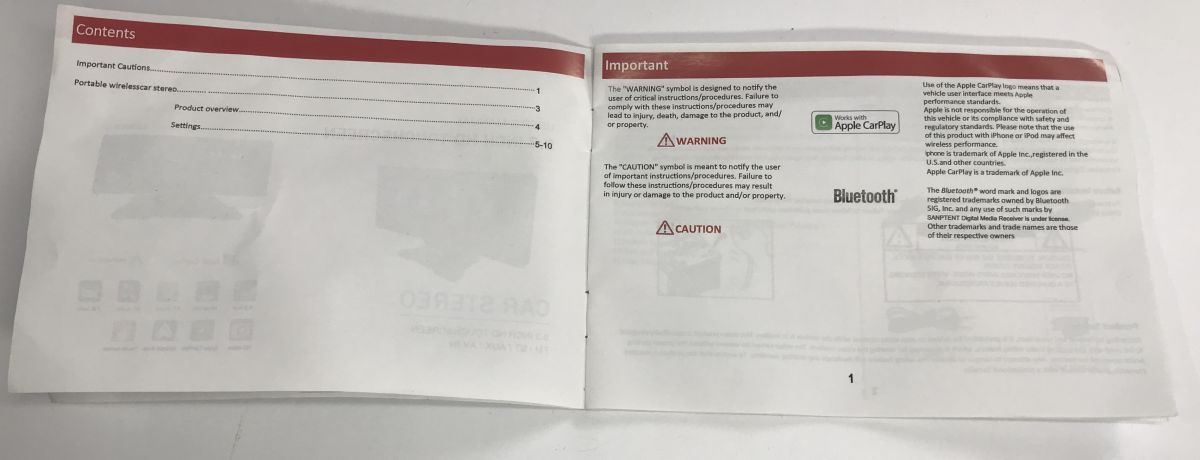
    Let’s start with the contents of the pack. You get the 7-inch touchscreen itself, a sturdy and adjustable suction-cup mount for attaching to the windscreen or dashboard, an AV-IN adapter (3.5mm jack to RCA connector) for connecting an optional reversing camera, and a USB cable, which isn’t shown in the photo. And, of course, the instruction manual:
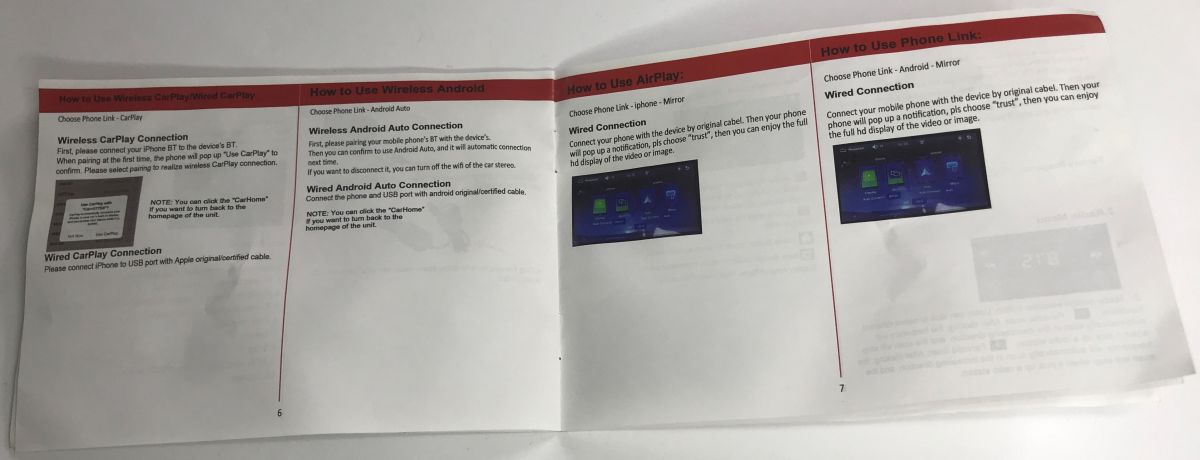
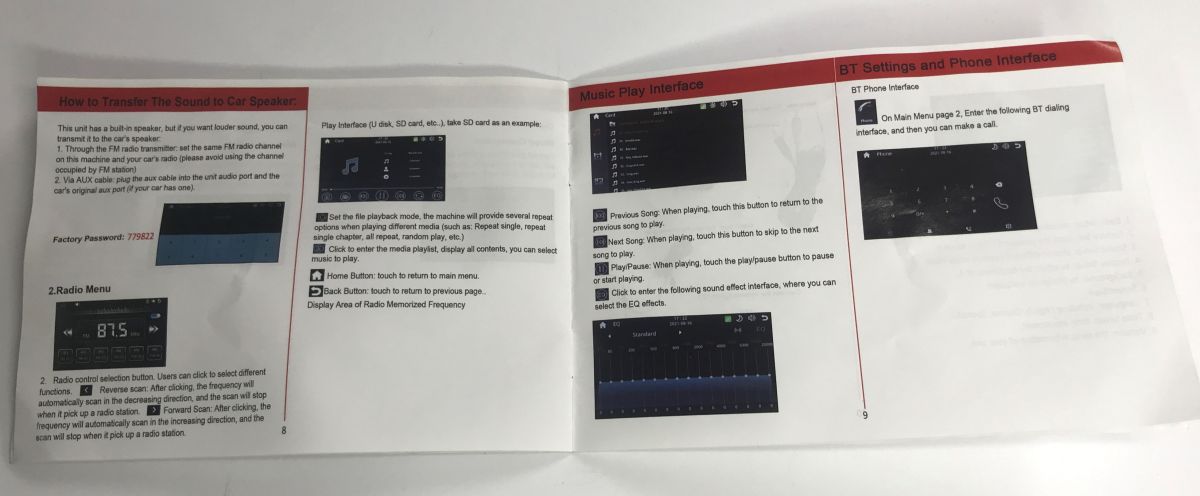
    An additional display for phone navigation: Android Auto – how do you pair it? Tests and impressions An additional display for phone navigation: Android Auto – how do you pair it? Tests and impressions An additional display for phone navigation: Android Auto – how do you pair it? Tests and impressions
    An additional display for phone navigation: Android Auto – how do you pair it? Tests and impressions An additional display for phone navigation: Android Auto – how do you pair it? Tests and impressions An additional display for phone navigation: Android Auto – how do you pair it? Tests and impressions
    The manual tells us quite a lot about the device’s functionality. As well as full support for Android Auto and Apple CarPlay (both via a cable and via Wi-Fi/Bluetooth), the device offers, amongst other things, the PhoneLink function (phone screen mirroring – MirrorLink), multimedia playback from USB/TF memory cards, and support for a dedicated reversing camera. We also learn from it that we can send the audio back to our car’s speakers using the built-in FM transmitter (radio) or the AUX output. It also contains the factory password for the settings: 779822.

    So let’s try pairing it.

    Method 1 – cable:
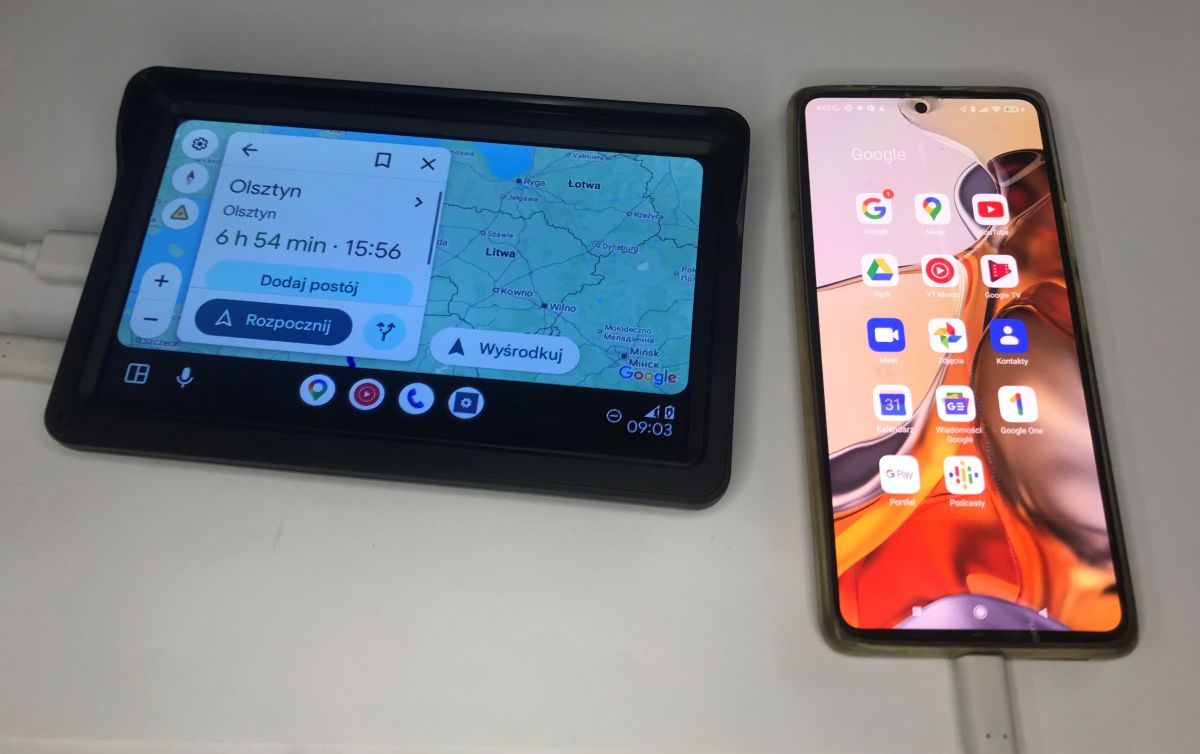
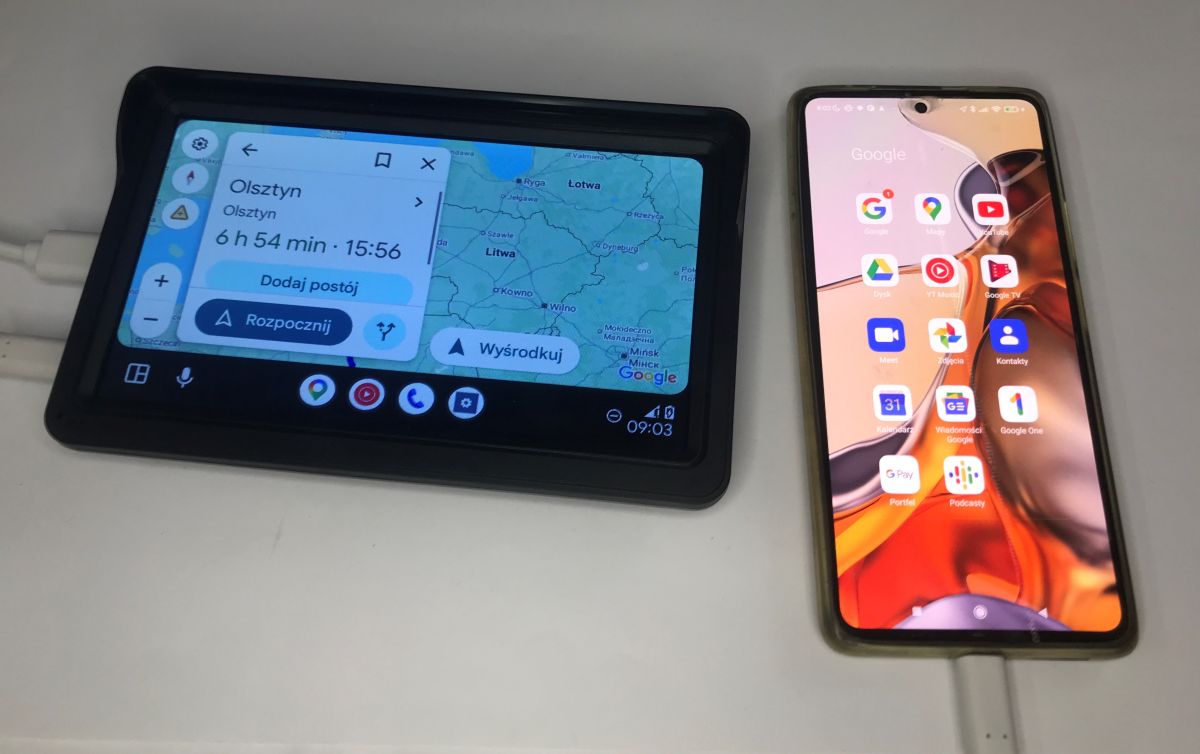
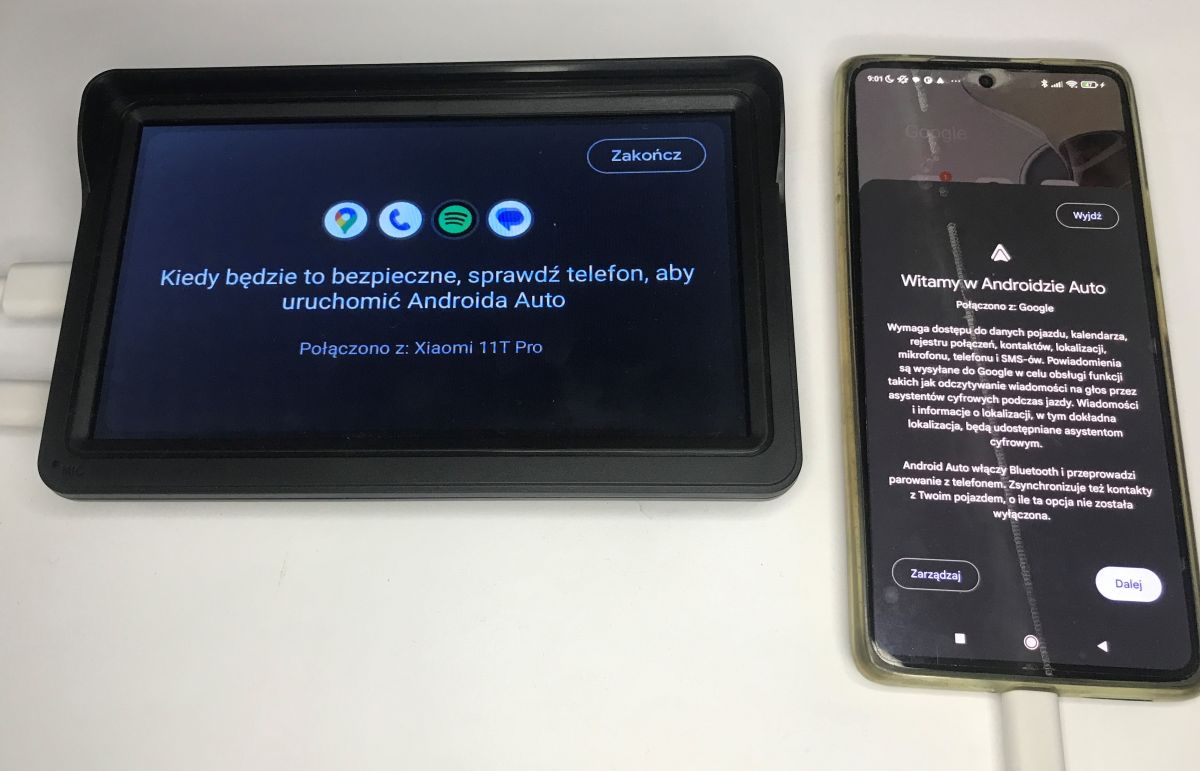
    Wired pairing is very simple and works on a ‘plug & play’ basis. Simply connect your smartphone to the screen using a USB cable. A message will appear on the main unit confirming a successful connection with the phone (in my case, a Xiaomi 11T Pro), whilst on the smartphone screen itself, an Android Auto welcome message will pop up asking you to grant the necessary permissions (access to location, calendar, microphone, etc.). Once you’ve confirmed by tapping “Next”, the phone’s display will instantly switch to the large screen and you can immediately start using Google Maps, for example.
    An additional display for phone navigation: Android Auto – how do you pair it? Tests and impressions An additional display for phone navigation: Android Auto – how do you pair it? Tests and impressions


    Method 2 – Bluetooth:
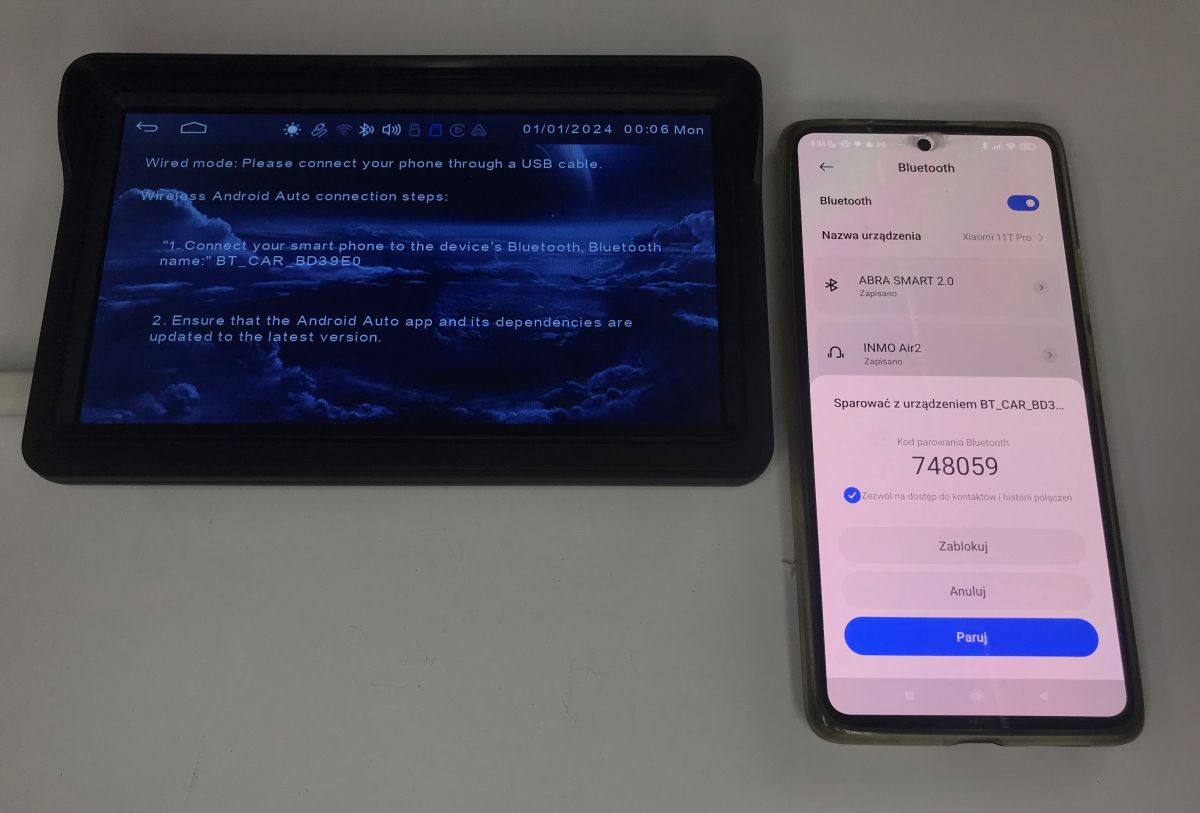
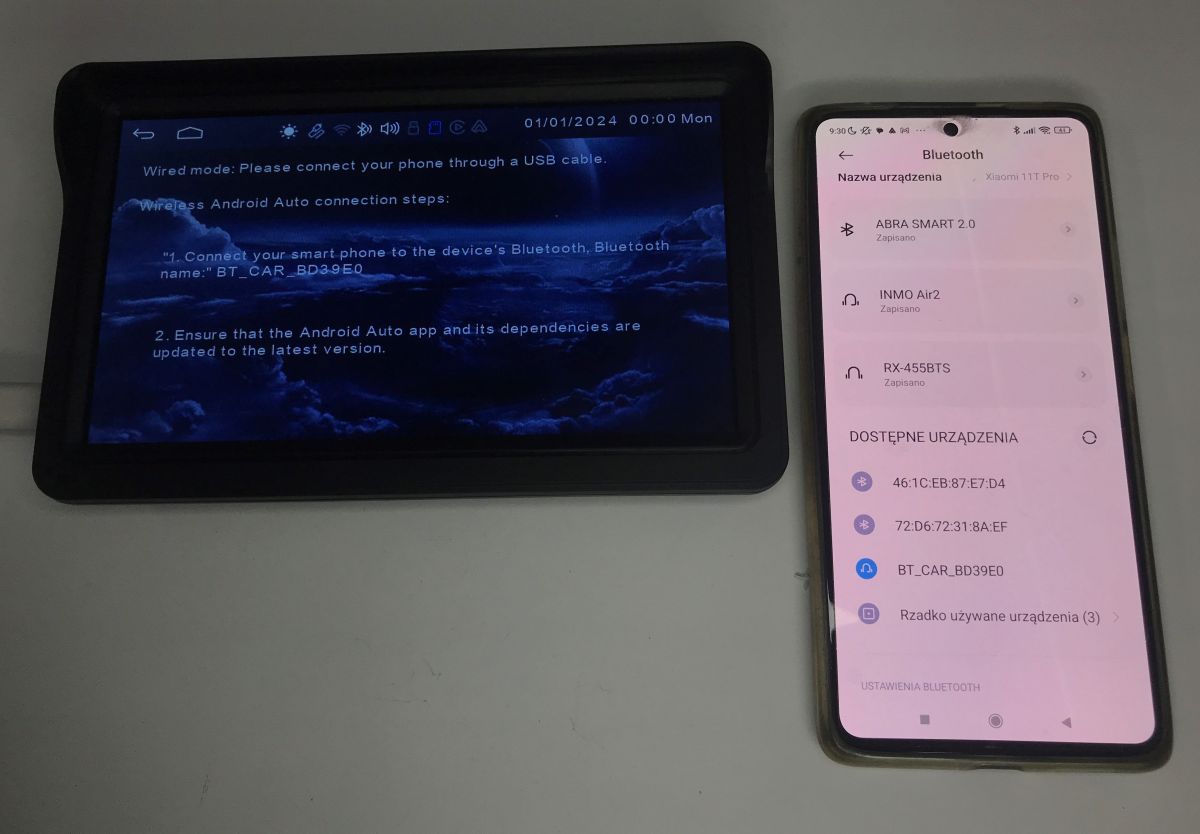
    If you prefer convenience and a cable-free setup (Wireless Android Auto), select the appropriate wireless connection option from the on-screen menu, which will display brief instructions. The process simply involves finding the Bluetooth device with the specified name on your phone (in this model, it is “BT_CAR_BD39E0”). Once you tap this entry on your phone, a standard pop-up window with a pairing code will appear; here, you agree to grant access to your contacts and tap the “Pair” button. After a moment, a wireless connection is established, and from then on the device will connect to your phone automatically whenever you’re nearby.
    An additional display for phone navigation: Android Auto – how do you pair it? Tests and impressions An additional display for phone navigation: Android Auto – how do you pair it? Tests and impressions

    Now the question is, what exactly does this device offer?

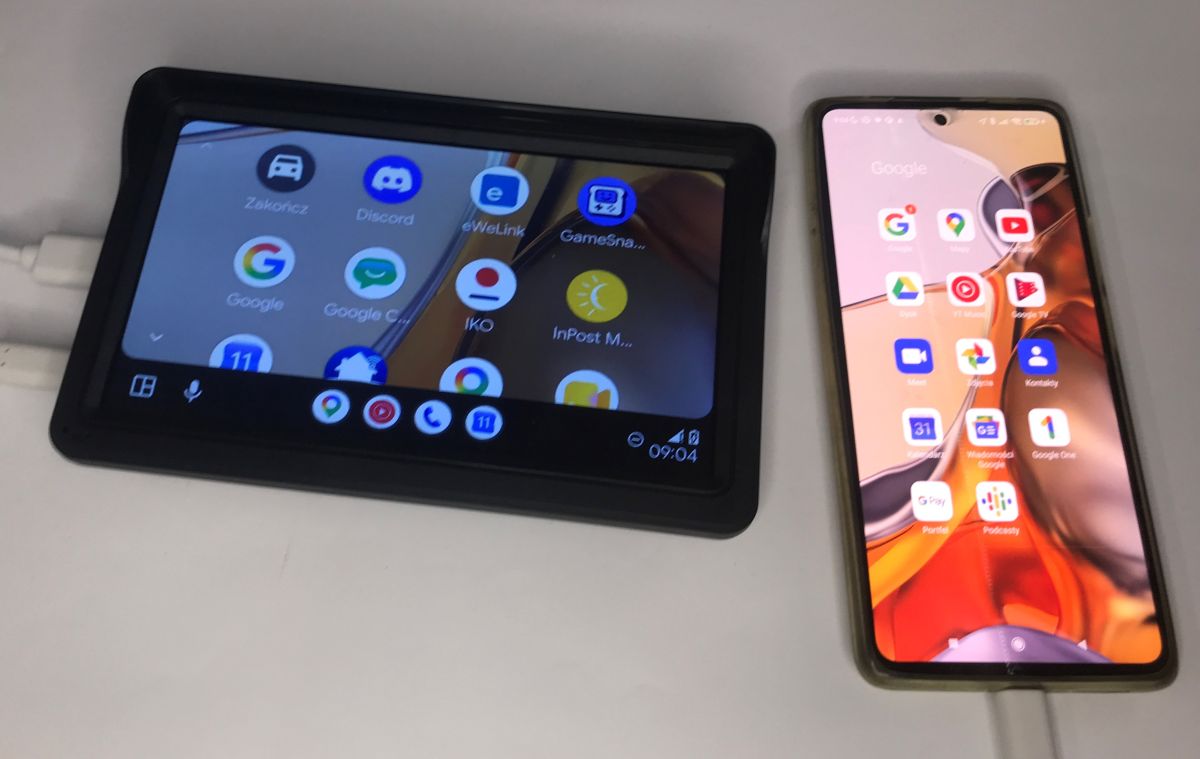
    The main dashboard gives you convenient access to a range of compatible apps that you already have installed on your smartphone. The interface is designed to be easy to use whilst driving.
    An additional display for phone navigation: Android Auto – how do you pair it? Tests and impressions
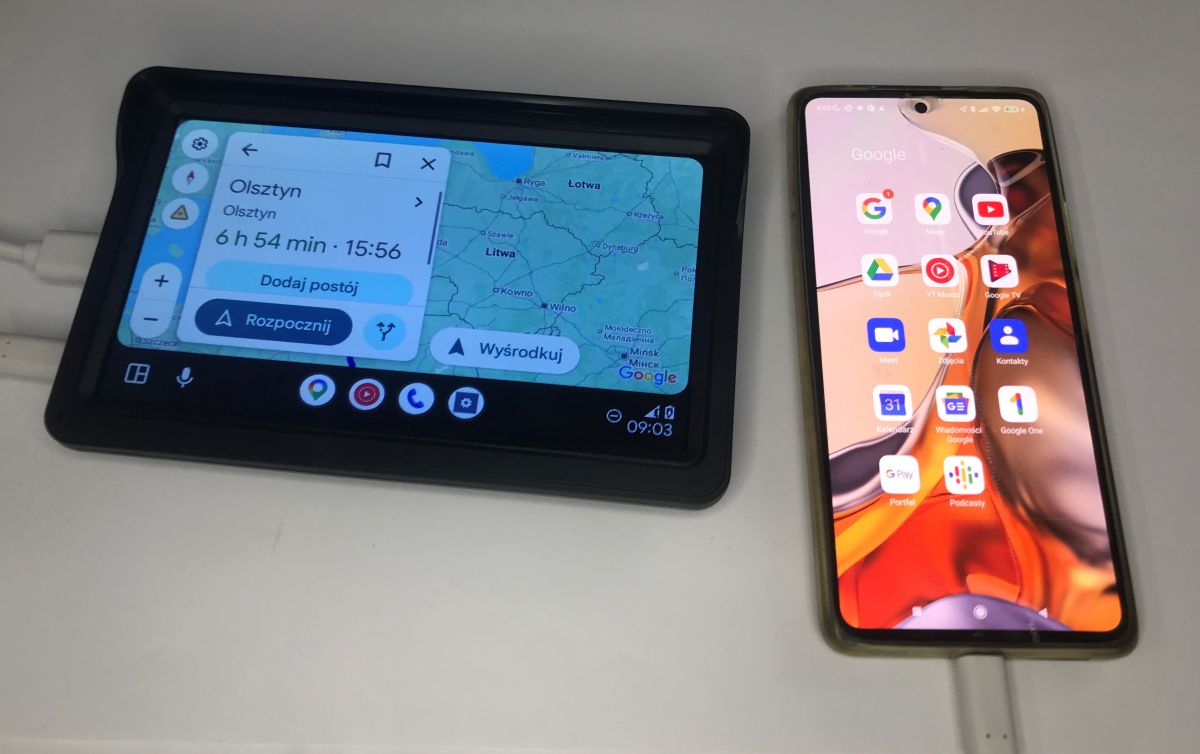
    The most important and most frequently used feature is, of course, navigation. The screen is ideal for using Google Maps – the interface is easy to read, the directions are clear, and we can instantly check the route and journey time on the large screen without having to glance at the phone itself.
    An additional display for phone navigation: Android Auto – how do you pair it? Tests and impressions
    Another major advantage is the integration with your phone. You get a clear overview of your call history, quick access to your favourite contacts, and the large buttons make handling hands-free calls in the car incredibly simple.
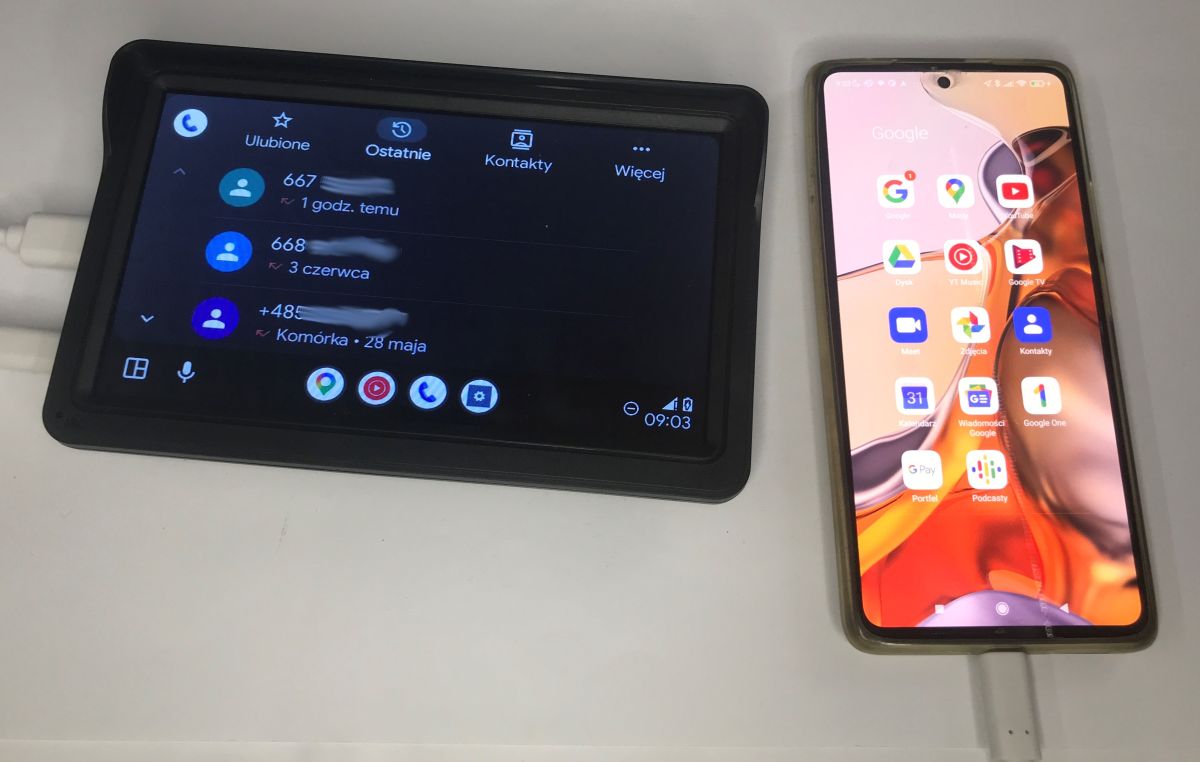
    An additional display for phone navigation: Android Auto – how do you pair it? Tests and impressions
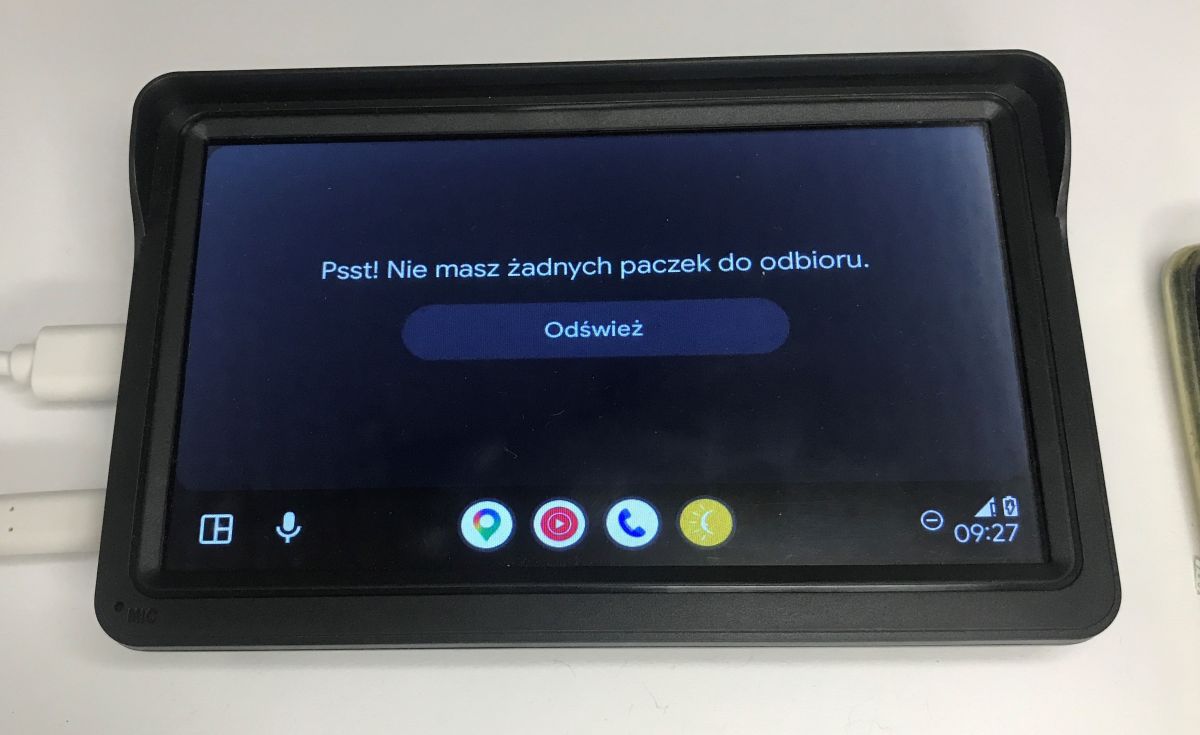
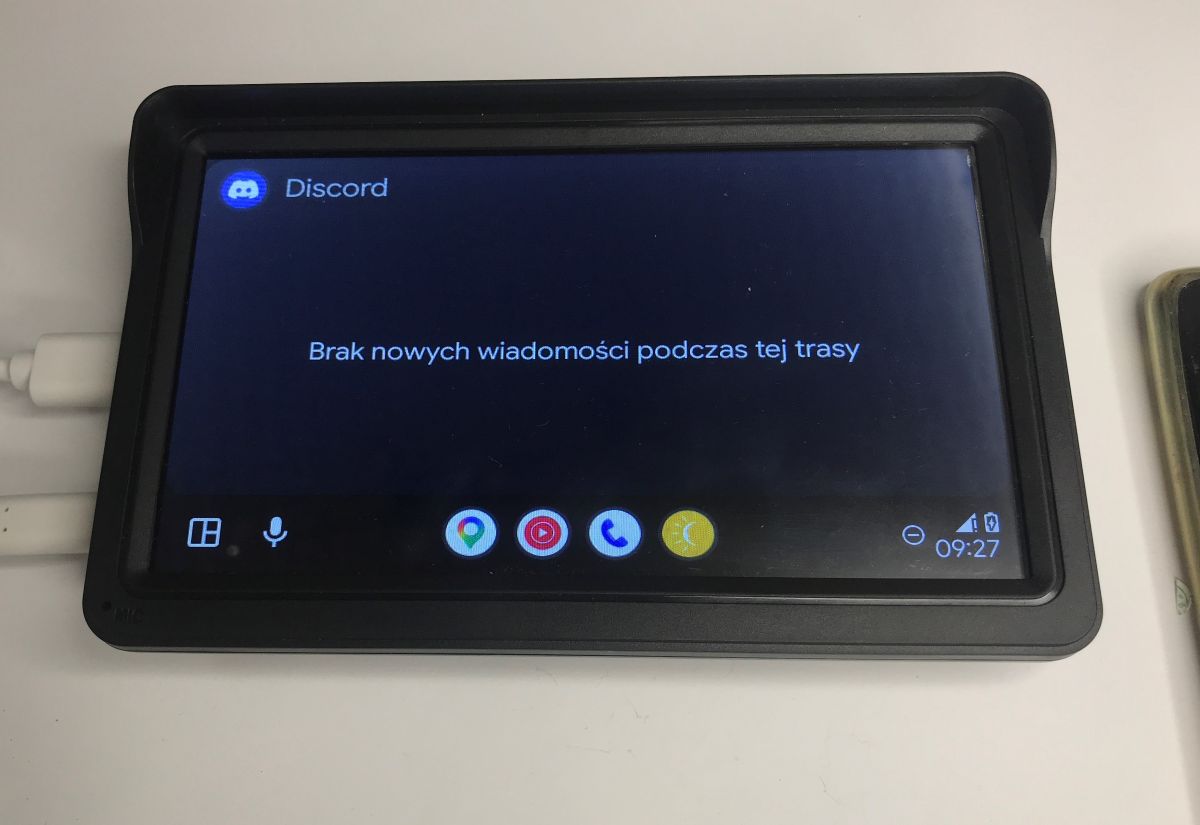
    In addition, Android Auto offers a host of other integrations, some of which even surprised me. Using the in-car screen, you can, amongst other things, manage smart home scenes (via the SmartLife app), check directly within the system (via the InPost Mobile app) whether a parcel is waiting for you at a parcel locker, and receive notifications from messaging apps such as Discord.
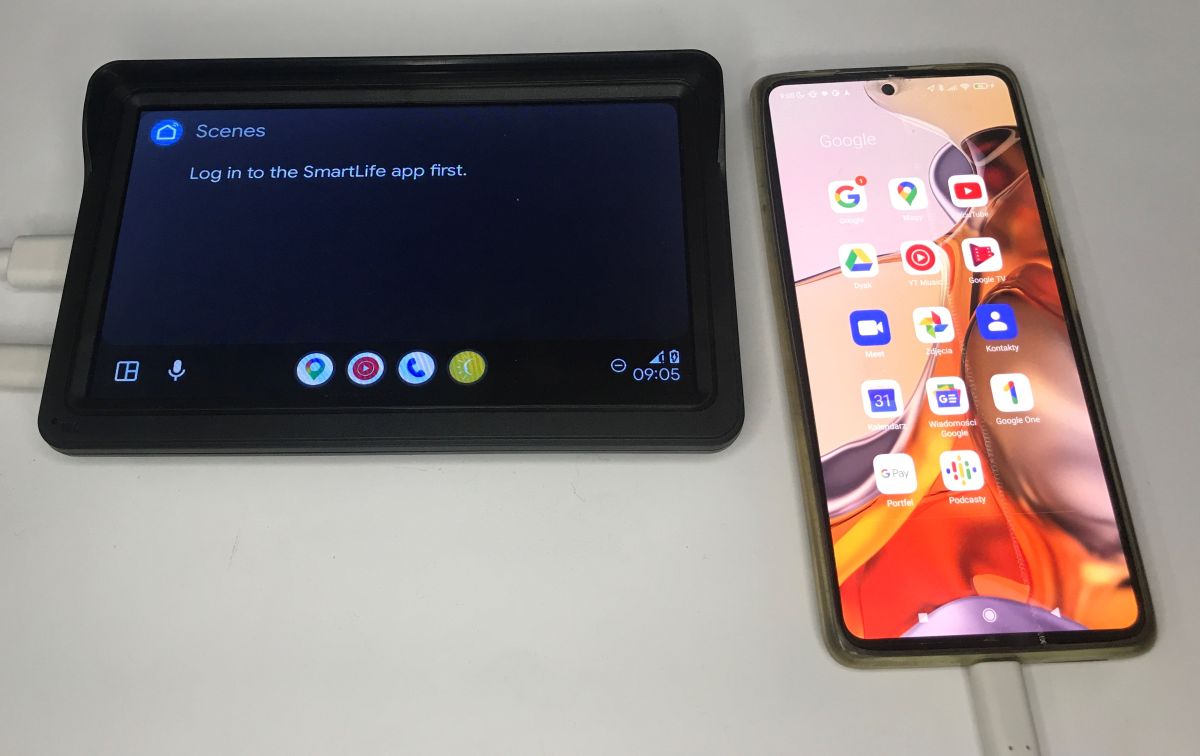
    An additional display for phone navigation: Android Auto – how do you pair it? Tests and impressions An additional display for phone navigation: Android Auto – how do you pair it? Tests and impressions Car display with Android Auto showing Discord notifications and a message saying no new messages during this trip


    All in all, this Chinese screen surprisingly does the job, although the plastic itself undoubtedly feels cheap and low-quality. This doesn’t change the fact that it’s a simple and cheap (around 100 zł) solution for those who want to modernise their older car without having to dismantle the dashboard. What you get here is a fully functional Android Auto (and Apple CarPlay) system which, after very quick and simple pairing with your phone (via a cable or wirelessly via Bluetooth), offers access to the most important apps for your journey. You can conveniently use Google Maps navigation on the large 7-inch screen, safely answer calls, play music, and view notifications from messaging apps. Given its low price and the ease of fitting it to the windscreen using a suction cup, the device might be worth considering, although it’s hard not to acknowledge that a slightly larger screen doesn’t really make that much of a difference. What do you think? Do you use Android Auto?

    Cool? Ranking DIY
    Helpful post? Buy me a coffee.
    About Author
    p.kaczmarek2
    Moderator Smart Home
    Offline 
    p.kaczmarek2 wrote 14803 posts with rating 12965, helped 659 times. Been with us since 2014 year.
  • ADVERTISEMENT
  • #2 21946876
    chemik_16
    Level 27  
    Posts: 1001
    Help: 75
    Rate: 129
    I’ve still got a 10-inch one connected in the car, but I stopped using it after a few days. It never seems to be able to switch between day and night modes on the maps (it works fine on my phone)
    and the real deal-breaker is that it doesn’t show my current speed. What’s the point of Android Auto then...
  • ADVERTISEMENT
  • #3 21946904
    kacper69
    Level 16  
    Posts: 257
    Help: 7
    Rate: 61
    This screen is only a tad bigger than that smartphone.
    Is it worth getting into this?
  • ADVERTISEMENT
  • CarPlay screen placement affects driver distraction

    #4 21946959
    sanfran
    Network and Internet specialist
    Posts: 10010
    Help: 966
    Rate: 3007
    Just a quick note. I’ve got Apple CarPlay in my Mazda. But it’s not touchscreen, because… it’s too far away. Here’s a photo.
    An additional display for phone navigation: Android Auto – how do you pair it? Tests and impressions

    And indeed, having to lean towards the display is very distracting. You operate it using a large dial on the centre console, which is actually quite convenient.

    For comparison, here’s a photo from a Fiat I hired on holiday; there, the screen is much closer, just a few air vents and the emergency button away.
    An additional display for phone navigation: Android Auto – how do you pair it? Tests and impressions

    It’s true that using CarPlay (I don’t know about Android, but I imagine it’s similar) is more tailored to the driver than using a smartphone directly, but the screen’s poor positioning can do more harm than good.
  • ADVERTISEMENT
  • Hands-free display avoids phone-use police penalties

    #5 21947930
    tomeeh
    Level 24  
    Posts: 707
    Help: 46
    Rate: 92
    I agree that a display like this isn’t much bigger than the one on a mobile phone, but I think it’s worth highlighting one more aspect that we haven’t discussed:
    Namely, whilst driving, a police officer won’t take issue with us swiping our finger across it, whereas with a mobile phone it would be a completely different matter.
    So I’m in favour of this solution to avoid any trouble with the police.
  • External Android Auto screen offers convenient, smooth phone integration

    #6 21947965
    error105
    Level 14  
    Posts: 481
    Help: 1
    Rate: 146
    chemik_16 wrote:
    I’ve also got a 10-inch one connected in my car, but I stopped using it after a few days. It never manages to adjust the day/night mode on the maps (it works fine on my phone)
    and the real deal-breaker is that it doesn’t show my current speed. Who needs that Android


    I’ve got one and use it with my iPhone, and I’ve got to admit it’s miles better than the factory CarPlay in my Corolla22.... Everything switches over smoothly and quickly.

    As for current speed, well, I use the factory speedometer for that :D

    kacper69 wrote:
    This screen is only a tad bigger than that smartphone’s.
    Is it worth getting into this?

    Yes, because, for example, I often keep my phone in my pocket, get into the car and don’t think about taking it out and mounting it in a holder or something.
Listen:
ADVERTISEMENT