Govee TV Backlight 3 Lite is a camera-based LED backlight kit tested on a 42-inch TV for screen-matched ambient lighting.
A top-mounted camera reads the picture, while the app uses simple edge selection and orange calibration blocks to map the strip without HDMI dependence.
The kit includes a 12V 2A power supply, supports 2.4 GHz Wi‑Fi, Matter, Alexa and Google Home, and uses RGBW LEDs with a separate white channel.
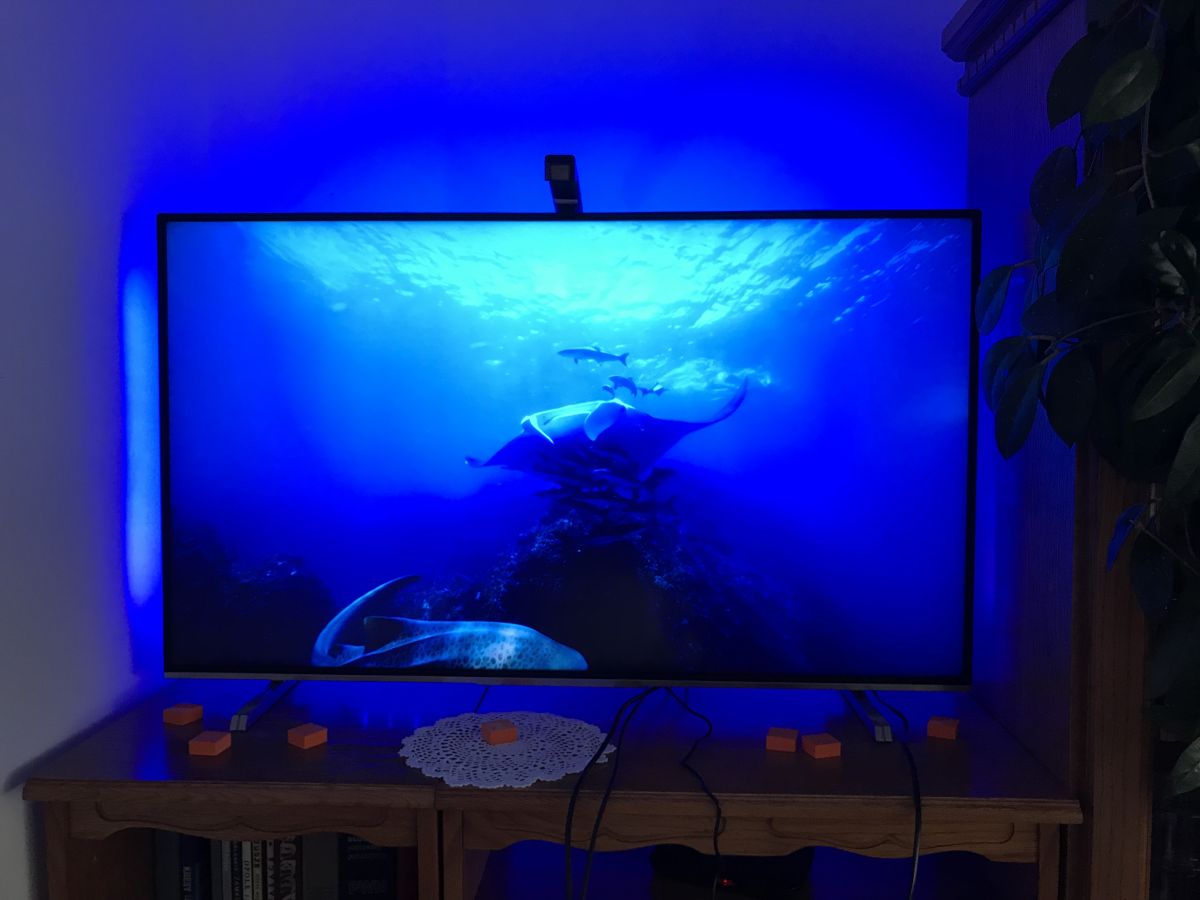
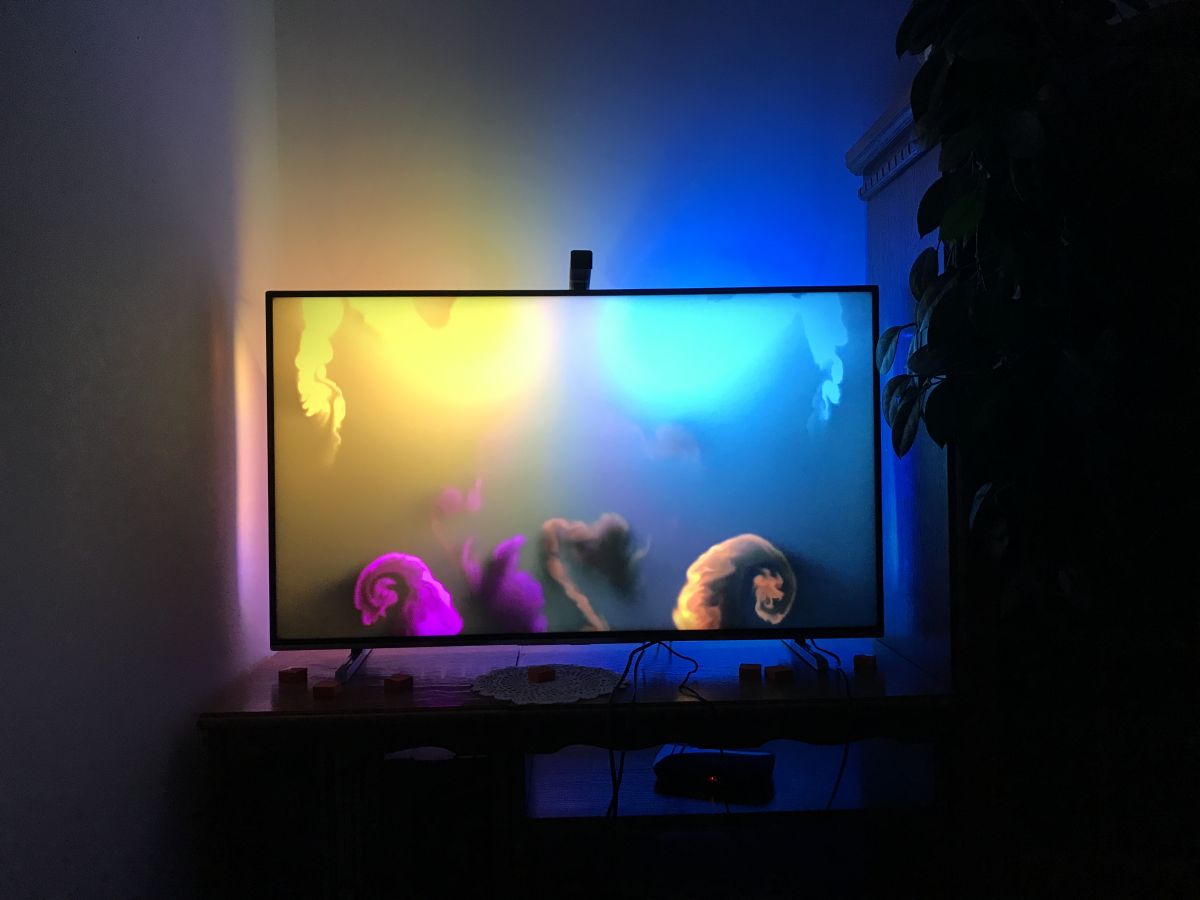
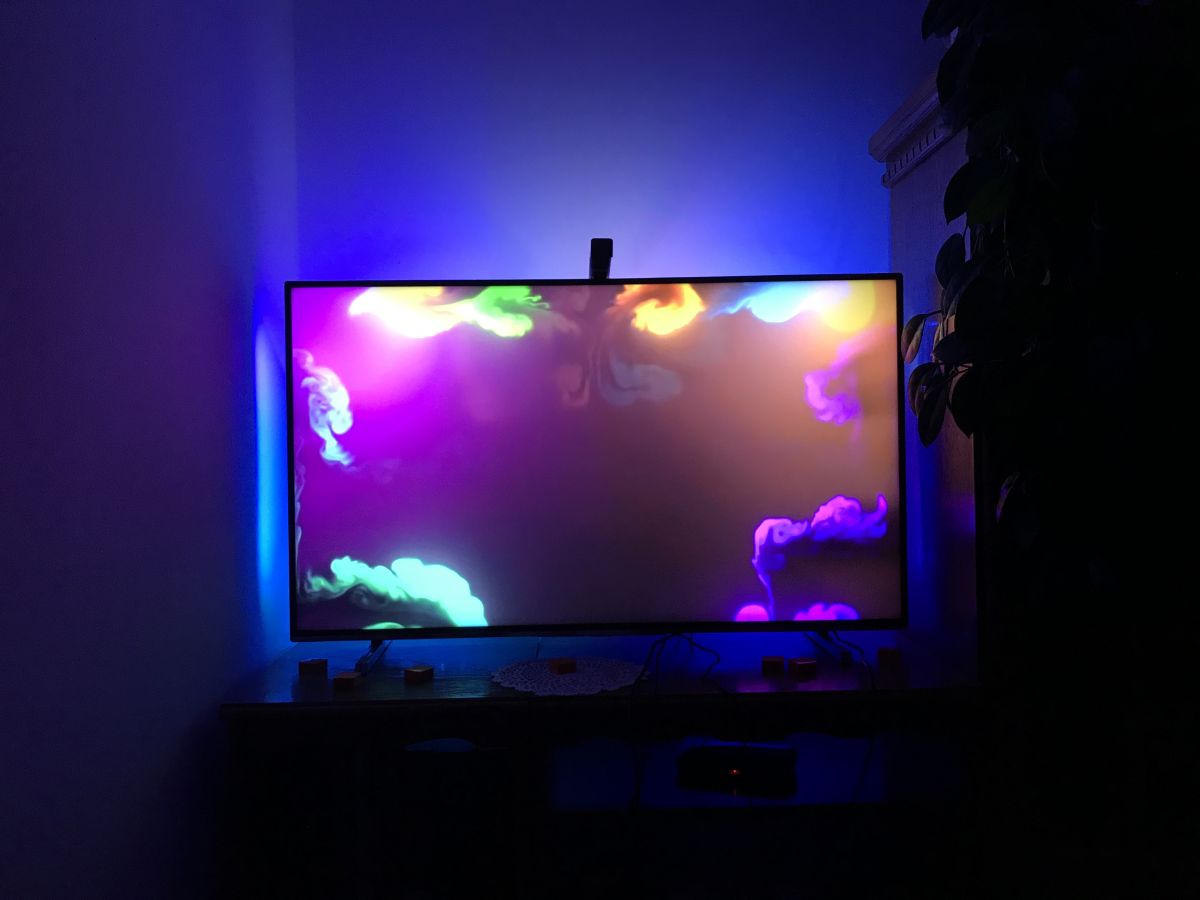
After a month, the backlight worked well, colored scenes tracked the screen convincingly, and setup plus calibration needed almost no adjustment.
The only practical drawback mentioned was that the TV cabinet could have been placed a little farther back.
AI summary based on the discussion. May contain errors.
Are you looking for a simple to run but effective LED strip for TV mounting? I've got something for you - treat yourself to a report on the installation, setup, calibration and month of using the LED light Govee TV Backlight 3 Lite tested on a 42-inch TV.
What you need to know to get started The LED lighting presented here helps to significantly enhance the home cinema experience - a coloured LED strip is mounted on the back of the TV and dynamically adjusts the colours to match what is being displayed on the screen. This is determined by a camera mounted on top of the TV, so the whole thing does not occupy HDMI slots or require compatibility with a particular signal type and resolution.
How does the device know which LED is where? This is done by calibration - a very simple process, simply by first determining the orientation of the LEDs and then temporarily placing calibration dots on the screen.
What else can the device show? First of all, we have remote control via an app, the ability to create your own effects, compatibility with Alexa voice control, Google Home, and the modern Matter protocol.
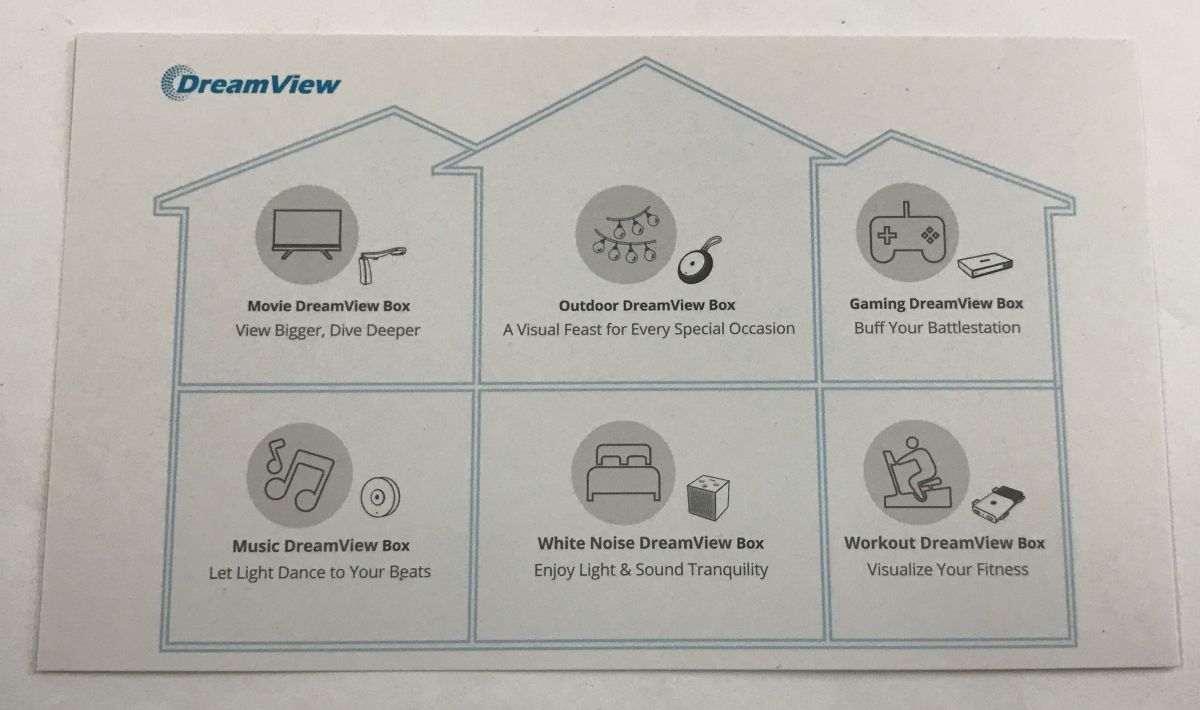
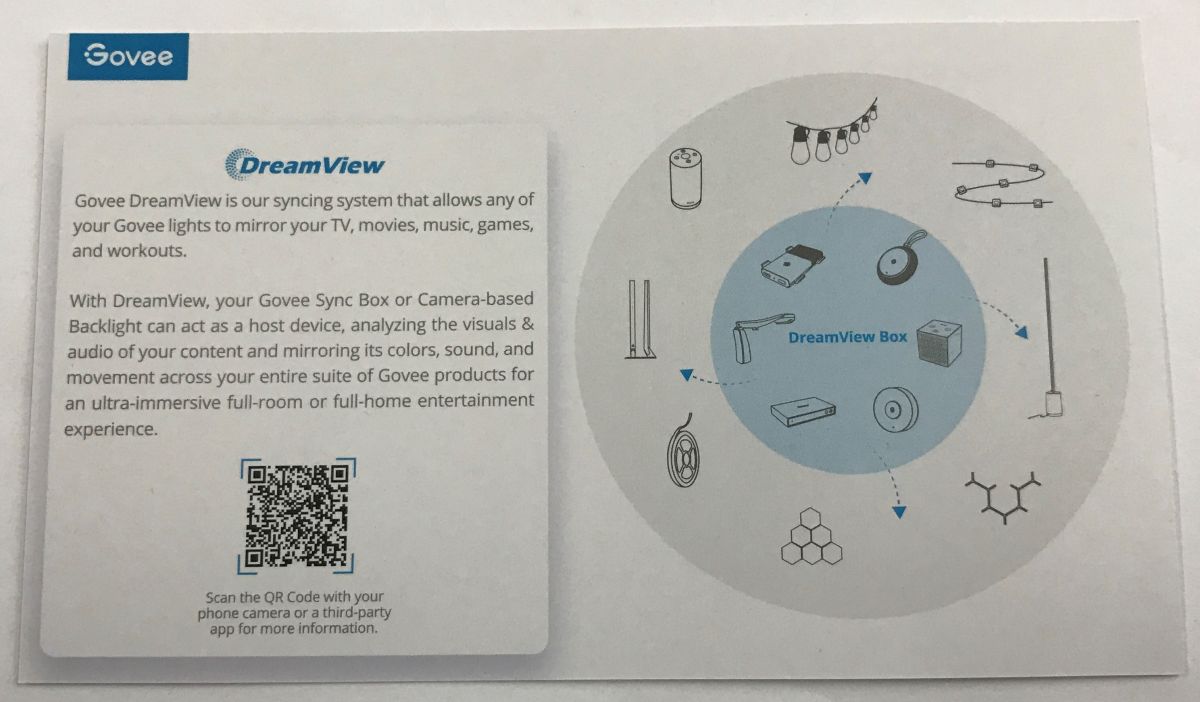
In addition, the product shown here can work with other lights, further improving the effect.
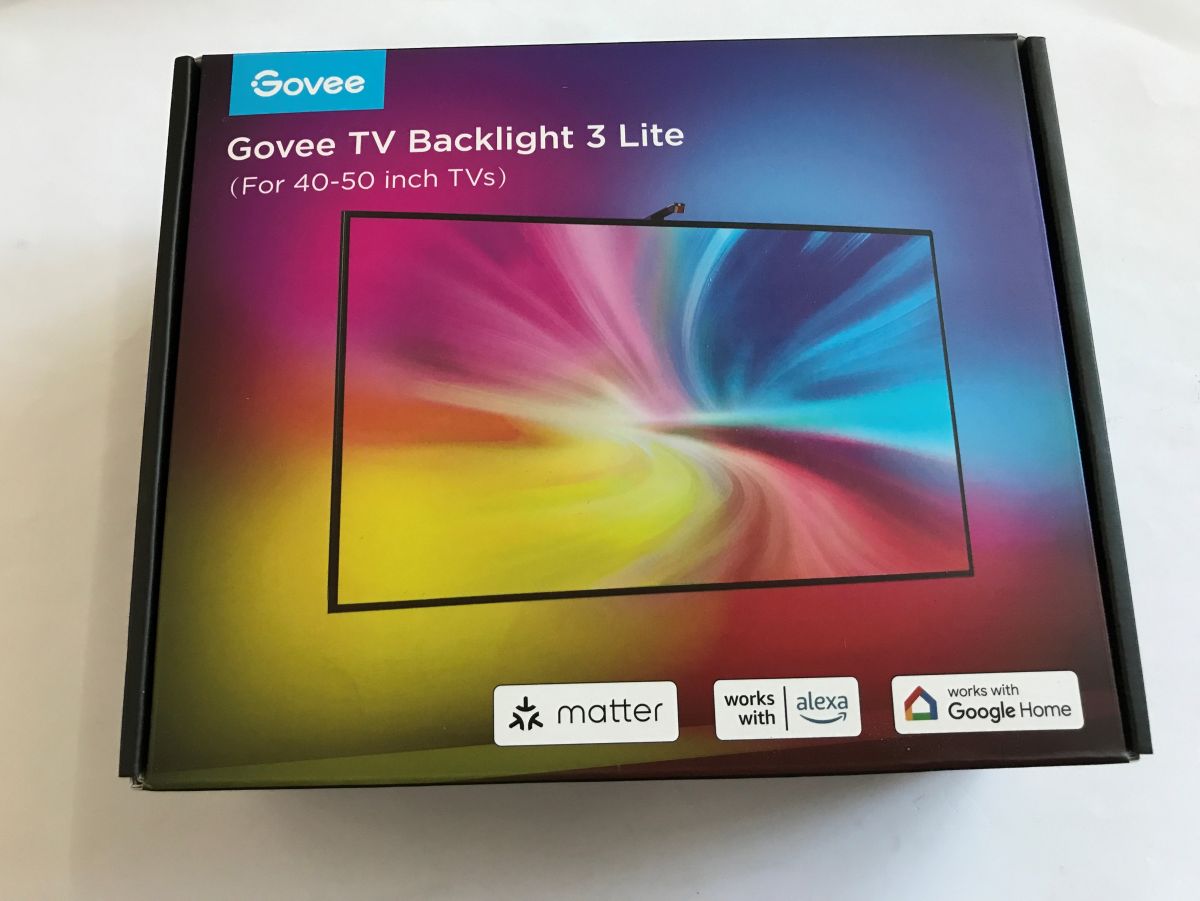
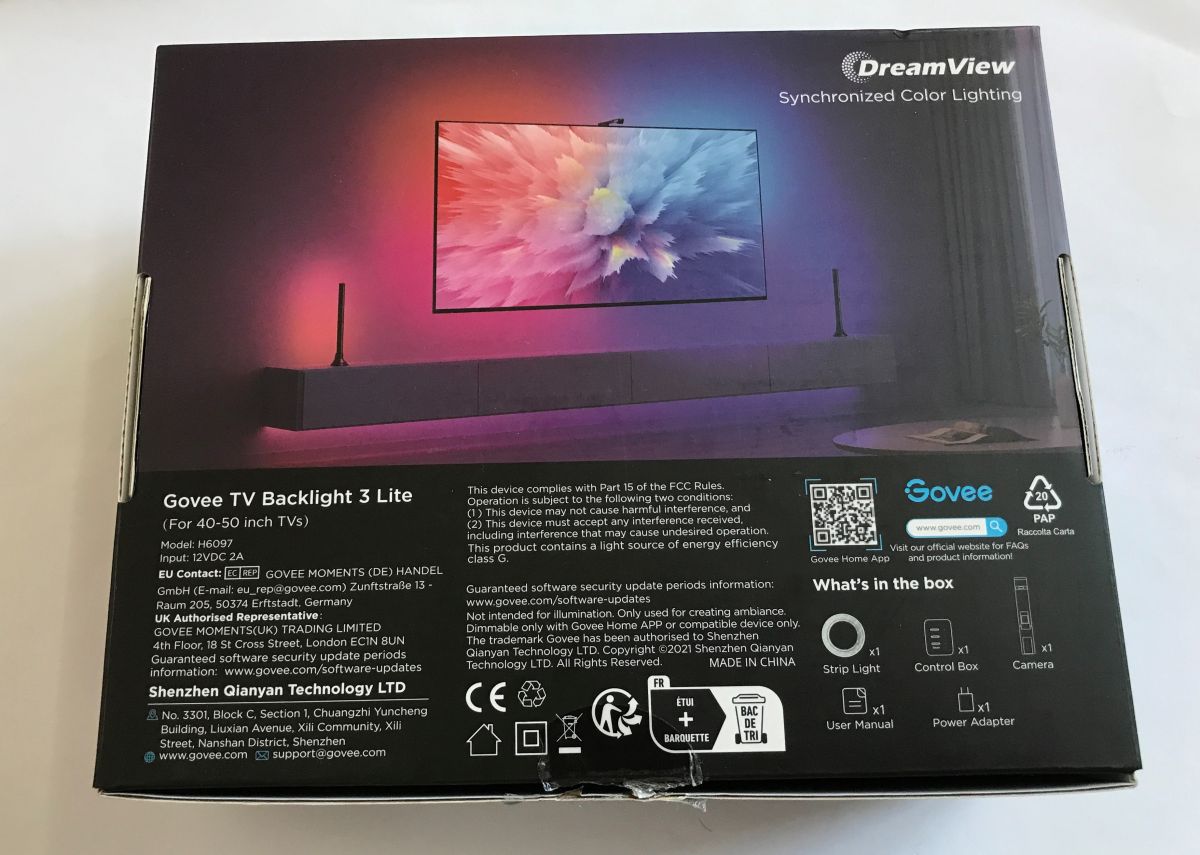
Set contents In our case, we tested the set for a 40-50 inch TV, although there are separate sets on sale for larger TVs too. When purchasing, it is important to note which version you will need. They differ in the length of the LED strips.
.
.
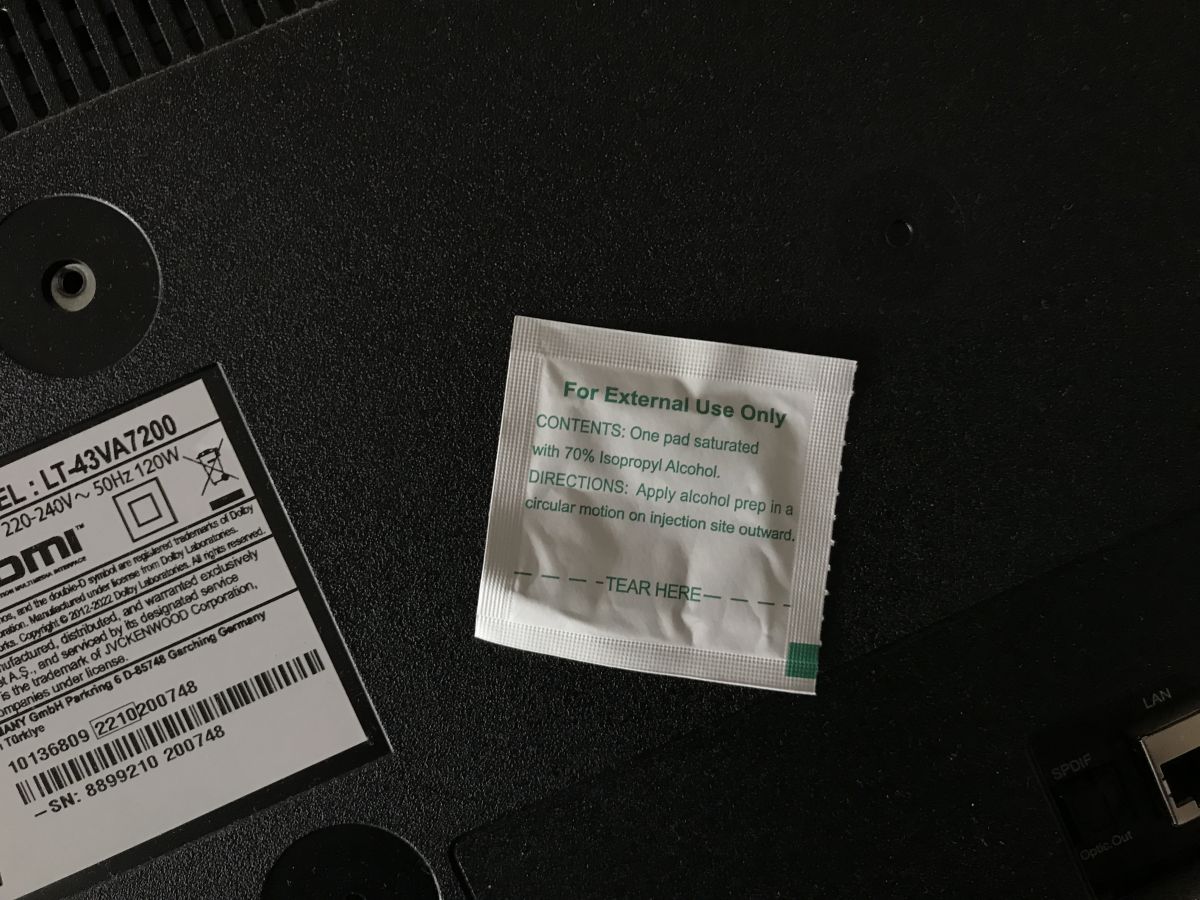
In the kit we receive an LED strip (or more precisely four strips connected together, just in time for our TV), a 12V 2A power supply, a main controller with three buttons, a cable for connection, a camera (for examining the image), instructions and warranty card, isopropyl alcohol wipes (to clean the surface before installation), extra clips to grip the strip and orange calibration cubes.
.
Mounting .
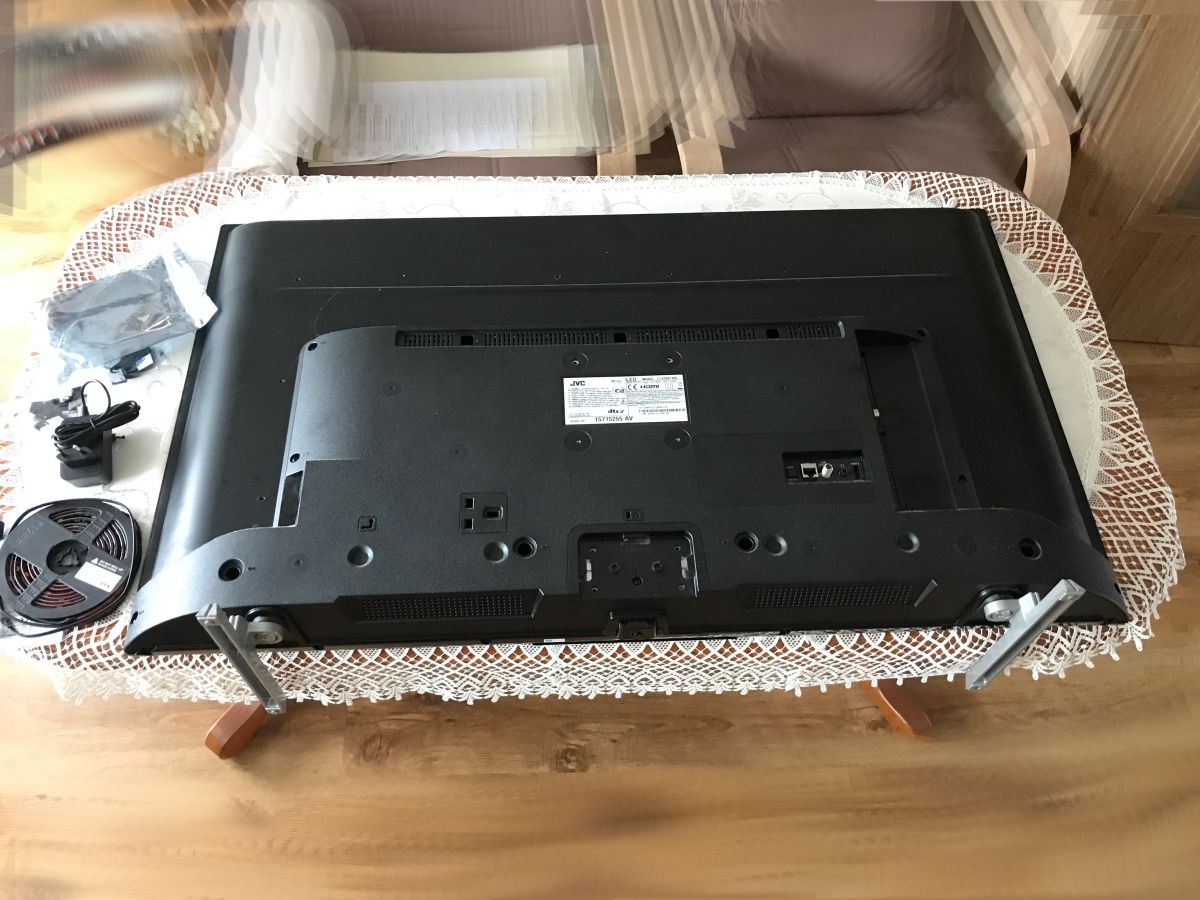
First you need to lay the TV safely on the screen - this must necessarily be on a flat surface, otherwise you risk damaging the matrix.
.
Then the LED strip can be glued on. Before sticking it on, clean the surface with the wipes from the kit:
.
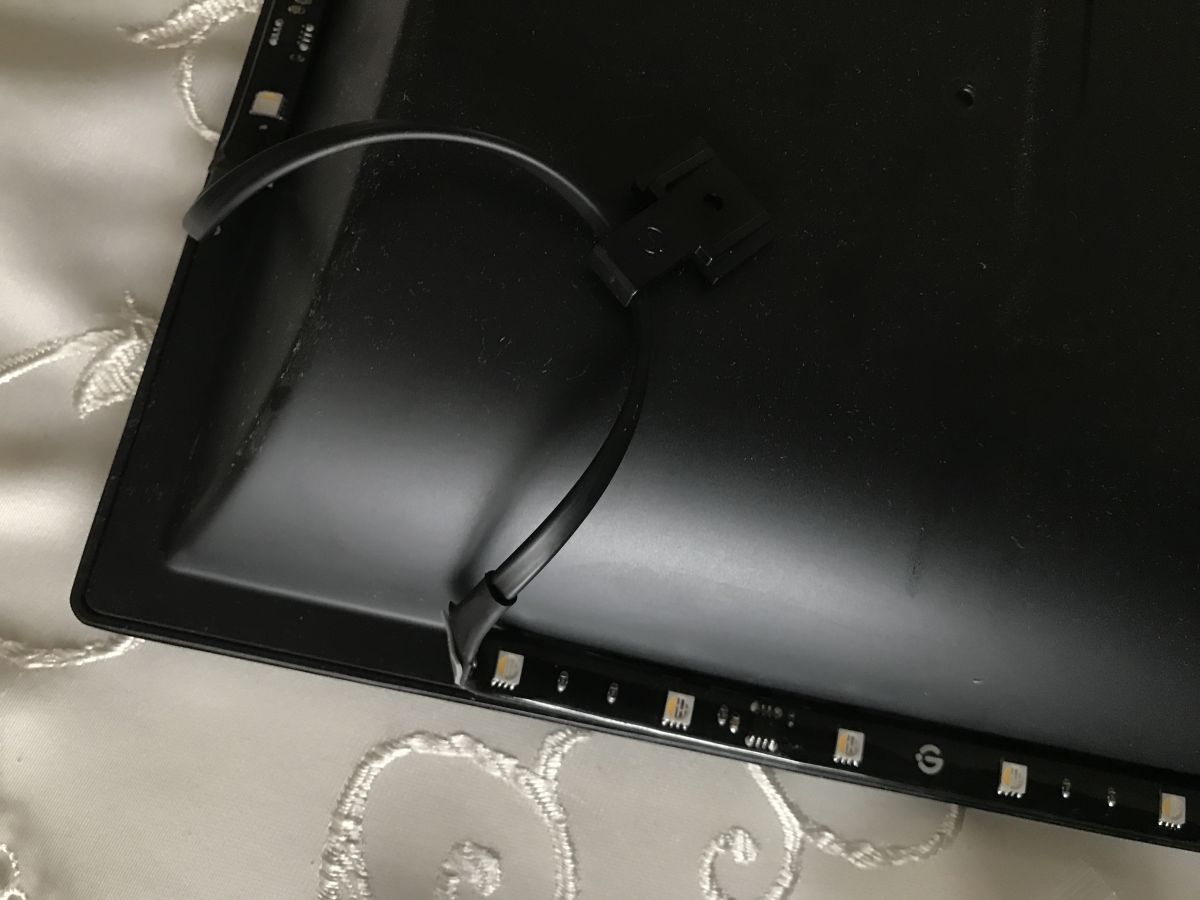
The LED strip is on double-sided tape, just remove the foil from it.
When fitting the strap, you can additionally help yourself with the hooks from the kit - these too have a piece of double-sided tape and stick to the plastic.
.
Someone here might ask - which side to stick the strip on? It doesn't matter - later on in the configuration stage, the strip will simply highlight the two edges with the appropriate colours, and we can choose the matching configuration.
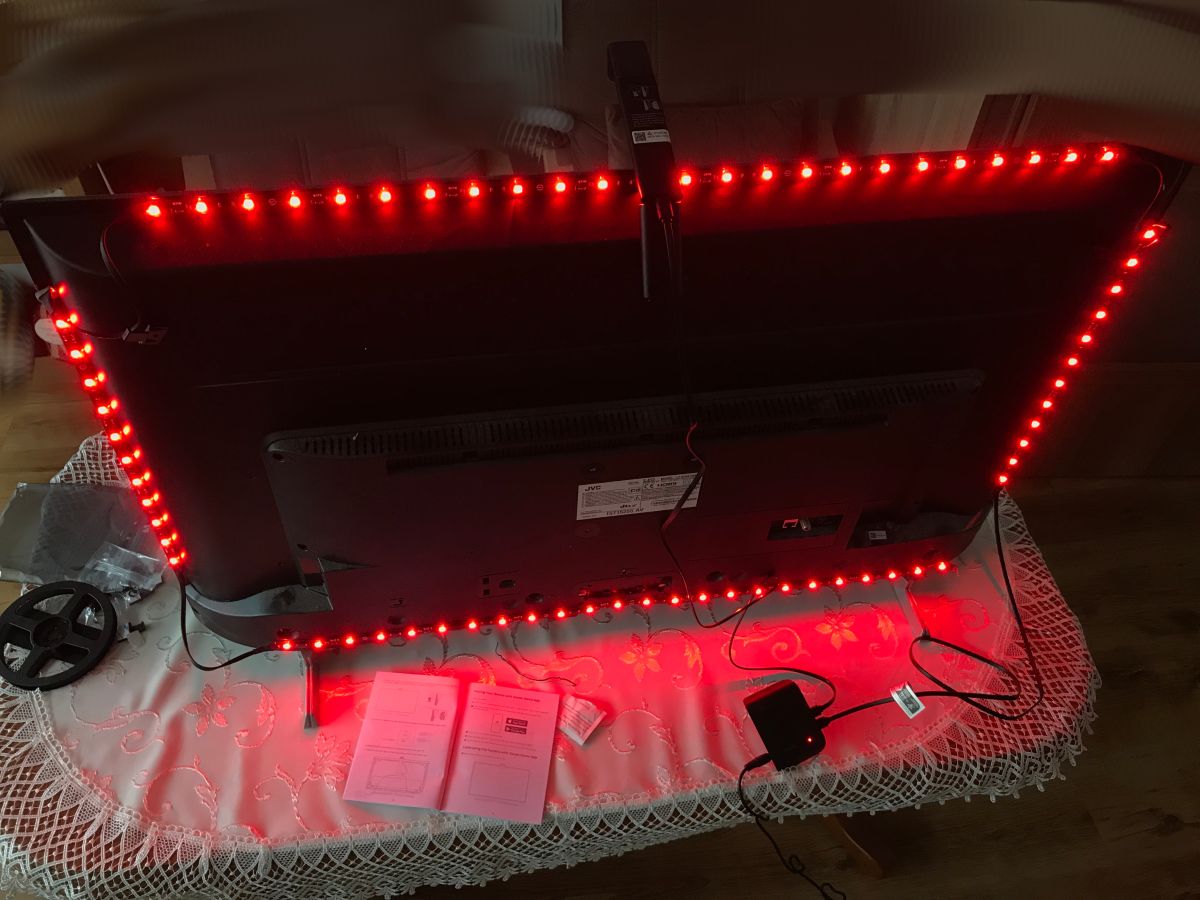
At this stage you can already check that everything works:
.
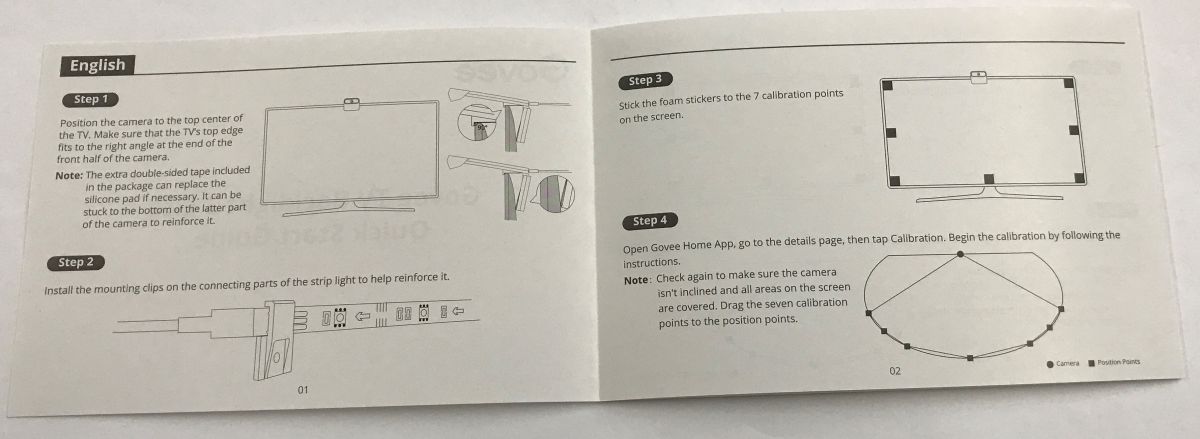
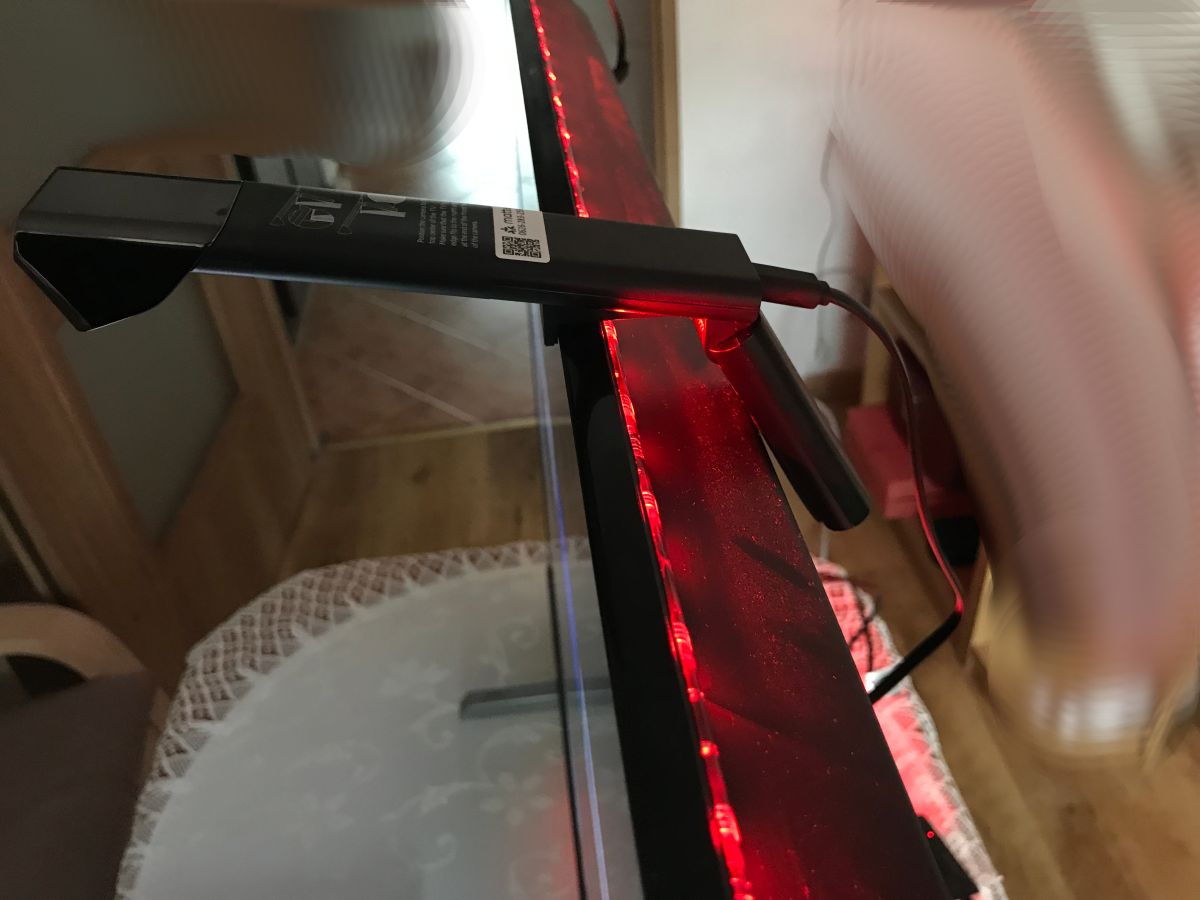
The camera must be mounted so that its foot holds a right angle to the TV screen:
.
Application and calibration .
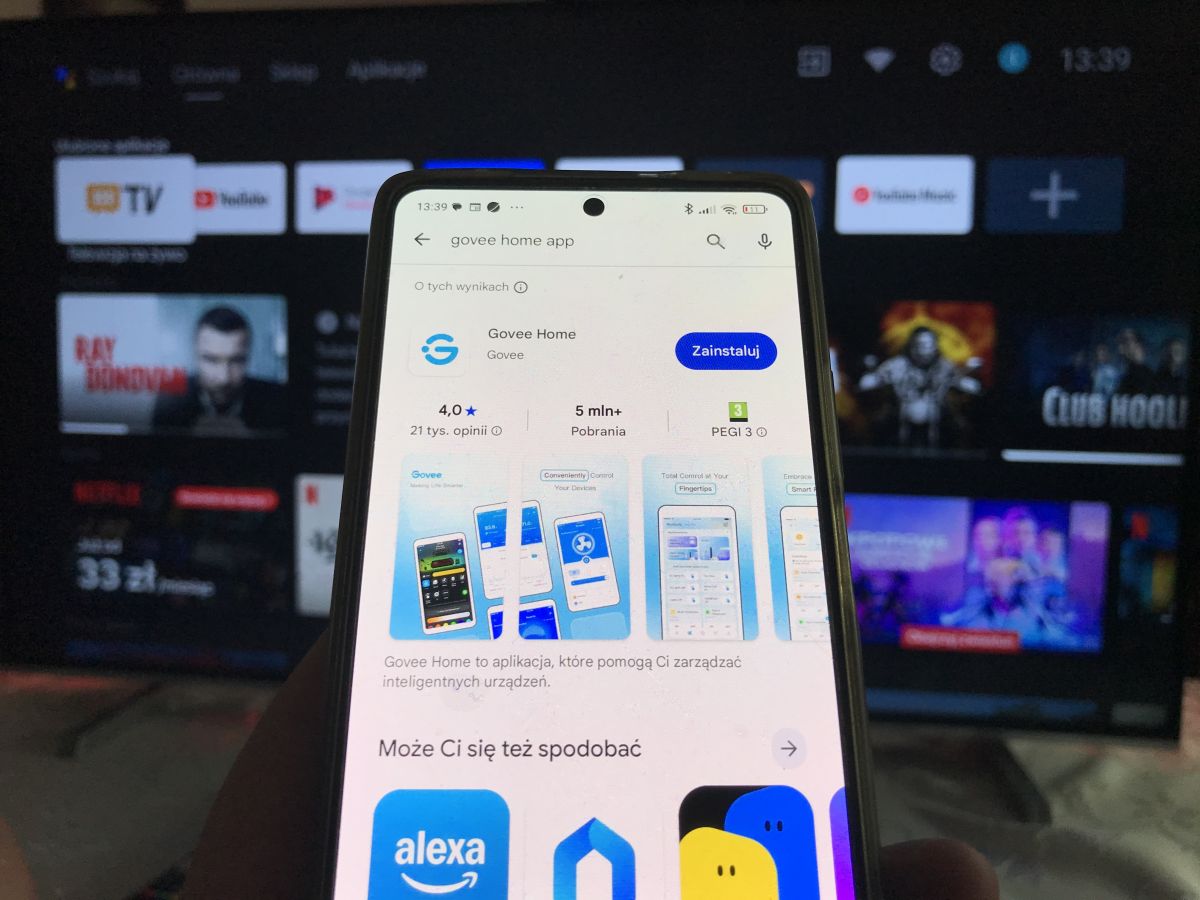
We download the Govee Home app from the relevant shop (on Android it's Google Play, on iOS it's the AppStore):
.
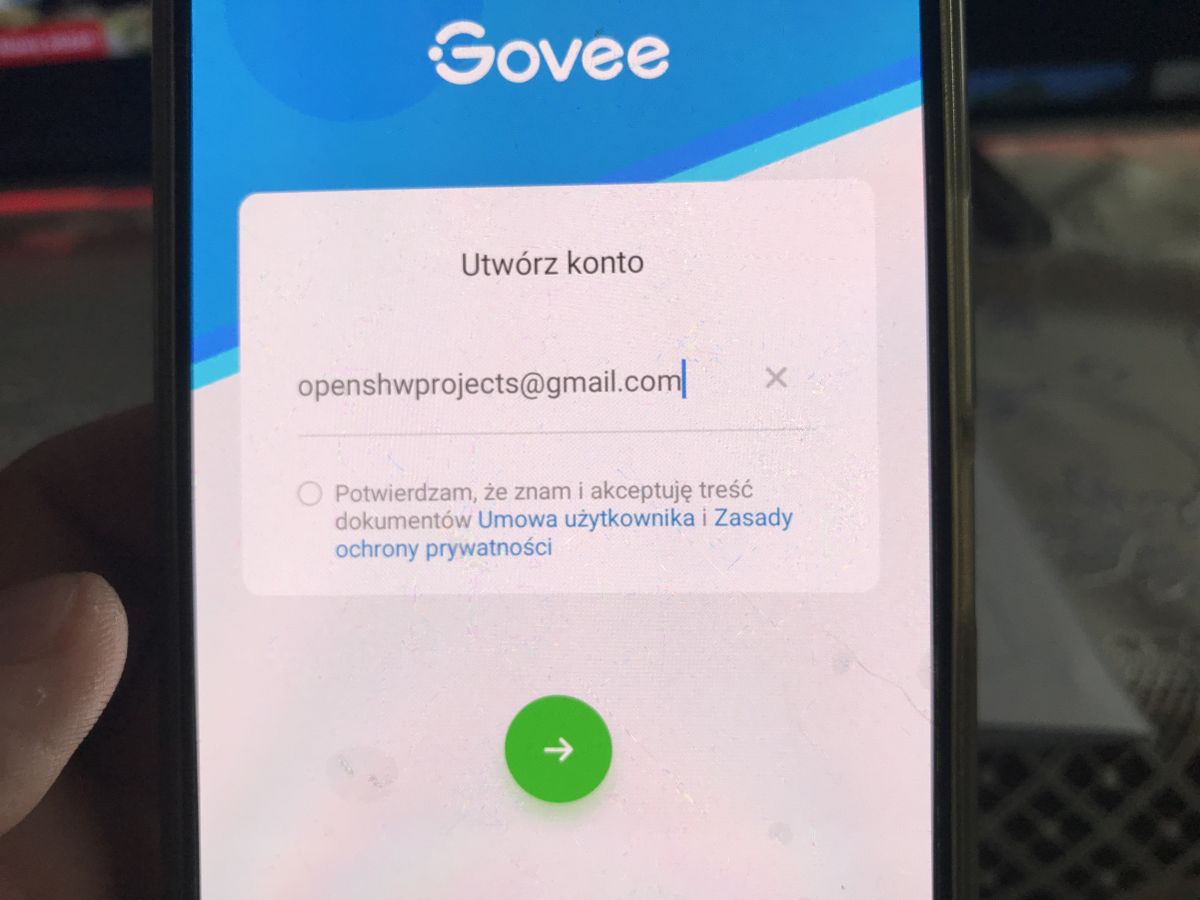
You then need to set up an account, but this is not a problem - you just need to have an email address, no phone number. I tried to pair the device without an account, but although the hardware was detected, the pairing would not go any further.
.
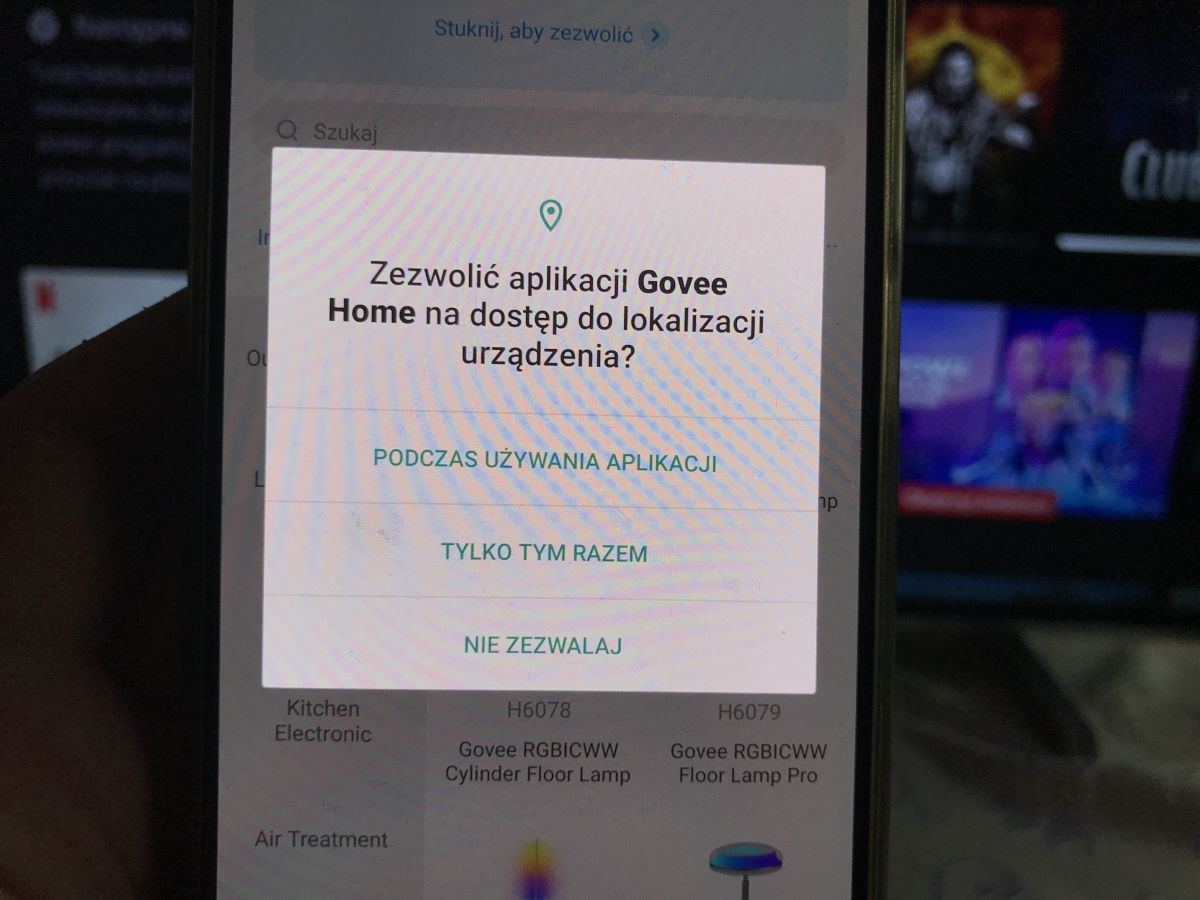
We enable Bluetooth, WiFi. We allow the application to access.
.
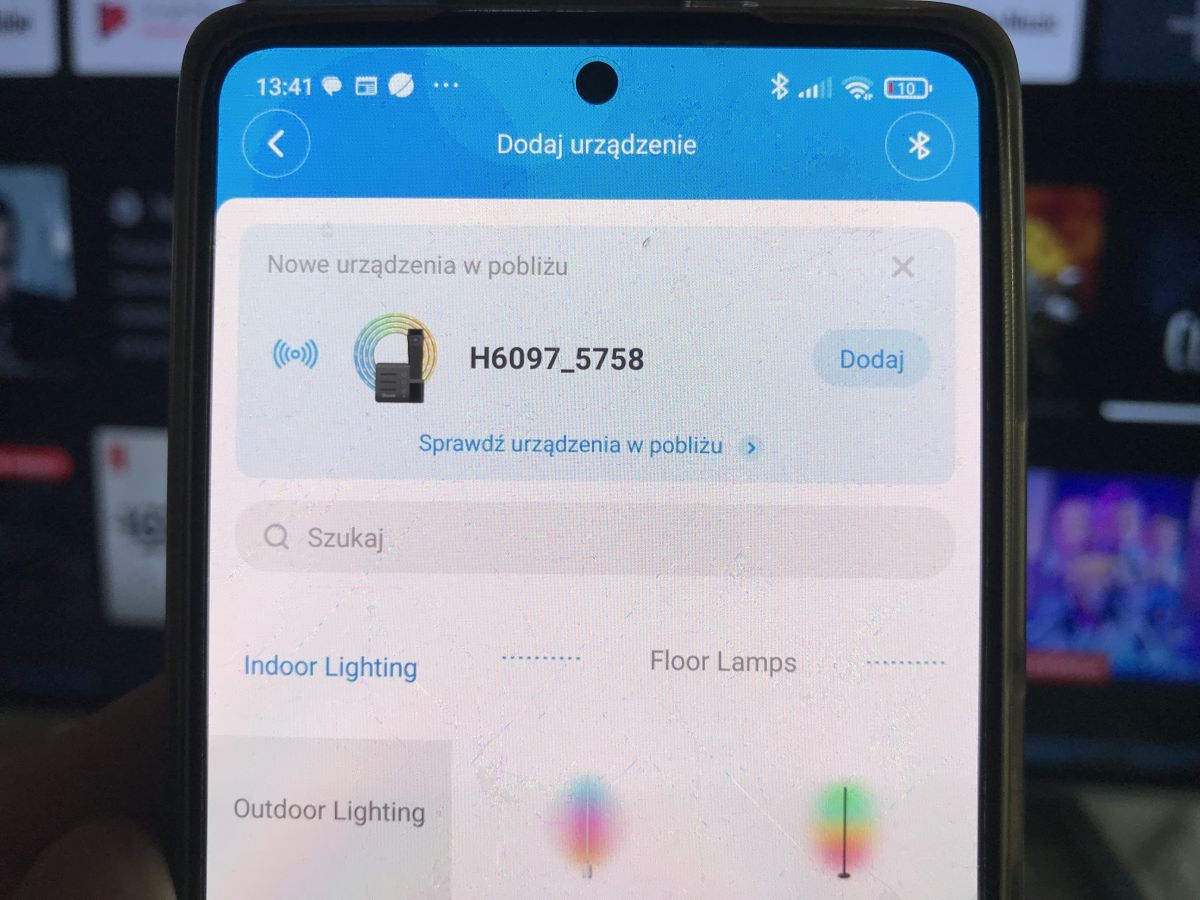
The application will detect the new device itself:
.
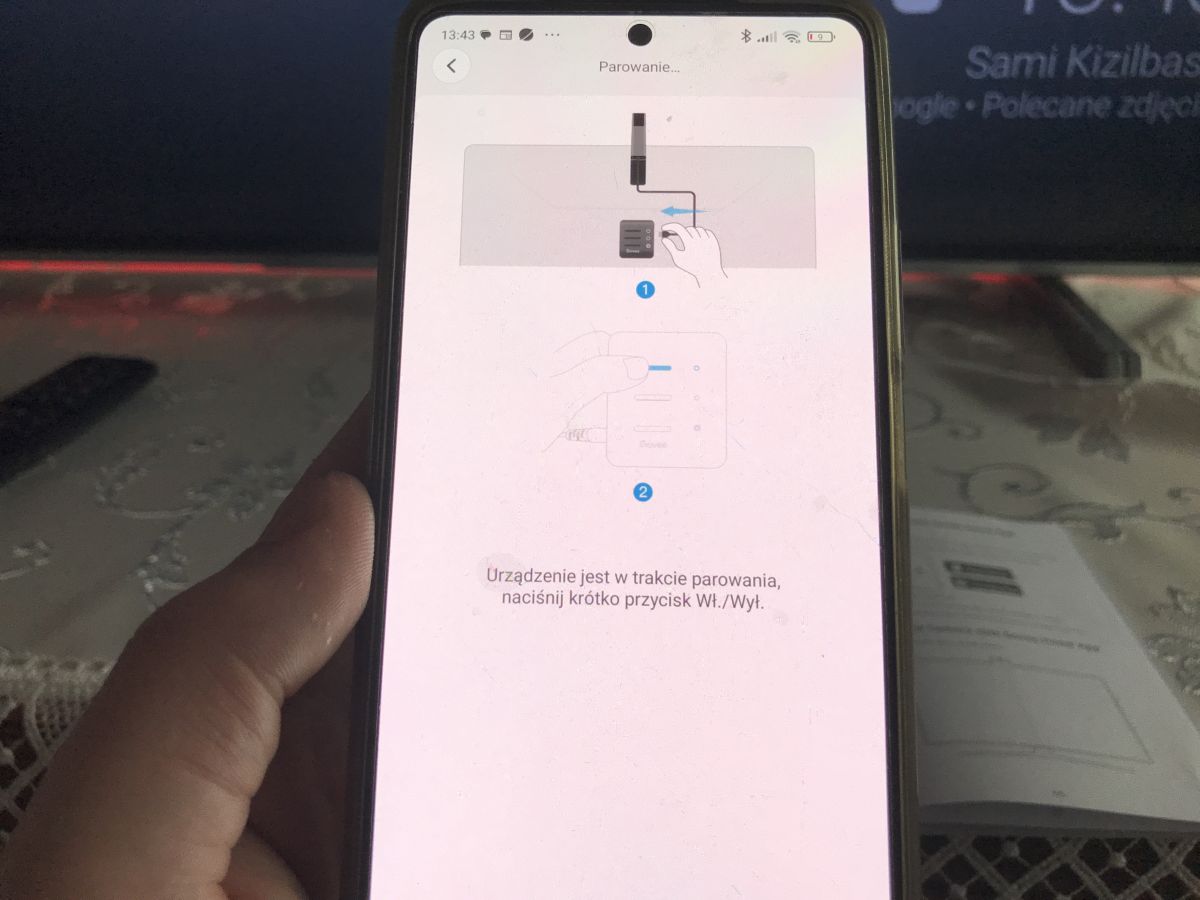
The whole pairing process is an afterthought - you have to confirm it by pressing a physical button on the device, so your neighbour can't 'pick up' our equipment.
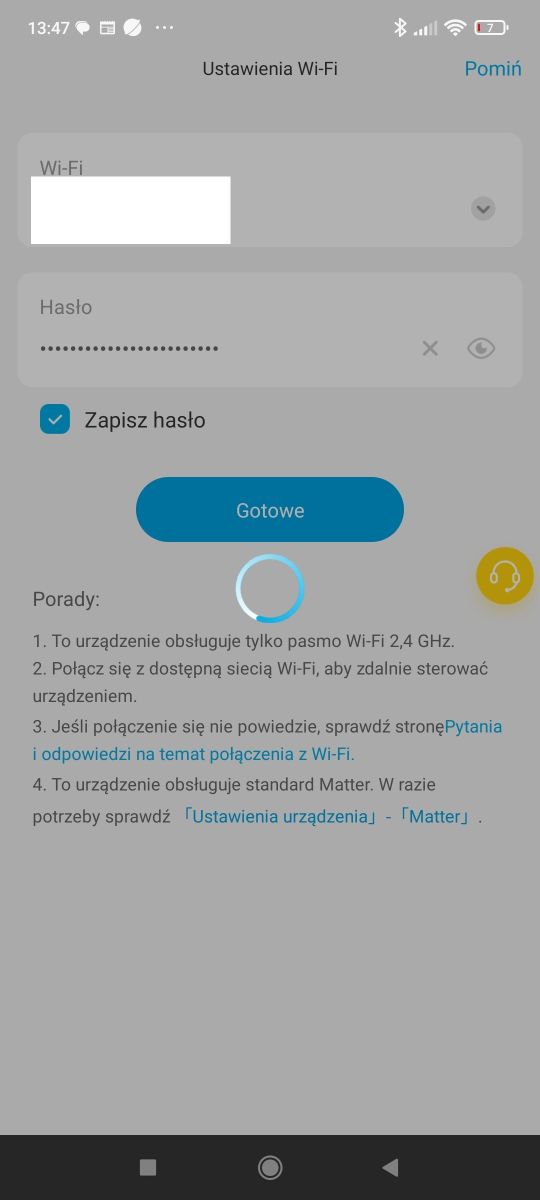
You will also need to enter the name and password of our WiFi - the 2.4 GHz standard is supported.
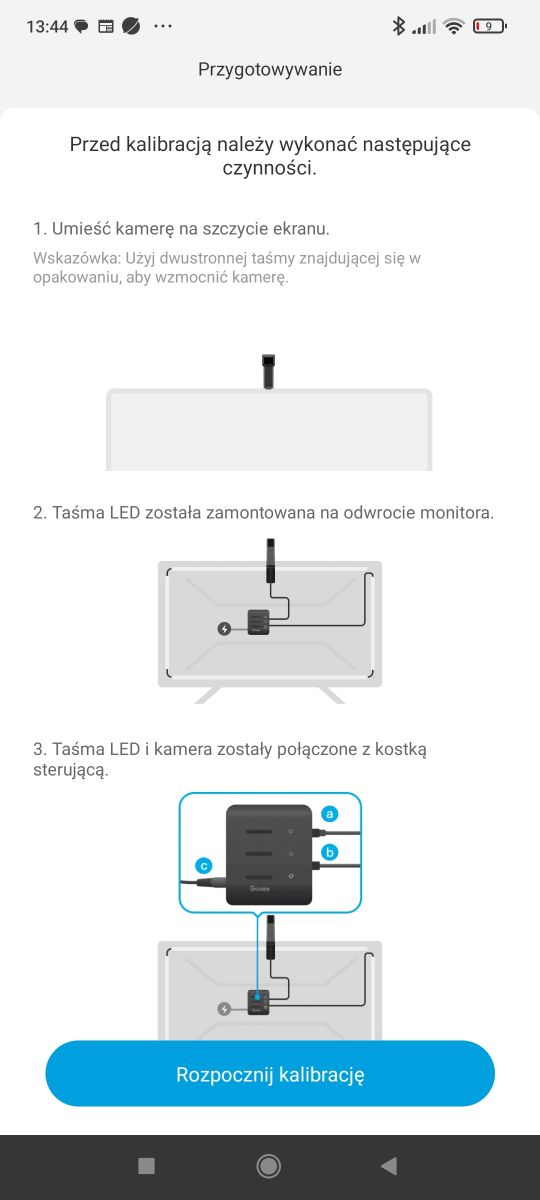
The pairing screen also shows us general instructions - you can't even go wrong here:
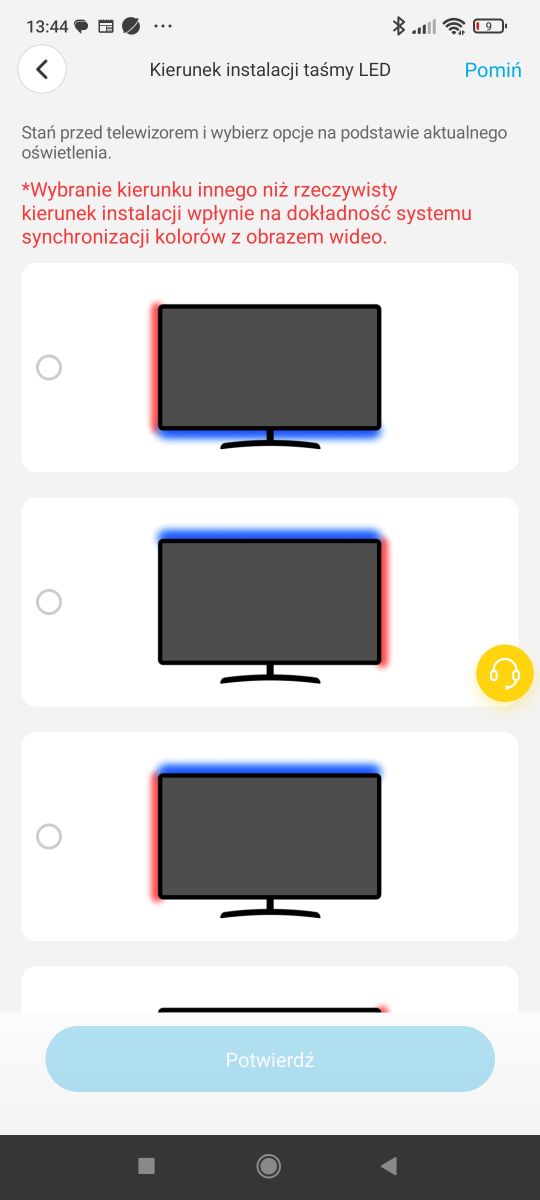
I mentioned at the beginning that the orientation (order of overlap) of the bar doesn't matter - oh well, here's an explanation of how it works. The app highlights two segments and we choose which edges of the screen they are mounted on:
.
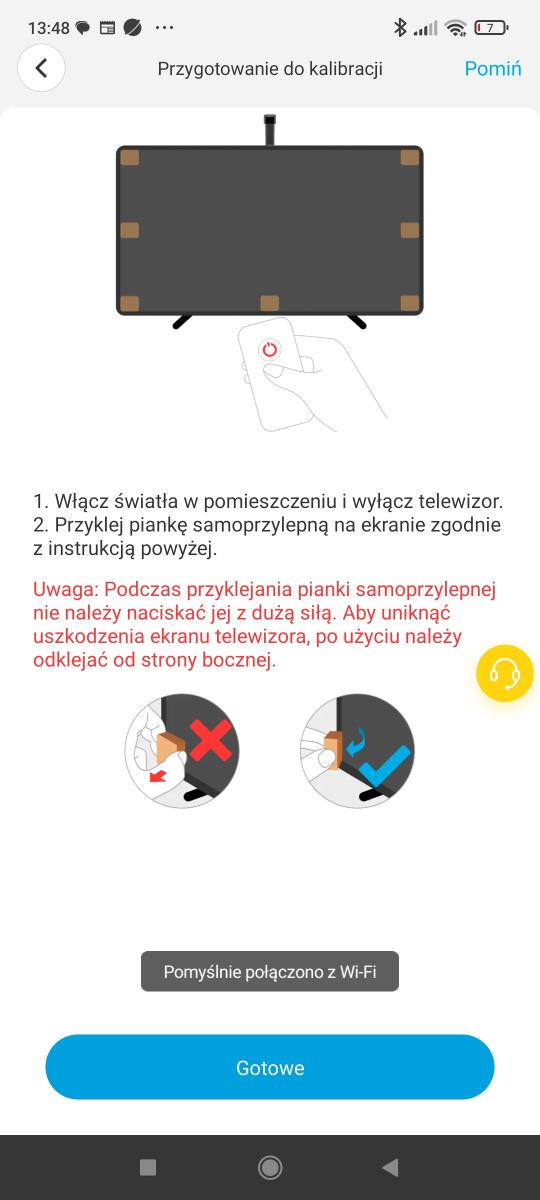
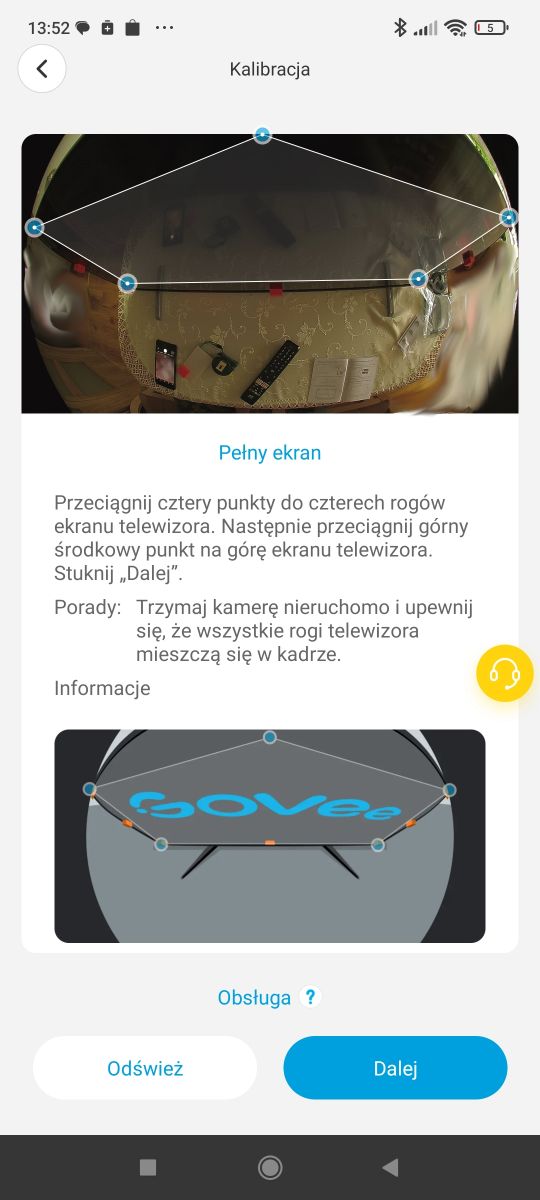
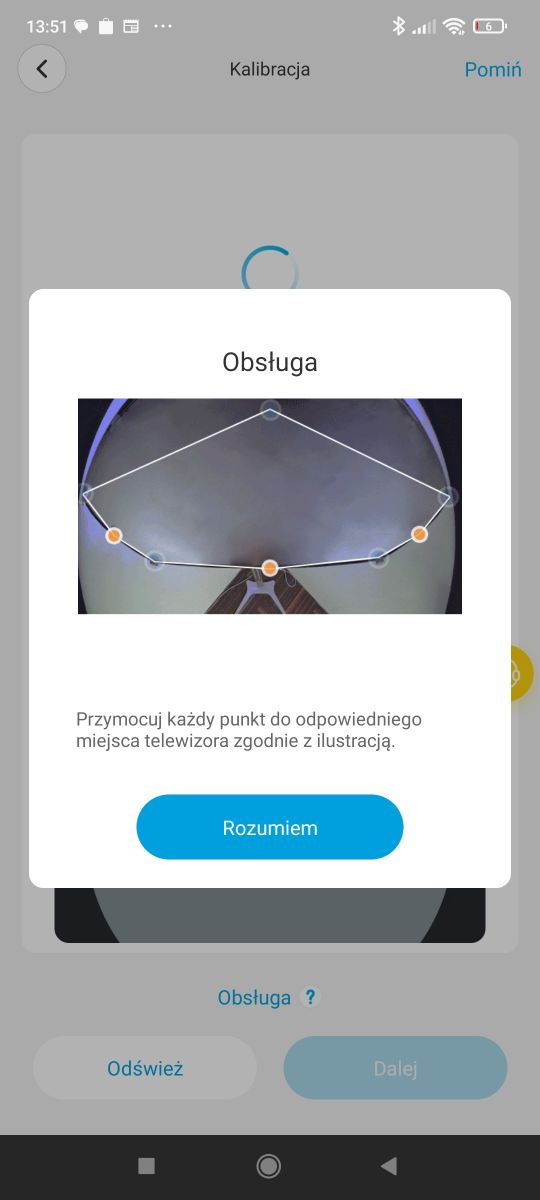
The second part of the calibration is to stick the orange calibration blocks on the screen. We proceed gently, without pressing. The TV must be switched off, while the light in the room must be on so that the camera can recognise these blocks.
.
I was sure it would be a bit of fun with this - but nothing could be further from the truth!
Calibration is very simple. Simply adjust (drag) the virtual points to those set on the screen. In practice, there isn't even much of this adjustment - with me, the default setting almost perfectly matched already. In addition, we have a preview of the camera view, which makes everything even easier.
Practical tests .
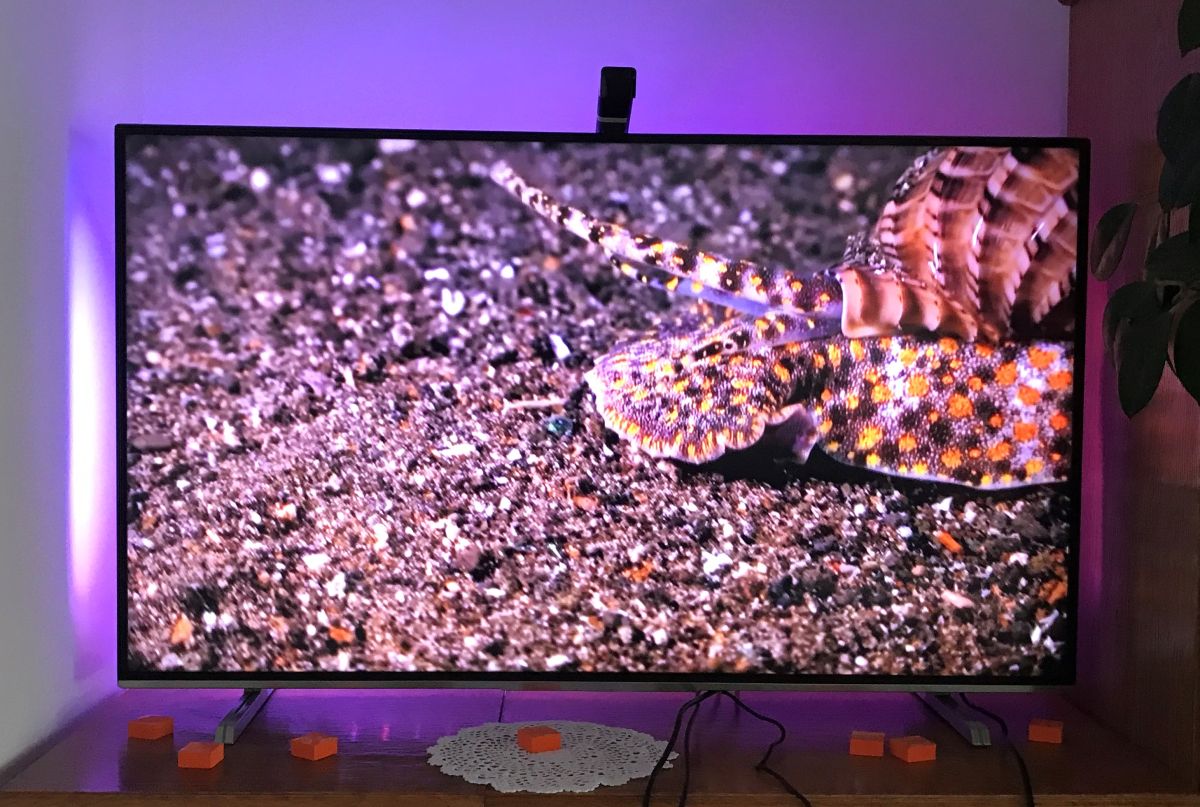
To start with something simple - the colour test. Just search on Youtube for a suitable video. This is also useful for colour calibration - more on that later.
.
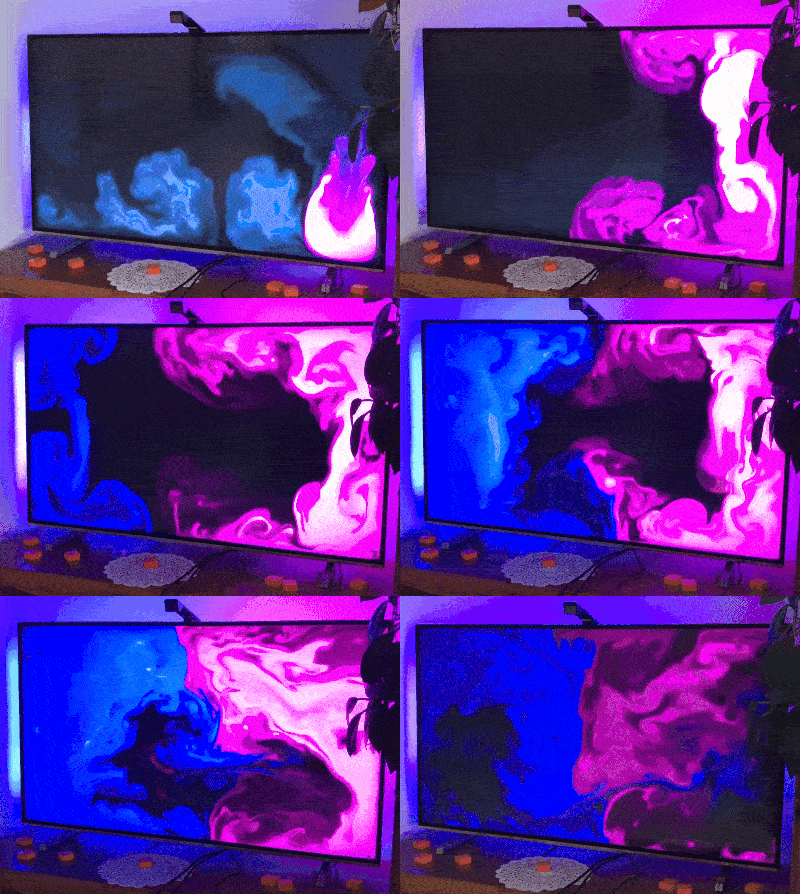
Now for something better - the animation of the 'fireflies', you can very well see how the bar instantly reacts and adjusts its colours to what is happening on the screen:
.
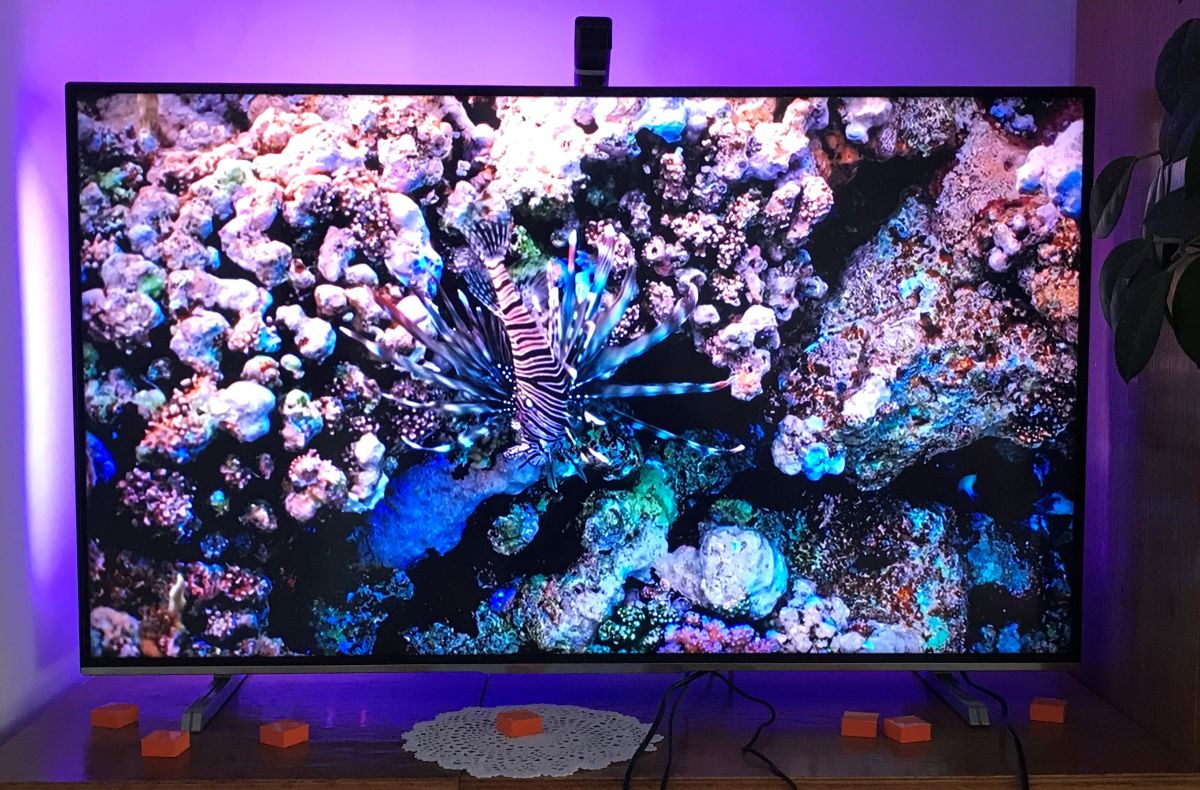
Now a longer test - more colours:
.
Tests with sample video:
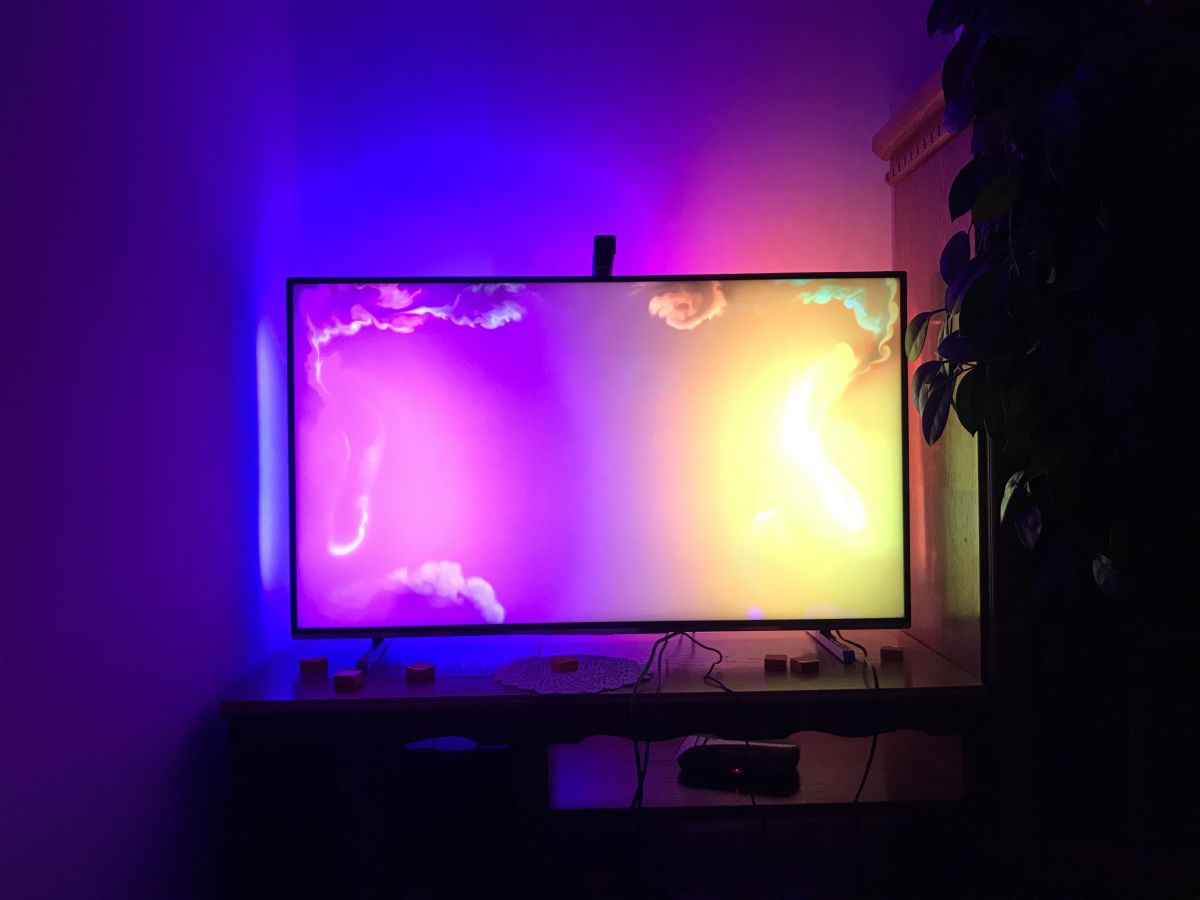
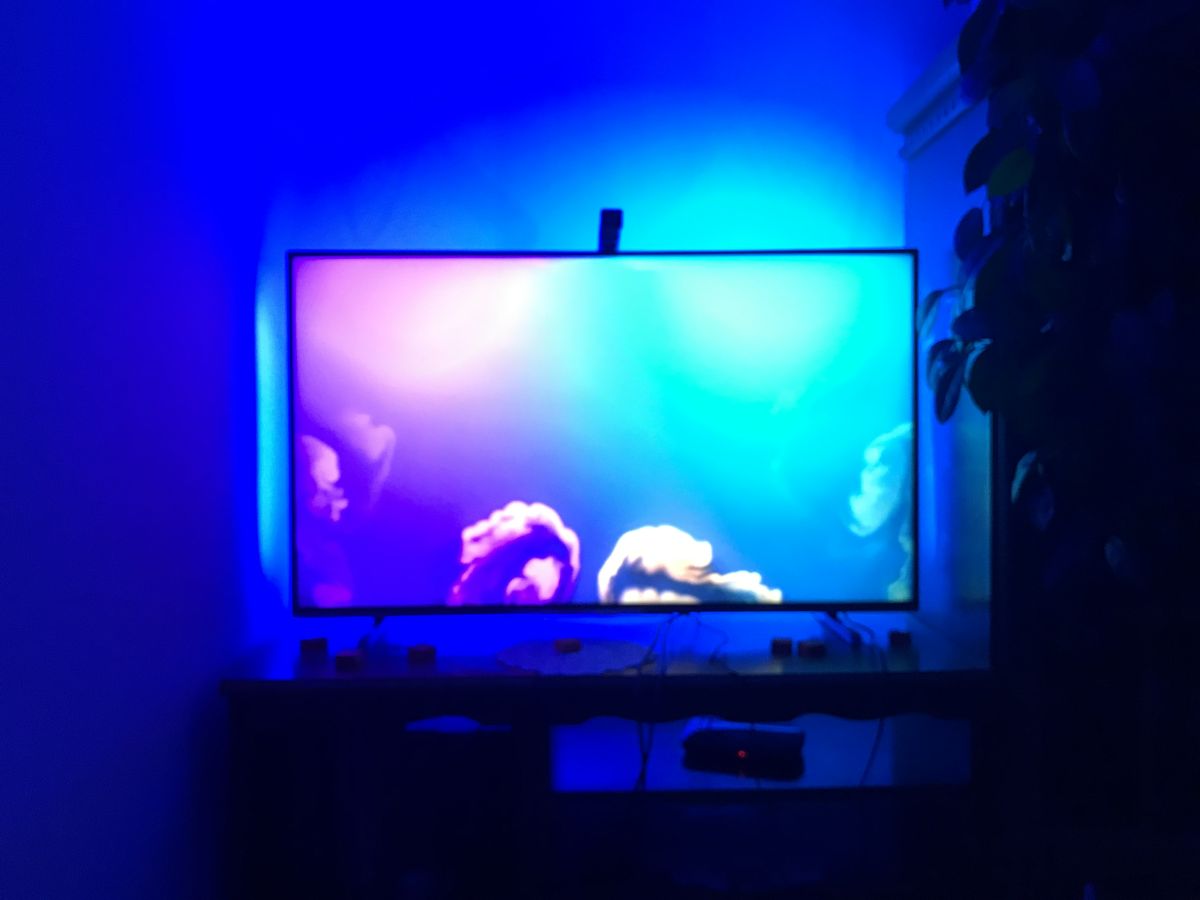
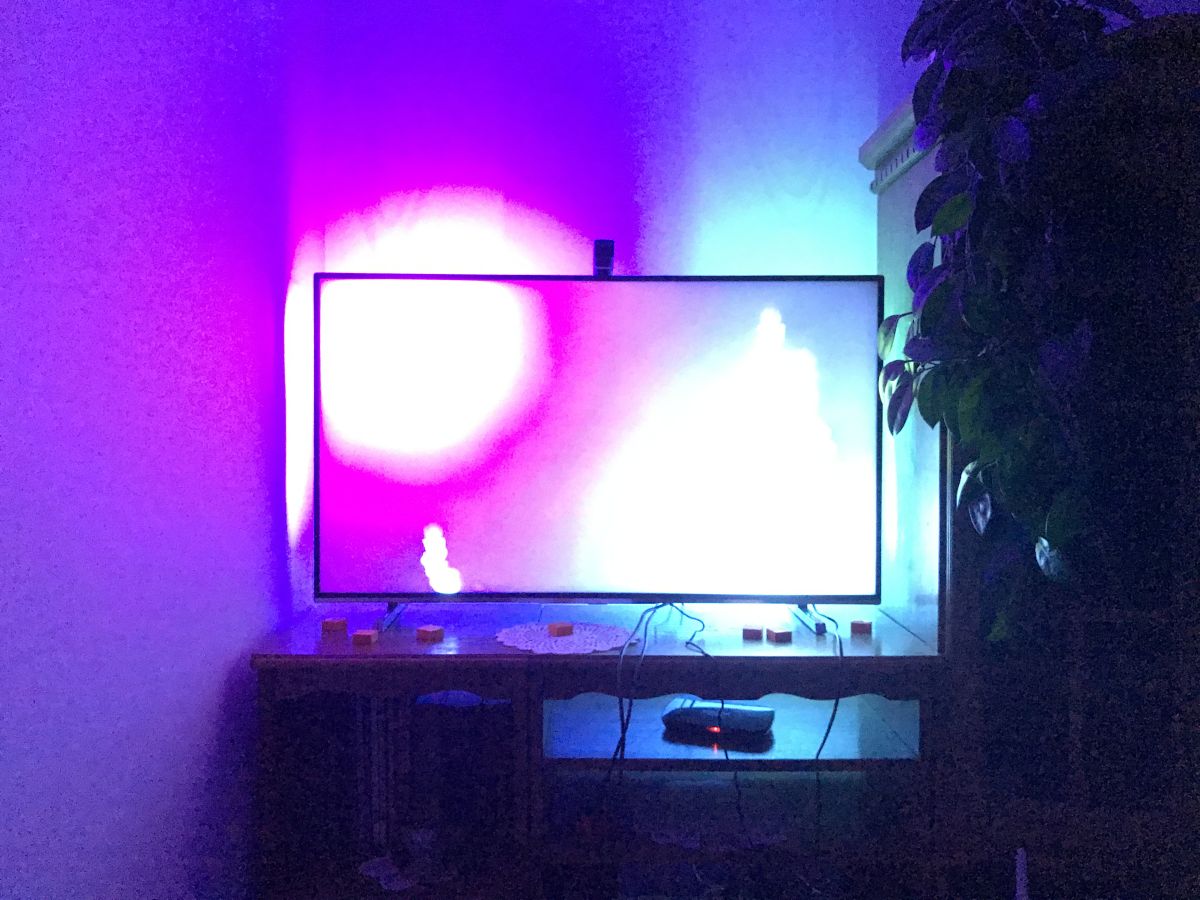
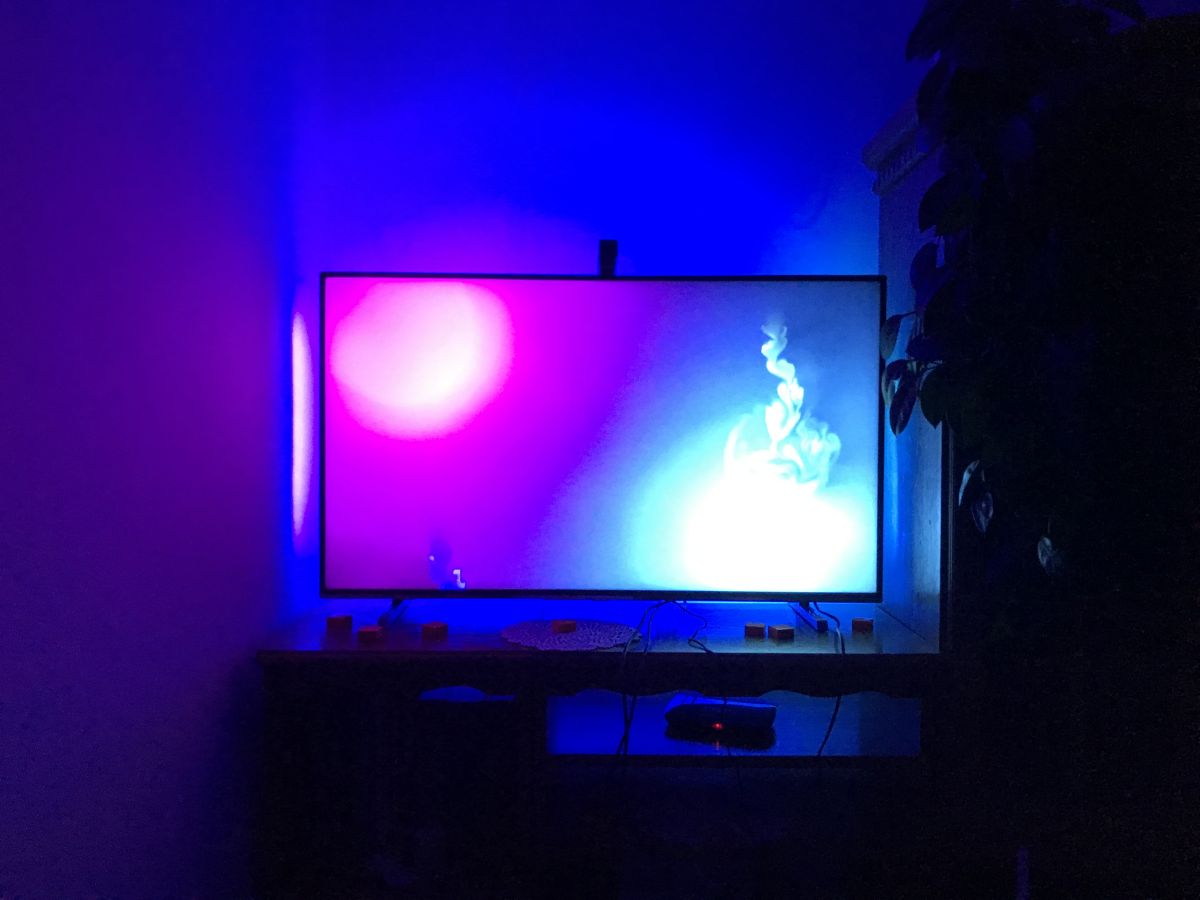
Gallery of images taken at night, with the lights out:
.
Colour calibration .
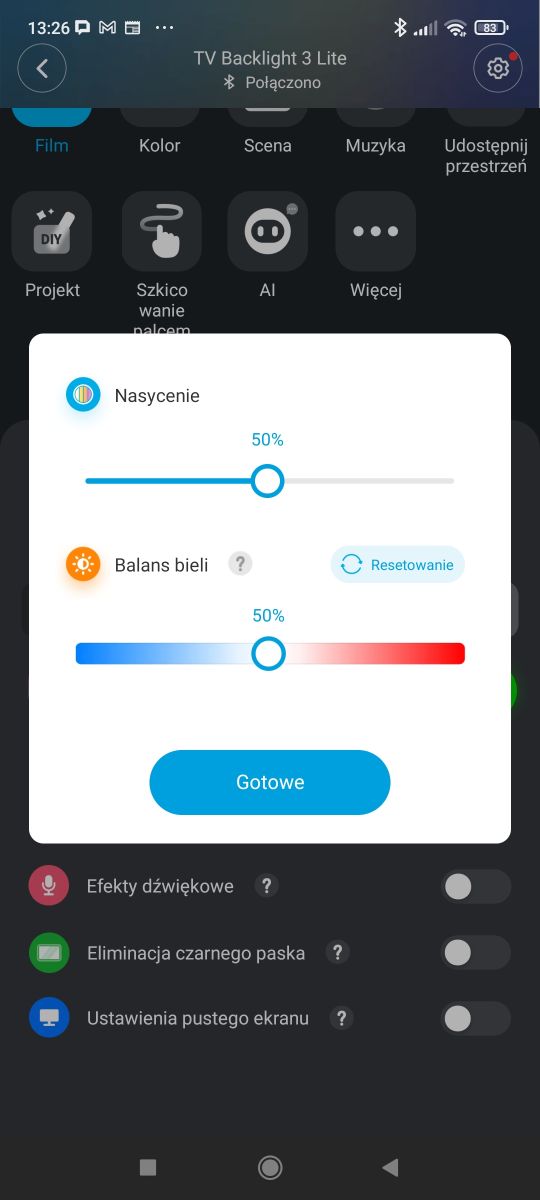
The device also allows you to adjust the colours to what we have displayed on the screen. Calibration is available from the mobile app, after entering additional options. Personally, I didn't need to use it, as the results are very good even without calibration.
.
Custom animations .
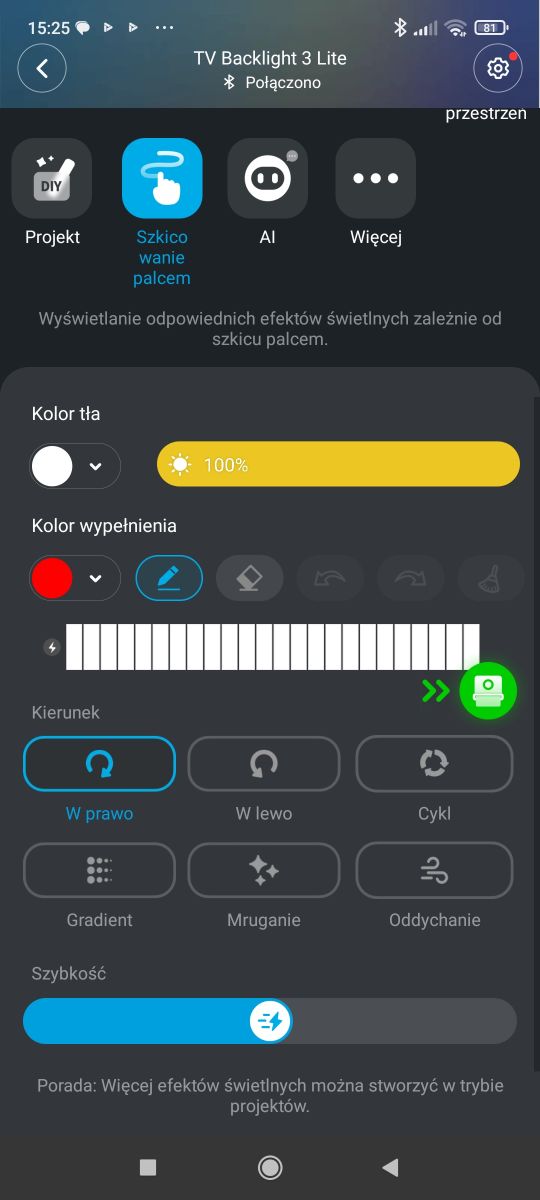
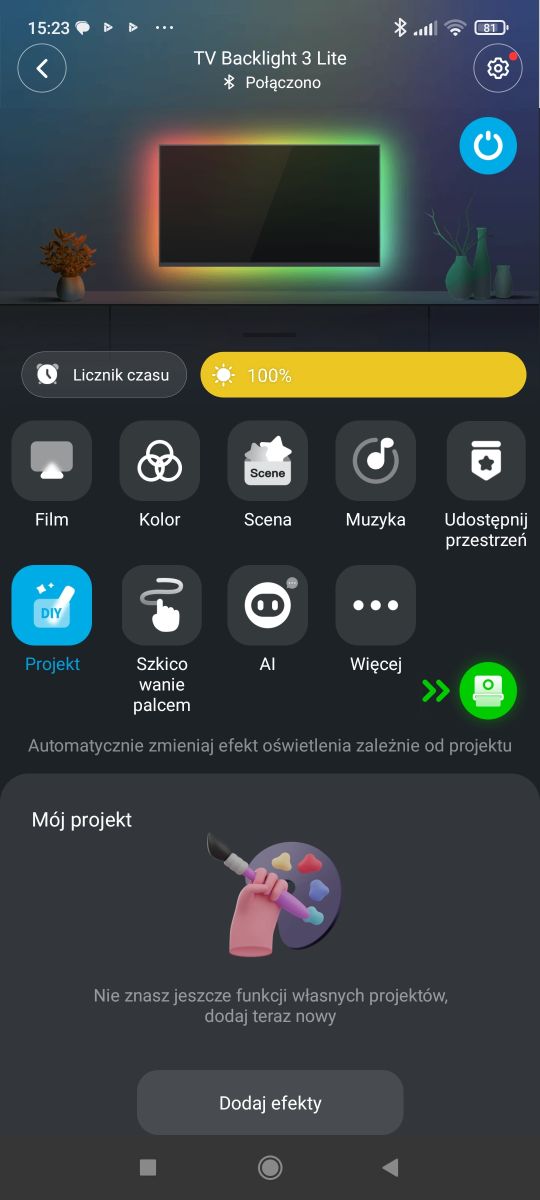
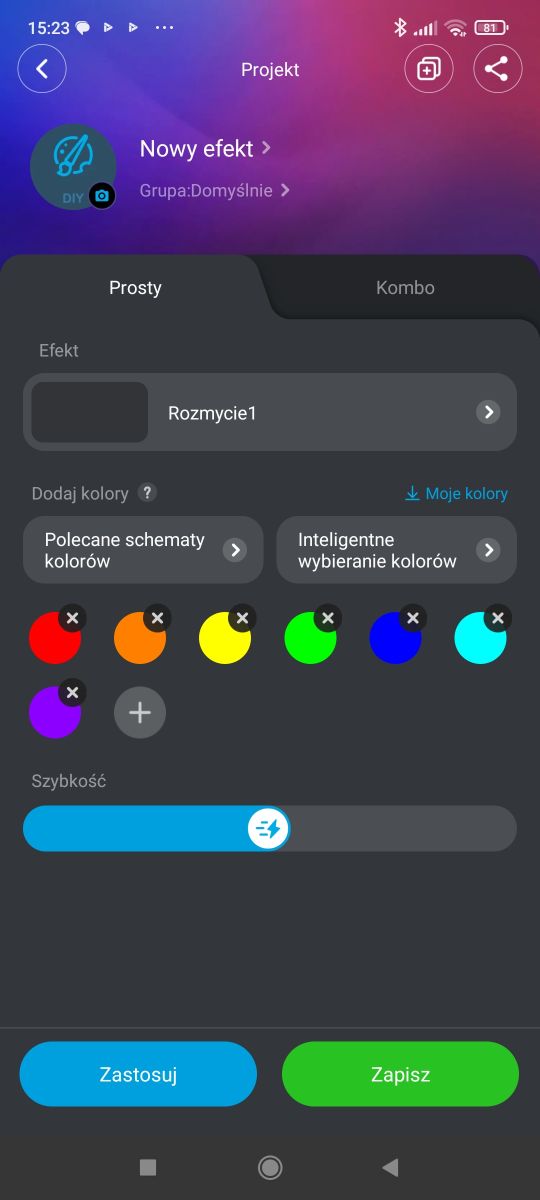
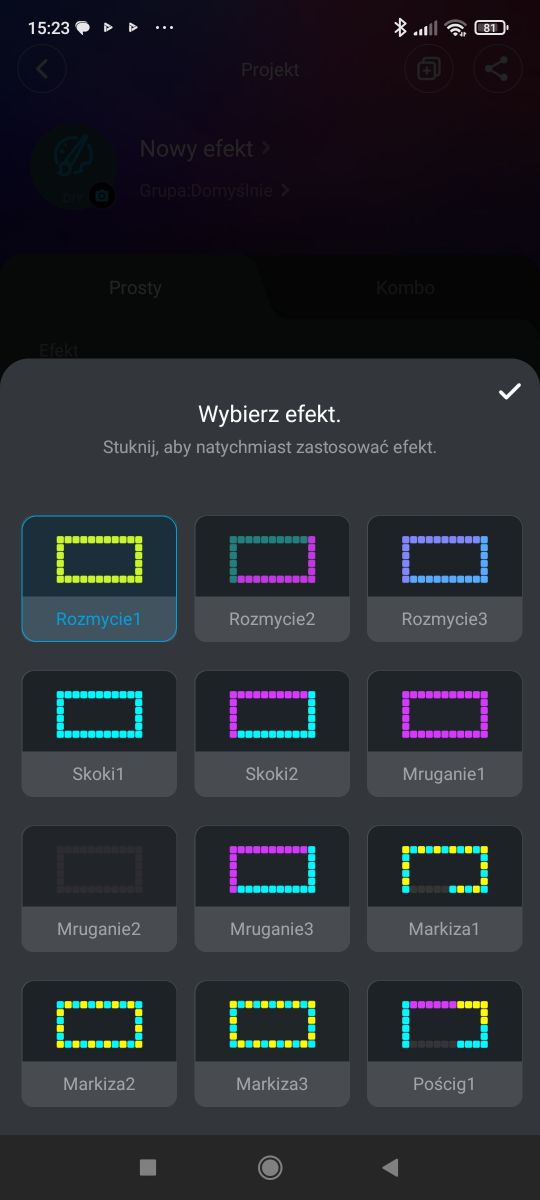
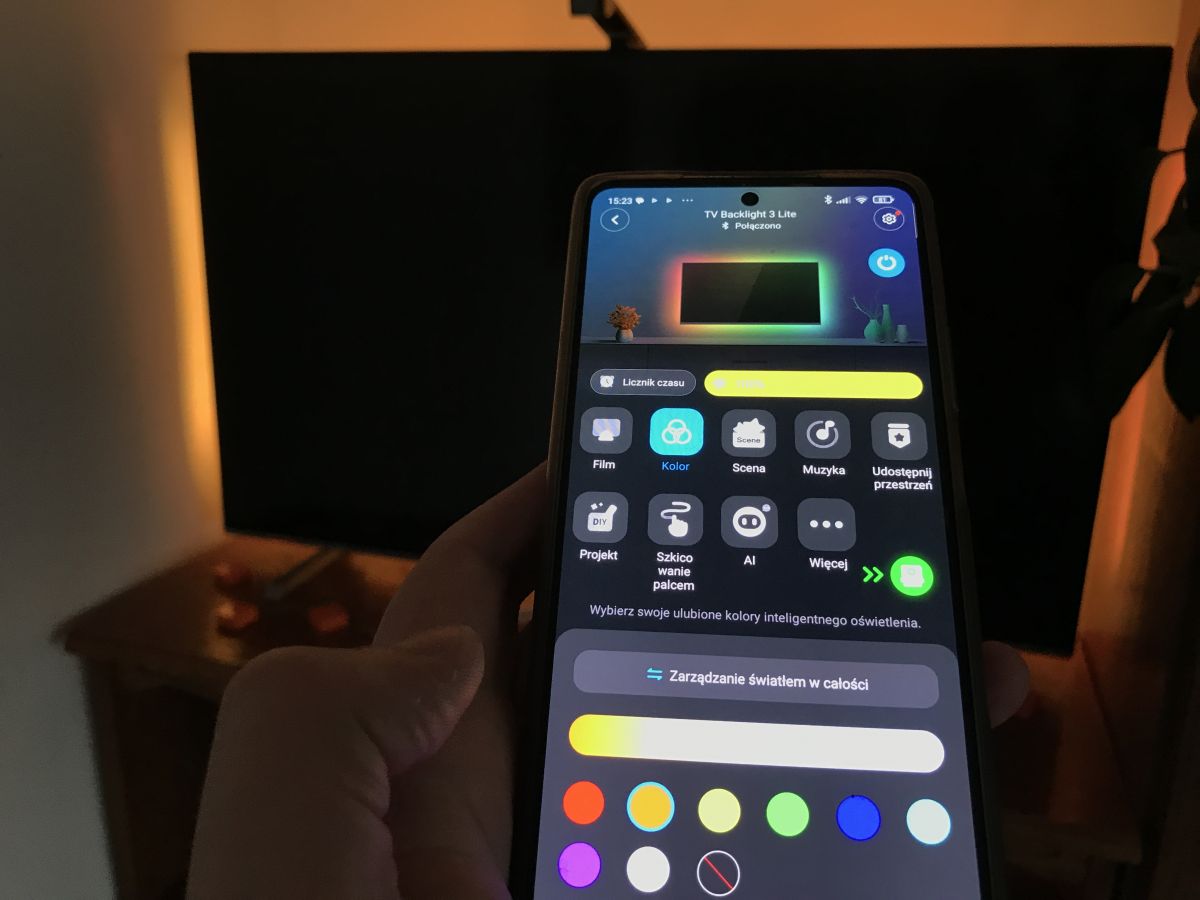
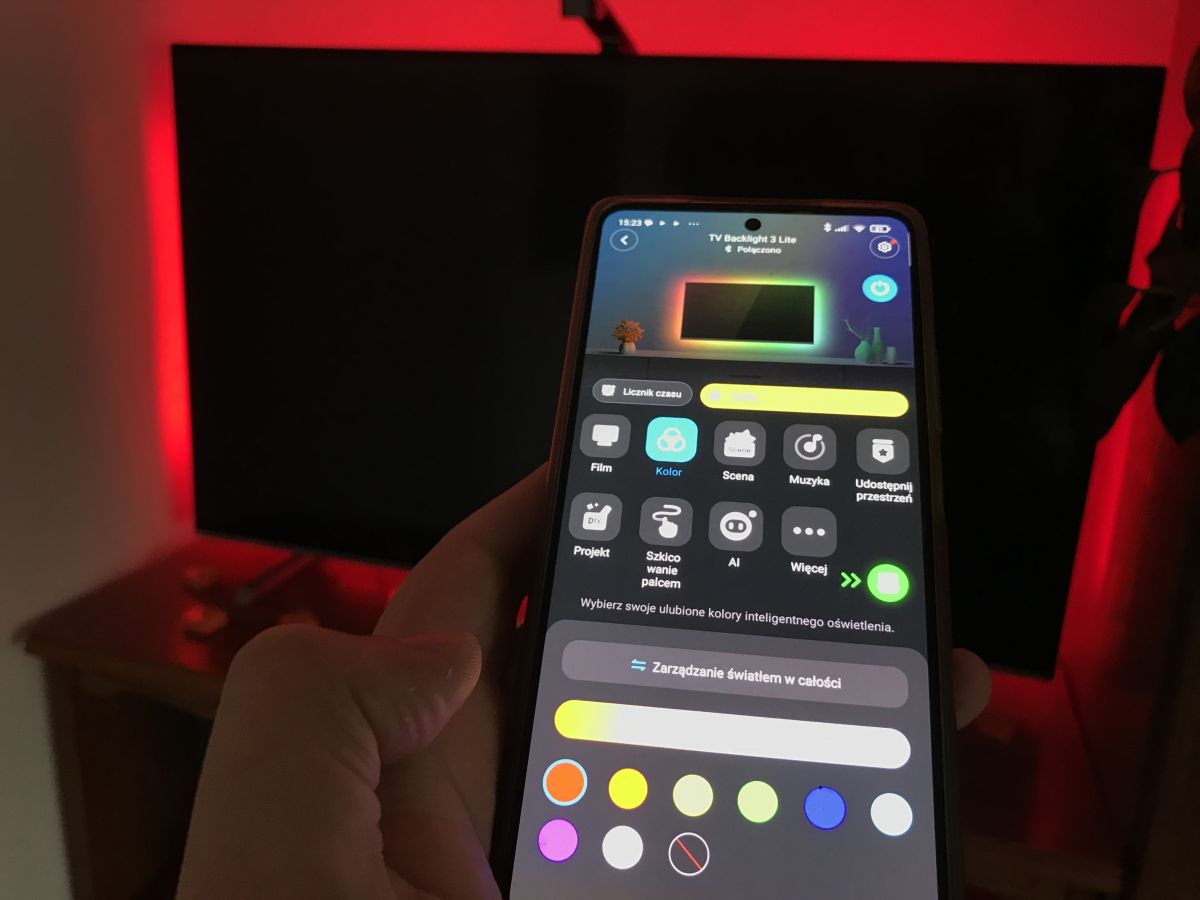
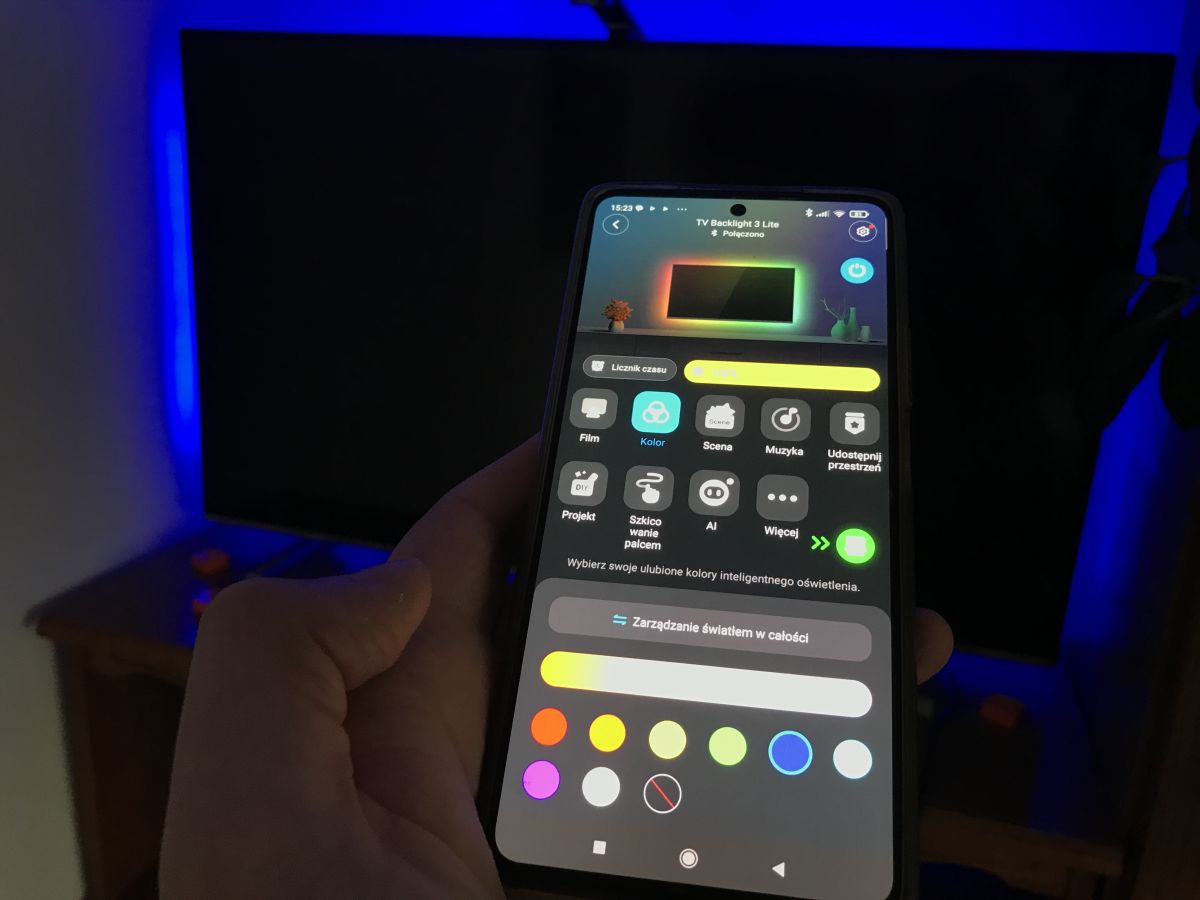
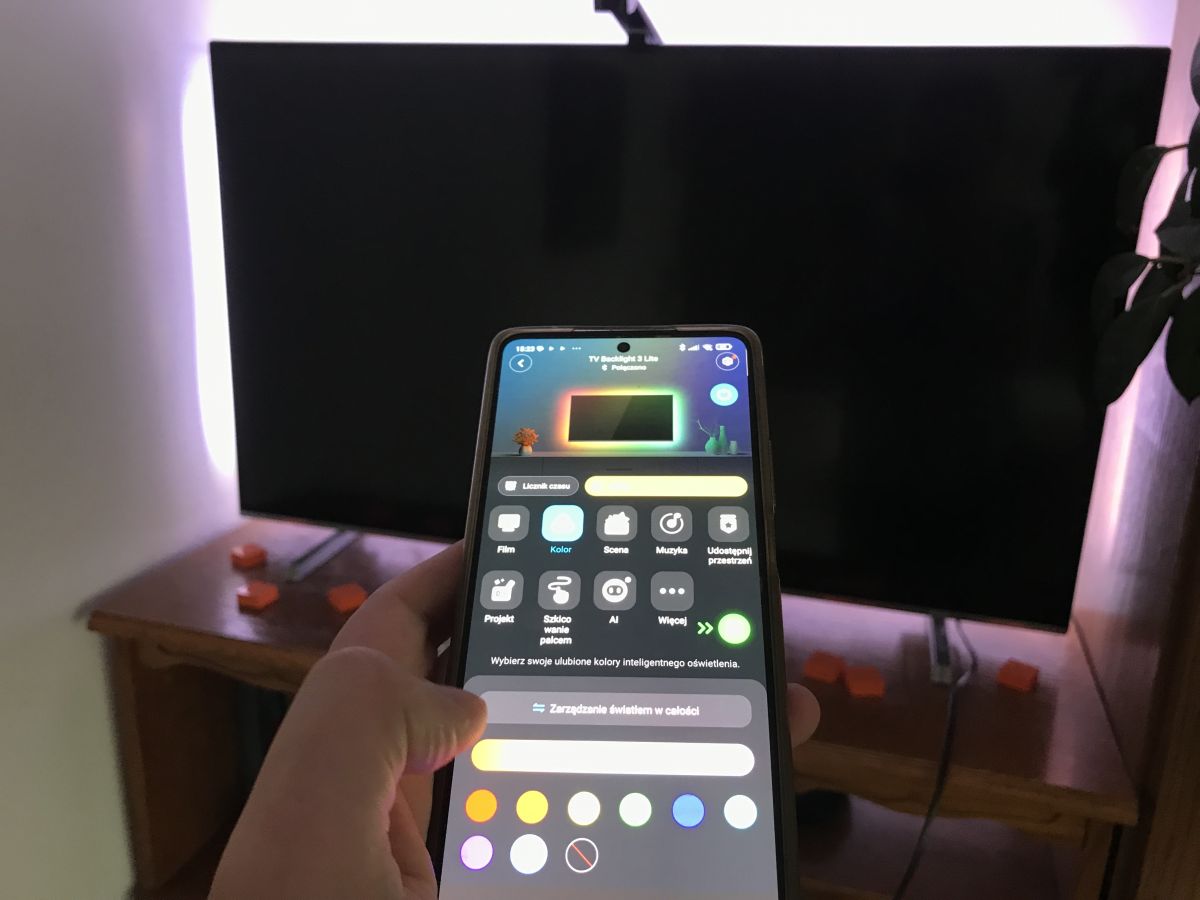
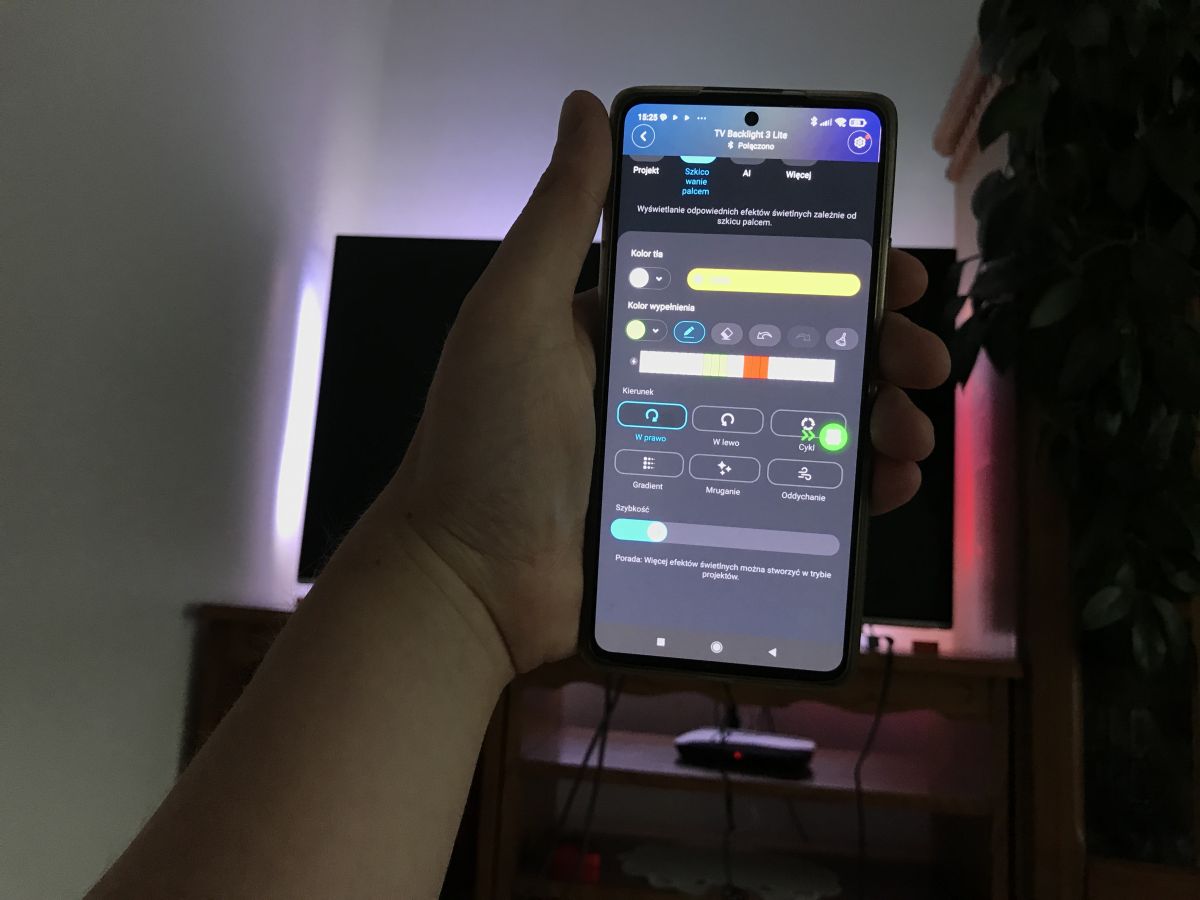
The strip can also act as an ordinary LED strip. We can set predefined colours, play animations, and there is also a music mode (animation to the rhythm of music) and an animation configurator where we choose the LEDs and their colours ourselves.
.
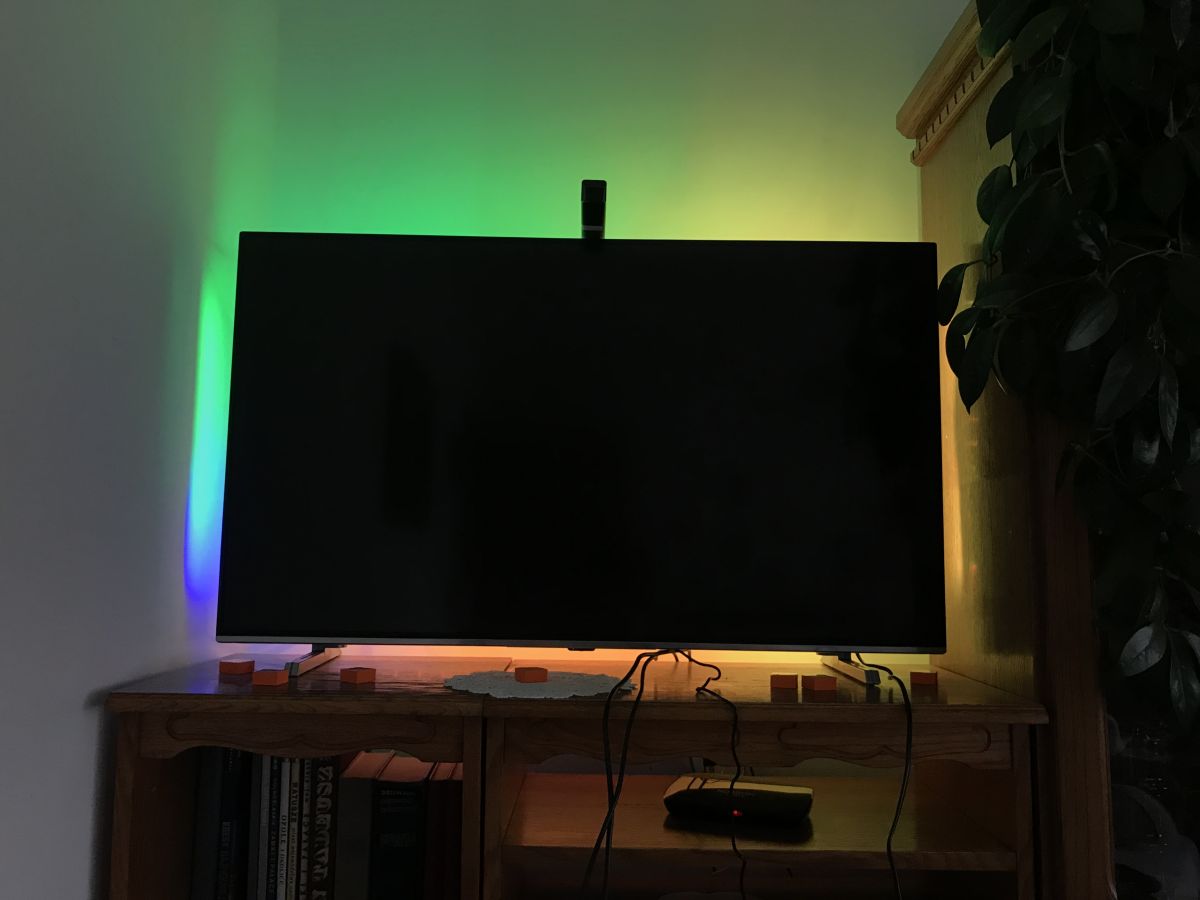
Example effects:
.
.
Example of a custom animation - a white strip with several LEDs in red and green:
.
Same animation in the video - you can see the green and red. The rest is white light, although in my case a little bit of the colour of the furniture interferes with that.
Multi-device synchronisation - DreamView effect .
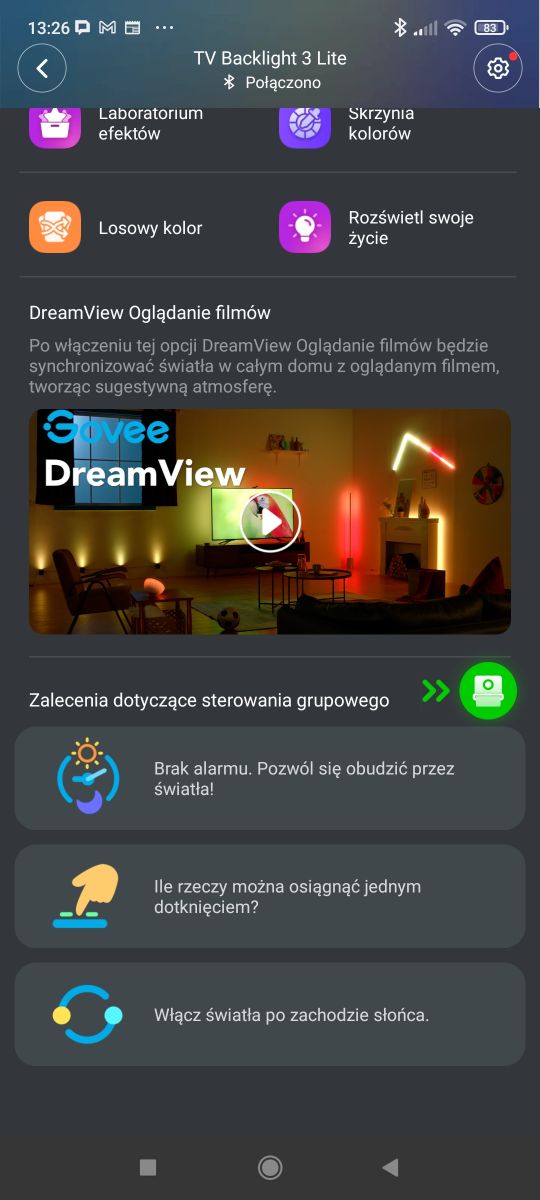
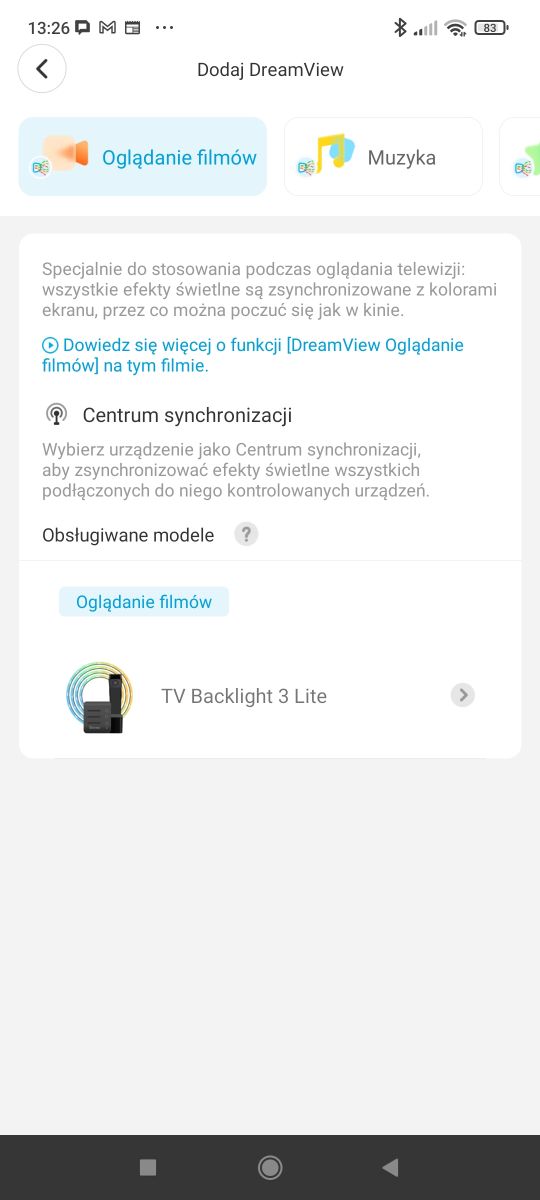
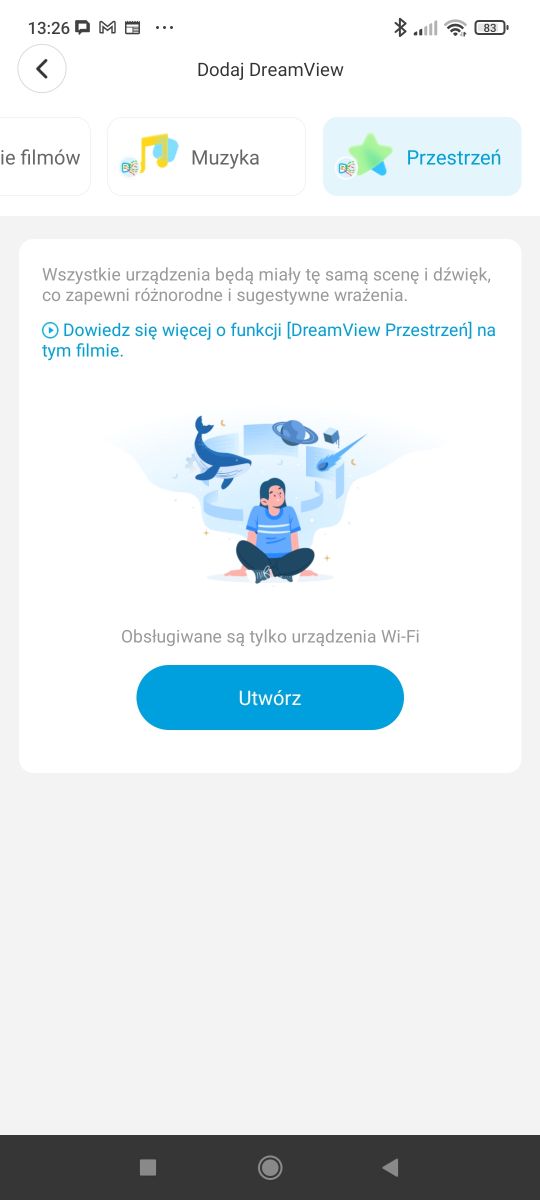
The device also supports the Govee DreamView system that allows external lights to be synchronised with the LED strip discussed here. Simply add another device to the app and then select it in the Synchronisation Centre.
Support Matter .
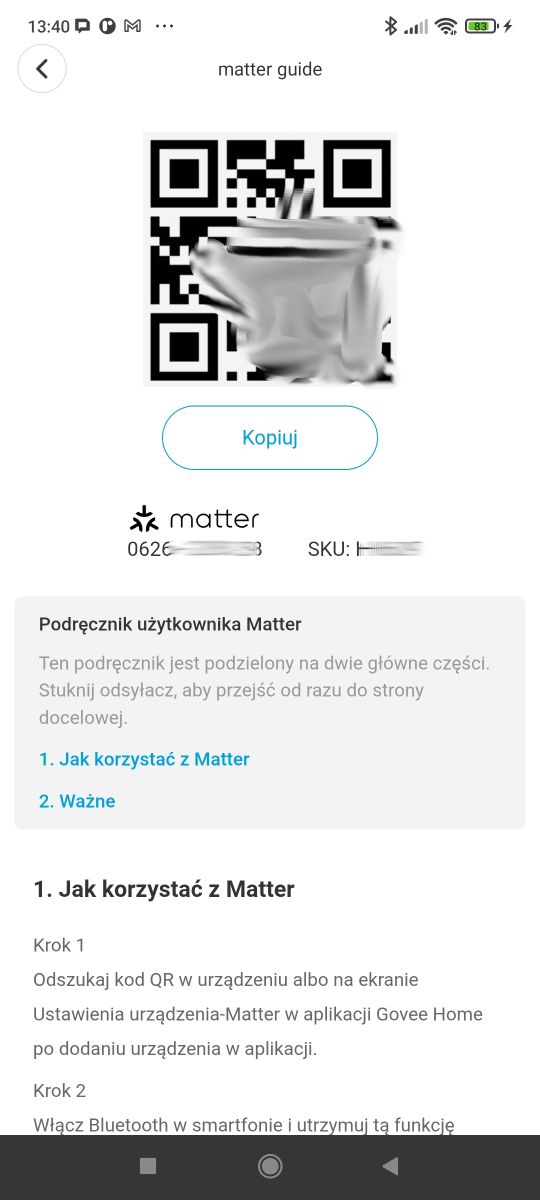
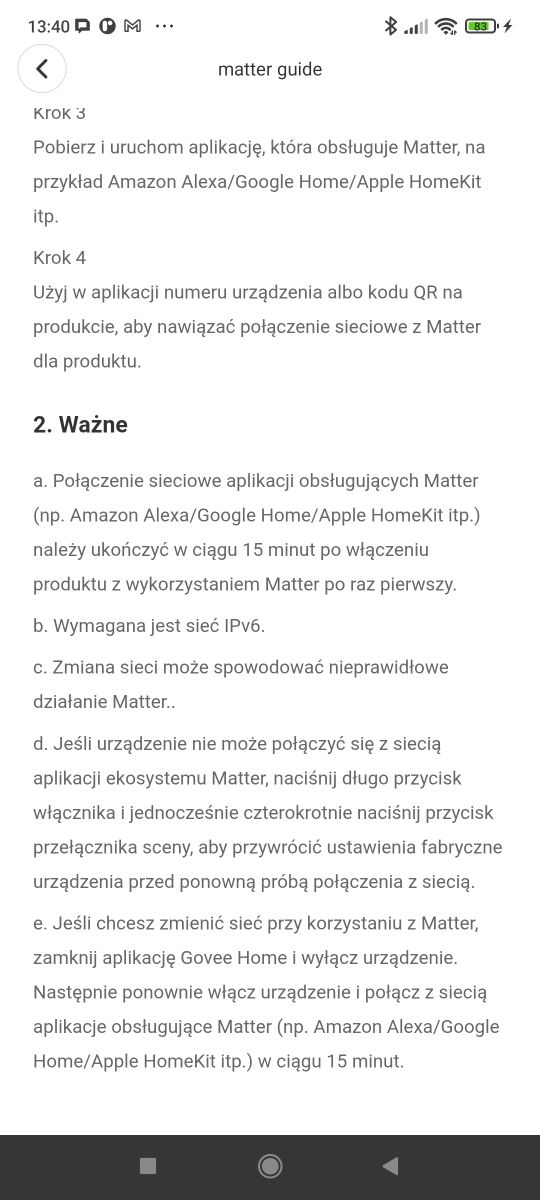
In the options, too, you can find the QR code needed to pair the device with the Matter. This allows you to make it available on Amazon Alexa/Google Home/Apple HomeKit. Detailed instructions can be found in the screenshots below.
.
Four-colour diodes .
It is also worth noting the construction of the LED strip shown here. This is not a normal RGB like the WS2812 - here we have RGBW LEDs, meaning that in addition to the basic colours (red, green, blue) we also have a separate white. This allows for much better colour reproduction and improves the visual experience.
Power consumption measurements .
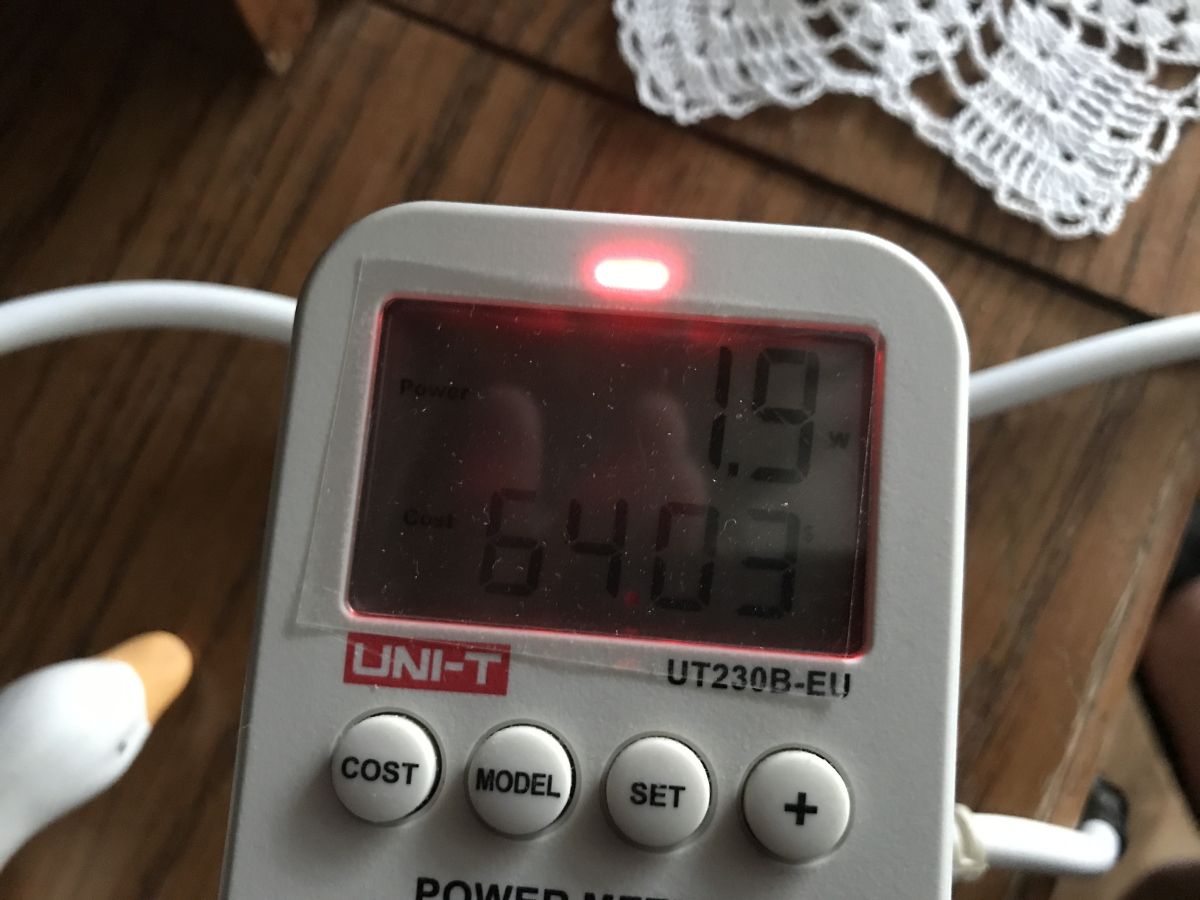
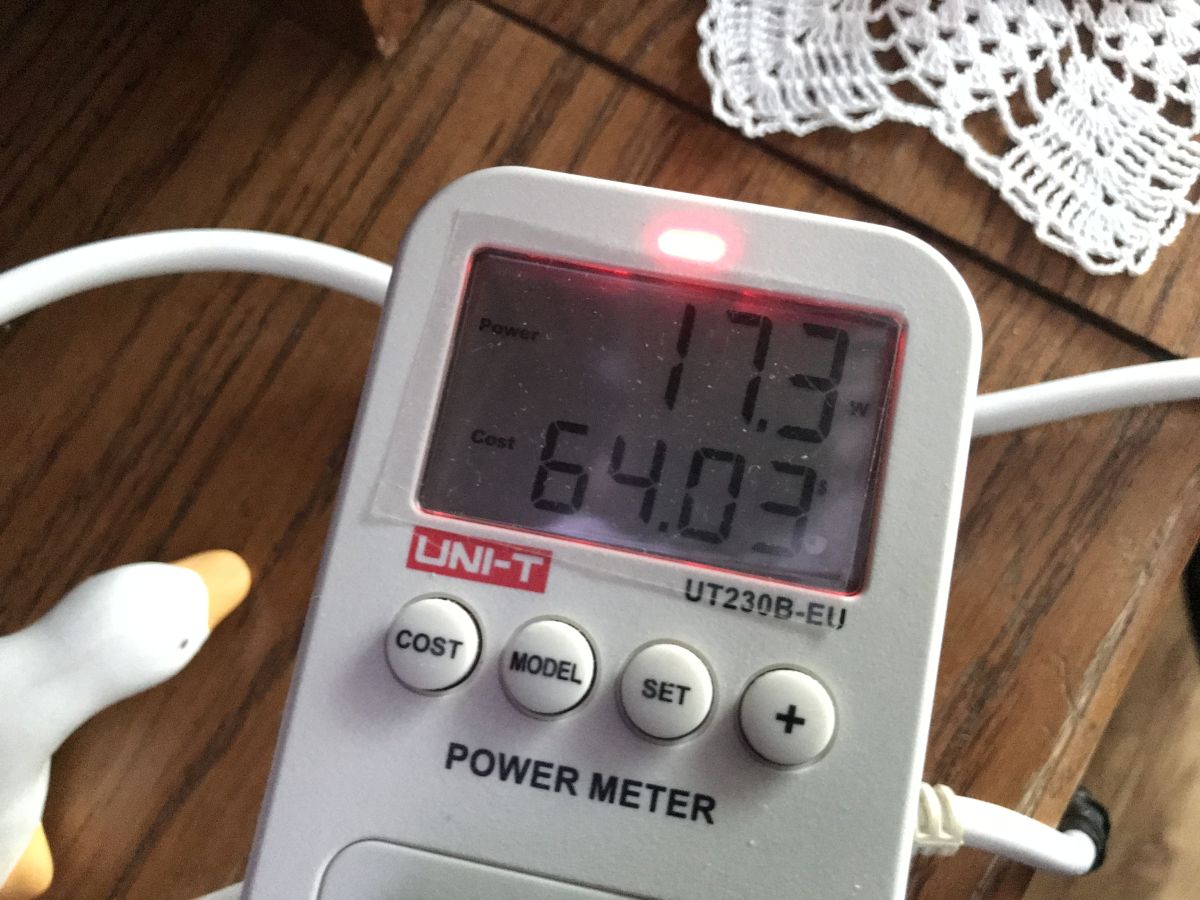
Finally, a brief measurement - how much does it cost us to use such a belt? I show separately the maximum power I was able to record (cold white - the whole strip) and the standby power:
.
The actual output during normal use is much lower, as only LEDs of one or two colours are usually lit.
Presentation of effects and commentary - Youtube .
We also invite you to read a summary of the material on our YouTube channel:
.
Summary .
It's been a good month since I installed these lights on our TV. In that time we've managed to spend a few weekends watching and I can say in good conscience that the effect is really good. The colours are reproduced surprisingly well and the light from the LEDs blends in well with the background behind the TV, although in our case it would have been useful to move the cabinet back a little.
The installation, initial commissioning and calibration of this product also surprised me - I thought it would be more difficult. Basically, it didn't need much tweaking. I think anyone can handle it without any problems.
In addition, I liked the fact that the manufacturer has thought of everything - there are even physical buttons for people who don't like mobile apps. What's more, the product itself correctly turns off the LEDs when the TV is off, so it's basically maintenance-free.
It should also not be forgotten that the stripe used here is more than just plain RGB - the LEDs used have an additional separate white channel, which allows even better colour reproduction.
All in all, this backlighting will effectively liven up any living room or TV.
[ Advertising collaboration with BATNA Ltd. ]
About Author
p.kaczmarek2 wrote 14771 posts with
rating 12914 , helped 659 times.
Been with us since 2014 year.
Cool effect, for watching films/programmes "out of the corner of your eye". - such a contemporary philips ambielight.
But the real atmosphere, however, is only with a screen and projector, in total... [Read more]
pikarel
11 Oct 2025 13:53
A factual description, with all the technical details, very useful for those who are less familiar with this type of device but want to use such a backlight.
For the full "experience" of receiving the... [Read more]
ArturAVS
12 Oct 2025 11:52
I don't see any information regarding the LEDs used, something like WS2812 or something similar? [Read more]
mongoł2000
12 Oct 2025 23:13
In the videos you can see quite a lot of inaccuracy and as if the colours are a bit random - e.g. on black we have purple and sometimes there is no colour at all despite the bright object. Doesn't this... [Read more]
p.kaczmarek2
12 Oct 2025 23:17
Which second of which film do you mean?
.
For this reason, the first video of the "Practical Tests" is sudden colour changes, have you seen it? In my opinion the reaction is instantaneous, but someone... [Read more]
vulture30
15 Oct 2025 11:26
Thanks for the factual test.
Did you consider the T2 version?
Could you write why you chose the T3? [Read more]
p.kaczmarek2
16 Oct 2025 17:32
I have not analysed the differences between specific versions, if you have any experience with this, please share.
.
https://obrazki.elektroda.pl/3973512900_1760628629_bigthumb.jpg .
The strip... [Read more]
keseszel
24 Oct 2025 09:02
It is a pity that there is no price. Might be useful for some people. I have a Philips with ambilight(by the way - rubbish not tv) and I hardly use it. It's terribly annoying during the day, you have to... [Read more]
Telo
24 Oct 2025 10:13
after all, there is a price link at the beginning of the topic
https://www.batna24.com/pl/p/govee-h6097-tv-backlight-3-lite-tasma-led-rmngn [Read more]
keseszel
25 Oct 2025 16:44
Actually, I did not pay attention to the link. I have been in the habit of reading or scrolling titles for a long time. When I'm interested in a title I read, when I'm not I just scroll. [Read more]
FAQ
TL;DR: 12V 2A kit tested on a 42-inch TV; “Calibration is very simple.” Camera reads your screen, so no HDMI setup. Works with app, Matter, and can sync with other Govee lights. [Elektroda, p.kaczmarek2, post #21713862]
Why it matters: This FAQ helps TV owners decide, install, calibrate, and troubleshoot Govee TV Backlight 3 Lite without guesswork, fast.
What is the Govee TV Backlight 3 Lite and who is it for?
It’s a camera-based LED bias lighting kit that mirrors on‑screen colors behind your TV. It suits people who want Ambilight‑style immersion without using HDMI ports or worrying about signal formats. Bias lighting can also reduce perceived eye strain in dark rooms. [Elektroda, p.kaczmarek2, post #21713862]
Does it need HDMI or work with any source?
It works with any content because a small camera views your screen and drives the LEDs accordingly. No HDMI passthrough, no EDID issues, and no resolution or refresh‑rate constraints on the video chain. [Elektroda, p.kaczmarek2, post #21713862]
What TV sizes does this kit fit?
The reviewed kit targets 40–50 inch TVs and was installed on a 42‑inch panel. Larger kits exist; select the version that matches your screen size because strip lengths differ. [Elektroda, p.kaczmarek2, post #21713862]
What’s included in the box?
You get four linked LED strips, a 12V 2A PSU, the three‑button controller, interconnect cable, top‑mount camera, wipes, extra clips, orange calibration cubes, instructions, and a warranty card. [Elektroda, p.kaczmarek2, post #21713862]
Are the LEDs RGB or RGBW, and what driver do they use?
They’re RGBW diodes, so there’s a separate white channel for better whites and color rendering. The strip is based on WS2814A addressable LEDs, not WS2812. [Elektroda, p.kaczmarek2, post #21722191]
How do I mount and calibrate it quickly?
Lay the TV face‑down on a flat surface, stick the strip and clips, and mount the camera square to the panel.
In Govee Home, pair over Bluetooth/Wi‑Fi, then select the highlighted strip edges to match your layout.
Does it support Alexa, Google, or Apple Home? How do I add it?
Yes. In the app, open options to find the Matter QR and add it to your preferred platform (Alexa/Google Home/Apple HomeKit). Follow the on‑screen steps after scanning the QR code. [Elektroda, p.kaczmarek2, post #21713862]
Can it sync with other Govee lights (DreamView)?
Yes. Add your other Govee lights in the app and use the Synchronization Center (DreamView) to mirror the TV’s colors across them for a wider immersive effect. [Elektroda, p.kaczmarek2, post #21713862]
How responsive is the color matching for movies or games?
The reviewer shows instant reactions to abrupt color changes and notes the response feels immediate. As they put it, “the reaction is instantaneous,” supported by video tests. [Elektroda, p.kaczmarek2, post #21718547]
Colors look off or laggy. How do I fix it?
Re‑run calibration with room lights on, ensure the camera foot is at a right angle, and carefully align the on‑screen dots in the app. Reduce reflections from nearby furniture by pulling cabinets back slightly. Clean the camera lens and save changes. [Elektroda, p.kaczmarek2, post #21713862]
Will it turn off with the TV, and what about daytime annoyance?
The product turns off LEDs when the TV powers down, making it mostly maintenance‑free. If you want lights off during daytime, use the three physical buttons or the app to toggle scenes or power. [Elektroda, p.kaczmarek2, post #21713862]
What about power use and the power supply?
It includes a 12V 2A adapter. Max draw occurs on full cold white; typical use is lower because only some colors light at once. Standby consumption is small, and measurement screenshots show separate max versus standby values. [Elektroda, p.kaczmarek2, post #21713862]
Can I make custom animations or use music-reactive effects?
Yes. You can set static colors, pick from preset effects, enable music mode, or build your own animations by selecting LED zones and colors in the Govee Home app. [Elektroda, p.kaczmarek2, post #21713862]
Is there a difference between T2 and T3, and why choose T3 here?
This review did not analyze T2 versus T3. The author evaluated the Backlight 3 Lite kit and asked others to share version differences if known. Choose based on your TV size and required features. [Elektroda, p.kaczmarek2, post #21722191]
Do I need an app account, and which Wi‑Fi band is supported?
Yes, create an account to complete pairing. The device uses Bluetooth for discovery and supports 2.4 GHz Wi‑Fi for control; enter your SSID and password during setup. [Elektroda, p.kaczmarek2, post #21713862]
Any safety tips for mounting on the panel?
Always lay the TV face‑down on a flat, clean surface to avoid panel damage. Clean the back with the provided wipes, use the adhesive clips for strain relief, and set the camera so its foot sits square to the screen. [Elektroda, p.kaczmarek2, post #21713862]
AI summary based on the discussion. May contain errors.








Comments
Cool effect, for watching films/programmes "out of the corner of your eye". - such a contemporary philips ambielight. But the real atmosphere, however, is only with a screen and projector, in total... [Read more]
A factual description, with all the technical details, very useful for those who are less familiar with this type of device but want to use such a backlight. For the full "experience" of receiving the... [Read more]
I don't see any information regarding the LEDs used, something like WS2812 or something similar? [Read more]
In the videos you can see quite a lot of inaccuracy and as if the colours are a bit random - e.g. on black we have purple and sometimes there is no colour at all despite the bright object. Doesn't this... [Read more]
Which second of which film do you mean? . For this reason, the first video of the "Practical Tests" is sudden colour changes, have you seen it? In my opinion the reaction is instantaneous, but someone... [Read more]
Thanks for the factual test. Did you consider the T2 version? Could you write why you chose the T3? [Read more]
I have not analysed the differences between specific versions, if you have any experience with this, please share. . https://obrazki.elektroda.pl/3973512900_1760628629_bigthumb.jpg . The strip... [Read more]
It is a pity that there is no price. Might be useful for some people. I have a Philips with ambilight(by the way - rubbish not tv) and I hardly use it. It's terribly annoying during the day, you have to... [Read more]
after all, there is a price link at the beginning of the topic https://www.batna24.com/pl/p/govee-h6097-tv-backlight-3-lite-tasma-led-rmngn [Read more]
Actually, I did not pay attention to the link. I have been in the habit of reading or scrolling titles for a long time. When I'm interested in a title I read, when I'm not I just scroll. [Read more]