





The simplest Internet radio on the ESP32-S3? No installation required – just upload it and it works!
TL;DR 
- Builds an ESP32-S3 N16R8 internet radio with PCM5102 I2S audio, OLED or color display support, rotary encoders, and NEC 38 kHz IR remote control.
- Firmware installs directly from a browser using the Web Serial API, so no Arduino IDE, PlatformIO, or library hunting is needed.
- Connect the board over USB, open the installer in Chrome or Edge, choose the COM port, and set Wi‑Fi credentials through the UART terminal.
- A web interface on the radio's IP address configures pins, encoder steps, IR buttons, station lists, display brightness, rotation, and wake-up relay control.
AI summary based on the discussion. May contain errors.
Hi!
I’d like to show you my internet radio project based on the ESP32-S3 module. The main aim was to create a system that absolutely anyone can get up and running – without having to install an IDE, search for missing libraries or troubleshoot compilation issues. The entire firmware is uploaded directly from your browser!
🔧 Hardware used
At the heart of the system is the ESP32-S3 N16R8, which handles audio and network interfaces exceptionally well. In addition, you’ll need the following to build it:
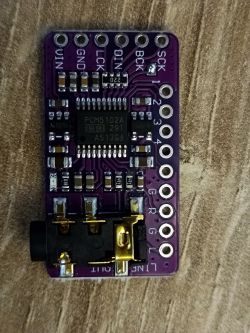
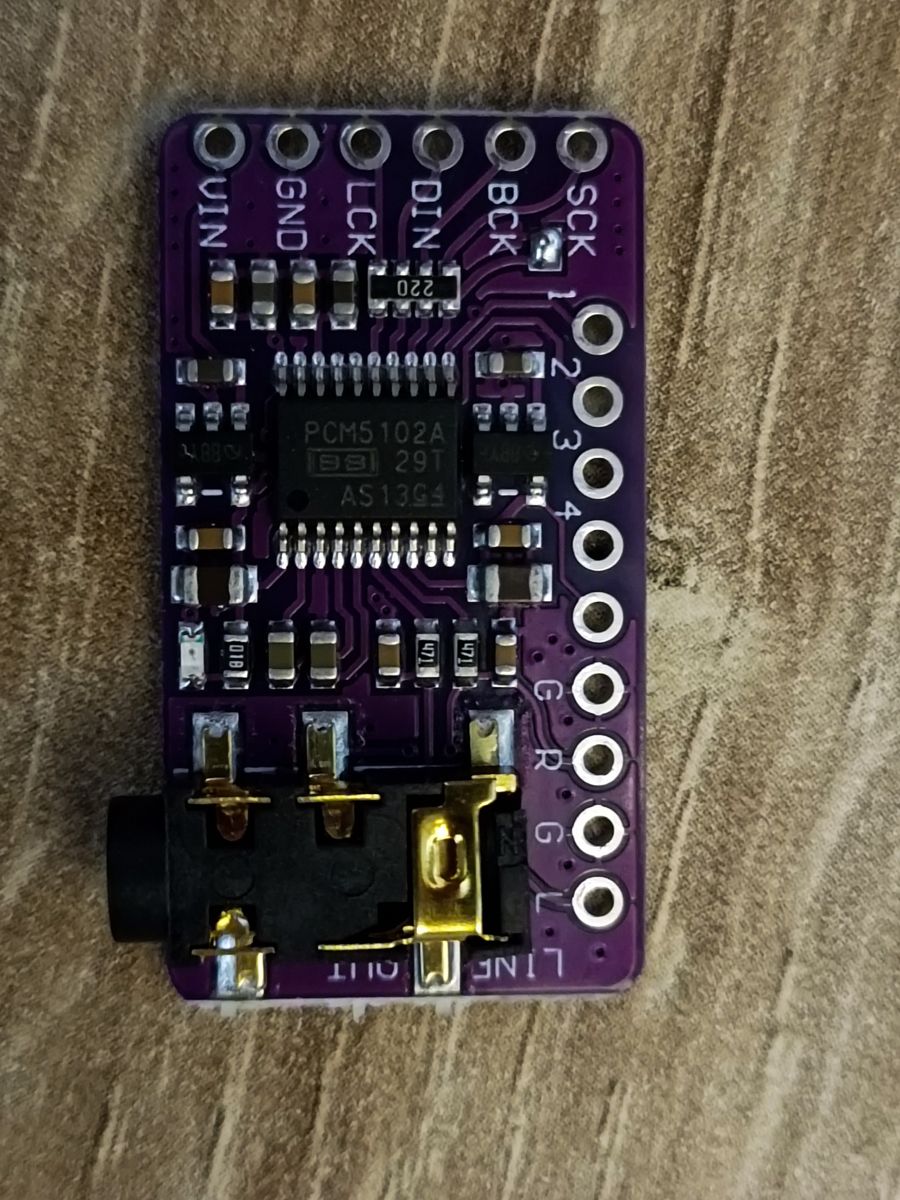
DAC: PCM5102 (I2S communication)
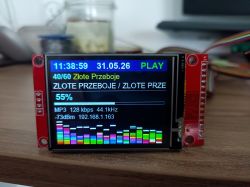
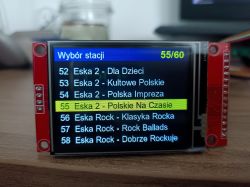
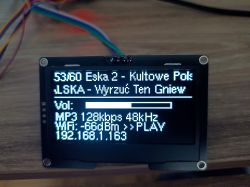
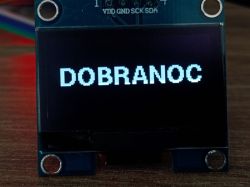
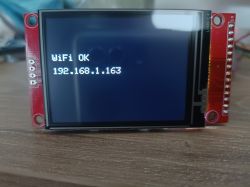
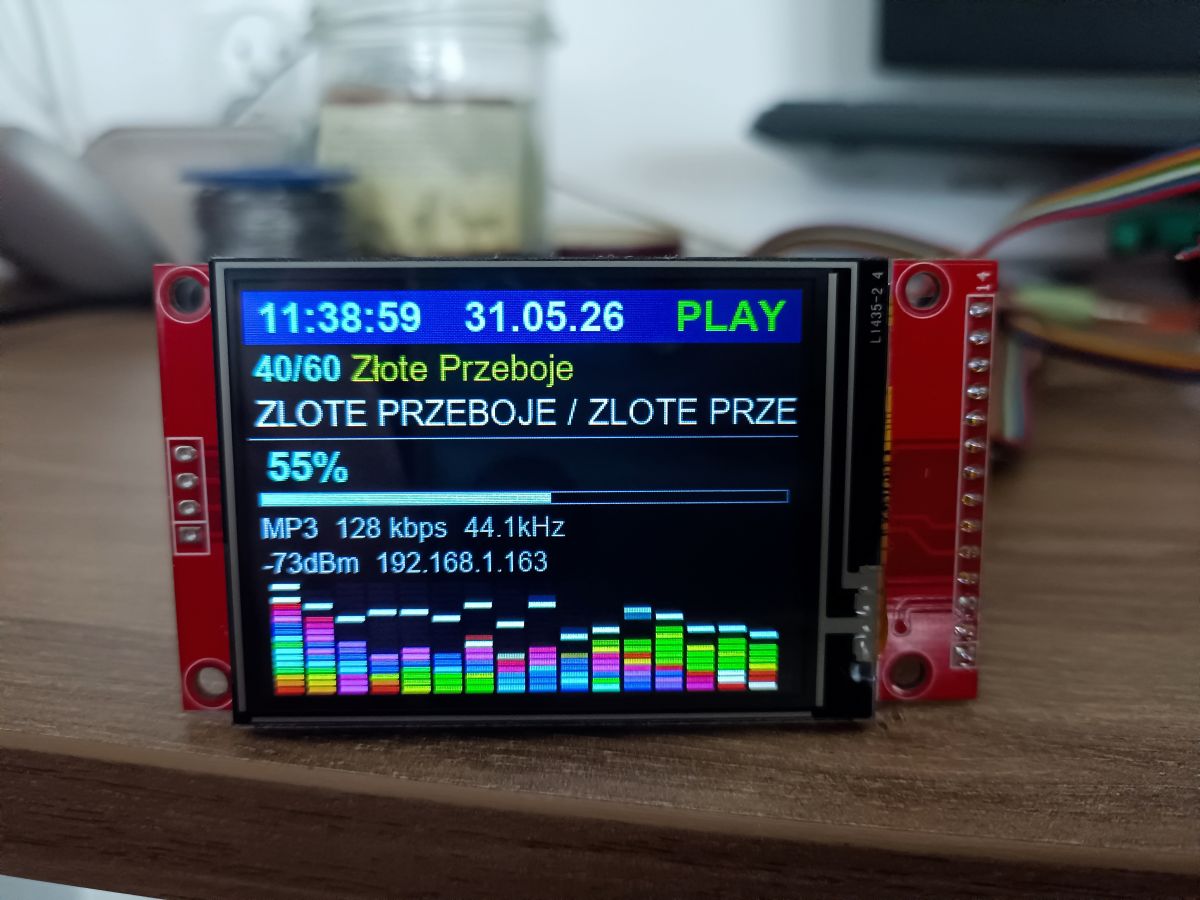
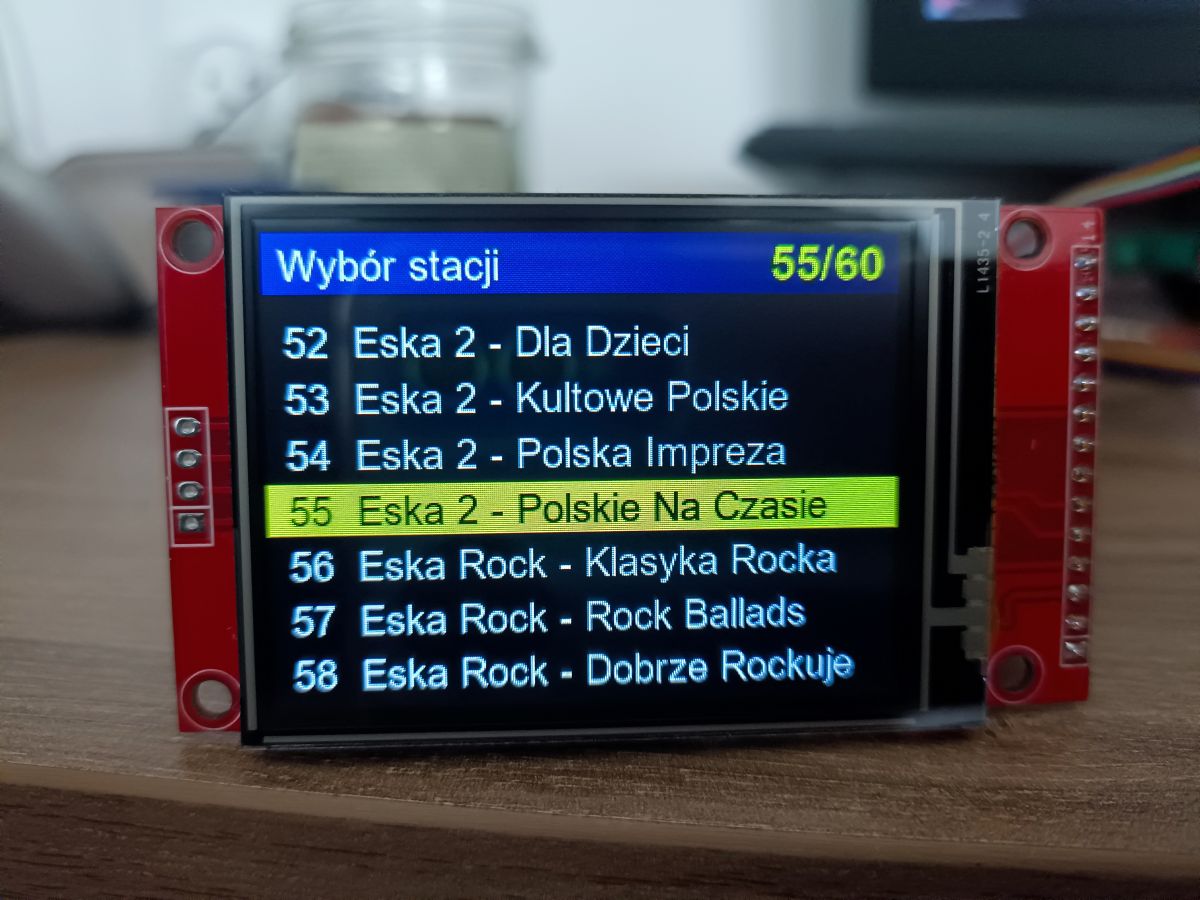
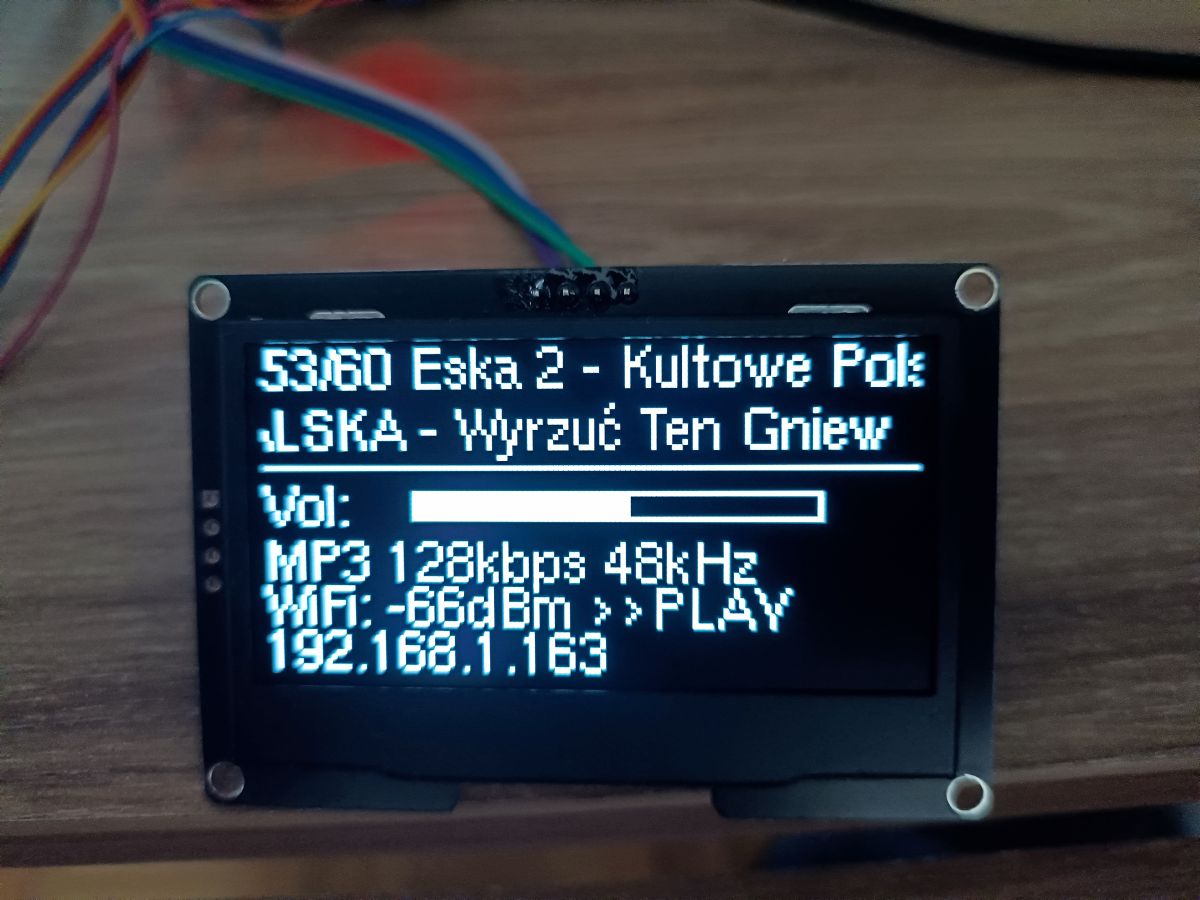
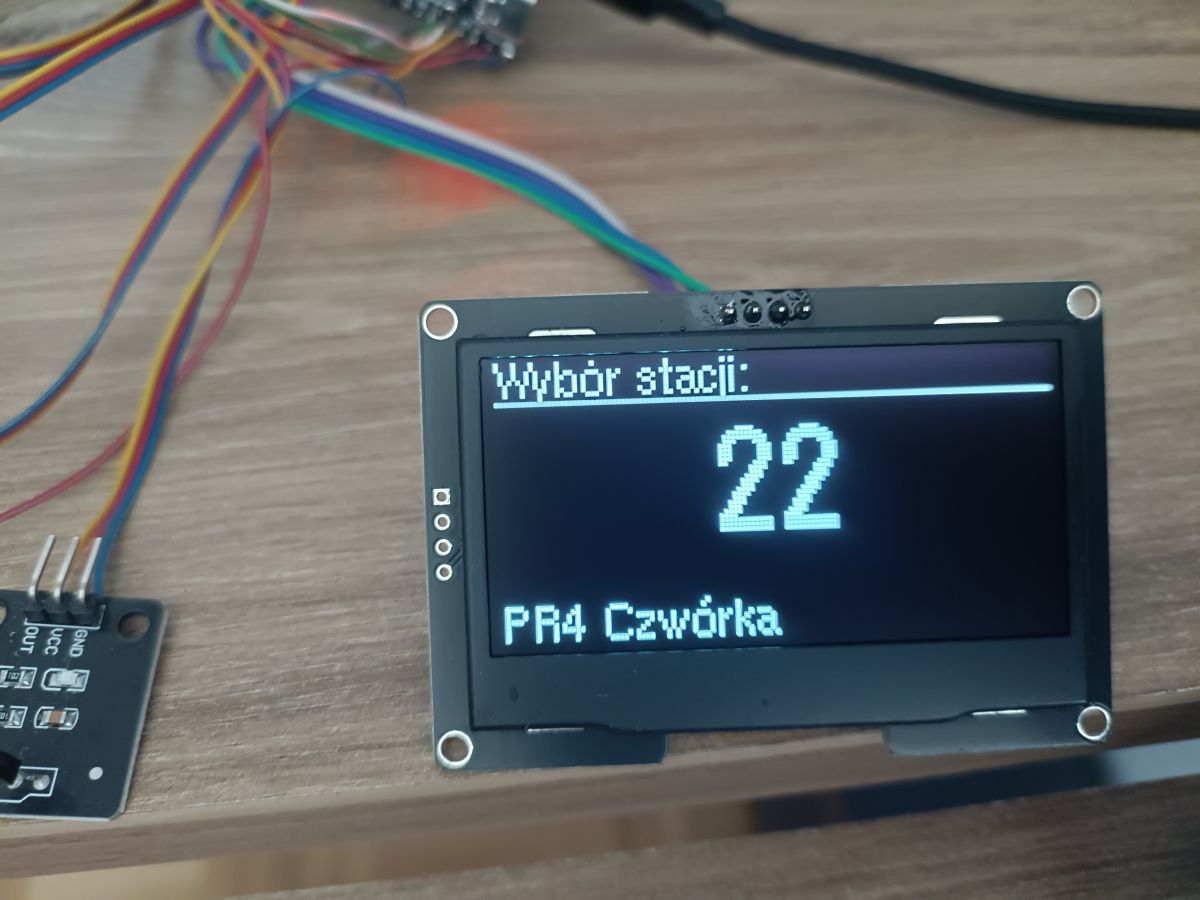
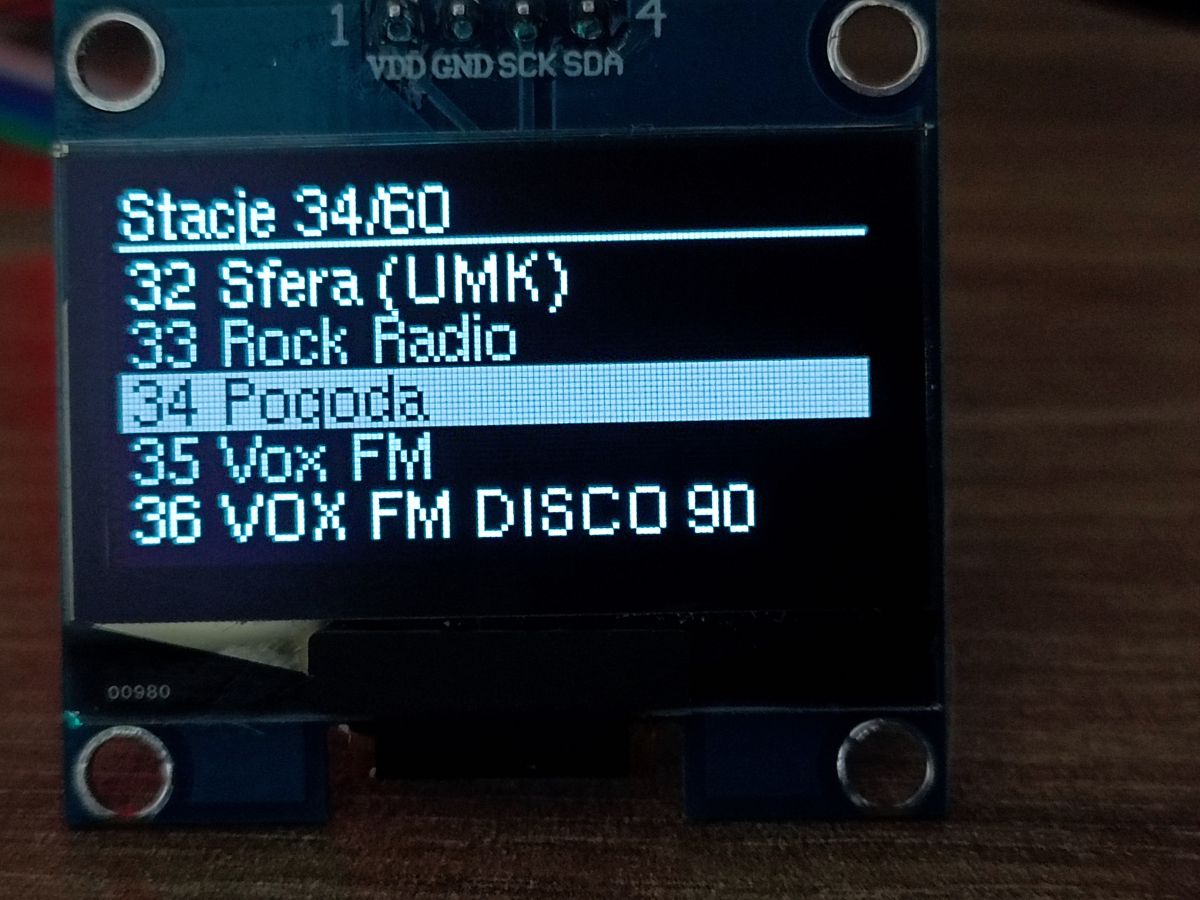
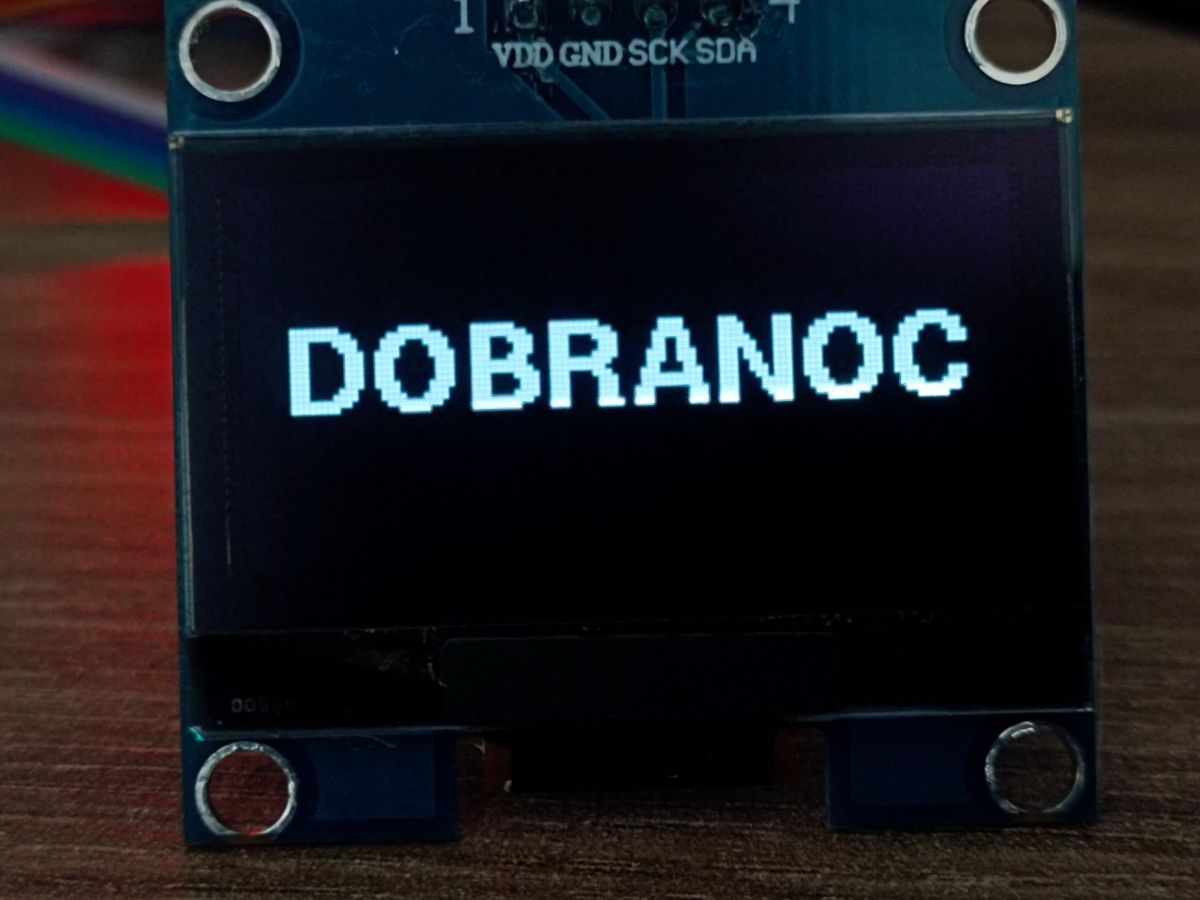
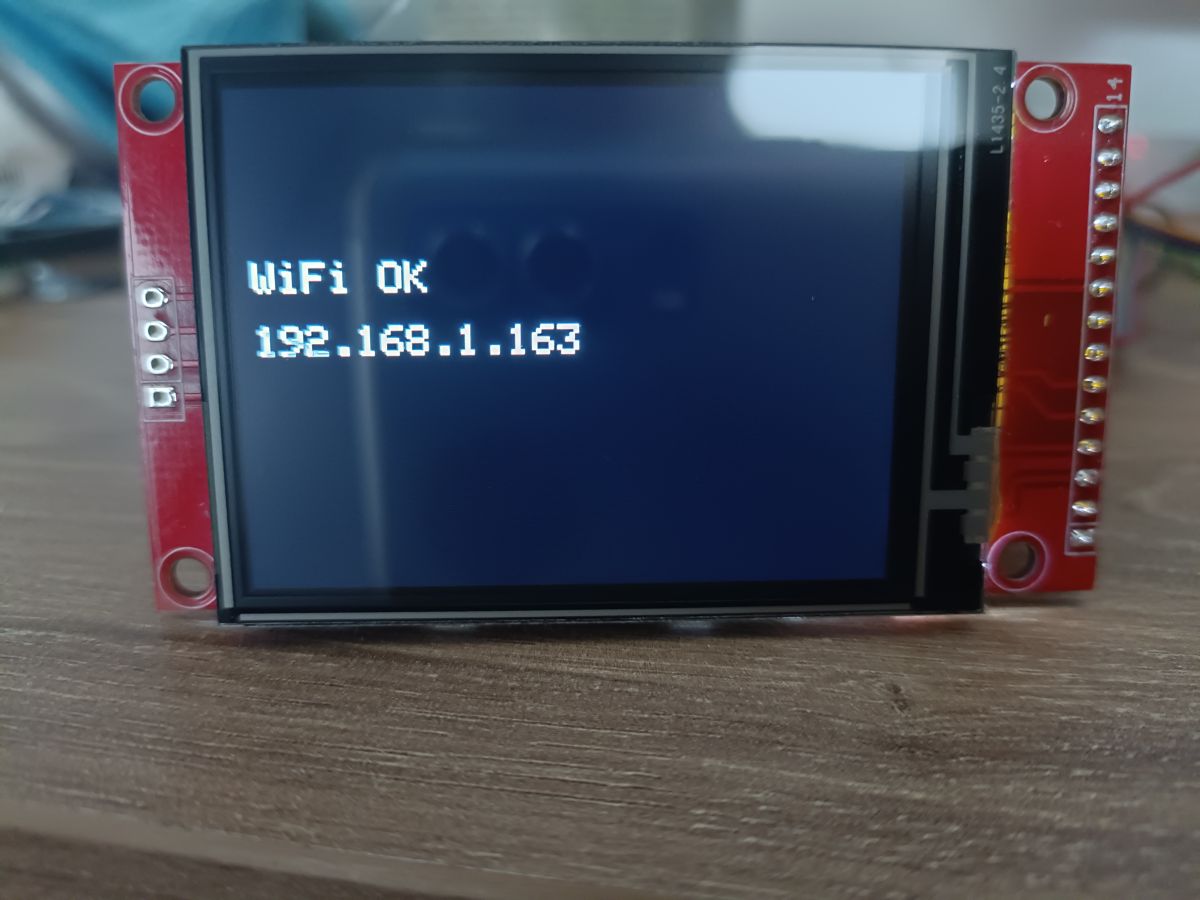
Display: Both OLEDs (e.g. SSD1309 / SH1106 via I2C) and colour displays (SPI) are supported.
Control: Rotary encoders and an infrared (IR 38kHz, NEC standard) receiver for remote control operation.
Power supply: 5V.
💻 Software and quick installation
The biggest advantage of this project is the installation process. You don’t need the Arduino IDE or PlatformIO.
Plug the ESP32-S3 into a USB port.
Go to the dedicated website (which uses the Web Serial API – works in Chrome/Edge).
https://seba131.github.io/esp32-radio-installer/
Click ‘Install’, select the COM port and wait a few dozen seconds.
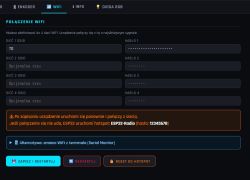
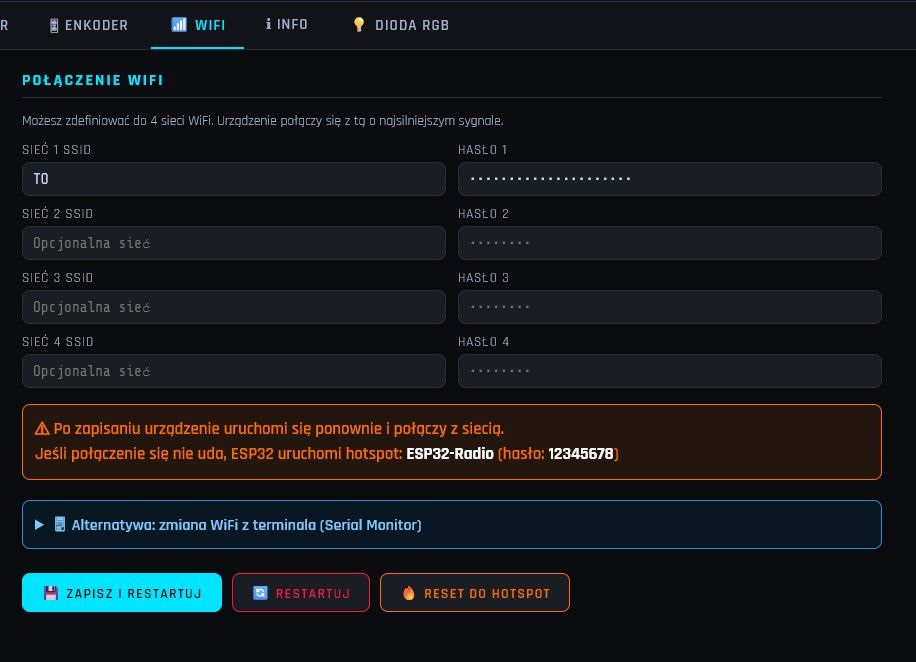
Done! You can carry out the initial configuration (Wi-Fi network password) via the UART terminal directly on this same website.
⚙️ Configuration via the web interface
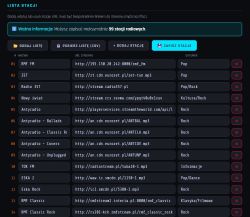
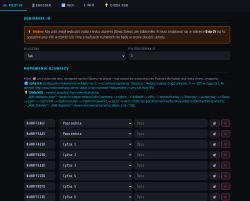
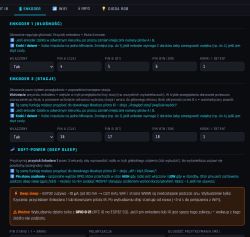
Once the radio has connected to your home network, you can configure everything else via a web browser by entering its IP address. From the web interface, you can:
Assign any pins to the display (CS, DC, SDA, SCL, etc.).
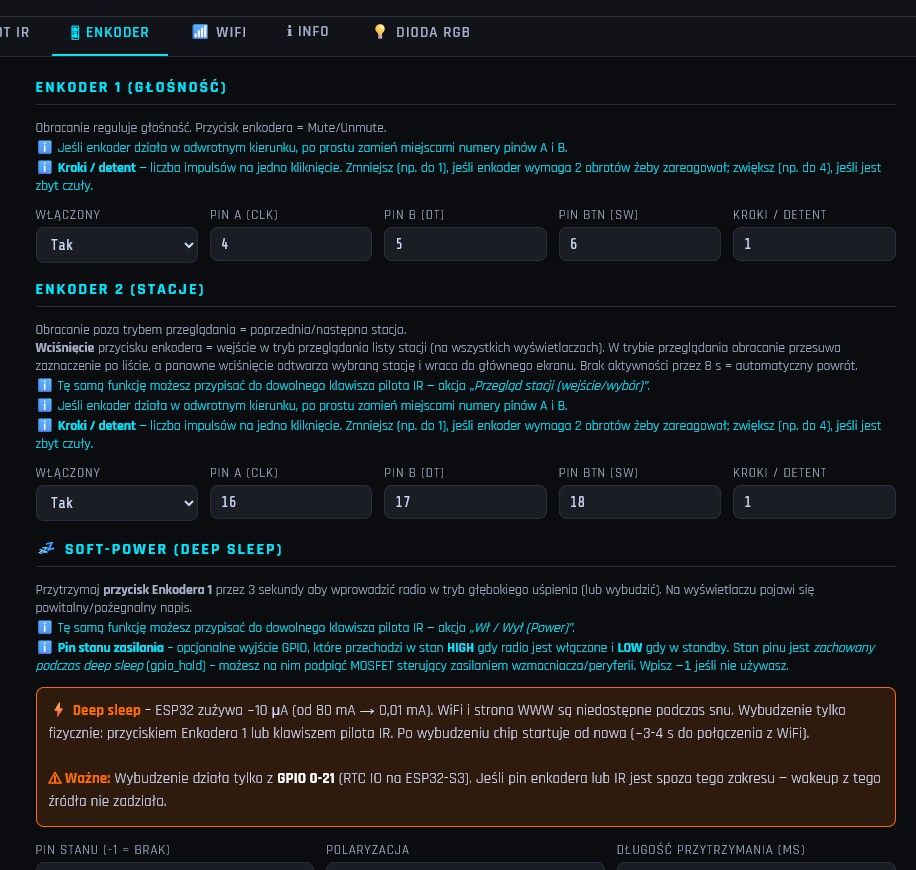
Configure the pins for the encoders and specify their ‘steps’ (this prevents the device from jumping two positions with a single click).
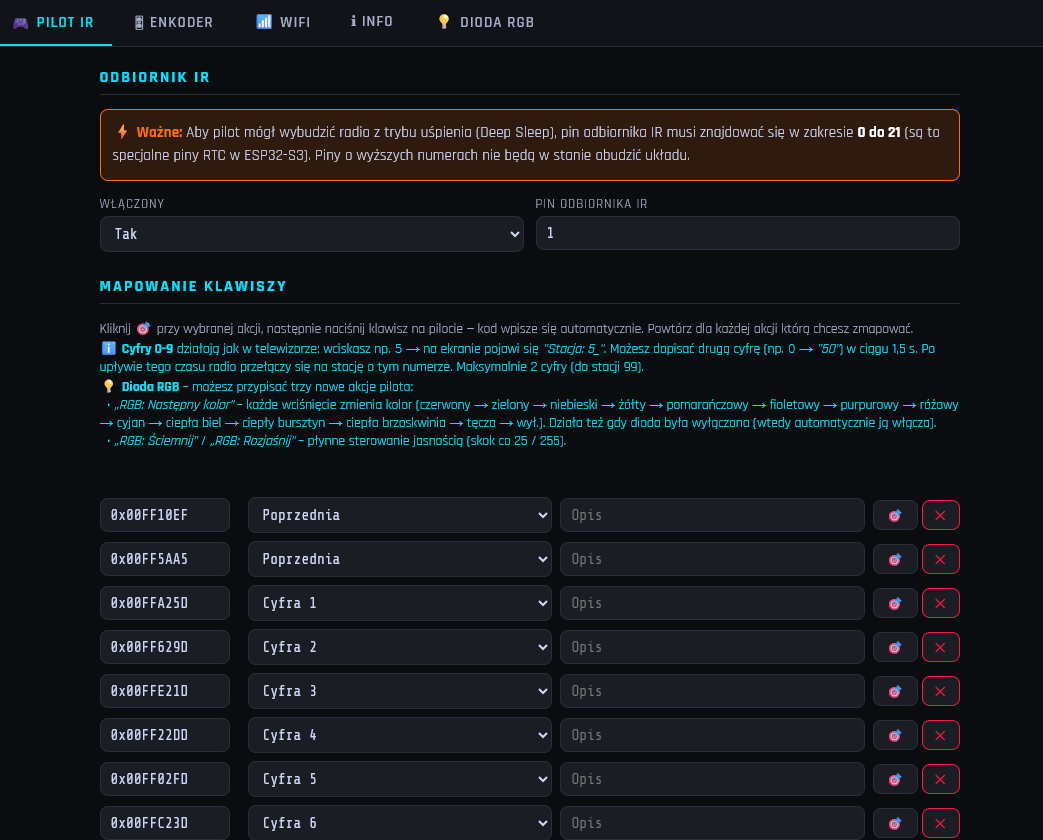
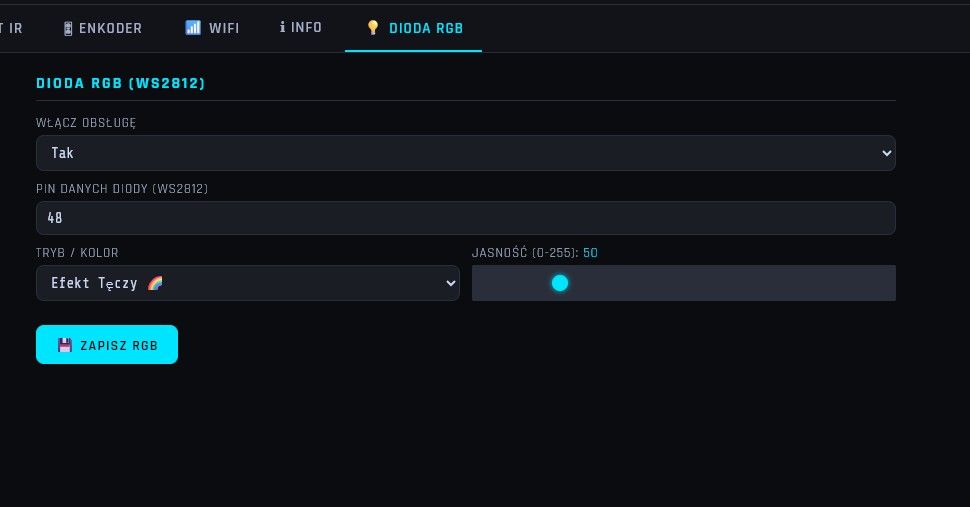
Programme the IR remote control buttons (read codes on the fly and assign them to functions: volume up, volume down, next station, sleep mode, RGB LED control).
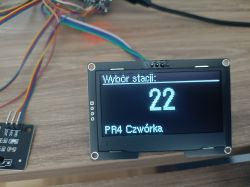
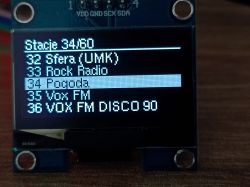
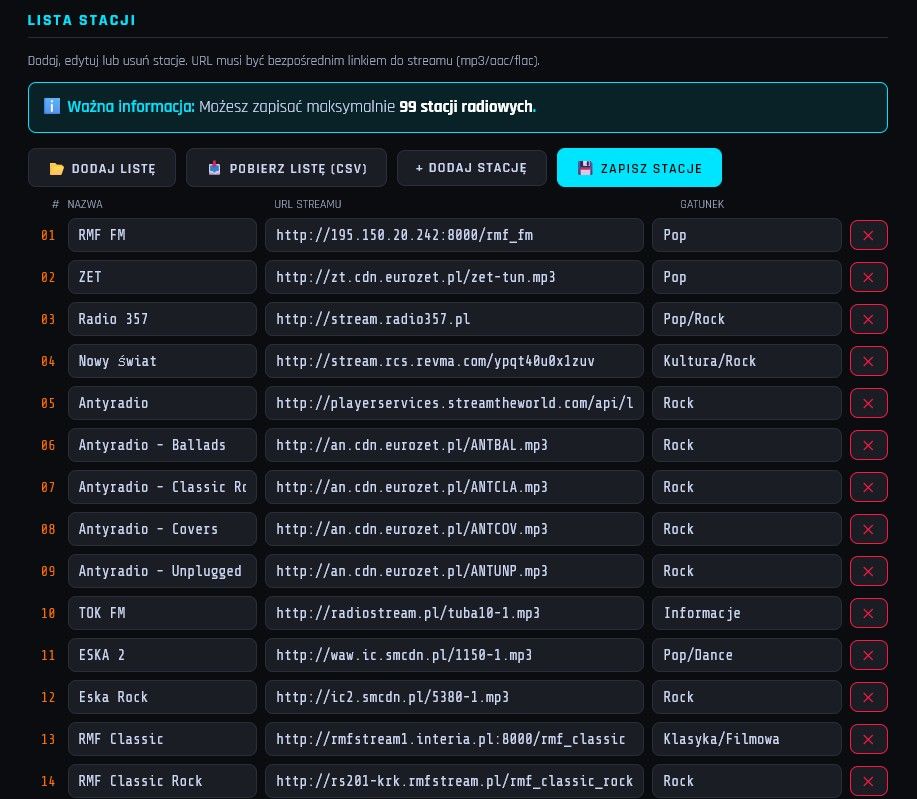
Manage the list of radio stations.
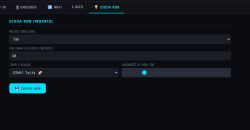
Set the display brightness and image rotation (0/180 degrees).
Configure the wake-up pin (e.g. to control a relay switching on an external amplifier).
📺 Video demonstration
For those interested in exactly how the installation process works, what the web panel looks like and how the radio works in practice, I’ve put together a short video. In it, I walk you through the entire process step by step, from a bare ESP to a working radio:
I’d like to show you my internet radio project based on the ESP32-S3 module. The main aim was to create a system that absolutely anyone can get up and running – without having to install an IDE, search for missing libraries or troubleshoot compilation issues. The entire firmware is uploaded directly from your browser!
🔧 Hardware used
At the heart of the system is the ESP32-S3 N16R8, which handles audio and network interfaces exceptionally well. In addition, you’ll need the following to build it:
DAC: PCM5102 (I2S communication)
Display: Both OLEDs (e.g. SSD1309 / SH1106 via I2C) and colour displays (SPI) are supported.
Control: Rotary encoders and an infrared (IR 38kHz, NEC standard) receiver for remote control operation.
Power supply: 5V.
💻 Software and quick installation
The biggest advantage of this project is the installation process. You don’t need the Arduino IDE or PlatformIO.
Plug the ESP32-S3 into a USB port.
Go to the dedicated website (which uses the Web Serial API – works in Chrome/Edge).
https://seba131.github.io/esp32-radio-installer/
Click ‘Install’, select the COM port and wait a few dozen seconds.
Done! You can carry out the initial configuration (Wi-Fi network password) via the UART terminal directly on this same website.
⚙️ Configuration via the web interface
Once the radio has connected to your home network, you can configure everything else via a web browser by entering its IP address. From the web interface, you can:
Assign any pins to the display (CS, DC, SDA, SCL, etc.).
Configure the pins for the encoders and specify their ‘steps’ (this prevents the device from jumping two positions with a single click).
Programme the IR remote control buttons (read codes on the fly and assign them to functions: volume up, volume down, next station, sleep mode, RGB LED control).
Manage the list of radio stations.
Set the display brightness and image rotation (0/180 degrees).
Configure the wake-up pin (e.g. to control a relay switching on an external amplifier).
📺 Video demonstration
For those interested in exactly how the installation process works, what the web panel looks like and how the radio works in practice, I’ve put together a short video. In it, I walk you through the entire process step by step, from a bare ESP to a working radio:

Seba_smd wrote 323 posts with
rating 115 , helped 8 times.
Live in city Toruń.
Been with us since 2003 year.
Comments
A brilliant initiative and execution; I’ll definitely give it a go when I get the chance. In my opinion, one important piece of information and a step are missing. The ESP32S3 module does not have a configured... [Read more]
Well done – I was actually thinking about a little radio like that to go with my valve amp for my workshop stereo. [Read more]
Have you considered publishing your sources? I’d encourage you to do so :) [Read more]
I think the author’s intention was to keep it simple, without having to deal with different core versions, libraries, patches and the frequent hassle of compiling, etc. There’s plenty of source code for... [Read more]
GPIO0 on the ESP32S3 is internally pulled up to 3.3V, so you can leave it floating. [Read more]
That was exactly the intention. As for the source code, there’s plenty of it, for example: Link Link Link and many others. [Read more]
In cheap modules from AliExpress, there is a 100nF capacitor between GPIO0 and ground, which causes the device to enter BOOT mode. It should be removed, or, as the previous speaker mentioned, pulled up... [Read more]
A cool project. I think it’s based on YoRadio, but it saves you having to compile it :) [Read more]
There’s nothing left to do but check – I’ve got everything, apart from the DAC and the problem with decoding audio from the stream. I reckon you can pair the ESP’s Bluetooth with a Bluetooth device that... [Read more]
This problem may be due to the fact that the audioI2S library does not handle https streams correctly. They must be via http. [Read more]
THAT IS NOT ENTIRELY CORRECT. Since the module has a BOOT button, then: GPIO0 → already handled on the module board EN/RST → there should also be a RESET button on the module A typical Chinese ESP32-S3... [Read more]
The AI says one thing, the manual another. https://obrazki.elektroda.pl/3329135800_1781540815_thumb.jpg [Read more]
In that case, it’s probably based on a different I2S library, such as yoradio. [Read more]
Audio I2S v3.4.4 – new I2S driver (ESP-IDF 5), improved stability on S3, requires core 3.x [Read more]
OK, thanks for the info. [Read more]
That’s a really cool project. My question is about the diagram – or, to be more precise, where can I find the wiring diagram for the whole thing? As I understand it, the programme is written for a specific... [Read more]
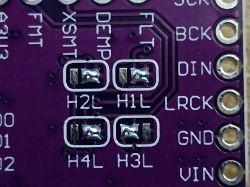
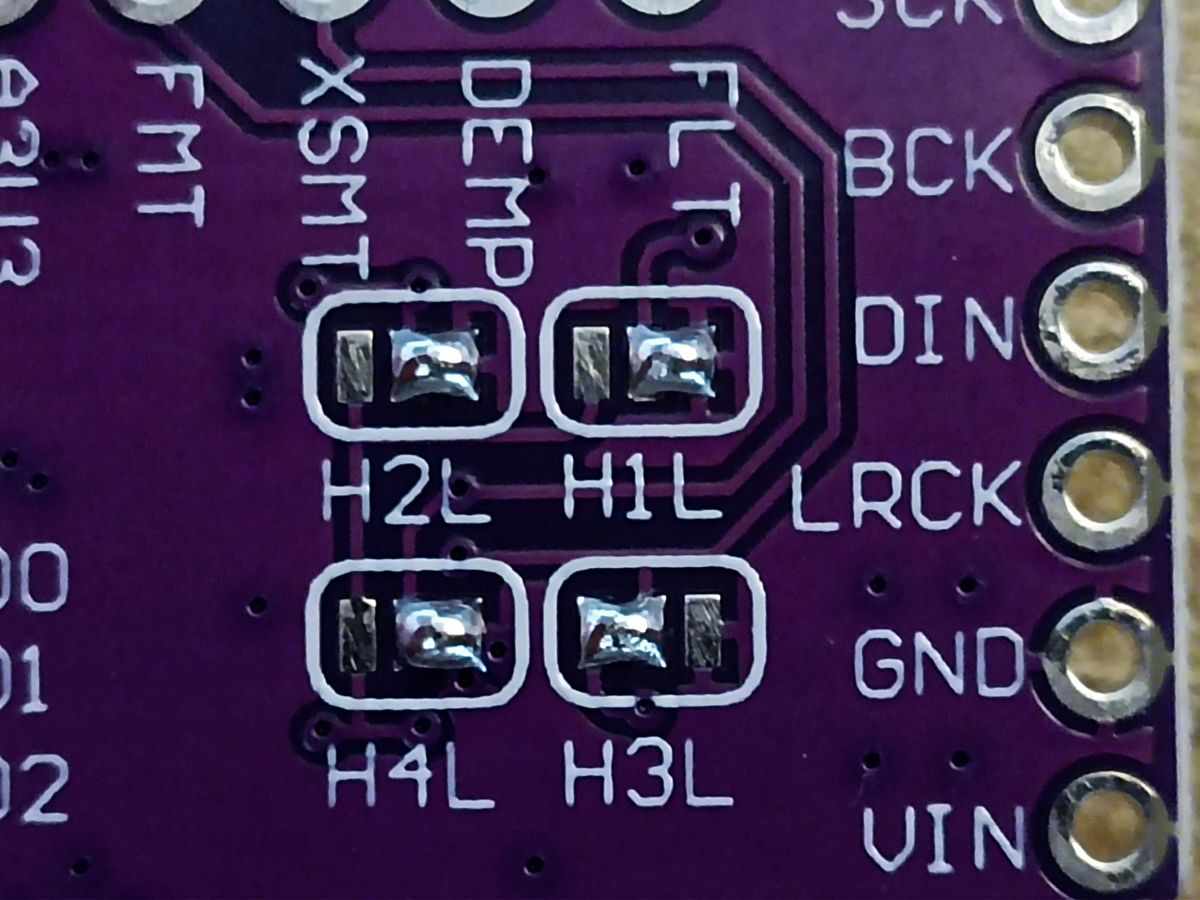
I don’t know why, but there’s silence at the PCM5102 output. I’ve checked two boards with soldered jumpers as shown in the photo; I also took one board from another radio (ESP32-MiniWebRadio), where it... [Read more]
An ESP32S3 is probably what’s needed here [Read more]
That’s exactly the one I used: ESP32-S3 N16R8, but I’ll try swapping it for another one tomorrow. Perhaps this one has a manufacturing fault; it was taken straight out of the packaging. [Read more]