






Home Assistant Community Store and Button-Card tutorial – custom buttons on the HA dashboard
TL;DR
- HACS and Button-Card let Home Assistant users build fully custom Lovelace buttons with tailored colors, icons, actions, and state-dependent behavior.
- Installation starts by running `wget -O - https://get.hacs.xyz | bash -`, restarting Home Assistant, then adding `button-card` through the HACS store.
- The demo uses an RGBCW LED light controlled via Zigbee, and brightness is scaled from 0 to 255 into a percentage.
- Examples show working buttons for toggling, long-press details, CSS styling, dynamic icons, brightness and color readouts, and horizontal, vertical, and grid compositions.
- Without Button-Card installed, Lovelace shows `Configuration error: Custom element not found: button-card`.
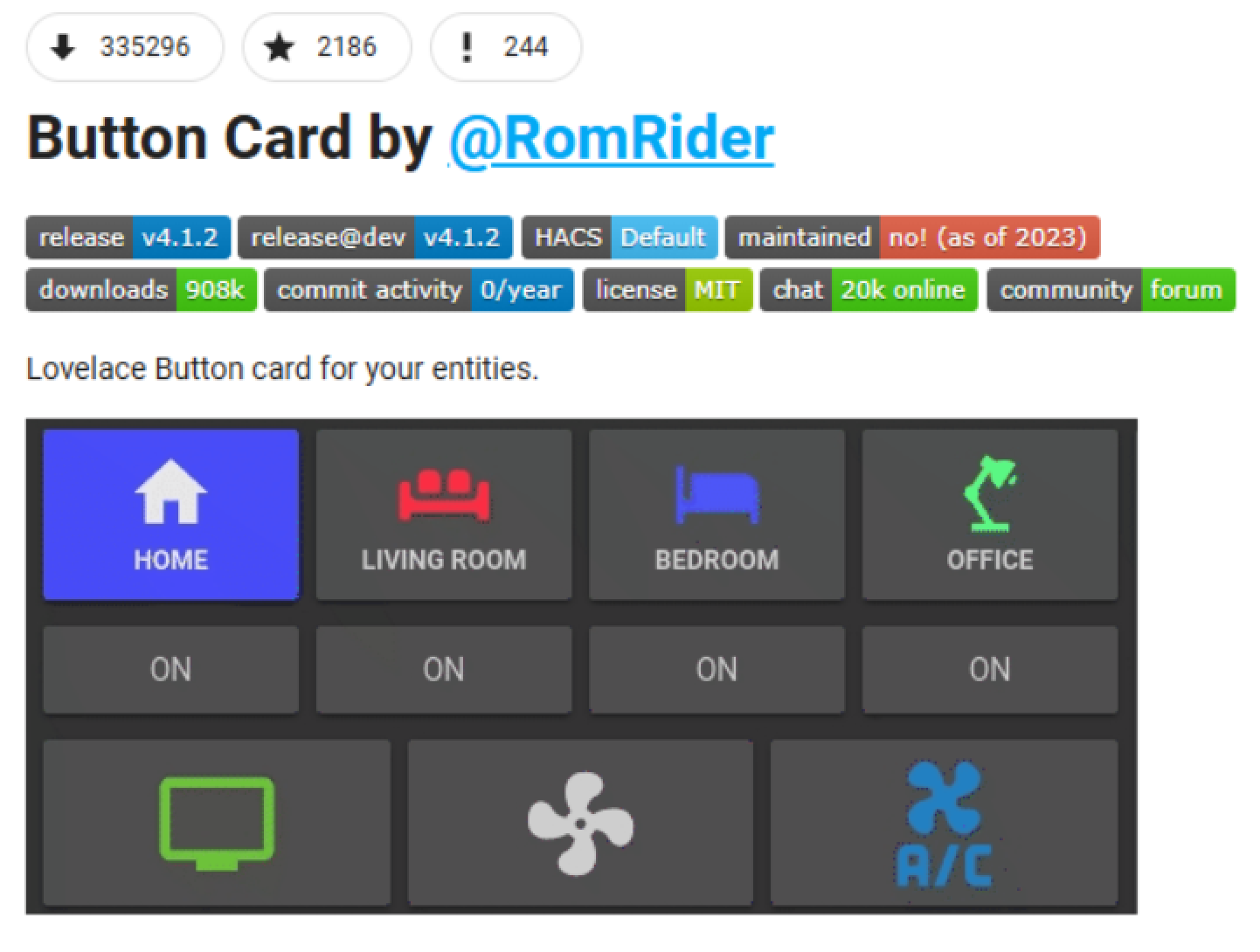
Button-Card is a useful Home Assistant add-on offering extensive options for creating your own control buttons on the user interface. It allows for full customisation of the buttons’ appearance and behaviour – from colours and icons to dynamic responses to device statuses. Thanks to its integration with HACS, installation and updates are quick and convenient. Here, I’ll show you step by step how to install it and present some basic and more advanced examples of the buttons you can create with it.
Installing HACS
We’ll start by installing the Home Assistant Community Store. This is an extension that allows you to easily browse and install add-ons, integrations and interface cards (Lovelace) created by the user community. Thanks to HACS, we gain access to a huge database of unofficial but very useful extensions that you won’t find in a standard HA installation.
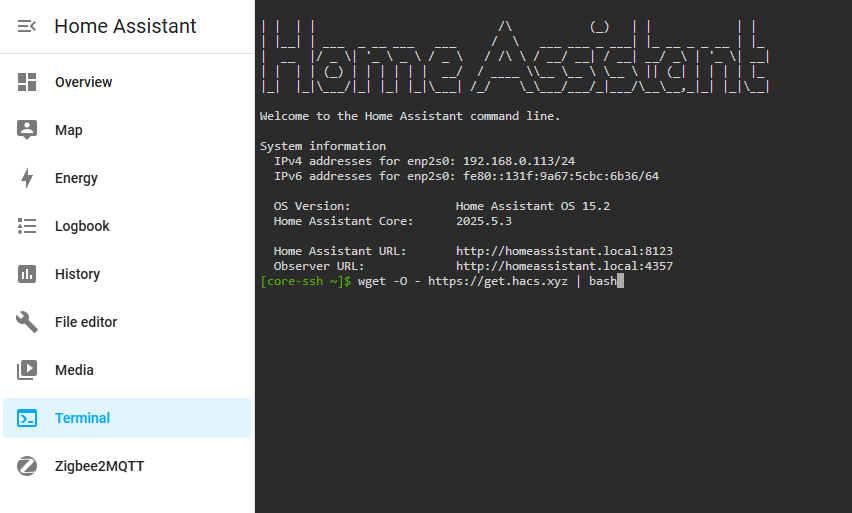
Open a terminal and run the following command:
wget -O - https://get.hacs.xyz | bash -
This will download and run the HACS installation script.
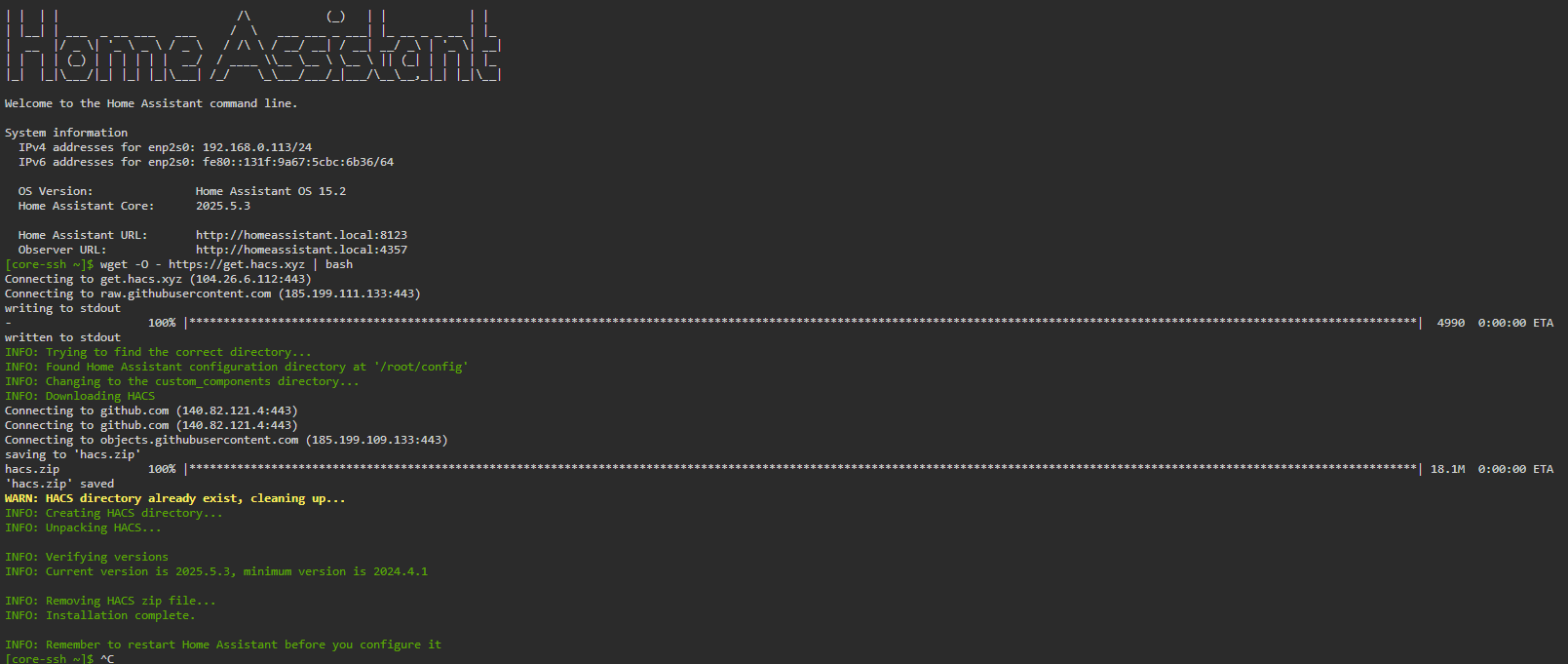
Wait for the installation to complete.
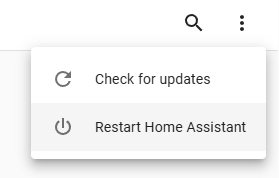
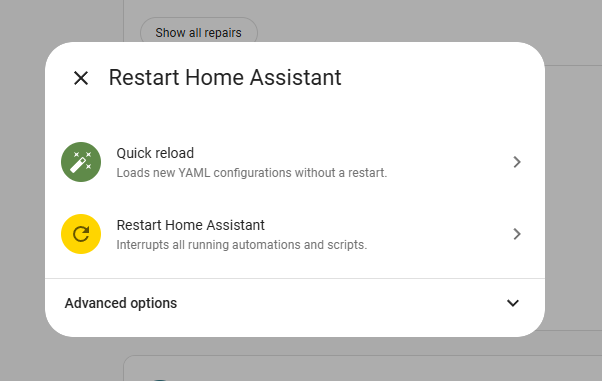
Then restart Home Assistant – I recommend a full restart.
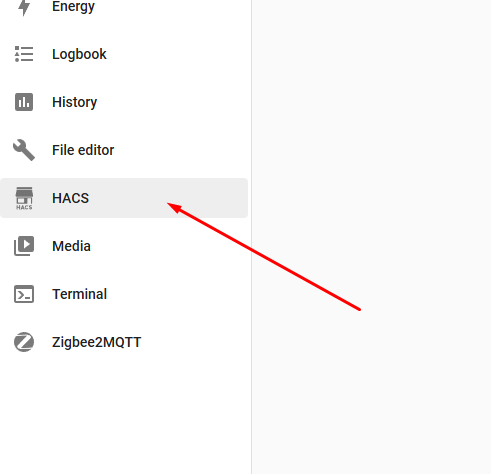
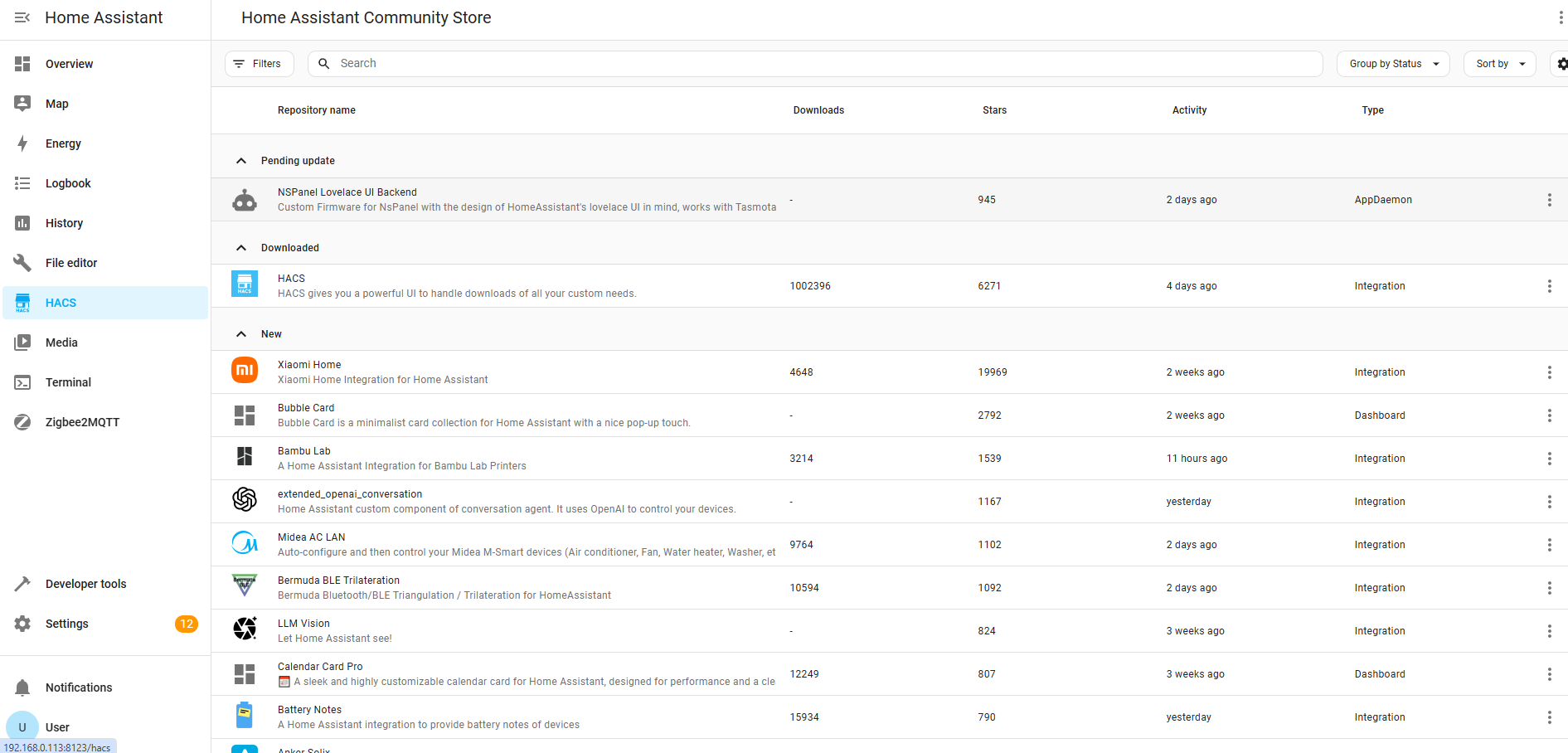
From now on, you’ll have a new tab in the menu on the left-hand side.
Installing the button card
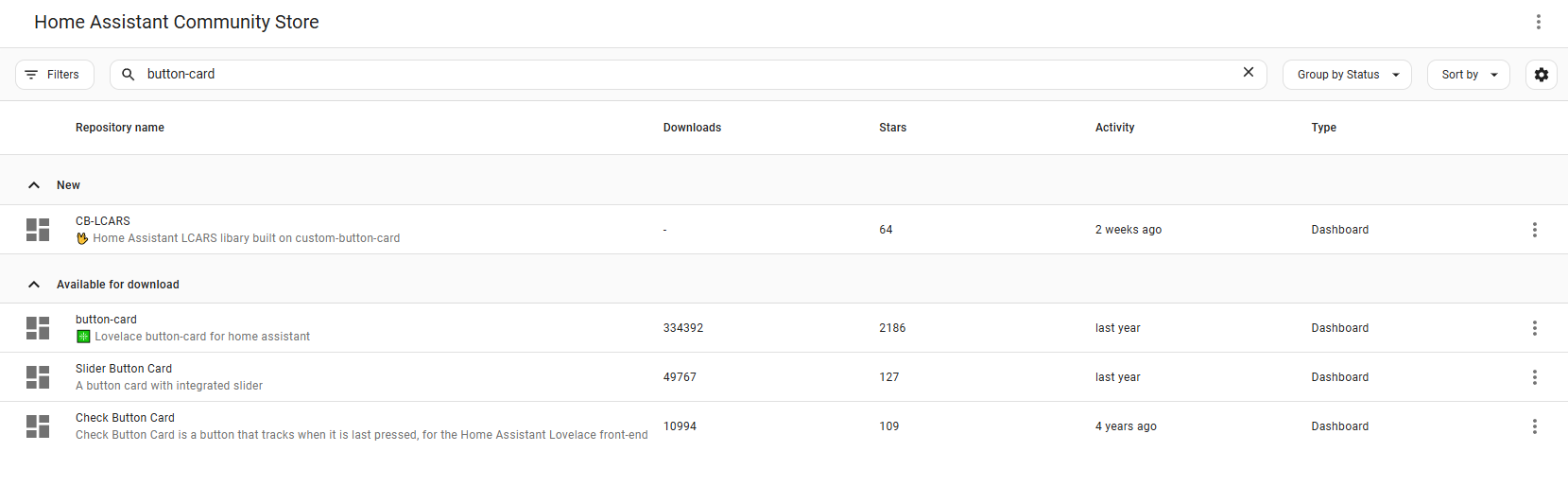
We already have the community shop, so it’s time to install the add-on we want. Search for ‘button-card’:
Open the add-on’s page:
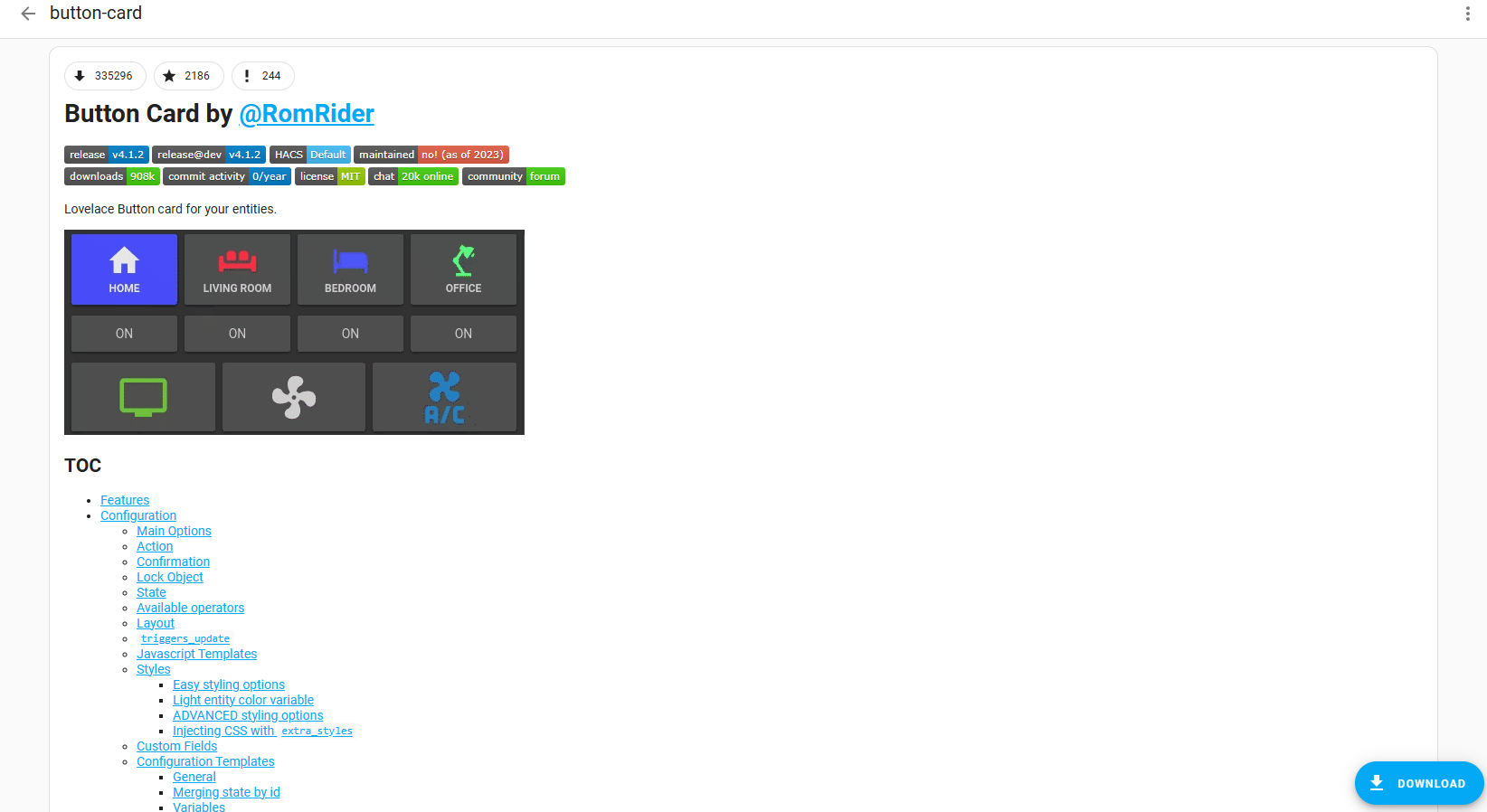
Download and install:
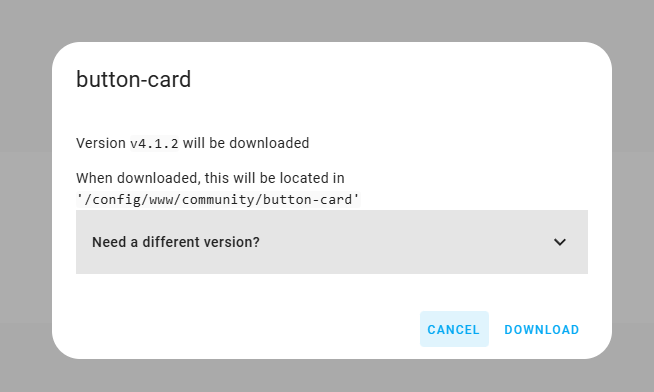
Finally, you’ll need to refresh the page:
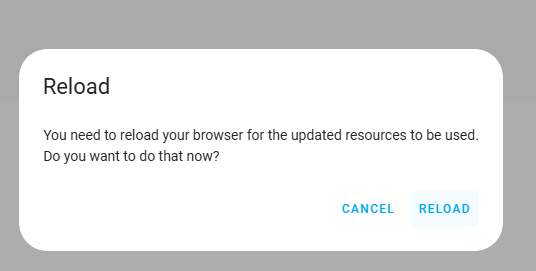
Getting started with button-card
We’re now viewing and editing our Dashboard.
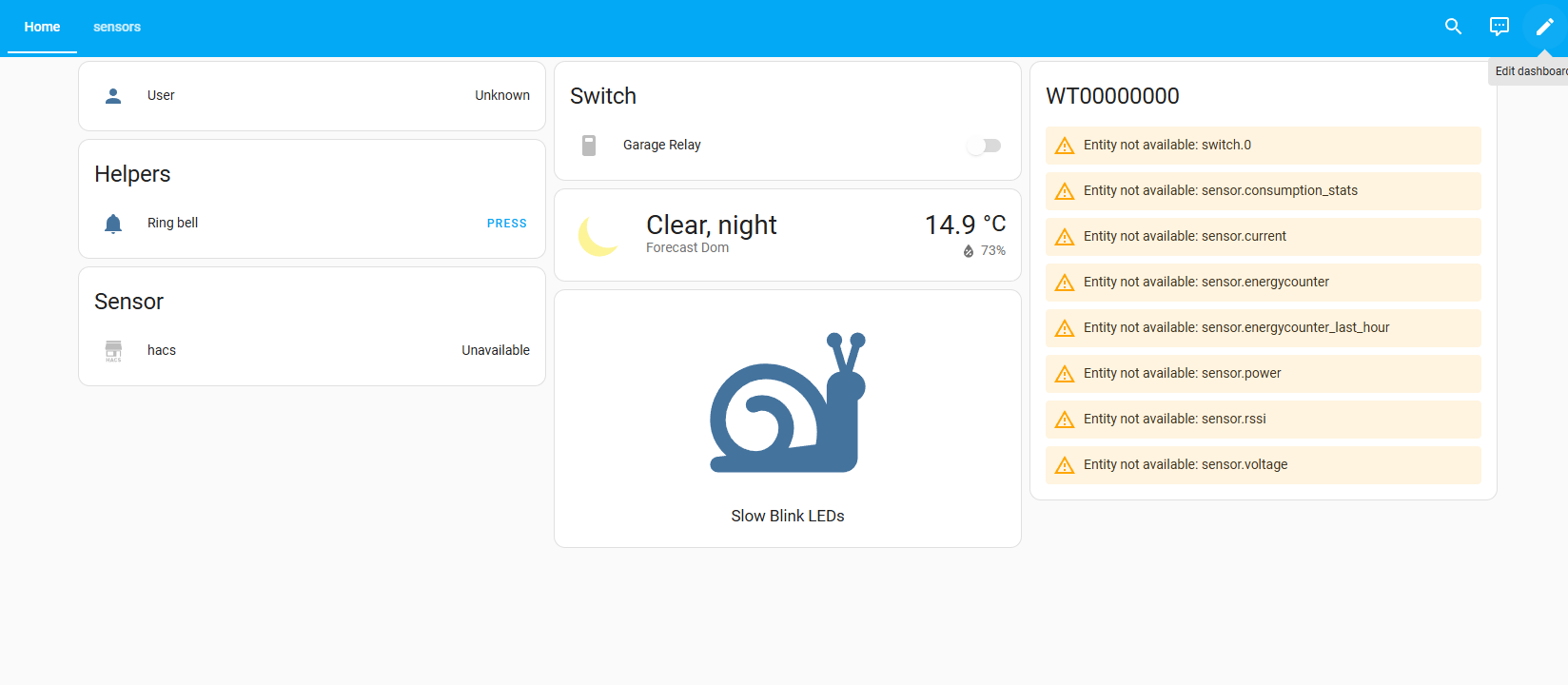
We’re adding a card. There are two options here.
You can select the ‘manual’ type and paste the YAML code:
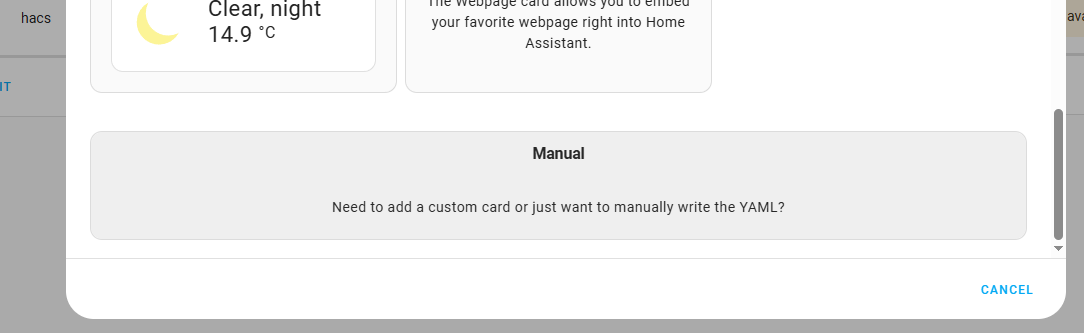
Code: YAML
However, if you haven’t installed button-card, you’ll get an error:
Configuration error
Custom element not found: button-card
However, if you have installed button-card correctly, there will probably also be a button for the add-on you’re looking for next to the ‘manual’ option:
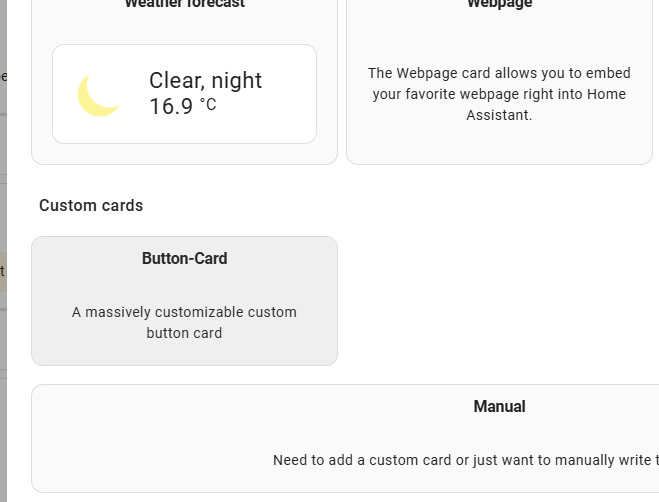
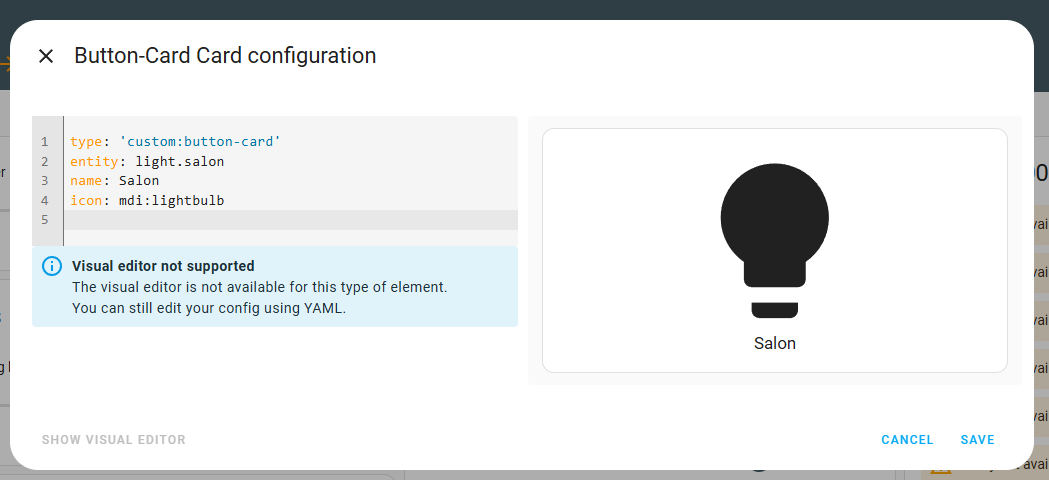
From this point on, we can create our card in the field on the left and preview how it works on the right-hand side of the screen.
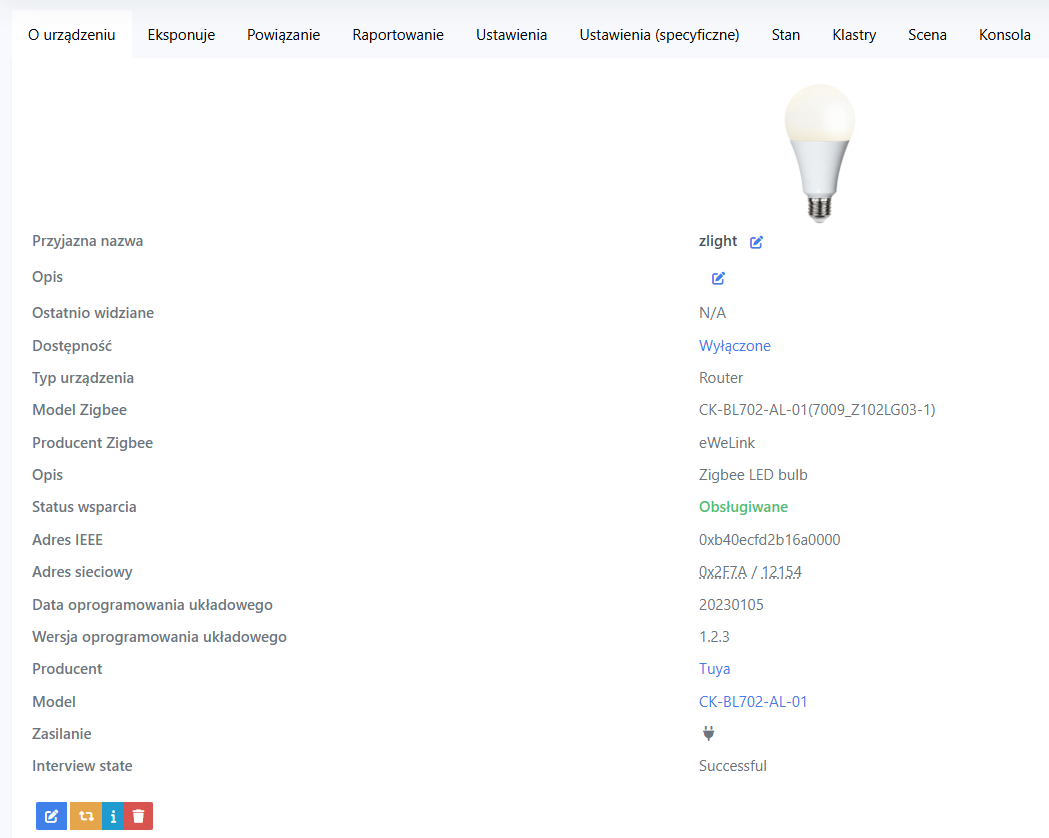
Device used for the demonstration
For the demonstration, I used an RGBCW LED light controlled via Zigbee. It is capable of emitting coloured light according to the RGB colour model, or emitting light at various white temperatures – from warm to cool.
Examples of button-card buttons
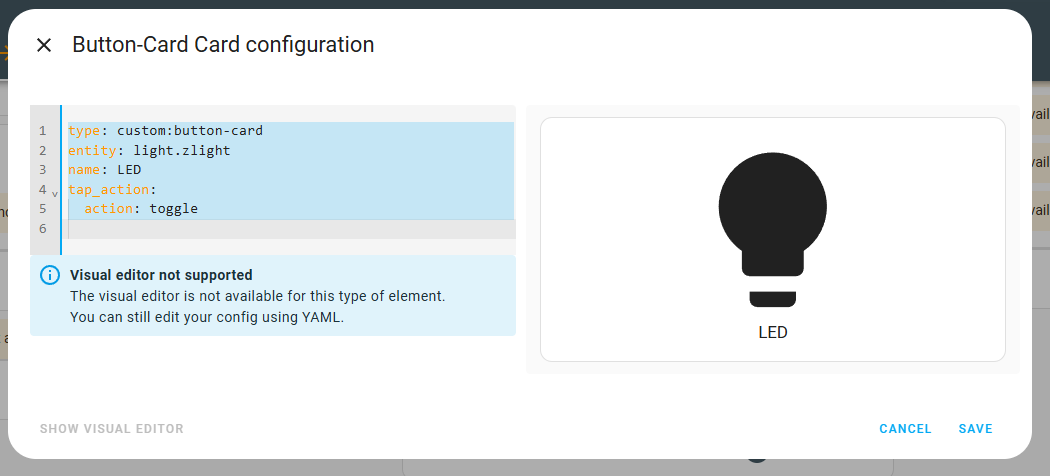
Let’s start with a simple example. Let’s add a control for my LED lamp to the panel. Its entity name is ‘zlight’. The code below creates a button linked to this entity and adds a tap action, which is to toggle the lamp’s state.
Code: YAML
Result:
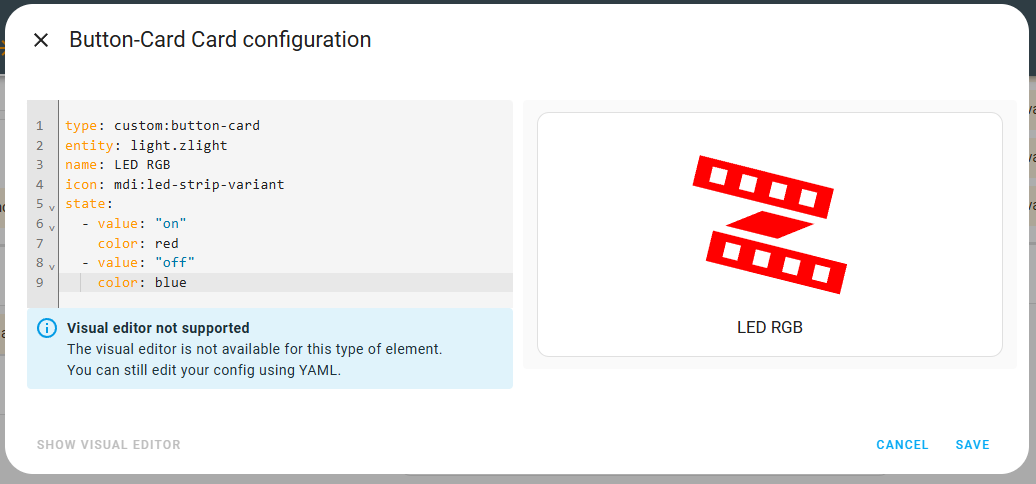
You can add a ‘state’ to the code – this specifies the button’s state. This allows you to change its colour depending on the device’s state.
Code: YAML
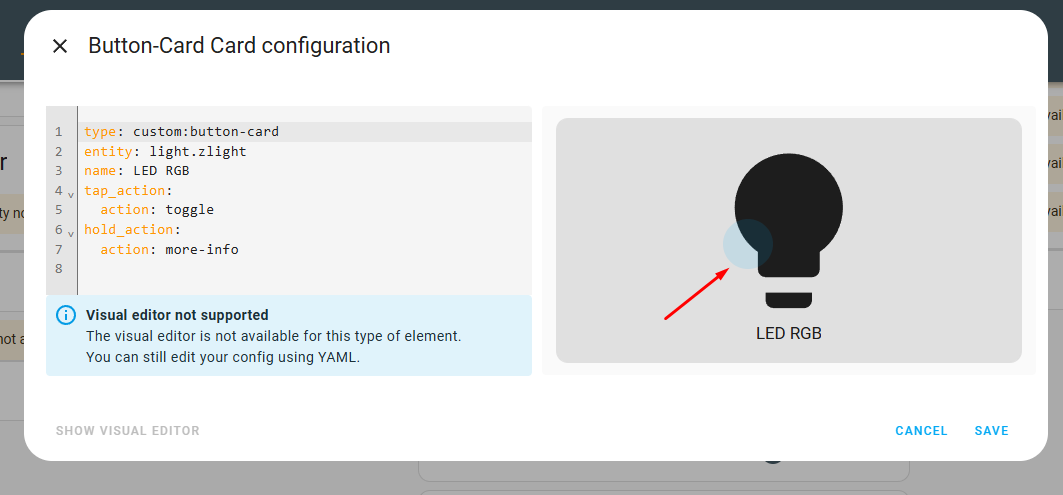
You can specify different actions for the button individually. The most common is a tap – this even toggles the device’s state by default. However, you can also script a longer press, for example. The code below then displays the device’s detailed configuration.
Code: YAML
If required, there is also a ‘double_tap_action’.
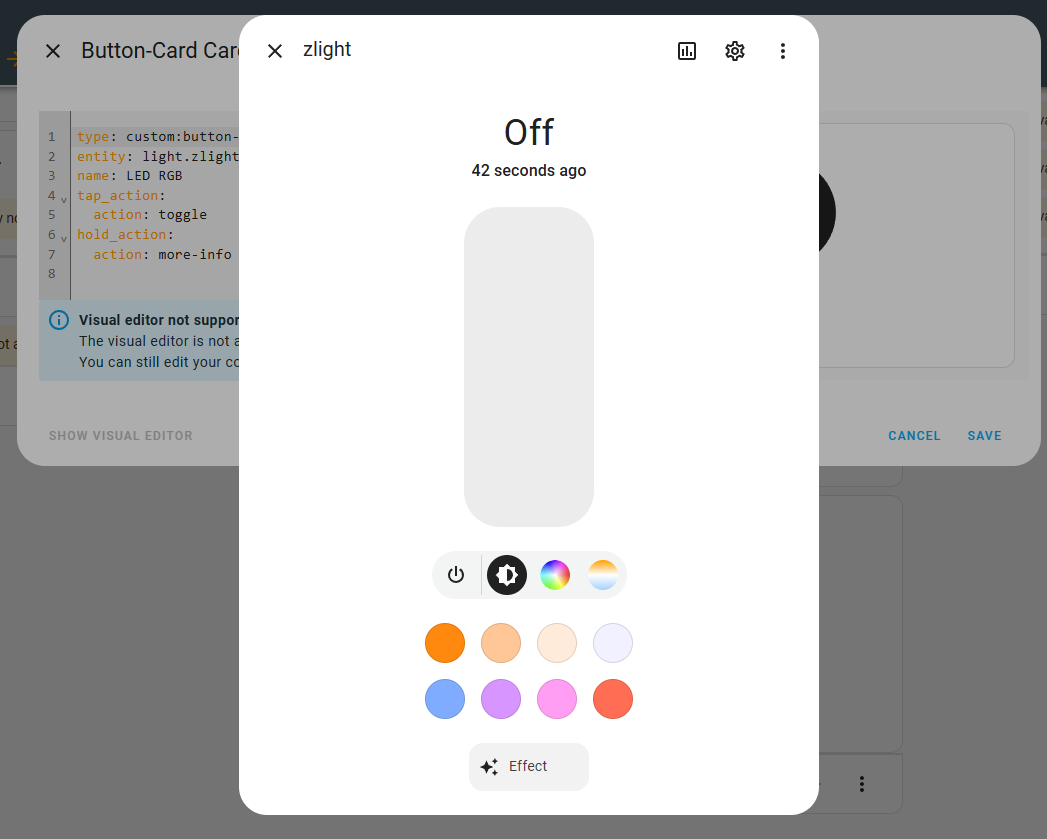
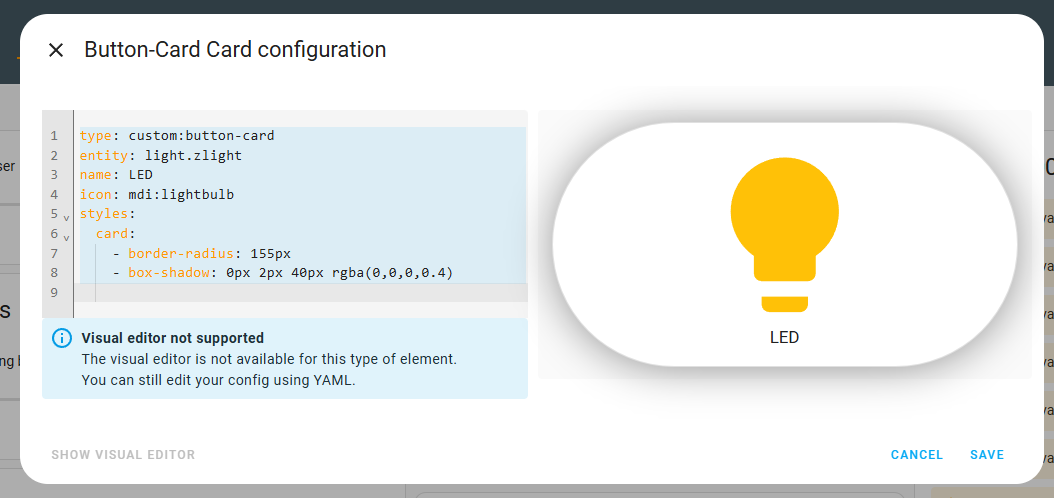
The card can be styled using CSS, just like other HTML elements in a browser. In the example below, I’ve rounded the corners of the card and added a shadow.
Code: YAML
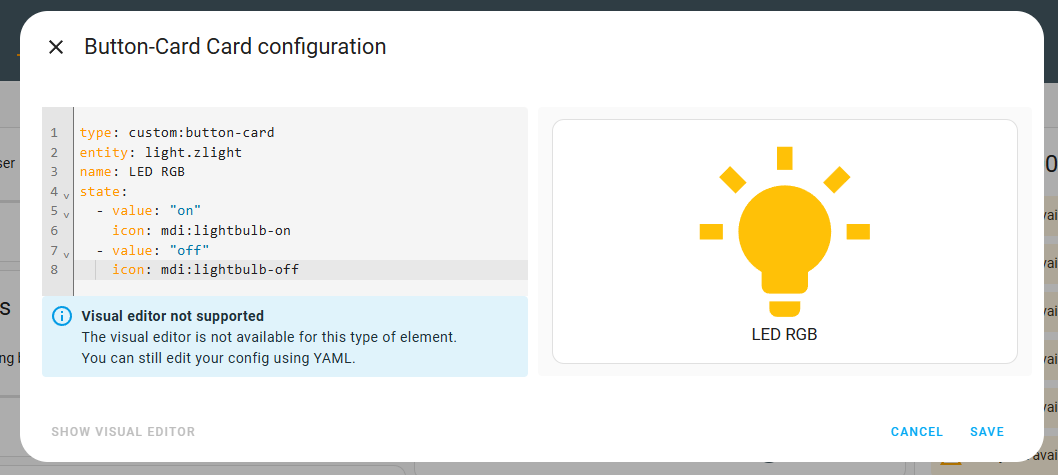
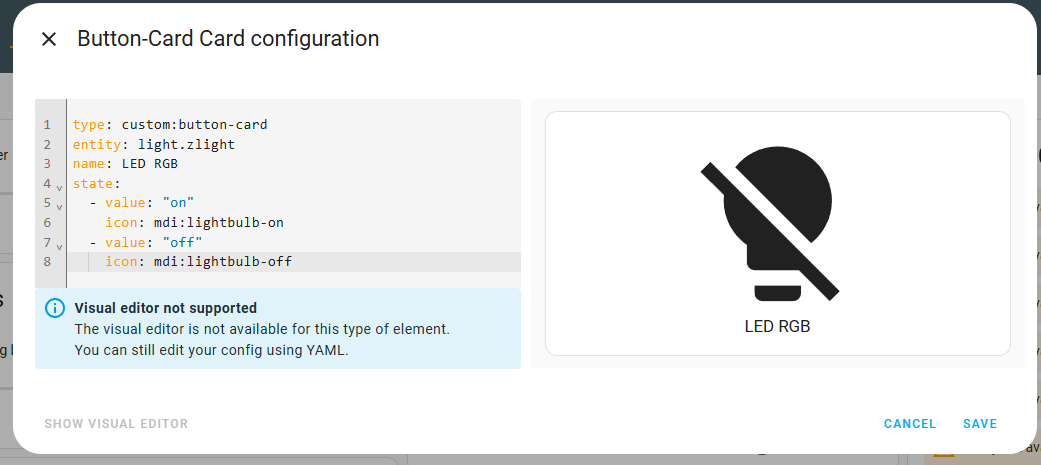
Just as I showed earlier how to change the colour depending on the state, you can also change other parameters – for example, the icon.
Code: YAML
You can also use JavaScript code within a button. Below is a button displaying the current value of an attribute from an entity – specifically, the brightness level. Additionally, this value is scaled, as in HA it ranges from 0 to 255, but I want to display it as a percentage...
Code: YAML
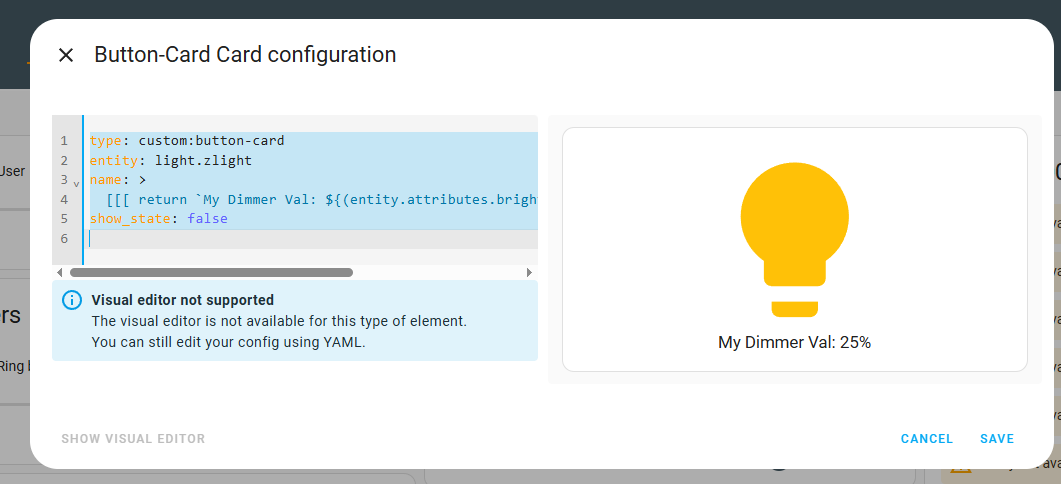
The buttons also include an option to easily retrieve the device’s current colour. Below is an example of an icon tracking the light colour:
Code: YAML
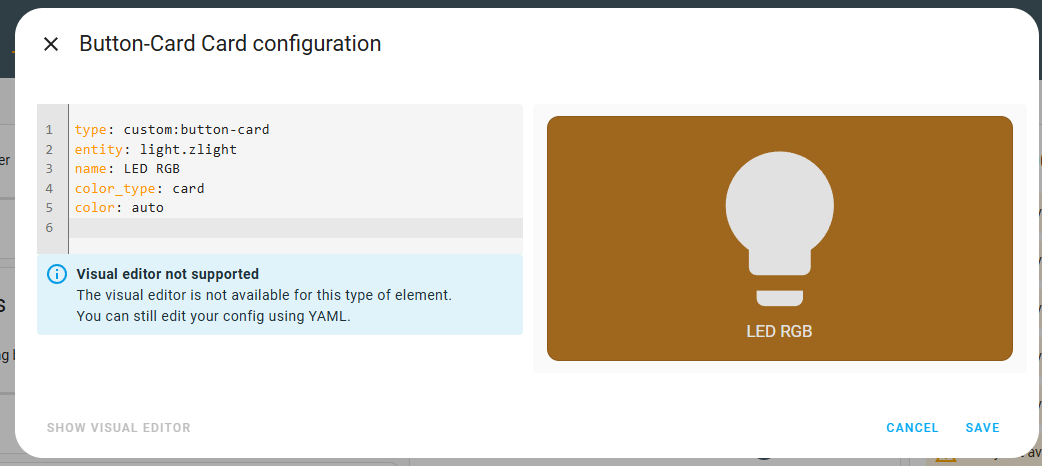
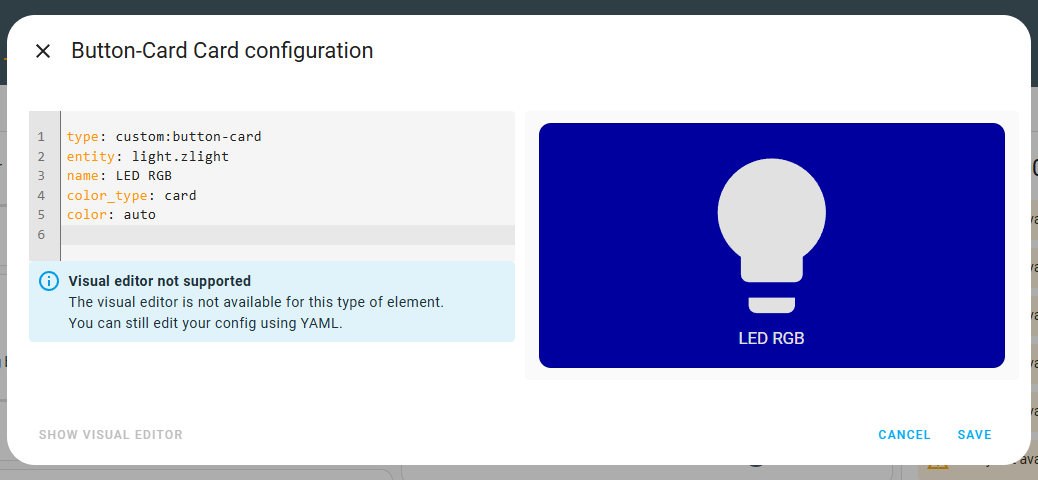
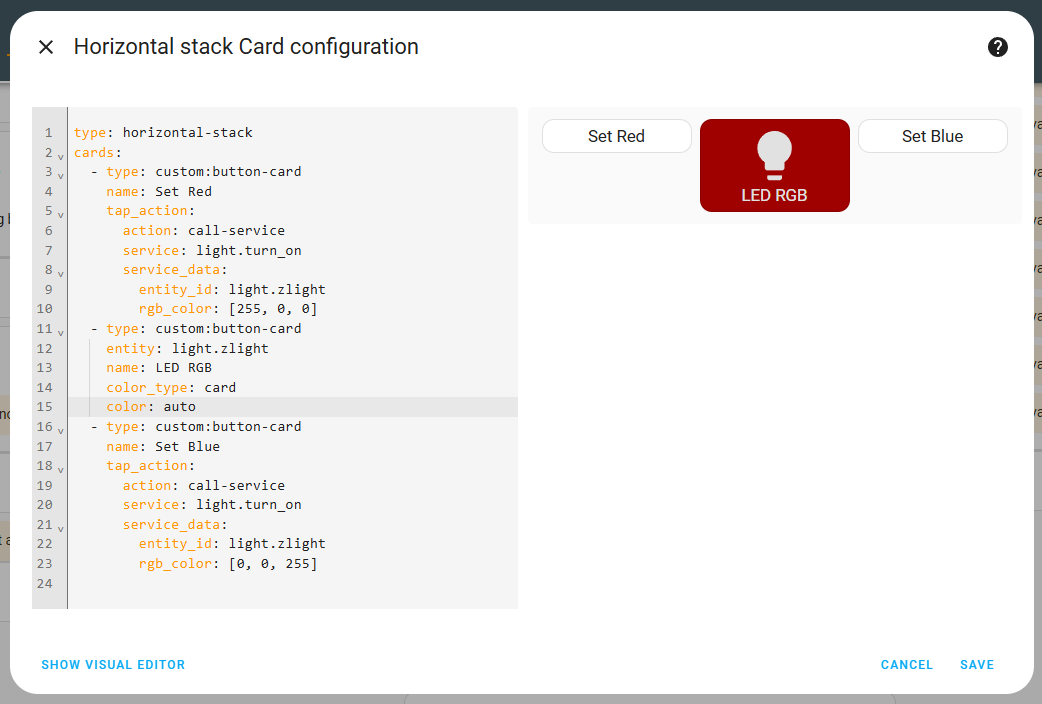
I’ve already shown how you can ‘combine’ different values depending on the states to determine the final appearance of a button. In a similar way, you can also ‘combine’ different buttons into a single composition. We have suitable templates for this: horizontal, vertical and grid. Below is an example of a horizontal template in which I have placed three buttons. Two of them set a fixed colour, whilst the third represents the device’s state, as before.
Code: YAML
Now for the grid template. You also need to specify the number of columns. I’ve packed a few options into the centre; these include colour settings and displaying the device status.
Code: YAML
Results:
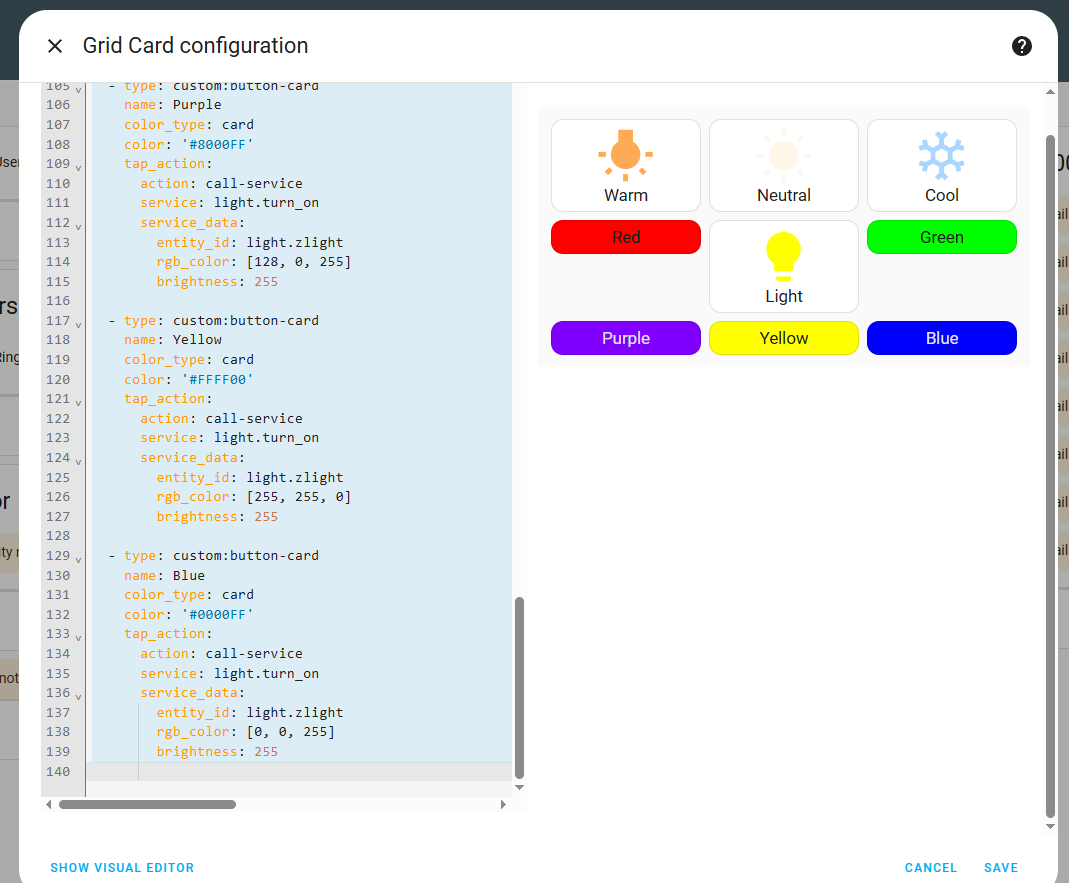
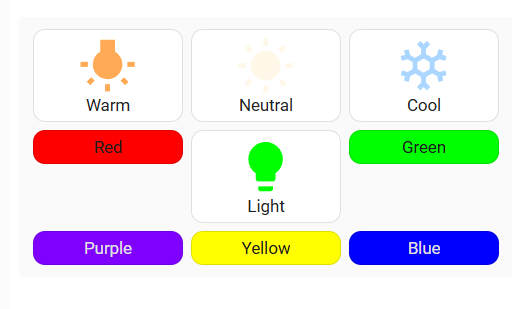
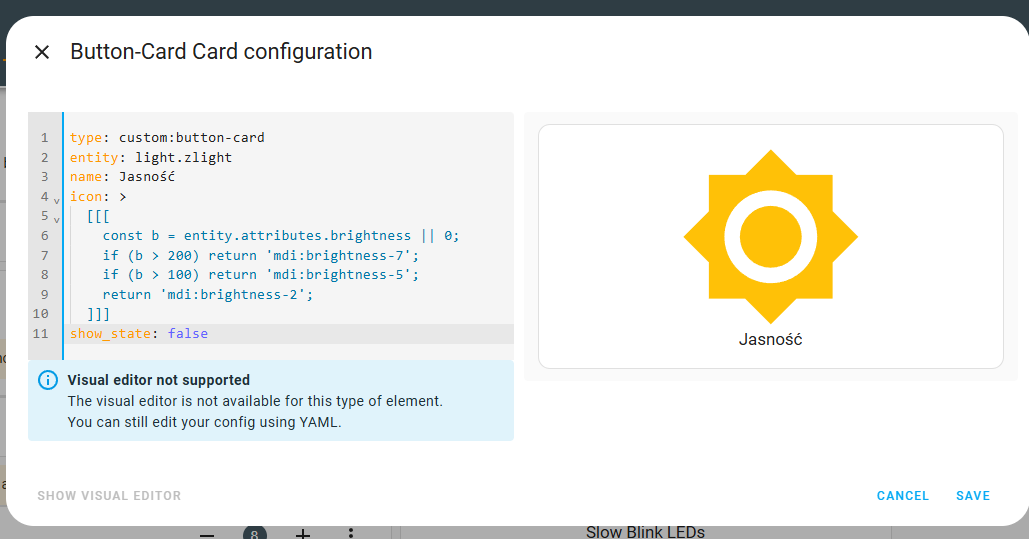
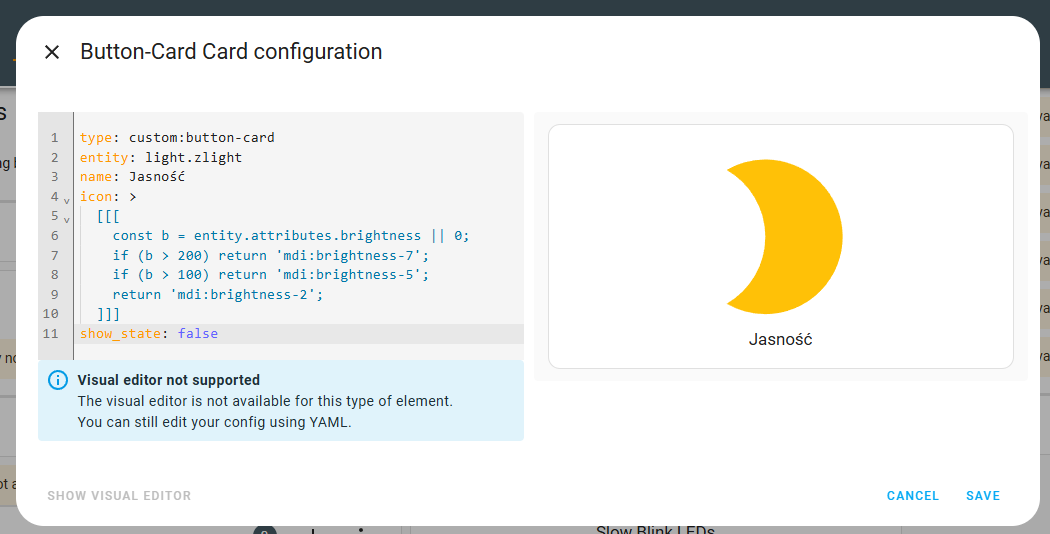
Finally, let’s return to some shorter examples. I’ve already shown how to select an icon based on the device’s status, but the selection can also be made in JS – for example, by comparing the brightness level.
Code: YAML
The icon now changes depending on this:
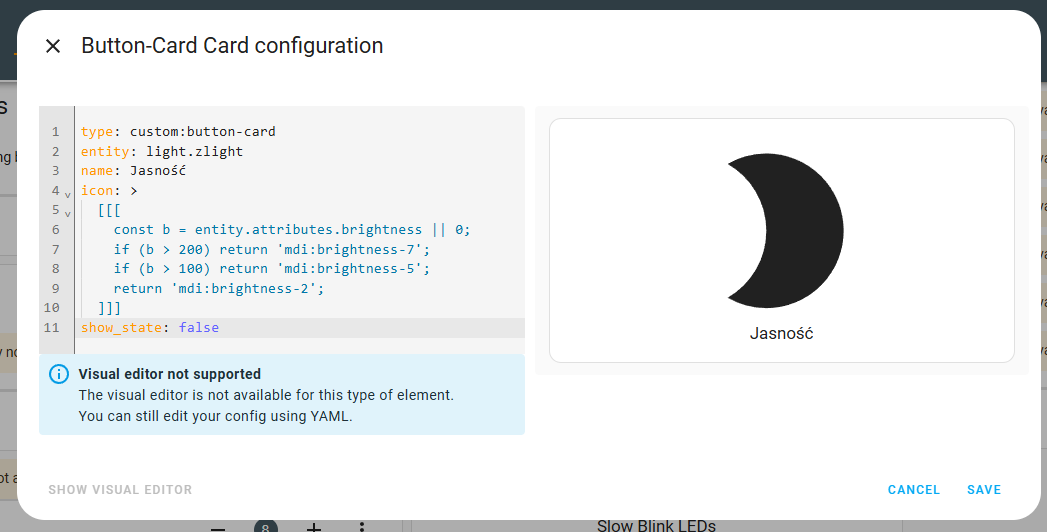
In this way, you can display the status and provide control for all types of devices, not just lighting.
The icon animation can also be dynamic. For example, when you want to control Christmas tree lights or a similar gadget that changes colours rapidly. All you need is this code to cycle through the colours from the specified lists:
Code: YAML
Result (the button animates automatically):
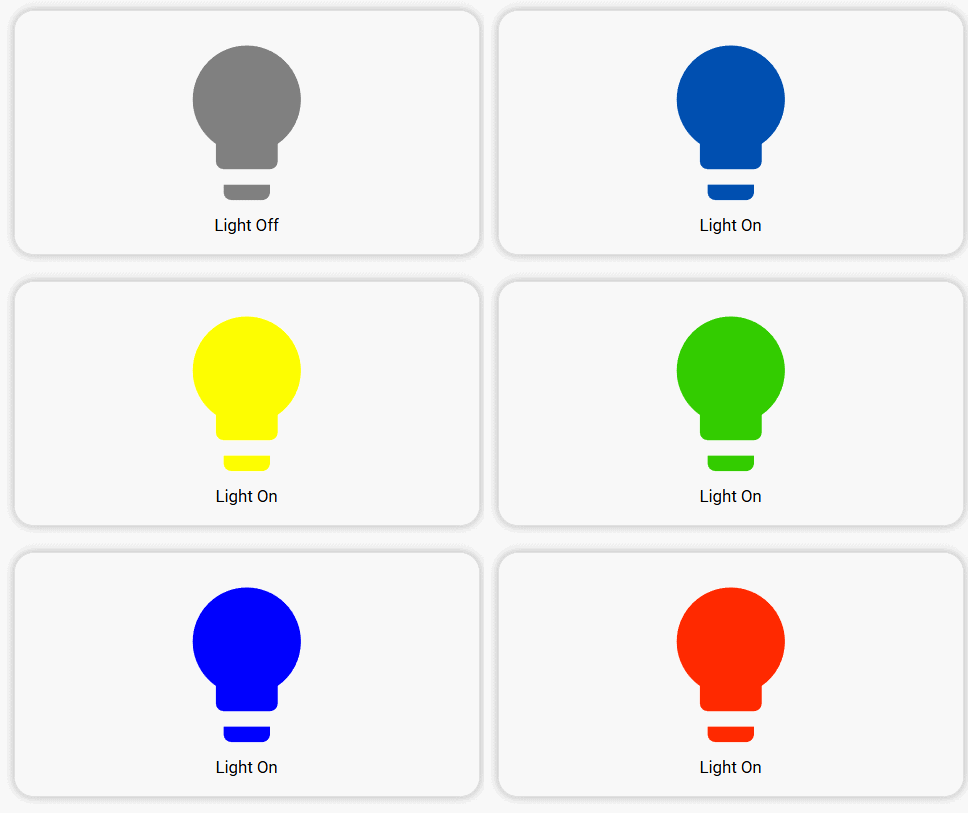
Similar logic can be based on the current colour of the entity. In this case, each click activates the next colour from a predefined list. Each action searches for the current colour in this list and then retrieves the next one.
Code: YAML
Result (the button changes to the next colour with each press):
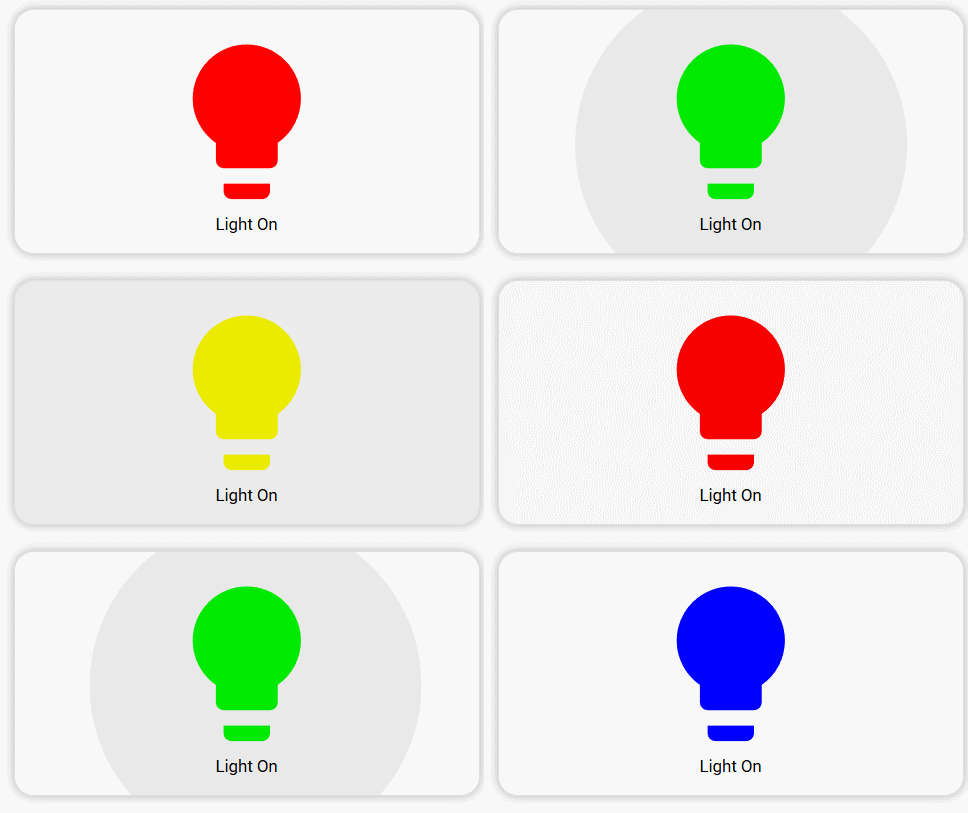
To sum up, these were the basics of the Button-Card for Home Assistant. However, I haven’t covered everything here; amongst other things, you can also create complex Toast messages, animations and secure actions with a PIN, so I recommend consulting the add-on’s official documentation:
https://github.com/custom-cards/button-card
https://custom-cards.github.io/button-card/stable/#some-features
Do you use Button-Card , and if so, what do you use it for?

p.kaczmarek2 wrote 14655 posts with
rating 12662 , helped 655 times.
Been with us since 2014 year.
Comments