





Touchscreen monitor for the workshop? Minitest SKitphrati 15.6 " 1080P HD-15.6
TL;DR 
- The Minitest SKitphrati 15.6" 1080P HD-15.6 is a budget touchscreen monitor tested for workshop use and simple browser navigation for an elderly user.
- It connects through HDMI or VGA for video and USB for touch input, and Windows only needed Tablet PC Settings calibration, with no extra drivers.
- Key specs are 15.6", 1920 × 1080 Full HD, 60 Hz, 5 ms response time, 178° viewing angles, and VESA 75x75 mm mounting.
- In testing, touch gestures and pinch-to-zoom worked even as a second monitor, the image stayed sharp, and power draw was only 8 watts, under 0.5 W in standby.
AI summary based on the discussion. May contain errors.
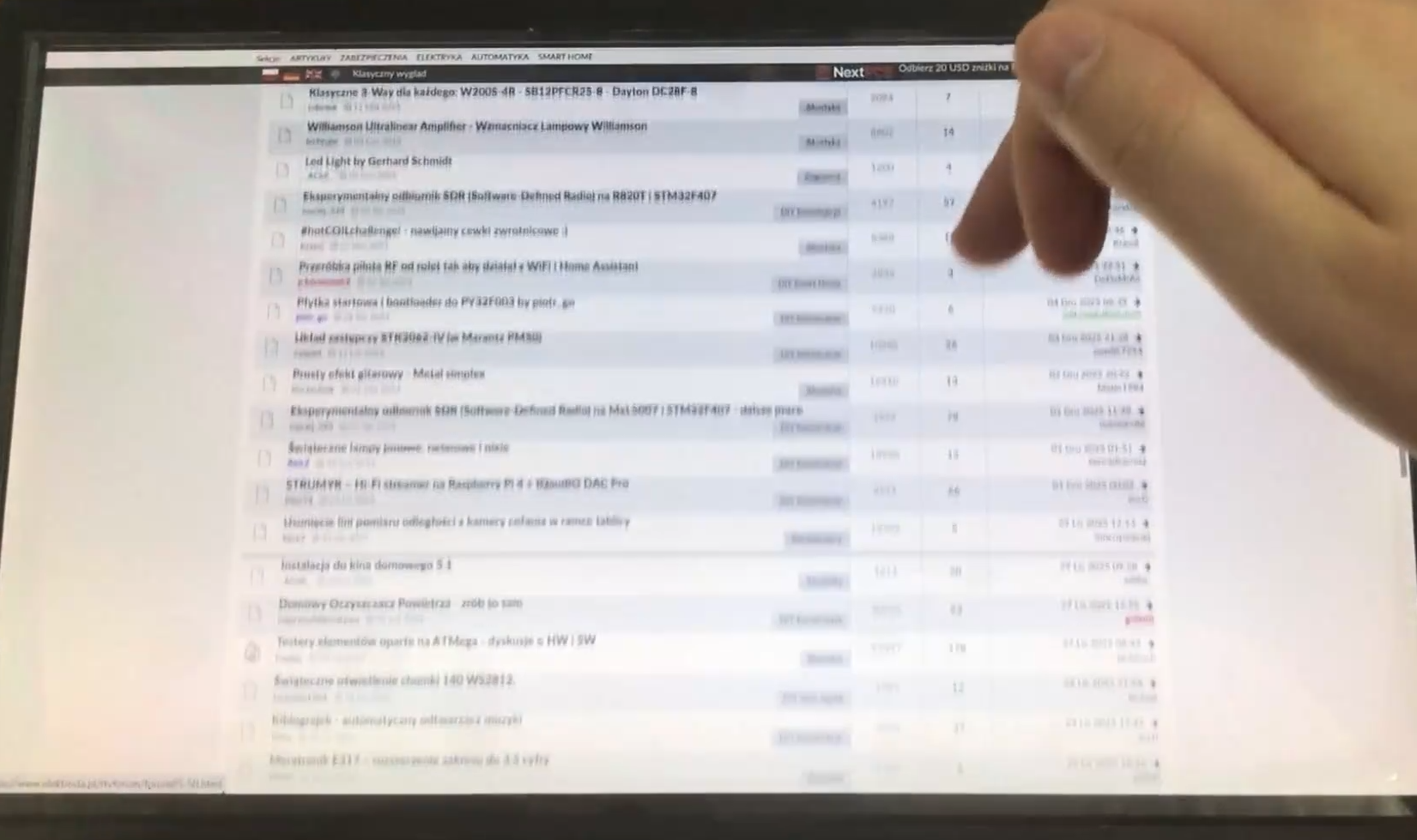
Is it sensible to buy a touchscreen monitor for the workshop? What is the configuration of a touchscreen monitor? How much power does such a 15.6" monitor consume? Is Windows able to support an additional touch monitor when the main screen has no touch support? I will try to check this here.
The monitor shown here was bought for PLN260 with a view to making internet browsing more accessible for an elderly person. This involves basic page navigation without typing, scrolling, clicking links and, if necessary, going back or entering any of the tabs in the web browser. I took the opportunity to grab it for testing.
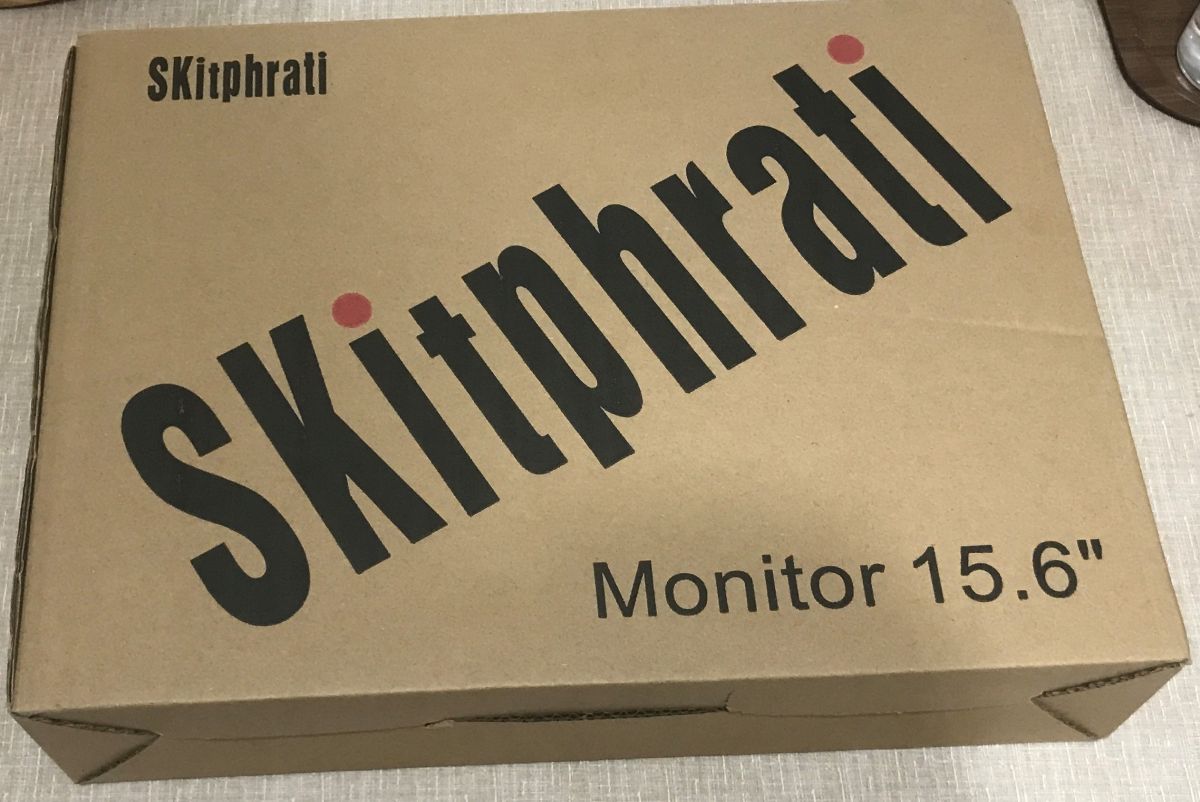

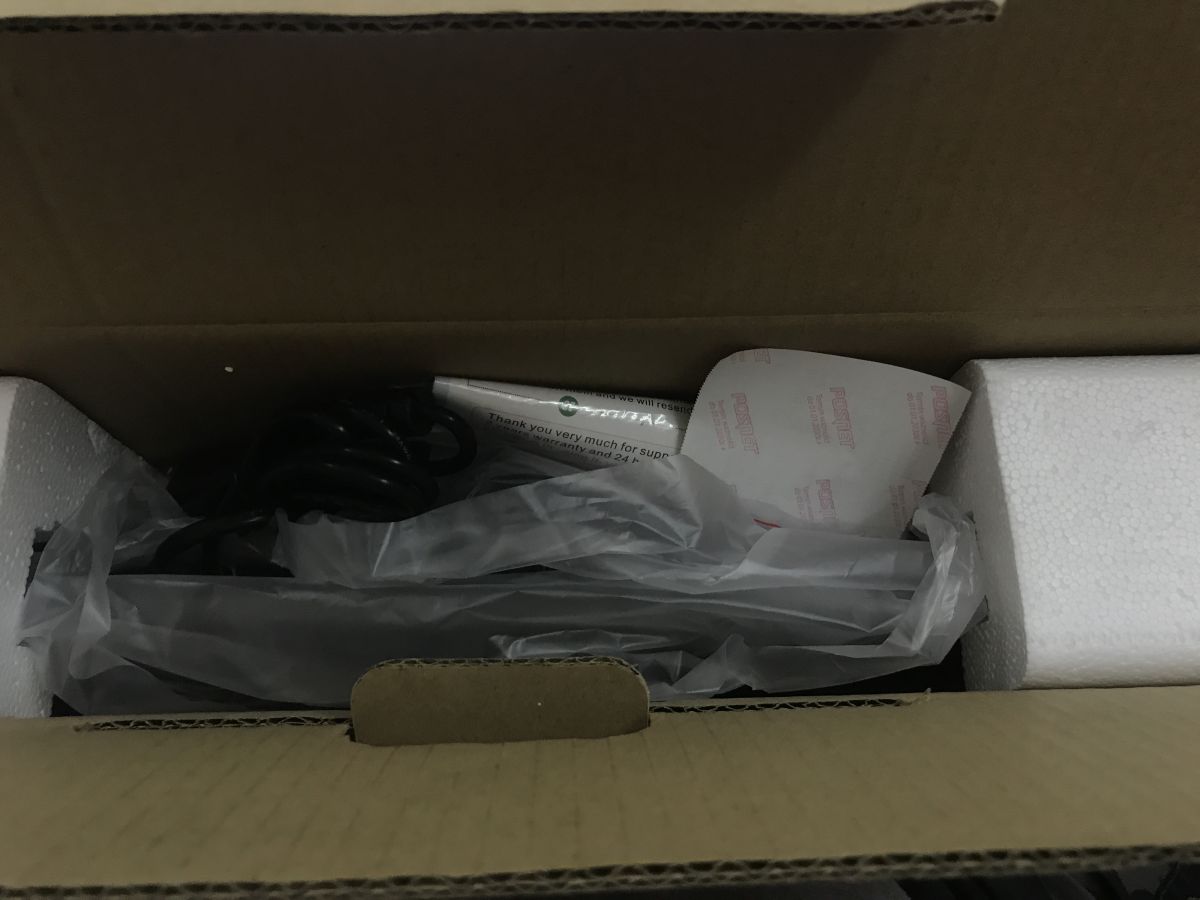
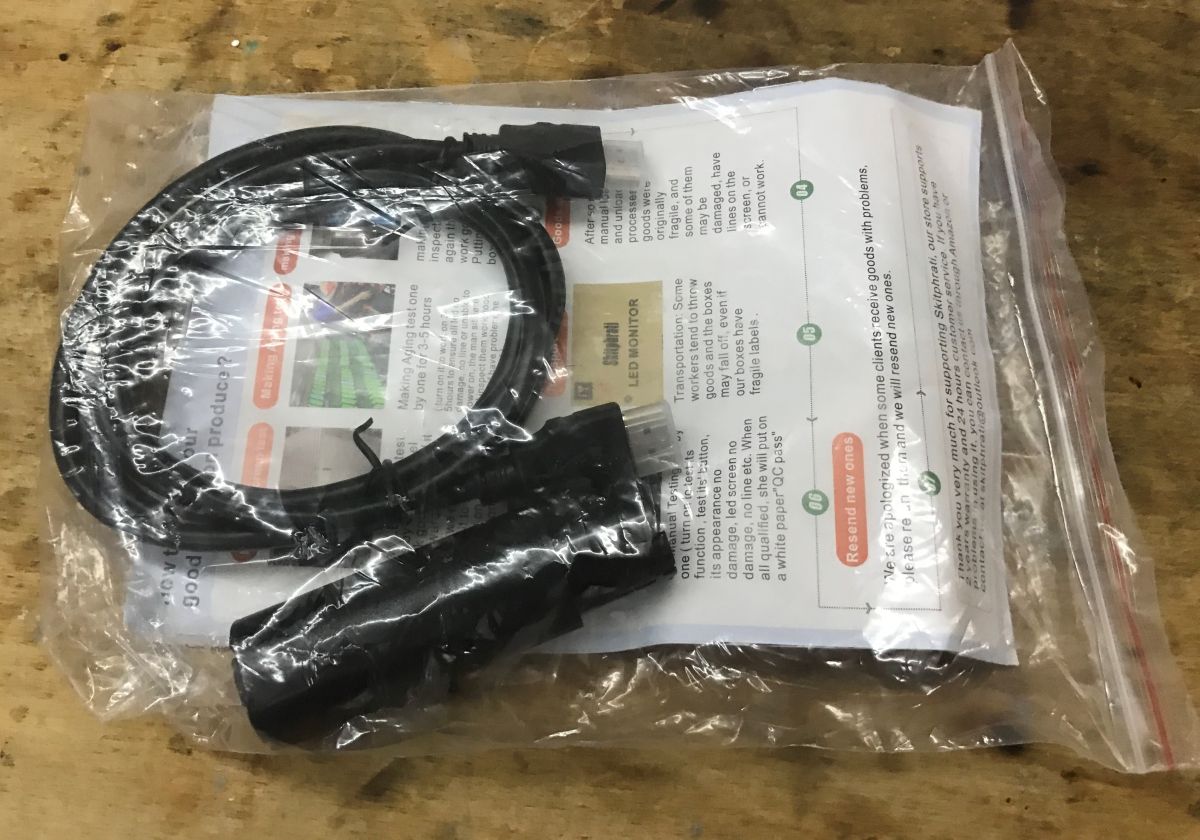
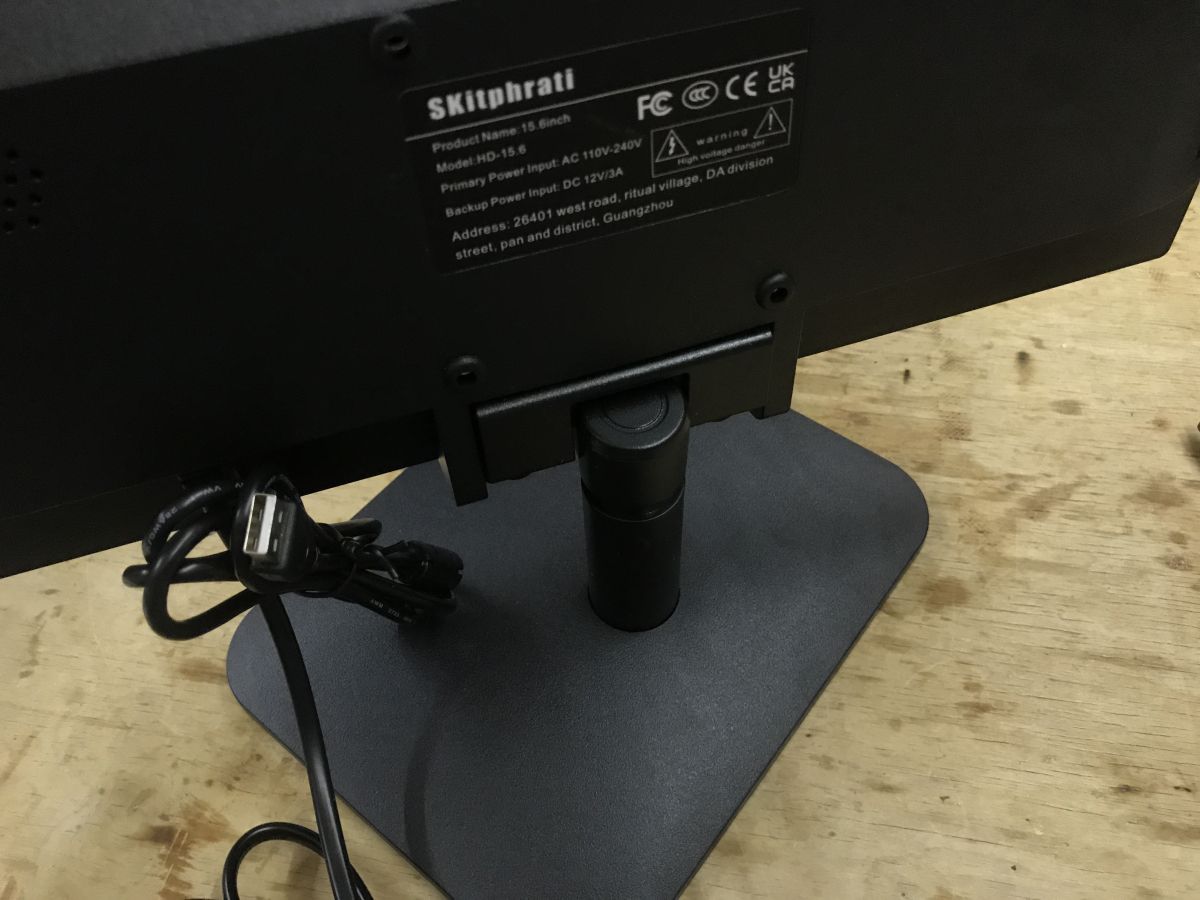
Let's start with the contents of the kit and packaging. The product is well protected for travel. We include a stand and HDMI and VGA cables. The monitor also has a USB cable, this is what it uses to transmit touch information.
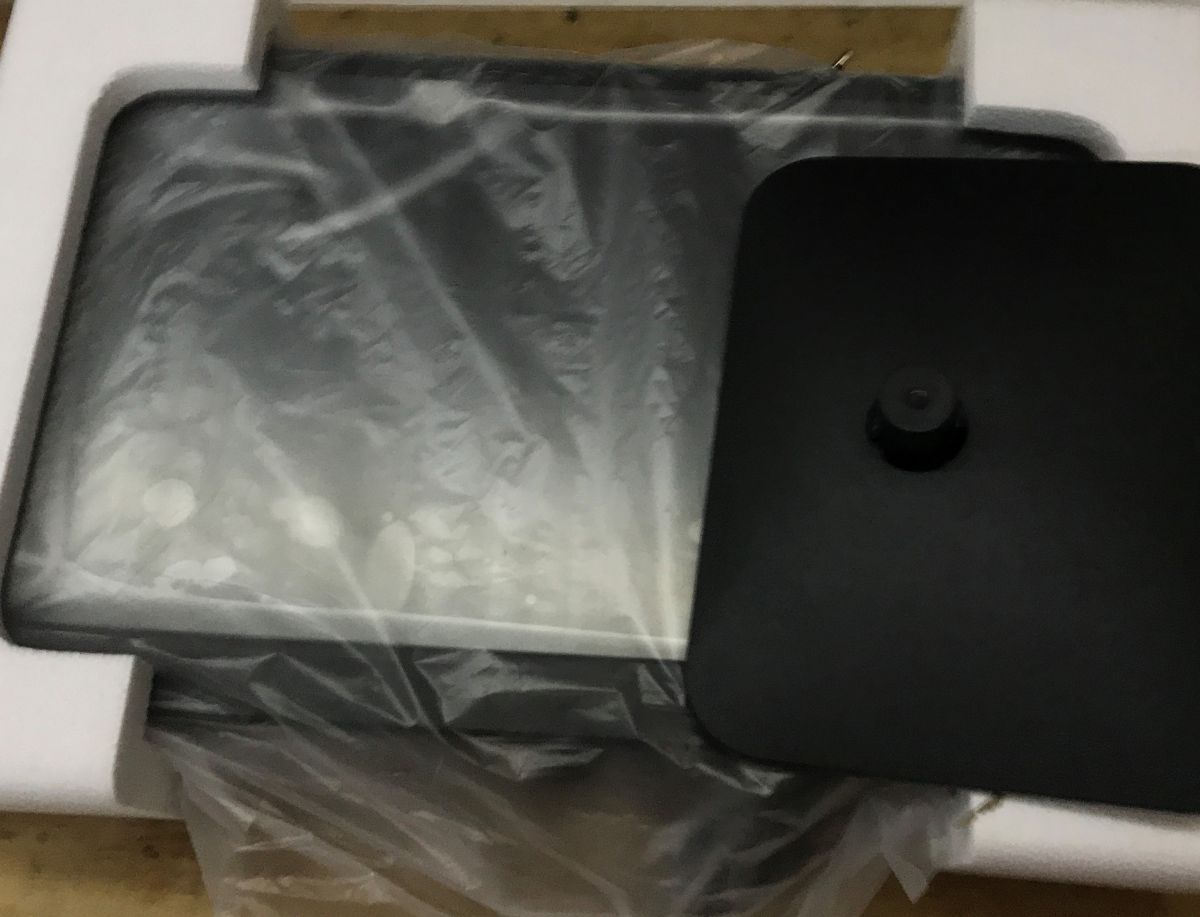
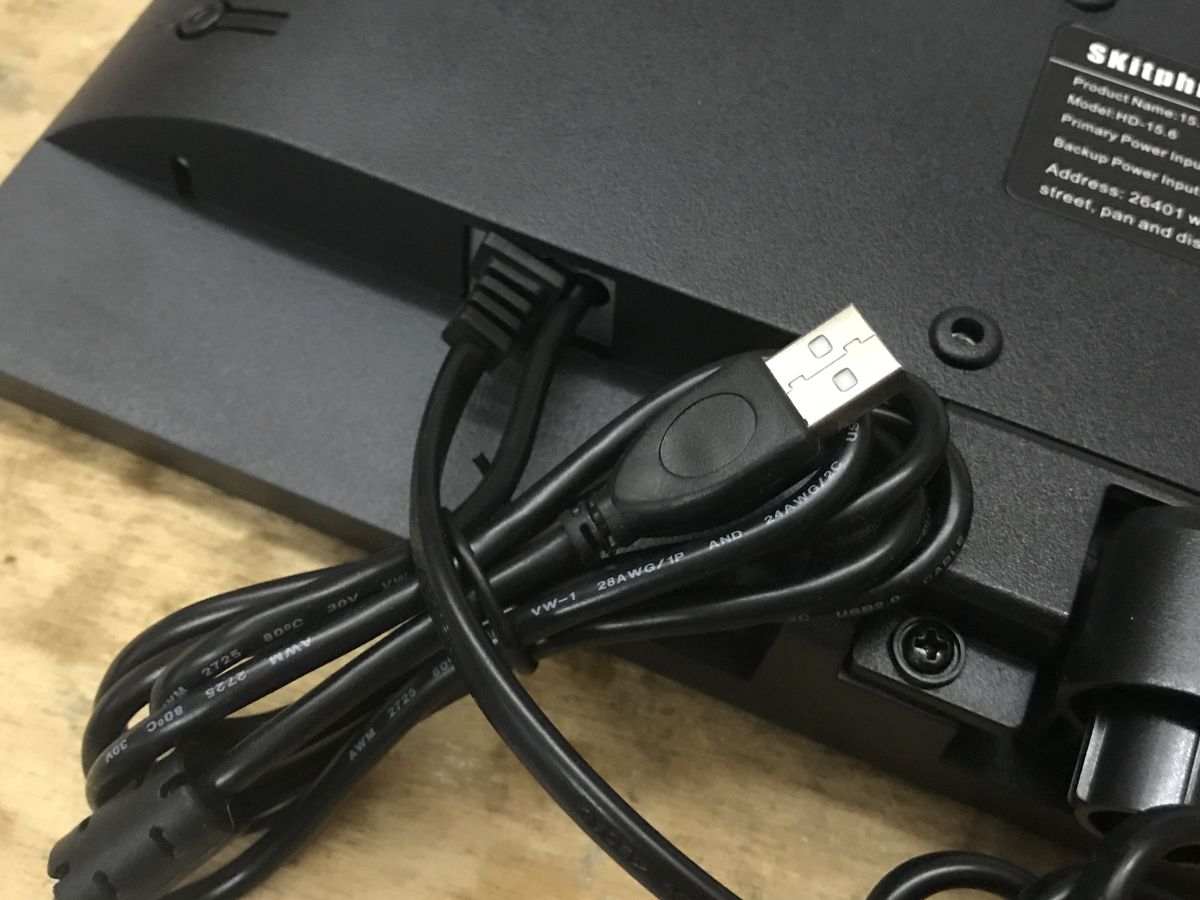
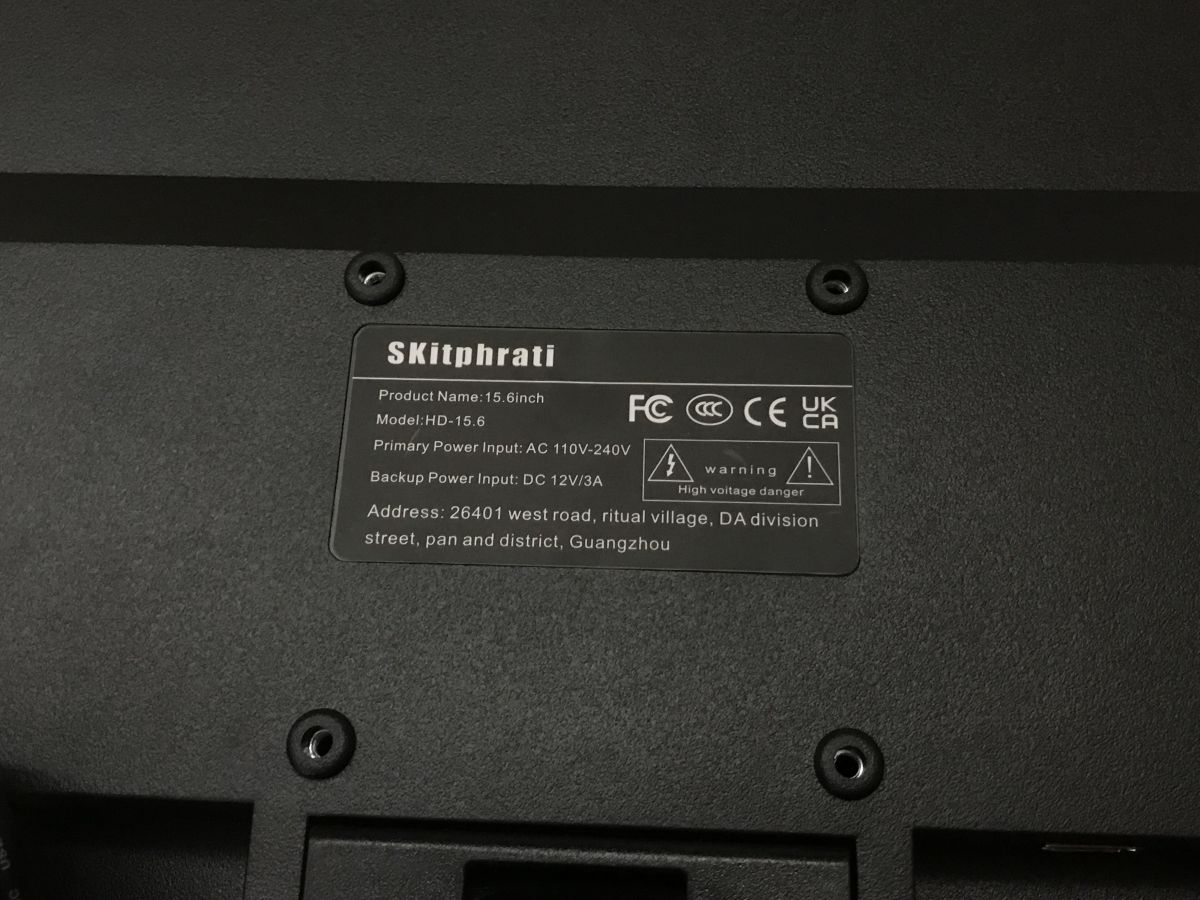
The monitor can operate on mains voltage or from 12 V, up to 3 A is required.
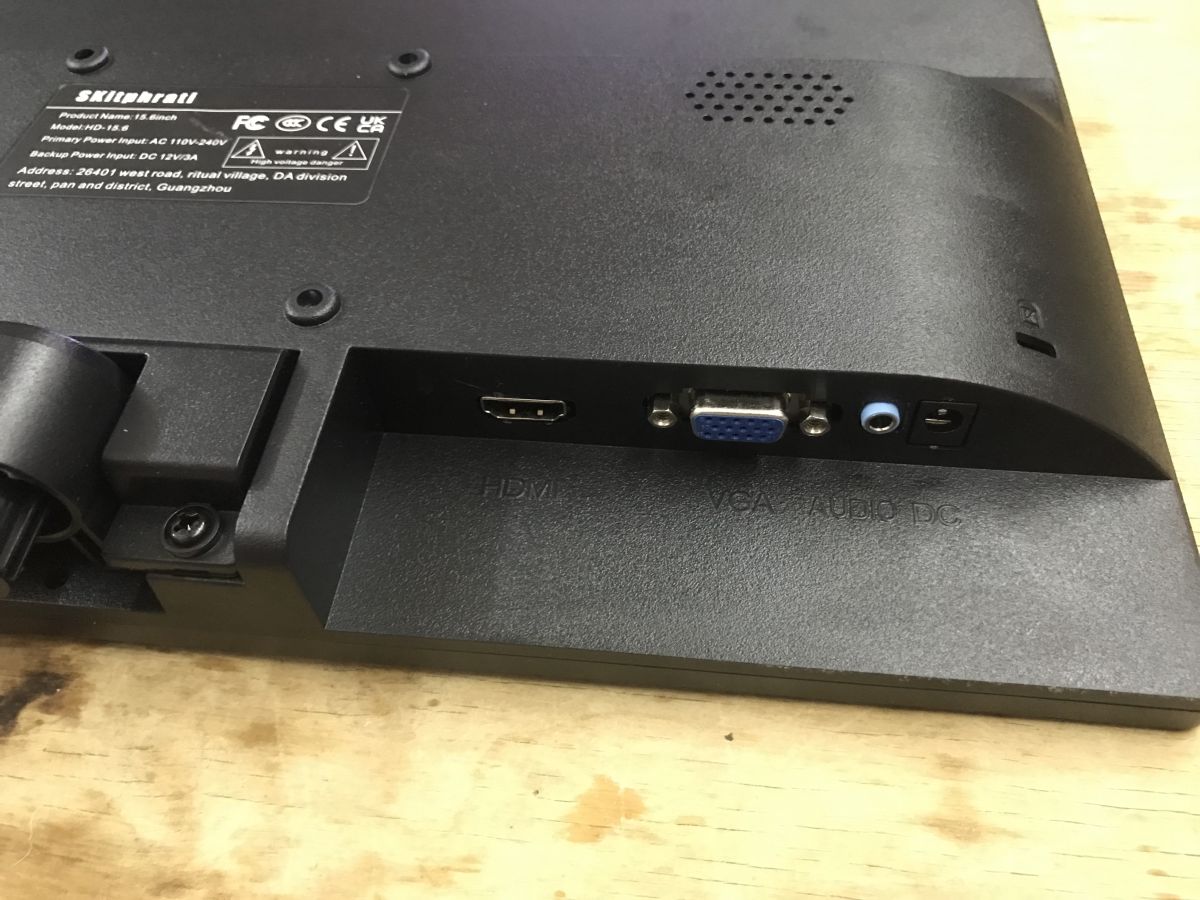
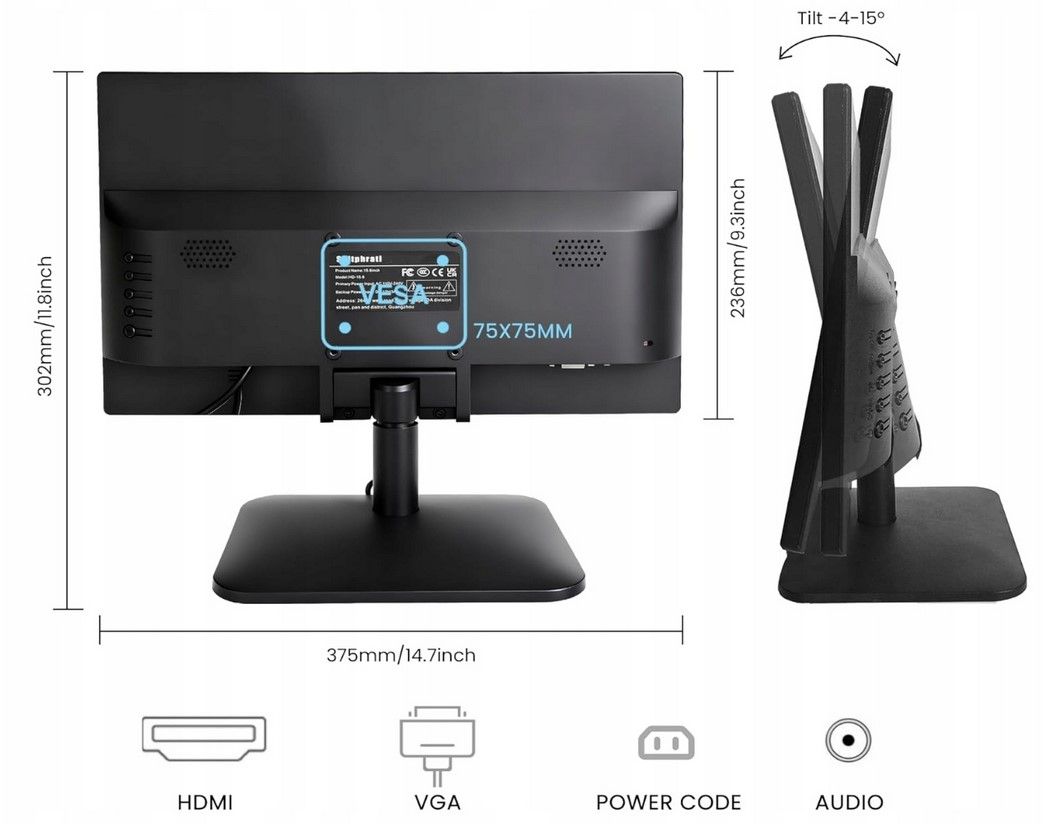
HDMI and VGA connectors are available on the bottom, so connecting a computer is unlikely to be a problem. We also have an audio jack, as the monitor has built-in speakers.
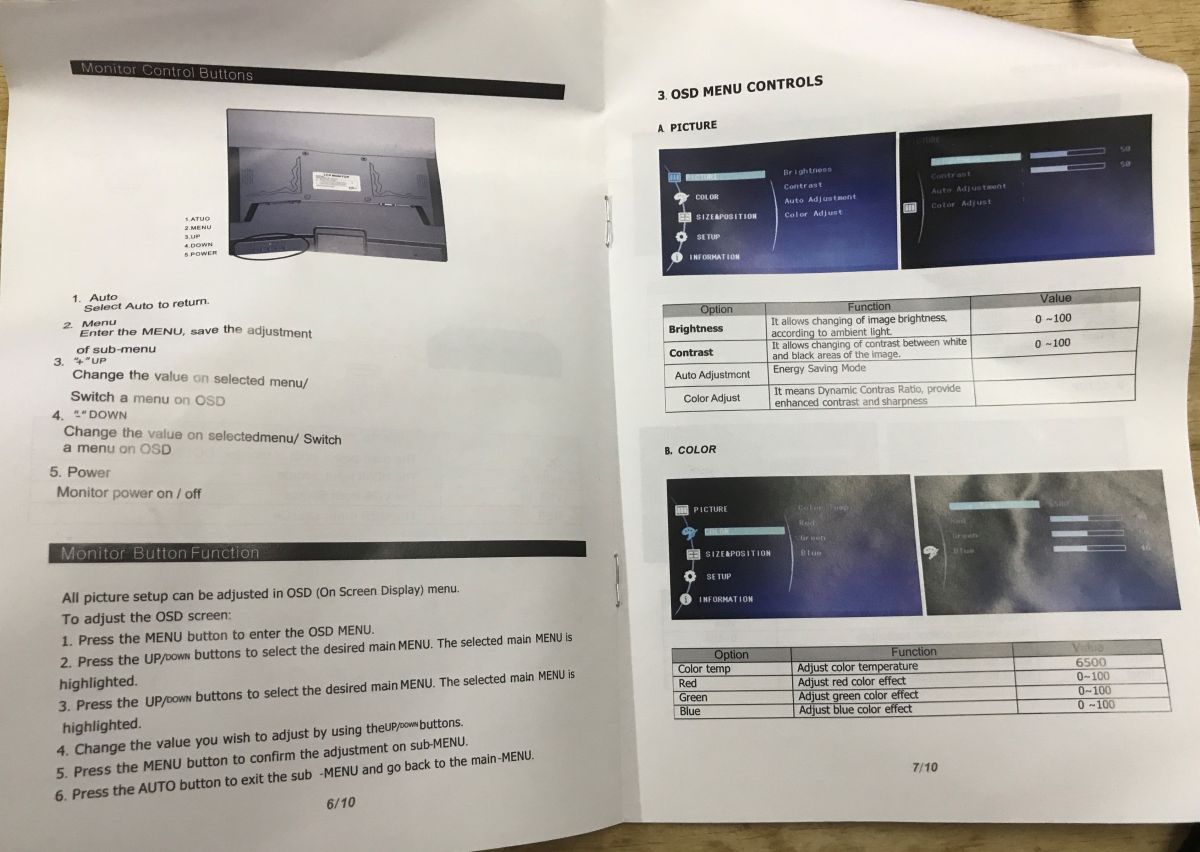
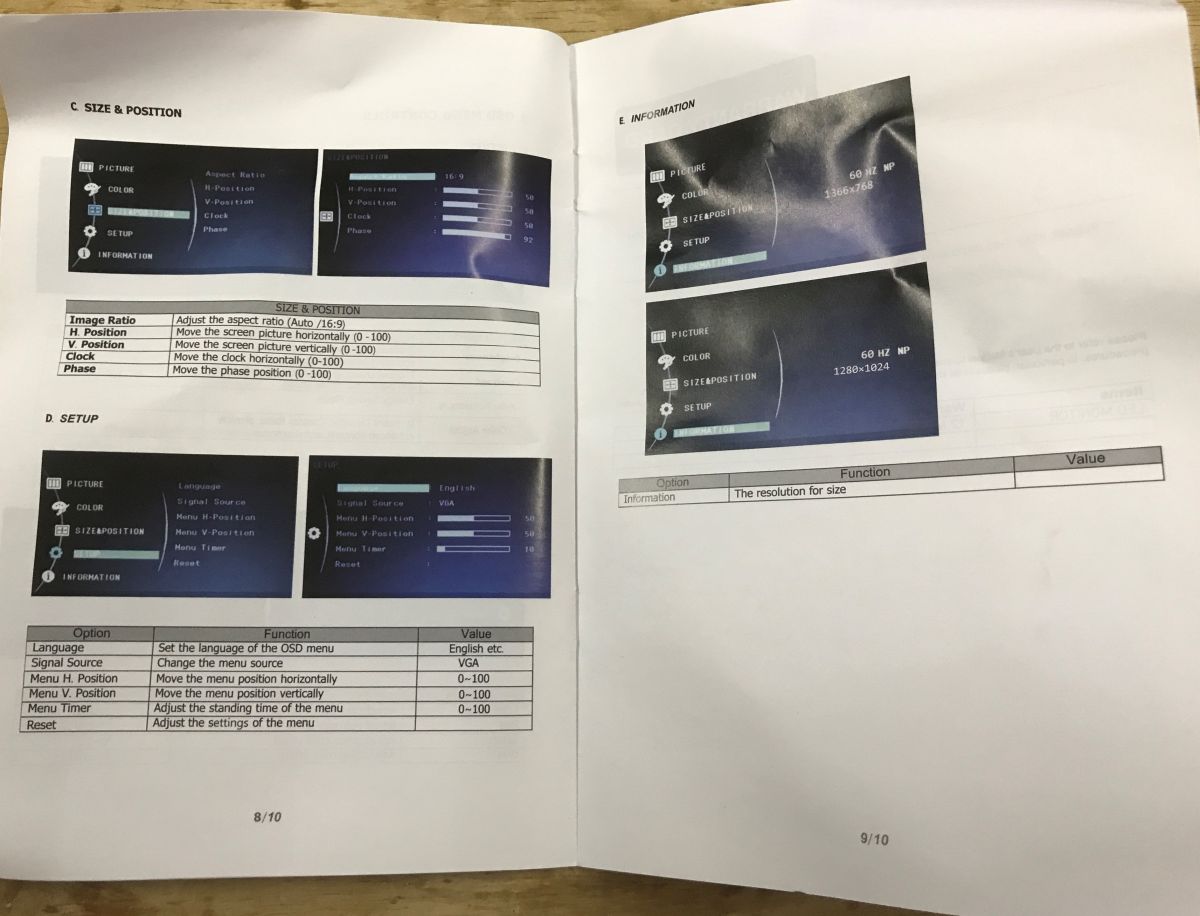
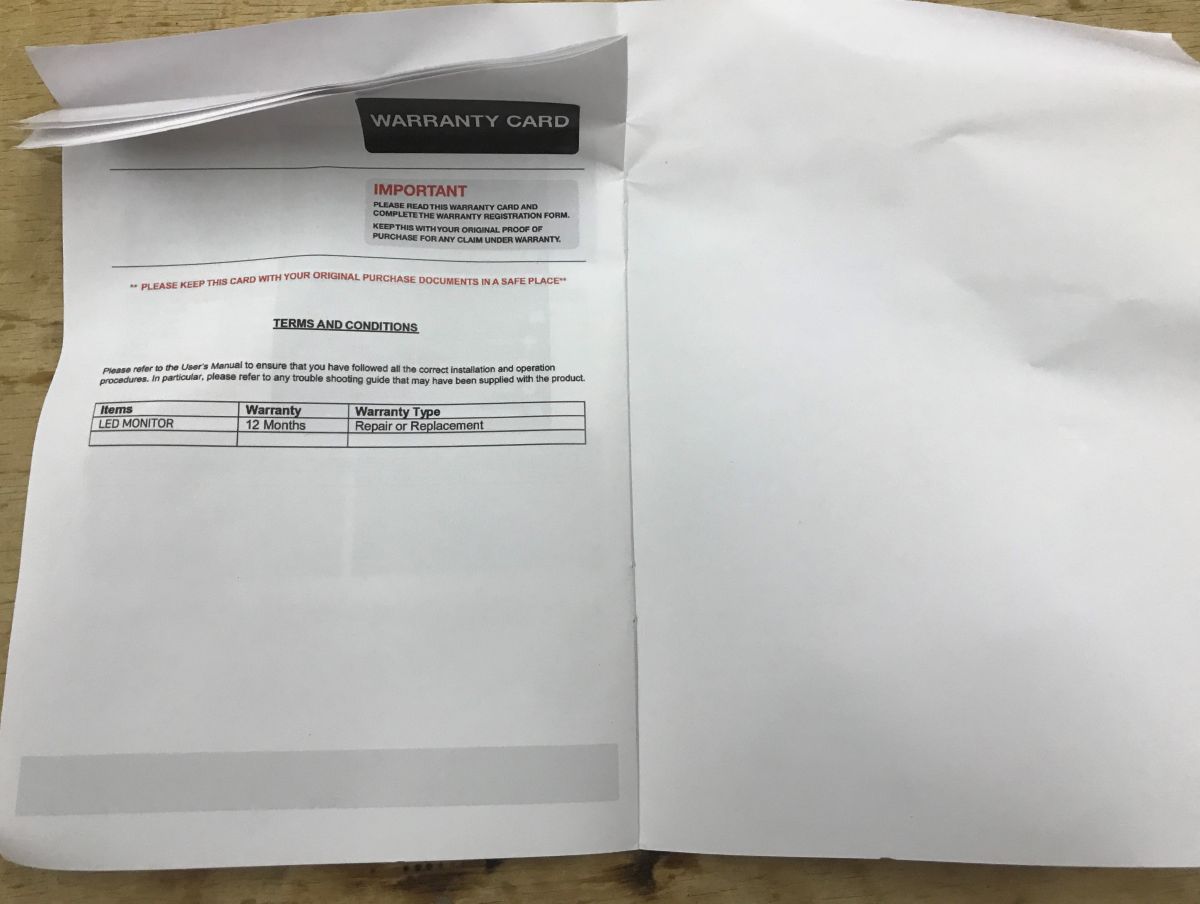
Instructions:
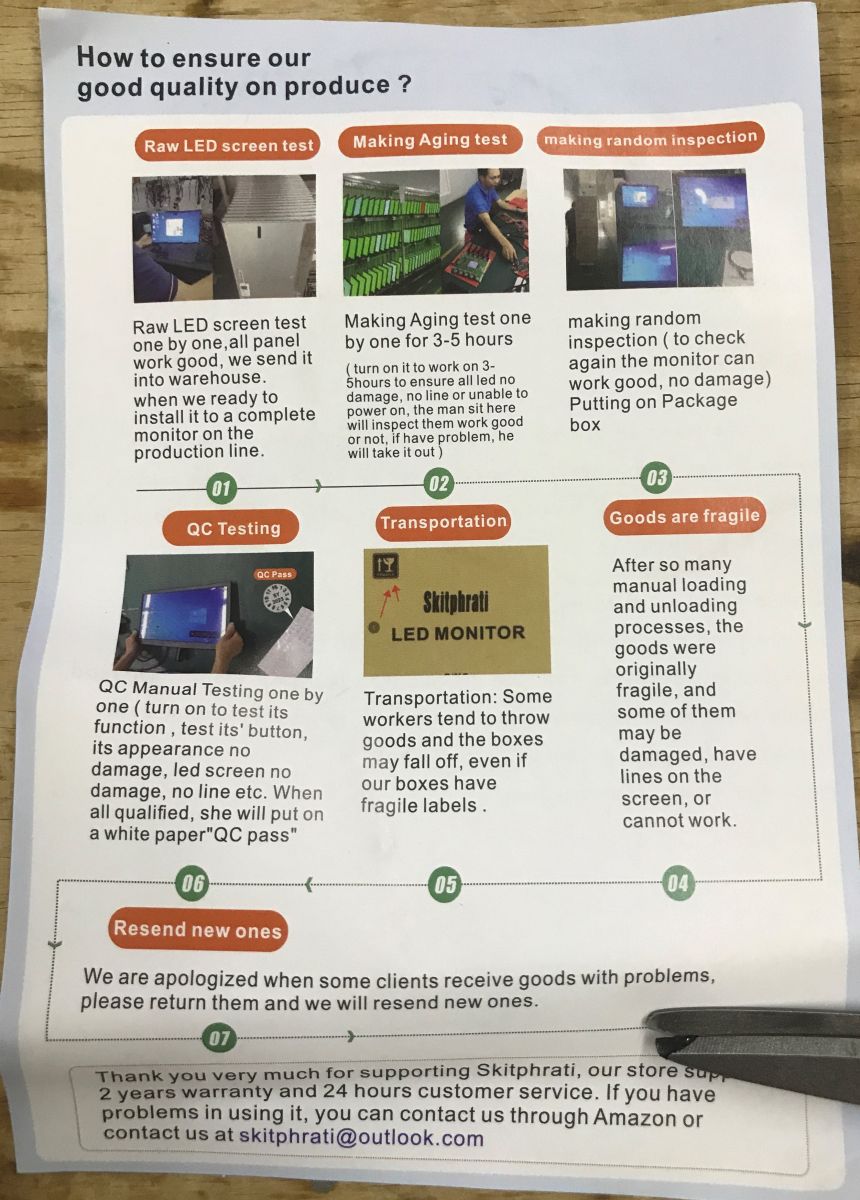

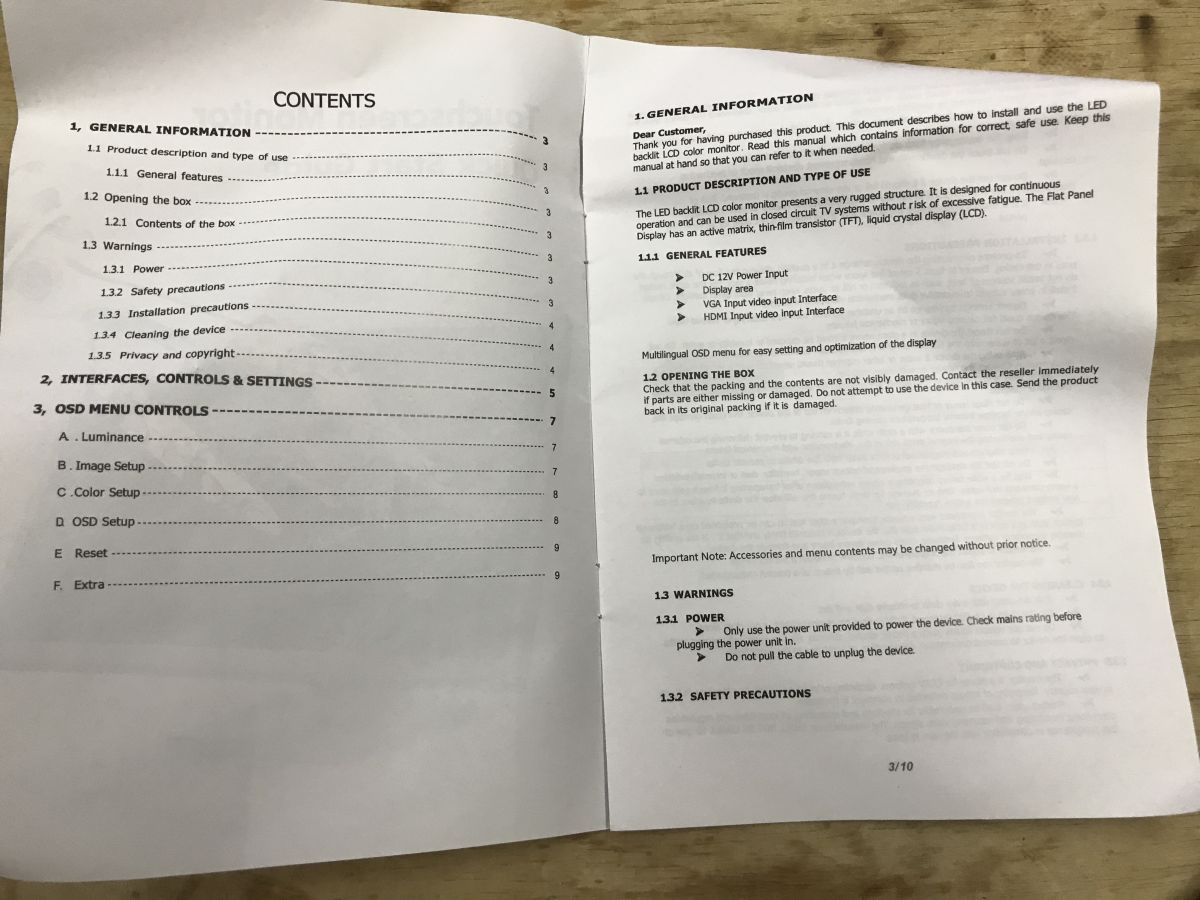
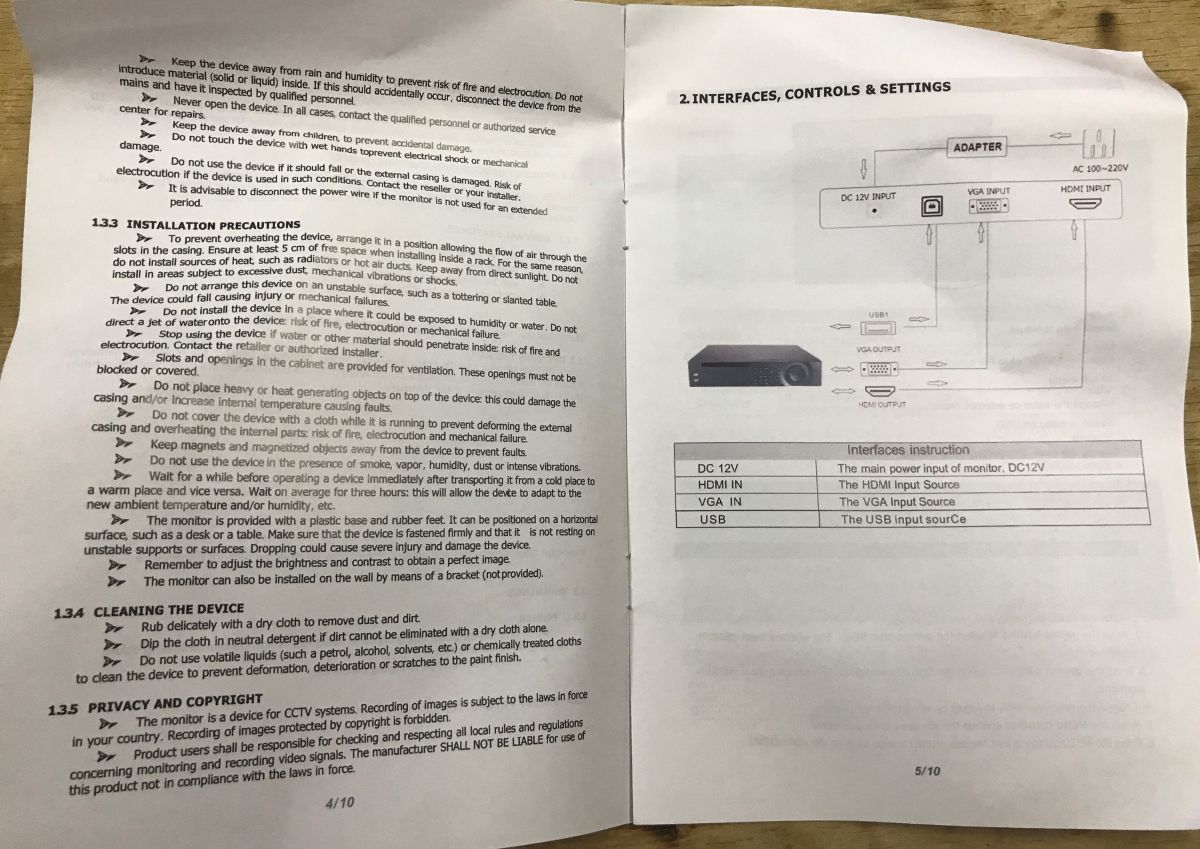
The monitor has a very simple but surprisingly stable footprint:
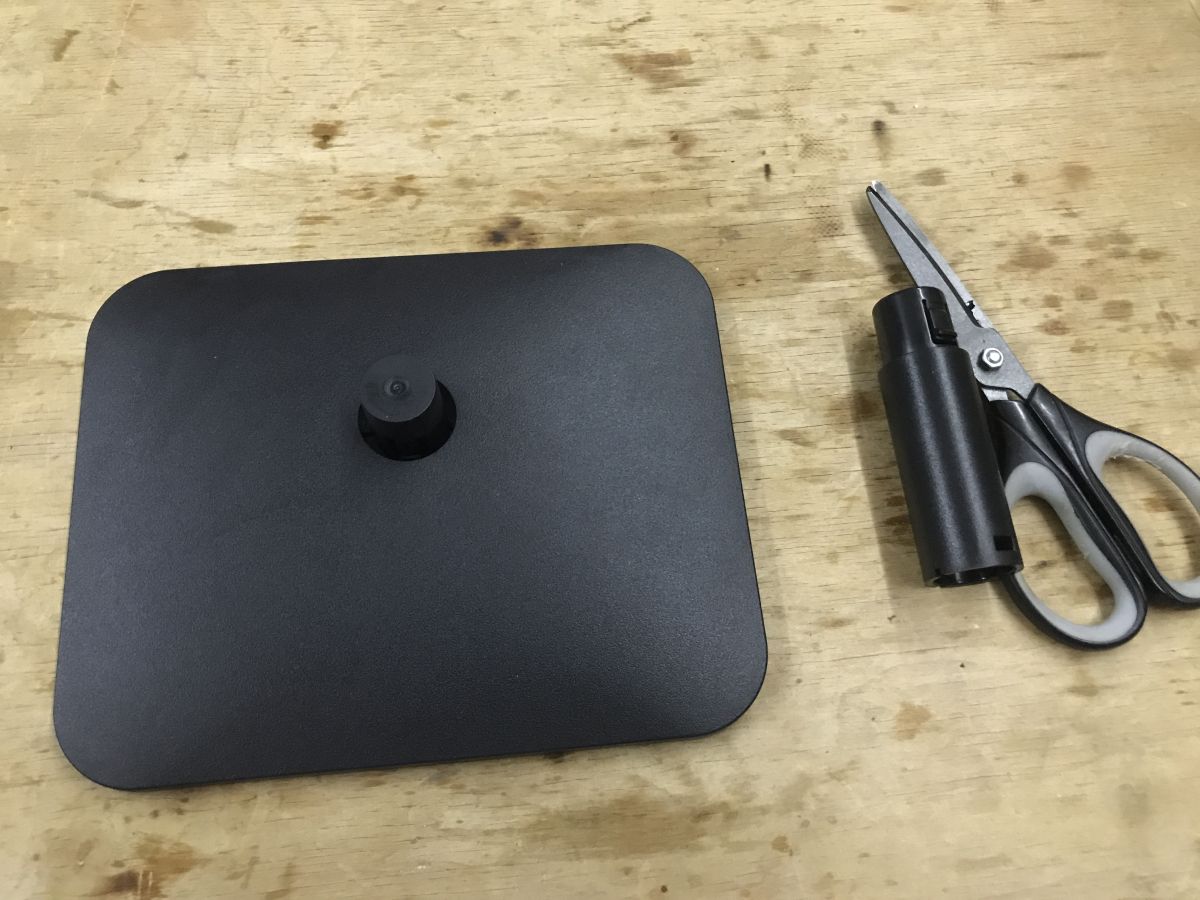
It is also compatible with the VESA 75x75 mm connector.
Time to move on to the actual test.
Configuration with Windows
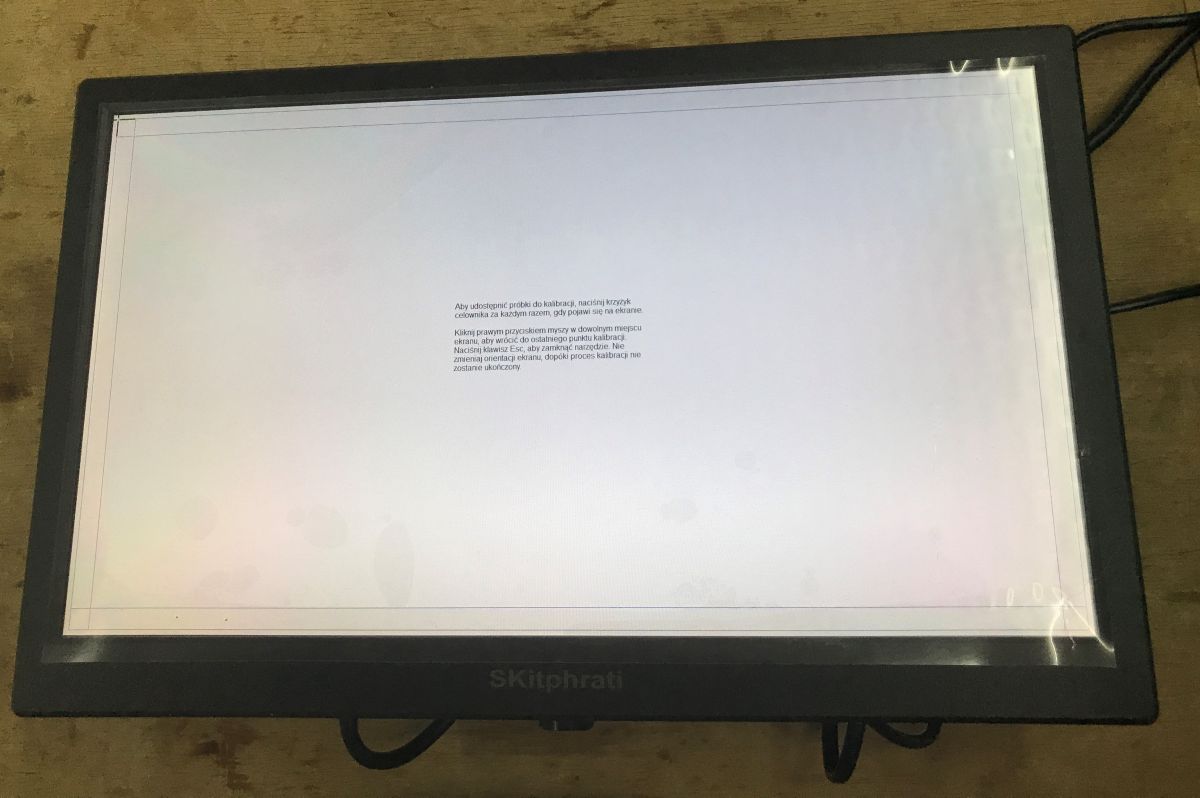
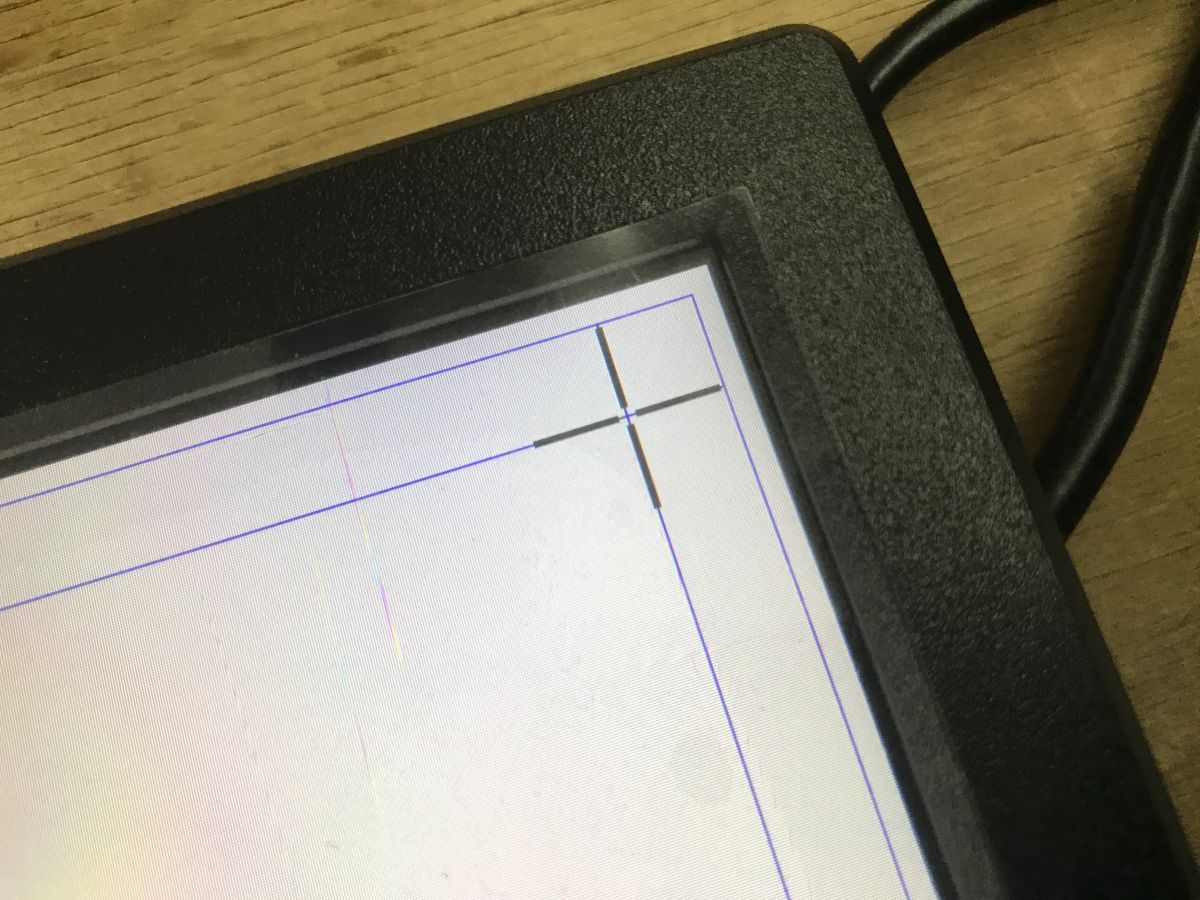
I thought I was going to install the drivers - but no. Everything moved right along. The only thing worth knowing here is the process of calibrating the touchscreen, this is done in Windows, in Control Panel -> Hardware & Sound -> Tablet PC Settings, where the calibration option is available. The whole procedure boils down to pressing the markers shown on the screen:
Windows recognises the monitor well, no resolution problem:
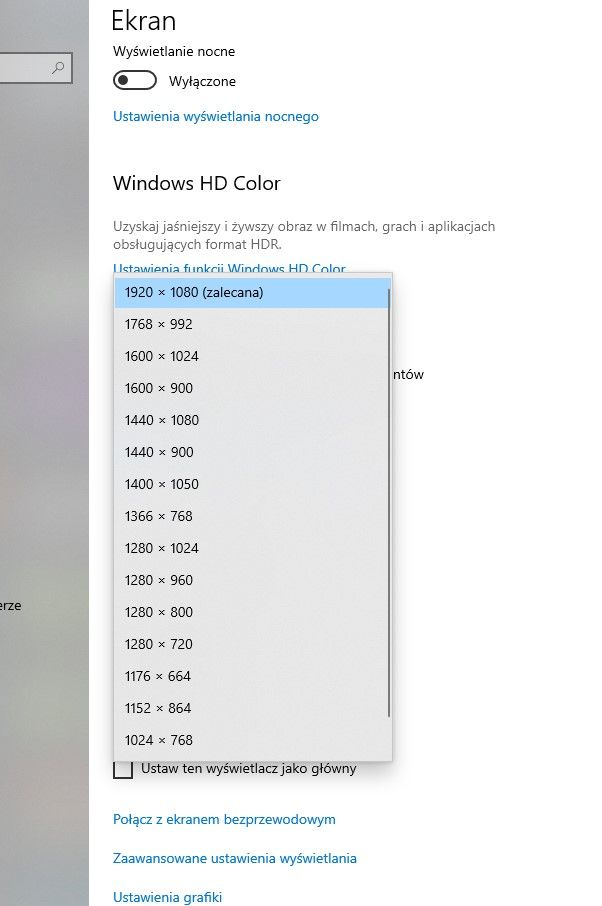
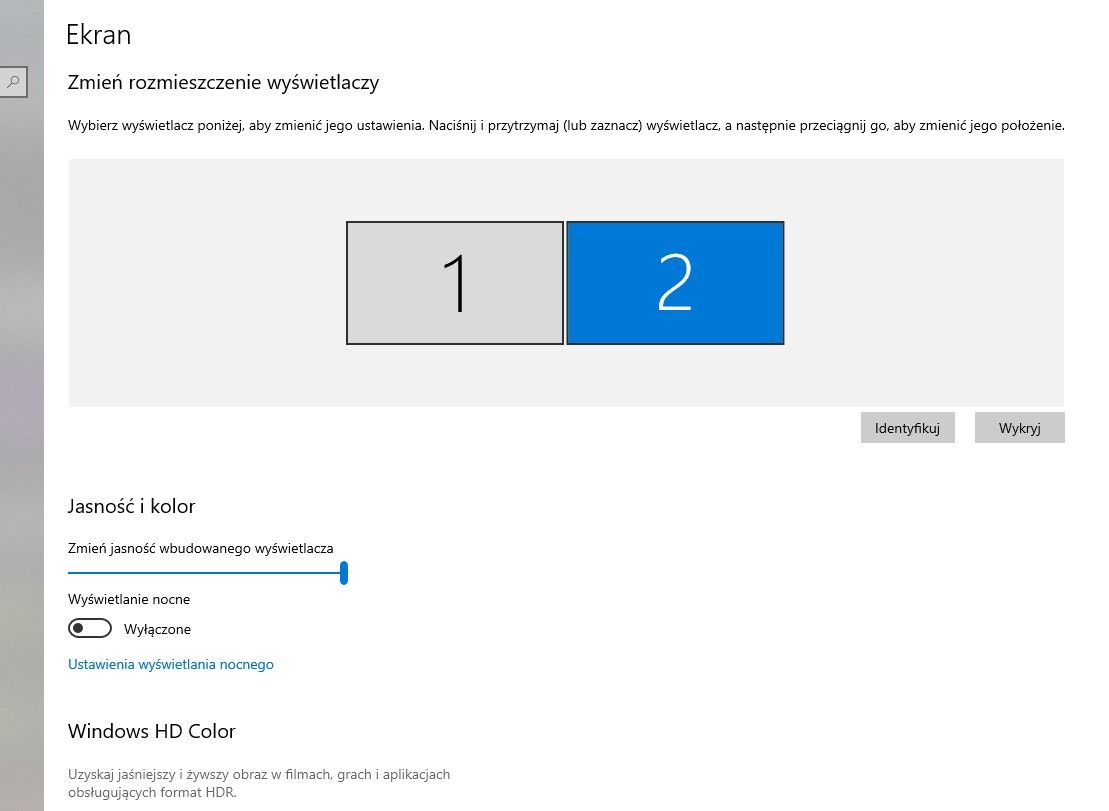
Interestingly, there is also no problem using it as a second monitor - touches are caught well:
Practical tests
The image is sharp and clear, even at an angle (178° according to the manufacturer). The touch responds well to gestures.
You can also zoom in and out of the view. The 'pinch to zoom' gesture, as shown in the video, is used for this:
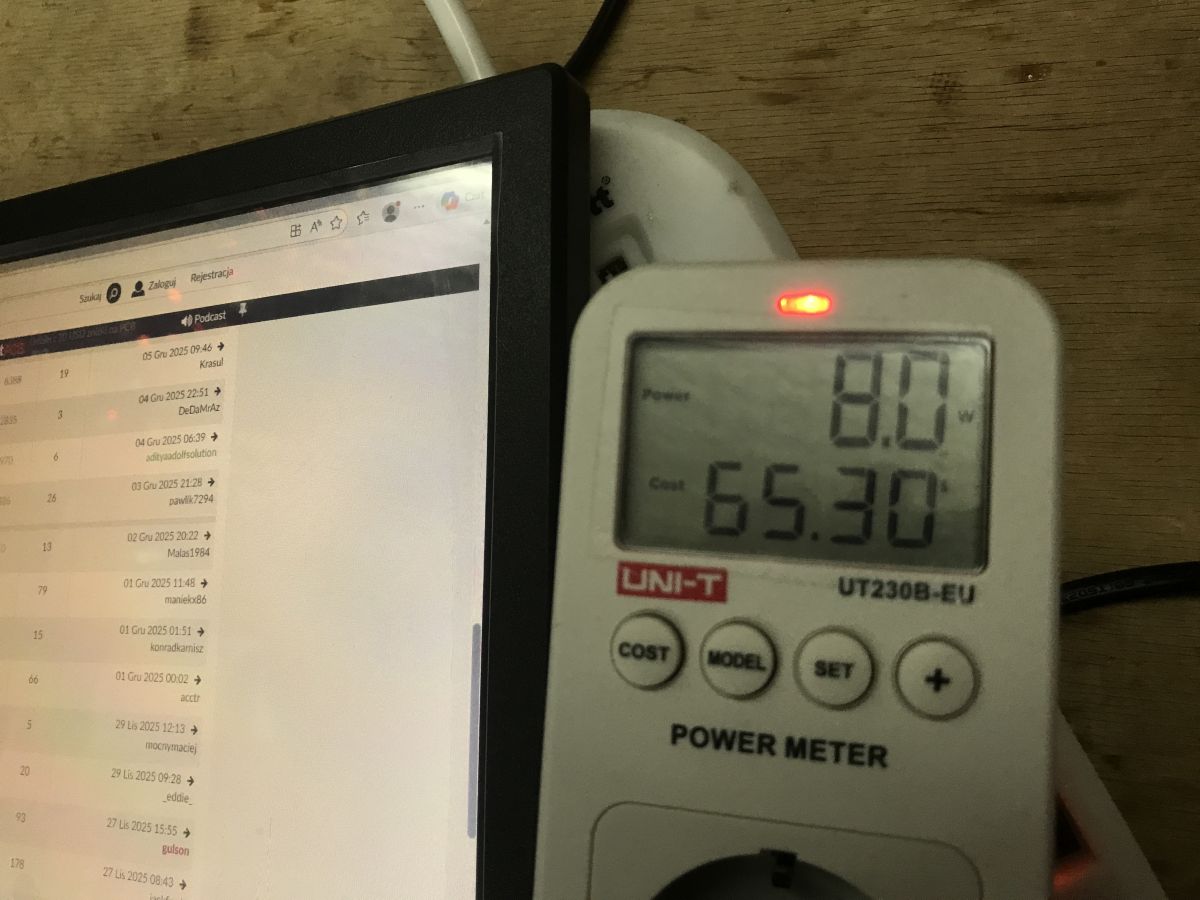
The monitor draws only 8 watts from the mains. In standby the consumption is less than 0.5 W, so my meter cannot note it at all.
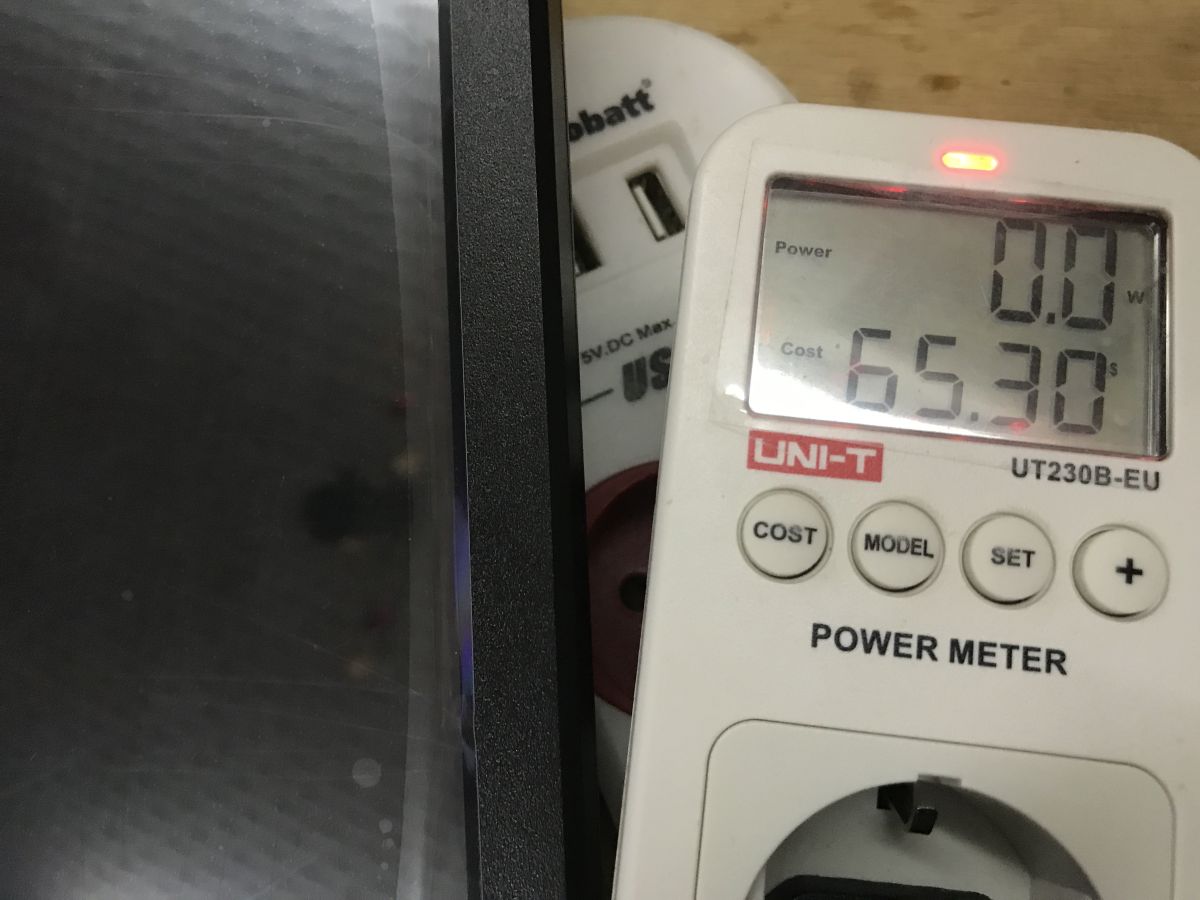
I also tested the OSD menu. Interestingly, changing the brightness does not affect power consumption, even though HDR is switched off.
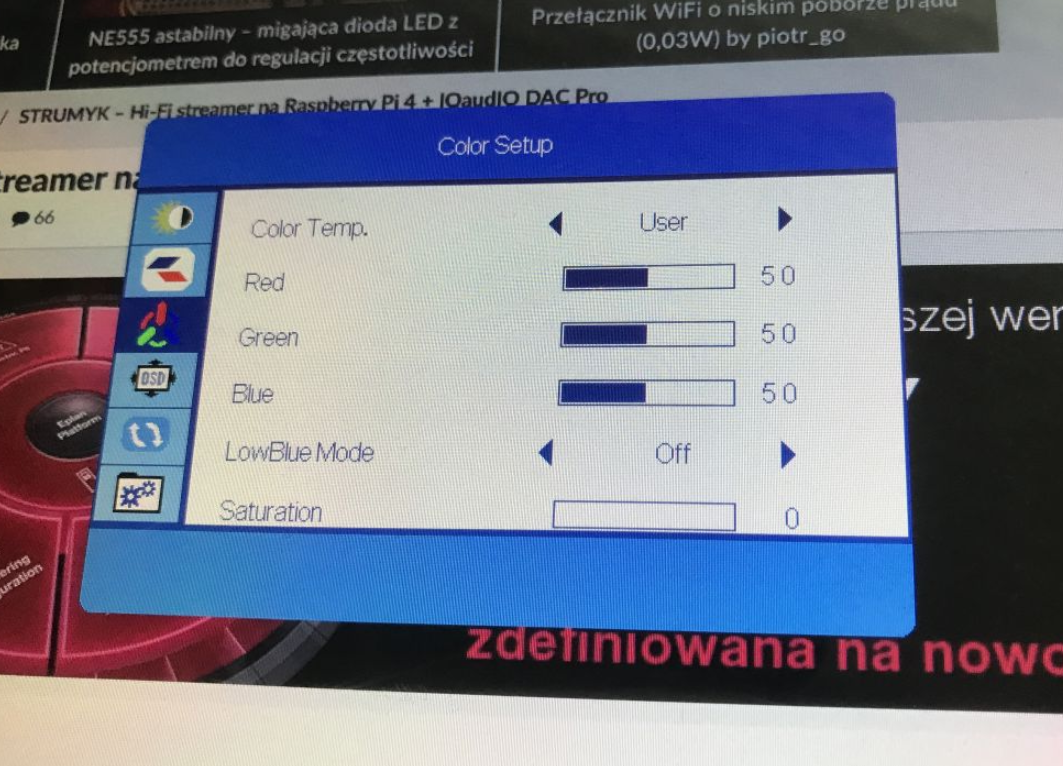
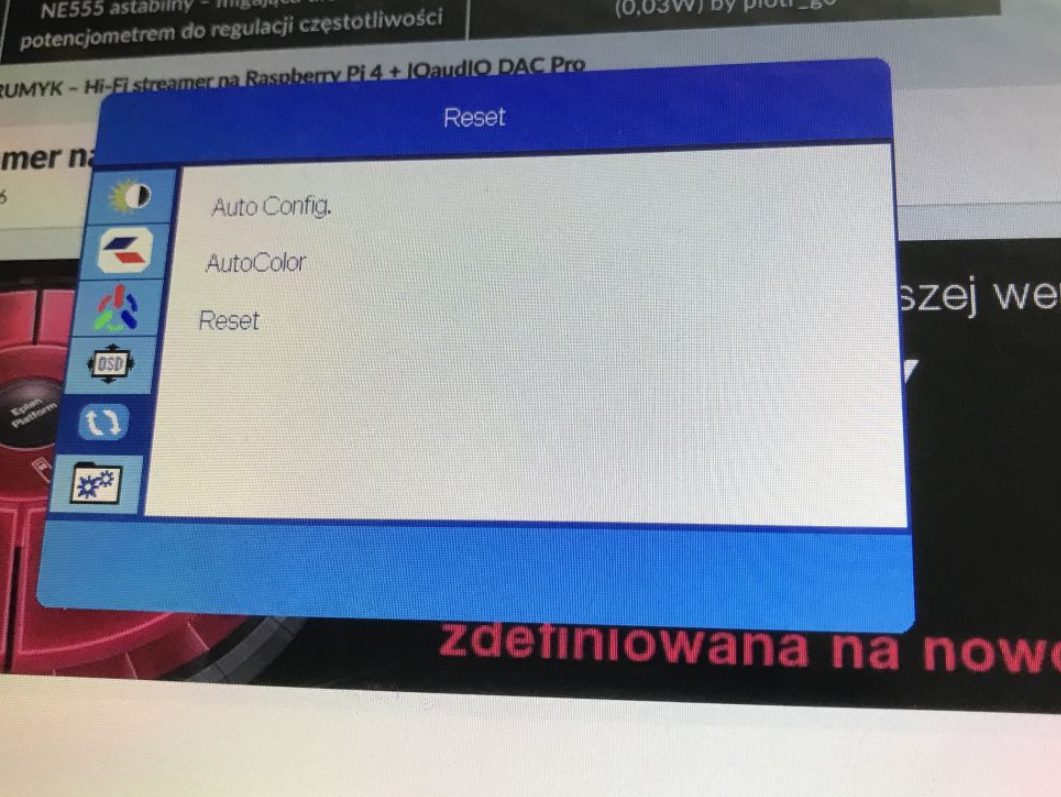
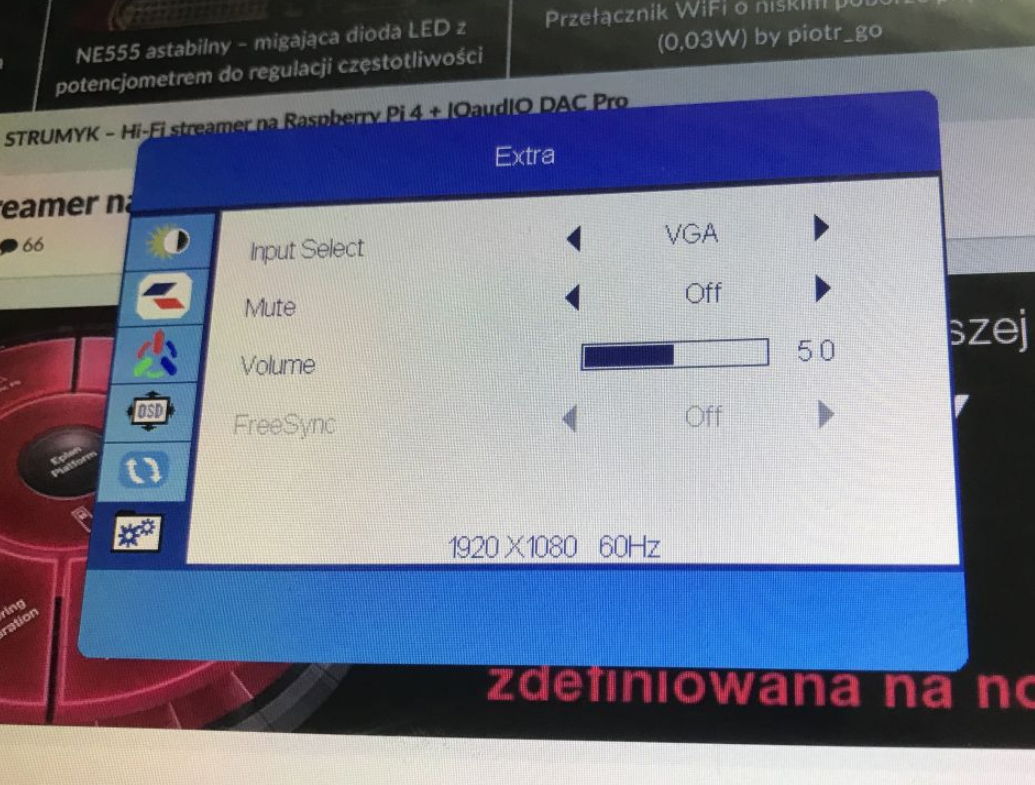
The monitor introduces no perceptible lag to the main laptop screen:
Specification
Offer information:
- Screen diagonal: 15,6"
- Resolution: 1920 × 1080 (Full HD)
- Aspect ratio: 16:9
- Refresh rate: 60 Hz
- Response time: 5 ms
- Viewing angles: 178° / 178°
- Colour space: 99% sRGB (NTSC 72%)
- Dynamic contrast ratio: 30,000,000:1
- Connectors: HDMI, VGA
- Included: HDMI 1.5 m cable, VGA cable
Summary
The monitor performed very positively in my tests. I even tested a rather unusual situation, i.e. connecting it to a laptop as a second screen, and even in this situation the touch correctly allowed control. Ultimately, this monitor will be used with a desktop computer, but I was tempted to do extended tests anyway, I did not decide on its purpose. The power consumption is also tiny, 8 watts is really low, older fluorescent backlit monitors are not touchable at all and can require several times more power. Total, a cool gadget, but is it practically useful? What is your opinion - do you use touchscreen monitors?

p.kaczmarek2 wrote 14795 posts with
rating 12945 , helped 659 times.
Been with us since 2014 year.
Comments
Isn't the menu more specific about the components and the internal software version? [Read more]
Does the monitor work with DDC/CI? What parameters does it allow to be set and are the responses correct? [Read more]
Maybe...? ;) https://www.elektroda.pl/rtvforum/topic4159786-30.html [Read more]
And where was it bought for 260PLN ( on ali 15 inches with touch I find for about 400PLN) ? [Read more]