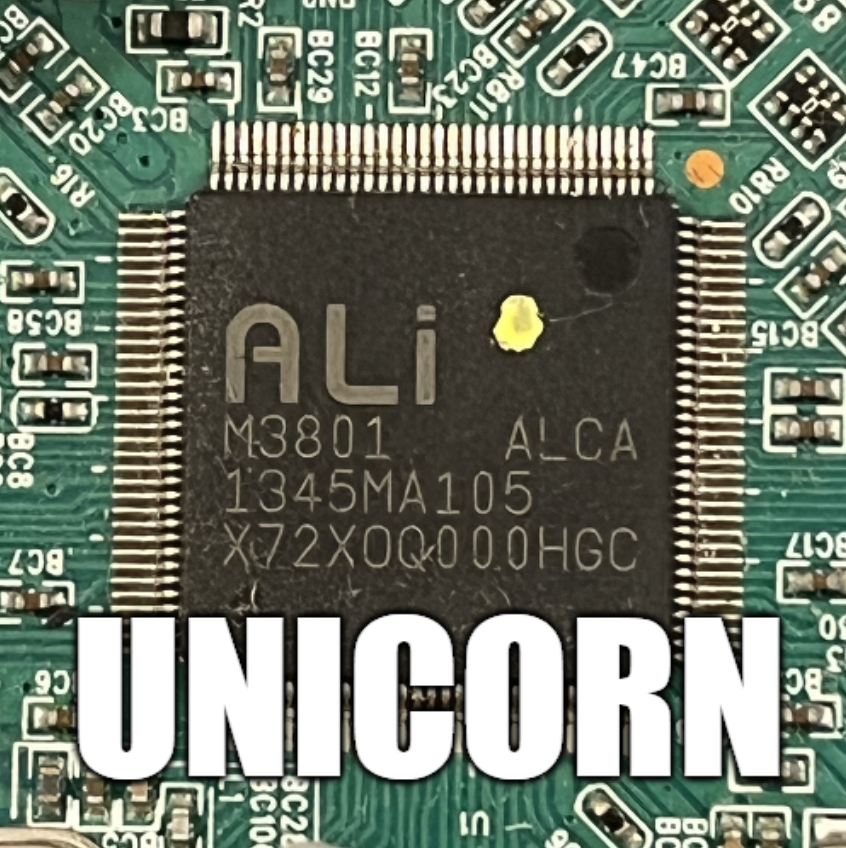
A Python MIPS emulator runs ALI M3801 “Hello World” firmware and reproduces the serial output normally sent through UART1.
Unicorn executes MIPS32 little-endian code while Capstone traces instructions; Python hooks add missing memory-write behavior, breakpoints, and UART register emulation.
The firmware ROM is loaded at base address 0xAFC00000, and its early TLB-initialization loop executes 64 times.
The emulator completes Hello World, including formatted output and floating-point operations, by capturing UART writes and simulating the SCI_16550_ULSR transmit-ready bit 0x20.
Unicorn mishandles some instructions and masks KSEG0/KSEG1 addresses to 29 bits; sporadic 16-bit MIPS instructions remain unsupported.
AI summary based on the discussion. May contain errors.
Here I will show my first attempt at building an emulator for the ALI M3801 microprocessor based on off-the-shelf Unicorn and Capstone modules. The developed program will load the contents of the Flash memory and execute it similarly to a real physical CPU, although it will not be without modifications and fixes, as Unicorn/Capstone do not implement the full logic of a particular SoC or its peripherals. In addition, the whole thing will be able to correctly handle sending data over the UART, i.e. it will emulate the register responsible for transmitting bytes over the hardware serial bus. In this way, we will get the same messages in the console that running a programme on a real ALI chip would show.
Tools used Ghidra is an advanced reverse engineering (SRE) tool being developed by the NSA. It allows decompilation of MIPS machine code into pseudo-C code, making it much easier to analyse and understand firmware logic.
Unicorn is a lightweight, multi-platform framework for CPU emulation based on QEMU. In the project it serves as the main engine for emulating MIPS32 instructions in Little Endian mode, although in practice much of the operation (including memory access) is handled separately in my code anyway.
Capstone is an advanced disassembly engine supporting multiple architectures. It is used here to convert machine code into readable assembler instructions, which is essential for tracing and debugging them. It allows the user to see exactly what the processor is currently executing.
I will do the project in the Pyhon language.
Firmware used for demonstration To simplify the workflow I used a ready-made 'hello world' on ALI found on GitHub - michal4132/ali_sdk . I presented this project previously here:
How to compile and run your own firmware for ALI M3801 and other tuner chips? This firmware is characterised by the absence of precompiled modules (so-called "blobs"), which makes it easier to analyse and compare the source code to the results from the emulator. For this reason, we will use it here.
NOTE The topic assumes a basic knowledge of terminology and I will not explain here how the processor works. I will focus here on just presenting the construction of my simple emulator.
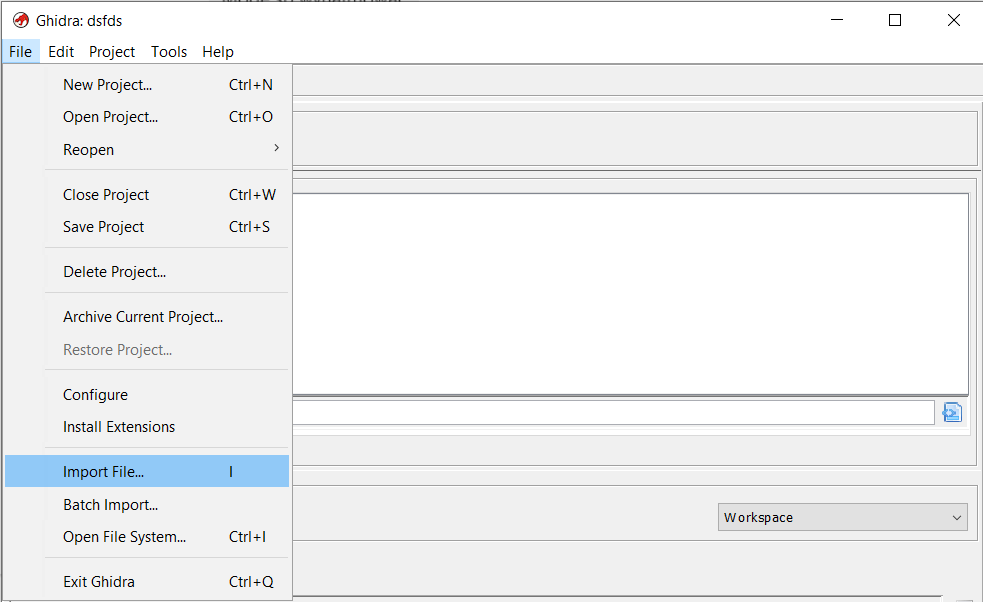
Importing firmware in Ghidr Open Ghidra, create a new project, do File->Import File:
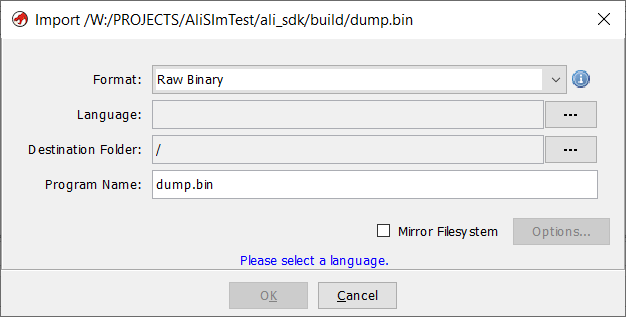
Before importing the file, you need to configure it properly.
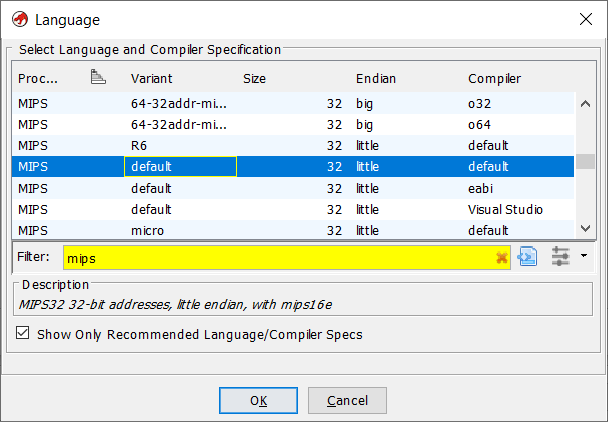
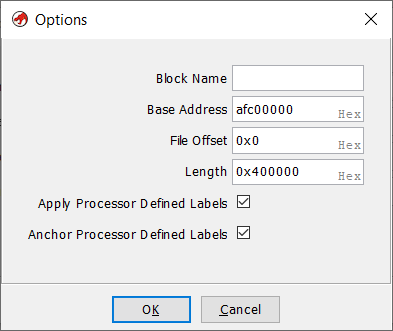
Set the architecture: MIPS Little-Endian. MIPS is a RISC architecture and Little-Endian specifies the order in which bytes are stored in memory.
Set base address: afc00000. The base address is the fixed starting address of the memory area. It serves as a reference point for further addressing of data or registers, without a correct base address the jump instructions would go to the wrong place.
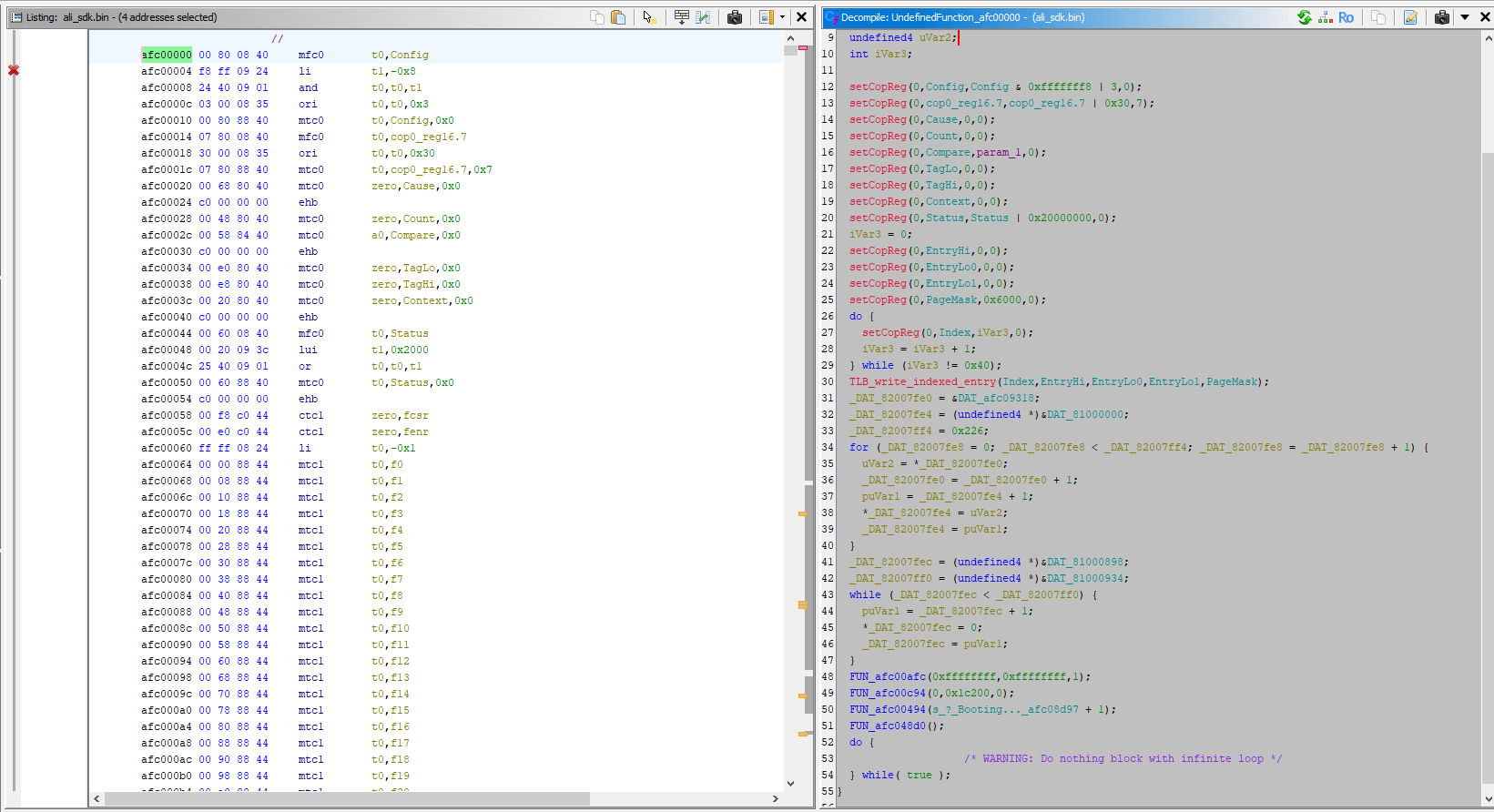
When opened, Ghidra gives us two views. The first time we have to wait for the decompilation to finish, but after that everything works smoothly.
The first view is directly the bytes of the opened file but mapped to the base address - hence the addresses start with AFC. Next to them we have the decompiled commands with their arguments.
The second view is C pseudo-code, which tries to show what the function would do in C - as much as it can. A lot of information is lost when compiling, so we don't even have variable names or the exact syntax here as it was in the source code.
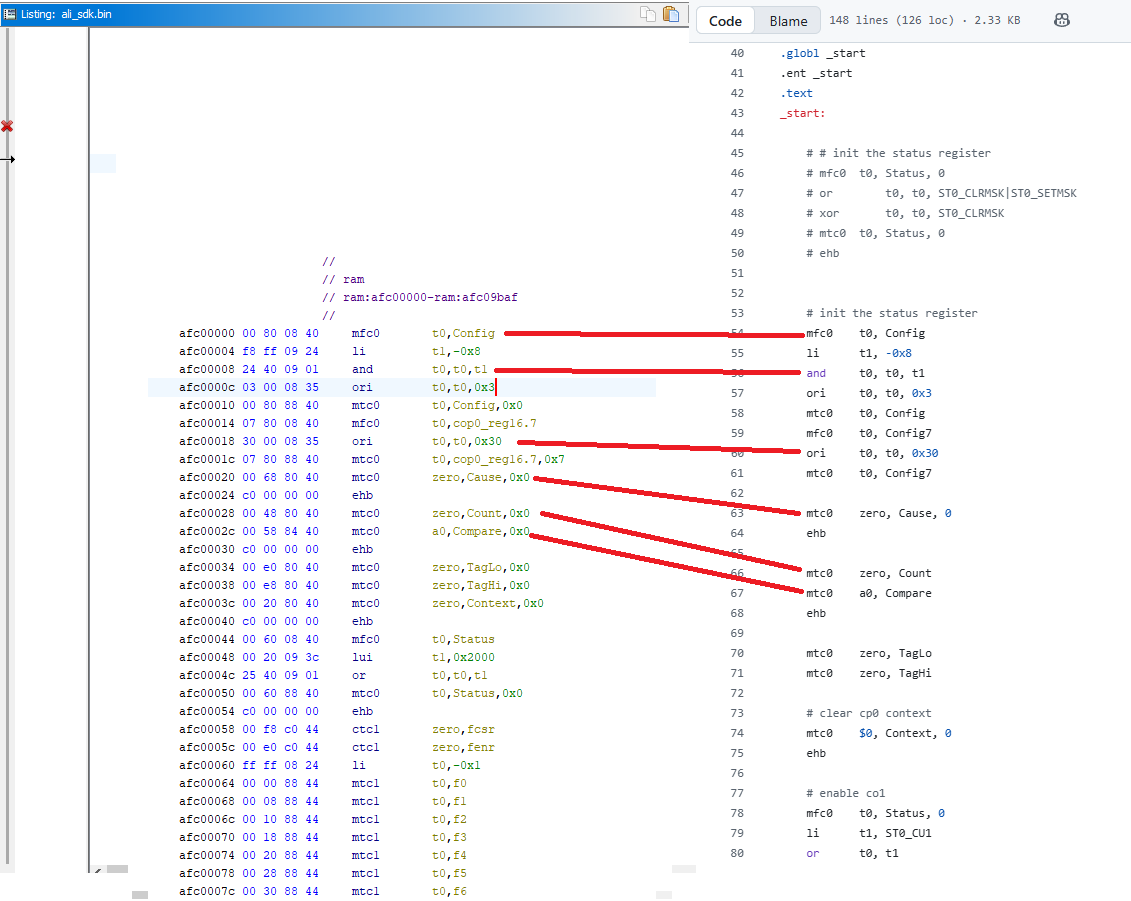
In this case we have the source code of the decompiled program, so we can compare and check. The startup routine is partly written in assembler and partly in C:
start.S:
Code: text
Log in, to see the code
Continued in C:
entry.c:
Code: C / C++
Log in, to see the code
You can easily compare the two files:
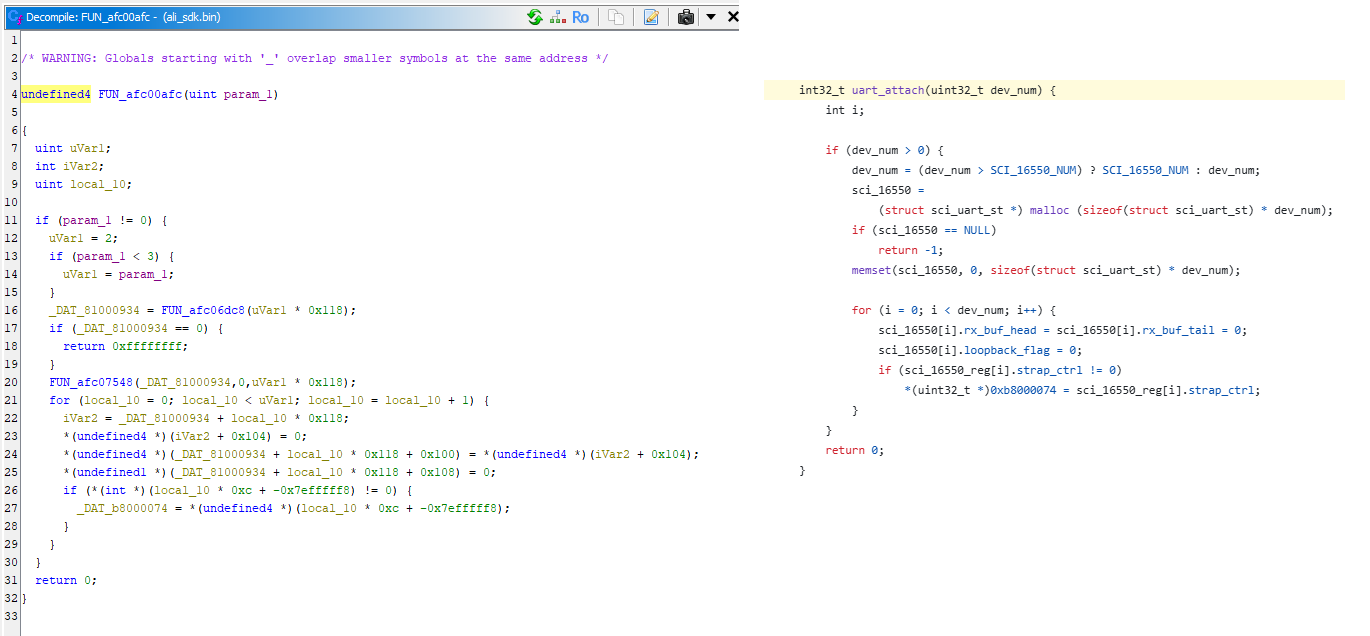
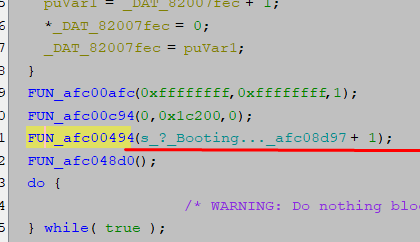
You can see here, for example, that FUN_afc00afc(0xffffffff,0xffffffff,1); is uart_attach
Deassembly in Python Let's start with the simplest one. This example shows a simple disassembly of a binary code after a given address in Python. The binary is loaded into memory at the specified base address, without running or emulating instruction execution. The Unicorn engine is only used here to map the memory, while Capstone reads the bytes from under the specified address and translates them into MIPS assembler instructions. This allows the contents of the ROM code to be quickly previewed in human-readable form and compared with what Ghidra shows.
Code: Python
Log in, to see the code
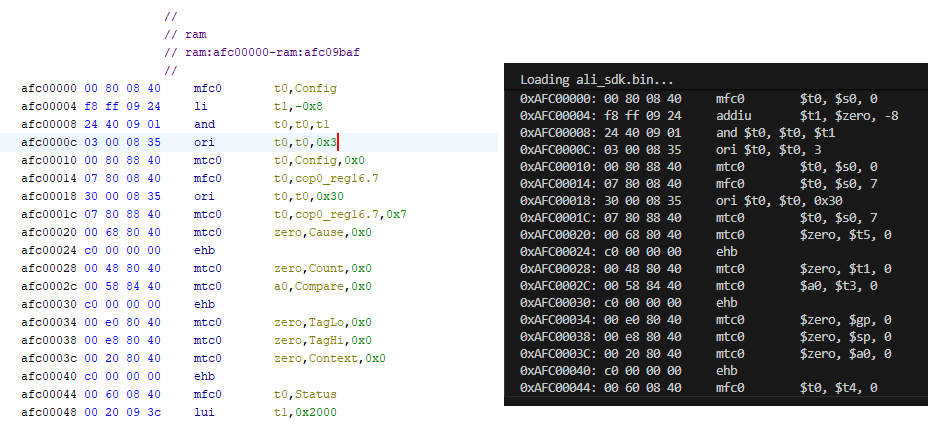
As a test, I read the first few dozen instructions. Virtually everything agrees:
The only difference is li (in Ghidra) which the Python program shows as addiu. This is because li is not an actual MIPS processor instruction, but an assembler pseudo-instruction. In firmware, there is an actual addiu (or sometimes lui + ori), which Capstone shows explicitly, while Ghidra simplifies the notation to li for readability.
First steps with the emulator Now you can go one step further and start executing the instructions. In this example, register operations, calculations and conditional jumps will already be running. This time Unicorn will already be performing operations, although, as I found out shortly afterwards, not everything will work correctly. But one step at a time:
Code: Python
Log in, to see the code
I put a limit on the program's executed instructions and compared the emulation's "footprint" with what is seen in Ghidra. The basics match, the jumps also match:
Loops with emulator Similarly, loops also work. First we have loops copying data into RAM. I added a counter to the emulator to show how many times (globally) an instruction has been executed, this allows us to visualise a little better what is happening:
Stopping at an instruction Another useful mechanism that I have decided to implement is to stop the program on a command with a given address. This allows me to easily check if the executed program reaches a certain point, whose address I find in Ghidra. You could say that this is a simple breakpoint, like in a debugger. For the moment, it is enough for me to define the STOP_INSTR variable in the code.
Code: text
Log in, to see the code
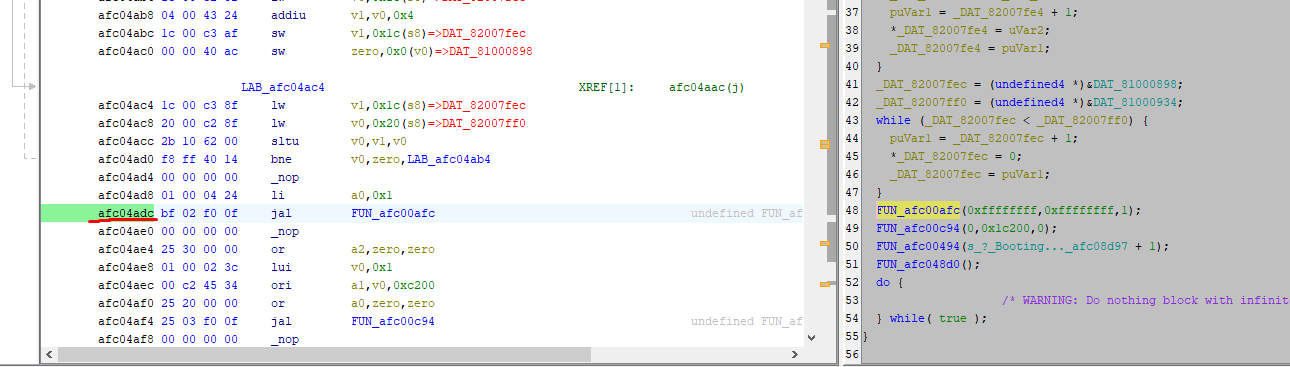
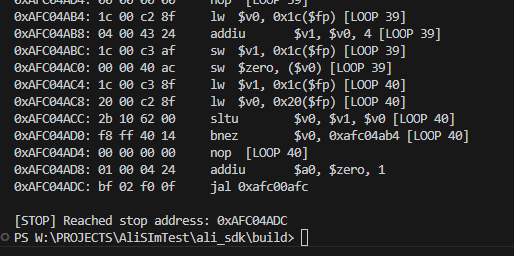
This is where Ghidra came in handy again. There I selected the address at which I want to stop the execution of the commands (afc04adc) and then verified the program trace to make sure everything was correct. This is very convenient and useful for testing and verifying that the program is running correctly.
Fine UART initialization fix
The program, prepared in this way, was already reaching uart_set_mode, but was showing an access error when trying to write data to the UART register.
Code: C / C++
Log in, to see the code
These registers were not mapped to memory:
Code: C / C++
Log in, to see the code
I had to add their mapping:
Code: Python
Log in, to see the code
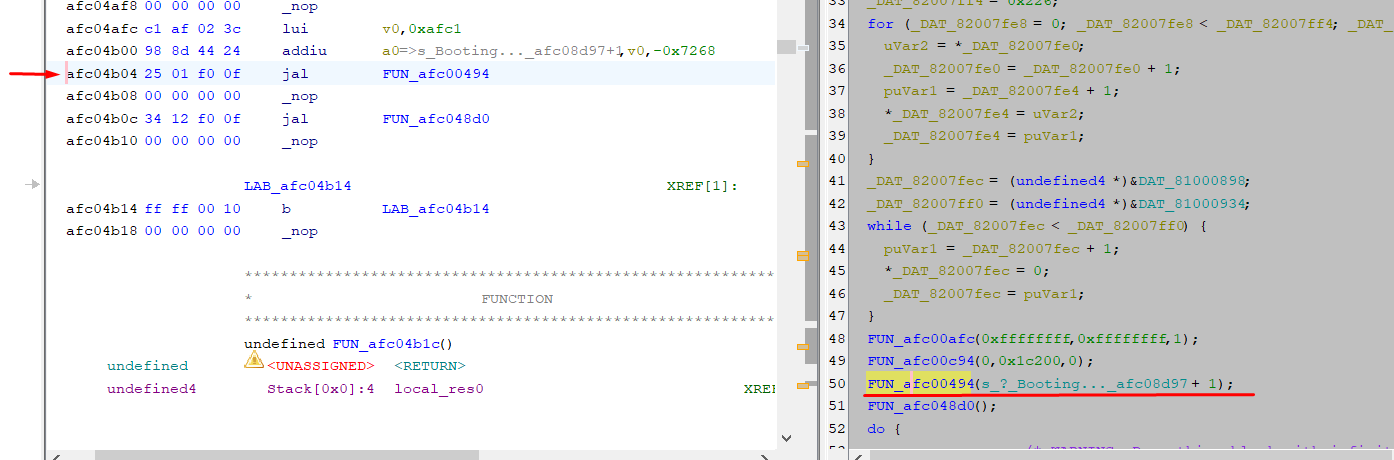
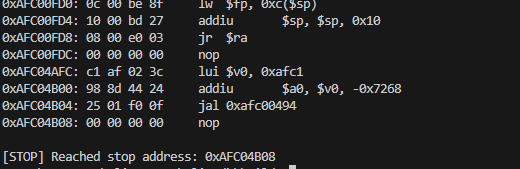
After this change, the emulator gets as far as 0xAFC04B04, which is where the text data will be sent:
What's more, the function itself from the display also executes. I set the endpoint right after it, and there are no errors.
Interrogating the text display Unfortunately, full support for text display would require emulation of the UART along with reading its register used to send data. For now, we'll keep it simple and just capture the printf function itself. In Ghidra, it is easy to trace it because its argument is a character string:
We can intercept its call and artificially skip its execution:
Code: Python
Log in, to see the code
Result:
Well, yes, but now printf-style formatting of variables doesn't work. No wonder, our Python function displays blindly. Maybe it's better to look at the printf source code:
Code: C / C++
Log in, to see the code
The formatting can be emulated and we plug in fwrite though. Here, however, was a problem that took me a long time, but I will keep it to a minimum for you. It seems that the execution of the sb/sw commands , i.e. the instructions responsible for writing to memory, is not working.
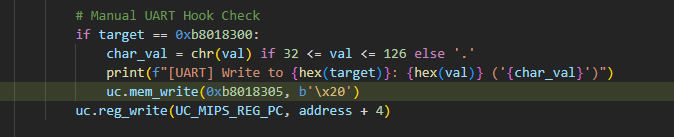
I have implemented their manual execution:
Code: Python
Log in, to see the code
And this is what the hook on fwrite looks like:
Code: Python
Log in, to see the code
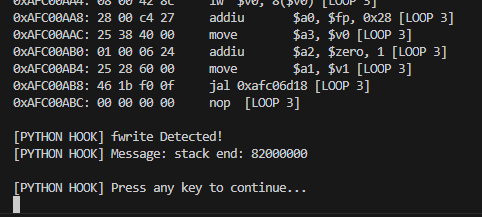
Result:
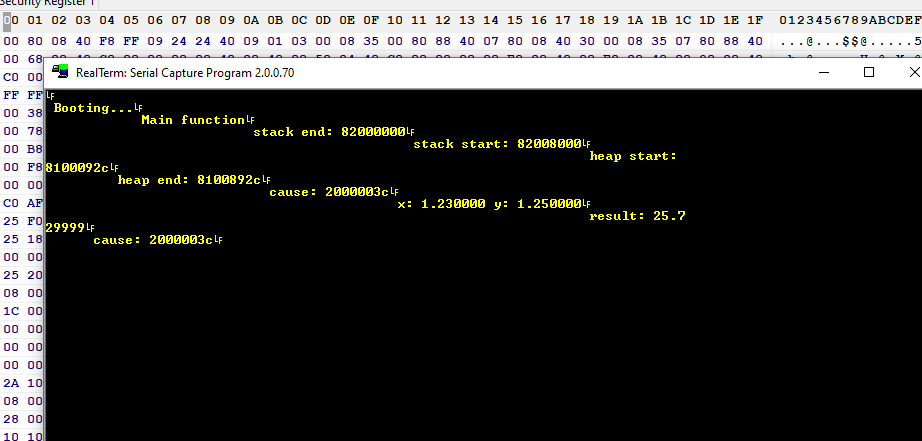
Agrees with the one from the CPU:
All text, after turning off showing instructions:
Not too bad, even operations on floating point numbers work.
Faster UART emulation Capturing kprintf or there fwrite is nice for testing, but not at all practical. The address of these functions can probably change with each compilation. It is true that at compile time you can force a function to have a given address, but I wouldn't expect that here.
The UART needs to be handled better - you need to know where the hardware UART register is and it's from there that you read the data.
Fortunately we already have this information - it can be found in many SDKs on GitHub.
The UART addresses are:
Code: C / C++
Log in, to see the code
The register for the character is:
Code: C / C++
Log in, to see the code
However, let us focus on the posting itself. We can easily conclude that all we need to do is capture the write to this address and display it as output from the UART.
This is where a small technical problem arose, because as it turned out, Unicorn does not execute some of the commands correctly, so I had to implement them manually:
Code: Python
Log in, to see the code
Only then are the operations executed.
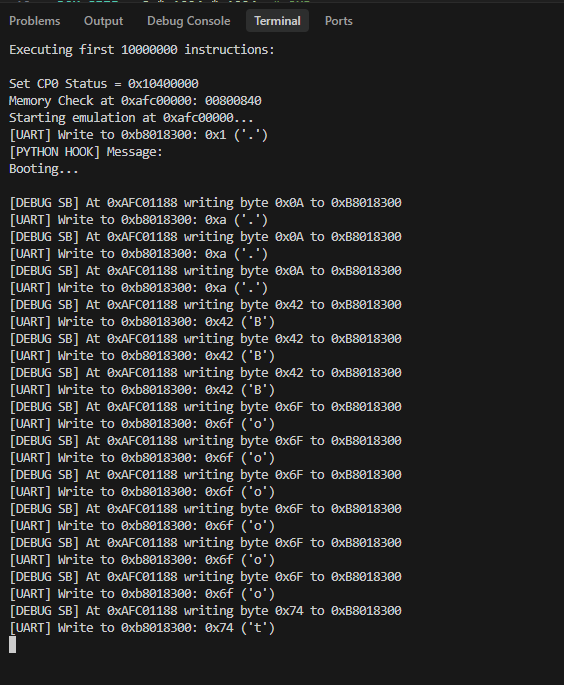
Eventually the UART sends the data, but something is wrong. The data is repeated three times. An explanation of this will be found below:
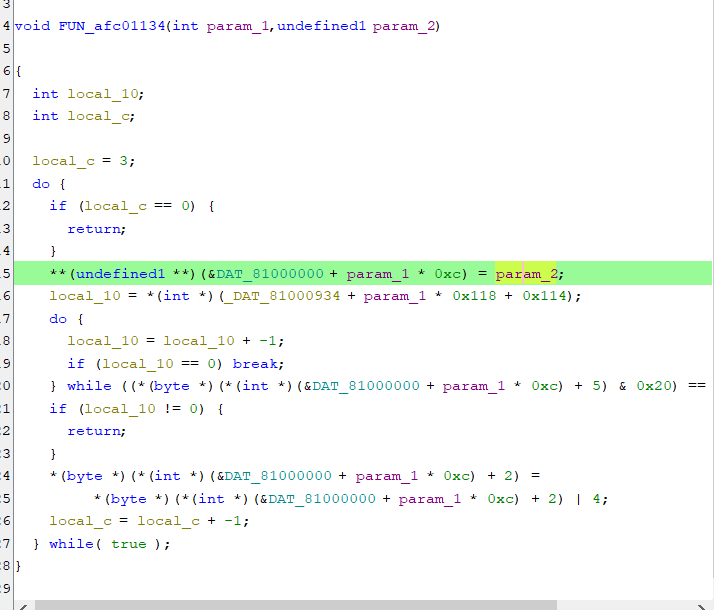
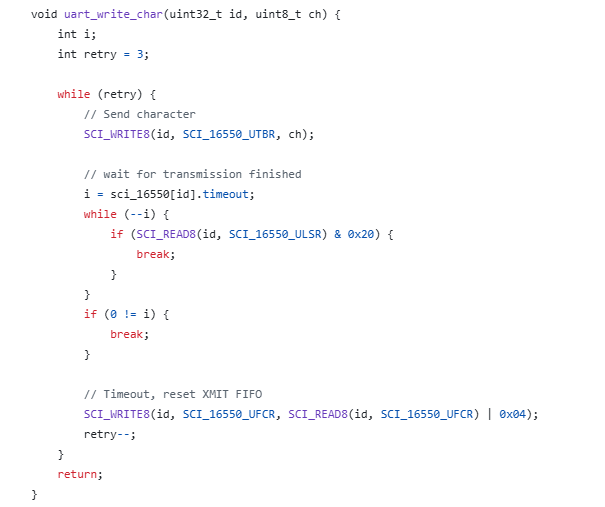
The firmware checks to see if the UART acknowledges the sending of the data and, if not, performs the transmission again. All in a loop, in a blocking manner. So we still need to include the transmission acknowledgement flag.
To do this, we need to simulate bit 0x20 of SCI_16550_ULSR. We can do this as soon as a byte is sent. Very simple:
Full code:
Spoiler:
Code: Python
Log in, to see the code
As of now, the UART is sending data correctly.
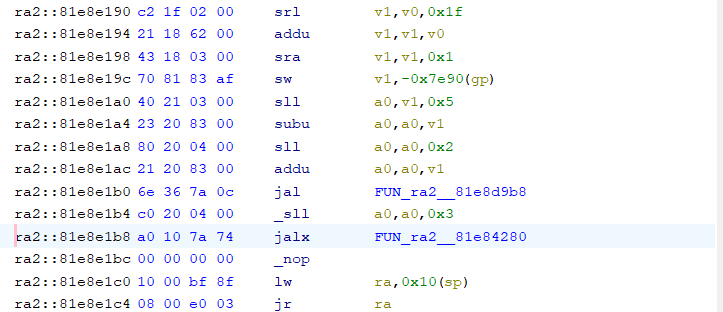
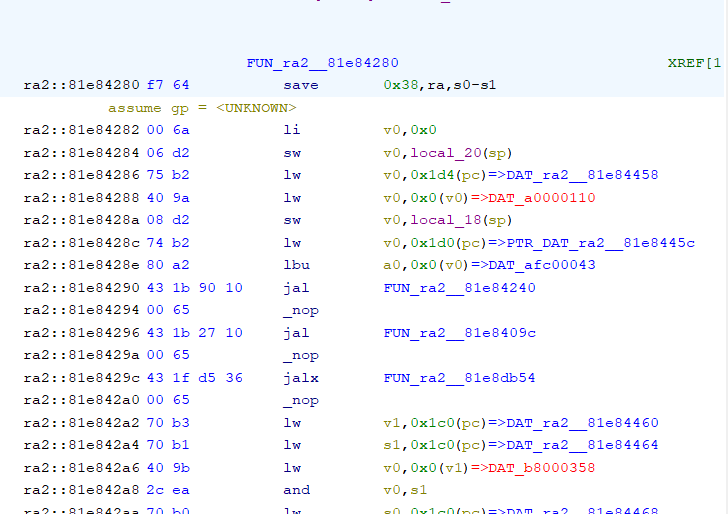
Problem to be solved in the next topic The main problem that is still to be solved is the 16-bit MIPS commands, these occur sporadically on the original upload from ALI:
And moments later:
The emulator used does not seem to support this, so there will be further combinations.
Summary Summary
This managed to run Hello world completely as if the target CPU was doing it - no shortcuts or simplifications. My program emulates the base of the ALI M3801 and is able to show what would be sent via UART 1.
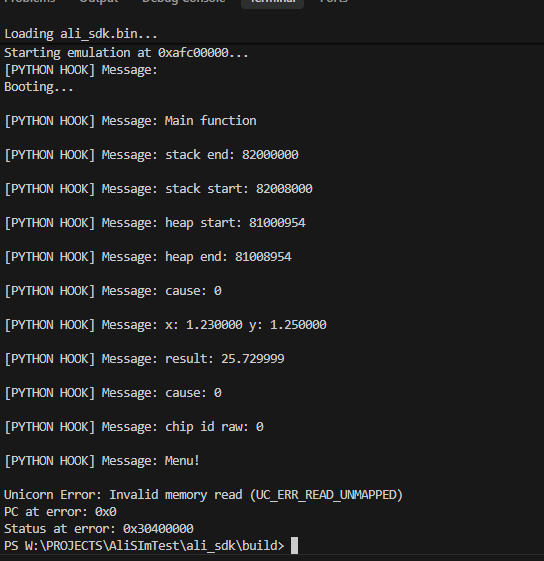
The whole thing turned out to be more difficult than I thought, as I had to reimplement some of the commands myself to get the read/write to work correctly, and on addresses as MIPS sees them - Unicorn does not implement KSEG0/KSEG1 segmentation and masks the address to 29 bits, treating it as a physical address. This is well demonstrated in this example:
The code shows 0xa00026a0 and the emulator wants access to 0x000026A0. Maybe I should tweak this to hold the physical conversion, but that's in the next section. Initially I thought a triple mapping into the same memory section would suffice:
Code: Python
Log in, to see the code
but the operations weren't performing anyway - at this point it's not clear to me what I was doing wrong.
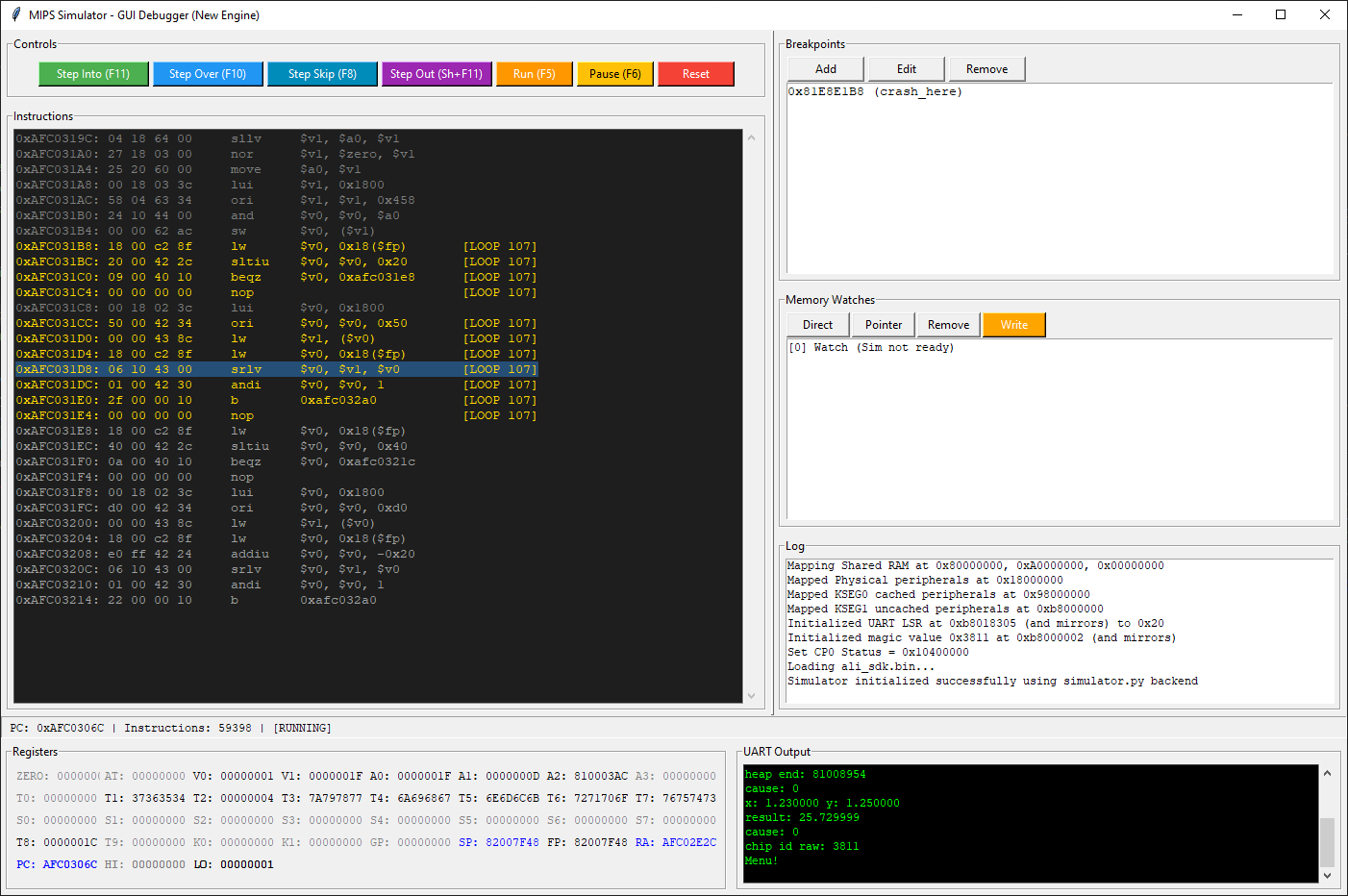
Follow up soon, all suggestions welcome - this is my first approach to emulation. Here's a little preview of the next topic:
About Author
p.kaczmarek2 wrote 14791 posts with
rating 12937 , helped 659 times.
Been with us since 2014 year.
A small update as to the fun of emulating.
As I suspected, I'm stuck on those 16-bit instructions for now. Without them, I won't even for a good while start executing the actual bootloader from the... [Read more]
bulek01
25 Jan 2026 22:50
Thanks for this description, I've been wanting to get on with it myself to analyse another decoder on MIPS too. You made it very easy for me to go further by showing the base. Cool that you mapped the... [Read more]
p.kaczmarek2
25 Jan 2026 23:17
At the moment the problem is with 16-bit inserts. Capstone/Unicorn doesn't seem to support them (I couldn't get it to do so), so I have to combine manually. Unfortunately they are repeated repeatedly in... [Read more]
MarcinBukat
26 Jan 2026 16:15
MIPS distinguishes (assuming the core supports this at all) whether it should interpret an instruction as 16bit or 32bit by looking at the youngest bit of the instruction address. Jumping to a function... [Read more]
KT361A
18 Apr 2026 20:15
Hi p.kaczmarek,
thanks for pointing to https://github.com/qttest1/PDK_GoBian/
I have a DVB-T receiver with M3801, but board layout is slightly different.
I'll test a different approach - compiling the... [Read more]
p.kaczmarek2
18 Apr 2026 20:59
Let me know how it goes, can you also share photos of your device?
I can also try to help more. Here's some interesting stuff:
- source code for related chip (bootloader + app):
- instruction... [Read more]
KT361A
19 Apr 2026 00:00
Thanks for archives!
My device is the same as of maciej_333 here:
https://www.elektroda.com/rtvforum/viewtopic.php?p=21788762#21788762
I soldered an UART, this appears at boot:
APP init!
bl_panel_init!
bl_flash_init!... [Read more]
p.kaczmarek2
19 Apr 2026 00:07
Is clips working for you on such tuners? I think I had to desolder flash from mine...
When you share flash dump copy, I may be able to try it with my emulator. [Read more]
KT361A
19 Apr 2026 18:14
See attached an archive with the dump. I used the 'classic' i2c/spi adapter with Winchip CH341
"1a86:5512 QinHeng Electronics CH341 in EPP/MEM/I2C mode, EPP/I2C adapter "
https://www.amazon.com.be/-/en/Efficient-CH341A-programmer-supports-accurately/dp/B0D99DXFZY
set... [Read more]
FAQ
TL;DR: Build a Python MIPS emulator for ALI M3801 that boots Hello World; 64 TLB entries are initialized, and "This managed to run Hello world completely as if the target CPU was doing it." UART 16550 at 115200 and MMIO fixes included. [Elektroda, p.kaczmarek2, post #21813183]
Why it matters: It shows how to go from raw firmware to a working UART-visible boot on a PC, helpful for reverse engineering and testing.
Who is this FAQ for, and what problem does it solve?
For firmware hackers, embedded engineers, and reverse engineers who need to run ALI M3801 code on a PC. It explains how to load a flash image, execute startup code, and capture UART output using Python with Unicorn and Capstone. It also covers MMIO mapping and store/load fixes. [Elektroda, p.kaczmarek2, post #21813183]
How do I load and disassemble ALI M3801 firmware in Python?
Map 8 MB at 0xAFC00000, write the binary, and use Capstone with MIPS32 Little-Endian to disassemble bytes from that base. Unicorn handles memory mapping; Capstone decodes instructions for trace output. This mirrors what Ghidra shows, with li appearing as addiu/lui+ori in raw form. [Elektroda, p.kaczmarek2, post #21813183]
How do I actually execute the firmware and trace instructions?
Create a Unicorn MIPS32 LE instance, map ROM at 0xAFC00000 and its 0x0FC00000 mirror, set CP0 Status (CU0, BEV), and start emulation from the base. Add a UC_HOOK_CODE callback to print each instruction and stop after N instructions for comparison with Ghidra. [Elektroda, p.kaczmarek2, post #21813183]
What causes the repeated UART characters, and how do I fix it?
Firmware polls the UART Line Status Register and resends until TX-empty is set. Without LSR bit 0x20, each byte prints multiple times. Initialize LSR at base+5 to 0x20 after mapping 0xB8018300, or set the flag on each successful byte write. This removes duplicates. [Elektroda, p.kaczmarek2, post #21813183]
How can I hook printf/fwrite to see strings quickly?
Add a UC_HOOK_CODE at kprintf or fwrite addresses, read arguments from $a0–$a3, and dump the buffer. Optionally skip the function by writing $pc = $ra. Quote: “Capturing kprintf...is nice for testing, but not at all practical” for changing builds. [Elektroda, p.kaczmarek2, post #21813183]
Why don’t some store/load instructions work, and what’s the workaround?
Unicorn may mishandle certain MIPS stores/loads in this setup. Implement a manual decoder in a code hook for SB/SH/SW and LB/LH/LW, perform mem_write/mem_read yourself, and advance PC. This restores RAM writes and enables UART byte captures reliably. [Elektroda, p.kaczmarek2, post #21813183]
How do I map MMIO so UART and other peripherals are accessible?
Map 16 MB regions for 0x18000000 (physical), 0x98000000 (KSEG0), and 0xB8000000 (KSEG1). These mirror the same hardware. Ensure 0xB8018300 is writable, and add a UC_HOOK_MEM_WRITE to log bytes as they hit the TX register. [Elektroda, p.kaczmarek2, post #21813183]
What is KSEG0/KSEG1 in MIPS, and why does Unicorn read 29-bit addresses?
KSEG0/KSEG1 are unmapped kernel segments that alias physical memory with cached/uncached behavior. Unicorn masks to 29 bits and treats addresses as physical, which can shift accesses (e.g., 0xA00026A0 → 0x000026A0). Mirror mappings or implement address translation logic. [Elektroda, p.kaczmarek2, post #21813183]
How can I set a breakpoint at a specific instruction address?
Track the current address in a UC_HOOK_CODE callback. If it equals your STOP_INSTR (e.g., 0xAFC04ADC), call emu_stop. Use Ghidra to locate the target, then verify the hit by examining the trace output. [Elektroda, p.kaczmarek2, post #21813183]
What does the boot loop with 64 iterations actually do?
The startup code initializes the TLB: it sets masks, iterates index writes 64 times, and then performs tlbwi. Statistic: 64 iterations total. This matches the C defines TLB_TABLE_NUM=64 and PAGE16K_MASK settings in the demo firmware. [Elektroda, p.kaczmarek2, post #21813183]
What is Ghidra, Unicorn Engine, and Capstone in this workflow?
Ghidra decompiles and labels MIPS code for analysis. Unicorn emulates MIPS32 Little-Endian execution. Capstone decodes machine code into assembly for readable tracing. Together, they load firmware, run startup, and validate behavior against source code. [Elektroda, p.kaczmarek2, post #21813183]
How do I fix 'Invalid memory read' at 0x000026A0 when code shows 0xA00026A0?
Mirror RAM across 0x80000000, 0xA0000000, and 0x00000000, or implement a translation layer that converts KSEG addresses to physical. This aligns Unicorn’s 29-bit masking with firmware expectations and prevents unmapped reads. [Elektroda, p.kaczmarek2, post #21813183]
What is MIPS16e (16-bit) instruction support status here?
The current emulator path does not support 16-bit MIPS instructions found in some ALI uploads. You must extend decoding/execution or switch to a core with MIPS16e support. This limitation is identified as a next-step problem. [Elektroda, p.kaczmarek2, post #21813183]
Can you show a 3-step how-to to get UART 'Booting...' output?
Map ROM at 0xAFC00000 (mirror 0x0FC00000) and RAM at 0x81000000, then write the binary.
Map MMIO at 0xB8000000 and set LSR (base+5) to 0x20; add a write hook at 0xB8018300.
Why hook fwrite instead of relying solely on UART?
Hooking fwrite reveals fully formatted strings even before UART emulation is perfect. It speeds debugging when function addresses are known, though builds may relocate them. Quote: “Capturing kprintf or there fwrite is nice for testing.” [Elektroda, p.kaczmarek2, post #21813183]
What edge cases should I expect during early runs?
Expect triple-printed characters if LSR 0x20 isn’t set, missing RAM writes without manual SB/SH/SW handling, and address aliasing due to KSEG masking. These can stall boot or corrupt output until hooks and mirrors are in place. [Elektroda, p.kaczmarek2, post #21813183]
AI summary based on the discussion. May contain errors.







![Terminal screenshot showing MIPS instruction trace and “[PYTHON HOOK] Printf Detected!” message](https://obrazki.elektroda.pl/8125509700_1768734927.png "Terminal: MIPS instruction trace with intercepted printf")
![Terminal screenshot showing MIPS emulation trace and “[PYTHON HOOK] Printf Detected!” messages](https://obrazki.elektroda.pl/4491166900_1768734953.png "Terminal trace of MIPS emulation with Python printf hooks")

Comments
A small update as to the fun of emulating. As I suspected, I'm stuck on those 16-bit instructions for now. Without them, I won't even for a good while start executing the actual bootloader from the... [Read more]
Thanks for this description, I've been wanting to get on with it myself to analyse another decoder on MIPS too. You made it very easy for me to go further by showing the base. Cool that you mapped the... [Read more]
At the moment the problem is with 16-bit inserts. Capstone/Unicorn doesn't seem to support them (I couldn't get it to do so), so I have to combine manually. Unfortunately they are repeated repeatedly in... [Read more]
MIPS distinguishes (assuming the core supports this at all) whether it should interpret an instruction as 16bit or 32bit by looking at the youngest bit of the instruction address. Jumping to a function... [Read more]
Hi p.kaczmarek, thanks for pointing to https://github.com/qttest1/PDK_GoBian/ I have a DVB-T receiver with M3801, but board layout is slightly different. I'll test a different approach - compiling the... [Read more]
Let me know how it goes, can you also share photos of your device? I can also try to help more. Here's some interesting stuff: - source code for related chip (bootloader + app): - instruction... [Read more]
Thanks for archives! My device is the same as of maciej_333 here: https://www.elektroda.com/rtvforum/viewtopic.php?p=21788762#21788762 I soldered an UART, this appears at boot: APP init! bl_panel_init! bl_flash_init!... [Read more]
Is clips working for you on such tuners? I think I had to desolder flash from mine... When you share flash dump copy, I may be able to try it with my emulator. [Read more]
See attached an archive with the dump. I used the 'classic' i2c/spi adapter with Winchip CH341 "1a86:5512 QinHeng Electronics CH341 in EPP/MEM/I2C mode, EPP/I2C adapter " https://www.amazon.com.be/-/en/Efficient-CH341A-programmer-supports-accurately/dp/B0D99DXFZY set... [Read more]