Integrating Google AI APIs into Node.js projects with Gemini, Nano Banana, and Veo for text, image, audio, and video tasks.
Uses the Google generative-ai package and genai resource to demonstrate prompts, model listing, image description, image generation, video generation, speech synthesis, and photo editing.
The model list includes gemini-2.5-flash, gemini-2.5-pro, gemini-2.5-flash-image, veo-3.0-generate-001, and gemini-2.5-flash-native-audio-latest.
Examples show grounding with tools, a simple chat with a system prompt, and a simulated home-light controller that reacts to situational context.
Results look convincing, but billing must be watched closely because token usage can become expensive, and some features work only with specific models.
AI summary based on the discussion. May contain errors.
Many of you are probably wondering how you can unleash the power of today's artificial intelligence and integrate it into your own projects and products. The most common form of access to LLMs, the popular chat window, is just the tip of the iceberg. Here, I will show how you can integrate modern multimodal models into your own system via a programming API. In this topic I will present an overview of the capabilities of such models, this will include processing of text, images and even audio and video.
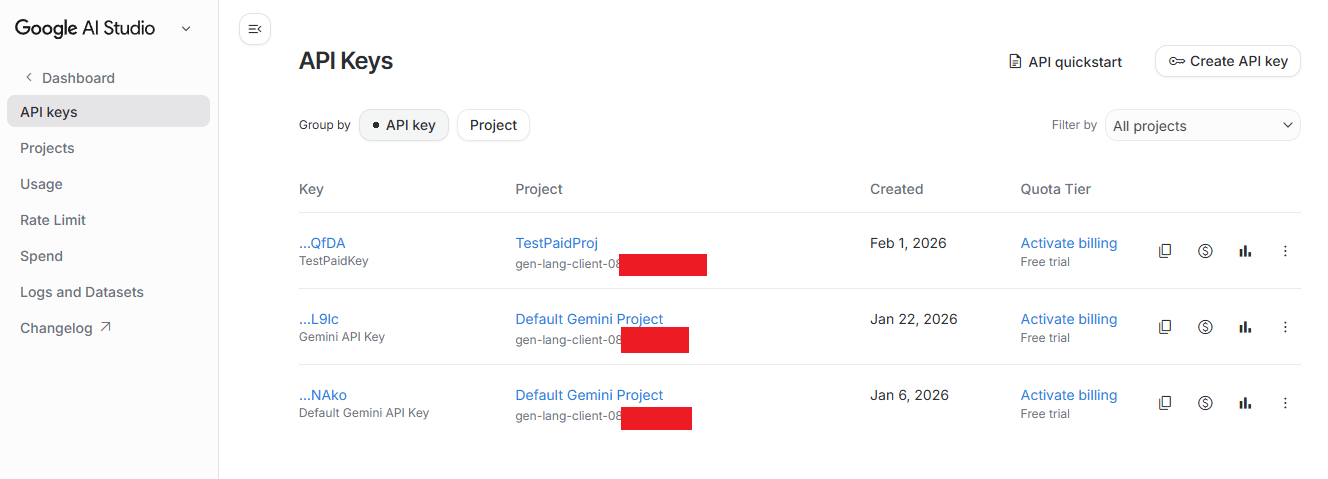
I assume we already have a Google account and are logged in at aistudio.google.com. You also need to have a payment system hooked up, although you can also use the trial version - Google gives out trial periods and start-up credits quite generously. You start by creating a project and a key - you need to have one in the Keys API:
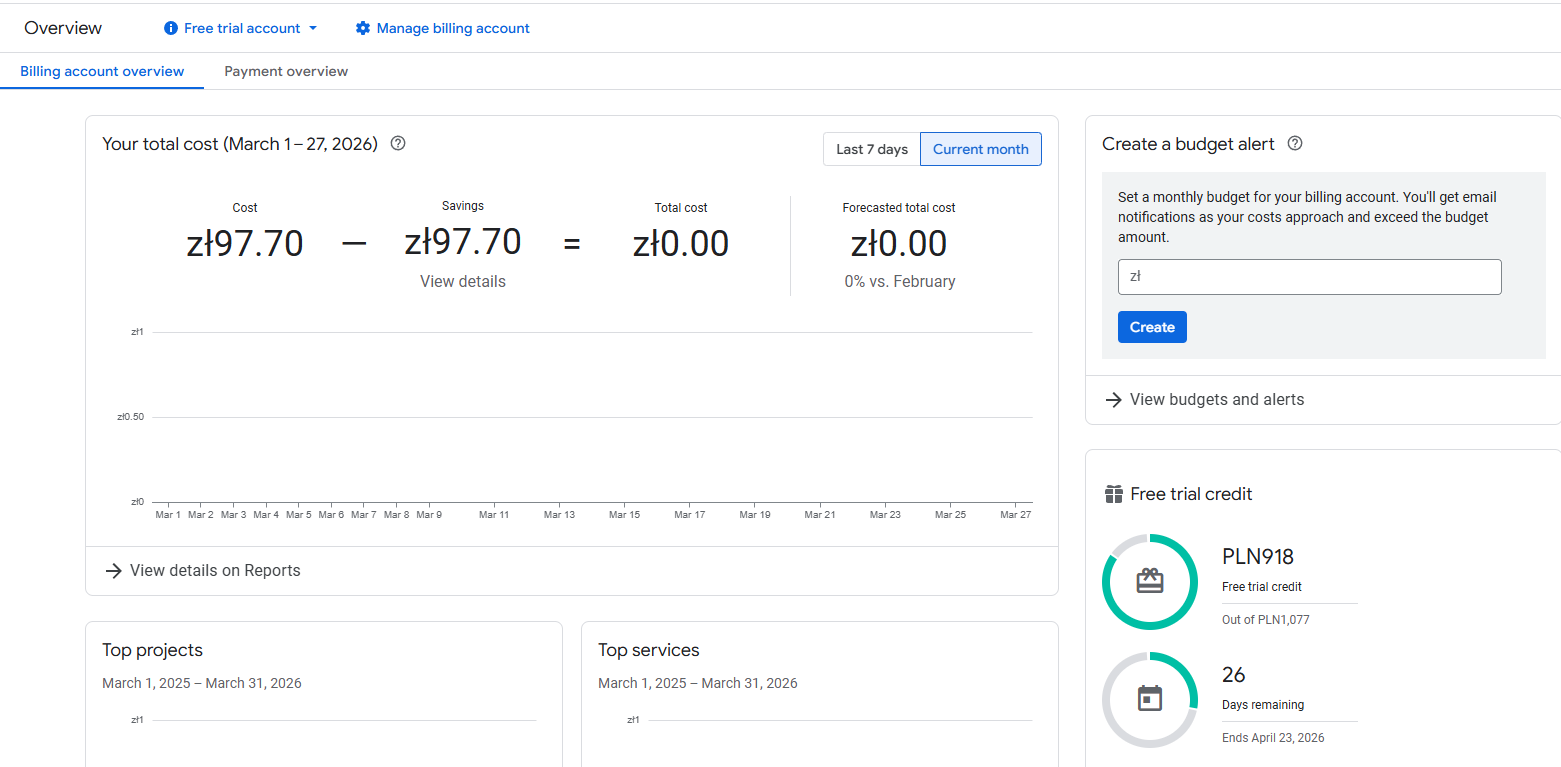
Our costs, in turn, are available in billing, and we need to keep a close eye on them there. Each model has a cost - I won't repeat it again, but it is easy to use up a lot of tokens.
For more information I refer you to Google help, here I want to focus on a presentation of what is even possible with today's AI.
Hello World Here I have decided to use node.js together with a ready-made generative-ai package from Google. Someone might prefer Python, but I prefer the syntax associated with Java and C++. Let's start with package.json:
Code: JSON
Log in, to see the code
Based on these, I will run the following demos. I'm assuming basic knowledge of node.js - we install the project via npm install. Anyway... lLMs themselves can help with this too.
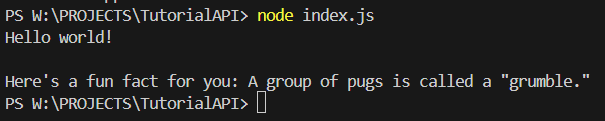
Hello World - text prompt As "Hello world" I will run the simplest LLM model with a simple prompt. In the library used, it boils down to specifying the API key, selecting the model and sending the prompt:
https://github.com/openshwprojects/GoogleAIDemos/blob/main/helloWorld.js The result:
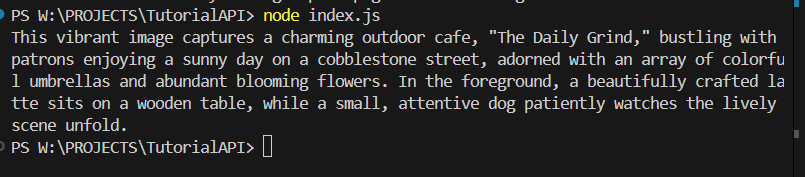
Image description (prompt + text) Today's models, however, are multimodal, and can also describe images. Such images are attached here encoded by Base64. I have prepared an example image for testing:
The code gains a few extra lines to process the image. Prompt further is also up to us:
https://github.com/openshwprojects/GoogleAIDemos/blob/main/describeImage.js Result:
The prompt can be changed as desired. For example for the command:
Based on the photo, here are the living beings visible:

1.  **People** (numerous individuals seated at tables and walking in the background)
2.  **Dog** (sitting in the foreground on the right)
3.  **Plants/Flowers** (many potted plants with colorful flowers lining the street and decorating the cafe exterior)
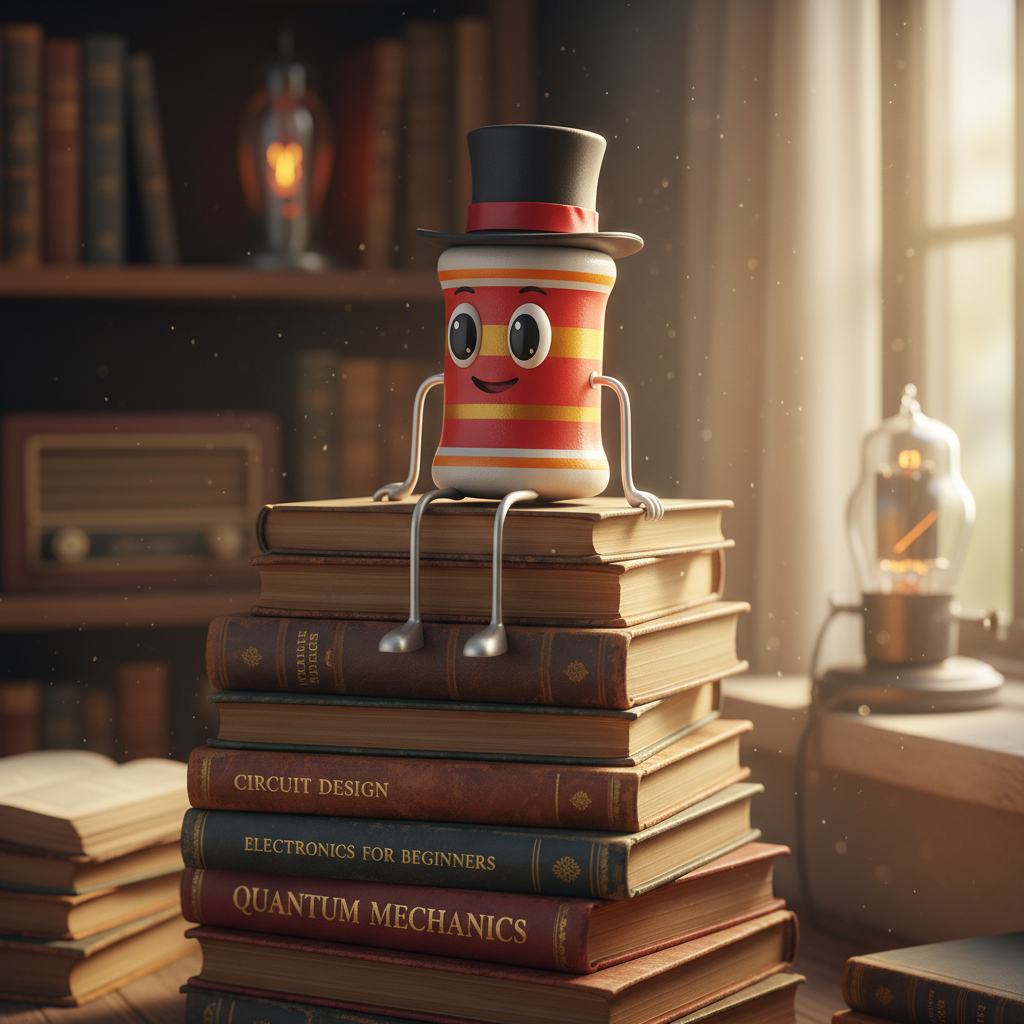
Generating new images Artificial intelligence from Google is also capable of creating images, however, select models are used for this. For example, the famous Nano Banana, with its various versions. Flash will not create an image for us. Internally, it is called gemini-2.5-flash-image. In addition to the choice of model, there is the same option as on Google's website, namely the choice of response modes - image only or text and image.
https://github.com/openshwprojects/GoogleAIDemos/blob/main/createImage.js The created image:
Fits rather well with my description from the prompt, doesn't it?
Generating movies Videos can be created in a similar way, the Veo interface is used for this. I wasn't able to get it to work in the same library as before, so for this example I used the related resource genai:
Photo editing Nano Banana Pro has also become famous for its sensational photo editing capabilities - you can change objects, people and even add entirely new things. These functions too are available via the API. The photo, as before, is sent in base64 format and a response is received in the same.
https://github.com/openshwprojects/GoogleAIDemos/blob/main/editImage.js Input photo:
Prompt:
Edit this image: replace the dog with a cat. Keep everything else exactly the same.
Result:
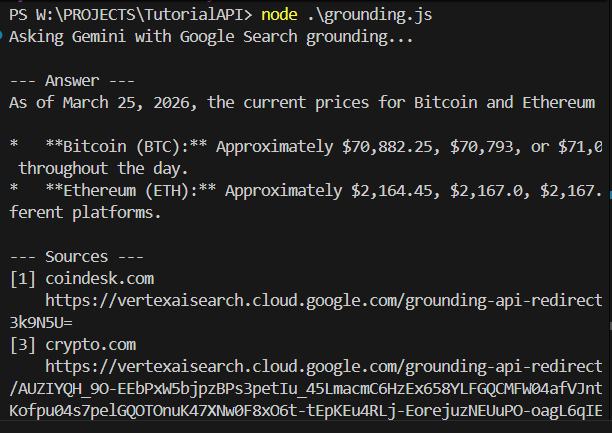
Grounding, or source-finding Today's AI models can still hallucinate, but fortunately various tools, such as the search engine, can be made available to them so that they can provide more valid and reliable answers. Instead of relying solely on knowledge from training, it can refer to data we have prepared in advance or to those found on the internet. This reduces the risk of errors and so-called hallucinations. The search engine is plugged in via the "tools" object:
Code: Javascript
Log in, to see the code
Result (abbreviated):
Description of the video Another valuable application of AI could be to describe short film clips. I have generated an example video clip to try:
Uploading video to Gemini...
Uploaded file as: files/bd2tskdurfs3
Waiting for video to be processed...
.
Video processed! Asking Gemini to describe it...

--- Gemini's Description ---
The video opens with a stunning low-angle shot, focusing on an **orange tabby cat** walking slowly and deliberately directly towards the viewer down a narrow, ancient-looking cobblestone street.

**The Cat:**
*   It is a medium-haired ginger cat, with distinct tabby stripes and markings across its body.
*   Its fur is beautifully backlit by the strong, golden light, giving it a radiant halo, especially visible around its fluffy tail, which is held high and slightly curled.
*   The cat has bright, observant greenish-yellow eyes and prominent whiskers.
*   It walks with a calm, steady gait, its head held level, occasionally glancing subtly to its left or right but primarily looking straight ahead.

**The Environment:**
*   The street is paved with irregular, dark cobblestones, with hints of green moss or grass growing between them, suggesting
age.
*   Old stone or brick buildings, somewhat blurred due to the shallow depth of field, line both sides of the street, receding
into the background. These buildings are largely in shadow, further emphasizing the bright light down the center of the street.
*   The overall setting gives the impression of a quaint European alleyway or historic town street.

**The Lighting:**
*   The scene is bathed in a warm, intense golden light, strongly indicating either sunrise or sunset (golden hour).
*   The light source is directly behind the approaching cat, creating a dramatic backlighting effect that makes the cat's silhouette pop and its fur glow.
*   The cobblestones directly in front of the camera are also illuminated by this warm glow, highlighting their texture.

**Camera Movement:**
*   The camera maintains a very low perspective, almost at ground level, effectively tracking the cat's movement.
*   It performs a smooth, continuous forward tracking shot, keeping the cat centered in the frame as it steadily approaches.
*   The shot maintains a consistent shallow depth of field, keeping the cat sharp while the background is softly blurred.

**Action:**
*   The cat continues its measured walk towards the camera, gradually filling more of the frame.
*   At approximately 0:00:07, the cat pauses briefly, looking directly at the camera, then slightly turns its head to its left (viewer's right) before the video concludes.

The entire scene is serene and picturesque, enhanced by the gentle background music (a soft piano melody).
I have reproduced the whole thing on the electronics video:
--- Gemini's Description ---
In this close-up video, a person is shown using soldering tools to remove a small component from a green circuit board. The circuit board is covered in numerous tiny golden squares and green lines, indicating complex circuitry. A dark, liquid substance, likely flux, is spread around the component being worked on.

At 0:03, a soldering gun is introduced into the frame from the top right, aiming at the component. The person uses the soldering gun to apply heat to the component.

At 0:07, a pair of tweezers is used to gently tap and move the component, ensuring the solder melts evenly.

At 0:13, the tweezers are momentarily removed, and the soldering gun continues to heat the component.

From 0:19 to 0:21, the soldering gun is moved around the component, ensuring all sides are heated.

At 0:28, the soldering gun is briefly moved away, revealing the component still in place.

At 0:38, the soldering gun is back in position, and a pair of tweezers re-enters the frame, now positioned to the left of the
component.

From 0:42 to 0:45, the tweezers are used to nudge the component from its left side, testing the fluidity of the solder.

From 0:52 to 1:29, the tweezers are continuously used to gently push and wiggle the component, slowly detaching it as the heat from the soldering gun melts the solder. The component rocks back and forth, indicating it's becoming loose.

At 1:30, the component appears fully detached from one side, and the person continues to heat and manipulate it with the tweezers to fully free it.

At 1:38, the component is successfully removed from the circuit board, leaving behind an empty space and the dark liquid flux. The soldering gun is then removed from the frame.
By the way, these descriptions are quite good....
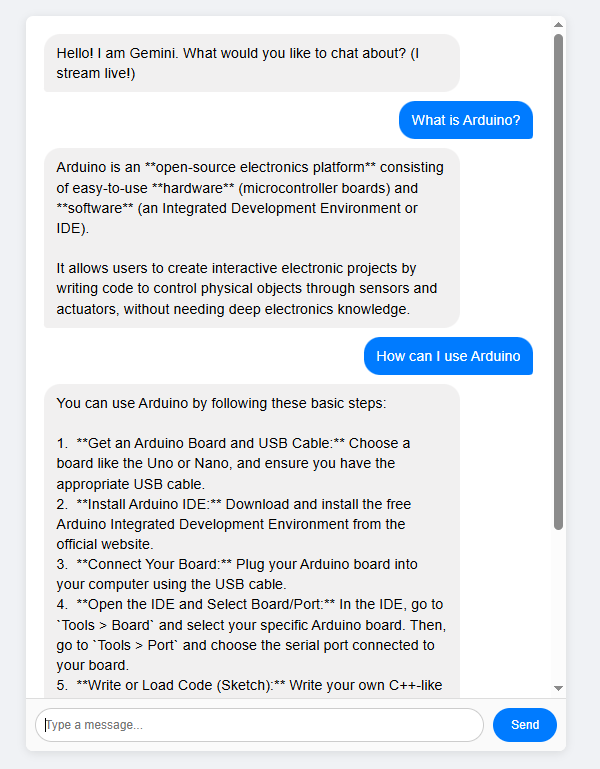
Example chat Of course, you can also easily make a substitute for the classic chat, the kind that became popular with the entry of ChatGPT. A simple chat with an assistant. Here, it is only worth noting that when the AI creates a chat, a system prompt can be defined - it determines the behaviour of the assistant:
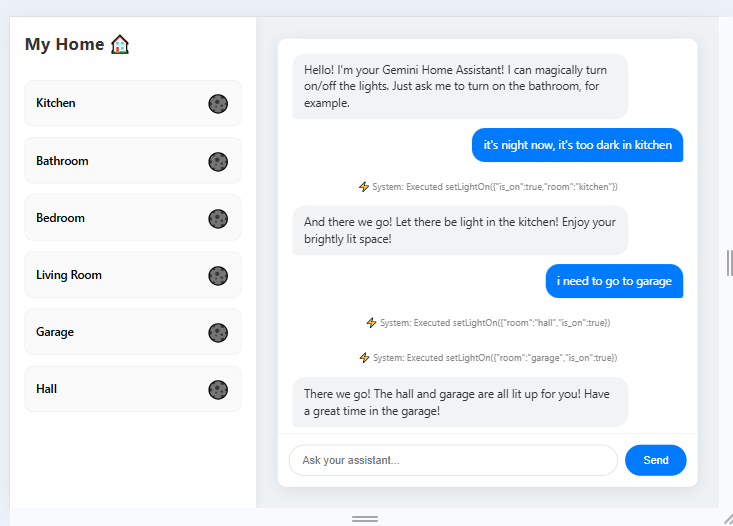
Individual tools for AI Modern artificial intelligence is also able to use tools effectively. The interface we use has a dedicated solution for this, where we define a set of tools and the model then uses them at will. As an example, I made a simulated controller for the lights in a house:
Code: JSON
Log in, to see the code
For this I gave a corresponding prompt to inform the role of the corridor. Full code:
https://github.com/openshwprojects/GoogleAIDemos/blob/main/homeControl.js Result:
As you can see, the AI can understand the situational context and, for example, turns on the light in the corridor when I go to the garage, even though I have not written anything about the corridor.
Summary This is the capability of today's AI models publicly available via APIs. All of this can be freely integrated into your projects, although you need to be aware of the pricing of the services (tokens), as you can quickly rack up large costs if used non-restrictively.
I based the presentations on this topic on Javascript with NodeJS, although you can just as well connect from Python or any other language there. Similarly, here I have relied only on models from Google, although various alternatives are available - for example from OpenAI or Anthropic.
If there are problems, the AI itself will help anyway - flipping or even reconstructing such simple examples is not difficult for modern models, this topic is more of a presentation of what is possible rather than how it should be done from a code level.
There is no doubt that today's artificial intelligence systems can process text and images correctly, and as you can also see, they can also cope with audio and video.
Do you use artificial intelligence via APIs in your projects, and if so, for what?
About Author
p.kaczmarek2 wrote 14813 posts with
rating 12984 , helped 659 times.
Been with us since 2014 year.
TL;DR: With 2 Node.js packages and one API key, you can add text, image, audio, and video AI to your app. As the author puts it, "this is just the tip of the iceberg" for developers who want Google AI Studio features inside real projects, not just a chat window. [#21871818]
Why it matters: This FAQ helps developers, makers, and electronics users move from browser demos to API-driven AI features they can actually ship.
Task
Model or package shown
Notes
Text chat and prompts
gemini-2.5-flash via @google/generative-ai
Basic text generation and chat
Image generation and editing
gemini-2.5-flash-image / Nano Banana
Supports image output and photo edits
Text-to-speech
gemini-2.5-flash-preview-tts style models
Returned audio may need a WAV header
Video generation
Veo via @google/genai
Requires status polling before save
Video understanding
Gemini file upload flow
Describes scenes, actions, and camera motion
Key insight: The main design choice is not "use AI or not" but which model matches which modality. Regular Gemini Flash handles text well, while image, speech, and video tasks require specialized models or a different package.
Quick Facts
The Node.js demo uses @google/generative-aiv0.24.1 for most examples, including text prompts, chat, image description, and tool use. [#21871818]
Video generation switches to @google/genaiv1.46.0, because the author could not get Veo working in the earlier library. [#21871818]
The model list shown includes text, image, embedding, audio, and video families, such as Gemini, Gemma, Imagen 4, and Veo 3.1. [#21871818]
The sample video-analysis output timestamps actions at 0:03, 0:52–1:29, and 1:38, showing that Gemini can return time-based scene descriptions rather than a generic summary. [#21871818]
Billing must be monitored closely because each model has its own token cost, and unrestricted use can consume large volumes quickly. [#21871818]
How do you integrate Google AI Studio APIs into your own Node.js projects step by step?
You integrate them by creating a Google AI Studio project, generating an API key, installing the package, and calling a model from Node.js. 1. Log in at AI Studio, create a project, and add a key in Keys API. 2. Create package.json and install @google/generative-aiv0.24.1 with npm install. 3. In code, set the API key, choose a model such as gemini-2.5-flash, and send a prompt. Watch billing from the start, because token usage can rise quickly. [#21871818]
What is Nano Banana in the Google API model list, and what is it used for?
Nano Banana is the image-focused Google model shown in the list as gemini-2.5-flash-image. "Nano Banana" is an image-generation model that creates and edits pictures from prompts, with API support for image-only or text-plus-image responses. In the demo, it generates a new image from a prompt and also supports photo editing workflows. The list also shows stronger variants such as Nano Banana Pro and Nano Banana 2. [#21871818]
What does grounding mean in Gemini, and how does the googleSearch tool reduce hallucinations?
Grounding means giving Gemini access to external sources so it does not rely only on training data. "Grounding" is a retrieval feature that connects a model to outside information, reducing hallucinations by letting it consult prepared data or live web search before answering. In the example, the request uses tools: [{ googleSearch: {} }] with gemini-2.5-flash to answer a current-price query for Bitcoin and Ethereum. That reduces unsupported guesses on time-sensitive questions. [#21871818]
How can I list all available Gemini, Imagen, and Veo models through the Google API instead of guessing model names?
You can list models through the API by calling a model-enumeration example instead of typing names manually. The demo includes listModels.js, which prints entries such as gemini-2.5-flash, imagen-4.0-generate-001, veo-3.1-generate-preview, and gemini-2.5-flash-native-audio-latest. That output also reveals preview and dated variants, including 09-2025, 10-2025, and 12-2025 labels. Listing first is the safest way to avoid invalid model-name guesses. [#21871818]
Which Google model should I choose for text chat, image generation, photo editing, text-to-speech, and video generation?
Choose the model by modality, not by brand family alone. Use gemini-2.5-flash for text prompts and chat, gemini-2.5-flash-image for image generation, Nano Banana Pro for advanced photo editing, TTS preview models for speech synthesis, and Veo models for video generation. The thread also shows Gemini handling uploaded video description as an analysis task, not as video creation. A practical rule is simple: chat uses Gemini Flash, visuals use image or Veo models, and speech uses TTS-specific variants. [#21871818]
Why does image generation work with gemini-2.5-flash-image (Nano Banana) but not with regular Gemini Flash models?
Image generation works there because gemini-2.5-flash-image is the image-capable model, while regular Gemini Flash is not used that way in the demo. The author states this directly: Flash will not create an image, but Nano Banana will. That is the key failure case in the thread. If you send an image-creation prompt to standard Flash, you should expect the wrong capability path rather than a generated picture. Use the image model and choose image-only or text-plus-image response mode. [#21871818]
How do I send an image as Base64 to Gemini and get a detailed image description back?
You send the image encoded as Base64, attach it in the request, and ask a precise prompt. 1. Read the image file and convert it to Base64. 2. Add the encoded image plus your text instruction to the Gemini request. 3. Parse the returned text description. In the example, the model answers both broad prompts and constrained prompts like List living beings visible on photo, returning people, a dog, and plants. The thread shows this flow inside describeImage.js. [#21871818]
What is the process for generating a video with Veo through @google/genai and checking the job status before downloading it?
You generate the job, poll its status, and save the file only after completion. The thread uses @google/genaiv1.46.0 for Veo and notes that generation takes time. The API returns a link or handle for checking progress, so the workflow is asynchronous rather than instant. A correct 3-step flow is: 1. Submit the video prompt to Veo. 2. Recheck the job until the API reports completion. 3. Download or save the finished video. Skipping the status check risks saving nothing usable. [#21871818]
How can I convert text to speech with Google's API in Node.js and fix the missing WAV header issue?
You can convert text to speech with a TTS-capable Google model and then add the missing WAV header yourself. The demo uses a natural-sounding voice named Kore and saves the result as speech.wav. The main edge case is format handling: the returned audio data lacks a WAV header, so standard players may not read it correctly until you prepend one. That means the synthesis can succeed while playback still fails unless you wrap the raw audio bytes properly. [#21871818]
In what way can Nano Banana Pro edit photos, such as replacing a dog with a cat while keeping the rest of the image unchanged?
Nano Banana Pro can edit a specific object in an existing photo while preserving the rest of the scene. In the example, the prompt says: replace the dog with a cat and keep everything else exactly the same. The workflow sends the input image in Base64 and receives the edited image back in Base64. That makes it suited to targeted modifications of people, objects, or added elements without rebuilding the whole composition from scratch. [#21871818]
How do I upload a short video to Gemini and ask it to describe the scene, actions, and camera movement?
You upload the clip through the file-upload flow, wait for processing, and then ask Gemini for a description. The demo prints Uploading video to Gemini..., waits until the file is processed, and then requests a detailed summary. The returned answer includes scene content, lighting, movement, and timestamps such as 0:00:07. In another example, Gemini describes soldering actions from 0:03 to 1:38, including tools, motion, and the moment the component is removed. [#21871818]
What's the difference between using @google/generative-ai and @google/genai for these Google AI demos?
@google/generative-ai handles most of the thread's text, chat, image, and tool examples, while @google/genai is used for Veo video generation. The versions shown are 0.24.1 and 1.46.0. In practice, the difference is capability coverage in these demos, not just naming. The author explicitly says Veo did not work for that example in the earlier library, so the video section switches packages. If you copy the demos, match the package to the task. [#21871818]
How do system prompts affect the behavior of a Gemini chat assistant in a custom app?
System prompts define the assistant's role, tone, and limits before the user speaks. In the chat example, systemInstruction tells Gemini to act as a concise, helpful assistant and keep answers relatively brief. In the smart-home demo, the system prompt adds house rules, including that the hall light must turn on when routing a person between rooms. That changes behavior without changing the user message format. Strong system prompts make the assistant predictable across repeated chat turns. [#21871818]
What is function calling in Gemini tools, and how do you use it to control something like smart home lights from chat?
Function calling lets Gemini choose a declared tool and pass structured arguments to it during chat. The demo defines a setLightOn function with two required parameters: room and is_on. Allowed rooms include kitchen, bathroom, bedroom, living_room, garage, and hall. When the user asks to go to the garage, the assistant can turn on both garage and hall lights because the prompt defines the hall as a connecting route. That shows tool use plus situational reasoning in one flow. [#21871818]
How are people using artificial intelligence APIs in their own projects, products, or electronics workflows?
People are using these APIs to add text chat, image analysis, image generation, photo editing, speech synthesis, video generation, and video understanding to their own products. The thread demonstrates both consumer-style features and electronics-oriented ones, including a soldering video description and a smart-home light controller. The author's framing is practical: "this topic is more of a presentation of what is possible" for integration work. That makes the examples useful as templates for apps, devices, and internal tooling. [#21871818]
AI summary based on the discussion. May contain errors.











Comments