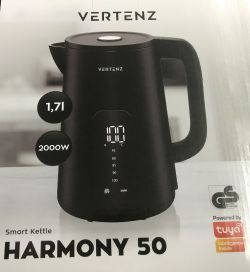
I invite you to a demonstration of a Wi-Fi enabled electric kettle. Here I'll show how it pairs, what its mobile app offers, how it's built inside, and see if it can be altered with firmware to free it from the manufacturer's servers and connect it locally to Home Assistant. This will be the second kettle I've presented on the forum, as I already showed some time ago
Changing the firmware of the SMART06B , but the Wi-Fi + kettle connection is so curios and interesting to me that I couldn't deny myself the pleasure for Christmas.
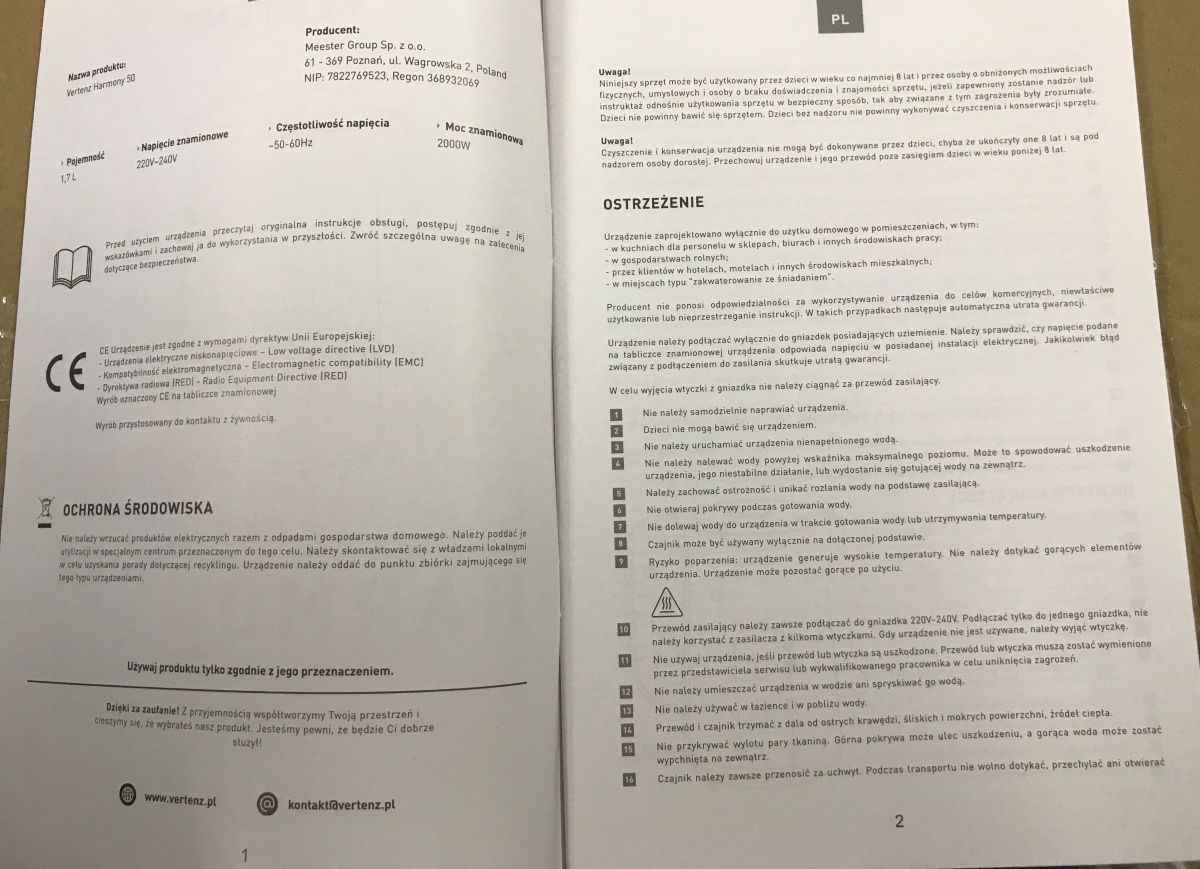
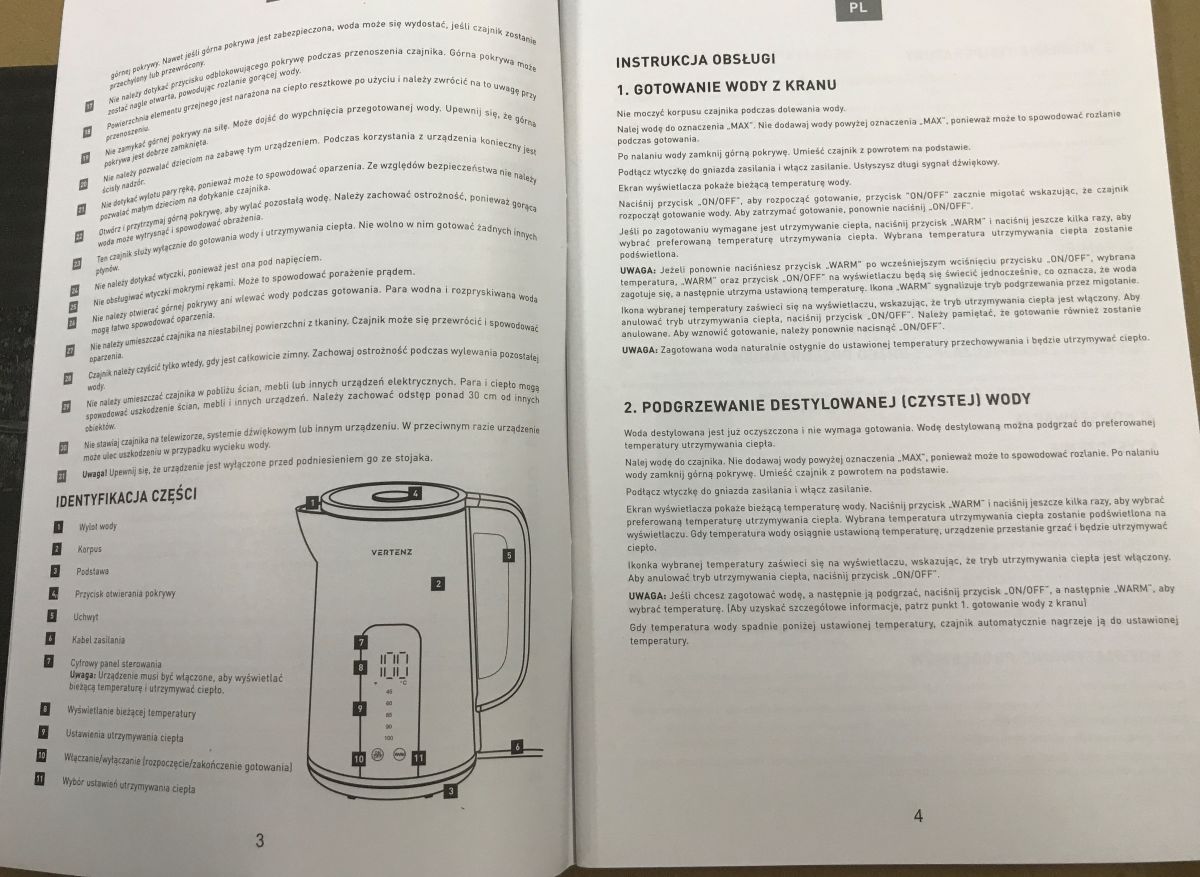
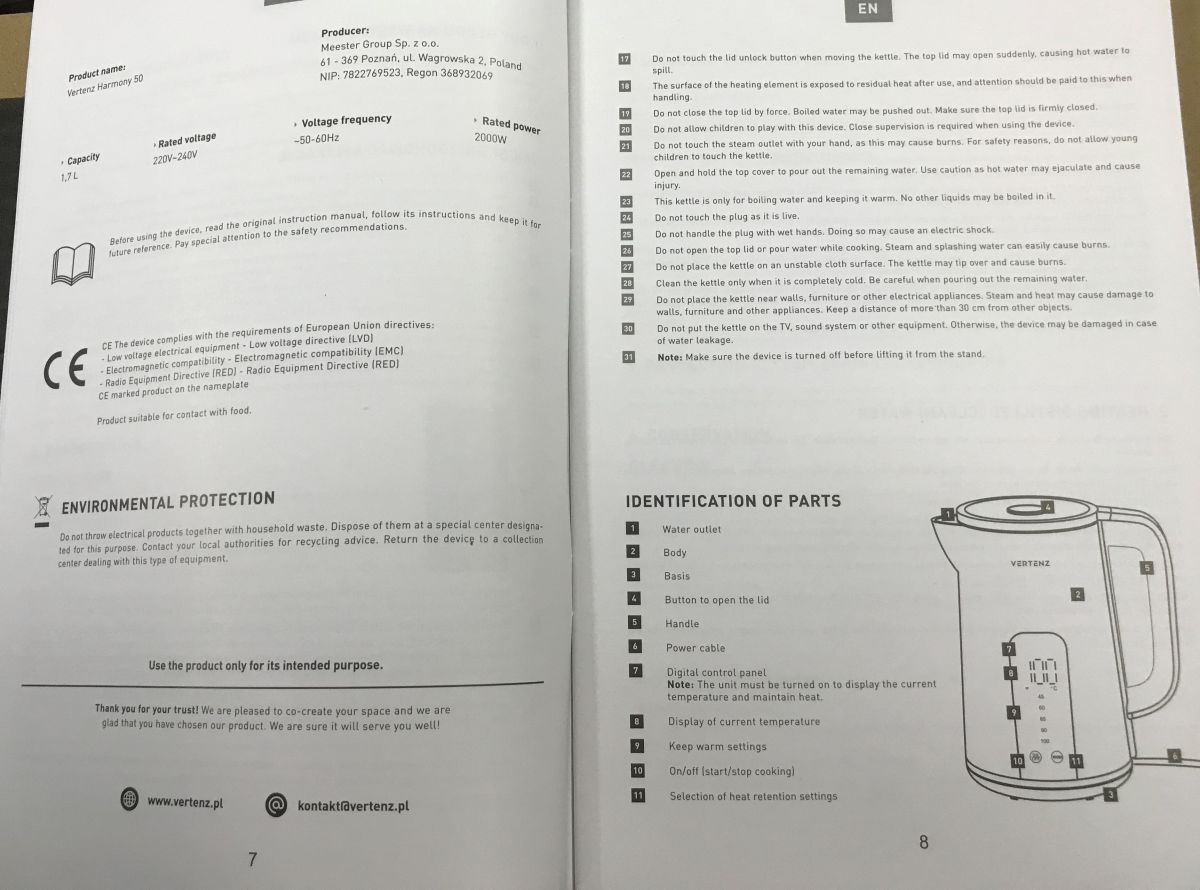
The kettle itself is not expensive, you can buy one for as little as £120, it also depends on which shop. The equipment can be controlled by touch buttons on the casing or from the app. However, let us perhaps start with the instructions.
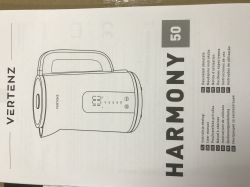
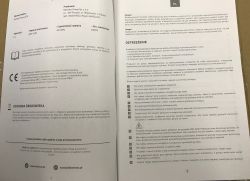
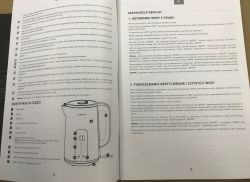
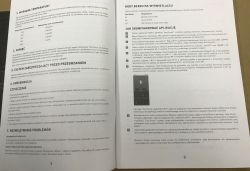
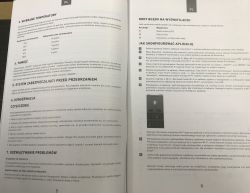
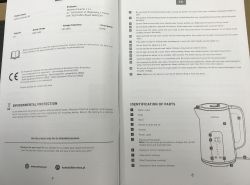
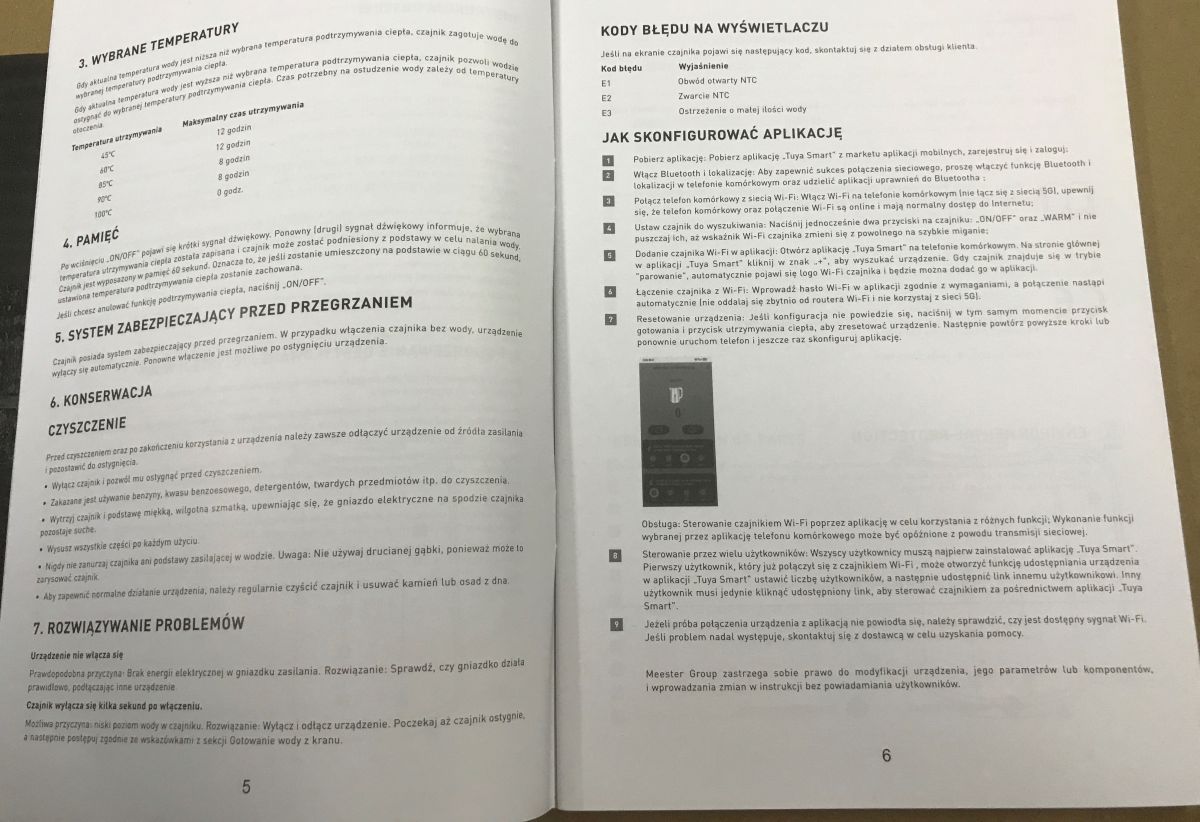
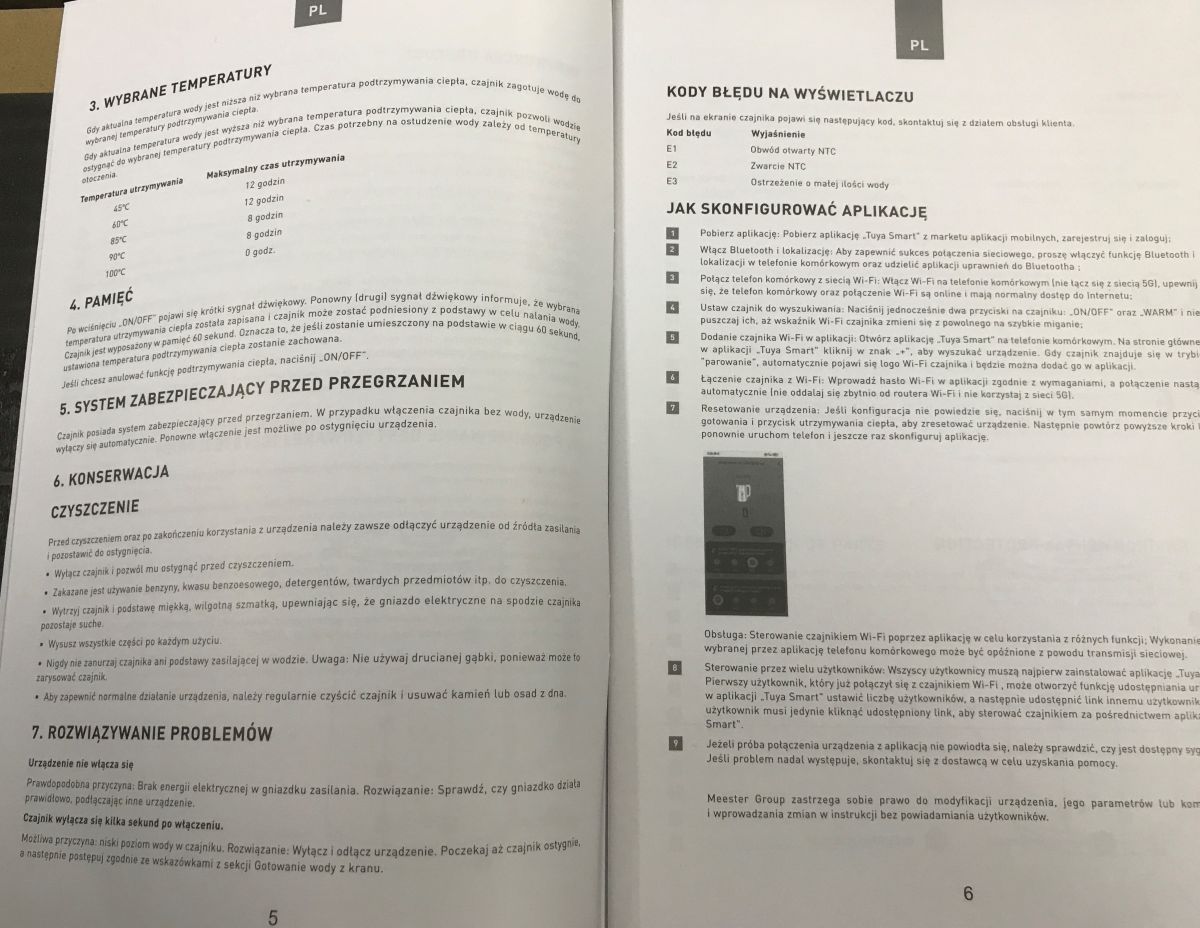
The first thing that catches the eye is the two modes of operation - boiling water and heating. That's what all the supposed 'intelligence' (the 'smart' of the title) is here for. This kettle allows you to set the temperature and then it can also maintain it - for up to 12 hours. The second curiosity is the error codes - someone has made an effort and even in such a cheap product there is a basic fault diagnosis mechanism. We can find out whether the NTC circuit is open or perhaps shorted. There is also a warning about too little water! Convenient.
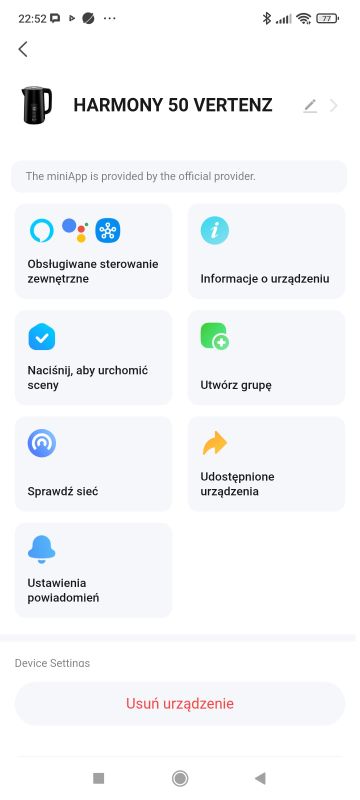
Test with the Tuya app
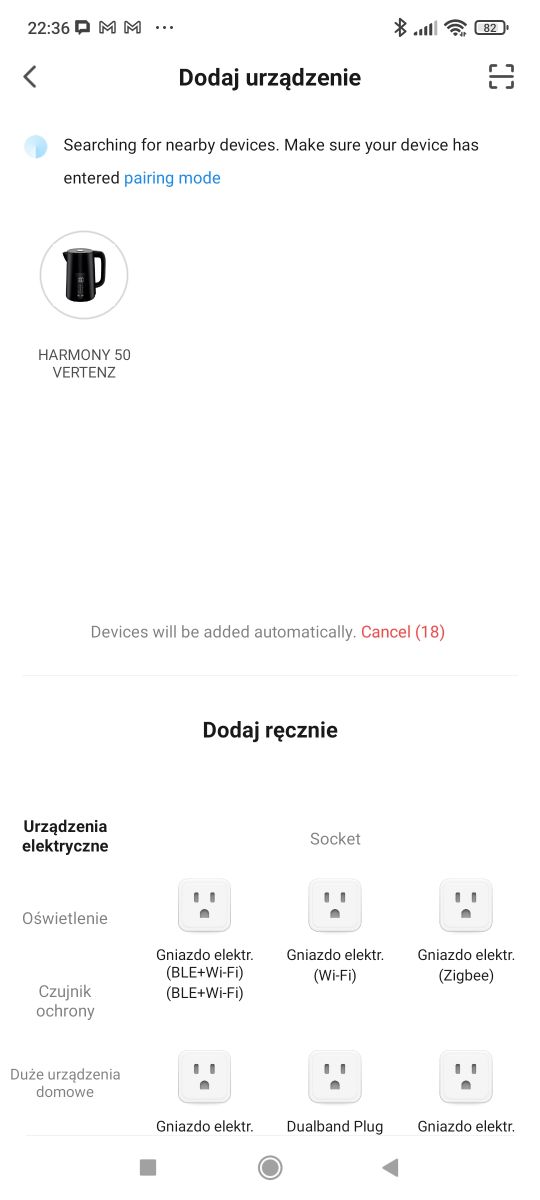
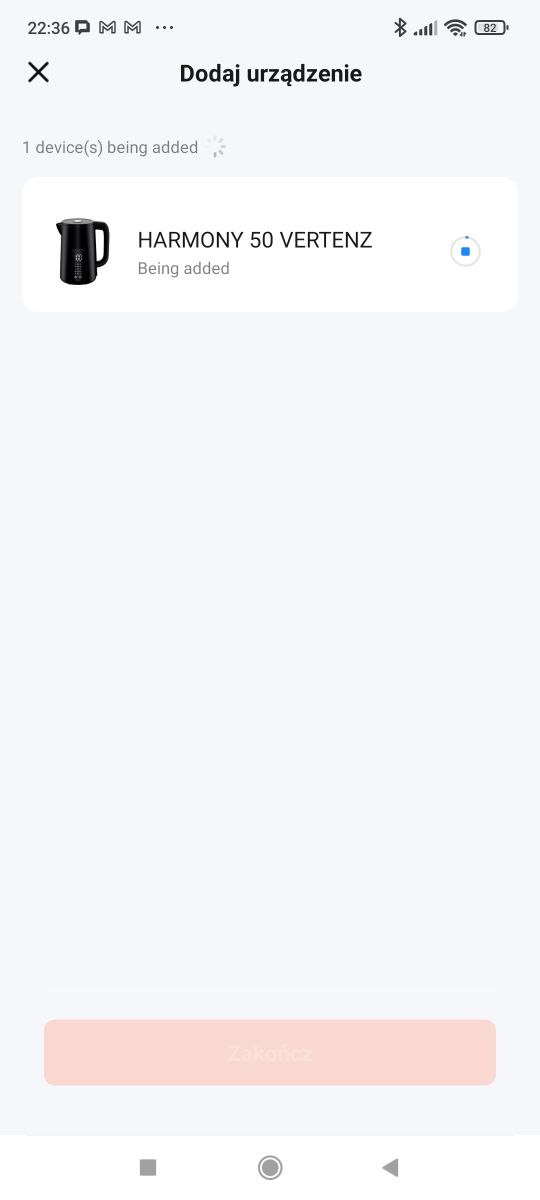
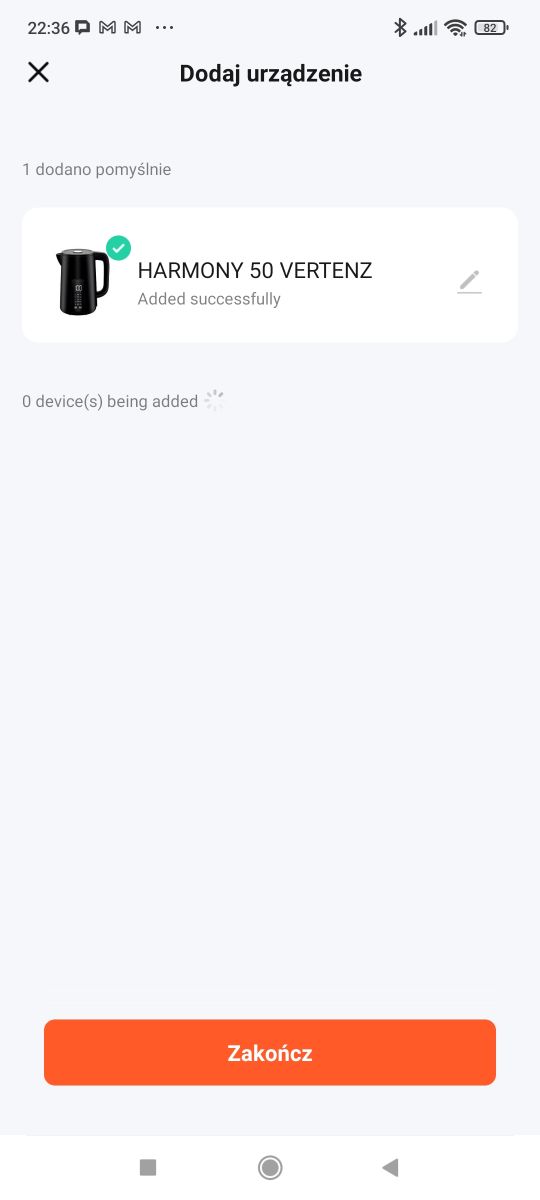
We install the app, make sure we have 2.4 GHz Wi-Fi, turn on Bluetooth. We pair according to the instructions.
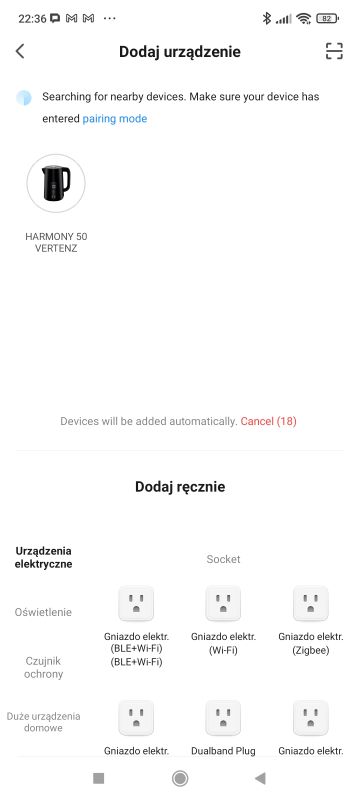
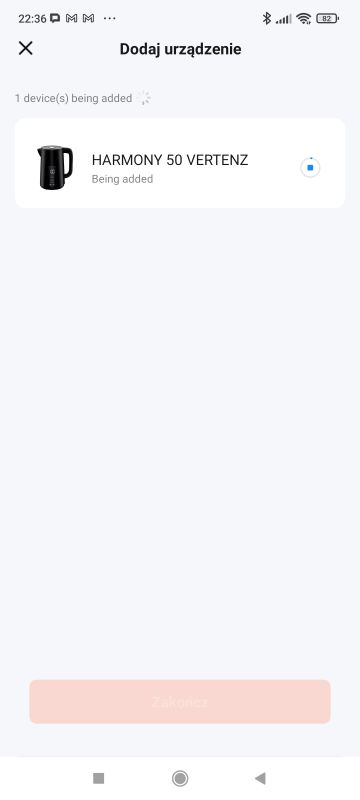
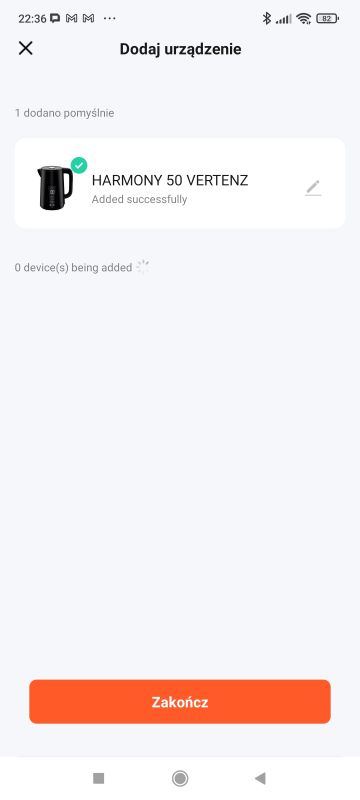
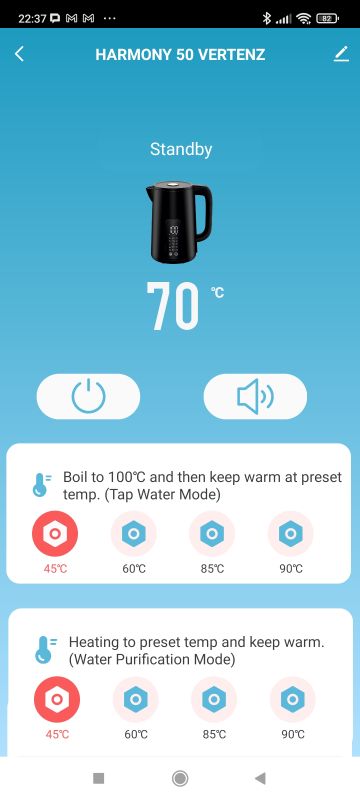
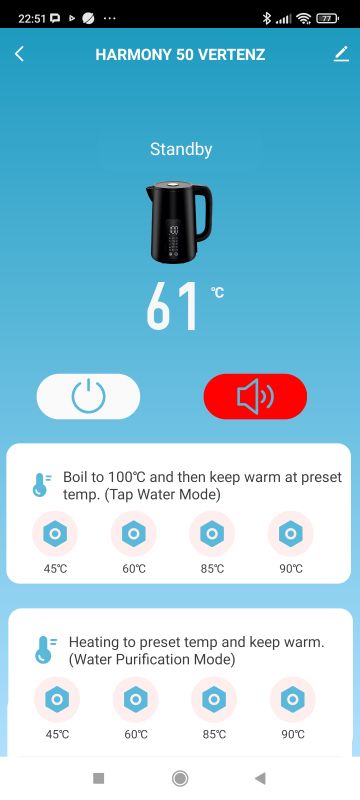
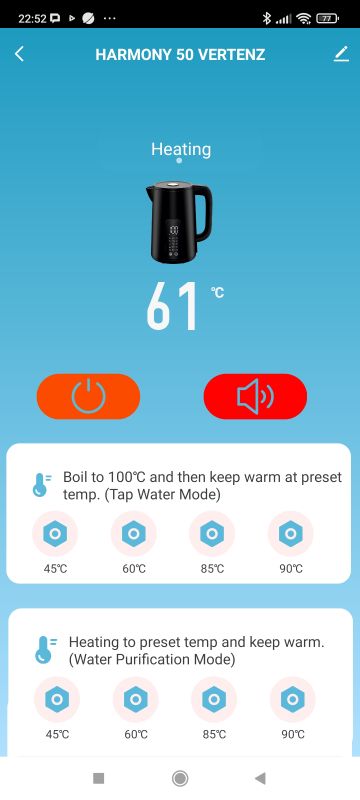
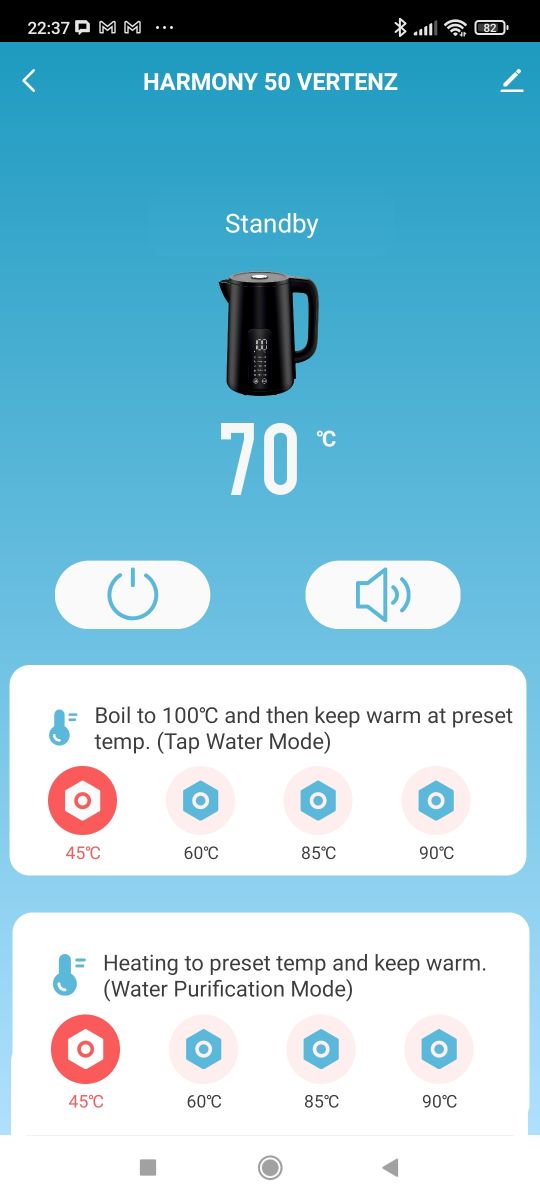
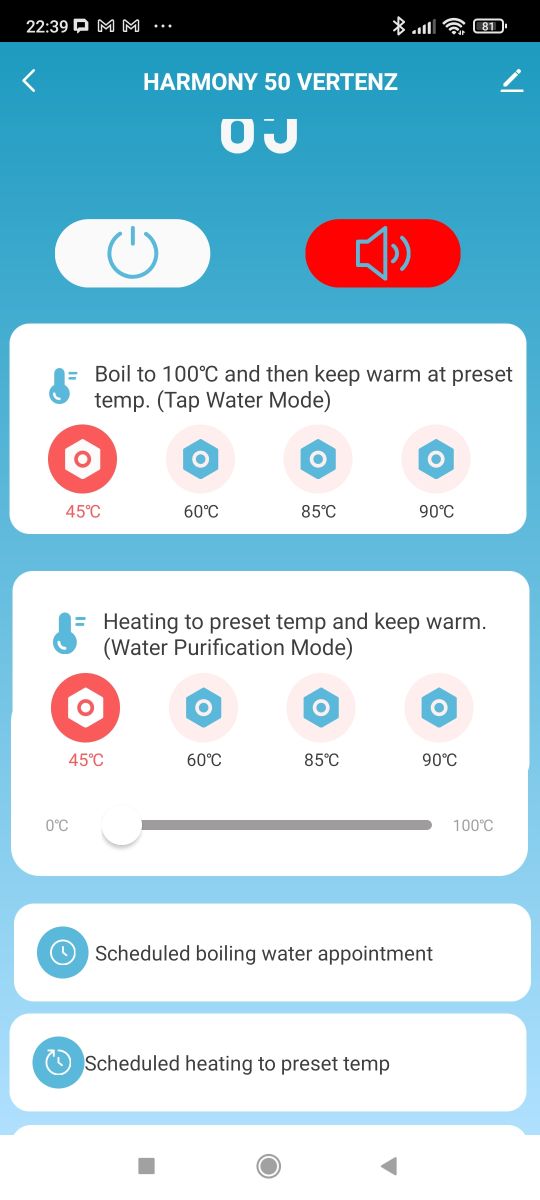
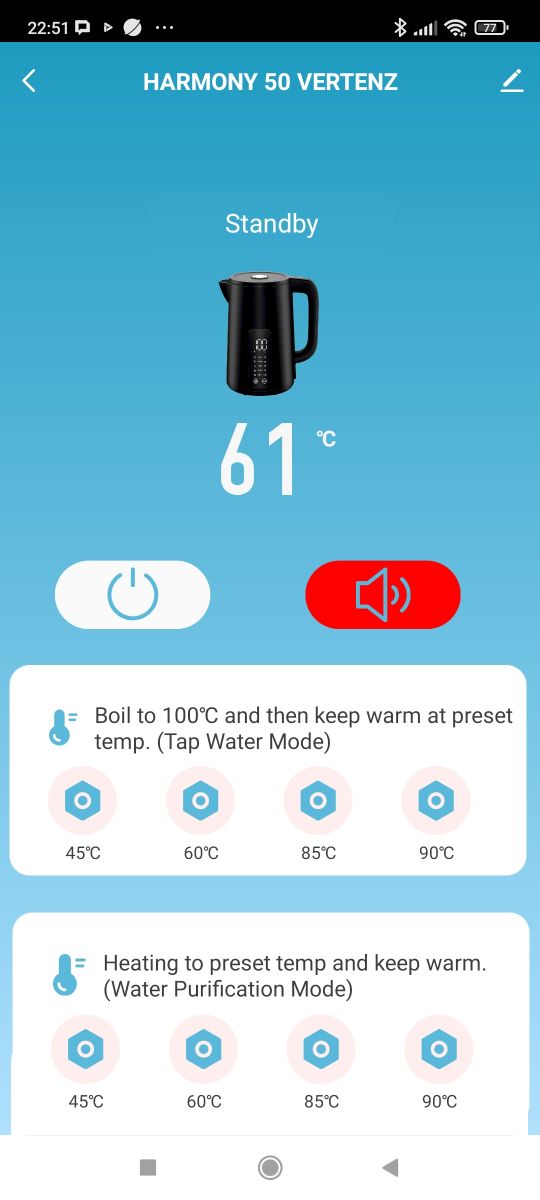
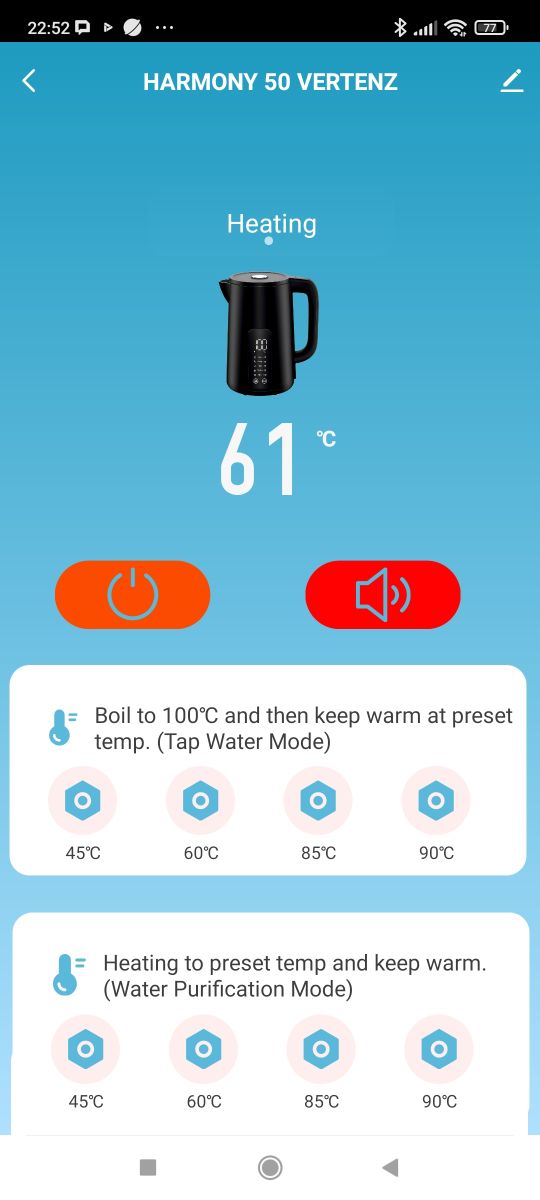
In the menu, we have the two modes mentioned - either cooking and temperature maintenance or maintenance alone.
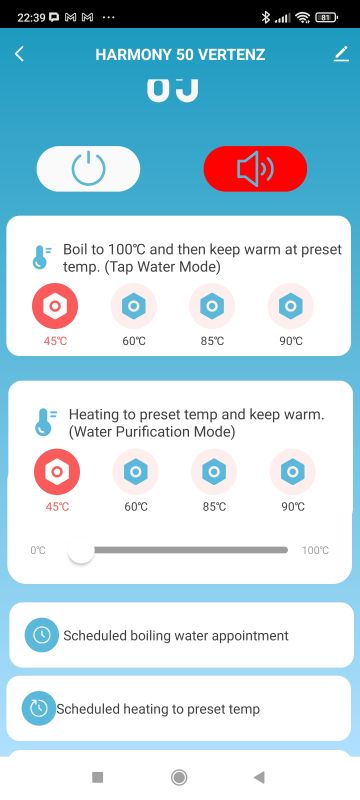
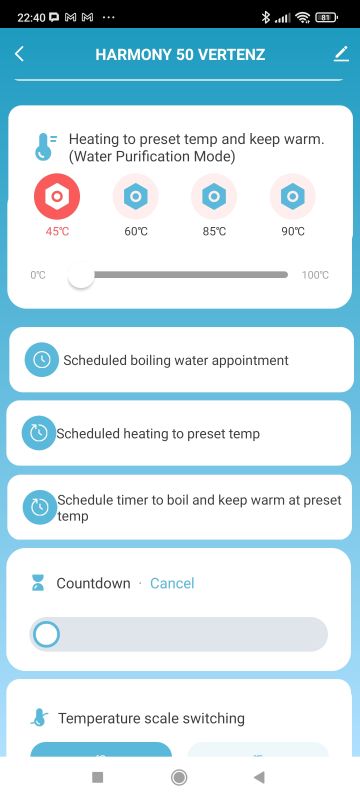
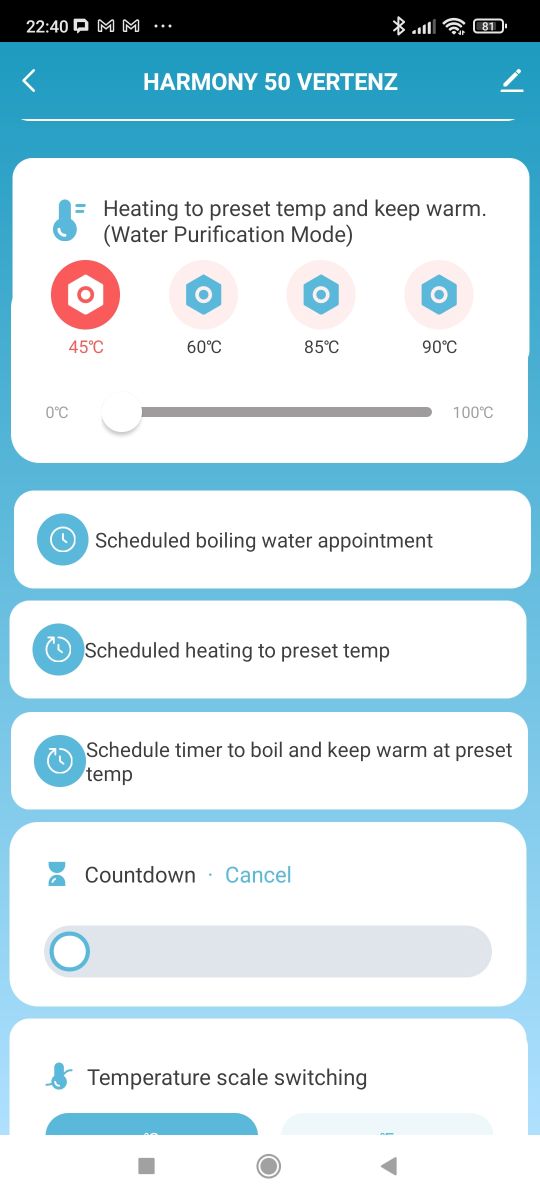
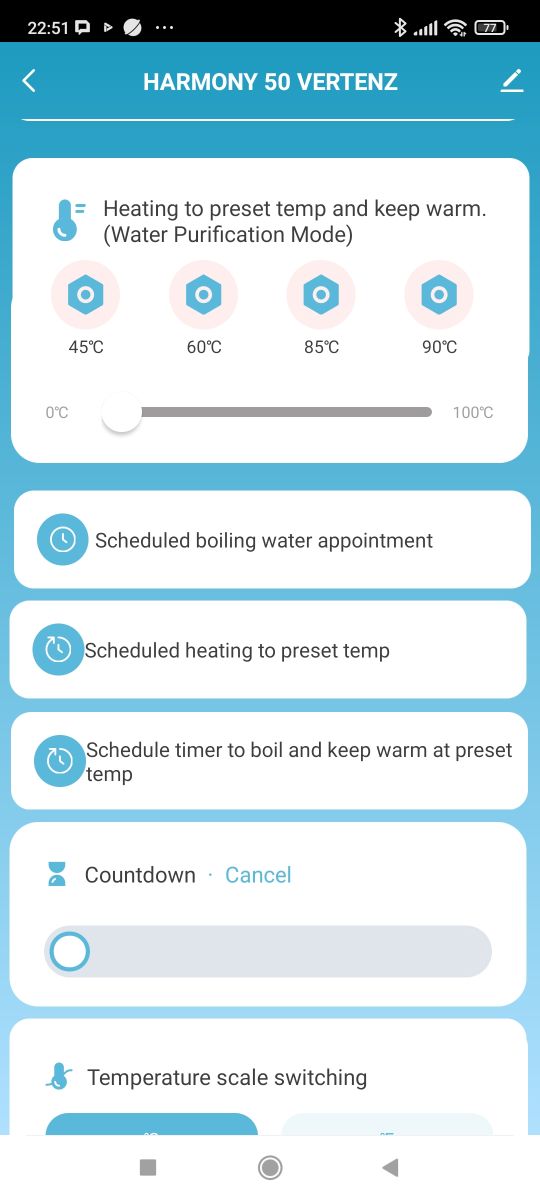
We also have the option of scheduling a given action for a given time:
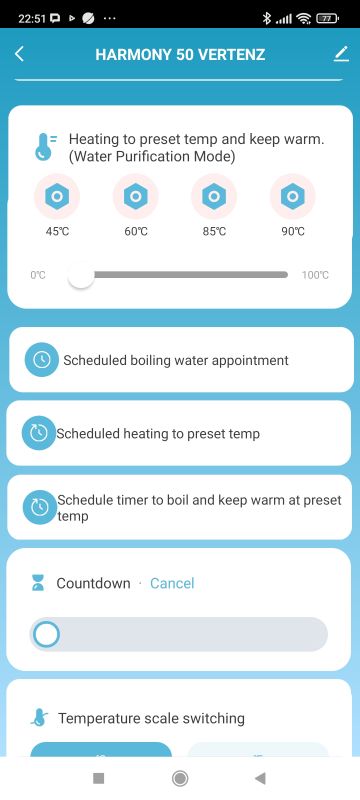
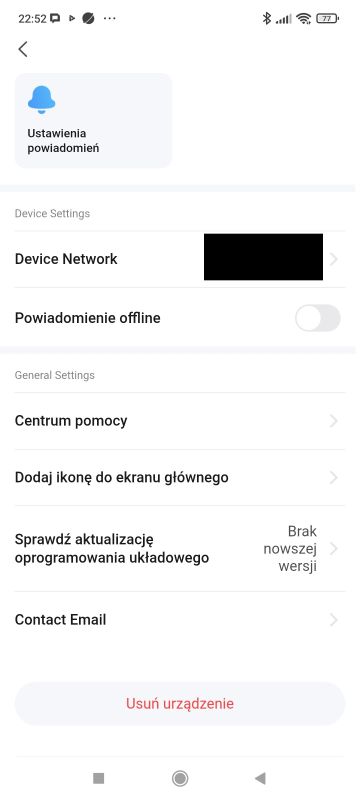
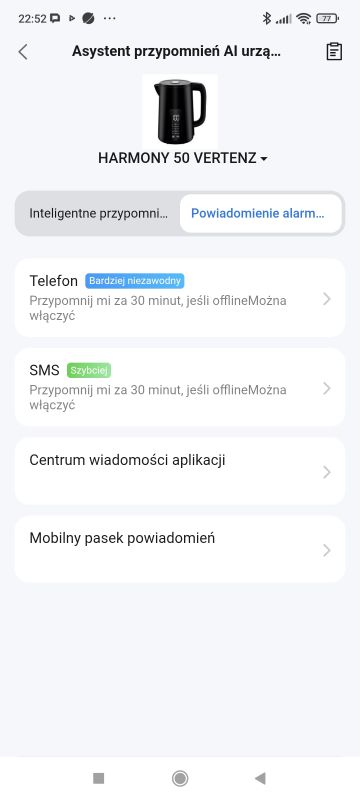
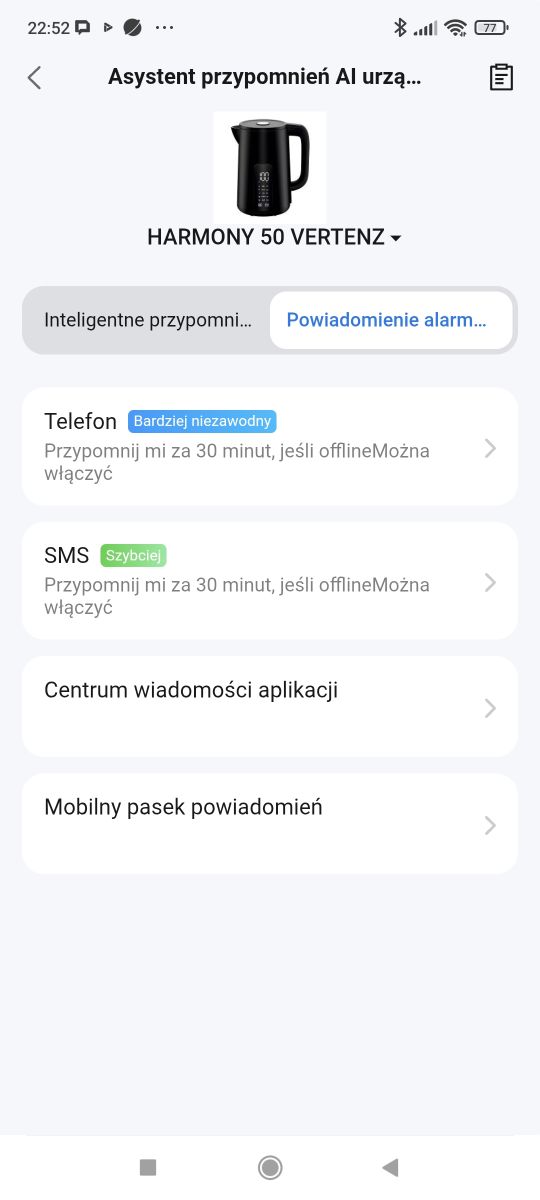
Another interesting feature from the options is the possibility of notifications, including SMS:
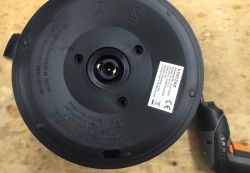
 Interior of the kettle
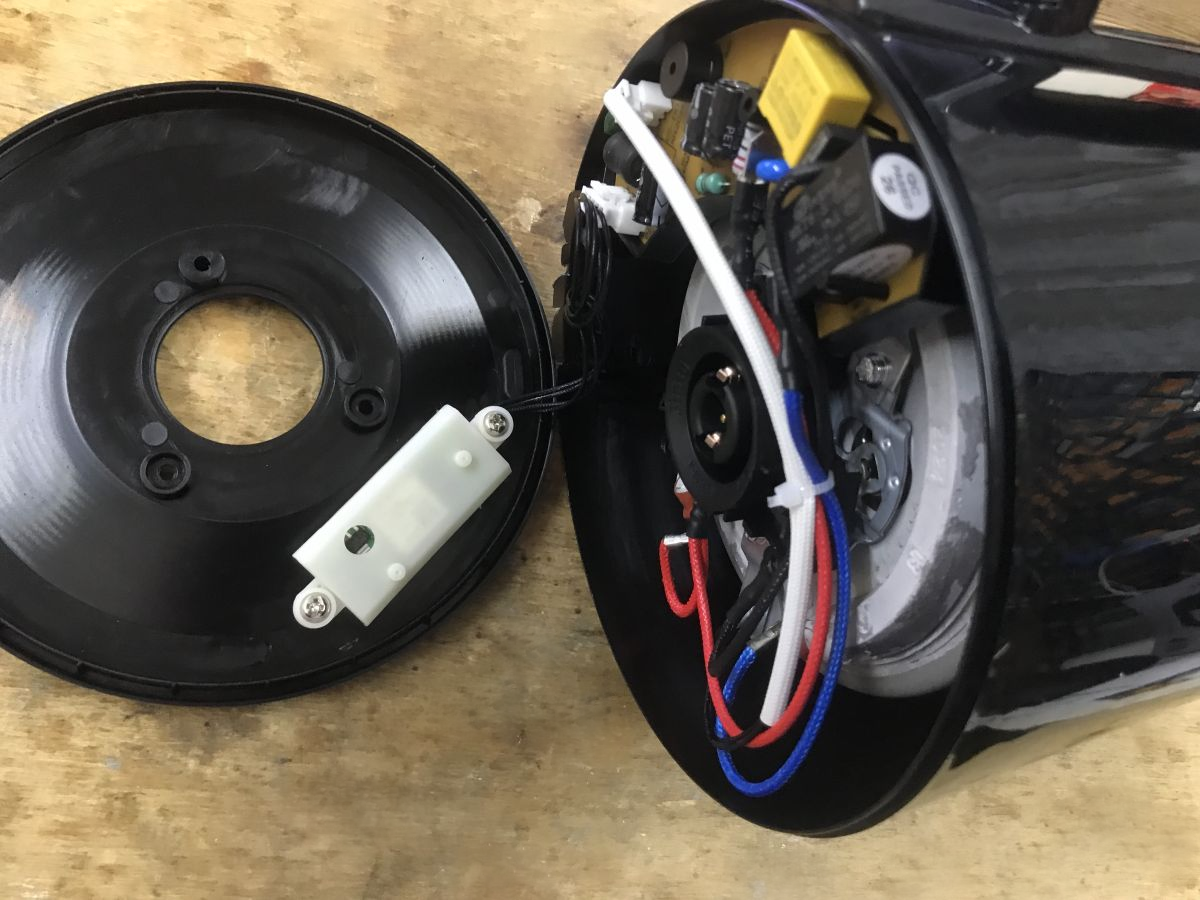
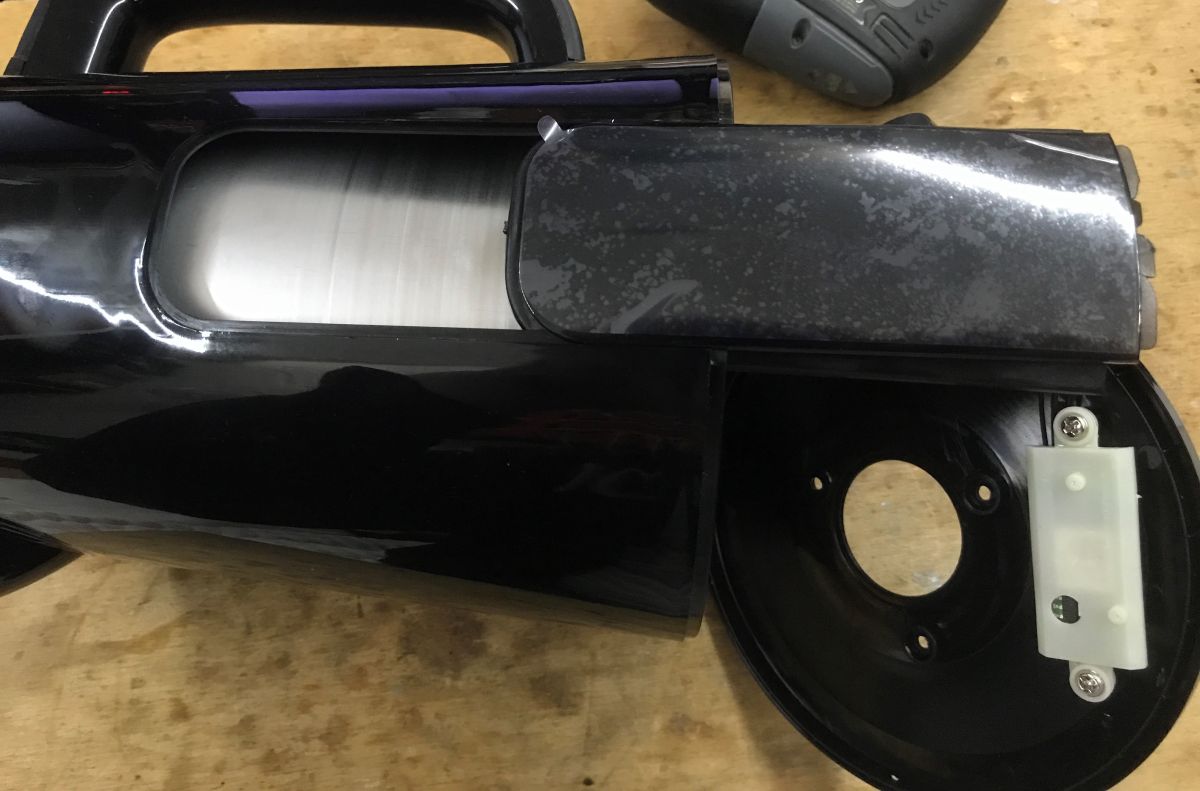
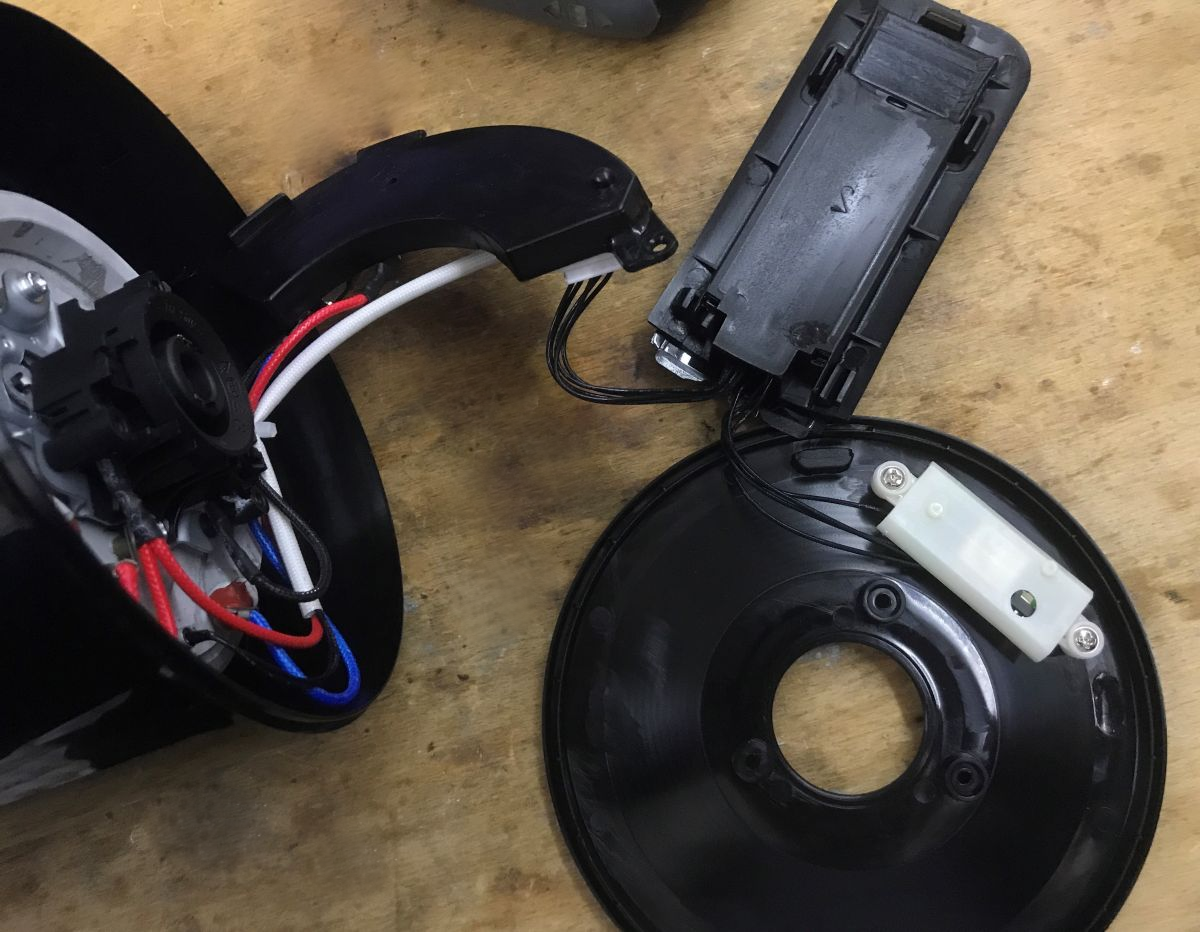
Unlike the Svenson model shown earlier, here the Wi-Fi module is on the bottom, not in the handle. The screws are removed.
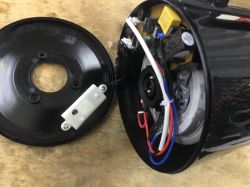
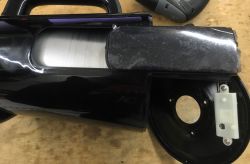
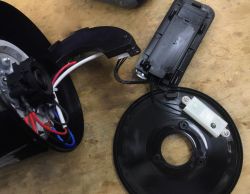
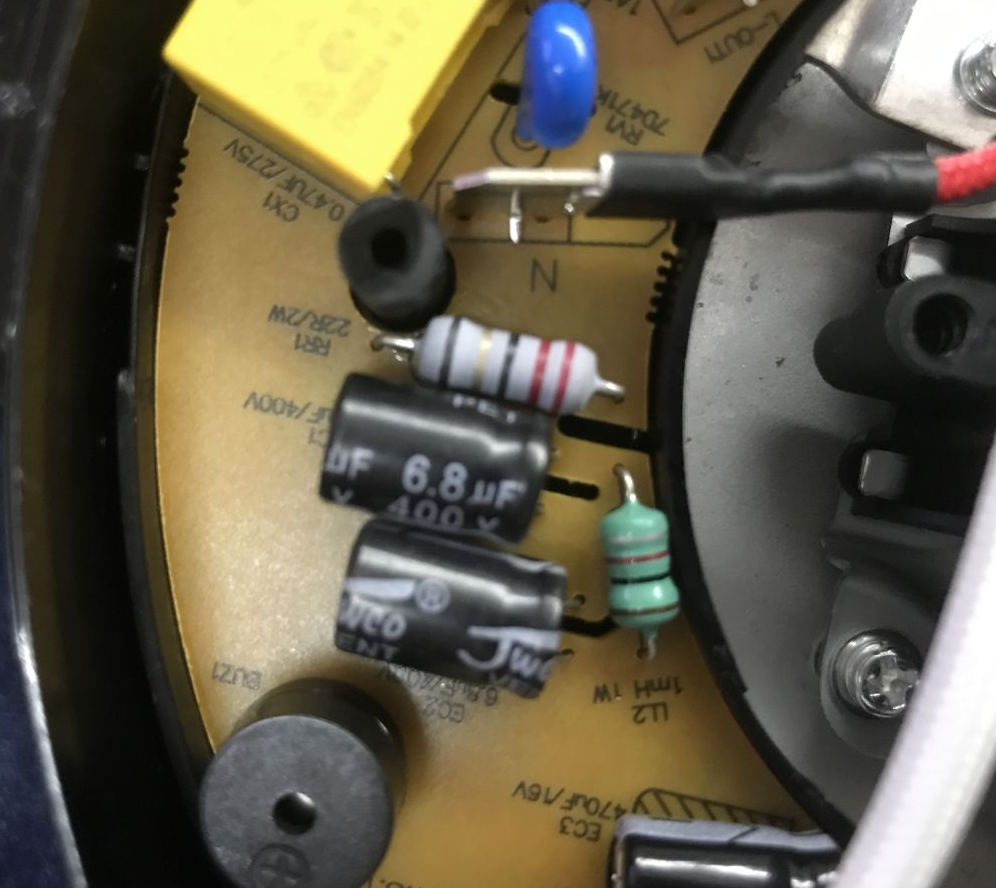
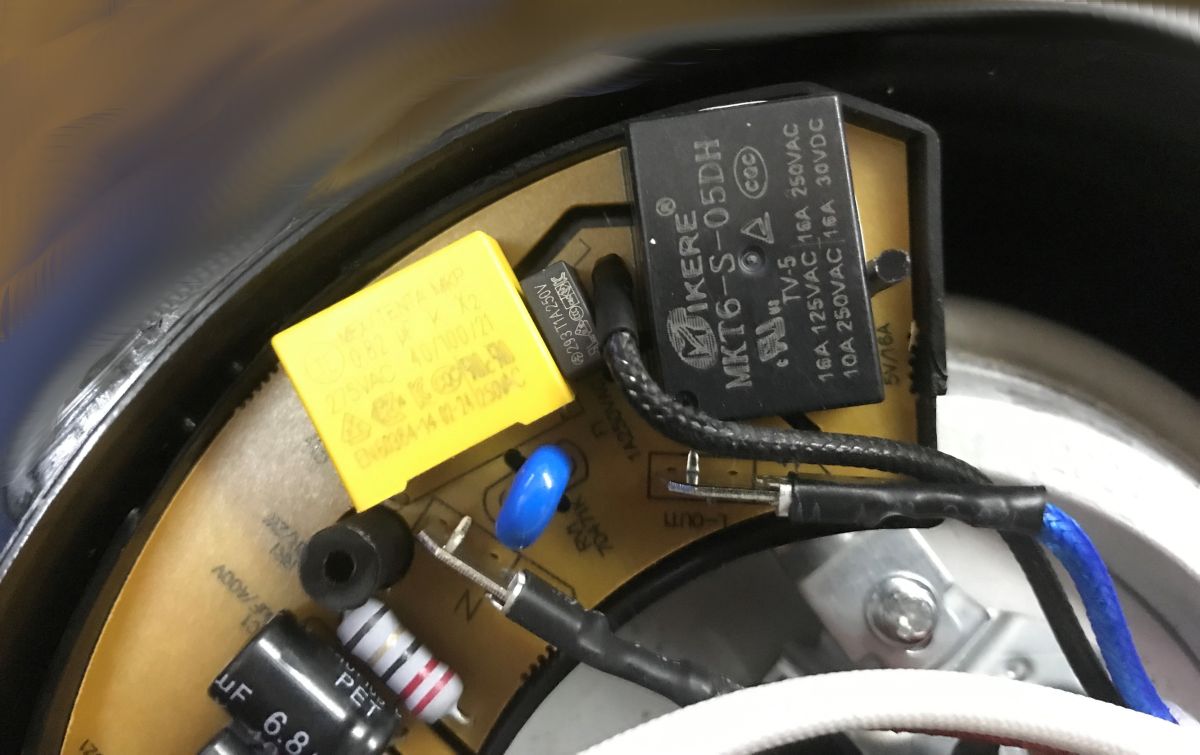
The power supply appears to be uninsulated. There is also a buzzer on the PCB. The basic protection is there - I see a varistor.
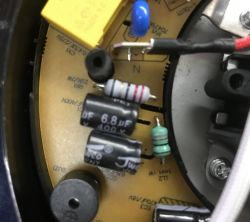
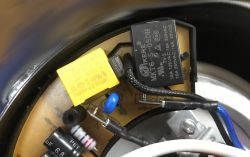
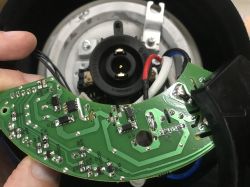
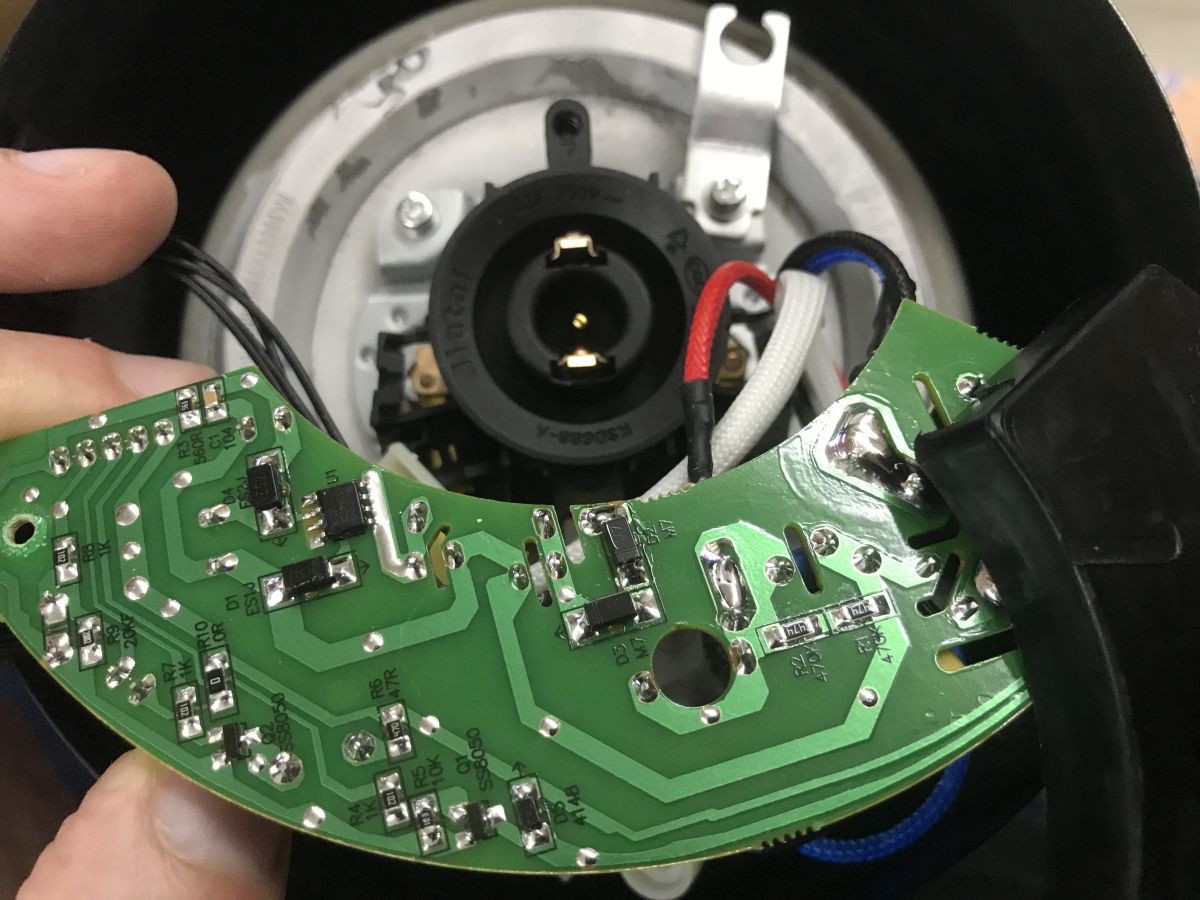
PCB designation: GS-EK17C1 KH:2024.8.19
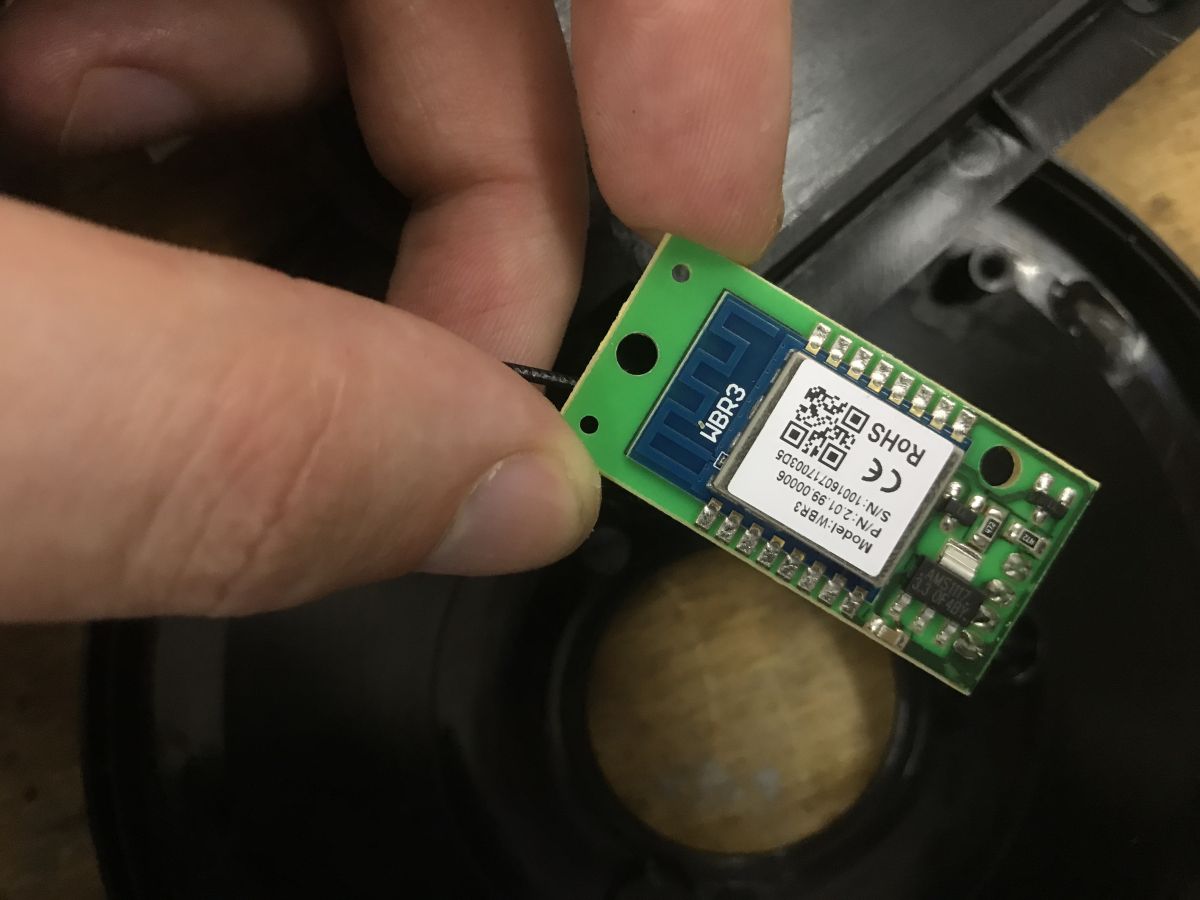
Inside again is WBR3 - coincidence, or do they just make kettles based on Realtek?
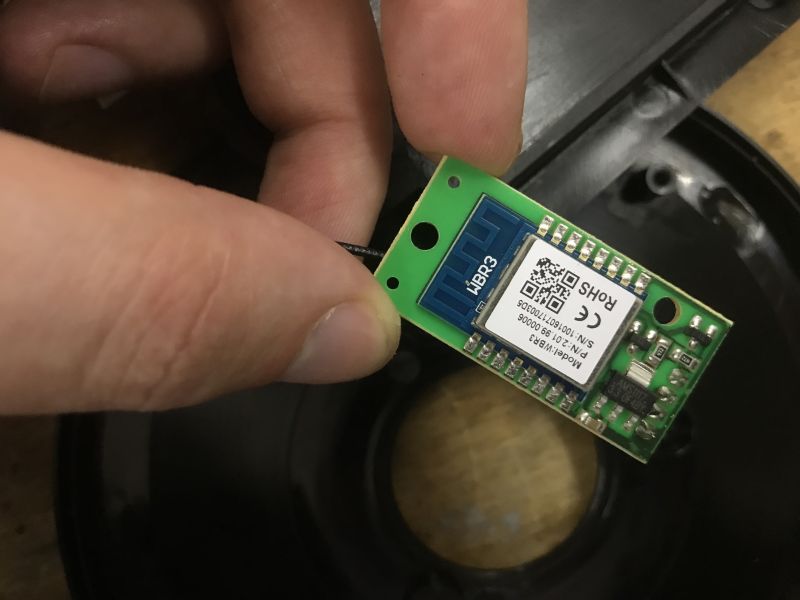
WBR3 discussion:
WBR2, WBR3, WBRU, W701-VA2-CG pinout, datasheet, flashing for Home Assistant
WBR3 is on the mother board with a 3.3V LDO and transistors, perhaps to change UART logic levels. This device is based on the TuyaMCU. The WBR3 controls the kettle via TX and RX lines.
TuyaMCU protocol - communication between microcontroller and WiFi module
Communication analysis
According to the aforementioned
documentation of the TuyaMCU , the protocol used inside is based on variables identified by so-called dpIDs, i.e. unique indices corresponding to individual functions. Here we have to guess which dpID is responsible for what. Intercepting the UART communication can help us with this. We simply need to plug in with an additional device first on the RXmcu->TXwifi line and then TXmcu->RXwifi.
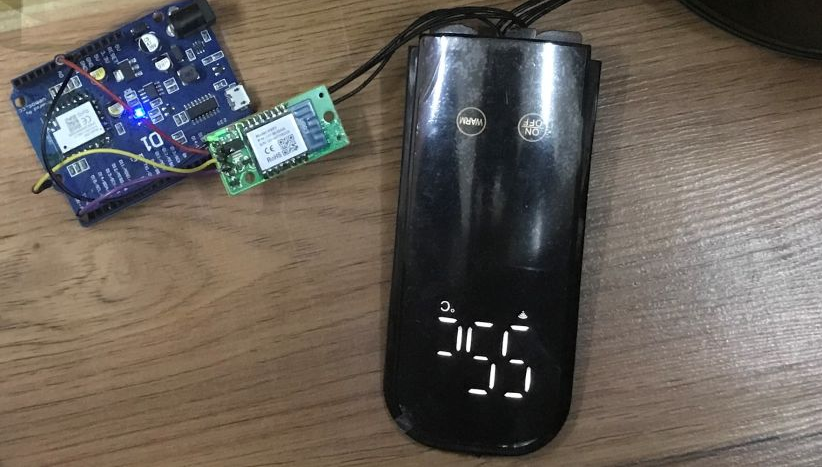
I used a Wemos conversion on the CB3S as a 'listener'. I fired up a UART to TCP bridge driver on it so I could remotely view the packets. This is important, because many products like this kettle may have non-isolated inverters and network potential present on the MCU circuit. You can't connect them directly to the computer via the UART port, you could short circuit them.
The analysis of such communication is that I start a record, perform some specific action in the application or on the product buttons, and then stop that record. I analyse the packets collected in this way in terms of which variable might relate to the action being taken, for example in which dpID is the target temperature, in which the current temperature, and so on.
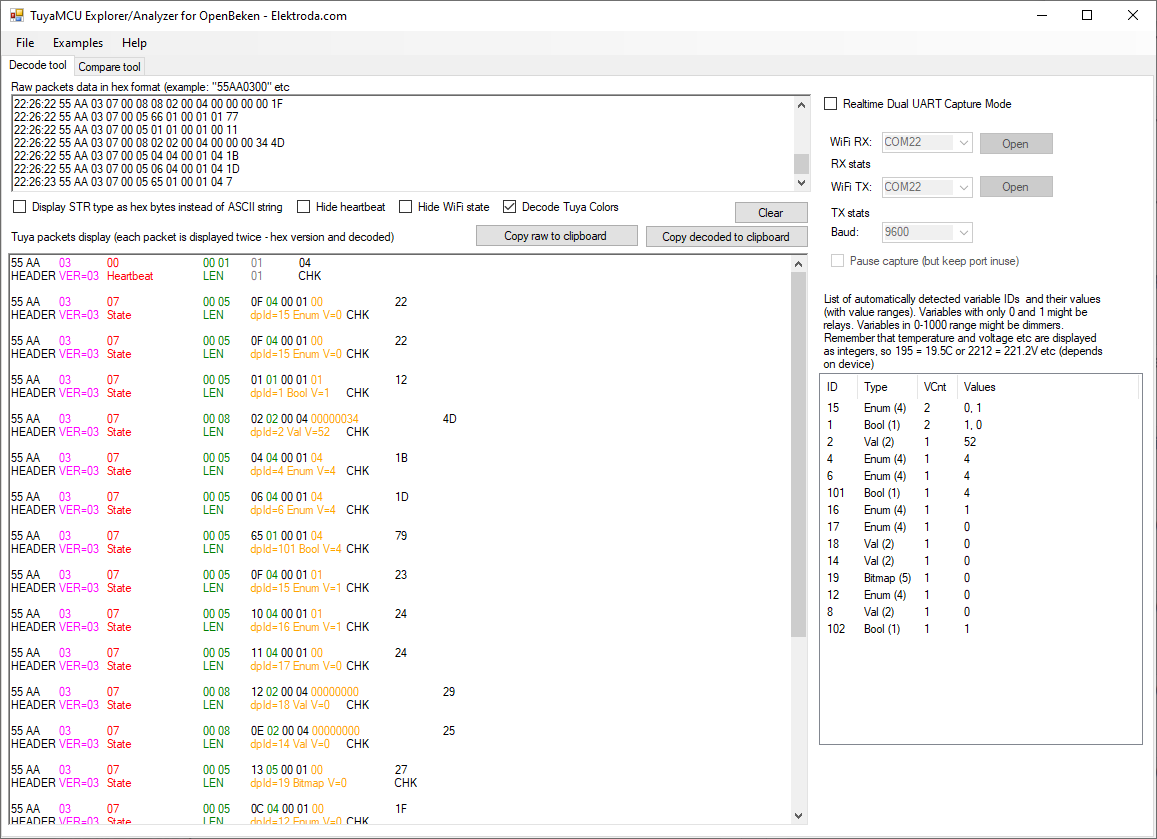
I use a program to do this:
TuyaMCU analyser - UART packet decoder for Tuya devices - dpID detector
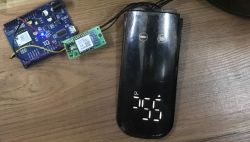
Switching on with the On/Off button on the touch panel:
22:26:17 55 AA 03 00 00 01 01 04
22:26:18 55 AA 03 07 00 05 0F 04 00 01 00 22
22:26:18 55 AA 03 07 00 05 0F 04 00 01 00 22
22:26:21 55 AA 03 07 00 05 01 01 00 01 01 12
22:26:21 55 AA 03 07 00 08 02 02 00 04 00 00 00 34 4D
22:26:21 55 AA 03 07 00 05 04 04 00 01 04 1B
22:26:21 55 AA 03 07 00 05 06 04 00 01 04 1D
22:26:21 55 AA 03 07 00 05 65 01 00 01 04 79
22:26:21 55 AA 03 07 00 05 0F 04 00 01 01 23
22:26:21 55 AA 03 07 00 05 10 04 00 01 01 24
22:26:21 55 AA 03 07 00 05 11 04 00 01 00 24
22:26:22 55 AA 03 07 00 08 12 02 00 04 00 00 00 00 29
22:26:22 55 AA 03 07 00 08 0E 02 00 04 00 00 00 00 25
22:26:22 55 AA 03 07 00 05 13 05 00 01 00 27
22:26:22 55 AA 03 07 00 05 0C 04 00 01 00 1F
22:26:22 55 AA 03 07 00 08 08 02 00 04 00 00 00 00 1F
22:26:22 55 AA 03 07 00 05 66 01 00 01 01 77
22:26:22 55 AA 03 07 00 05 01 01 00 01 00 11
22:26:22 55 AA 03 07 00 08 02 02 00 04 00 00 00 34 4D
22:26:22 55 AA 03 07 00 05 04 04 00 01 04 1B
22:26:22 55 AA 03 07 00 05 06 04 00 01 04 1D
22:26:23 55 AA 03 07 00 05 65 01 00 01 04 7
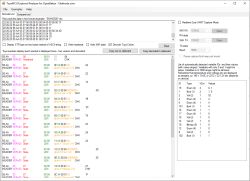
Switching off with the On/Off button
22:29:00 55 AA 03 07 00 05 01 01 00 01 00 11
22:29:00 55 AA 03 07 00 08 02 02 00 04 00 00 00 35 4E
22:29:00 55 AA 03 07 00 05 04 04 00 01 04 1B 55 AA 03 07 00 05 06 04 00 01 04 1D
22:29:01 55 AA 03 07 00 05 65 01 00 01 04 79
22:29:01 55 AA 03 07 00 05 0F 04 00 01 00 22 55 AA 03 07 00 05 10 04 00 01 01 24 55 AA 03 07 00 05 11 04 00 01 00 24
22:29:01 55 AA 03 07 00 08 12 02 00 04 00 00 00 00 29
22:29:01 55 AA 03 07 00 08 0E 02 00 04 00 00 00 00 25 55 AA 03 07 00 05 13 05 00 01 00 27 55 AA 03 07 00 05 0C 04 00 01 00 1F
22:29:01 55 AA 03 07 00 08 08 02 00 04 00 00 00 00 1F 55 AA 03 07 00 05 66 01 00 01 01 77
22:29:03 55 AA 03 00 00 01 01 04
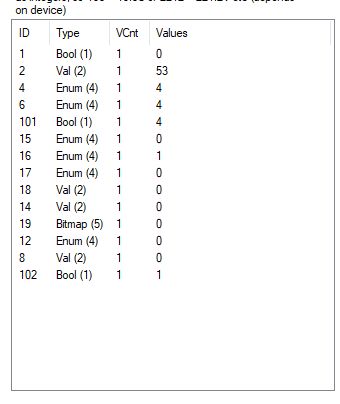
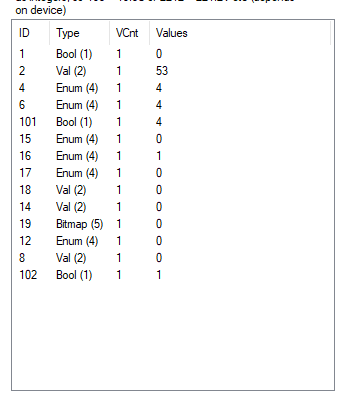
Conclusion: dpID 1 of type bool is probably the on/off state. Additionally 53 looks like the current temperature.
Warm pressed once - 45 appears on the display:
22:30:28 55 AA 03 07 00 05 0F 04 00 01 00 22
22:30:30 55 AA 03 07 00 05 01 01 00 01 01 12
22:30:31 55 AA 03 07 00 08 02 02 00 04 00 00 00 3C 55
22:30:31 55 AA 03 07 00 05 04 04 00 01 00 17
22:30:31 55 AA 03 07 00 05 06 04 00 01 04 1D 55 AA 03 07 00 05 65 01 00 01 04 79
22:30:31 55 AA 03 07 00 05 0F 04 00 01 02 24 55 AA 03 07 00 05 10 04 00 01 00 23
22:30:31 55 AA 03 07 00 05 11 04 00 01 0C 30 55 AA 03 07 00 08 12 02 00 04 00 00 02 D0 FB
22:30:32 55 AA 03 07 00 08 0E 02 00 04 00 00 1C 20 61 55 AA 03 07 00 05 13 05 00 01 00 27
22:30:32 55 AA 03 07 00 05 0C 04 00 01 00 1F 55 AA 03 07 00 08 08 02 00 04 00 00 00 2D 4C
22:30:32 55 AA 03 07 00 05 66 01 00 01 01 77
22:30:32 55 AA 03 07 00 08 12 02 00 04 00 00 02 CF FA 55 AA 03 07 00 08 0E 02 00 04 00 00 1C 20 61
22:30:33 55 AA 03 00 00 01 01 04
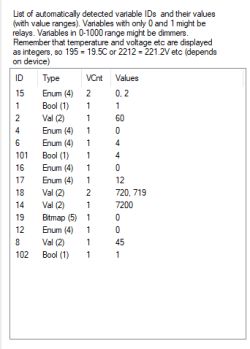
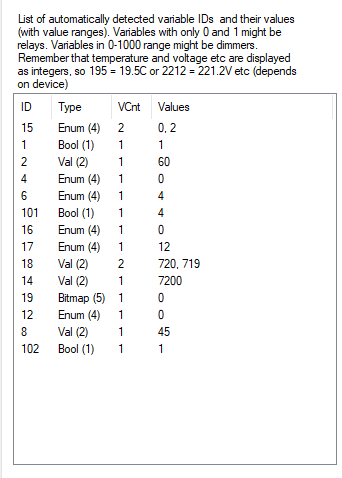
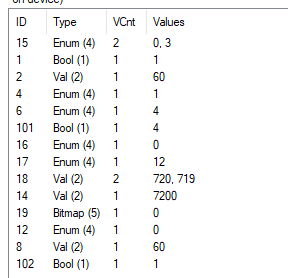
the dpID 8 set to 45 is the target temperature. In addition, the enumerator dpID 15 looks like a mode. and dpID 14 and 18 look like some kind of time.
Warm pressed twice - this switches to temperature 60:
WArm 2x - 60 sie pojawia:
:31:00 Connected to 192.168.0.139:8888
22:31:02 55 AA 03 07 00 05 0F 04 00 01 00 22
22:31:03 55 AA 03 00 00 01 01 04
22:31:03 55 AA 03 07 00 05 0F 04 00 01 00 22
22:31:06 55 AA 03 07 00 05 01 01 00 01 01 12
22:31:06 55 AA 03 07 00 08 02 02 00 04 00 00 00 3C 55
22:31:06 55 AA 03 07 00 05 04 04 00 01 01 18
22:31:06 55 AA 03 07 00 05 06 04 00 01 04 1D
22:31:06 55 AA 03 07 00 05 65 01 00 01 04 79
22:31:06 55 AA 03 07 00 05 0F 04 00 01 03 25
22:31:06 55 AA 03 07 00 05 10 04 00 01 00 23
22:31:07 55 AA 03 07 00 05 11 04 00 01 0C 30
22:31:07 55 AA 03 07 00 08 12 02 00 04 00 00 02 D0 FB
22:31:07 55 AA 03 07 00 08 0E 02 00 04 00 00 1C 20 61
22:31:07 55 AA 03 07 00 05 13 05 00 01 00 27
22:31:07 55 AA 03 07 00 05 0C 04 00 01 00 1F
22:31:07 55 AA 03 07 00 08 08 02 00 04 00 00 00 3C 5B
22:31:07 55 AA 03 07 00 05 66 01 00 01 01 77
22:31:07 55 AA 03 07 00 08 12 02 00 04 00 00 02 CF FA
22:31:07 55 AA 03 07 00 08 0E 02 00 04 00 00 1C 20 61
This confirms the previous findings.
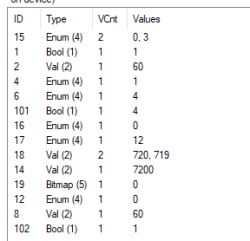
Warm three times - 85 appears:
22:32:33 55 AA 03 00 00 01 01 04
22:32:33 55 AA 03 07 00 05 0F 04 00 01 00 22
22:32:34 55 AA 03 07 00 05 0F 04 00 01 00 22
22:32:35 55 AA 03 07 00 05 0F 04 00 01 00 22
22:32:38 55 AA 03 07 00 05 01 01 00 01 01 12
22:32:38 55 AA 03 07 00 08 02 02 00 04 00 00 00 3A 53
22:32:38 55 AA 03 07 00 05 04 04 00 01 02 19
22:32:38 55 AA 03 07 00 05 06 04 00 01 04 1D
22:32:38 55 AA 03 07 00 05 65 01 00 01 04 79
22:32:38 55 AA 03 07 00 05 0F 04 00 01 01 23
22:32:38 55 AA 03 07 00 05 10 04 00 01 00 23
22:32:38 55 AA 03 07 00 05 11 04 00 01 08 2C
22:32:39 55 AA 03 07 00 08 12 02 00 04 00 00 01 E0 0A
22:32:39 55 AA 03 07 00 08 0E 02 00 04 00 00 12 C0 F7
22:32:39 55 AA 03 07 00 05 13 05 00 01 00 27
22:32:39 55 AA 03 07 00 05 0C 04 00 01 00 1F
22:32:39 55 AA 03 07 00 08 08 02 00 04 00 00 00 55 74
22:32:39 55 AA 03 07 00 05 66 01 00 01 01 77
22:32:39 55 AA 03 07 00 08 12 02 00 04 00 00 01 DF 09
22:32:39 55 AA 03 07 00 08 0E 02 00 04 00 00 12 C0 F7
Warm 4x - 90 sie appears
22:33:39 Connected to 192.168.0.139:8888
22:33:43 55 AA 03 07 00 05 0F 04 00 01 00 22
22:33:43 55 AA 03 07 00 05 0F 04 00 01 00 22
22:33:57 Connected to 192.168.0.139:8888
22:33:57 E0 00 00 00 00 00 00 00 00 00 00 00 00 00 00 00 00 00 00 FE 00 00 00 00 00 00 00 00 F8 00 00 00 00 00 00 00 00 00 00 00 00 00 F8 00 00 00 E0 00 00 F8 55 AA 03 07 00 05 0F 04 00 01 00 22 55 AA 03 07 00 05 01 01 00 01 01 12 55 AA 03 07 00 08 02 02 00 04 00 00 00 3F 58 55 AA 03 07 00 05 04 04 00 01 03 1A 55 AA 03 00 00 01 01 04 55 AA 03 07 00 05 06 04 00 01 04 1D 55 AA 03 07 00 05 65 01 00 01 04 79 55 AA 03 07 00 05 0F 04 00 01 01 23 55 AA 03 07 00 05 10 04 00 01 00 23 55 AA 03 07 00 05 11 04 00 01 08 2C 55 AA 03 07 00 08 12 02 00 04 00 00 01 E0 0A 55 AA 03 07 00 08 0E 02 00 04 00 00 12 C0 F7 55 AA 03 07 00 05 13 05 00 01 00 27 55 AA 03 07 00 05 0C 04 00 01 00 1F
55 AA 03 07 00 08 08 02 00 04 00 00 00 5A 79
55 AA 03 07 00 05 66 01 00 01 01 77
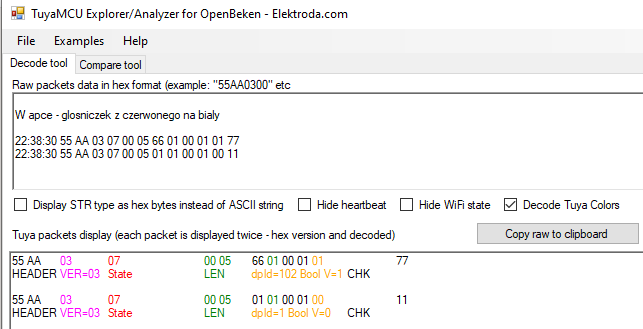
Operation in app - speaker from red to white:
22:38:30 55 AA 03 07 00 05 66 01 00 01 01 77
22:38:30 55 AA 03 07 00 05 01 01 00 01 00 11
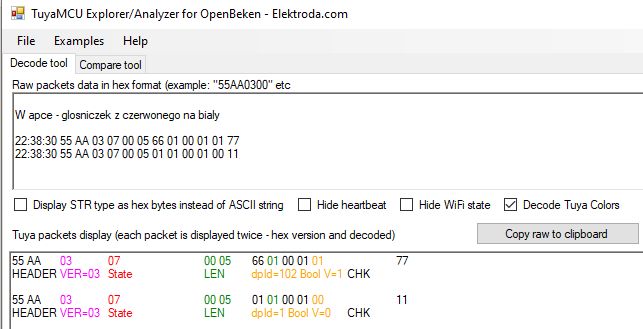
dpID 1 we already know is the power on/off state, so dpID 102 is sound - the value true is off.
From white to red:
22:39:26 55 AA 03 07 00 05 66 01 00 01 00 76
22:39:26 55 AA 03 07 00 05 01 01 00 01 00 11
Off, i.e. change to false.
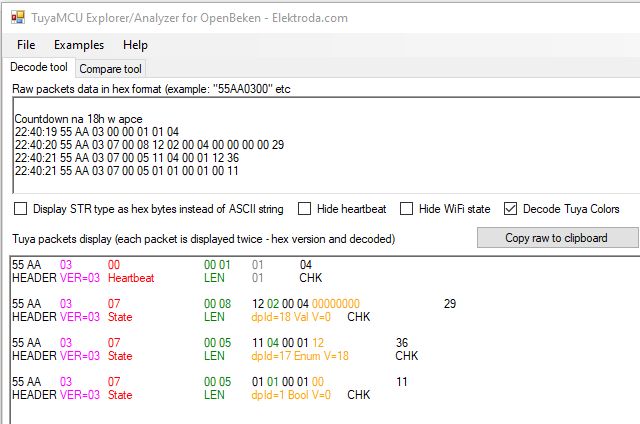
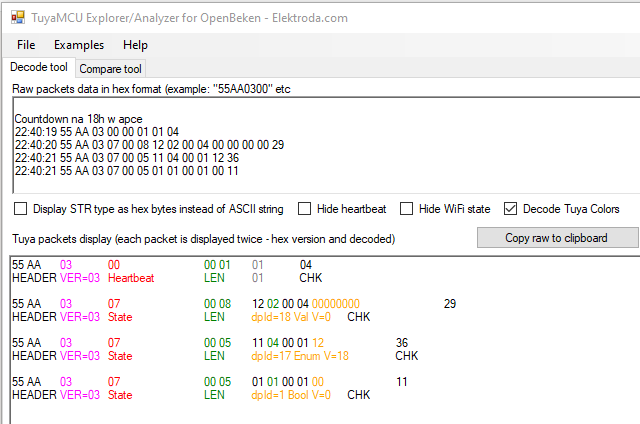
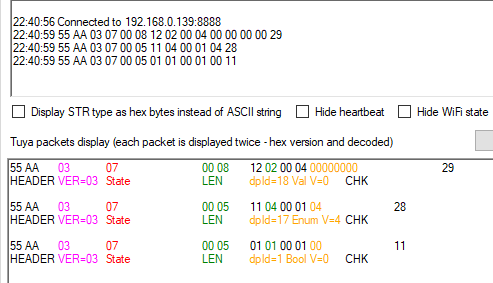
Countdown to 18h in app:
22:40:19 55 AA 03 00 00 01 01 04
22:40:20 55 AA 03 07 00 08 12 02 00 04 00 00 00 00 29
22:40:21 55 AA 03 07 00 05 11 04 00 01 12 36
22:40:21 55 AA 03 07 00 05 01 01 00 01 00 11
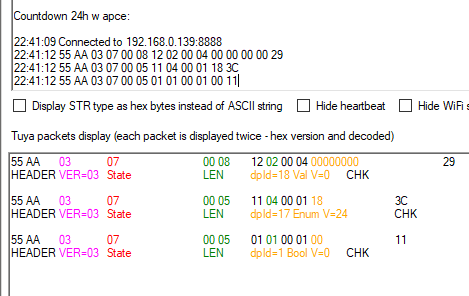
This indicates that dpID 17, although of enumerator type, contains the number of countdown hours:
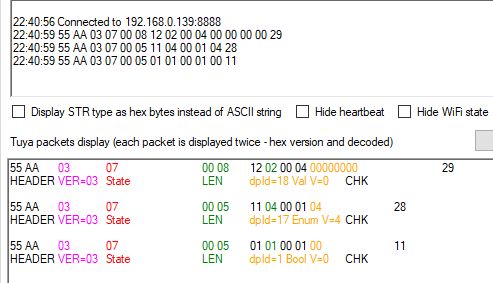
Same - for 4h:
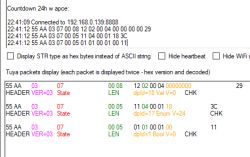
24h:
Operation "Boil to 100 and keep warm at 90":
22:41:56 55 AA 03 00 00 01 01 04
22:41:59 55 AA 03 07 00 05 0F 04 00 01 01 23
HEADER	VER=03	State		LEN	dpId=15 Enum V=1	CHK

22:42:00 55 AA 03 07 00 05 01 01 00 01 01 12
22:42:00 55 AA 03 07 00 08 02 02 00 04 00 00 00 3E 57
22:42:00 55 AA 03 07 00 05 04 04 00 01 04 1B
22:42:00 55 AA 03 07 00 05 06 04 00 01 03 1C
22:42:00 55 AA 03 07 00 05 65 01 00 01 03 78
22:42:00 55 AA 03 07 00 05 10 04 00 01 01 24
22:42:00 55 AA 03 07 00 05 11 04 00 01 08 2C
22:42:00 55 AA 03 07 00 08 12 02 00 04 00 00 01 E0 0A
22:42:00 55 AA 03 07 00 08 0E 02 00 04 00 00 12 C0 F7
22:42:00 55 AA 03 07 00 05 13 05 00 01 00 27
22:42:01 55 AA 03 07 00 05 0C 04 00 01 00 1F
22:42:01 55 AA 03 07 00 08 08 02 00 04 00 00 00 5A 79
22:42:01 55 AA 03 07 00 05 66 01 00 01 00 76
22:42:01 55 AA 03 07 00 08 12 02 00 04 00 00 01 DF 09
22:42:01 55 AA 03 07 00 08 0E 02 00 04 00 00 12 C0 F7
dpID 8 is the target temperature:
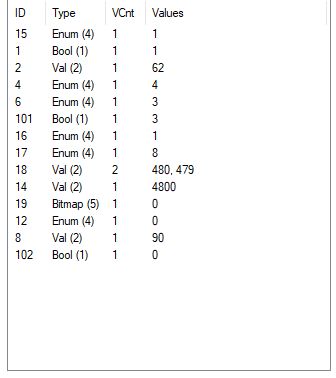
Operation "Heating to present temp and keep warm 90":
22:42:23 Connected to 192.168.0.139:8888
22:42:24 55 AA 03 07 00 08 02 02 00 04 00 00 00 3F 58
22:42:24 55 AA 03 07 00 05 0F 04 00 01 01 23
22:42:24 55 AA 03 07 00 05 01 01 00 01 01 12
22:42:24 55 AA 03 07 00 08 02 02 00 04 00 00 00 3F 58
22:42:24 55 AA 03 07 00 05 04 04 00 01 03 1A
22:42:24 55 AA 03 07 00 05 06 04 00 01 04 1D
22:42:24 55 AA 03 07 00 05 65 01 00 01 04 79
22:42:24 55 AA 03 07 00 05 10 04 00 01 00 23
22:42:25 55 AA 03 07 00 05 11 04 00 01 08 2C
22:42:25 55 AA 03 07 00 08 12 02 00 04 00 00 01 E0 0A
22:42:25 55 AA 03 07 00 08 0E 02 00 04 00 00 12 C0 F7
22:42:25 55 AA 03 07 00 05 13 05 00 01 00 27
22:42:25 55 AA 03 07 00 05 0C 04 00 01 00 1F
22:42:25 55 AA 03 07 00 08 08 02 00 04 00 00 00 5A 79
22:42:25 55 AA 03 07 00 05 66 01 00 01 00 76
22:42:25 55 AA 03 07 00 05 0F 04 00 01 01 23
22:42:25 55 AA 03 07 00 08 12 02 00 04 00 00 01 DF 09
22:42:25 55 AA 03 07 00 08 0E 02 00 04 00 00 12 C0 F7
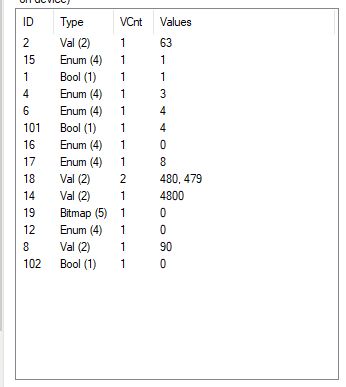
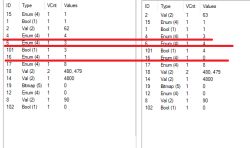
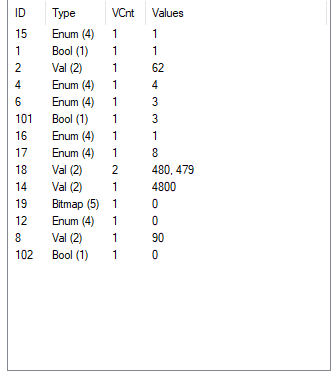
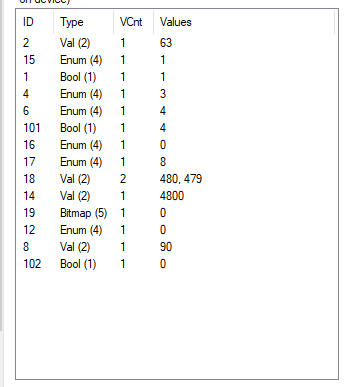
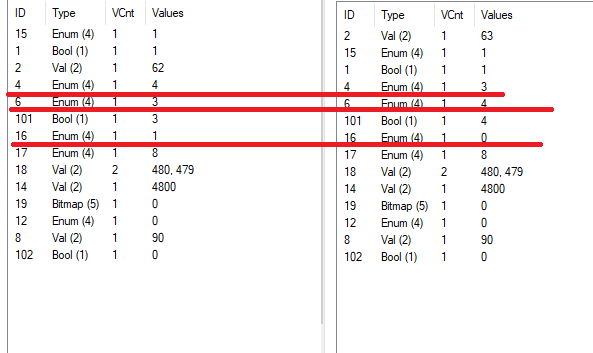
You can now compare the values and assess which variables determine whether you are heating to 100 or just maintaining the temperature:
 OpenBeken upload and configuration
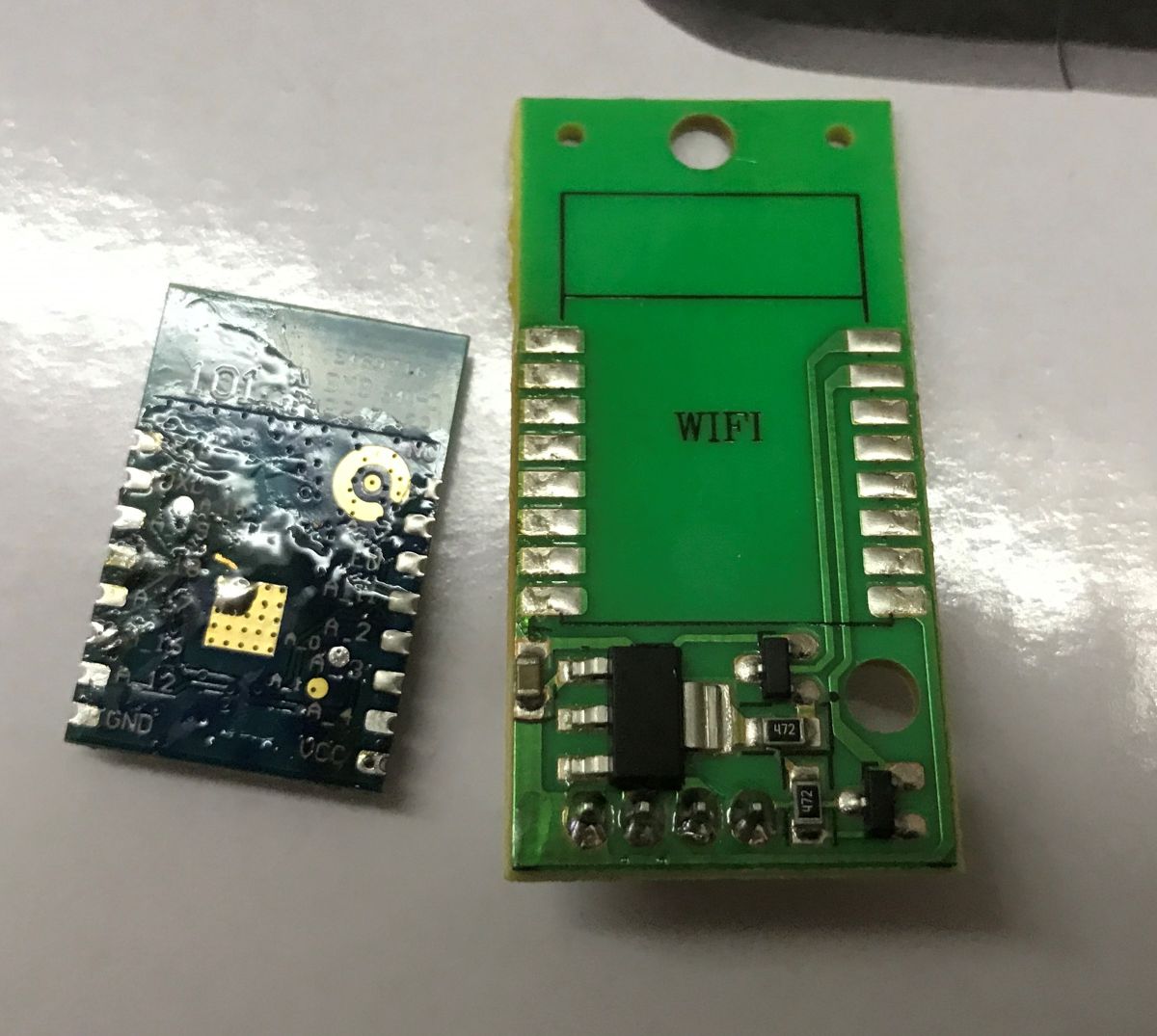
The WBR3 has programming pads on the bottom, so it needs to be soldered out:
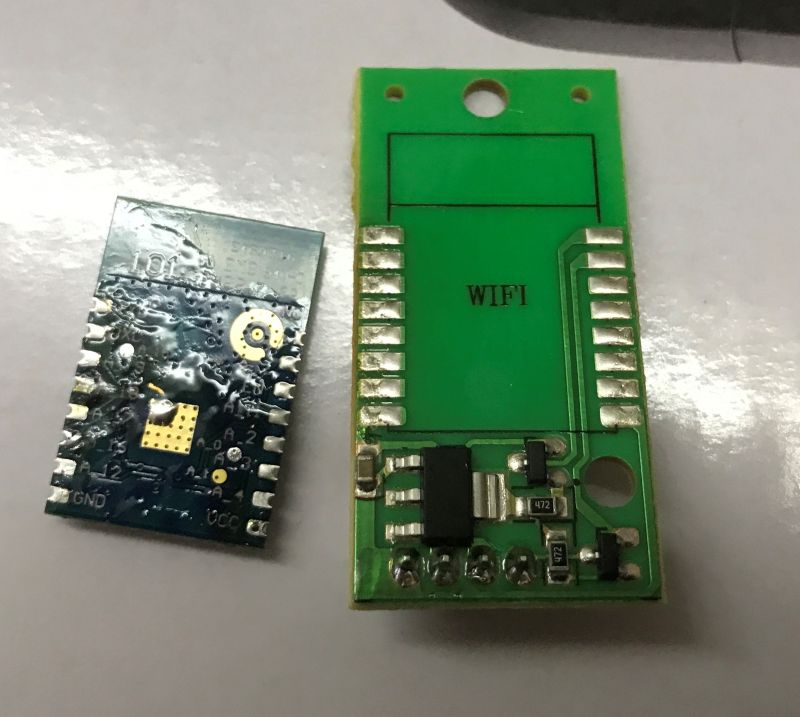
Program according to the tutorial:
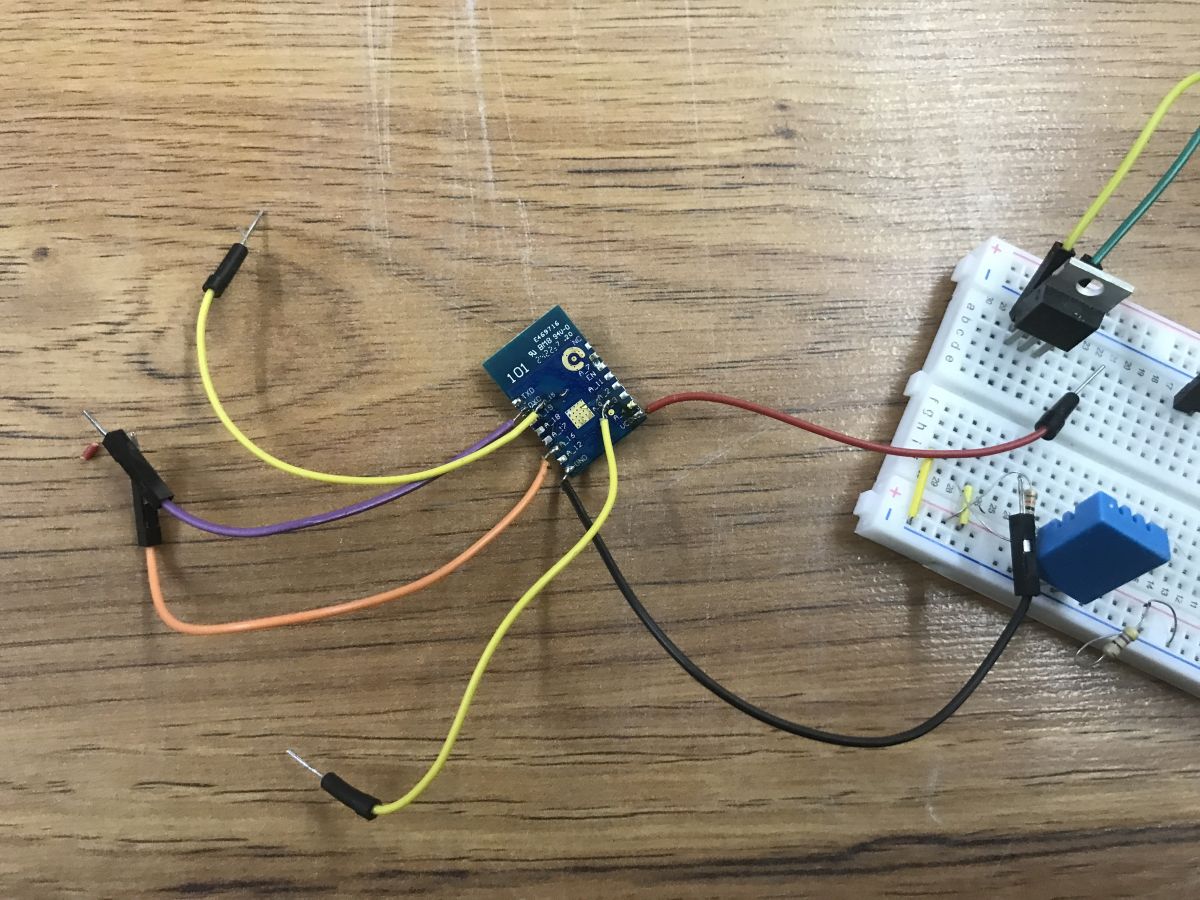
My layout:
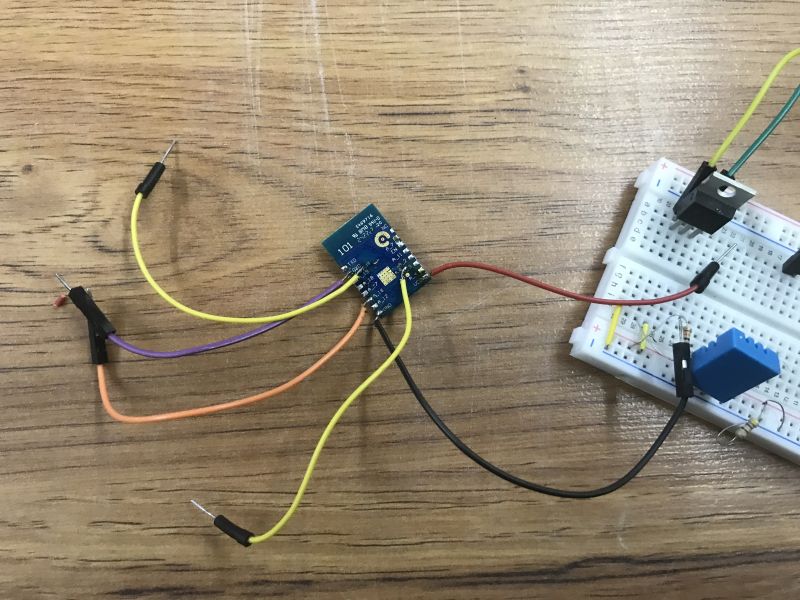
Then according to the guide:
TuyaMCU flashing, installation and configuration guide - configure dpID for Home Assistant
Here I have taken the liberty of simplifying the work a little. I only prepared a control for classic heating, up to a set temperature of 100 degrees. It turned out to be enough to map three dpIDs in autoexec.bat with OBK:
startDriver TuyaMCU

tuyaMcu_defWiFiState 4

setChannelType 1 Toggle

linkTuyaMCUOutputToChannel 1 bool 1


setChannelType 2 Temperature
setChannelLabel 2 "Current Temperature"

linkTuyaMCUOutputToChannel 2 val 2


setChannelType 8 TextField
setChannelLabel 8 "Target Temperature"

linkTuyaMCUOutputToChannel 8 val 8
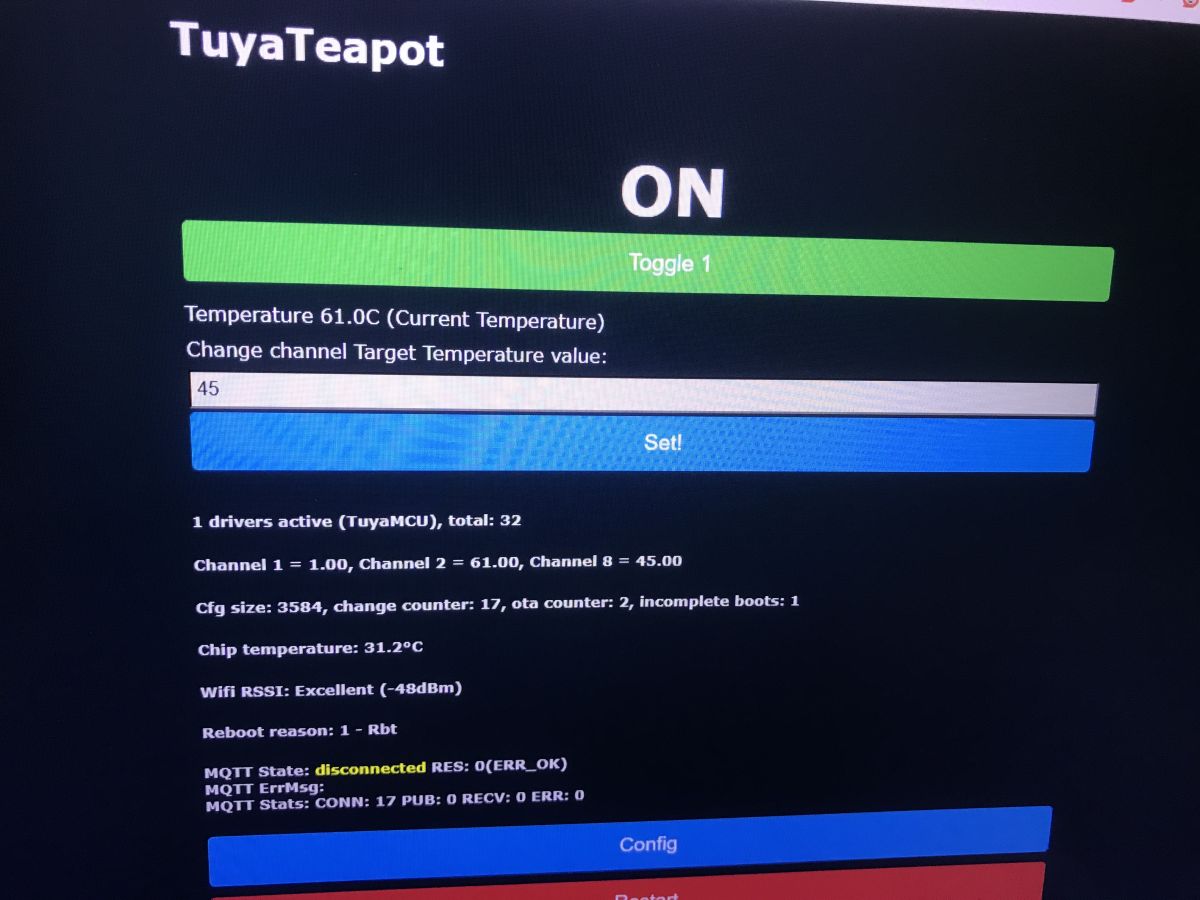
Here's a picture of the menu - forgive this form, I was testing on short notice and didn't save a screenshot normally:
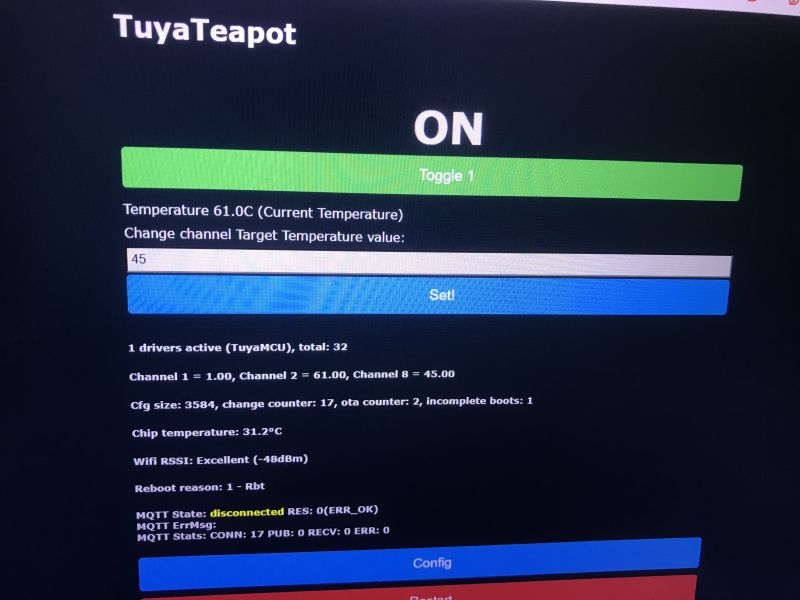
That's basically it... the only thing I would add is that after entering and changing the target temperature value, the kettle starts itself. There is no need to separately set the boolean dpID 1 to true, it changes this state itself, although we can use it to turn the kettle off.
Now you can run Home Assistant Discovery and pair like a pre-programmed device with the HA.
Summary
This was the second Wi-Fi controlled kettle and was also based on the WBR3 module. Its functions were also similar, although the menu appeared to be organised slightly differently and gave more prominence to the two modes of operation - heating to 100°C and maintaining the set temperature or just maintaining it.
Internally, the kettle is controlled by an unspecified MCU, and the Wi-Fi module communicates with it via the TuyaMCU protocol, which is over the UART. I managed to intercept the communication and from this I determined the basic variables needed to control the kettle. I then changed the Wi-Fi module's firmware and scripted it to use these variables for control. This way, the product works without the cloud, without the manufacturer's servers and can be paired with Home Assistant.
Of the additional pluses of this product, I can mention the buzzer (beep), the protection against overheating/starting without water and the basic error codes available on the display.
Does such a product make sense for your kitchen or anywhere else? That's for you to decide. For me it was another curiosity to analyse from an electronic point of view and I rather succeeded in this analysis, or at least my goal was fulfilled - I uploaded the new firmware and the kettle continues to work. 







Comments
"TuyaTeapot" - love it. interesting to see another WBR3-based kettle. WBR3 seems to be a common choice for ovens/stoves/kettles/heater types of devices. [Read more]
What a time. You can already hack into your kettle, you'll have to look after the antivirus in your tin opener and keep your vegetable planer up to date. Looking at the configuration menu - a massacre.... [Read more]
I wonder if coffee expenses will increase as neighbours realise when it's time to visit ;) So many of these options everywhere, from the toothbrush to the kettle to the toilet, that you can go crazy... [Read more]
So partly off topic. WBR3 modules are also in Parkside mowing robots sold in Lidl. This also works with Tuya. Unfortunately tragically unstable, and Local Tuya is already a nightmare in general. Unfortunately... [Read more]
Please explain to me why someone would heat distilled water in this contraption. To distil it? https://obrazki.elektroda.pl/7296008900_1776973965_thumb.jpg [Read more]
Another nonsense - why 85 C and not 80 C? A few years ago BOSCH came out with a nice kettle where you could set 2 temperatures: 80 and 100 C. Unfortunately the price was prohibitive on average. While... [Read more]
What a time, I'm waiting for a shovel or rake with wifi unless someone has already come up with such nonsense. [Read more]
Such a smart device can show you how many calories you've consumed, and give the supervisor a clear indication of whether your spade-waving pace deviates from the company average. And this is where toothbrush... [Read more]
It is all about boiled water. With GPS would come in handy to dig evenly like a string. [Read more]
The most important thing is 40°C to pour Alka-Zeltzer in the morning. [Read more]
Since you were running this at home, where you presumably have "power" over the Wifi, wouldn't it be simpler to take over communications at the router/access point, without messing around inside? [Read more]
I have a rather interesting device on WiFi. A coffee maker. You can turn it on and make coffee via the app. And it's cool. You lie down in bed in the morning, it's 4.30am, you open your eyes and you... [Read more]
Yes and you still need to be sure: - whether there is coffee in the hopper - whether there is water in the tank - whether there is milk in the reservoir And always these things end up ;) [Read more]
No, it's not about boiled water. It is about distilled water. [Read more]
All in all, you can already buy a rake from tuya ;) https://obrazki.elektroda.pl/1379019300_1777183999_thumb.jpg [Read more]
There are quite a few such devices and others (that attach something and don't work locally) it would be interesting if at some point one or more cloud systems switched all their subordinate devices... [Read more]
It depends what appliances would switch on. If a quarter of the country triggered resistive loads at the same time.... At the same time, given the different response times, the load peak would rather... [Read more]
Well, great. And he boils the water hard ? [Read more]
The awesome thing about these kettles is that they have electronic temperature measurement (not to mention Wifi-srifi). They all measure the temperature very precisely and turn off the boil when they... [Read more]