







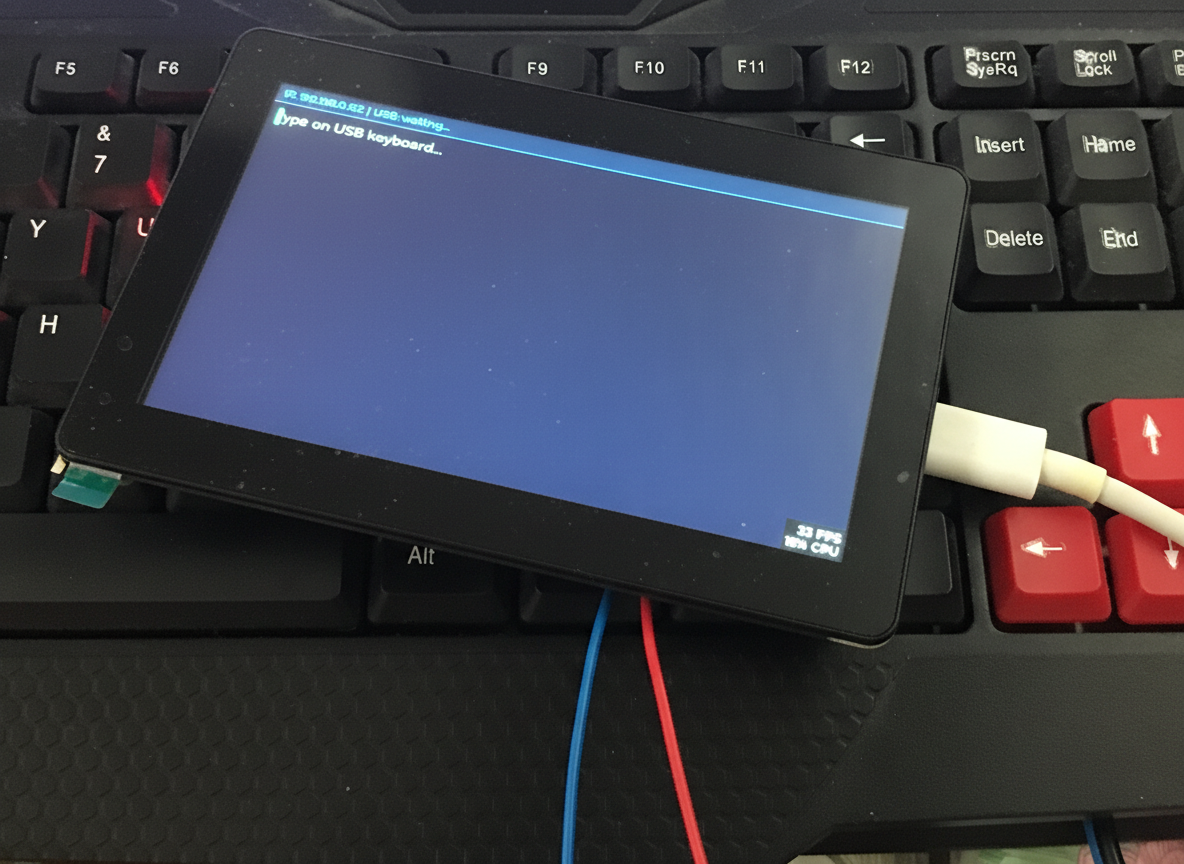
Is it possible to connect an ordinary USB keyboard to an ESP32-based device and link it to a touchscreen display? Yes - it's not that difficult at all. In this step-by-step topic I will show you how to start USB Host mode, integrate the keyboard with LVGL and handle input events correctly.
I have based the demonstration on the ESP-S3 board, specifically Waveshare ESP32-S3-Touch-LCD-5 , which I have already discussed separately before. I have broken the whole thing down into steps so that the way the keyboard is implemented is more accessible and understandable. The topic assumes a basic knowledge of C++, but I will include the code of my example at the end in case you need it.
It is also useful to know what HID is, as this topic will be about HID devices. HID (Human Interface Device) is a standard class of USB devices designed to communicate with the user. This group includes keyboards, mice, joysticks, gamepads and other peripherals. Their great advantage is that the system (or microcontroller) does not need to know the specific model of the device - support for the HID class is sufficient to receive input correctly.
HID communicates through simple data packets called reports. Their structure is described in the so-called Report Descriptor, which the device sends to the host during enumeration. It is this descriptor that tells how many bytes the report is, what each bit means and what types of events can occur (e.g. key pressed, key released, modifiers like Shift or Ctrl). For us, however, it just comes down to knowing the format of the device report we want to handle, and reading the keys from that report. A ready-made library from ESP IDF will do most of the work for us.
Which chips in the ESP series support USB? I have put the breakdown in a table, realised from the documentation from espressif .
| Chip | USB OTG High-Speed | USB OTG Full-Speed | USB-Serial-JTAG | Full-Speed PHY | High-Speed PHY | ||
| ESP32-P4 | √ | √ | √ | √√ | √ | ||
| ESP32-S3 | X | √ | √ | √√ | X | ||
| ESP32-S2 | X | √ | X | √ | X | X||
| ESP32-C6 | X | X | √ | √ | X | ||
| ESP32-C3 | X | X | √ | √ | X | ||
| ESP32-C2 | X | X | X | X | X | X||
| ESP32 | X | X X | X | X | XX | X | |
| ESP8266 | X | X | X | X | X | X | X |
As you can see hardware USB can be one of the arguments for choosing the newer ESP version, the regular ESP32 does not support it. Hence the choice of S3 in the topic, on it you can comfortably run HID. First, however, the operating environment. Here we go.
Step 1: LVGL
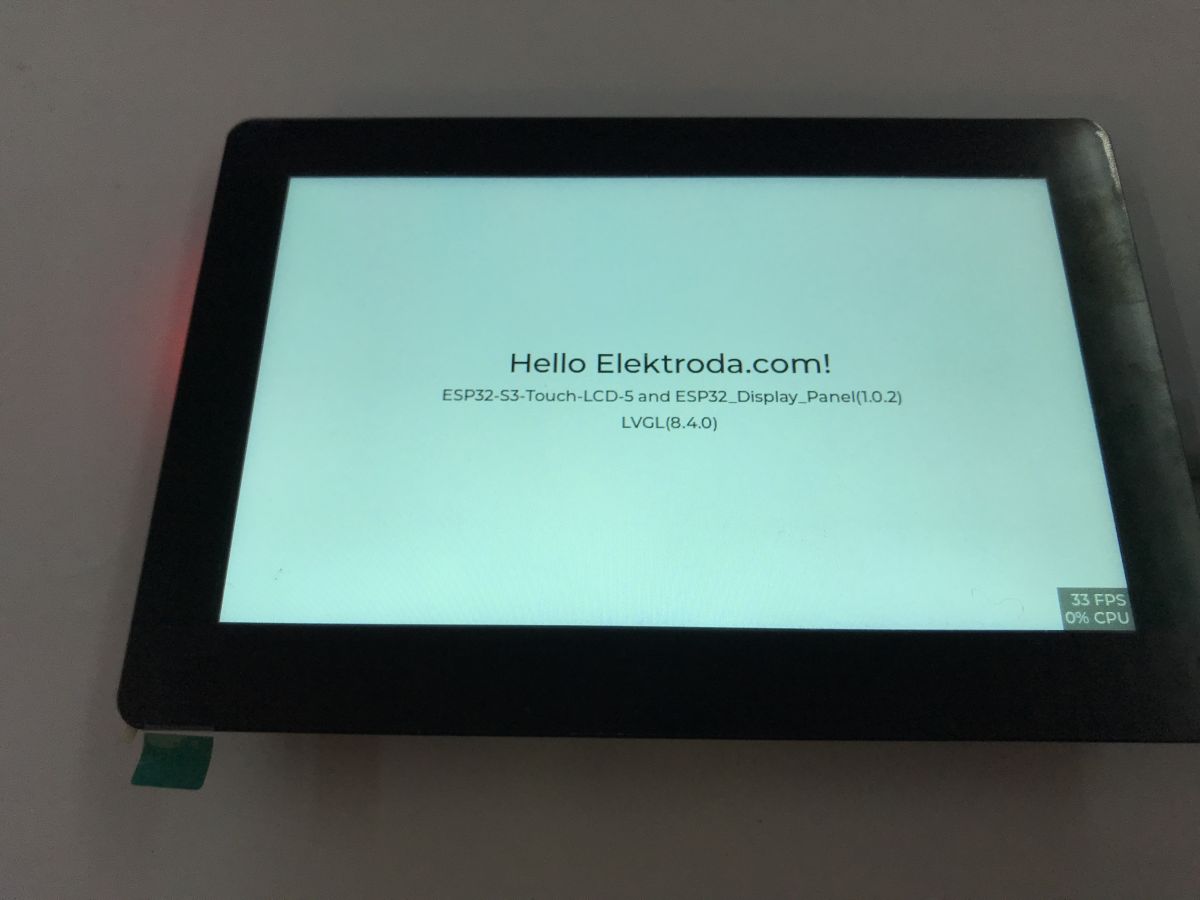
The first step is to run LVGL, the display and touchscreen driver. I used an external library for this:
https://github.com/esp-arduino-libs/ESP32_Display_Panel
I have already discussed this in a separate topic:
Waveshare ESP32-S3-Touch-LCD-5 - Wi-Fi, BLE, CAN, RS485 and 800x480 touchscreen
Step 2: ArduinoOTA
The second step is to run the batch update over Wi-Fi. This is essential for comfortable operation, as we only have one USB connector on the board, so it would be impossible to program and operate the keyboard at the same time, and disconnecting the hardware with each attempt is not convenient. ArduinoOTA has already been discussed in the topic:
How to program a Wemos D1 (ESP8266) board in the shape of an Arduino? ArduinoOTA in PlatformIO
Here, I have prepared a link between ArduinoOTA and LVGL. The following snippet initiates the display, connects the ESP to the Wi-Fi point defined in the code and shows the transmitted IP on the screen. In addition, it listens all the time to see if an update is being uploaded.
Code: C / C++
The most important thing is the Wi-Fi connection, we can't mess this up because we'll be uploading the batch wired again, and regularly checking the OTA packets - ArduinoOTA.handle in the main loop.
Related platform.ini:
[platformio]
default_envs = Board_WaveShare5

[env:Board_WaveShare5]
framework = arduino
platform = https://github.com/pioarduino/platform-espressif32/releases/download/53.03.11/platform-espressif32.zip

board = BOARD_CUSTOM_8MB
monitor_speed = 115200
upload_protocol = espota
upload_port = 192.168.0.162
monitor_port = com38
lib_ldf_mode=deep
lib_deps =
    https://github.com/esp-arduino-libs/ESP32_Display_Panel.git#v1.0.2
    https://github.com/esp-arduino-libs/ESP32_IO_Expander.git#v1.1.0
    https://github.com/esp-arduino-libs/esp-lib-utils.git#v0.2.0
    https://github.com/lvgl/lvgl.git#v8.4.0
build_flags =
    -DLV_CONF_INCLUDE_SIMPLE
    -DLV_LVGL_H_INCLUDE_SIMPLE
    -DBOARD_WAVESHARE5=1
    -I src
monitor_filters = esp32_exception_decoder
Setting upload_port to an IP address is not a bug - that way we tell ArduinoOTA where the board is.
Step 3: Detect USB device
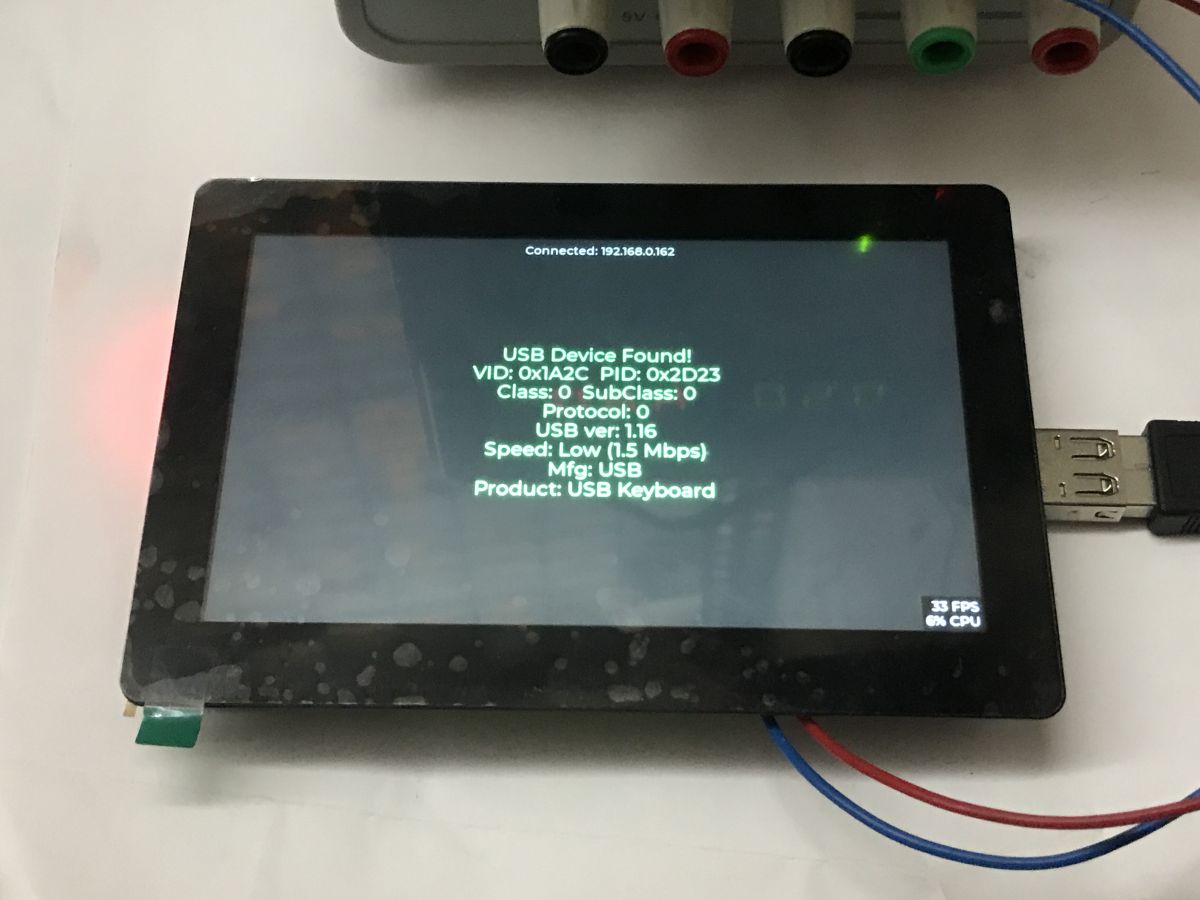
We now start USB Host mode on the ESP32-S3 and check that any device has actually been connected to the USB port. This is an absolute must - before we can start thinking about HID keyboards, reports and key mapping to LVGL, we need to be sure that:
- the USB Host stack is working correctly
- the device passes enumeration
- we can read its descriptors
Our board already has a USB connector, but here's a note - don't confuse this with boards where a USB to UART converter is brought out on the USB. Here we care about hardware USB, no CH340 will go here.
Additionally, as the board has a female USB C connector, a male USB C to USB A female adapter is useful:
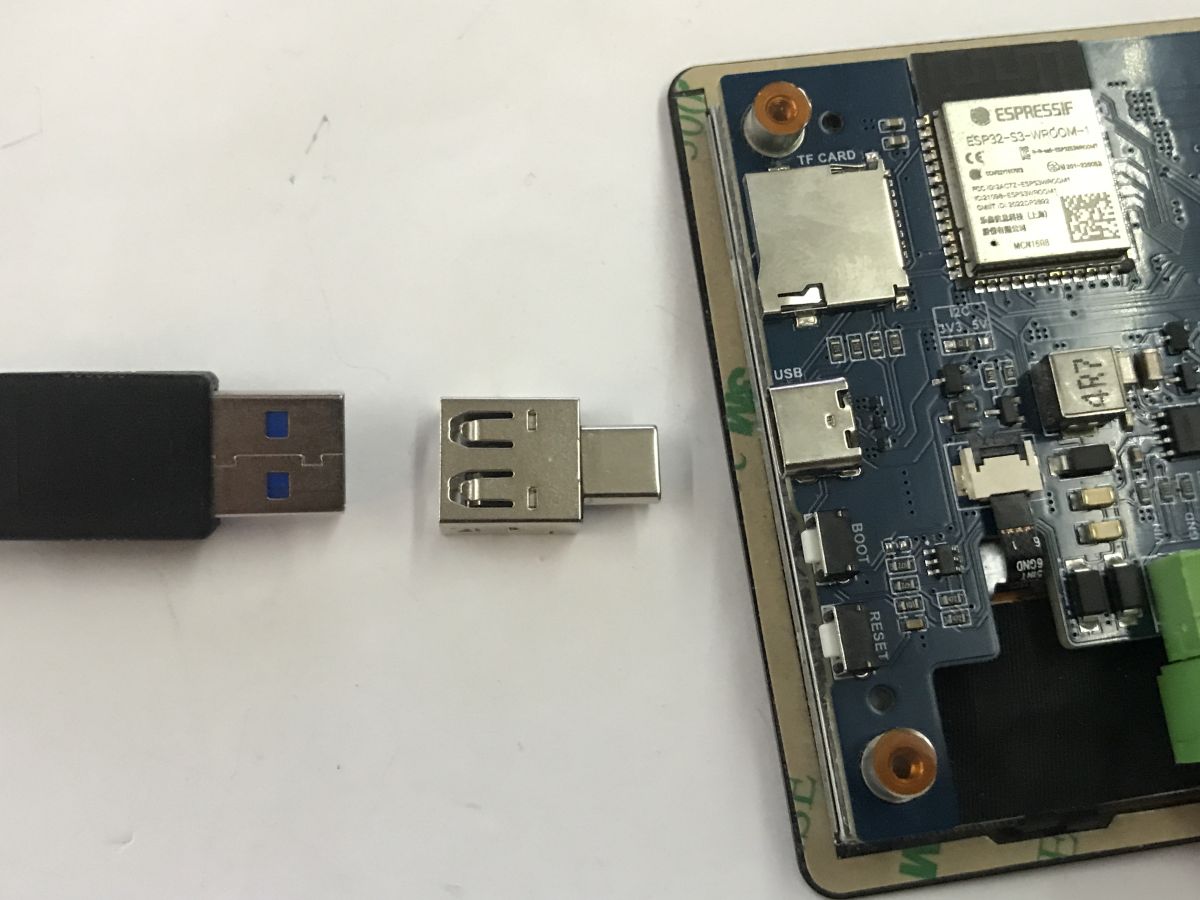
The ESP32-S3 has a hardware USB OTG controller, so we don't need any external chips - we just need to correctly configure the USB Host library from ESP-IDF, which is also available in the Arduino environment.
Code: C / C++
We add the header and then:
- start the USB Host library (usb_host_install())
- register the USB client (usb_host_client_register())
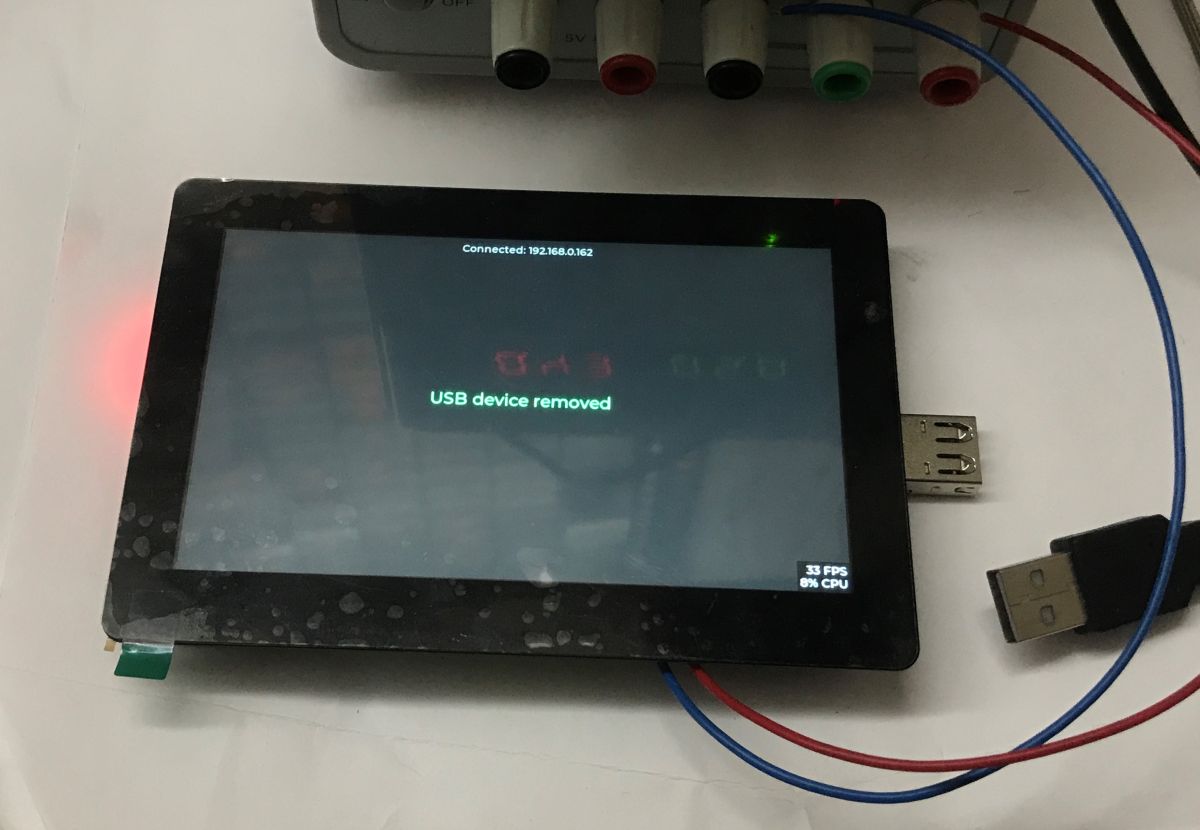
-set callback usb_host_client_event_cb, which will inform us when the client device is connected and lost
With the usb_read_device_info function we create a description of the device shown on the screen.
Code: C / C++
In addition we call everything in init:
Code: C / C++
and we process the USB events in the main loop (usb_host_poll):
Code: C / C++
Step 4: Basic keyboard events
Two additional mechanisms are now required:
- key capture from a USB keyboard
- lVGL text field support
As it happens, LVGL has a ready-made text field mechanism along with full-fledged editing. Even the cursor works there. All you need to do is register the driver via the lv_indev_drv_t structure and set it to type LV_INDEV_TYPE_KEYPAD. In addition, we set a function that will read the key events from the circular buffer, here kb_indev_read_cb.
Code: C / C++
Well, yes, but we don't have any queue - you will have to implement one yourself. Below for now is a callback that uses my kb_ring_pop function and my circular buffer (condition kb_ring_head != kb_ring_tail) to read the keys.
Code: C / C++
Here is a proper implementation of the circular buffer - events are inserted after the 'head' of the buffer, and its 'tail' points to the last unprocessed event. The buffer has a finite size, if it overflows it does not add more events.
Code: C / C++
What's left is to receive events from the keyboard. Just how do we know how to parse HID packets? This can be read in the documentation:
https://usb.org/sites/default/files/hid1_11.pdf
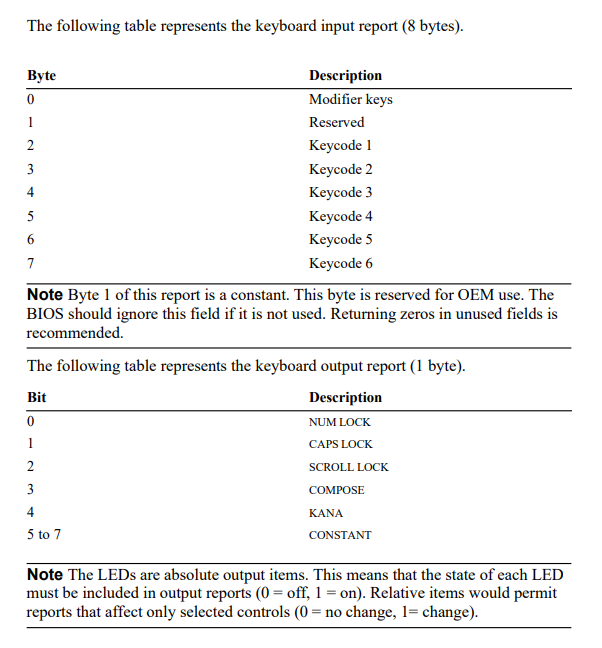
The keyboard reports the set of keys pressed at a given time. We can then independently determine the state of which keys have changed, i.e. which have been released and which have been pressed.
Code: C / C++
Result:
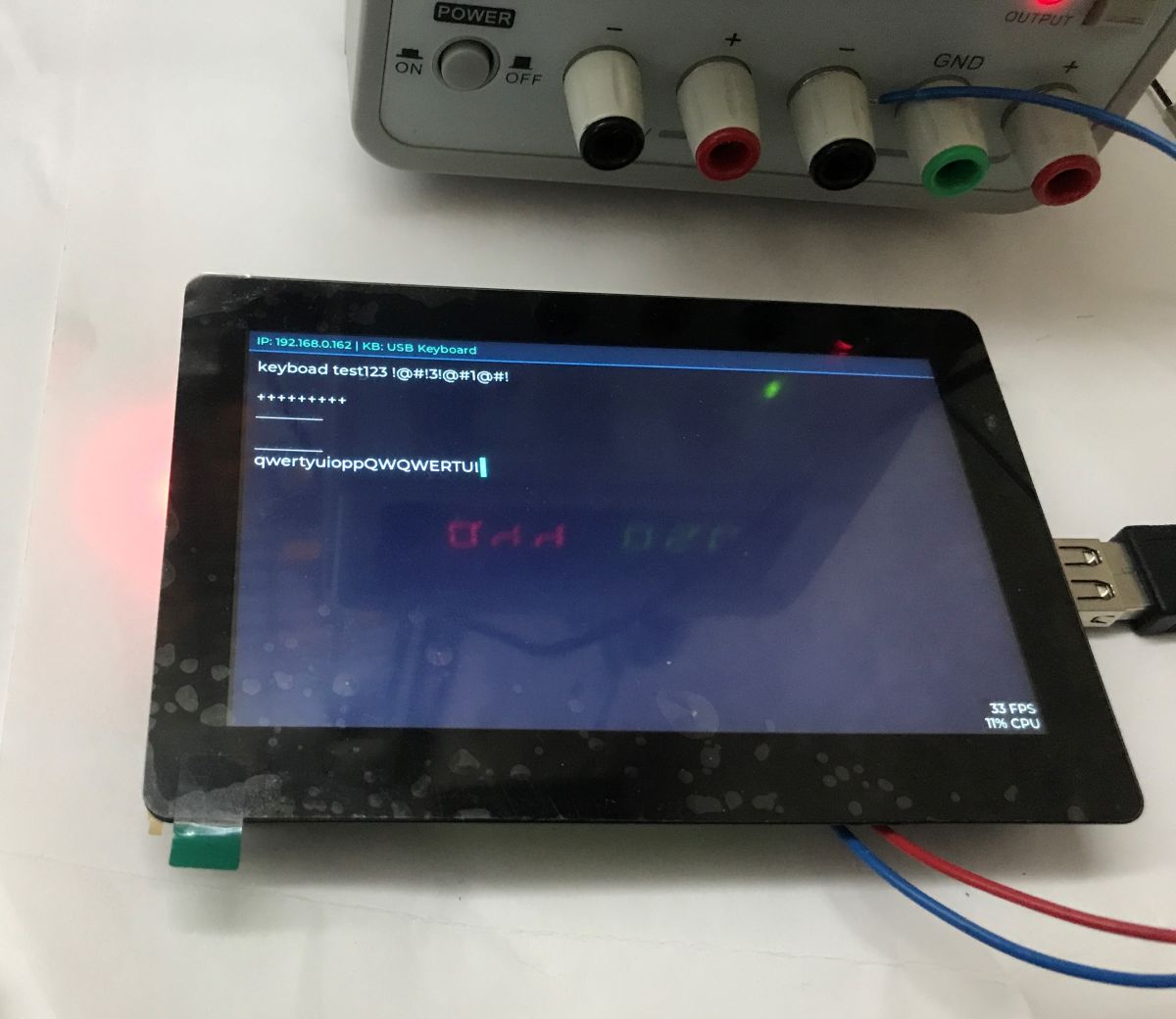
The keyboard is seen correctly. Letters, numbers and special characters work. You can make capital letters, although caps lock natively does not work. Arrows work, you can move the cursor, you can delete characters with the delete and backspace keys,
Additional: mouse experiment
Analogously, an HID-compatible mouse can be handled. Again, we need to refer to the HID documentation and add our own parsing of the package in hid_transfer_cb.
https://learn.microsoft.com/en-us/windows-har...ers/hid/keyboard-and-mouse-hid-client-drivers
Quote:[/table:1cd0b14a05]
Byte D7 D6 D5 D5D4 D3 D3 D2 D1 D0 D0Comment 1 0 0 0Ysign Xsign 1 M R L X/Y signs and R/L/M buttons 2 2X7 X6 X6X5 X4 X4 X3 X2 X1 X2X0 X data byte X data byte3 3 Y7 Y6 Y5 Y4 Y3 Y2 Y1 Y1 Y0 Y data bytes 4 Z7 Z6 Z5 Z5Z4 Z3 Z3 Z2 Z1 Z0 Z0Z/wheel data byte
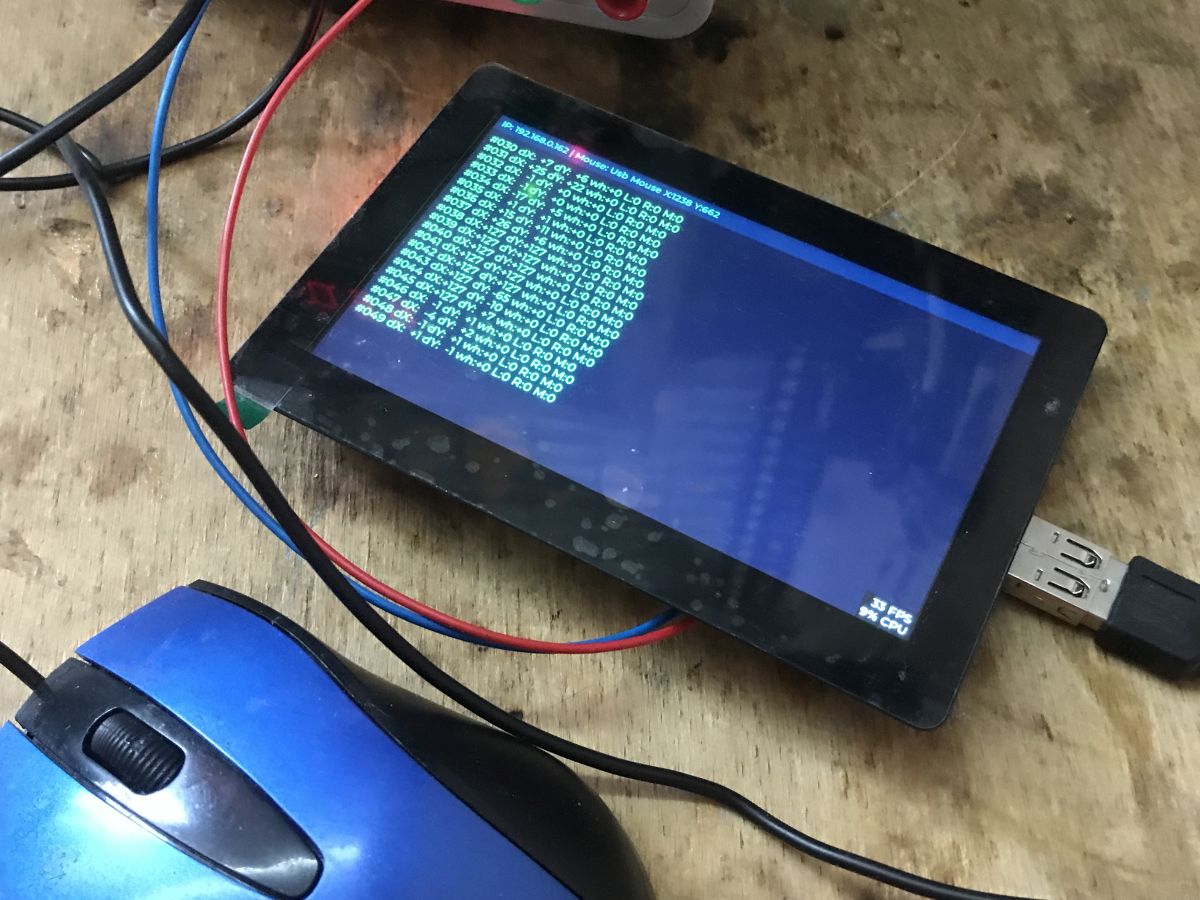
The data used in this way can then be displayed on the screen, as an example I have added a display of the individual reports received. It is worth noting that we do not have information from the mouse about the "absolute" position of the cursor, we only have its offset.
Code: C / C++
The above code correctly decodes the reports from the mouse and reads from them the offset in the X, Y and Z (circle) axes. The state of the buttons (pressed or not) is also read.
Summary
Hardware USB on ESP series chips (ESP32-S2/S3/C3/P4) opens up new possibilities, one of which is full-fledged support for HID devices such as the keyboard and mouse just shown. The HID protocol is very simple to use, as everything is hidden behind ready-made libraries and we just read the bytes from the reports. Combined with the display, this makes it possible to make a substitute for a simple microcomputer that works just like, for example, general text editors. A joystick or gamepad can also be brought to life in a similar way.
The next step here could be to try to run ESP with an external USB hub so that both mouse and keyboard can be connected at the same time, but I'll try that in a separate topic.
I am attaching the code for my demos. For more information I refer you to the documentation from Espressif.
https://docs.espressif.com/projects/esp-iot-s.../en/latest/usb/usb_overview/usb_overview.html
https://github.com/espressif/esp-idf/blob/master/examples/peripherals/usb/host/hid/README.md
What practical applications do you see for the USB host role on the ESP?
Cool? Ranking DIY Helpful post? Buy me a coffee.



