logo elektroda
logo elektroda
X
logo elektroda

Tiny touchscreen monitor 8" for Raspberry and beyond - tests, energy efficiency

p.kaczmarek2 105 2

TL;DR

  • The 8-inch Pisichen DB124 touchscreen monitor (8-HD-TS/B0D3XB7J47) targets Raspberry Pi and home automation setups with 800x480 IPS HD, HDMI, USB-C, speakers, and a 3.5mm jack.
  • The kit includes cables, a power supply, and a manual, while the monitor offers DDC/CI, PCM, brightness, contrast, sharpness, and audio settings.
  • Measured USB-C power draw ranged from just over 1.5 W to 2.5 W, and the tested unit cost 180 PLN.
  • Windows detected touch immediately, calibration was straightforward, and the screen showed no noticeable latency from the laptop.
  • The only notable concern is the stand, which feels clumsy and may wear out with repeated folding.
Generated by the language model.
ADVERTISEMENT
Treść została przetłumaczona polish » english Zobacz oryginalną wersję tematu
  • Tiny touchscreen monitor 8" for Raspberry and beyond - tests, energy efficiency
    Today I'm testing a tiny touchscreen monitor bought with the idea of building some form of home automation controller with Home Assistant. I'll check what you can get such a thing for 180 PLN from a Polish importer, present the contents of the kit, configurations and connection, and finally measure how much power such a monitor draws from USB C.

    Tiny touchscreen monitor 8" for Raspberry and beyond - tests, energy efficiency
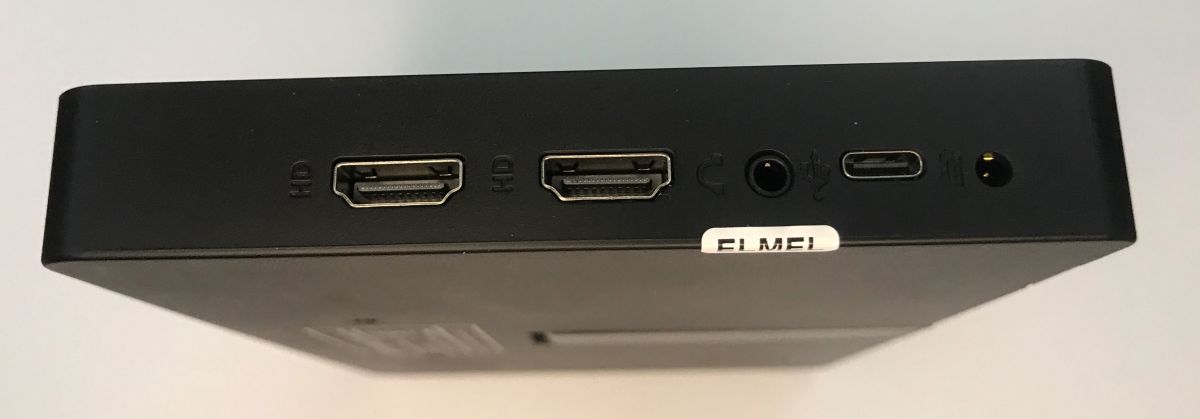
    Shown here will be the 8-inch DB124 (8-HD-TS/B0D3XB7J47) Pisichen IPS HD with 800x480 resolution, HDMI and USB-C compatible. It features a 5-point touchscreen with 250 cd/㎡ brightness and 60 Hz refresh rate. It has built-in dual speakers (stereo) and a 3.5mm audio jack. A separate socket for a 12 V power supply is also present - at your choice. The dimensions of the monitor are 1.3 x 17.6 x 11 cm and the weight is approximately 920 g.
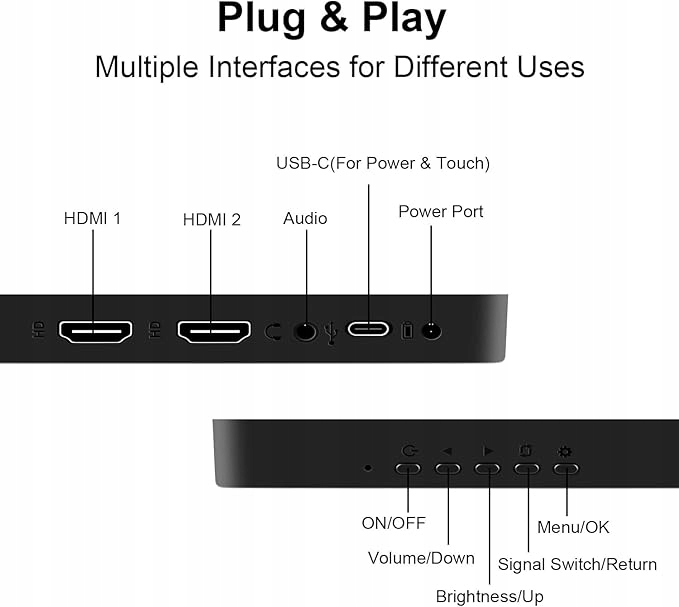
    Tiny touchscreen monitor 8" for Raspberry and beyond - tests, energy efficiency
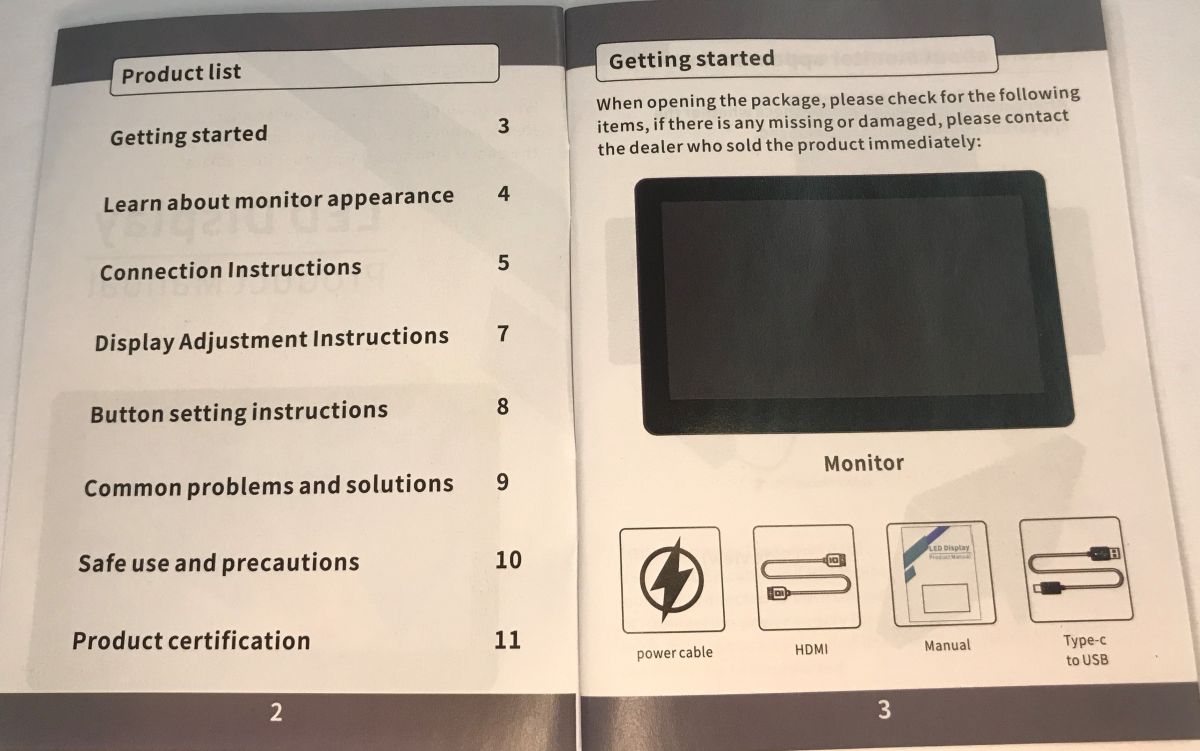
    Let's start with the contents of the kit. We get full cabling and a power supply, on the one hand this is a good thing as not every accessory has one, but on the other hand it probably piles up the price a bit.
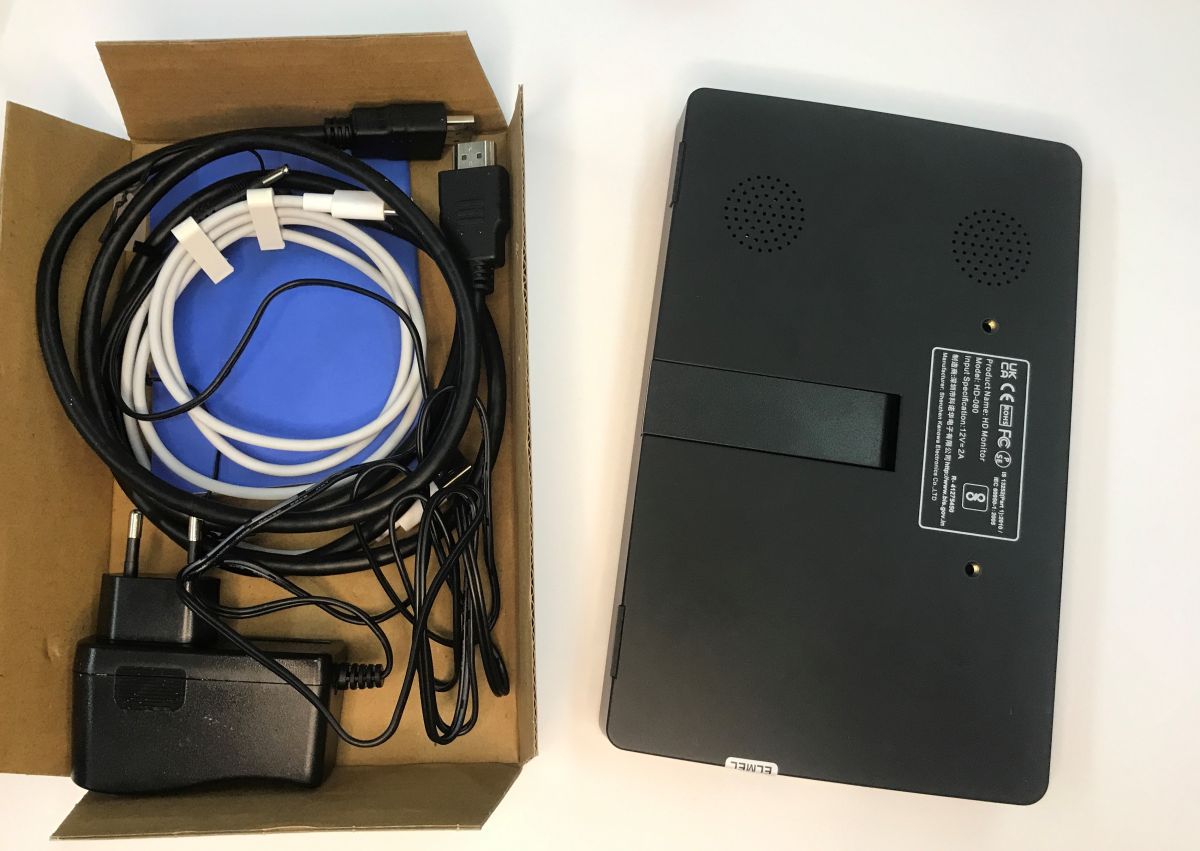
    Tiny touchscreen monitor 8" for Raspberry and beyond - tests, energy efficiency
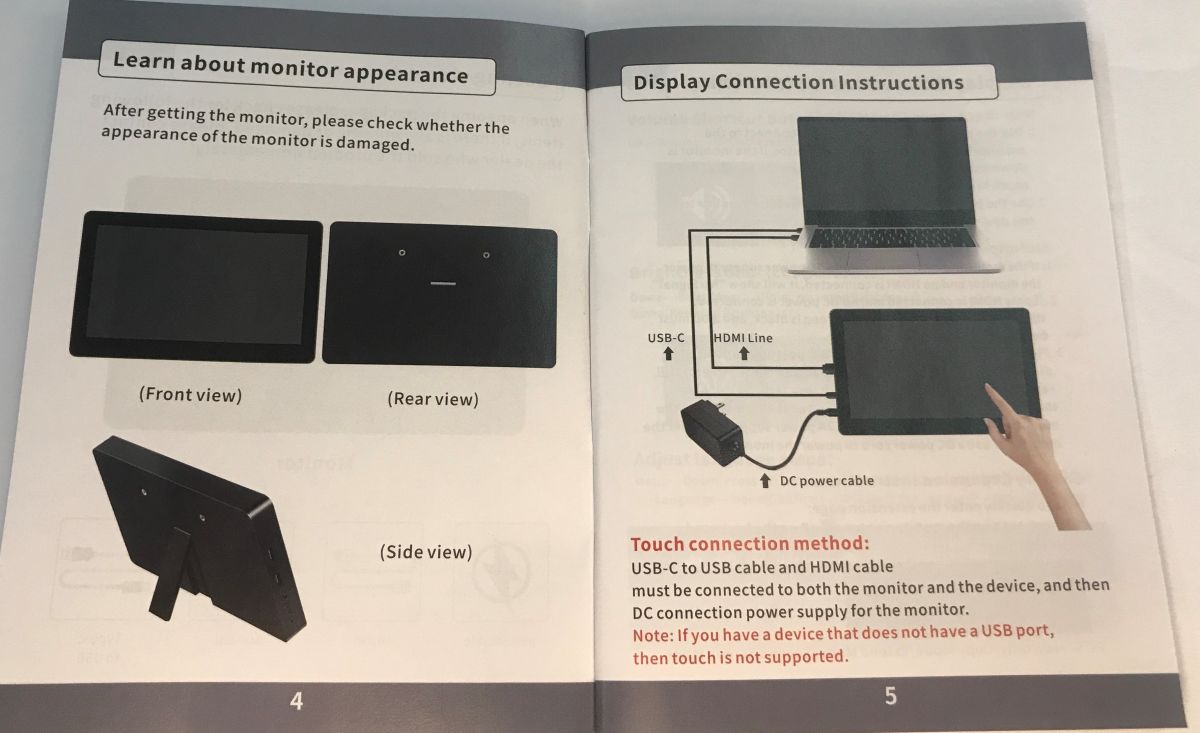
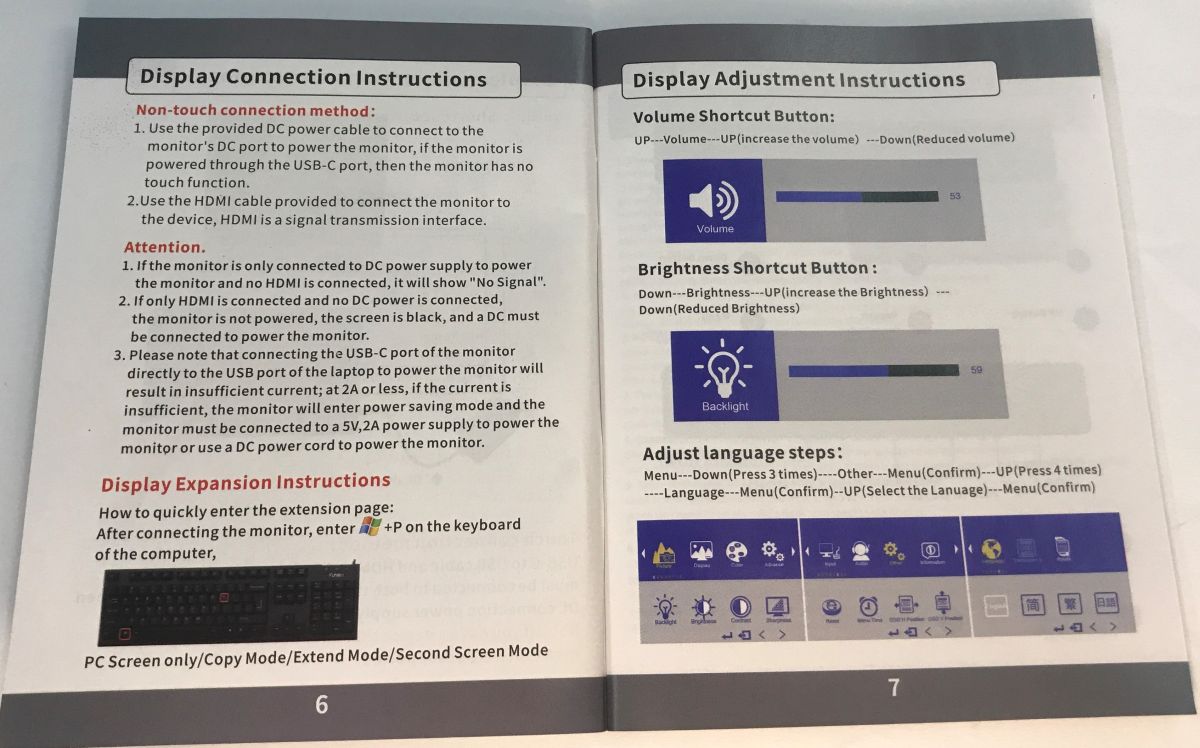
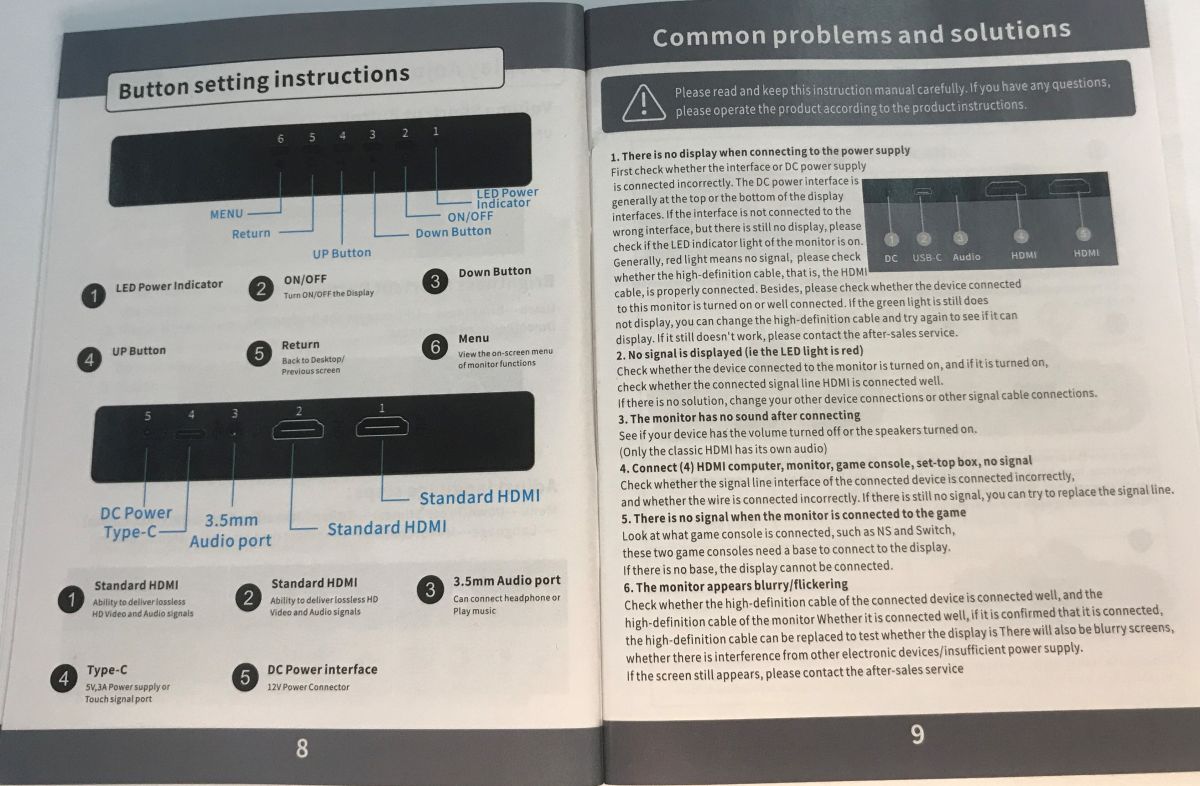
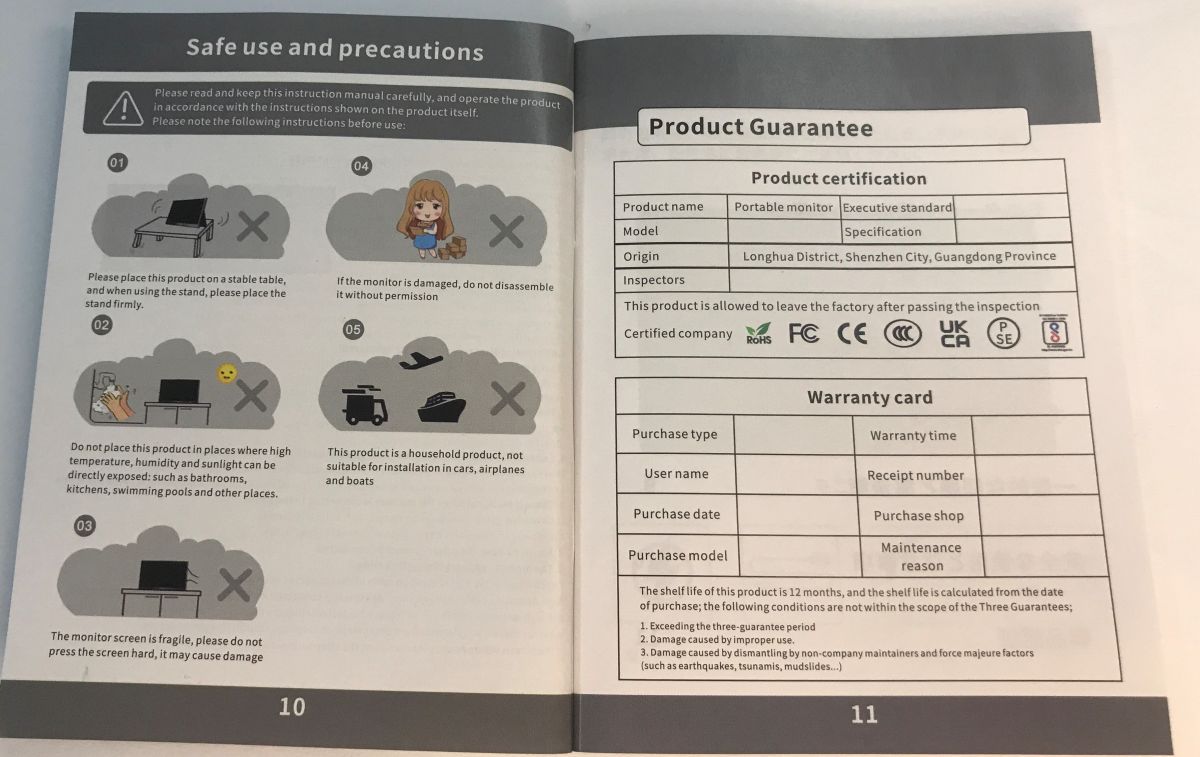
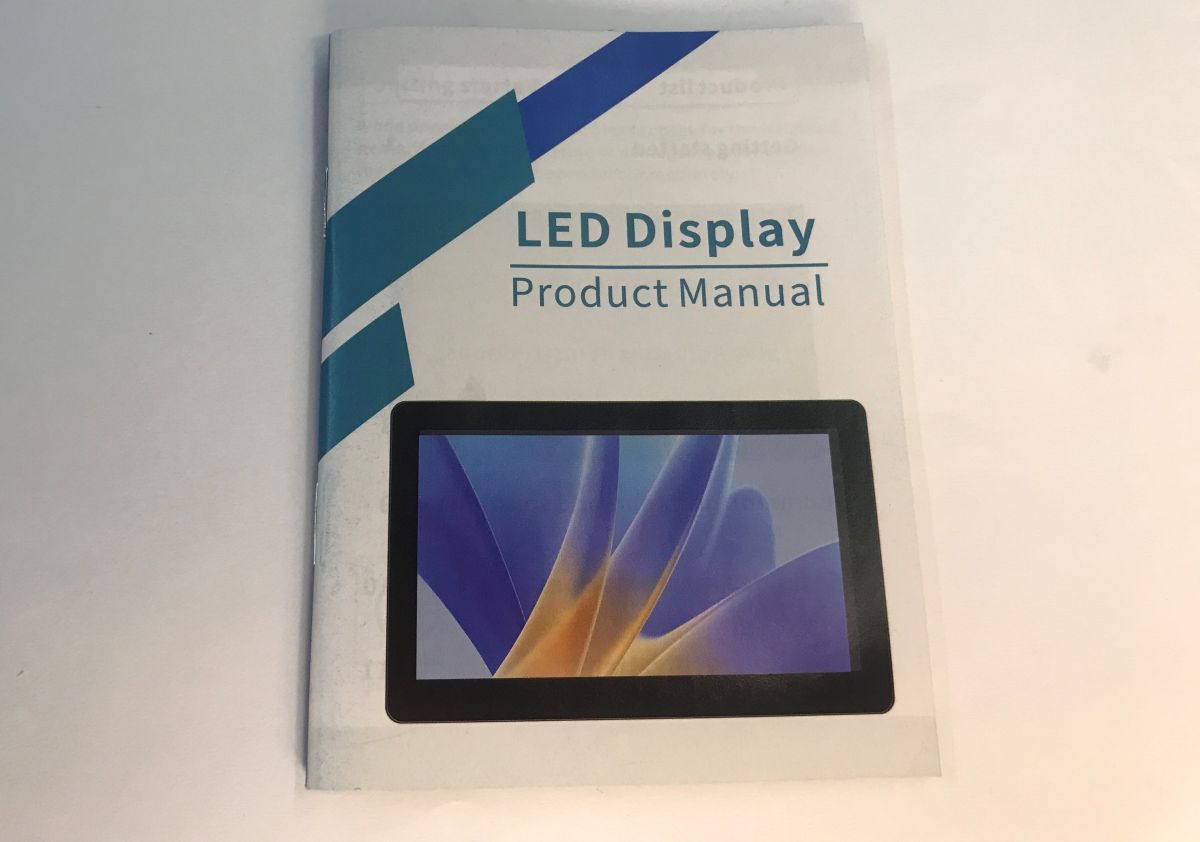
    There is a manual included that can help you get the monitor up and running if in doubt. The booklet is quite thick as it is translated into several languages, although I did not see Polish in there.
    Tiny touchscreen monitor 8" for Raspberry and beyond - tests, energy efficiency Tiny touchscreen monitor 8" for Raspberry and beyond - tests, energy efficiency Tiny touchscreen monitor 8" for Raspberry and beyond - tests, energy efficiency Tiny touchscreen monitor 8" for Raspberry and beyond - tests, energy efficiency Tiny touchscreen monitor 8" for Raspberry and beyond - tests, energy efficiency Tiny touchscreen monitor 8" for Raspberry and beyond - tests, energy efficiency
    The first impression is fine. It's not the cheapest plastic, although it's a bit short of top shelf too.
    Tiny touchscreen monitor 8" for Raspberry and beyond - tests, energy efficiency Tiny touchscreen monitor 8" for Raspberry and beyond - tests, energy efficiency
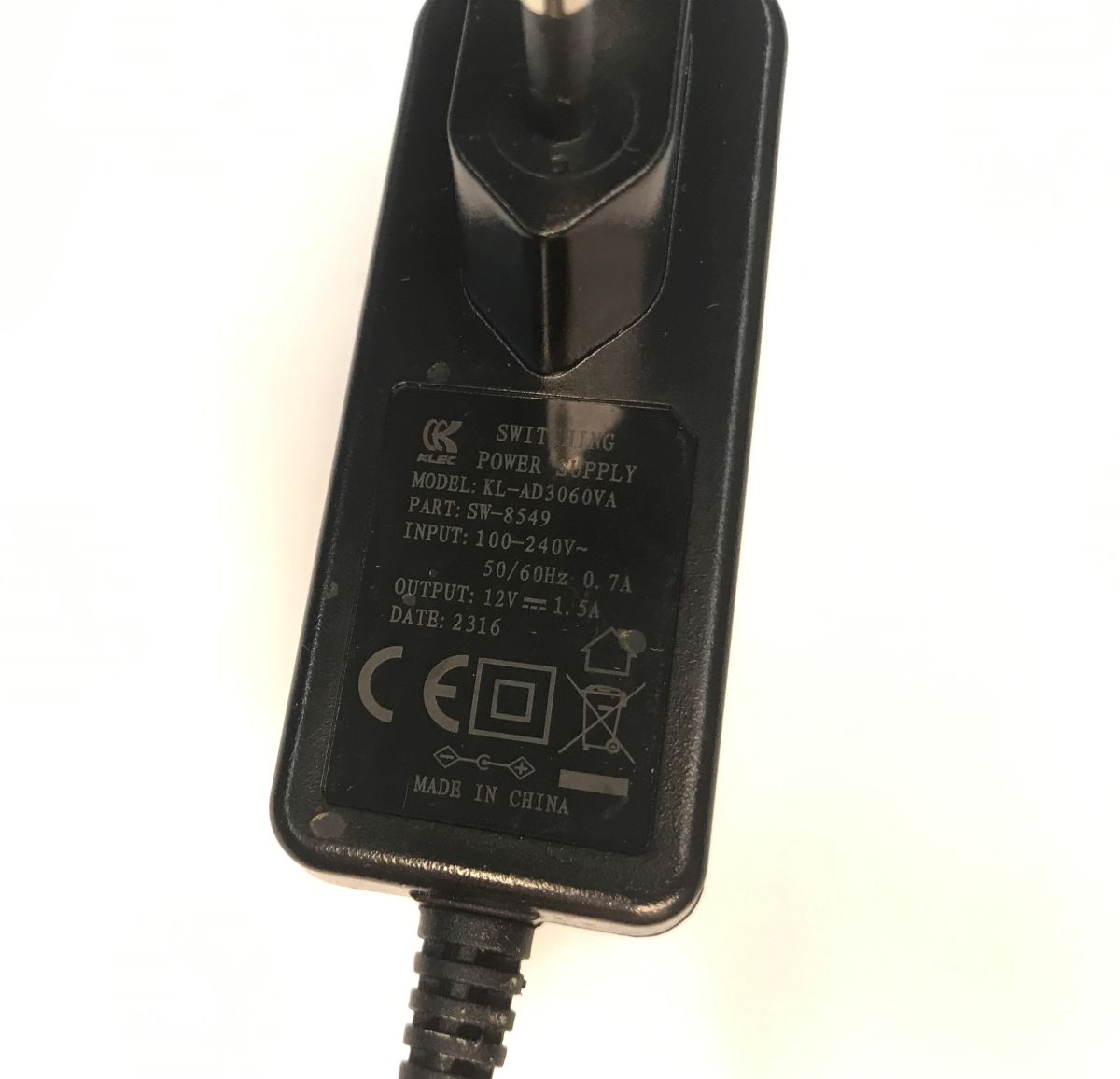
    A 12 V 1.5 A power supply is included:
    Tiny touchscreen monitor 8" for Raspberry and beyond - tests, energy efficiency
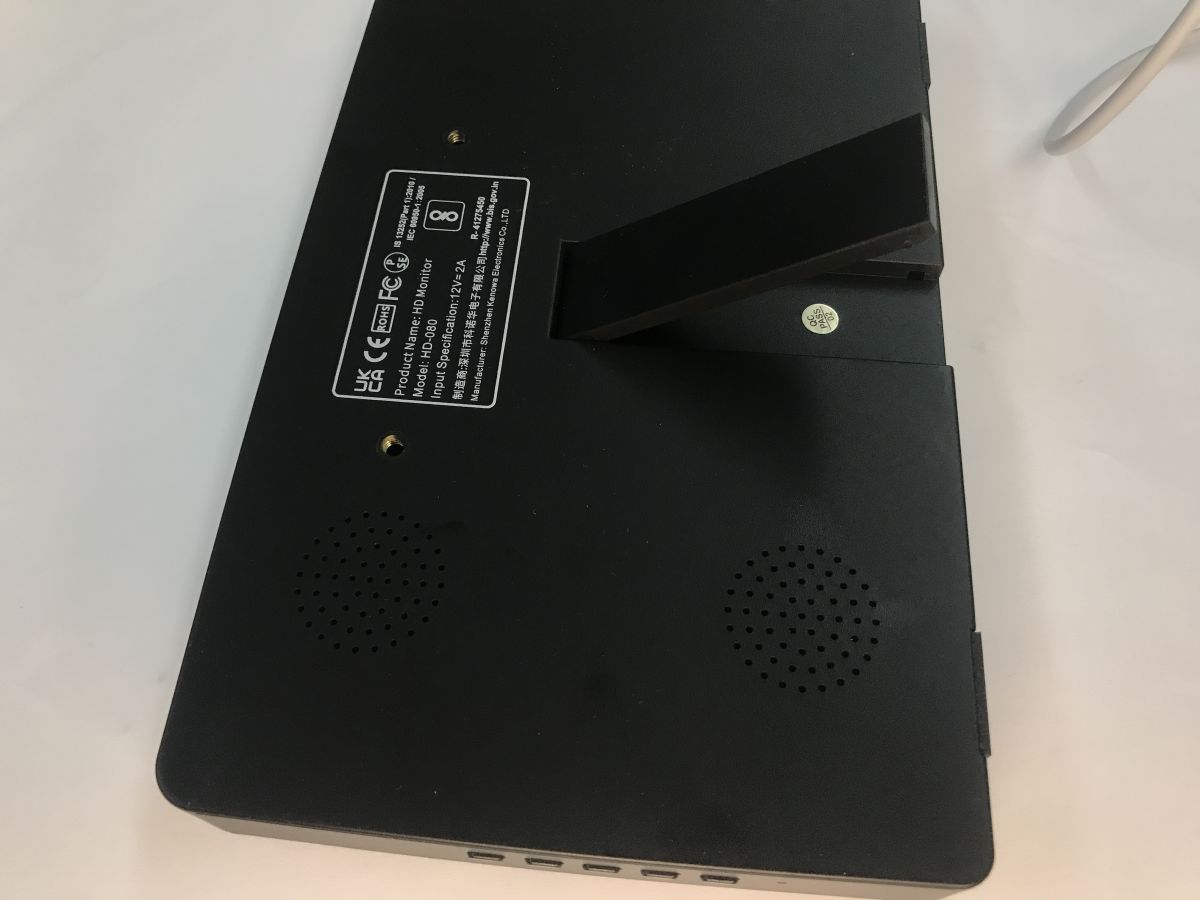
    I have a little doubt about the leg. It runs quite clumsy. Surely after repeated folding and unfolding it can start to fail.
    Tiny touchscreen monitor 8" for Raspberry and beyond - tests, energy efficiency
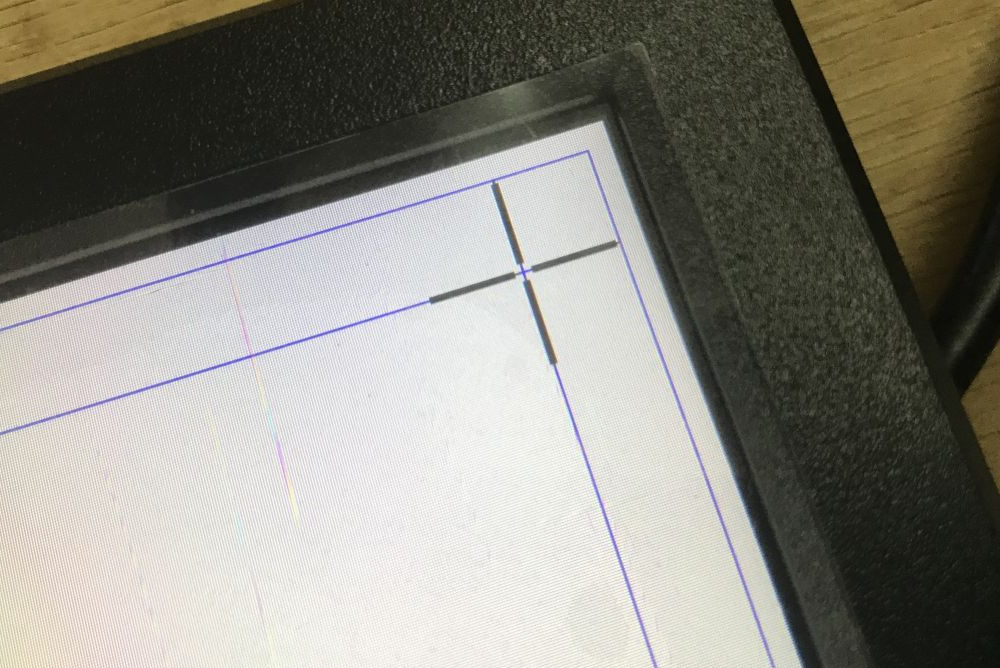
    The first test I did was with a laptop. Windows immediately sees the touch device. It can then be calibrated in Control Panel -> Hardware and Sound -> Tablet Settings. Calibration involves touching the screen where the markers show. Below is an overview photo:
    Tiny touchscreen monitor 8" for Raspberry and beyond - tests, energy efficiency
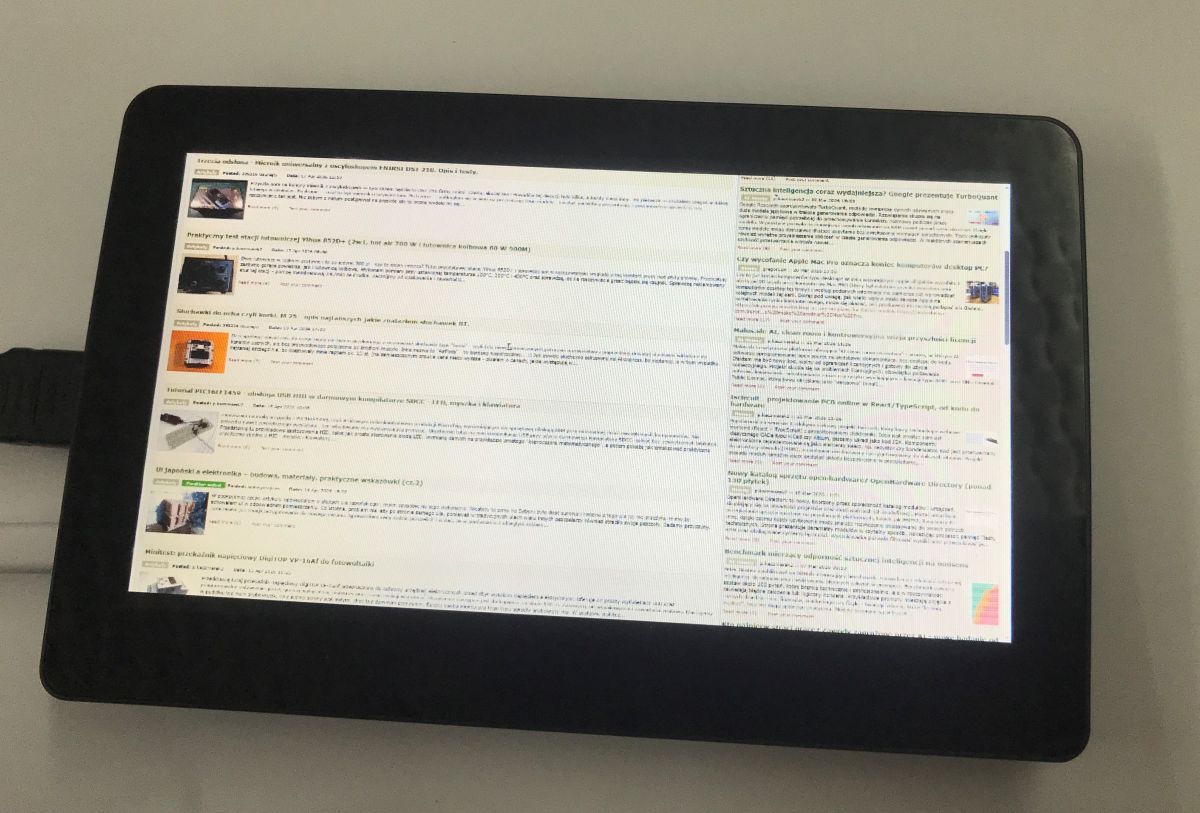
    The image is good, although it is clear that a small screen is still a small screen:
    Tiny touchscreen monitor 8" for Raspberry and beyond - tests, energy efficiency
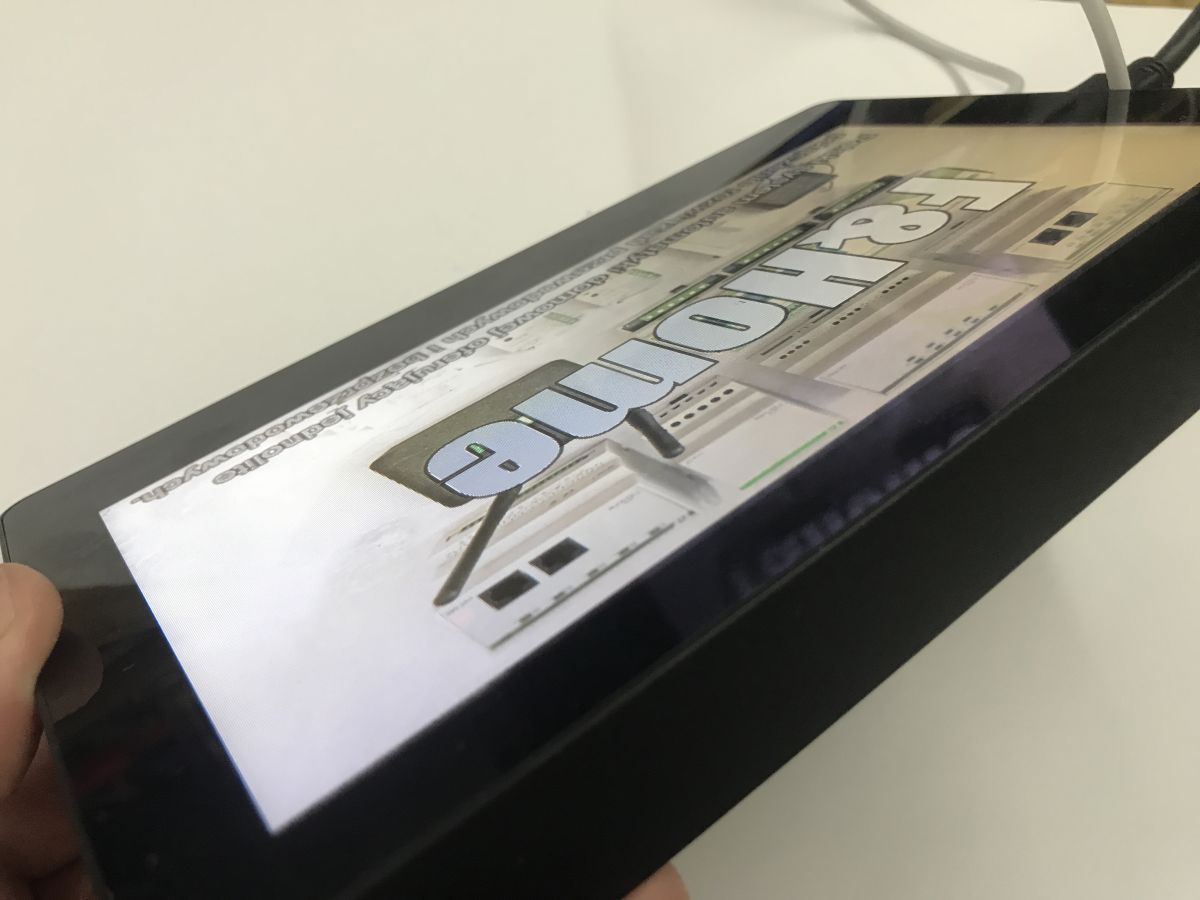
    The viewing angle is also fine:
    Tiny touchscreen monitor 8" for Raspberry and beyond - tests, energy efficiency
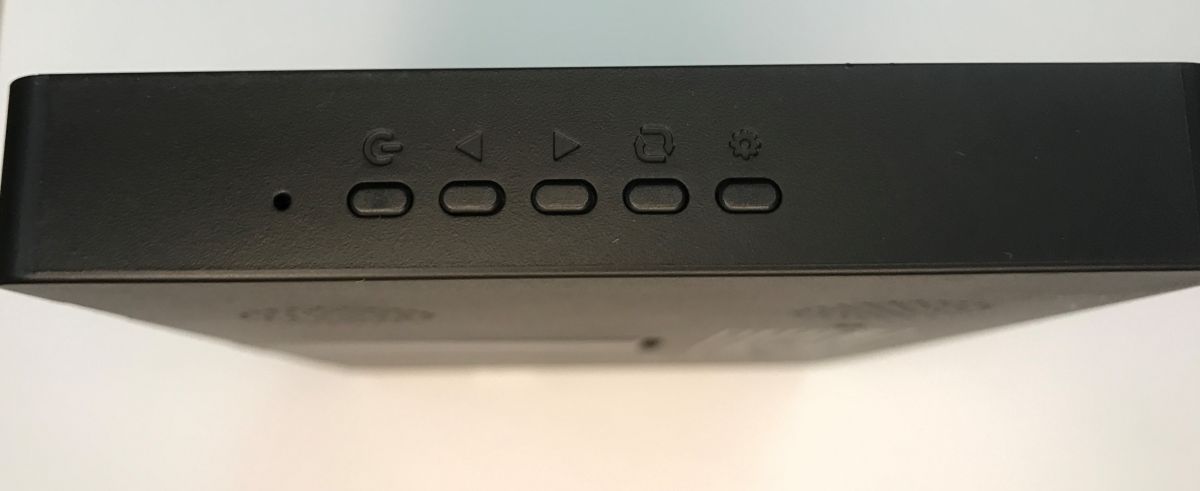
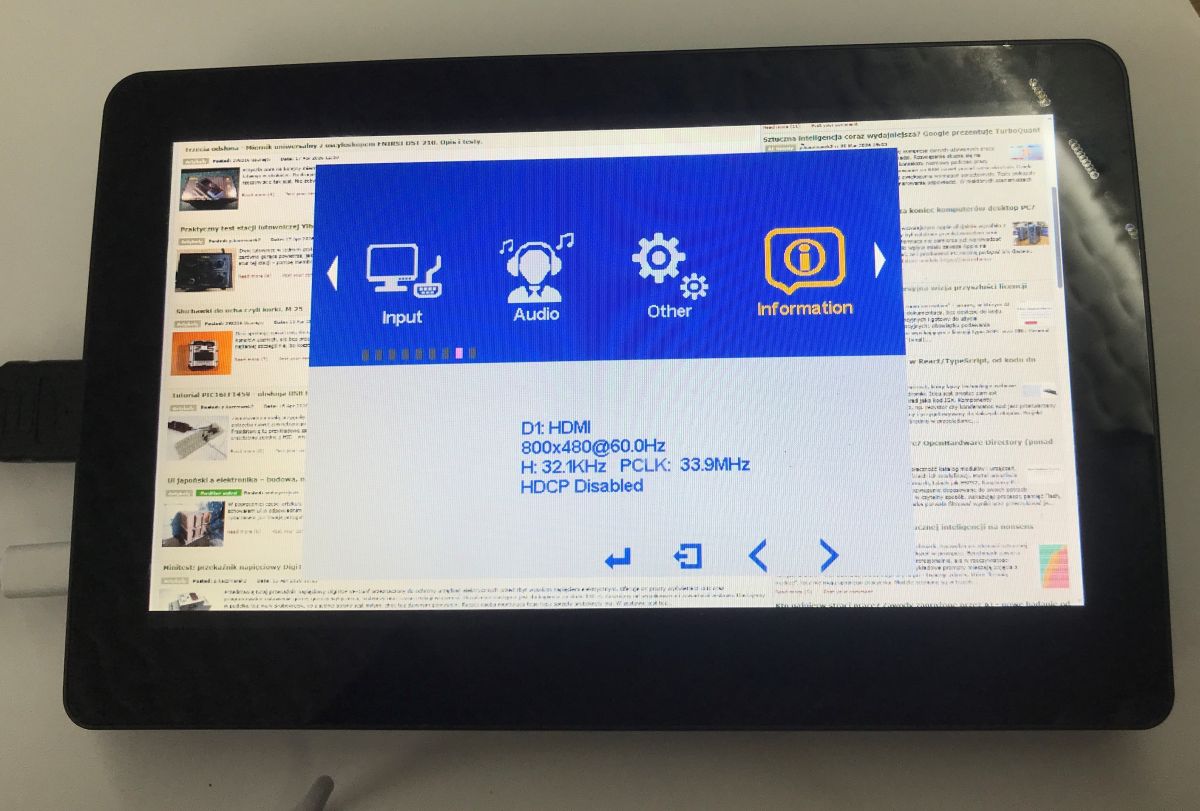
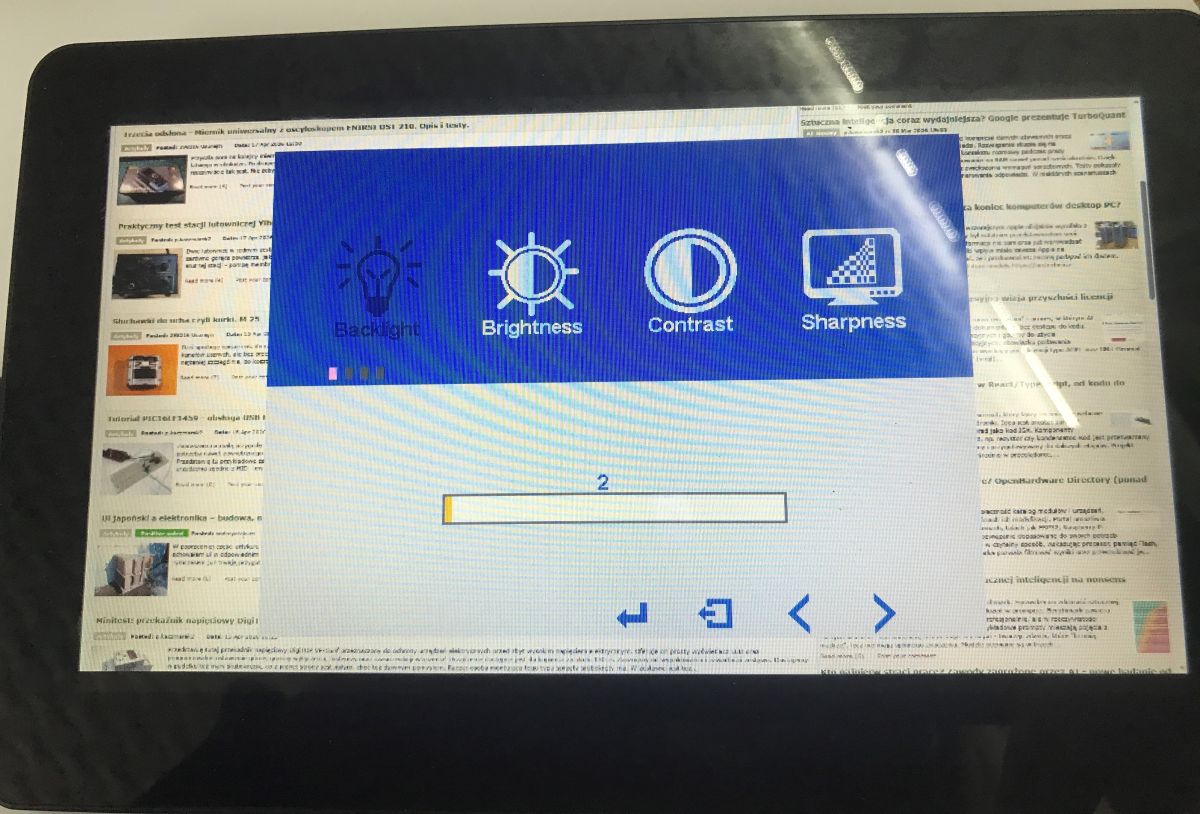
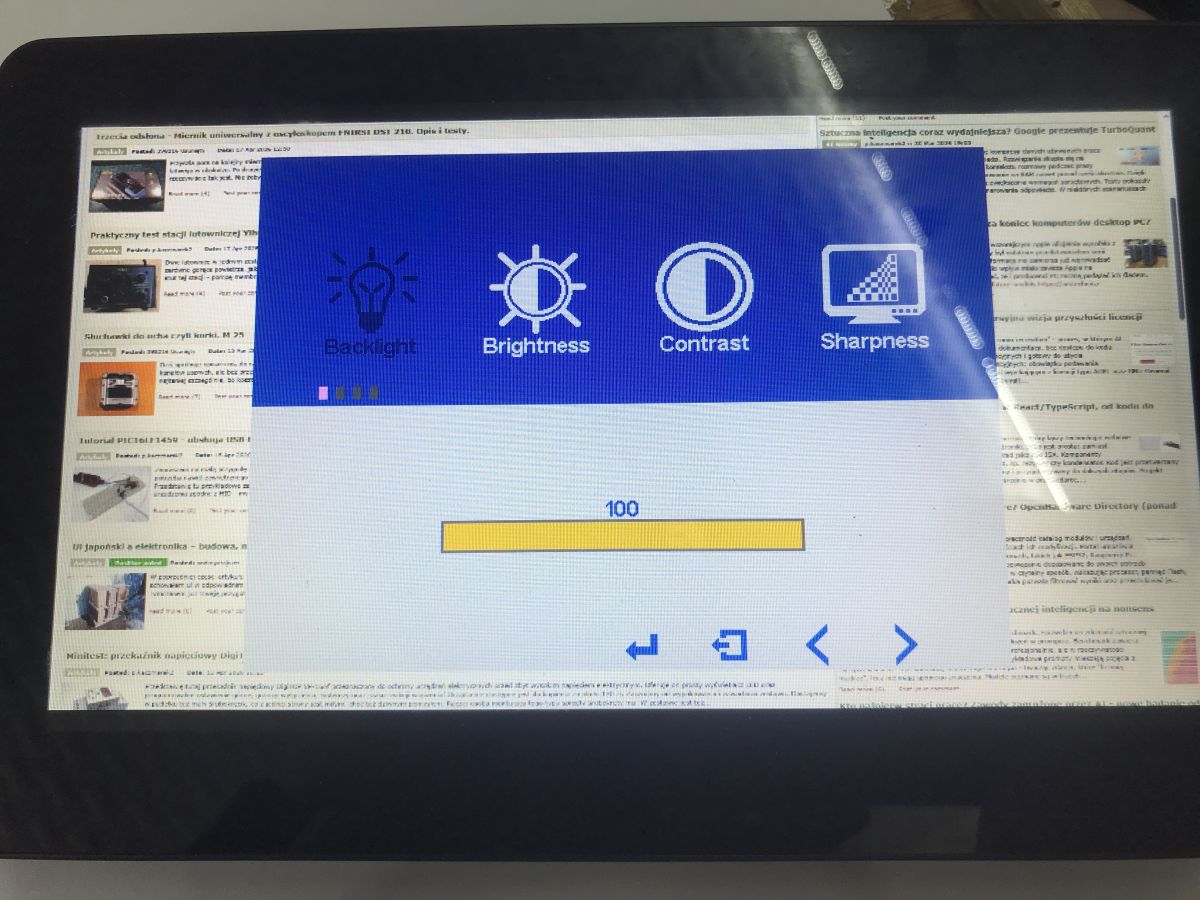
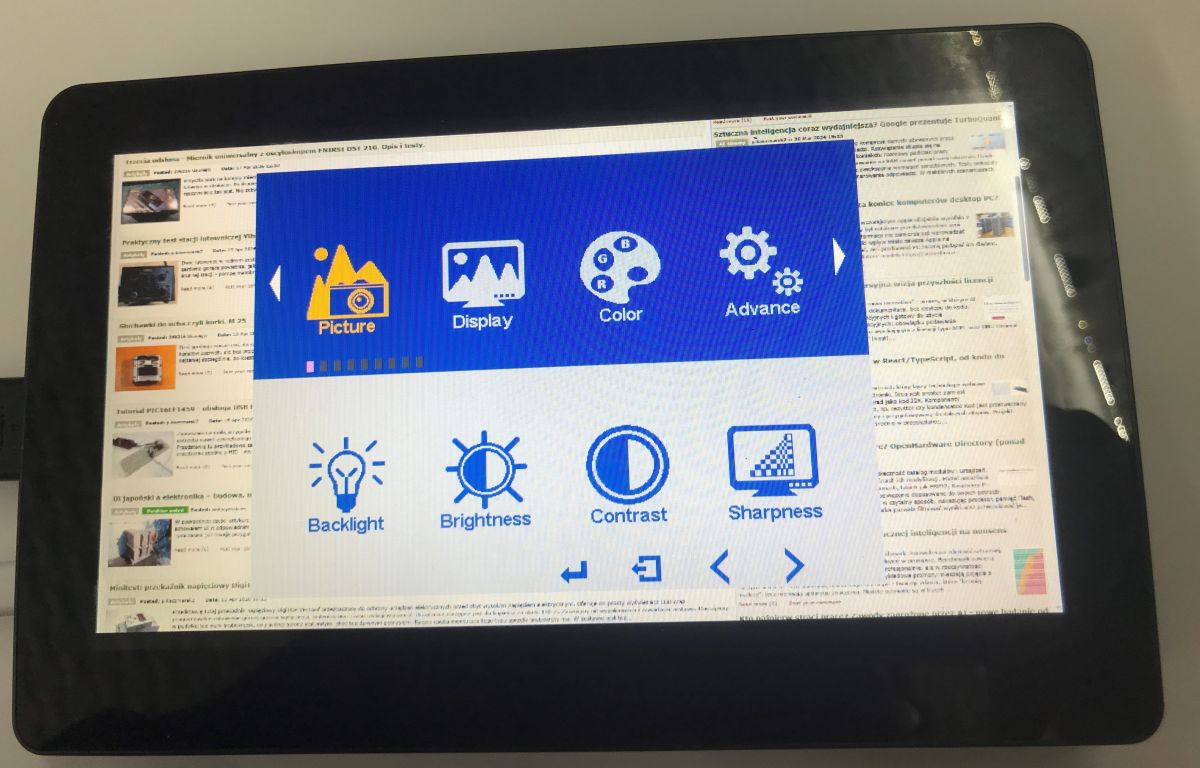
    The monitor menu offers a number of settings to adjust the picture and sound to your own preferences. There, you can adjust, among other things, the backlight level, brightness, contrast or sharpness of the image, as well as change the audio settings. Additional options such as DDC/CI (to control the monitor from a PC), PCM (Pulse Code Modulation - sound format) and a demonstration mode to showcase the display's capabilities are also available.
    Tiny touchscreen monitor 8" for Raspberry and beyond - tests, energy efficiency Tiny touchscreen monitor 8" for Raspberry and beyond - tests, energy efficiency Small monitor screen showing blue OSD menu: Backlight, Brightness, Contrast, Sharpness over a web page Monitor screen showing settings menu: Brightness, Contrast, Sharpness, with slider set to 100
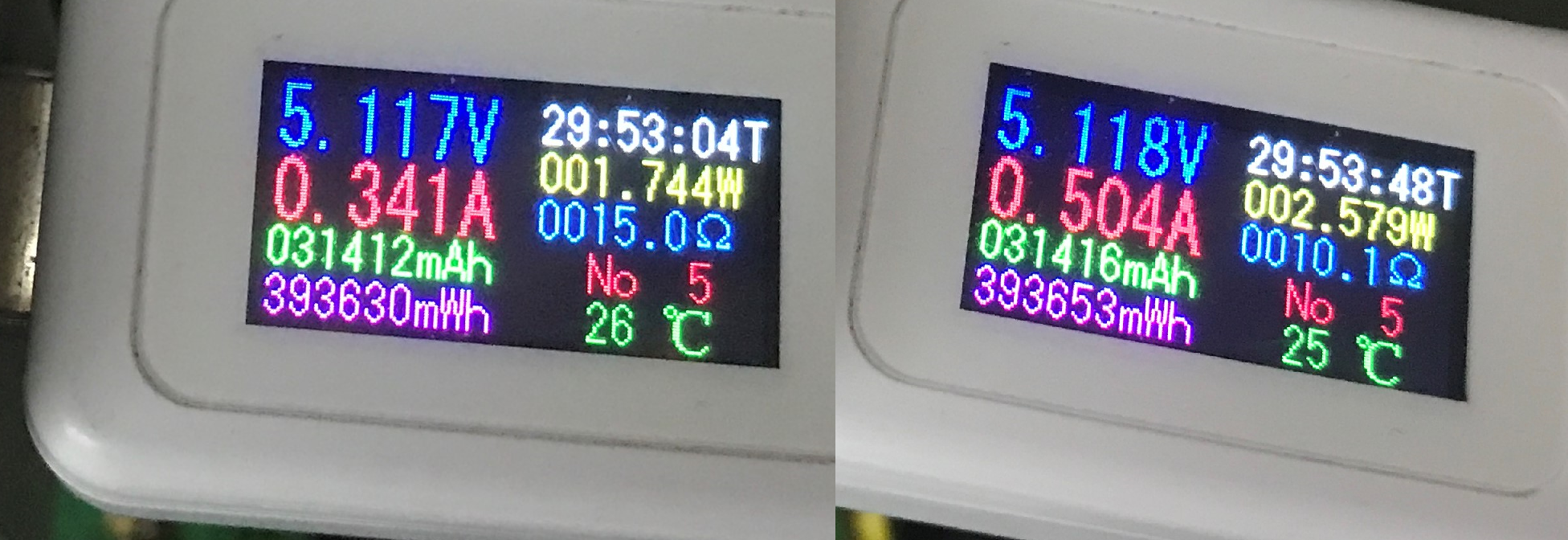
    I measured the current at the two extreme brightness levels:
    Two USB meter screens showing voltage, current, and power in colored digits
    Just over 1.5 W to 2.5 W is rather good for a small monitor. It's interesting to note that today's IoT actuators consume up to about 0.5 W without the relay on and up to 1.5 W with the relay on, so one monitor like this is a gross number of these modules.... of course this is the display itself, to have a control panel you would need to add some Raspberry.
    It remains to check the delays:


    The monitor does not introduce any noticeable latency to the laptop screen.

    In summary , here we have a tiny touchscreen monitor that, even at high brightness levels, draws a mere 2.5W. The whole thing additionally supports DDC/CI, PCM and also has built-in speakers. The presented device can therefore undoubtedly work well as a control panel for home automation systems, a small service monitor or an additional screen for a laptop or minicomputer. Thanks to its touch support and USB-C power supply, getting it up and running is very simple and requires no complicated configuration. At this price, it seems like a pretty interesting proposition for hobby projects and experiments.
    Do you use this type of monitor? What applications do you see for them?

    Cool? Ranking DIY
    Helpful post? Buy me a coffee.

    About Author
    p.kaczmarek2
    Moderator Smart Home
    Offline 
    p.kaczmarek2 wrote 14517 posts with rating 12522, helped 651 times. Been with us since 2014 year.
  • ADVERTISEMENT
  • #2 21912898
    tatanka
    Level 21  
    Posts: 576
    Help: 5
    Rate: 116
    Isn't it better some kind of used smartphone or tablet?
    The battery doesn't have to last long.
    The important thing is that the USB works
  • #3 21912908
    p.kaczmarek2
    Moderator Smart Home
    Posts: 14517
    Help: 651
    Rate: 12522
    You made a good point - I presented this at one time too, there was an interesting discussion in the thread about the difficulties associated with this method:
    Touch control panel for Home Assistant - how to use an old tablet? A simple mini DIY
    Although I've gone a step further with this anyway, and also tested whether it's possible to enrich the peripherals of such a tablet a little via a USB hub:
    Would a USB C splitter/hub work with a smartphone? Experiments, wired ethernet, UART
    Well, and a related topic - USB to UART converter support on multiple platforms (you could drive a relay executive module from a tablet this way):
    Multi-platform support for USB to UART converter - Android, Web, Windows
    I won't give a verdict here on what's better, instead I plan to present a sample DIY based on just such a monitor as in this topic and on a Raspberry, and separately a similar DIY on a tablet. It will be possible to draw conclusions.
    Helpful post? Buy me a coffee.
ADVERTISEMENT