





Just as an incentive, I'd like to show a mini tutorial on how to start creating your own IoT using the RPi and ESP8266.
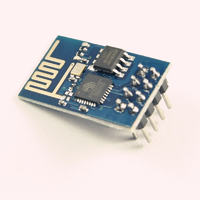
I purchased some ESP-01, ESP-12 modules from a well-known non-native portal ($2-4). The example is based on the ESP-01. Important to remember that ESP does not like a power supply above 3.3V and thus appropriate voltage levels on the serial port are required.... voltage matching is automatically provided by the Raspberry RPi - hence the adventure should start by connecting the ESP to the Raspberry.
It looks like this:
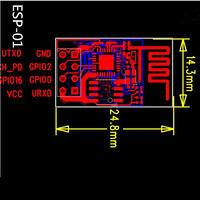
Module pinout:
Raspberry Pi and the serial port....
To use the serial port initially we need to disable the default terminal support on port /dev/ttyAMA0. We do this by editing the following files:
in /etc/inittab find and comment out the lines (# at the beginning):
We then disable the default messages on the serial port from the kernel during boot, in /boot/cmdline.txt content similar to:
in my case, after modification, the file contains:
we need to get rid of the highlighted part concerning the serial port.
After the reboot we can already use the serial port.... e.g. by using:
Of course minicom or other terminal software (e.g. screen ) we have to install ourselves.
Now it's time to connect the ESP8266 to the Raspberry.
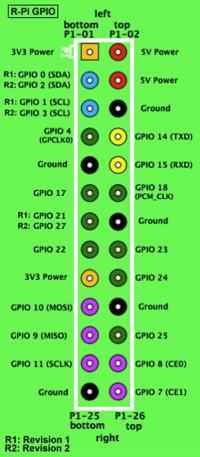
The connection is trivial, we connect respectively RX, TX, GND, 3V3 Power from RPi side to UTXD, URXD, GND and UCC ESP chip, it is still necessary to connect permanently CH_PD to UCC and take care to temporarily connect GPIO0 to GND - we will need this in the ESP flashing process.
Pinout of the Raspberry's P1 port:
Flashing ESP:
The modules originally have an interface with AT commands, but I propose to use the NodeMCU project, which will allow us to for much easier communication and, in addition, puts a direct eLua language interpreter in our hands.
For flashing we only need one script esptool.py in Python, downloadable from the GItHub repository:
We still need a batch, also downloadable from GitHub:
I use the most up-to-date version, if someone needs to use a different one - find it in the project tree and download the one that suits you best....
Flash:
Connect GPIO0 to ESP ground for flashing and execute the command
where nodemcu_latest.bin is the batch downloaded from git.
After a few seconds we can start playing with it....
Connection and configuration
we connect to the ESP from the RPi via RS:
we get a '>' prompt and we can configure the Wifi connection:
where: --xxx - ESP console responses
in place of SSID and password enter the appropriate settings for your network. The IP address in the print(ip) response is an example - taken by ESP from the DHCP of our WiFi router. Now we can communicate with ESP via Wifi.
What can we do?
Easier to list what we can't... We can start with a thermometer on 1wire and a presentation on a web server written in eLua on ESP. Examples are available on the project page:
nodeMCU Firmware
and that would be it... the presented module has only 2 GPIO pins, but exactly the same principle applies to ESPs with more GPIOs.
I wish you successful projects.
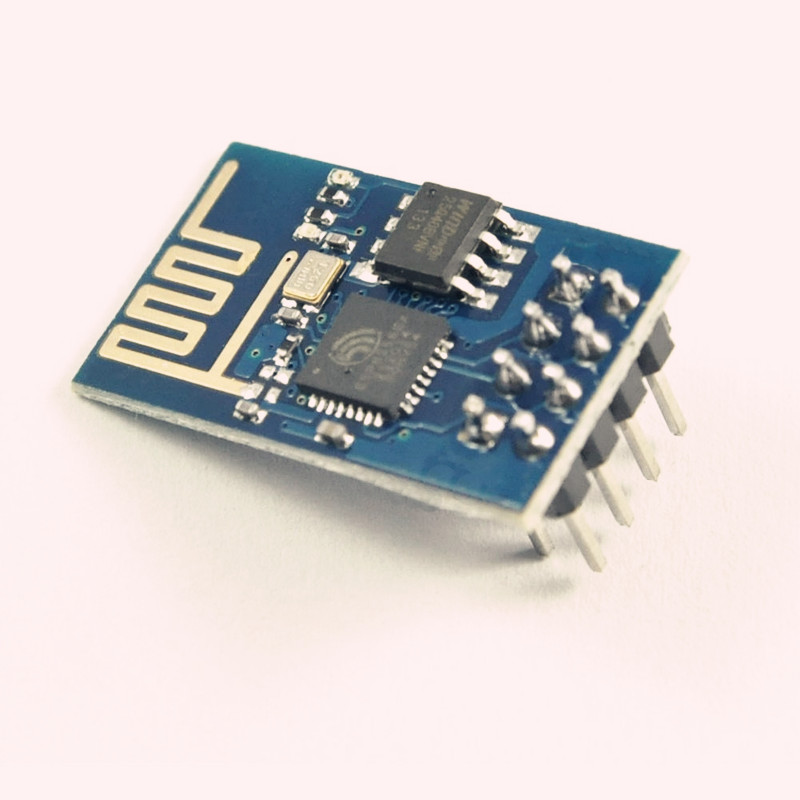
I purchased some ESP-01, ESP-12 modules from a well-known non-native portal ($2-4). The example is based on the ESP-01. Important to remember that ESP does not like a power supply above 3.3V and thus appropriate voltage levels on the serial port are required.... voltage matching is automatically provided by the Raspberry RPi - hence the adventure should start by connecting the ESP to the Raspberry.
It looks like this:
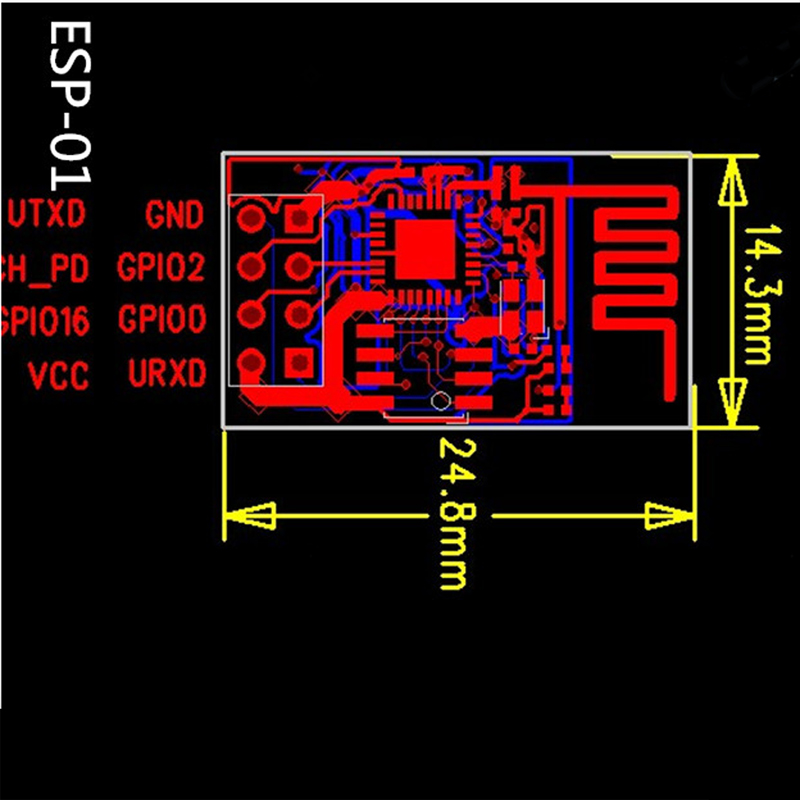
Module pinout:
Raspberry Pi and the serial port....
To use the serial port initially we need to disable the default terminal support on port /dev/ttyAMA0. We do this by editing the following files:
Quote:/etc/inittab
/boot/cmdline.txt
in /etc/inittab find and comment out the lines (# at the beginning):
Quote:T0:23:respawn:/sbin/getty -L ttyAMA0 115200 vt100
We then disable the default messages on the serial port from the kernel during boot, in /boot/cmdline.txt content similar to:
Quote:dwc_otg.lpm_enable=0 console=ttyAMA0,115200 kgdboc=ttyAMA0,115200 console=tty1 root=/dev/mmcblk0p2 rootfstype=ext4 elevator=deadline rootwait
in my case, after modification, the file contains:
Quote:dwc_otg.lpm_enable=0 console=tty1 root=/dev/mmcblk0p2 rootfstype=ext4 elevator=deadline rootwait
we need to get rid of the highlighted part concerning the serial port.
After the reboot we can already use the serial port.... e.g. by using:
Quote:minicom -b 9600 -o -D /dev/ttyAMA0
Of course minicom or other terminal software (e.g. screen ) we have to install ourselves.
Now it's time to connect the ESP8266 to the Raspberry.
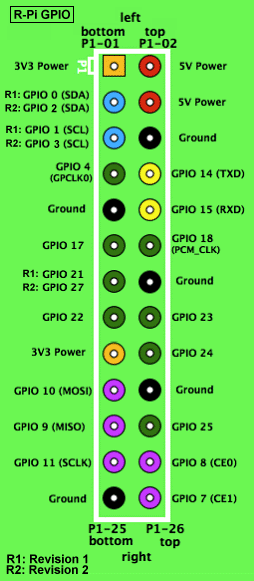
The connection is trivial, we connect respectively RX, TX, GND, 3V3 Power from RPi side to UTXD, URXD, GND and UCC ESP chip, it is still necessary to connect permanently CH_PD to UCC and take care to temporarily connect GPIO0 to GND - we will need this in the ESP flashing process.
Pinout of the Raspberry's P1 port:
Flashing ESP:
The modules originally have an interface with AT commands, but I propose to use the NodeMCU project, which will allow us to for much easier communication and, in addition, puts a direct eLua language interpreter in our hands.
For flashing we only need one script esptool.py in Python, downloadable from the GItHub repository:
git clone https://github.com/themadinventor/esptool
We still need a batch, also downloadable from GitHub:
wget https://github.com/nodemcu/nodemcu-firmware/tree/master/pre_build/latestI use the most up-to-date version, if someone needs to use a different one - find it in the project tree and download the one that suits you best....
Flash:
Connect GPIO0 to ESP ground for flashing and execute the command
Quote:./esptool.py --port /dev/ttyAMA0 write_flash 0x00000 nodemcu_latest.bin
where nodemcu_latest.bin is the batch downloaded from git.
After a few seconds we can start playing with it....
Connection and configuration
we connect to the ESP from the RPi via RS:
Quote:minicom -b 9600 -o -D /dev/ttyAMA0
we get a '>' prompt and we can configure the Wifi connection:
ip = wifi.sta.getip()
    print(ip)
    --nil
    wifi.setmode(wifi.STATION)
    wifi.sta.config("SSID","password")
    ip = wifi.sta.getip()
    print(ip)
    --192.168.18.110
where: --xxx - ESP console responses
in place of SSID and password enter the appropriate settings for your network. The IP address in the print(ip) response is an example - taken by ESP from the DHCP of our WiFi router. Now we can communicate with ESP via Wifi.
What can we do?
Easier to list what we can't... We can start with a thermometer on 1wire and a presentation on a web server written in eLua on ESP. Examples are available on the project page:
nodeMCU Firmware
and that would be it... the presented module has only 2 GPIO pins, but exactly the same principle applies to ESPs with more GPIOs.
I wish you successful projects.
