Hello my dears
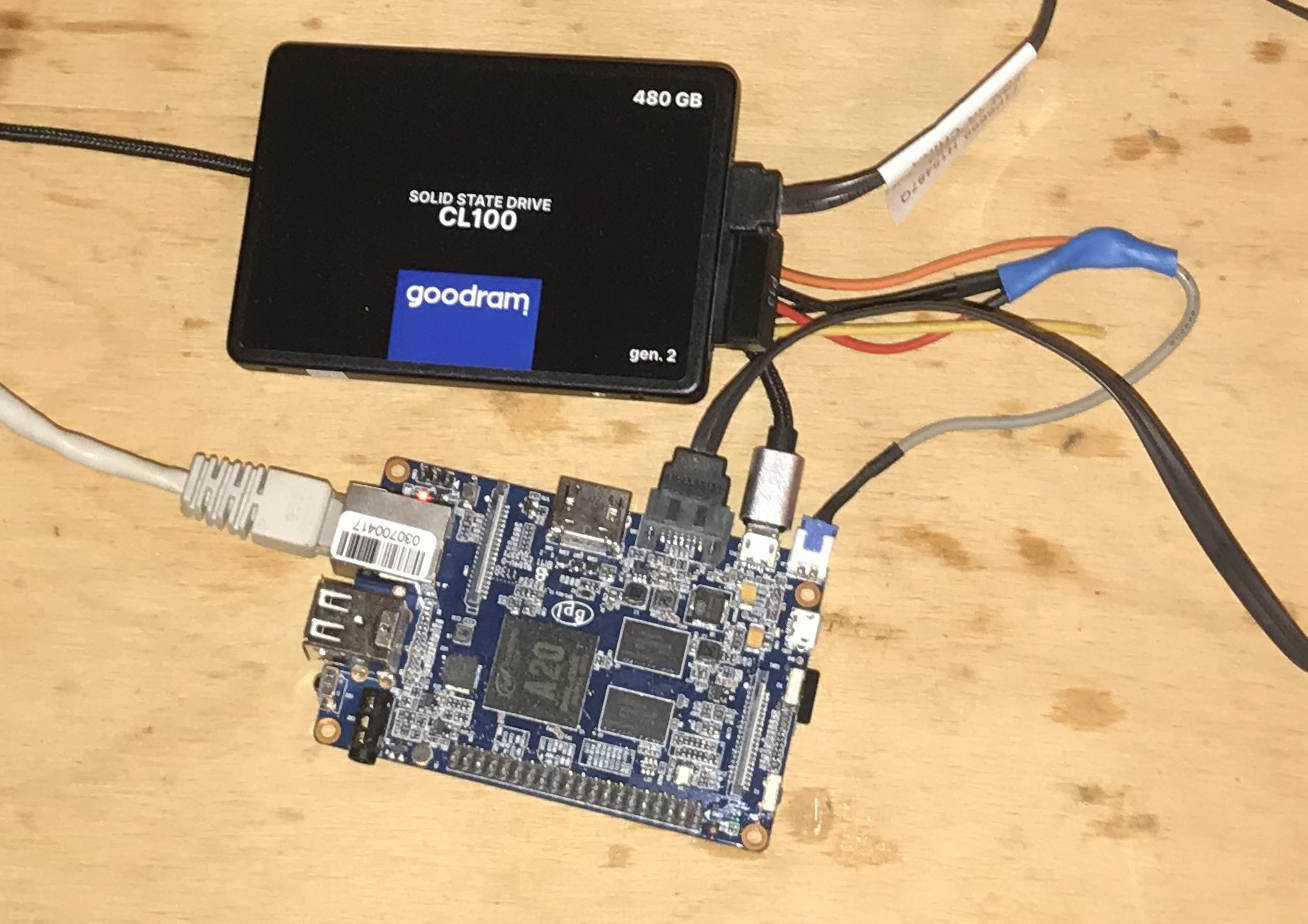
I will present here a detailed description of the implementation of a noiseless, energy-efficient file server based on the Banana PI M1+ and an SSD connected via SATA. I have made the final version of the server shown here (480GB+60GB on SD) at a cost of around £500 (£200 Banana Pi + £270 SSD + small parts) and the power it draws from the mains is less than 3W.
Introduction
In the topic I will describe in detail:
- first boot of Banana Pi (uploading Armbian to SD card, defining its IP, connection via UART/TTL)
- connecting an HDD/SSD to Banana Pi via SATA
- installing OpenMediaVault on Banana Pi
- creation of Share on OpenMediaVault (connection via SMB)
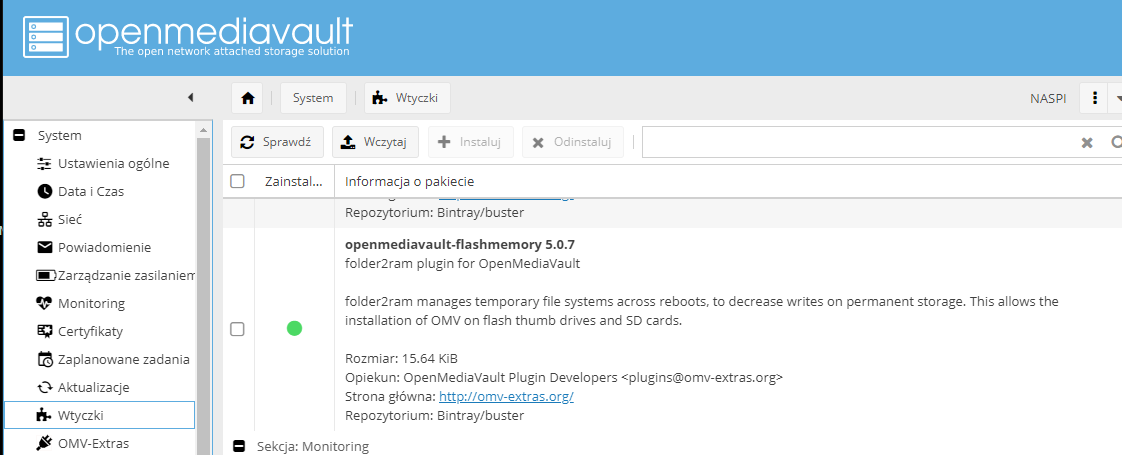
- installing the ShareRootFS plugin on OpenMediaVault (to share a folder from the SD card)
- docker/Portainer installation on OpenMediaVault
- qBitTorrent installations on OpenMediaVault (via Stacks with Portainer)
- cloud Commander WWW installations on OpenMediaVault (a tool to manage files, copy them, upload them via a web panel; via Stacks with Portainer)
- rDekstop installation (remote desktop; via Stacks with Portainer)
- energy consumption of my server (based on data collected over two weeks of server operation)
The topic will probably still be edited, as I am just getting acquainted with Banana Pi.
I invite you to read on.
Project assumptions
The aim of the project was to make a noiseless, energy-efficient server for extra file backups that could go 24 hours a day in the bedroom.
The transfer speed itself (to disk and over the network) was not a priority here, it doesn't matter to me if a file takes a little longer or a little shorter to copy.
What was used for the project?
For the project shown here (in its final version) I used:
- banana Pi BPI-M1+ single board computer (although in the end I didn't use WiFi anyway)
- a 5V power supply with a current capacity of at least 1A
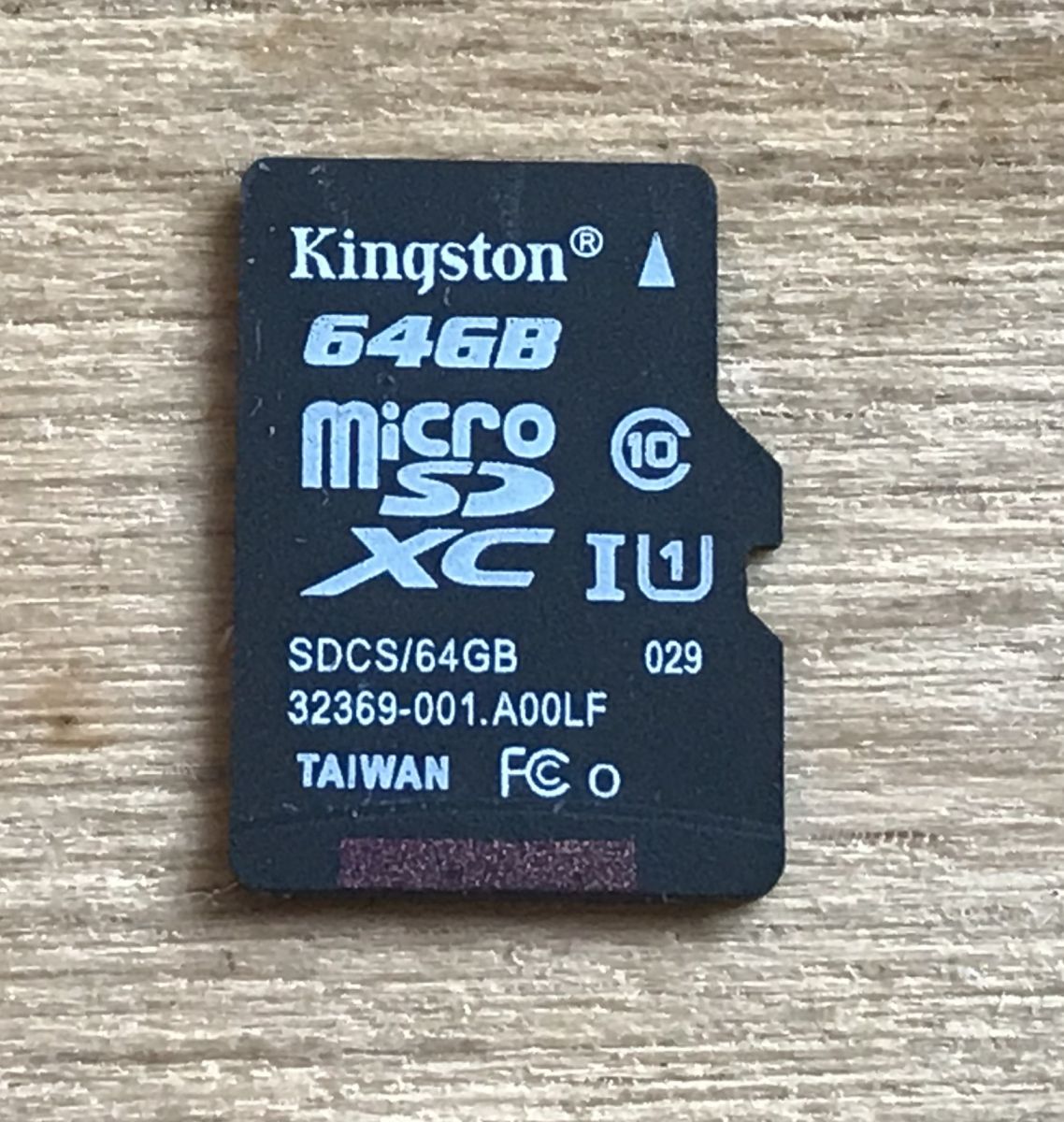
- 64GB microSD card (for the operating system for Banana Pi)
- gOODRAM CL100 G2 480GB SATA3 2.5 SSD (for data for Banana Pi; SSD because I wanted a silent one)
- a SATA cable to connect the drive to Banana Pi
- a self-made power supply cable for the SATA drive (to connect the 5V)
- a microUSB cable to connect Banana Pi to the power supply
Additionally, during testing, I used an old 2.5" HDD as I was worried that if I connected something wrong, I might damage the much more expensive SSD.
Purchase of Banana Pi M1+
For the project I used a Banana Pi BPI-M1+ single board computer made by SINOVOIP. I bought it from one of the online shops in our country for about 200 PLN + shipping. Its parameters were presented by the shop as follows:
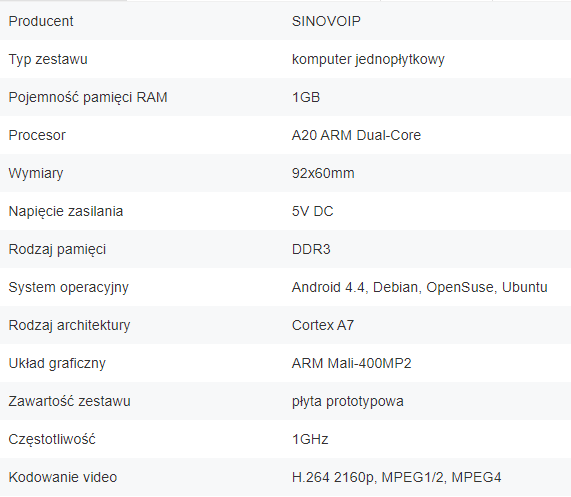
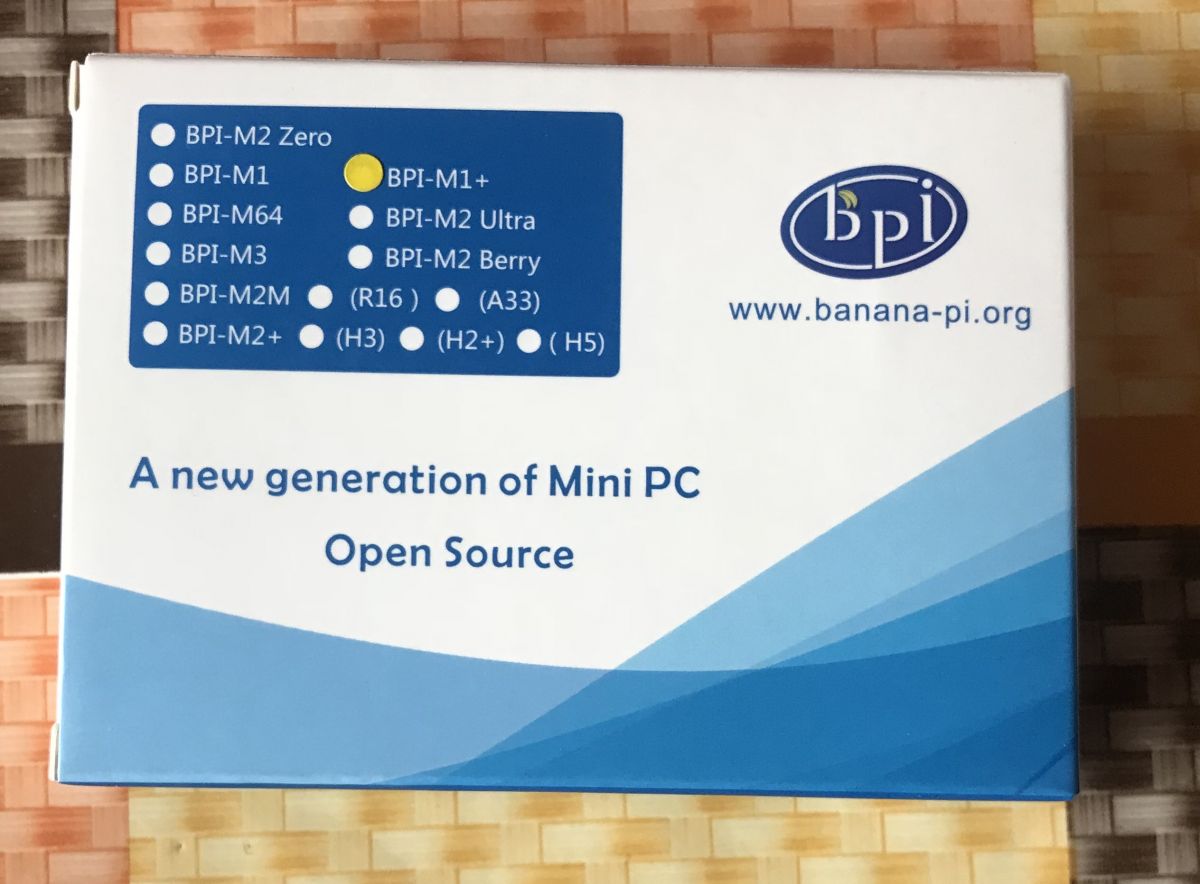
The Banana Pi came in a small box:
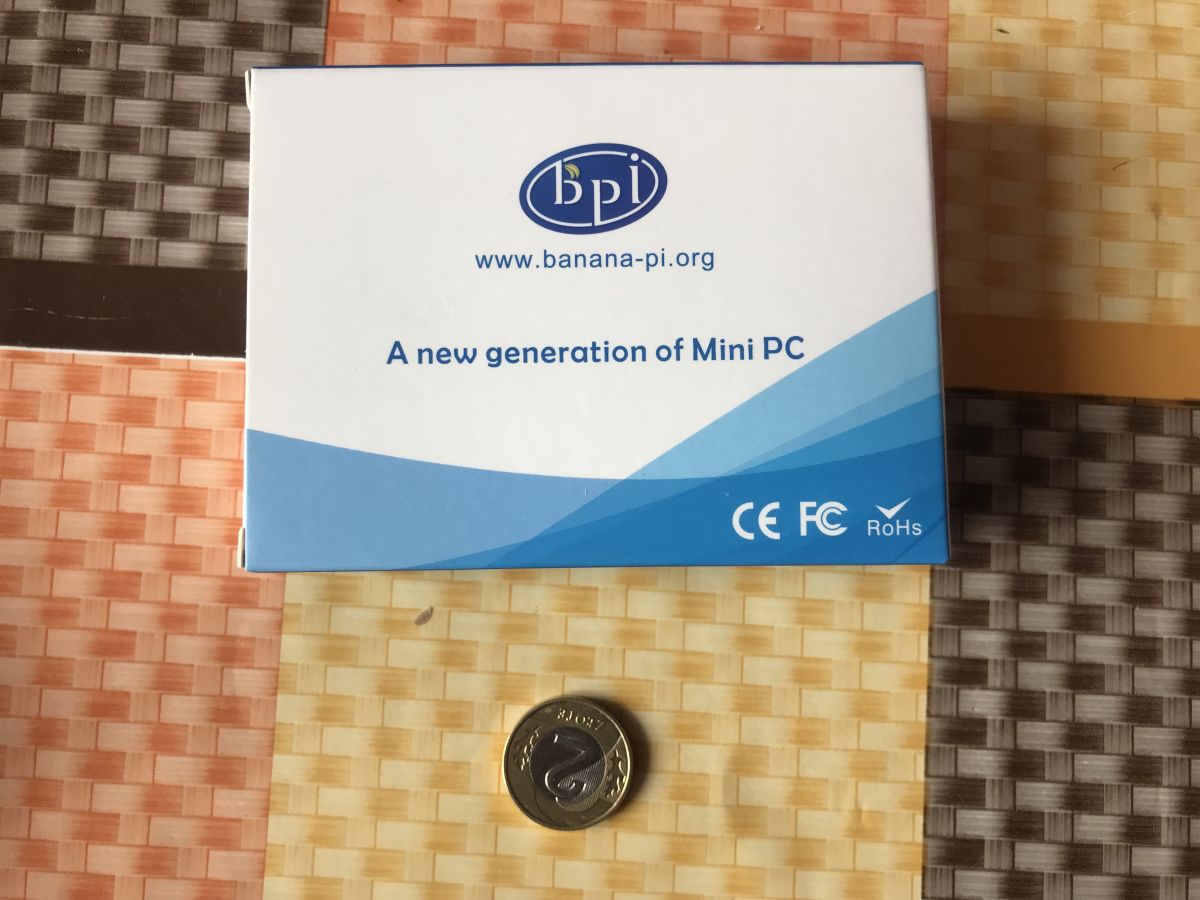
A specific product model: BPM M1+
The single-board computer was additionally protected with anti-static film:

When removed from the foil it presented as follows:
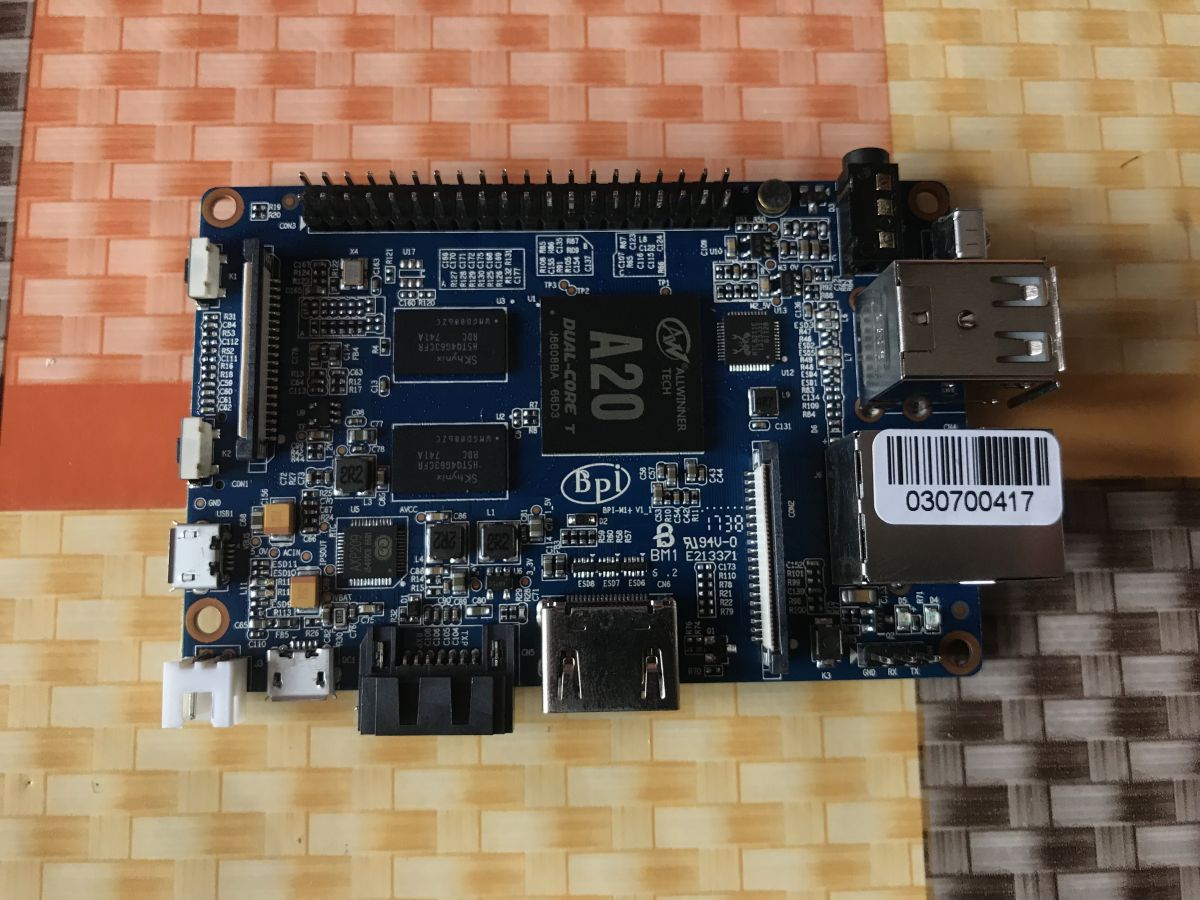
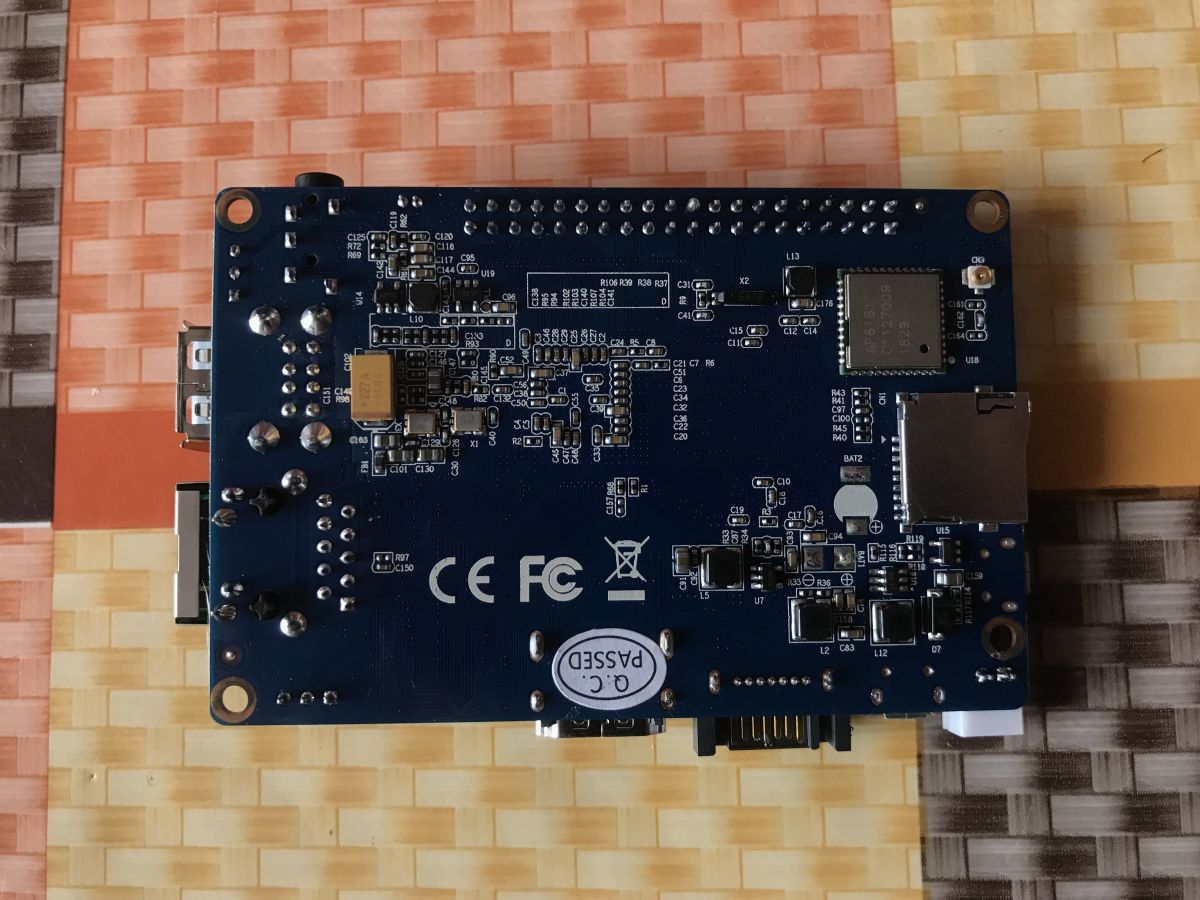
What is on board the BPI-M1+? I will use a picture here from http://wiki.banana-pi.org/ :
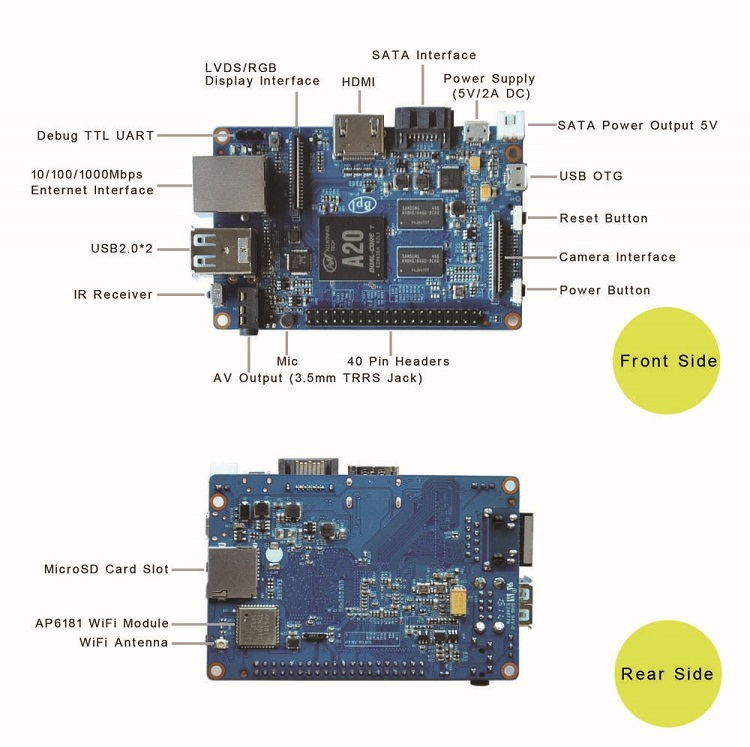
More information http://wiki.banana-pi.org/Banana_Pi_BPI-M1%2B
I'm also attaching the documentation and BPI related files here (there are files in the packages for various Banana Pi's, not just the M1+ used here):
Purchase of SSD
I only bought the SSD for this project after testing everything with the Banana Pi on the old HDD - I wanted to be sure the whole thing would work before I bought it.
I decided on a drive GOODRAM SSD CL100 G2 480GB SATA3 2.5 for which I paid £270 + postage. I'll admit I wasn't keen on this drive being exceptionally fast though, I probably won't use it to its full potential anyway, primarily I opted for the SSD because it's noiseless.
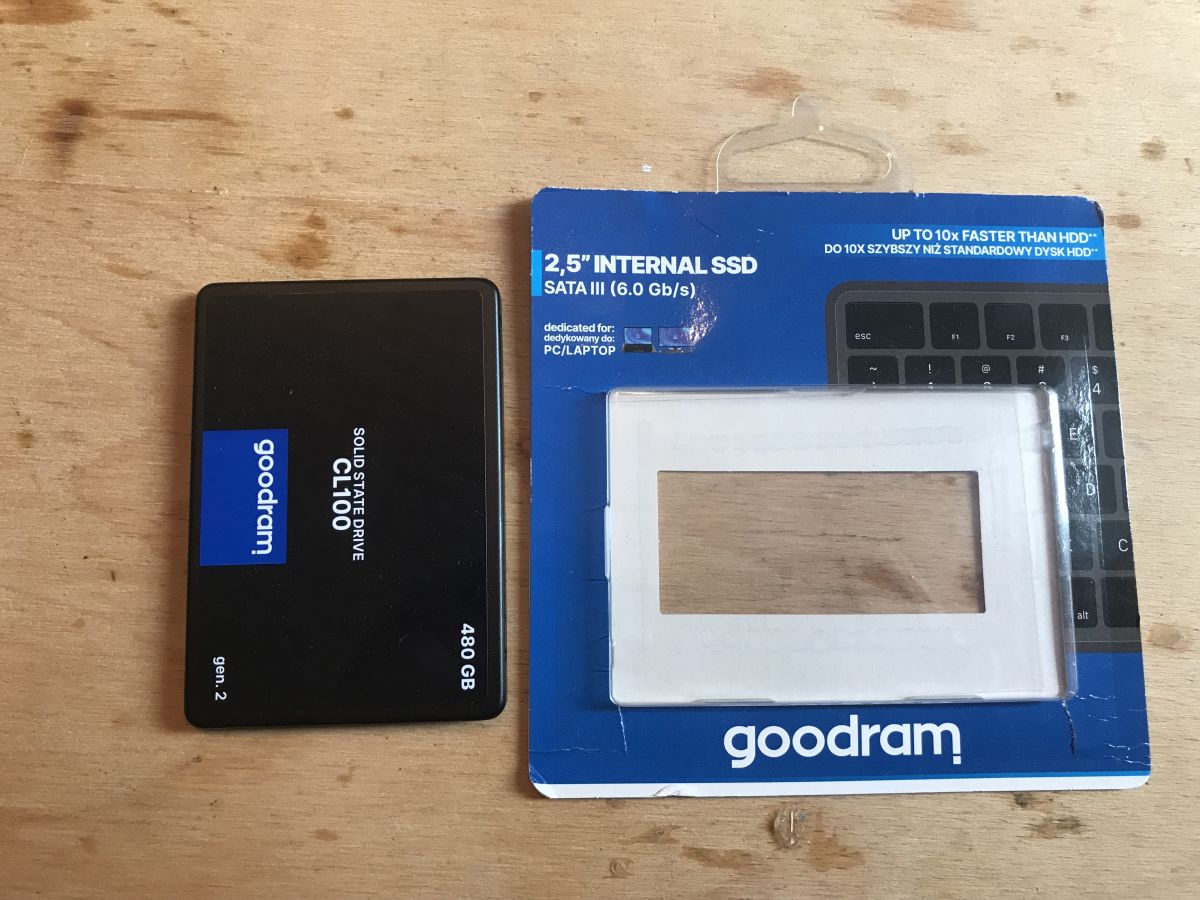
I also chose this drive because it offers a 36 month warranty from the manufacturer.
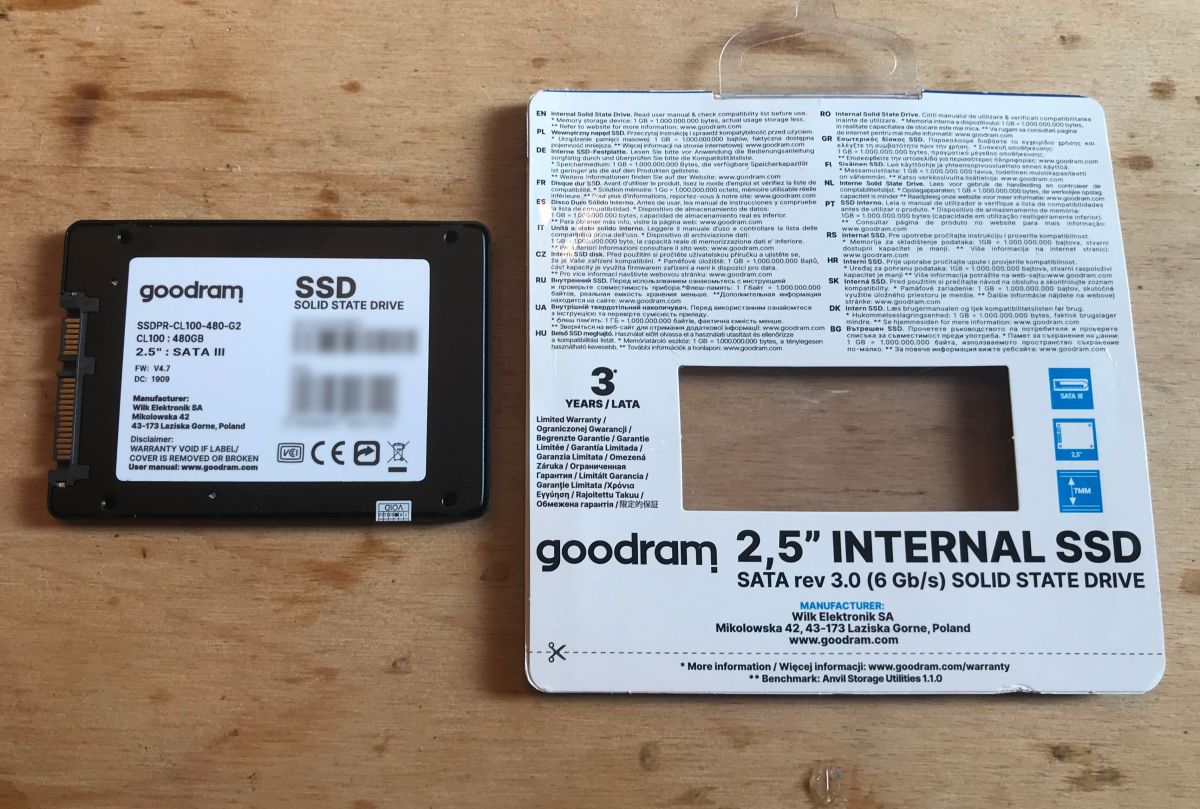
Soldering the 2.5" drive power cable with the Banana Pi
The Banana Pi BPI-M1+ has one SATA connector on board. Connecting a 2.5" drive to the Banana Pi essentially requires two cables:
- a standard SATA signal cable
- a SATA power (5V) cable - unfortunately a rather unusual one, generally fitting into the two-pin 5V connector on board the Banana Pi.
You can get both of these cables in combined form from several online shops, I recommend searching under "banana pi sata cable", they look like this:
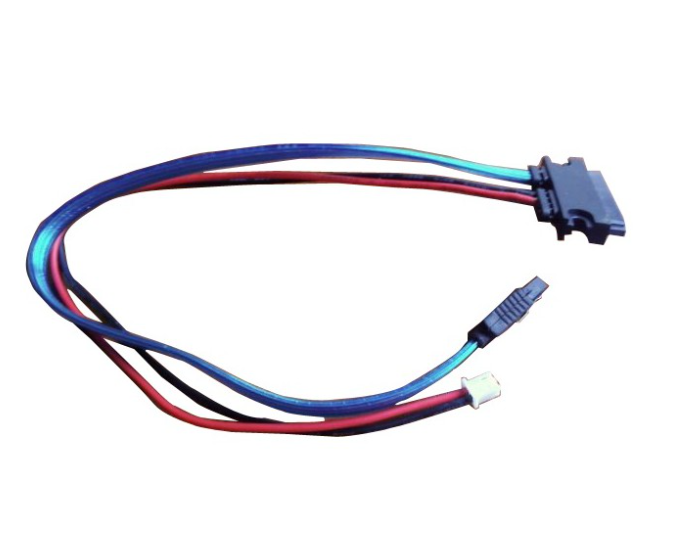
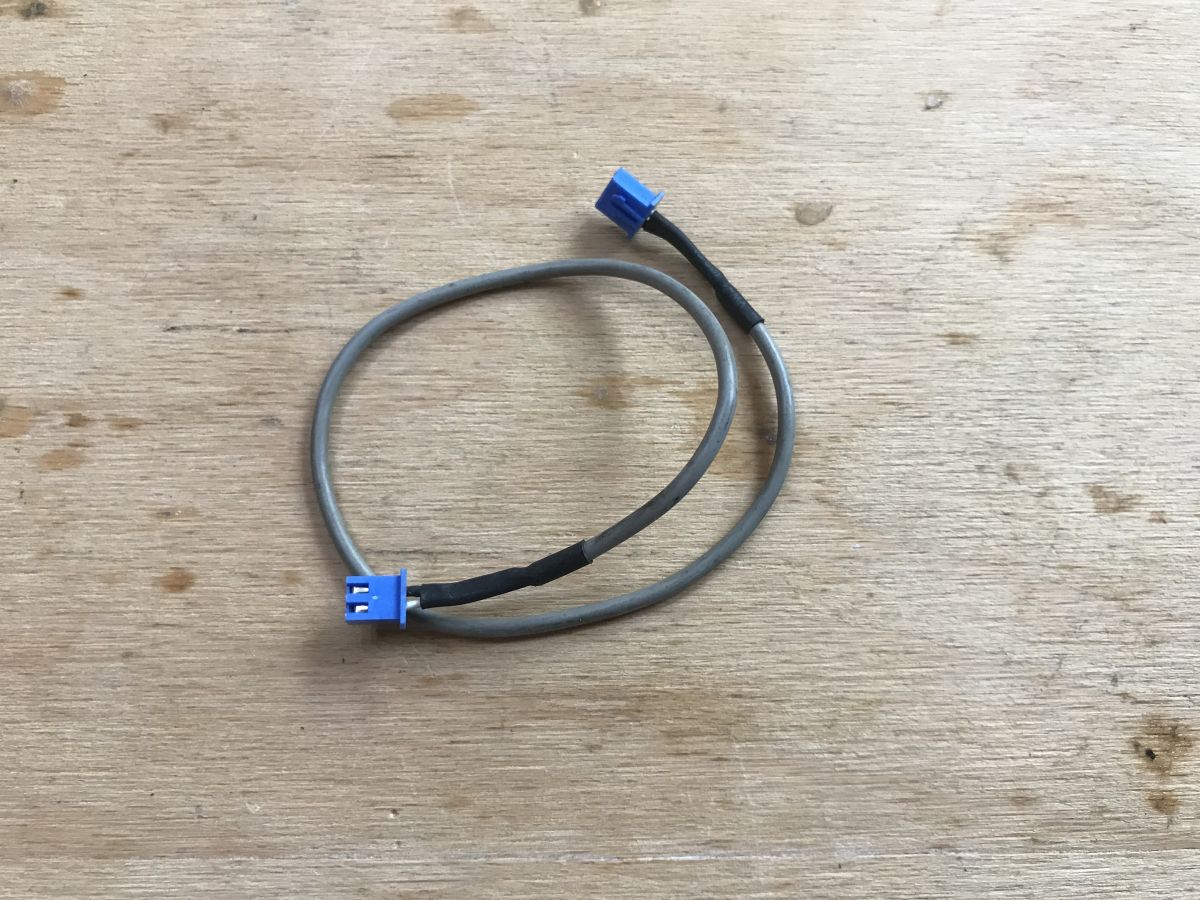
But I didn't want to wait for the project to be shipped, so I soldered a suitable cable myself to start with from what I already had in my drawer.
I used a two-pin cable with a plug:
And wires from an old computer power supply:

Before soldering, I double-checked the polarity of the connector from the Banana Pi - connecting it the other way round would certainly damage the drive.
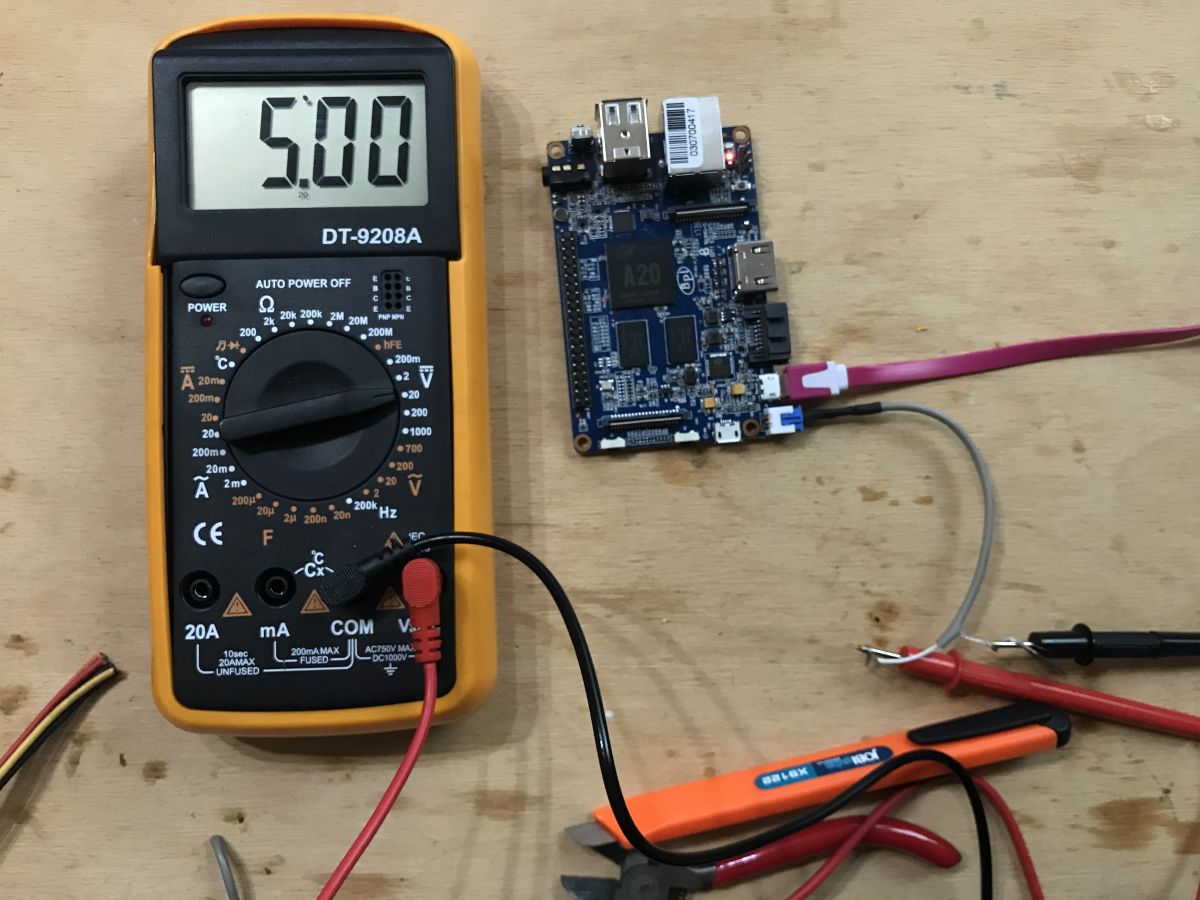
Finished adapter:
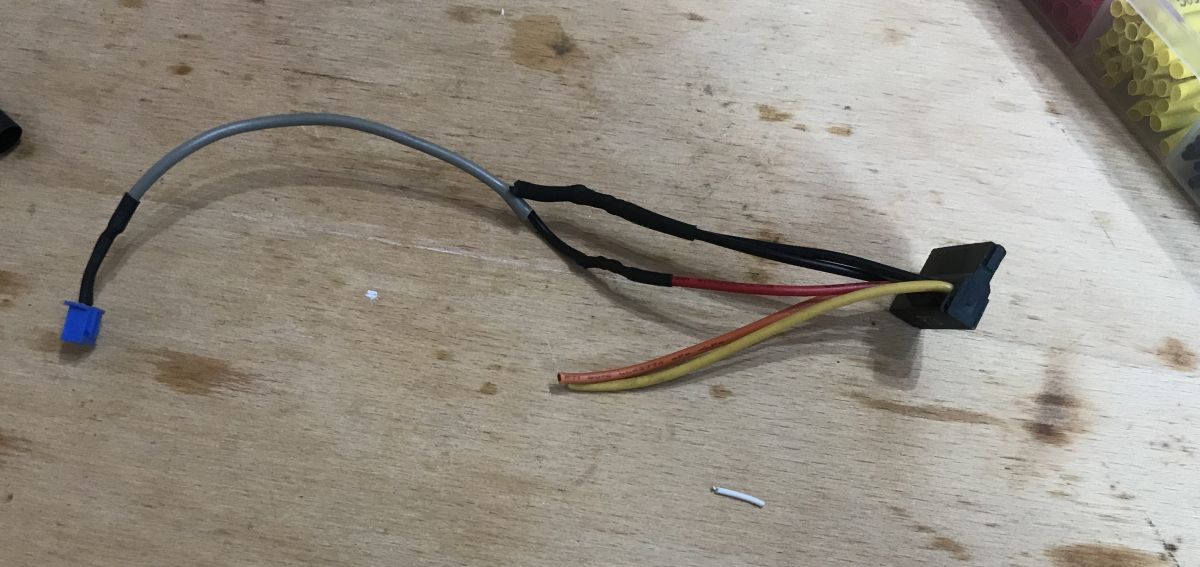
I tested the adapter with an old 2.5" drive, still without SD card in the Banana Pi:

By the way, I measured that even without the SD card, the Banana Pi itself with the 2.5" HDD draws 0.4-0.5A.
I also used a SATA data cable to connect the drive:

Full disk connection:
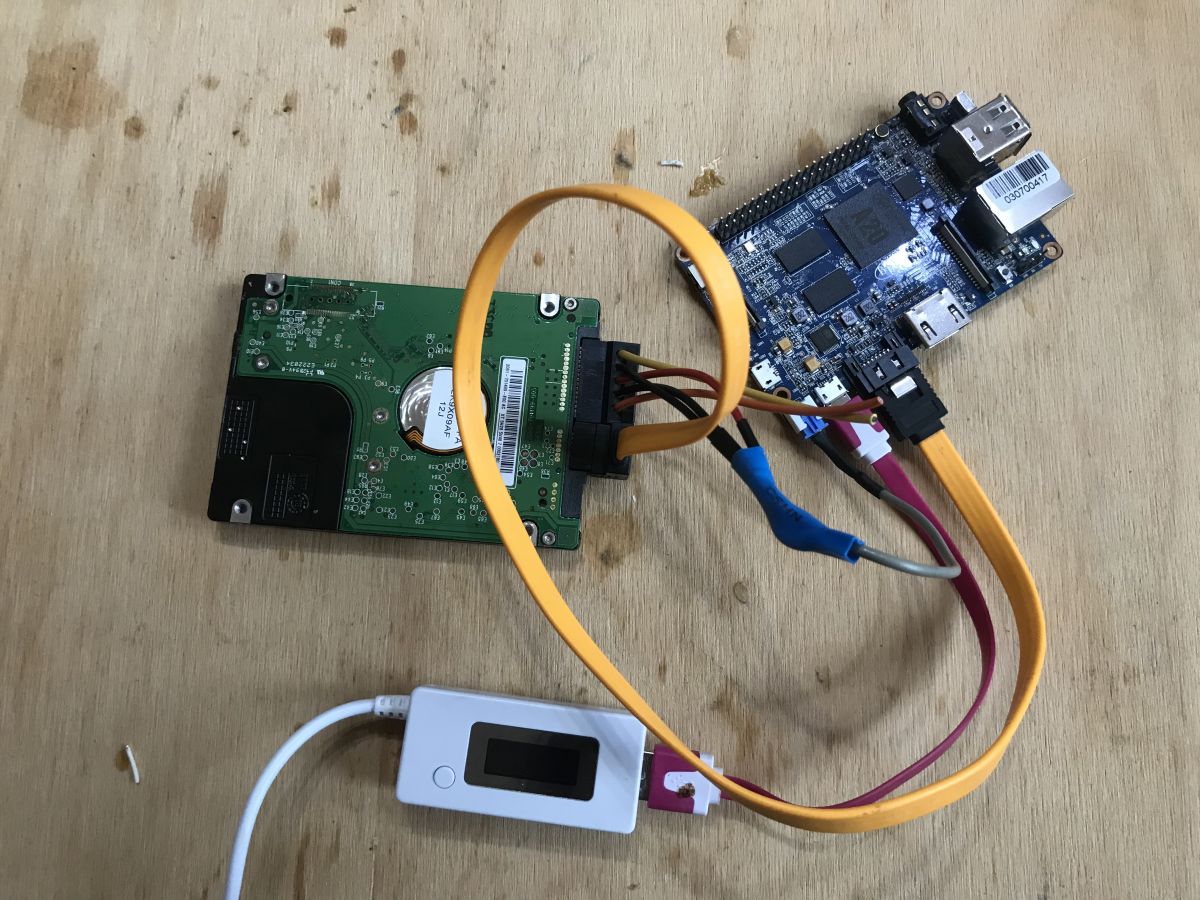
Hardware ready, now need to prepare the SD card with the operating system for the Banana Pi.
Preparing the SD card with the Armbian operating system
SD card with operating system for the Banana Pi I prepared on a Windows 10 PC using the Balena Etcher program, more specifically its portable version 1.5.91, from here:
https://github.com/balena-io/etcher/releases
Of the various operating systems available for the Banana Pi, I decided on Armbian, which is simply Debian for Arm processors. One of the reasons for this was that I was planning to use OpenMediaVault and OMV supports it.
I chose the most current version, Armbian_20.02.5_Bananapi_buster_current_5.4.26.7z. I downloaded the system via torrent network, below I attach the torrent of the selected version:
After downloading, I prepared myself a 64GB SD card:
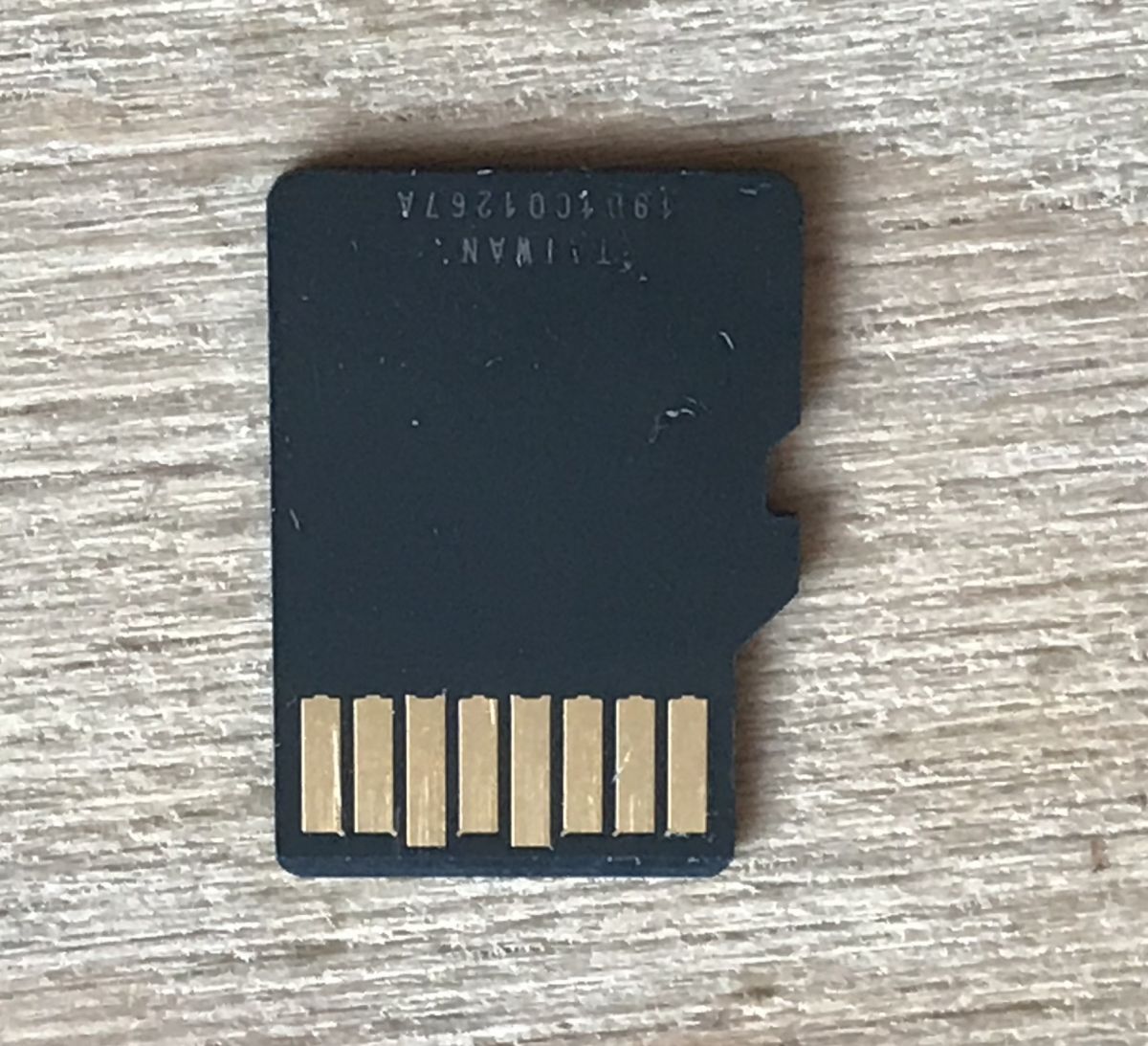
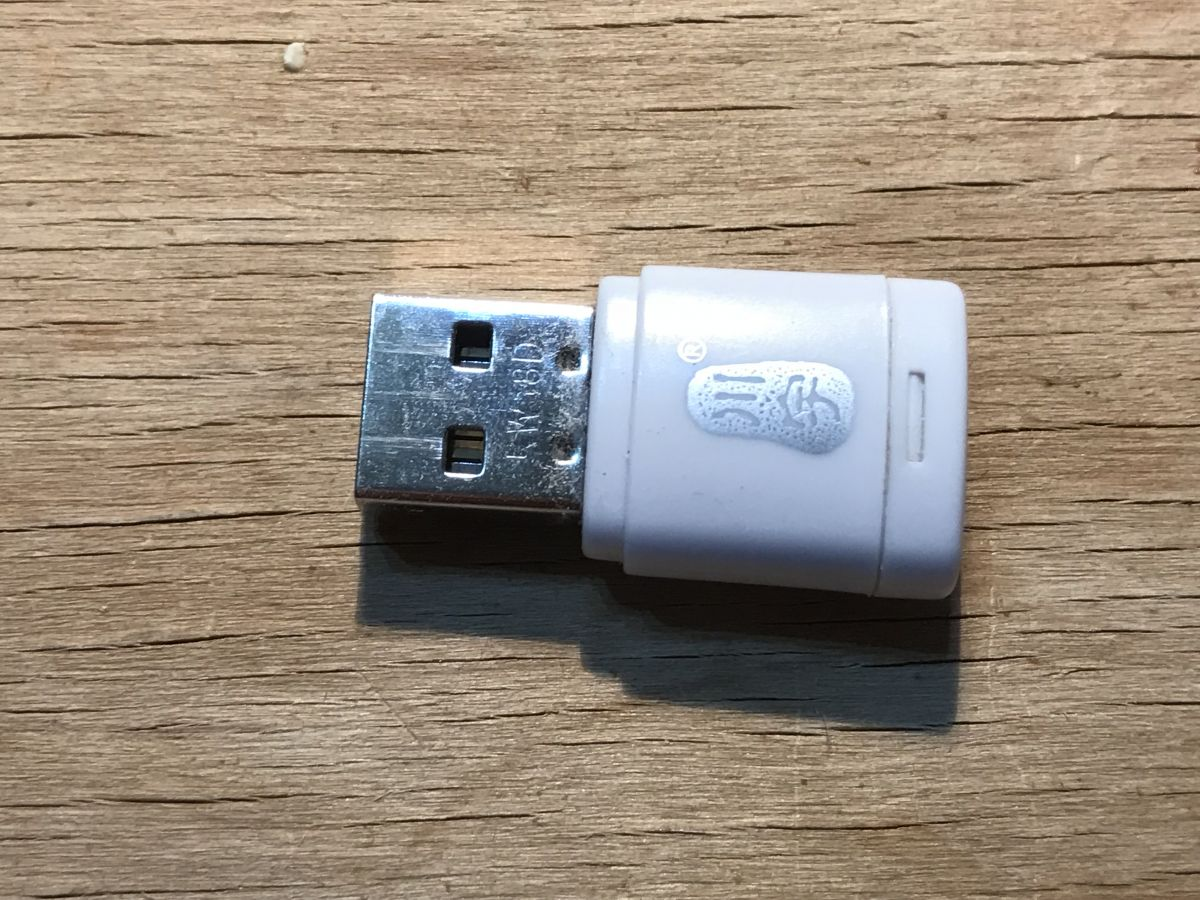
I connected the SD card to my Windows PC via such a USB adapter:
and using Etcher I uploaded the system to it (file Armbian_20.02.5_Bananapi_bionic_current_5.4.26.img):


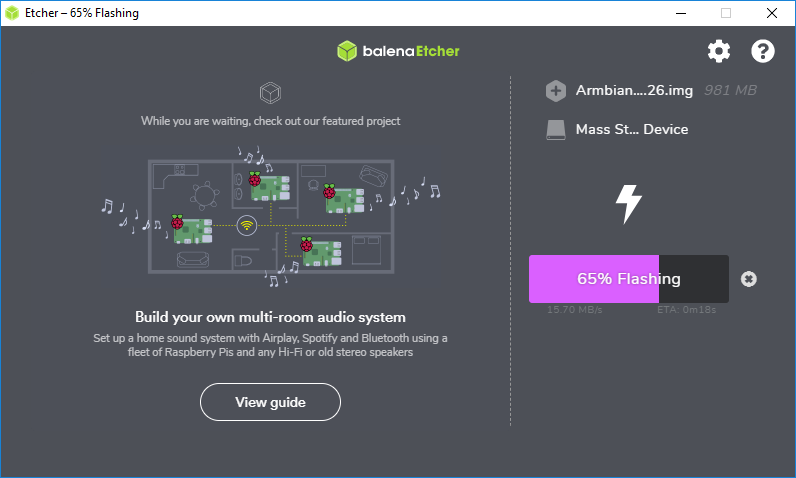
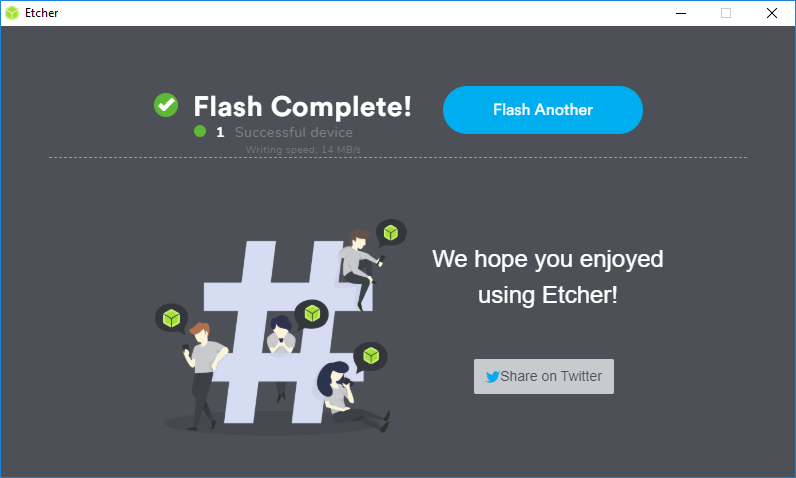
Once the system has been uploaded, the SD card can be inserted into the Banana Pi and the microcomputer is already running with the appropriate button.
First communication with Banana Pi
The first communication with the Banana Pi can really be done in various ways, e.g:
- you can connect a monitor on HDMI and a keyboard on USB:
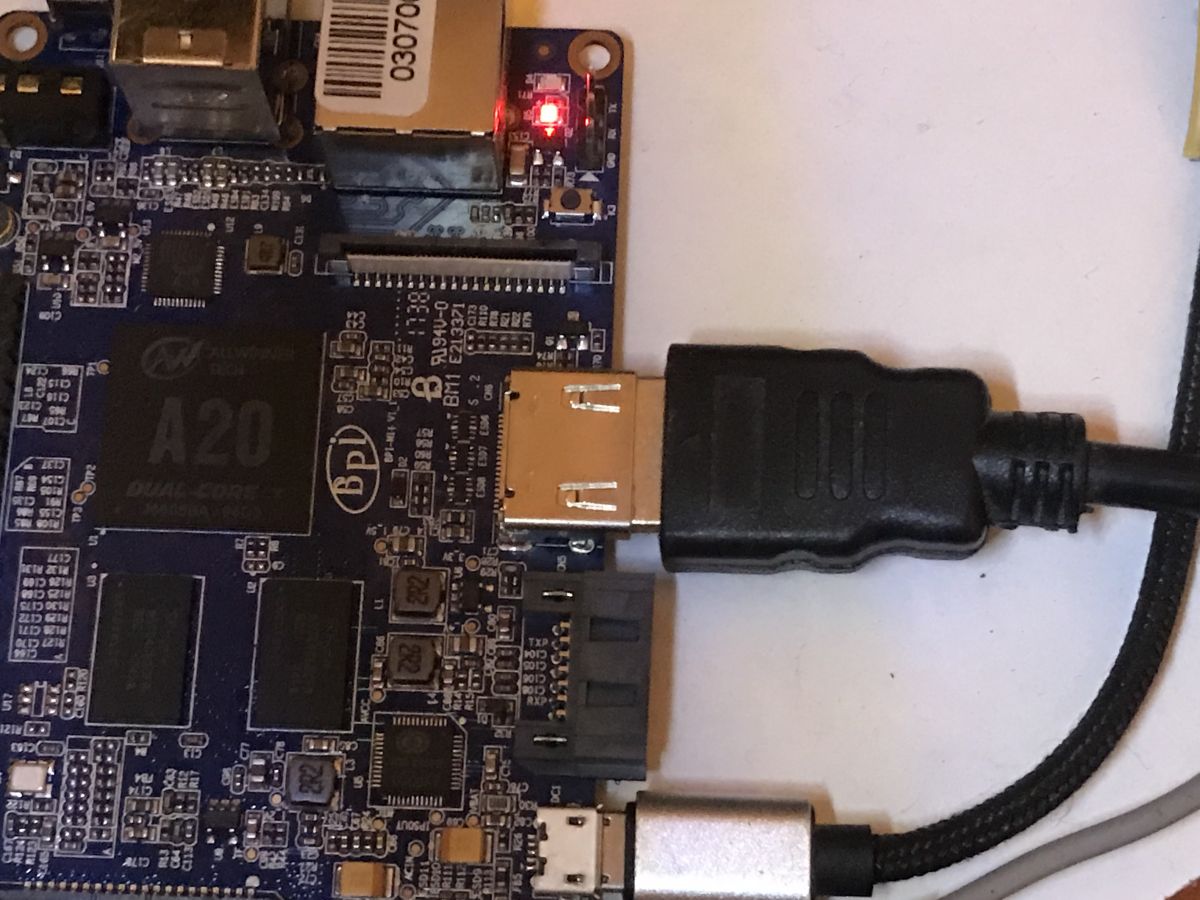
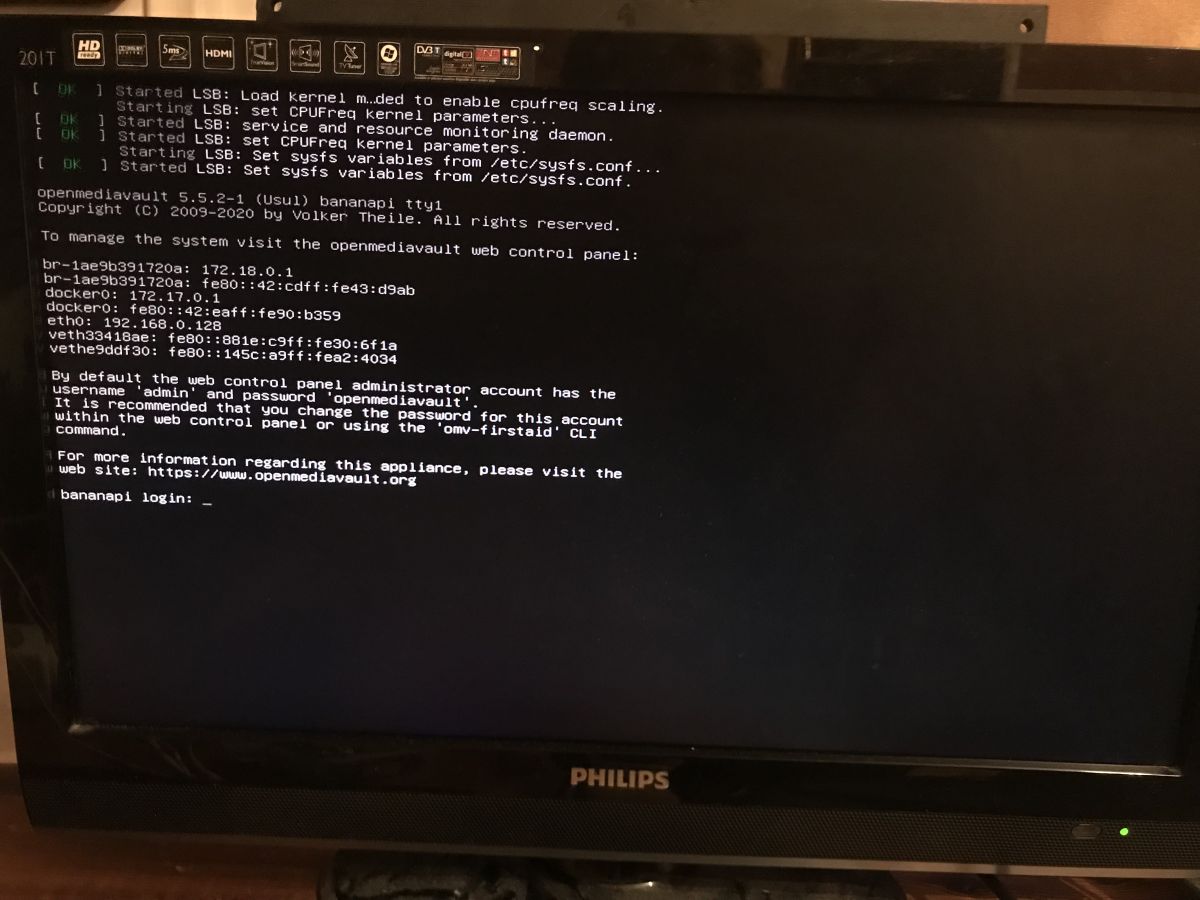
( the view on your monitor after the first boot may be a bit different from the picture from me, because I took this picture already after installing OpenMediaVault to Armbian )
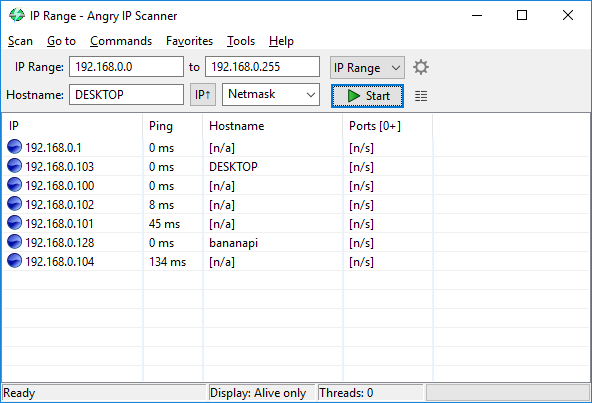
- you can connect a wired network with a router with DHCP and find what IP the Banana Pi has and access it via SSH (Putty program). We can find the IP of the Banana Pi itself via an IP scanner, such as Angry IP Scanner (and there we will recognise the Banana PI by its hostname, and if it is missing, we can manually check each of the active IP addresses in the browser, especially if there are not many):
- you can use the on-board serial port and the UART-USB adapter
I chose the latter method.
Banana PI has derived RX/TX pins with a default baud of 9600:
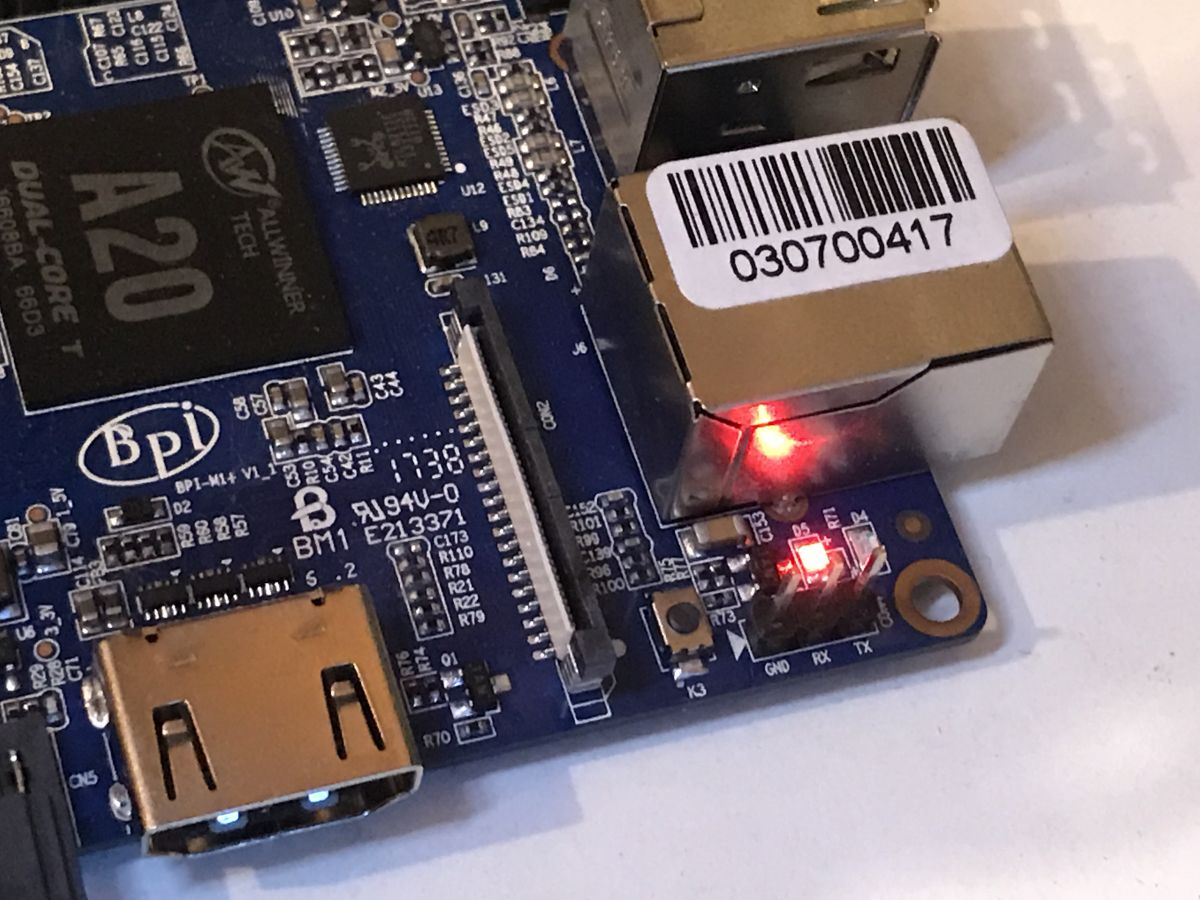
The pins are signed. You can connect to them with any USB-UART adapter, I used a cheap USB TO TTL HW-597:
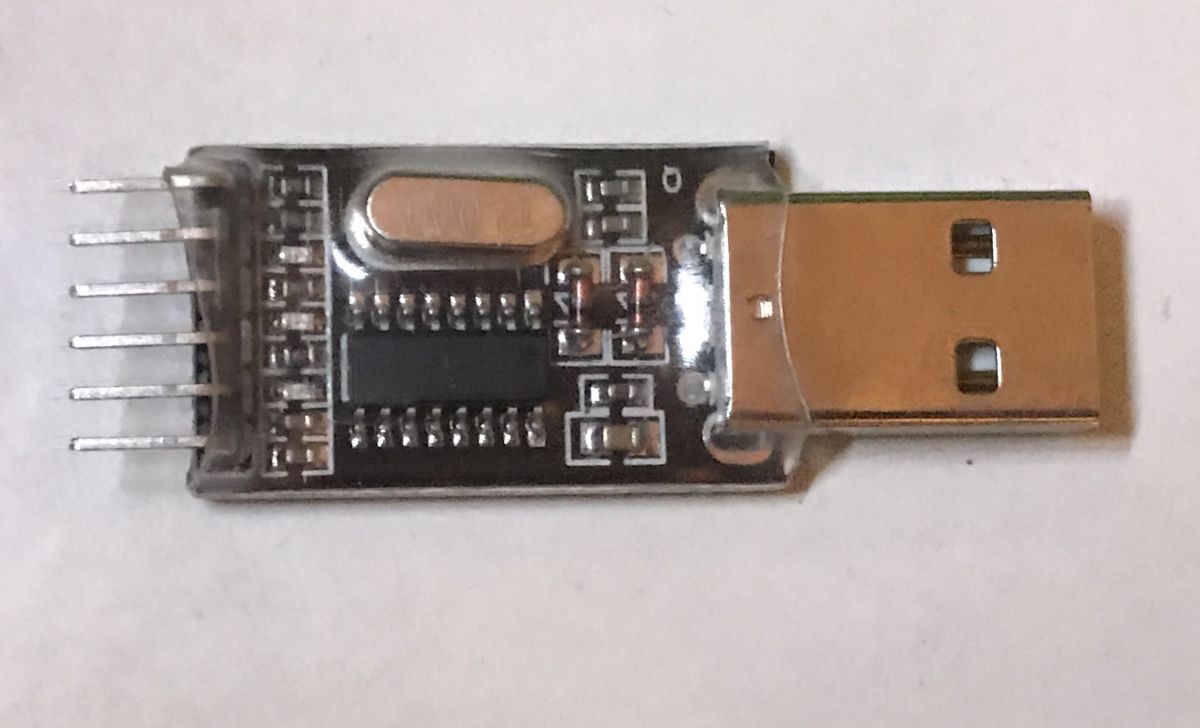
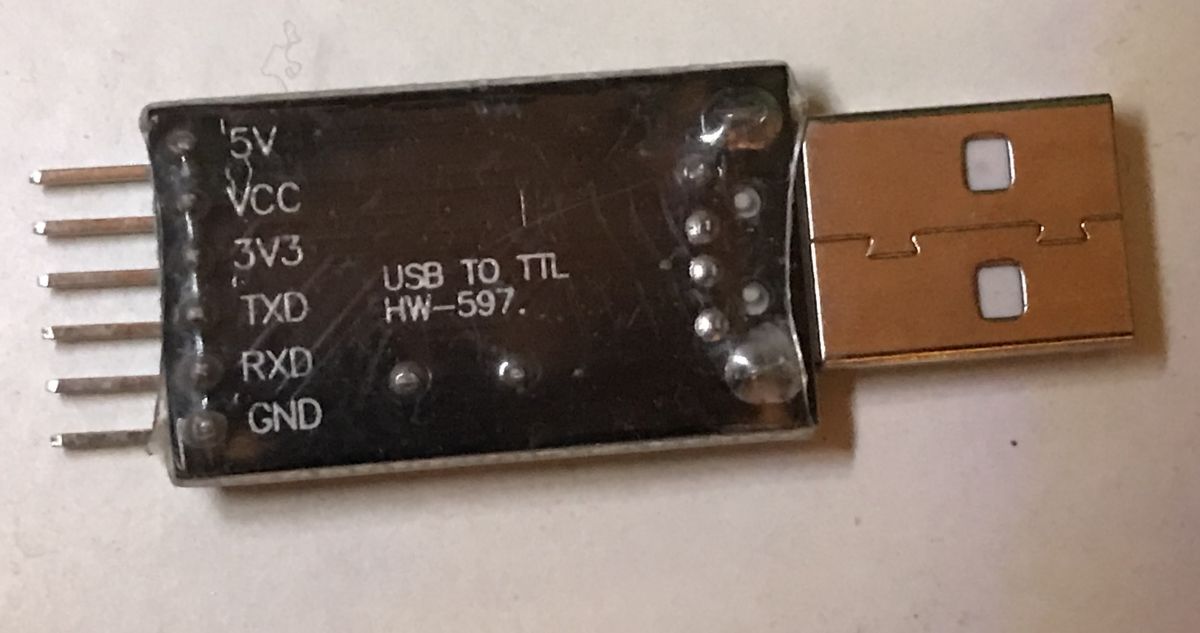
You need to connect both RX and TX - and of course ground. We connect the Rx from the adapter to the Tx from the Banana Pi, and the Tx from the adapter to the Rx from the Banana Pi.
Communication with the Banana Pi will be via a virtual COM port.
I recommend having the Banana Pi switched off when connecting - it is best to switch it on once connected.
You will still need some software to communicate via the virtual COM port.
For example, this is how communication with the Banana PI looks like via RealTerm:
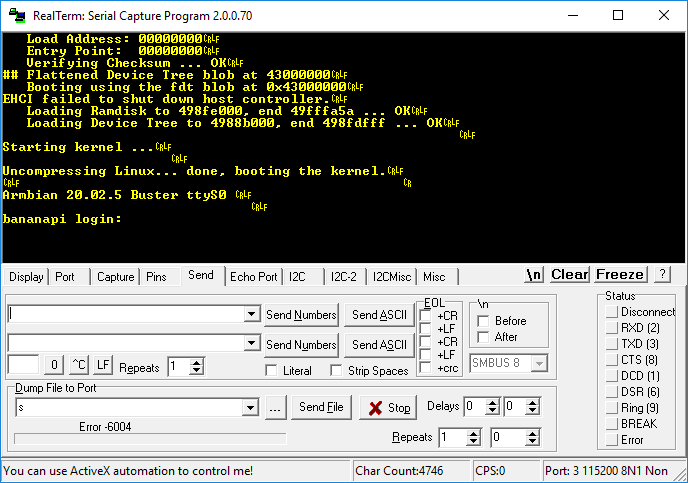
Although I do not recommend using this program for this purpose, it is much more convenient to use Putty. Just select the 'Serial' mode there and enter the name of our virtual COM port (you can easily find it, if only in the Device Manager):
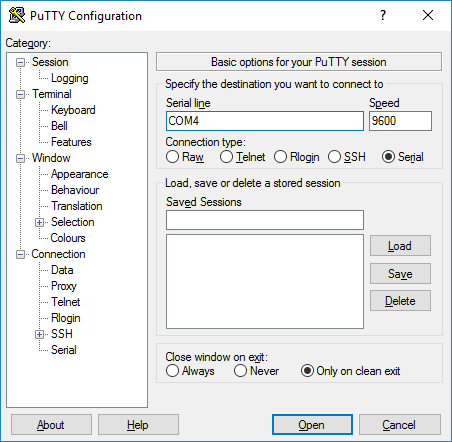
Once connected:

Once the system is fully up and running, you can log in via the UART like this:
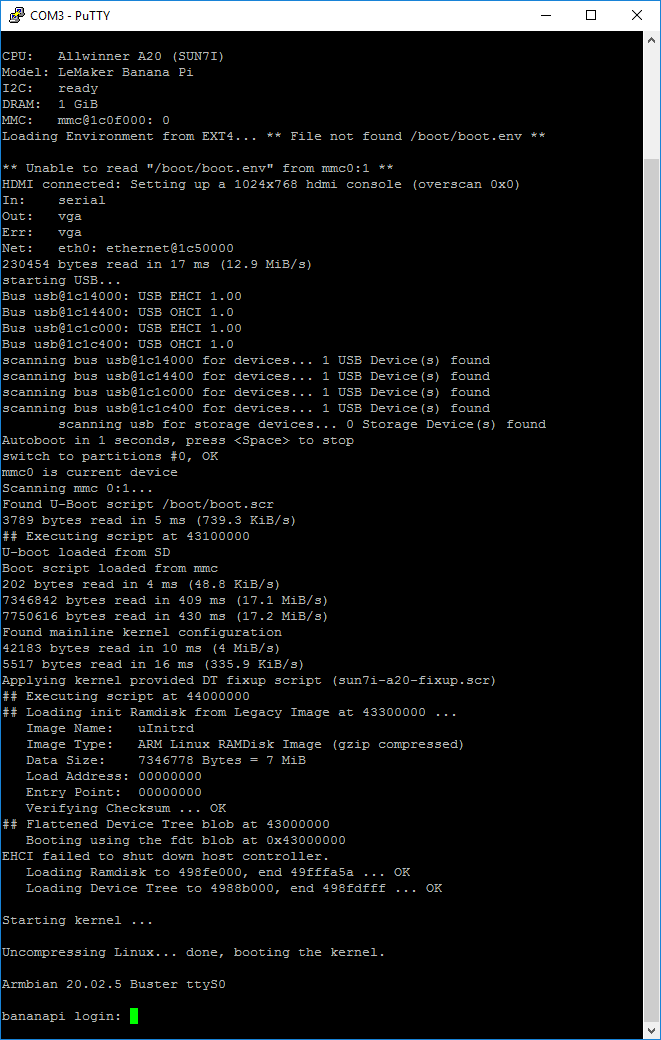
The default login credentials for Armbian are as follows:
Quote:
Login: root
Password: 1234
When you log in for the first time, the system will force you to change your password. The requirements for a new password are rather standard. It cannot be just a few characters, there must be at least one upper case letter, at least one lower case letter and at least one number.

Once the password has been entered, the system asks us for a username we have yet to come up with and some additional information (which is optional and not sent anywhere on the network):
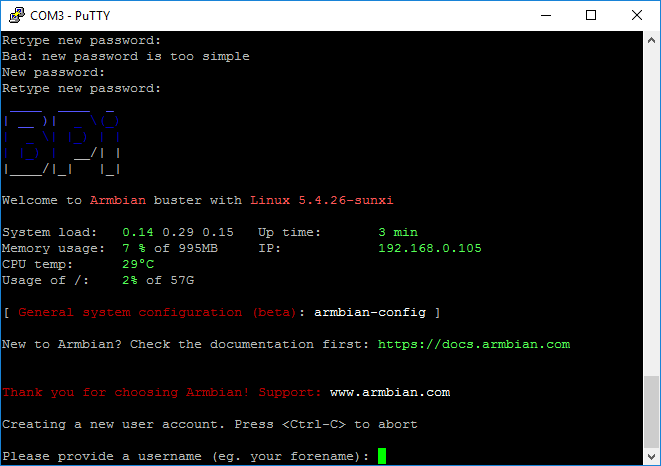
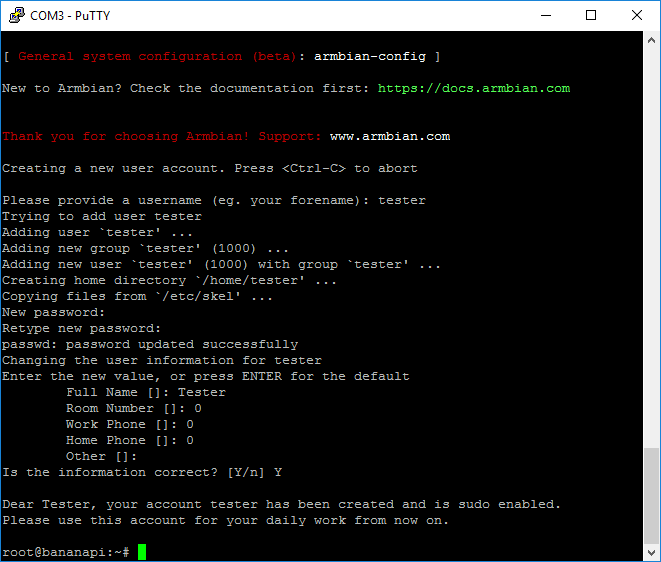
Having already created our user account, I recommend connecting the Ethernet cable and checking that the Banana Pi is definitely seeing the network correctly. The most convenient way to do this is with the ping command and some certainly available IP address, such as 8.8.8.8.8 from Google. The screenshot shows the expected result ' ping 8.8.8.8 ':
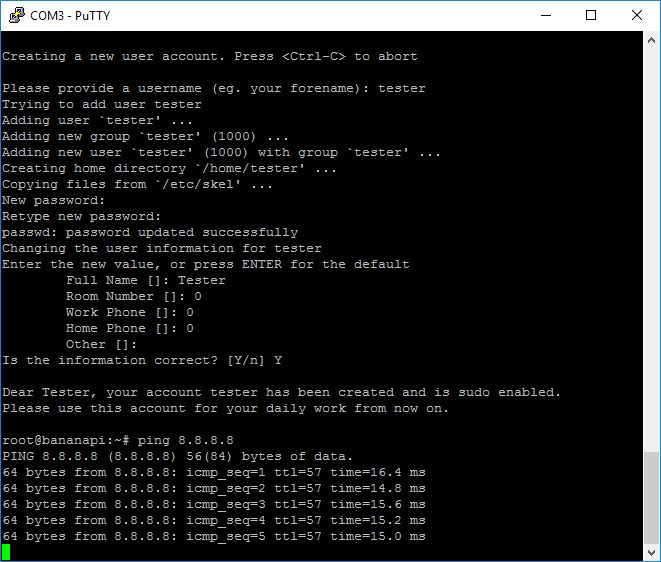
This worked on the spot for me - DHCP from the router assigned the correct IP and the Banana Pi saw the network straight away.
It's also worth checking that DNS is working correctly. For this you can use the nslookup command, which takes the domain name of the host (e.g. elektroda.pl) as an argument and converts it into an ip address. The results are shown below:
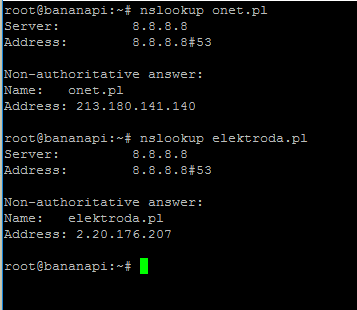
As you can see, the wired internet connection works without any prior configuration.
Updating apt on Armbian
Just after that, I recommend performing the classic update/upgrade operation, just to make sure we have everything up to date. To do this, type the commands in the terminal:
apt-get update
apt-get upgrade
reboot
The update itself can take quite a long time, but I think it's worth it.
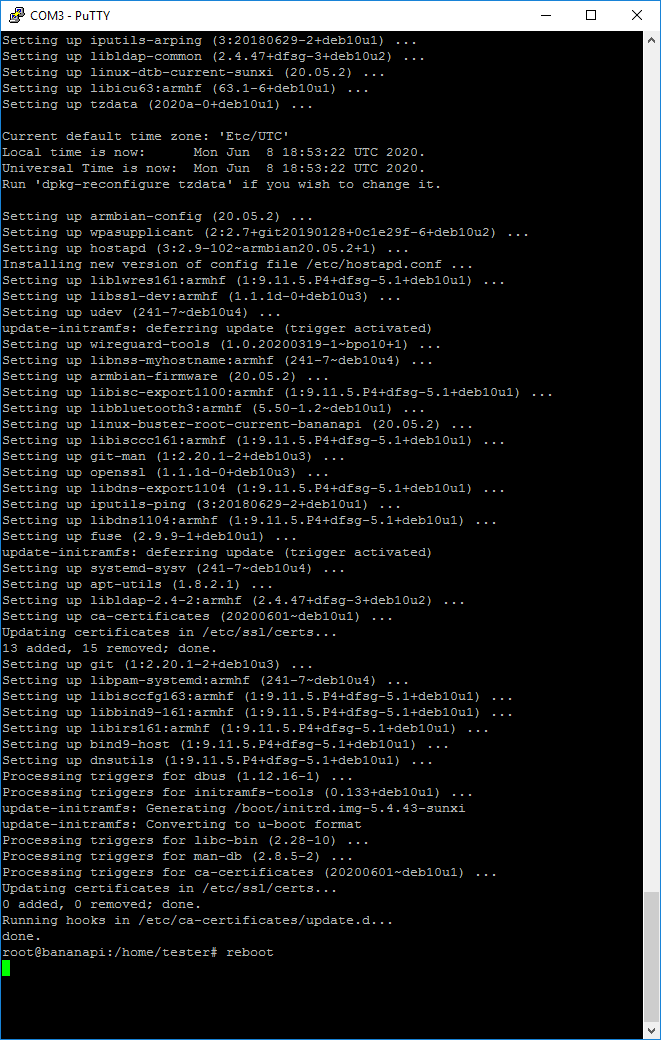
After the update it is worth rebooting the system (reboot command).
Installing OpenMediaVault
It is now possible to install the OpenMediaVault overlay on our Armbian. This can be done manually, but the most convenient is to use the ready-made script available on Github, in the OpenMediaVault-Plugin-Developers repository, here:
https://github.com/OpenMediaVault-Plugin-Deve...master/Adden-A-Installing_OMV5_on_Armbian.pdf
I attach a copy of this document below:
The entire running of the OMV installation script is limited to typing:
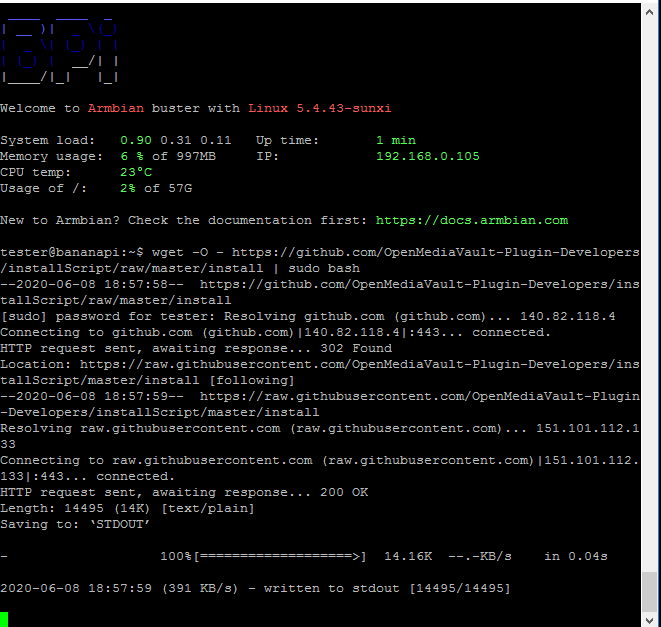
wget -O - https://github.com/OpenMediaVault-Plugin-Developers/installScript/raw/master/install | sudo bash
in the system console and waiting less than an hour for everything to execute. Zero unnecessary configuration.
You can find more details and a detailed description of how to use this script here:
https://github.com/OpenMediaVault-Plugin-Deve...master/Adden-A-Installing_OMV5_on_Armbian.pdf
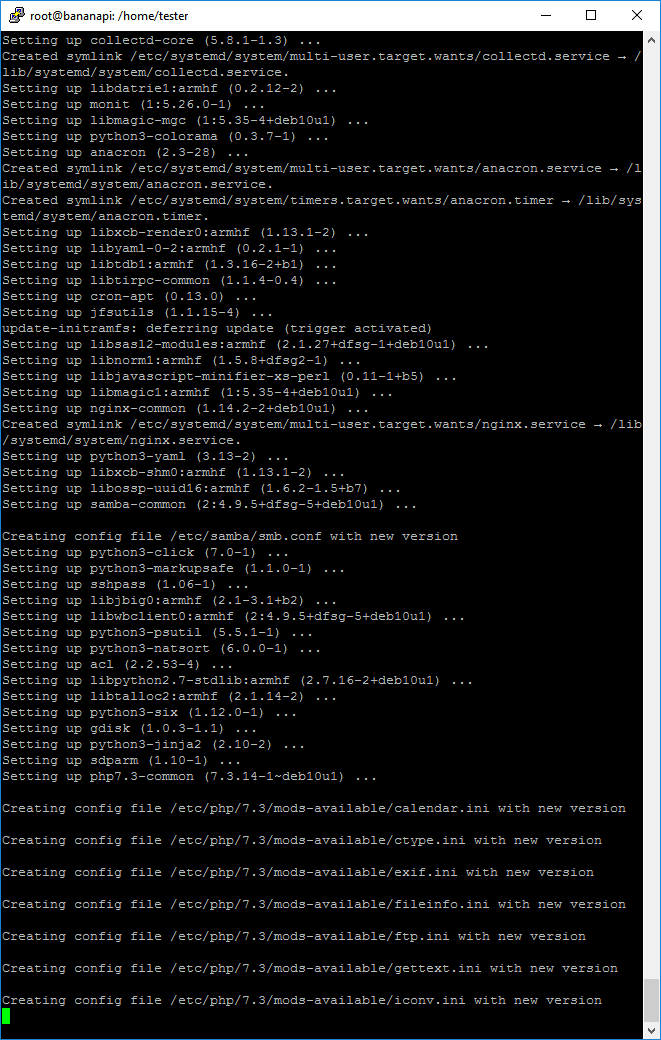
Below are screenshots of the execution of this script.

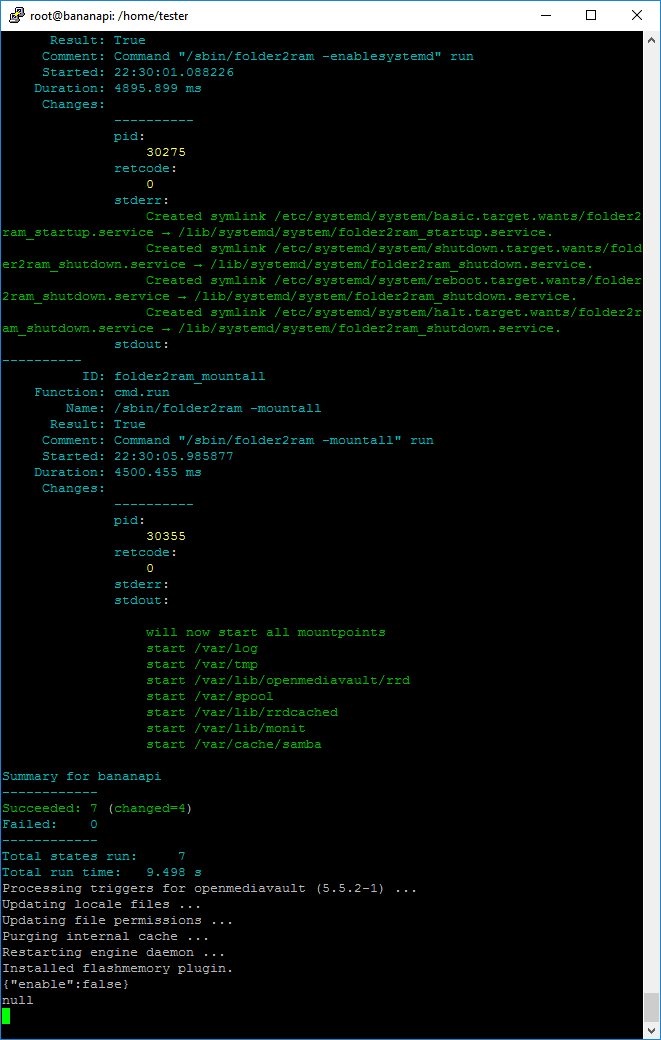
First launch of OpenMediaVault
From this point on, the OpenMediaVault Web Panel is accessible via the browser on port 80, we can access it by typing the server address in the address bar:
The default login credentials for OpenMediaVault are:
Quote:
admin
openmediavault

Once logged in, we have visible information about the running services (e.g. NFS, FTP, RSync, SMB/CIFS, SSH), and about the system itself (hostname, system version, processor, kernel, system time and how long the server has been running):
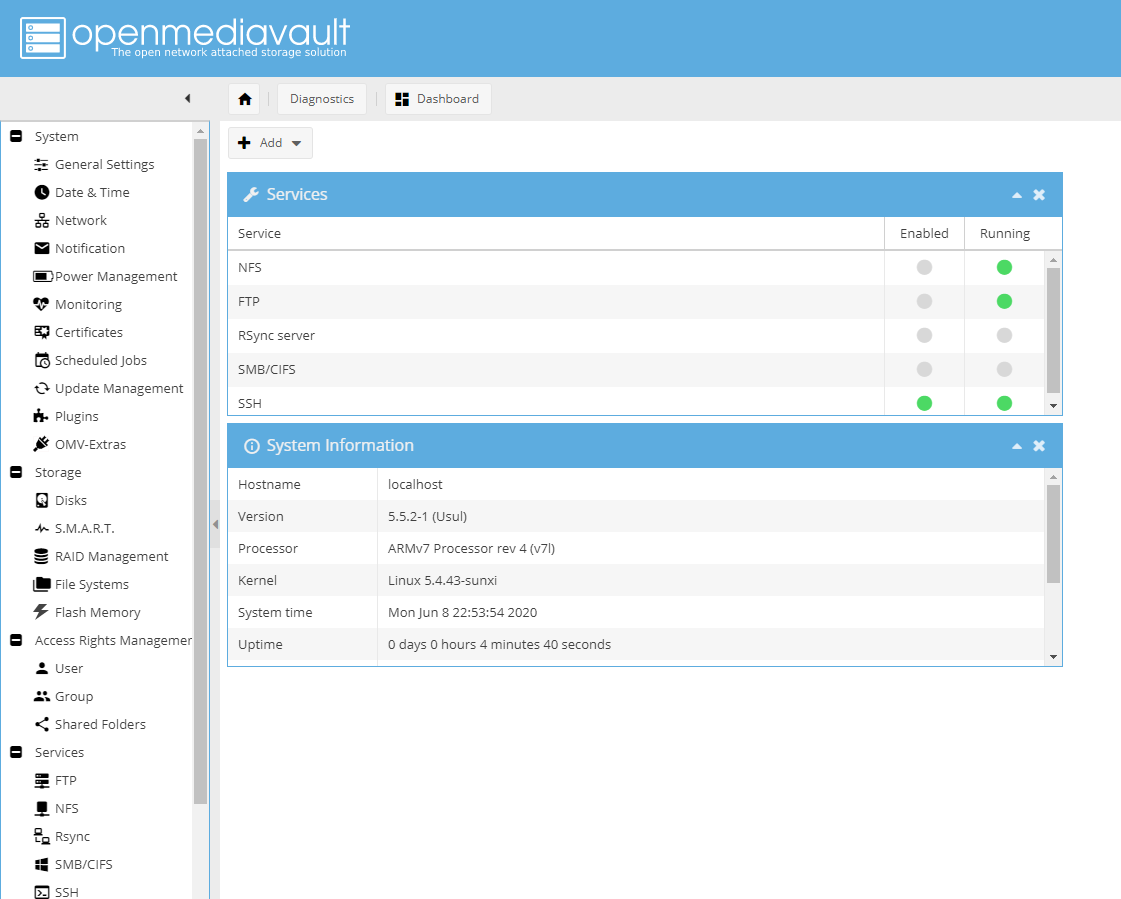
Connecting the HDD to Sata
I connected the drive as previously described:
Banana Pi, after booting, already detects this disk by itself in the OpenMediaVault panel, more precisely in Storage->Disks. No commands need to be entered:
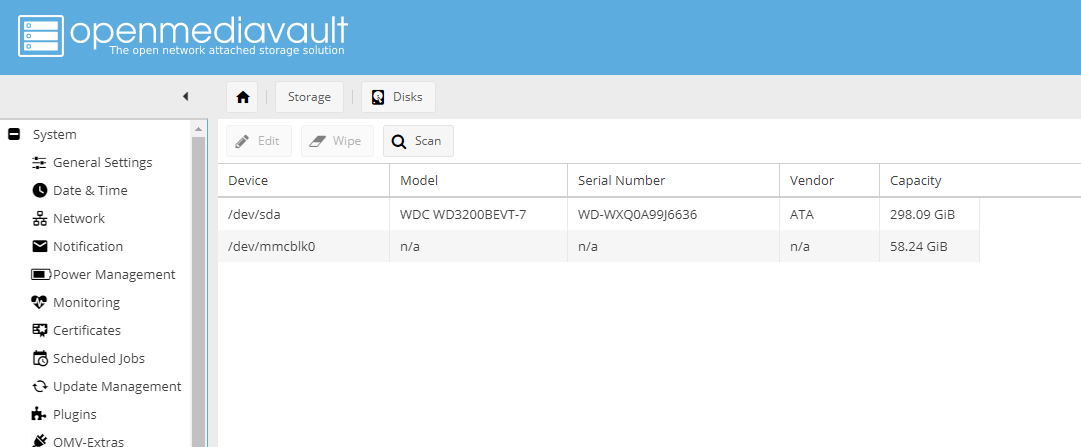
(In the screenshot above, you can see two disks - /dev/sda is the 2.5" HDD discussed here connected via SATA, and /dev/mmcblk0 is the SD card on which the system for the Banana Pi itself is also stored).
The HDD still needs to be mounted before use (mount operation):
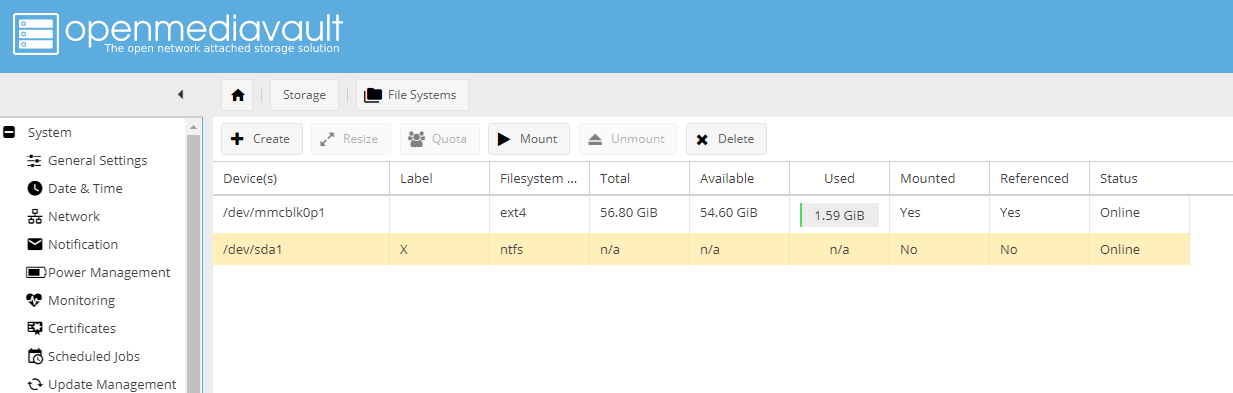
If the disk is not formatted, it must also be formatted (create partitions) beforehand.
Once mounted, its state changes, but the OpenMediaVault panel prompts us to confirm the changes:
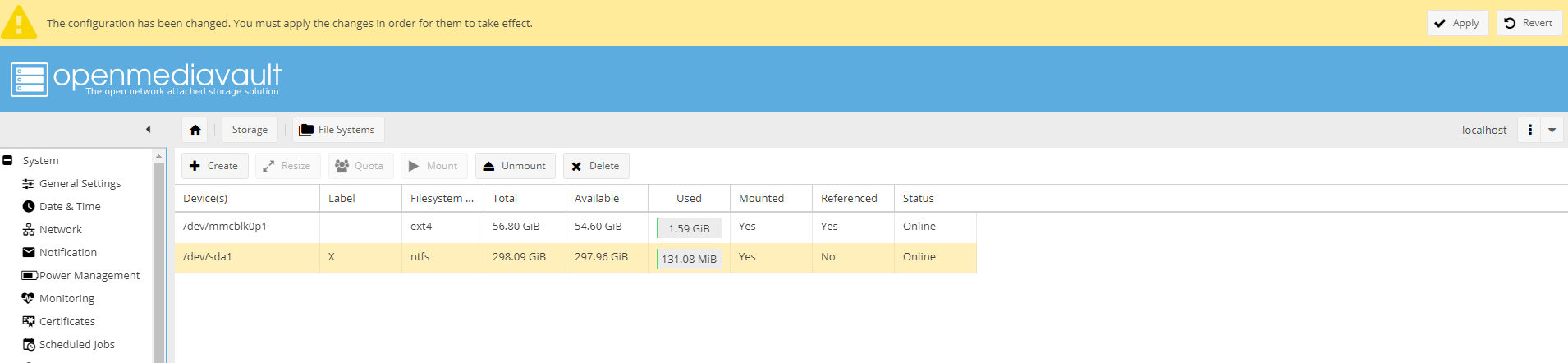
Only confirming the changes saves the new configuration, which can take a few moments:

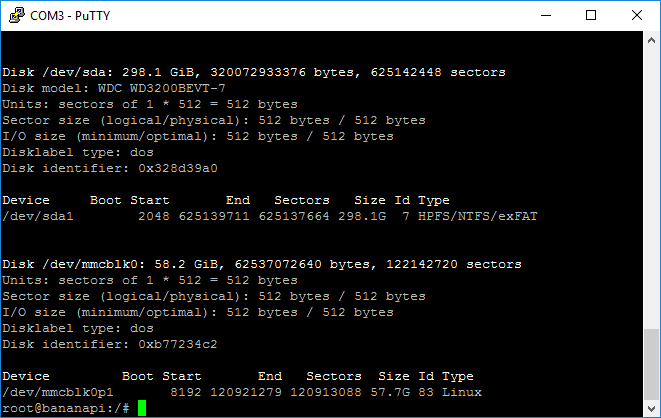
From this point on, the drive is mounted. You can create shares, etc. on it. We can still verify that everything went ok via the console - use the fdisk -l command:
Running SMB
Running SMB (Samba) on OpenMediaVault is very simple - the whole thing comes down to enabling 'Enable' from the Services tab -> SMB/CIFS:

Before enabling it, it is worth checking that the default settings suit you, e.g. the workgroup name (Workgroup; the client should have the same to connect to SMB).
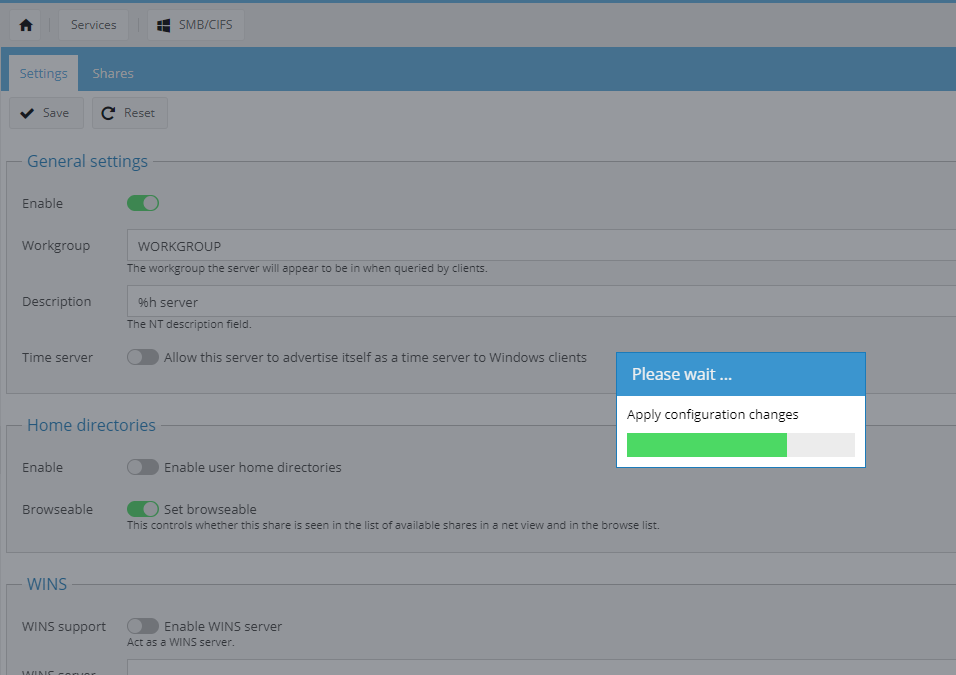
Samba can take a while to start up:
Add a shared folder
A shared folder (Share) is a folder that we can share on the network. It is created under Access Rights Management -> Shared Folders:
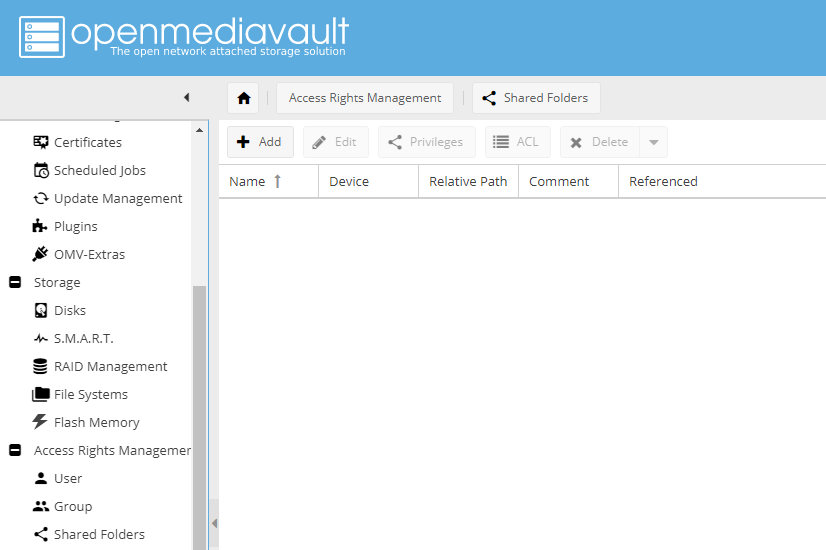
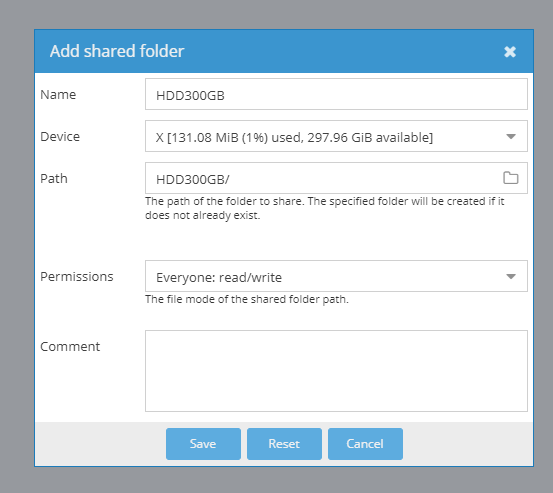
When creating a Share, we choose which media we want it to be on (which partition), specify its name, path and user permissions (in my case it's a home server, so I gave everyone read/write).
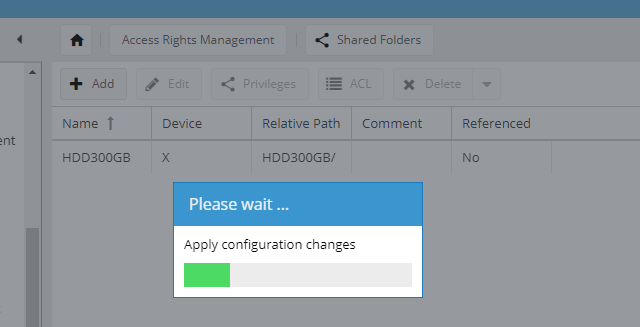
Adding Share also requires saving changes and also takes a bit of time:
If using Samba, Share needs to be added a second time already in the Smb settings itself, i.e. in Services -> SMB/CIFS -> Shares. Yes, there is a Shares tab there too, and that's where you have to add the Share you just created.
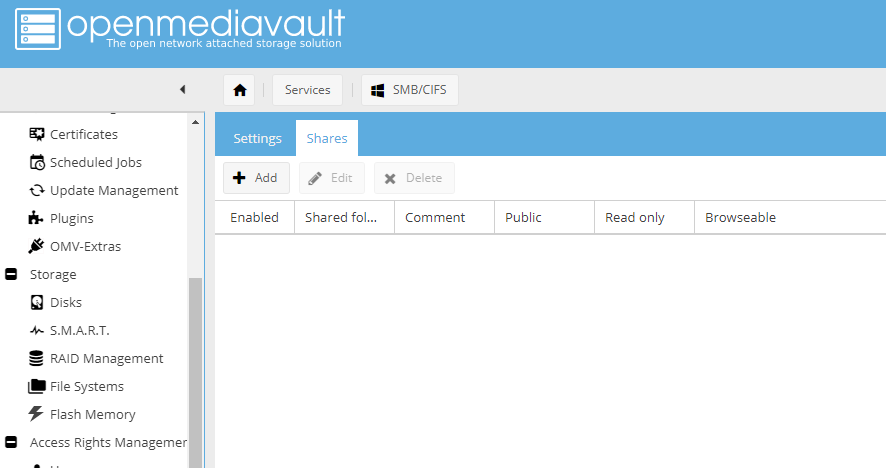
The 'Add Share' window from Samba shown below allows us to select an existing Share and share it via SMB.
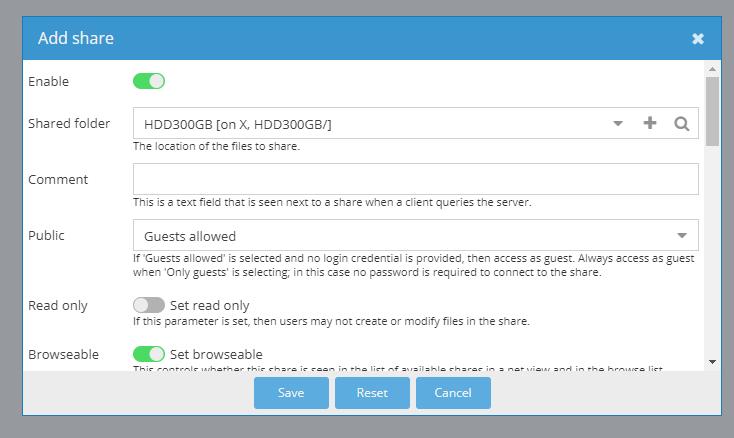
Only after adding it in this way will we be able to connect to it via SMB.
Connecting to a shared folder from within Windows - via Network
A properly configured OpenMediaVault with SMB will be visible in the "Network" tab from within Windows. If it is not visible, I recommend checking the firewall and workgroup settings (the workgroup name on both machines should be the same).

The first time you open a network place may require you to log in.

Once the network place has been opened, we will have a view of all the folders we have shared:
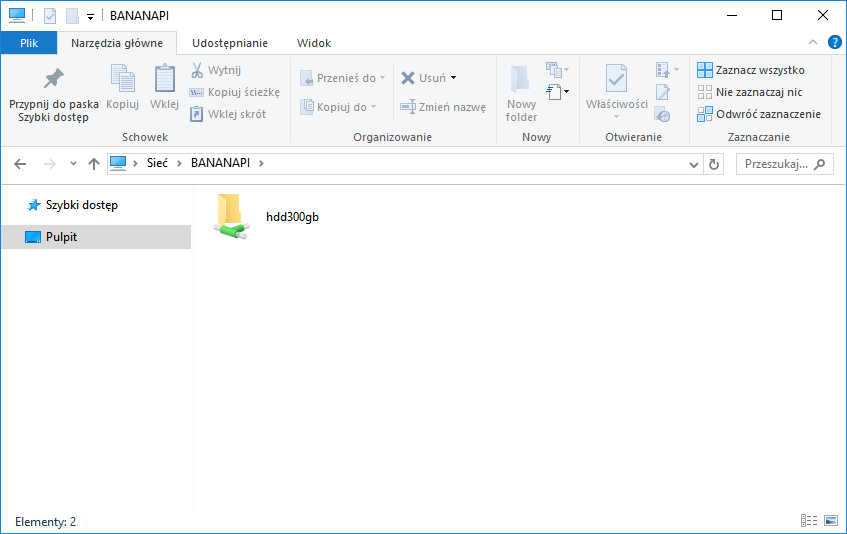
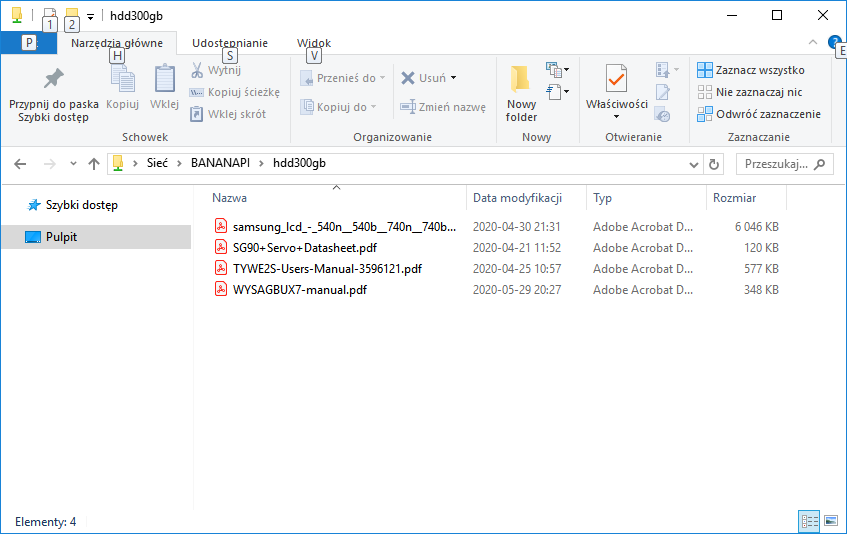
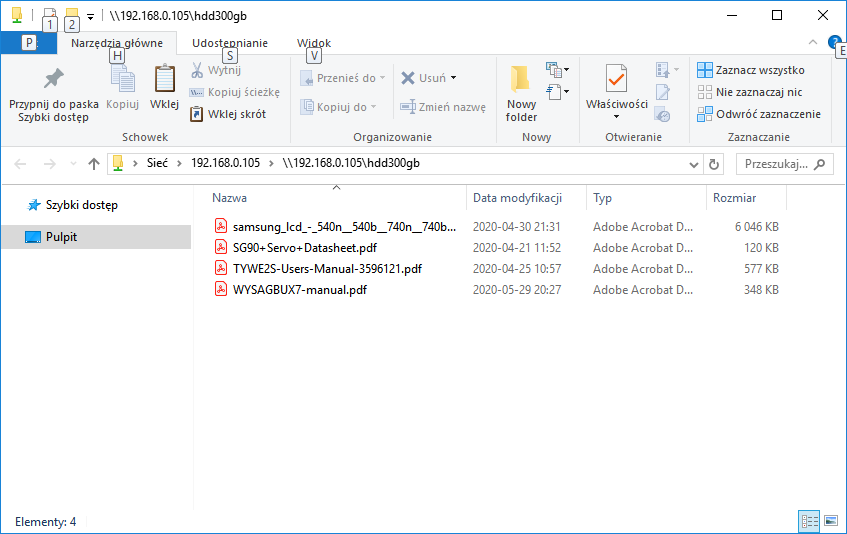
You can then operate on them normally from within Windows (move files, open, edit, create subfolders, etc.):
Connecting to a shared folder from within Windows - adding a network location
The second way to connect directly from Windows to SMB with OpenMediaVault is to manually add a network location by entering its IP address and Share name.

The name is given in the format of ↪Ll_1ADRES_IP_NAME_SHARE, for example, ↪Ll_1ADRES_IP_name192.168.0.105</HDD300GB
It is worth remembering that if the IP address of our server changes then we will lose the attached folder, so we should set a fixed IP address for the server before attaching it. By default, the Banana Pi has DHCP, so a variable IP.
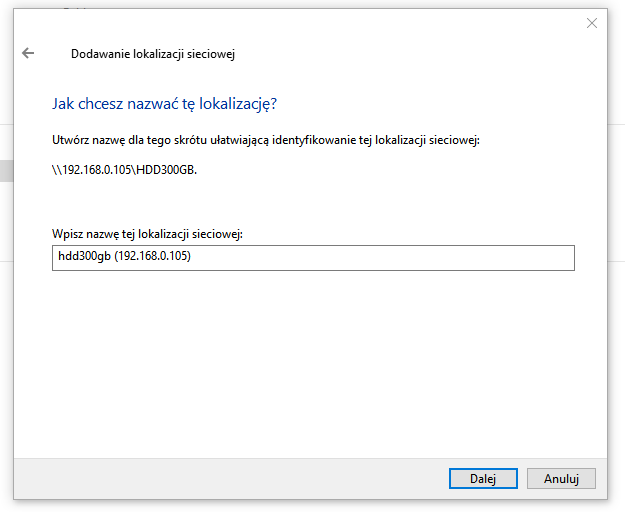
We may have to log in when adding:
Once Share has been successfully added we will receive the appropriate message:
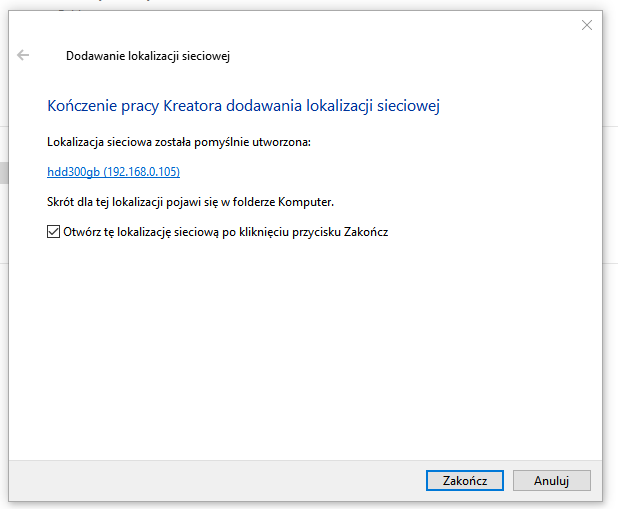
and the Share folder will be visible on Windows:
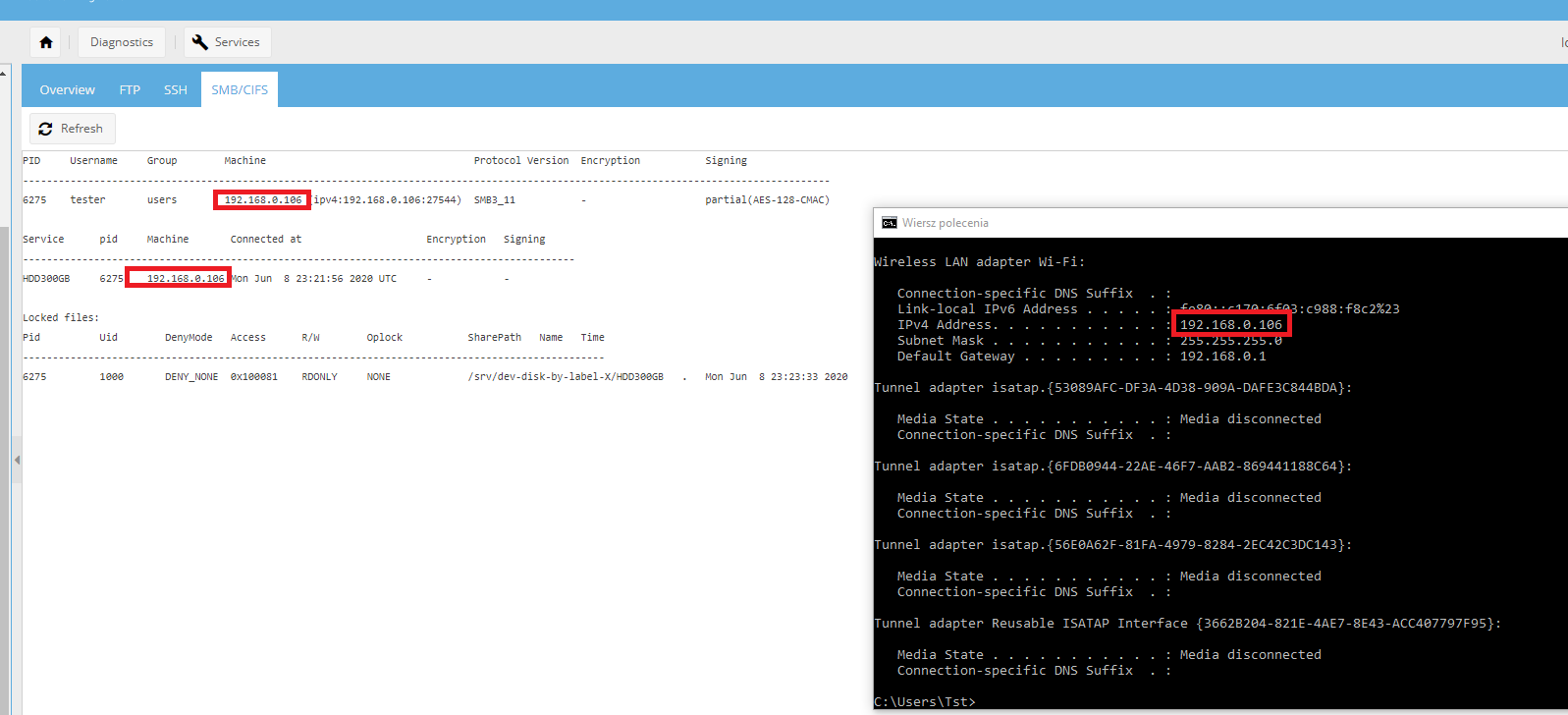
It is also worth knowing that what the current SMB connections are can be checked in the OpenMediaVault panel itself:
Connecting to a shared folder from within Android
I then checked that I could easily access the server from my Android phone. I wanted to be able to conveniently read the pdfs provided there.
On Google Play I chose one of the free samba clients, AndSMB from Lysesoft:

Using it is fairly straightforward - you specify the server access details once (without pointing to a specific share):

and then we can open this folder and browse its contents, including the shared folders:

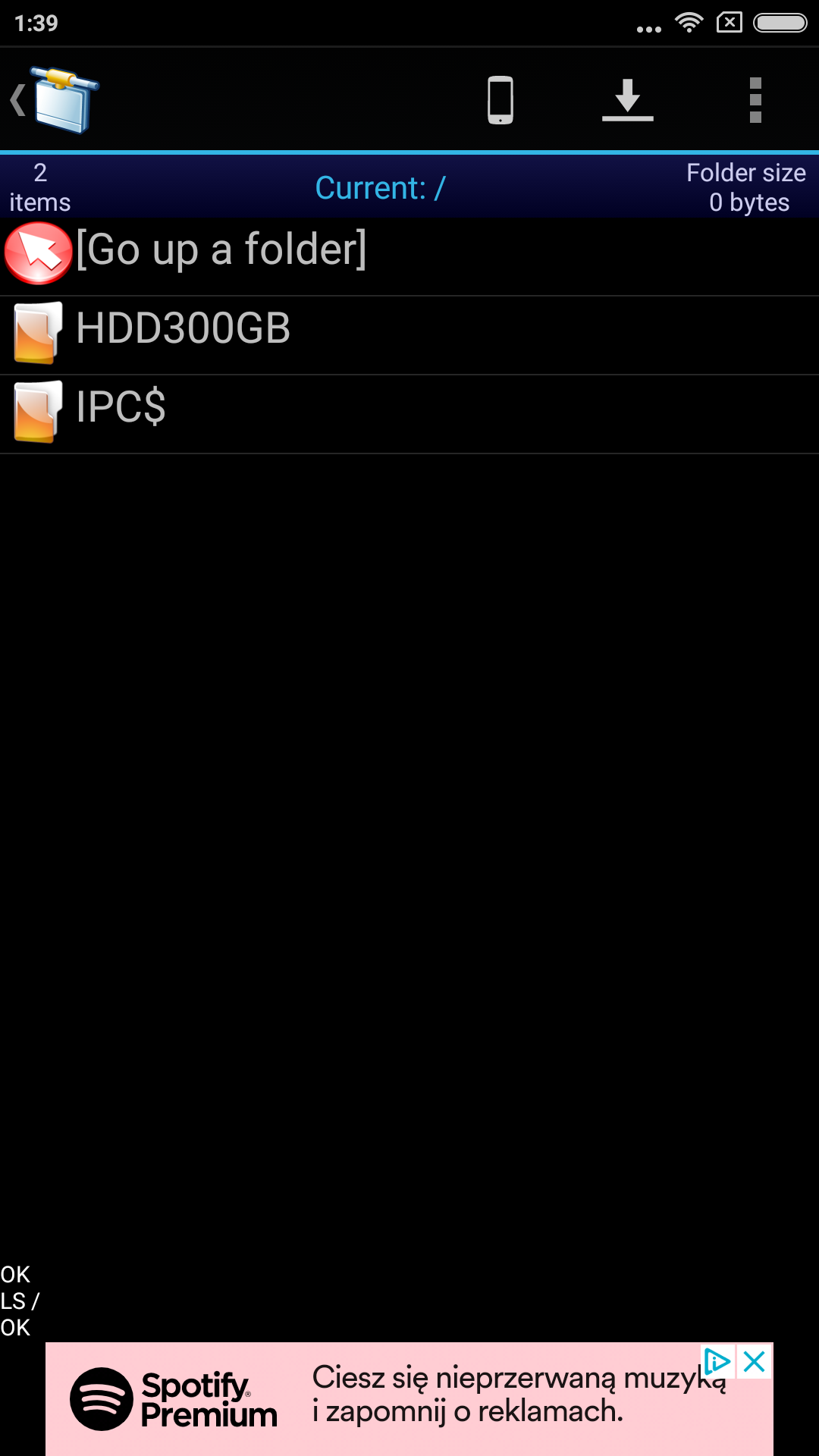
The pdfs I prepared earlier are also there:
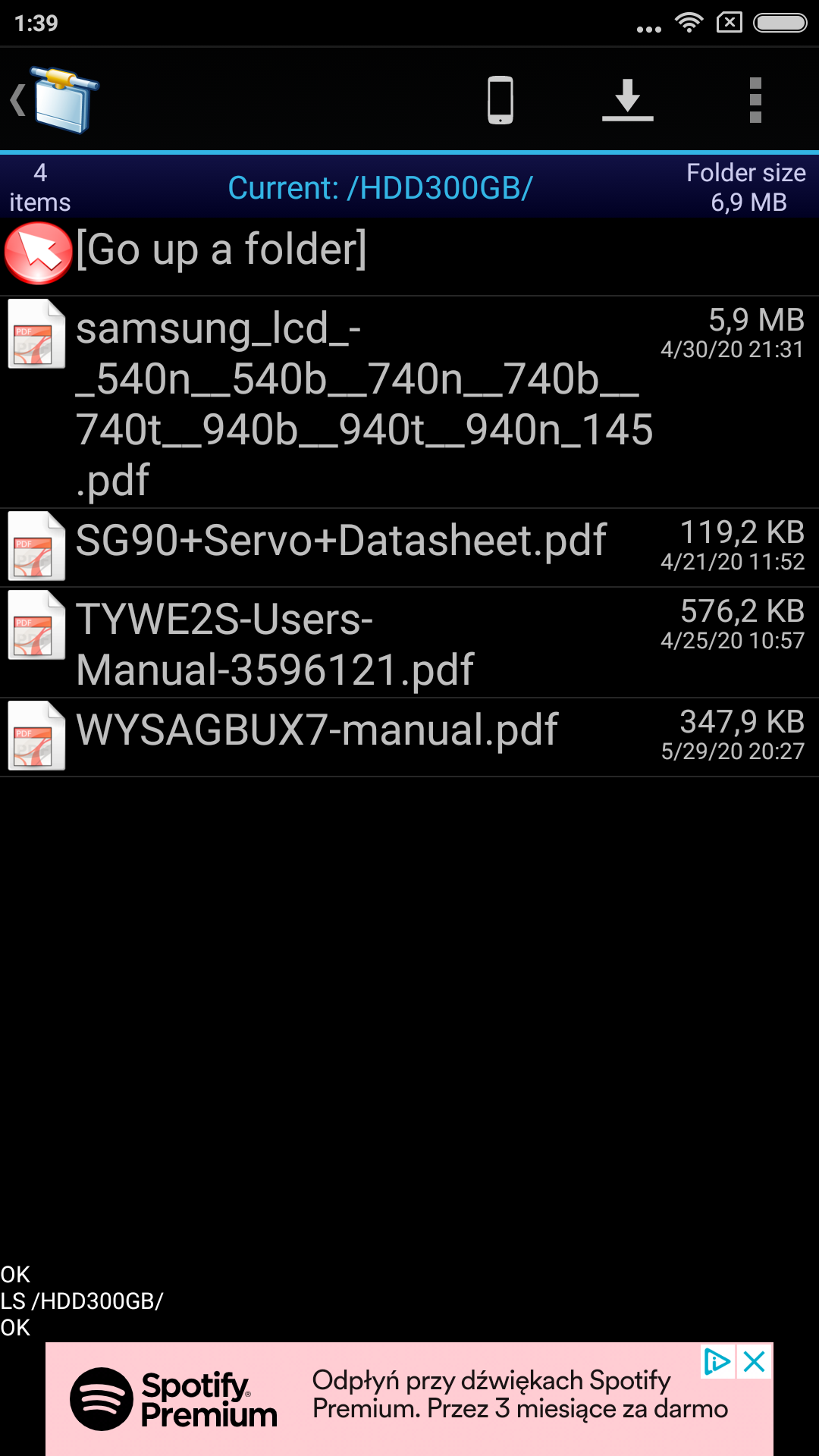
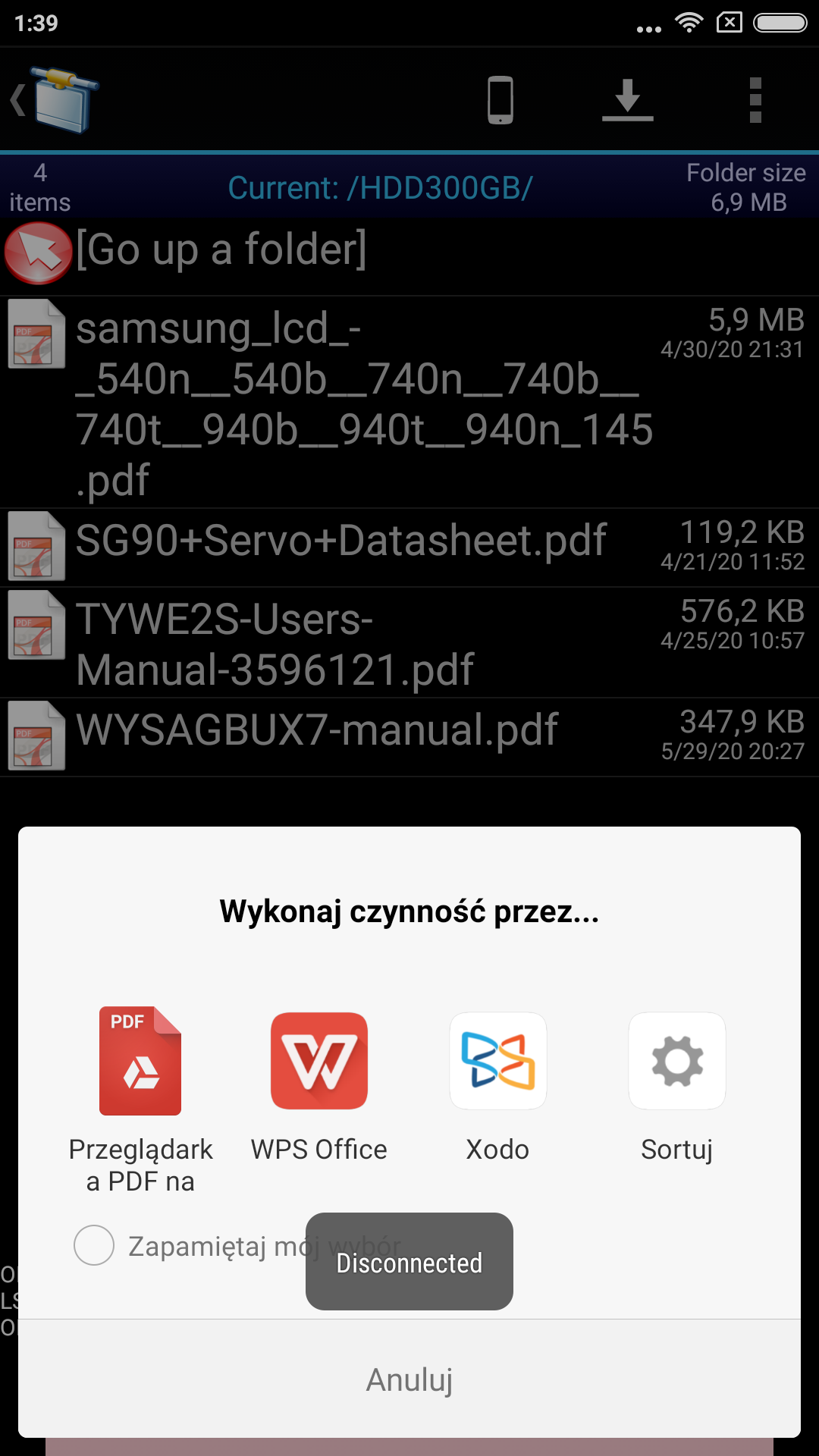
After clicking on such a file, a window appears, where you can select the application with which you want to open it.
Plugin sharerootfs
The inquisitive OpenMediaVault user will notice that in the basic version of OMV'ki you cannot create a shared folder on the partition where the system is installed.
This is a known limitation of OpenMediaVault and fortunately it is circumventable.
With help comes the plugin 'sharerootfs', which, as the name suggests, allows us to create a share on the root filesystem.
We install it from the Web Panel from the System->Plugins tab:
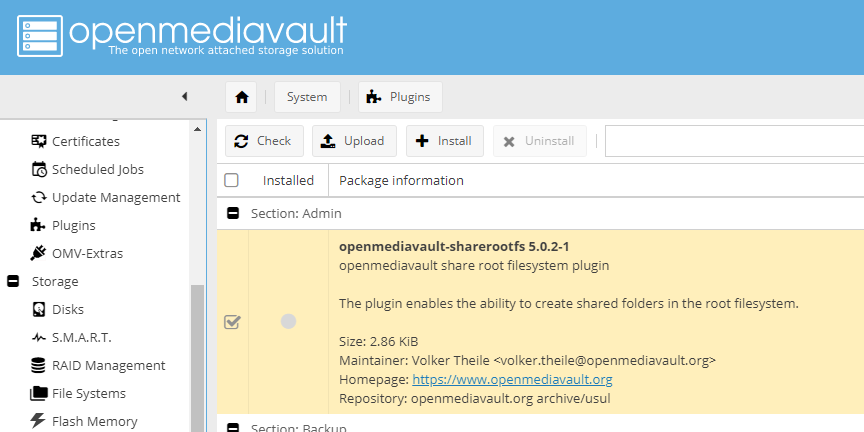
In my case, its openmediavault-sharerootfs version (5.0.2-1) was available for installation. Installation may take a little while.

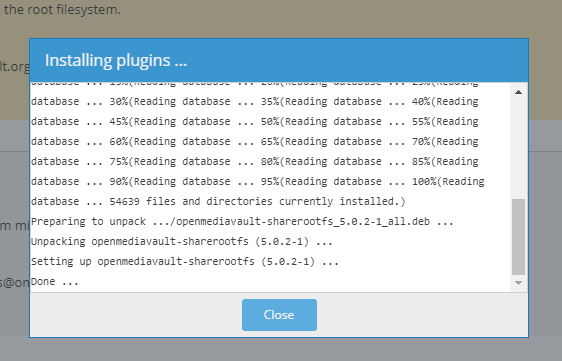
After installing the plugin, I recommend restarting the server just to be sure.
From then on, under Access Rights Management -> Shared Folders, in the 'Add shared folder' dialogue we will be able to select the file system on which the system resides.
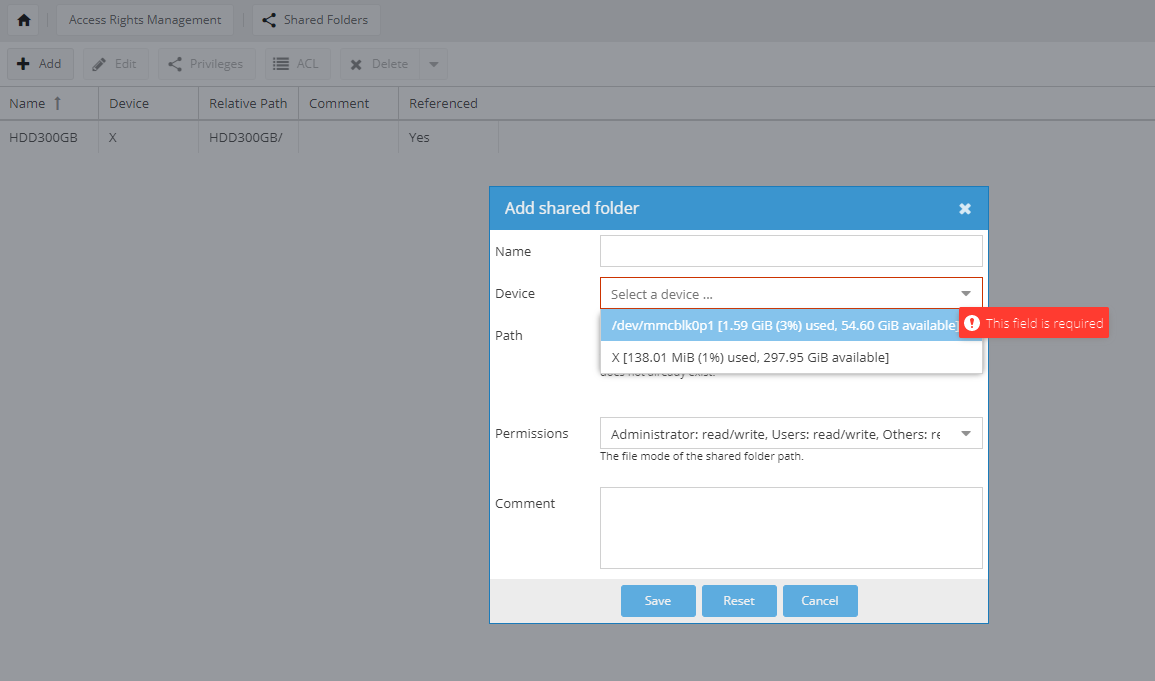
You can see from the screenshot above that after installing the sharerootfs plugin on mine, I was able to create a shared folder on /dev/mmcblk0p1 with 54GB of free space, i.e. on the SD card.
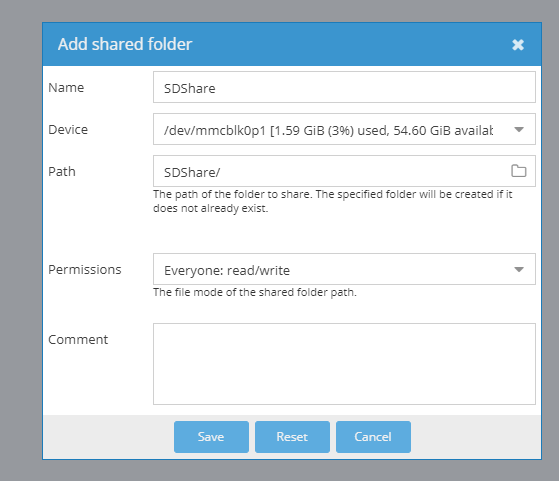
The remaining Share sharing steps are the same as I described earlier.
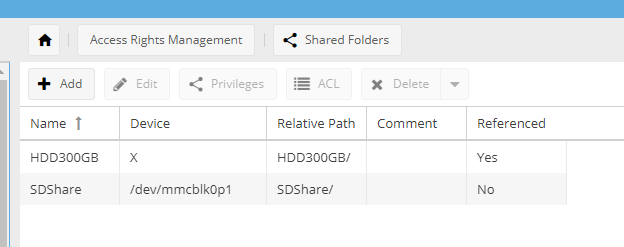
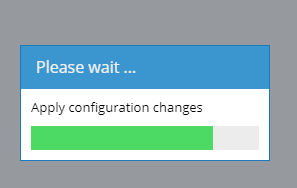
In this way (by also following the previously described steps for creating Share SMB), we can make the folder on the SD card itself public even for Windows.
The result:

Very useful - if you have a 64GB SD card, a good few tens of GB would be wasted without this. Of course, you can also get around this in another way - make two partitions on the SD card, but I haven't tried that.
Installing the Torrent client - Installing Docker/Portainer
I then decided to add torrent support to my server, specifically qBitTorrent.
Torrents are a great way to share files. A lot of free software (including but not limited to operating systems - e.g. Gimp) is published on torrents.
In a nutshell, torrents work in such a way that anyone who downloads a file also shares it, as well as being able to further share it once it has been downloaded. In BitTorrent, files are downloaded by the same users as ourselves, and it also depends on us how many other people are able to download the selected file.
Therefore, by torrenting e.g. ISO files of various Linux distributions, you can help the open source community - because then anyone can download such a distribution from you.
On OpenMediaVault, it is most convenient to install the qBitTorrent client - we will need Docker first. Docker is a mechanism which creates a simplified hermetic environment (so-called 'container') where we can comfortably run the selected process. You can read more about it here: https://www.docker.com/
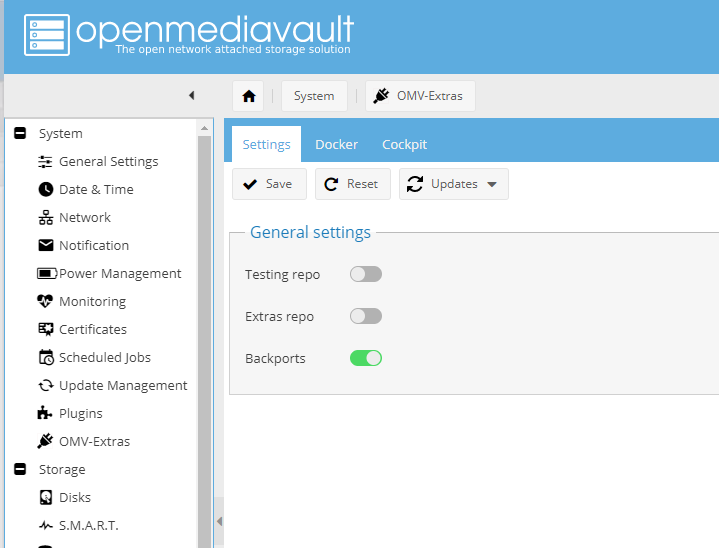
To start with, we need to go to OMV-Extras and enable test/extras Repositories there:
Then under the Docker tab (further in OMV-Extras) we can start installing Docker:
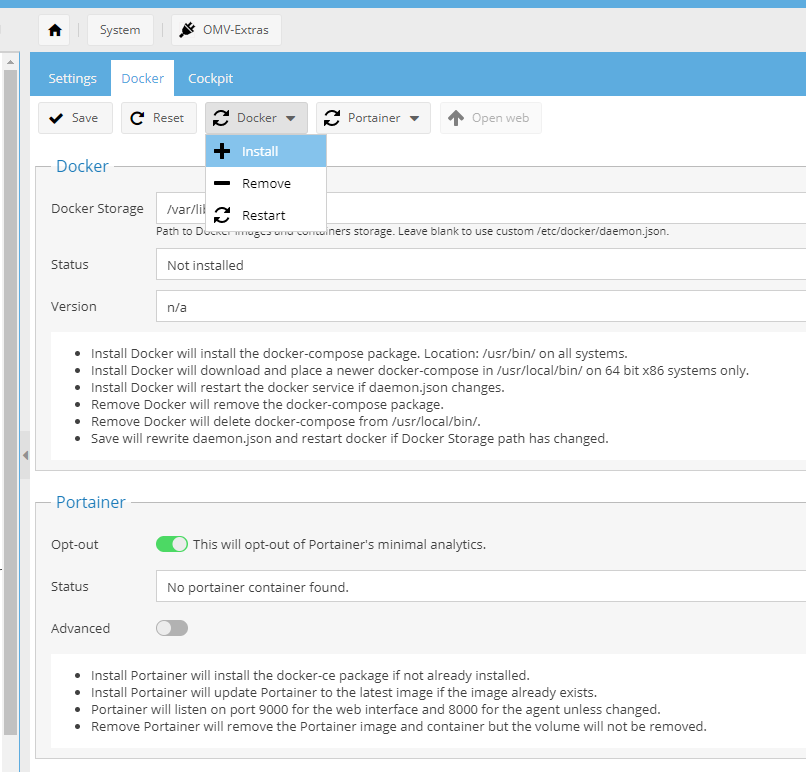
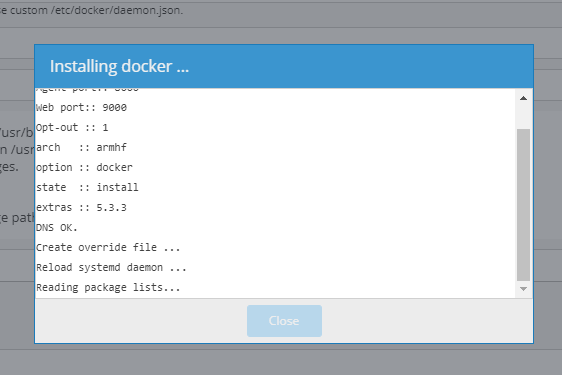
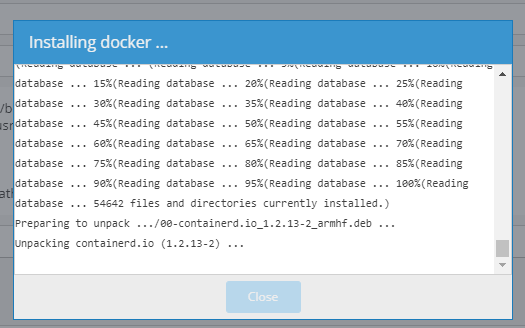
This process will take a little while. You should wait patiently until the end. The progress is displayed in a window.
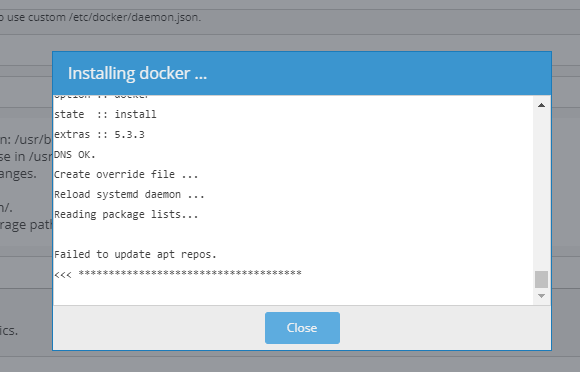
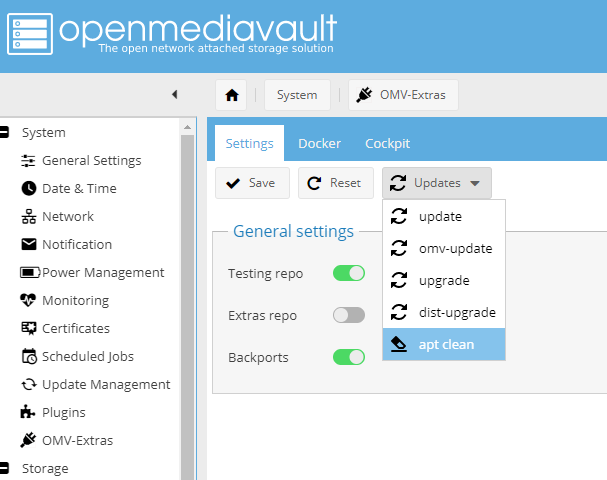
If during the installation of Docker you get an error like in the screenshot below ("Failed to update apt repos."), then you need to do an apt clean (click the apt clean button, also available in OMV-Extras).
The apt clean button is here (you have to expand this list from Update to find it):
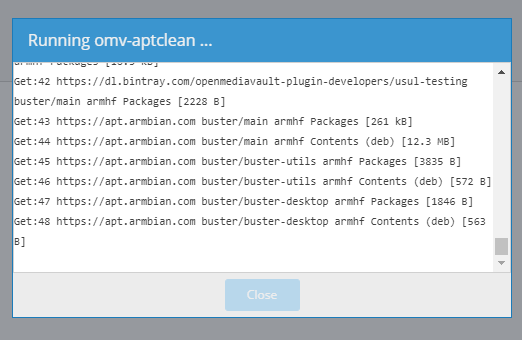
The apt-clean process itself also takes a little while - its progress is displayed in a window.
After apt-clean, we can reinstall Docker (as I described earlier) and now Docker should install successfully:
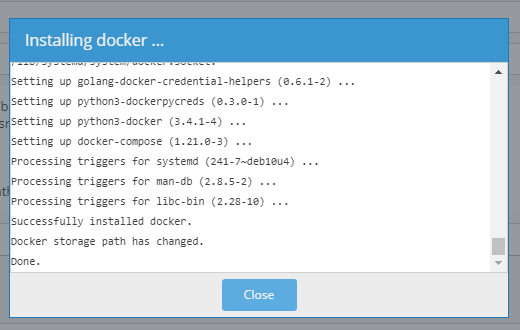
We wait for the message "Successfully installed docker.", then we can close the installation window with the 'Close' button.
After installation, the status of Dockerae in the Docker tab from OMV Extras should be 'Installed and running'.
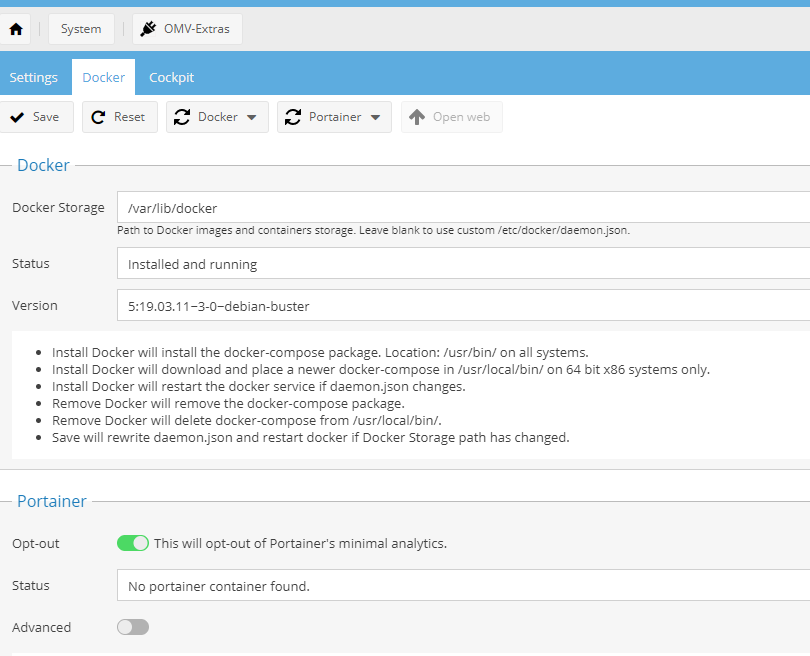
We already have Docker, now we will install Portainer.
Portainer is an additional tool that makes it easier for us to manage Docker. You can read more here: https://www.portainer.io/
Its installation looks analogous - in OMV Extras, under Docker, there is a Portainer button:
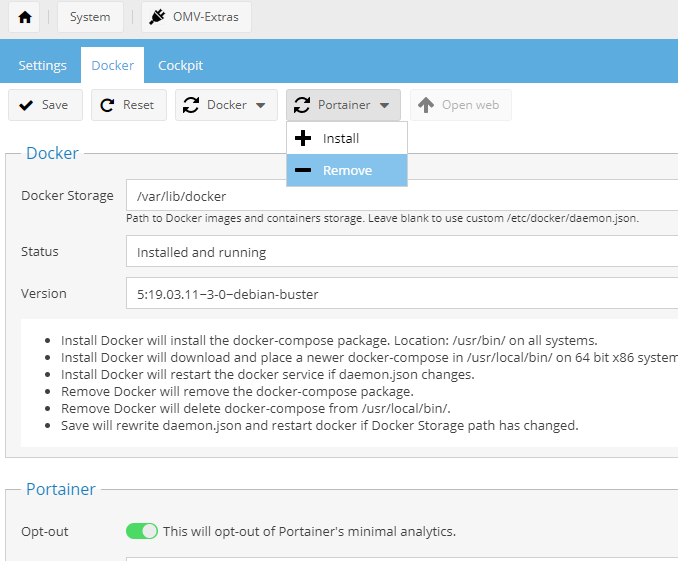
You have to select "Install" from the drop-down list and wait for it to install:

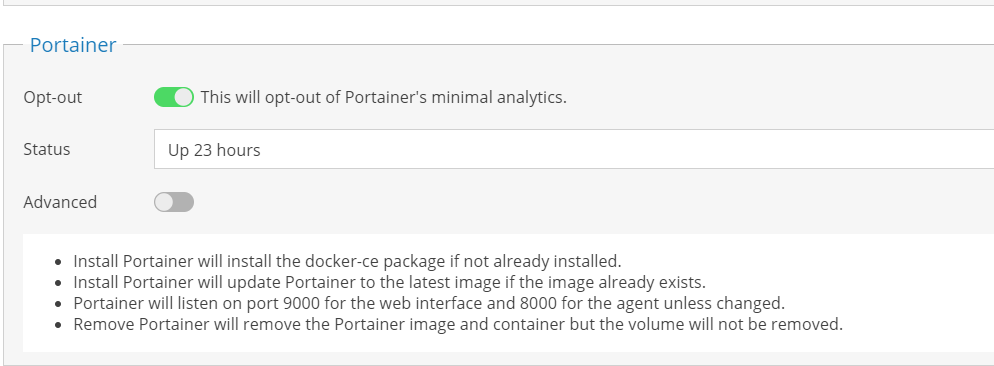
Once the Portainer has been successfully installed, its status should be shown as Up:
Installing the Torrent client - Installing qBitTorrent via Stacks in the Portainer
We have already installed Docker, we have installed Portainer.
We will now use the Portainer tool to install the qBitTorrent client.
The Portainer can be accessed via the 'Open Web' button from OMV Extras/Docker:

This button opens a completely independent, separate Web Panel of the Portainer, in my case accessible on port 9000 (ip the same as the server of course).
The first time we run it, we have to create an account:
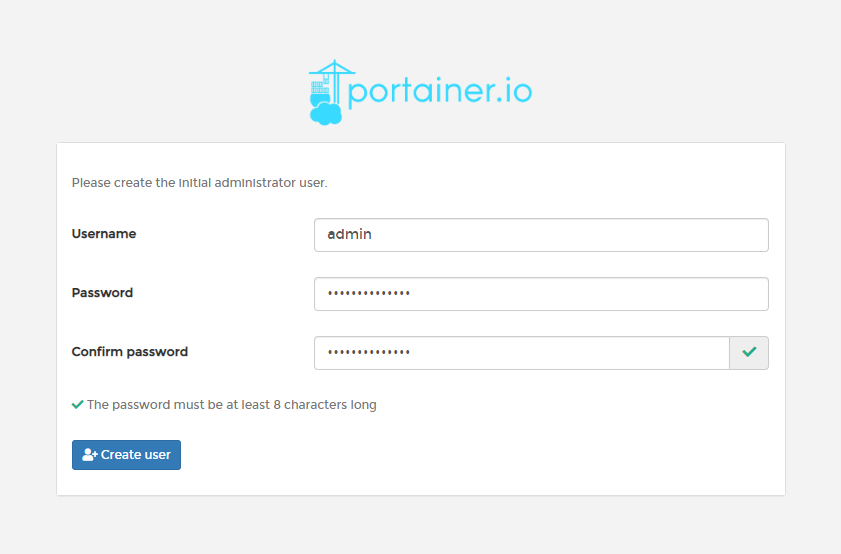
Then we need to connect the Portainer client to our server once:
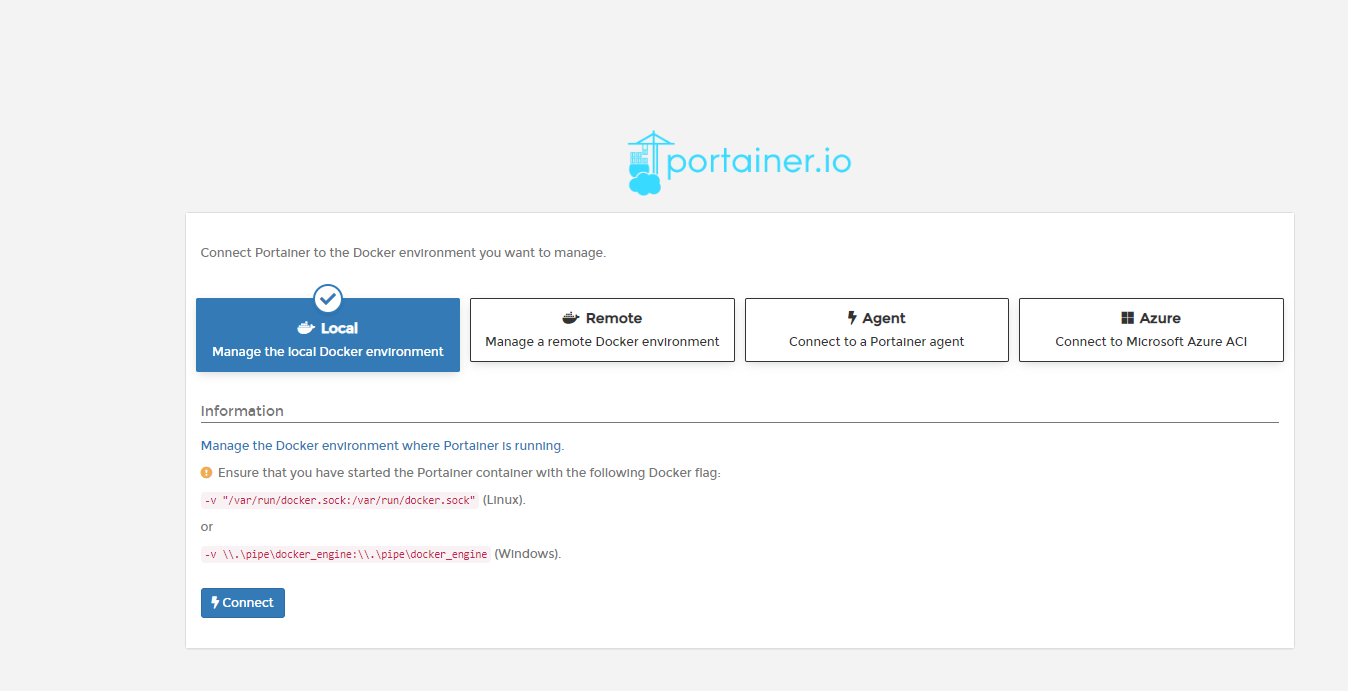
From this point on, we have a functional Portainer available.
Here we can install various add-ons for OpenMediaVault.
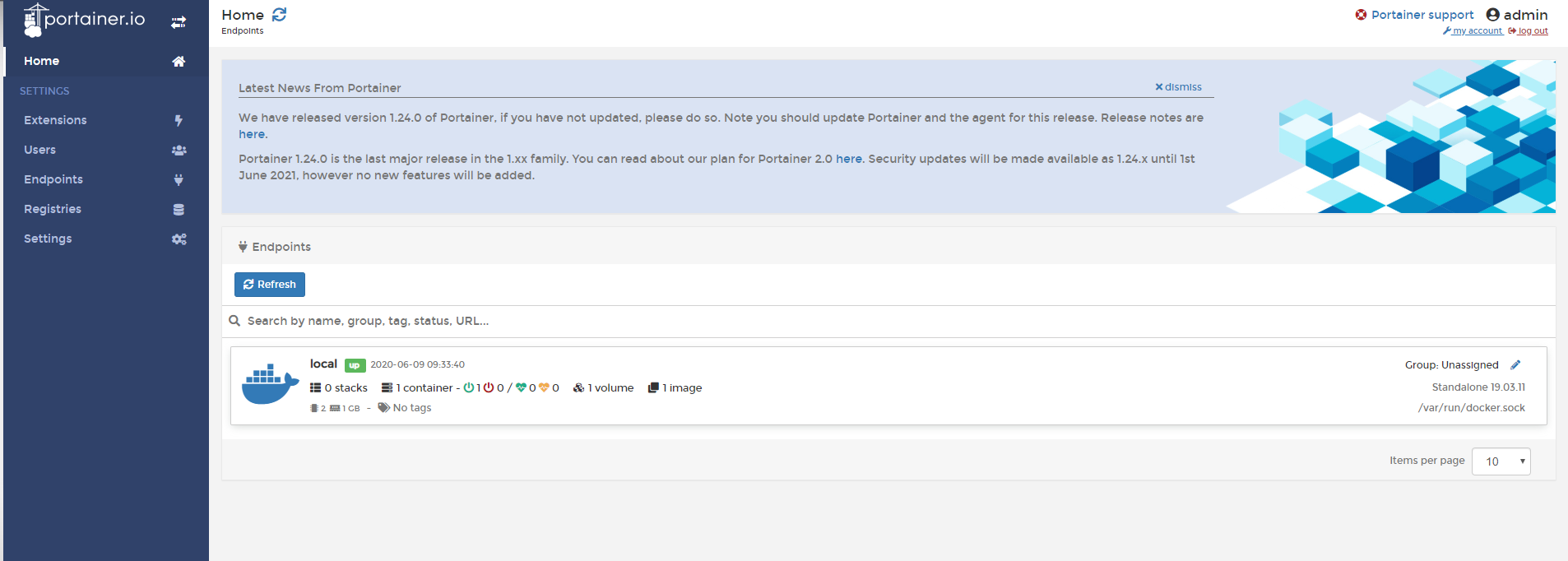
Our interest here is in the Stacks list - this is where the modules will be added.
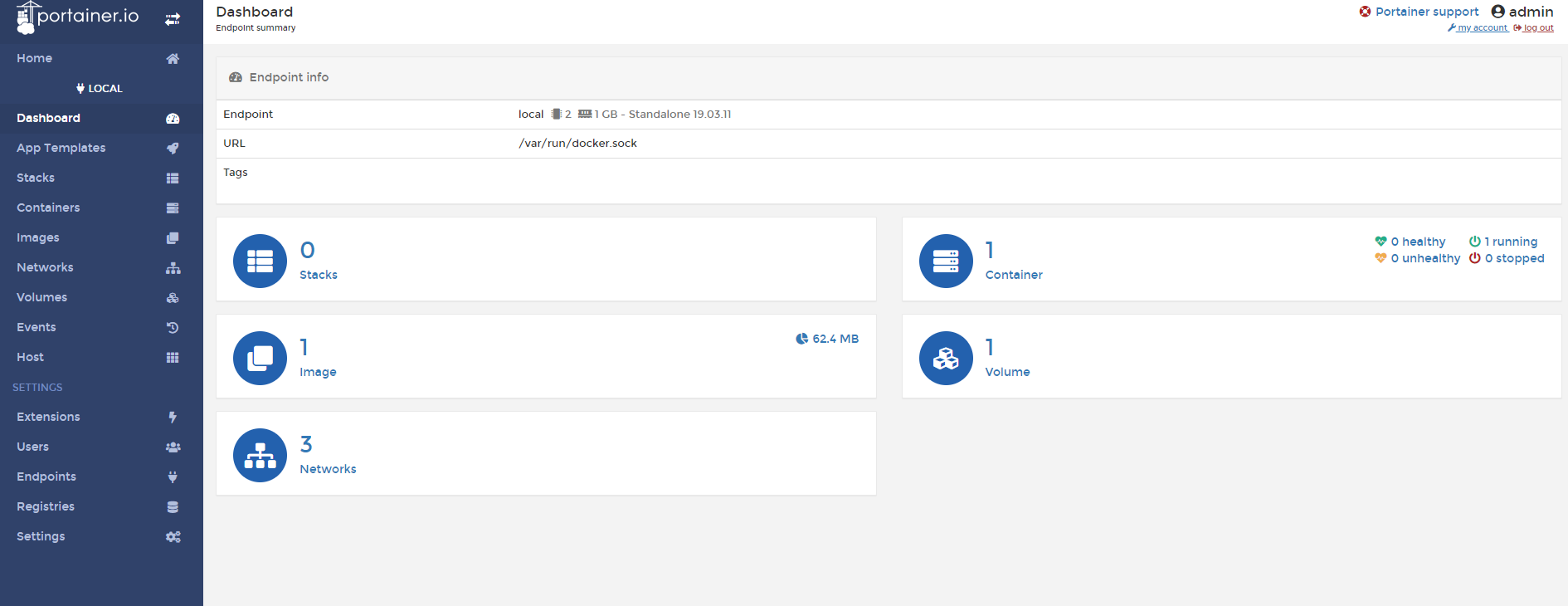
So-called 'Stacks' are added via the 'Add stack' button in the 'Stacks list' view:

We will now install qBitTorrent. We will use the following stacks script to install:
---
version: "2"
services:
  qbittorrent:
    image: linuxserver/qbittorrent
    container_name: qbittorrent
    environment:
      - PUID=TWOJE_PUID
      - PGID=TWOJE_PGID
      - TZ=Poland/Warsaw
      - UMASK_SET=022
      - WEBUI_PORT=8080
    volumes:
      - /srv/dev-disk-by-label-TwojShare/TwojShare/Btrt/Config:/config
      - /srv/dev-disk-by-label-TwojShare/TwojShare/TwojShare/Data:/downloads
    ports:
      - 6881:6881
      - 6881:6881/udp
      - 8080:8080
    restart: unless-stopped
Unfortunately we have to complete it.
We need to correct in it:
- PUID
- PGID
- twojShare path (full path)
To begin with, we will complete the PUID/PGID. These can be easily found out by logging into the terminal with the command "id <user_name":
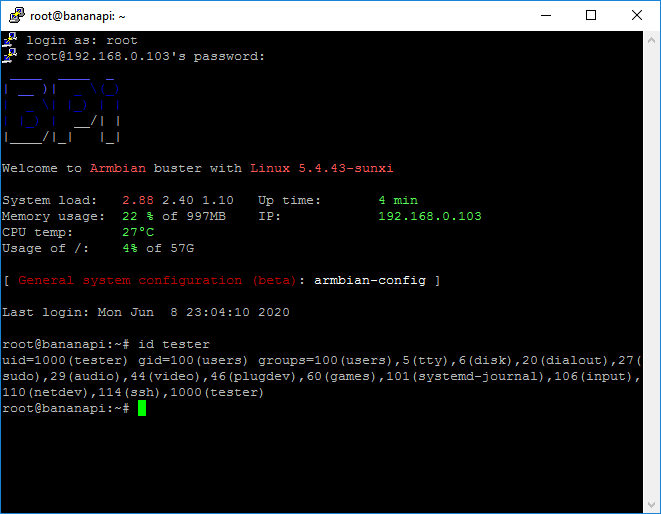
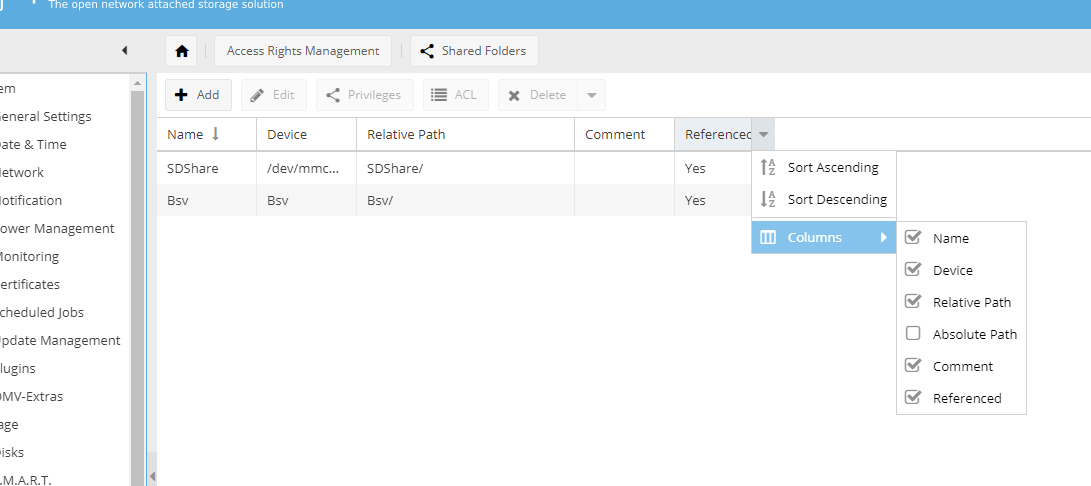
Now we need to know the full path (Absolute Path) to the Share of our SSD. This is most conveniently found in the OpenMediaVault Web panel, under Storage -> Shared Folders.
By default 'Absolute Path' is not shown, you need to enable it in the column view settings (column settings are as you expand that checkmark on the right, you can see it in the screenshot):
Once these have been enabled, we have an additional column - Absolute Path, and copy its contents:
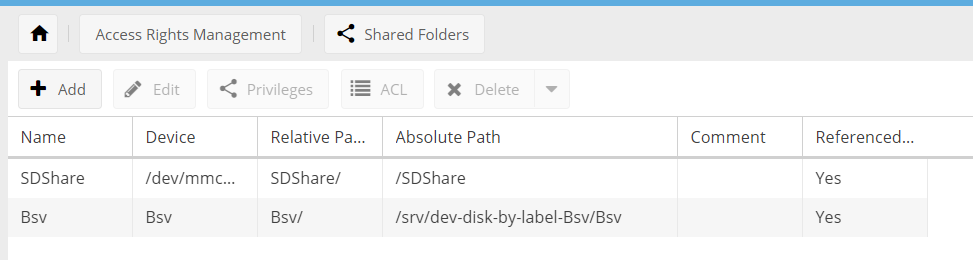
In my case, this path looks like this: /srv/dev-disk-by-label-Bsv/Bsv
We already have everything we need. Now you can enable adding Stacks (Stacks->Add stack) from the Portainer:
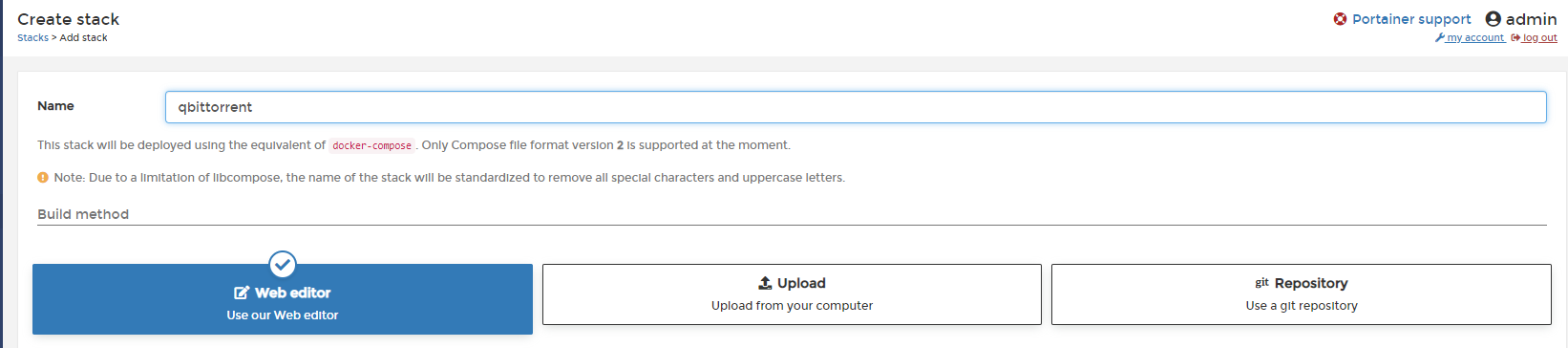
and paste the duly completed script there (I corrected PUID, PGID, and paths in it):
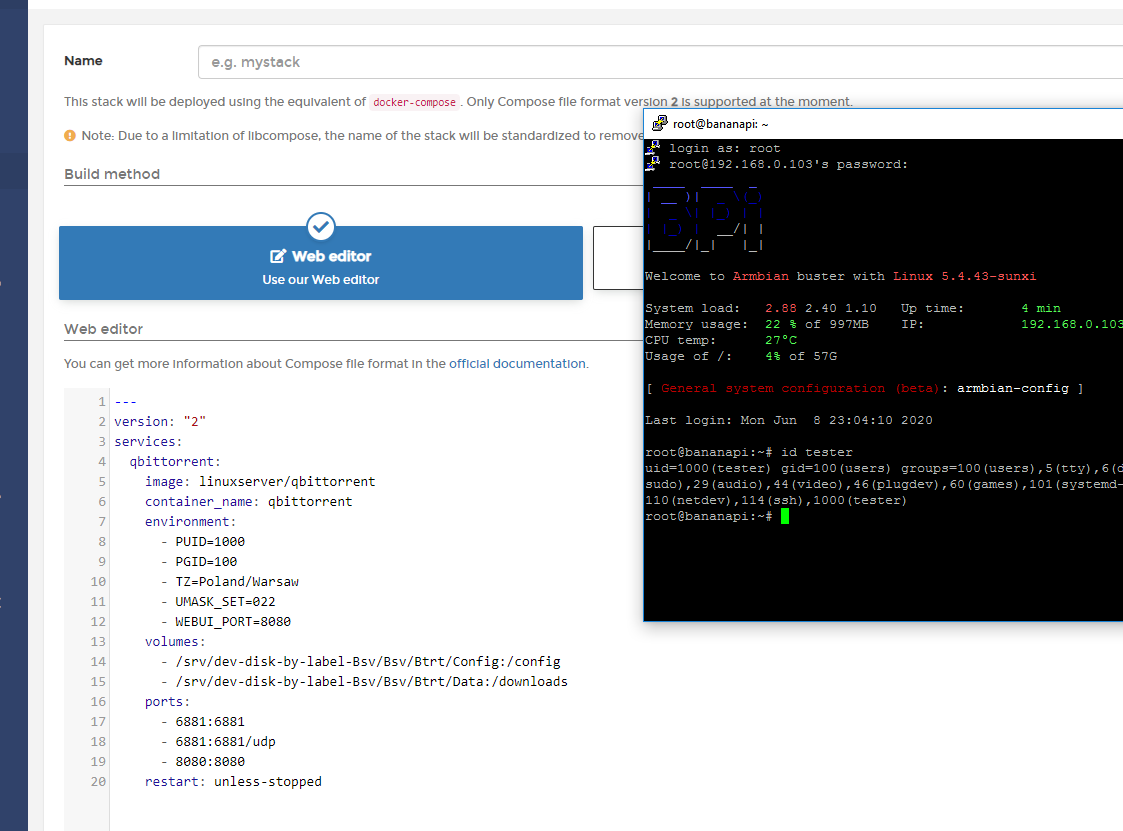
The final version of the script I used:
---
version: "2"
services:
  qbittorrent:
    image: linuxserver/qbittorrent
    container_name: qbittorrent
    environment:
      - PUID=1000
      - PGID=100
      - TZ=Poland/Warsaw
      - UMASK_SET=022
      - WEBUI_PORT=8080
    volumes:
      - /srv/dev-disk-by-label-Bsv/Bsv/Btrt/Config:/config
      - /srv/dev-disk-by-label-Bsv/Bsv/Btrt/Data:/downloads
    ports:
      - 6881:6881
      - 6881:6881/udp
      - 8080:8080
    restart: unless-stopped
I didn't change the port settings in it, I set the time zone to Poland/Warsaw, but I think that suits you.
After pasting the script press the 'Deploy the stack' button:
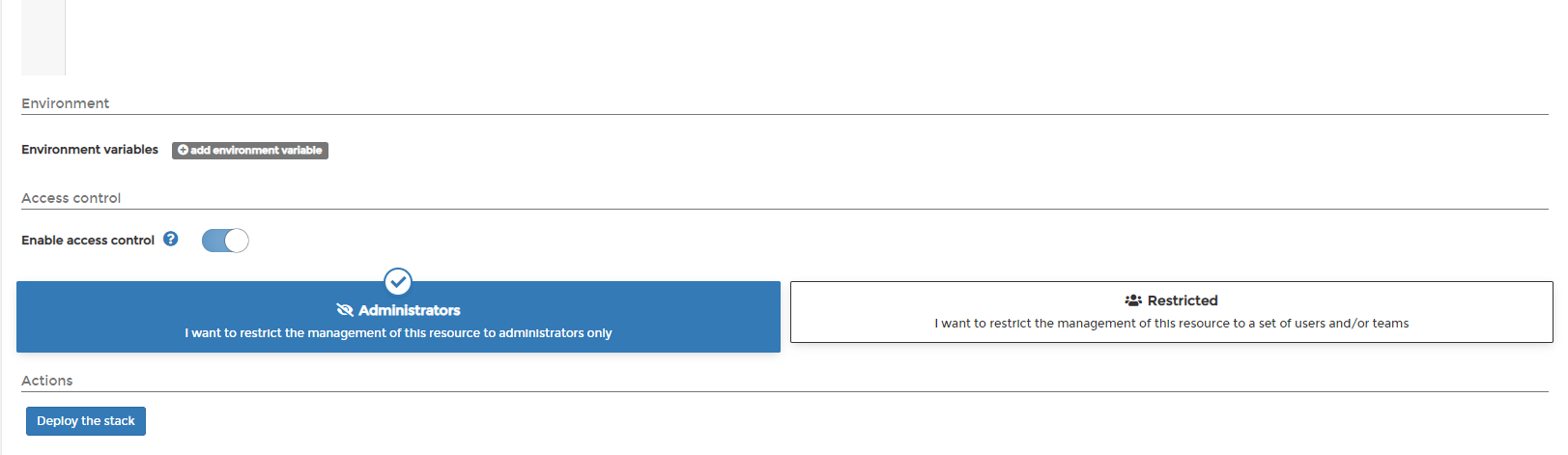
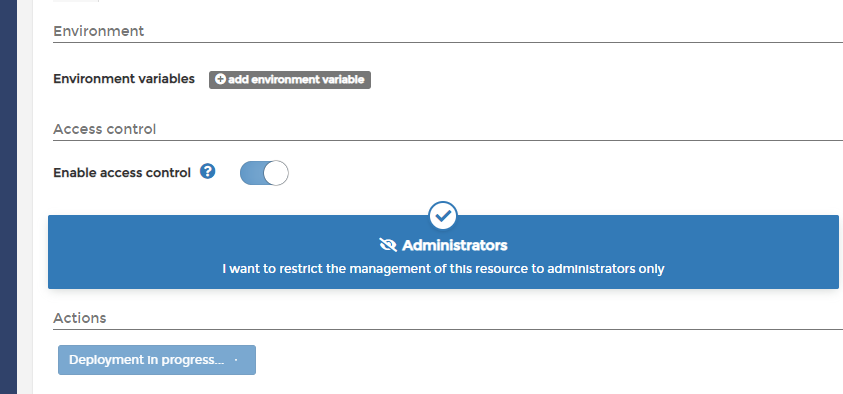
Then we have to wait until the stack is done; during this time the button will have the text 'Deployment in progress' and cannot be pressed.
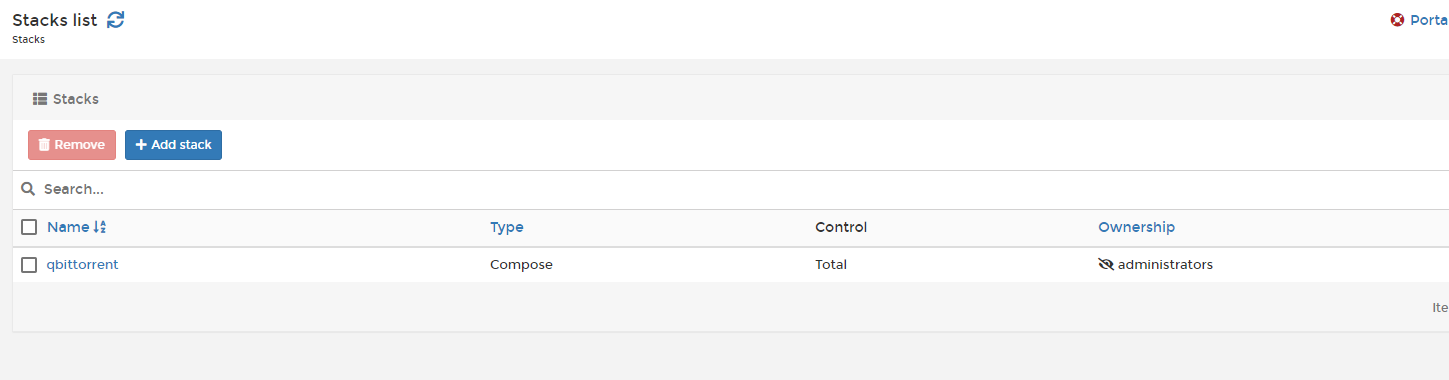
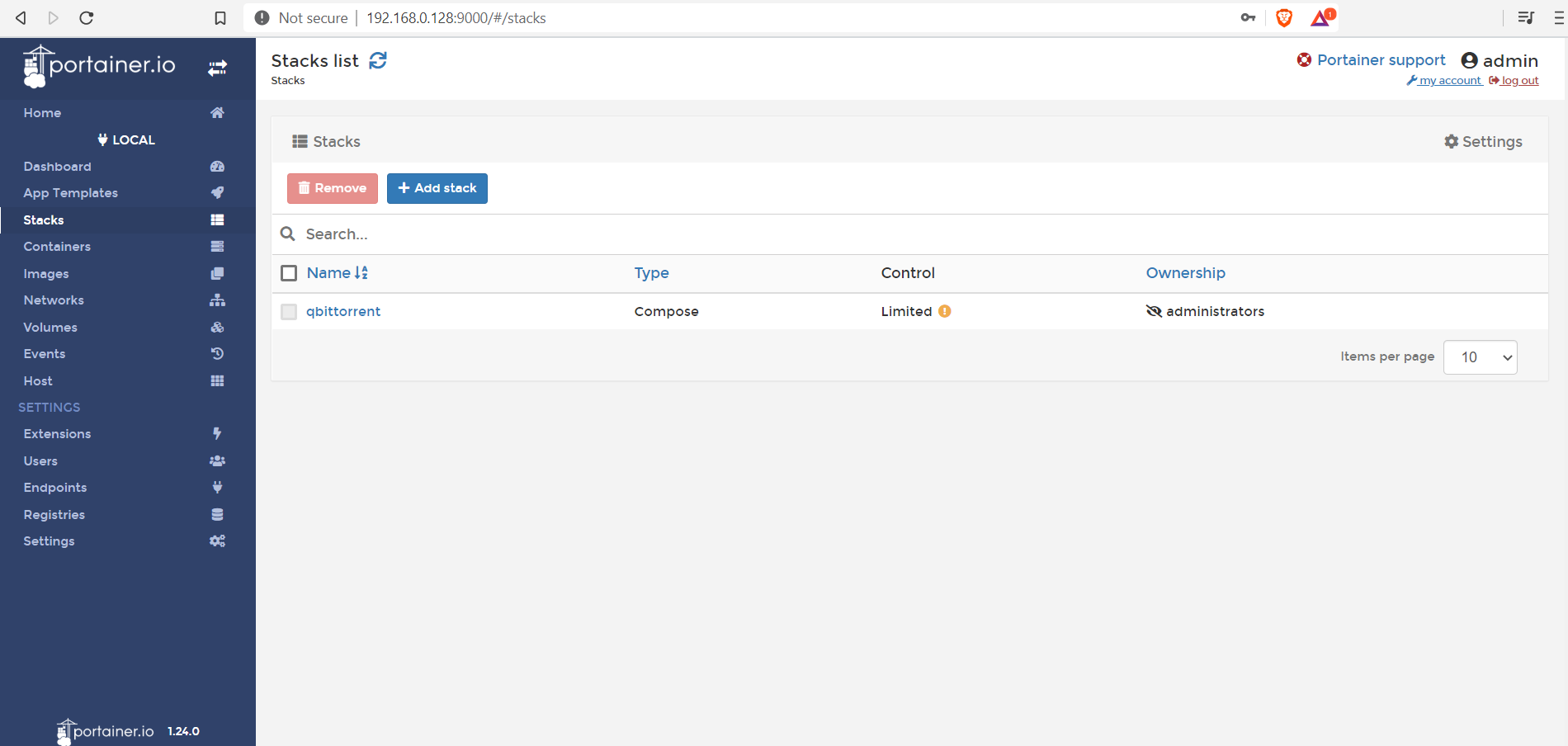
Once the Deployment is done, qbittorrent should be visible in our Stacks list in the Portainer.
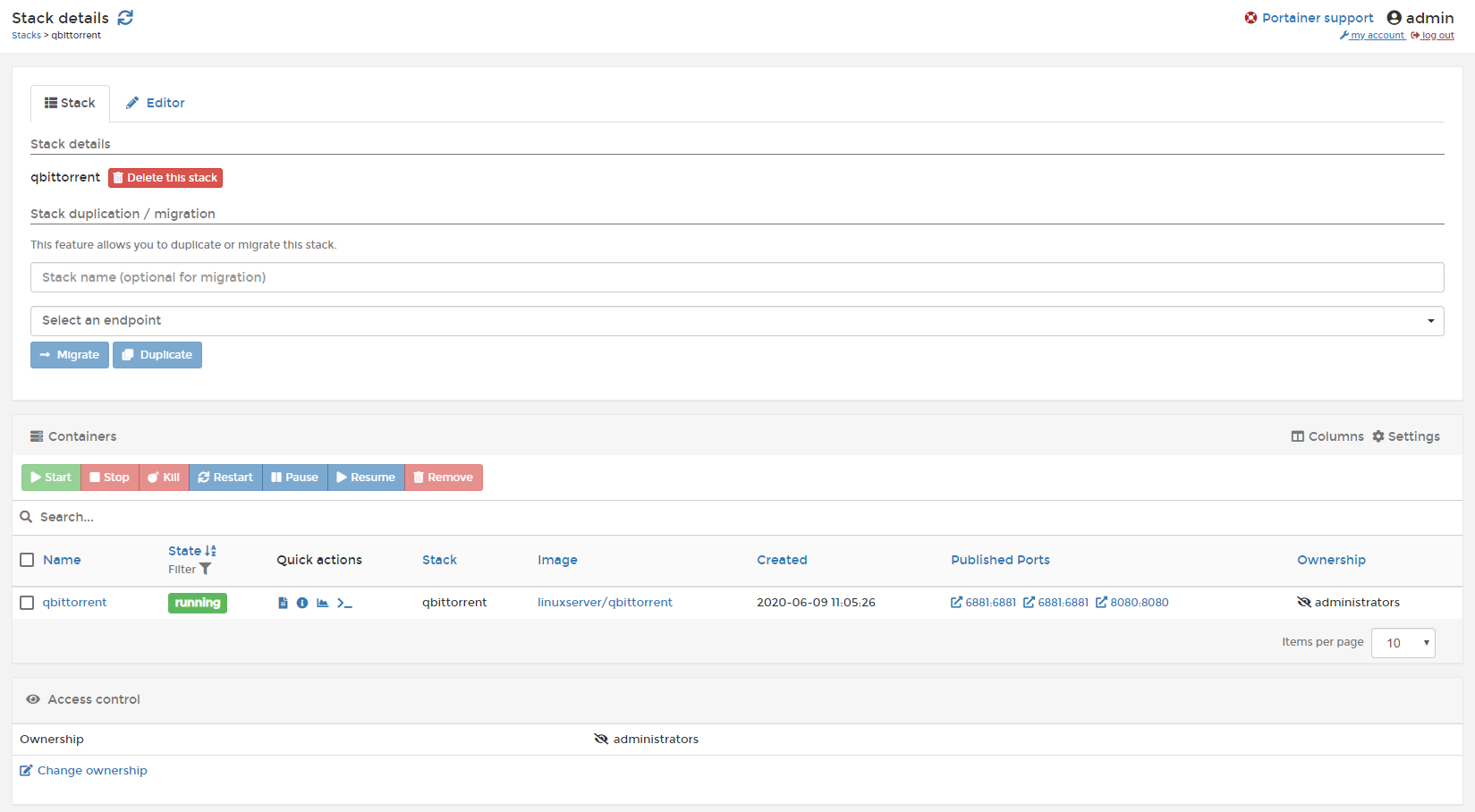
We can go into its settings and check its status - it should be 'running'. Here we can also see when it was created and what ports it occupies (Published Ports column).
In theory, when you click on 'Published Ports' it should redirect you to the given service's web panel on the selected port in your browser, but if that doesn't work, you can simply type in the server's IP in the address bar and then the selected port (e.g.: bb59c896666f 192.168.0.128:8080 ).
Installation of the Torrent client - logging into qBitTorrent and first Ubuntu ISO download test
After successful installation, qBitTorrent is accessible via a web browser on port 8080. To open its panel, we need to type :8080 preceded by our server's IP address into the address bar, for example 192.168.0.128:8080 .
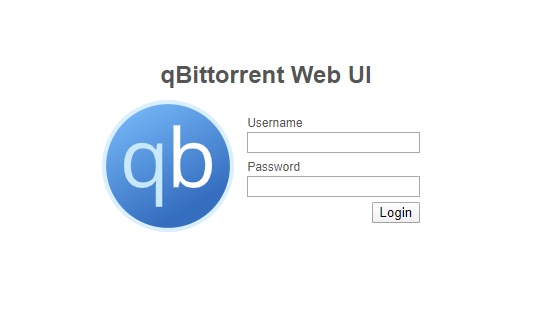
The qBitTorrent service requires you to log in - the default login is 'admin' and the password is 'adminadmin'.
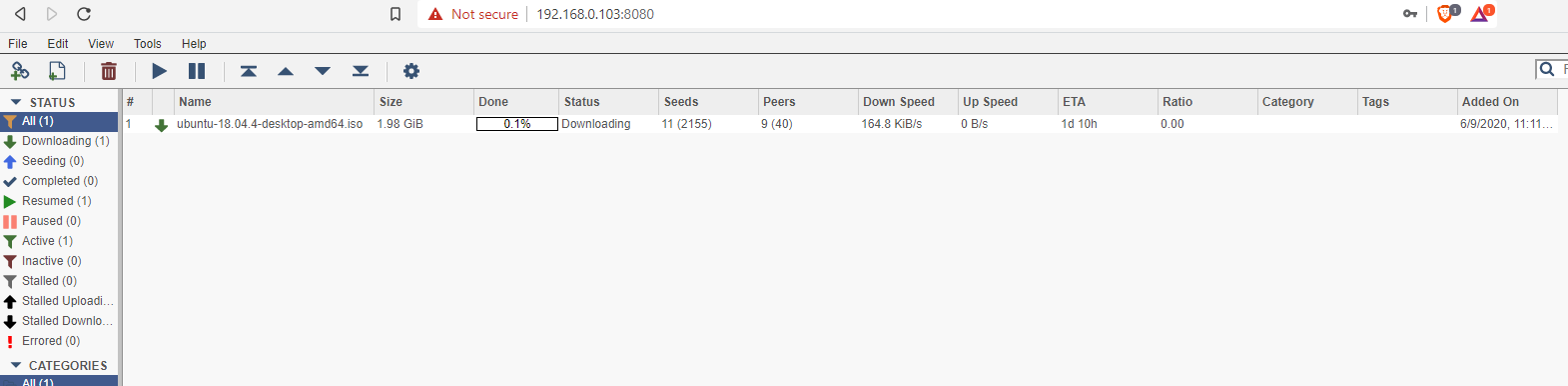
Once logged in you get access to the entire panel:
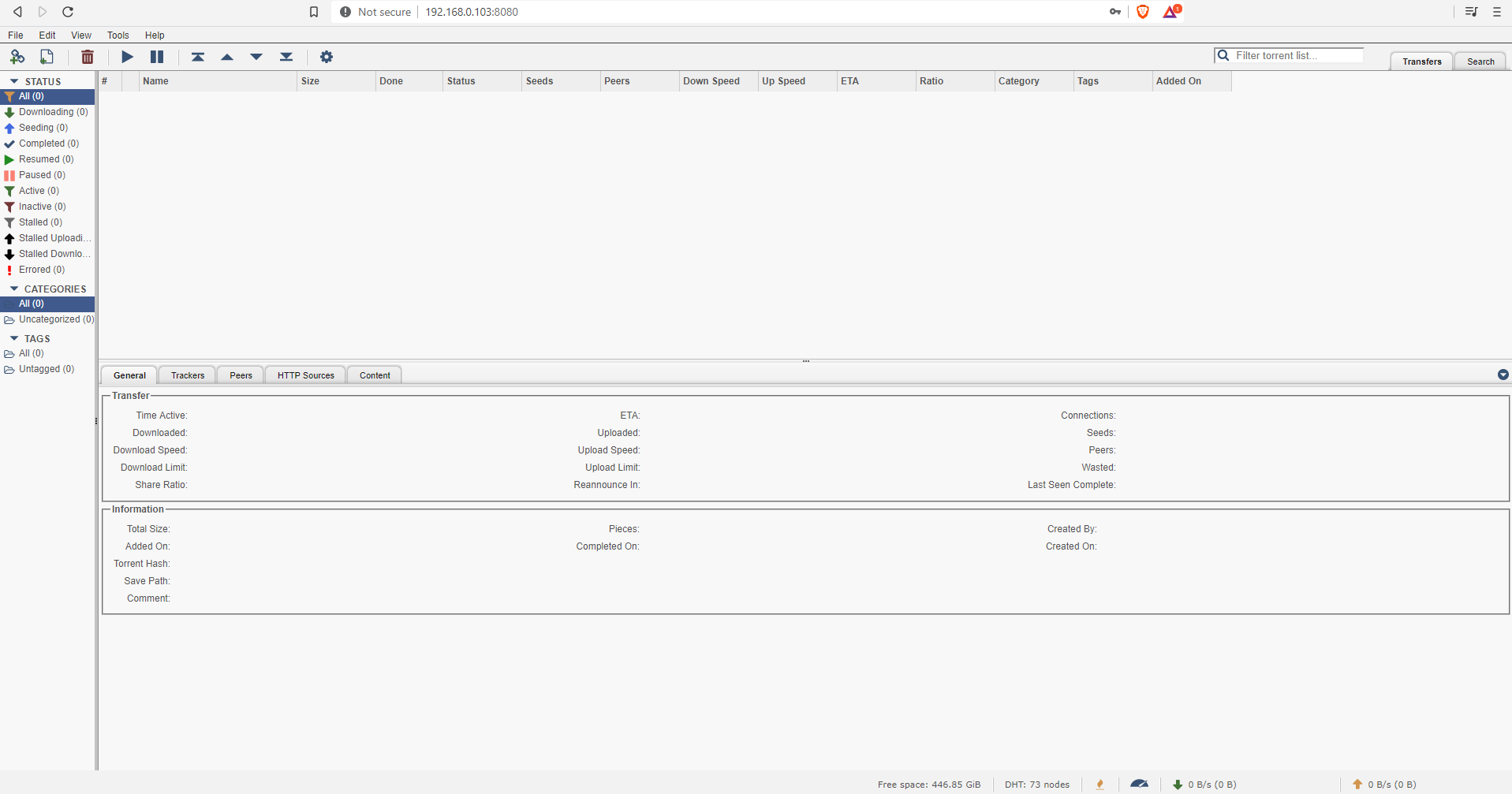
In the screenshot above we can see the columns:
- Name - torrent name
- Done - progress bar / % how much has been downloaded
- Size - size of the torrent
- Status - status of the torrent (downloading, uploading, etc.)
- Seeds - number of torrent seeds, i.e. users who have already downloaded the torrent and are now sharing it with others (they can send us when we download)
- Peers - the number of peers of a torrent, i.e. users who are now also downloading the torrent (we can also send them the torrent; peers can also send each other parts of the torrent they have already downloaded)
- Down Speed - torrent download speed
- Up Speed - torrent upload speed (as we upload to others)
- ETA - estimated time to complete download
New torrent jobs to download are added via the two icons indicated in the screenshot:
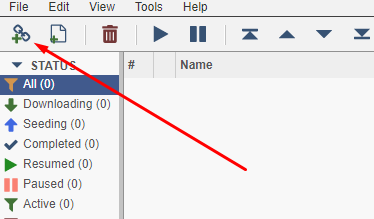
There are basically two ways you can add a new torrent download:
- via a .torrent file - we need to have a small file with a .torrent extension and send it to the panel via the form
- via a so-called 'magnet link' - we need to have a 'link' to the torrent, such a link starts starts with 'magnet:' and can be conveniently copied and sent via text messaging, even via IRC
I'll demonstrate here the addition of a task via a torrent file. I will do this using Ubuntu as an example - the .torrent files from its ISO can be downloaded from here:
https://ubuntu.com/download/alternative-downloads

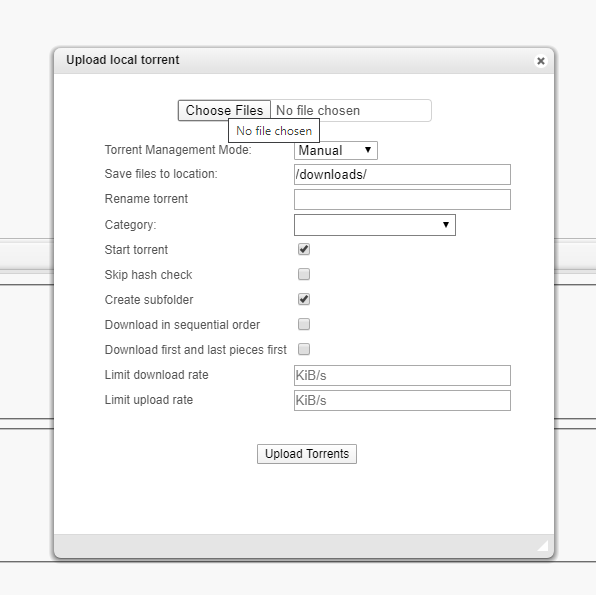
After a while qBitTorrent should start downloading. Of course, when the download starts and how fast it goes depends on a number of factors, such as how many people are currently sharing the file with each other. This is a P2P network, meaning we download from users like ourselves (and send to others too).
WWW Cloud Commander - Installing a file manager via Docker
OpenMediaVault does not have a built-in file viewer that we can use via a web browser - we have to install one separately. There are various file viewers available, but I opted for Cloud Commander.
Cloud Commander homepage:
https://cloudcmd.io/
Cloud Commander is easiest to install as I previously installed qBitTorrent, i.e. via Stacks with Portainer. We need to have Portainer installed beforehand.
We open Portainer->Stacks:
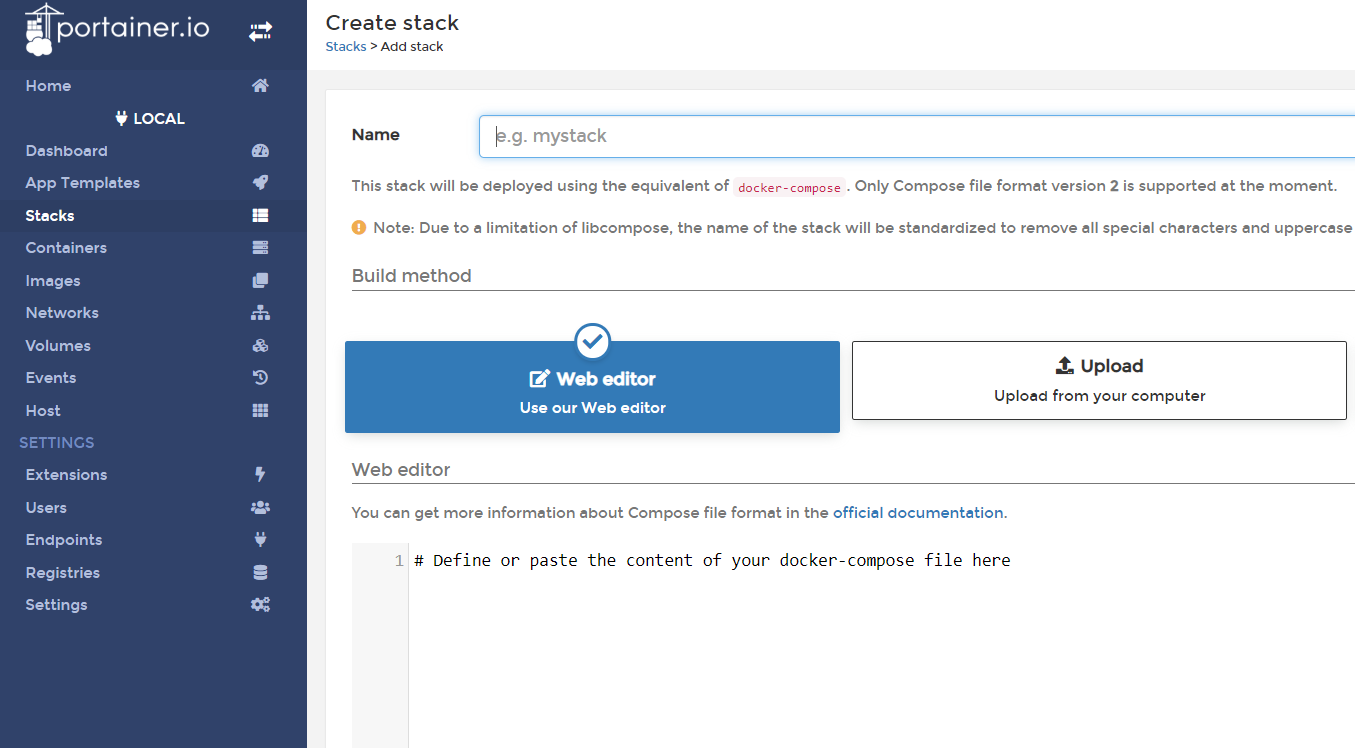
There we click 'Add stack'. In the new form we enter the name of our stack, e.g. 'cloudcommander':
Next we need to prepare the Compose script. Here is an example that will create a Cloud Commander service on port 7000:
version: '2'
services:
  web:
    ports:
      - 7000:8000
    volumes:
      - ~:/root
      - /:/mnt/fs
      - /srv/dev-disk-by-label-Bsv:/srv/dev-disk-by-label-Bsv
    image: team0/rpi-cloudcmd # arm-based docker images for cloudcmd
    # image: coderaiser/cloudcmd
In it you should at least change dev-disk-by-label-Bsv to your disk label.
It is also worth noting that image coderaiser/cloudcmd is commented out because he does not provide a build for the Banana Pi/Raspberry Pi architecture, so we use image team0/rpi-cloudcmd .
Completed form:
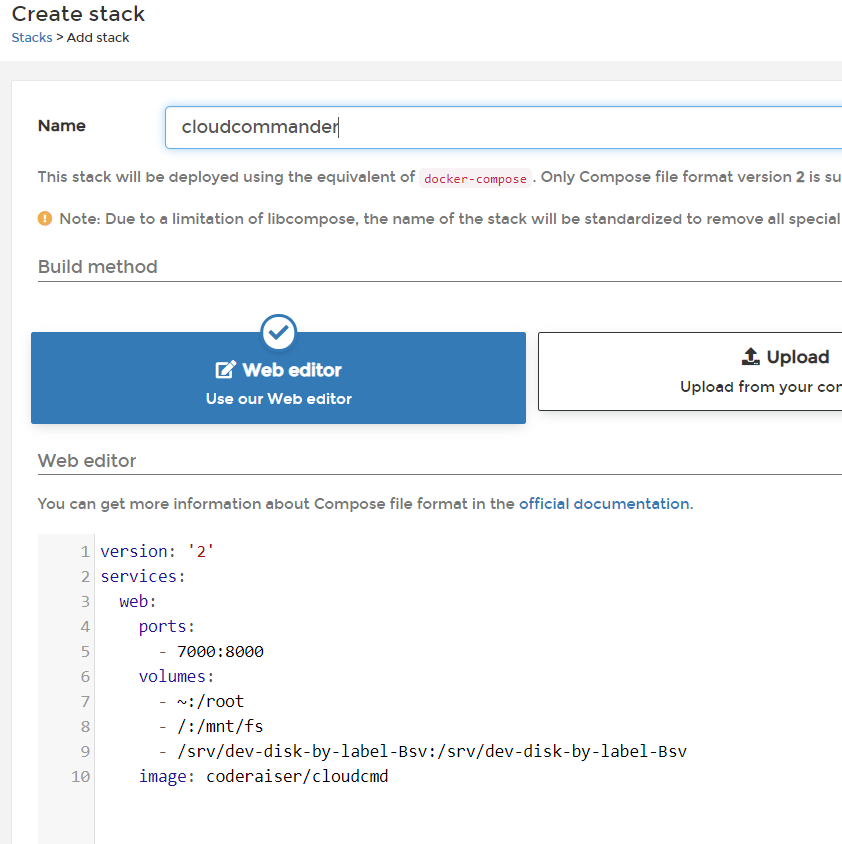
Then click 'Deploy' and wait for the installation. With me it took a bit of time, definitely longer than I thought it would:
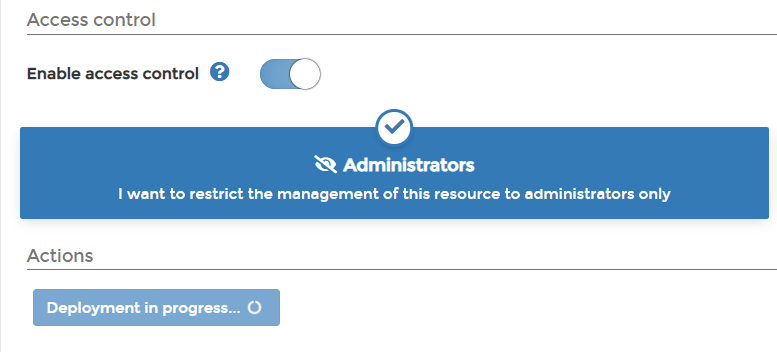
After a successful installation, you will be automatically redirected to the Stacks list, where our cloudcommander should appear:

You can click on it and check its status - it should be running.
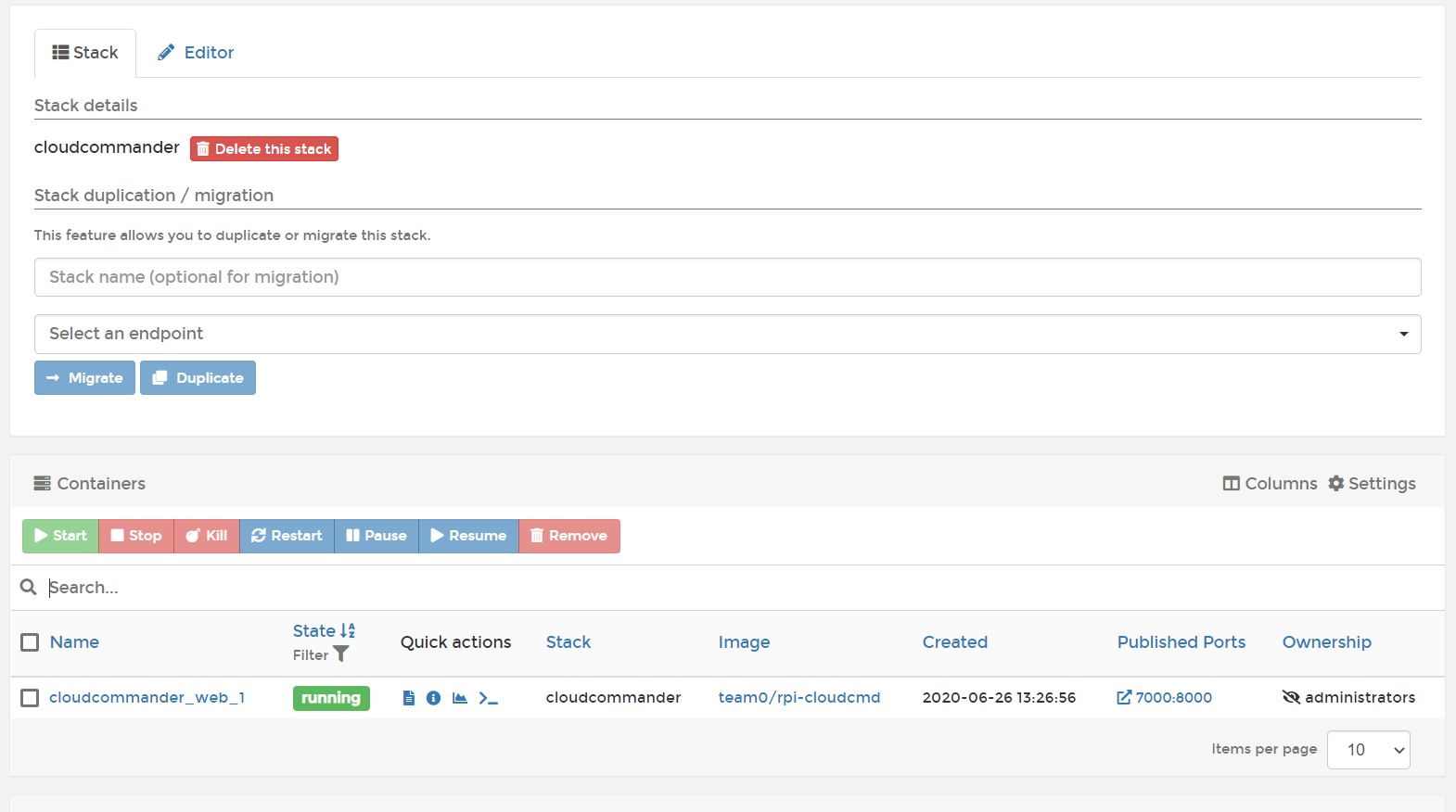
It looks like everything is ok - from now on cloudcommander web should be available on port 7000 on our Banana Pi address. I will check this in the next paragraph.
WWW Cloud Commander - Running Example
Once installed, Cloud Commander is accessible via the browser on the port of your choice. In my case I was able to access it via the address 192.168.0.128:7000 :
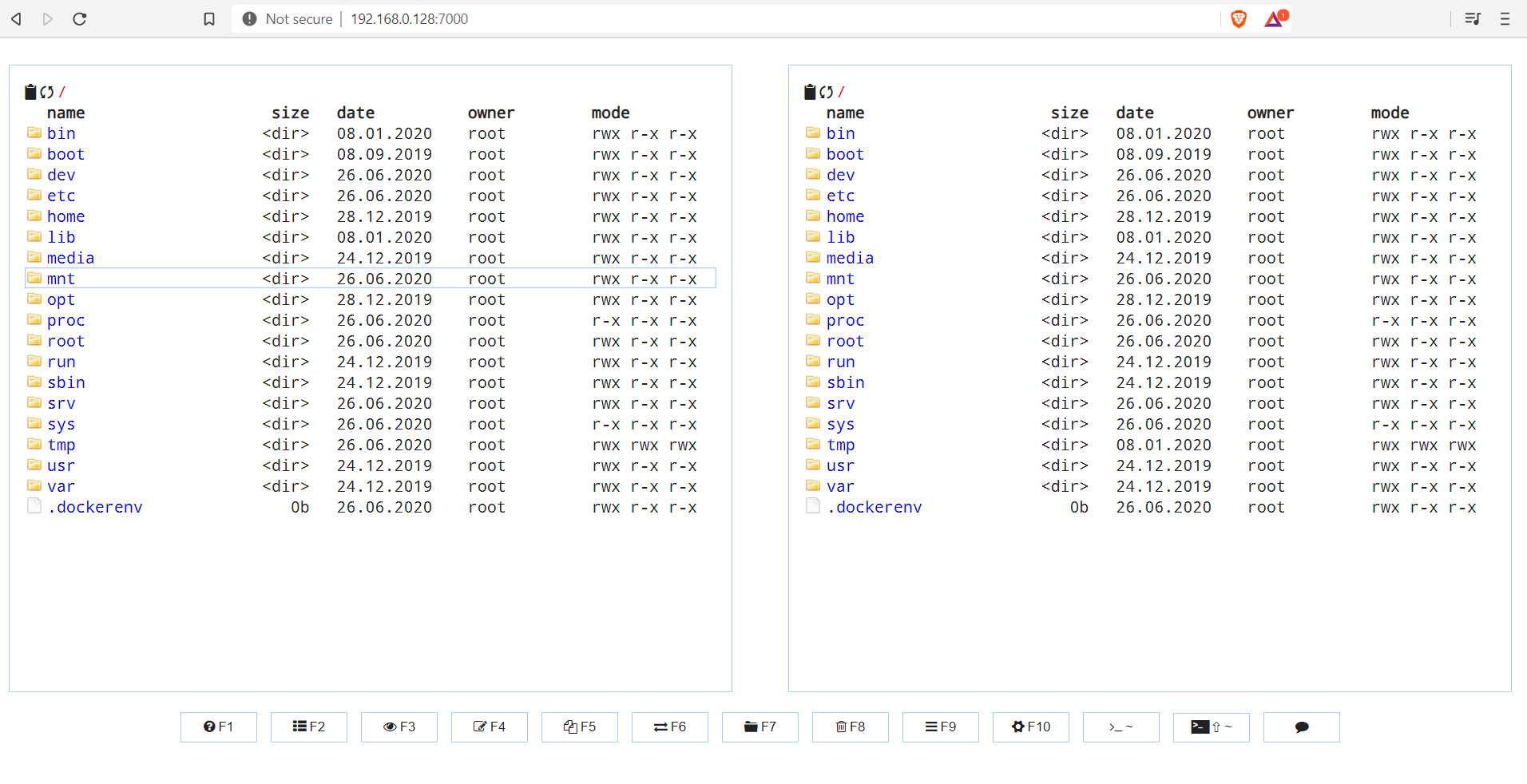
Cloud Commander does not require any login in the default configuration. This should be kept in mind if we want our server to be accessible from the Internet.
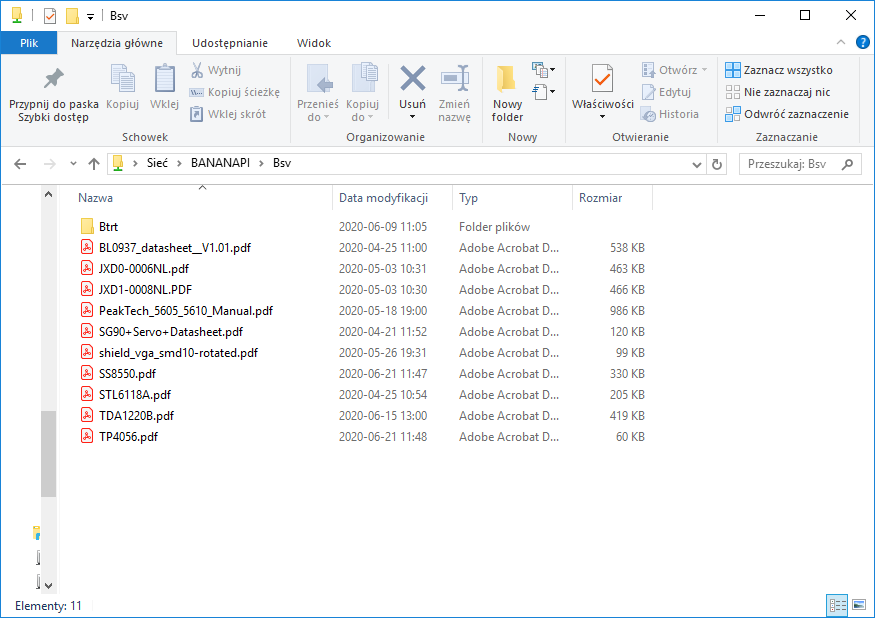
In Cloud Commander we can it's easy to look at what's on the drive connected to the Banana Pi, in my case it's under the /srv/dev-disk-by-label-Bsv/Bsv path:
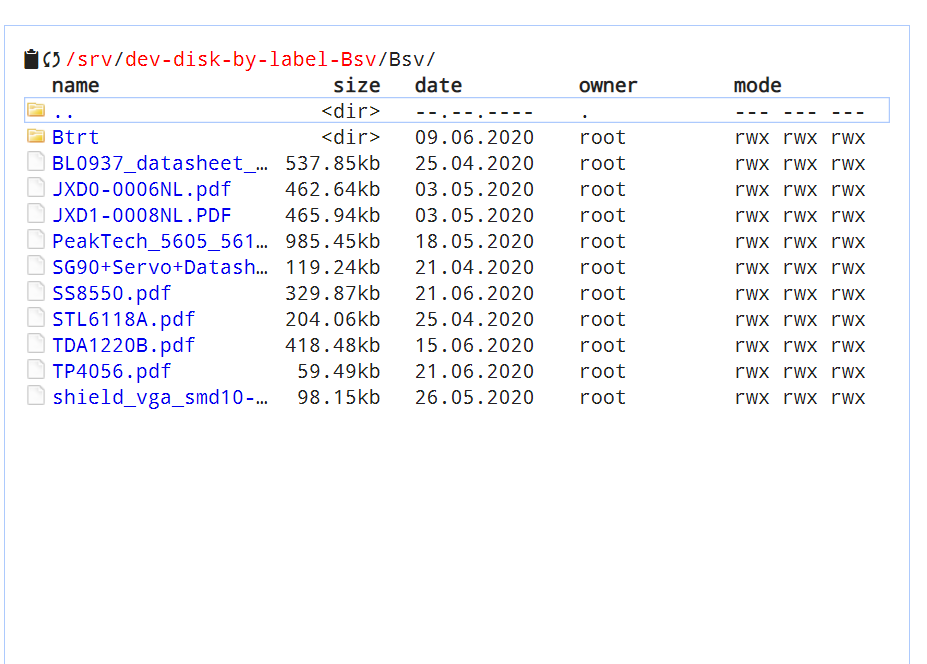
The same files, of course, I have on Windows accessible via Samba:
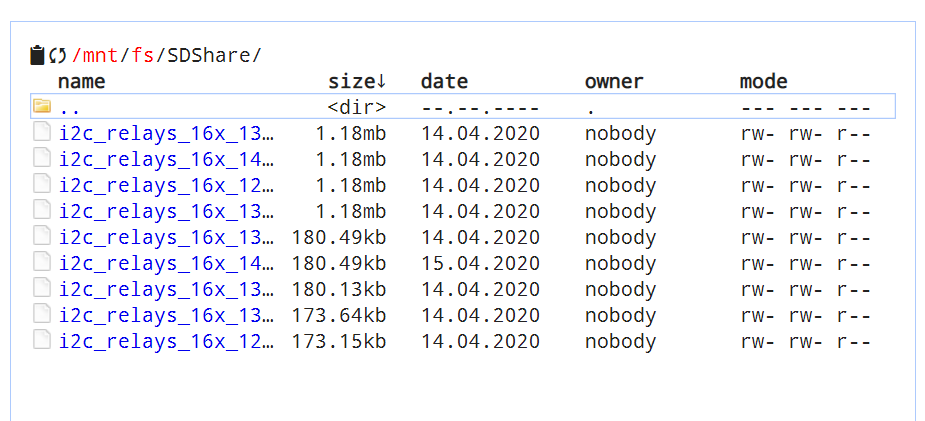
In Cloud Commander you can also access the Share created on the SD card (using the sharerootfs plugin). In my case this is located under the path /mnt/fs/SDShare/:
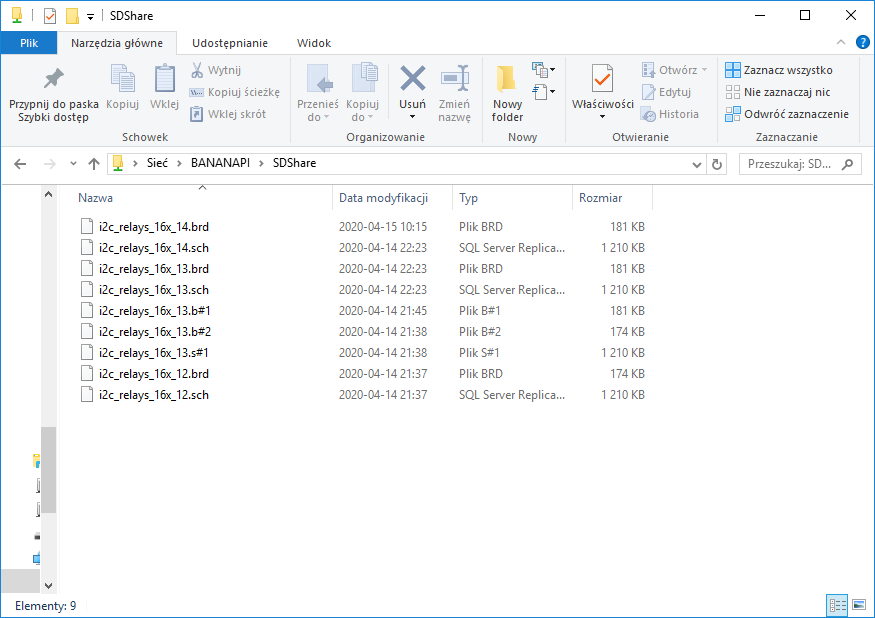
You can see the same files there as Windows sees them, of course:
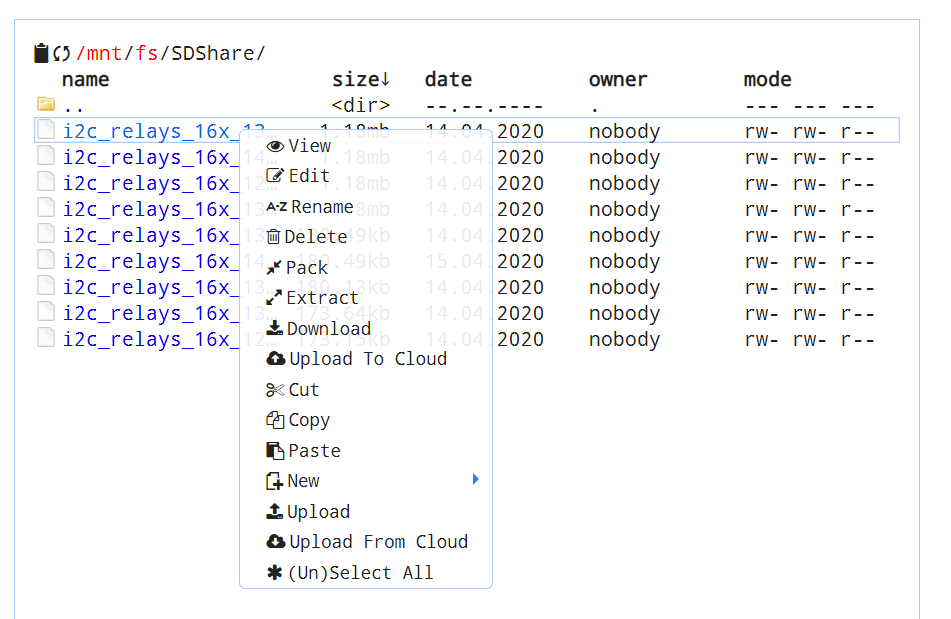
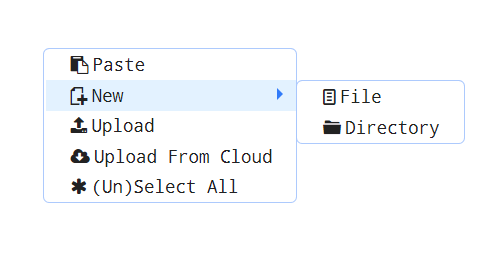
Cloud Commander allows you to perform various operations on files, move them, create folders, new files, etc. The menu after right-clicking on a file looks like this:
Menu when right-clicking in the current folder:
WWW Cloud Commander - Command Console via WWW
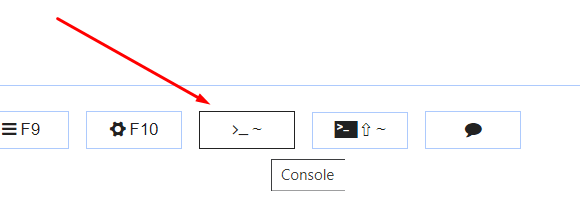
Cloud Commander also offers a very convenient terminal which is accessible via the WWW. It is fully functional.
It is opened here:
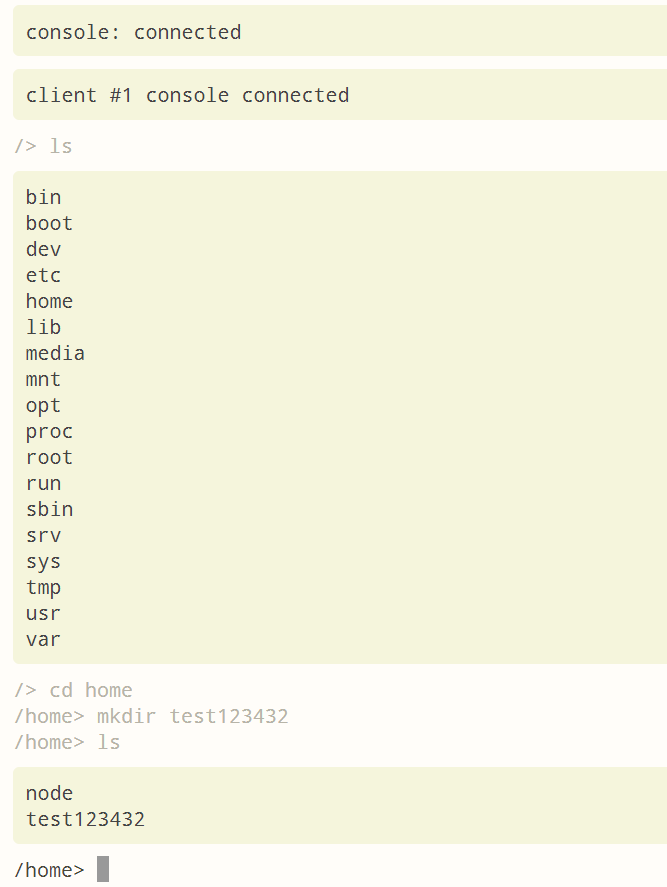
Once launched, it presents itself as follows:

It can be operated normally with commands:
This is quite useful - it allows me to give myself Cloud Commander in my web browser bookmarks and I don't have to run Putty and SSH to do something in cmd.
Installing Remote Desktop - RDesktop
You can also install a remote desktop on the Banana Pi. I will show how to do this using Docker/Portainer, which is analogous to previous installations.
Stacks script:
---
version: "2"
services:
  rdesktop:
    image: linuxserver/rdesktop
    container_name: rdesktop
    privileged: true #optional
    environment:
      - PUID=TWOJE_PUID
      - PGID=TWOJE_PGID
      - TZ=Poland/Warsaw
    volumes:
      - /var/run/docker.sock:/var/run/docker.sock #optional
      - /srv/dev-disk-by-label-Bsv/Config/RDesktop:/config #optional
    ports:
      - 3389:3389
    # shm_size: "2gb" #optional \
    restart: unless-stopped
You also have to complete the script as in previous installations - give the PUID/PGID and the disk label.
I additionally commented out "shm_size" which specifies the memory size for RDesktop, as the Banana Pi used here doesn't even have that much RAM.
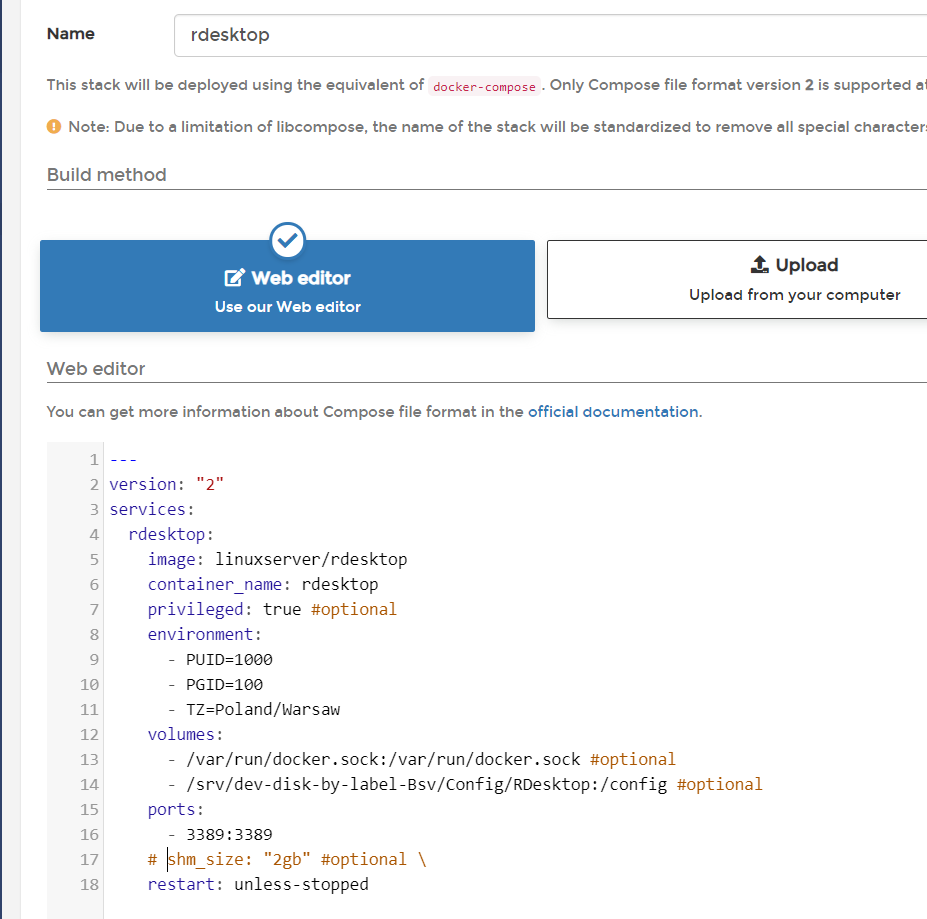
The installation was successful:
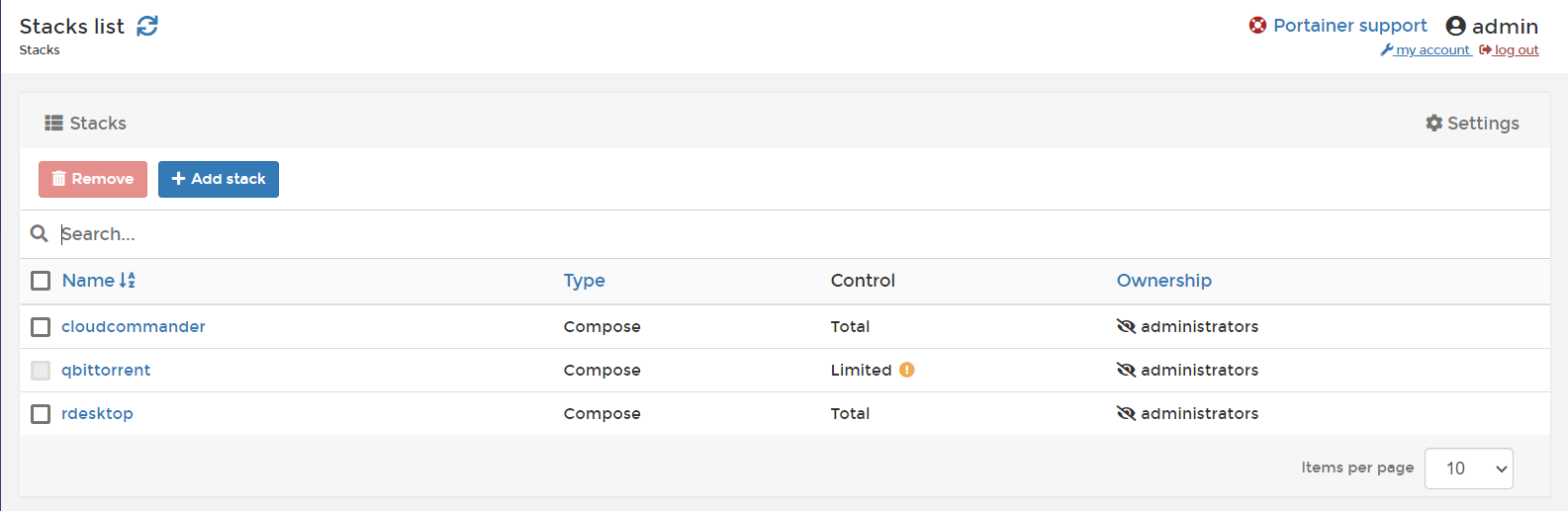
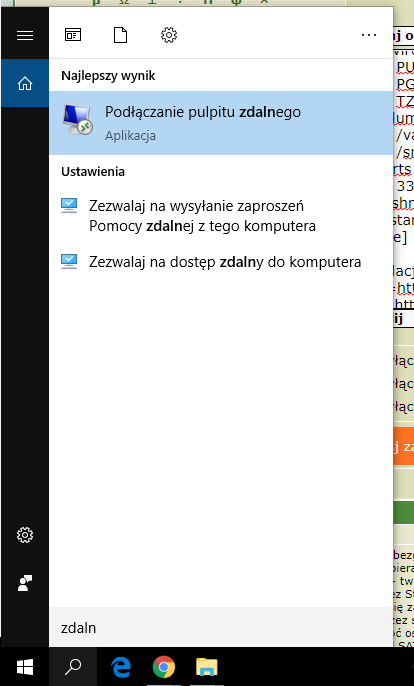
After the installation, I used a Windows 10 PC to check that the remote desktop was working - Windows has a built-in app for this, it can be found in the start menu under the name "Connect Remote Desktop".
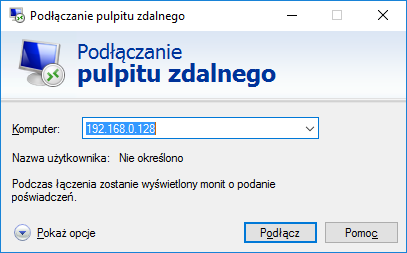
Login requires first of all the IP of our server:
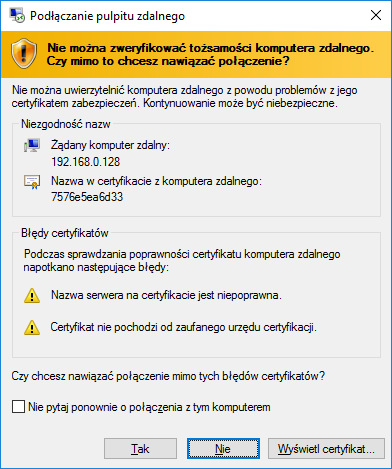
You also need to accept the certificate:
Then the login form on the RDP itself already appears to us:
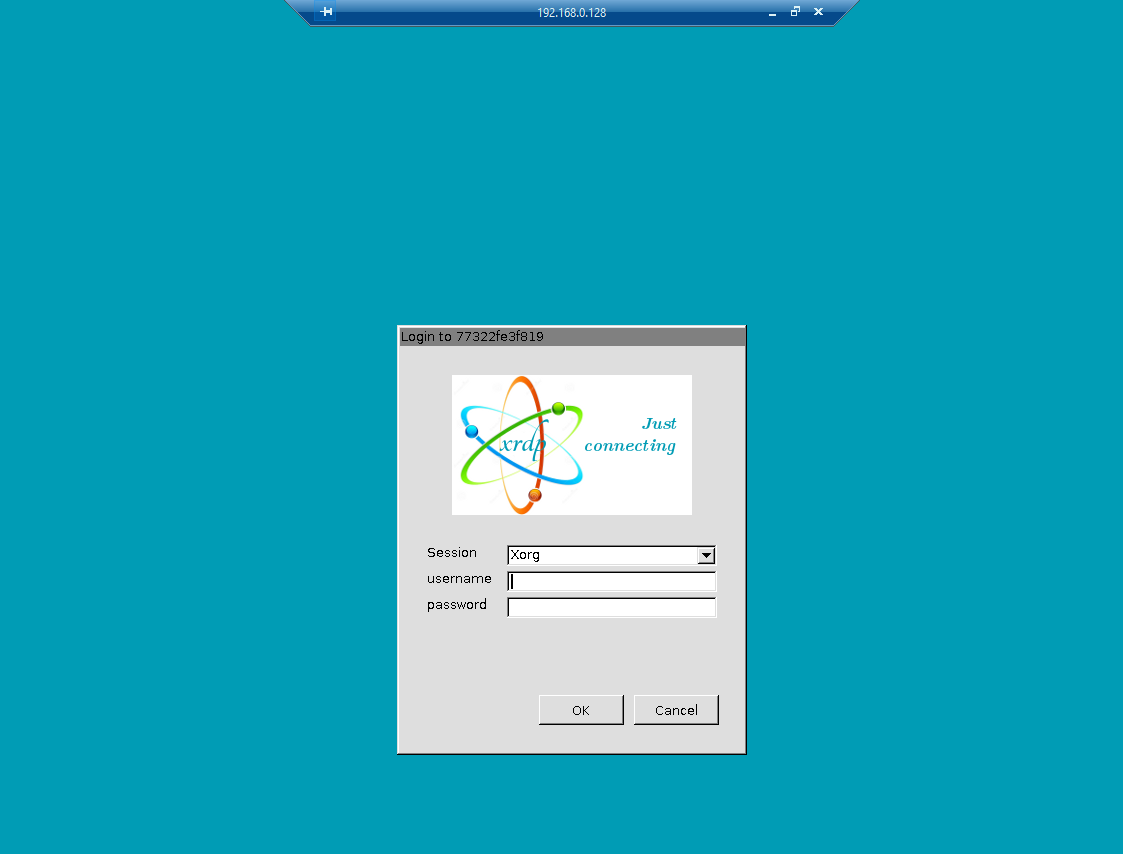
The default login details for RDP here are:
Quote:abc
abc
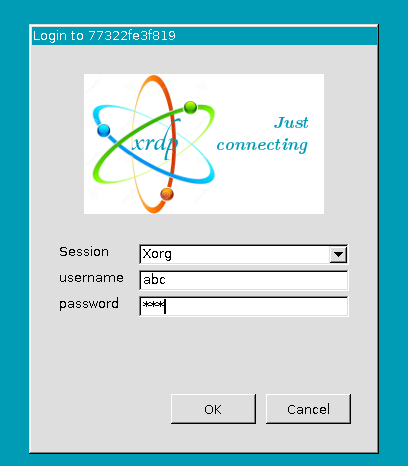
After logging in, you may see a black screen for a while, but then the remote desktop should appear.

Yes exactly, this is not the Armbian/Banana Pi desktop, it is the RDesktop virtual desktop from Portainer.
RDesktop on the Banana Pi runs quite slowly, but it's still usable and can be more convenient than the web panel and command console in certain situations.
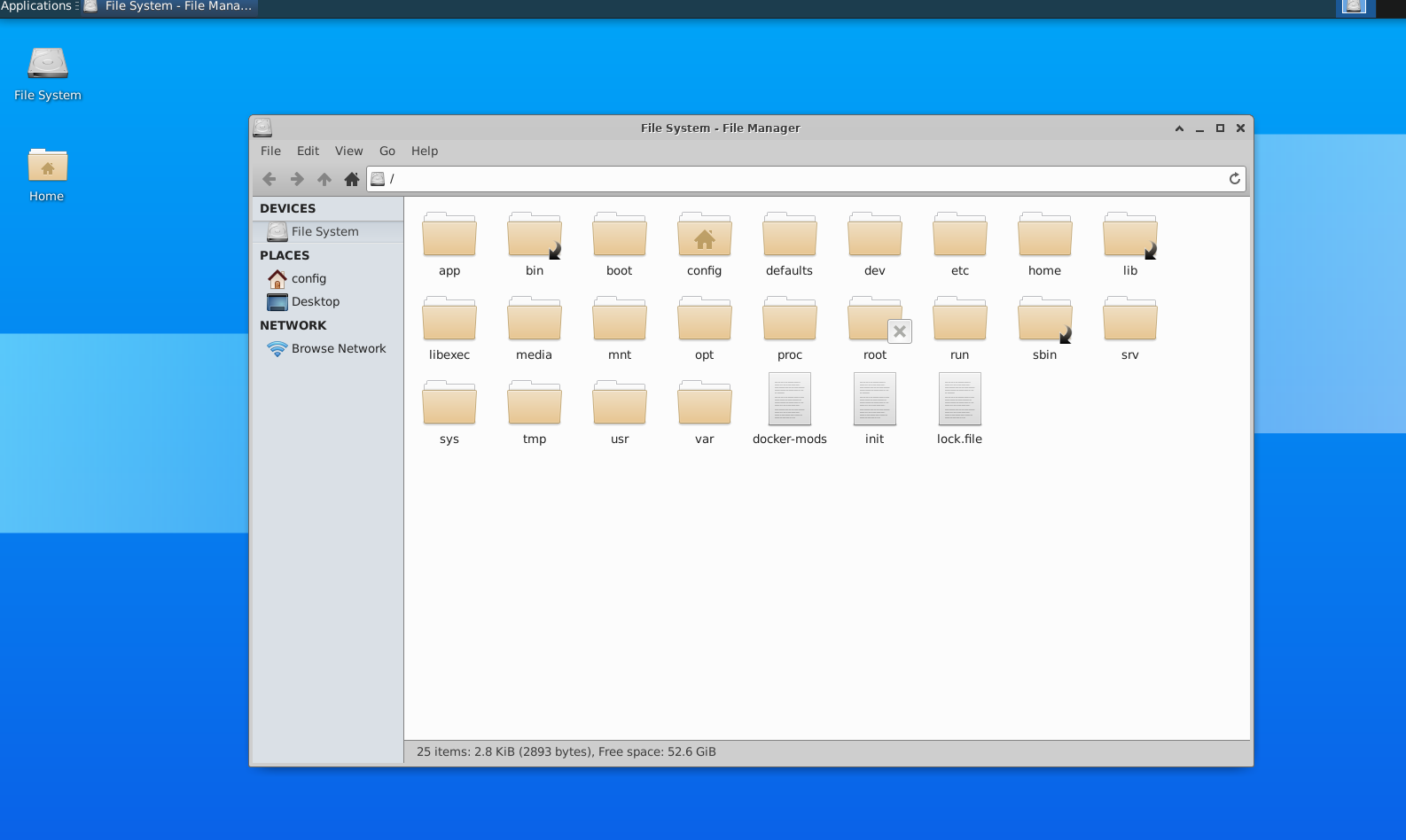
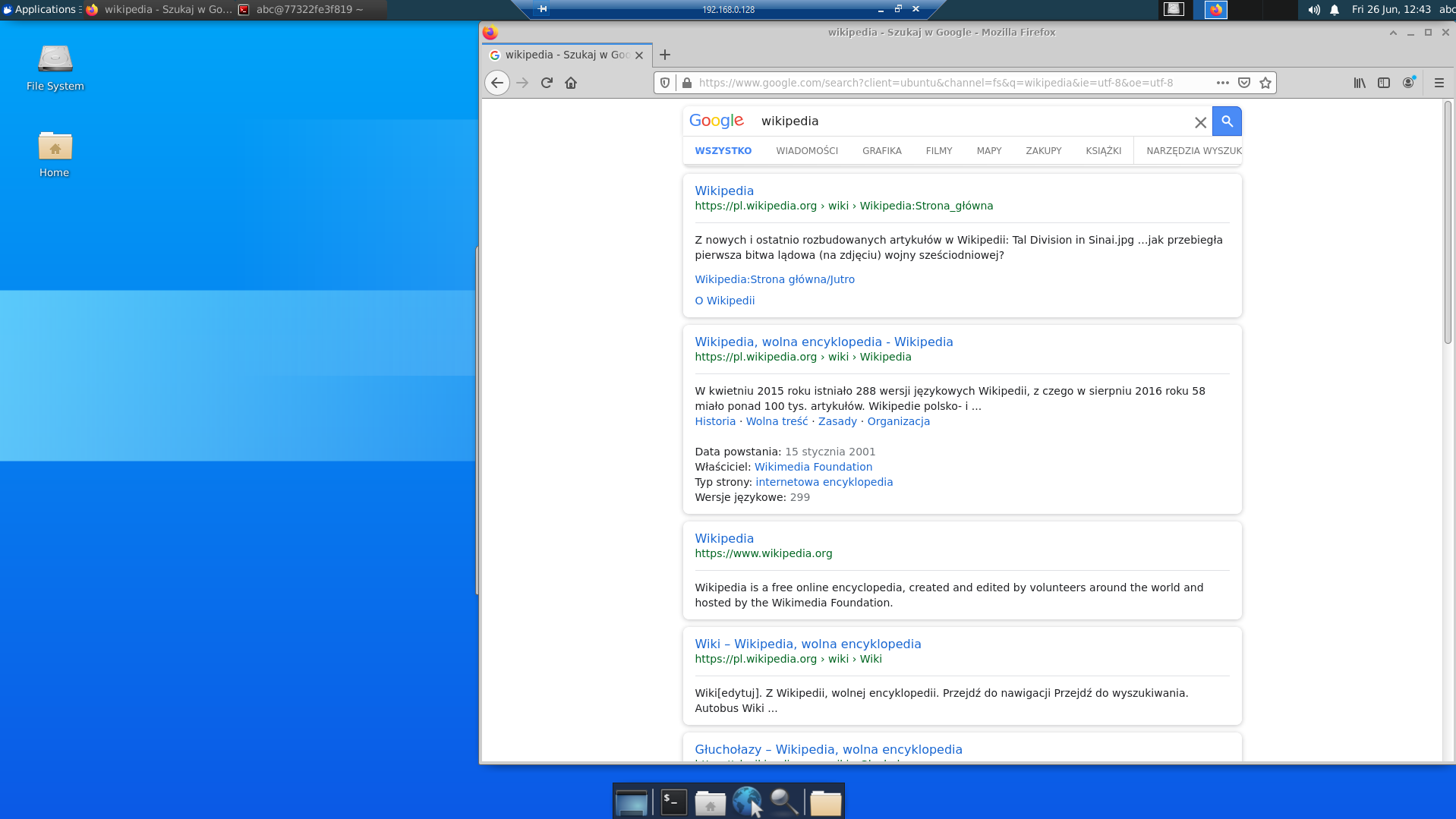
It is even possible to open a web browser and display web pages on this RDP:
Various pre-installed tools can also be used:
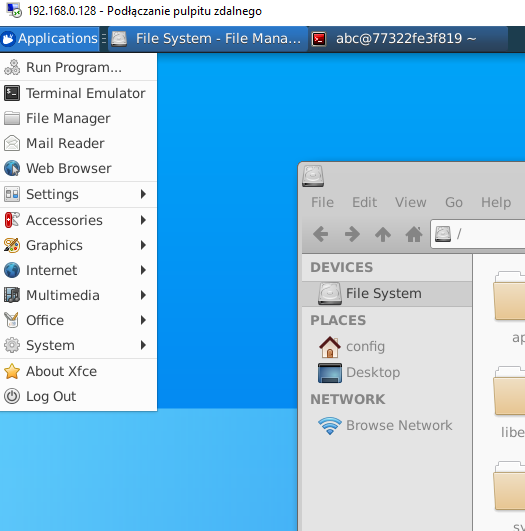
However, I do not recommend relying heavily on this remote desktop when running on, for example, a Banana Pi, as it is quite resource-intensive and sometimes not responsive enough to work comfortably on it.
Little tip - NTFS partitions
OpenMediaVault in its current version does not support the creation of partitions with the NTFS file system, but it supports existing ones without any problems, so if someone wants to use this file system then they can format the drive on Windows and then just connect it to the Banana Pi.
Adding an SSD (actually swapping an HDD for an SSD)
After doing the first tests and seeing that everything was working as it should, I decided to ditch the old HDD in favour of a new, noiseless SSD (GOODRAM SSD CL100 G2 480GB SATA3 2.5):
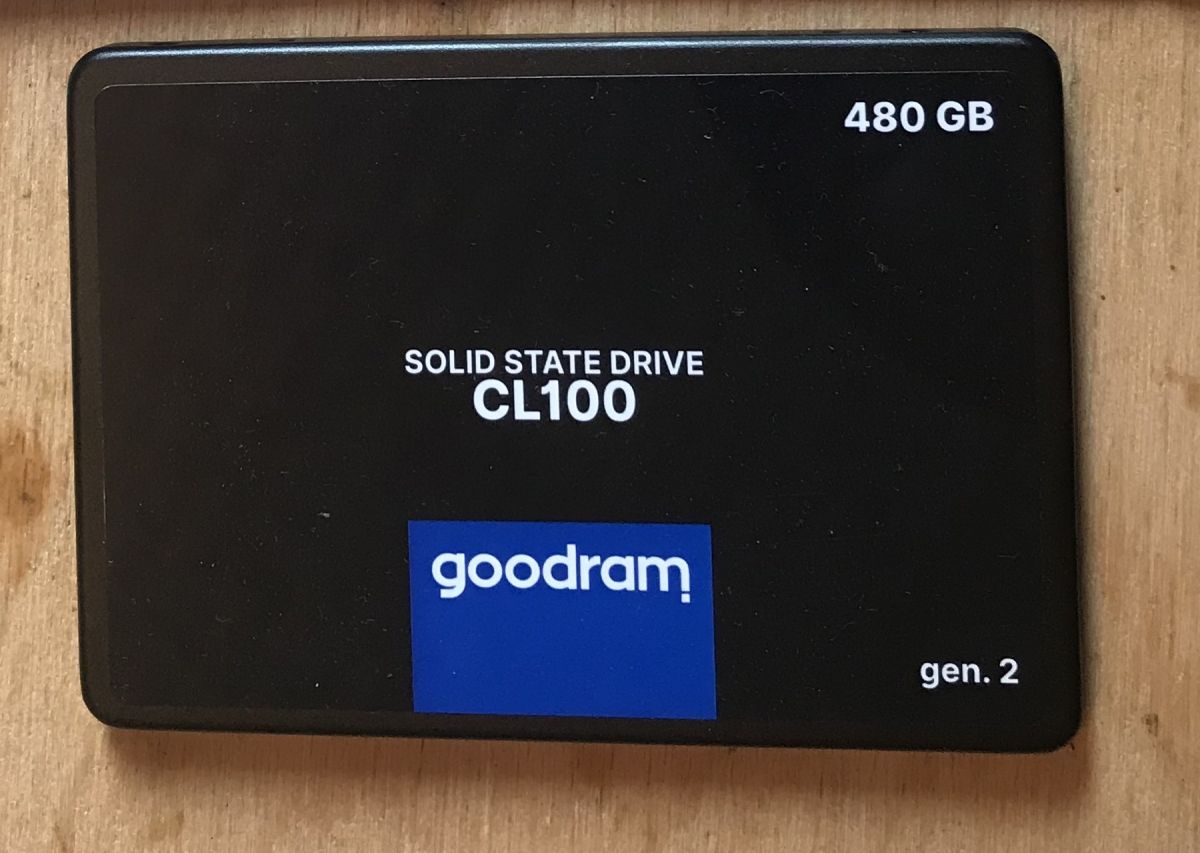
The SSD is added to the server in quite the same way as the HDD - we simply plug it in and create a file system (or just mount an existing one) from the OpenMediaVault web panel.
The only problem we may have here is if we have previously connected and configured another drive.
OpenMediaVault 'doesn't like' to have disconnected disks stored in the system but disconnected. We will then not be able to add another disk, the addition will end with an error.
To remove a disk we must:
- first delete its Shared Folders from Samba
- then its Shared Folders in general
- finally unmount its file system
I.e. we perform the operations in the reverse order of connecting the disk. If the drive is, for example, used by some Share with Samba, it will not be possible to remove it from the file system.
After performing these operations, the connection of the SSD went without problems:
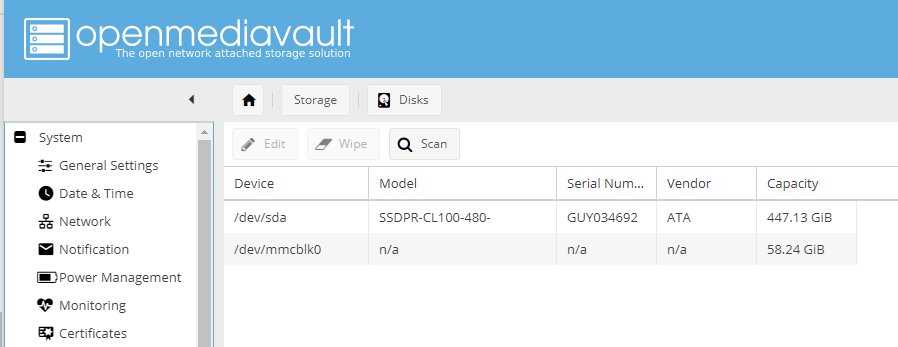
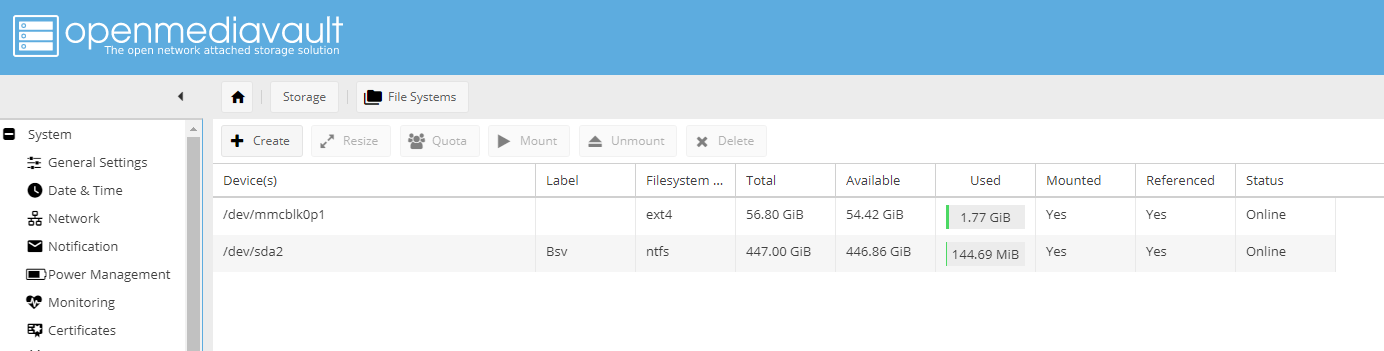
And it was this drive that I eventually used for my server.
Permanent IP for OpenMediaVault (wired connection)
Banana PI has a dynamic IP address configured by default - that is, the IP address is assigned to us by the router via the DHCP service. Basically, it can change at any time (although this also depends on the router and how long it assigns us an IP for).
This is not desirable when setting up a server, especially as once the OpenMediaVault IP is changed we will immediately lose access to all shared folders and have to reconnect to them (also reconnecting them to Windows from scratch).
Fortunately, it is very easy to configure a fixed IP address and this can be done fully via OMV's WebPanel under System->Network->Interfaces:
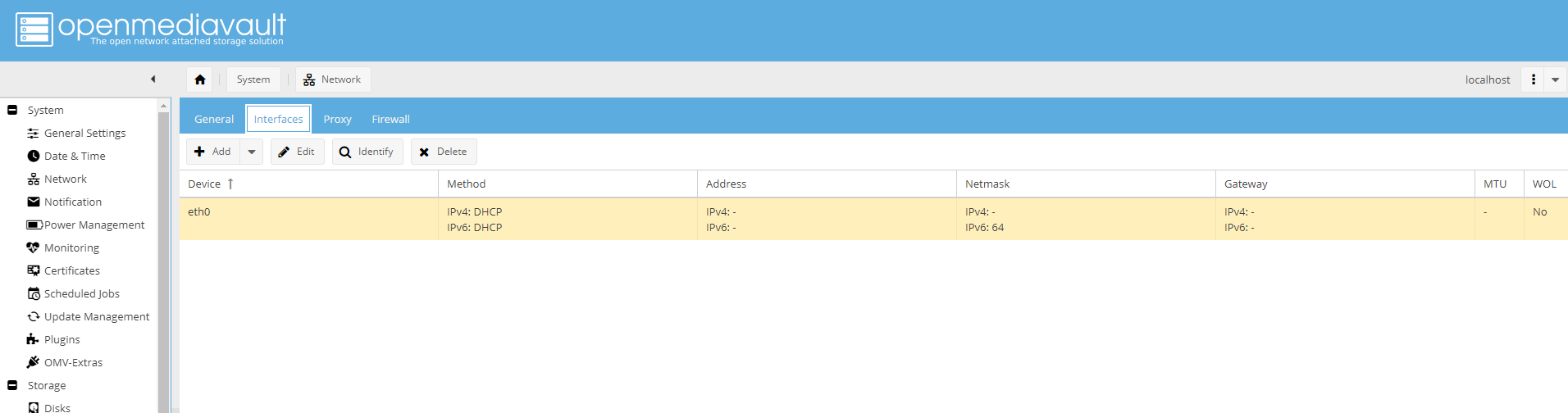
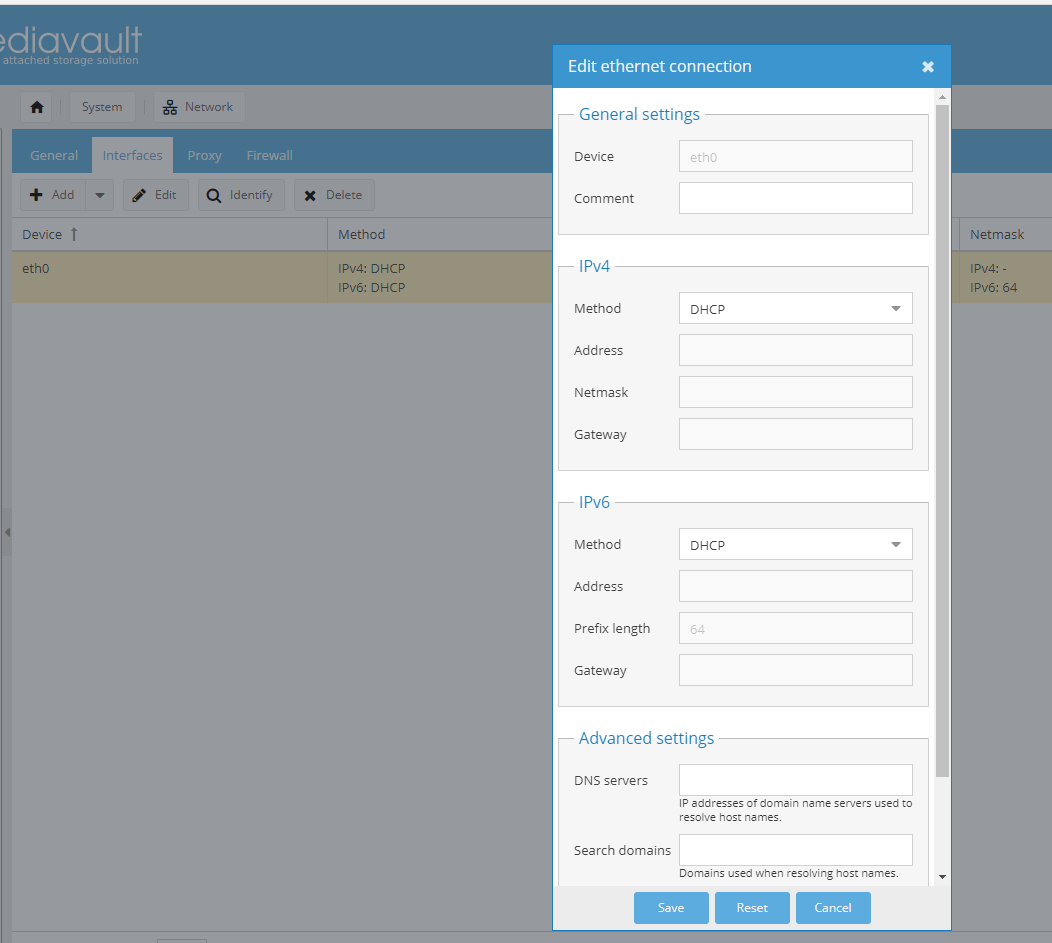
Select the interface you are interested in (here: eth0, i.e. cable connection) and click Edit. Here we have to change the 'Method' for IPV4 to 'Static' and then fill in the fields Address (selected IP for our server - must be free), Netmask (netmask), Gateway (default gateway). IPv6 can be turned off if not in use.
If we don't know how to set the default mask/gateway, we can simply rewrite what it displays us our Windows system located on the same network after typing the 'ipconfig' command in the console:
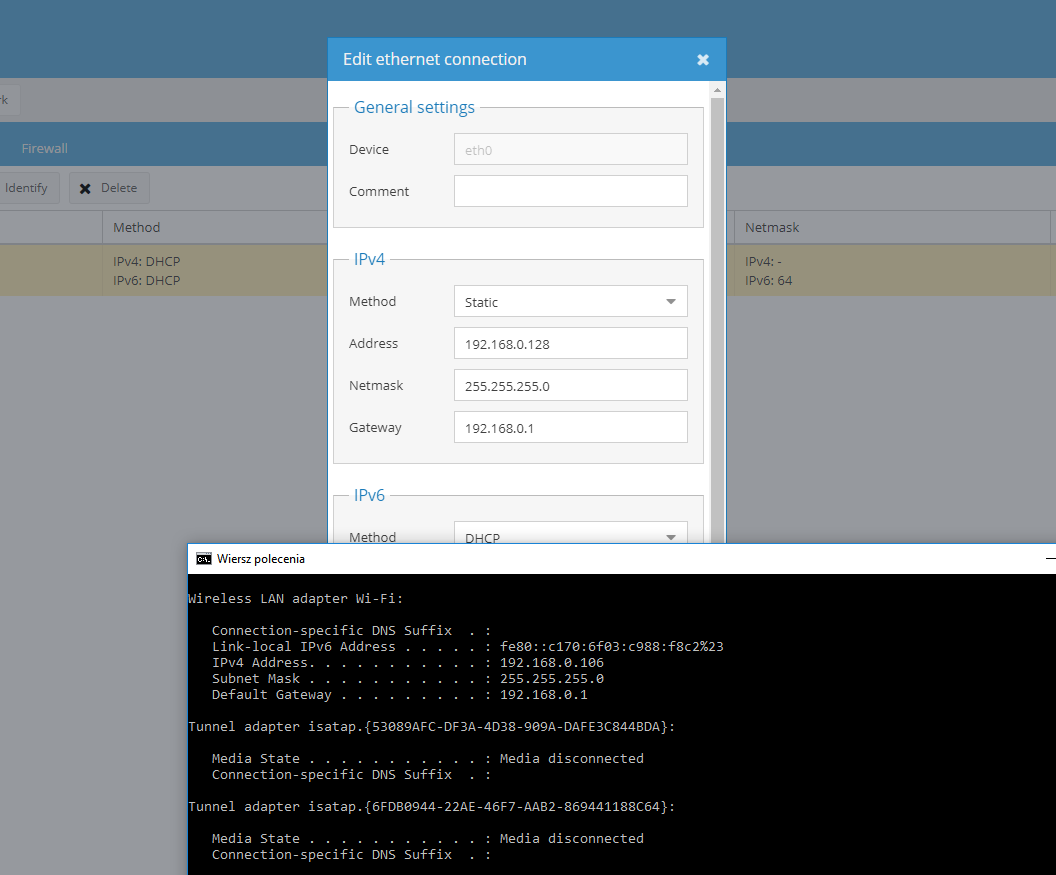
Of course, more advanced users (or Linux users) probably don't need to rewrite this and know how their network is configured.
Once the configuration has been set, you must of course save the changes with Apply and wait for them to take effect.
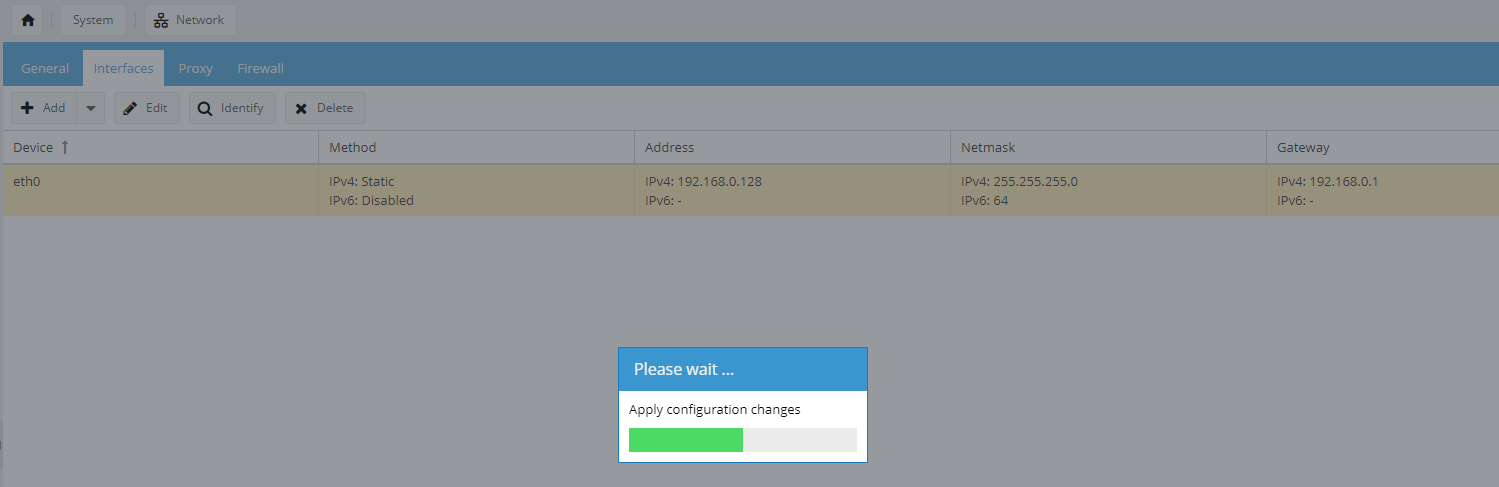
At this point, the connection to OpenMediaVault will be lost - we have to re-establish it, already on the IP address we selected earlier.
Power consumption after 2 weeks of use
I will describe here the results of measuring the server's power consumption already normally in operation, measured with a plug-in power consumption meter purchased in China on a V9261F chip.
I started up the server and left it switched on for 2 weeks without an enclosure. Only the Ethernet cable and the SSD were connected to the Banana PI. OpenMediaVault was running on the server along with an enabled torrent client providing the aforementioned .ISO images of the operating systems. This was to create additional load - so that there was always something going on in the network. In addition, of course, Samba was also enabled and I backed up files from my PC to the server from time to time. I also used it to flip files between computers.
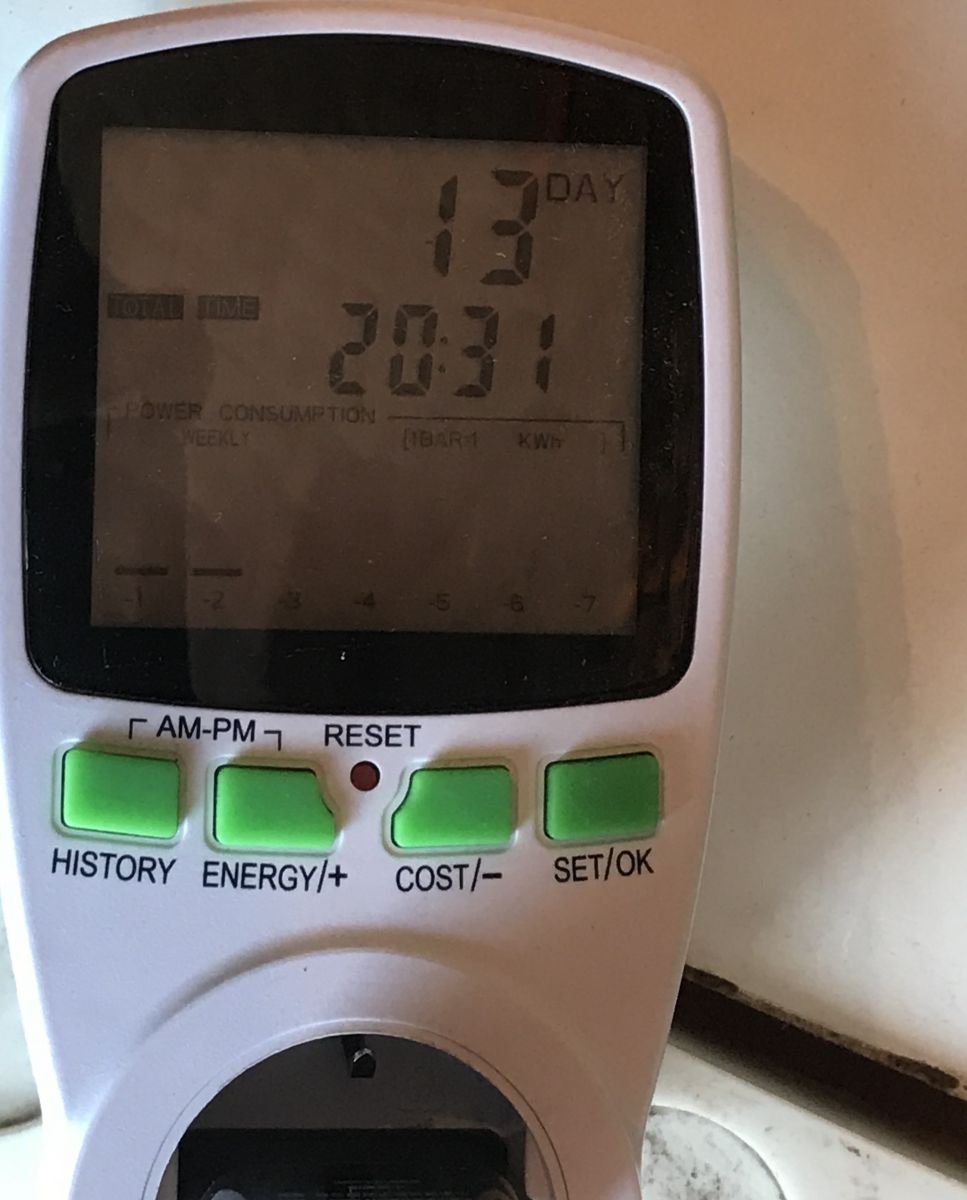
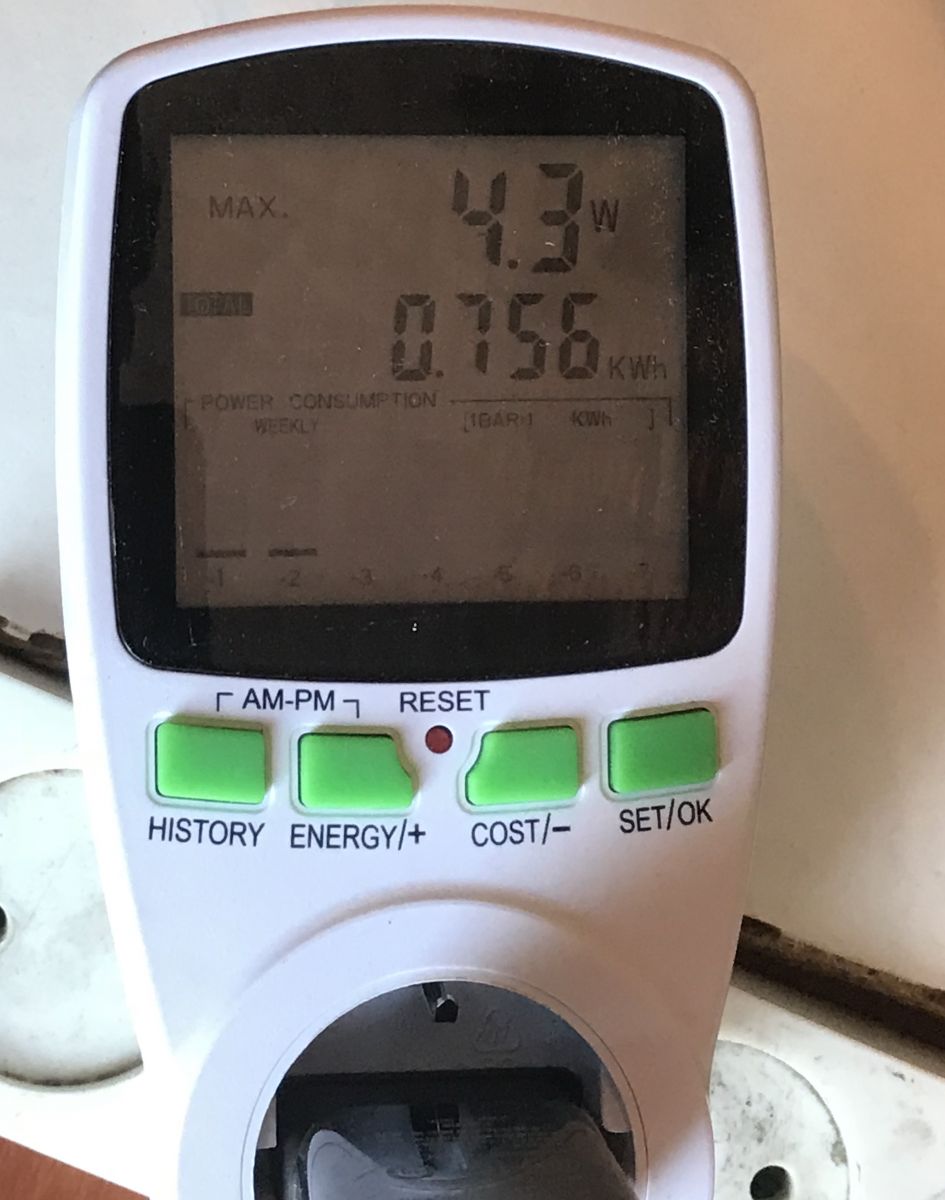
The results of the measurements (from the photos above and the calculations) are as follows:
Energy measurement - time since switch-on: 13 days, 20 hours and 31 minutes -> approximately 332.5h non-stop operation.
Highest recorded power measurement: 4.3W
Power consumption during this period: 0.756KWh
Average energy consumption per day: 0.055KWh
Average power: 0.756KWh/332.5h = 2.23W
Related topic - OpenMediaVault on old hardware
If anyone is interested in the topic, as a supplement I recommend checking out my previous build, which was based on old hardware and an older version of OpenMediaVault:
https://www.elektroda.pl/rtvforum/topic3626452.html
Following the topic - the enclosure
Here I was still going to describe the process of creating the enclosure for this server, but the topic has already become very long (almost 60k characters), so I decided that I will give the description of the enclosure on the forum as a separate section, then I will update this post here and paste the link here. I will also replace the sata cable with a better one then.
Summary
I am very satisfied with the server. The server is absolutely silent and yet it does not heat up excessively - it is only warm. The server consumes no more than 3W, even during active operation (transferring files over the network). The Banana Pi is fast enough for the application I have chosen for it and does its job well.
Cool? Ranking DIY Helpful post? Buy me a coffee.


 .
.