





Tuya smart power socket with T34 chip and BL0937 power monitor
Open the device by cautiously cracking the glued rim; eventually, pry it open.
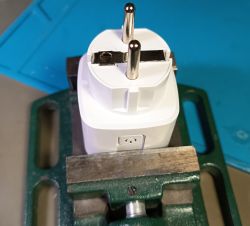
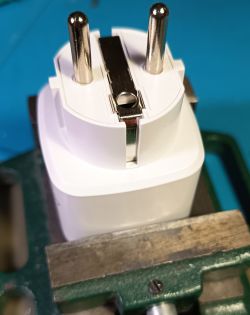

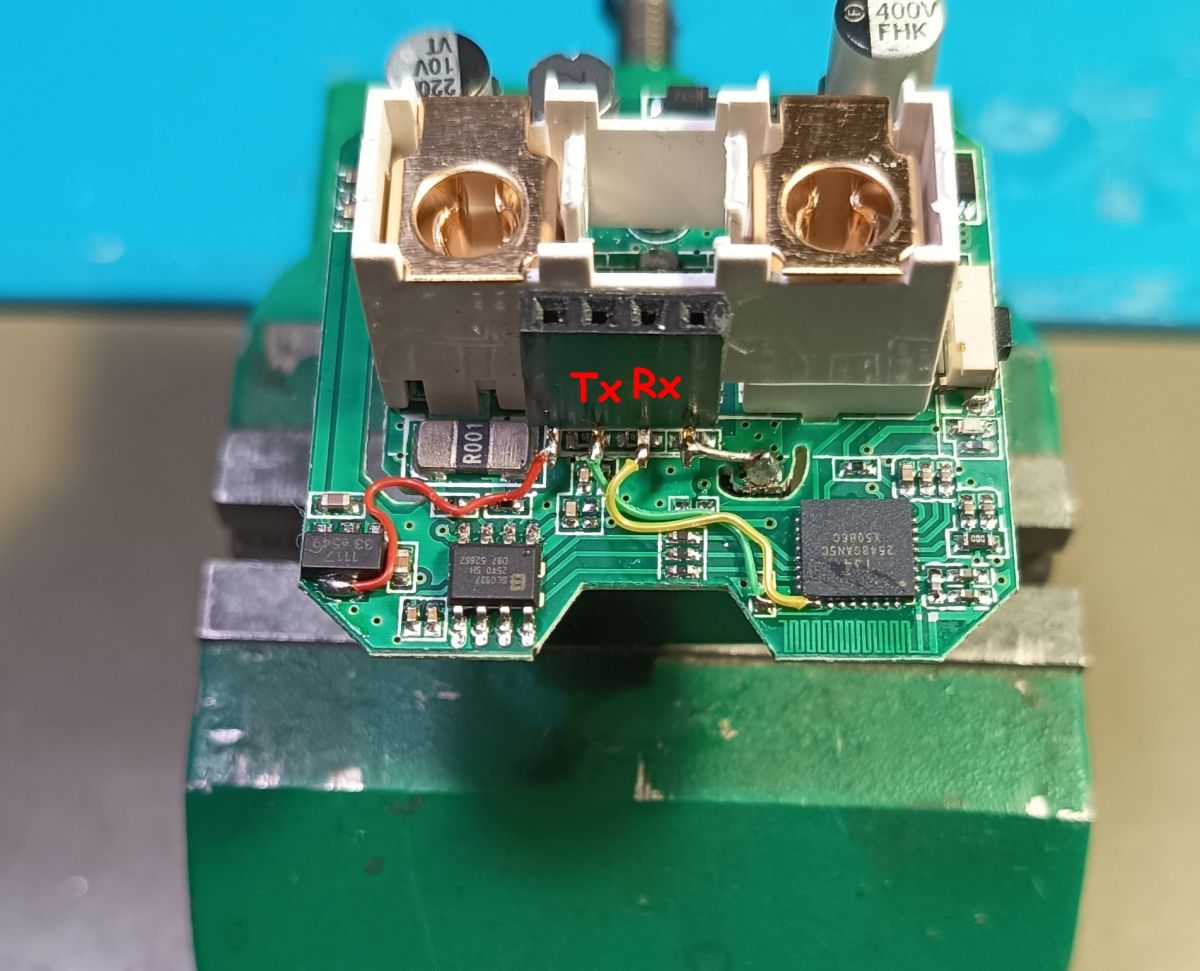
Unscrew the inner PCB and wire 3.3 V (red), GND, Rx (yellow), and Tx (green).
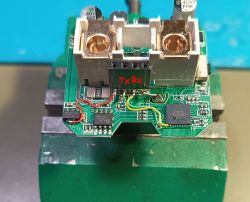
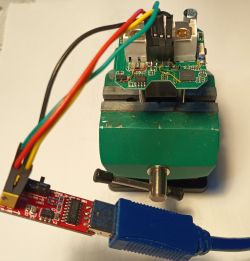
You need a 3.3 V USB-to-UART converter to connect to the T34 chip.
Also, you may need to exchange the Rx and Tx lines depending on your USB-to-UART programmer.
Use the Openbeken flasher: set UART port and chip type (BK7231N), and test the connection by doing a firmware backup.
Eventually, you need to re-power the module a few times until the chip enters the programming mode.
Use a suitable baud rate that your PC handles without errors.
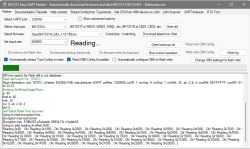
After a successful backup, write the new firmware to the chip.
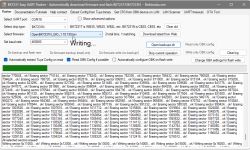
After a successful write, re-power the device. It should open a hotspot which you can connect to at 192.168.4.1
Enter the Wi-Fi config and set your SSID and password.
Re-power, and check your router to find it in your network.
Look for OpenBK7231N-... and connect to it.
Then use the device configuration to set the pins for the interfaces.
For my device, it was:
- P6 : BL0937CF;0
- P7 : BL0937CF1;0
- P8 : BL0937SEL;0
- P24: Relay;1
- P26: Btn;1
- P28: WiFiLED_n;1
The Wi-Fi LED and the relay LED in my plug are both blue, which makes it difficult to see if the device is on or off, because the Wi-Fi LED outshines it.
So, I put some Kapton tape on top of the Wi-Fi LED to dim it.
To make use of the plug in your home network, you may need to go to the filesystem settings and create an autoexec.bat for your needs,
which may look like this (the Wemo driver enables the device to integrate with Amazon Alexa)
Open the device by cautiously cracking the glued rim; eventually, pry it open.
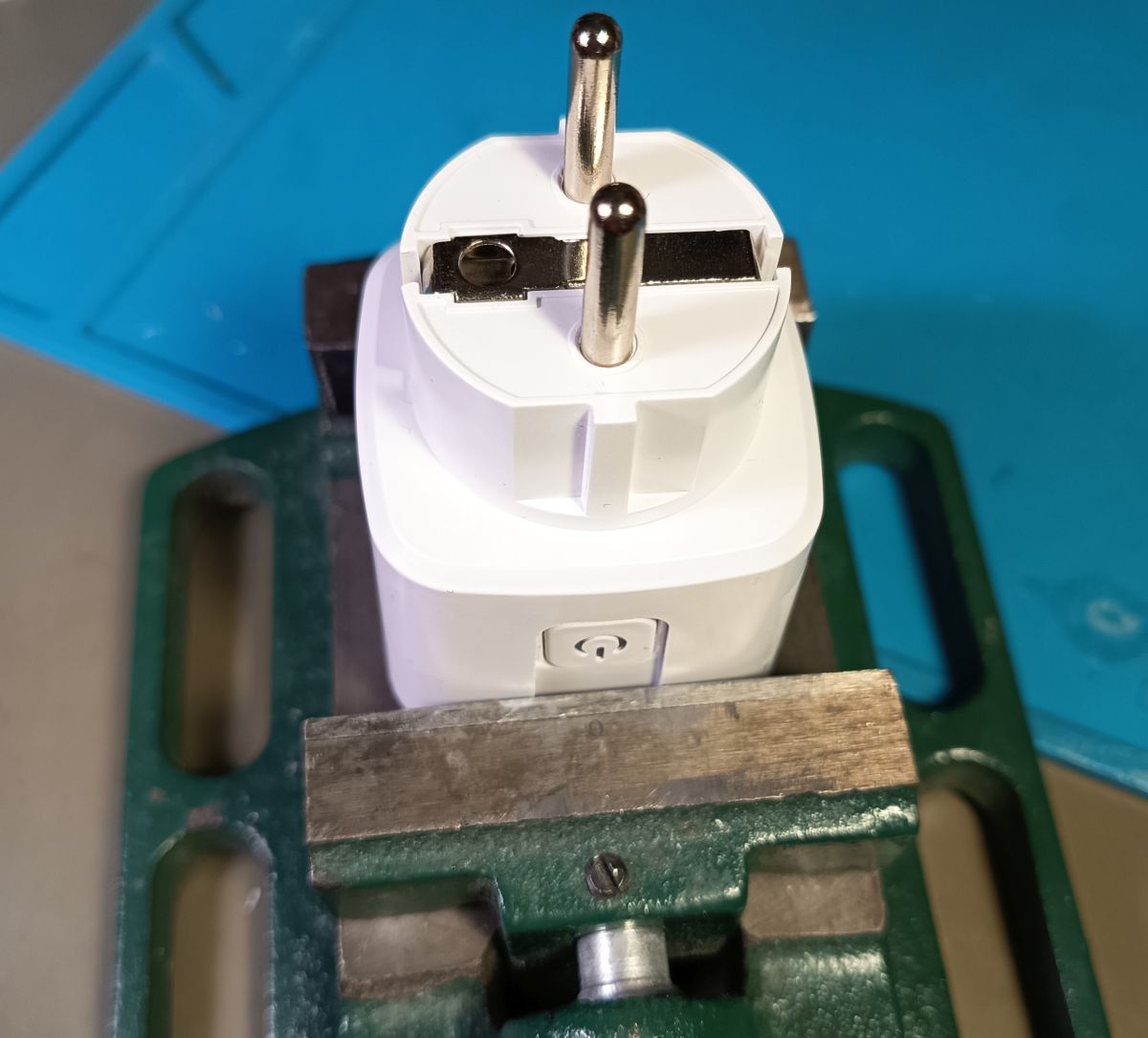
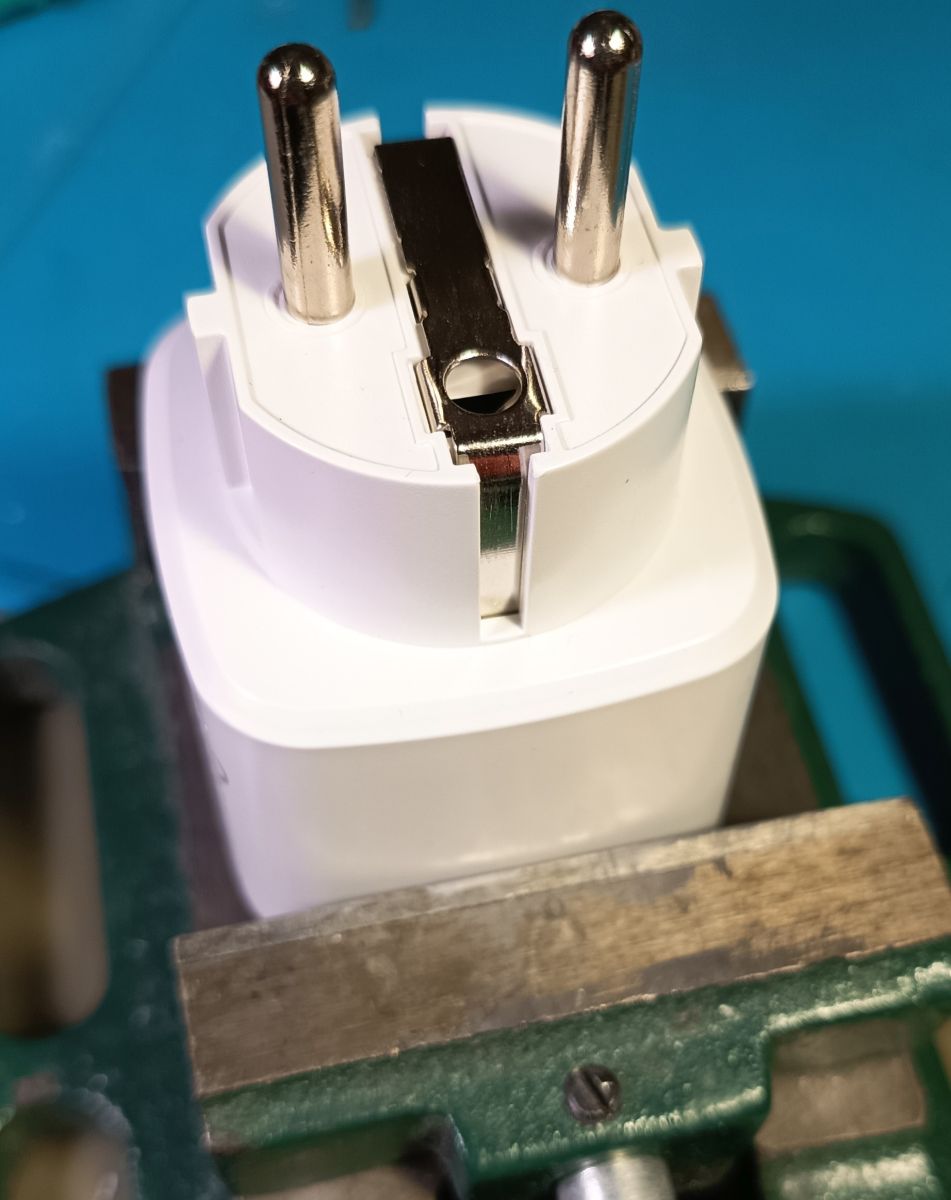
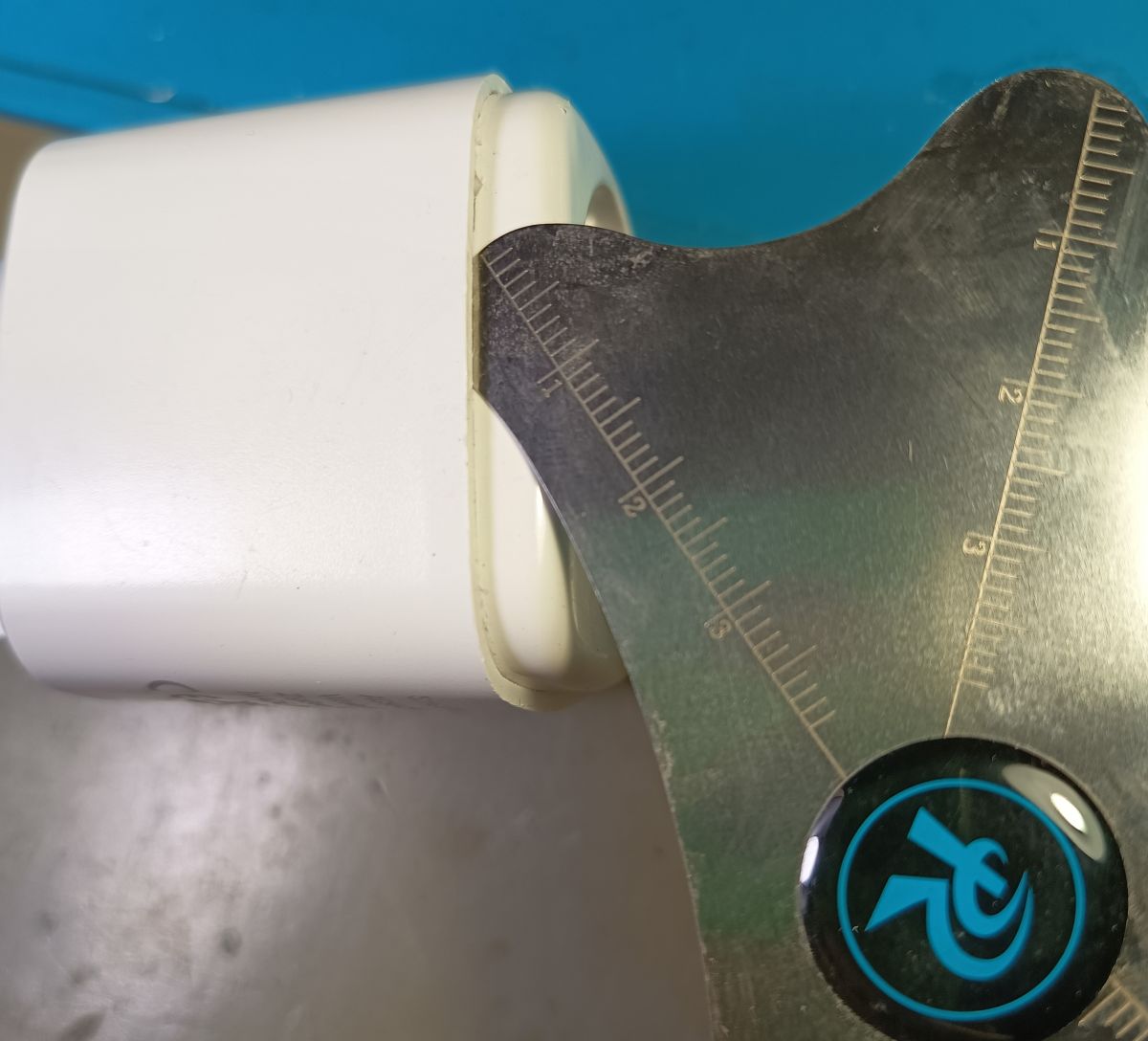
Unscrew the inner PCB and wire 3.3 V (red), GND, Rx (yellow), and Tx (green).
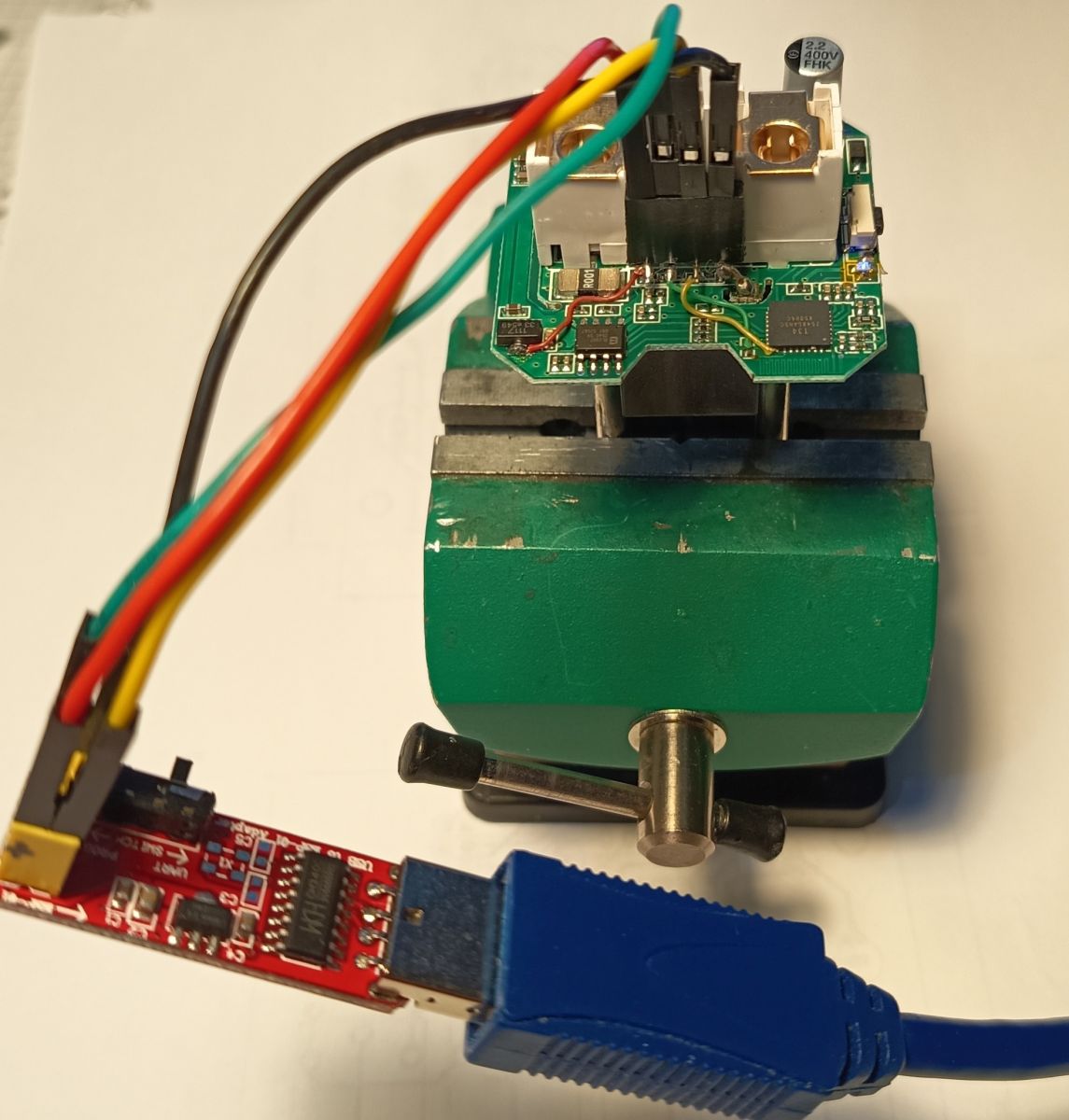
You need a 3.3 V USB-to-UART converter to connect to the T34 chip.
Also, you may need to exchange the Rx and Tx lines depending on your USB-to-UART programmer.
Use the Openbeken flasher: set UART port and chip type (BK7231N), and test the connection by doing a firmware backup.
Eventually, you need to re-power the module a few times until the chip enters the programming mode.
Use a suitable baud rate that your PC handles without errors.
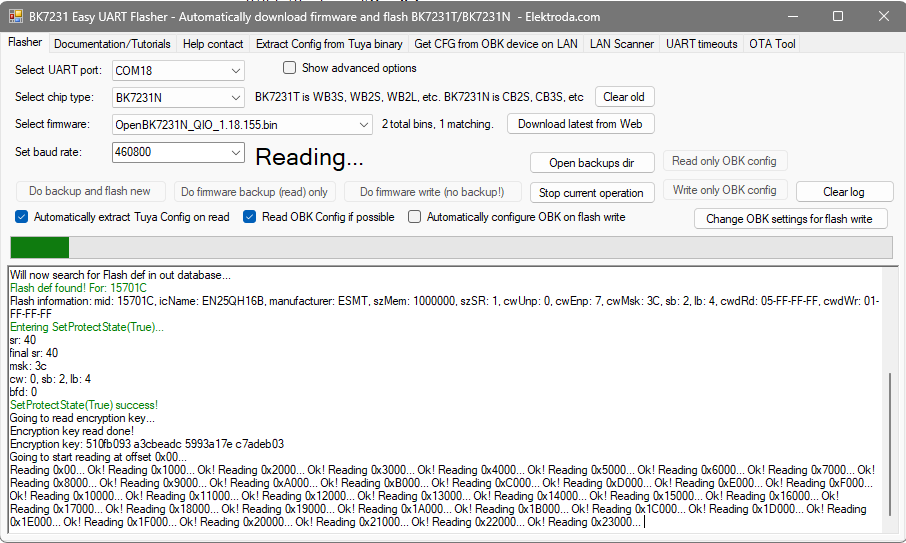
After a successful backup, write the new firmware to the chip.
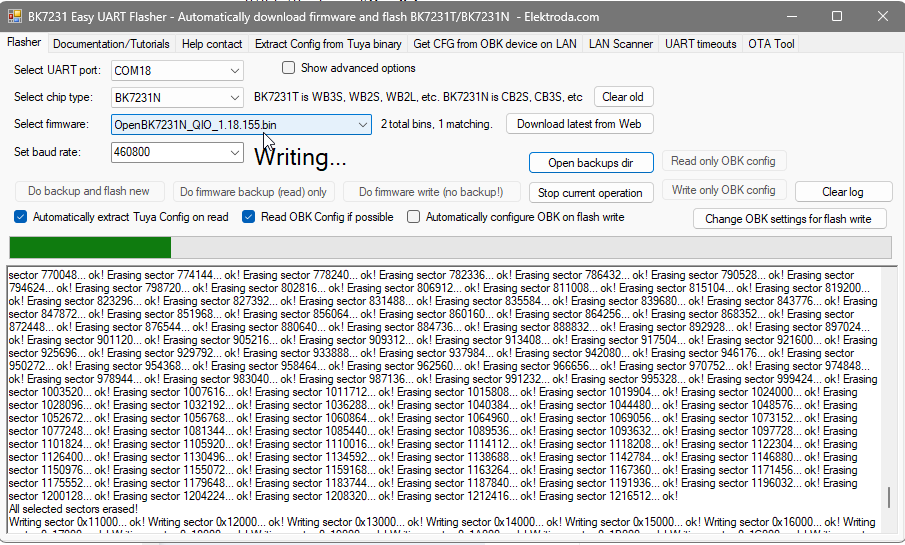
After a successful write, re-power the device. It should open a hotspot which you can connect to at 192.168.4.1
Enter the Wi-Fi config and set your SSID and password.
Re-power, and check your router to find it in your network.
Look for OpenBK7231N-... and connect to it.
Then use the device configuration to set the pins for the interfaces.
For my device, it was:
- P6 : BL0937CF;0
- P7 : BL0937CF1;0
- P8 : BL0937SEL;0
- P24: Relay;1
- P26: Btn;1
- P28: WiFiLED_n;1
The Wi-Fi LED and the relay LED in my plug are both blue, which makes it difficult to see if the device is on or off, because the Wi-Fi LED outshines it.
So, I put some Kapton tape on top of the Wi-Fi LED to dim it.
To make use of the plug in your home network, you may need to go to the filesystem settings and create an autoexec.bat for your needs,
which may look like this (the Wemo driver enables the device to integrate with Amazon Alexa)
// enable drivers
startDriver ntp
startDriver SSDP
startDriver Wemo
// enable NTP
startDriver ntp
ntp_setServer 192.168.???
ntp_timeZoneOfs 1:00
ntp_setLatlong 58.66189 18.92459
waitFor NTPState 1
//addClockEvent <time> <daysOfWeek> <id> <command>
//  <time>  :  {seconds from midnight}, {HH:mm[:ss]}, {sunrise|sunset}
//  <DoW>   :  {0x01..0x40|0x7F} = bitmaske: Sunday..Saturday|daily
addClockEvent  6:00 0xff 1 setChannel 1 1
addClockEvent  7:30 0xff 2 setChannel 1 0
listClockEvents