





Vislone WR3 RTL8710BN WiFi Thermostat: OpenRTL, Home Assistant, DP48 Reverse Engineering
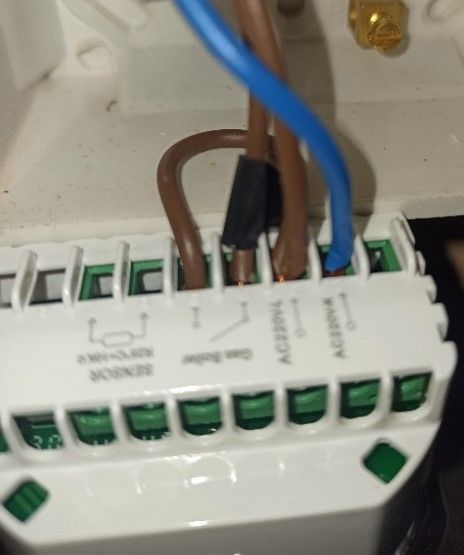
This thermostat is for a gas boiler, and has wet contacts i.e. mains powered. FOR SAFETY, YOU MUST MAKE SURE IT IS INSTALLED BEFORE ATTEMPTING TO FLASH IT. The unit does not require opening up, so DO NOT OPEN - but you will need to power cycle during the Cloudcutter procedure which can be achieved simply by switching off and on your relevant circuit breaker when it gets to that stage. This will only need to be done once.
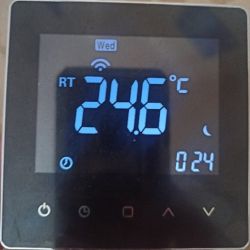
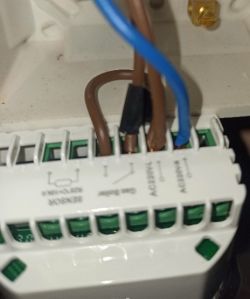
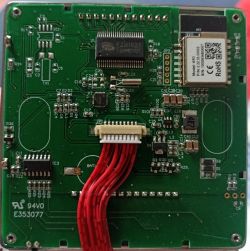
This particular thermostat variant (circa 2020), has a WR3 Wi-Fi chip, and the FZH1621 chip looks like a MCU. I successfully used Tuya Cloudcutter to flash OpenRTL on it, using the following selection in the list by firmware:
2.1.3 - OTA1 - RTL8710BN / rtlbn_tls_common_9600
aka:
Profile: rtlbn-tls-common-9600-ota1-2.1.3-sdk-1.0.7-40.00
Firmware: OpenRTL8710B_UG_1.18.225.img
Once complete, connect to the AP using your phone and set your wifi credentials. Once logged on to the OpenRTL Web UI of the device…
Web Application - Dump flash & extract data
Launch Web Application > Flash > Download full 2MB flash dump (it may take a while before save box comes up).
Don’t bother downloading the GPIO it doesn’t work.
Download the latest version of BK7231GUIFlashTool (or if extraction fails with your installed version. I used build 271)
Link
Extract config from Tuya binary, selecting your 2M dump. Tick the ‘Enhanced extraction’ This is the result:
It also says..
‘Sorry, no meaningful pins data found. This device may be TuyaMCU or a custom one with no Tuya config data.
No module information found.
Device internal platform - RTL8710BN_2M, equals RTL8710B.
And the Tuya section starts at 2011136 (0x1EB000), which is a default RTL8710B/XR809/BK7231Q offset’
But it was a good guess it had an MCU from the photo.
There appears to be 2 profile dumps in one here (determined by repeated dpids):
000002fn93 – this thermostat, and 0000002r12 – another device, possibly a fan heater with timer functions.
The WebUI shows Firmware: FW2. This chip seems to use 2 partitions (hence the OTA1 & 2 in Cloudcutter). Maybe each partition holds a profile. Updating via OTA doesn’t work unfortunately. It should be possible by UART but if like me you don’t want the hassle, this version is good enough (unless it’s a patched WR3 chip and you can’t of course).
Also note: Not all functions are shown here, as not every function on the thermostat is controllable remotely. Some settings can only be done in the thermostat’s menu by design. Also the screen when first started up shows more icons than this thermostat uses – it must be a generic template for many devices.
Initial Configuration
As it uses TuyaMCU to communicate with the MCU, no pins need to be assigned to the WR3.
Just a few minor changes in the WebUI, and creating a startup file in the Web App (autoexec.bat).
Configure Flags:
Enable 10
Configure MQTT:
Enter your credentials
Client Topic (Base Topic):
vislone_thermostat
Group Topic (Secondary Topic to only receive cmnds):
rtl8710b
Set the username/pw/IP of your broker to communicate with Home Assistant.
Configure Names:
These contain the last part of the MAC of your device. I’d changed mine as follows for ease of use in Home Assistant via mqtt:
ShortName
rtl8710b[mac]
Full Name:
OpenRTL8710B_[mac]
To:
ShortName
Thermostat (or use [Room]_Thermostat if you have others)
Full Name:
Vislone_Thermostat_[mac]
Now Restart
Logs
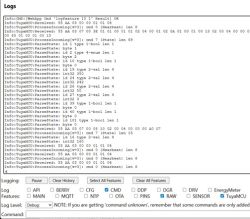
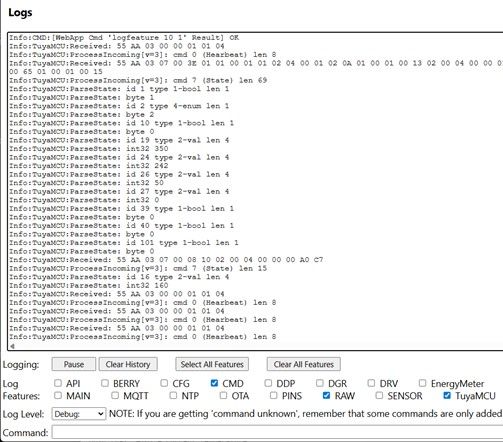
After a reboot, launch the Web Application again. In Logs, if you set the level to Debug, and only show, CMD, RAW and TuyaMCU you should notice the ParseState revealing the active DPid’s. Thanks to the extraction, we know what they these are. You could also use the TuyaMCUExplorer app to list these. (Link )
Creating the startup file (Autoexec.bat)
Web App > Filesystem > Create File > autoexec.bat
Paste the code below:
(Note: the clock doesn’t have a dpid – but setting the log level to ALL and rebooting, the log revealed it was looking for a time signal. This means it can be set automatically from a time server using the NTP driver every time it’s rebooted!)
Click ‘Save, Reset SVM and run file as script thread’
Back in the WebUI, Restart.
The Web UI is now updated
It’s starting to look more like a thermostat screen. It may look a bit basic but everything that needs to be controlled can be done through Home Assistant later.
The Missing Manual – More About This Thermostat
Product info:
Link
Model: RLV3138164134758QF ASIN: B08NP7GQ7Z
I couldn’t find the original manual, even online. So here’s what I’ve worked out so far from tinkering:
When powering up:
Display shows L with r20 in the right corner.
When Display is ON:
Power Button – Powers off display and boiler if already on [Hold] Toggles wifi
Clock – Sets device time
Square – Toggles Operation Mode: Manual, Auto [Hold] Schedule Mode*
Up – Increases Set Temperature
Down – Decreases Set Temperature
*Schedule Mode
There are 6 periods each for Mon-Fri, Sat and Sun
Power – Exits Schedule Mode
Square – Cycles between Days/Time/Temp/Period on/Period off
Up/Down – Changes selected option
When Display is OFF:
Power Button – Turns on display (and boiler if set temp) [Hold] Says ‘ON’ and FFF in right corner (unknown)
Square [Hold] – Menu options*
*Menu options (with defaults and (ranges))
Press Square to cycle - Up/Down to change – Power to exit
1 – Temp Calibration – 0 (-9 to 9)
2 – Deadzone - 1.0c – (1.0-5.0)
3 – Lock Mode Buttons 1 (0 All except power or 1 ALL)
4 – Sensor – in (in, all, ou)
5 – Min Set Temp - 0.50c (05.0-15.0)
6 – Max Set Temp - 35.0c (15.0-45.0)
7 – Display Mode – 0 (0 RT & SET or 1 SET)
8 – Screen Dimmer brightness - 10 (0 Black to 100 Always On)
9 – High Temp Protection Setting - 45c (25.0-70.0)
A – Low Temp Protection Setting - 0.50c (02.0-10.0) – Only resets in Eco Mode
B – Unknown Function??? – 0 (0,1)
C – Factory Reset - 0 (0,1)
D – Economy Temp 16.0c (05.0-30.0) – Only resets in Eco Mode
E – Brightness - 80 (1 dim to 100 bright)
It’s a real shame that some of these options, especially brightness, are not exposed as dpids.
When doing the ‘ON & FFF’ a ‘ProcessIncoming: unhandled type 14’ appears in the log – whatever that means.
Decoding the Timer Programme Schedule
This thermosat has 3 day selections – Mon-Fri, Sat and Sun. Each has 6 timer events.
Fortuntely these are all exposed and can be controlled.
The TuyaMCURecevied line with the long hex numbers is the key here. Setting DP48 to publish to MQTT and using MQTT Explorer the line of hex appears, and flashes with each change - which is a lot easier than sifting through all the code in the web log.
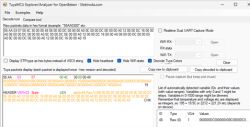
When changing the settings of time and temp (but not days), it will reveal which segment changes, and depending on what block it changes also reveals whether Mon-Fri, Sat or Sun.
ChatGPT was useful for this purpose – by adjusting the time by 1 minute on 1 programme, posting it up, then adjusting the temp for the same programme and posting that up then rinse and repeat for the others - it didn’t take long to decode it. Just the Mon-Fri segment was enough to extrapolate the rest.
Here’s an example of what was found:
The raw block
053B00D2073B00A50C0100E60D3B00AA113B00E6153B00AA060000DC080000A00C0000DC0E0000A0120000DC160000A0060000DC080000A00C0000DC0E0000A0120000DC160000A0
Broken down to 3:
053B00D2073B00A50C0100E60D3B00AA113B00E6153B00AA – Mon-Fri
060000DC080000A00C0000DC0E0000A0120000DC160000A0 – Sat
060000DC080000A00C0000DC0E0000A0120000DC160000A0 – Sun
First block broken down:
053B00D2 073B00A5 0C0100E6 0D3B00AA 113B00E6 153B00AA
053B00D2 - 05:59 21.0C (05 is 05, 3B is 59, 00 is 00, D2 is 210 which is 21.0c)
073B00A5 - 07:59 16.5C
0C0100E6 - 12:01 23.0C
0D3B00AA - 05:59 21.0C
113B00E6 - 05:59 21.0C
153B00AA - 05:59 21.0C
Whilst unsure about the channel IDs, it’s reasonable to assume that this part of it would be consistent with any other thermostat of this exact model.
To write back via MQTT use
cmnd/vislone_thermostat/tuyaMcu_sendCmd
Publish (raw) – only one space after the 6.
6 30000048060000CD073B00A00C0100E60D3B00AA113B00E6153B00AA060000DC080000A00C0000DC0E0000A0120000DC160000A0060100DC080000A00C0000DC0E0000A0120000DC160000A0
In this example
Here’s the potential mqtt yaml for Home Assistant too:
Reading:
vislone_thermostat/tm/raw/48
060000DC080000A00C0000DC0E0000A0120000DC160000A0060000DC080000A00C0000DC0E0000A0120000DC160000A0060000DC080000A00C0000DC0E0000A0120000DC160000A0
But there’s a problem:
Writing:
action: mqtt.publish
data:
topic: "cmnd/vislone_thermostat/tuyaMcu_sendState"
payload: "48 0 060000DC080000A00C0000DC0E0000A0120000DC160000A0060000DC080000A00C0000DC0E0000A0120000DC160000A0"
qos: 0
retain: false
As you can see, this only 2/3 of the code. If you try the full length it produces a buffer overflow in the log. Despite heavy research, the only workaround was to abandon building a bidirectional schedule system between the thermostat in Program Mode and Home Assistant – and settle for Manual Mode on the Thermo and let Home Assistant do the times and temps using automations. Not ideal. Hopefully one day this can be fixed.
Getting this Thermostat in Home Assistant
As this device requires a lot of code it’s better to have it in a Package. Add this line to your configuration.yaml if you don’t already have it:
Create a folder called ‘packages’ in your config dir if you don’t already have one. Inside this folder create 2 files and paste in the code for each:
gas_boiler_controls.yaml
And gas_boiler_schedule.yaml
For the dashboard, you'll need these Lovelace cards:
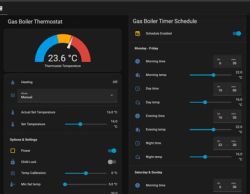
One for the Controls:
And one for the Schedule:
Final Notes
• DP48 (Schedule RAW) cannot be reliably written via tuyaMcu_sendState.
Full-length payload causes buffer overflow in current firmware.
Reading works, but writing the complete schedule block does not.
• Due to this limitation, it is recommended to:
o Leave the thermostat in Manual mode
o Implement scheduling logic in Home Assistant
o Send only DP16 setpoints via tuyaMcu_sendState
• This device uses TuyaMCU, so no GPIO configuration is required on the WR3/RTL8710 module.
• OTA firmware update does not work reliably on this variant (dual-partition RTL8710BN_2M layout). UART flashing may be possible but was not tested.
• Flash extraction shows two profile blocks in firmware:
o 000002fn93 → thermostat profile
o 0000002r12 → likely reused generic profile (fan/heater type)
This appears normal for this firmware.
• Some thermostat menu functions are not exposed as DPIDs, including:
o Display brightness
o Screen dimmer
o High/low protection settings
o Certain menu options (B, D etc.)
These cannot be controlled remotely.
• Holding Power (display off) shows “ON” with “FFF” and logs Unhandled type 14.
Function unknown; no corresponding DPID found.
• The clock has no DPID, but the MCU requests time on boot.
Using the NTP driver and tuyaMcu_sendCurTime resolves this.
• If Home Assistant restarts while the device is offline, the system remains stable.
No startup blocking occurs. State will resync after the next tuyaMcu_sendQueryState.
• Using direct tuyaMcu_sendState commands is more reliable than MQTT Climate integration for this device.
Helpful post? Buy me a coffee.
This thermostat is for a gas boiler, and has wet contacts i.e. mains powered. FOR SAFETY, YOU MUST MAKE SURE IT IS INSTALLED BEFORE ATTEMPTING TO FLASH IT. The unit does not require opening up, so DO NOT OPEN - but you will need to power cycle during the Cloudcutter procedure which can be achieved simply by switching off and on your relevant circuit breaker when it gets to that stage. This will only need to be done once.
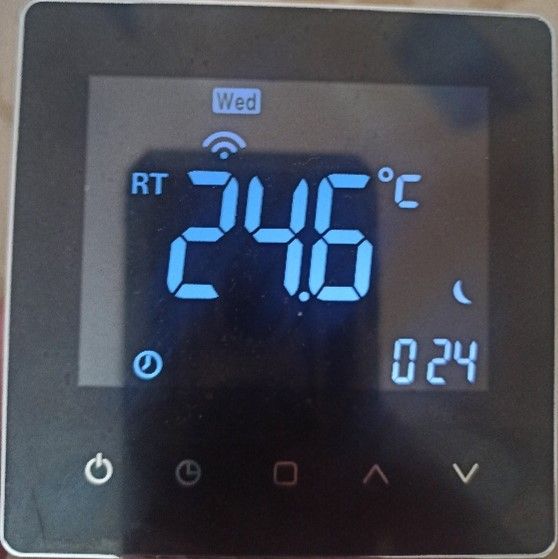
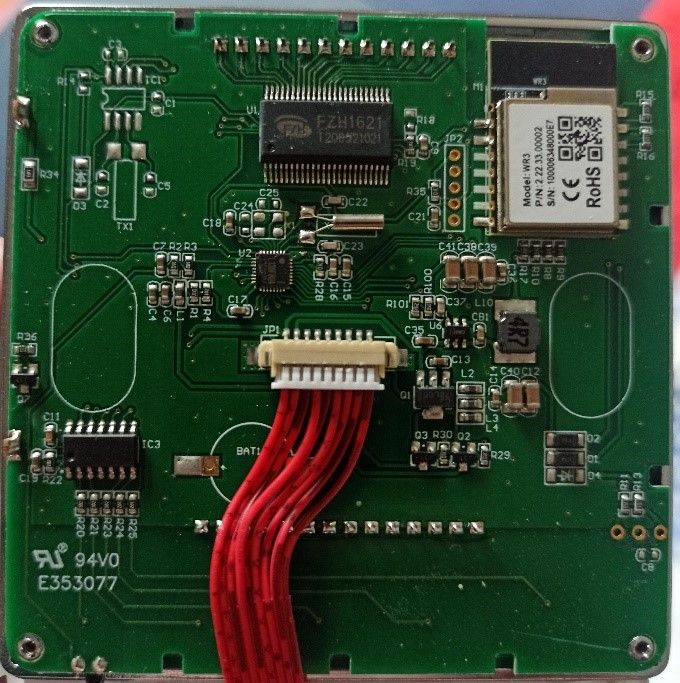
This particular thermostat variant (circa 2020), has a WR3 Wi-Fi chip, and the FZH1621 chip looks like a MCU. I successfully used Tuya Cloudcutter to flash OpenRTL on it, using the following selection in the list by firmware:
2.1.3 - OTA1 - RTL8710BN / rtlbn_tls_common_9600
aka:
Profile: rtlbn-tls-common-9600-ota1-2.1.3-sdk-1.0.7-40.00
Firmware: OpenRTL8710B_UG_1.18.225.img
Once complete, connect to the AP using your phone and set your wifi credentials. Once logged on to the OpenRTL Web UI of the device…
Web Application - Dump flash & extract data
Launch Web Application > Flash > Download full 2MB flash dump (it may take a while before save box comes up).
Don’t bother downloading the GPIO it doesn’t work.
Download the latest version of BK7231GUIFlashTool (or if extraction fails with your installed version. I used build 271)
Link
Extract config from Tuya binary, selecting your 2M dump. Tick the ‘Enhanced extraction’ This is the result:
{
  "gw_bi": {
    "uuid": "zIMIDwYYEf7A",
    "psk_key": null,
    "auth_key": "WWEtGSv1f29YtmD3",
    "ap_ssid": "A",
    "ap_passwd": null,
    "country_code": null,
    "prod_test": false
  },
  "gw_di": {
    "abi": 0,
    "id": "vq5N5mUlV3pmTtjLEWDI",
    "swv": "2.1.3",
    "bv": "40.00",
    "pv": "2.2",
    "lpv": "3.3",
    "pk": "fcp4pmzxlnfjmibg",
    "firmk": "keym5sjxrqcryptn",
    "cadv": "1.0.2",
    "cdv": "1.0.0",
    "dev_swv": "2.0.0",
    "s_id": "0000002r12",
    "dtp": 1,
    "sync": 0,
    "attr_num": 0,
    "mst_tp_0": 0,
    "mst_ver_0": null,
    "mst_tp_1": 0,
    "mst_ver_1": null,
    "mst_tp_2": 0,
    "mst_ver_2": null,
    "mst_tp_3": 0,
    "mst_ver_3": null,
    "dminfo_name": null,
    "dminfo_code": null,
    "dminfo_report_code": null,
    "dminfo_sn": null
  },
  "gw_wsm": {
    "nc_tp": 4,
    "ssid": "Y2xvdWRjdXR0ZXJmbGFzaA==",
    "passwd": "YWJjZGFiY2Q=",
    "md": 0,
    "random": 0,
    "wfb64": 1,
    "stat": 2,
    "token": "AAAAAA",
    "region": "AA",
    "reg_key": null,
    "dns_prio": 2
  },
  "tls_ca_cnt": 0,
  "gw_ai": {
    "key": "wy5yYavqsfIjO6Qu",
    "lckey": "FqAdxuhXKrlwZAfH",
    "h_url": "http://10.204.0.1/d.json",
    "h_ip": "10.204.0.1",
    "hs_url": null,
    "hs_ip": null,
    "hs_psk": "https://a3.tuyaeu.com/d.json",
    "hs_psk_ip": "18.185.182.159",
    "mqs_url": null,
    "mqs_ip": null,
    "mq_url": "10.204.0.1:1883",
    "mq_ip": "10.204.0.1",
    "ai_sp": null,
    "mq_psk": "m2.tuyaeu.com:8886",
    "mq_psk_ip": "3.66.126.37",
    "time_z": "+01:00",
    "s_time_z": "[[1648342800,1667091600],[1679792400,1698541200]]",
    "wx_app_id": null,
    "wx_uuid": null,
    "dy_tls_m": 1,
    "cloud_cap": 1025
  },
  "is_stride": 0,
  "000002fn93": [
    {
      "mode": "rw",
      "property": {
        "type": "bool"
      },
      "id": 1,
      "type": "obj"
    },
    {
      "mode": "rw",
      "property": {
        "range": [
          "manual",
          "eco",
          "program"
        ],
        "type": "enum"
      },
      "id": 2,
      "type": "obj"
    },
    {
      "mode": "rw",
      "property": {
        "type": "bool"
      },
      "id": 10,
      "type": "obj"
    },
    {
      "mode": "rw",
      "property": {
        "min": 50,
        "max": 350,
        "scale": 1,
        "step": 5,
        "type": "value"
      },
      "id": 16,
      "type": "obj"
    },
    {
      "mode": "rw",
      "property": {
        "min": 200,
        "max": 700,
        "scale": 1,
        "step": 5,
        "type": "value"
      },
      "id": 19,
      "type": "obj"
    },
    {
      "mode": "ro",
      "property": {
        "min": 0,
        "max": 500,
        "scale": 1,
        "step": 5,
        "type": "value"
      },
      "id": 24,
      "type": "obj"
    },
    {
      "mode": "rw",
      "property": {
        "min": 50,
        "max": 200,
        "scale": 1,
        "step": 5,
        "type": "value"
      },
      "id": 26,
      "type": "obj"
    },
    {
      "mode": "rw",
      "property": {
        "min": -9,
        "max": 9,
        "scale": 0,
        "step": 1,
        "type": "value"
      },
      "id": 27,
      "type": "obj"
    },
    {
      "mode": "rw",
      "property": {
        "type": "bool"
      },
      "id": 39,
      "type": "obj"
    },
    {
      "mode": "rw",
      "property": {
        "type": "bool"
      },
      "id": 40,
      "type": "obj"
    },
    {
      "mode": "rw",
      "id": 48,
      "type": "raw"
    },
    {
      "mode": "rw",
      "property": {
        "type": "bool"
      },
      "id": 101,
      "type": "obj"
    }
  ],
  "timer_arr": {
    "lastFetchTime": 0,
    "cnt": 0
  },
  "0000002r12": [
    {
      "mode": "rw",
      "property": {
        "type": "bool"
      },
      "id": 1,
      "type": "obj"
    },
    {
      "mode": "rw",
      "property": {
        "range": [
          "1",
          "2",
          "3",
          "4",
          "5",
          "6"
        ],
        "type": "enum"
      },
      "id": 3,
      "type": "obj"
    },
    {
      "mode": "rw",
      "property": {
        "range": [
          "forward",
          "reverse"
        ],
        "type": "enum"
      },
      "id": 4,
      "type": "obj"
    },
    {
      "mode": "rw",
      "property": {
        "type": "bool"
      },
      "id": 9,
      "type": "obj"
    },
    {
      "mode": "rw",
      "property": {
        "min": 0,
        "max": 100,
        "scale": 0,
        "step": 2,
        "type": "value"
      },
      "id": 10,
      "type": "obj"
    },
    {
      "mode": "rw",
      "property": {
        "min": 0,
        "max": 100,
        "scale": 0,
        "step": 2,
        "type": "value"
      },
      "id": 11,
      "type": "obj"
    },
    {
      "mode": "rw",
      "property": {
        "range": [
          "normal",
          "sleep",
          "nature"
        ],
        "type": "enum"
      },
      "id": 102,
      "type": "obj"
    },
    {
      "mode": "rw",
      "property": {
        "range": [
          "off",
          "1hour",
          "2hour",
          "4hour",
          "8hour"
        ],
        "type": "enum"
      },
      "id": 103,
      "type": "obj"
    }
  ],
  "em_sys_env": "RTL8710BN_2M",
  "ap_info_v2": "70000000636c6f7564637574746572666c617368000000000000000000000000000000000000000061626364616263640000000000000000000000000000000000000000000000000000000000000000000000000000000000000000000000000000000000000000000000000400400006",
  "mf_test_close": true
}
It also says..
‘Sorry, no meaningful pins data found. This device may be TuyaMCU or a custom one with no Tuya config data.
No module information found.
Device internal platform - RTL8710BN_2M, equals RTL8710B.
And the Tuya section starts at 2011136 (0x1EB000), which is a default RTL8710B/XR809/BK7231Q offset’
But it was a good guess it had an MCU from the photo.
There appears to be 2 profile dumps in one here (determined by repeated dpids):
000002fn93 – this thermostat, and 0000002r12 – another device, possibly a fan heater with timer functions.
The WebUI shows Firmware: FW2. This chip seems to use 2 partitions (hence the OTA1 & 2 in Cloudcutter). Maybe each partition holds a profile. Updating via OTA doesn’t work unfortunately. It should be possible by UART but if like me you don’t want the hassle, this version is good enough (unless it’s a patched WR3 chip and you can’t of course).
Also note: Not all functions are shown here, as not every function on the thermostat is controllable remotely. Some settings can only be done in the thermostat’s menu by design. Also the screen when first started up shows more icons than this thermostat uses – it must be a generic template for many devices.
Initial Configuration
As it uses TuyaMCU to communicate with the MCU, no pins need to be assigned to the WR3.
Just a few minor changes in the WebUI, and creating a startup file in the Web App (autoexec.bat).
Configure Flags:
Enable 10
Configure MQTT:
Enter your credentials
Client Topic (Base Topic):
vislone_thermostat
Group Topic (Secondary Topic to only receive cmnds):
rtl8710b
Set the username/pw/IP of your broker to communicate with Home Assistant.
Configure Names:
These contain the last part of the MAC of your device. I’d changed mine as follows for ease of use in Home Assistant via mqtt:
ShortName
rtl8710b[mac]
Full Name:
OpenRTL8710B_[mac]
To:
ShortName
Thermostat (or use [Room]_Thermostat if you have others)
Full Name:
Vislone_Thermostat_[mac]
Now Restart
Logs
After a reboot, launch the Web Application again. In Logs, if you set the level to Debug, and only show, CMD, RAW and TuyaMCU you should notice the ParseState revealing the active DPid’s. Thanks to the extraction, we know what they these are. You could also use the TuyaMCUExplorer app to list these. (Link )
Creating the startup file (Autoexec.bat)
Web App > Filesystem > Create File > autoexec.bat
Paste the code below:
(Note: the clock doesn’t have a dpid – but setting the log level to ALL and rebooting, the log revealed it was looking for a time signal. This means it can be set automatically from a time server using the NTP driver every time it’s rebooted!)
StartDriver NTP
ntp_setServer 129.6.15.28
time_setTZ 0
time_setDST 0 3 1 1 1 0 10 1 2 0
ntp_setLatlong 51.451879 -0.103371

delay 2
StartDriver TuyaMCU
TuyaMCU_SetBaudRate 9600
tuyaMcu_defWiFiState 4

tuyaMcu_sendCurTime

# Room Temperature (DP24) - read only
setChannelLabel 1 "Room Temperature" 1
setChannelType 1 Temperature_div10
linkTuyaMCUOutputToChannel 24 val 1 1

# Set Temperature (DP16) - writable (except Eco overrides)
setChannelLabel 2 "Set Temperature" 1
setChannelType 2 Temperature_div10
linkTuyaMCUOutputToChannel 16 val 2 1
linkTuyaMCUChannelToOutput 2 val 16 1

# Boiler Status (DP101) - read only, shown as OFF/HEATING
setChannelLabel 3 "Boiler Status" 1
setChannelType 3 ReadOnlyEnum
setChannelEnum 3 "0:IDLE" "1:HEATING"
linkTuyaMCUOutputToChannel 101 bool 3

# ON/OFF (DP1) - writable
setChannelLabel 4 "ON/OFF" 1
setChannelType 4 Toggle
linkTuyaMCUOutputToChannel 1 bool 4
linkTuyaMCUChannelToOutput 4 bool 1 1

# Heating Mode (DP2) - writable enum
setChannelLabel 5 "Heating Mode" 1
setChannelType 5 Enum
setChannelEnum 5 "0:Manual" "1:Eco" "2:Program"
linkTuyaMCUOutputToChannel 2 enum 5
linkTuyaMCUChannelToOutput 5 enum 2 1

# Unknown bool (DP10) / HIDDEN
setChannelLabel 6 "DP10 (Unknown/Unused)" 1
setChannelType 6 Toggle
linkTuyaMCUOutputToChannel 10 bool 6
linkTuyaMCUChannelToOutput 6 bool 10 1
setChannelVisible 6 0

# Max Set Temp (DP19) - writable
setChannelLabel 7 "Max Set Temp" 1
setChannelType 7 Temperature_div10
linkTuyaMCUOutputToChannel 19 val 7 1
linkTuyaMCUChannelToOutput 7 val 19 1

# Min Set Temp (DP26) - writable
setChannelLabel 8 "Min Set Temp" 1
setChannelType 8 Temperature_div10
linkTuyaMCUOutputToChannel 26 val 8 1
linkTuyaMCUChannelToOutput 8 val 26 1

# Reset (DP39) - action
setChannelLabel 9 "RESET" 1
setChannelType 9 Toggle
linkTuyaMCUOutputToChannel 39 bool 9
linkTuyaMCUChannelToOutput 9 bool 39 1

# Child Lock (DP40) - writable
setChannelLabel 10 "Child Lock" 1
setChannelType 10 Toggle
linkTuyaMCUOutputToChannel 40 bool 10
linkTuyaMCUChannelToOutput 10 bool 40 1

# Temperature Calibration (DP27) - writable (-9..9)
setChannelLabel 11 "Temperature Calibration" 1
setChannelType 11 TextField
linkTuyaMCUOutputToChannel 27 val 11 1
linkTuyaMCUChannelToOutput 11 val 27 1

# Schedule HEX (DP48) - via MQTT so you can see/send the full string / HIDDEN
setChannelLabel 12 "Schedule (Raw Hex)" 1
setChannelType 12 TextField
linkTuyaMCUOutputToChannel 48 mqtt 12
#linkTuyaMCUChannelToOutput 12 raw 48 0
setChannelVisible 12 0

waitFor NTPState 1
delay 1
tuyaMcu_sendCurTime
tuyaMcu_sendQueryState
addRepeatingEvent 300 tuyaMcu_sendQueryState
Click ‘Save, Reset SVM and run file as script thread’
Back in the WebUI, Restart.
The Web UI is now updated
It’s starting to look more like a thermostat screen. It may look a bit basic but everything that needs to be controlled can be done through Home Assistant later.
The Missing Manual – More About This Thermostat
Product info:
Link
Model: RLV3138164134758QF ASIN: B08NP7GQ7Z
I couldn’t find the original manual, even online. So here’s what I’ve worked out so far from tinkering:
When powering up:
Display shows L with r20 in the right corner.
When Display is ON:
Power Button – Powers off display and boiler if already on [Hold] Toggles wifi
Clock – Sets device time
Square – Toggles Operation Mode: Manual, Auto [Hold] Schedule Mode*
Up – Increases Set Temperature
Down – Decreases Set Temperature
*Schedule Mode
There are 6 periods each for Mon-Fri, Sat and Sun
Power – Exits Schedule Mode
Square – Cycles between Days/Time/Temp/Period on/Period off
Up/Down – Changes selected option
When Display is OFF:
Power Button – Turns on display (and boiler if set temp) [Hold] Says ‘ON’ and FFF in right corner (unknown)
Square [Hold] – Menu options*
*Menu options (with defaults and (ranges))
Press Square to cycle - Up/Down to change – Power to exit
1 – Temp Calibration – 0 (-9 to 9)
2 – Deadzone - 1.0c – (1.0-5.0)
3 – Lock Mode Buttons 1 (0 All except power or 1 ALL)
4 – Sensor – in (in, all, ou)
5 – Min Set Temp - 0.50c (05.0-15.0)
6 – Max Set Temp - 35.0c (15.0-45.0)
7 – Display Mode – 0 (0 RT & SET or 1 SET)
8 – Screen Dimmer brightness - 10 (0 Black to 100 Always On)
9 – High Temp Protection Setting - 45c (25.0-70.0)
A – Low Temp Protection Setting - 0.50c (02.0-10.0) – Only resets in Eco Mode
B – Unknown Function??? – 0 (0,1)
C – Factory Reset - 0 (0,1)
D – Economy Temp 16.0c (05.0-30.0) – Only resets in Eco Mode
E – Brightness - 80 (1 dim to 100 bright)
It’s a real shame that some of these options, especially brightness, are not exposed as dpids.
When doing the ‘ON & FFF’ a ‘ProcessIncoming: unhandled type 14’ appears in the log – whatever that means.
Decoding the Timer Programme Schedule
This thermosat has 3 day selections – Mon-Fri, Sat and Sun. Each has 6 timer events.
Fortuntely these are all exposed and can be controlled.
The TuyaMCURecevied line with the long hex numbers is the key here. Setting DP48 to publish to MQTT and using MQTT Explorer the line of hex appears, and flashes with each change - which is a lot easier than sifting through all the code in the web log.
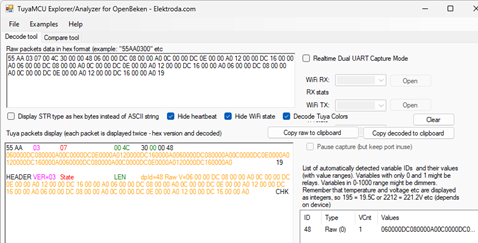
When changing the settings of time and temp (but not days), it will reveal which segment changes, and depending on what block it changes also reveals whether Mon-Fri, Sat or Sun.
ChatGPT was useful for this purpose – by adjusting the time by 1 minute on 1 programme, posting it up, then adjusting the temp for the same programme and posting that up then rinse and repeat for the others - it didn’t take long to decode it. Just the Mon-Fri segment was enough to extrapolate the rest.
Here’s an example of what was found:
The raw block
053B00D2073B00A50C0100E60D3B00AA113B00E6153B00AA060000DC080000A00C0000DC0E0000A0120000DC160000A0060000DC080000A00C0000DC0E0000A0120000DC160000A0
Broken down to 3:
053B00D2073B00A50C0100E60D3B00AA113B00E6153B00AA – Mon-Fri
060000DC080000A00C0000DC0E0000A0120000DC160000A0 – Sat
060000DC080000A00C0000DC0E0000A0120000DC160000A0 – Sun
First block broken down:
053B00D2 073B00A5 0C0100E6 0D3B00AA 113B00E6 153B00AA
053B00D2 - 05:59 21.0C (05 is 05, 3B is 59, 00 is 00, D2 is 210 which is 21.0c)
073B00A5 - 07:59 16.5C
0C0100E6 - 12:01 23.0C
0D3B00AA - 05:59 21.0C
113B00E6 - 05:59 21.0C
153B00AA - 05:59 21.0C
Whilst unsure about the channel IDs, it’s reasonable to assume that this part of it would be consistent with any other thermostat of this exact model.
To write back via MQTT use
cmnd/vislone_thermostat/tuyaMcu_sendCmd
Publish (raw) – only one space after the 6.
ADVERTISEMENT
6 30000048060000CD073B00A00C0100E60D3B00AA113B00E6153B00AA060000DC080000A00C0000DC0E0000A0120000DC160000A0060100DC080000A00C0000DC0E0000A0120000DC160000A0
In this example
Here’s the potential mqtt yaml for Home Assistant too:
Reading:
vislone_thermostat/tm/raw/48
060000DC080000A00C0000DC0E0000A0120000DC160000A0060000DC080000A00C0000DC0E0000A0120000DC160000A0060000DC080000A00C0000DC0E0000A0120000DC160000A0
But there’s a problem:
Writing:
action: mqtt.publish
data:
topic: "cmnd/vislone_thermostat/tuyaMcu_sendState"
payload: "48 0 060000DC080000A00C0000DC0E0000A0120000DC160000A0060000DC080000A00C0000DC0E0000A0120000DC160000A0"
qos: 0
retain: false
As you can see, this only 2/3 of the code. If you try the full length it produces a buffer overflow in the log. Despite heavy research, the only workaround was to abandon building a bidirectional schedule system between the thermostat in Program Mode and Home Assistant – and settle for Manual Mode on the Thermo and let Home Assistant do the times and temps using automations. Not ideal. Hopefully one day this can be fixed.
Getting this Thermostat in Home Assistant
As this device requires a lot of code it’s better to have it in a Package. Add this line to your configuration.yaml if you don’t already have it:
homeassistant:
  packages: !include_dir_named packages
Create a folder called ‘packages’ in your config dir if you don’t already have one. Inside this folder create 2 files and paste in the code for each:
gas_boiler_controls.yaml
Code: YAML
And gas_boiler_schedule.yaml
Code: YAML
For the dashboard, you'll need these Lovelace cards:
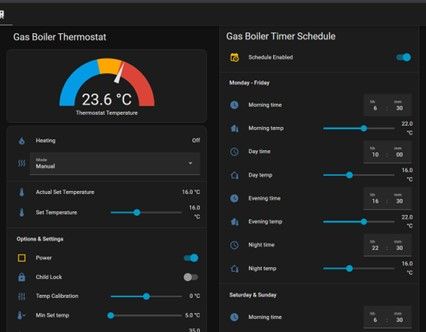
One for the Controls:
Code: YAML
And one for the Schedule:
Code: YAML
Final Notes
• DP48 (Schedule RAW) cannot be reliably written via tuyaMcu_sendState.
Full-length payload causes buffer overflow in current firmware.
Reading works, but writing the complete schedule block does not.
• Due to this limitation, it is recommended to:
o Leave the thermostat in Manual mode
o Implement scheduling logic in Home Assistant
o Send only DP16 setpoints via tuyaMcu_sendState
• This device uses TuyaMCU, so no GPIO configuration is required on the WR3/RTL8710 module.
• OTA firmware update does not work reliably on this variant (dual-partition RTL8710BN_2M layout). UART flashing may be possible but was not tested.
• Flash extraction shows two profile blocks in firmware:
o 000002fn93 → thermostat profile
o 0000002r12 → likely reused generic profile (fan/heater type)
This appears normal for this firmware.
• Some thermostat menu functions are not exposed as DPIDs, including:
o Display brightness
o Screen dimmer
o High/low protection settings
o Certain menu options (B, D etc.)
These cannot be controlled remotely.
• Holding Power (display off) shows “ON” with “FFF” and logs Unhandled type 14.
Function unknown; no corresponding DPID found.
• The clock has no DPID, but the MCU requests time on boot.
Using the NTP driver and tuyaMcu_sendCurTime resolves this.
• If Home Assistant restarts while the device is offline, the system remains stable.
No startup blocking occurs. State will resync after the next tuyaMcu_sendQueryState.
• Using direct tuyaMcu_sendState commands is more reliable than MQTT Climate integration for this device.
