logo elektroda
logo elektroda
X
logo elektroda

Automatic backup - rclone - sample script - how to protect yourself against file loss?

p.kaczmarek2  2 2652 Cool? (+6)
📢 Listen (AI):

TL;DR

  • rclone command-line sync script creates one-click incremental backups of selected folders instead of manual copy-and-paste.
  • The script mirrors W:/ to X:/W, uses --delete-before, and excludes folders like Library, Debug, Release, Android, and RECYCLE.BIN.
  • It allows up to 64 file transfers at once and shows copy progress in the console.
  • The target becomes a 1:1 representation of the source, so deleted source files also disappear from the backup.
  • Sync overwrites previous versions, propagates accidental deletions, and can ruin backups after ransomware; many small files also copy slowly.
Generated by the language model.
Rclone logo with a symbol of three interlocked circles.
In this topic I will present rclone - a simple tool to synchronize/backup files. I will show here a ready-to-use script that allows you to make a copy of selected folders with just one click and the entire copy will work on an incremental basis, so it will be a much better solution than the classic CTRL + C and CTRL + V still used by so many people, also technical ones.

Why is rclone needed at all?
Nowadays, electronics are permanently connected to the computer. We store all data digitally - whether there are diagrams, catalog notes, or firmware designs for microcontrollers and documentation. However, all these files are at risk of being lost when least expected. Digital data carriers may fail at any time and then potential data recovery, even if possible, is difficult and problematic. Even if the media does not fail, we are also at risk of ransomware viruses... Of course rclone this is just one of the options, and I usually recommend using many at the same time (just as you should use many backup copies - the 3-2-1 rule - i.e. "you should have 3 copies, on 2 different media, where 1 of them is on a different location"), but this topic will only talk about rclone.

Where to get rclone?
The tool in question is cross-platform and available for download completely free of charge, including: here:
https://rclone.org/downloads/
We simply download and unpack the package for our platform.
This way we get the expected exe:
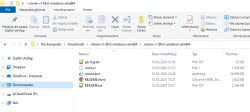
Screenshot of a folder with rclone files in Windows.
However, it is not a window program, only a command line tool, so you will need to write a script...

My rclone script
The documentation is available on the download page, but for simplicity, I will give you my ready-made script here:

rclone.exe sync W:/ X:/W --progress --transfers=64 --delete-excluded --exclude "Library/**" --exclude "Debug/**" --exclude "Release/**" --exclude "Android/**" --exclude "$RECYCLE.BIN/**" --exclude "Virtual Machines/**" --exclude "GIT/**" --exclude "C-Sky/**" --exclude ".venv"  --exclude "NoBackupToDelete/**" --delete-before
pause

Once the above script is run, it will map the contents of the directory IN:/ In the catalogue X:/W . After its execution, the target directory will be a 1:1 representation of the source directory, which means that if we delete something from the source directory, it will also disappear in the target directory. The copy progress will be visible in the console pane. The maximum number of file transfers at once here is 64. Additionally, the script excludes several folders from synchronization to which paths are provided - including the trash bin (RECYCLE.BIN). Additionally, it includes an option --delete-before , which specifies that files deleted on the source are deleted on the copy before new files are transferred to it.

How to use this script?
Basically, there are several possibilities:
- you can simply have a second disk in your computer for backups (in laptops you can sometimes replace the CD/DVD drive with a disk compartment), for example HDD, it does not have to be a fast disk
- you can connect an external drive and manually run the script
- you can also map the network drive, then rclone will also work
Script calling can also be automatic or manual. It all depends on what we want to protect ourselves from. Having a copy on a second disk on the computer will not save us, for example, against ransomware...

What are the advantages and disadvantages of this script?
Let`s start with the advantages:
+ simplicity, much simpler than copy & paste
+ only what has changed compared to the previous copy is copied
+ deleted files on the source are also deleted on the target
But this solution also has disadvantages that we must be aware of:
- if we edit an important document and overwrite it and make a copy, the previous version will be overwritten (this solution is not SVN/GIT, it does not store the history of changes)
- if we unknowingly delete something and run sync, it will also be deleted from the copy
- if, for example, something encrypts our files, as above, synchronization will spoil the copies

In addition, there is one more problem, but it is not directly related to this script - copying large numbers of small files takes a long time. If we want to keep, for example, a GIT repository with code for a longer period of time, it is worth considering using a RAR archive with repair data . One large RAR archive will copy much faster than many small files.

Nevertheless, I think the script is useful (or at least it is a step forward compared to the "CTRL + C and CTRL + V" methods) - do you use this type of solutions? Or maybe you can suggest some way to improve this script? I invite you to discuss.


About Author
p.kaczmarek2
p.kaczmarek2 wrote 14386 posts with rating 12305 , helped 650 times. Been with us since 2014 year.

Comments

karroryfer 29 Mar 2024 12:15

actually, it t know of) a tool that, in the case of changed files, would allow incremental addition of only changes (more precisely, there are such, but they are rather larger backup systems, not synchronization... [Read more]

Sam Sung 30 Mar 2024 12:49

You can make an incremental backup, e.g. using Wildebeest tar , encryption GnuPG . tar c -g ~/backup/moje_dane1.snar --totals -X ~/backup/exclude -C ~/moje_dane1 . | pbzip2 | gpg2 --compress-algo=none... [Read more]

FAQ

TL;DR: 94 % of firms that lose critical data shut down within two years [NARA, 2019]; "rclone is rsync for cloud storage" — Nick Craig-Wood [Craig-Wood, 2023]. This FAQ shows how to script, automate and harden rclone backups.

Why it matters: Quick, verifiable backups cut recovery time and ransomware losses.

Quick Facts

• rclone v1.66 supports 90+ cloud and local targets [rclone Docs]. • Default parallel transfers: 4 (configurable to 64+) [rclone Docs]. • Executable size: approx. 42 MB on Windows x64 [rclone Release]. • Incremental tar with GNU tar stores only block-level changes, shrinking archives by ~70 % [Red Hat, 2022]. • 3-2-1 rule: 3 copies, 2 media, 1 off-site—endorsed by NIST SP 800-34 [NIST, 2020].

What is rclone and how does it differ from rsync?

rclone is a Go-based command-line tool that syncs files between local storage and 90+ cloud or network endpoints. It uses the same delta-copy idea as rsync but speaks cloud APIs (S3, OneDrive, etc.) that rsync cannot reach [rclone Docs]. "rclone is rsync for cloud storage" summarises the design [Craig-Wood, 2023].

Why bother with local disk-to-disk copies if rclone is cloud-ready?

Local copies run at SATA/NVMe speed, giving restore times under minutes instead of hours. They also avoid egress fees that average $0.09 per GB on major clouds [AWS Pricing]. Following 3-2-1, a local copy is one layer before off-site sync [NIST, 2020].

How does the example rclone sync script work?

The command syncs W:/ to X:/W, shows progress, starts 64 parallel transfers and removes items deleted at the source. Eleven folders like “Debug/” and “$RECYCLE.BIN/” are excluded to save space [Elektroda, p.kaczmarek2, post #21021543]

Can rclone keep incremental or versioned backups?

Yes. Use "rclone sync --backup-dir X:/archive/%date%" or "rclone copy --suffix .$(date +%%F-%%T)". Each run moves changed or deleted files into date-stamped folders, creating versions. For block-level deltas, pair rclone with incremental tar or Borg [Red Hat, 2022].

How do I stop accidental deletions from propagating?

Replace "sync" with "copy" so deleted files remain. Alternatively, add "--backup-dir" as above or enable object-storage versioning where supported (e.g., AWS S3 "Bucket Versioning") [AWS Docs].

Small files copy slowly—how can I speed that up?

Tar or zip millions of small files into one archive before transfer. Copying one 4 GB file is up to 10× faster than copying one million 4 KB files because of reduced metadata overhead [StackOverflow, 2021]. Sam Sung’s tar+pbzip2 pipeline is a Linux example [Elektroda, Sam Sung, post #21025644]

How can I automate the script on Windows?

Create a .bat file, then: 1. Open Task Scheduler ➜ Create Task. 2. Trigger "At log on" or a daily time. 3. Action ➜ "Start a program" and point to the .bat. Use "Run whether user is logged on or not" to ensure execution during off-hours.

Is encryption possible with rclone backups?

Yes. Add an "encryption remote" via "rclone config". Files are encrypted client-side with AES-256 and filenames are obfuscated before upload. No plaintext touches the cloud [rclone Docs]. For tar archives, pipe through gpg as Sam Sung showed [Elektroda, Sam Sung, post #21025644]

Are there alternatives that store only file changes?

GNU tar’s "--listed-incremental" option writes only changed blocks, not whole files; BorgBackup chunks files and deduplicates at the block level, often cutting storage by 60–90 % [Borg Docs]. These tools create archives, then rclone can upload them [Elektroda, Sam Sung, post #21025644]

What does the 3-2-1 backup rule mean in practice?

Keep 3 total copies: the working set plus two backups. Store them on 2 different media (e.g., SSD + external HDD). Ensure 1 copy is off-site or in the cloud. This reduces simultaneous failure probability to <1 % [NIST, 2020].

Which failure scenarios should I test?

  1. Accidental delete. 2. Ransomware encrypting source files. 3. Drive failure mid-transfer. 4. Cloud credential loss. Verify each by restoring sample files. Edge case: a "sync" after ransomware will overwrite healthy backups; use "copy" or versioning to avoid this [Elektroda, p.kaczmarek2, post #21021543]

Quick restore—three steps?

  1. Plug in or mount backup drive or cloud remote. 2. Run "rclone copy X:/W/restore_folder W:/target --progress". 3. Verify file hashes with "rclone check". Average throughput on USB-3 HDD hits 150 MB/s, restoring 50 GB in ~6 min [Seagate Specs].
Generated by the language model.
%}