







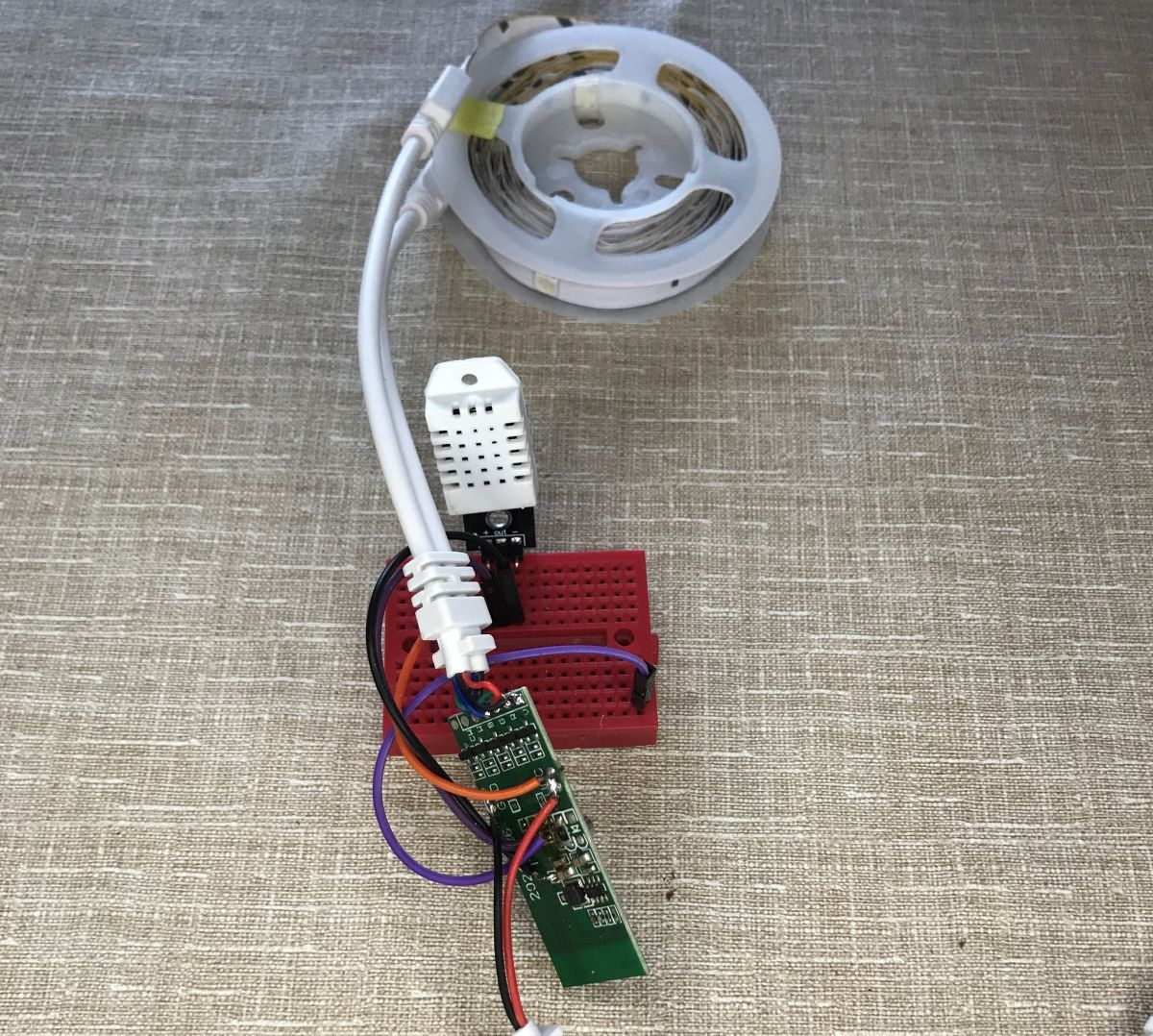
Why change the firmware of IoT devices? One good reason to change the firmware may be to expand the functionality of your existing device. Factory applications usually do not allow for large modifications, whereas open source projects provide almost infinite possibilities. Here, I will show just such a modification using Tuya's RGB LED strip controller as an example. I will change its firmware so that it can be connected to Home Assistant, and then add the DHT22 temperature and humidity sensor to it. Of course, other sensors are also supported - I just had the DHT on hand.
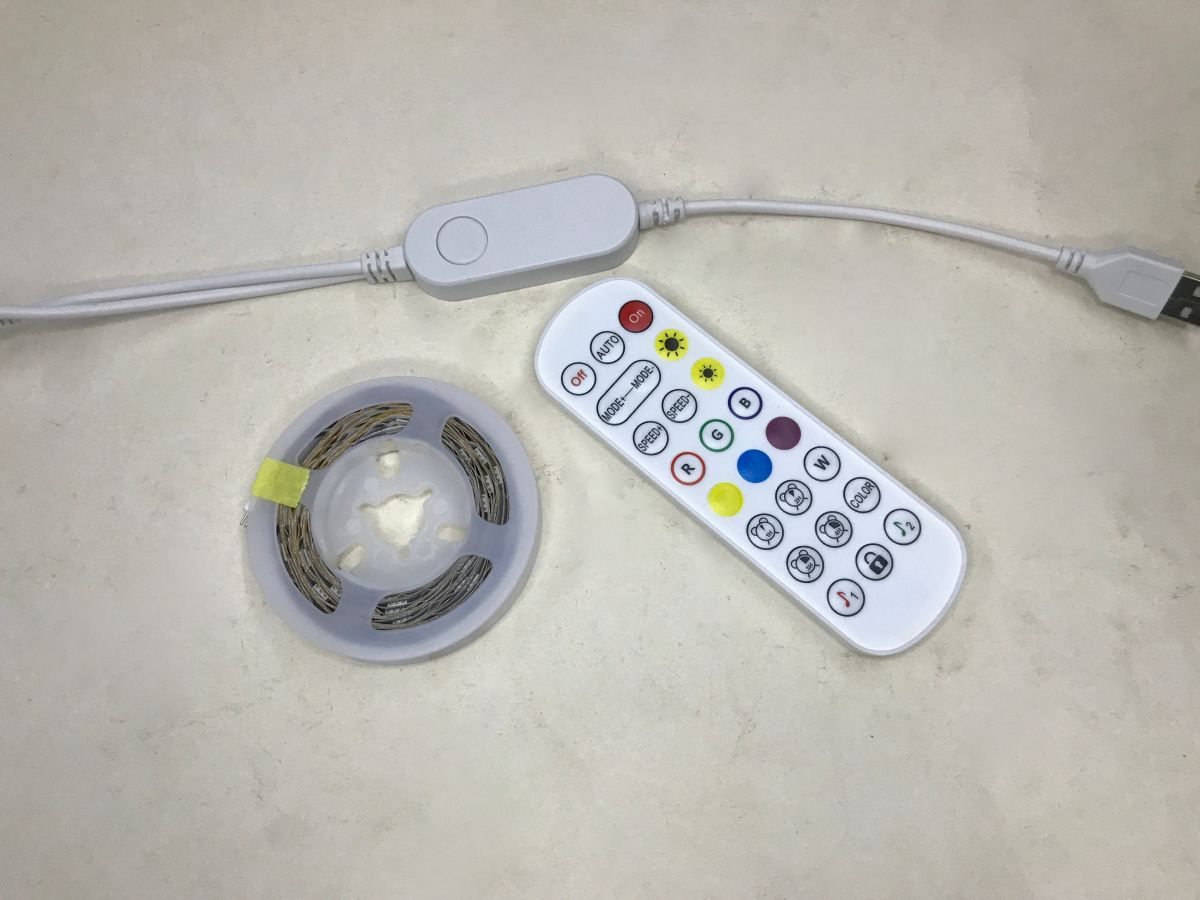
I bought the kit for a dozen gold on a Chinese shipping site. It includes an RGB strip, a controller on Wi-Fi with an additional IR remote control. I have already discussed the subject of remotes in the firmware used for the presentation separately:
Tutorial/presentation on using the NiceMCU BK7238/T1 IR remote control - Home Assistant [EN]
Tutorial/presentation on operating the NiceMCU BK7238/T1 IR remote control - Home Assistant [EN]
Normally the controller works with Tuya, but I won't test that here. Below is the original manual, maybe someone will find it useful.
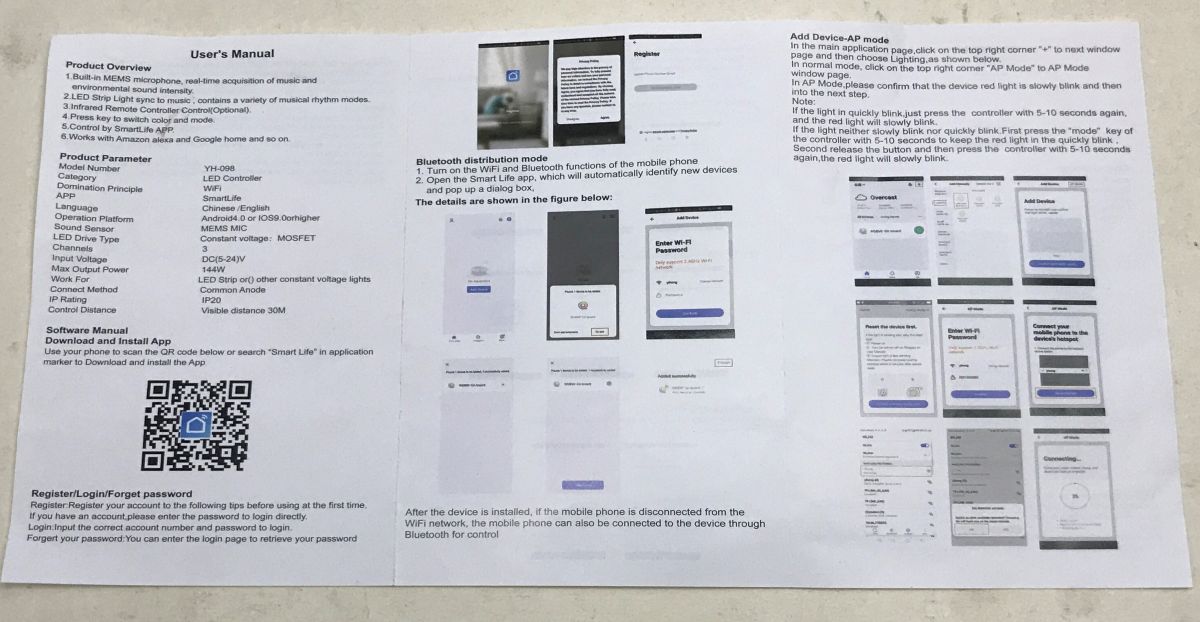
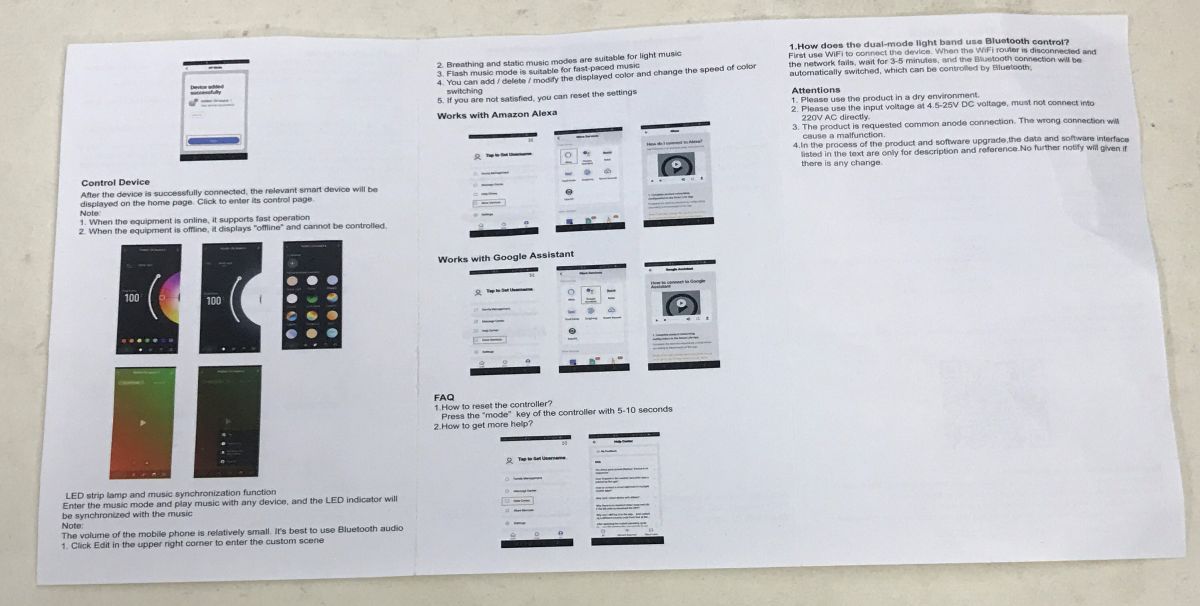
It is therefore time to change the firmware. We remove the cover (undermine it) and take a look inside.
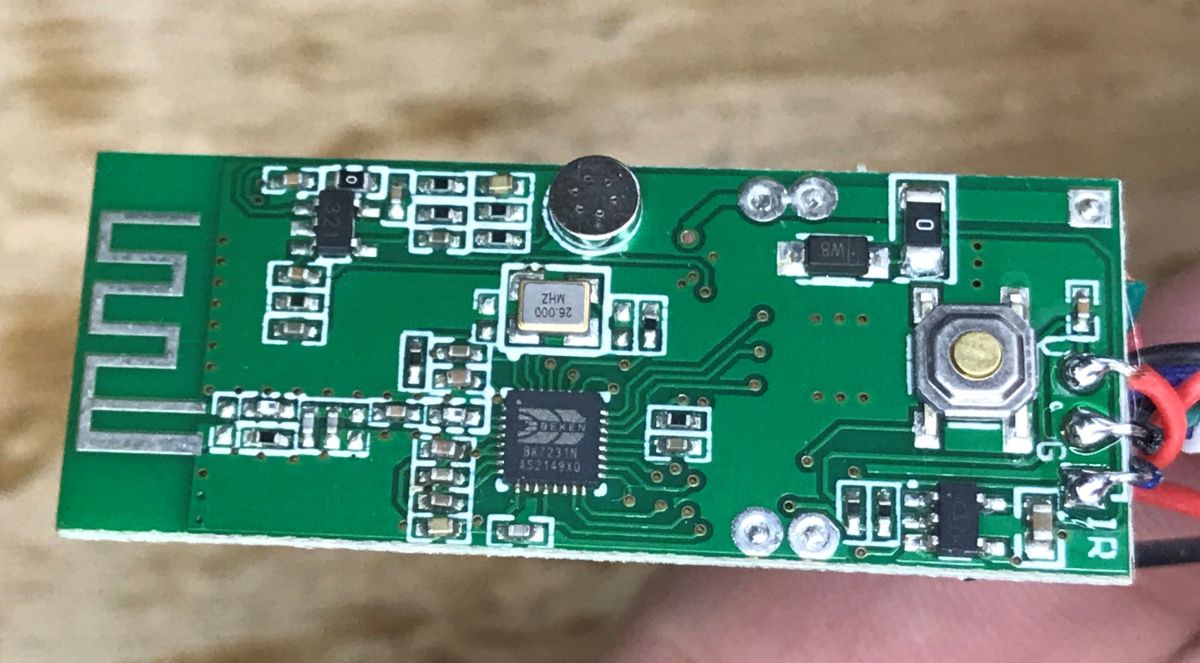
The controller is based on the BK7231N chip located directly on the PCB. The antenna is also in track form. The bacen runs on 3.3 V, so we have a step-down converter here separately. In addition, we have a circuit with a microphone, for effects that react to the rhythm of the music.
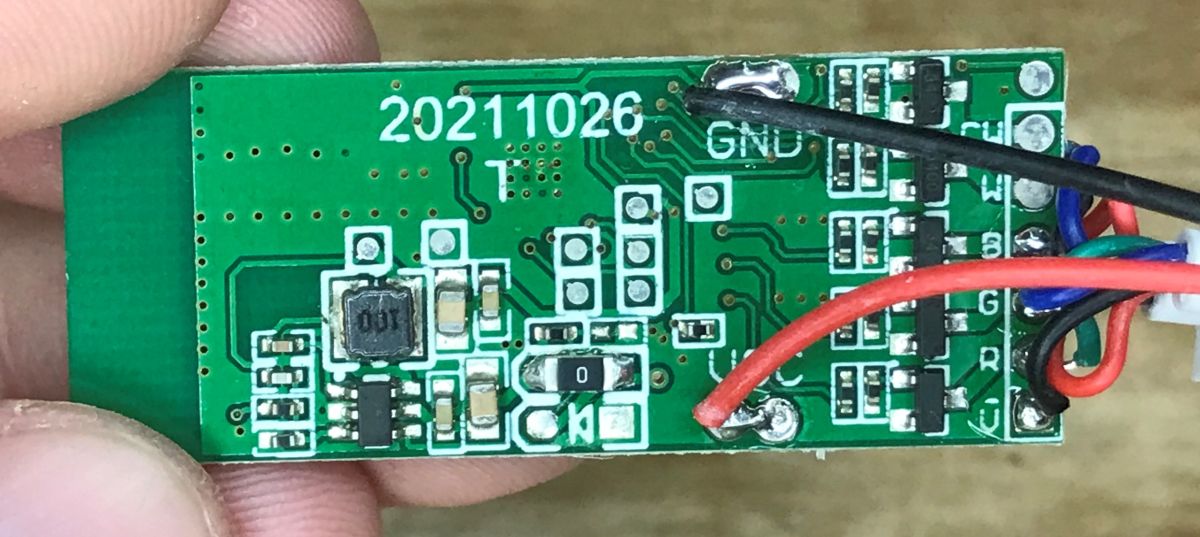
On the other side, we also have five transistors, although this is an RGB strip. It looks like it could easily be converted to RGBCW (RGB+CCT), just by adding wires.
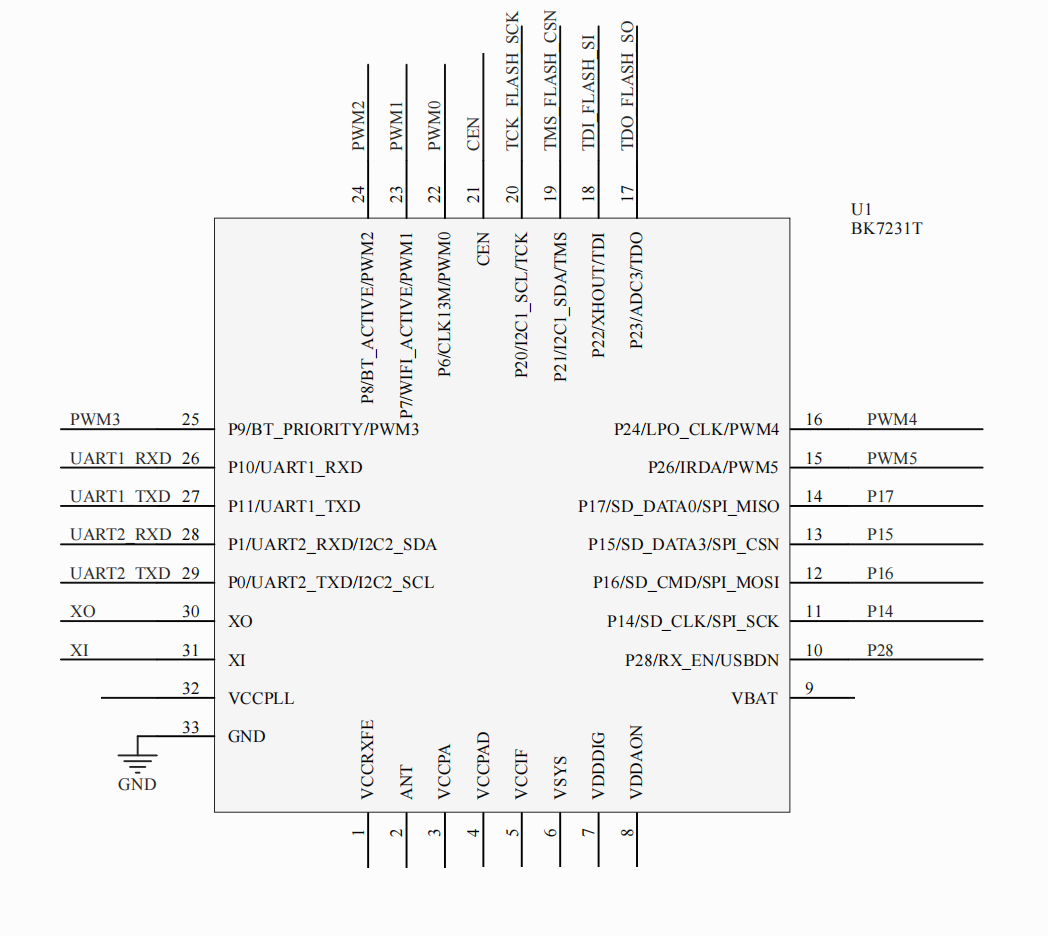
However, we are interested in changing the firmware, and there are no pads described here. You need to check the BK7231 leads and trace the paths. We have the BK pinouts described in the topic:
BK7231 datasheet, pinout, programming, specification, wiki (BK7231T, BK7231 [EN]
BK7231 datasheet, pinout, programming, specification, wiki (BK7231T, BK7231 [EN]
In addition, you need to determine where the earth is - you can check with a multimeter.
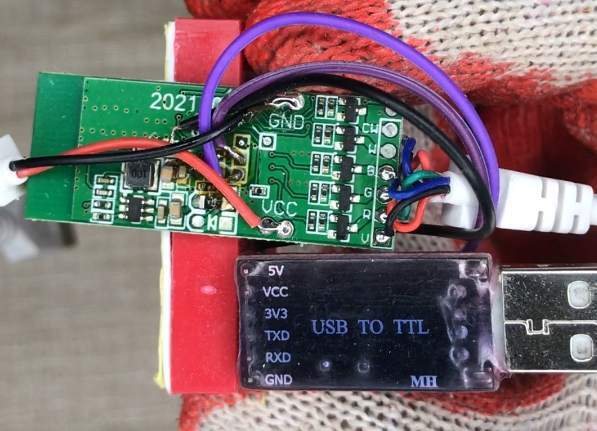
For programming you need the UART (RX1, TX1) and a power supply, but since here we have a USB strip, you can just power it from USB. From the USB to UART converter, we only connect RX and TX and ground, because the BK7231 requires a power cut to be performed when we start flashing (called "get bus"). This is described in more detail in the instructions of our flashing tool:
https://github.com/openshwprojects/BK7231GUIFlashTool
I also always say that you need a stable 3.3V power supply and that I use an external LDO AMS1117-3.3, but here this problem does not exist because the power supply is already on board the controller.
NOTE: you can't see it here because it's a USB-powered device, but for other equipment, those powered by 230 V, you absolutely MUST NOT connect anything to it when it's plugged in. These types of devices often have uninsulated inverters and you can short-circuit and damage your computer.
First we read the batch in the BK7231 Easy UI Flasher, this will allow us to determine the GPIO roles:
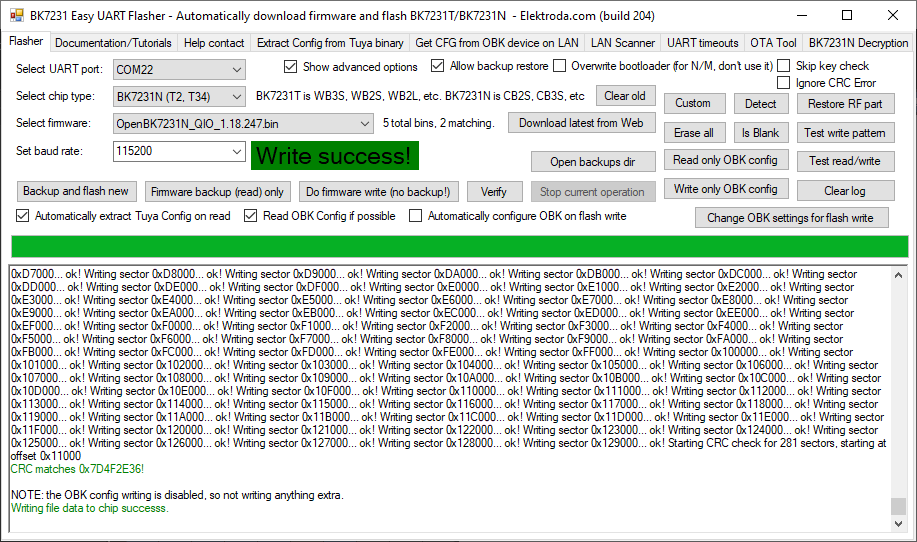
This way you don't have to guess later what is on which pin, where the PWM is, where the button is, where the IR receiver is
JSON readout:
{
"Jsonver":"1.0.4",
"gmwb":"75",
"title20":"0",
"brightmem":"1",
"1err":"40",
"gmwg":"70",
"knum":"1",
"leaderr":"15",
"wfcfg":"spcl_auto",
"colormin":"10",
"bitseq":"0",
"pmemory":"1",
"gmkb":"60",
"pairt":"18",
"wgmod":"0",
"cmod":"rgb",
"micpin":"23",
"irkeytype":"1",
"cwtype":"0",
"tempstep":"25",
"customcode":"58107",
"rstbr":"50",
"ktime":"3",
"0err":"70",
"colormax":"100",
"notdisturb":"0",
"module":"CBU",
"b_pin":"6",
"ir":"20",
"b_lv":"1",
"rstmode":"2",
"dmod":"0",
"sfunc":"1",
"key_lv":"0",
"wfct":"3",
"pwmhz":"1000",
"r_pin":"8",
"scenespct":"5",
"defbright":"100",
"starterr":"70",
"rstnum":"3",
"rstcor":"r",
"r_lv":"1",
"deftemp":"100",
"sensimax":"400",
"micproc":"300",
"k1dfunc":"12",
"keyfunc":"1",
"irfunc":"1",
"adclimit":"2400",
"g_lv":"1",
"sensimin":"200",
"ismusic":"1",
"irstep":"10",
"key_pin":"22",
"remdmode":"0",
"g_pin":"7",
"swgmod":"0",
"gmwr":"100",
"gmkg":"60",
"onoffmode":"0",
"aging":"0",
"rsttemp":"100",
"category":"0503",
"gmkr":"80",
"defcolor":"r",
"crc":"81"
}
Interesting that the JSON identifies the module as a CBU, and here the BK is on the PCB. Perhaps an older version had a CBU?
Verbal description:
Device seems to be using CBU module, which is BK7231N chip.
- LED Red (Channel 1) on P8
- LED Green (Channel 2) on P7
- LED Blue (Channel 3) on P6
- Pair/Toggle All Pin on P22
In addition, the JSON shows the microphone pin (micpin) and the PWM frequency of the dimmer (pwmhz).
OBK template:
Code: JSON
Then the OBK can be uploaded. The firmware creates an open AP, there we configure our Wi-Fi. Then on the Web App you can import the pin settings:
ADVERTISEMENT
You can also pair the device with the HA if required:
Now the culmination of the modification remains, i.e. an additional sensor.
You need to choose something from the supported list, although, for example, the DHT is also supported but not listed - this is because the DHT is outside the driver system:
https://github.com/openshwprojects/OpenBK7231T_App/blob/main/docs/drivers.md
For this reason it is also worth reading the readme:
https://github.com/openshwprojects/OpenBK7231T_App/blob/main/README.md
Getting the individual drivers up and running may look slightly different, but it usually comes down to selecting the pins where the sensor is located and configuring the channels where the measurements will be recorded. Sometimes this can be done via the GUI, and sometimes it has to be entered as a command in autoexec.bat.
Take this DHT22, for example. It's a simple and cheap temperature and humidity sensor. It requires one arbitrary pin for communication. We choose its role:
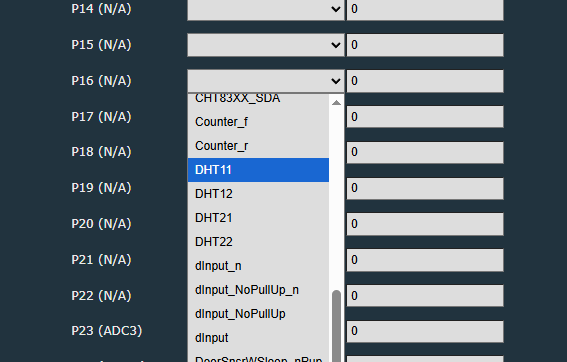
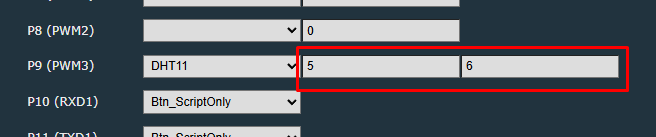
We connect the DHT as we would to an Arduino, meaning we need a pull up resistor if we don't have one on the DHT board itself. Then we set the channels, simply, we enter the first free numbers. As we set the PWM to channels 1, 2 and 3 (to have RGB), we enter 4 and 5, etc.
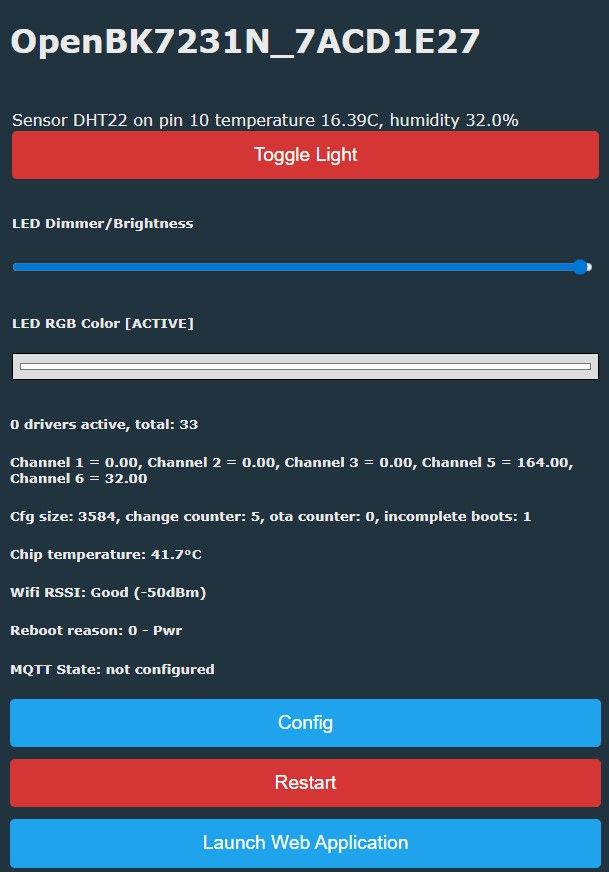
We save and restart the device if necessary (depends on the controller). The measurements should show up in the panel.
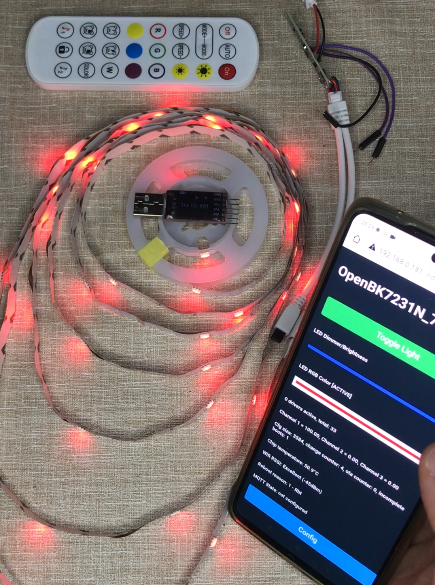
After performing HASS Discovery, the measurements will also propagate to the HA.
Youtube footage:
Related material.
Project repository:
https://github.com/openshwprojects/OpenBK7231T_App
Documentation:
https://github.com/openshwprojects/OpenBK7231T_App/tree/main/docs
Flasher:
https://github.com/openshwprojects/BK7231GUIFlashTool
List of supported devices:
https://openbekeniot.github.io/webapp/devicesList.html
Summarising , this gives us not just a smart device that works without the cloud and is compatible with Home Assistant, but indeed a whole platform for experimentation. We can here:
- freely program the PWM outputs to work with an RGB, CW or thereabouts RGB+CW strip (if we add wires), or even with separate single-colour strips
- freely program the buttons (one-click, two-click, three-click, etc.)
- freely program the remote control
- add any supported (and, if you want to program, also unsupported) sensors
- add any scripts and automations (either via HA or on the OBK itself - the project is supported by Berry)
The possibilities are huge, and the IoT device becomes sort of open to Arduino experimentation.
What suggestions do you have for reworking such a controller? Maybe a motion sensor?
Cool? Ranking DIY Helpful post? Buy me a coffee.

