







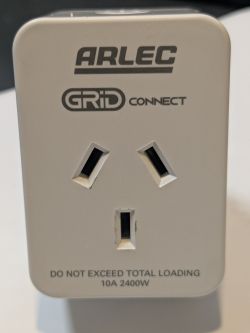
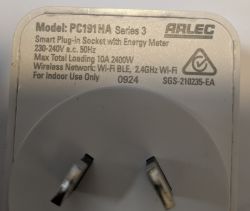
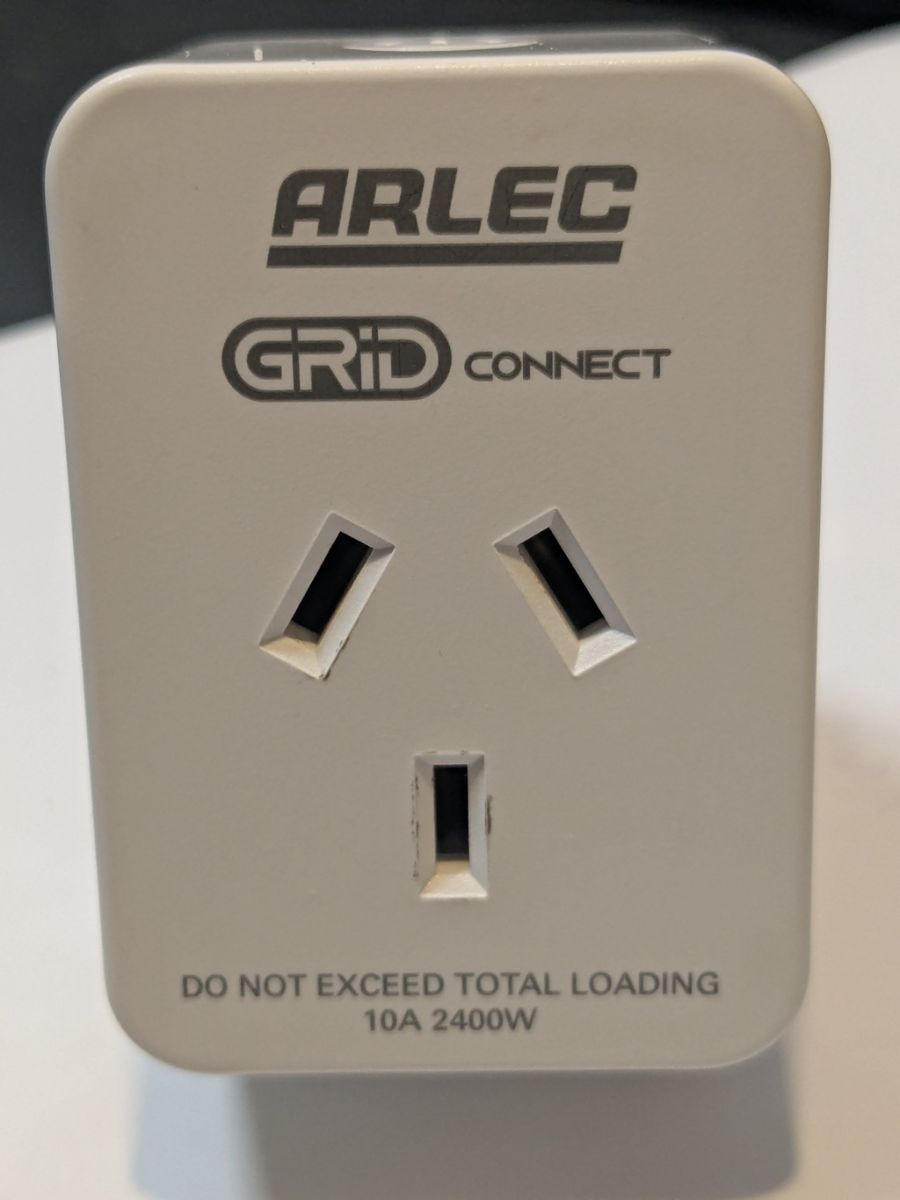
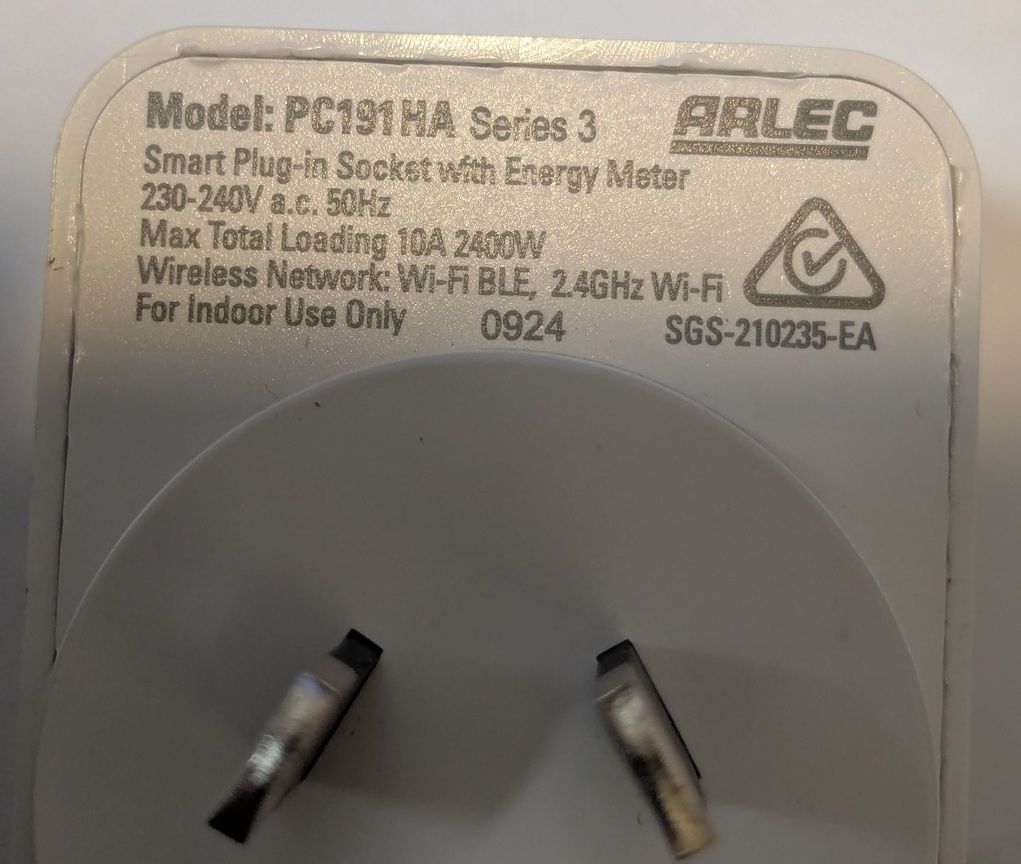
This was for an Arlec Grid Connect (from Bunnings) - PC191HA Series 3
Step 1 - prise open the case:
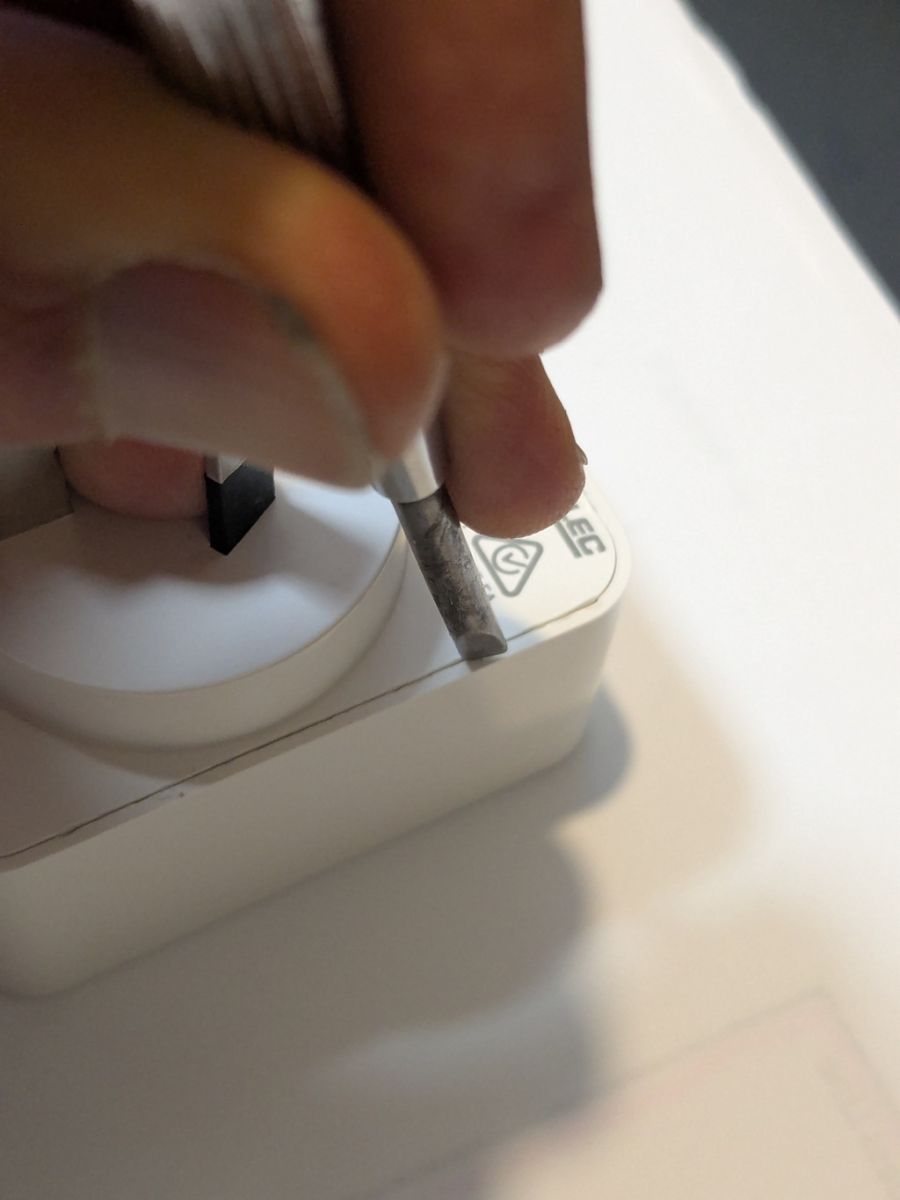
a) Use a screwdriver to crack the welded seam - pushing firmly in one location, then working along the side until no longer welded. Repeat for all sides and two corners.
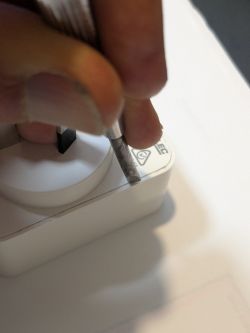
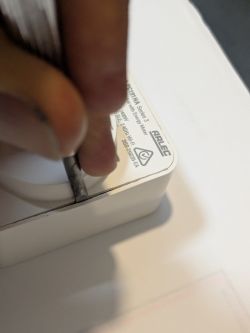
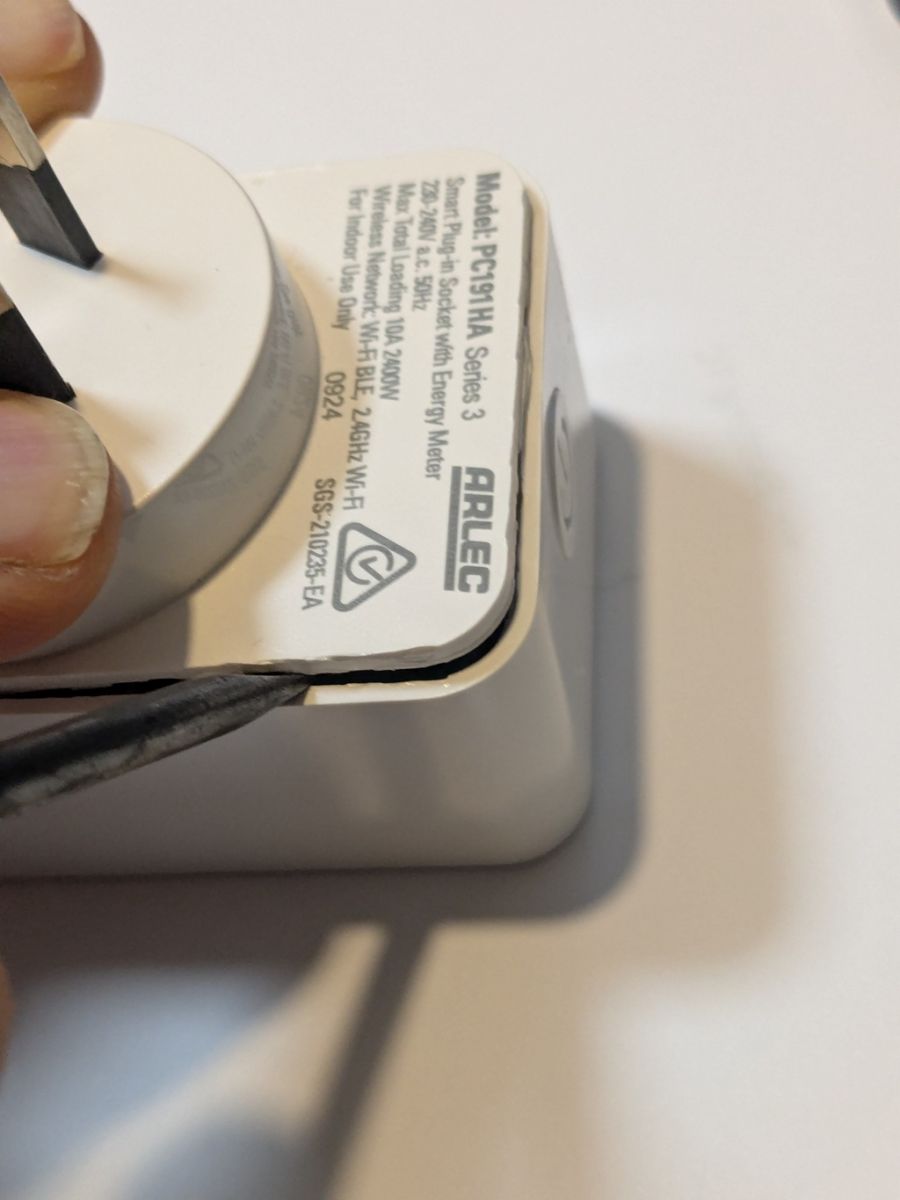
b) Use the screwdriver to carefully lever up the back.
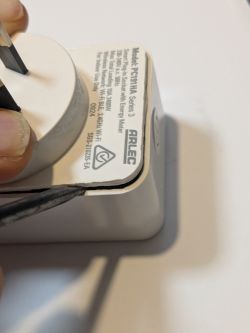
c) Remove the board
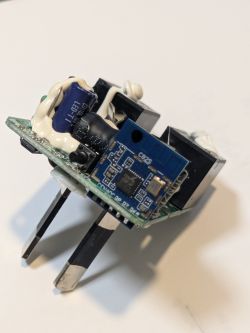
d) Unsolder the CB2S from the main board
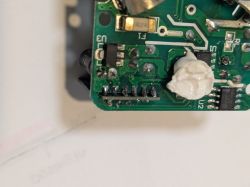
After removing much of the solder I used a sharp craft knife to carefully cut the small remaining solder bridging between the main board and the CB2S
e) connected to a CH340G USB to TTL Serial Converter Adapter Module 5V / 3.3V For Arduino ($5 off ebay)
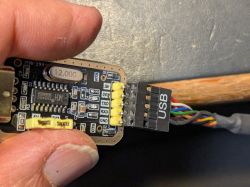
f) Solder wires to the board
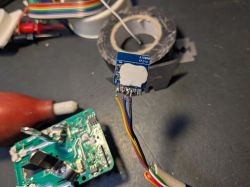
The writing on the board tells you the connections, but you must connect TxD to RxD and vica versa
i.e.
Board --> CH340G
Gnd --> Gnd
3V3 --> 3V3
TxD --> RxD
RxD --> TxD
Part 2)
a) Download and install https://github.com/openshwprojects/BK7231GUIFlashTool
I initially tried the windows version but couldn't get it to work.
So I loaded Ubuntu Linux onto an old laptop and used the linux version instead.
Also needed to install Mono. See the links on the page https://github.com/openshwprojects/BK7231GUIFlashTool
a) Ran the Easy UART Flasher as shown on https://github.com/openshwprojects/BK7231GUIFlashTool
To find the correct port: On Ubuntu I didn't need to install and drivers.
I plugged in the CH340G, unplugged it, plugged it in again, then used sudo dmseg which showed
Dmseg says "CH341-UART converter now attached to ttyUSB0"
Then sudo mono BK7231GUIFlashTool-build-263/BK7231Flasher.exe
a) Selected UART port /dev/ttyUSB0; Chip type: BK7231N; baud 921600 (you may need slower if your wiring is longer than mine)
b) Selected Firmware: "Download latest from Web"
c) Performed Firmware backup (read) read only. I used the "short CEN to ground" method which was reliable for me.
For some reason, the CRC check at the end of the read failed. After a lot of troubleshooting I decided just to ignore it- so I selected the "Ignore CRC error" checkbox and performed the backup again.
d) The TUYA configuration screen came up, showing which pins are connected to each function. Made a note of them.
e) Performed Backup and Flash New. It should say "success"
Part 3) Reassembly and reconfigure
a) Unsoldered the wire from the CB2S board. I used the craft knife to carefully scrape off any high points of solder before reinserting the CB2S back into the main board.
b) Soldered the CB2S back into place.
c) Glued the case back together.
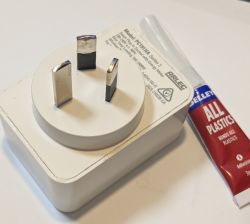
d) Plug the pack into the mains.
e) The Arlec was then in Access Point (AP) mode: Used my phone WiFi to connect to it (OpenBeken), then in my browser opened 192.168.4.1
f) On the "Configure Module" screen I entered the values from the TUYA config report that I noted down previously: (one difference: I used WifiLED_n instead of WifiLED, because I find the default behaviour is for the red LED to remain on when the WiFi connection is established, which I find annoying)
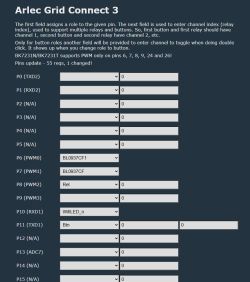
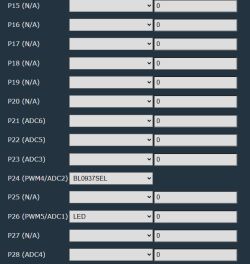
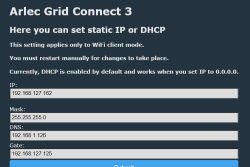
g) Navigated to the IP screen and entered the IP settings. I initially tried to use DHCP but it didn't work properly for me, kept getting dropouts, so I went for static IP and gateway which worked reliably.
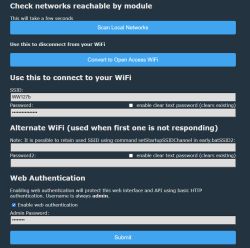
g) Navigated to the WIFI screen, entered the WiFi SSID and password. Also enabled Admin Password
h) Clicked Submit; powered the module off and then on again.
i) The WiFi LED blinked red for a while connecting to the WiFi, after about 10 seconds stopped blinking.
(At first it didn't work because I mis-typed the WiFi password, so to put it back into AP mode by turning the power off and on again, with about 2 second pause between each time, for a total of 5 times. Then reconnected my phone to the OpenBeken AP)
j) Screen now shows correct values, clicking Toggle 0 turns the switch on & off again
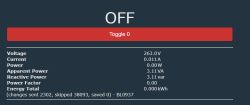
k)Launch Web Application; Tools screen;
Calibration Utility:
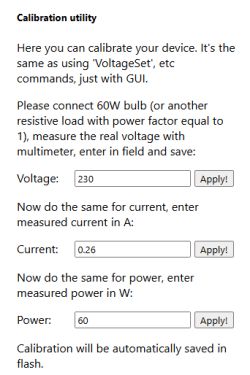
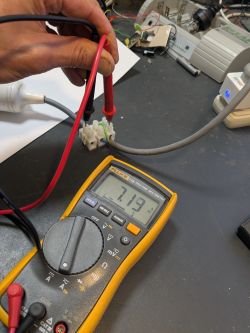
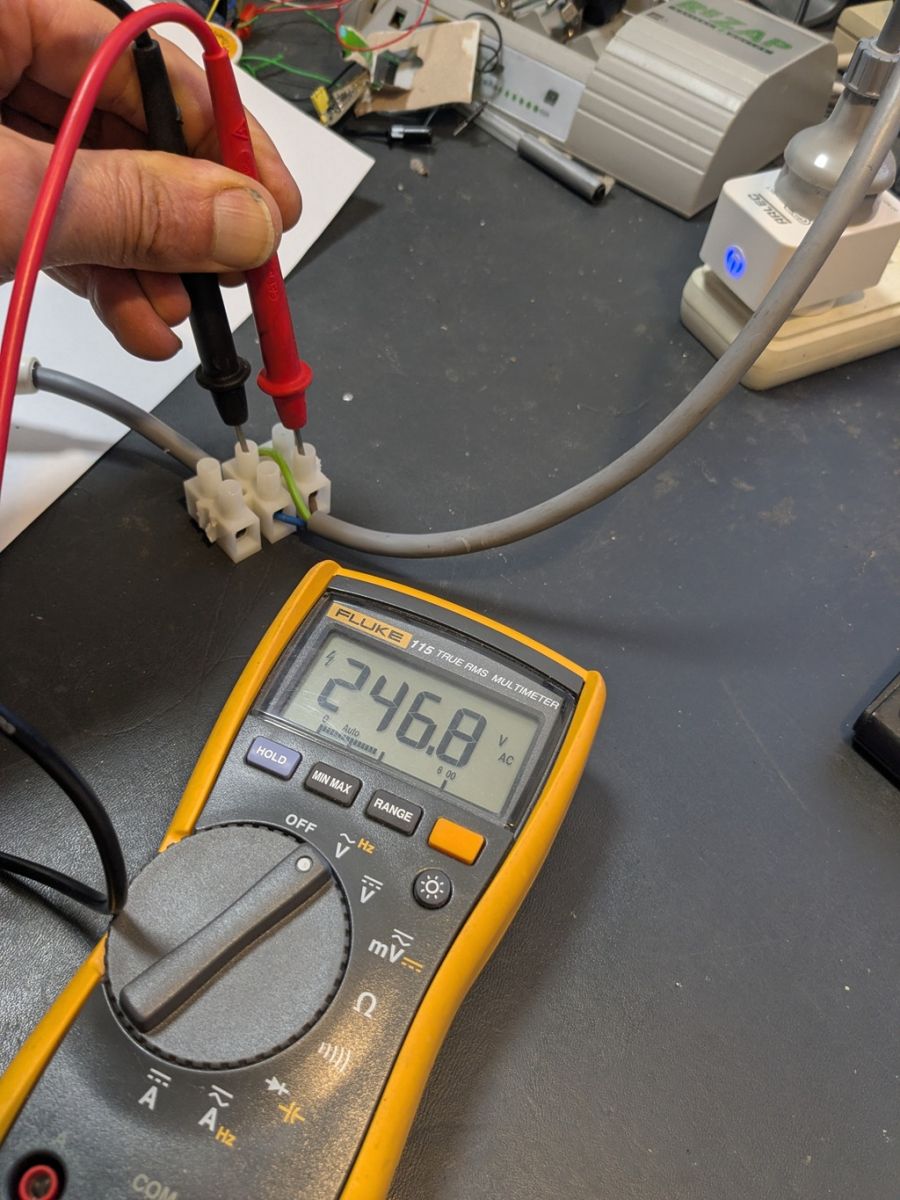
l) Attached a fan heater; measured the voltage and simultaneously entered it into "Voltage" and clicked Apply!
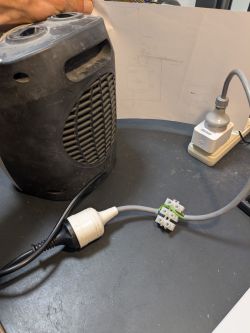
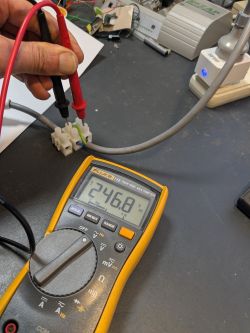
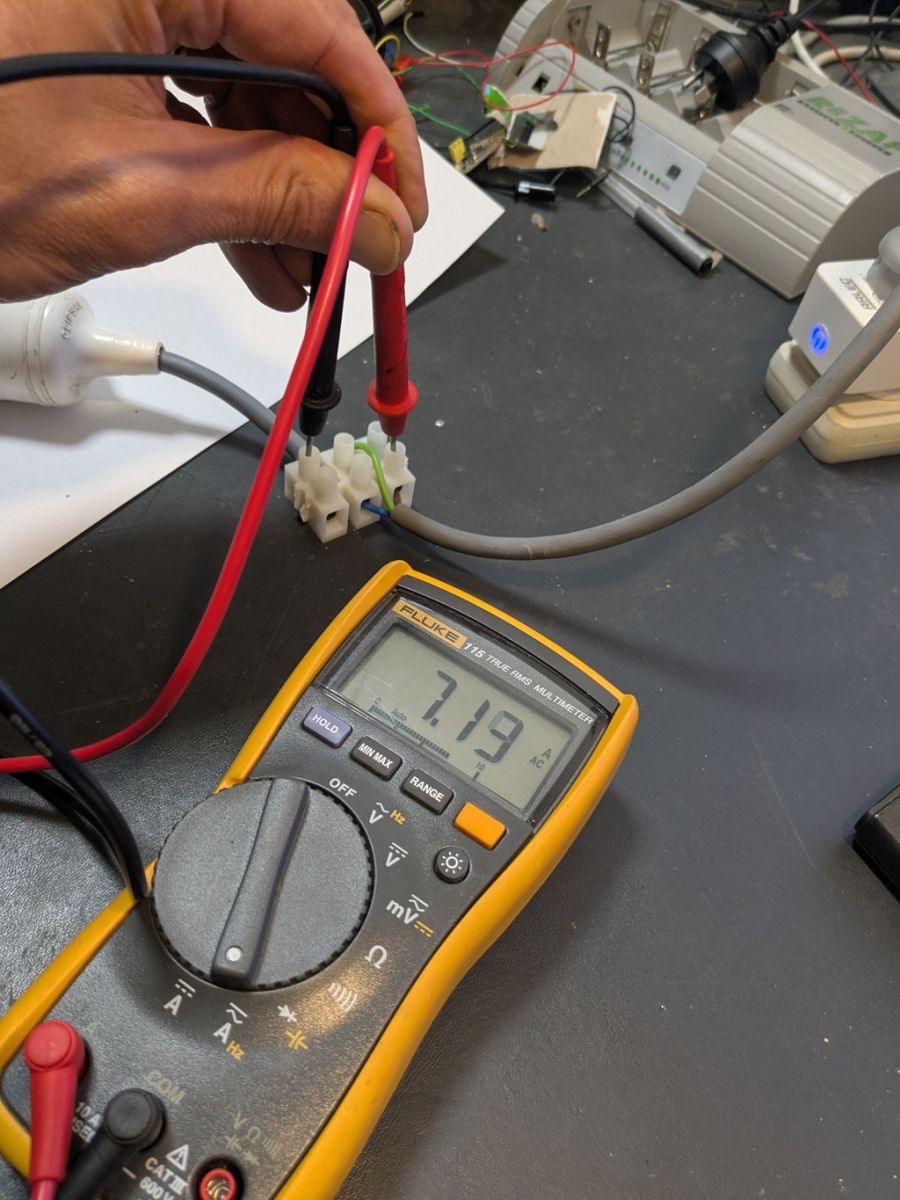
m) Repeated for the current.
Part 4 - Connect to Home Assistant
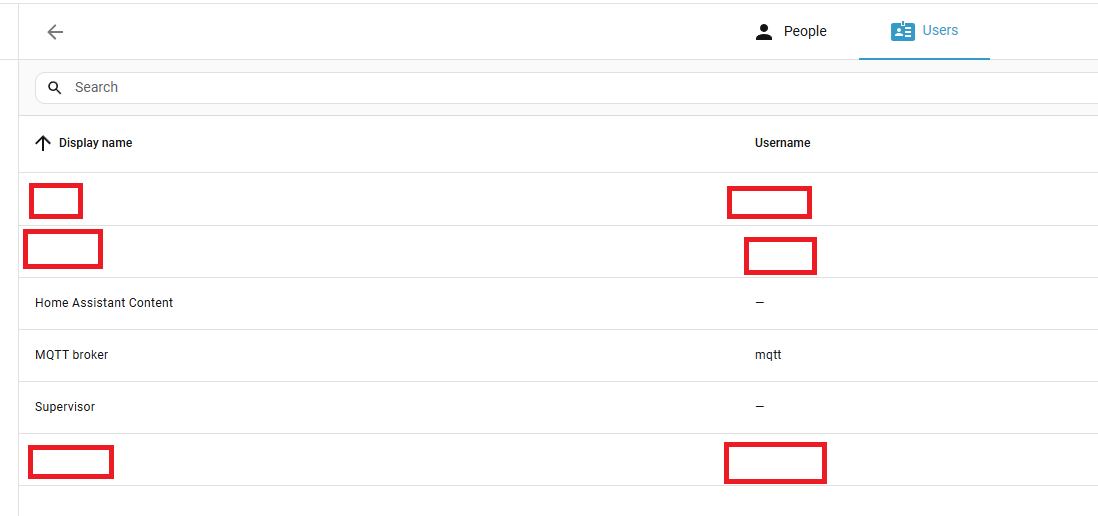
a) Added a user called MQTT, with password
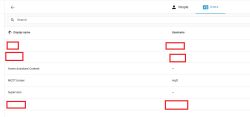
b) Added MQTT integration https://www.home-assistant.io/integrations/mqtt:

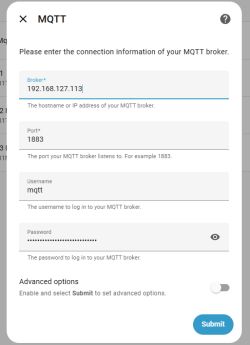
c) Configured (gave Broker the same IP as home assistant)
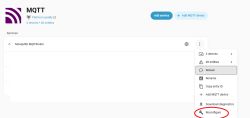
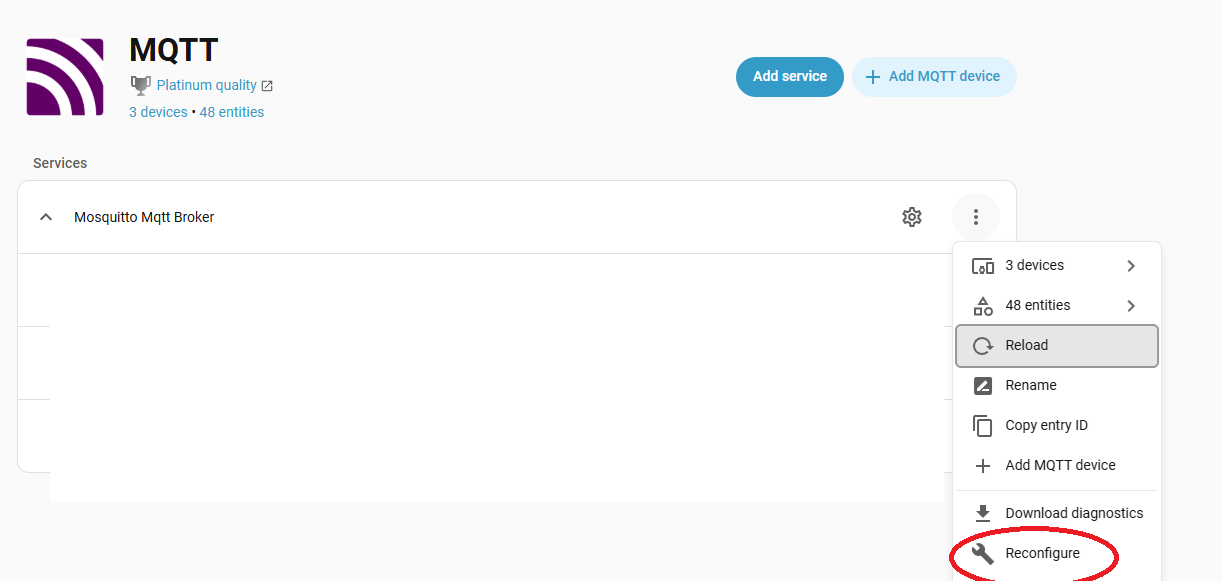
If you need to find this screen again later, it's here:
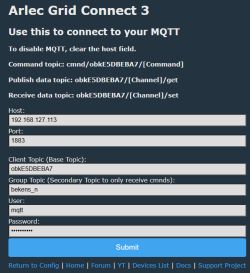
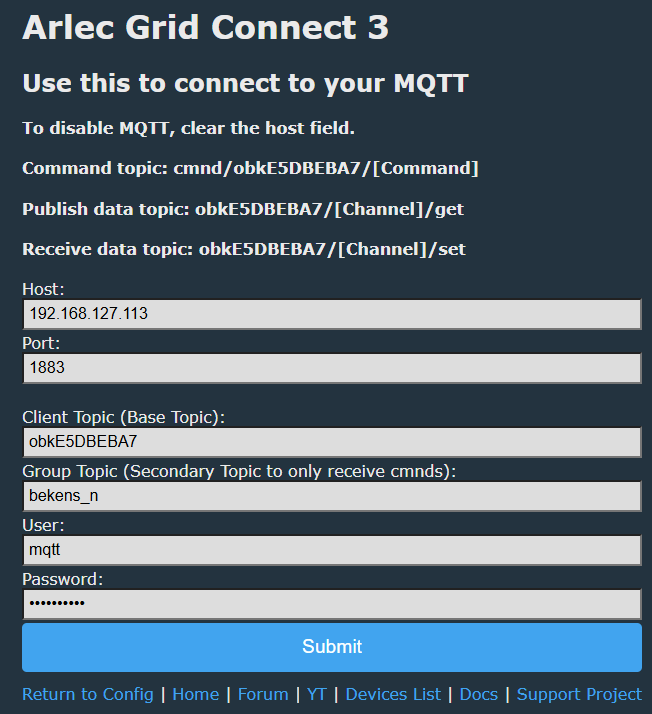
e) On the OpenBeken config interface- "Configure MQTT", enter values from HomeAssistant
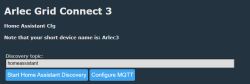
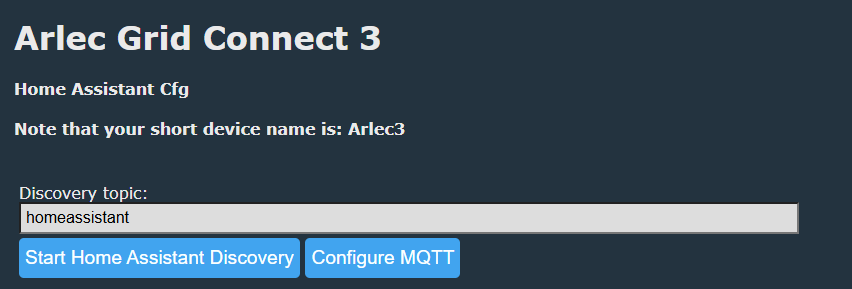
After Submit: "Home Assistant Configuration" button, then "Start Home Assistant Discovery"
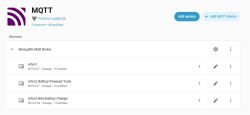
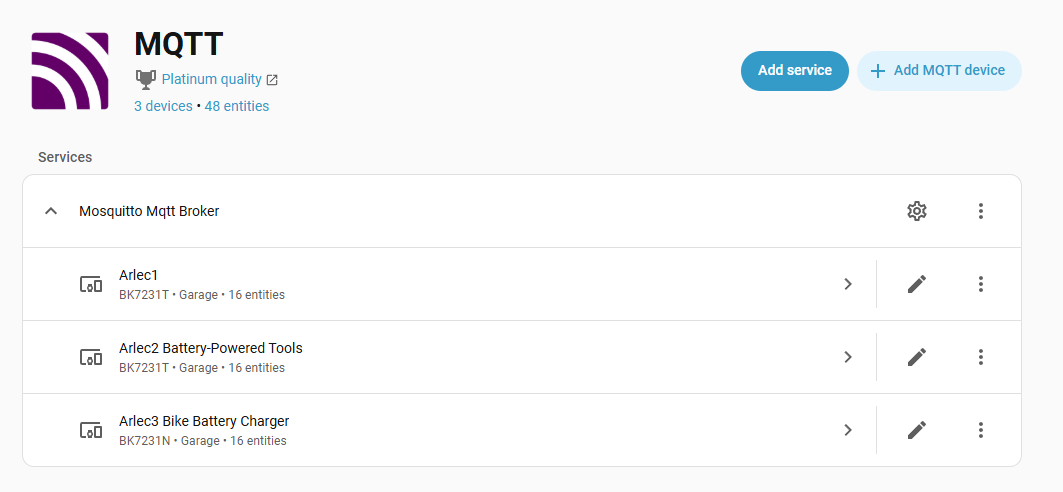
The device was then automatically added to the MQTT
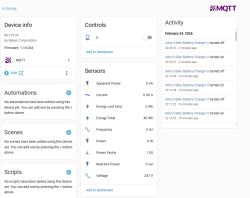
If the sensors didn't appear (only the power switch), unplug the Arlec, plug it back in, and perform Start Home Assistant Discovery again.
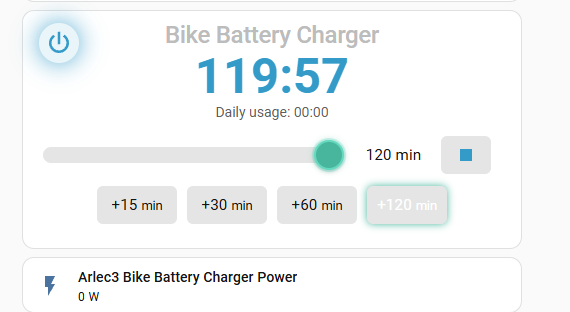
g) In order to make it more usable, I also installed the SimpleTimer Addin:
h) Install HACS https://hacs.xyz/docs/use/download/download/
i) Installed

k) Add Integration
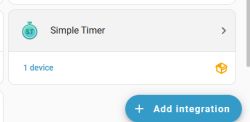
m) Add Entry, select new device; default timer duration is in minutes
n) Add Dashboard: Pressed CTRL-F5 to reset the browser (otherwise - the card doesn't appear)
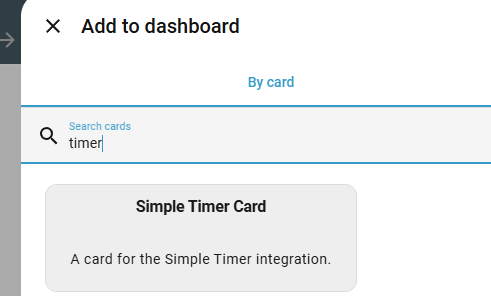
o) Add card:
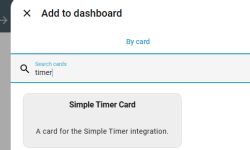
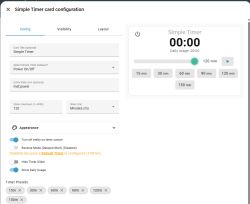
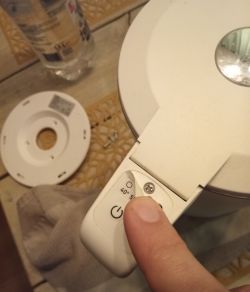
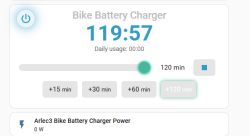
A particularly useful feature is that when you push the physical button on the arlec, it will start the shutoff countdown timer automatically.
AI: Thanks for sharing your detailed process! Just to clarify, are you looking for help with a specific step or issue, or is this a guide for others?
This is a guide for others
Step 1 - prise open the case:
a) Use a screwdriver to crack the welded seam - pushing firmly in one location, then working along the side until no longer welded. Repeat for all sides and two corners.

b) Use the screwdriver to carefully lever up the back.
c) Remove the board
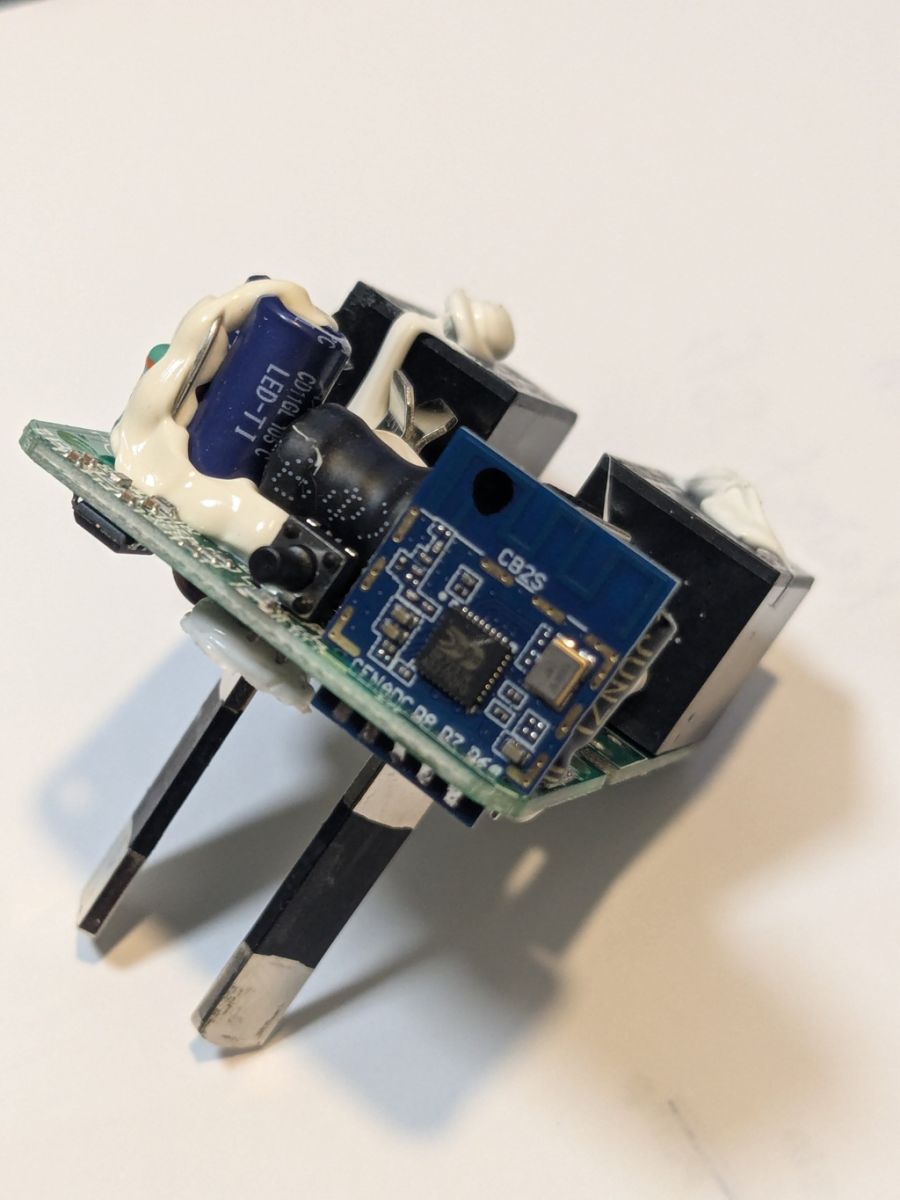
d) Unsolder the CB2S from the main board
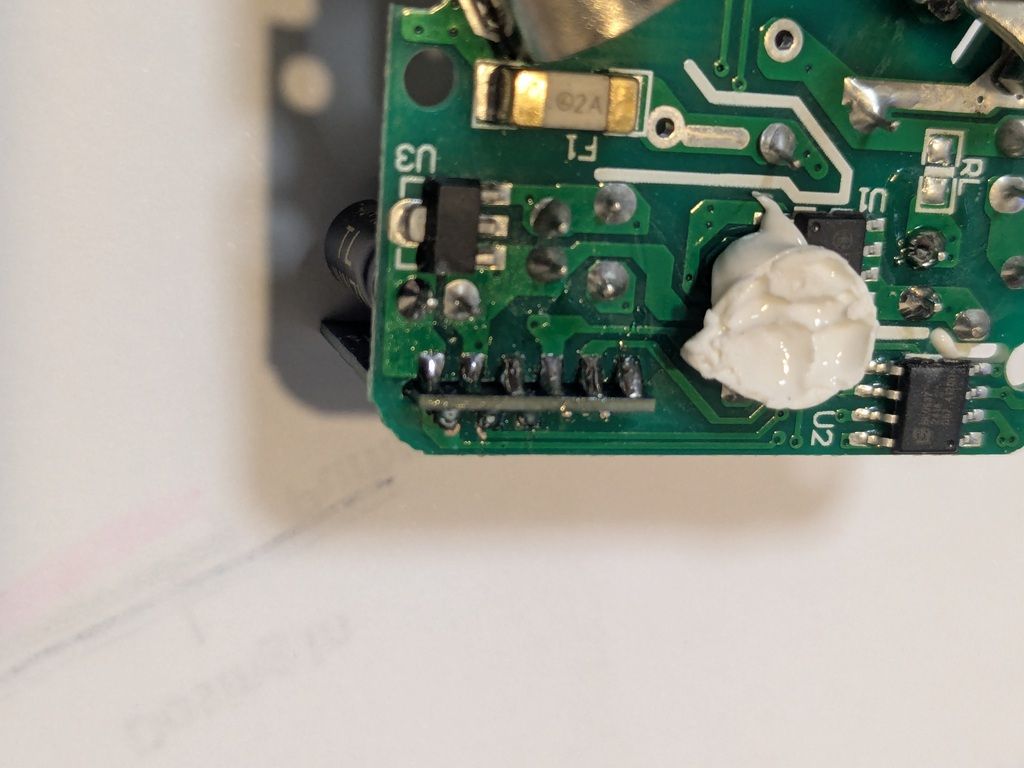
After removing much of the solder I used a sharp craft knife to carefully cut the small remaining solder bridging between the main board and the CB2S
e) connected to a CH340G USB to TTL Serial Converter Adapter Module 5V / 3.3V For Arduino ($5 off ebay)
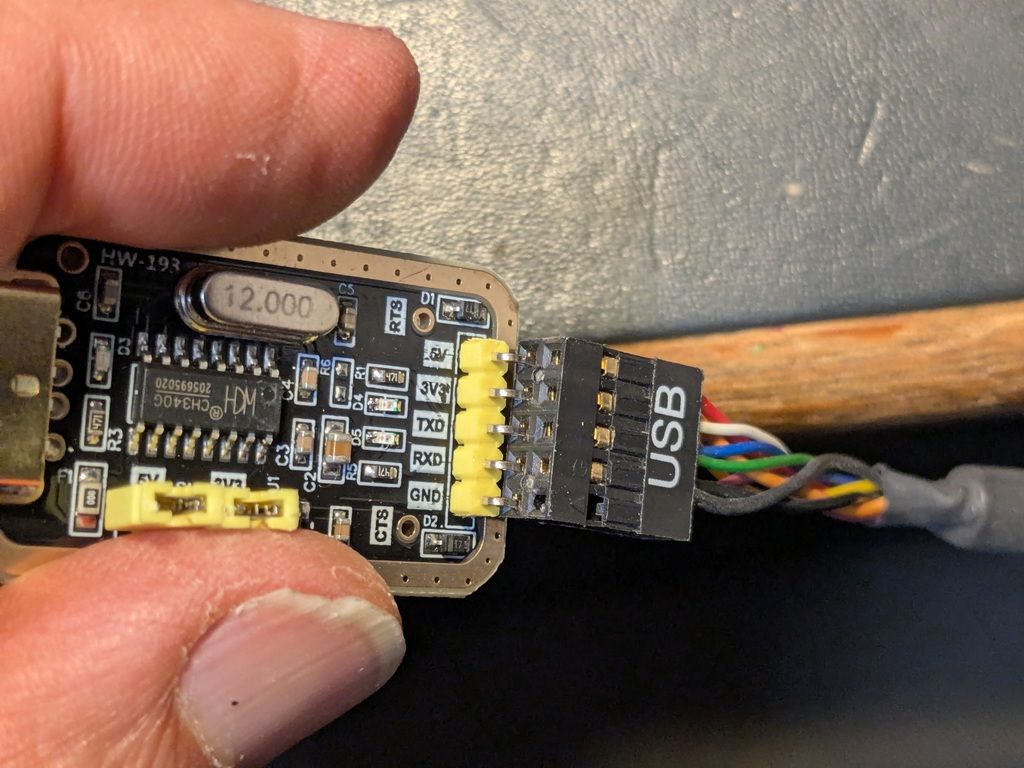
f) Solder wires to the board
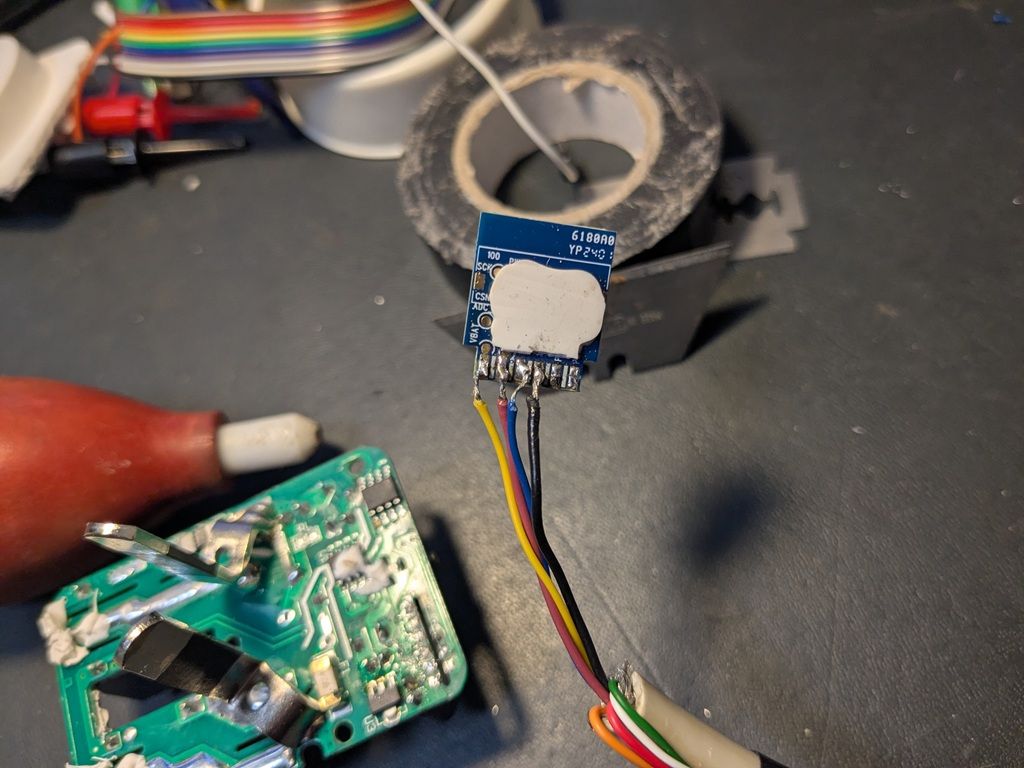
The writing on the board tells you the connections, but you must connect TxD to RxD and vica versa
i.e.
Board --> CH340G
Gnd --> Gnd
3V3 --> 3V3
TxD --> RxD
RxD --> TxD
Part 2)
a) Download and install https://github.com/openshwprojects/BK7231GUIFlashTool
I initially tried the windows version but couldn't get it to work.
So I loaded Ubuntu Linux onto an old laptop and used the linux version instead.
Also needed to install Mono. See the links on the page https://github.com/openshwprojects/BK7231GUIFlashTool
a) Ran the Easy UART Flasher as shown on https://github.com/openshwprojects/BK7231GUIFlashTool
To find the correct port: On Ubuntu I didn't need to install and drivers.
I plugged in the CH340G, unplugged it, plugged it in again, then used sudo dmseg which showed
Dmseg says "CH341-UART converter now attached to ttyUSB0"
Then sudo mono BK7231GUIFlashTool-build-263/BK7231Flasher.exe
a) Selected UART port /dev/ttyUSB0; Chip type: BK7231N; baud 921600 (you may need slower if your wiring is longer than mine)
b) Selected Firmware: "Download latest from Web"
c) Performed Firmware backup (read) read only. I used the "short CEN to ground" method which was reliable for me.
For some reason, the CRC check at the end of the read failed. After a lot of troubleshooting I decided just to ignore it- so I selected the "Ignore CRC error" checkbox and performed the backup again.
d) The TUYA configuration screen came up, showing which pins are connected to each function. Made a note of them.
e) Performed Backup and Flash New. It should say "success"
Part 3) Reassembly and reconfigure
a) Unsoldered the wire from the CB2S board. I used the craft knife to carefully scrape off any high points of solder before reinserting the CB2S back into the main board.
b) Soldered the CB2S back into place.
c) Glued the case back together.
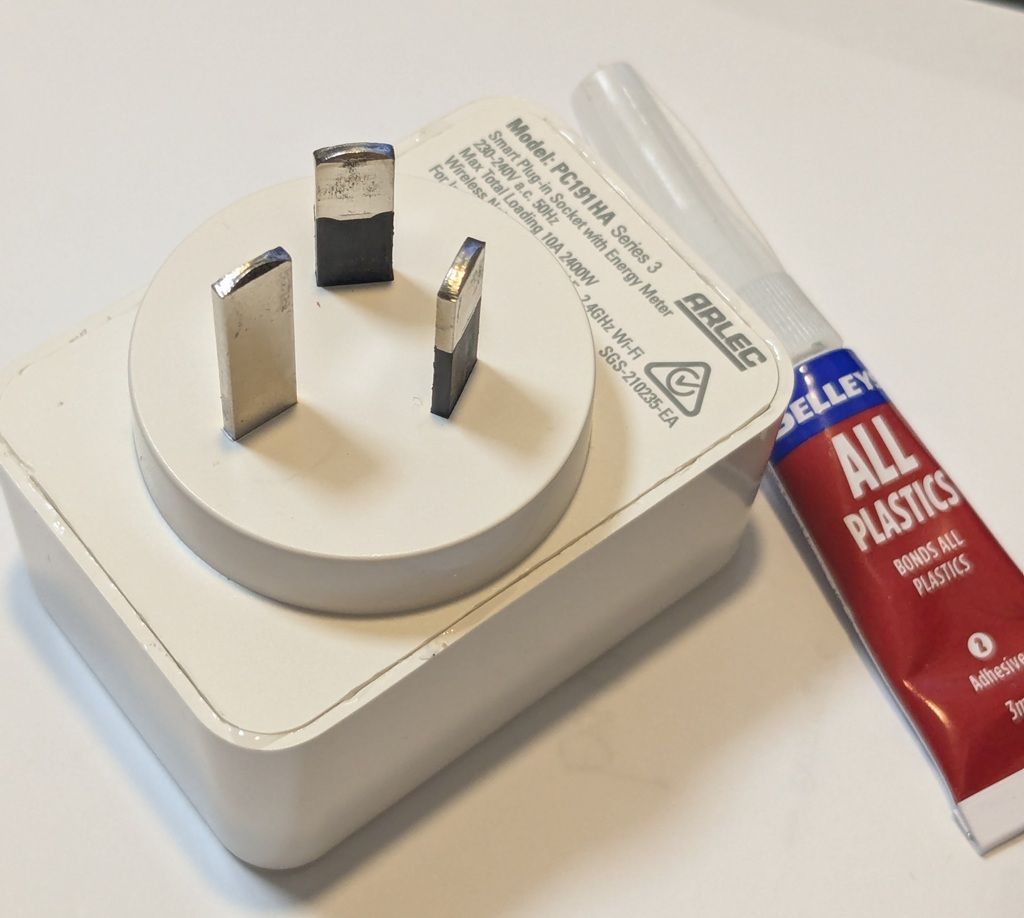
d) Plug the pack into the mains.
e) The Arlec was then in Access Point (AP) mode: Used my phone WiFi to connect to it (OpenBeken), then in my browser opened 192.168.4.1
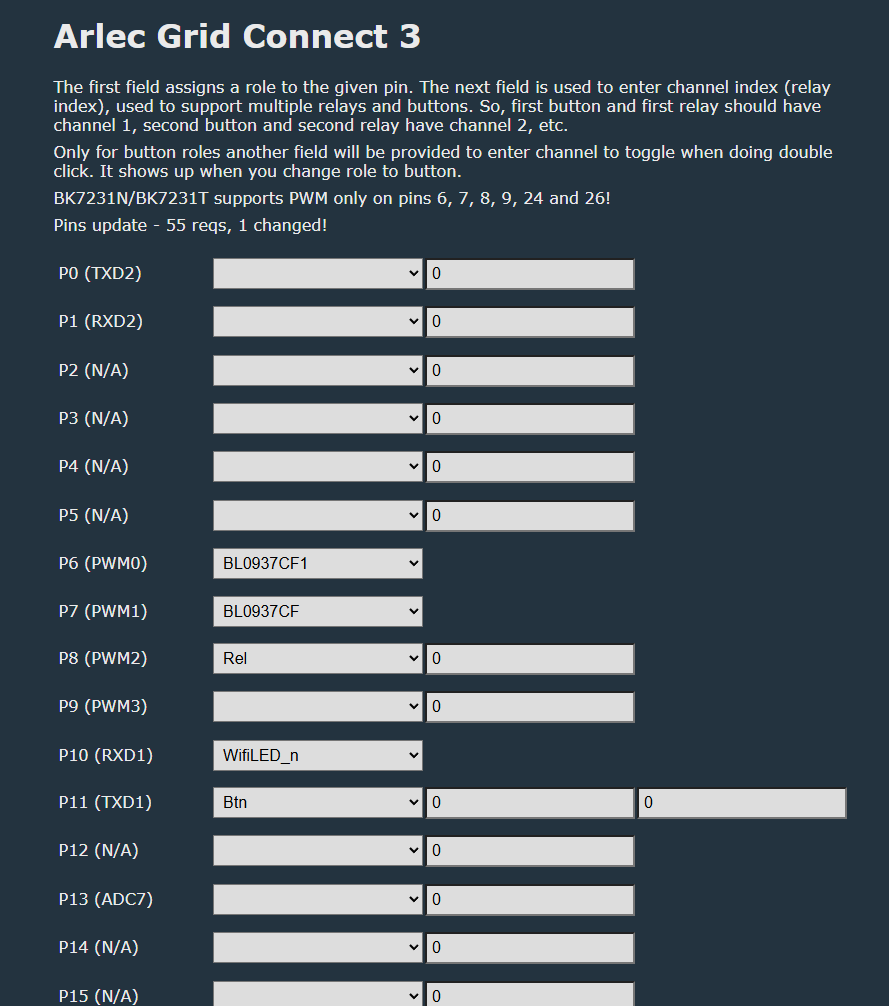
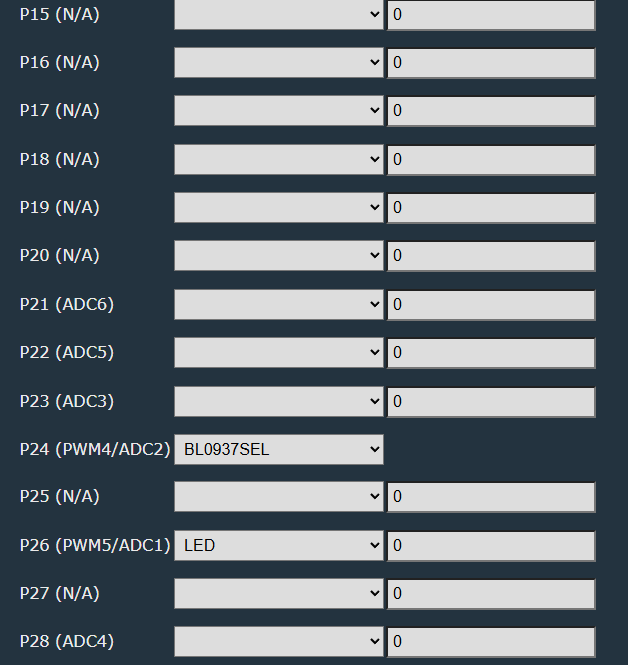
f) On the "Configure Module" screen I entered the values from the TUYA config report that I noted down previously: (one difference: I used WifiLED_n instead of WifiLED, because I find the default behaviour is for the red LED to remain on when the WiFi connection is established, which I find annoying)
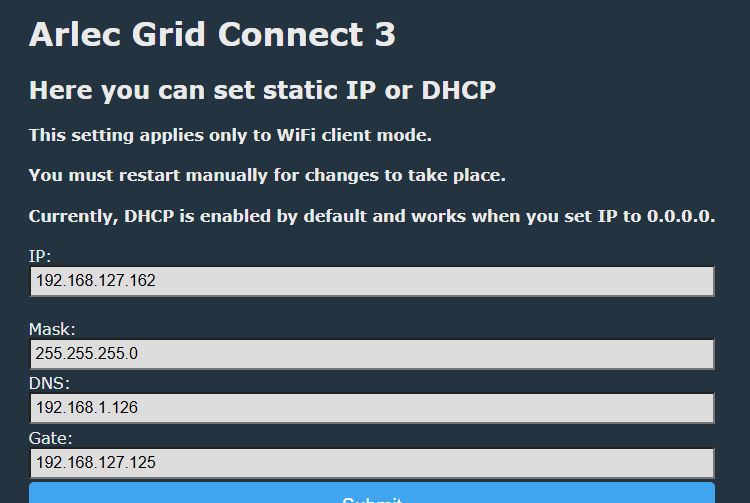
g) Navigated to the IP screen and entered the IP settings. I initially tried to use DHCP but it didn't work properly for me, kept getting dropouts, so I went for static IP and gateway which worked reliably.
g) Navigated to the WIFI screen, entered the WiFi SSID and password. Also enabled Admin Password
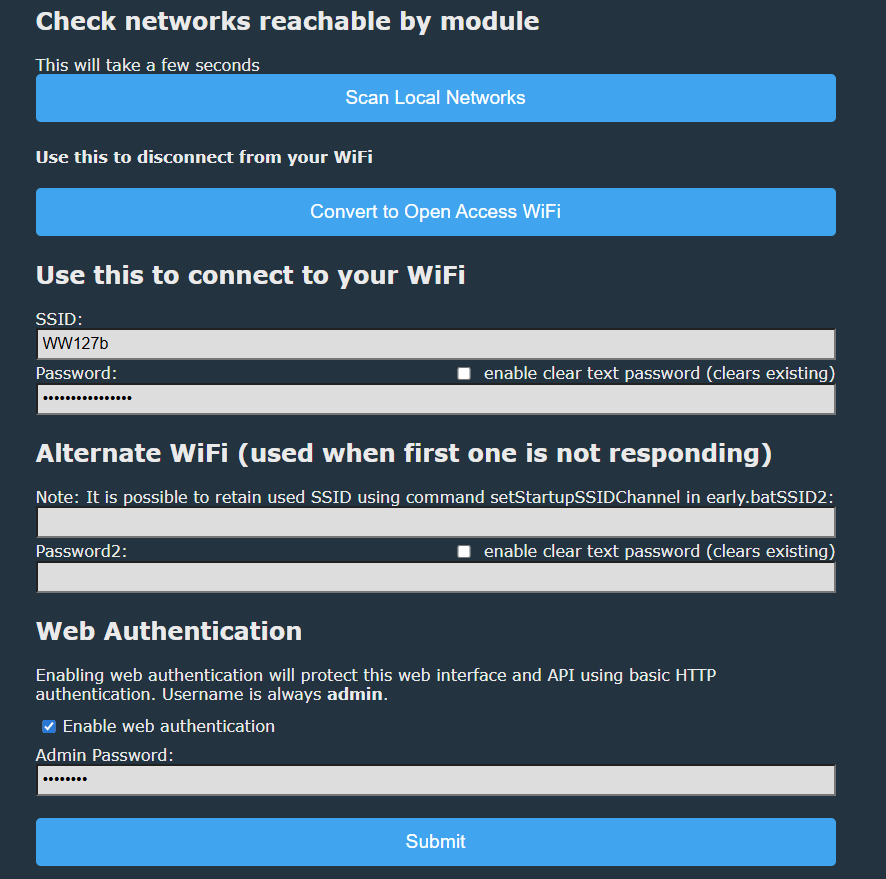
h) Clicked Submit; powered the module off and then on again.
i) The WiFi LED blinked red for a while connecting to the WiFi, after about 10 seconds stopped blinking.
(At first it didn't work because I mis-typed the WiFi password, so to put it back into AP mode by turning the power off and on again, with about 2 second pause between each time, for a total of 5 times. Then reconnected my phone to the OpenBeken AP)
j) Screen now shows correct values, clicking Toggle 0 turns the switch on & off again
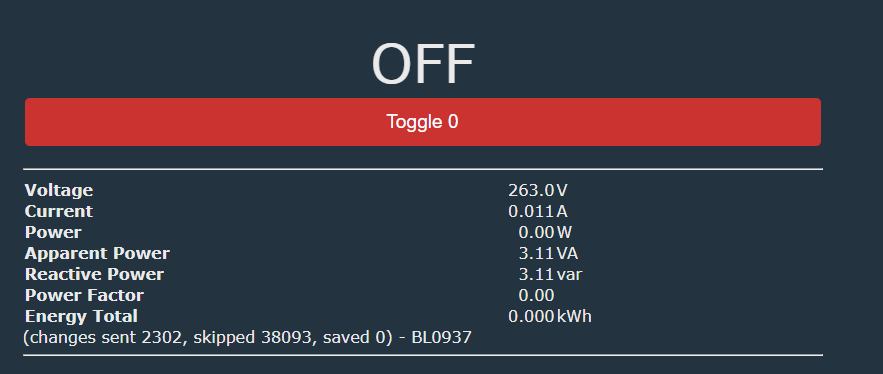
k)Launch Web Application; Tools screen;
Calibration Utility:
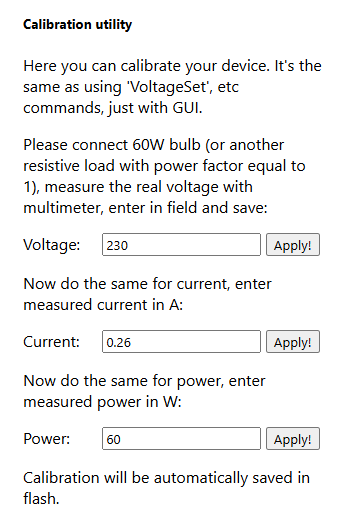
l) Attached a fan heater; measured the voltage and simultaneously entered it into "Voltage" and clicked Apply!
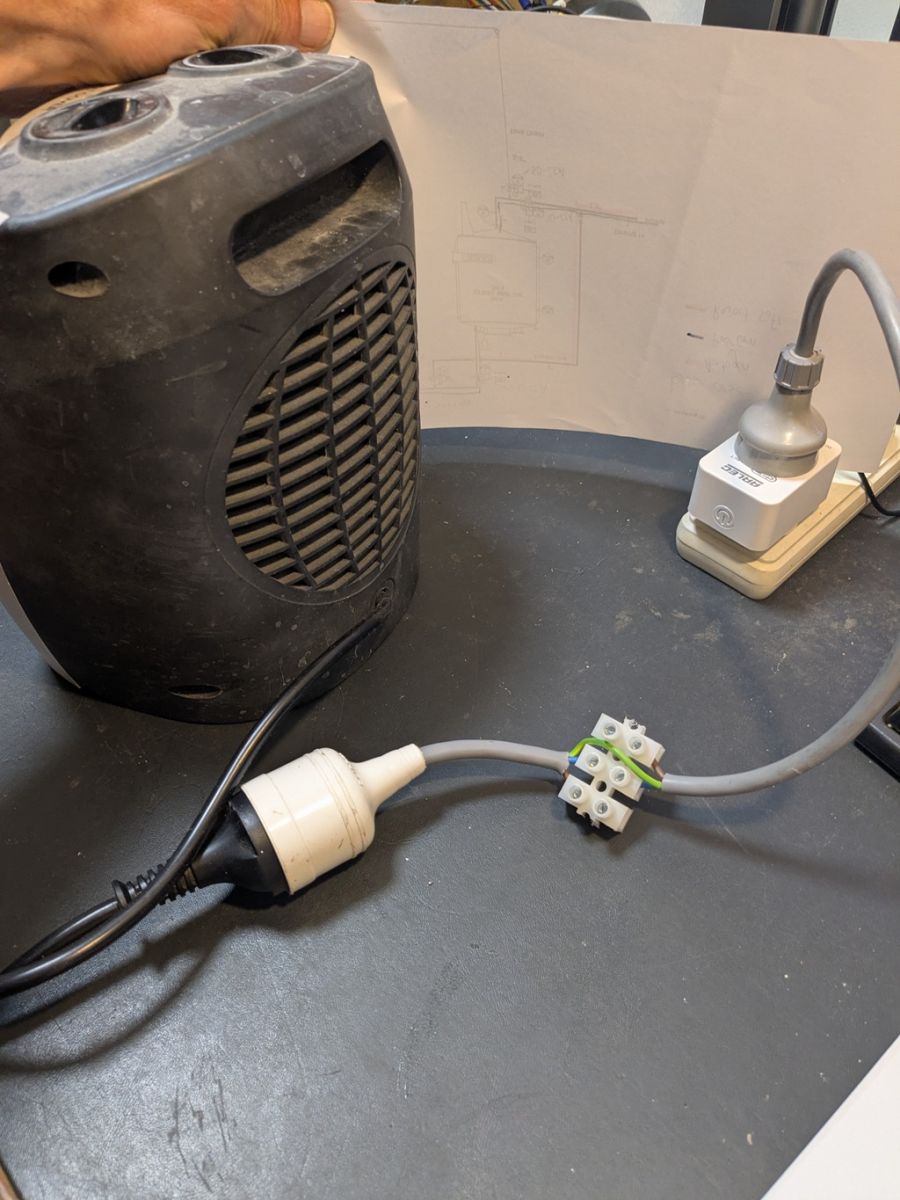
m) Repeated for the current.
Part 4 - Connect to Home Assistant
a) Added a user called MQTT, with password
b) Added MQTT integration https://www.home-assistant.io/integrations/mqtt:

c) Configured (gave Broker the same IP as home assistant)
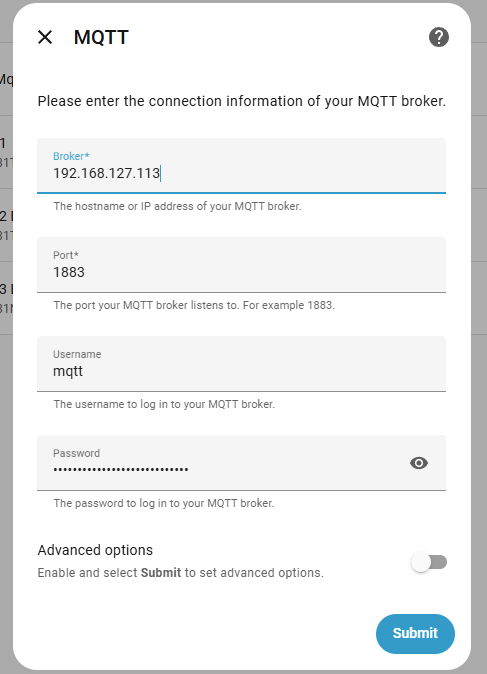
If you need to find this screen again later, it's here:
e) On the OpenBeken config interface- "Configure MQTT", enter values from HomeAssistant
After Submit: "Home Assistant Configuration" button, then "Start Home Assistant Discovery"
The device was then automatically added to the MQTT
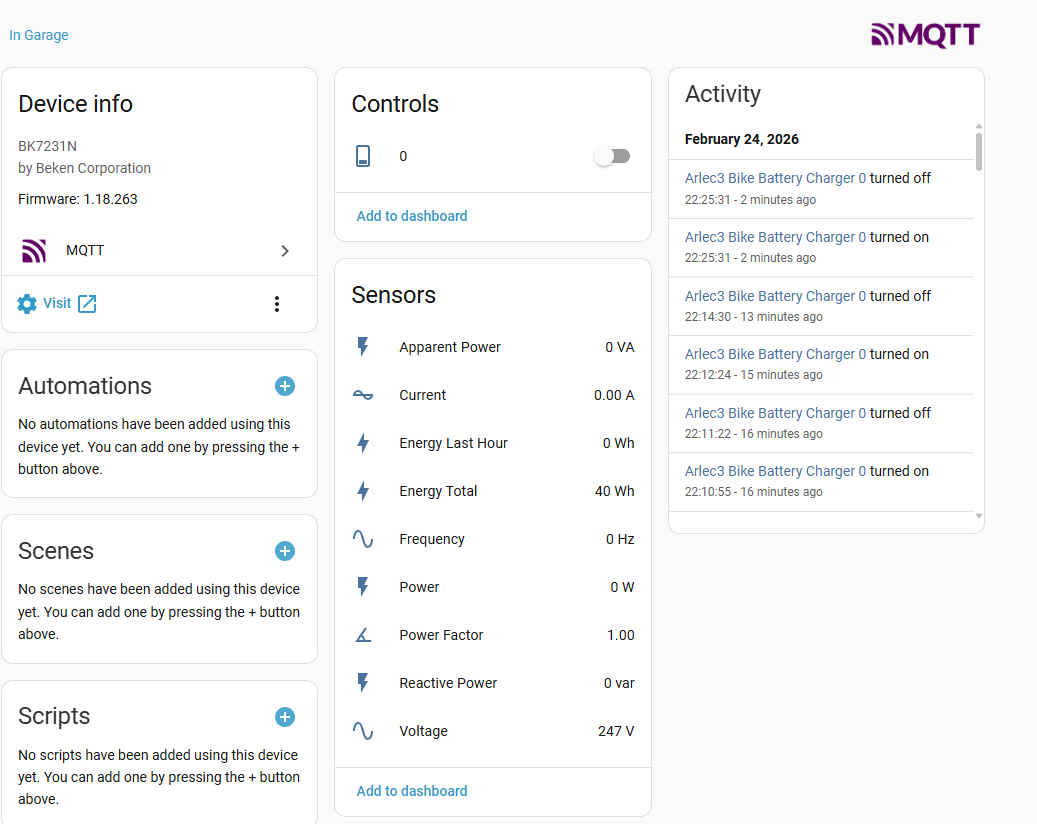
If the sensors didn't appear (only the power switch), unplug the Arlec, plug it back in, and perform Start Home Assistant Discovery again.
g) In order to make it more usable, I also installed the SimpleTimer Addin:
h) Install HACS https://hacs.xyz/docs/use/download/download/
i) Installed

k) Add Integration
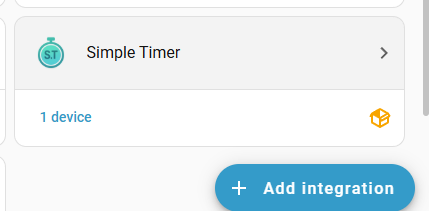
m) Add Entry, select new device; default timer duration is in minutes
n) Add Dashboard: Pressed CTRL-F5 to reset the browser (otherwise - the card doesn't appear)
o) Add card:
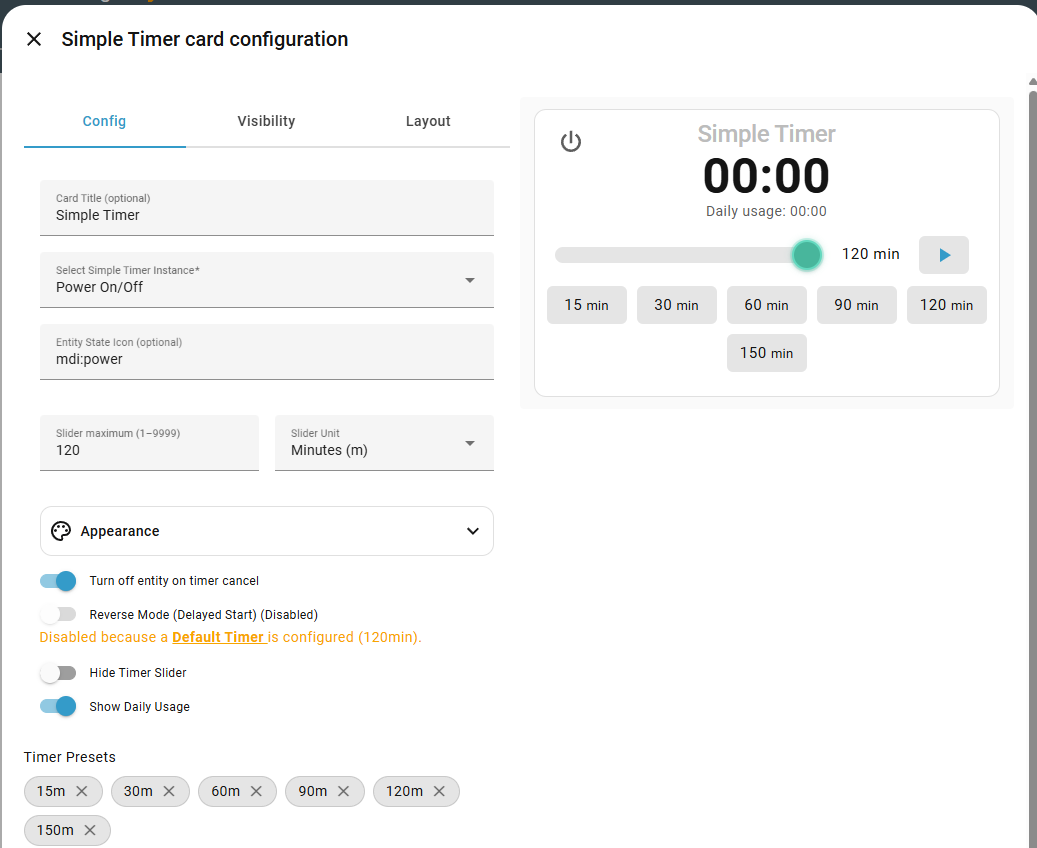
A particularly useful feature is that when you push the physical button on the arlec, it will start the shutoff countdown timer automatically.
AI: Thanks for sharing your detailed process! Just to clarify, are you looking for help with a specific step or issue, or is this a guide for others?
This is a guide for others
Cool? Ranking DIY
