logo elektroda
logo elektroda
X
logo elektroda

Tuya-Cloudcutter devices list - tuya-convert for BK7231 - page with all profiles, supported devices

p.kaczmarek2  0 18612 Cool? (+3)
📢 Listen (AI):

TL;DR

  • Tuya-cloudcutter adds per-device firmware profiles for BK7231 smart devices, letting users flash OpenBeken over Wi‑Fi without opening the case or soldering wires.
  • Users browse the Elektroda IoT teardowns list, filter for Cloudcutter profile, and pick a similar profile before flashing.
  • Creating a new profile requires a 2MB flash backup, and the flashed binaries must match BK7231T or BK7231N.
  • OpenBeken can auto-configure most devices by importing Tuya config JSON, then applying settings like NTP, SSDP, and PowerSave.
  • Some newer patched BK7231N firmwares may block the OTA exploit, so updated devices may need wired flashing instead.
Summary generated by AI based on the discussion content.

Tuya-cloudcutter provides a method to change the firmware of BK7231 device via WiFi, without the need to open device case and solder wires. This is a great opportunity for beginners and people who are unable to solder, to get their Tuya devices running 100% local and cloudfree. Tuya-cloudcutter support is added per-device, in a form of device profiles, so users have to choose the suitable profile at the time of flashing. The full list of all supported Tuya-cloudcutter profiles has been now integrated into Elektroda IoT devices teardowns list.

How to browse supported Tuya-cloudcutter profiles?
First please visit our IoT teardowns list:
https://openbekeniot.github.io/webapp/devicesList.html
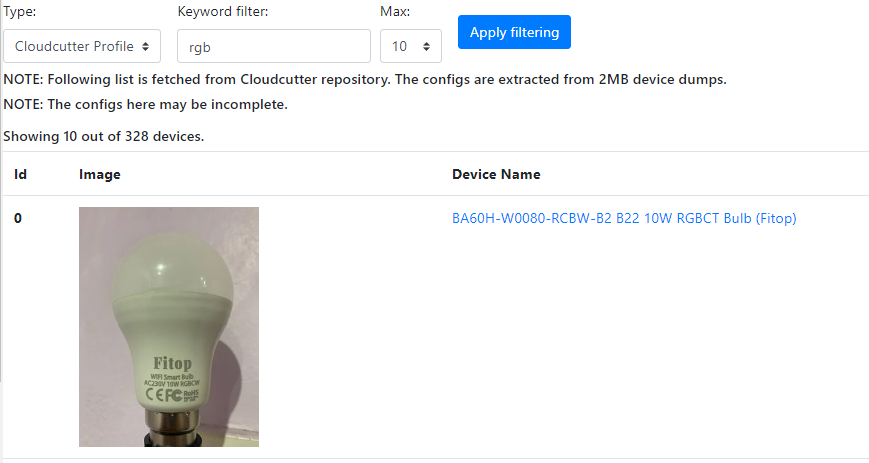
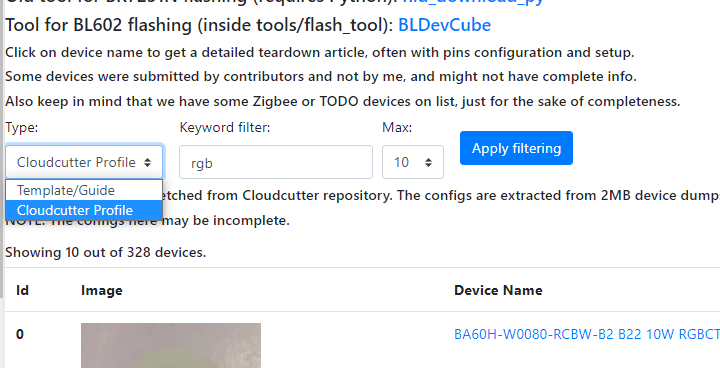
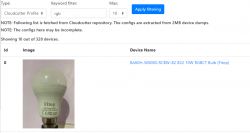
Then, in search filters, select "Cloudcutter profile" and apply:
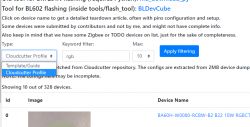
You can type anything into the filters and search for devices similar to yours.

How to choose a suitable Tuya-cloudcutter profile?
There is no perfect method, but you should check all similar device profiles to your device. They may or may not be working for you. Please note that failed tuya-cloudcutter attempt will not brick your device, so you can try and try again.

How to use Tuya-cloudcutter profile?
First of all, you need an USB WiFi card that supports AP mode, just like in tuya-convert.
Then, here's a short guide:
https://www.elektroda.com/rtvforum/topic3941318.html
You can also just follow Tuya-cloudcutter readme:
https://github.com/tuya-cloudcutter/tuya-cloudcutter
Please see attached readmes as well!

How to create new Tuya-cloudcutter profile?
If your device is not supported, then we can add support for that.
Please take 2MB flash backup with BK7231 Easy GUI flasher (instruction on Github):
https://github.com/openshwprojects/BK7231GUIFlashTool
Then please submit 2MB flash here, with specific information what kind of device is that, model name, etc, and we will get you a profile.

Are all devices supported by Tuya-cloudcutter?
Currently there are some patched BK7231N devices on the market, they can be recognized by firmware versions:
- 1.1.2 oem_bk7231n_garage_door (Tuya Generic QS-WIFI-C03 Gate Opener Switch)
- 1.1.12 oem_bk7231n_plug (Nous A1, Tuya Generic LSPA9 Smart Plugs)
- 1.1.15 oem_bk7231n_plug (various smart plugs)
- 1.3.3 oem_bk7231n_dctrl_switch (HomeMate 4 Node Smart Switch)
- 1.3.8 oem_bk7231n_control_switch (ColoRock CR-MINI-V2 Mini Smart Relay)
- 1.3.10 oem_bk7231n_control_switch (OXT_SWT10 240V 150W 5A Dry Contact Relay)
- 1.5.10 oem_bk7231n_light_ty (Tuya Generic Light, TuyaOS 3.3.2)
- 2.0.15 oem_bk7231n_strip_ty (Anko Sunset Light)

Where to get binaries to flash?
To flash OpenBeken via Tuya-cloudcutter, you can get UG files here:
https://github.com/openshwprojects/OpenBK7231T_App/releases
Get a correct UG for your platform - BK7231T is different from BK7231N, note the letter, T or N.

How to automatically configure OBK after flashing?
OpenBeken has recently gained a very useful and unique feature, that was not available in Tasmota.
It can configure itself automatically, for most of the devices.
Here are the steps:
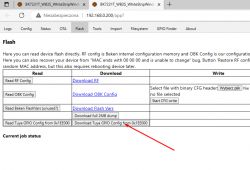
1. In OBK, open Web App, Flash Tab, press "Download Tuya Config":
2. Drag and drop file on our flasher, Config extraction tab:
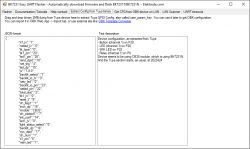
3. Copy the JSON, the text looking like that:
Code: JSON
Log in, to see the code

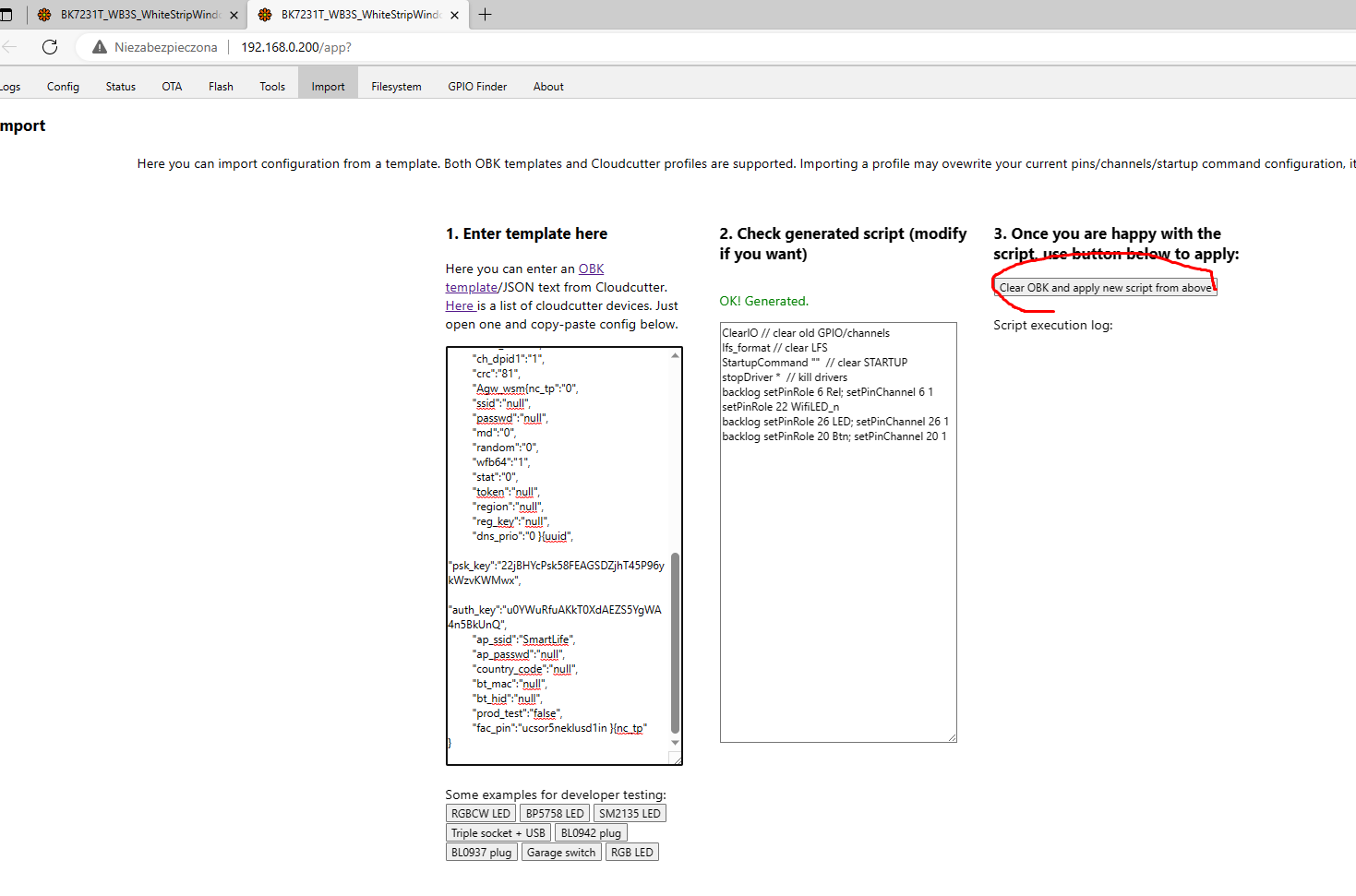
to OBK Web App -> Import tab:

and press button to import, restart if needed.


What else can we do after flashing?
OBK can be configured in Web App ->LittleFS tab, by creating autoexec.bat and it can be also configured in OBK Config page->Startup command. Here is a sample autoexec.bat for you:

startDriver NTP
startDriver SSDP
PowerSave 1

Starting NTP will provide you correct time from web (although you also may need to set your timezone shift), SSDP will make OBK discoverable on network, even by Windows PCs:
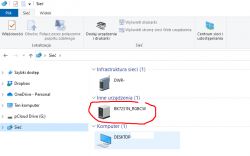
and PowerSave will reduce energy usage and heating without impacting functionality (it may only slightly delay the reply time).
Please consult OBK docs for more info:
https://github.com/openshwprojects/OpenBK7231T_App/blob/main/docs/README.md
You can also watch our YT guides, for example for automatic HASS discovery:


Here is our youtube channel:
https://www.youtube.com/@elektrodacom/videos

What if Tuya Config GPIO extraction failed?
You can use GPIOdoctor, to kickstart your OpenBeken experience:
GPIODoctor in OpenBeken - a convenient way to learn GPIO roles in an IoT device

Thank you for your attention
Tuya-cloudcutter provides a great way to quickstart your OBK experience, even without owning a soldering iron. Just make sure to order devices that are already supported and do not update/do not pair them with Tuya first. Just do OBK flashing as soon as you buy them. Otherwise Tuya update may make them invulnerable to OTA exploit and you will have to flash them by wires.
PS: It's still worth to note that programming devices by wires is not that hard and it can be done by anybody. Please see our flashing (and soldering, step by step) guides youtube playlist here.

About Author
p.kaczmarek2
p.kaczmarek2 wrote 14705 posts with rating 12758 , helped 658 times. Been with us since 2014 year.

Comments

FAQ

TL;DR: 15 FAQ answers and “will not brick your device” summarize how BK7231 Tuya owners can use Tuya-cloudcutter profiles to flash OpenBeken over WiFi, avoid soldering, choose BK7231T or BK7231N UG files, and handle patched firmware limits. [#20587659] Why it matters: Tuya-cloudcutter gives beginners a local, cloud-free OpenBeken path without opening the device case.

Method Case opening Main requirement Best use Key limit
Tuya-cloudcutter OTA No USB WiFi card with AP mode Fast OpenBeken install on supported BK7231 devices Patched firmware can block OTA exploit
Wired flashing Yes Wires and soldering or reliable contacts Recovery, unsupported devices, patched firmware More manual work

Key insight: Choose a supported profile before pairing or updating the device. A Tuya update can close the OTA exploit and force wired flashing instead.

Quick Facts

  • Tuya-cloudcutter support is profile-based, and the OpenBeken IoT teardowns list can filter devices by “Cloudcutter profile”. [#20587659]
  • New profile creation needs a 2MB flash backup made with BK7231 Easy GUI Flasher, plus model and device details. [#20587659]
  • OpenBeken UG files must match the platform letter: BK7231T and BK7231N use different binaries. [#20587659]
  • The thread lists patched BK7231N firmware versions from 1.1.2 through 2.0.15, including a 240V 150W 5A dry-contact relay example. [#20587659]
  • OpenBeken automation can start NTP, SSDP, and PowerSave 1 from autoexec.bat in LittleFS. [#20587659]

What is Tuya-cloudcutter and how does it let you flash BK7231 Tuya devices over WiFi without soldering?

Tuya-cloudcutter flashes supported BK7231 Tuya devices over WiFi without opening the case. "Tuya-cloudcutter" is a firmware-changing method that uses device profiles to replace Tuya firmware over WiFi, avoiding soldered wires when the target BK7231 device remains vulnerable to the OTA process. It helps users install OpenBeken for 100% local, cloud-free control. [#20587659]

How do I browse the supported Tuya-cloudcutter device profiles in the OpenBeken IoT devices list?

Open the OpenBeken IoT teardowns list and filter by “Cloudcutter profile”. The post says to visit openbekeniot.github.io/webapp/devicesList.html, select the search filter named “Cloudcutter profile”, and apply it. You can then type device names or features to find profiles similar to your own device. [#20587659]

How can I choose the right Tuya-cloudcutter profile for a BK7231 device that looks similar to mine?

Choose the closest profile by comparing your device with all similar listed devices. The thread states there is no perfect method, so you should test profiles for devices that match your model, module, and function. A similar smart plug, relay, or light profile may work, but it is not guaranteed. [#20587659]

What happens if I use the wrong Tuya-cloudcutter profile, and how risky is it for my device?

A failed Tuya-cloudcutter attempt should not brick the device. The author states that a failed attempt “will not brick your device,” so users can try again with another similar profile. The main edge case is patched firmware, where the OTA exploit no longer works and wired flashing becomes necessary. [#20587659]

What USB WiFi adapter features are needed to use Tuya-cloudcutter, and why is AP mode required?

You need a USB WiFi card that supports AP mode. AP mode lets the flashing setup act as an access point during the Tuya-cloudcutter process, similar to tuya-convert. The thread explicitly lists this adapter feature as the first hardware requirement before following the flashing guide or readme. [#20587659]

Where can I download the correct OpenBeken UG firmware file for BK7231T or BK7231N devices?

Download OpenBeken UG firmware files from the OpenBK7231T_App releases page. The thread directs users to the OpenBeken GitHub releases and warns them to choose the correct UG file. BK7231T and BK7231N are different platforms, so the letter T or N matters. [#20587659]

BK7231T vs BK7231N — how do I know which OpenBeken binary to flash with Tuya-cloudcutter?

Flash the binary that matches the chip platform letter shown for your device. The thread states that BK7231T is different from BK7231N, so users must note the T or N suffix. A BK7231N device needs a BK7231N UG file, while BK7231T needs the BK7231T variant. [#20587659]

How do I create a new Tuya-cloudcutter profile by making a 2MB flash backup with BK7231 Easy GUI Flasher?

Create a new profile request by submitting a 2MB flash backup and device details. 1. Use BK7231 Easy GUI Flasher to make a 2MB backup. 2. Collect the device type, model name, and relevant identification details. 3. Submit the backup and details in the forum so a profile can be prepared. [#20587659]

Which BK7231N Tuya firmware versions are patched against Tuya-cloudcutter OTA flashing?

The listed patched BK7231N firmware versions include 1.1.2, 1.1.12, 1.1.15, 1.3.3, 1.3.8, 1.3.10, 1.5.10, and 2.0.15. Examples include Nous A1 plugs, LSPA9 smart plugs, ColoRock CR-MINI-V2, and an Anko Sunset Light. One listed relay is rated 240V, 150W, and 5A. [#20587659]

How do I automatically import a Tuya GPIO configuration into OpenBeken after flashing?

Use OpenBeken’s Tuya Config download and import workflow. 1. In OBK Web App, open Flash Tab and press “Download Tuya Config”. 2. Drag the file into the flasher’s Config extraction tab. 3. Copy the JSON into OBK Web App Import tab, import it, and restart if needed. [#20587659]

What is OpenBeken, and how is it different from the original Tuya cloud firmware?

OpenBeken is local firmware for BK7231 devices that replaces Tuya cloud control. "OpenBeken" is an alternative IoT firmware that runs on BK7231T and BK7231N devices, providing local web configuration, importable Tuya GPIO settings, and automation features without depending on Tuya cloud services. The thread highlights 100% local, cloud-free operation. [#20587659]

What is GPIOdoctor in OpenBeken, and how can it help when Tuya Config GPIO extraction fails?

GPIOdoctor helps identify GPIO roles when automatic Tuya Config extraction fails. "GPIOdoctor" is an OpenBeken diagnostic feature that helps users learn GPIO roles in an IoT device, giving a practical fallback when extracted Tuya pin configuration data is missing or unusable. The post recommends it as a way to kickstart configuration. [#20587659]

How can I use autoexec.bat in OpenBeken LittleFS to start NTP, SSDP, and PowerSave automatically?

Create autoexec.bat in the OpenBeken LittleFS tab and add startup commands. The sample file uses three lines: startDriver NTP, startDriver SSDP, and PowerSave 1. NTP provides correct web time, SSDP makes OBK discoverable on the network, and PowerSave reduces energy use and heating. [#20587659]

Why should I avoid pairing or updating a new Tuya device before using Tuya-cloudcutter?

Avoid pairing or updating because Tuya updates can patch the OTA exploit. The post advises flashing OpenBeken as soon as you buy a supported device. If Tuya updates the firmware first, the device may become invulnerable to Tuya-cloudcutter and require wired flashing instead. [#20587659]

Tuya-cloudcutter vs wired flashing with soldering — which method is better for installing OpenBeken on BK7231 devices?

Tuya-cloudcutter is better for supported, unpatched devices because it avoids soldering and case opening. Wired flashing is better for patched, unsupported, or already-updated devices. The thread still notes that wired programming is not very hard and can be done by following step-by-step flashing and soldering guides. [#20587659]
Summary generated by AI based on the discussion content.
%}