logo elektroda
logo elektroda
X
logo elektroda
Dostępna jest polska wersja

Czy wolisz polską wersję strony elektroda?

Nie, dziękuję Przekieruj mnie tam

[BK7231N] Globe Electric (GB34869) PAR20 WiFi Smart bulb (Version 3) Tutorial Guide

baudneo  2 3147 Cool? (+4)
📢 Listen (AI):

TL;DR

  • A Globe Electric GB34869 PAR20 WiFi smart bulb, version 3, is converted from Tuya firmware on a BK7231N/7321n chip to OpenBeken.
  • The guide covers full disassembly, UART wiring, and flashing through a USB-to-serial adapter at 3.3V, with the daughterboard either removed or left in place.
  • Firmware 1.31.21 can still use Tuya CloudCutter, but 1.5.21+ blocks that exploit.
  • After importing the backup JSON and setting flags 9, 10, and 12, the bulb works locally through the OBK web interface with on/off, RGB, and WW/CW control.
  • If flash reading produces no JSON, manual configuration uses pin 24 as SM2135DAT, pin 26 as SM2135CLK, and LED remap 2 1 0 4 3.
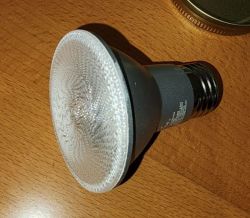
Close-up of a smart LED bulb lying on a wooden surface.
To preface this, I will probably go into more detail than is needed but, it is good for people who dont have much experiance in this realm. I will take you from disassembley all the way to final config with pictures!

This bulb has an FCC ID and photos from the FCC but, the revision 1 bulb used the 7321T chip (tuya cordcutter exploitable) while my version of the bulbs is version 3 which uses the 7321n chip. If you have firmware 1.31.21 you can use tuya cloudcutter (so dont upgrade in the smartlife app). If you have 1.5.21+ then the tuya cloudcutter exploit is unavailable.

The way I found out these were v3 was using tinytuya and getting the local key for the devices. In the tuya dump JSON files it has a string of "34869 V3". Also of note is, "sn", which holds a string which corresponds to the QR Code sticker that is on top of the 7321n chip when disassembled.

Excerpt of tinytuya devices.json:
Code: JSON
Log in, to see the code


Let's begin the disassembly:

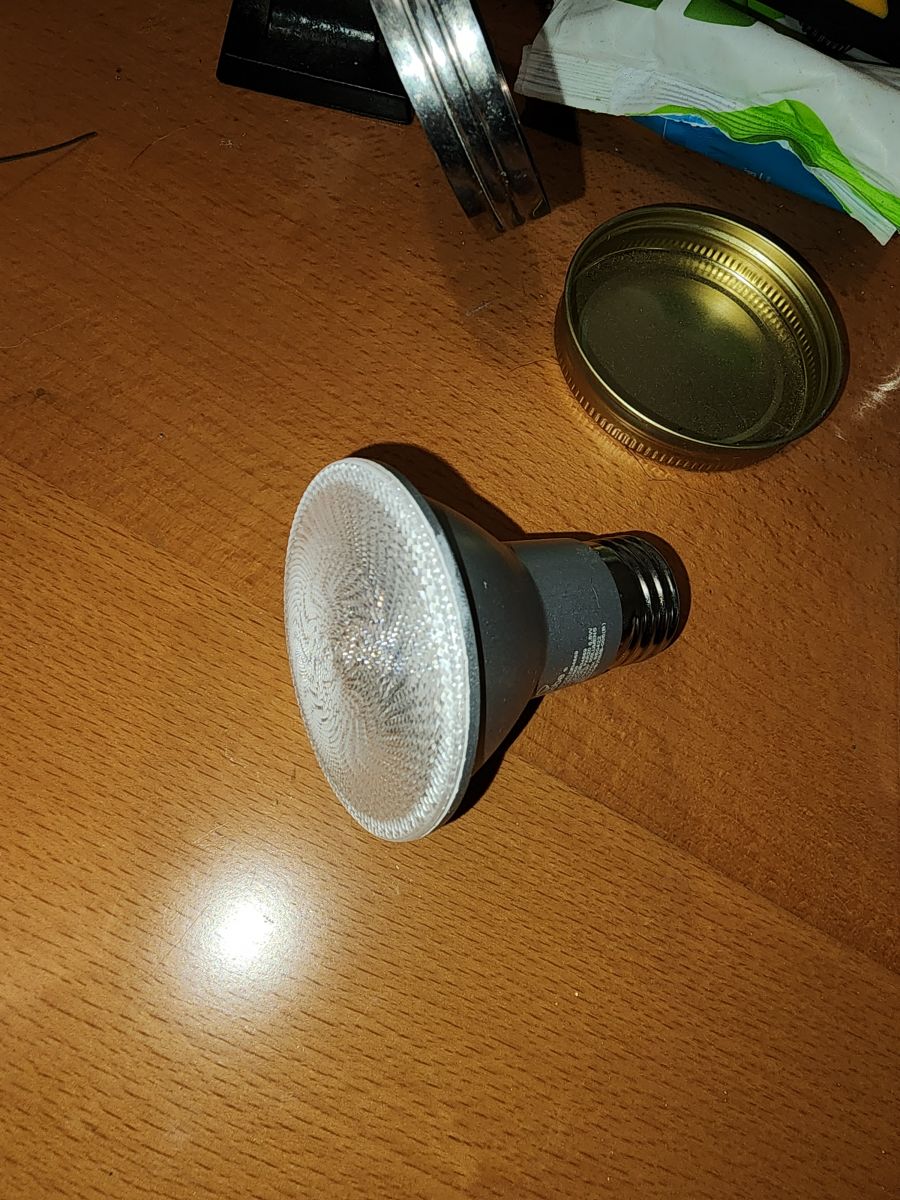
First a photo of an undisturbed bulb:
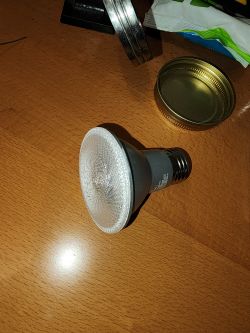
An unassembled LED bulb lying on a wooden table.

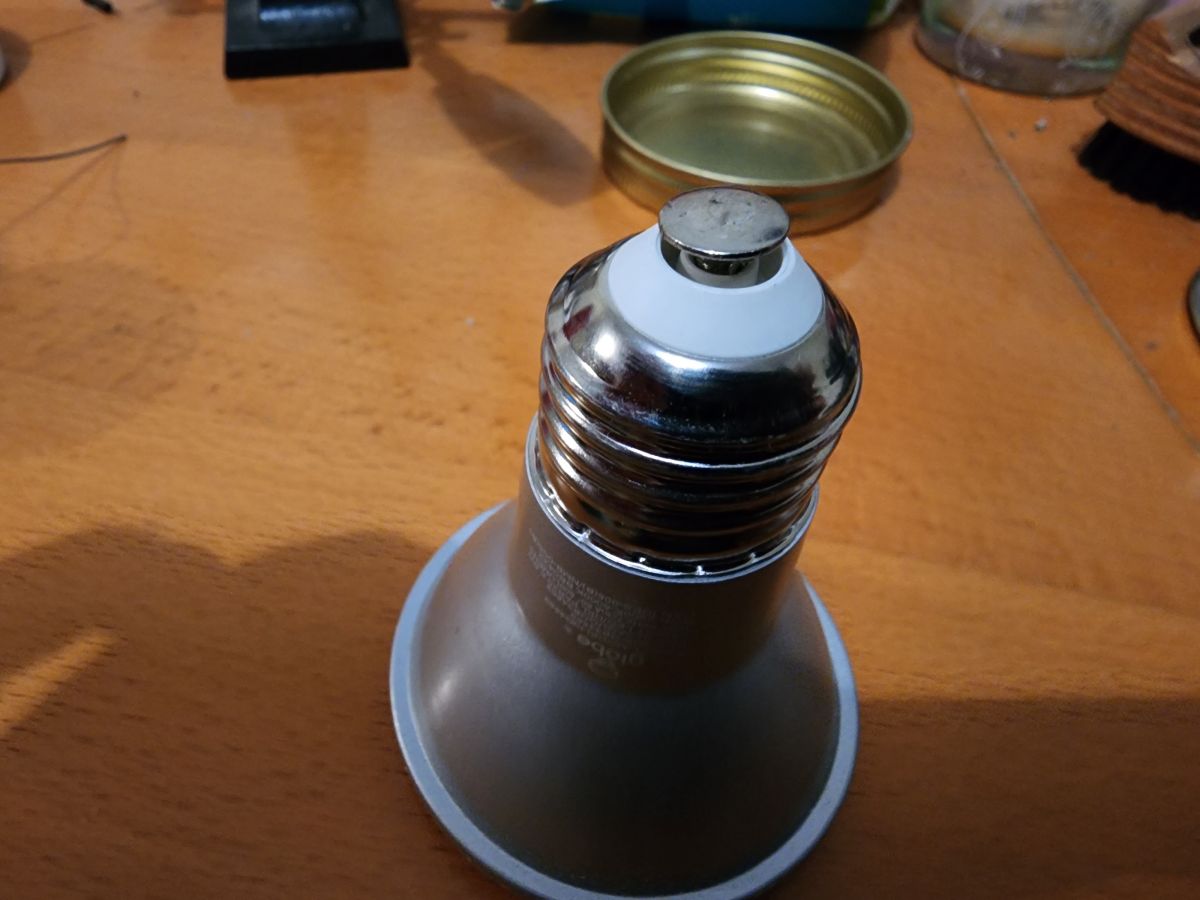
Take the Live input cap off of the bulb socket, you can use a fingernail to get under the lip to pop it up:
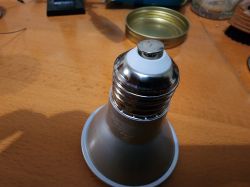
Non-disassemblable bulb on a table with a metal socket.

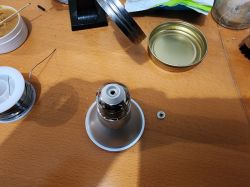
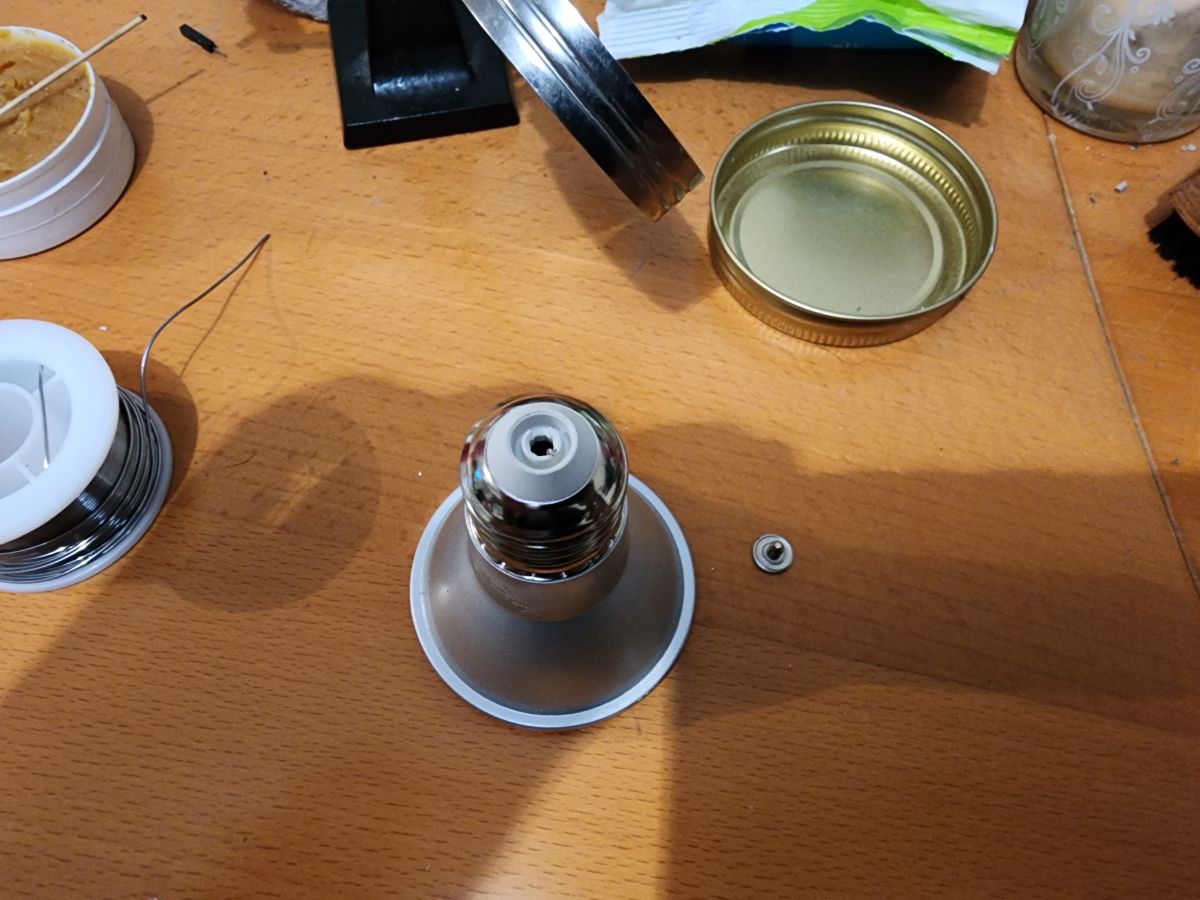
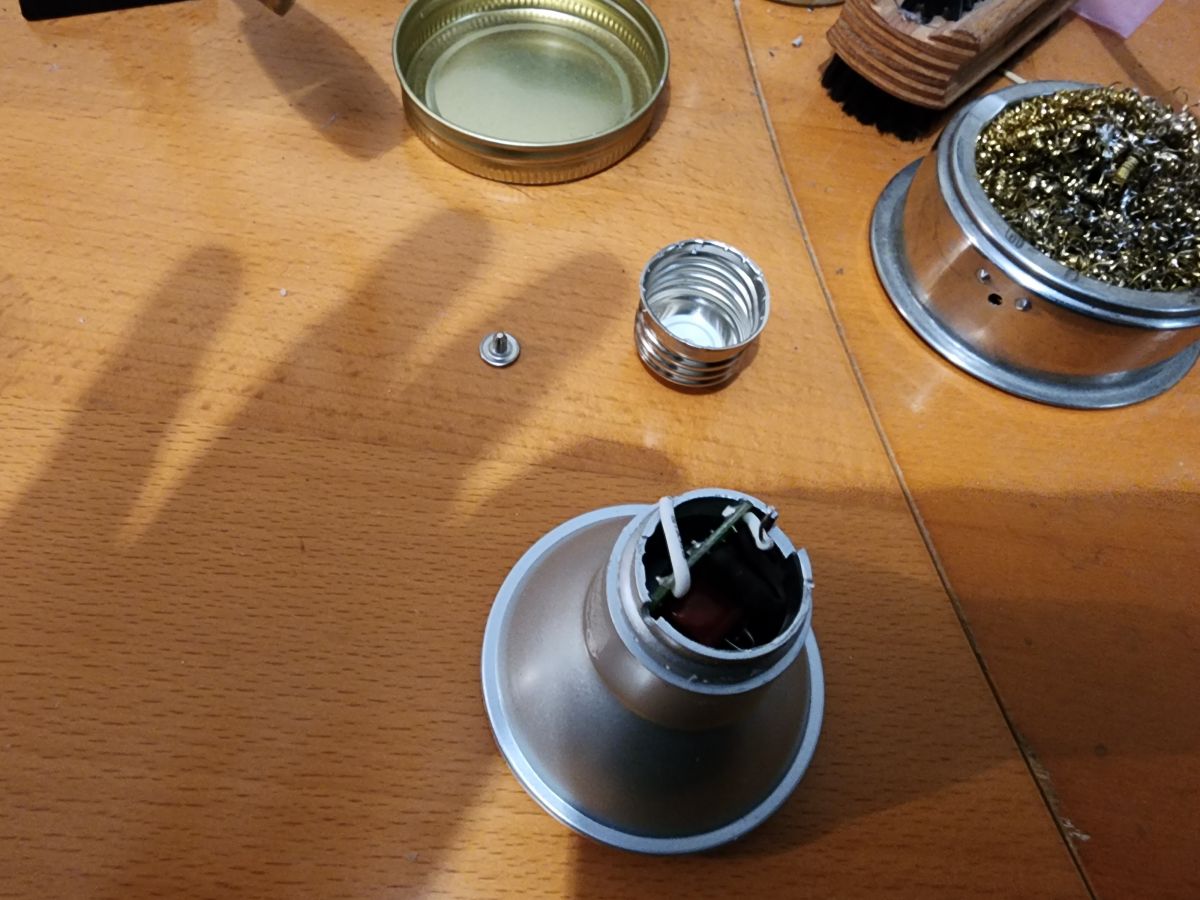
Once it is removed:
Disassembled light bulb on a table with soldering tools and a lid.

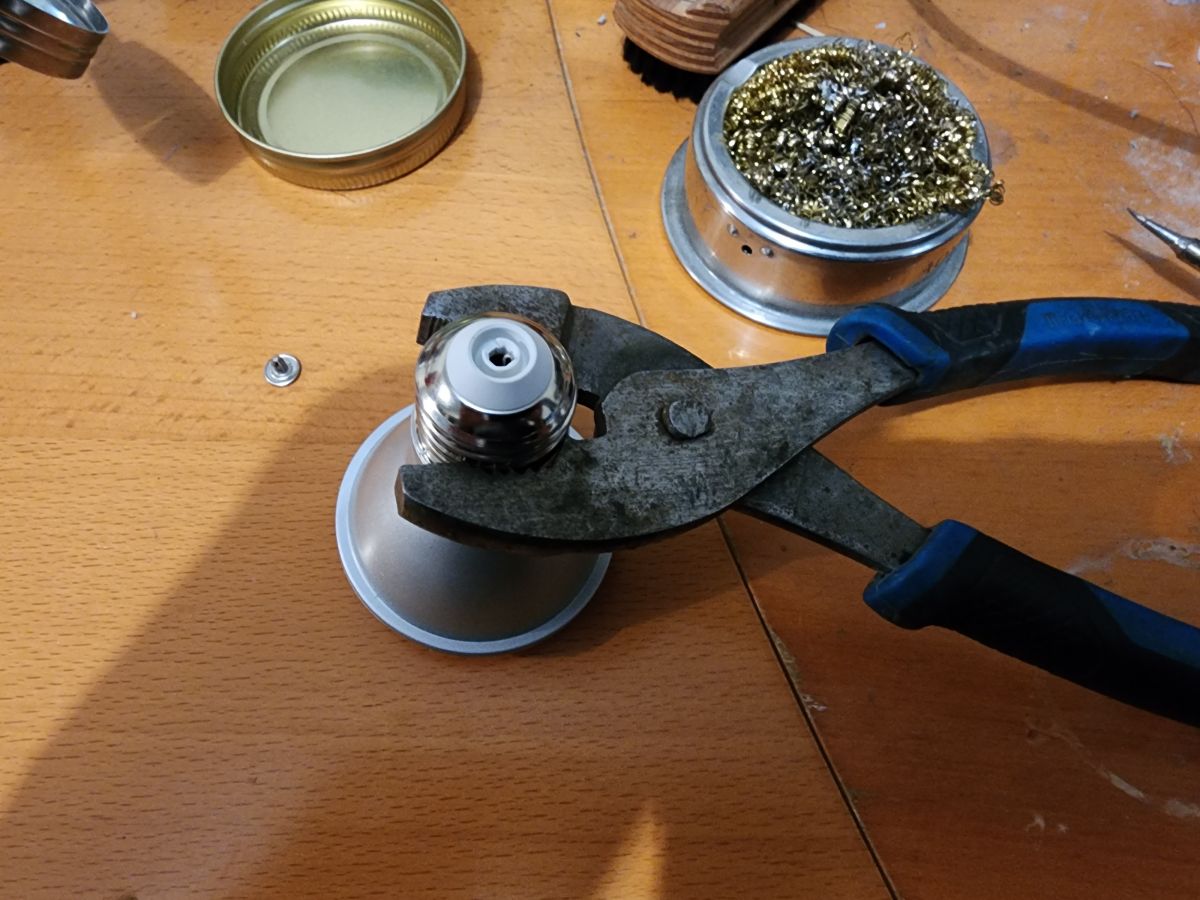
Next, take some pliers and GENTLY squeeze the bulb socket to get it to break loose from the plastic housing, I also rotated it back and forth while applying pressure.
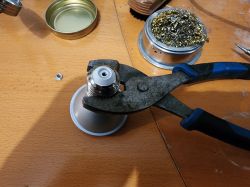
Pliers clasping a light bulb socket on a workshop table.

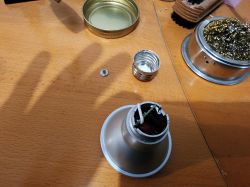
After removal of the socket:
Partially disassembled LED bulb on a wooden table, alongside tools.

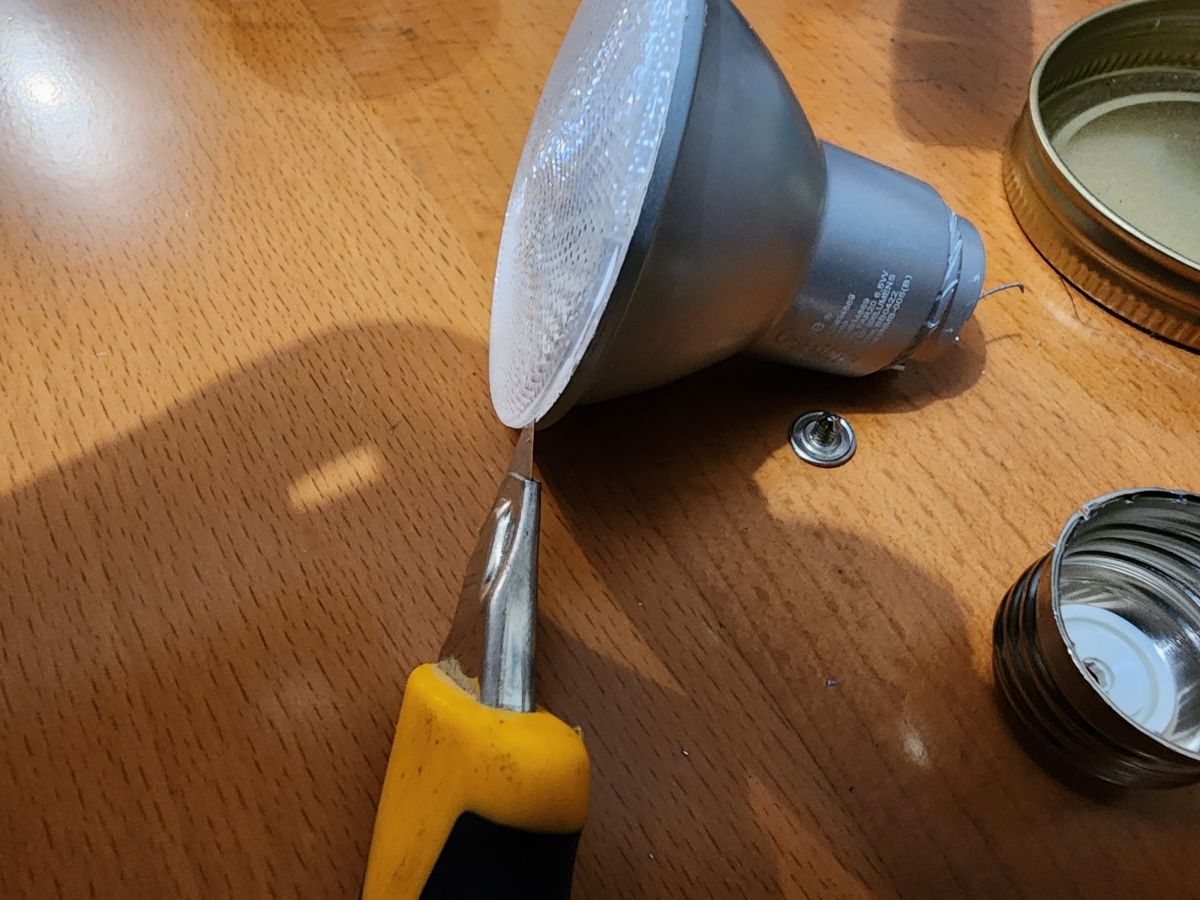
Now, we can move onto the other end of the bulb, I used a utility knife to get inbetween the lens and the body and worked my way around to pop the lens off:
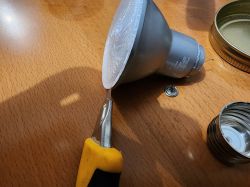
Dismantling a light bulb using a knife.

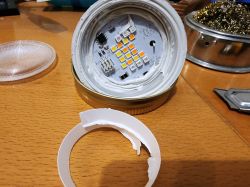
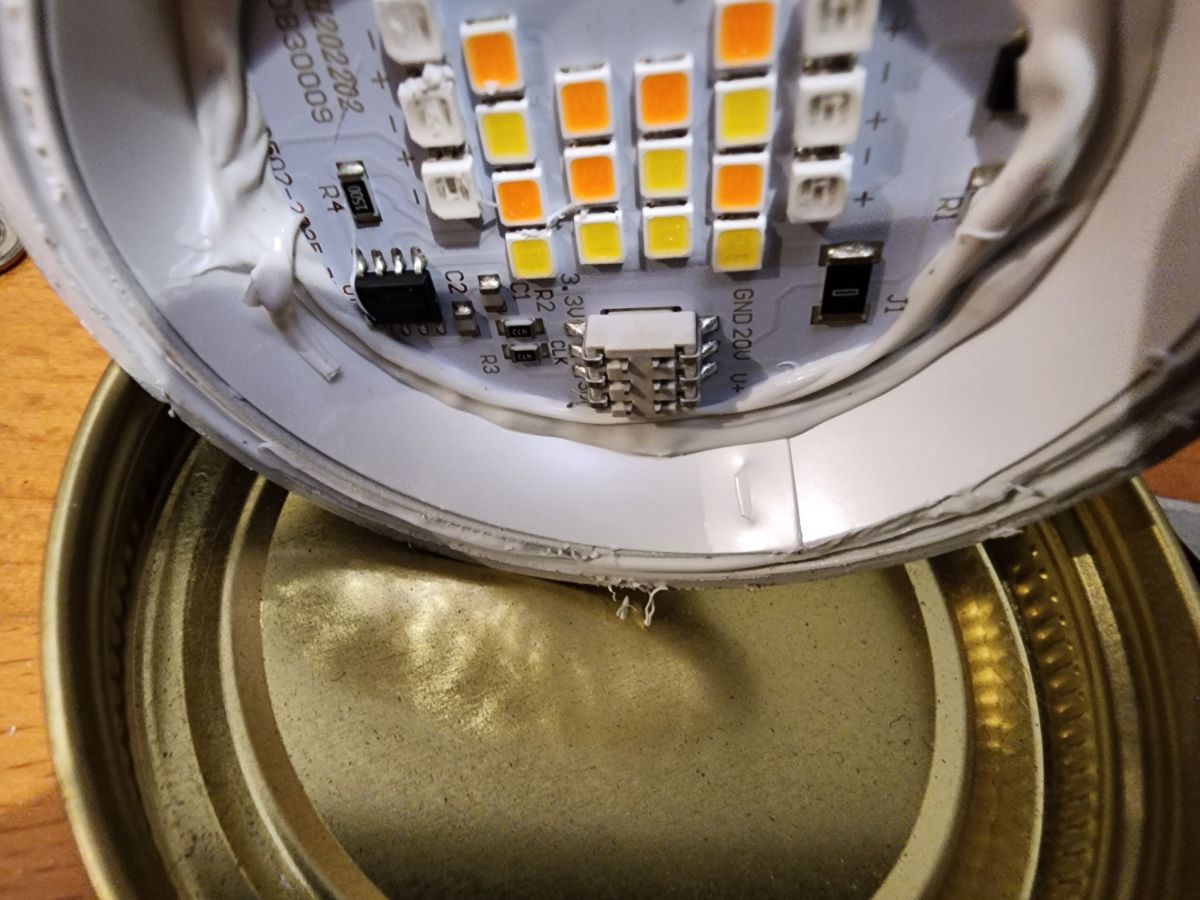
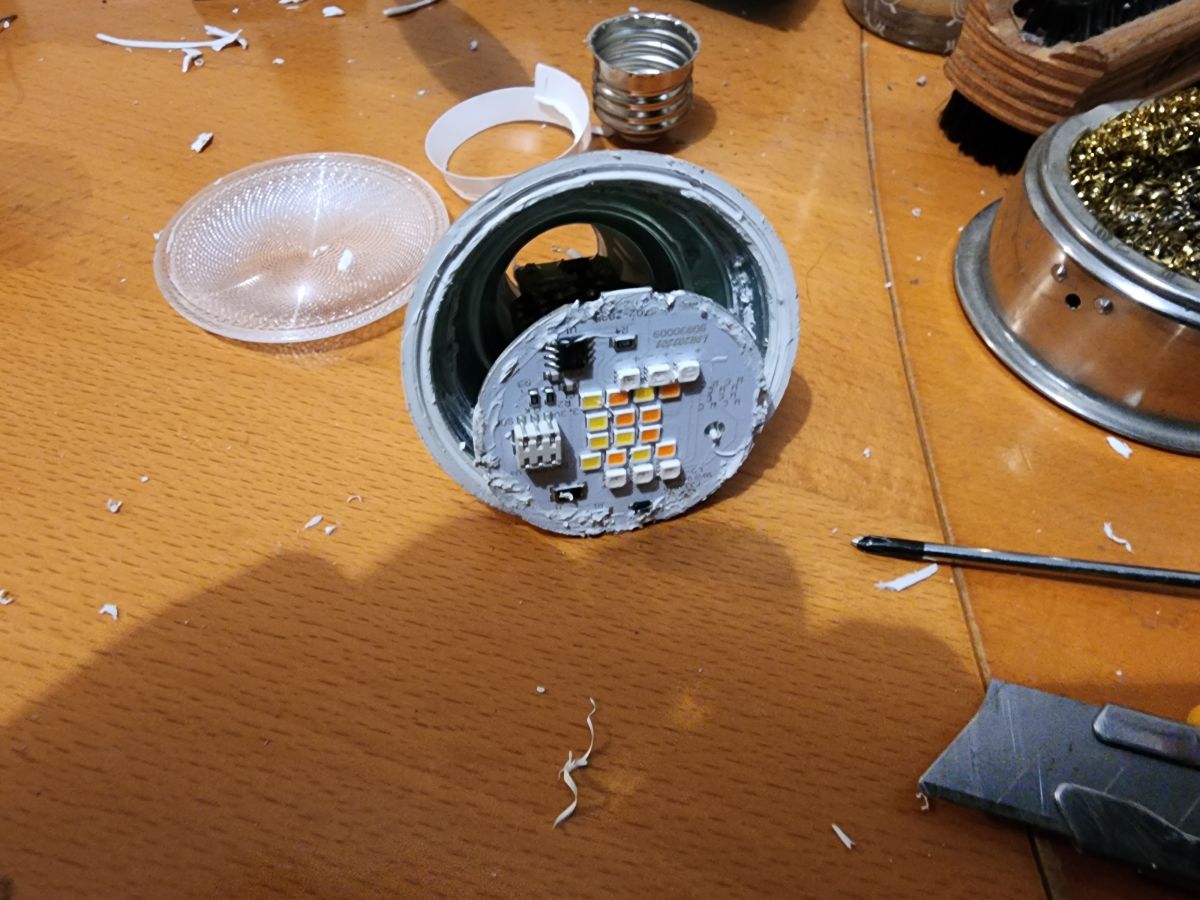
In my bulbs, there is some sort of white mastic substance used as glue to keep the lens on and hold the LED plate in place. You can also see some sort of white plastic ring that sits inside of the plastic body (for light glare perhaps?). You will need to remove that plastic ring and then remove enough of the white glue to pop the LED plate out.
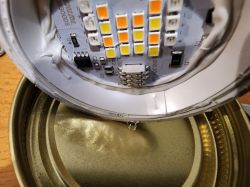
Interior of a dismantled smart bulb showing the PCB and LED components.

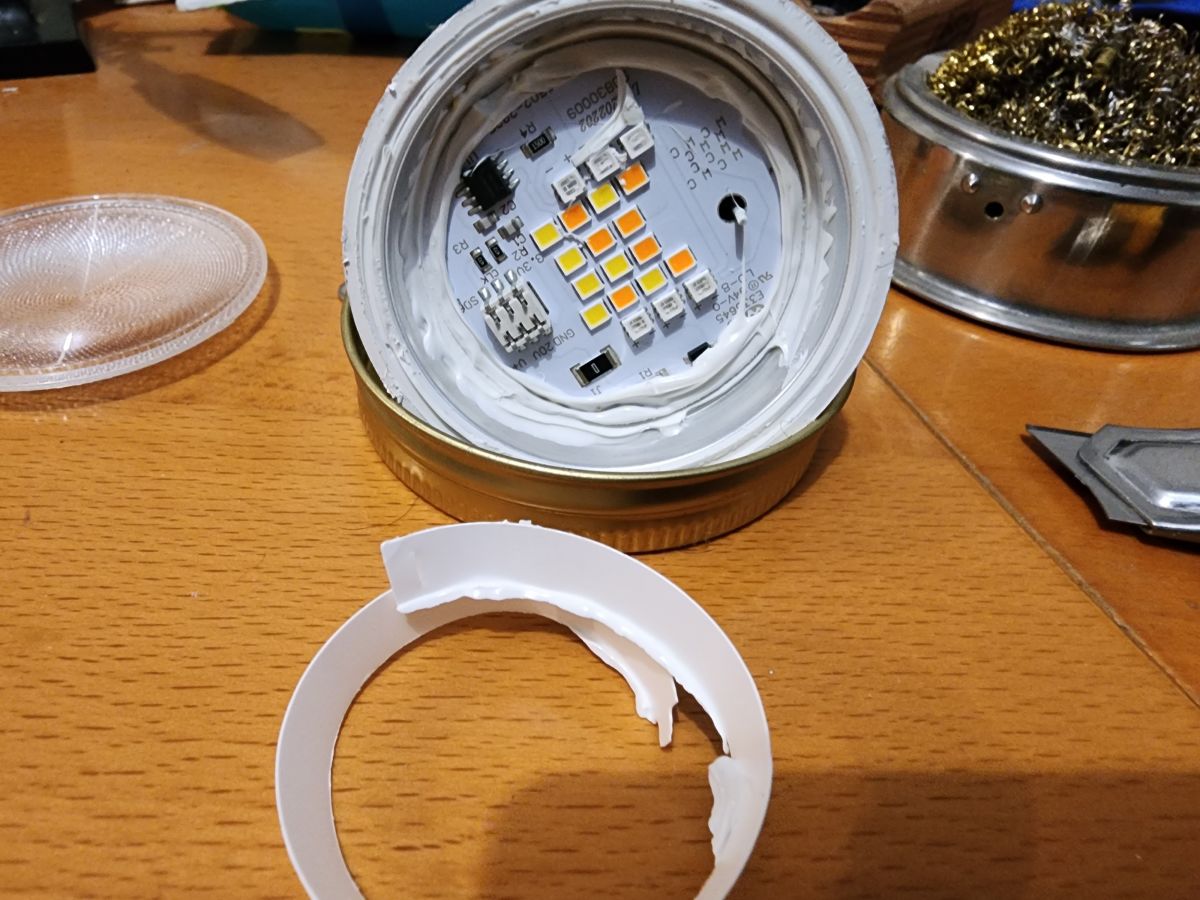
After pulling the white ring out:
Interior of a disassembled smart light bulb with visible LED array and white adhesive.

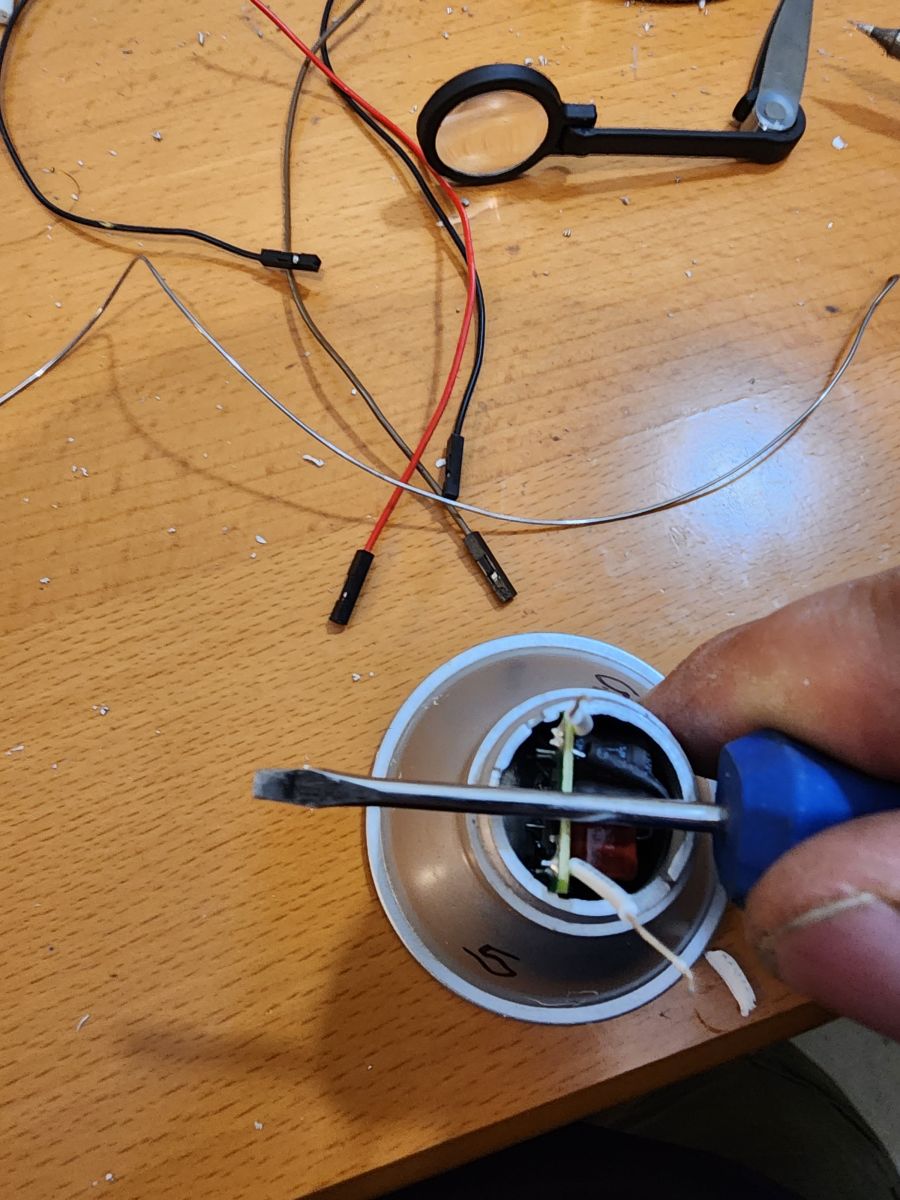
Now comes the fun part of removing the glue and popping the LED plate out. Take a flathead screwdriver or something similar and scrape as much of the white glue off of the led plate as you can. Use the screwdriver to try and pop the plate up a little bit to loosen it from the glue. Then turn the bulb over and push on the bottom PCB to pop the plate up.
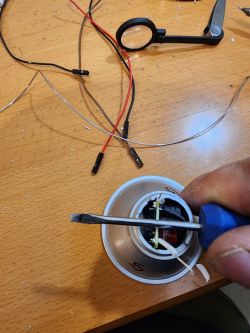
Person disassembling a light bulb with a screwdriver.

This leaves the plastic body separated from the PCB:
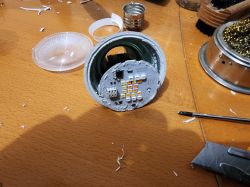
Disassembled LED bulb with visible circuit board on a wooden table

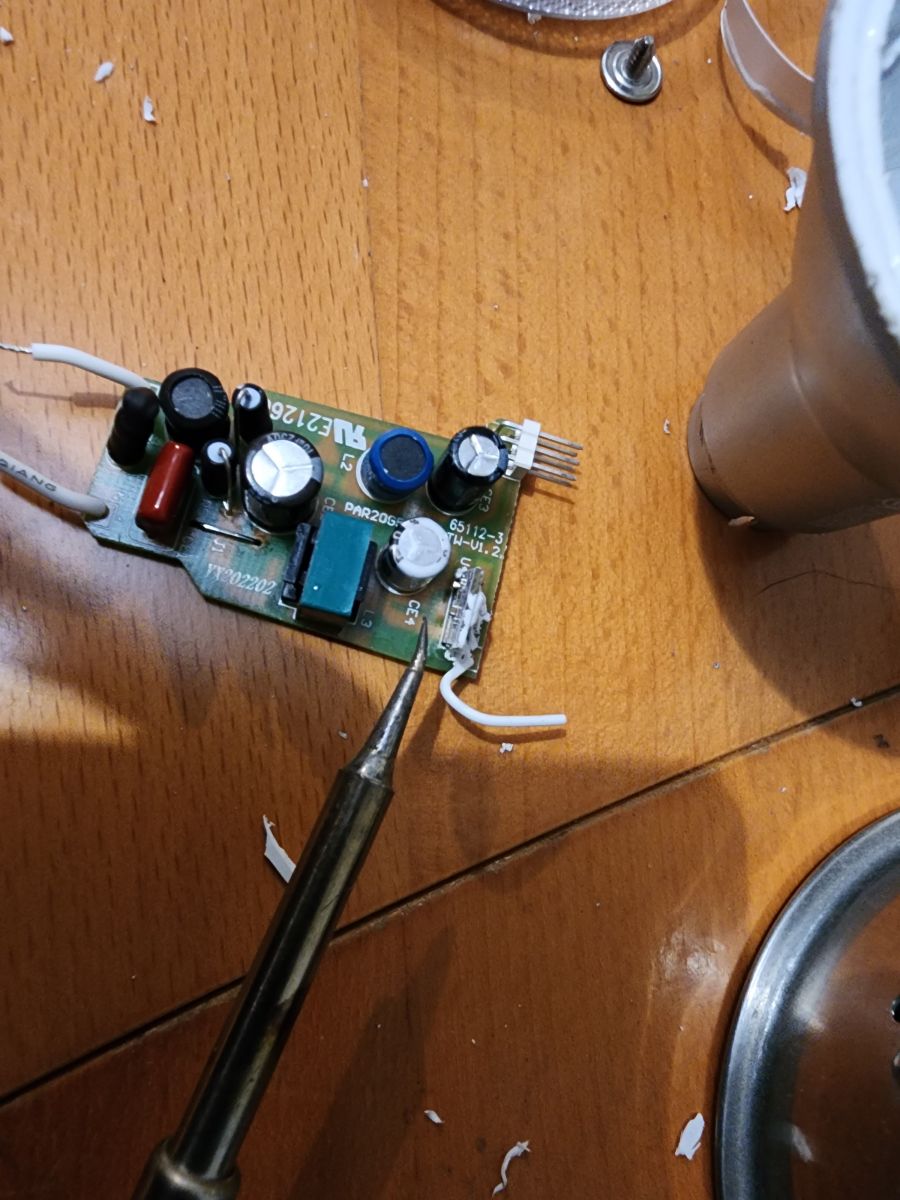
Now, lets move onto the PCB and the choice of either leaving the daughterboard in place or removing the daughter board and then resoldering it back in after flashing. I personally desolder the daughter board and then resolder it after flashing. Leaving it in place is doable but, it is a nightmare to solder the TX/RX wires in place.

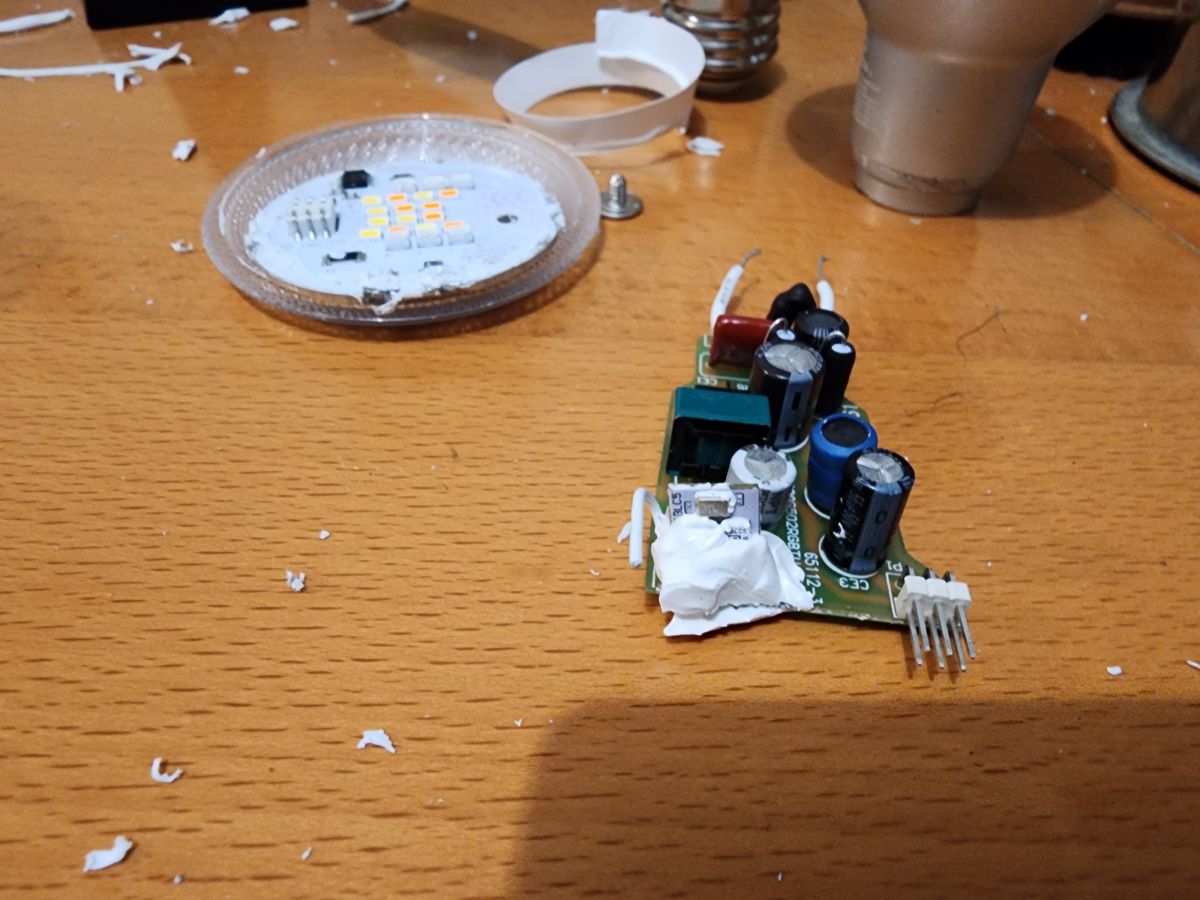
PCB after removing from plastic body:
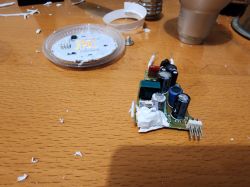
Disassembled light bulb with visible internal circuit board.

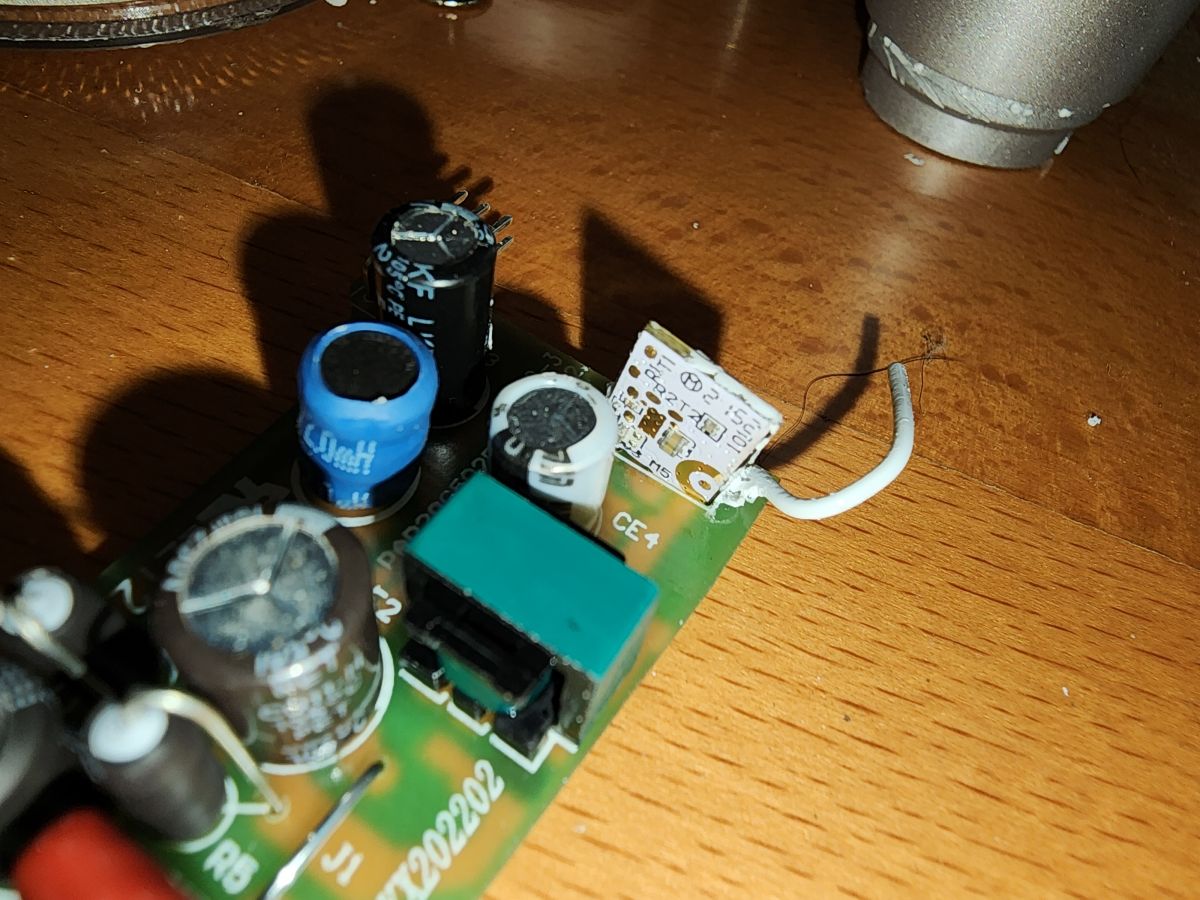
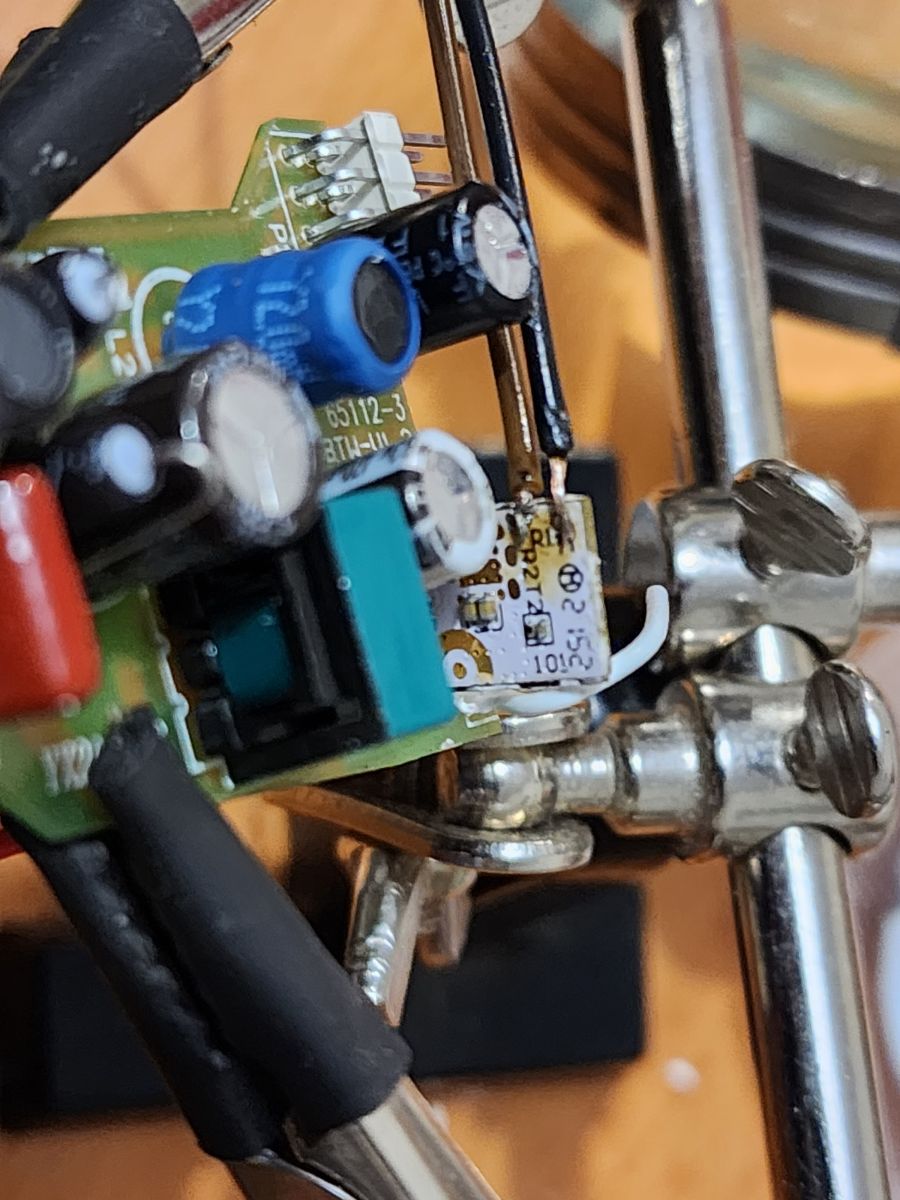
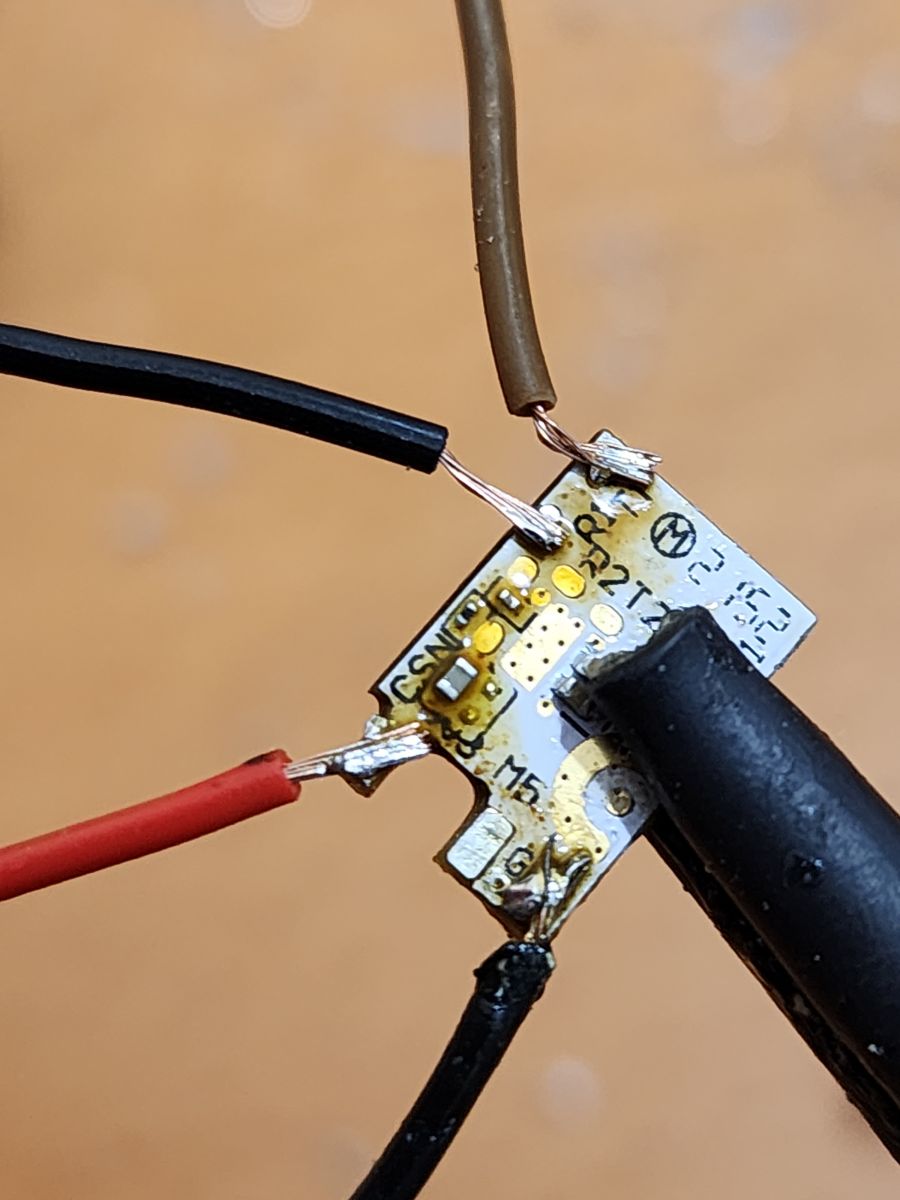
The T1/R1 pads are on the backside of the daughter board. You can see them here in the top left corner of the white PCB.
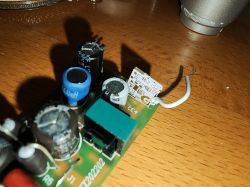
Close-up of a light bulb's circuit board with visible capacitors and wires.

If you are soldering with daughter board in place, I highly recommend a fine tipped soldering point:
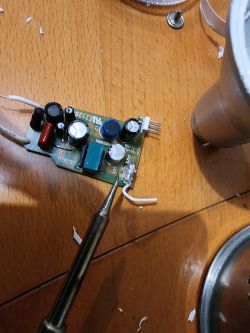
Light bulb circuit board with soldered wires.

Put flux on the r1/t1 pads and then tin the pad with solder. Solder the wires on for tx/rx:
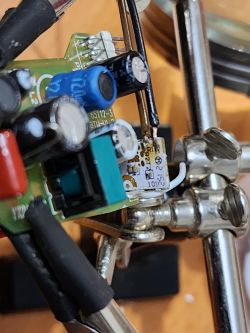
Microscopic view of a circuit board with electronic components.

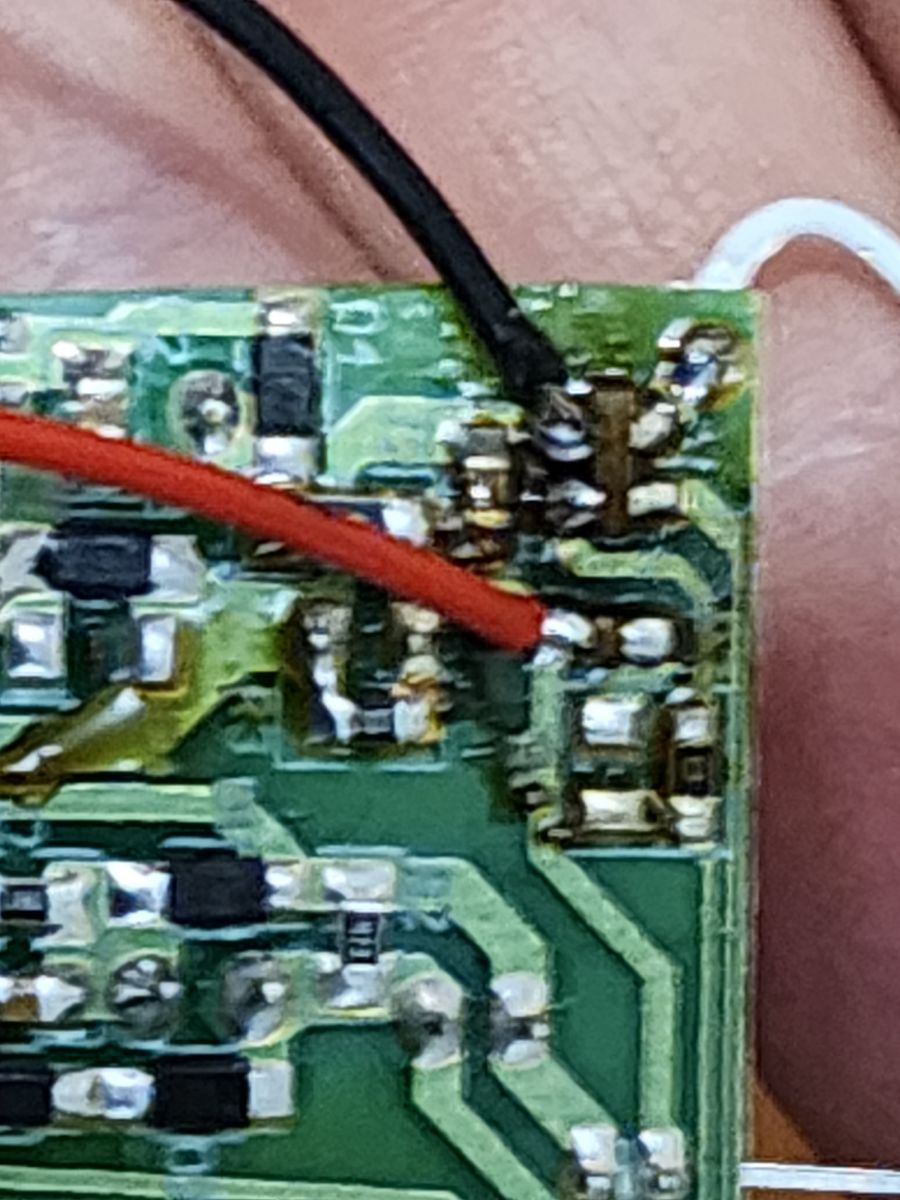
Next, get 3.3V and GND wired up. These ones are easy as the pads are much larger. You will need to solder the wires onto the main PCB.

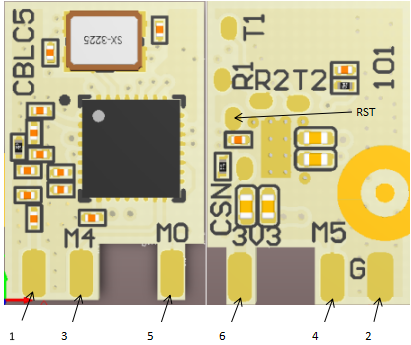
First here is the schematic for CBLC5:
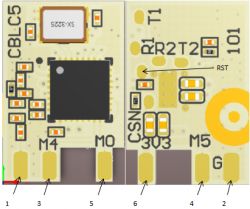
PCB schematic with labeled pads and pins.


SymbolI/O typeFunction
ANTOPad pin for the external antenna
GNDPGround pin
M4I/OSupport hardware PWM and correspond to PA 24 on the internal IC
M5I/OSupport hardware PWM and correspond to PA 26 on the internal IC
M0I/OSupport hardware PWM and correspond to PA 6 on the internal IC
3V3PPower supply pin


Definitions of test points
SymbolI/O typeFunction
R2I/OUART2_RX, LOG RX, which corresponds to P1 on the internal IC
T2I/OUART2_TX, LOG TX, which corresponds to P0 on the internal IC
R1I/OUART1_RX, user serial interface RX, which corresponds to P10 on the internal IC
T1I/OUART1_TX, user serial interface TX, which corresponds to P11 on the internal IC
CSNIIf connected to the ground before powered on, enter the RF test mode. If not connected or connected to VCC before powered on, enter the firmware application mode.
NoneIRST pin, which corresponds to CEN on the internal IC


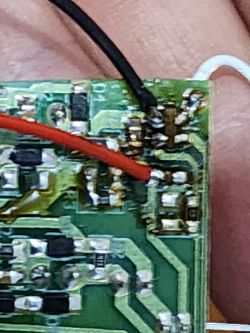
Wire up 3.3V and GND to the main PCB:
Close-up of a printed circuit board with soldered wires.

If you want to remove the daughter board and solder the wires on:
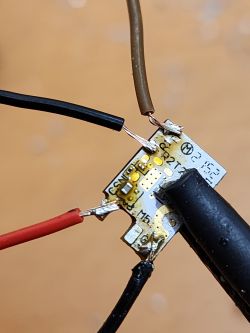
Close-up of a circuit board with soldered wires

The only advice I have for soldering the wires on is to use freshly stripped, non tinned, stranded wire. If the wires are tinned or junked up, it will be hard to get it to stick to the pad. I spent an ungodly amount of time trying to solder tinned, junked up wires to the rx/tx pads and ended up tearing one of the pads off, dont be me.

I use linux so I needed to install mono before I could use the new GUIflasher tool and then clone the flasher tool repo and issue xbuild.

Time to flash!
- Now make sure your USB to Serial adapter is set to output 3.3V, 5V will damage the chip!
- Connect the USB2Serial adapter to the chip: VIN->3.3, GND->G, RX->TX, TX->RX.
- Open the flashing tool and set the port for the USB2serial adapter (ttyUSB0 in my case)
- Set the chip as 7321N (or 7321T if you have that chip)
- In the top row of tabs, you will see UART Timeouts. Go into it and set the timeouts higher. I used 10, 10, 5.
- Read the flash and backup the original firmware. Hit read flash, wait for the logs to say it is looking for the bus and then remove the 3.3 power from the chip for 1 secxond and then reapply power (I literally pulled the 3.3v wire from the serial adapter and then reinserted it)
- A dialog should pop up with JSON data to import after OBK is installed, copy the JSON data.
- If all goes well, download the most recent OpenBeken firmware using the flasher tool.
- Select the firmware to install in the flasher tool and hit "write"
- Wait for it to say its looking for bus and do the power pull again until it starts erasing and writing.
- After writing is successful, pull the 3.3V from the chip, wait 2-3 seconds and then repower it. Start looking for on OBK WiFi SSID, if you find one, the chip is flashed and working!

Now, you need to reassemble the bulb and power it up. Join the bulbs SSID and then navigate to 192.168.4.1 in a browser, this should bring you to the web interface of the bulb so you can configure it.

- In the web gui go to "Config" then "Flags". make sure flags 9, 10 and 12 are set. the main one is the ST2135: send different channels for WW and CW. White temperature wont work without that flag.
- Copy the JSON data from the reading process
- In the web GUI, click "Launch web app"
- in the web app, select "Import" from the top row of tabs and paste the JSON data into the JSON input field.
- Review the dialogs and then click the button to upload the OBK config, go back to the web gui and click "Restart".
- Start tesing the bulb to see if it toggles on/off and does RBG and WW/CW. Sometimes I needed to go into the web app > Tools > and toggle the bulb using the "100% RED/GREEN/BLUE" buttoins before the bulb would start working. If your bulb does not work even after fiddling around, you may have briodged ajoint with solder or mistakinly moved a resisitor or cap. Look on the board and see if you can find any defects and fix them.

If you did not get any JSON data from the original flash read, the 2 pins of note are 24 and 26.
Pin 24: SM2135DAT
Pin 26: SM2135CLK

LED remap:  2 1 0 4 3 


Here is the generated script details:

ClearIO // clear old GPIO/channels
lfs_format // clear LFS
StartupCommand ""  // clear STARTUP
stopDriver *  // kill drivers
startDriver SM2135 // so we have led_map available
setPinRole 24 SM2135DAT
setPinRole 26 SM2135CLK
LED_Map 2 1 0 4 3 


Congrats! you now have an OBK device that is local only! Enjoy!

About Author
baudneo
baudneo wrote 17 posts with rating 5 , helped 1 times. Been with us since 2023 year.

Comments

p.kaczmarek2 04 Sep 2023 18:36

Very nice and detailed guide. Can you also include JSON format of the config, so I can add it to the teardowns list? See teardowns list public page: https://openbekeniot.github.io/webapp/devicesList.html And... [Read more]

baudneo 04 Sep 2023 19:07

{ "vendor": "Globe Electric", "bDetailed": "1", "name": "PAR20 WiFi RGBCW Bulb", "model": "34869", "chip": "BK7231N", "board": "CBLC5", "flags": "5632", "keywords": [ "34869", ... [Read more]

FAQ

TL;DR: For Globe Electric 34869 V3 owners, this guide shows a safe path from teardown to OpenBeken. It uses 3.3V flashing, and one expert warning says, "5V will damage the chip!" It helps you identify BK7231N hardware, back up the stock firmware, and restore full RGBCW control as a local-only Wi‑Fi bulb. [#20721244]

Why it matters: This FAQ turns a long teardown thread into a fast, extractable reference for identifying the V3 bulb, flashing it safely, and configuring OpenBeken correctly.

Option Hardware / firmware condition Main benefit Main limitation
Tuya Cloudcutter BK7231T or BK7231N on firmware 1.31.21 No serial flashing needed Unavailable on firmware 1.5.21+
UART flashing with GUI flasher BK7231N V3 over 3.3V serial Works after Cloudcutter closes Requires teardown and soldering
Leave daughterboard installed T1/R1 soldered in place Less board removal TX/RX soldering is difficult
Desolder daughterboard first Remove, flash, then resolder Easier access to pads Extra rework step

Key insight: The thread’s decisive setup point is not just flashing BK7231N. You must also enable OpenBeken flags 9, 10, and 12 and map SM2135 correctly, or white temperature and full RGBCW control will not work. [#20721244]

Quick Facts

  • The confirmed V3 identifier is the TinyTuya dump string product_name: "34869 - V3", paired with an sn value that matches the QR-code sticker on top of the BK7231N chip. [#20721244]
  • Safe serial flashing uses 3.3V, not 5V. The wiring is VIN→3.3V, GND→GND, RX→TX, and TX→RX on the bulb side. [#20721244]
  • The author raised GUI flasher UART timeouts to 10, 10, 5 and power-cycled the chip for about 1 second during bus detection. [#20721244]
  • Manual SM2135 recovery values are fixed in the thread: Pin 24 = SM2135DAT, Pin 26 = SM2135CLK, and LED_Map = 2 1 0 4 3. [#20721244]
  • The submitted OpenBeken device JSON lists Globe Electric 34869, BK7231N, CBLC5, and flags value 5632 for the PAR20 WiFi RGBCW bulb. [#20721276]

How do I disassemble a Globe Electric 34869 V3 PAR20 WiFi smart bulb without damaging the housing, lens, or PCB?

Disassemble it in stages and use light force. First, lift the live input cap with a fingernail. Next, gently squeeze and twist the bulb socket with pliers to free it from the housing. Then work a utility knife around the lens, remove the white plastic ring, scrape off enough white glue to loosen the LED plate, and push from the bottom PCB side to pop the plate free. The thread’s key warning is to squeeze the socket gently and remove only enough glue to release the LED plate. [#20721244]

What’s the easiest way to tell whether a Globe Electric 34869 bulb is version 3 with a BK7231N instead of an older BK7231T revision?

The easiest check is the TinyTuya device dump. In the thread, the V3 bulb shows product_name: "34869 - V3" and an sn string that matches the QR-code sticker found on top of the BK7231N chip after teardown. The author also notes that revision 1 used a 7321T chip, while this version 3 unit uses a 7321N chip. Those two clues together separate V3 from the older revision. [#20721244]

Why does Tuya Cloudcutter work on some Globe Electric bulbs with firmware 1.31.21 but not on units updated to 1.5.21 or newer?

Tuya Cloudcutter works only on the firmware window identified in the thread. The author states that firmware 1.31.21 can use Tuya Cloudcutter, but the exploit is unavailable on 1.5.21+. That is why the guide warns users not to upgrade in the Smart Life app if they want the easier path. Once the bulb moves to 1.5.21 or newer, the thread switches to UART flashing instead. [#20721244]

What is TinyTuya, and how can it help identify a Globe Electric 34869 V3 bulb and extract its local key or device details?

"TinyTuya is a device tool that reads Tuya device data, extracts the local key, and creates JSON dumps with identifying fields." In this thread, it exposes product_name: "34869 - V3", the category dj, and the sn value. Those fields let you confirm the Globe Electric 34869 as a V3 bulb before opening it, and they also give you the local key and device details needed for deeper inspection. [#20721244]

What is the CBLC5 board in this PAR20 smart bulb, and which UART pads and power pins are used for flashing?

CBLC5 is the board/module platform named in the thread for this bulb. Its test-point table shows R1 = UART1_RX, T1 = UART1_TX, 3V3 = power, and GND = ground. The post also lists R2/T2 as UART2 log pads, but the guide uses R1/T1 for user serial flashing. In practice, you solder TX and RX to the daughterboard pads and 3.3V plus GND to the larger pads on the main PCB. [#20721244]

Which is better for flashing this BK7231N bulb: leaving the daughterboard in place or desoldering it first and soldering it back afterward?

Desoldering the daughterboard first is easier for most people. The author says leaving it in place is possible, but soldering TX/RX onto the T1/R1 pads is a nightmare because the pads sit on the back side and are hard to reach. Removing the daughterboard gives better access, then you can resolder it after flashing. If you keep it installed, use a very fine soldering tip. [#20721244]

How do I wire a 3.3V USB-to-serial adapter to the BK7231N or CBLC5 board for safe OpenBeken flashing?

Wire it exactly as the thread states: VIN→3.3V, GND→GND, RX→TX, and TX→RX. Solder TX and RX onto the R1/T1 pads on the daughterboard, then attach 3.3V and GND to the larger pads on the main PCB. Use fresh, non-tinned stranded wire for the tiny RX/TX pads. The author warns that old tinned wire made soldering difficult and even tore one pad off. [#20721244]

Why is using 5V on the USB-to-serial adapter dangerous when flashing a BK7231N smart bulb, and what voltage should be used instead?

Use 3.3V only, because the guide states that 5V will damage the chip. The flashing setup powers the BK7231N directly from the USB-to-serial adapter, so the adapter’s voltage must match the board requirement. The author repeats this warning before the flashing steps, making it the most important electrical safety limit in the thread. Set the adapter to 3.3V before connecting VIN, RX, TX, and GND. [#20721244]

What steps are needed to back up the original firmware and flash OpenBeken onto a Globe Electric 34869 BK7231N bulb with the GUI flasher?

Use a short serial workflow. 1. Connect a 3.3V USB-to-serial adapter, choose the correct port, set the chip to 7321N, and raise UART timeouts to 10, 10, 5. 2. Read flash first, then remove 3.3V for about 1 second and reapply power when the tool starts looking for the bus; copy the generated JSON backup data. 3. Select the OpenBeken firmware, hit write, repeat the power pull, then repower and look for the OBK Wi‑Fi SSID. [#20721244]

How do I import the JSON generated during flash reading into OpenBeken and finish configuring the bulb from the web interface?

Join the bulb’s OBK SSID, open 192.168.4.1, and finish setup there. In the web GUI, go to Config → Flags first. Then click Launch web app, choose Import, paste the JSON captured during flash reading, and upload the config. Return to the main web GUI and press Restart. After reboot, test on/off, RGB, and warm/cool white control to verify that the imported mapping matches the hardware. [#20721244]

Which OpenBeken flags need to be enabled for the SM2135 driver so white temperature and RGBCW control work correctly on this bulb?

Enable OpenBeken flags 9, 10, and 12. The thread says the critical one is the ST2135: send different channels for WW and CW setting, because white temperature will not work without it. Those flags are part of the bulb’s post-flash setup in the web GUI and are required before RGBCW behavior becomes correct. If white temperature fails after a successful flash, check those flags first. [#20721244]

If no JSON config is generated from the original flash read, how do I manually set up pins 24 and 26 and the LED remap for the SM2135?

Set the driver manually with the values in the thread. Use Pin 24 = SM2135DAT and Pin 26 = SM2135CLK, then apply LED_Map 2 1 0 4 3. The posted recovery script clears old I/O, formats LFS, stops old drivers, starts SM2135, assigns pins 24 and 26, and sets the LED map. Those four values are the essential fallback when the flash read does not return JSON. [#20721244]

What is OpenBeken, and how does it turn a Globe Electric smart bulb into a local-only WiFi device?

"OpenBeken is replacement firmware that adds a local web interface, Wi‑Fi setup, and device-specific pin mapping, replacing cloud control with local operation." In this guide, once flashing succeeds, the bulb exposes an OBK Wi‑Fi SSID and a web UI at 192.168.4.1. After importing the JSON or setting pins manually, the author concludes that you now have an OBK device that is local only. [#20721244]

Why might the bulb fail to respond after flashing OpenBeken, and how do I troubleshoot solder bridges, damaged pads, or moved components?

Most failures here come from physical rework errors, not from the firmware file. The author says a non-responsive bulb can result from a solder bridge, a moved resistor or capacitor, or damage to a pad during TX/RX wiring. One pad was torn off during difficult soldering in the thread. Inspect the board closely, correct visible defects, restart the bulb, and, if needed, trigger color outputs in the web app’s Tools section before retesting normal control. [#20721244]

Where can I find or submit the JSON device configuration for the Globe Electric 34869 PAR20 WiFi RGBCW bulb to the OpenBeken teardowns list?

The thread points to two OpenBeken resources for this. One post requests the JSON for the public teardowns list page and the internal JSON database, and the follow-up post supplies a complete device JSON for Globe Electric, model 34869, board CBLC5, and chip BK7231N. That same follow-up also states that a PR with the JSON data was submitted, so the thread covers both the format and the contribution path. [#20721276]
%}