How can I open a BLOW smart socket built around a CB2S module so I can change its firmware without destroying the case?
You can open this BLOW socket without destroying it by releasing the fixings in the corners; there is no hidden screw in the pinhole, and the corner clips are the part that holds the case together [#20863022] Once inside, the practical firmware route is to desolder the CB2S module, solder RX, TX and GND to it, and add a reset resistor to CEN so you can work with it over a USB-UART adapter [#20864861] For flashing and backup, a full 2 MB dump is needed, and the thread mentions bk_writer1.6, hid_download_py, and BK7231GUIFlashTool as the tools used for reading it [#20864861][#20864944] The extracted configuration shows the device uses a CB2S with BK7231N and maps BL0937 SEL to P24, button to P11, LED to P10, BL0937 VI to P6, Wi‑Fi LED to P8, BL0937 ELE to P7, and relay to P26 [#20865102] After flashing version 1.17.360 via UART and loading the JSON config, the socket worked, including Wi‑Fi, MQTT reporting, and relay control [#20865616]
AI summary based on the discussion. May contain errors.
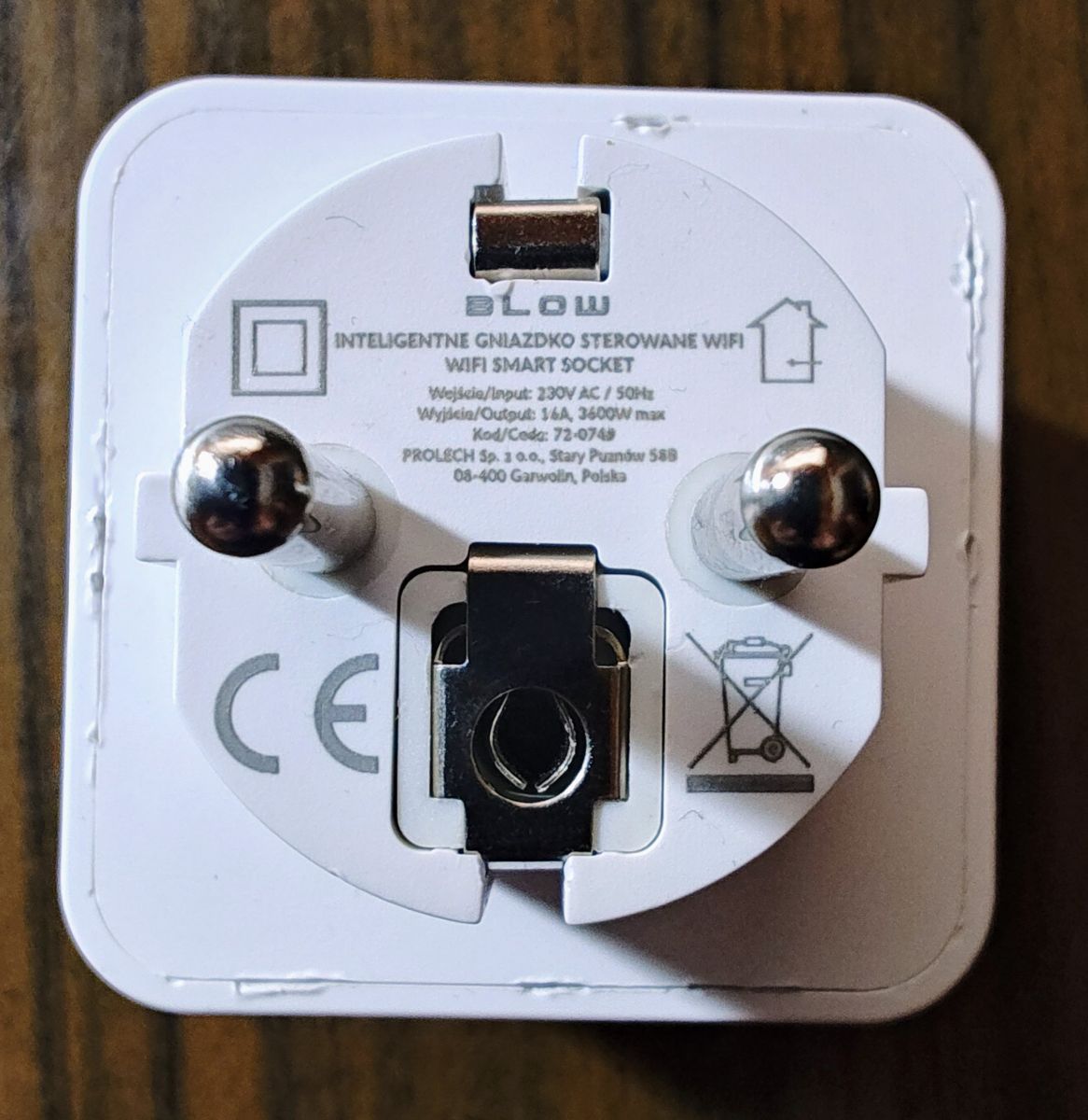
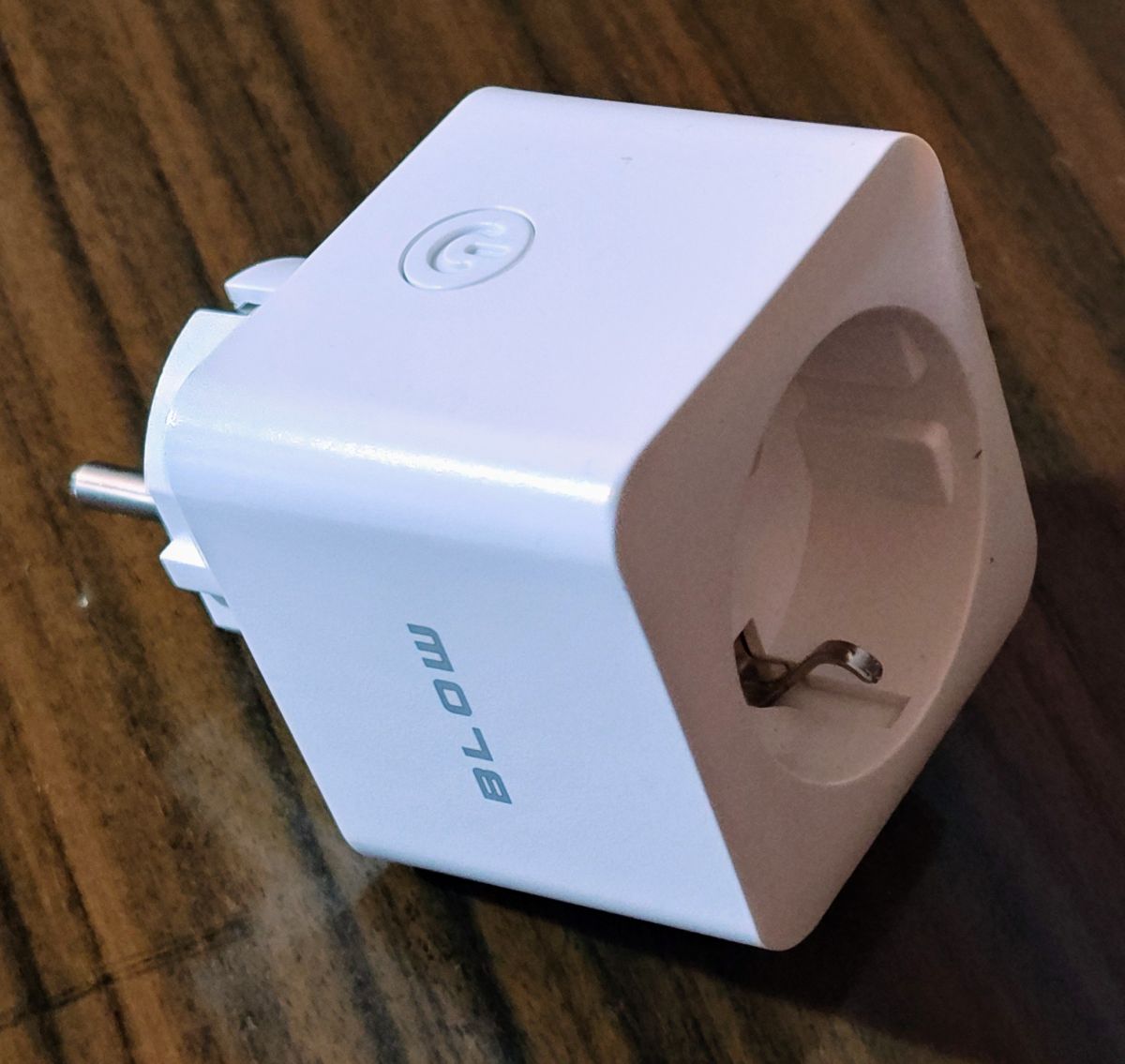
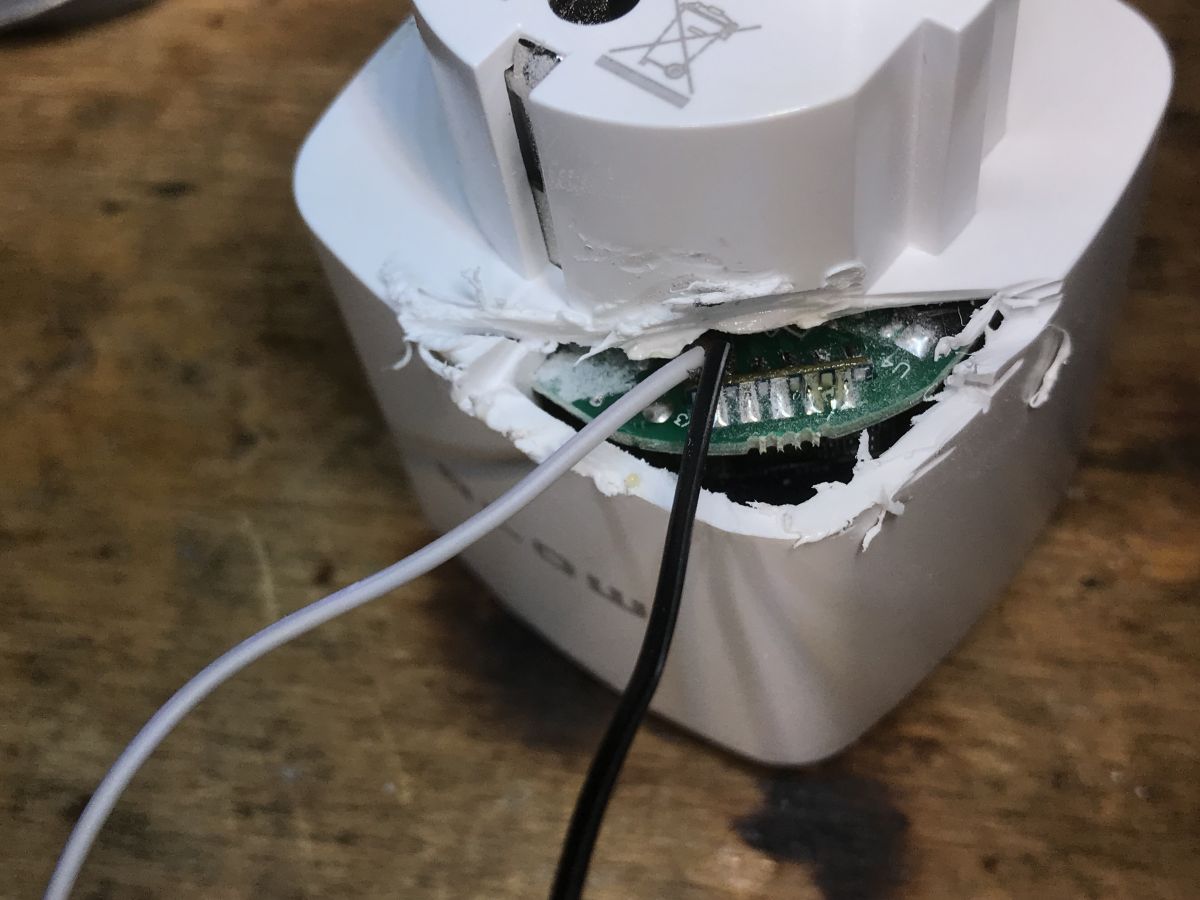
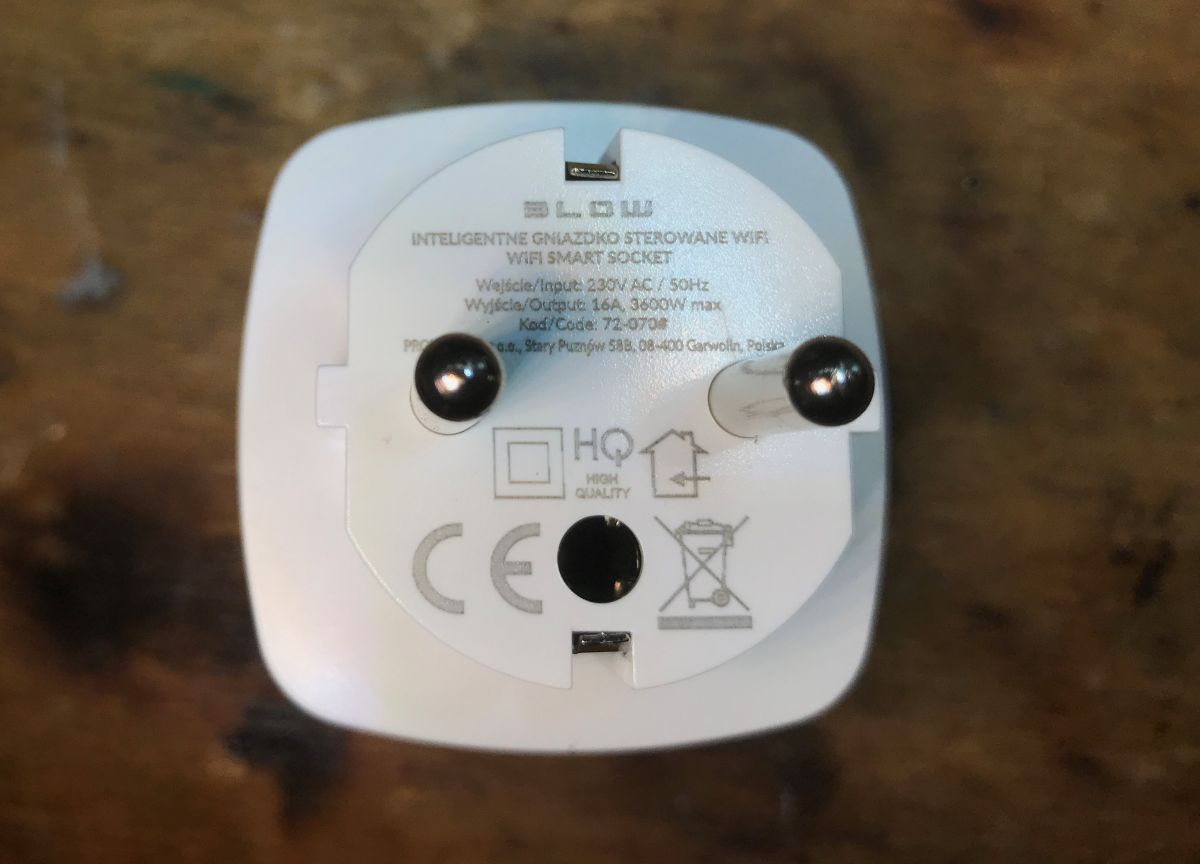
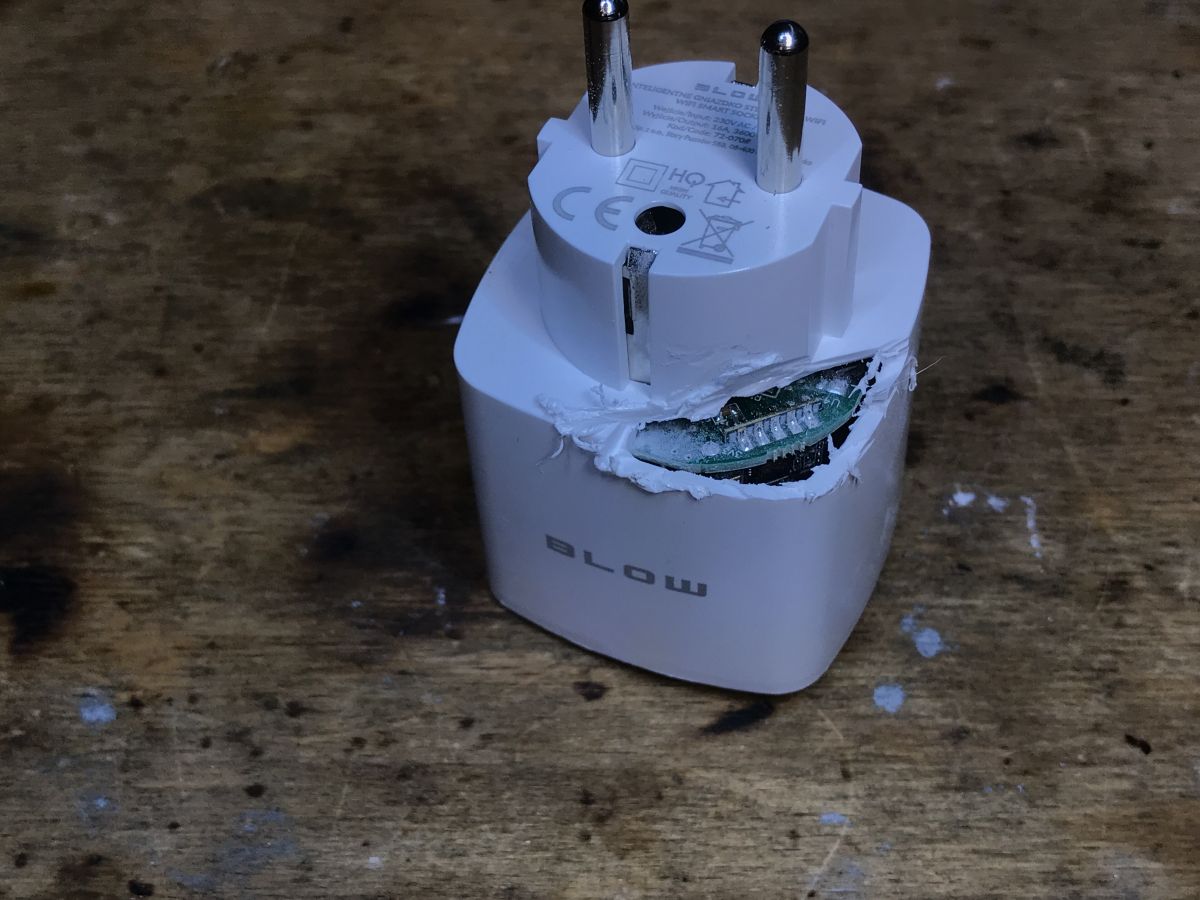
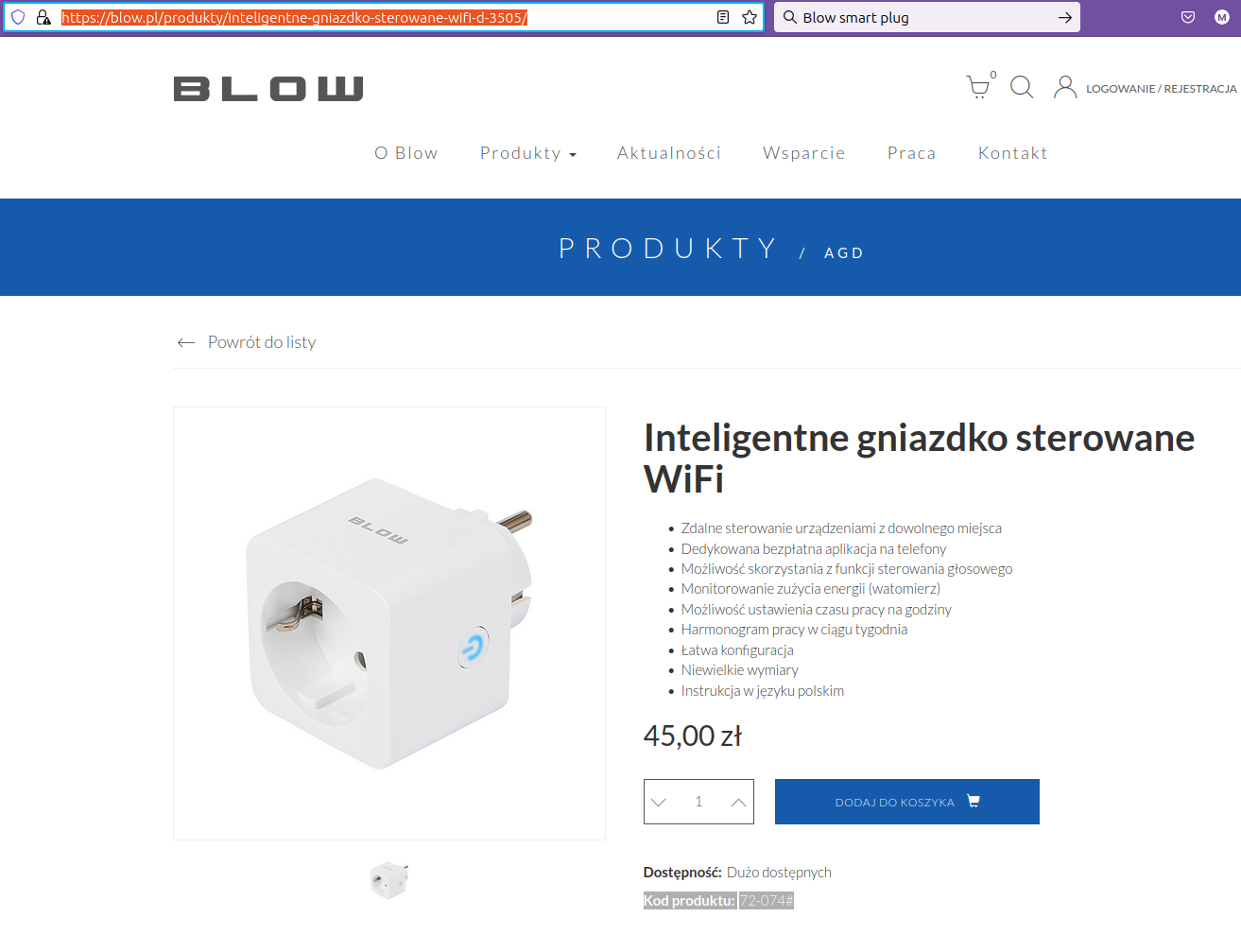
Hi, I recently test-purchased a SMART socket of the Polish brand BLOW. This is a Smart Life/Tuya socket. Experimenting with it with Home Assistant - localtuya I came to the conclusion that it is a CB2S platform. I tried to take this socket apart without destroying it, but unfortunately I did not succeed. I would love to convert it to a completely local . The damage seen in the left image is the result of my attempts to take the object apart. But I did not find any attachments/mounts in these areas near the edges. I was not able to bend the contact at the corners. The plastics are hard, and I don't want to (yet) break this case. Maybe someone has already done this, or met with a similar case? Greetings!
Hello, unfortunately I don't recall this particular housing, although I've disassembled many such products....
Even from Blow not long ago, at the request of someone, I uploaded an OBK to the sockets, but there were some:
I see, that you have a slightly different model, but in the case of my Blow it was not even possible to remove the PCB and I had to simply drill a hole at the bottom of the socket and solder the wires to the CB2S feet. Then I still had to secure it after flashing.
Added after 1 [minutes]:
Maybe there is a hidden screw like in Blitzwolf sockets? I'm just guessing, I could be wrong: But Blow has rather not very detachable sockets
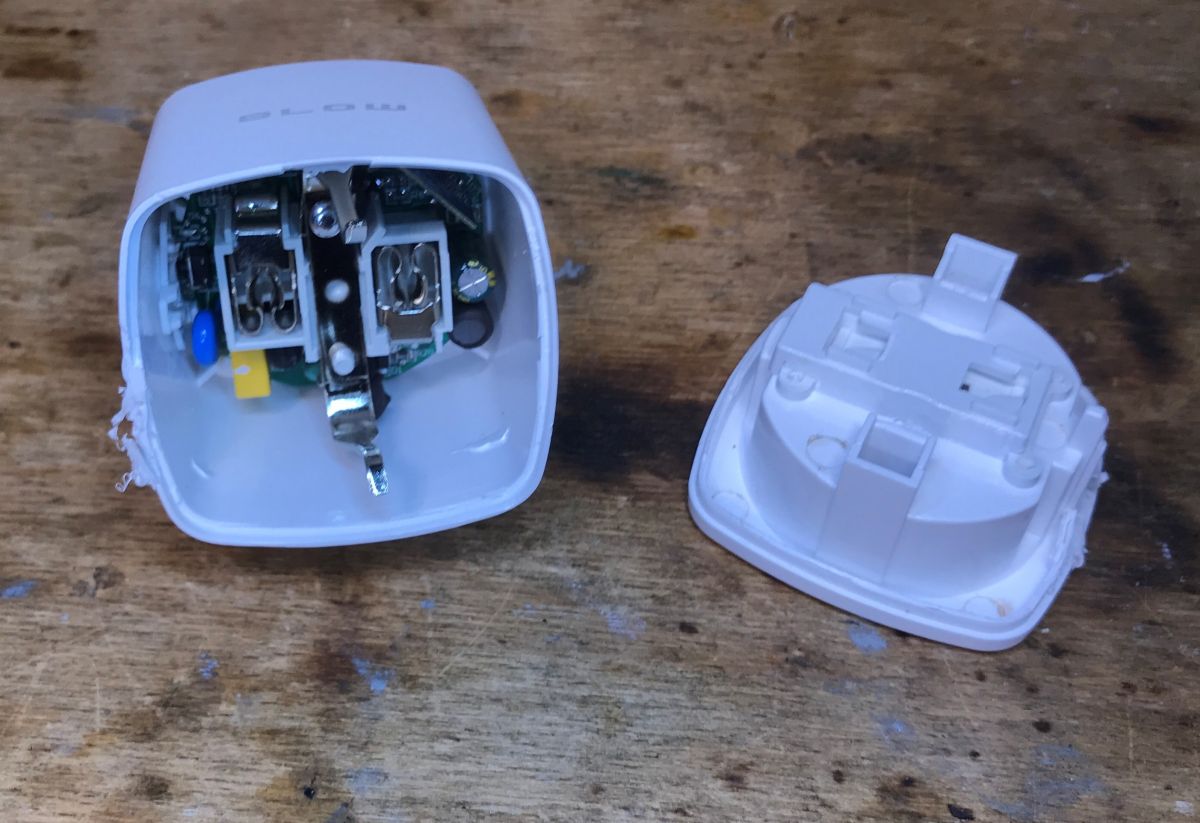
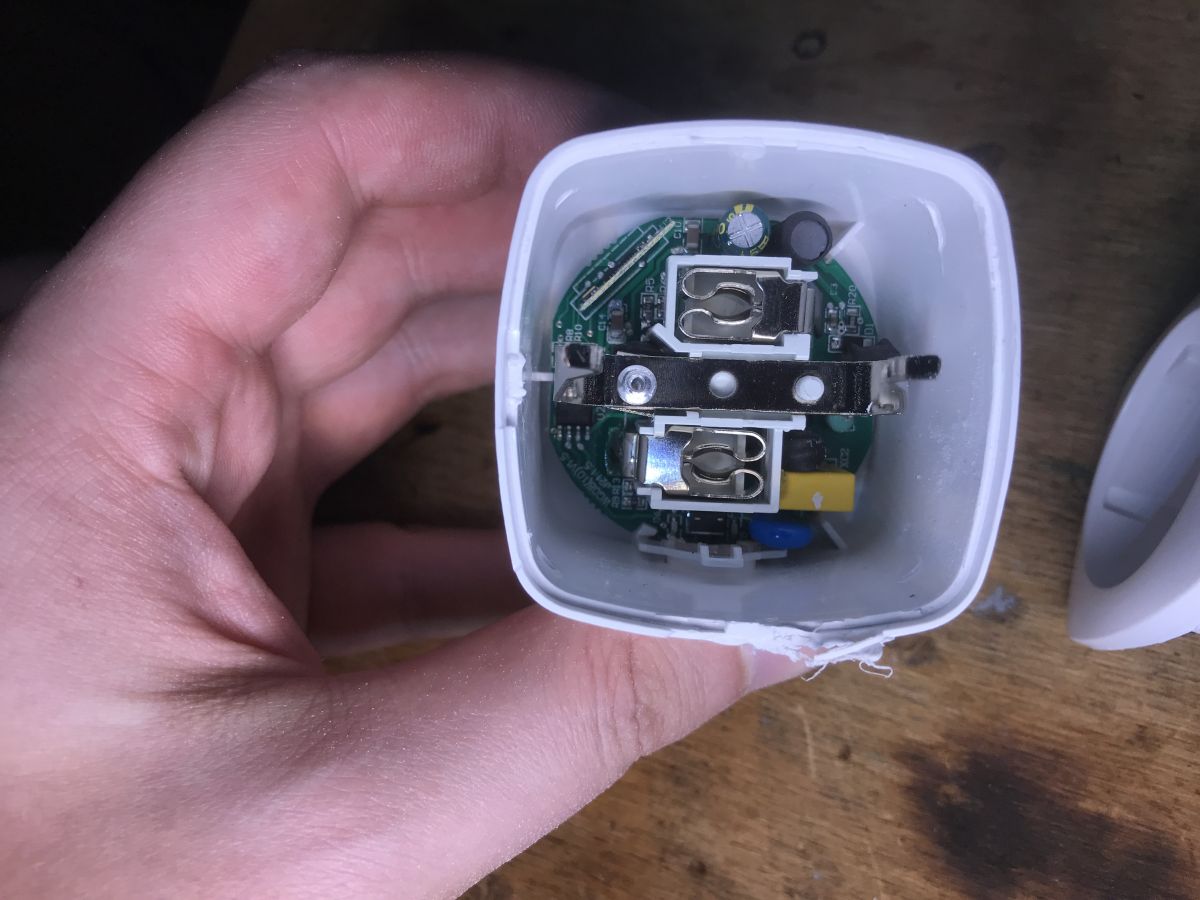
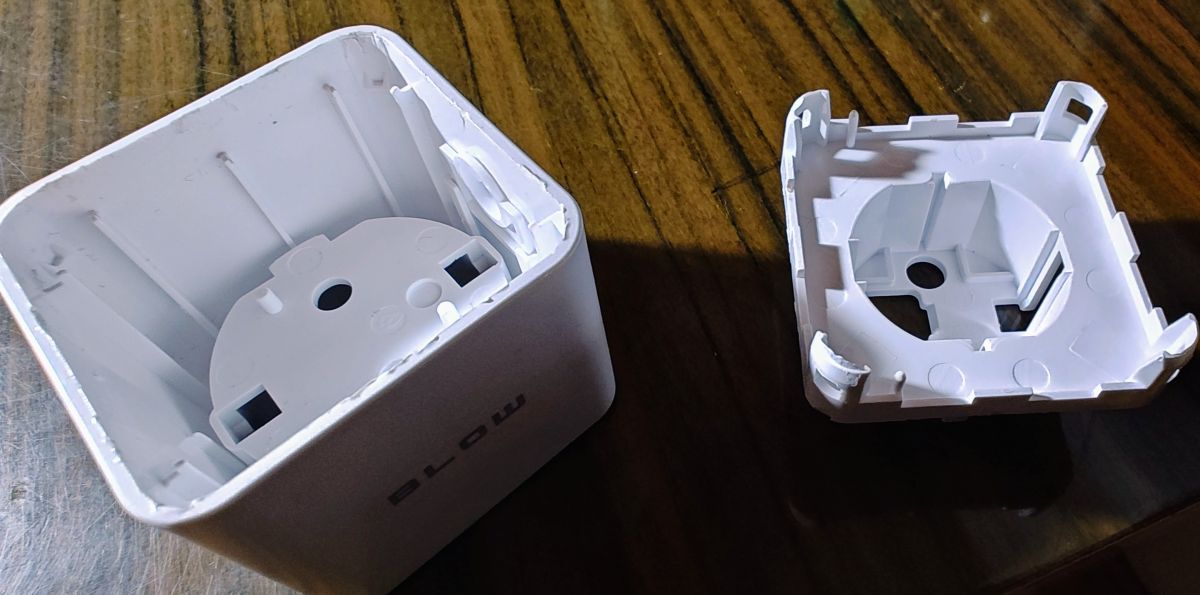
It worked! Without destroying the case! As I thought, the fixings are in the corners. You can see them in the pictures. It wasn't easy. I soldered in RX, TX and GND and now have to read the backup and flashing procedure. I am 100% sitting under Linux. There are tools for Penguin
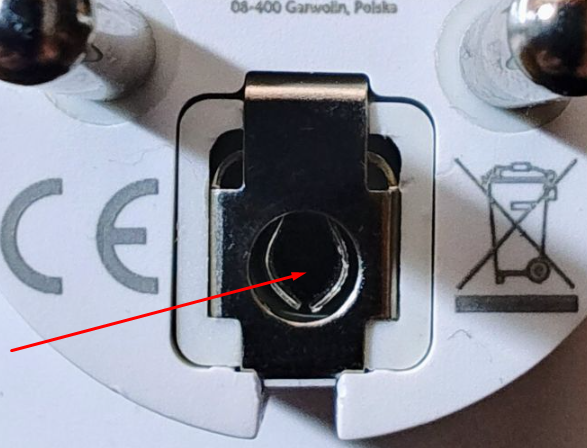
In the pinhole the screw is not there. I have checked before .
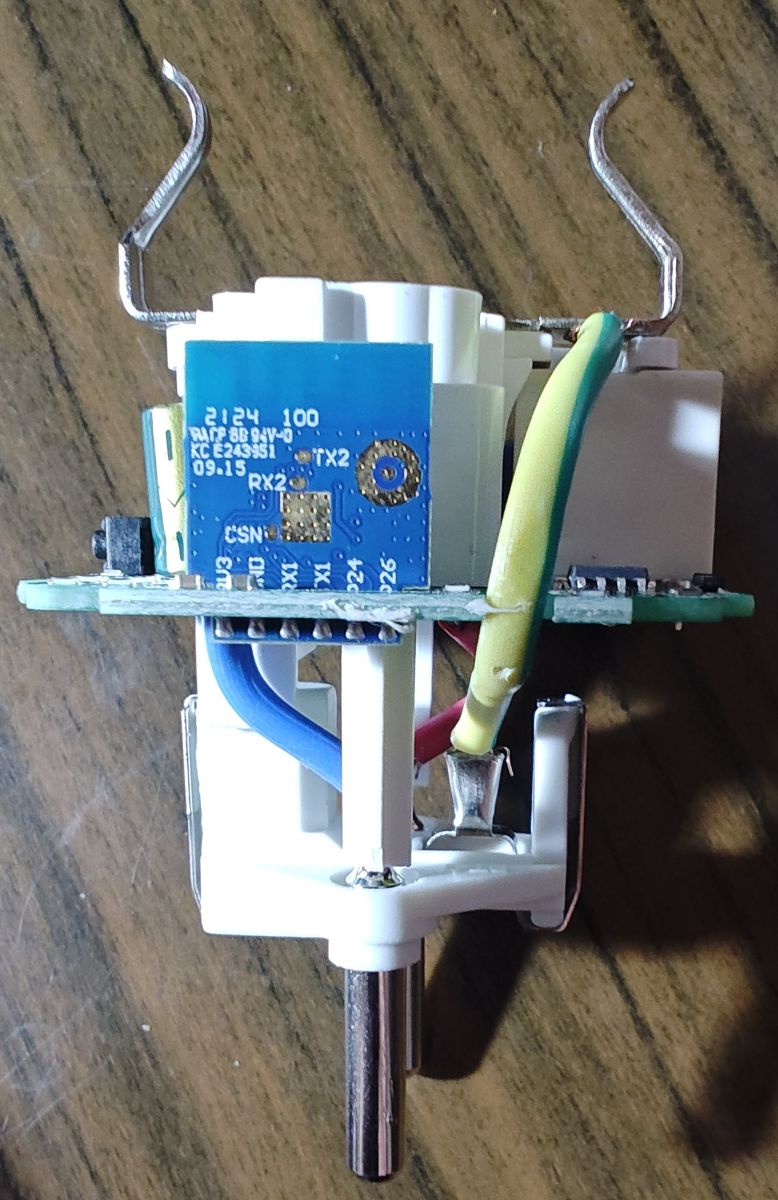
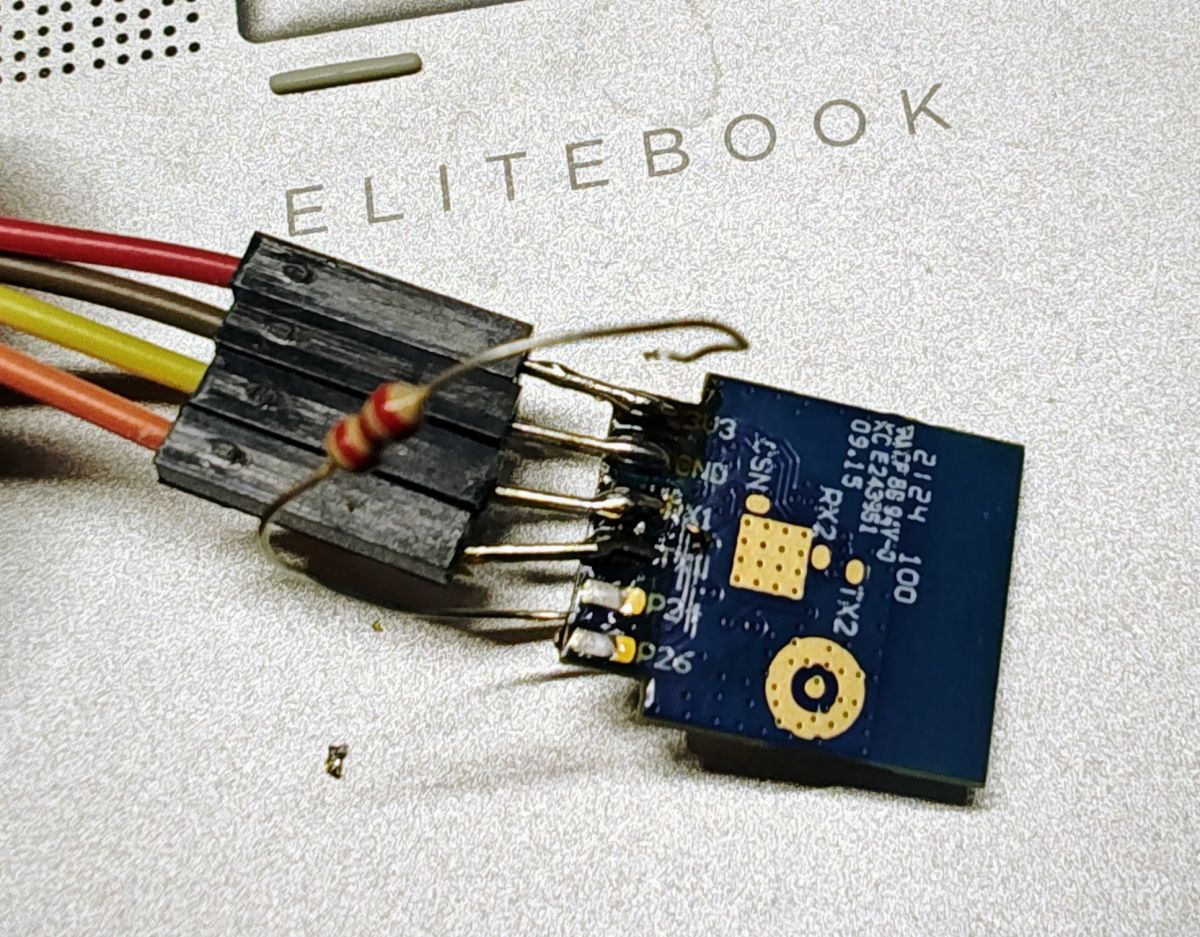
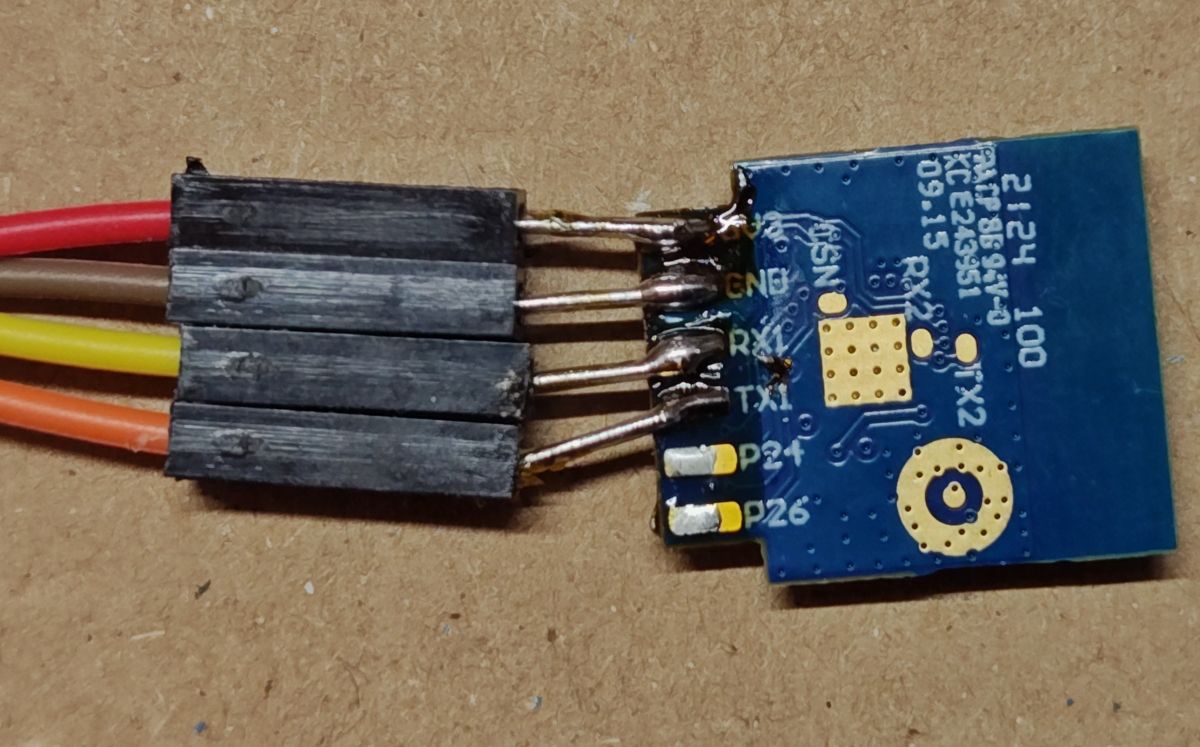
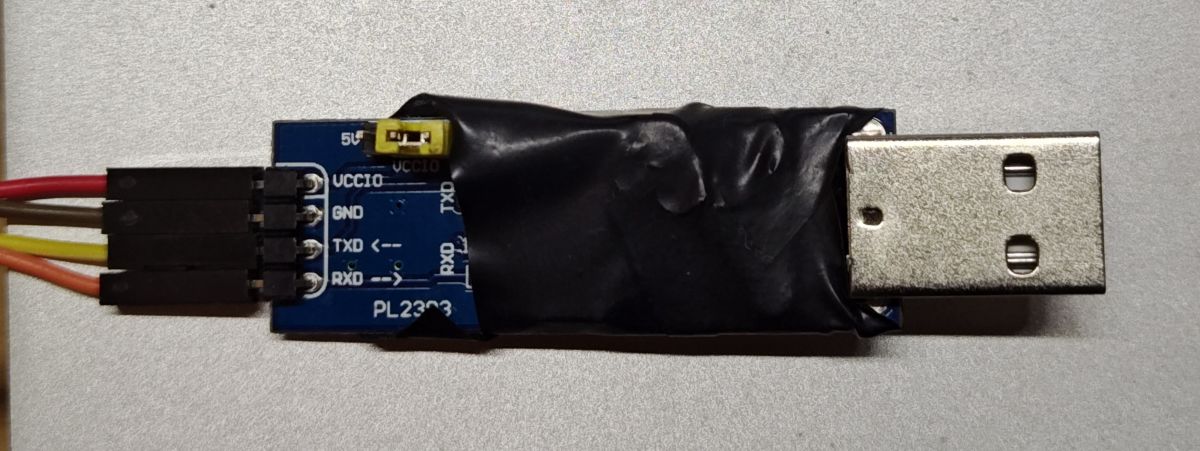
I soldered the CB2S module from the "motherboard" and soldered the wires to it. I found it easier than knocking out capacitors, cutting paths, etc... I added a reset resistor to the CEN. I connected it to my USB-UART (PL2303). It came out neatly . To make it easier for myself I ran bk_writer1.6 under Win and fiddled with the flash reading. The file came out small - 1.1 MB. As I fiddled with the address ranges, it came out 2 MB, but each different.... (different checksum). When I fiddled even more with the addresses, I was able to download up to 3 MB. I did not try more. Another approach - hid_download_py. This program (already under Linux) downloaded me .... 1.1 MB and the checksum agrees with this small file downloaded by bk_writer1.6.
I am posting the small file. Please let me know if such is enough to extract the GPIO configuration or maybe something more...
Greetings! BLOW-plug_..074.bin (1.1 MB)You must be logged in to download this attachment. .
@p.kaczmarek2, thank you for leading by the hand! The given command ends with a CRC check failed error, but gives stable results - the file is the same every time. I'll post it!
Attachments:
BLOW-plug_72-074.bin(2 MB)
You must be logged in to download this attachment.
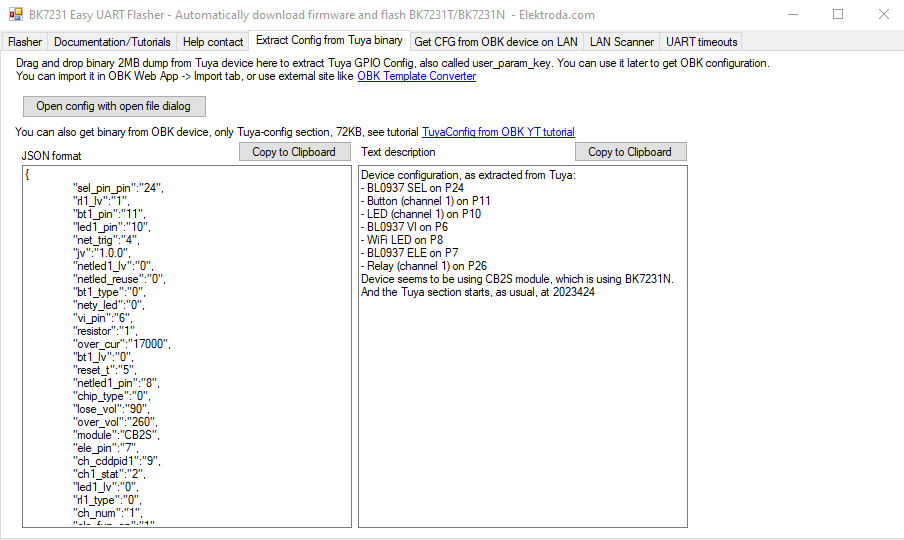
Device configuration, as extracted from Tuya:
- BL0937 SEL on P24
- Button (channel 1) on P11
- LED (channel 1) on P10
- BL0937 VI on P6
- WiFi LED on P8
- BL0937 ELE on P7
- Relay (channel 1) on P26
Device seems to be using CB2S module, which is using BK7231N.
And the Tuya section starts, as usual, at 2023424
Tuya JSON can be imported after flashing like this:
@p.kaczmarek2 Revelation! The socket works! I uploaded version 1.17.360 via uartprogram, configured via WWW from a JSON file from you. I checked if it works before I soldered the CB2S module into the "main board" - WiFi connection, MQTT reporting and if there is voltage on pin 26 after switching on the socket via WWW. It worked!
Then I cleaned all the pads, soldered the CB2S in place, plugged it in and ... everything is fine. I even report parameters of voltage, current, power, current consumption although not perfectly. I did a voltage calibration with the web application, but the readings of the socket and multimeter still diverge. It looks like there is some offset from below. I configured the local NTP.
I played with the General/Flags settings. I turned on Flags 2, 19, 27, 30.
I hoped that some discovery mechanism in HA would work, but I failed .
Update. I entered the command: scheduleHADiscovery 10 (then scheduleHADiscovery 3600 - every 10sec pointless). I got the MQTT database -> homeassistant -> switch and sensor. (I'm viewing it via an external GUI). I found the device in Devices -> MQTT. HA it doesn't report the new device itself, but I can add it. I imagined it would go like from Tasmot to SONOFF, but it's still great!
Also 95% success! The other 5% is calibration of the voltage/voltage/power module!
Congratulations, it went fairly smoothly. So are you suggesting that HA Discovery should turn itself on, without typing in a command? So far we have a mechanism as here:
You do the calibration as in Tasmot, but on the Web App you also have command wrappers for this.
Of course I did not see this video, and how. Thank you for your patience I also missed the "Start Home Assistant Discovery" button I would have found it easier with these items.
What about Tasmot's autodiscovery, it's I guess like this: 1. The device sends discovery to MQTT, but the tree is tasmot/discovery/MACADDRESS There are "config" and "sensors" entries. Example (my) entries below. 2. There is a Tasmota add-on running on the HA https://www.home-assistant.io/integrations/tasmota and this add-on seems to check the corresponding MQTT tree for new devices. 3. The HA in Notifications informs about a new detected device that can be added.
I stress, the words "probably" in the procedure. When I check on another device I'm going to add, I'll make sure it actually works that way.
Below are the entries in MQTT->tasmota/discovery/MACADDRESS of my SONOFF MiniR2 device on which I uploaded Tasmota. This is not related to BK7231. config={"ip": "10.122.1.80","dn":"MINIR2-1","fn":["MINIR2-1",null,null,null,null,null,null,null],"hn":"minir2-1-90DF8E-8078","mac":"80646F90DF8E","md":"Sonoff Basic","ty":0,"if":0,"ofln":"Offline","onln":"Online","state":["OFF","ON","TOGGLE","HOLD"],"sw":"13.3.0","t":"minir2-1_90DF8E","ft":"%prefix%/%topic%/","tp":["cmnd","stat","tele"],"rl":[1,0,0,0,0,0,0,0,0,0,0,0,0,0,0,0,0,0,0,0,0,0,0,0,0,0,0,0,0,0,0,0],"swc":[-1,-1,-1,-1,-1,-1,-1,-1,-1,-1,-1,-1,-1,-1,-1,-1,-1,-1,-1,-1,-1,-1,-1,-1,-1,-1,-1,-1],"swn":[null,null,null,null,null,null,null,null,null,null,null,null,null,null,null,null,null,null,null,null,null,null,null,null,null,null,null,null,null,null,null], "btn":[0,0,0,0,0,0,0,0,0,0,0,0,0,0,0,0,0,0,0,0,0,0,0,0,0,0,0,0,0,0,0
The discussion revolves around disassembling the Blow smart socket (model CB2S) to change its firmware for local control. The original poster faced challenges in opening the device without causing damage but eventually discovered hidden fixings in the corners. After successfully accessing the internal components, they soldered connections for RX, TX, and GND to flash the firmware. Various methods and tools for reading and writing firmware were discussed, including using Linux and specific software like bk_writer and hid_download_py. The user successfully uploaded a new firmware version, enabling features like WiFi connection and MQTT reporting, although some calibration issues remained. The conversation also touched on Home Assistant integration and the discovery mechanism for smart devices. AI summary based on the discussion. May contain errors.
TL;DR: To locally flash a BLOW 72‑074 smart socket (CB2S/BK7231N), you'll need a 2 MB backup—"Unfortunately you need a 2MB file"—and careful corner‑clip opening. This FAQ walks Linux‑first users through disassembly, UART, JSON import, HA discovery, and calibration. [Elektroda, p.kaczmarek2, post #20864944]
Why it matters: It lets you replace Tuya cloud control with private, fast MQTT/Home Assistant control while keeping the hardware intact.
This FAQ is for makers who ask how to open, back up, flash, and integrate a Blow CB2S smart socket without breaking it.
How do I open the BLOW 72‑074 socket without damage?
Pry at the four internal corner clips. Work around the rim with thin spudgers. The plastic is stiff, so go slowly. The center pinhole is not a screw mount. Avoid levering mid‑edge to prevent case scars. “It wasn’t easy,” but it is doable. [Elektroda, MK-dugi, post #20863022]
Is there a hidden screw in the pinhole?
No. The user confirmed the pinhole does not conceal a screw. Disassembly relies on releasing tight corner clips only. Check each corner and keep even pressure to avoid cracking the shell. [Elektroda, MK-dugi, post #20863022]
Which Wi‑Fi module and pins does this socket use?
It uses Tuya CB2S (BK7231N). The Tuya JSON indicates: Relay P26, Button P11, LED P10, Wi‑Fi LED P8, BL0937 VI P6, ELE P7, SEL P24. Importing this JSON config replicates stock behavior under OpenBeken. [Elektroda, p.kaczmarek2, post #20865102]
What backup size and tools do I need before flashing?
Make a full 2 MB dump. Older tools require you to set 2 MB manually. You can use bk_writer or hid_download_py. A newer BK7231GUIFlashTool exists; it runs on Windows, and users run it via mono. [Elektroda, p.kaczmarek2, post #20864944]
My dump shows “CRC check failed,” but files are identical. Safe to proceed?
Yes. The reported case produced a stable, repeatable 2 MB file despite a CRC error. Quote: “CRC check failed ... but gives stable results.” Keep the consistent dump and continue with flashing and JSON extraction. [Elektroda, MK-dugi, post #20865047]
How do I wire UART to CB2S and enter flashing mode?
The author desoldered the CB2S for clean access and added a reset resistor to CEN, then used a PL2303 USB‑UART.
Expose pads or lift the module; add a reset resistor to CEN.
Yes. A Linux method is confirmed. Use the Python HID downloader and related tooling as demonstrated. You can complete dump, flash, and verification without Windows. [Elektroda, p.kaczmarek2, post #20863039]
How do I import Tuya JSON into OpenBeken after flashing?
Open the OBK web UI and use the Tuya JSON import. This quickly sets pins, relay, LEDs, and energy metering. It mirrors the extracted Tuya profile for CB2S/BK7231N. [Elektroda, p.kaczmarek2, post #20865102]
How do I get Home Assistant to discover the device over MQTT?
Publish HA discovery by running scheduleHADiscovery with an interval, then check homeassistant/ topics. You can also use the “Start Home Assistant Discovery” control in the UI. The device then appears under HA’s MQTT integration. [Elektroda, MK-dugi, post #20865616]
How do I calibrate voltage, current, and power readings?
Calibrate like Tasmota. Use OpenBeken’s web app wrappers for meter calibration commands. Adjust against a reliable multimeter and load. Repeat until readings match. “You do the calibration as in Tasmot.” [Elektroda, p.kaczmarek2, post #20865727]
My readings still have a low-end offset. What should I expect?
Expect some initial offset on voltage and power before calibration. The author observed divergence versus a multimeter. Run voltage calibration in the web app and refine. Edge case: minor residual offset may remain at very low loads. [Elektroda, MK-dugi, post #20865616]
What if the PCB won’t come out to access the module pads?
An alternative is drilling a small hole in the base, then soldering to CB2S pins directly. After flashing, reseal and secure the opening. This approach was required on a similar Blow socket. [Elektroda, p.kaczmarek2, post #20862942]
What’s the exact model and what did it cost in this case?
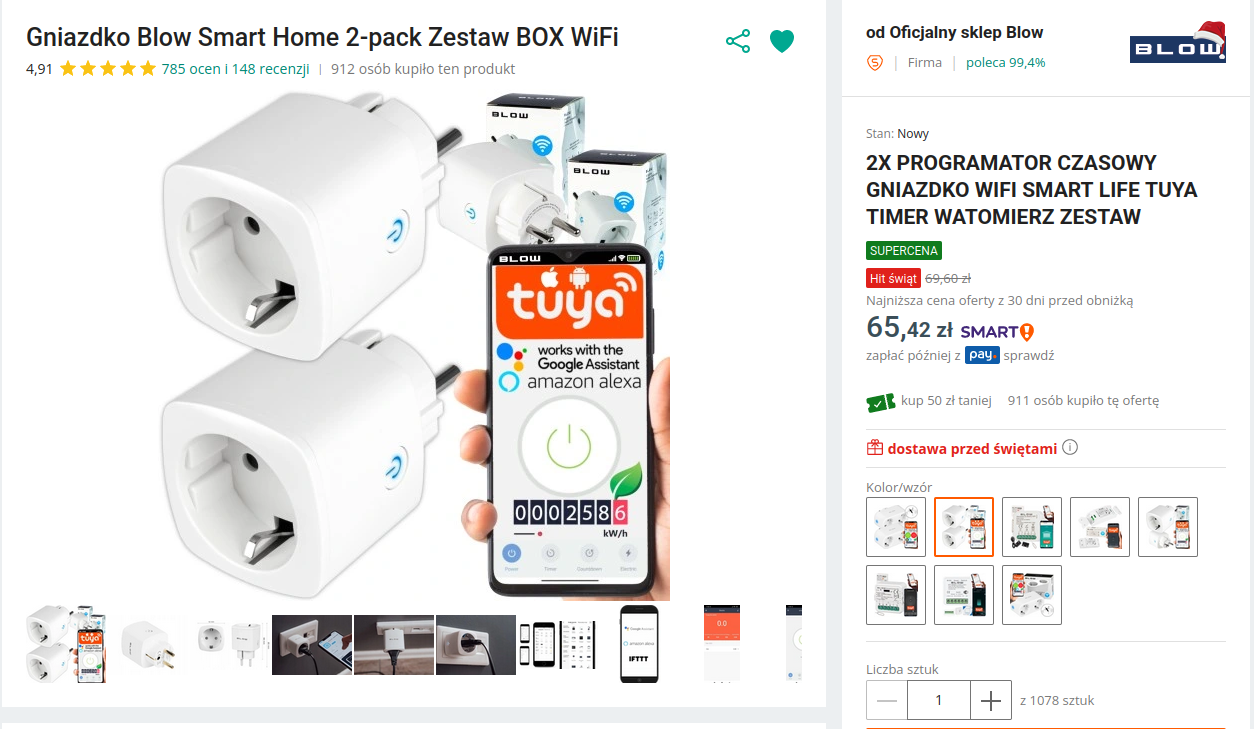
Model is BLOW 72‑074. The user purchased a 2‑pack for 66 PLN. A product page and listing screenshots were provided for reference. This gives a realistic budget for experiments. [Elektroda, MK-dugi, post #20863053]
Which OpenBeken version was confirmed working?
Version 1.17.360 was flashed via uartprogram. The socket connected to Wi‑Fi, reported MQTT, and drove Relay on P26. Energy telemetry also worked after calibration steps. [Elektroda, MK-dugi, post #20865616]
Where does the Tuya section reside in the flash dump?
The Tuya JSON block starts at offset 2,023,424 bytes in the provided dump. This helps when carving configurations during analysis. [Elektroda, p.kaczmarek2, post #20865102]
AI summary based on the discussion. May contain errors.







 .
.

 .
.