logo elektroda
logo elektroda
X
logo elektroda

Teardown & Flashing Guide for Ener-J Tuya Touch Switch Models ETS301W & ETS302W

TheCleaner 2202 1
ADVERTISEMENT
📢 Listen (AI):
  • This covers the teardown and flashing method for both the following models (both physically stripped and flashed).
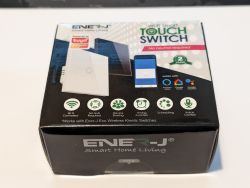
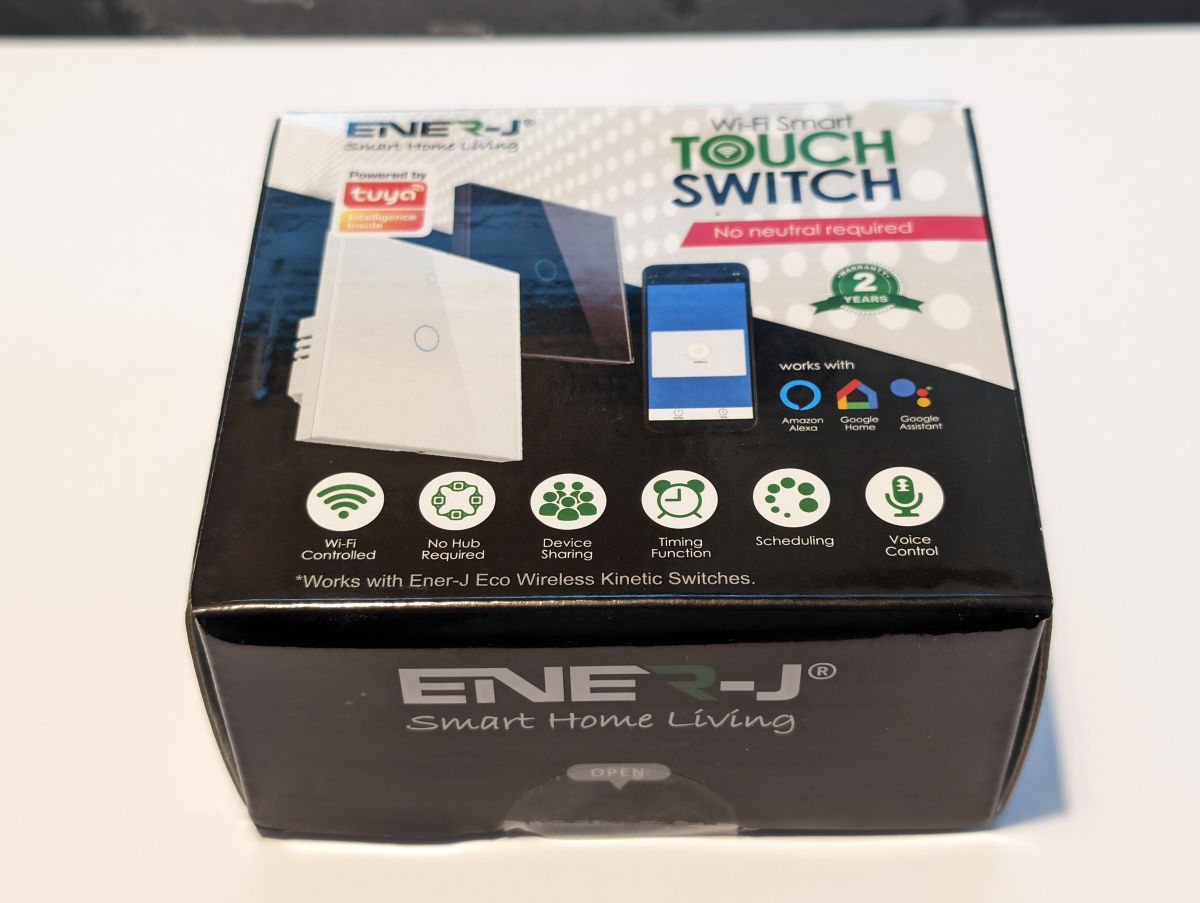
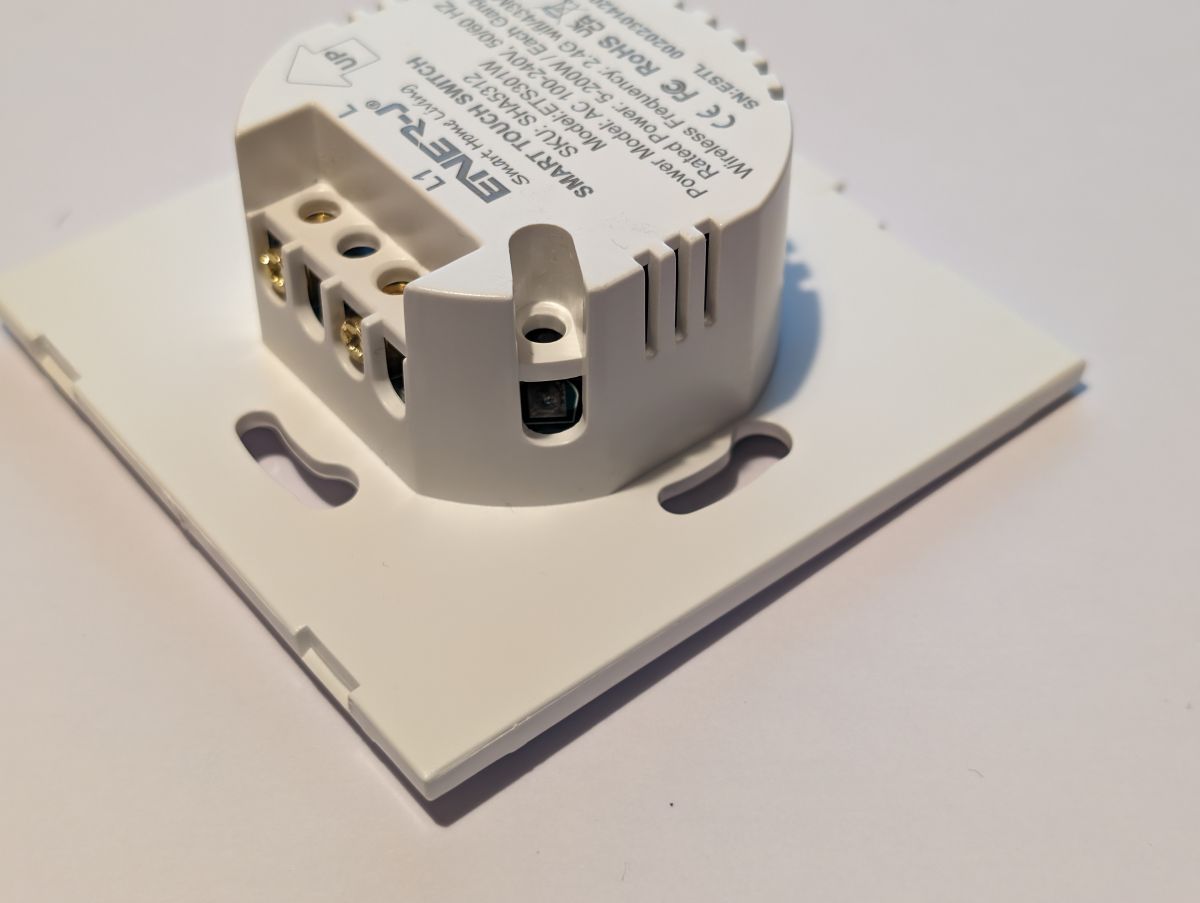
    Ener-J touch switch box with feature information.

    1 Gang White - Model No. ETS301W - SKU SHA5312 - Batch No. S627
    2 Gang White - Model No. ETS302W - SKU SHA5313 - Batch No. S627

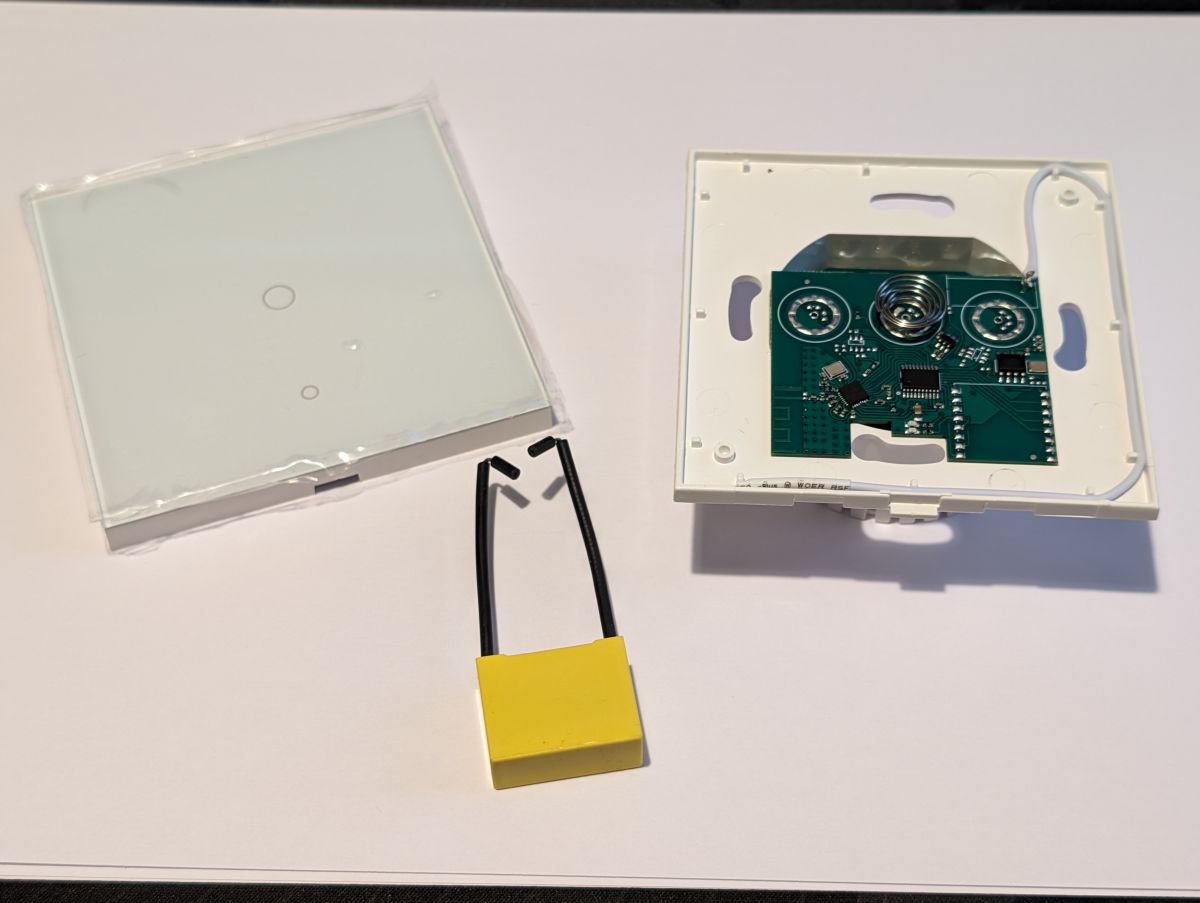
    Both of the above models state they do not need a dedicate neutral at the switch, they provide a capacitor to be installed at the light across neutral and the live from L1 on the switch. They do not provide a neutral terminal to use, if you do have a neutral at the switch like many newbuild houses, later in the post I provide details of a simple mod to add a neutral tail to avoid needing the capacitor and using the neutral at the switch.

    Unboxing the switch & what is in the box.
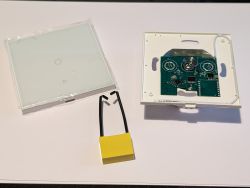
    Disassembled white touch switch with visible PCB and capacitor.

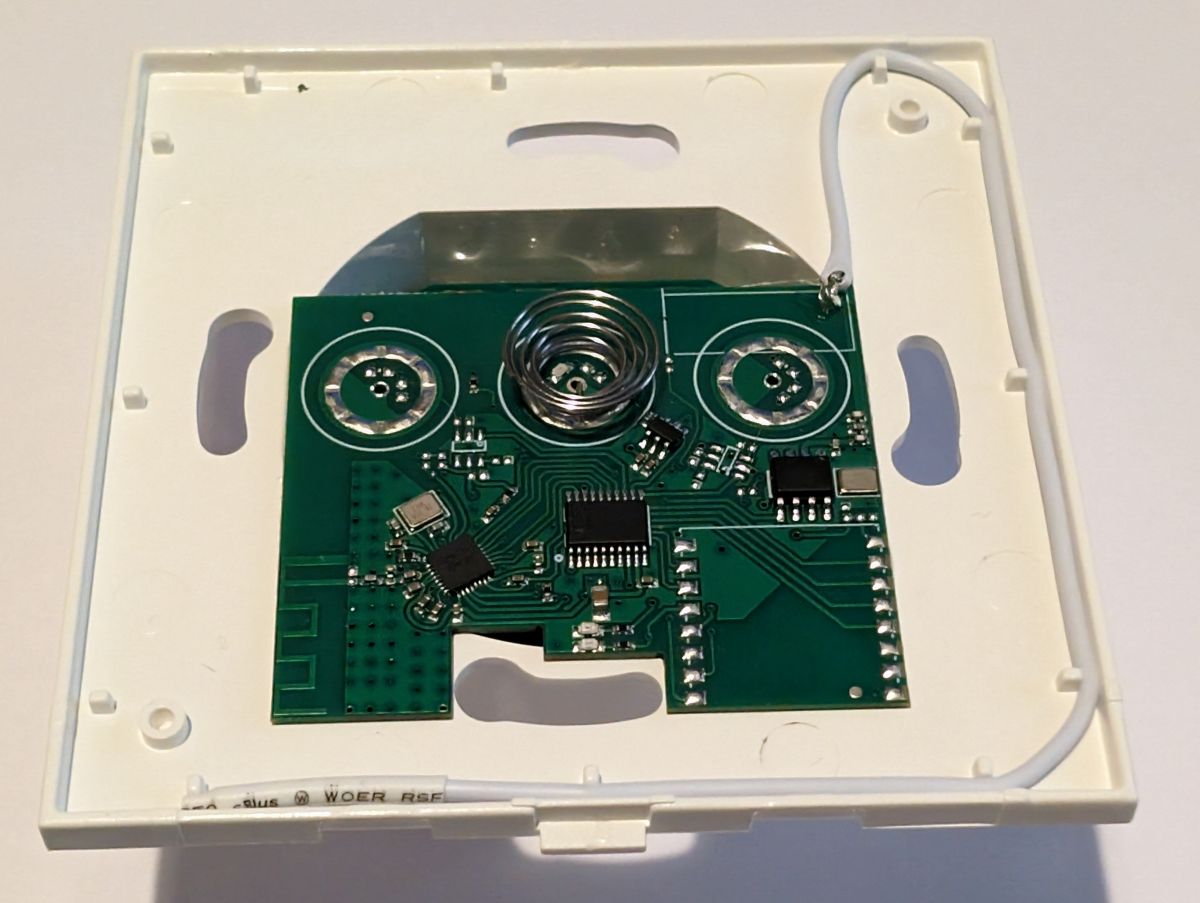
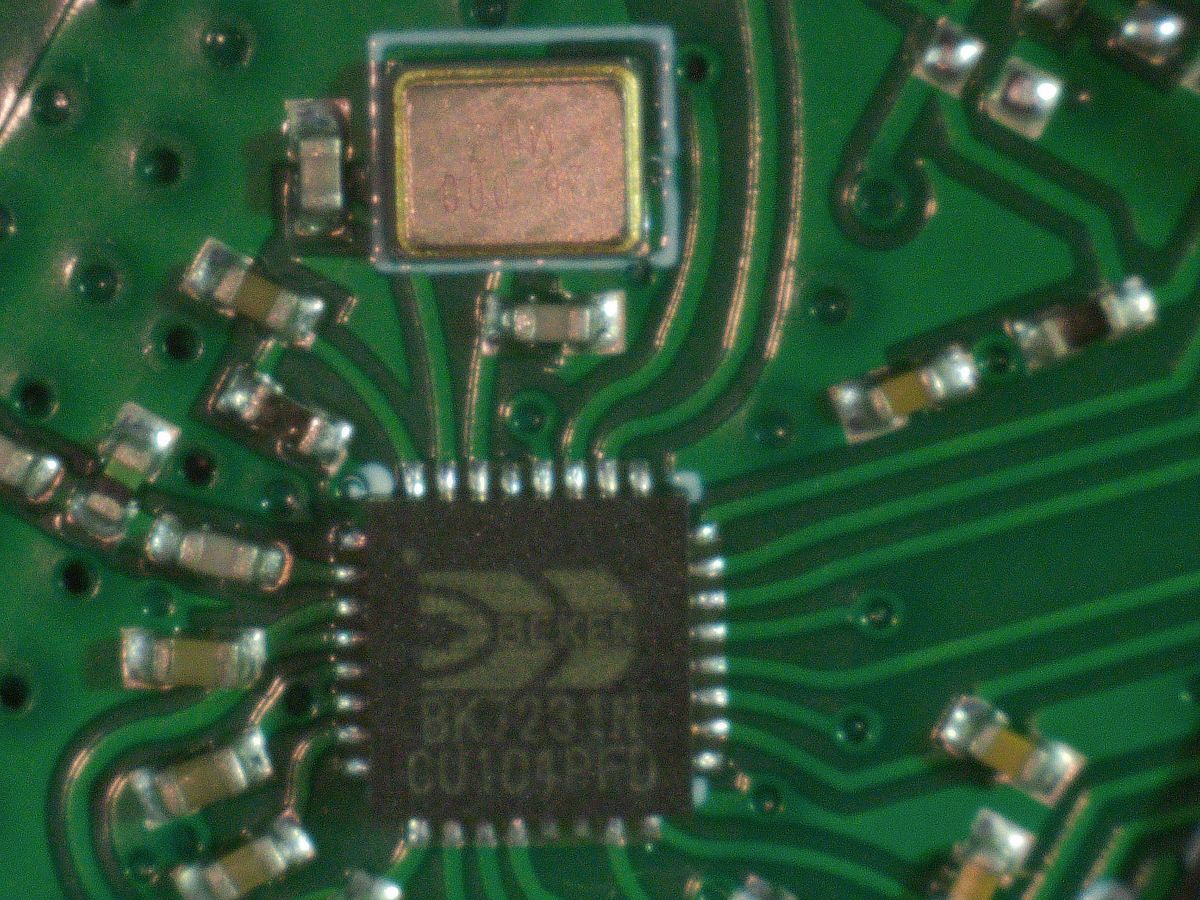
    Initial inspection was a little worrying as the typical daughter board such as the CBU was missing and the whole unit appears to be integrated on one board, you can see the WIFI antenna and the frequency crystal on the lefthand side of the board which is also where the BK7231N is located.
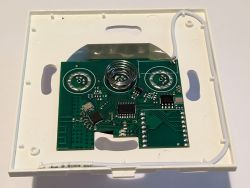
    PCB with electronic components on a white case of the Ener-J Touch switch.

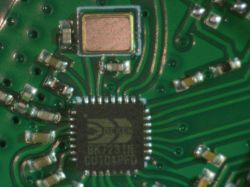
    A close-up identifies the BK7231N.
    Close-up of a printed circuit board with a BK7231N CUI01P60 chip and several other components.

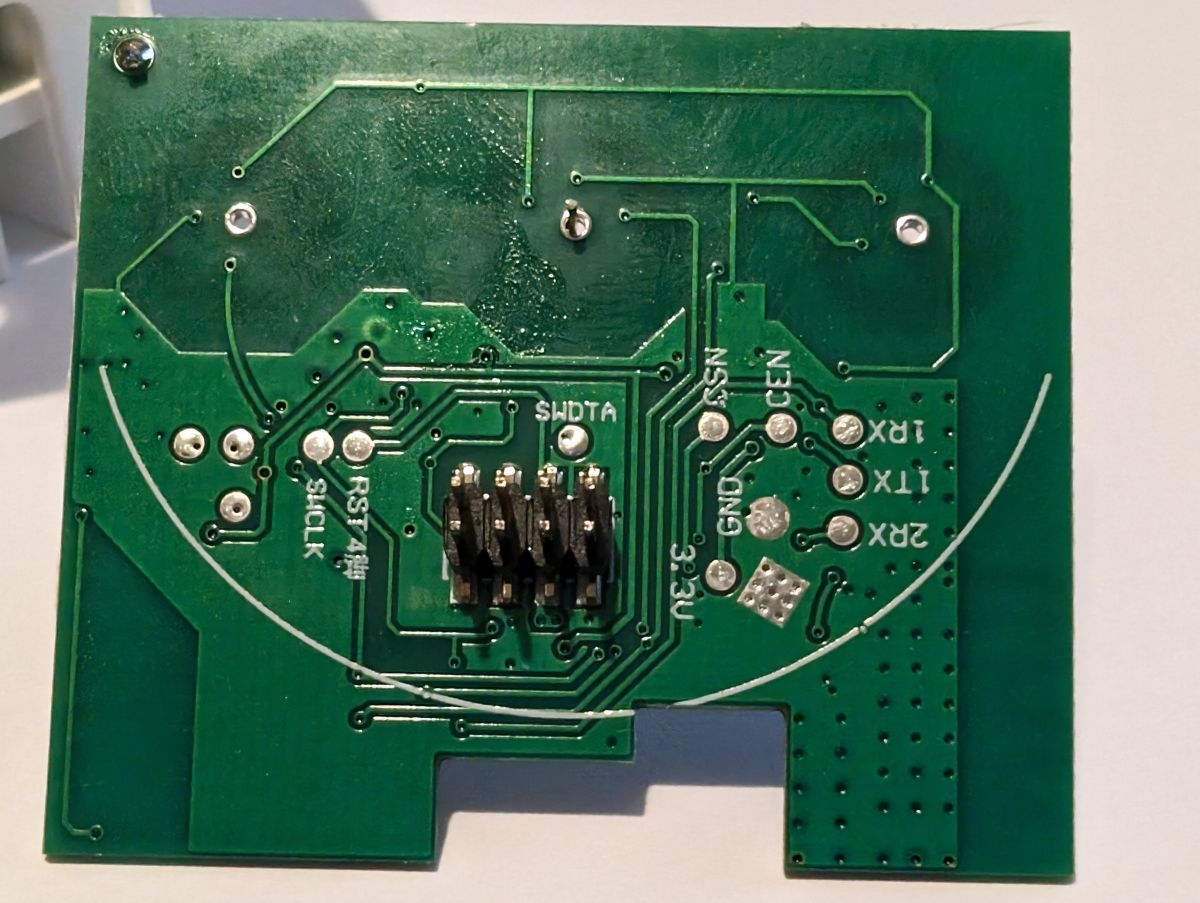
    Seeing this I thought it was going to be a nightmare to trace and find solder pads, but to my relief and thanks to the developers, the switch pcb just pulls off from a 8 pin socket and on the reverse side reveals labelled solder pads, which are large enough to solder directly to and for my first switch as I was eager to make progress I did solder successfully to these.
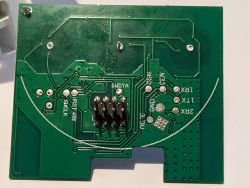
    Close-up of the backside of a touch switch PCB with labeled soldering pads and an 8-pin connector.

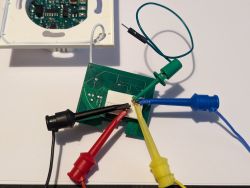
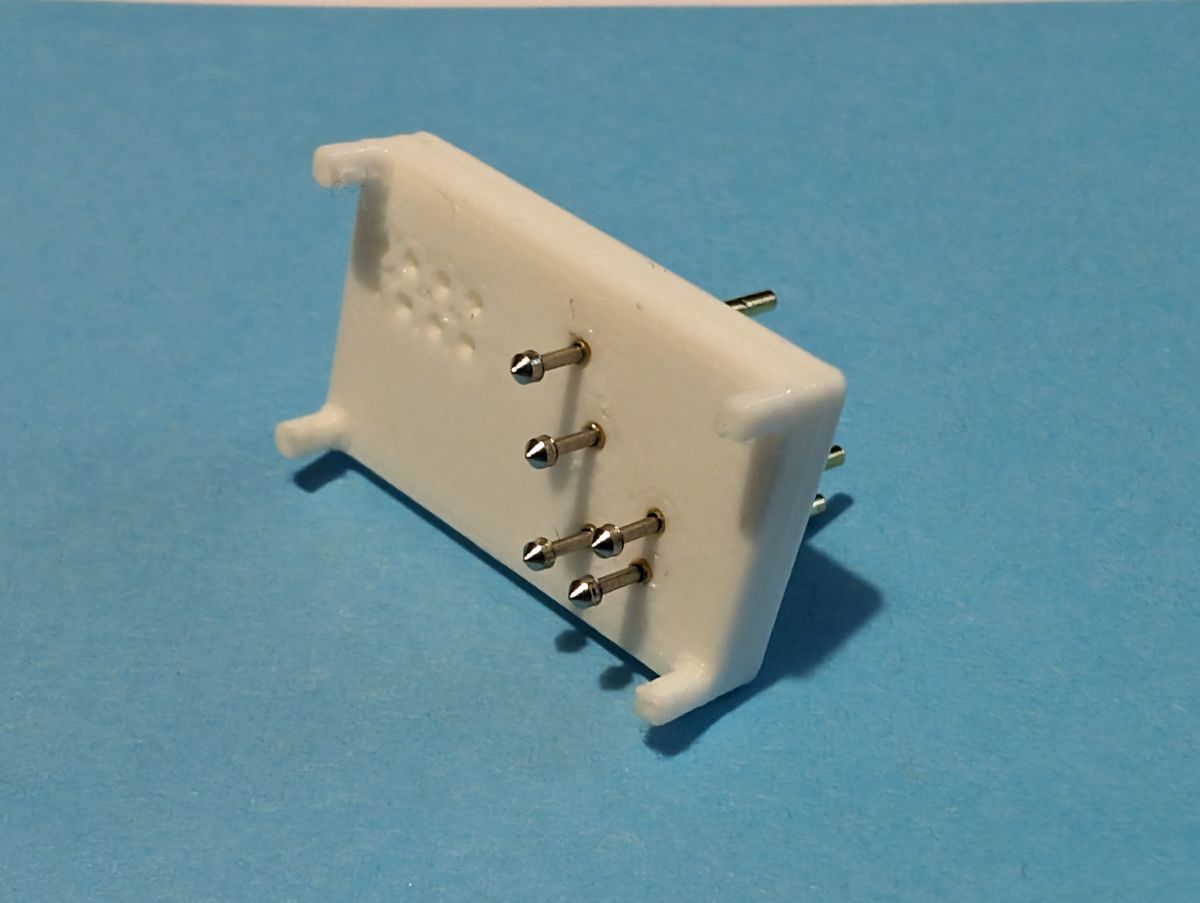
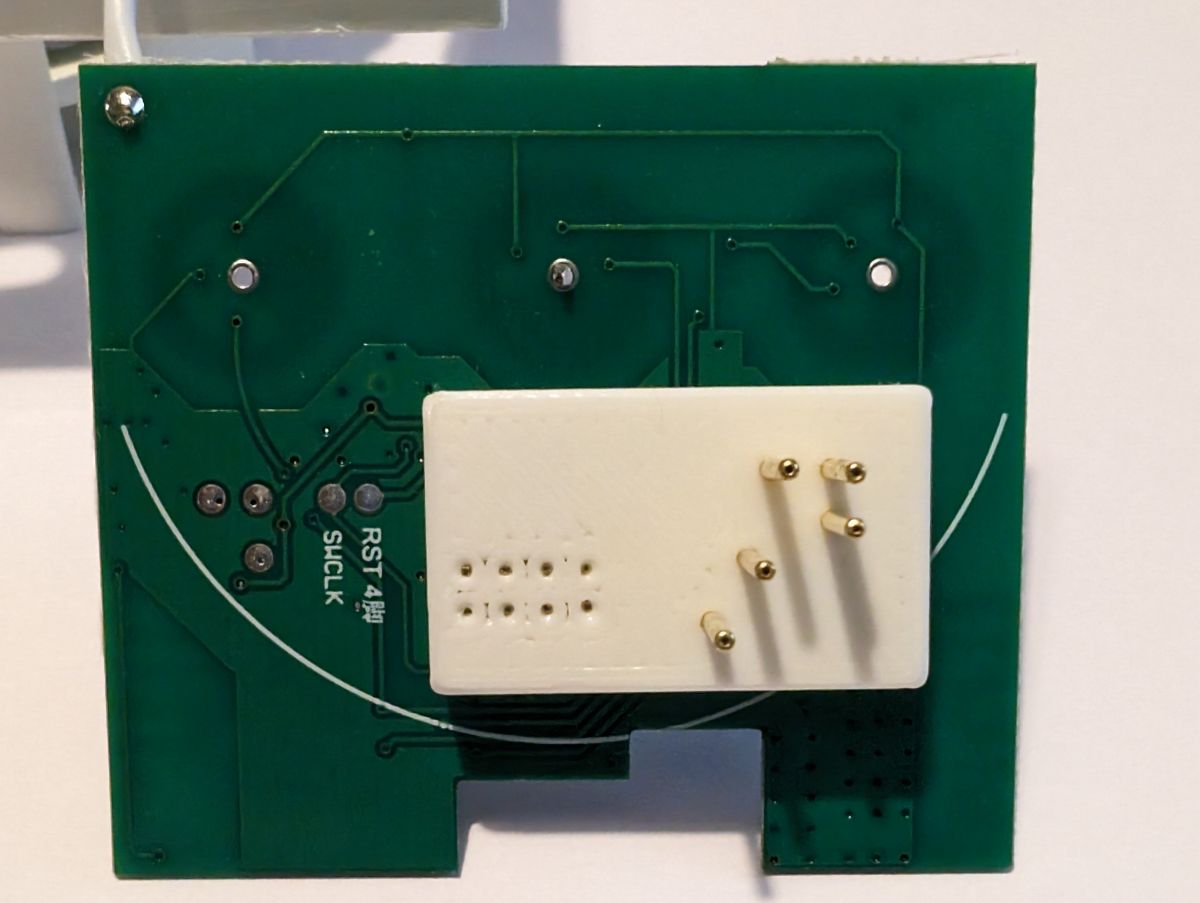
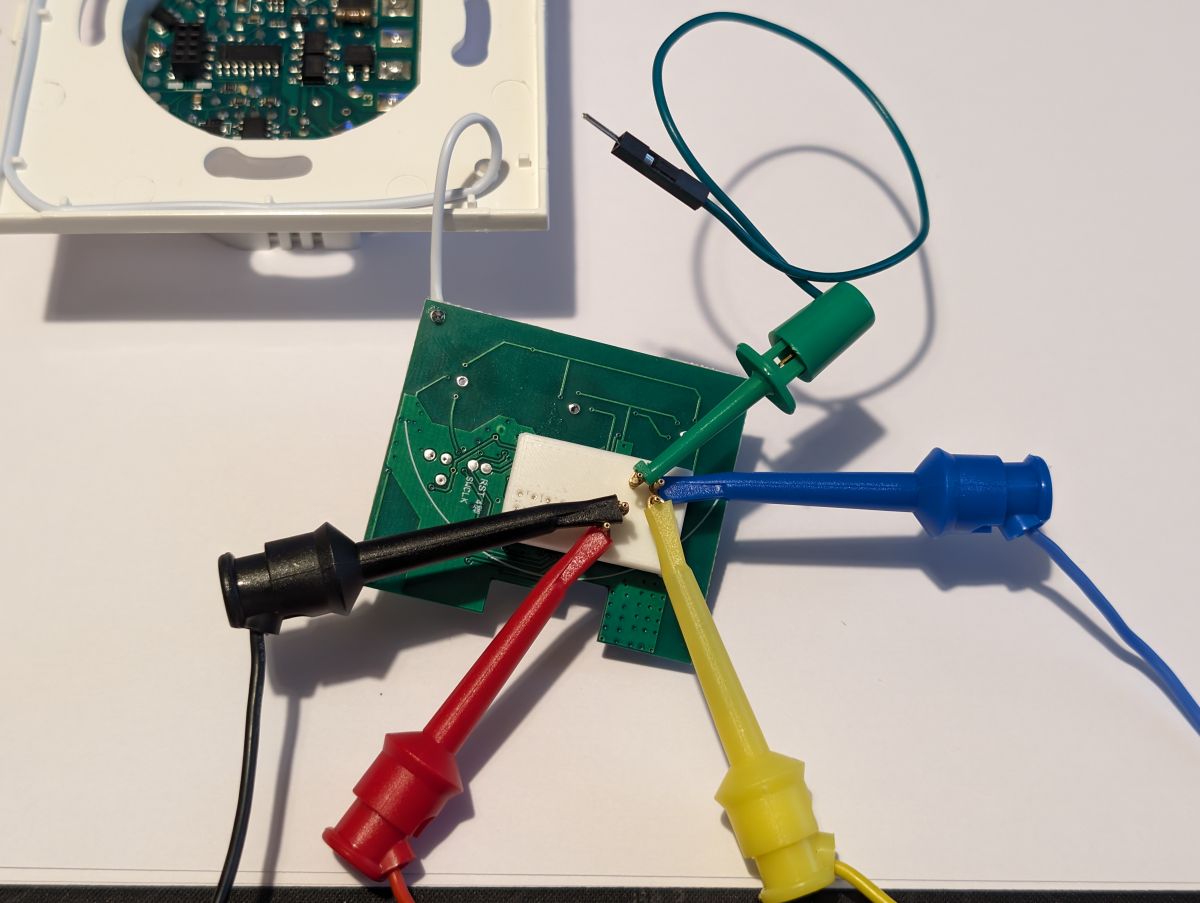
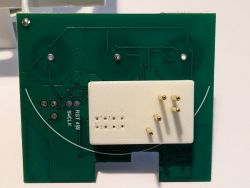
    I, like many of you, prefer simpler solderless flashing solutions, so I set to with CAD and came up with a handsfree clip on pogo pin adapter, this uses the 8 pin connector on the PCB to securely and accurately locate the adapter and I prefer to use clip on test wires to make the connection, but you could equally solder jumper cables to the pogo pins. The adapter has been made readily available here at www.printables.com and is of course free to download and print yourself (If you don't have a 3D printer and want one printed with pogo pins installed please pm me). In the last picture with my test wires clipped in place, Red(3.3V), Black(GND), Yellow(Tx), Blue(Rx) and Green(CEN) this device responded well to the tapping of CEN to GND to start the flashing process.
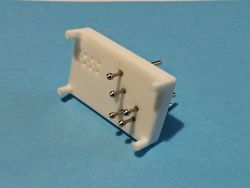
    Pogo pin clip adapter for ETS301W and ETS302W modules. Circuit board with attached pogo pin clip adapter. Close-up of a switch circuit board with connected test leads.

    Template for the 1 Gang Model No. ETS301W
    Code: JSON
    Log in, to see the code


    Template for the 2 Gang Model No. ETS302W
    Code: JSON
    Log in, to see the code


    For those of you who have read this far and want the additional mod to utilize a neutral at the switch, this is less than a 5 minute process, you will need the correct colour and guage multi strand cable for your country, a small phillips screwdriver and a soldering iron.
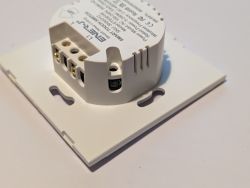
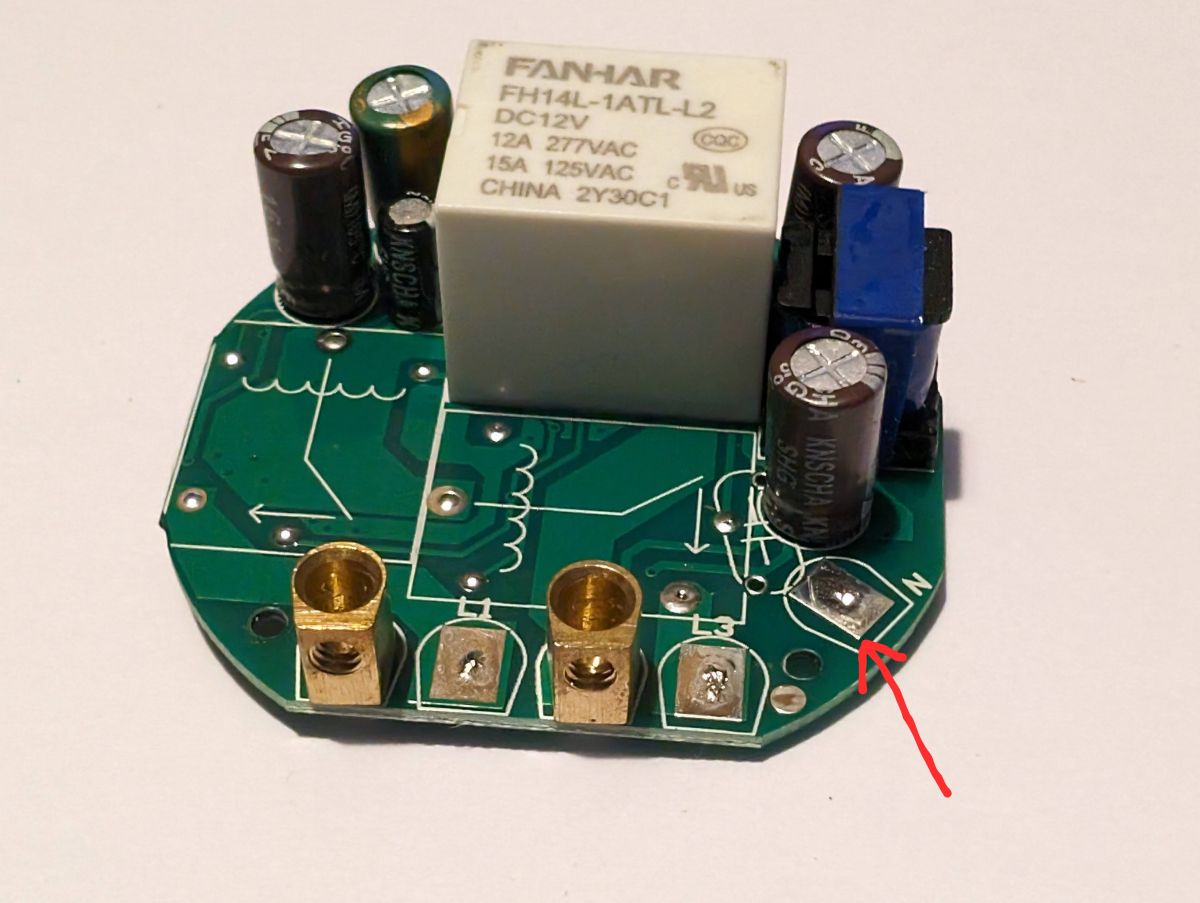
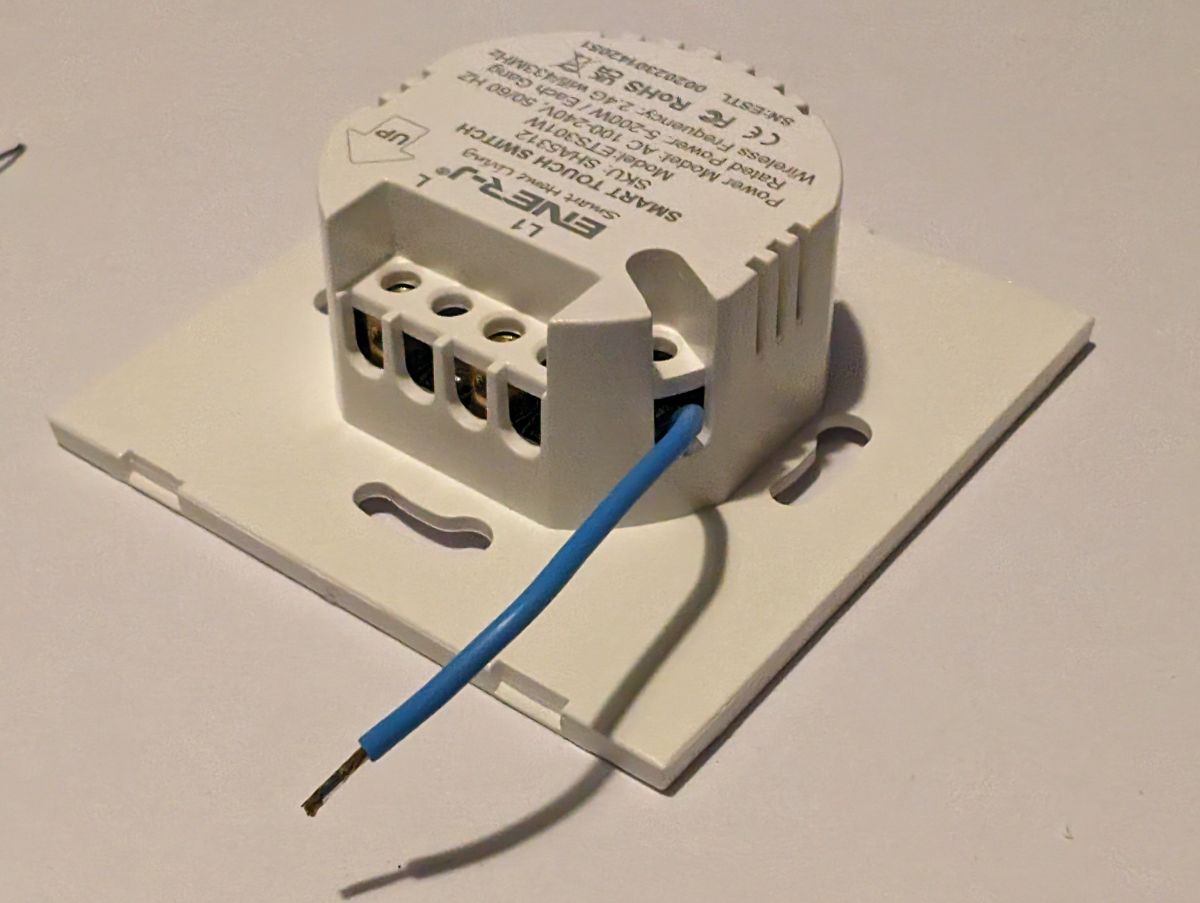
    Whilst the neutral terminal is not provided in these models, the solder pad is accessible and the casing has the same profile providing space for a tail to be passed through.
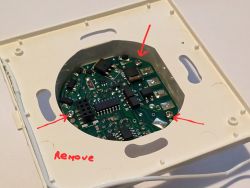
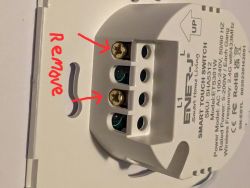
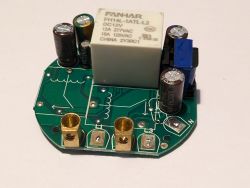
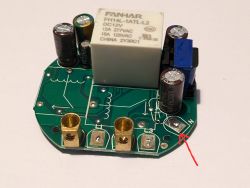
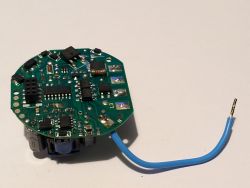
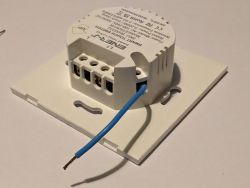
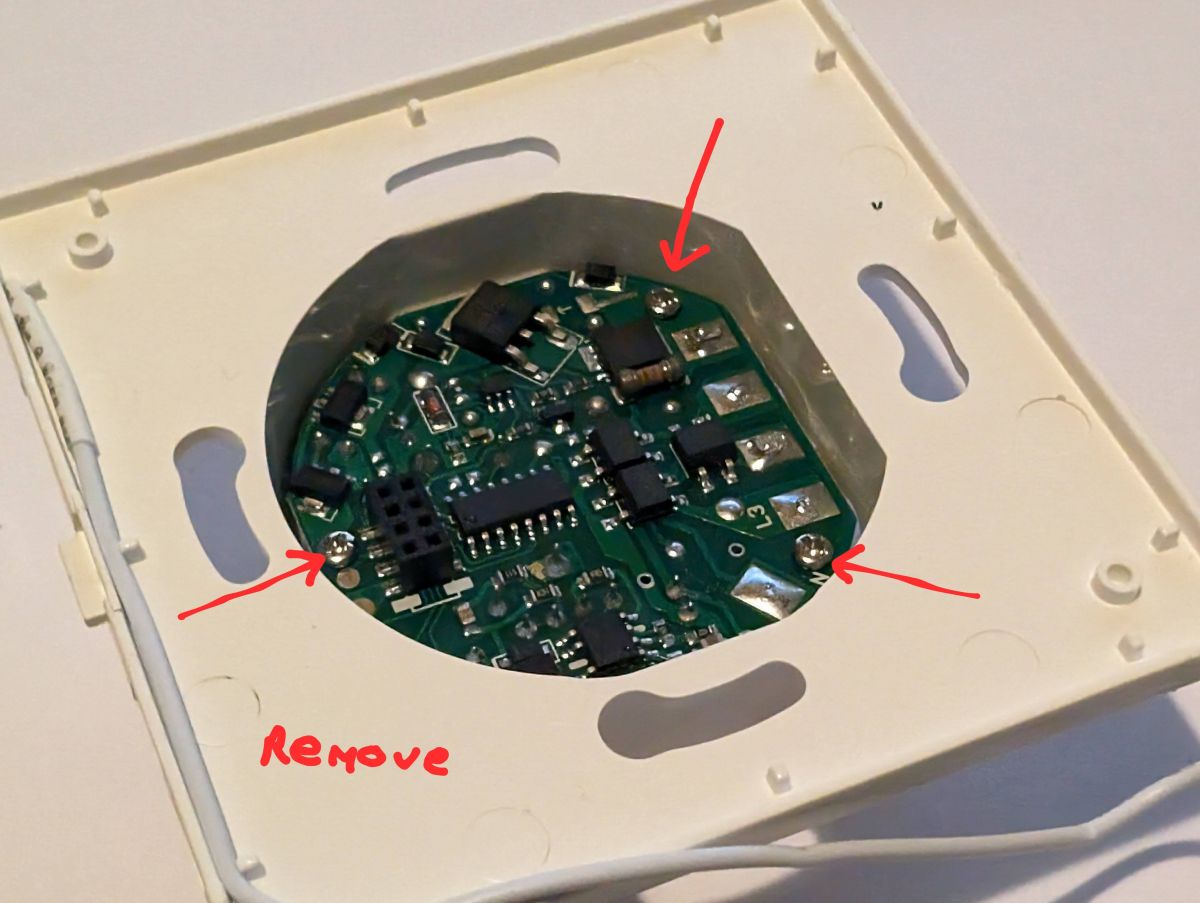
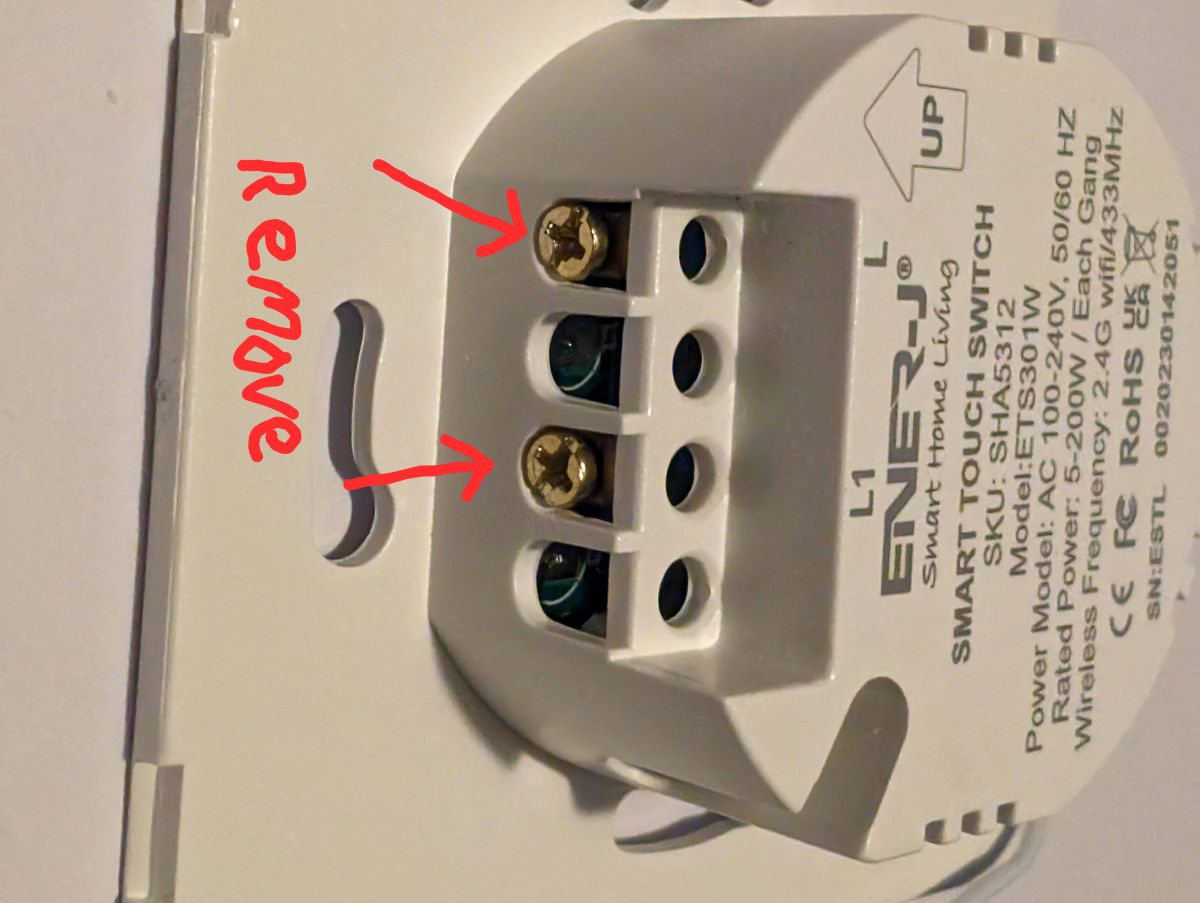
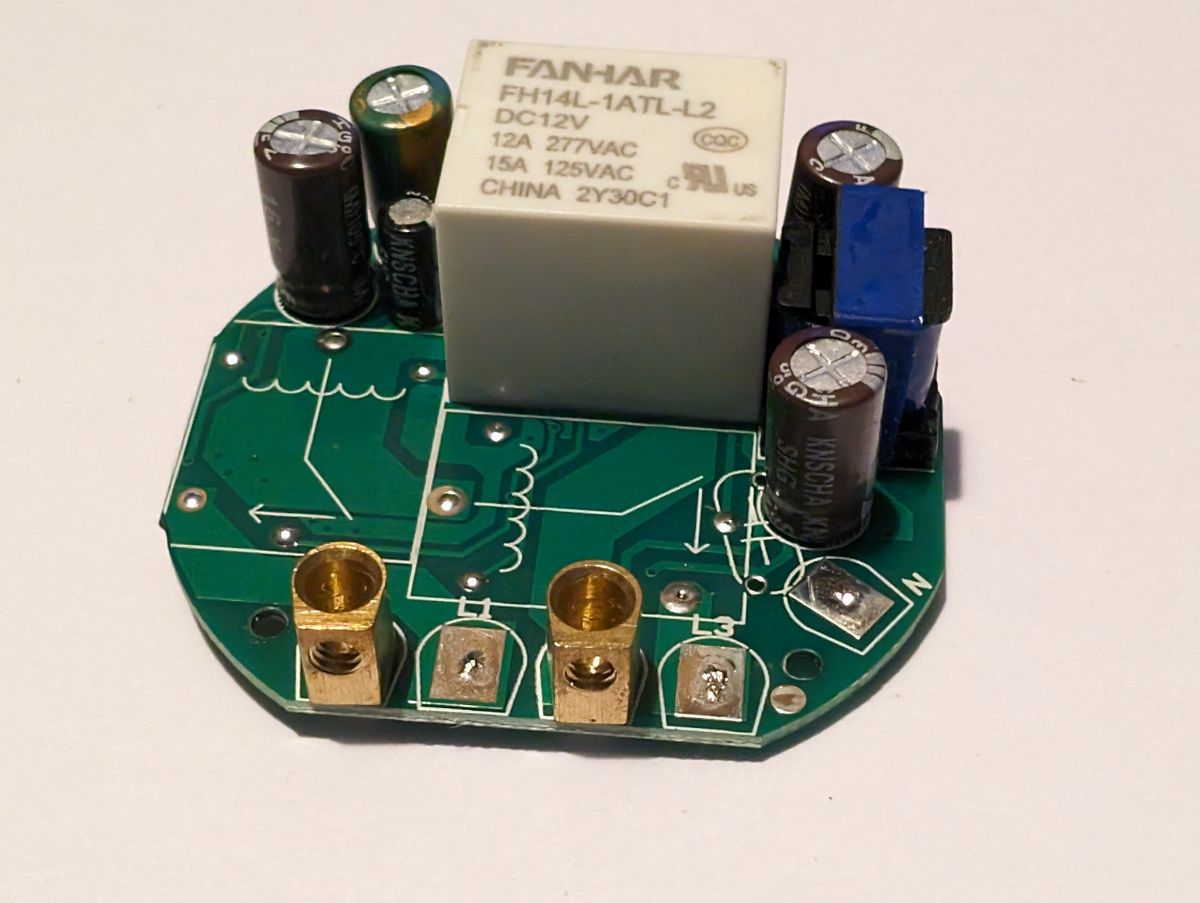
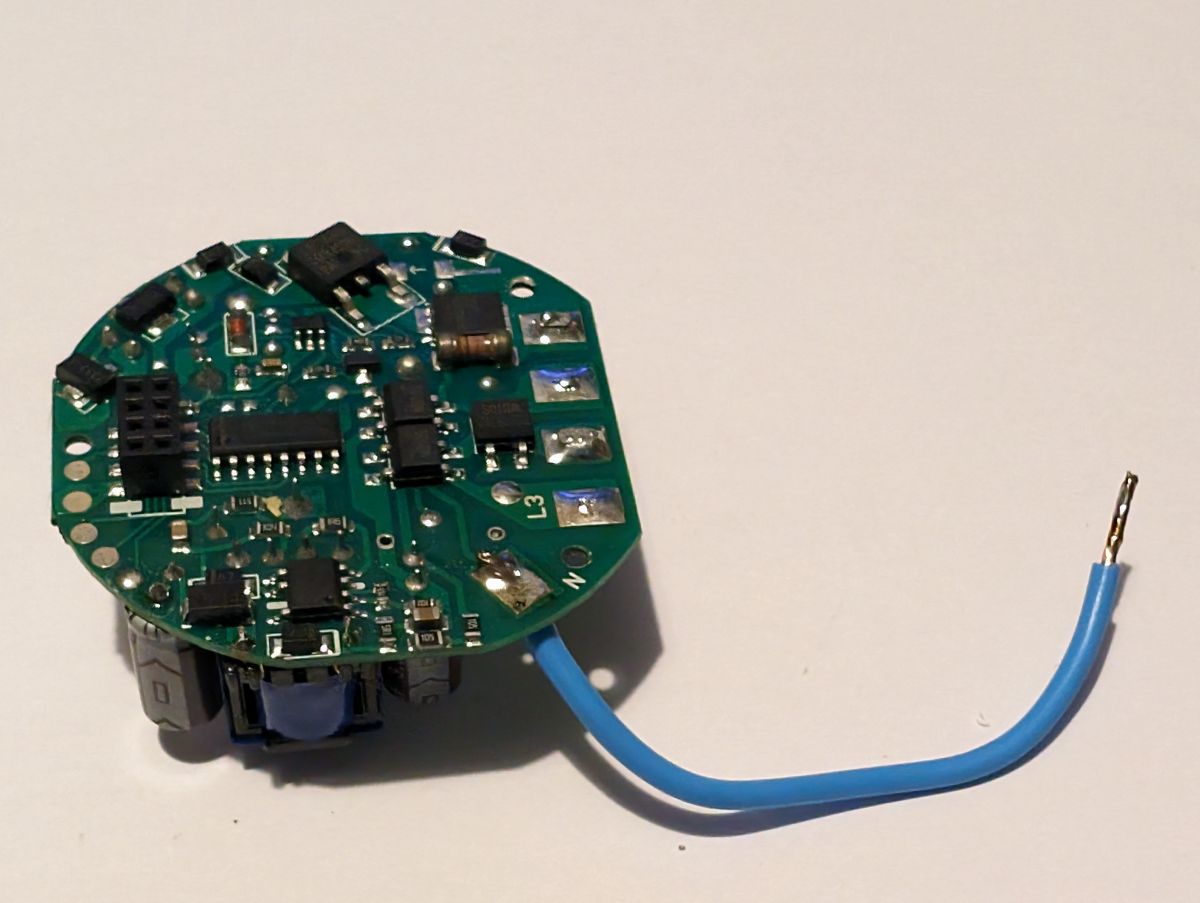
    First remove the switch pcb to reveal the high voltage relay board, then remove the 3 small screws per photo, then remove all the terminal screws per photo. Remove the pcb and identify the neutral solder pad, solder on your neutral tail and re-assemble.
    White Ener-J Touch Switch device, model ETS301W, rear view. Circuit board of the switch with marked unscrewing points. Close-up of the back of an Ener-J touch smart switch with marked screws for removal.
    PCB of a switch module with a relay and capacitors. Close-up of a circuit board with a relay and capacitors. Close-up of a circuit board with a blue wire soldered to a soldering pad. Smart wall switch with blue wire

    Cool? Ranking DIY
    Helpful post? Buy me a coffee.
    About Author
    TheCleaner
    Level 3  
    Offline 
    TheCleaner wrote 3 posts with rating 3, helped 1 times. Been with us since 2024 year.
  • ADVERTISEMENT
  • #2 20963563
    p.kaczmarek2
    Moderator Smart Home
    Posts: 14612
    Help: 655
    Rate: 12630
    This is a very strange PCB track routing, I haven't seen anything like that before:
    markbooker wrote:

    A close-up identifies the BK7231N.
    Close-up of a printed circuit board with a BK7231N CUI01P60 chip and several other components.

    Thank you for sharing the templates.

    Added after 8 [hours] 54 [minutes]:

    EDIT: Devices added, they should be soon live at:
    https://openbekeniot.github.io/webapp/devicesList.html
    Helpful post? Buy me a coffee.
📢 Listen (AI):

FAQ

TL;DR: For DIY smart-switch modders, these Ener-J Tuya guides cover 2 models and show an “8 pin socket” design that makes BK7231N flashing unusually accessible. You can solder to labeled pads or use a 3D-printed pogo jig, then start flashing by tapping CEN to GND. [#20963307]

Why it matters: This thread turns a potentially awkward one-board Tuya wall switch into a documented, repeatable flashing and wiring workflow.

Model Channels Chip Flash access OpenBeken template
ETS301W 1-gang BK7231N Labeled rear pads via 8-pin socket Yes
ETS302W 2-gang BK7231N Labeled rear pads via 8-pin socket Yes

Key insight: The PCB looks harder than usual because the radio is integrated on one board, but the removable switch PCB and clearly labeled rear pads make both teardown and flashing straightforward.

Quick Facts

  • Both documented switches are white Ener-J Tuya touch models from batch S627: ETS301W is 1-gang and ETS302W is 2-gang. [#20963307]
  • The flashing setup shown uses 3.3 V, GND, Tx, Rx, and CEN on labeled pads, with flashing triggered by tapping CEN to GND. [#20963307]
  • The switch PCB lifts from an 8-pin socket, exposing rear solder pads large enough for direct soldering or a pogo-pin adapter. [#20963307]
  • The neutral-tail hardware mod is described as a less than 5 minute job and requires a small Phillips screwdriver, a soldering iron, and correctly sized multi-strand wire for the local electrical standard. [#20963307]

How do I flash Ener-J Tuya touch switch models ETS301W and ETS302W with a BK7231N chip?

You flash them by removing the switch PCB, connecting to the labeled rear pads, and entering flash mode with CEN. 1. Pull the switch PCB off its 8-pin socket. 2. Connect 3.3 V, GND, Tx, Rx, and CEN. 3. Tap CEN to GND to start the flashing process. The thread author successfully flashed both ETS301W and ETS302W this way, either by soldering directly to the pads or by using a pogo-pin jig. [#20963307]
Where are the labeled solder pads on the Ener-J ETS301W and ETS302W PCB, and which pads are used for 3.3V, GND, Tx, Rx, and CEN?

The labeled solder pads are on the reverse side of the removable switch PCB. After you pull that PCB off the 8-pin socket, the rear exposes pads large enough for direct soldering. The author’s test-wire setup uses Red for 3.3 V, Black for GND, Yellow for Tx, Blue for Rx, and Green for CEN. Those labels make the flash wiring much easier than tracing an integrated board manually. [#20963307]

What is BK7231N, and why does it matter when flashing an Ener-J Tuya wall switch?

“BK7231N” is a Wi-Fi microcontroller chip that runs the smart-switch logic, and its key characteristic here is that it determines the flashing method and compatible template. It matters because the close-up photo confirms the chip inside both Ener-J models, which lets the author identify the device as a practical flashing target and provide working OpenBeken templates for ETS301W and ETS302W. [#20963307]

What is CEN on the Ener-J switch PCB, and how is it used to start the flashing process?

CEN is the control pad the author uses to enter the flashing sequence. In the working test-wire setup, Green is connected to CEN, and the device starts the flashing process when CEN is briefly tapped to GND. That behavior is called out explicitly in the thread and is part of the hands-free pogo-jig workflow as well as direct pad wiring. [#20963307]

How does the 8-pin socket design in the Ener-J ETS301W and ETS302W make teardown and flashing easier?

The 8-pin socket makes flashing easier because the switch PCB simply pulls off instead of forcing you to work on a fixed one-board assembly. Once removed, the reverse side reveals labeled pads that are large enough to solder directly to. The same 8-pin connector also gives the 3D-printed pogo adapter a reliable physical alignment point, which reduces setup time and misalignment risk. [#20963307]

What's the difference between flashing these Ener-J switches by soldering directly to the pads versus using a pogo pin adapter jig?

Direct soldering gives a solid connection, while the pogo-pin jig provides a solderless, repeatable setup. The author says the rear pads are large enough to solder to and did that on the first switch. Later, they designed a hands-free adapter that clips onto the PCB using the 8-pin connector, so you can attach test wires without leaving permanent wires on the board. [#20963307]

How do I use the 3D-printed pogo pin flashing jig from Printables with the Ener-J ETS301W or ETS302W?

You fit the jig onto the PCB using the 8-pin connector as the locator, then attach your flash wires to the pogo pins. 1. Remove the switch PCB. 2. Seat the printed jig so the pins align on the labeled contacts. 3. Clip on Red 3.3 V, Black GND, Yellow Tx, Blue Rx, and Green CEN, then tap CEN to GND. The author published the jig on Printables as a free download. [#20963307]

Which GPIO pins and roles are used in the OpenBeken templates for the Ener-J ETS301W and ETS302W touch switches?

ETS301W maps pin 6 to Rel;1, 10 to WifiLED_n;1, 14 to LED_n;1, and 24 to Btn;1. ETS302W maps pin 7 to Rel;1, 10 to WifiLED_n;1, 16 to LED_n;1, 20 to Rel;2, 22 to Btn;2, 26 to Btn;1, and 28 to LED_n;2. Those exact assignments appear in the two JSON templates included in the thread for OpenBeken use. [#20963307]

Why do the Ener-J ETS301W and ETS302W say they don't need a neutral at the switch, and how does the supplied capacitor fit into the wiring?

They are designed to work without a dedicated neutral at the wall switch by using a supplied capacitor at the light fitting. The capacitor is installed across neutral and the live from L1 on the switch. The author notes that these models do not provide a neutral terminal by default, so the capacitor is the intended factory method when no neutral conductor is present at the switch box. [#20963307]

What is the neutral tail mod for the Ener-J ETS301W and ETS302W, and how do I add a neutral connection at the switch?

The neutral tail mod adds a usable neutral wire directly to the switch, avoiding the supplied capacitor when a neutral is already present in the wall box. 1. Remove the switch PCB to expose the relay board. 2. Remove the 3 small screws and all terminal screws, then lift the PCB. 3. Solder a neutral tail to the accessible neutral pad and reassemble. The author says the case already has space for the tail to pass through. [#20963307]

Which tools and wire type are needed to add a neutral tail to an Ener-J ETS301W or ETS302W switch safely?

You need the correct color and gauge multi-strand cable for your country, a small Phillips screwdriver, and a soldering iron. The author describes the modification as taking less than 5 minutes once the switch is open. The thread does not give a universal wire size, so the edge case is local compliance: you must match the wire type and color coding to your national wiring standard. [#20963307]

How do the 1-gang ETS301W and 2-gang ETS302W differ in relay, button, and LED pin assignments?

ETS301W has one relay, one button, and one LED mapping, while ETS302W has two relay paths, two button inputs, and two LED outputs. In the provided templates, ETS301W uses Rel;1 on pin 6, Btn;1 on 24, and LED_n;1 on 14. ETS302W uses Rel;1 on 7, Rel;2 on 20, Btn;1 on 26, Btn;2 on 22, LED_n;1 on 16, and LED_n;2 on 28. [#20963307]

Why was the integrated one-board design of this Ener-J Tuya switch initially concerning compared with a typical CBU daughter board?

It looked concerning because the usual separate daughter board was missing, so tracing signals and finding flash points seemed harder. The author first saw a fully integrated board with the Wi-Fi antenna and crystal on the PCB, which suggested a difficult reverse-engineering job. A second poster reinforced that impression, calling the PCB routing “very strange,” but the removable board and labeled rear pads solved the practical problem. [#20963563]

What is a pogo pin adapter, and why is it useful for solderless flashing of smart switches like the Ener-J ETS301W and ETS302W?

“Pogo pin adapter” is a spring-pin contact tool that temporarily touches PCB pads without solder, its key characteristic being repeatable alignment for quick test or flashing connections. It is useful here because the author designed a hands-free adapter that locates from the 8-pin connector, holds position securely, and works with clip-on test wires for 3.3 V, GND, Tx, Rx, and CEN. [#20963307]

Where can I find the published device templates and device list entry for the Ener-J ETS301W and ETS302W in OpenBeken?

You can find the templates directly in the thread and the device-list entry on the OpenBeken web device list page mentioned in the follow-up post. The second post says the devices were added and “should be soon live” there after the templates were shared. That means the thread is the primary source for the JSON mappings, while the linked device list is the publication target. [#20963563]
Generated by the language model.
ADVERTISEMENT