.
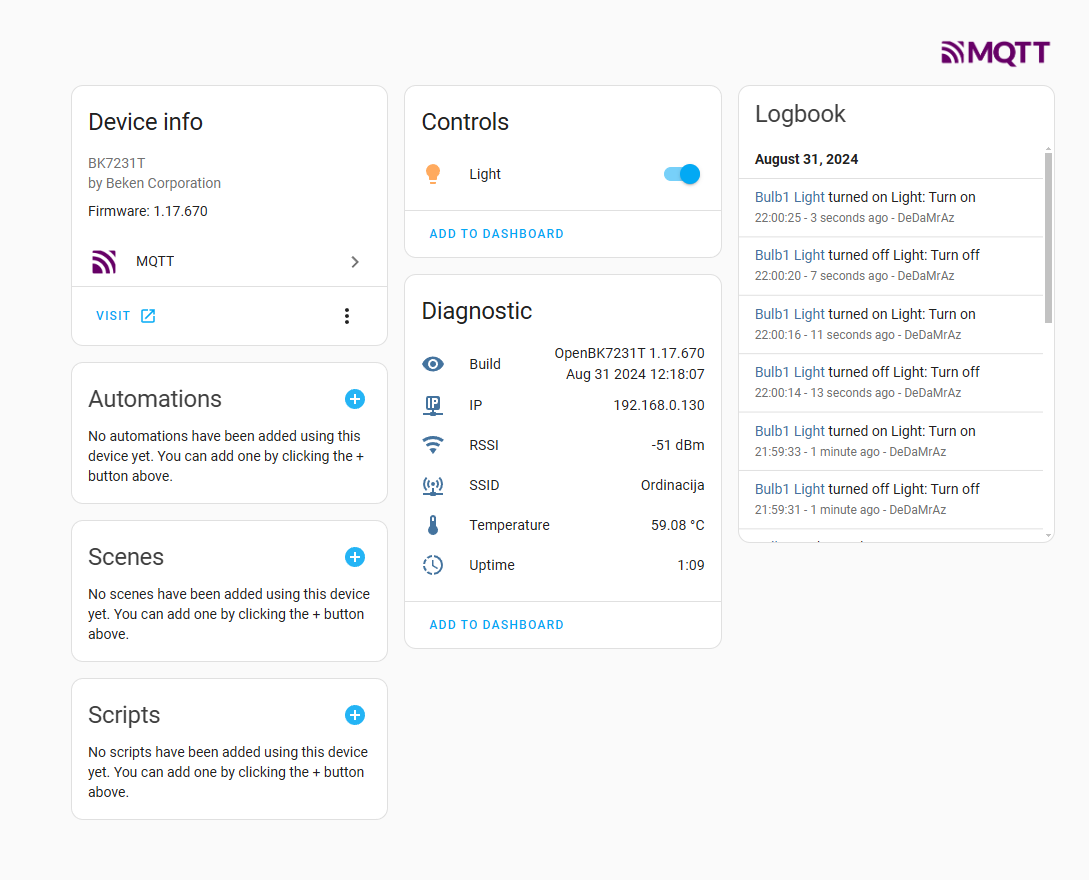
and our LED will then be seen by the Home Assistant:
.
A short test on video:
.
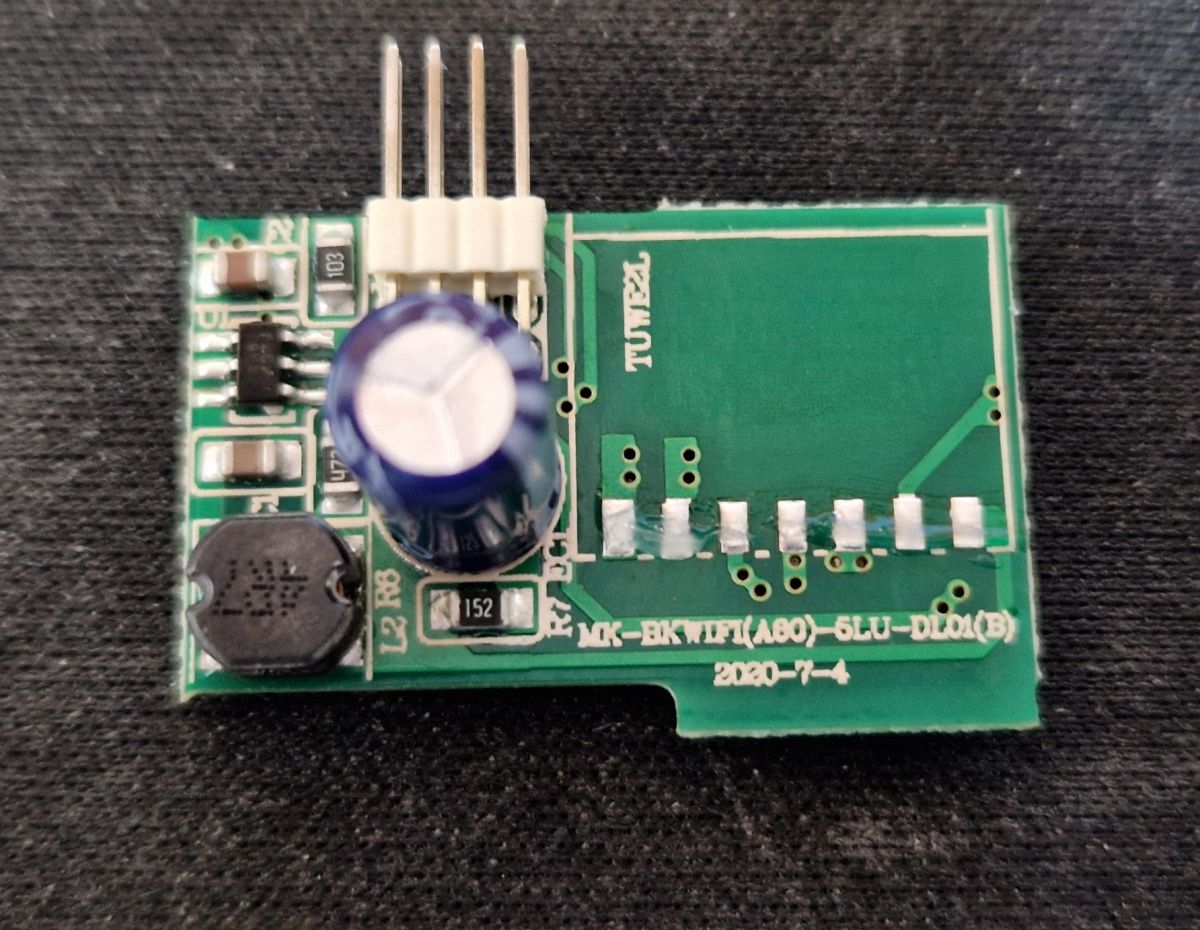
In summary , this was another WiFi controlled LED working normally with the Tuya cloud, freeing is from the cloud was not difficult, the only trouble here is that there is no access to the RX/TX on the bottom of the WiFi module, so this module has to be soldered out.
This doesn't happen often, so if we want something easier to buy for our Home Assistant and don't have hot air, we should rather avoid this model. Alternatively, you can try the method from here:
.
But this takes a bit of feeling, so we combine at our own risk.
About Author
p.kaczmarek2 wrote 14771 posts with
rating 12914 , helped 659 times.
Been with us since 2014 year.
TL;DR: This FAQ is for Home Assistant users converting a 10 W ROOMLUX B15515 A60 bulb. "The small catch" is the WB2L module: its RX/TX pads sit underneath, so you must desolder it before flashing OpenBeken and enabling local control without the Tuya cloud. [#21211255]
Why it matters: It shows whether this specific smart bulb is a practical local-control candidate or a poor first modding choice.
Option
Flashing difficulty
Tools needed
Best for Home Assistant
ROOMLUX B15515 A60
Higher
Desoldering, ideally hot air
Only if you accept board work
Easier OpenBeken bulbs
Lower
Usually simpler access
Better if you want a faster conversion
Alternative inaccessible-pad method
Medium to high
Manual precision
Only at your own risk
Key insight: The bulb works with OpenBeken and Home Assistant, but physical access is the real blocker. If you do not want to remove the WB2L module, choose an easier bulb.
Quick Facts
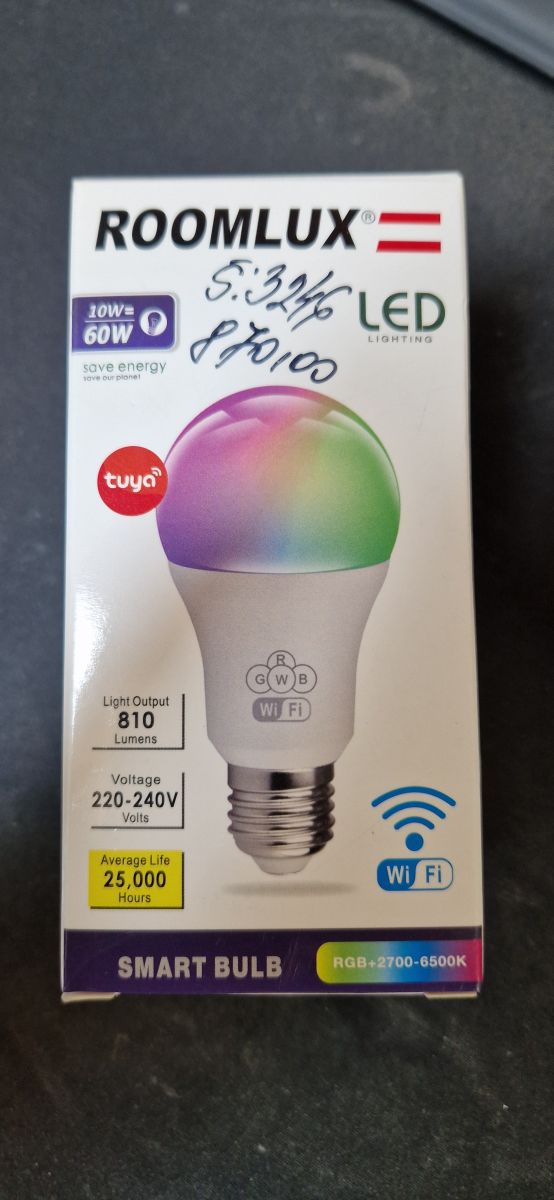
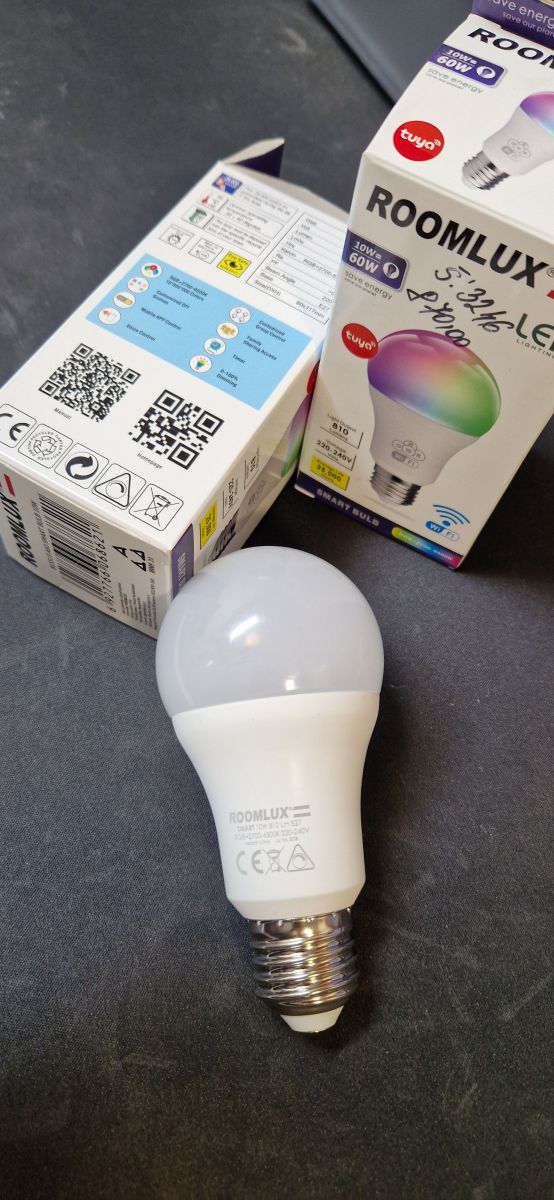
The bulb is rated at 10 W and marketed as equivalent to a classic 60 W incandescent lamp. [#21211255]
It uses 5 LED channel types: R, G, B, C, W, meaning red, green, blue, cold white, and warm white. [#21211255]
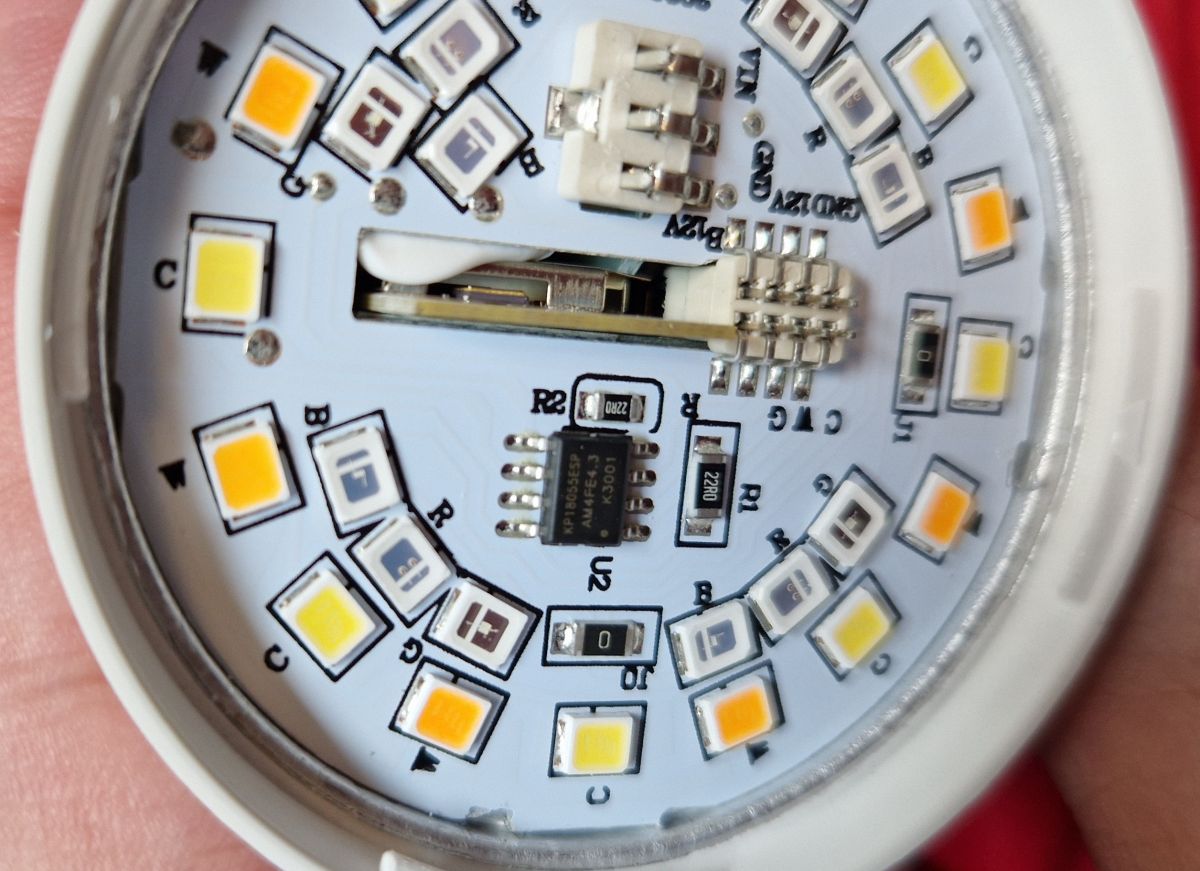
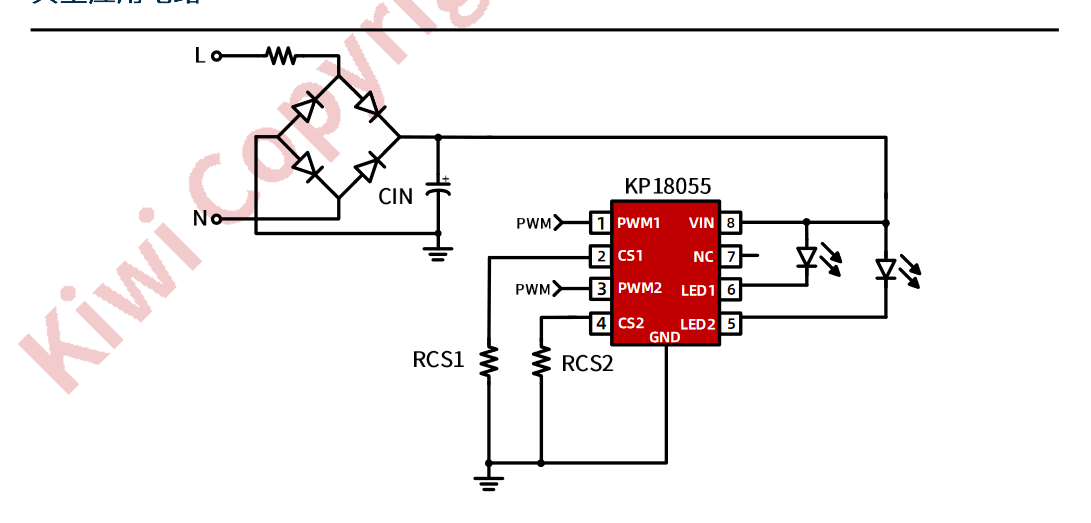
The internal control split is specific: BP1688 drives RGB, while KP18055 drives the cold/warm white section. [#21211255]
OpenBeken setup requires 5 PWM pins on the WB2L/BK7231T platform: GPIO 6, 7, 8, 24, 26. [#21211255]
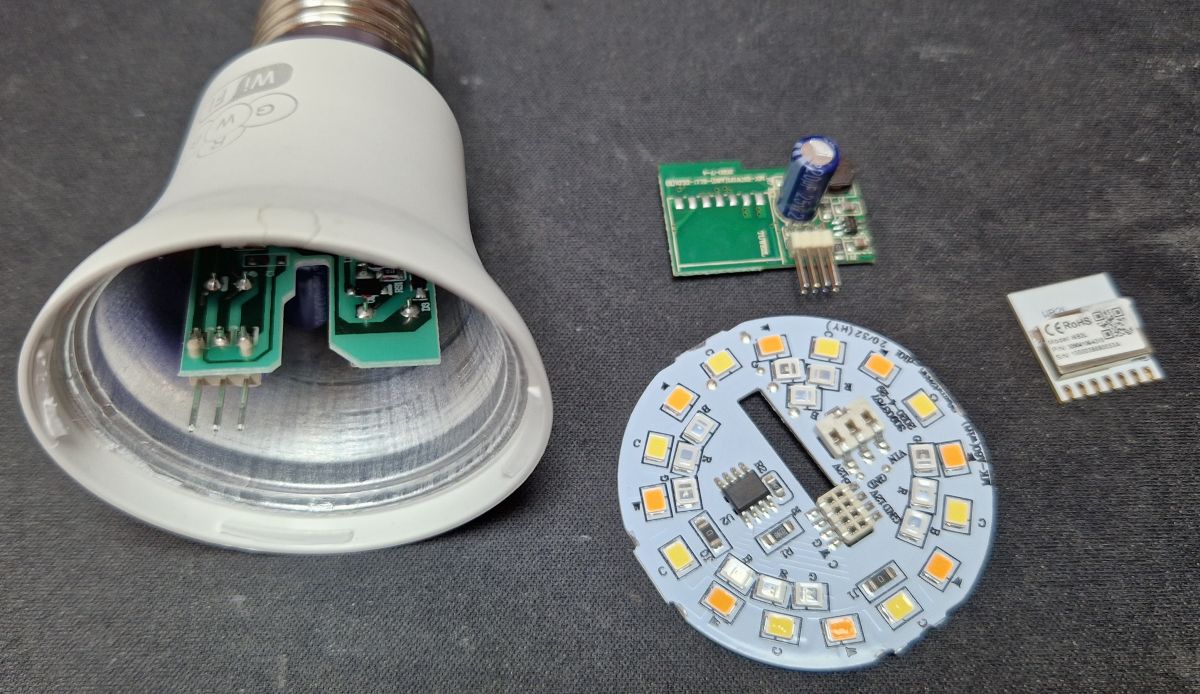
How do I open and disassemble the ROOMLUX B15515 A60 Smart LED 10W bulb without damaging the plastic dome or LED board?
Start by removing the plastic dome, because the thread shows it comes off easily. Then separate the lamp carefully so you can expose the LED board and the driver board without prying against the LEDs. Avoid force near the 5 LED channel groups and the WiFi module area, because that section must stay intact for flashing or inspection. [#21211255]
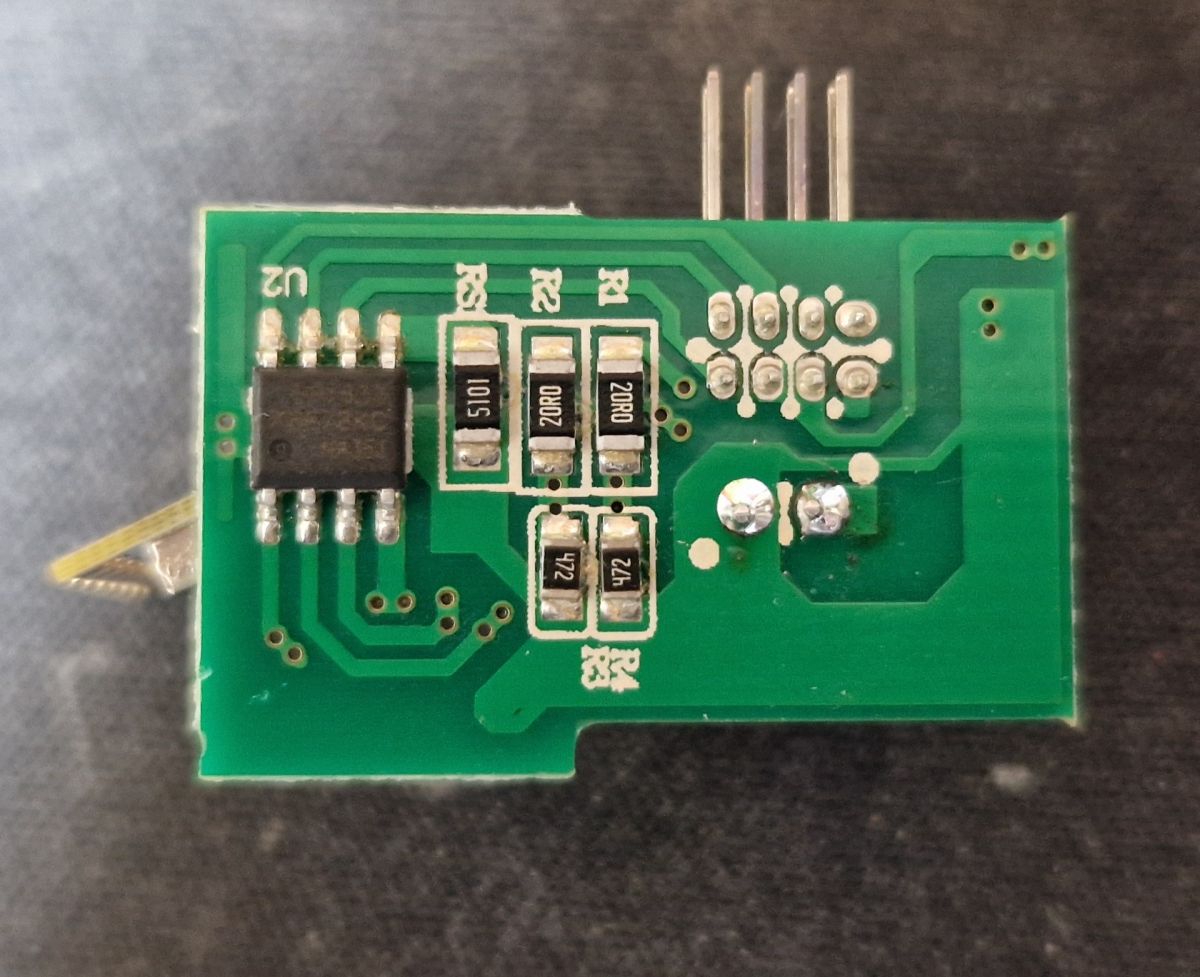
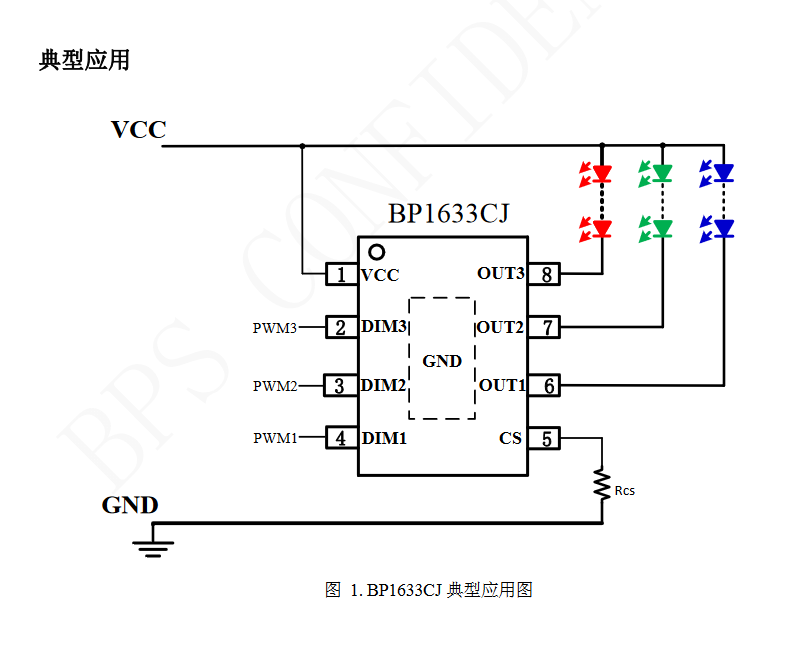
What chips control the LEDs inside the ROOMLUX B15515 A60, and how are the RGB and cold/warm white channels split between BP1688 and KP18055?
The bulb uses two LED control chips. BP1688 controls the red, green, and blue LEDs, while KP18055 controls the white section, split into cold white and warm white. In total, the lamp exposes 5 LED types: R, G, B, C, and W. [#21211255]
Why does the WB2L module in the ROOMLUX B15515 A60 have to be desoldered before flashing OpenBeken?
You have to desolder the WB2L module because its TX and RX pads are on the underside. That means you cannot reach the serial flashing points while the module remains soldered to the lamp board. The thread calls this "the small catch," and it is the main reason this 10 W bulb is harder than simpler conversions. [#21211255]
What is the WB2L WiFi module, and how does it relate to the BK7231T chip used in smart bulbs?
WB2L is the bulb's WiFi module, and this ROOMLUX configuration identifies it as a BK7231T-based board. "WB2L" is a WiFi module that provides wireless control for the bulb, with the BK7231T chip as its main controller and a board format commonly found in Tuya-style smart lamps. The posted OpenBeken profile lists chip: BK7231T and board: WB2L. [#21211255]
How can I flash OpenBeken onto a ROOMLUX B15515 A60 using BK7231GUIFlashTool?
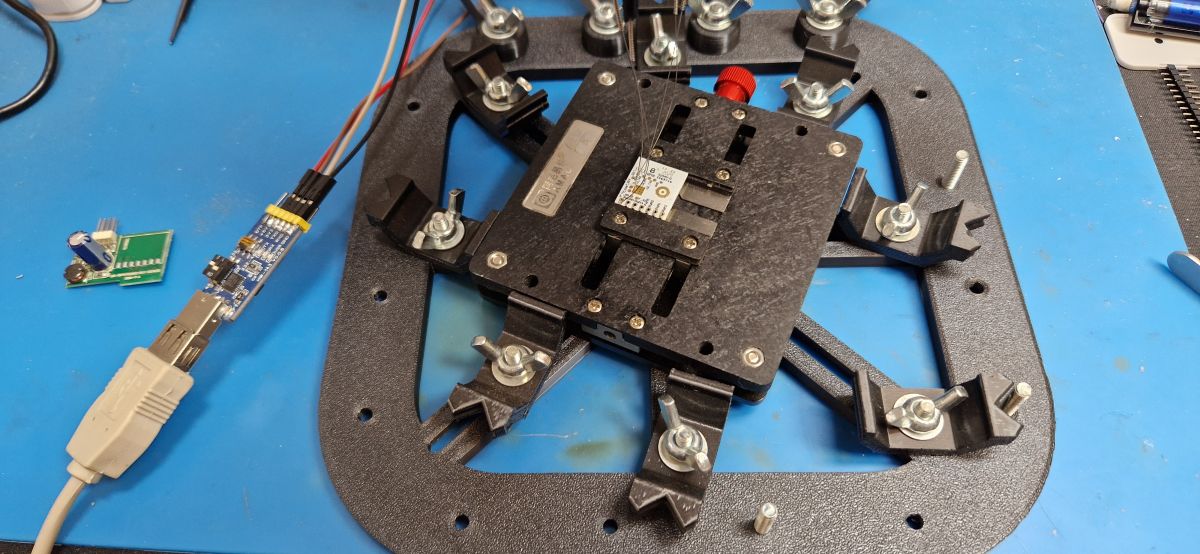
Flash it only after removing the WB2L module so you can access serial pads. 1. Desolder the module from the bulb board. 2. Connect it to the flashing setup shown in the thread and use BK7231GUIFlashTool. 3. After flashing, apply the 5-channel PWM configuration in OpenBeken. The thread also shows the module on a needle stand during upload. [#21211255]
Which PWM pin configuration should I use for the ROOMLUX B15515 A60 in OpenBeken so all 5 channels work correctly?
Use the 5 PWM assignments from the posted device template. They are GPIO 6 = PWM 2, GPIO 7 = PWM 5, GPIO 8 = PWM 4, GPIO 24 = PWM 3, and GPIO 26 = PWM 1. This is the configuration shown for the ROOMLUX B15515 A60 with the WB2L and BK7231T platform. [#21211255]
What is HASS Discovery in OpenBeken, and how does it make the bulb appear automatically in Home Assistant?
HASS Discovery is the OpenBeken feature that announces the device so Home Assistant can detect it automatically. "HASS Discovery" is an integration feature that publishes device information to Home Assistant, letting compatible flashed hardware appear automatically without manual entity creation, which speeds up first setup after local firmware conversion. The thread shows the bulb appearing in Home Assistant after this step. [#21211255]
How do I connect a converted ROOMLUX B15515 A60 locally to Home Assistant without using the Tuya cloud?
Flash OpenBeken, set the 5 PWM pins correctly, and then run HASS Discovery. That moves control away from the Tuya cloud and lets Home Assistant see the bulb locally as a discovered device. The thread explicitly presents this conversion path as the way to free the lamp from cloud dependence. [#21211255]
What makes the ROOMLUX B15515 A60 harder to convert than some other Tuya WiFi bulbs?
Its main problem is hardware access, not firmware support. The WB2L module supports OpenBeken, but the serial TX/RX pads sit on the bottom side, so you must remove the module first. The author says this does not happen often, which makes this bulb less convenient than easier Tuya WiFi lamps. [#21211255]
ROOMLUX B15515 A60 vs easier OpenBeken-compatible bulbs: which is the better choice for Home Assistant if I do not have hot air tools?
Easier OpenBeken-compatible bulbs are the better choice if you do not have hot air tools. This ROOMLUX model can be converted, but the underside TX/RX layout forces extra rework on the WB2L module. The thread directly advises avoiding this model if you want something easier for Home Assistant. [#21211255]
What is the difference between RGB mode and CW mode in a smart LED bulb like the ROOMLUX B15515 A60?
RGB mode drives colored light through the red, green, and blue channels, while CW mode drives white light through separate cold and warm white channels. In this bulb, BP1688 handles RGB and KP18055 handles the C and W LEDs. That split gives you either color output or adjustable white shades. [#21211255]
Which alternative flashing method can be used when the RX/TX pads are inaccessible, and what risks come with that approach?
You can try the alternative method linked in the thread's second video instead of fully desoldering the module. The author warns that it requires "a bit of feeling," so precision matters and you use it at your own risk. The failure case is simple: poor pad access can damage the module or prevent a stable flash. [#21211255]
How do I back up the factory firmware from a WB2L/BK7231T bulb before replacing it with OpenBeken?
Back it up before reconfiguration by saving the factory flash contents, as shown by the linked dump commit. 1. Access the WB2L module for flashing. 2. Read and save the original contents first. 3. Keep that dump as your recovery image before writing OpenBeken. The thread includes a copy of the factory batch for this exact bulb family. [#21211255]
What safety precautions should I take when soldering out the WB2L module and working inside a mains-powered LED bulb?
Work carefully and only after fully isolating the bulb from mains power. This lamp contains a step-down inverter and mains-powered LED circuitry, so internal work carries real risk during disassembly and desoldering. If you are not comfortable removing a small module cleanly, choose an easier bulb instead of forcing this 10 W model. [#21211255]
Why might a BK7231T smart bulb fail to show up properly in Home Assistant after flashing, and how do I troubleshoot it?
The most likely causes are wrong PWM pin mapping or skipped HASS Discovery. Verify that all 5 pins match the posted OpenBeken template, then run discovery so Home Assistant can detect the device. If the bulb still fails, recheck the flash job and confirm the WB2L module was soldered back correctly after programming. [#21211255]
AI summary based on the discussion. May contain errors.









Comments