.
The code above fully creates the required elements, sets their positions and dimensions. Let's take a closer look at it.
Here we have the following sections. Creating the main panel with the scroll option:
Code: C / C++
Log in, to see the code
.
Creating the keyboard:
Code: C / C++
Log in, to see the code
.
Creating a text box:
Code: C / C++
Log in, to see the code
Setting its events.
Setting its event handlers, setting its text, positioning (relative to the top left corner):
Code: C / C++
Log in, to see the code
.
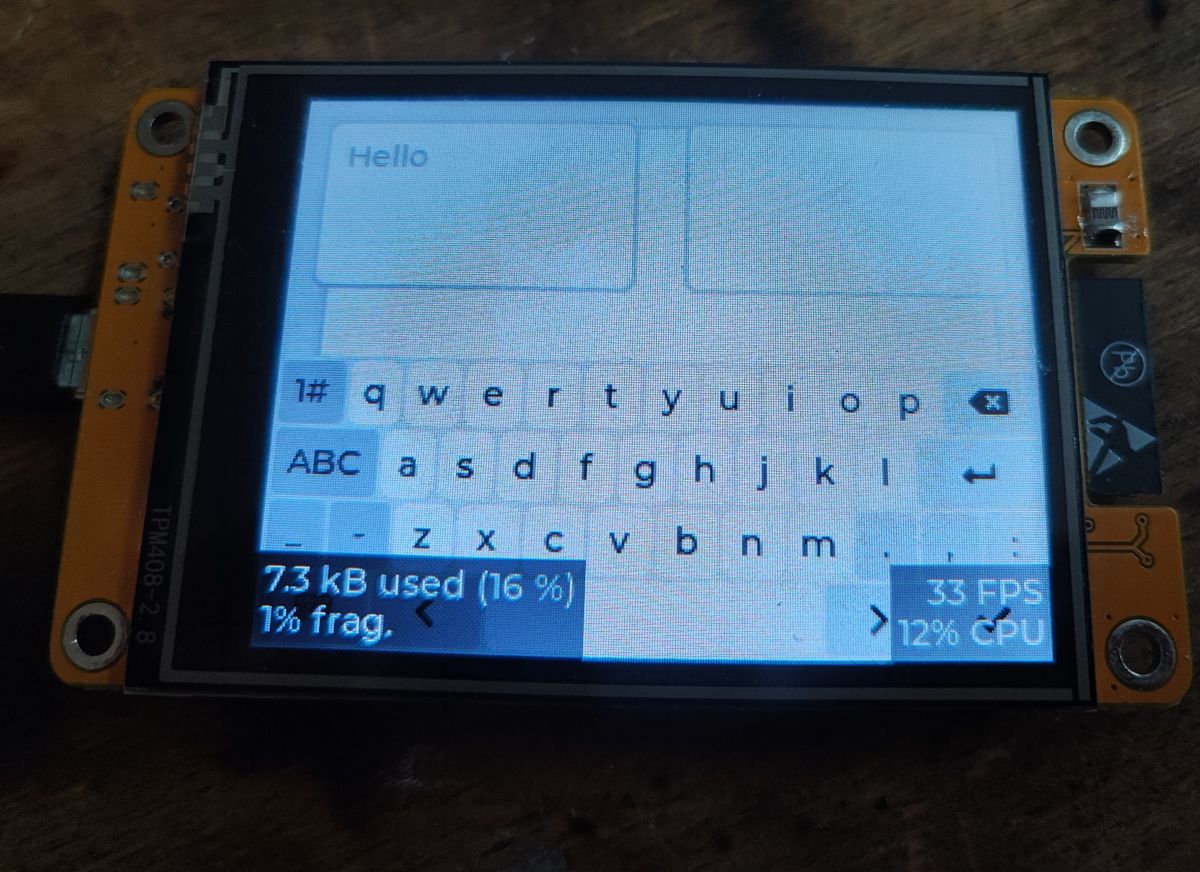
The "placeholder" text is that grey text that is a hint of what to type which is displayed before we type anything ourselves.
The second field, as above:
Code: C / C++
Log in, to see the code
.
Pinning the keyboard to the first field:
Code: C / C++
Log in, to see the code
.
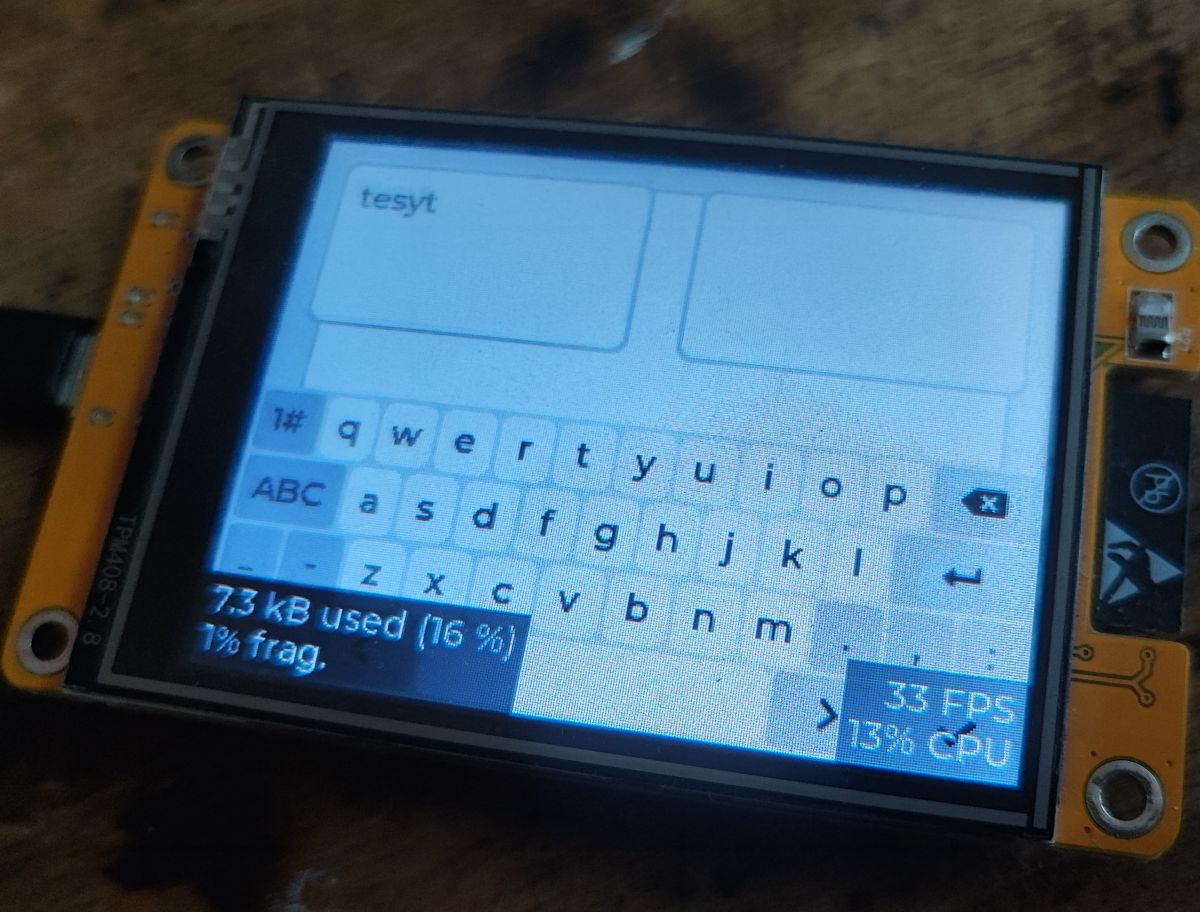
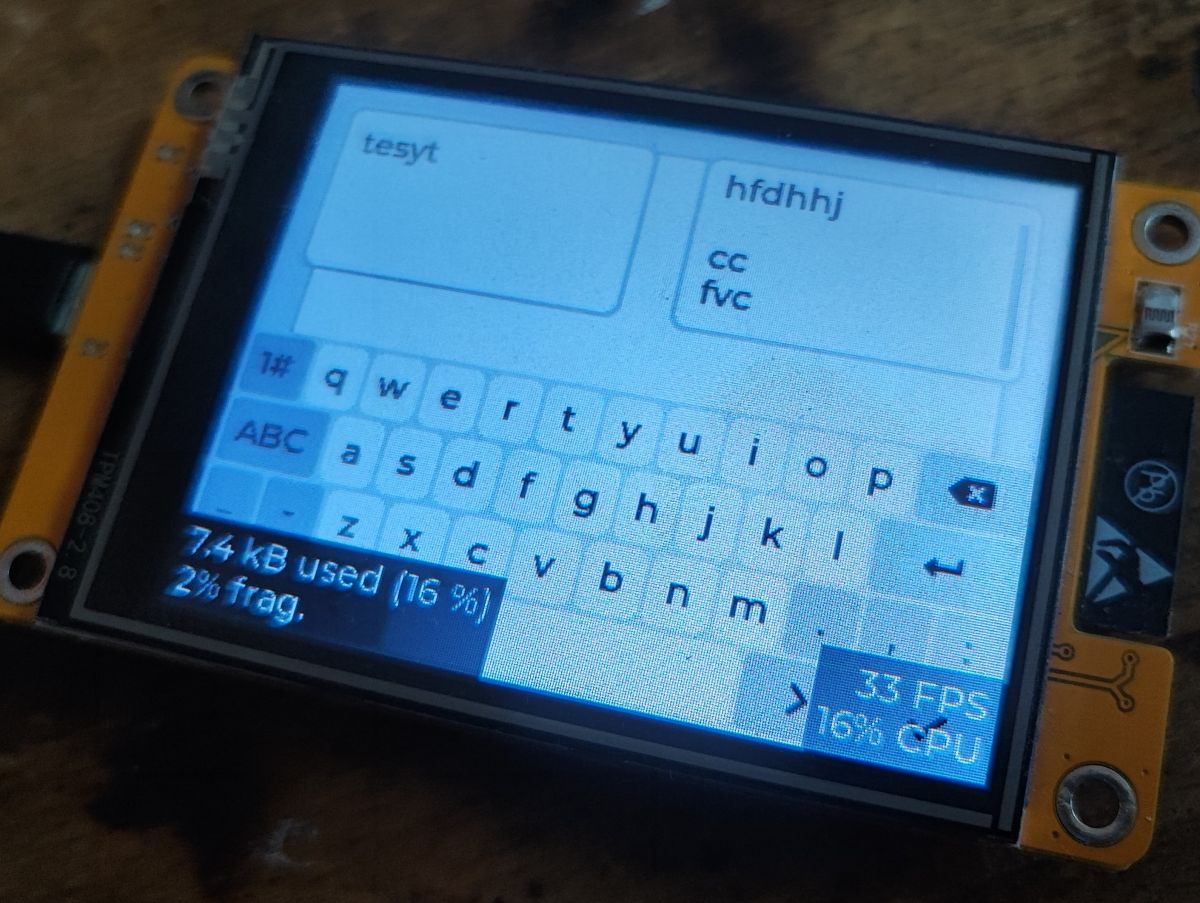
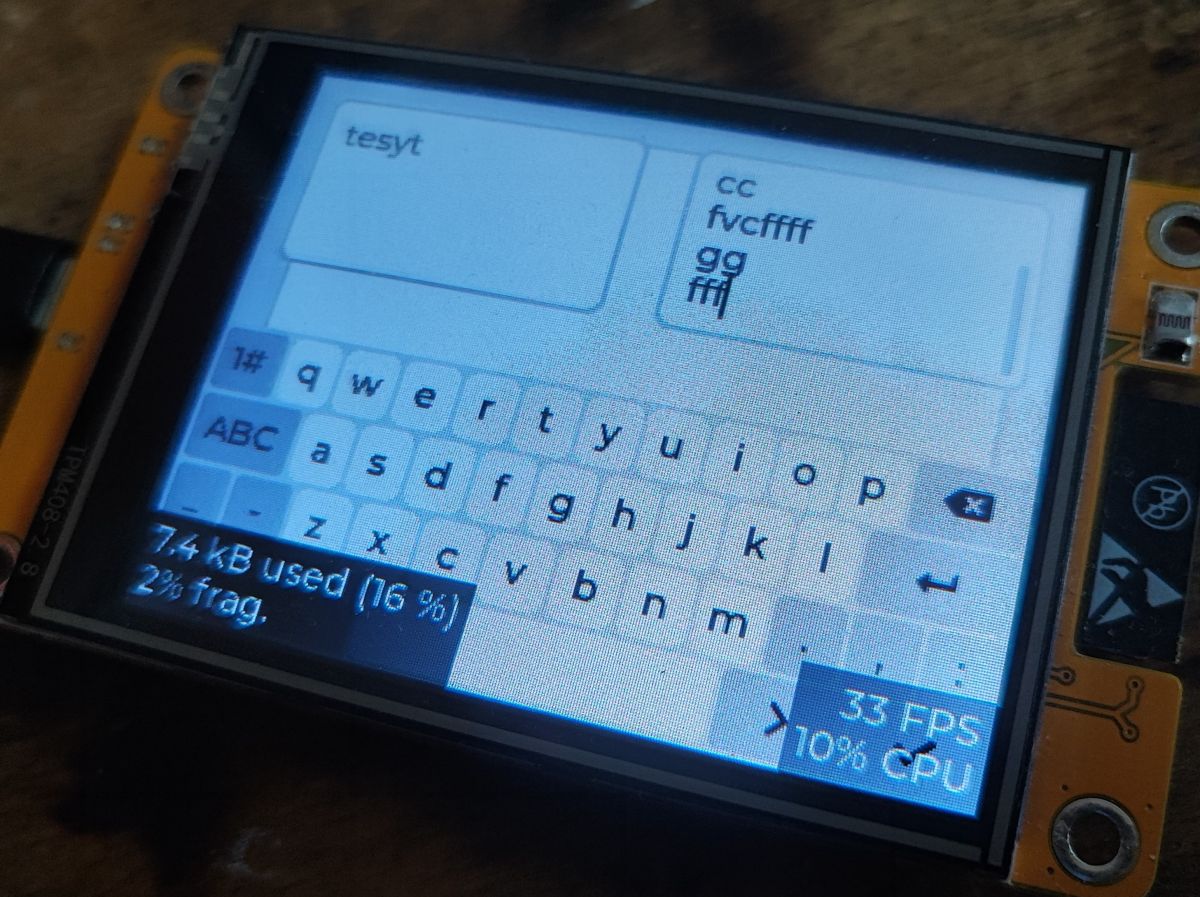
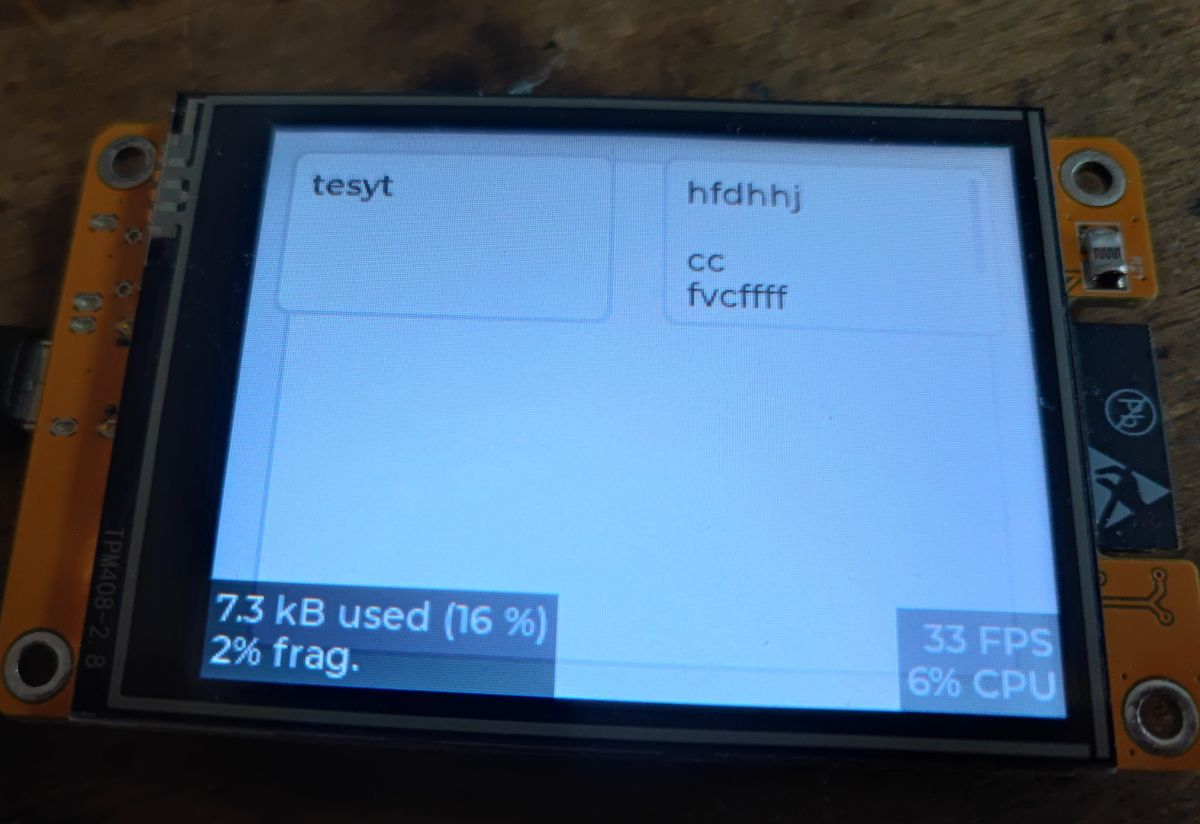
We compile and upload. As a result, we have a keyboard that automatically adds characters to the selected field.
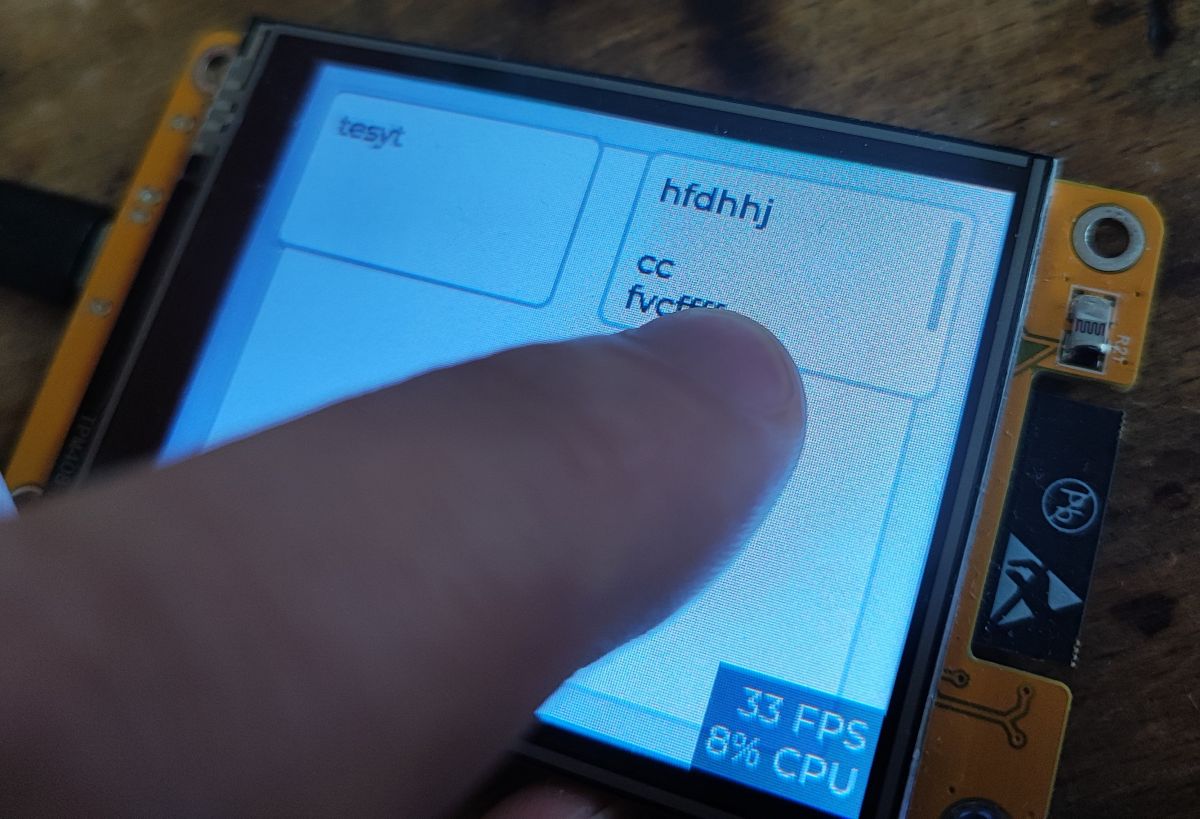
Ok, but what about the second field? Why is it not possible to write to it?
It's because we have to manually rewrite the keyboard to that field, which is active.
Let's convert our example into a login form. To do this, we add an event handler for each of the fields. When a FOCUSED event occurs (activating a field), we rewire the keyboard to that field. At the moment of losing FOCUSED, we retract this keyboard.
Code: C / C++
Log in, to see the code
.
I have also slightly modified the creation of fields. LVGL even offers ready-made functions for creating login forms, including a password field - lv_textarea_set_password_mode . More information in the documentation .
The mentioned event handler must be pinned to both fields. A single function is sufficient. All code:
Code: C / C++
Log in, to see the code
.
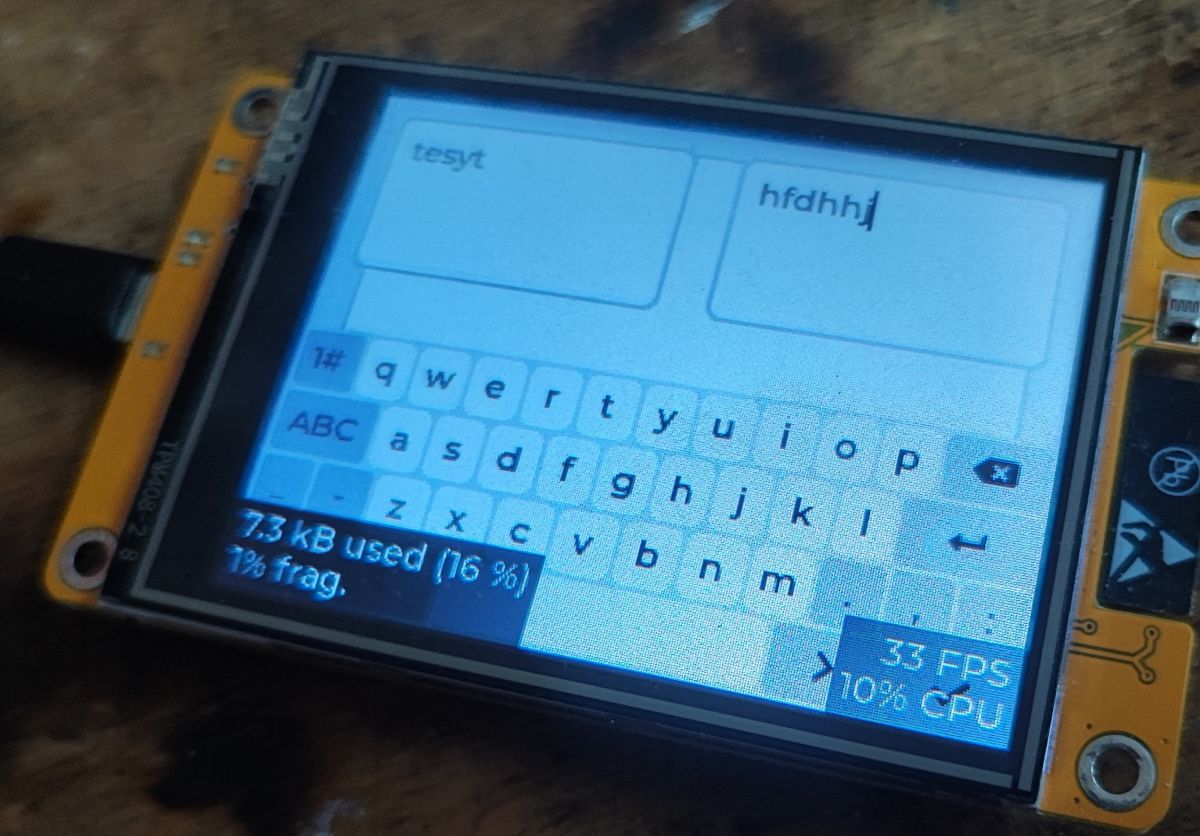
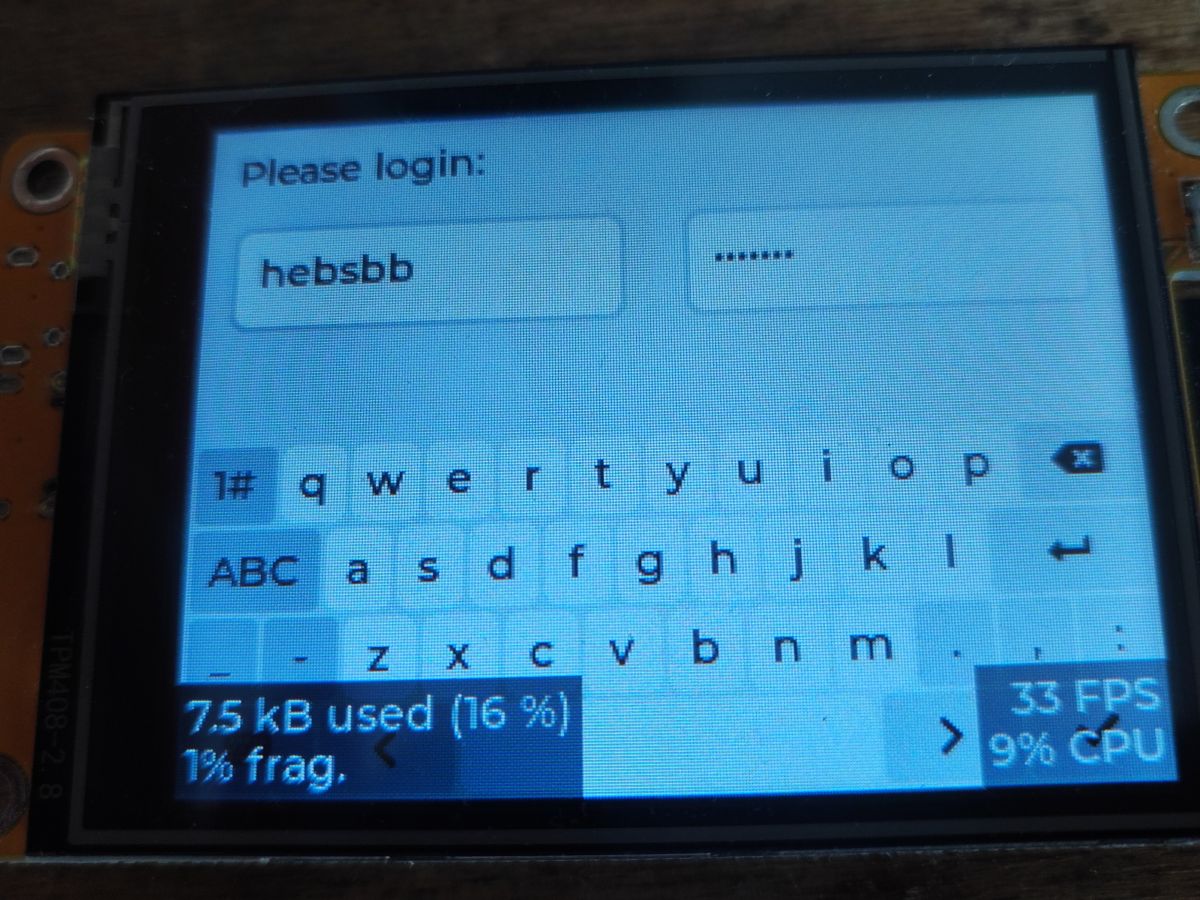
Uploaded, here is the result:
.
Indeed, it looks like a login form and even the password is correctly covered with asterisks.
Time for a minor cosmetic touch - the login button and label.
Let's add, first of all, some kind of label informing about the login status:
Code: C / C++
Log in, to see the code
.
Then, separately, we add a button with an appropriate caption. You can also set it to handle a click - EVENT_CLICKED event via lv_obj_add_event_cb.
Code: C / C++
Log in, to see the code
.
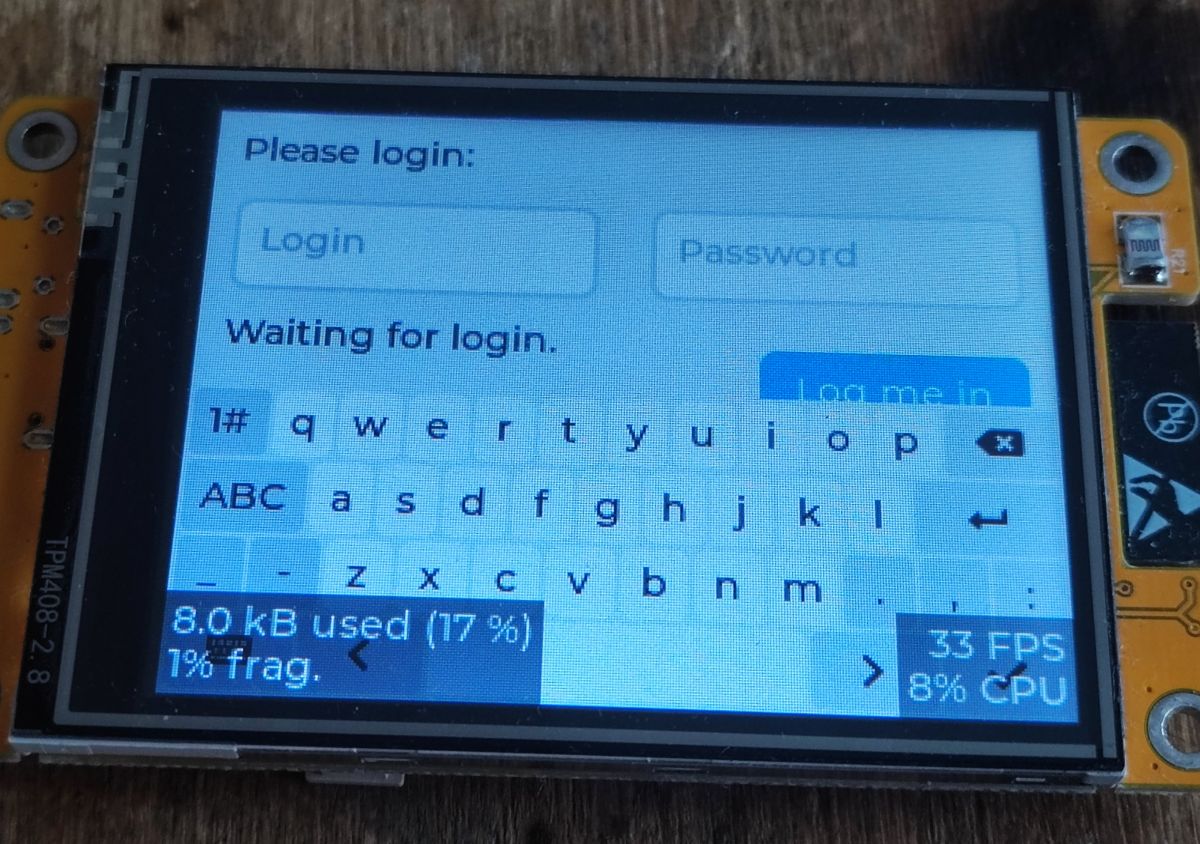
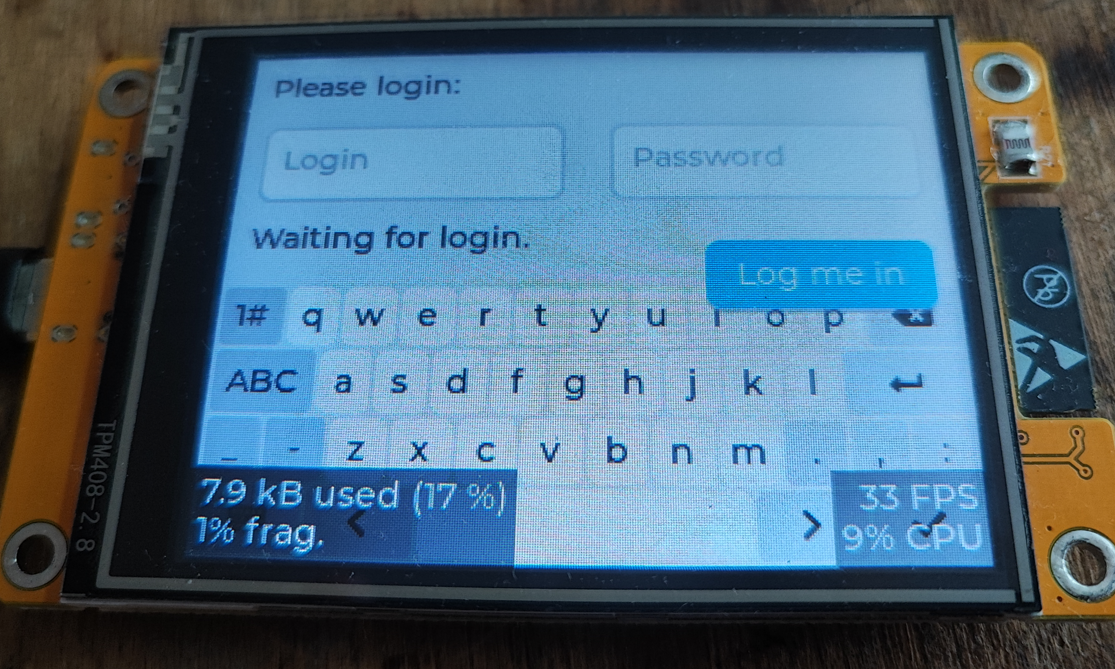
I have added the event commented out for now. Let's check how the button itself looks...
Result:
.
We have done something wrong! The button is above the keyboard. You can see that the order plays a role. The easiest way is to move the keyboard creation earlier. Or you could use:
Code: C / C++
Log in, to see the code
.
This will move the keyboard to the foreground:
.
The handling of the button itself can now be addressed. We will program what happens when the event-click on the button occurs.
But first we need to take the variables out of the function, for simplicity I'll just create them as global variables.
Code: C / C++
Log in, to see the code
.
Then you can pack it into a class as you wish, or alternatively leave it as global but label it somehow, better name it, maybe "g_fieldLogin"?
We are more interested in the click handling. We remove the "comment" from the event setting function and get on with its implementation:
Code: C / C++
Log in, to see the code
.
First we retrieve the entered field captions, i.e. what the user has specified:
Code: C / C++
Log in, to see the code
.
Then, as a demonstration, we check that the login is "ele" and the password is "12". Normally here would be a slightly different check, perhaps an HTTP request to the server via the API?
Code: C / C++
Log in, to see the code
.
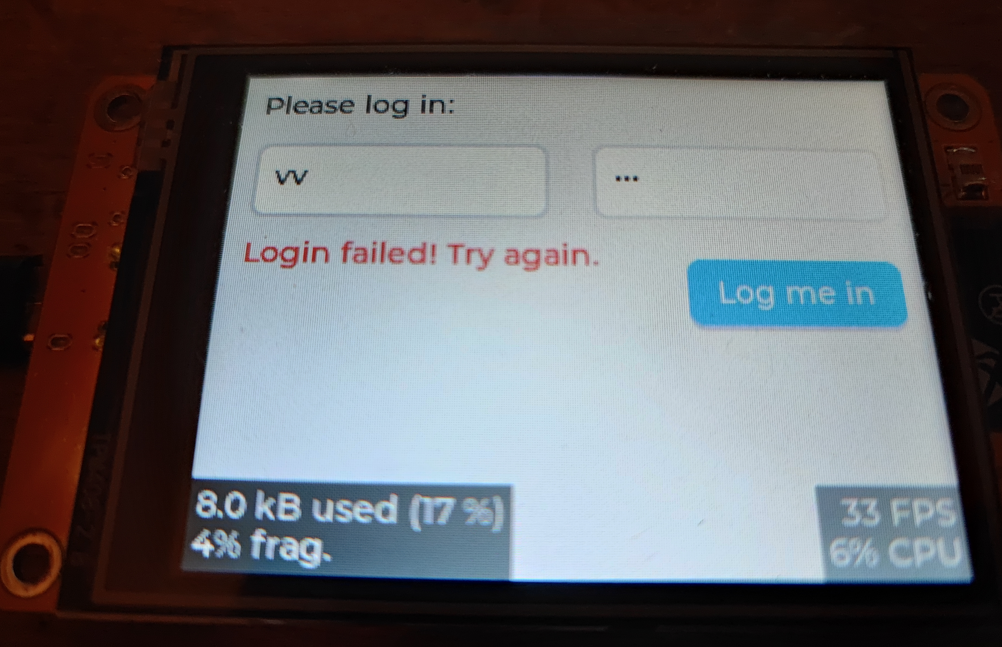
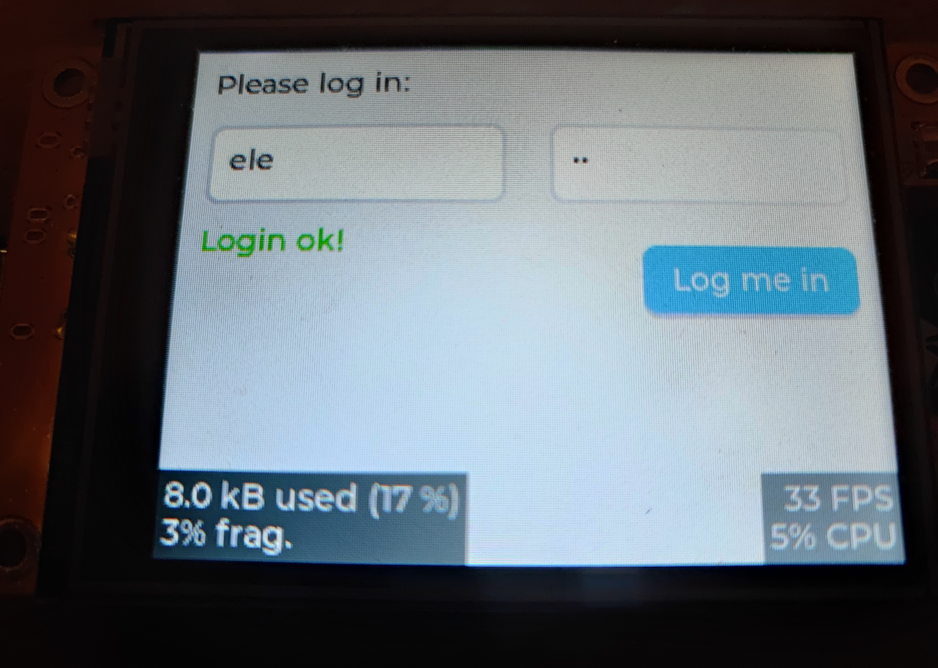
Eventually, depending on the correctness of the data, we display an error or success. A transition to another screen can also be given here.
Code: C / C++
Log in, to see the code
.
All in all, the text could still be coloured.... this way the error message could be in red and the success message would be in green. There is a separate function for this too:
Code: C / C++
Log in, to see the code
.
Time to check our work. The result:
.
The password and login are checked correctly. It is time to implement the second screen.
This can be implemented in a variety of ways, but I have assumed that when switching I release the memory of the old screen and create the second screen anew. You can't destroy the existing (active) screen, so I create the new one first, activate it and then destroy the old one. All in all you could probably also keep both in memory and toggle, that would be ok too, the only bad option here is to create more screens without releasing the previous ones, because this way you will quickly run out of memory.
Code: C / C++
Log in, to see the code
.
In this particular place we create our second screen, the welcome screen after login:
Code: C / C++
Log in, to see the code
.
By the way, I liked the lv_label_set_text_fmt function - it immediately supports text formatting, just like printf. You can conveniently set the text for a label type object.
The rest as before:
Code: C / C++
Log in, to see the code
.
Let's check the logging operation, this time on a video:
.
We can still expand our example a bit and demonstrate vertical scrolling in the screen after login. Let's add a bit more text and make sure the LV_OBJ_FLAG_SCROLLABLE flag is enabled.
Code: C / C++
Log in, to see the code
.
For convenience we will add the texts in a loop, let's say there will be 50 of them.
Code: C / C++
Log in, to see the code
.
I haven't specified the height of the panel here - it will adjust itself to the requirements of what's inside.
What's left is the rest of the code, the one with that button to log out:
Code: C / C++
Log in, to see the code
.
Here is the final result in the video:
I apologise in advance for the "lack of responsiveness" in the videos, it's not a code issue, I could have operated the stylus for more precision.
In summary , LVGL offers a convenient, off-the-shelf mechanism for handling text fields and entering data into them. With just a few lines of code, a touch-sensitive keyboard deceptively resembles popular mobile devices. Data entry is also automatic, and we can then process the data as we wish, e.g. create a login form based on this.
In this topic, by the way, we also practised creating interfaces from the code level, without the involvement of SquareLine Studio , which in principle, in many ways for me, turned out to be simpler than the previously presented method based on the visual editor.... but for the moment you have both methods described, everyone will choose as they see fit.
The project presented here could be taken further and based on it you could make some kind of password-protected access panel to the settings of a smart home or some kind of machine, you could also try to make a client of some simple communicator that would run fully on ESP, maybe for example a GG client?
And how would you guys use the input/keyboard system shown here?
Feel free to comment.
About Author
p.kaczmarek2 wrote 14772 posts with
rating 12914 , helped 659 times.
Been with us since 2014 year.
And in which version of LVGL do you have the above examples done ? [Read more]
FAQ
TL;DR: With 2 text fields and 1 virtual keyboard, you can build an ESP32 LVGL login screen fast. As the author notes, "LVGL offers a convenient, off-the-shelf mechanism" for text entry, then you switch the keyboard on focus, mask the password, validate input, and load a second screen after login. [#21251019]
Why it matters: This pattern solves a common ESP32 touch-UI problem: reliable text entry, login handling, and screen switching without extra hardware.
Podejście
Jak powstaje UI
Mocna strona w wątku
Ograniczenie w wątku
Kod LVGL
Ręcznie, w C
Precyzyjna kontrola klawiatury, pól i ekranów
Trzeba samodzielnie zarządzać wskaźnikami i kolejnością obiektów
SquareLine Studio
Edytor wizualny
Szybszy start w poprzednich częściach serii
W tym przypadku autor uznał kod za prostszy do formularzy
Kluczowy wniosek: Jedna klawiatura LVGL może obsługiwać wiele pól tekstowych, ale musisz przepinać ją na aktywne pole przy LV_EVENT_FOCUSED i odłączać przy LV_EVENT_DEFOCUSED.
Quick Facts
Przykładowe pola logowania i hasła mają rozmiar 140 × 40 px, a wcześniejsze dwa pola demonstracyjne miały 140 × 80 px. [#21251019]
Ekran powitalny w wersji przewijanej tworzy kontener o rozmiarze 100% × 100%, z paddingiem 10 px i przewijaniem pionowym. [#21251019]
Demonstracja przewijania dodaje 50 etykiet tekstowych, rozmieszczonych co około 30 px w pionie. [#21251019]
Formularz logowania używa 2 ekranów: głównego z klawiaturą oraz drugiego ekranu powitalnego z przyciskiem wylogowania. [#21251019]
How do I create a virtual keyboard in LVGL on an ESP32 touch display and connect it to a textarea?
Create the keyboard with lv_keyboard_create(parent), create a textarea with lv_textarea_create(parent), then bind them with lv_keyboard_set_textarea(kb, ta1). In the shown example, both widgets live on ui_scrMain, and the first field is aligned at (10, 10) or (10, 40) depending on the version. The textarea also gets an event callback through lv_obj_add_event_cb(..., kb), so the keyboard can follow focus changes. [#21251019]
Why does the LVGL keyboard type only into the first text field, and how do I switch it to the currently focused field?
It types into the first field because the code explicitly binds the keyboard to ta1 with lv_keyboard_set_textarea(kb, ta1). Switch it by handling focus events for every textarea. 1. Attach one callback to both fields. 2. On LV_EVENT_FOCUSED, call lv_keyboard_set_textarea(kb, ta). 3. On LV_EVENT_DEFOCUSED, set the textarea to NULL and hide the keyboard. [#21251019]
What is LV_EVENT_FOCUSED and LV_EVENT_DEFOCUSED in LVGL, and how are they used to show or hide an on-screen keyboard?
They are LVGL events that signal when a widget gains or loses input focus. "LV_EVENT_FOCUSED is an LVGL event code that marks the active widget, letting code react immediately when a field becomes ready for input." In the example, LV_EVENT_FOCUSED assigns the keyboard to the active textarea and clears LV_OBJ_FLAG_HIDDEN. LV_EVENT_DEFOCUSED unbinds the keyboard with NULL and adds the hidden flag back. [#21251019]
How can I make a simple login form in LVGL with separate login and password fields on an ESP32-2432S028R?
Create one label, two textareas, one keyboard, one status label, and one login button on the main screen. The example places the login field at (10, 40) and the password field at (-10, 40) relative to opposite top corners, both sized 140 × 40 px. Then attach the same textarea callback to both fields, enable password mode on the second one, and add a click callback to the login button for validation. [#21251019]
What does lv_textarea_set_password_mode do in LVGL, and how does it mask password input with asterisks?
lv_textarea_set_password_mode(ta2, true) turns a normal textarea into a password field. The typed characters still go into the widget, but LVGL displays them masked, which the thread describes as being covered with asterisks. The example applies it only to the second field, whose placeholder is "Password", so the login field stays readable while the password field stays hidden on screen. [#21251019]
Why does my LVGL button appear above the keyboard, and how do I fix the object order with lv_obj_move_foreground?
Your button appears above the keyboard because object creation order affects stacking order. In the thread, the button was drawn after the keyboard, so it covered part of it. The simplest fix is to create the keyboard later or call lv_obj_move_foreground(kb) to bring the keyboard in front. That directly corrects the visual order without changing button coordinates such as (-10, 100). [#21251019]
What's the correct way to switch between two LVGL screens, load the new one, and free the old one without memory problems?
Create the new screen first, load it, then delete the old screen. The author states you cannot destroy the active screen, so the sequence matters. In the example, ui_scrWelcome_screen_init() creates ui_scrWelcome, calls lv_scr_load(ui_scrWelcome), and only then deletes ui_scrMain. The reverse path does the same when returning to the main screen. Repeatedly creating new screens without freeing old ones is the memory failure case. [#21251019]
How can I read text from LVGL textareas and validate a username and password after pressing a login button?
Read both strings with lv_textarea_get_text(ta1) and lv_textarea_get_text(ta2), then compare them inside the button click callback. The example checks whether the username equals "ele" and the password equals "12" using strcmp. If both match, it sets the status label to "Login ok!"; otherwise it shows "Login failed! Try again." and keeps the user on the login screen. [#21251019]
What is LV_OBJ_FLAG_SCROLLABLE in LVGL, and how does it affect screen and container scrolling behavior?
It is a flag that controls whether an LVGL object can scroll. "LV_OBJ_FLAG_SCROLLABLE is an LVGL object flag that enables content scrolling inside a widget, which is useful for containers but often undesirable on a fixed main screen." The thread clears this flag on full screens, then creates a separate inner container for vertical scrolling on the welcome screen. That keeps the main screen stable while the content area moves. [#21251019]
How do I build a vertically scrollable welcome screen in LVGL with many labels and a logout button?
Create a second screen, add a child container, size it to 100% × 100%, and set vertical scrolling with lv_obj_set_scroll_dir(scroll, LV_DIR_VER). Then add the welcome label, generate 50 data labels in a loop, and place a logout button near the top right. In the example, each line is offset by about 30 px, and the logout button calls ui_scrMain_screen_init on click to return to the login screen. [#21251019]
LVGL code vs SquareLine Studio for ESP32 UI design — which approach is better for making forms and keyboard input screens?
For the thread’s login form, writing the UI directly in LVGL code worked better. The author explicitly says this code-based method turned out simpler for this case than the earlier visual-editor approach in SquareLine Studio. Code gives direct control over focus events, keyboard binding, screen loading, and object order. SquareLine Studio still remains a valid alternative, but the demonstrated form and keyboard flow were built entirely in code. [#21251019]
Which version of LVGL were these keyboard and login form examples created with?
The thread does not specify the LVGL version. A follow-up post asks exactly which version was used, but no version number appears in the provided discussion. If you need exact compatibility, you cannot derive it from this thread alone, even though the examples use current-looking lv_keyboard, lv_textarea, and event-callback APIs. [#21254528]
What is placeholder text in an LVGL textarea, and how should I use it in login and password fields?
Placeholder text is the gray hint shown before the user enters any text. The example sets it with lv_textarea_set_placeholder_text, using "Login", "Password", and earlier "Hello" as hints. Use it to tell the user what each field expects, especially when fields are only 140 × 40 px and screen space is tight. It improves clarity without filling the field with real content. [#21251019]
How can I change an LVGL label color to show login success in green and login failure in red?
Use lv_obj_set_style_text_color(label_data, lv_color_hex(...), 0) after validation. The success path in the thread sets 0x00FF00, which is green, and the failure path sets 0xFF0000, which is red. That color change happens right after lv_label_set_text, so the message text and the visual state update together when the button is clicked. [#21251019]
What are the best practices for storing LVGL widget pointers like textareas and labels on ESP32 — global variables, structs, or class members?
Keep pointers outside the screen-building function if later callbacks must access them, but avoid unstructured globals when the UI grows. The thread moves ta1, ta2, and label_data to global scope for simplicity, then explicitly suggests packing them into a class or naming globals more clearly, such as g_fieldLogin. For a small 2-screen demo, globals work. For larger projects, grouped structs or class members scale better and reduce confusion. [#21251019]
AI summary based on the discussion. May contain errors.








Comments
And in which version of LVGL do you have the above examples done ? [Read more]