


logo elektroda
logo elektroda
X
logo elektroda

ESP32 and touch display - tutorial part 3 - interactions, games and fun

p.kaczmarek2 3126 0

TL;DR

  • The ESP32-2432S028R touchscreen tutorial builds three interactive sketches: reaction-time tester, maths quiz, and tic-tac-toe.
  • It uses raw drawing primitives, touch detection, and simple coordinate mapping instead of LVGL, with buttons and board state handled in code.
  • The quiz randomizes operations on numbers from 1 to 10 and uses a 3×3 grid with four answer zones.
  • The reaction-time app measures milliseconds from the color change until the screen is pressed, then displays the elapsed time.
  • The manual button and game logic are intentionally basic, and the author says later parts will switch to LVGL and WiFi-based projects.
Generated by the language model.
ADVERTISEMENT
Treść została przetłumaczona polish » english Zobacz oryginalną wersję tematu
📢 Listen (AI):
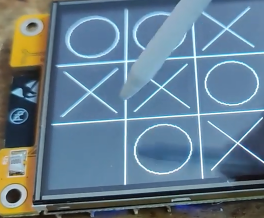
  • ESP32-2432S028R touchscreen displaying a tic-tac-toe game. .
    Today we continue our adventure with the ESP32 module + touchscreen display version of the ESP32-2432S028R. In this section we will practice interacting with the display using the touchscreen. To do this, we will write some simple interactive programs here, such as measuring the user's reaction time, a maths quiz and a 'wheel and cross' game.

    At the outset, I would like to point out right away that this is not the only way to draw on this display. On the contrary, there is even a better way, we can run LVGL on it and even create interfaces in a program suitable for this, but patience - LVGL will be discussed in the following sections.

    Previous parts:
    ESP32 and touch display - tutorial - part 1 - how to program? Basics .
    ESP32 and touch display - part 2 - how to draw pixels, lines, shapes, performance issues

    Response time
    To start with, I came up with something very simple - measuring reaction time. This is about the user's reaction time, i.e. we look at how quickly we are able to press the screen after it changes colour.
    Let's think about how we can implement this?
    We need to, in a loop:
    - set, for example, the initial state of the screen (say, a black screen)
    - wait for some time, giving the user time to get ready
    - suddenly change e.g. the screen colours to the opposite (give the user a sign)
    - from then on we need to somehow measure the time until the screen is pressed
    - then we need to display this time
    To measure the time we will use, as is common in Arduino, the function millis .
    Now let's type this in sequentially in the code. Stage one - the word "WAIT" and the wait (you could make it random):
    Code: C / C++
    Log in, to see the code
    .
    Stage two - signal for action and start of timing:
    Code: C / C++
    Log in, to see the code
    .
    Stage three - timing (ultimately could probably be done with an interrupt, but in such a simple program I took the liberty of loop blocking the execution of the thread):
    Code: C / C++
    Log in, to see the code
    .
    The loop breaks when the screen detects pressure. We then take the current time, subtract the stored time from it and display the result:
    Code: C / C++
    Log in, to see the code
    .
    Presentation:


    .
    And the full code:
    Code: C / C++
    Log in, to see the code
    .


    Mathematics Quiz .
    In the previous programme, we used the basic functions of drawing (displaying text) and taking input from the user (touch detection - just presence there, true or false). Now it's time to expand on this a bit. Let's set ourselves two tasks:
    - we want to display a bit more on the screen (some shapes, maybe even buttons?).
    - we also want to use pressure positions, perhaps to see which button is pressed
    Eventually we will use LVGL rather, there are ready-made buttons and other user interface components there, but for now we are practising simple programmes for learning and satisfaction.
    A good example of such an application will be a maths quiz.
    The operation will involve (as before, in a loop):
    - drawing two numbers for an operation (e.g. multiplication) and displaying them on the screen
    - preparing answers A B C D, where one of them is correct and the other answers are different from the correct one (you will have to draw in a loop - until
    - waiting for input from the user (press)
    - checking which button has been pressed (we will do this in a simple way, a few rigid conditions)
    - checking if the correct answer has been selected
    - displaying an appropriate message depending on what the user has selected
    Counting the number of correct and wrong answers could also be added.

    Here we go, global variables for counting:
    Code: C / C++
    Log in, to see the code
    .
    Then we execute our entire new action in a loop. First, clearing the screen and displaying the current result.
    Code: C / C++
    Log in, to see the code
    .
    You also need to draw some two numbers, say from 1 to 10, for convenience.
    Code: C / C++
    Log in, to see the code
    .
    Then let's draw an operation to perform on these numbers. There will be variety:
    Code: C / C++
    Log in, to see the code
    .
    Now things get a bit more complicated. We have to randomise the correct answer items, because what would a quiz be where the correct answer is always, say, A?
    Code: C / C++
    Log in, to see the code
    .
    The above code first draws the position of the correct answer and then draws the necessarily incorrect numbers.
    We can then display the task on the screen and mark the button zones:
    Code: C / C++
    Log in, to see the code
    .
    The mysterious "datum" determines how the text is centred and includes the following options:
    
    TL_DATUM = 0 = Top left
    TC_DATUM = 1 = Top centre
    TR_DATUM = 2 = Top right
    ML_DATUM = 3 = Middle left
    MC_DATUM = 4 = Middle centre
    MR_DATUM = 5 = Middle right
    BL_DATUM = 6 = Bottom left
    BC_DATUM = 7 = Bottom centre
    BR_DATUM = 8 = Bottom right
    
    .
    MC stands for 'middle centre', meaning we centre the text.
    The most important thing, however, is to draw the 'buttons'. We assume that the buttons start in the middle of the screen, hence the baseY variable. Then, in a loop from 0 to 4 (no 4, so only 0, 1, 2 and 3), we use the remainder of the division (modulo) and divide to select one of the quarters of our screen. We draw the rectangles one by one and then display the text in them.
    We then wait for the user's reaction:
    Code: C / C++
    Log in, to see the code
    .
    The above code waits for the screen to be touched and then calculates the position of the touch in pixels of the display.
    Then, a bit on foot, we check which quadrant has been "touched". There are only four, so three conditional blocks are enough:
    Code: C / C++
    Log in, to see the code
    .
    It would be important to remember to update the button drawing and button checking at once, because here essentially the same shape repeats twice. Ultimately, this could be done better (and even introduce a button class).
    Now it remains to check that the user has selected the correct answer and display the appropriate message:
    Code: C / C++
    Log in, to see the code
    .
    Here there is also a count of the number of correct and incorrect answers. In addition, here I have added a display of the selected option, this is just to verify the performance of the program.
    After that, there is just one more delay in the code to give the user time to read the message.
    Here is all the code:
    Code: C / C++
    Log in, to see the code
    .
    Result:


    Wheel and cross .
    In the previous paragraph we've already done a bit of practice interacting with something more than text, there were four interactive buttons, how about now doing a full-on project based on 'buttons' and shapes? One of the more popular tasks, even if only at university, is to make a wheel and cross game. Let's try to implement it here. Let's take the easier version, which is a game of two players with each other. I don't want to focus here on playing with a computer.
    Ok, what do you need for this game?
    Certainly:
    - visually drawing the board (with lines?)
    - drawing visually circles and crosses (there is a ready-made function for circles and crosses are just two lines, no problems)
    - you need to store the state of the board somehow, the board is two-dimensional (chessboard), so maybe a two-dimensional array? Just what its content - maybe an enumerator (field), although what for? Maybe use ASCII characters, i.e. spaces and the letters x and o?
    - The logic of turns and win checks is needed, but it is not that difficult, we have just two diagonals, and 3 lines each vertically and horizontally. These lines could be done in loops, so two loops and two conditions....

    So let's start with the code. First the constants, the size of the board (number of boxes) and the cells (in pixels). Then the aforementioned array, empty to start with. Then a variable specifying whose move it is.
    Code: C / C++
    Log in, to see the code
    .
    Now the line drawing. Here we are drawing a blank board, without stamps.
    Code: C / C++
    Log in, to see the code
    .
    The above code benefits from a small optimisation, namely instead of drawing a "normal" line, we use a function that quickly draws a line according to a given axis, separately H - horizontal, and V - vertical.
    Now perhaps the aforementioned drawing of the cross (x) sign:
    Code: C / C++
    Log in, to see the code
    .
    The column and row indices of the box on the chessboard are given as arguments here, only in the function do I convert them to pixels.
    Now, analogously, drawing a circle mark:
    Code: C / C++
    Log in, to see the code
    .
    Now perhaps an auxiliary function that draws a symbol from a given position on the chessboard:
    Code: C / C++
    Log in, to see the code
    .
    Now an auxiliary function to put a marker (it also changes the player's queue):
    Code: C / C++
    Log in, to see the code
    .
    The above function also checks if it is possible to place a mark on the field, otherwise nothing is done.
    Now cleaning the board:
    Code: C / C++
    Log in, to see the code
    .
    The worst is left - checking the victory condition.
    There are a bit of options here.
    Horizontal lines, vertical lines, and two slants.
    Let's start with the horizontal and vertical lines - this is where the loop will help us.
    Code: C / C++
    Log in, to see the code
    .
    The above code can be optimised (check both axes at once).
    Now let's check the diagonals:
    Code: C / C++
    Log in, to see the code
    .
    The above code can also be rewritten by the reader into a single conditional block, it just takes a bit of practice with the conditions and logical operators.

    There is one more thing left to check - whether there is a tie. When is there a tie? When there are no more spaces for the next mark. That is, we check if there is at least one space character in the array (according to the accepted standard).
    Code: C / C++
    Log in, to see the code
    .
    That leaves the setup and loop functions - but there you can guess what we're giving. The game will wait for input from the user and only then will it update:
    Code: C / C++
    Log in, to see the code
    .
    Mapping the pixels to our cells is also straightforward - we simply divide into cellSize (operations are done on integers there).

    The result:


    .

    Whole code:
    Code: C / C++
    Log in, to see the code


    Summary
    Someone might ask - "is it really necessary to draw everything on foot?". Of course not - but it's worth trying it to get some idea of how coordinates work, for example, or how we know which part of the interface is pressed.
    Nevertheless, I will be moving away from this in the later parts of my ESP32-2432S028R adventure. Further projects I will present (including e.g. lighting control via WiFi or measurement readings from Tasmota) will already be based on LVGL, so as not to reinvent the wheel.
    In addition, in the next part we will already try to use WiFi connectivity - I will show how to download some data from the Internet. Maybe a weather forecast via an API? Details to come soon.

    Cool? Ranking DIY
    Helpful post? Buy me a coffee.

    About Author
    p.kaczmarek2
    Moderator Smart Home
    Offline 
    p.kaczmarek2 wrote 14418 posts with rating 12376, helped 650 times. Been with us since 2014 year.
  • ADVERTISEMENT
📢 Listen (AI):

FAQ

TL;DR: On a 320×240 px ESP32-2432S028R display, you can build touch apps with TFT_eSPI and XPT2046 using simple loops, millis(), and mapped touch coordinates. As the tutorial notes, "LVGL will be discussed" later, but this part solves reaction timing, a 4-answer quiz, and a 3×3 tic-tac-toe game for learners who want hands-on touchscreen logic first. [#21144500]

Why it matters: This FAQ shows how to turn raw touch input into practical ESP32 game and UI logic before moving to a full widget framework.

Approach What you draw Input handling Best for Limitation
Manual TFT_eSPI drawing Text, lines, rectangles, circles Raw touch state and mapped X/Y Learning coordinates, simple games More repetitive code
LVGL Ready-made interface components Widget-based interaction Richer UIs and faster interface building Introduced later, not used here

Key insight: Manual drawing is not the final UI strategy here; it is a teaching step. Once you understand coordinates, button zones, and touch mapping, moving to LVGL becomes much easier. [#21144500]

Quick Facts

  • The tutorial maps raw XPT2046 readings to a 320×240 px display with map(p.x, 200, 3700, 1, 320) and map(p.y, 240, 3800, 1, 240), so touch logic can use pixel coordinates instead of controller values. [#21144500]
  • The reaction-time demo waits 5 s, starts timing with millis(), and shows the result in ms, making it a minimal example of event timing on a touchscreen ESP32. [#21144500]
  • The quiz uses 4 on-screen answer zones arranged in a 2×2 layout, then checks the touched quadrant with simple X/Y comparisons instead of a widget library. [#21144500]
  • Tic-tac-toe uses a 3×3 board with 80 px cells; X marks use two lines, and O marks use a circle with 30 px radius, which keeps drawing logic compact. [#21144500]
  • The touchscreen SPI wiring in code assigns IRQ 36, MOSI 32, MISO 39, CLK 25, and CS 33, then starts a dedicated SPIClass(VSPI) instance for the touch controller. [#21144500]

How do I measure user reaction time on an ESP32-2432S028R touch display using millis() and XPT2046 touch detection?

Use millis() to timestamp the moment you change the screen, then subtract that value when touch is detected. 1. Show WAIT and delay 5 s. 2. Change the screen to PRESS and store unsigned long startTime = millis();. 3. Block in while (!touchscreen.touched()) {} and then display millis() - startTime in ms. This gives a complete reaction timer with only TFT_eSPI drawing and XPT2046 touch presence detection. [#21144500]

What is LVGL, and why would it be a better choice than drawing everything manually on an ESP32 touchscreen?

LVGL is a UI library that lets you build interfaces with ready-made components instead of drawing every element by hand. "LVGL is a graphics library that creates interfaces with ready-made buttons and other UI components, reducing manual coordinate work." In this tutorial, manual drawing teaches coordinates and touch zones first, but LVGL is presented as the better long-term choice for richer interfaces on the ESP32-2432S028R. [#21144500]

How can I map raw XPT2046 touch coordinates to 320x240 screen pixels on the ESP32-2432S028R?

Map the raw controller values into screen pixels with map(). The tutorial uses p.x = map(p.x, 200, 3700, 1, 320); and p.y = map(p.y, 240, 3800, 1, 240);, then stores them in int16_t x and int16_t y. After that, your code can compare touches against button zones or divide by cell size for a game grid. [#21144500]

What's the best way to detect which on-screen button was pressed in a simple ESP32 maths quiz without using LVGL?

Use fixed rectangular touch zones and compare the mapped X/Y coordinates against screen halves and quarter heights. The quiz creates 4 answer boxes in a 2×2 layout, starting at baseY = tft.height() / 2. Then it checks left or right with x < tft.width() / 2 and top or bottom with y < baseY + tft.height() / 4. This is simple, fast, and good enough for a small quiz. [#21144500]

How do I create a multiple-choice maths quiz on an ESP32 touch display with random answers and score counting?

Generate two random numbers, choose +, -, or *, place the correct result in one of four random positions, and count wins and mistakes. The tutorial stores totals in correctAnswers and wrongAnswers, draws four answer rectangles, waits for touch, converts raw touch to pixels, and compares the selected option with correctResult. It then shows GOOD on green or BAD on red and delays 3 s before the next round. [#21144500]

What is MC_DATUM in TFT_eSPI, and how does text datum affect text alignment on the display?

MC_DATUM centers text on both axes. "MC_DATUM is a text-alignment mode in TFT_eSPI that places the text origin at the middle center, so strings align around a central point instead of a corner." The tutorial lists 9 datum modes, from TL_DATUM = 0 to BR_DATUM = 8, and uses MC_DATUM when placing centered labels like WAIT, PRESS, and quiz feedback. [#21144500]

Why does the tutorial use a blocking while (!touchscreen.touched()) loop, and how would interrupts change the design?

The tutorial uses a blocking loop because it keeps the example short and easy to follow. The author states that timing could be done with an interrupt, but chose to block execution in this simple program. An interrupt-based design would avoid waiting inside while (!touchscreen.touched()) {}, so other tasks could continue running while the system waits for touch input. [#21144500]

How can I draw a tic-tac-toe board, X marks, and O circles on an ESP32-2432S028R using TFT_eSPI?

Draw the board with fast horizontal and vertical lines, then draw X and O symbols per cell. The example uses a 3×3 grid with cellSize = 80, calls drawFastHLine() and drawFastVLine() for the board, draws X with two diagonal lines, and draws O with drawCircle(centerX, centerY, 30, TFT_BLACK). Touch coordinates become row and col by dividing mapped pixels by the cell size. [#21144500]

What is the simplest way to store tic-tac-toe board state on ESP32: a 2D char array, enum, or something else?

A 2D char array is the simplest choice here. The tutorial uses char board[3][3] filled with spaces, then stores 'X' or 'O' in each cell. That makes drawing easy, because drawSymbol() only checks whether the selected cell contains 'X', 'O', or ' '. The author mentions enums as an option, but the example keeps the representation minimal and readable. [#21144500]

How do I check for wins and draws in a 3x3 tic-tac-toe game on ESP32 without making the code too repetitive?

Check rows and columns in one loop, then test the two diagonals, then scan for empty spaces to detect a draw. The example loops i = 0..2 for horizontal and vertical wins, uses two explicit diagonal conditions, and sets draw = true unless any cell still contains ' '. This keeps the logic clear for a 3×3 board, even if some repetition remains. [#21144500]

TFT_eSPI manual drawing vs LVGL widgets on ESP32 touch displays — which is better for games and simple user interfaces?

Manual TFT_eSPI drawing is better for learning and very simple games, while LVGL is better for reusable interface components. This tutorial manually builds a reaction timer, a 4-button quiz, and a 3×3 tic-tac-toe game to teach coordinates and touch zones. The author explicitly says drawing everything manually is not necessary and plans to switch future projects to LVGL to avoid reinventing the wheel. [#21144500]

Why are drawFastHLine and drawFastVLine used for the game grid instead of regular line drawing functions in TFT_eSPI?

They are used as a small optimization for axis-aligned lines. The tutorial states that the code benefits from drawing lines according to a fixed axis, using H for horizontal and V for vertical. A tic-tac-toe grid only needs straight horizontal and vertical separators, so drawFastHLine() and drawFastVLine() fit the task better than more general line calls. [#21144500]

What causes wrong touch position readings on an XPT2046 touchscreen, and how do I calibrate the map() values properly?

Wrong readings come from using raw XPT2046 values directly or using incorrect mapping ranges. The tutorial corrects this by remapping raw touch values from about 200–3700 on X and 240–3800 on Y into 1–320 px and 1–240 px. If your touches land in the wrong button or wrong tic-tac-toe cell, those map() limits are the first values to adjust. [#21144500]

How would I refactor the quiz or tic-tac-toe example into reusable button classes or cleaner UI logic on ESP32?

Refactor by storing each button’s geometry once and reusing the same data for drawing and hit-testing. The tutorial notes that button drawing and button checking repeat the same shape logic twice and says this could be improved, even with a button class. A cleaner design would keep rectangle coordinates, label text, and action handling together instead of scattering them across drawing code and if blocks. [#21144500]

What are the XPT2046 IRQ, MOSI, MISO, CLK, and CS pins used for in an ESP32 touchscreen project?

They connect the ESP32 to the XPT2046 touch controller over SPI and support touch detection. The example defines IRQ 36, MOSI 32, MISO 39, CLK 25, and CS 33, creates SPIClass(VSPI), and starts it with touchscreenSPI.begin(...). After that, touchscreen.begin(touchscreenSPI) lets the program read touch presence and touch coordinates from the display controller. [#21144500]
Generated by the language model.
ADVERTISEMENT