logo elektroda
logo elektroda
X
logo elektroda

Arlec Grid Connect PC191HA Series 3 Disassembly and Flashing BK7231N (CB2S)

DerGraueGeist  0 441 Cool? (+2)
📢 Listen (AI):

TL;DR

  • Arlec Grid Connect PC191HA Series 3 smart switch was disassembled, its CB2S BK7231N module removed, flashed with OpenBeken, and reassembled for Home Assistant control.
  • The CB2S was wired to a CH340G USB-to-TTL adapter with TxD/RxD crossed, then BK7231GUIFlashTool on Ubuntu/Mono backed up and flashed the firmware.
  • The flasher used /dev/ttyUSB0, BK7231N, and 921600 baud; the original readback CRC check failed.
  • MQTT discovery in Home Assistant automatically added the switch and sensors, and the SimpleTimer add-in let the physical button start the shutoff countdown.
  • DHCP caused dropouts, so static IP was more reliable, and the backup readback CRC check failed until 'Ignore CRC error' was selected.
Generated by the language model.
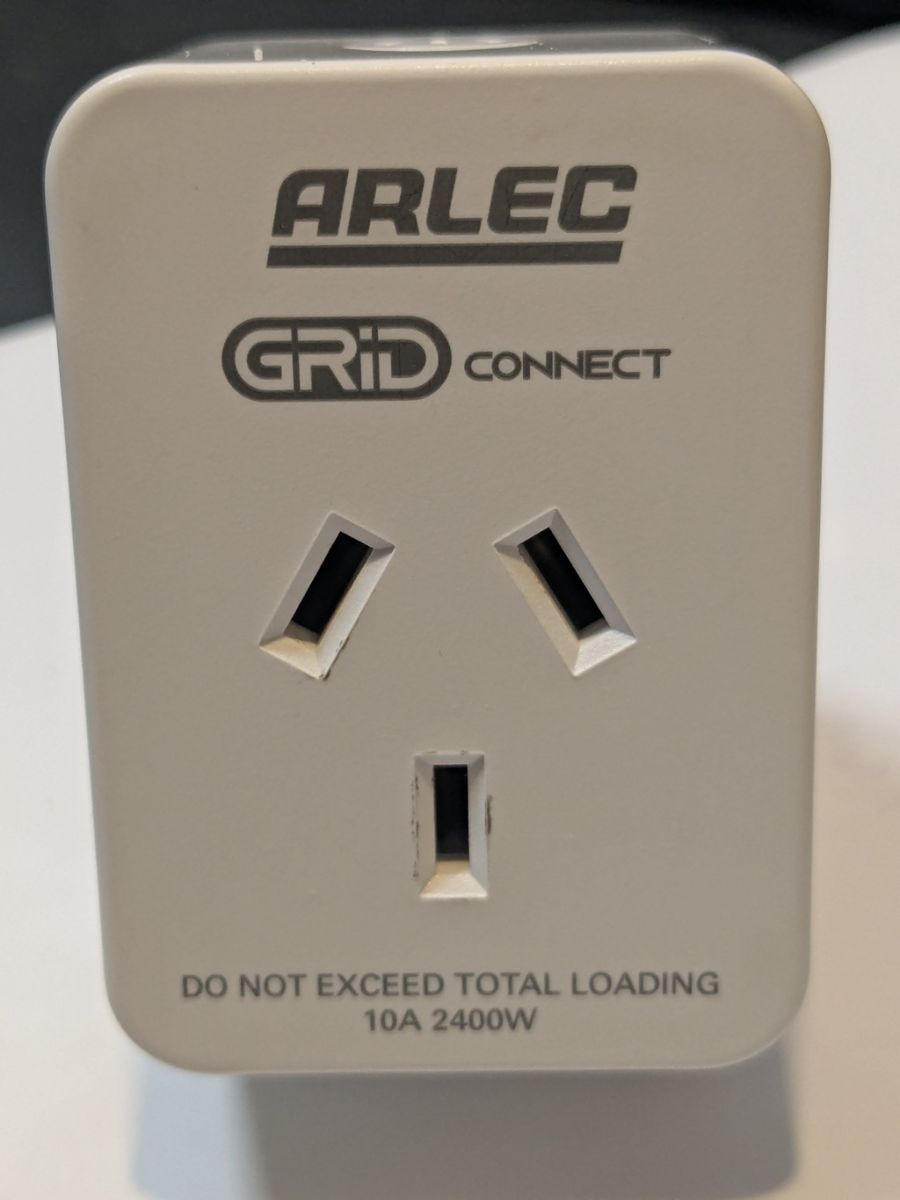
This was for an Arlec Grid Connect (from Bunnings) - PC191HA Series 3
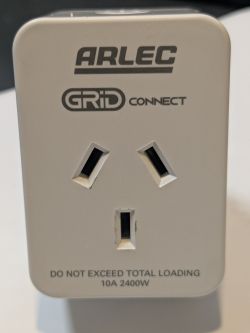
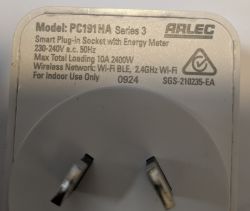
Arlec Grid Connect smart plug, front view with logo and three outlet slots.
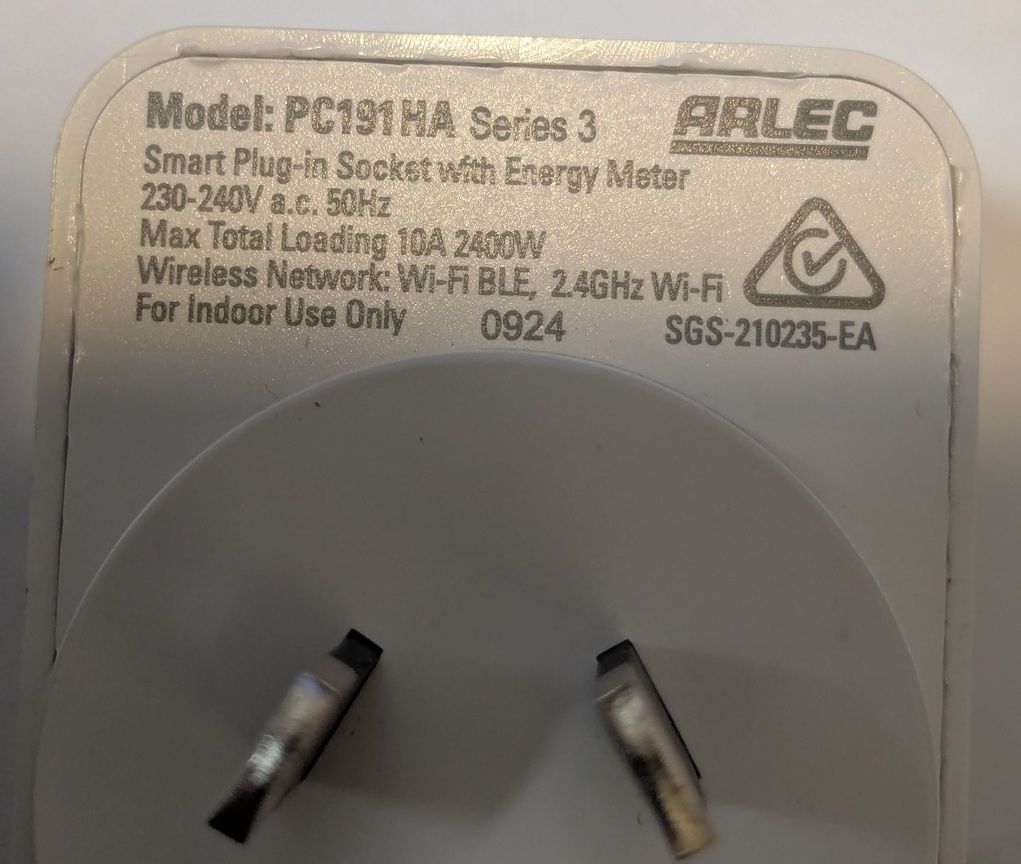
Label on Arlec smart plug PC191HA Series 3 showing model, electrical ratings, and logos.

Step 1 - prise open the case:
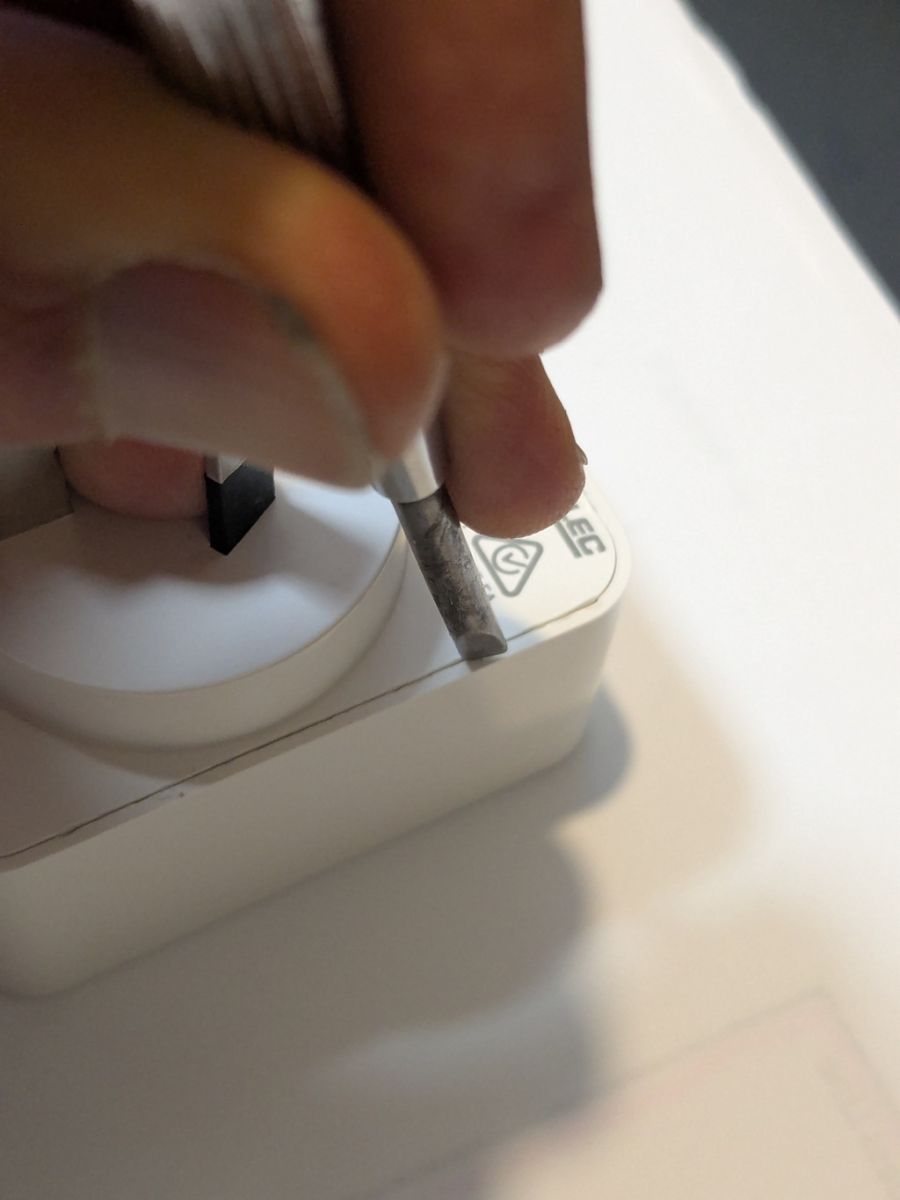
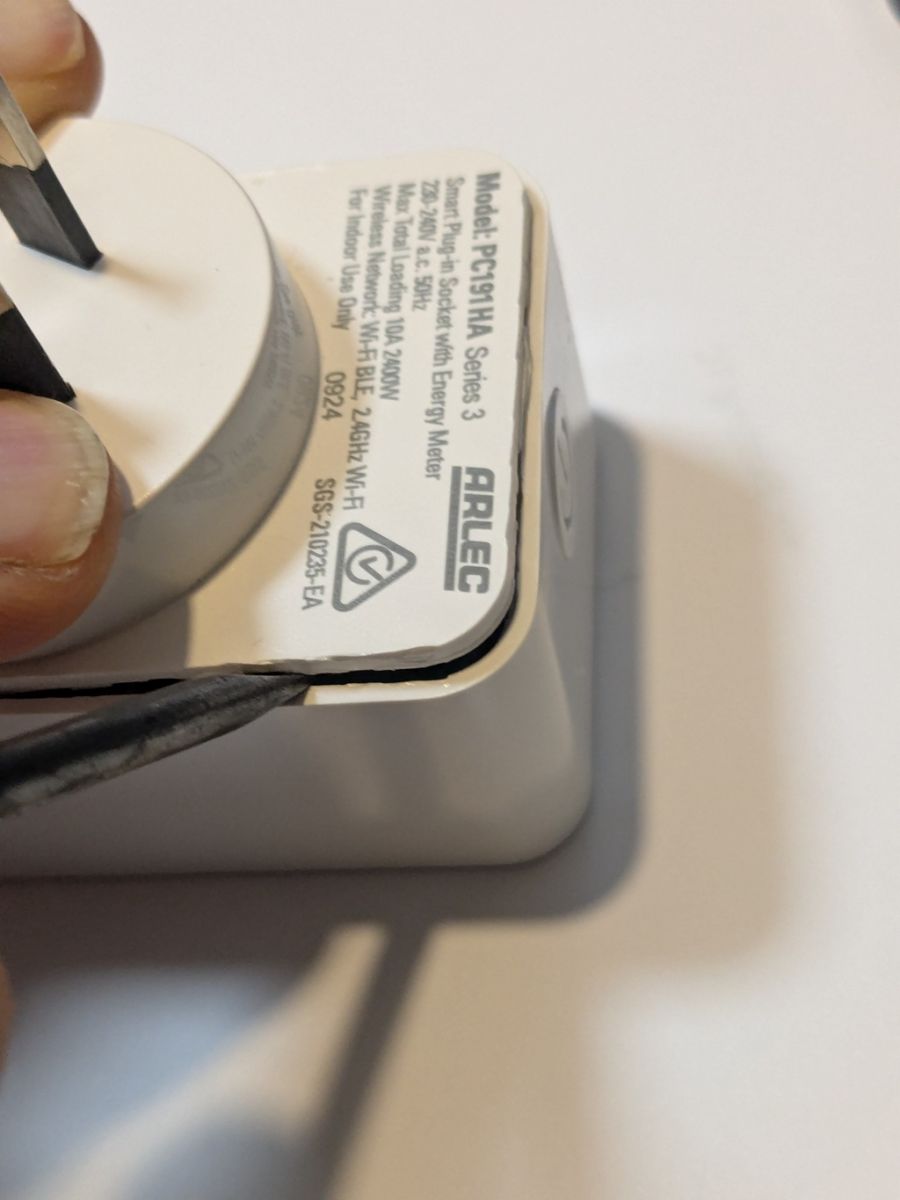
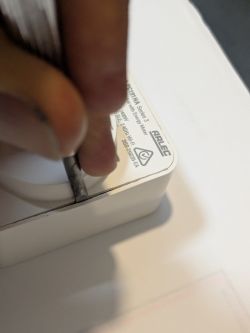
a) Use a screwdriver to crack the welded seam - pushing firmly in one location, then working along the side until no longer welded. Repeat for all sides and two corners.
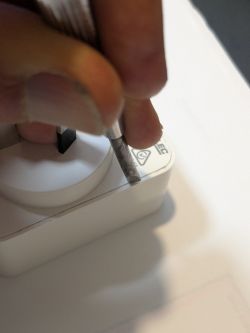
Close-up of a screwdriver prying at the seam of a white plug-in device housing
Close-up: screwdriver prying the seam of a white Arlec PC191HA Series 3 device casing

b) Use the screwdriver to carefully lever up the back.
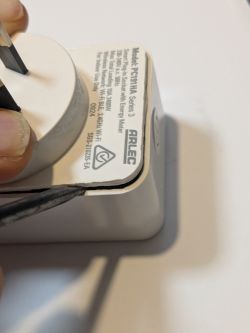
Close-up of ARLEC PC191HA smart plug label; a screwdriver pries open the casing


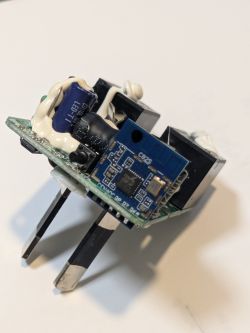
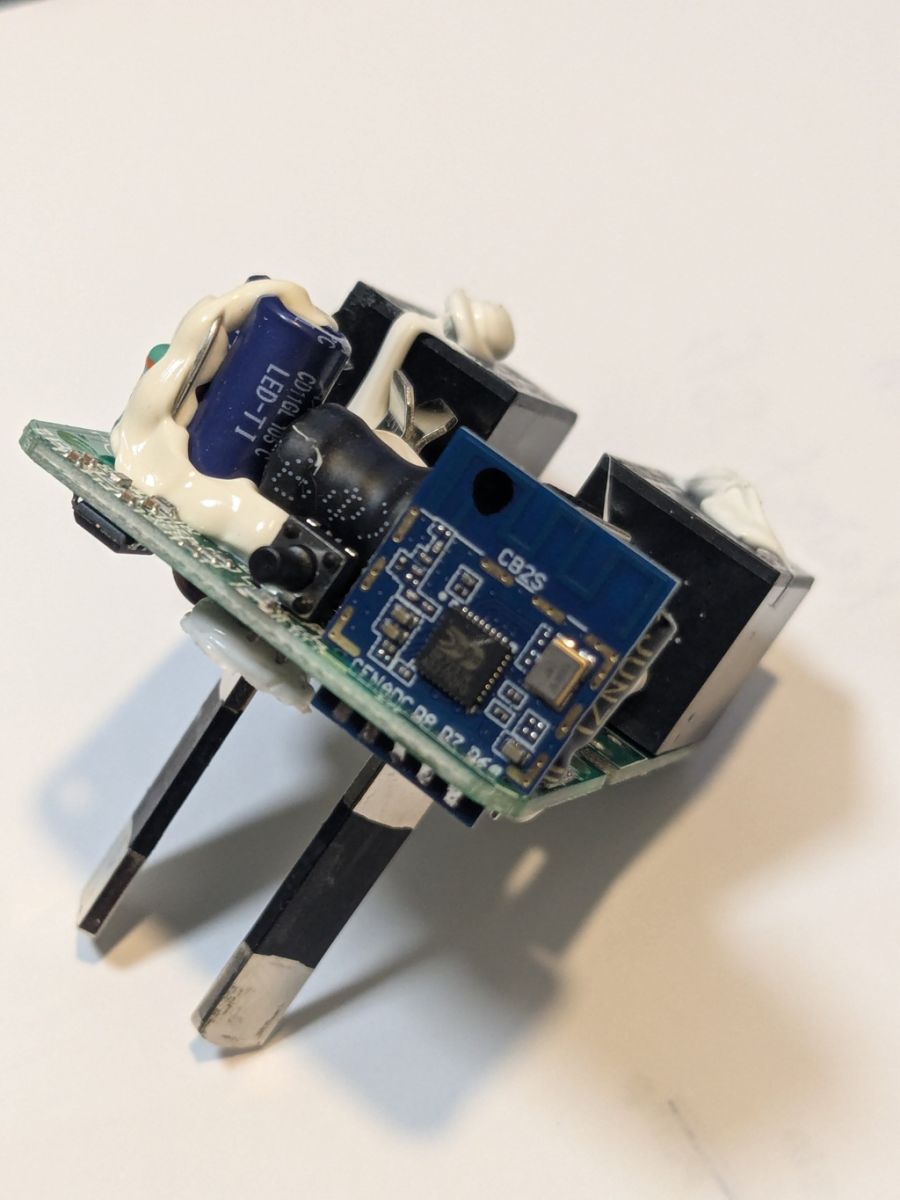
c) Remove the board

Close-up of plug electronics board with a blue CB2S module and surface-mount components.

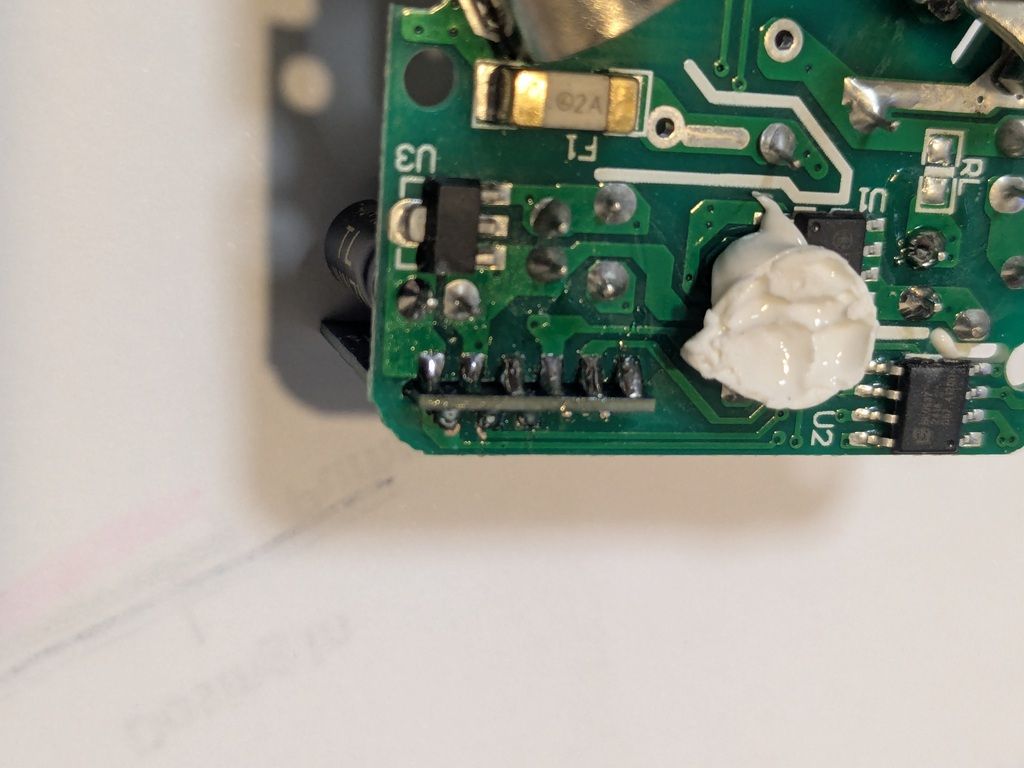
d) Unsolder the CB2S from the main board
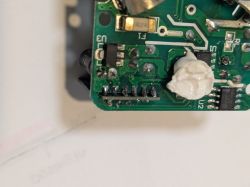
Close-up of a green PCB with solder pins, U2/U3 markings, and a blob of white adhesive

After removing much of the solder I used a sharp craft knife to carefully cut the small remaining solder bridging between the main board and the CB2S


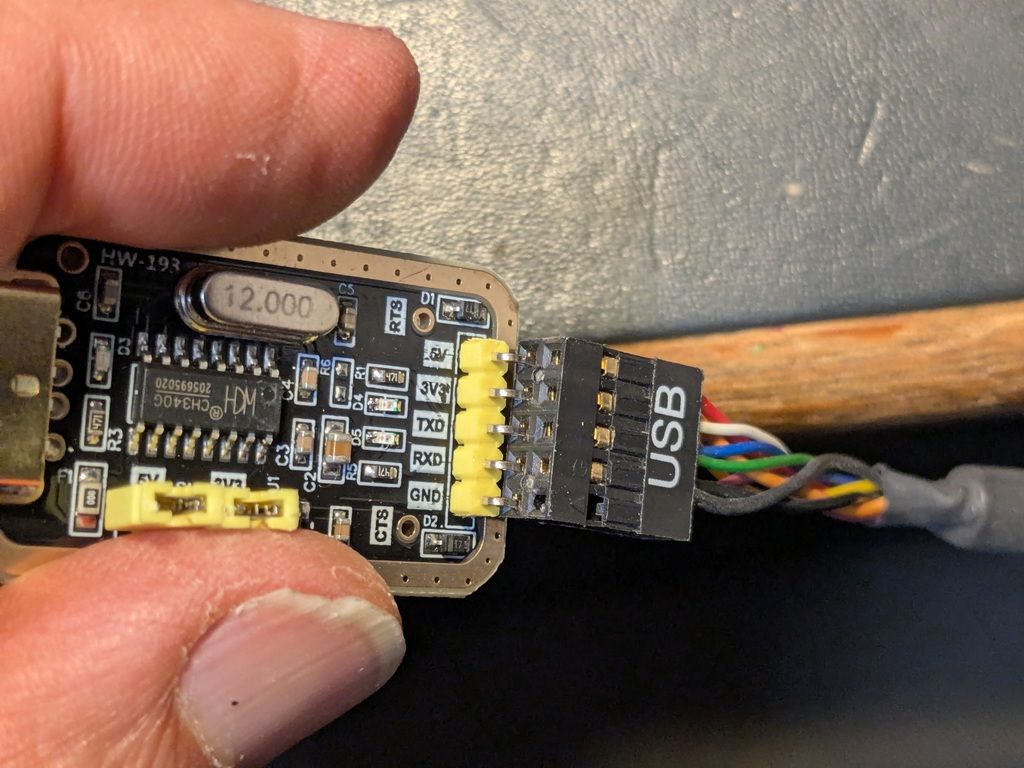
e) connected to a CH340G USB to TTL Serial Converter Adapter Module 5V / 3.3V For Arduino ($5 off ebay)
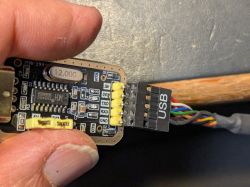
Close-up of a USB‑UART adapter wired to pins labeled 3V3, TXD, RXD, and GND.


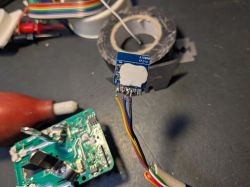
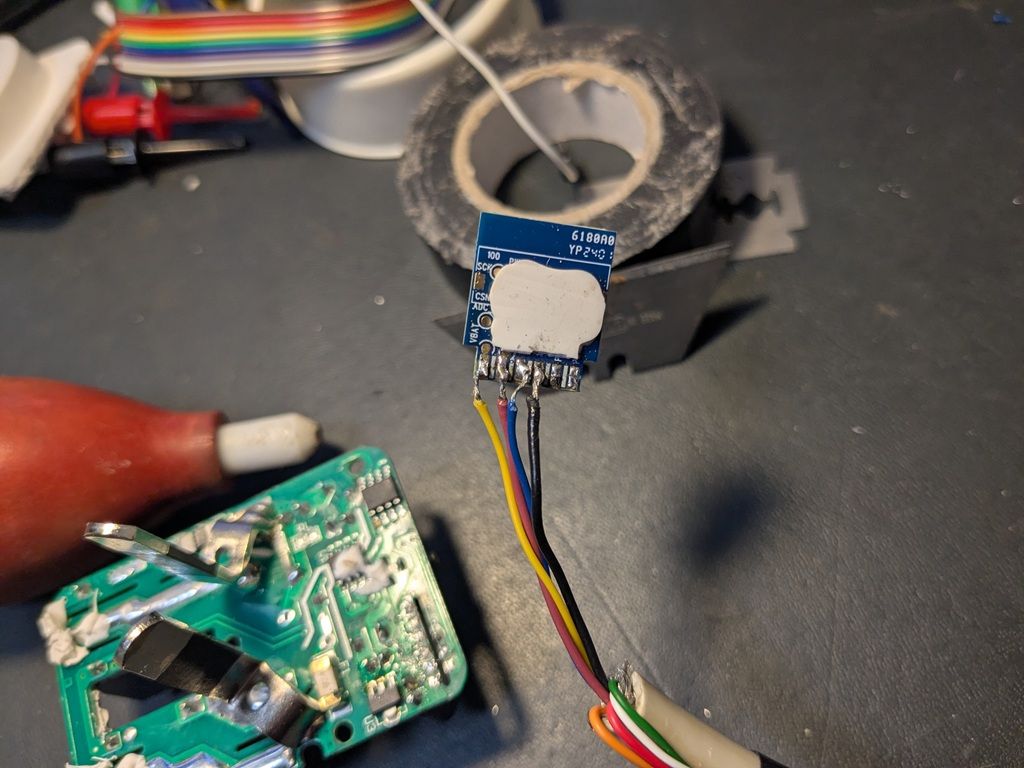
f) Solder wires to the board

Small blue circuit board with soldered wires next to a green PCB on a work surface


The writing on the board tells you the connections, but you must connect TxD to RxD and vica versa

i.e.
Board --> CH340G
Gnd --> Gnd
3V3 --> 3V3
TxD --> RxD
RxD --> TxD


Part 2)
a) Download and install https://github.com/openshwprojects/BK7231GUIFlashTool
I initially tried the windows version but couldn't get it to work.
So I loaded Ubuntu Linux onto an old laptop and used the linux version instead.
Also needed to install Mono. See the links on the page https://github.com/openshwprojects/BK7231GUIFlashTool

a) Ran the Easy UART Flasher as shown on https://github.com/openshwprojects/BK7231GUIFlashTool

To find the correct port: On Ubuntu I didn't need to install and drivers.
I plugged in the CH340G, unplugged it, plugged it in again, then used sudo dmseg which showed
Dmseg says "CH341-UART converter now attached to ttyUSB0"

Then sudo mono BK7231GUIFlashTool-build-263/BK7231Flasher.exe

a) Selected UART port /dev/ttyUSB0; Chip type: BK7231N; baud 921600 (you may need slower if your wiring is longer than mine)
b) Selected Firmware: "Download latest from Web"
c) Performed Firmware backup (read) read only. I used the "short CEN to ground" method which was reliable for me.
For some reason, the CRC check at the end of the read failed. After a lot of troubleshooting I decided just to ignore it- so I selected the "Ignore CRC error" checkbox and performed the backup again.
d) The TUYA configuration screen came up, showing which pins are connected to each function. Made a note of them.
e) Performed Backup and Flash New. It should say "success"

Part 3) Reassembly and reconfigure
a) Unsoldered the wire from the CB2S board. I used the craft knife to carefully scrape off any high points of solder before reinserting the CB2S back into the main board.
b) Soldered the CB2S back into place.
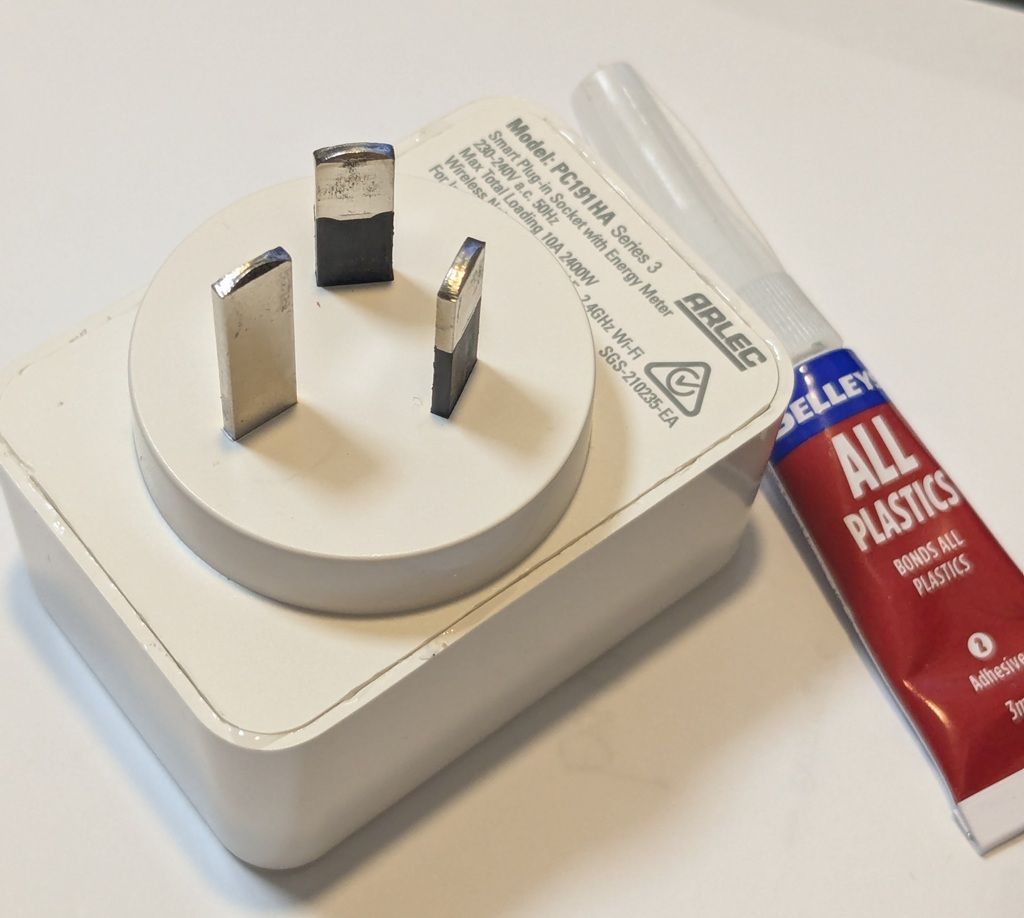
c) Glued the case back together.
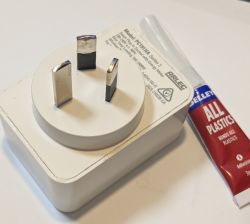
White Arlec smart plug with three flat pins next to a tube of Selleys All Plastics adhesive

d) Plug the pack into the mains.
e) The Arlec was then in Access Point (AP) mode: Used my phone WiFi to connect to it (OpenBeken), then in my browser opened 192.168.4.1
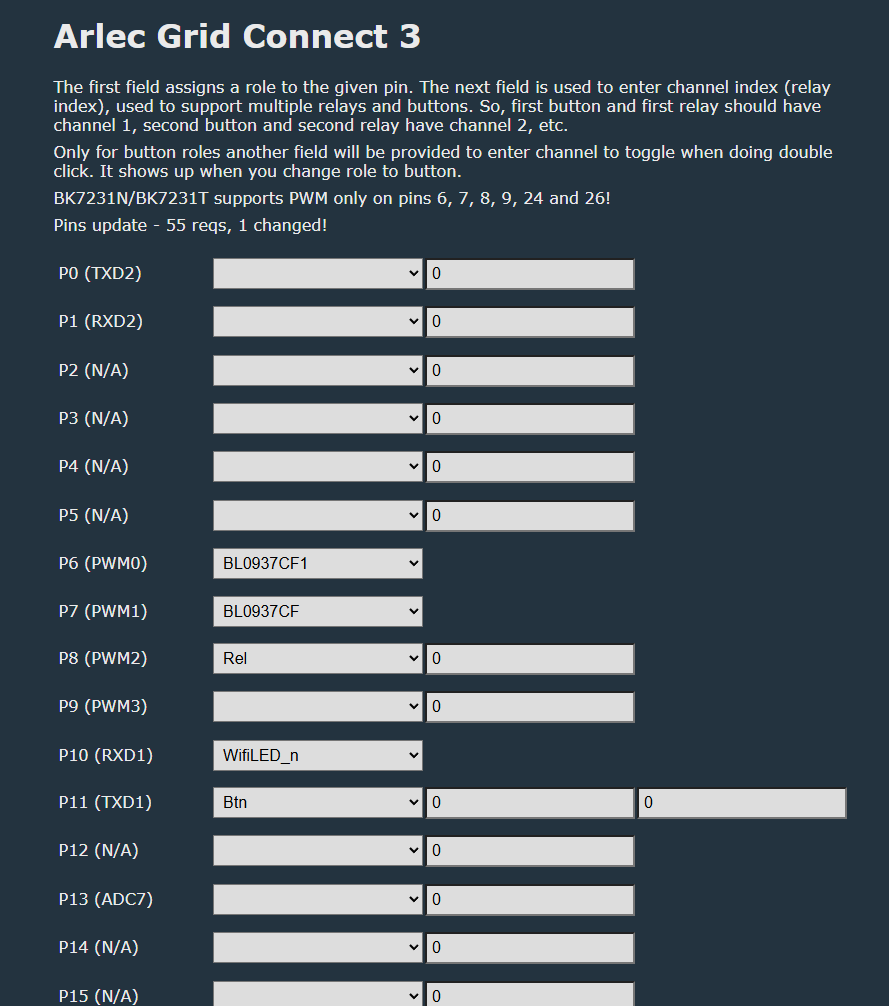
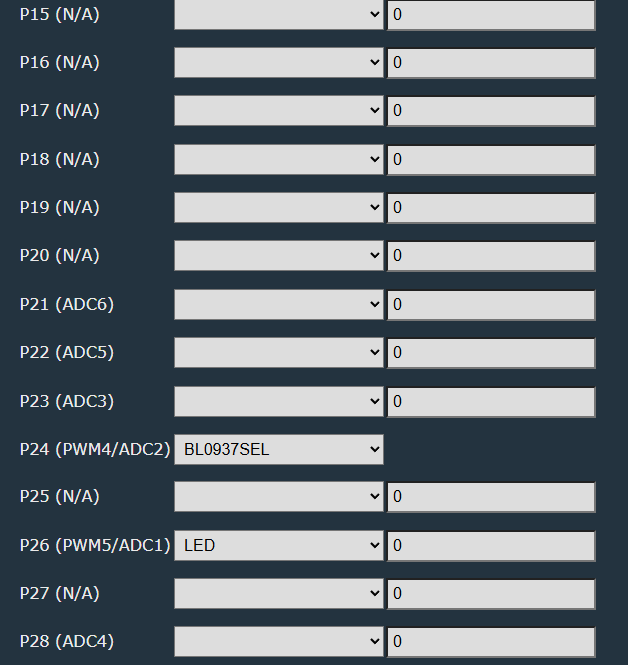
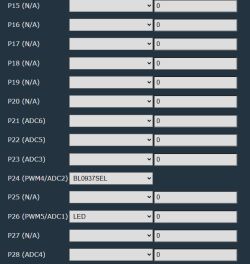
f) On the "Configure Module" screen I entered the values from the TUYA config report that I noted down previously: (one difference: I used WifiLED_n instead of WifiLED, because I find the default behaviour is for the red LED to remain on when the WiFi connection is established, which I find annoying)
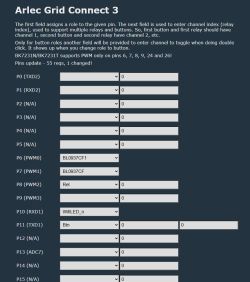
Screenshot of “Arlec Grid Connect 3” pin setup page with P0–P15 rows and dropdown fields


Screenshot of pin configuration (P15–P28) with dropdowns; P24 set to BL0937SEL, P26 set to LED.

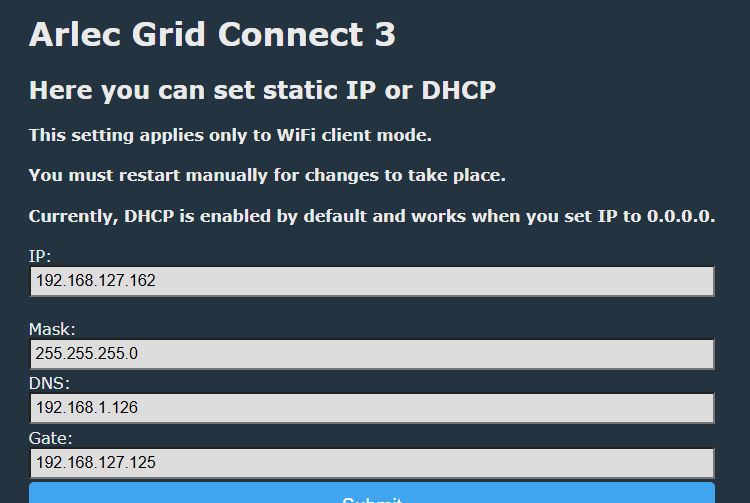
g) Navigated to the IP screen and entered the IP settings. I initially tried to use DHCP but it didn't work properly for me, kept getting dropouts, so I went for static IP and gateway which worked reliably.
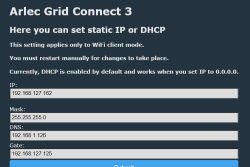
Screenshot of “Arlec Grid Connect 3” IP settings page with IP, mask, DNS, and gateway fields

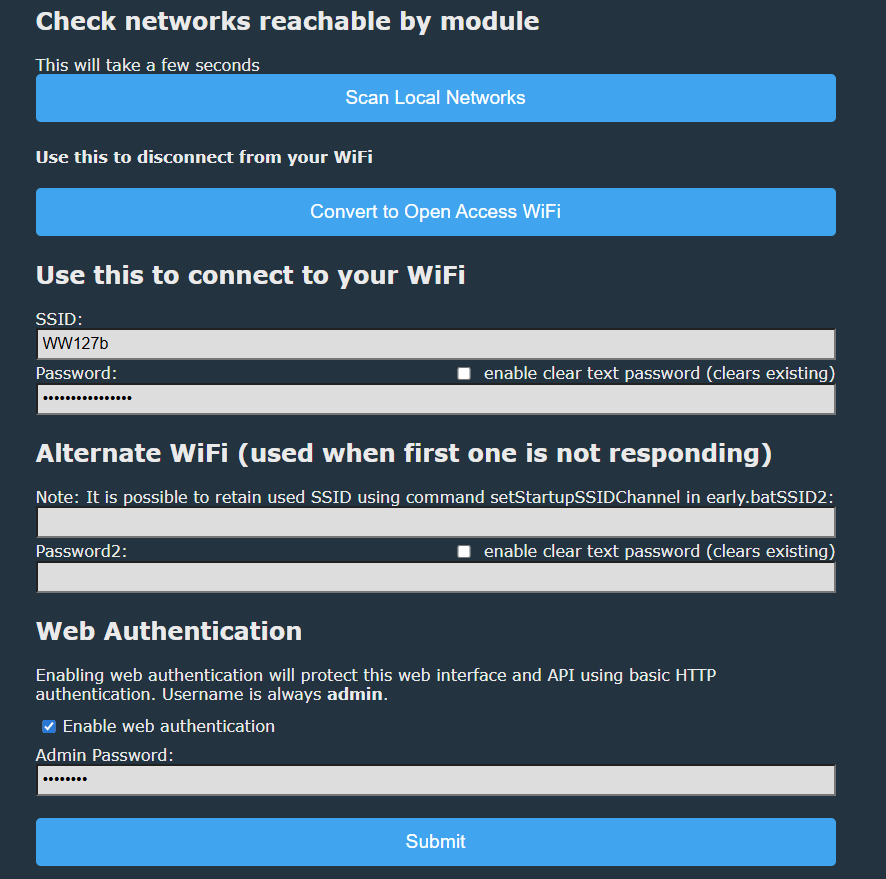
g) Navigated to the WIFI screen, entered the WiFi SSID and password. Also enabled Admin Password
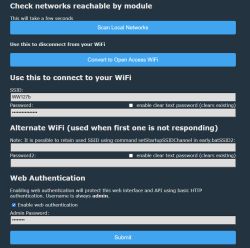
Screenshot of a module web UI showing Wi‑Fi setup fields and web authentication options


h) Clicked Submit; powered the module off and then on again.
i) The WiFi LED blinked red for a while connecting to the WiFi, after about 10 seconds stopped blinking.
(At first it didn't work because I mis-typed the WiFi password, so to put it back into AP mode by turning the power off and on again, with about 2 second pause between each time, for a total of 5 times. Then reconnected my phone to the OpenBeken AP)
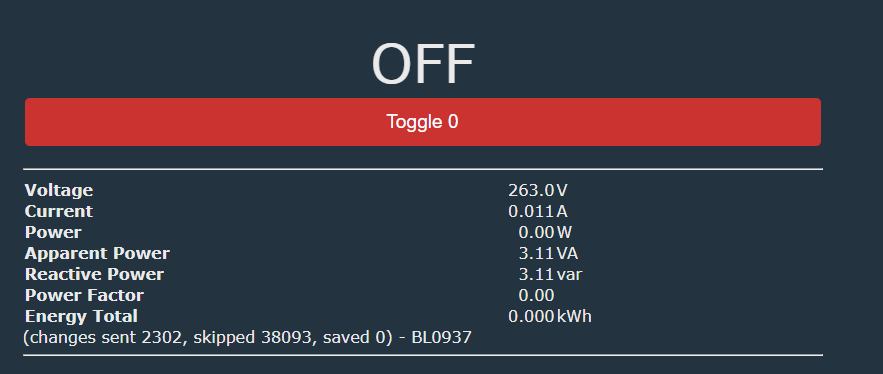
j) Screen now shows correct values, clicking Toggle 0 turns the switch on & off again
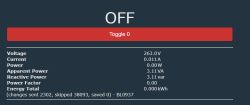
OpenBeken dashboard screenshot with “Toggle 0” button and voltage, current, and power readings.

k)Launch Web Application; Tools screen;
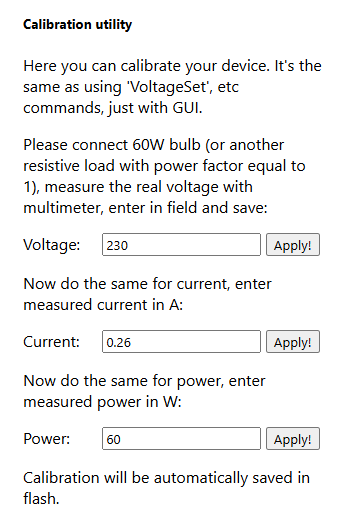
Calibration Utility:
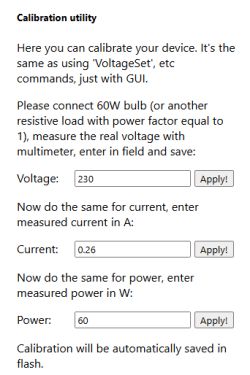
Screenshot of a calibration utility with Voltage, Current, and Power fields and Apply buttons

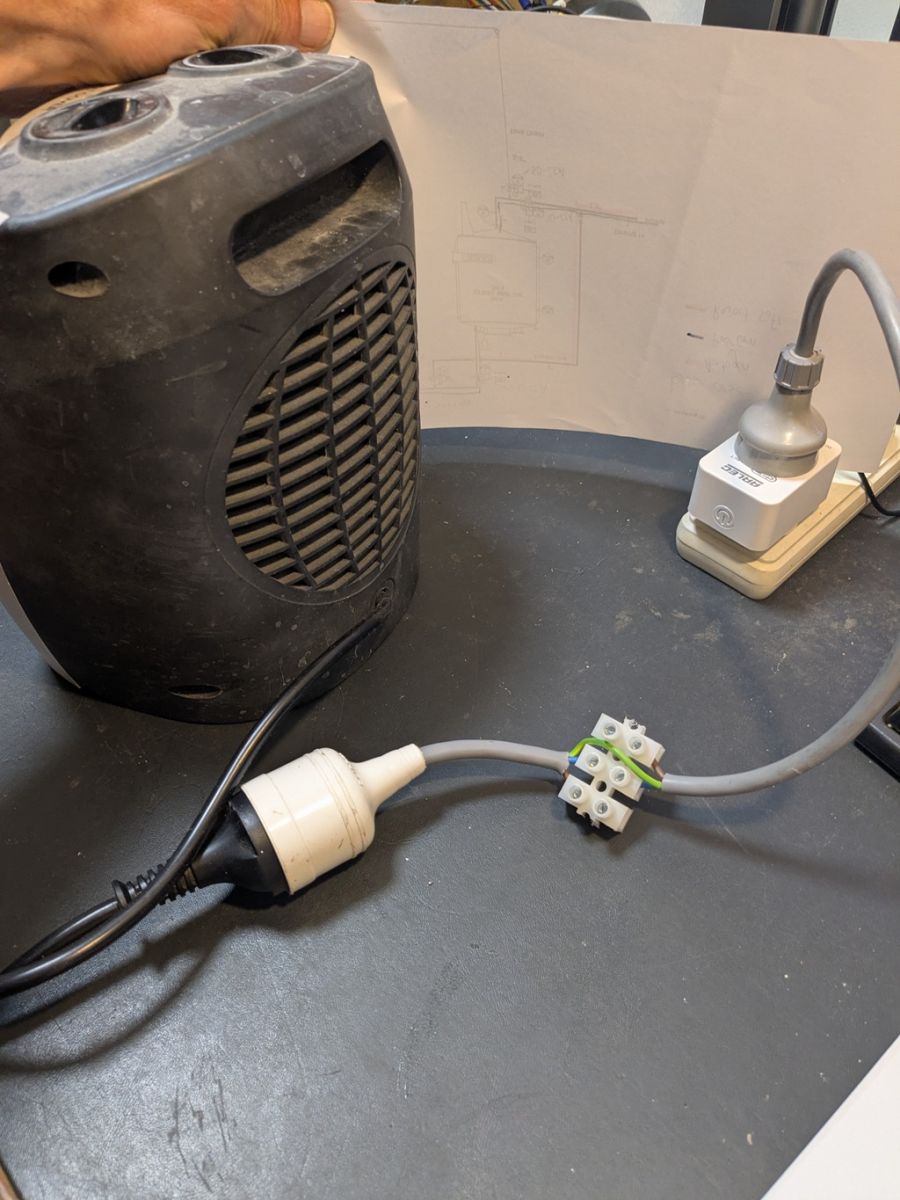
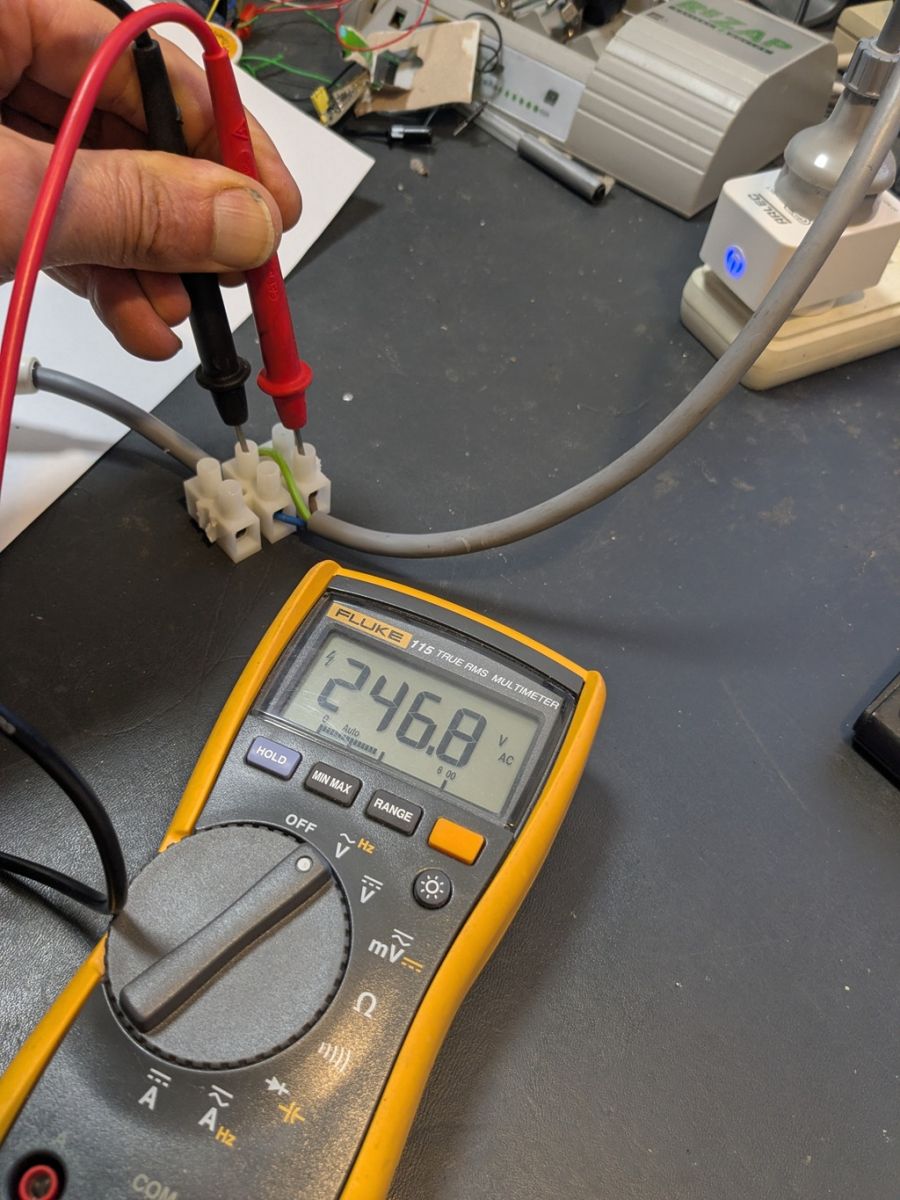
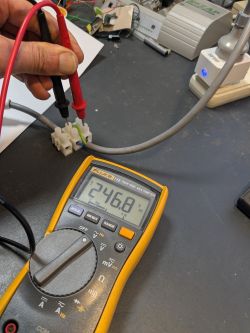
l) Attached a fan heater; measured the voltage and simultaneously entered it into "Voltage" and clicked Apply!
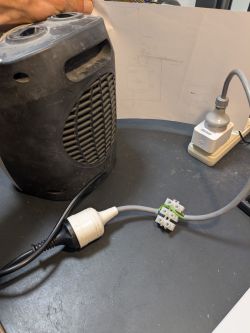
Fan heater connected via terminal block to a power strip with an Arlec smart plug

Fluke multimeter reads 246.8 V AC while probes measure a terminal block with wires on a workbench.

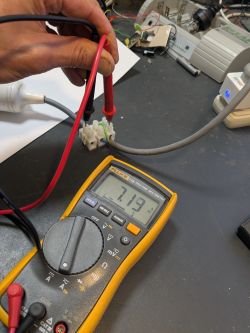
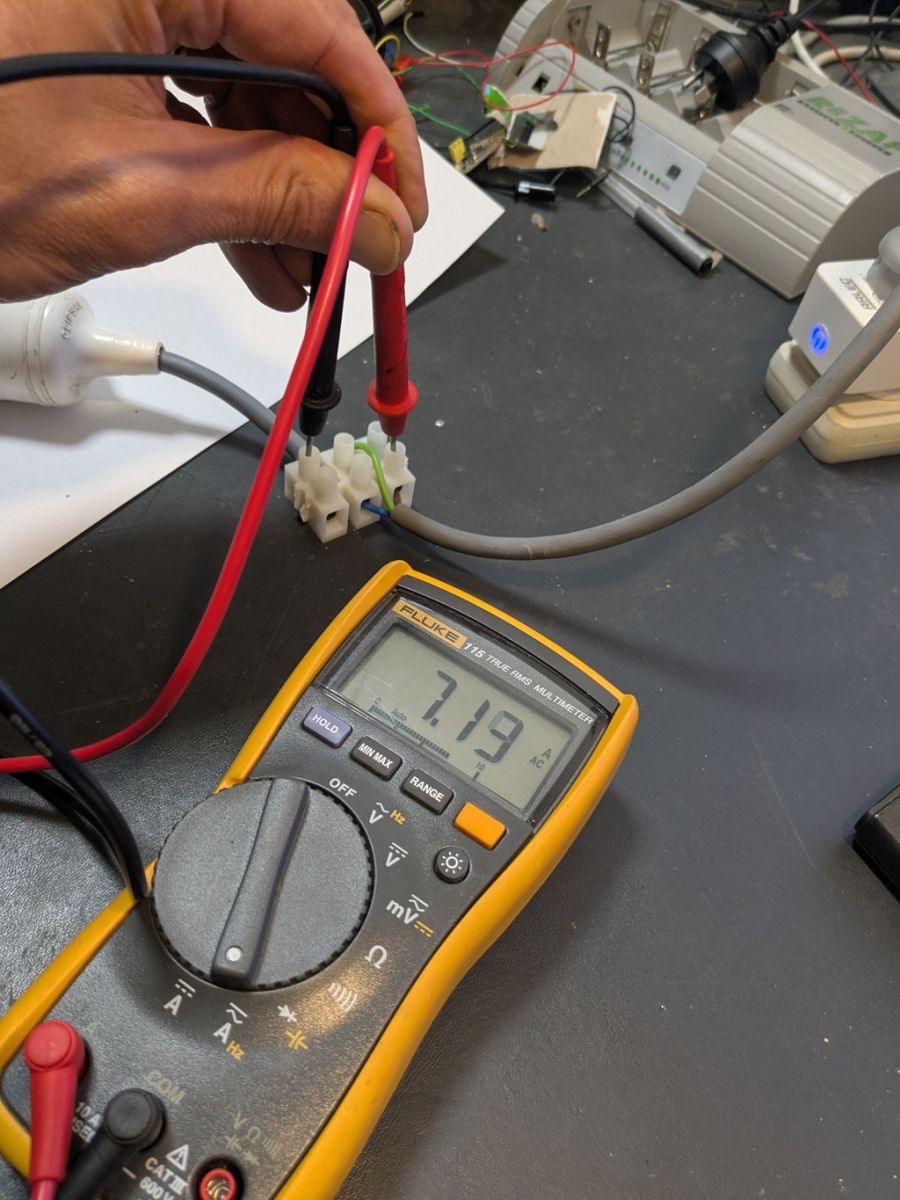
m) Repeated for the current.

Fluke multimeter reads 7.19 A AC while probes touch a wire terminal block on a workbench.

Part 4 - Connect to Home Assistant
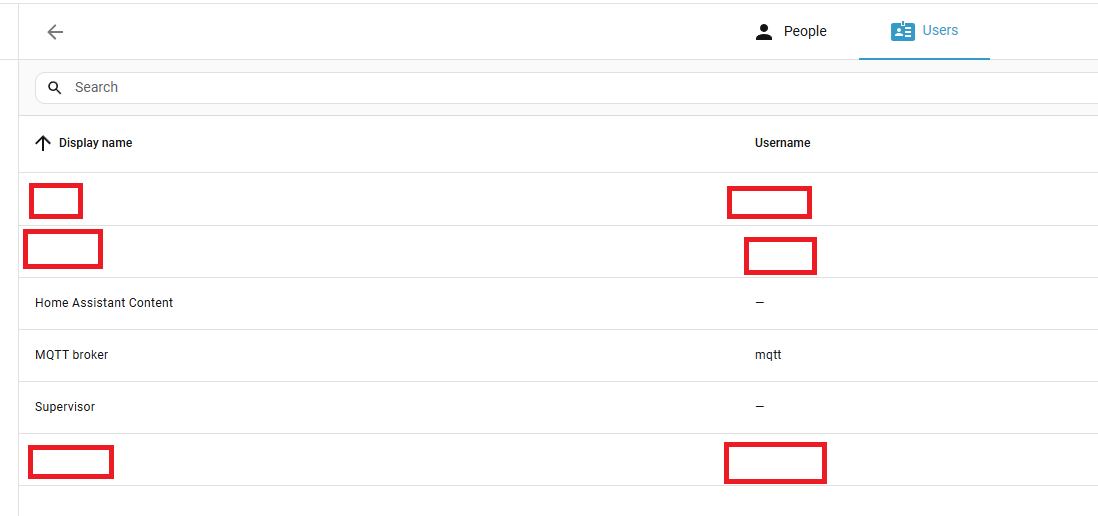
a) Added a user called MQTT, with password
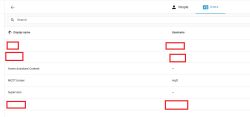
Home Assistant screenshot: Users list with redacted display names and usernames


b) Added MQTT integration https://www.home-assistant.io/integrations/mqtt:

“ADD INTEGRATION TO” button and “My” icon on a white background

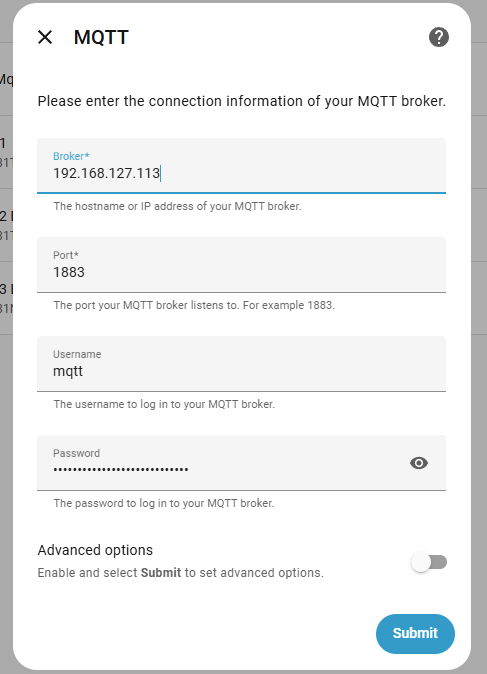
c) Configured (gave Broker the same IP as home assistant)
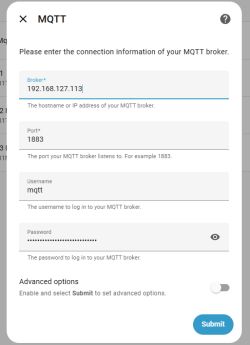
MQTT setup dialog with fields for Broker, Port, Username, and Password, plus a Submit button.

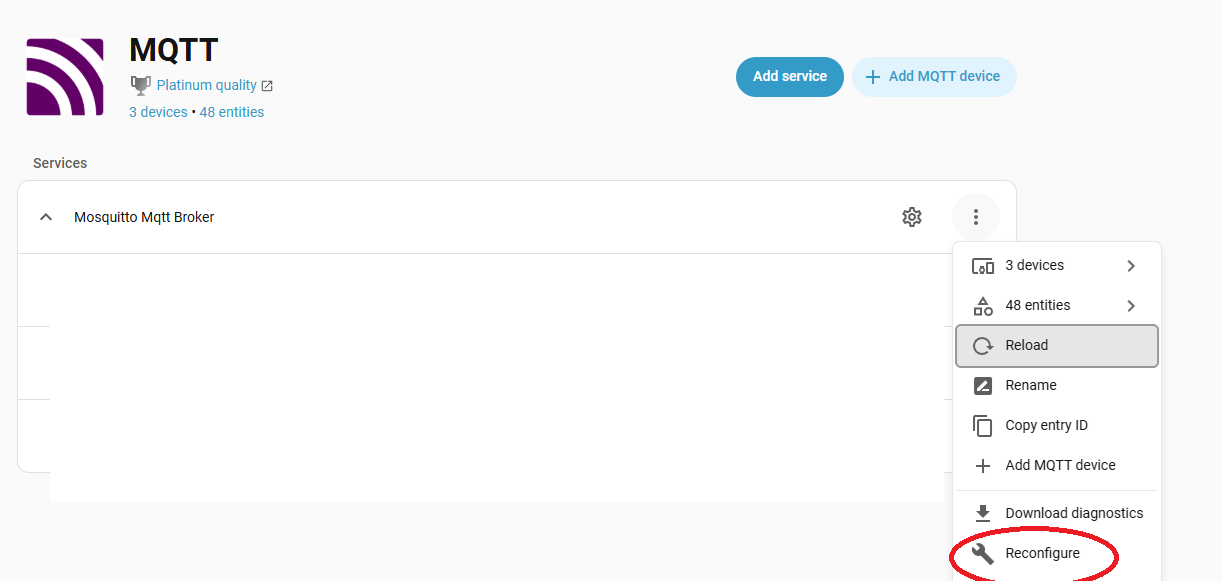
If you need to find this screen again later, it's here:
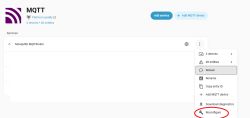
Home Assistant MQTT screenshot with menu open; “Reconfigure” option circled in red

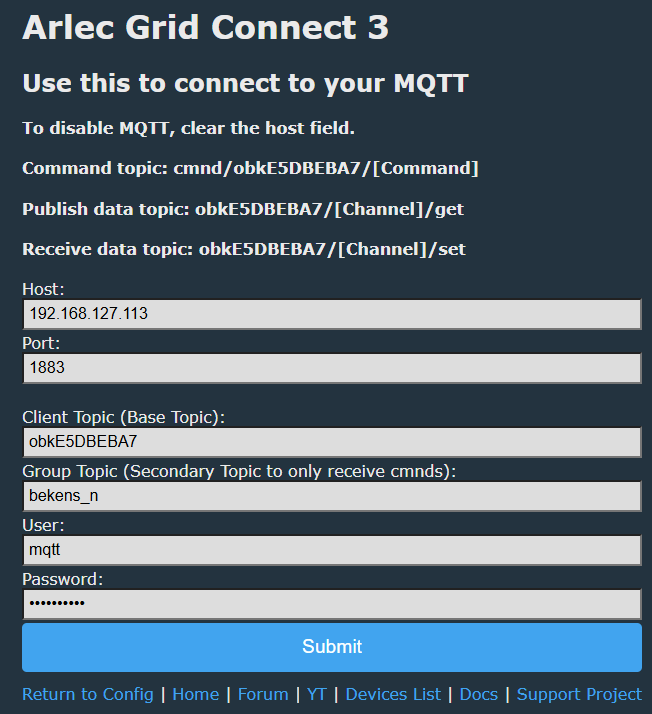
e) On the OpenBeken config interface- "Configure MQTT", enter values from HomeAssistant
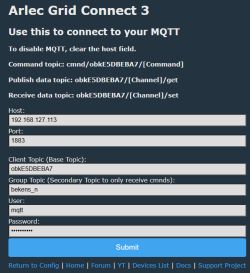
“Arlec Grid Connect 3” MQTT configuration page with fields for host, port, topics, user, and password.

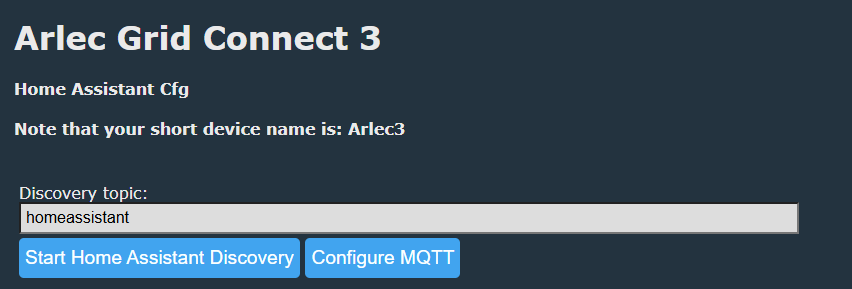
After Submit: "Home Assistant Configuration" button, then "Start Home Assistant Discovery"
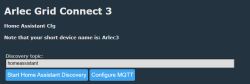
OpenBeken screenshot “Arlec Grid Connect 3” showing Discovery topic field and Home Assistant/MQTT buttons


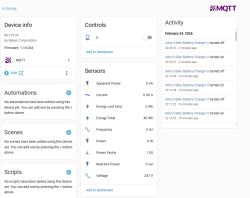
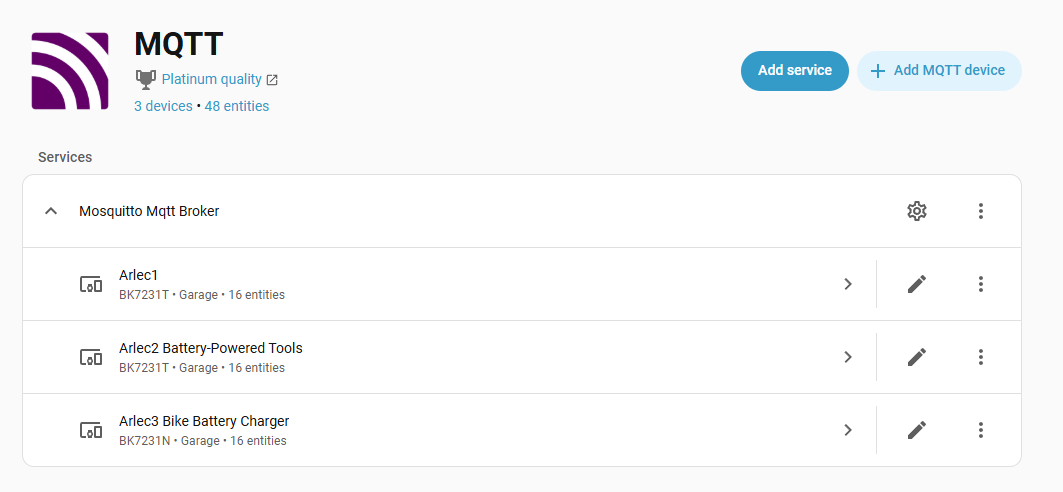
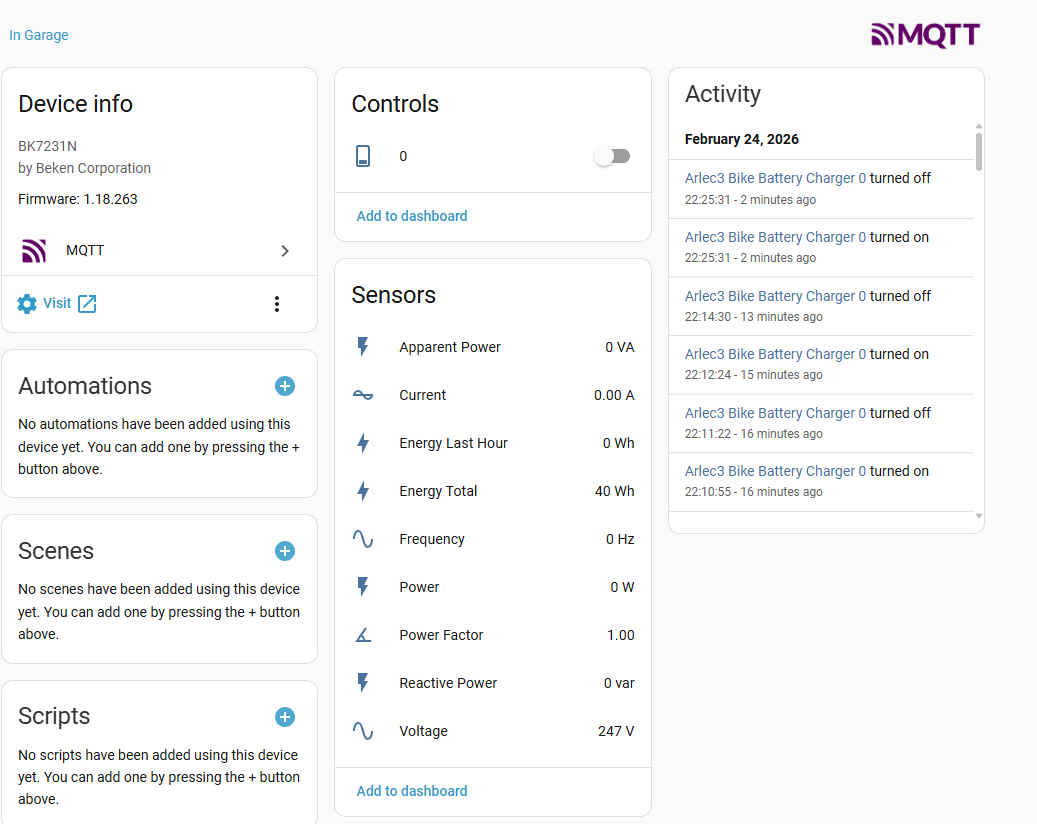
The device was then automatically added to the MQTT
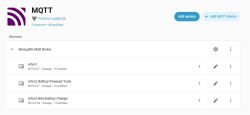
Home Assistant screenshot: MQTT integration listing Arlec devices, with “Add service” and “Add MQTT device” buttons


Home Assistant screenshot showing an MQTT device with a toggle, energy sensors, and an activity log

If the sensors didn't appear (only the power switch), unplug the Arlec, plug it back in, and perform Start Home Assistant Discovery again.

g) In order to make it more usable, I also installed the SimpleTimer Addin:
h) Install HACS https://hacs.xyz/docs/use/download/download/
i) Installed

“Simple Timer” header and subtitle for a custom Simple Timer integration for Home Assistant.

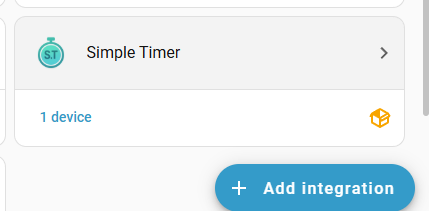
k) Add Integration

Home Assistant screen showing “Simple Timer”, “1 device”, and an “Add integration” button

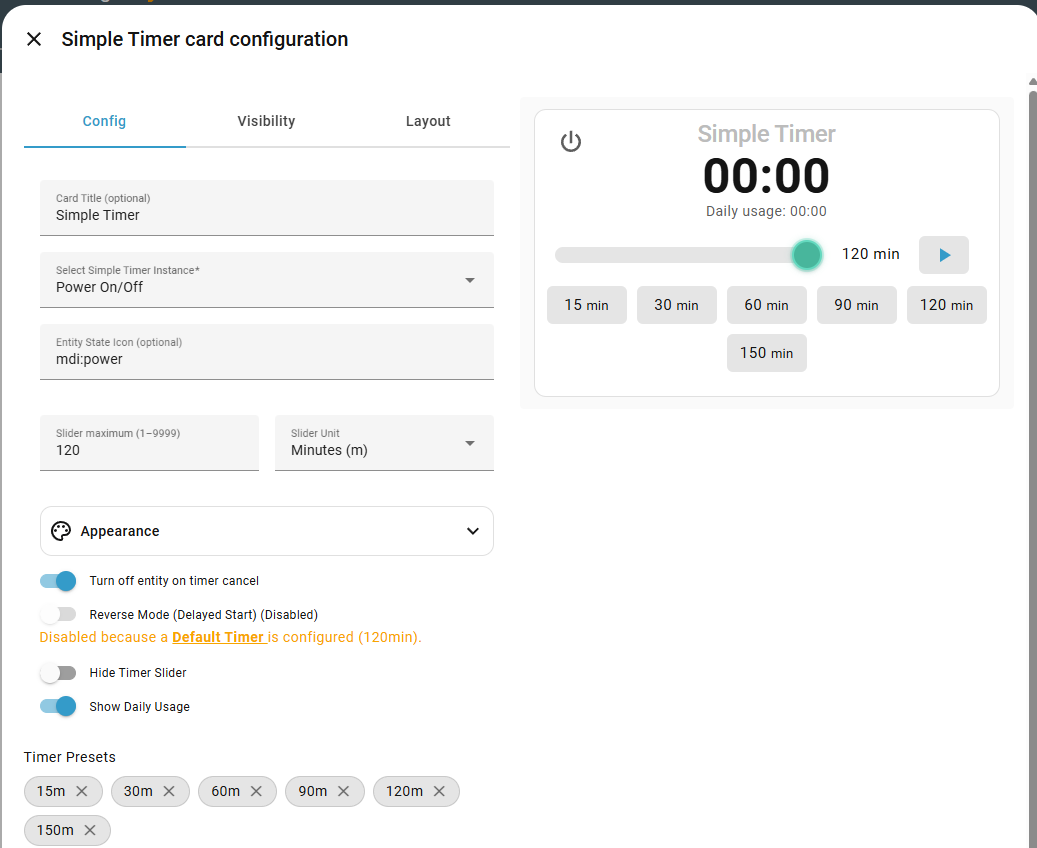
m) Add Entry, select new device; default timer duration is in minutes
n) Add Dashboard: Pressed CTRL-F5 to reset the browser (otherwise - the card doesn't appear)
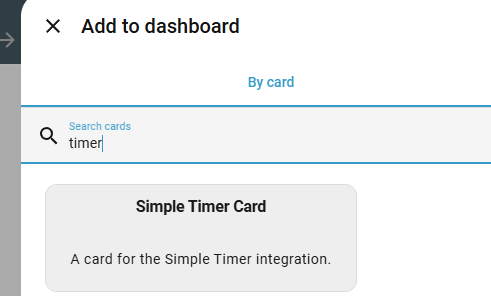
o) Add card:
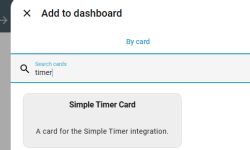
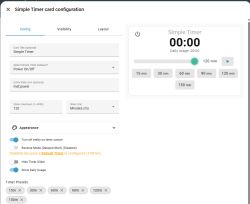
Home Assistant “Add to dashboard” dialog showing search “timer” and the “Simple Timer Card” result

Screenshot of Home Assistant Simple Timer card configuration with timer preview, slider, and minute presets.

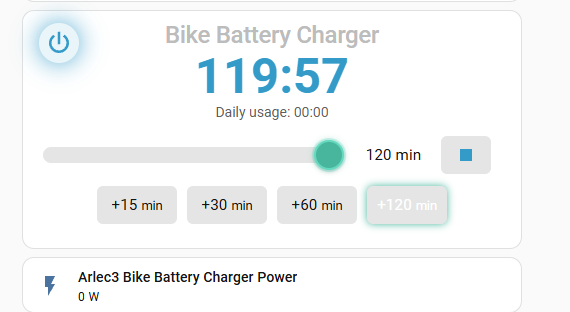
A particularly useful feature is that when you push the physical button on the arlec, it will start the shutoff countdown timer automatically.
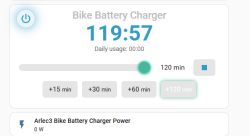
Home Assistant card with “Bike Battery Charger” timer at 119:57 and minute-add buttons
AI: Thanks for sharing your detailed process! Just to clarify, are you looking for help with a specific step or issue, or is this a guide for others?
This is a guide for others


About Author
DerGraueGeist wrote 4 posts with rating 2 . Been with us since 2026 year.

Comments

FAQ

TL;DR: This guide shows how to disassemble an Arlec PC191HA Series 3, flash BK7231N (CB2S) over UART at 921600 baud, and integrate via MQTT—“use the ‘short CEN to ground’ method.” [Elektroda, DerGraueGeist, post #21847453] Why it matters: It’s a step‑by‑step path to de-Tuya, gain local control, and fix Wi‑Fi dropouts without guesswork.

Quick-Facts

Quick Facts

What exactly is being flashed here and why?

You’re flashing the CB2S module with a BK7231N using OpenBeken to replace Tuya firmware. This enables local control, MQTT, and easier Home Assistant integration without cloud dependency. It also fixes Wi‑Fi reliability for this plug when paired with static IP settings. [Elektroda, DerGraueGeist, post #21847453]

How do I safely open the Arlec PC191HA Series 3 case?

Crack the welded seam with a screwdriver, working along each side and two corners. Then lever up the back and remove the board. Proceed slowly to avoid cracking plastic or lifting pads. Reassembly requires glue after soldering the module back. [Elektroda, DerGraueGeist, post #21847453]

What UART wiring do I use between CB2S and CH340G?

Use 3.3 V logic. Connect GND→GND, 3V3→3V3, TXD→RXD, RXD→TXD. Start at 921600 baud; lower it if your leads are long or unstable. This swap and voltage level are critical to avoid bricking or garbage output. [Elektroda, DerGraueGeist, post #21847453]

Which flasher tool and OS worked in this guide?

BK7231GUIFlashTool worked on Ubuntu with Mono. The Windows build didn’t work for the author. Launch the Easy UART Flasher, select BK7231N, and your /dev/ttyUSB device shown by dmesg (e.g., ttyUSB0). [Elektroda, DerGraueGeist, post #21847453]

How do I put the chip in flashing mode reliably?

Use the “short CEN to ground” method during backup/flash. It proved reliable for the author and avoided startup race issues. Quote: “I used the ‘short CEN to ground’ method which was reliable for me.” [Elektroda, DerGraueGeist, post #21847453]

The firmware backup CRC failed—what should I do?

The author saw a CRC error after readback. They ticked “Ignore CRC error,” repeated the backup, and proceeded to flash successfully. Edge case: verify you can still boot OpenBeken afterward before sealing the case. [Elektroda, DerGraueGeist, post #21847453]

How do I configure OpenBeken after flashing?

Power on. Join the device AP and browse to 192.168.4.1. In Configure Module, map pins per the Tuya config report. Use WifiLED_n if you dislike the red LED staying lit on connect. Save and reboot. [Elektroda, DerGraueGeist, post #21847453]

What if Wi‑Fi won’t connect or keeps dropping?

First, confirm SSID/password. If mistyped, toggle power with ~2‑second pauses, five times, to re‑enter AP mode. The author fixed dropouts by using a static IP and gateway instead of DHCP. Join, apply, reboot. [Elektroda, DerGraueGeist, post #21847453]

How do I calibrate voltage and current readings?

Attach a known load like a fan heater. Measure mains voltage/current with a meter. In Tools → Calibration, enter measured voltage, Apply, then current, Apply. Repeat until readings match your meter under load. [Elektroda, DerGraueGeist, post #21847453]

What is OpenBeken in simple terms?

OpenBeken is alternative firmware for BK72xx devices. It replaces Tuya firmware, adds a web UI, MQTT, Home Assistant discovery, and on‑device calibration. It runs standalone without Tuya cloud. [Elektroda, DerGraueGeist, post #21847453]

What is Tuya, and why reference a Tuya config report?

Tuya is the original cloud‑based platform for many smart plugs. The Tuya config report lists the device’s GPIO functions. Copying those into OpenBeken ensures buttons, relays, LEDs, and sensors work correctly. [Elektroda, DerGraueGeist, post #21847453]
How do I get Home Assistant to see the device via MQTT?

Create an MQTT user and add the MQTT integration. In OpenBeken, set Broker IP to your Home Assistant host. Submit, then use Home Assistant Discovery. If only the switch appears, power‑cycle and start discovery again. [Elektroda, DerGraueGeist, post #21847453]

Quick 3‑step: How do I re‑enter AP mode if I lock myself out?

  1. Turn the plug off and on five times with ~2‑second pauses.
  2. Connect your phone to the OpenBeken AP.
  3. Browse to 192.168.4.1 and fix Wi‑Fi settings. [Elektroda, DerGraueGeist, post #21847453]

Any tips for cleaner reassembly after flashing?

Desolder wires, then gently scrape solder high points before reinserting the CB2S. Resolder the module and glue the case seam. This helps fitment and avoids mechanical stress on pads during closure. [Elektroda, DerGraueGeist, post #21847453]

Can I automate a shutdown timer from the physical button?

Yes. With the SimpleTimer add‑in via HACS, the physical button press can start a countdown to automatic shutoff. Add the integration, set duration in minutes, and place the card on your dashboard. [Elektroda, DerGraueGeist, post #21847453]

How long does Wi‑Fi association take after correct setup?

After entering valid credentials, the Wi‑Fi LED blinked red during association and stopped after about 10 seconds. This is a typical join time with a good signal and static IP set. [Elektroda, DerGraueGeist, post #21847453]
Generated by the language model.
%}