





How I revived a Tuya curtain motor after the CB3S burned out: OpenBeken + Home Assistant + a virtual curtain
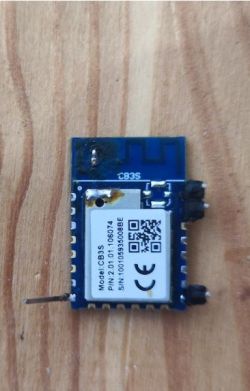
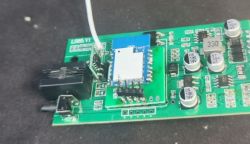
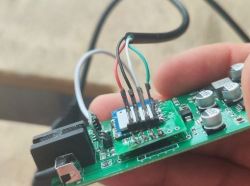
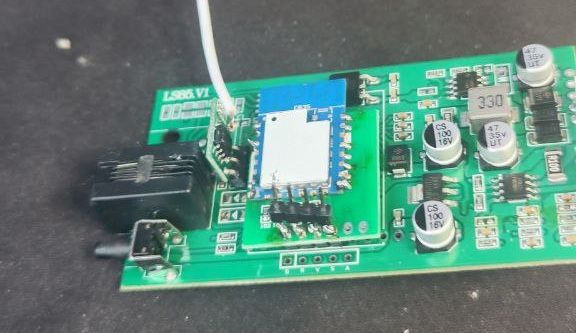
I had a problem: the Wi-Fi board in my curtain motor (CB3S / BK7231N) burned out. I didn’t have the original backup, and flashing a dump from another motor caused a conflict in Tuya (one device connects while the other drops, then vice versa). In the end I built a proper local solution: OpenBeken + MQTT + Home Assistant, and everything works without the cloud.
What you need
CB3S / BK7231N board
USB-UART (I used CP2102, 3.3V power)
BK7231Flasher
OpenBeken firmware for BK7231N
Home Assistant + Mosquitto broker
Where to get a CB3S board
You can easily buy a Tuya CB3S (BK7231N) board on AliExpress — that’s what I did. I bought one заранее “as a spare”, and it sat unused for a long time until the original board in the motor burned out.
1) Flash CB3S with OpenBeken
To flash CB3S you need a regular USB-UART adapter (I used CP2102).
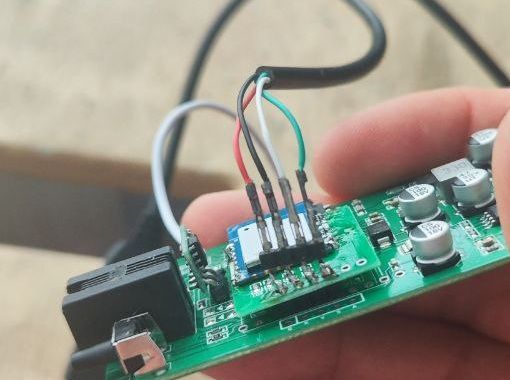
Required wires
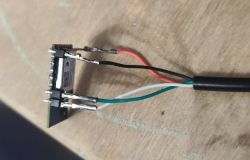
Basically you only need 4 lines:
GND ↔ GND
3.3V ↔ VCC (3.3V only!)
TX (adapter) ↔ RX (board)
RX (adapter) ↔ TX (board)
⚠️ Important: power must be strictly 3.3V. Do NOT feed 5V — you can kill the module.
Entering flash mode
Usually BK7231Flasher shows something like “reboot device / power cycle”.
Since I only had power + TX/RX accessible, I simply:
removed power for a second
and applied power again right when the program was waiting for a reboot.
Tips
If it won’t connect, swap TX/RX first.
Make sure the adapter and the board share common GND.
If the module keeps rebooting/glitching, use a stable 3.3V supply, not a weak 3.3V regulator on some UART adapters (depends on the adapter).
Flash the CB3S (BK7231N) module using BK7231Flasher.
✅ Important: in recent versions of BK7231Flasher, OpenBeken is built in (there are ready images/firmwares inside the program), so you usually don’t need to search for and download a separate .bin file — just select OpenBeken in the UI and flash.
2) Configure channels in OpenBeken
Open the device web UI:
Launch Web Application → Config → Channel Types
Set:
Channel 0 — Default
Channel 1 — OpenStopClose
Channel 2 — Dimmer
Channel 3 — ReadOnly
Note: you can also set channel types via autoexec.bat (below). I left it both in the UI and in autoexec — easier to reproduce.
3) Create autoexec.bat (TuyaMCU + dpID)
Open:
FileSystem → Create File → autoexec.bat
Paste:
# Initialize communication with the motor controller
startDriver TuyaMCU
baud 9600
# dpID 1: Main control (Enum)
# 0 - Open, 1 - Stop, 2 - Close
setChannelType 1 OpenStopClose
linkTuyaMCUOutputToChannel 1 enum 1
# dpID 2: Set position (Value)
# Send percent (0-100) here
setChannelType 2 Dimmer
linkTuyaMCUOutputToChannel 2 val 2
# dpID 3: Current position (Value)
# Motor reports its current position (0-100)
setChannelType 3 ReadOnly
linkTuyaMCUOutputToChannel 3 val 3
Save the file and reboot the module:
Index → Restart (red button)
After that, in the OpenBeken main menu you should see a 3-position control (Open/Stop/Close), a slider (Channel 2), and the current position display (Channel 3).
4) Configure MQTT in OpenBeken
Config → Configure MQTT
Fill in Mosquitto details (Home Assistant IP, username/password). You can find the password in HA:
Mosquitto broker → Configuration / Logins
Key field:
Client Topic (Base Topic): curtain_1
(You can name it differently, but use the same name later in the code.)
After that, Home Assistant will create entities from OpenBeken, but usually it’s not a “curtain cover” yet — just separate selects/sensors. That’s fine — we fix it next.
5) Create a “virtual curtain” (cover) in Home Assistant
Open:
/config/configuration.yaml
⚠️ Important: there must be only one template: block. If you already have one, don’t create a second — add your cover inside the existing block.
Paste (this is the version formatted for sites that break YAML indentation; replace .. with spaces later):
template:
..- cover:
....- name: "North curtain (virtual)"
......unique_id: curtain_virtual
......# Current position (0-100) from sensor, inverted
......position: "{{ 100 - (states('sensor.curtain_3') | int(0)) }}"
......open_cover:
........- service: mqtt.publish
..........data:
............topic: "curtain_1/1/set"
............payload: "0"
......stop_cover:
........- service: mqtt.publish
..........data:
............topic: "curtain_1/1/set"
............payload: "1"
......close_cover:
........- service: mqtt.publish
..........data:
............topic: "curtain_1/1/set"
............payload: "2"
......# Position slider: send % to OpenBeken via MQTT to Channel 2
......set_cover_position:
........- service: mqtt.publish
..........data:
............topic: "curtain_1/2/set"
............payload: "{{ 100 - position }}"
............retain: false
............qos: 0
How to read:
.. = 2 spaces
.... = 4 spaces
...... = 6 spaces
and so on.
Before pasting into Home Assistant, simply replace every .. with two normal spaces (Find/Replace in any editor).
Restart Home Assistant. A new entity will appear, e.g.:
cover.north_curtain_virtual (the exact name depends on your chosen name).
6) If the direction is reversed
There are three independent “inversions” — change them one by one (don’t change everything at once):
A) Only the display direction (HA slider inverted)
Inversion is done in position::
No inversion:
position: "{{ states('sensor.curtain_3') | int(0) }}"
Inverted (as in the example):
position: "{{ 100 - (states('sensor.curtain_3') | int(0)) }}"
B) Slider moves the curtain the wrong way
Change the payload in set_cover_position:
No inversion:
payload: "{{ position }}"
Inverted:
payload: "{{ 100 - position }}"
C) Open/Close swapped
Swap payload "0" and "2" in open_cover and close_cover.
7) Result
In the end:
the motor runs locally on OpenBeken
control in HA is a proper cover entity with slider + buttons
you can later expose it to Yandex Alice, build automations, schedules, sensors, etc.
Alternative: ESP8266 / ESPHome
In theory (and in practice), instead of CB3S you can move fully to ESP8266/ESPHome and control the motor via your own controller. This option exists, and many people do it.
I tried ESP8266 + ESPHome with the TuyaMCU component before. But with this particular motor it didn’t work properly: either TuyaMCU in ESPHome couldn’t control the motor correctly, or I couldn’t figure out which parameters and dpIDs were required for this device’s protocol.
It’s also possible that the TuyaMCU driver in OpenBeken is implemented/tuned better for devices like this: it immediately picked up UART communication (9600) and both position reporting and commands worked correctly.
So I initially went with the “closest to factory” route — using the original CB3S. And once it was working on OpenBeken and controllable from Home Assistant without the cloud, I didn’t go back to ESP8266: that would mean more soldering, protocol debugging, and time.
In short: if it works — don’t touch it 😄
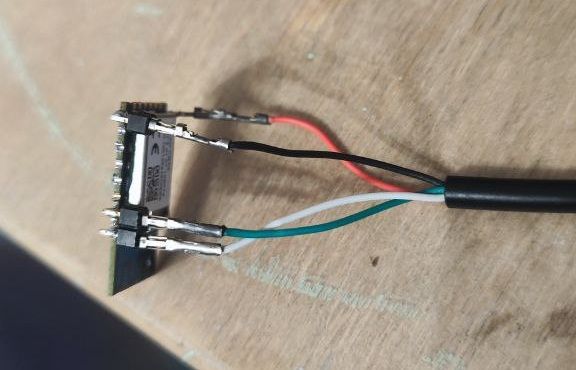
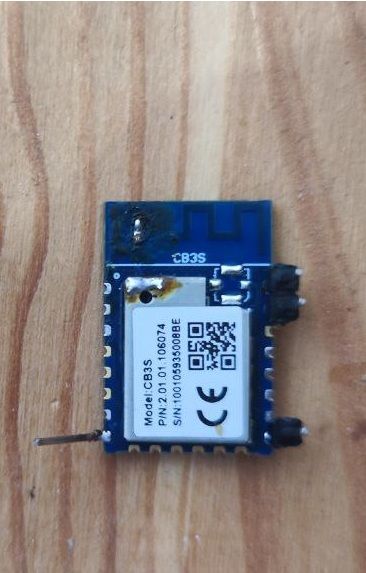
I had a problem: the Wi-Fi board in my curtain motor (CB3S / BK7231N) burned out. I didn’t have the original backup, and flashing a dump from another motor caused a conflict in Tuya (one device connects while the other drops, then vice versa). In the end I built a proper local solution: OpenBeken + MQTT + Home Assistant, and everything works without the cloud.
What you need
CB3S / BK7231N board
USB-UART (I used CP2102, 3.3V power)
BK7231Flasher
OpenBeken firmware for BK7231N
Home Assistant + Mosquitto broker
Where to get a CB3S board
You can easily buy a Tuya CB3S (BK7231N) board on AliExpress — that’s what I did. I bought one заранее “as a spare”, and it sat unused for a long time until the original board in the motor burned out.
1) Flash CB3S with OpenBeken
To flash CB3S you need a regular USB-UART adapter (I used CP2102).
Required wires
Basically you only need 4 lines:
GND ↔ GND
3.3V ↔ VCC (3.3V only!)
TX (adapter) ↔ RX (board)
RX (adapter) ↔ TX (board)
⚠️ Important: power must be strictly 3.3V. Do NOT feed 5V — you can kill the module.
Entering flash mode
Usually BK7231Flasher shows something like “reboot device / power cycle”.
Since I only had power + TX/RX accessible, I simply:
removed power for a second
and applied power again right when the program was waiting for a reboot.
Tips
If it won’t connect, swap TX/RX first.
Make sure the adapter and the board share common GND.
If the module keeps rebooting/glitching, use a stable 3.3V supply, not a weak 3.3V regulator on some UART adapters (depends on the adapter).
Flash the CB3S (BK7231N) module using BK7231Flasher.
✅ Important: in recent versions of BK7231Flasher, OpenBeken is built in (there are ready images/firmwares inside the program), so you usually don’t need to search for and download a separate .bin file — just select OpenBeken in the UI and flash.
2) Configure channels in OpenBeken
Open the device web UI:
Launch Web Application → Config → Channel Types
Set:
Channel 0 — Default
Channel 1 — OpenStopClose
Channel 2 — Dimmer
Channel 3 — ReadOnly
Note: you can also set channel types via autoexec.bat (below). I left it both in the UI and in autoexec — easier to reproduce.
3) Create autoexec.bat (TuyaMCU + dpID)
Open:
FileSystem → Create File → autoexec.bat
Paste:
# Initialize communication with the motor controller
startDriver TuyaMCU
baud 9600
# dpID 1: Main control (Enum)
# 0 - Open, 1 - Stop, 2 - Close
setChannelType 1 OpenStopClose
linkTuyaMCUOutputToChannel 1 enum 1
# dpID 2: Set position (Value)
# Send percent (0-100) here
setChannelType 2 Dimmer
linkTuyaMCUOutputToChannel 2 val 2
# dpID 3: Current position (Value)
# Motor reports its current position (0-100)
setChannelType 3 ReadOnly
linkTuyaMCUOutputToChannel 3 val 3
Save the file and reboot the module:
Index → Restart (red button)
After that, in the OpenBeken main menu you should see a 3-position control (Open/Stop/Close), a slider (Channel 2), and the current position display (Channel 3).
4) Configure MQTT in OpenBeken
Config → Configure MQTT
Fill in Mosquitto details (Home Assistant IP, username/password). You can find the password in HA:
Mosquitto broker → Configuration / Logins
Key field:
Client Topic (Base Topic): curtain_1
(You can name it differently, but use the same name later in the code.)
After that, Home Assistant will create entities from OpenBeken, but usually it’s not a “curtain cover” yet — just separate selects/sensors. That’s fine — we fix it next.
5) Create a “virtual curtain” (cover) in Home Assistant
Open:
/config/configuration.yaml
⚠️ Important: there must be only one template: block. If you already have one, don’t create a second — add your cover inside the existing block.
Paste (this is the version formatted for sites that break YAML indentation; replace .. with spaces later):
template:
..- cover:
....- name: "North curtain (virtual)"
......unique_id: curtain_virtual
......# Current position (0-100) from sensor, inverted
......position: "{{ 100 - (states('sensor.curtain_3') | int(0)) }}"
......open_cover:
........- service: mqtt.publish
..........data:
............topic: "curtain_1/1/set"
............payload: "0"
......stop_cover:
........- service: mqtt.publish
..........data:
............topic: "curtain_1/1/set"
............payload: "1"
......close_cover:
........- service: mqtt.publish
..........data:
............topic: "curtain_1/1/set"
............payload: "2"
......# Position slider: send % to OpenBeken via MQTT to Channel 2
......set_cover_position:
........- service: mqtt.publish
..........data:
............topic: "curtain_1/2/set"
............payload: "{{ 100 - position }}"
............retain: false
............qos: 0
How to read:
.. = 2 spaces
.... = 4 spaces
...... = 6 spaces
and so on.
Before pasting into Home Assistant, simply replace every .. with two normal spaces (Find/Replace in any editor).
Restart Home Assistant. A new entity will appear, e.g.:
cover.north_curtain_virtual (the exact name depends on your chosen name).
6) If the direction is reversed
There are three independent “inversions” — change them one by one (don’t change everything at once):
A) Only the display direction (HA slider inverted)
Inversion is done in position::
No inversion:
position: "{{ states('sensor.curtain_3') | int(0) }}"
Inverted (as in the example):
position: "{{ 100 - (states('sensor.curtain_3') | int(0)) }}"
B) Slider moves the curtain the wrong way
Change the payload in set_cover_position:
No inversion:
payload: "{{ position }}"
Inverted:
payload: "{{ 100 - position }}"
C) Open/Close swapped
Swap payload "0" and "2" in open_cover and close_cover.
7) Result
In the end:
the motor runs locally on OpenBeken
control in HA is a proper cover entity with slider + buttons
you can later expose it to Yandex Alice, build automations, schedules, sensors, etc.
Alternative: ESP8266 / ESPHome
In theory (and in practice), instead of CB3S you can move fully to ESP8266/ESPHome and control the motor via your own controller. This option exists, and many people do it.
I tried ESP8266 + ESPHome with the TuyaMCU component before. But with this particular motor it didn’t work properly: either TuyaMCU in ESPHome couldn’t control the motor correctly, or I couldn’t figure out which parameters and dpIDs were required for this device’s protocol.
It’s also possible that the TuyaMCU driver in OpenBeken is implemented/tuned better for devices like this: it immediately picked up UART communication (9600) and both position reporting and commands worked correctly.
So I initially went with the “closest to factory” route — using the original CB3S. And once it was working on OpenBeken and controllable from Home Assistant without the cloud, I didn’t go back to ESP8266: that would mean more soldering, protocol debugging, and time.
In short: if it works — don’t touch it 😄
