logo elektroda
logo elektroda
X
logo elektroda
Dostępna jest polska wersja

Czy wolisz polską wersję strony elektroda?

Nie, dziękuję Przekieruj mnie tam

Flashing OpenBeken to LEDVANCE Smart+ (Smart WiFi Plug AC28208)

repivero  5 4809 Cool? (+5)
📢 Listen (AI):

TL;DR

  • Flashes OpenBeken (OpenBK7231T) onto a LEDVANCE Smart+ Smart WiFi Plug AC28208 built around a WB2S module with a BK7231T chip.
  • Uses SPI flashing from a Raspberry Pi because the UART pads are inaccessible, wiring CEN, SCK, CSN, SI, SO, VBAT, and GND to the board.
  • Dumps 0x12A000 bytes of flash, clears write protection with a Python SPI script, then writes OpenBK7231T_QIO_X.XX.XXX.bin using hid_download_py/spigrogram.
  • After flashing, the plug boots into OpenBeken AP mode at 192.168.4.1 and is configured for LED, button, relay, and BL0937CF1 power sensing.
  • The procedure is high-difficulty, with cramped soldering access, and the power sensor still misbehaves because amperes read inverted or random.
Generated by the language model.
Hello everyone,

in this topic I'll explain to you, how you can flash OpenBeken (a.k.a. OpenBK7231T) to a LEDVANCE Smart+ (a.k.a. Smart WiFi Plug AC28208).
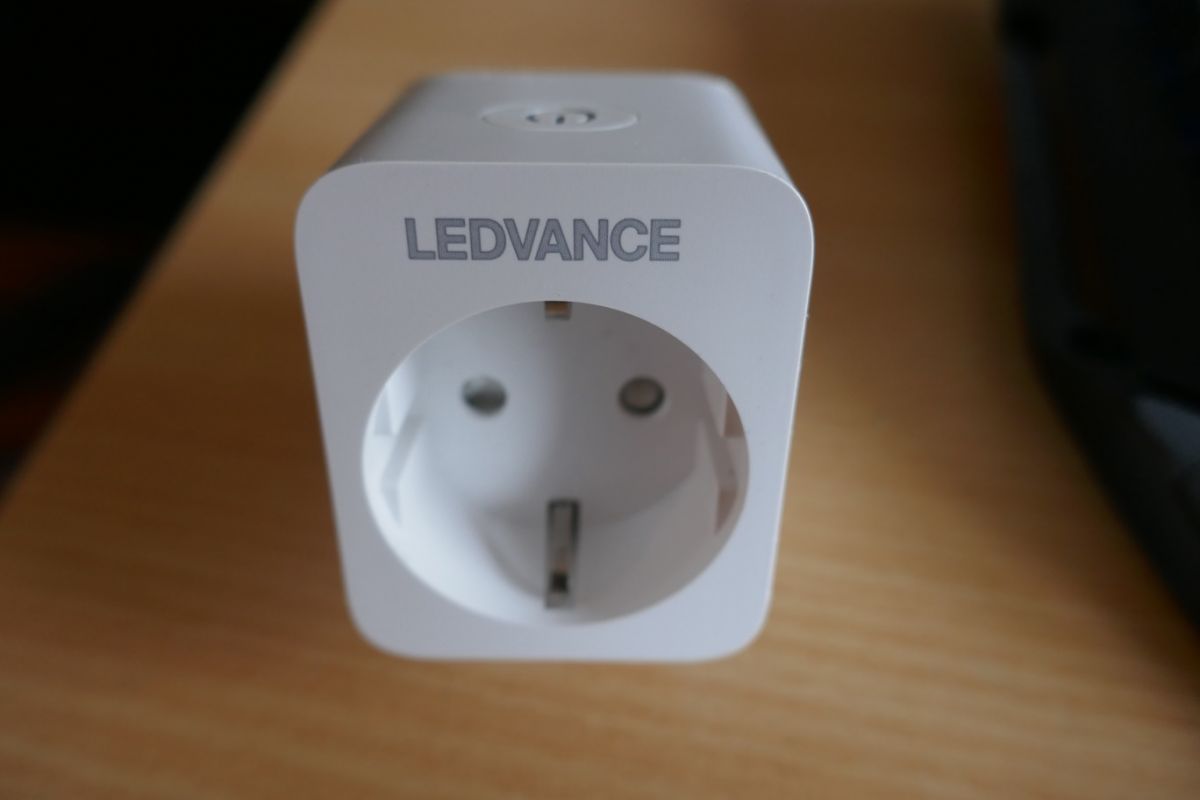
Close-up of a LEDVANCE Smart+ smart plug on a desk.

Personally I would estimate, that the difficulty of flashing OpenBeken to this device is rather high compared to other smart plugs, so you might want to reconsider. Anyway, make sure to read this post completely before you start and make sure that you understand all steps of this instruction and know how to perform them - I do assume at least some basic soldering & programming knowledge from your side!

Be sure that you have the following materials available, ideally before you start. Otherwise you might find yourself with a half-disassembled device and have to get creative, because you are missing some hardware, software, etc. I know, what I am talking about here...

Materials
* Cutter knife & spudger for opening
* Raspberry Pi, or similar Linux device with SPI interface
-> Must be able to run hid_download_py
-> And of course you also need a recent version of OpenBeken
* Soldering station with a fine tip, solder, maybe flux
* Six jumper wires with one end to solder and the other end to plug onto your Raspberry Pi pin header

Step 1 - Open
To open the device you will need to use a cutter knife, some force and a lot of time. Turn the device upside down and you will see where the two pieces of the housing have been glued together. You should use your cutter knife to separate both on all four sides and if possible in the corners as well. Once this is done, use your spudger (or your cutter knife as well, if you are adventurous) to pry open each side. Just a little will be enough but especially the corners can be quite difficult to separate.
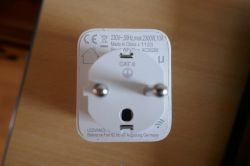
Top view of LEDVANCE Smart+ Smart WiFi Plug with visible technical specifications.
Here you can see my smart plug glued back together - the marks make it obvious, where I had to use force...

Step 2 - Prepare for Flashing
Once the device has been opened, you should easily find the blue board labeled "WB2S" - this is the one you need to flash. Regretfully the pins required to do an UART flash are not accessible at all. Neither is it possible to desolder the board, unless you desolder the main PCB first. I opted against that option, because I did not want to mess with the 220V main electricity circuitry - anything going wrong here and your device might catch fire or you might catch an electric shock, once you plug it back in. Compared to that, messing with the 3.3V BK7231T IC is relatively safe (or so do I hope).
Luckily, there is another, less used but still viable option to flash your device: SPI. And just a lucky, the pins for that are quite accessible. At least most of them. Once I had everything soldered together according to that diagram, I figured that the 3.3V power supply had been omitted. Therefore I give you the complete wiring instructions here:

CEN -> GPIO22
SCK -> SPI0 SCLK
CSN -> SPI0 CE0
SI -> SPI0 MOSI
(ADC_)SO -> SPI0 MISO
VBAT -> 3v3
GND -> Ground

For you reference:
WB2S Datasheet
Raspberry Pi Pinout

You will notice that especially the VBAT and GND pads are really difficult to solder to, because the main PCB is in the way. Consequently (after I barely managed to solder the VBAT pad) I cheated a little and connected the Ground via other means: It turns out that the metal case, protecting the actual IC, is grounded as well :)

I wish you the best of luck with soldering!
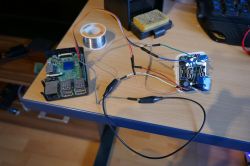
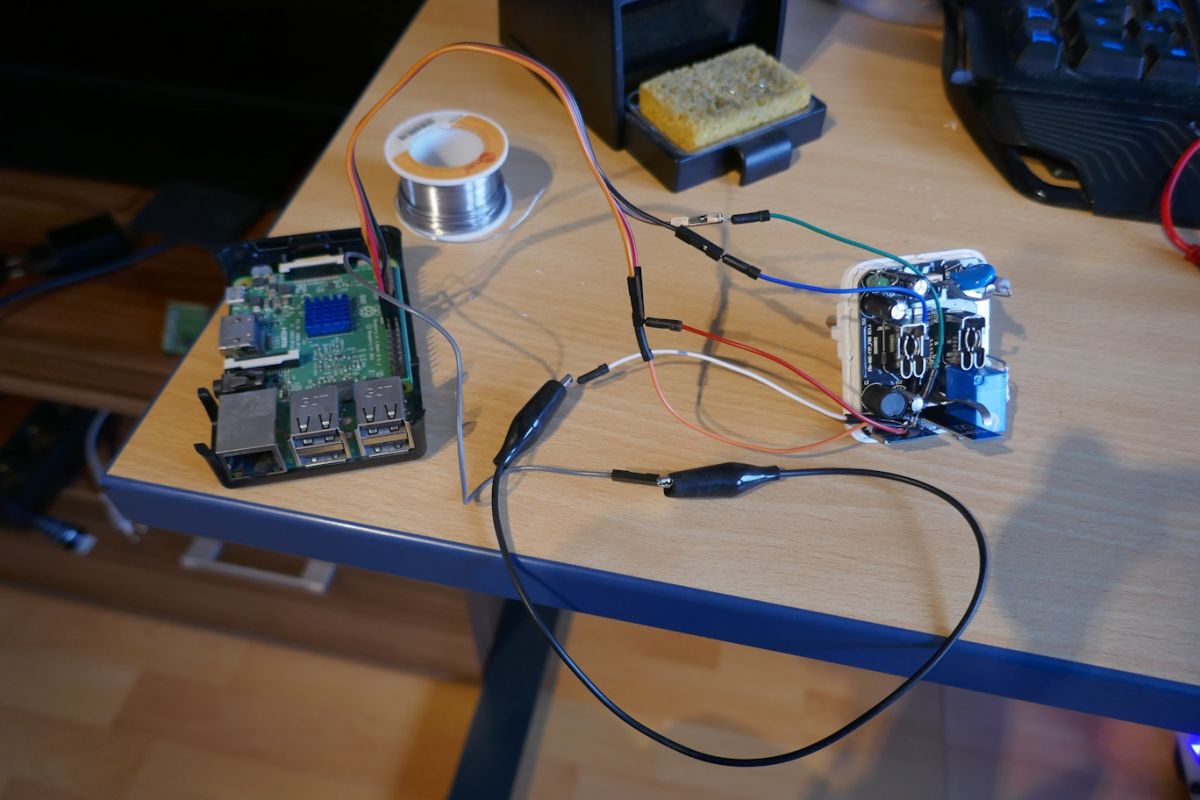
Raspberry Pi connected with cables to a disassembled smart plug.
My initial attempt with only four wires. VBAT and GND are still missing.
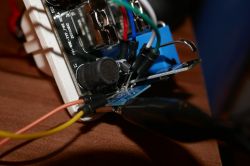
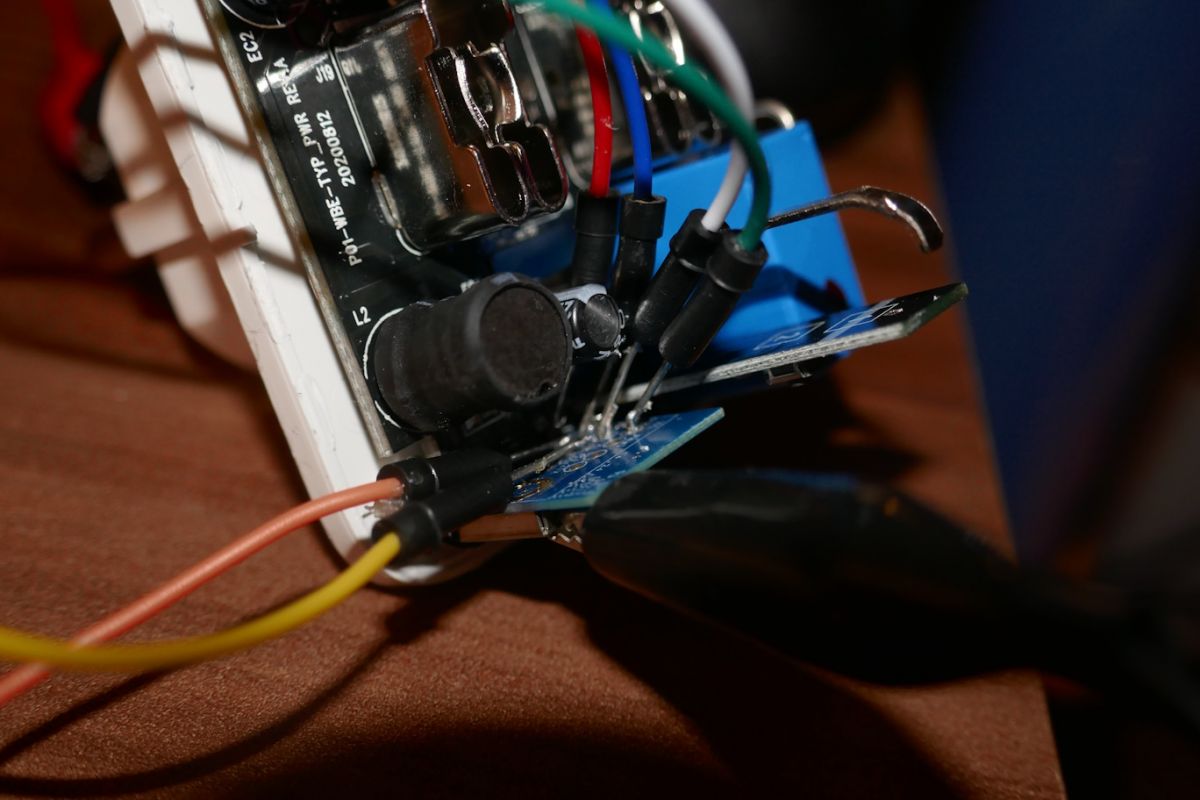
Circuit board with soldered wires connected to various points.
And the final version with all six wires connected. If you can't see yourself soldering in the tiny gap here, this instruction is probably not for you.

Step 3 - Make a backup
If you managed to get until here, the difficult part is over now (unless you are good with hardware and really bad with software).
However, you still have to test, where your soldering attempts were actually successful or whether you have to try again. This is easily done by running the hid_download_py utility to create a dump/backup of your devices flash memory.

./spigrogram -r -s 0 -l 12A000


This will dump the flash memory, starting from address 0x0 and up to 0x12A000. You might want to dump more than that but since this portion contains the original bootloader and firmware, there is no real need to.

If everything has been wired up correctly, the read process should start after a few seconds. If not, then something is not connected quite right. Sorry.

Step 4 - Disable write protection
This step was a bit difficult to figure out, since it was not documented anywhere. Apparently most manufactures do not bother to enable write protection, so the flashing process will work in most cases - however, not in my case. Luckily, removing the write protection turned out to be quite easy, once I had seen trough the relevant parts of the flash memory data sheet.

The following python script should do:
from spidev import SpiDev
from RPi import GPIO
from time import sleep
GPIO.setmode(GPIO.BCM)
GPIO.setup(22, GPIO.OUT)
spi = SpiDev()
spi.open(0, 0)
spi.mode = 3
spi.max_speed_hz = 50000
GPIO.output(22, GPIO.LOW)
sleep(1)
GPIO.output(22, GPIO.HIGH)
spi.xfer2([0xD2]*250)
[_, reg_prev] = spi.xfer2([0x05, 0x00])
spi.xfer2([0x01, 0x00])
[_, reg_after] = spi.xfer2([0x05, 0x00])
print("Status register overwritten: Was {0}, now {1}".format(reg_prev, reg_after))


Most of this script is just initialization or debug output, the only interesting part is spi.xfer2([0x01, 0x00]), which sets the status register to 0 and therefore disables write protection.

Step 5 - Flashing
Finally! Make sure that you have the right version of OpenBK. The platform in our case should be the BK7231T. At least that's the chip one build into the WB2S module. However, manufacturers of cheap smart devices are known to regularly sell product versions with different chips under the same name, so make sure that your module is actually the WB2S. Regarding the usage: We will do a SPI Flash. Taken together, this means that you will want to download OpenBK7231T_QIO_X.XX.XXX.bin.

Once downloaded, you can flash with the following command:
./spigrogram -w -s 0 OpenBK7231T_QIO_X.XX.XXX.bin


To my understanding, the UART version is the same just without bootloader, so if you leave out the -s 0 flag, you should be able use that version instead. However, this is just a theory and I did not actually try this. The good news: If you want to try and brick your device, chances are good, that you can recover from it easily. While UART does break, if you flash the wrong bootloader, SPI won't :)

Step 6 - Basic Configuration
After the flashing is done, your device should be restarted automatically and will start blinking twice per second. This indicates that the device is now in Access Point mode and you can connect to it from your computer or smartphone. The AP SSID should start with OpenBK7231T so it will be easy to spot. Connect to it and open http://192.168.4.1/index.
The first thing to setup is usually your own WiFi - when this is done, you probably want to configure the device hardware: LED, Button, Relay and Power Sensor (BL0937CF1). For that you can use the following config:

{
  "vendor": "LEDVANCE",
  "bDetailed": "0",
  "name": "LEDVANCE Smart+",
  "model": "Smart WiFi Plug AC28208",
  "chip": "BK7231T",
  "board": "WB2S",
  "pins": {
    "6": "Btn;0",
    "7": "BL0937CF;0",
    "8": "BL0937CF1;0",
    "10": "LED_n;0",
    "24": "Rel;0",
    "26": "BL0937SEL;0"
  }
}


That's it, your done! Congratulations! There is still some more configuration work to do of course, but what exactly you want from here on is up to you.

Please leave a comment, if you managed to get everything working - or if something did not work out for you, so that I can fix my instructions.
Also I would be interested to know, whether you can get the power sensor to work: I was able to calibrate Voltage and Watt readings, but the Ampere reading is inversed / random / definitely not right.


About Author
repivero wrote 4 posts with rating 6 , helped 1 times. Been with us since 2023 year.

Comments

p.kaczmarek2 15 Oct 2023 20:17

Very nice guide, I see what you did there. That's a clever approach to the badly accessible pins problems. Since your topic is SPI related, you might also want to look here: https://www.elektroda.com/rtvforum/topic3931424.html I... [Read more]

repivero 15 Oct 2023 21:14

Interesting approach :) The BL0937SEL_n was in my JSON by mistake - Tuya config says it should be BL0937SEL , so I changed the JSON back. Anyway, neither of both seems to work and as I know by now,... [Read more]

p.kaczmarek2 16 Oct 2023 08:39

There was indeed a request per BL0937SEL_n role. The motivation was that there were some ESP sockets that were using inversed SEL signal. It supposedly fixed measurements on some of the devices. If... [Read more]

csabaa 15 Nov 2025 07:25

Excellent, thank you so much ! minor edit for future users in json configuration, line 14 : the correct line is: "24": "Rel;0", (with a comma) [Read more]

repivero 27 Nov 2025 12:09

Thank you for spotting this! I just updated my post to fix the JSON config. [Read more]

FAQ

TL;DR: This guide uses 6 wires and a Raspberry Pi to flash OpenBeken onto the LEDVANCE Smart+ AC28208. "The difficulty ... is rather high," so it suits users with basic soldering and programming skills who need a working SPI method for a glued WB2S smart plug. [#20770235]

Why it matters: This thread gives a rare, device-specific SPI flashing path for a mains smart plug whose UART pads are not practically accessible.

Method Access on this plug Main requirement Result in thread
SPI flashing Most pins accessible on WB2S Raspberry Pi with SPI, 6 wires Documented working path
UART flashing Required pads not accessible Desoldering or risky board access Not recommended here
Bottom access mod Used on a similar case variant Drill or open from underside Alternative when top pads are too hard

Key insight: On the LEDVANCE Smart+ AC28208, SPI is the practical route because the WB2S UART pads are blocked, while SPI pads remain reachable enough to wire and flash.

Quick Facts

  • The recommended SPI wiring uses 7 named connections: CEN→GPIO22, SCK→SPI0 SCLK, CSN→SPI0 CE0, SI→SPI0 MOSI, SO→SPI0 MISO, VBAT→3.3 V, and GND→ground. [#20770235]
  • The backup command reads flash from address 0x0 to 0x12A000, which the guide says covers the original bootloader and firmware. [#20770235]
  • The write-protection workaround uses SPI mode 3 and 50,000 Hz, then sends spi.xfer2([0x01, 0x00]) to clear the status register. [#20770235]
  • After flashing, the plug blinks twice per second and exposes an OpenBK7231T access point at 192.168.4.1 for first setup. [#20770235]
  • A later correction fixed the JSON example: line 14 needs "24": "Rel;0", with the trailing comma preserved. [#21751782]

How do I flash OpenBeken to a LEDVANCE Smart+ Smart WiFi Plug AC28208 with a WB2S module using SPI?

Use SPI, not UART, on this plug. 1. Open the glued case and solder wires to the WB2S SPI pads plus 3.3 V and GND. 2. Make a backup with ./spigrogram -r -s 0 -l 12A000 and clear write protection if needed. 3. Flash a BK7231T SPI image with ./spigrogram -w -s 0 OpenBK7231T_QIO_X.XX.XXX.bin, then join the temporary AP for setup. [#20770235]

What is the WB2S module in the LEDVANCE Smart+ plug, and why does it determine which OpenBeken build to use?

The WB2S is the blue Wi-Fi module inside this plug, and it contains the BK7231T chip. "WB2S is a Wi-Fi module that provides the device MCU and radio section, with BK7231T as its key silicon." Because the board in this thread is WB2S, the correct OpenBeken platform is BK7231T, not another BK variant. [#20770235]

Why is SPI flashing recommended for the LEDVANCE Smart+ AC28208 instead of UART flashing?

SPI is recommended because the UART pads are not accessible on this device. The guide states that UART flashing is blocked unless you desolder the module or main PCB, which brings you close to the 220 V mains circuitry. The SPI pins are still reachable, so SPI avoids unnecessary work on the power board and gives a practical recovery path. [#20770235]

Which Raspberry Pi SPI pins should I connect to CEN, SCK, CSN, SI, SO, VBAT, and GND on the WB2S board?

Wire the WB2S as follows: CEN→GPIO22, SCK→SPI0 SCLK, CSN→SPI0 CE0, SI→SPI0 MOSI, SO→SPI0 MISO, VBAT→3.3 V, and GND→ground. The guide adds one useful trick: the metal RF shield can serve as ground because it is grounded too. That helps when the GND pad is hard to reach. [#20770235]

What's the safest way to open a glued LEDVANCE Smart+ Smart WiFi Plug AC28208 without damaging the case or mains circuitry?

Cut the glue seam slowly on all 4 sides, then pry each side open a little at a time. Use a cutter knife first and a spudger second, especially around the corners. Avoid disturbing the main PCB or the 220 V section; the guide explicitly chose not to desolder that board to reduce shock and fire risk. [#20770235]

How can I make a backup of the original firmware from a WB2S-based plug with hid_download_py and spigrogram before flashing OpenBeken?

Run ./spigrogram -r -s 0 -l 12A000 after wiring the WB2S to your Raspberry Pi SPI header. This reads flash starting at 0x0 and ending at 0x12A000. The author says that range already contains the original bootloader and firmware, so it is enough for a practical backup before flashing. [#20770235]

Why does write protection block flashing on some LEDVANCE Smart+ plugs, and how do I disable it on the EN25QH16B flash chip?

Write protection blocks flashing because this plug's flash chip had its status register set to prevent writes. The thread solved it with a short Python script using spidev and RPi.GPIO; the key operation is spi.xfer2([0x01, 0x00]), which writes 0 to the status register. That disables protection on the EN25QH16B and allows flashing to proceed. [#20770235]

Which OpenBeken firmware file should I download for a BK7231T-based WB2S device: the SPI image or the UART image?

Download the SPI build named OpenBK7231T_QIO_X.XX.XXX.bin for the method shown here. The guide ties that choice to two facts: the module is WB2S and the chip is BK7231T. It also notes that the UART image may work without -s 0, but that was presented as untested theory, not the confirmed path. [#20770235]

What is hid_download_py, and how is it used together with spigrogram for BK7231T SPI flashing?

hid_download_py is the utility set the guide requires on a Linux device with SPI support, and spigrogram is the command-line tool used from that set. In this workflow, spigrogram first reads a backup and then writes the OpenBeken image over SPI. The thread uses it with -r for read, -w for write, and -s 0 for flashing from address 0. [#20770235]

After flashing OpenBeken, how do I connect to the temporary access point at 192.168.4.1 and perform the initial Wi-Fi setup?

Wait for the plug to reboot, then connect to the OpenBeken access point. The guide says the device blinks twice per second in AP mode and the SSID starts with OpenBK7231T. Open http://192.168.4.1/index, enter your normal Wi-Fi details, and then move on to the hardware pin configuration. [#20770235]

How should I configure the LED, button, relay, and BL0937CF1 power sensor pins for the LEDVANCE Smart+ Smart WiFi Plug AC28208 in OpenBeken JSON?

Use this mapping from the corrected JSON: 6=Btn;0, 7=BL0937CF;0, 8=BL0937CF1;0, 10=LED_n;0, 24=Rel;0, and 26=BL0937SEL;0. The device fields are LEDVANCE, Smart WiFi Plug AC28208, BK7231T, and WB2S. A later post corrected the relay line by restoring the missing comma after "Rel;0". [#21751782]

Why are the ampere readings on the LEDVANCE Smart+ plug inverted, random, or incorrect even when voltage and watt calibration seem fine?

This happens because current measurement appears to be an unresolved device-specific issue in these LEDVANCE Smart+ plugs. The author reports that voltage and watt values could be calibrated, but ampere values stayed inverted or random. A follow-up reply says the problem seems common across LEDVANCE Smart+ plugs, so the failure is not limited to one bad calibration attempt. [#20771829]

BL0937SEL vs BL0937SEL_n in OpenBeken — which role should I use for LEDVANCE Smart+ plugs with a BL0937 power monitor?

Use BL0937SEL for this LEDVANCE plug. The original JSON used BL0937SEL_n by mistake, and the author later corrected it after checking the Tuya configuration. Another reply explains that SEL_n exists for some ESP sockets with an inverted SEL signal, but that role did not fix this LEDVANCE measurement problem. [#20771829]

What is the BL0937CF1 power sensor, and what do the CF, CF1, and SEL pins do in smart plug energy measurement?

"BL0937CF1 is a power-monitor interface that reports measurement pulses, with CF and CF1 as output channels and SEL choosing which quantity CF1 represents." In this plug's JSON, BL0937CF, BL0937CF1, and BL0937SEL appear on GPIO 7, 8, and 26. The thread shows these three roles are essential to voltage, watt, and current handling in OpenBeken. [#20770235]

If the WB2S pads are too hard to solder from the top, what alternative hardware access methods can I use, such as drilling from the bottom of the case?

Use bottom-side access if the top gap is too tight. A follow-up post shows a similar plug variant where the author made a hole in the case and reached the WB2S pads from below because the normal top-side solder points were harder to reach. That is an edge-case workaround when standard pad access fails. [#20771724]
Generated by the language model.
%}