logo elektroda
logo elektroda
X
logo elektroda

Teardown Action LSC SmartPlug 3202087 BK7231N/CB2S, PCB: WP02GE-F 2023-08-04, with Energy Meter

alvinx  19 4428 Cool? (+10)
📢 Listen (AI):

TL;DR

  • Teardown of an Action LSC SmartPlug 3202087 with PCB WP02GE-F 2023-08-04, BKN7231N/CB2S, including the energy-metering hardware.
  • The later case clicks open with a slim blade, and flashing uses an FTDI adapter on 3,3V, GND, RX, TX plus CEN pulled to GND.
  • The extracted Tuya map assigns BL0937 SEL to P11, Button to P7, LED to P6, WiFi LED to P10, Relay to P8, VI to P24, and ELE to P26.
  • OpenBeken boots into a web UI, exposes the switch after GPIO setup, and shows energy metering once calibrated and synced with NTP.
Generated by the language model.
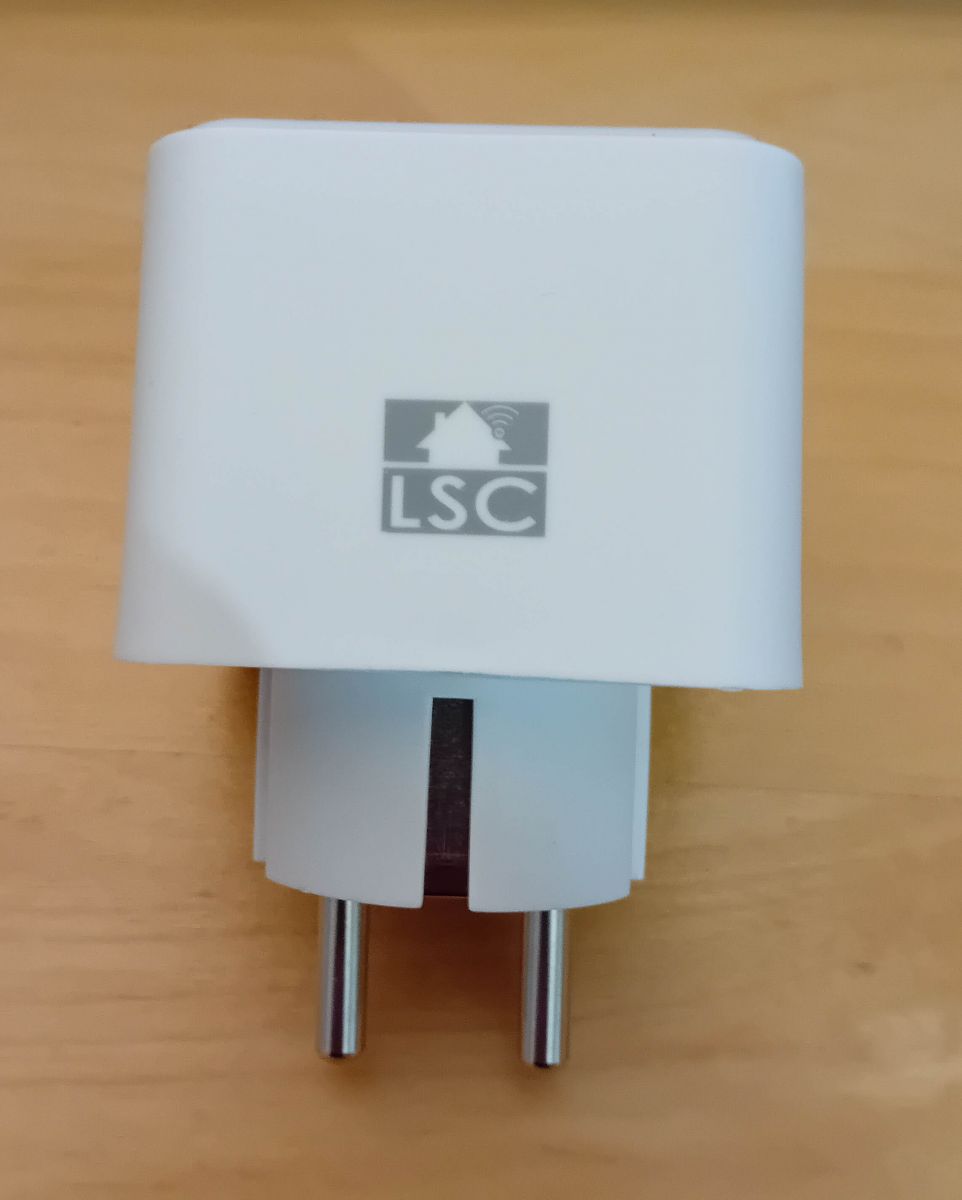
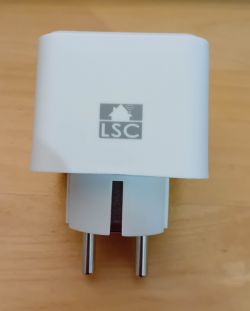
White Action LSC smart plug on a wooden surface.
Action sells these in Germany, there are several versions of them, they started with ESP826x-based plugs and switched to Beken-chips at some point.
The early ones had screws to open, the cases of the later ones like this here are just clicked together. Here is a detailed teardown and OpenBeken flashing guide. Device information:

PCB-Label: WP02GE-F 2023-08-04
BKN-Chip: BKN7231N
BKN-Board: CB2S

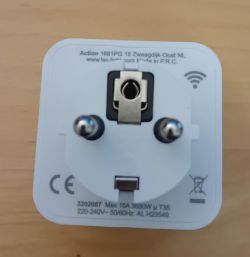
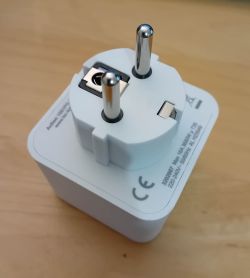
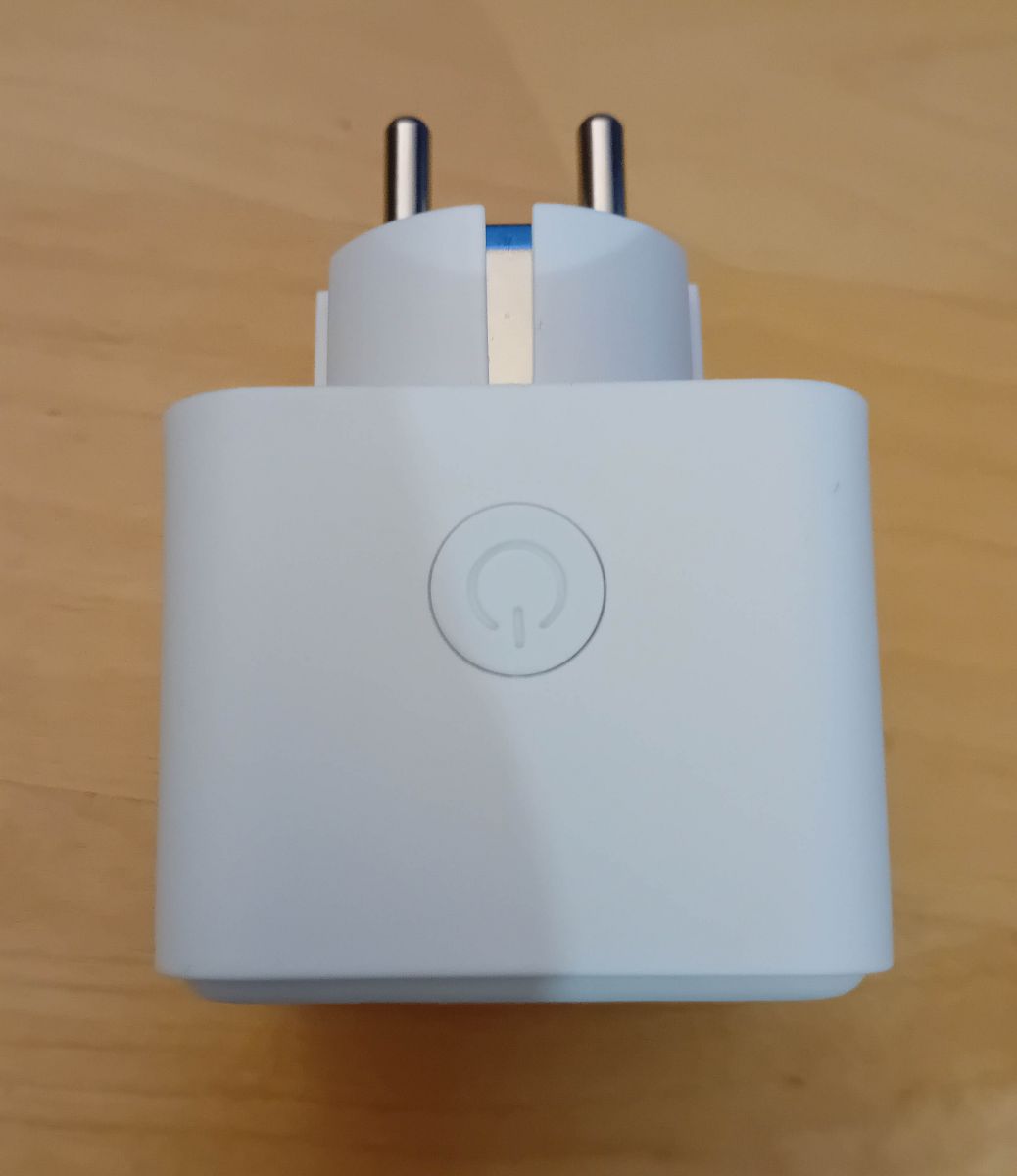
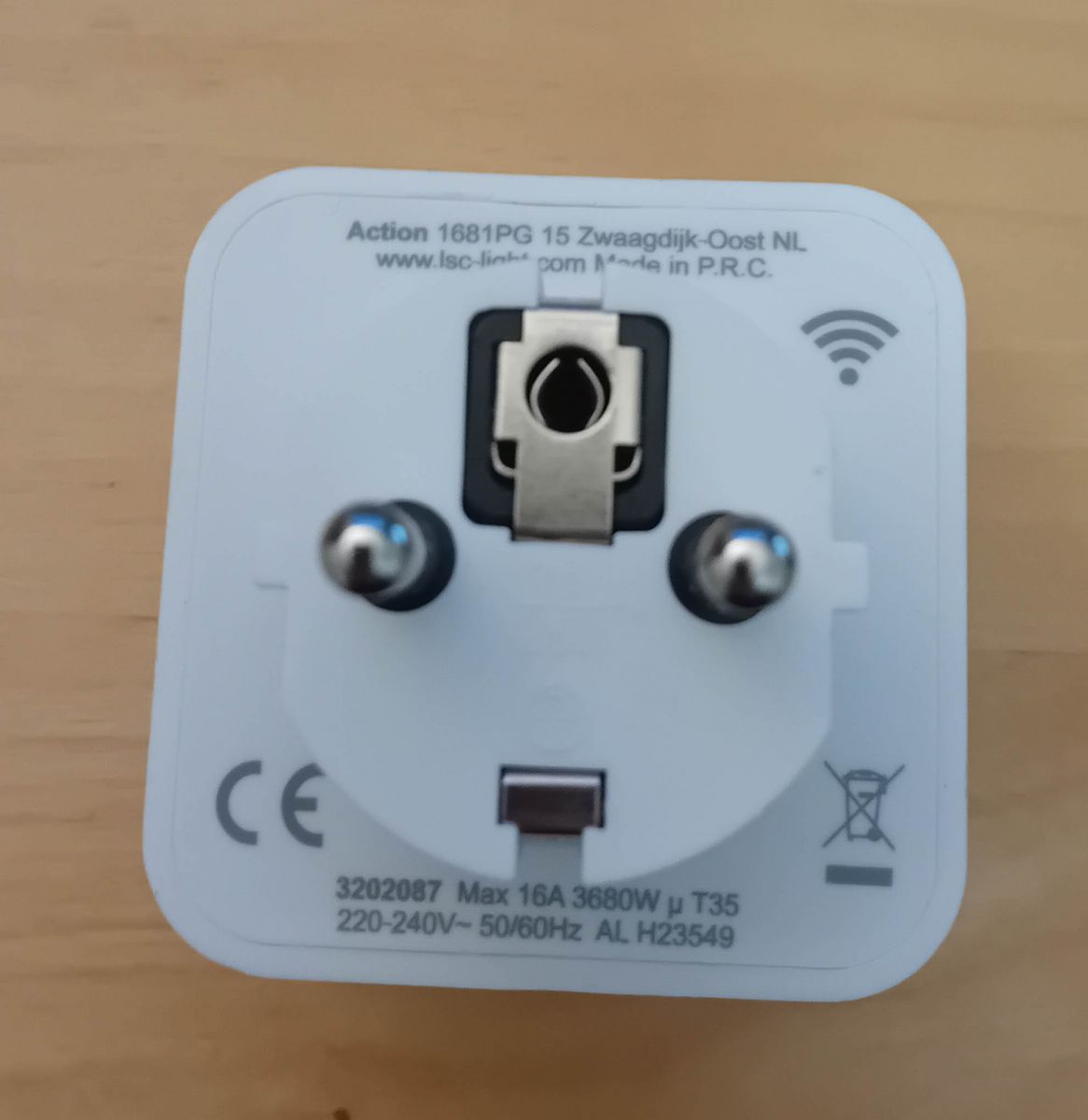
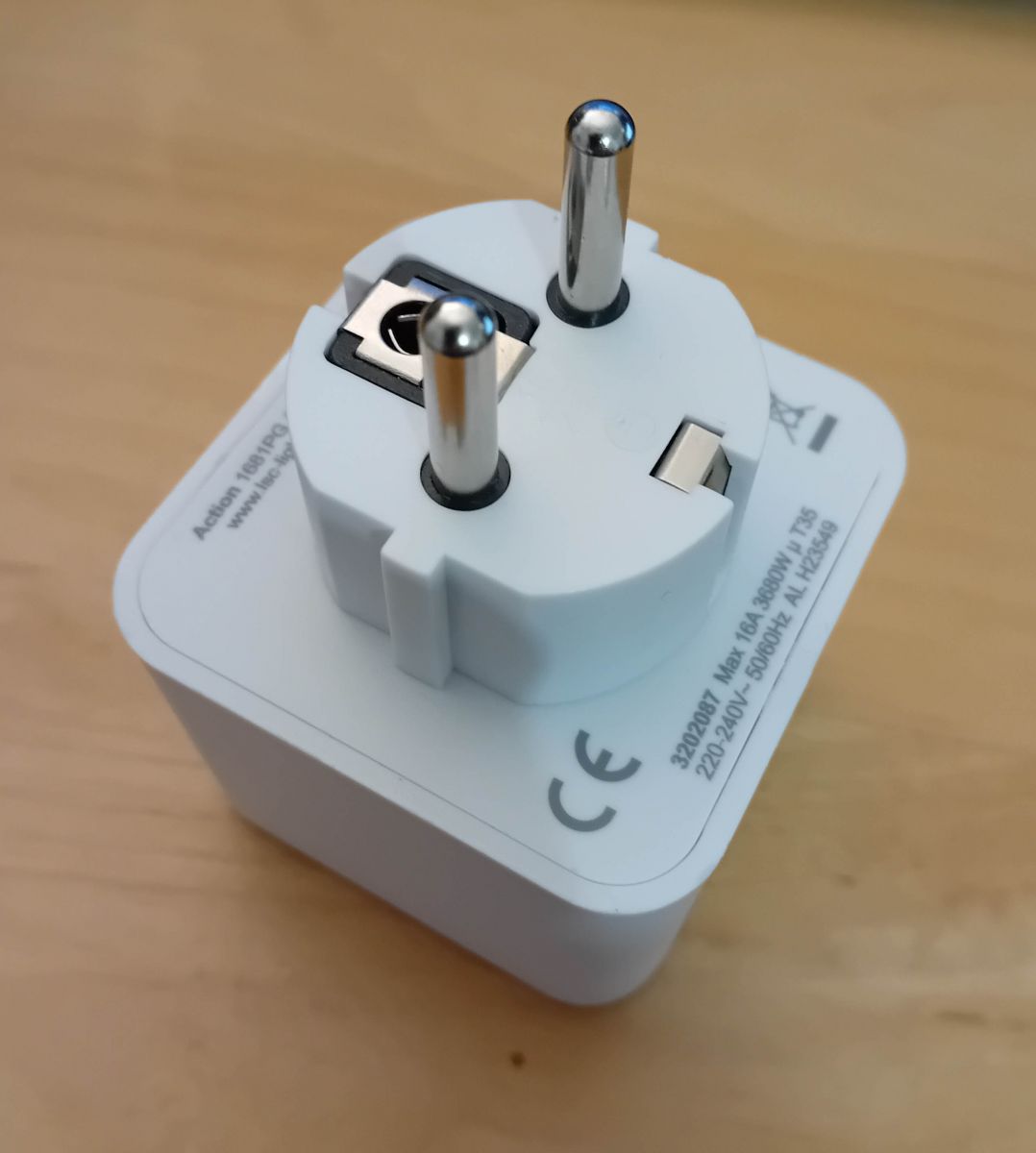
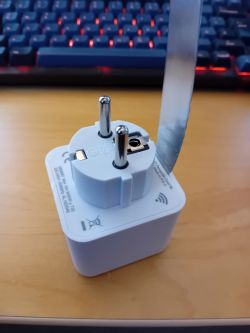
It looks like this:
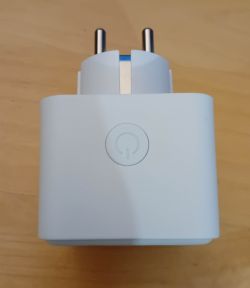
White smart plug with a button on the front side.
White Action LSC smart plug on a wooden surface. Back view of a white smart plug. White electrical plug with certification markings on a wooden surface.

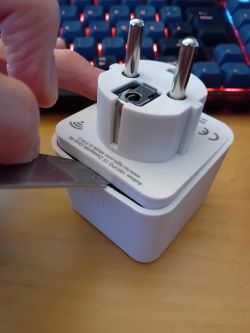
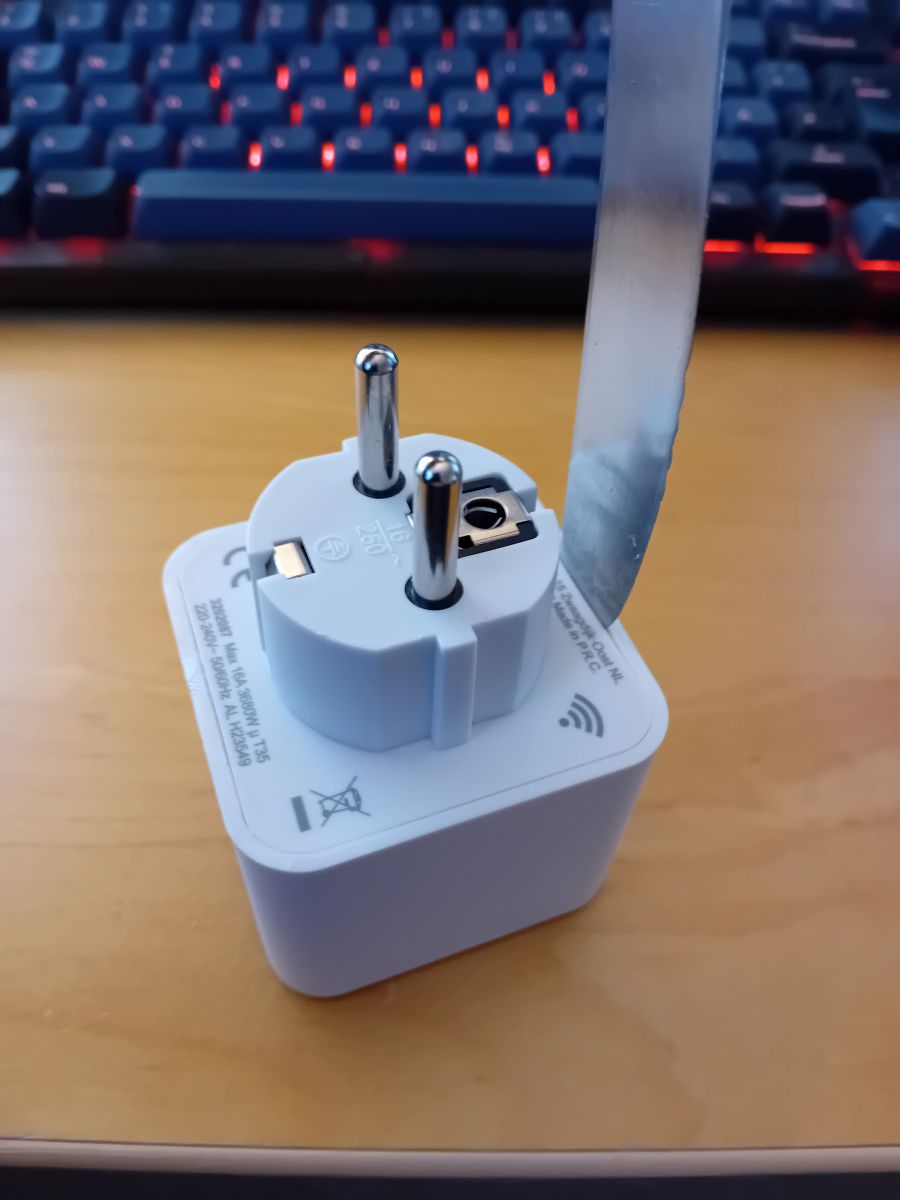
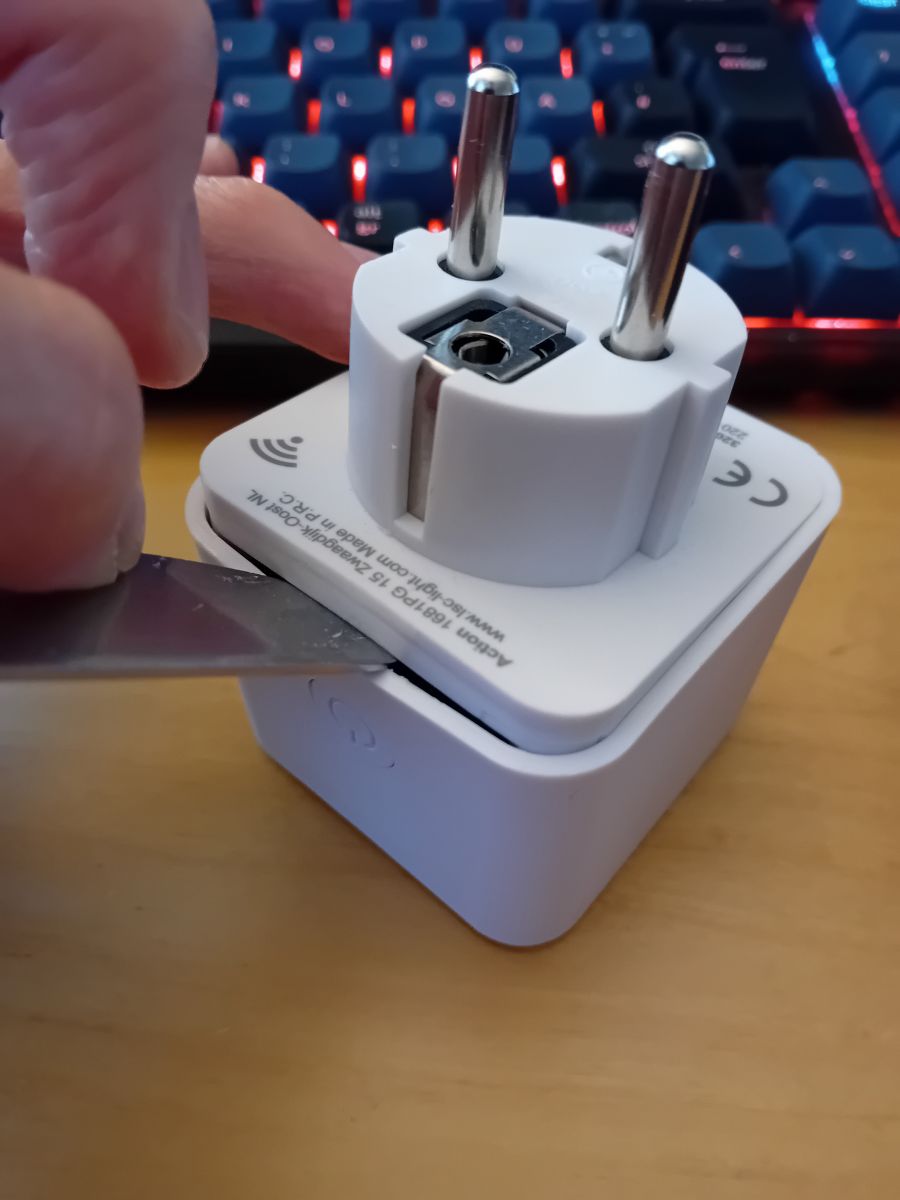
To open it use a slim blade and put it about 5mm inside to pry it open:
A smartplug on a wooden desk with a tool for opening it. A person opens the casing of a smart plug using a narrow blade.

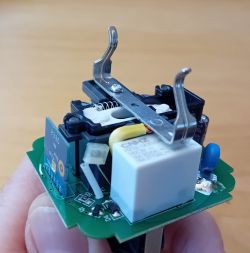
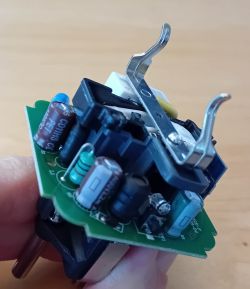
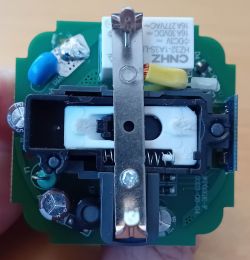
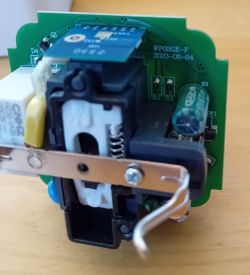
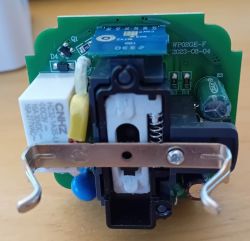
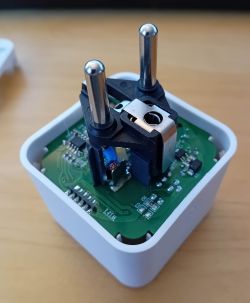
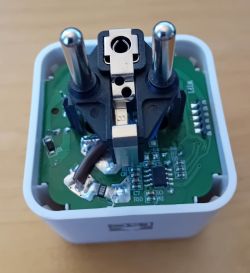
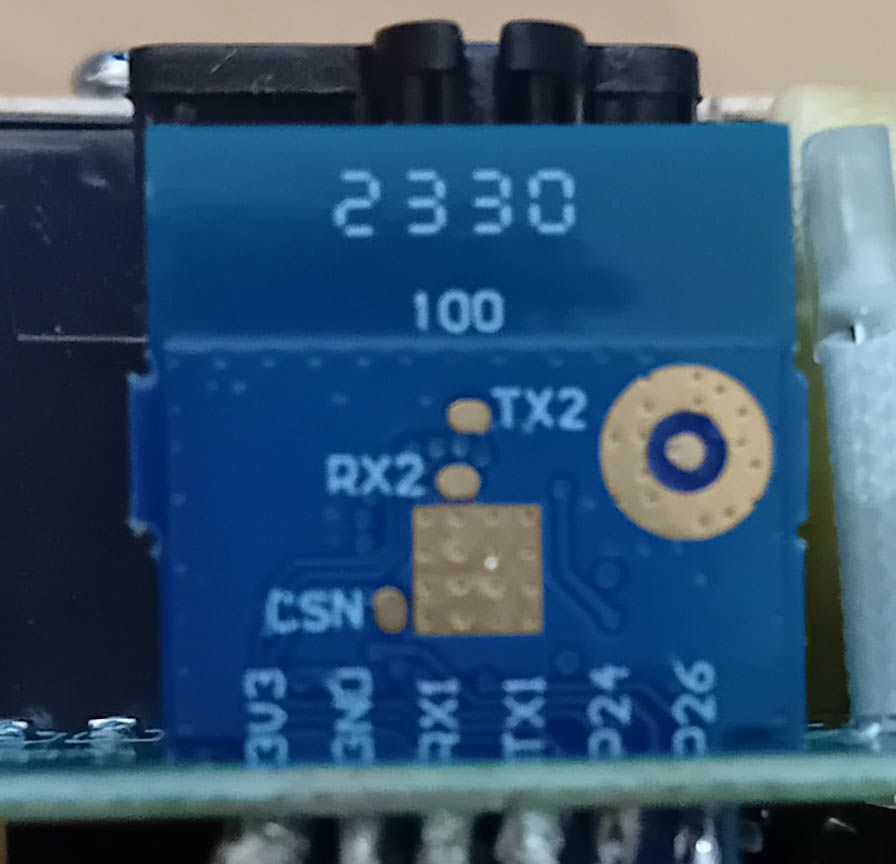
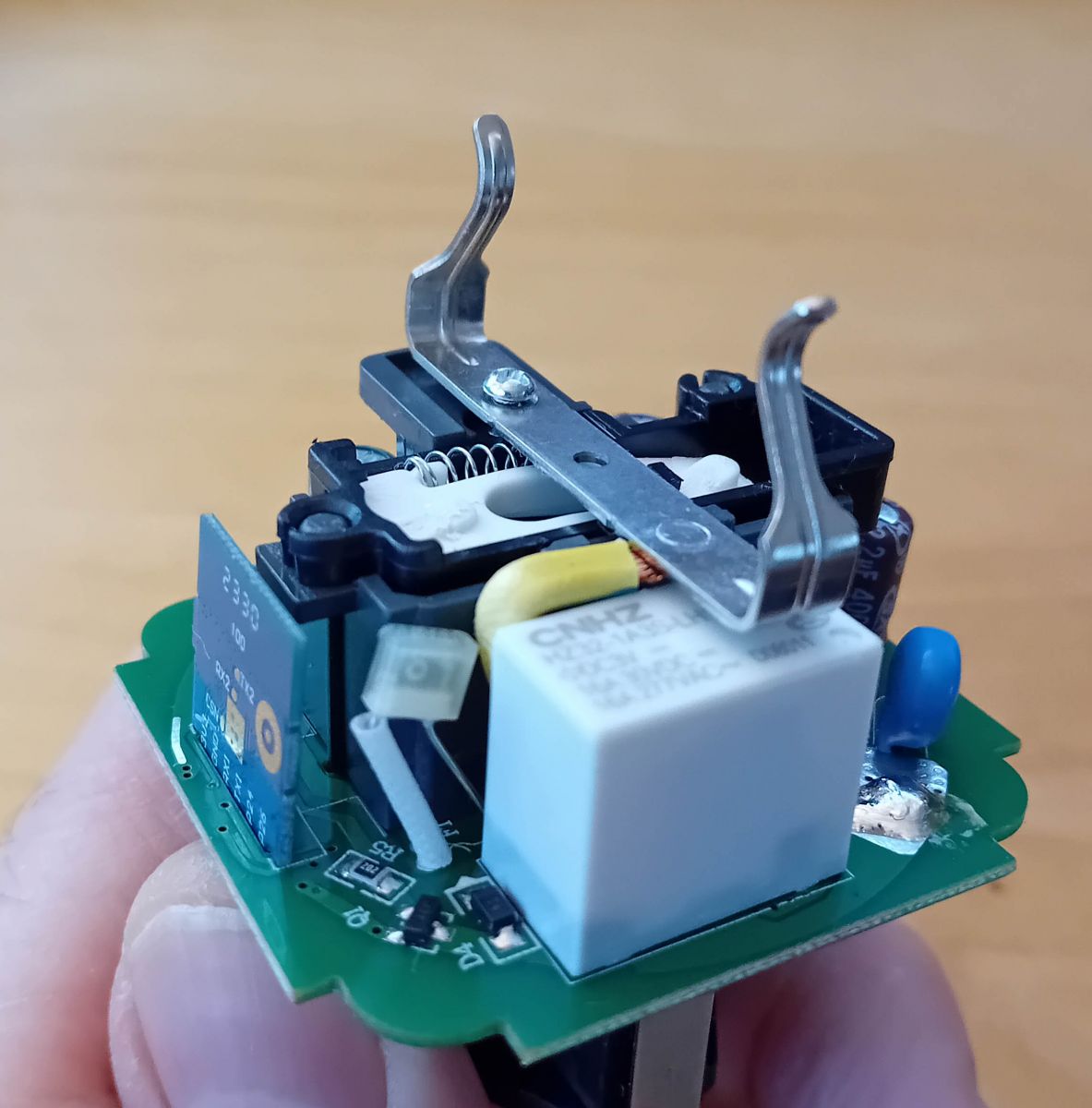
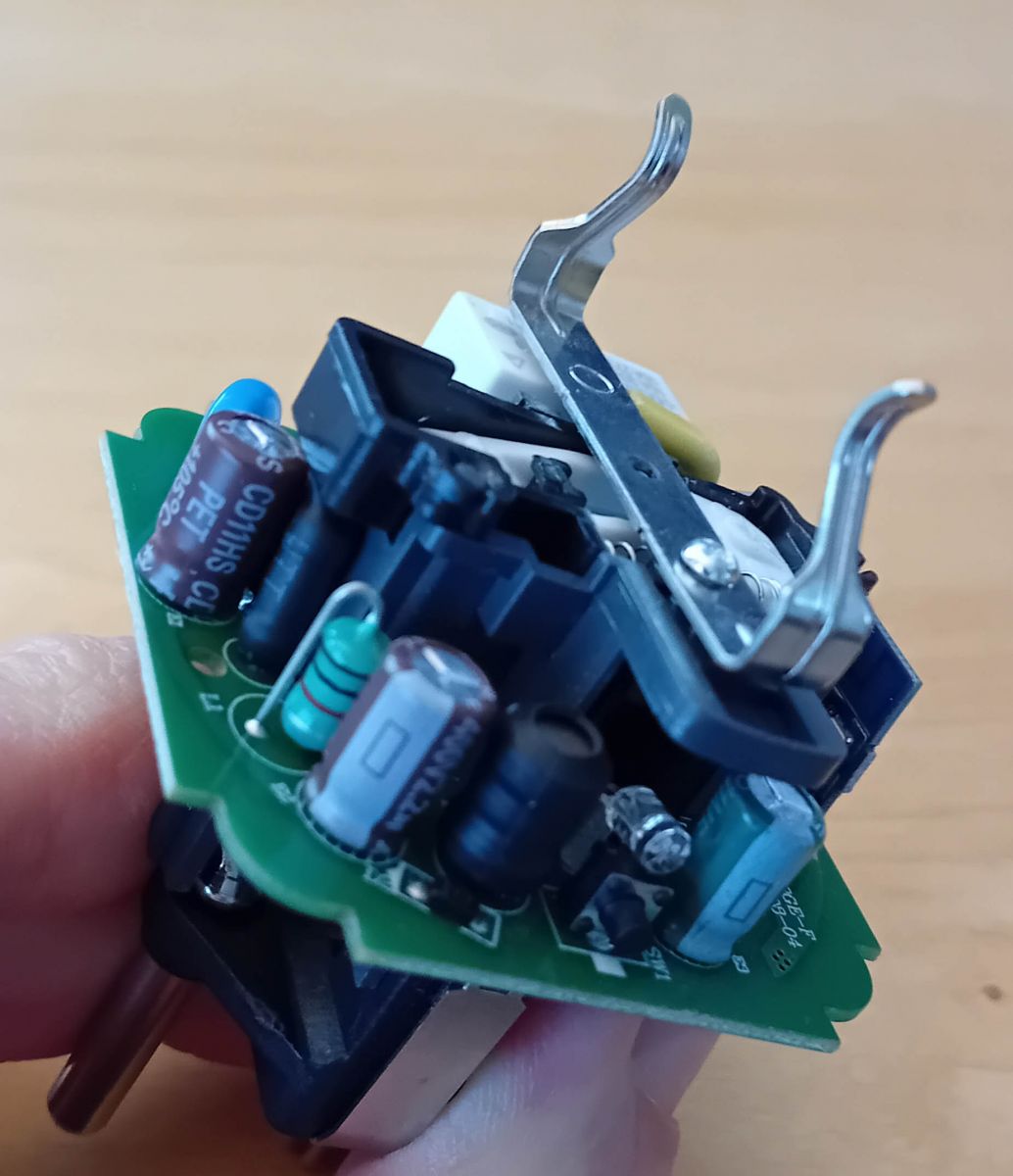
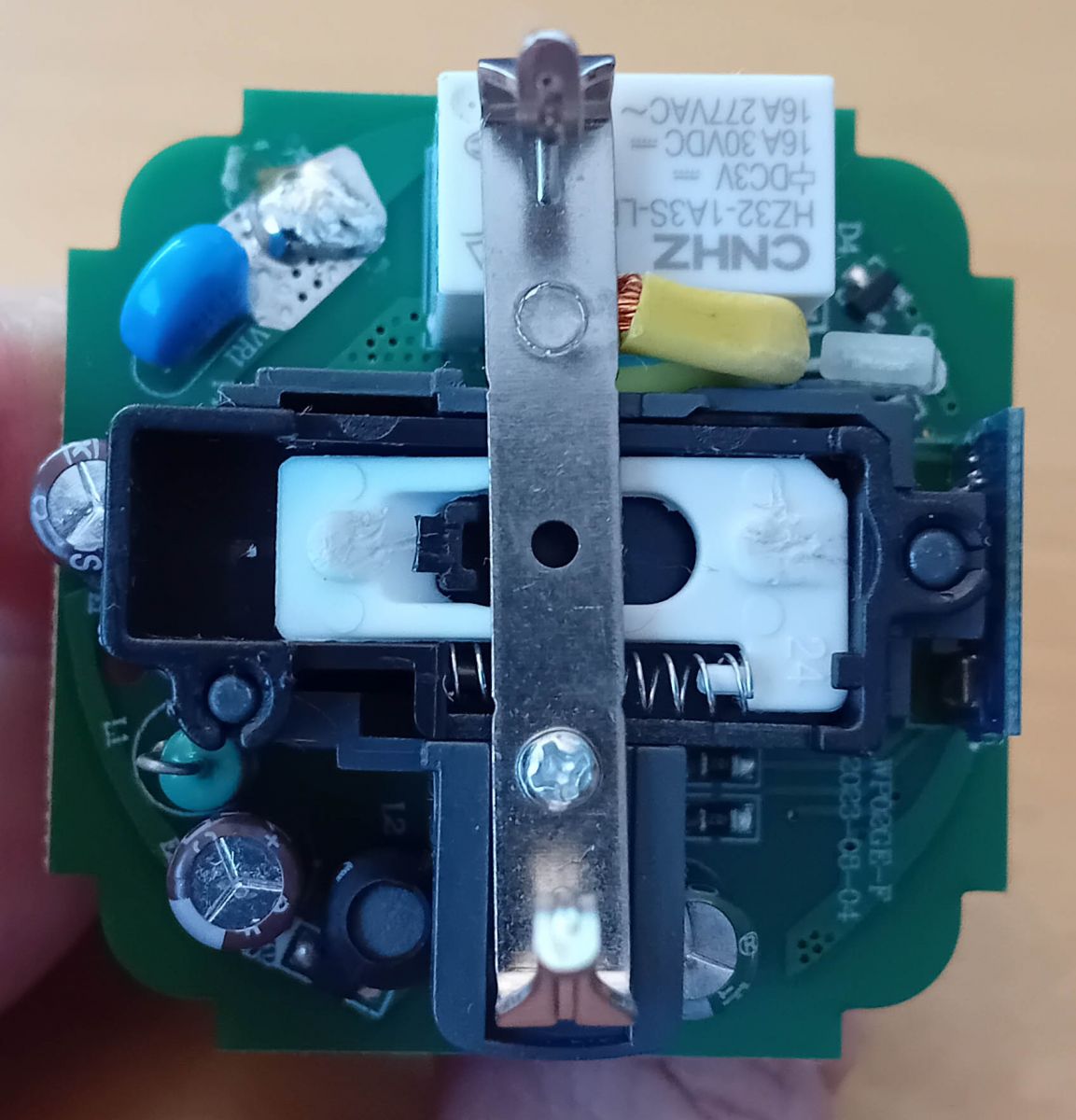
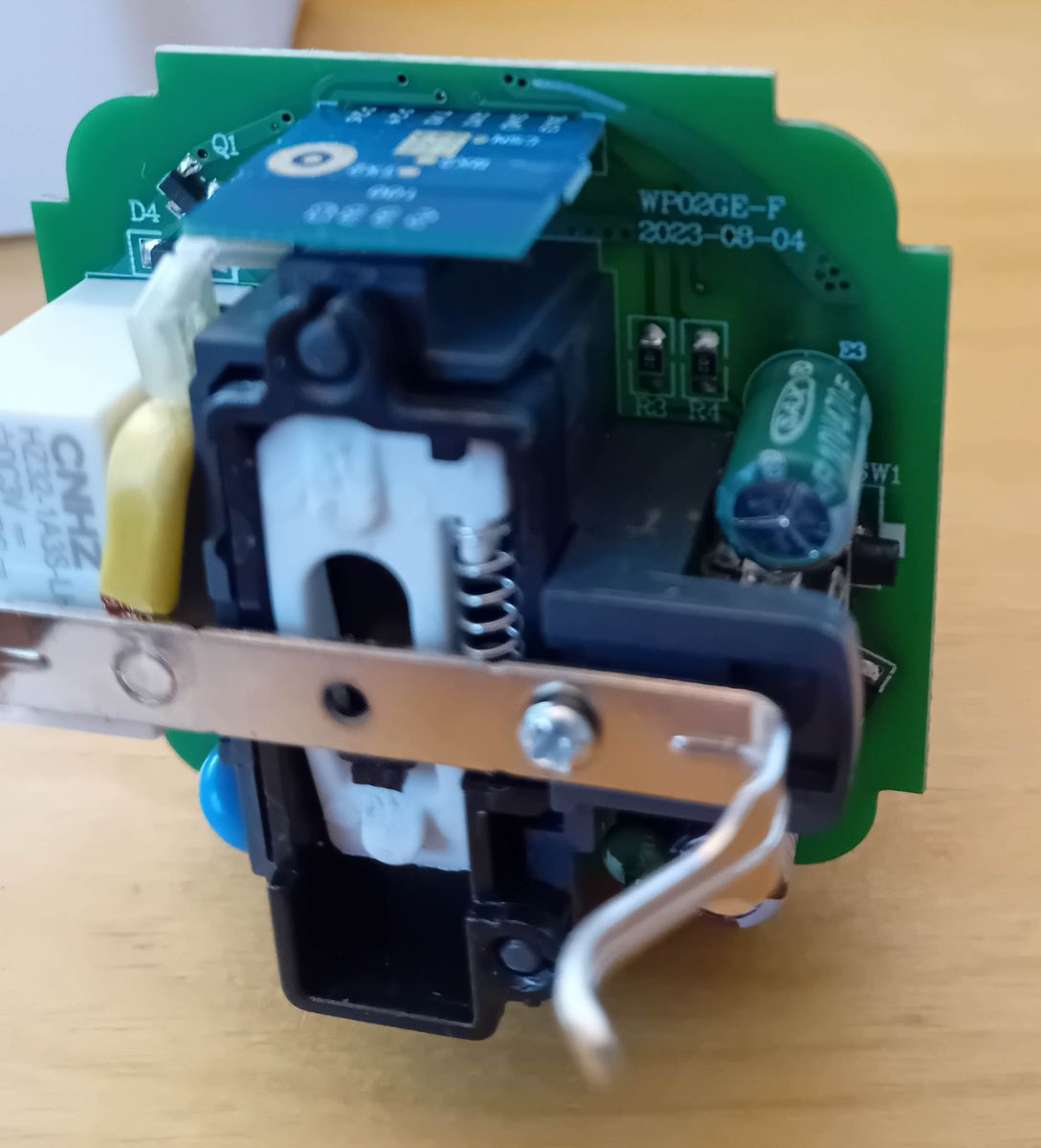
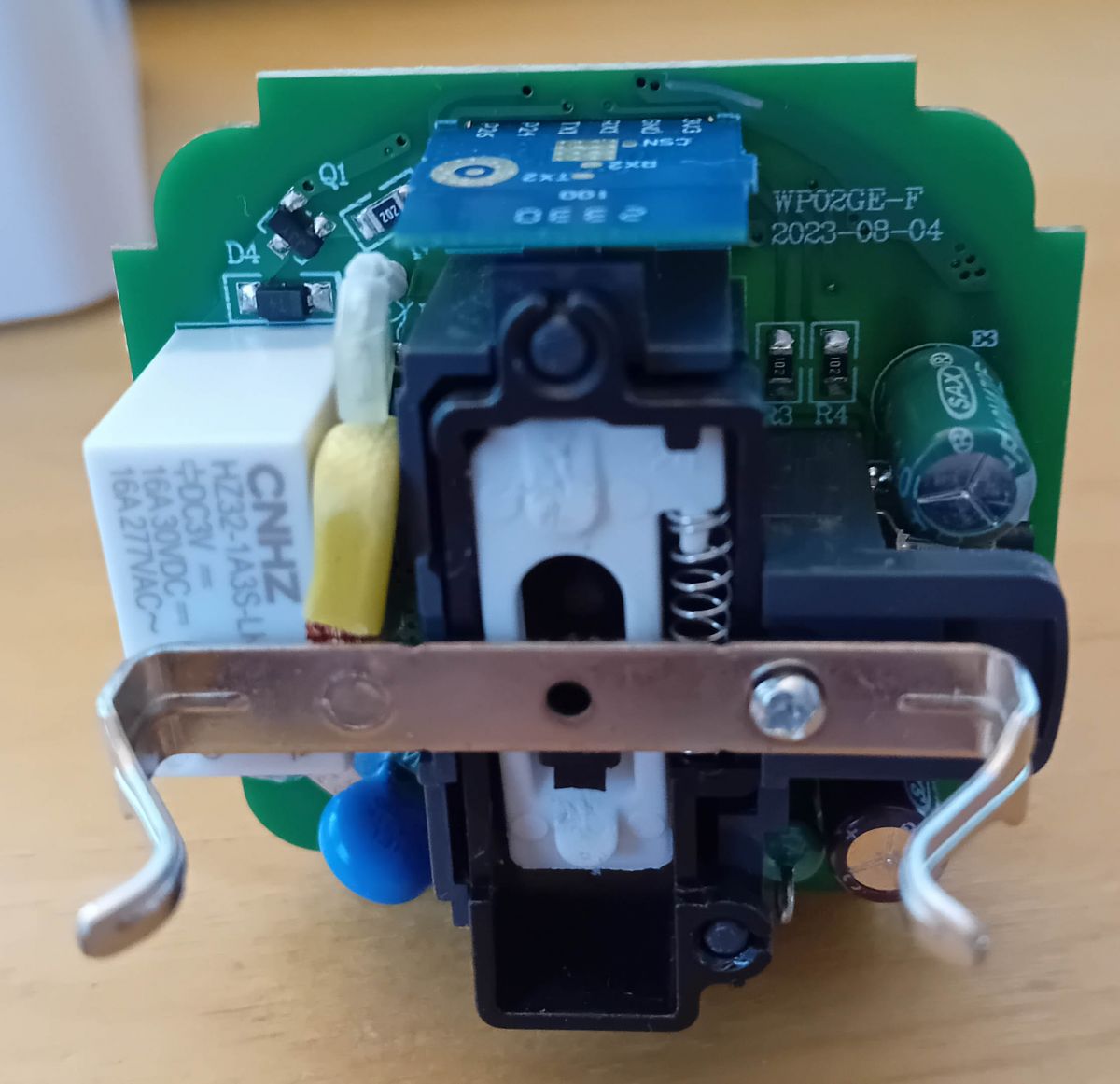
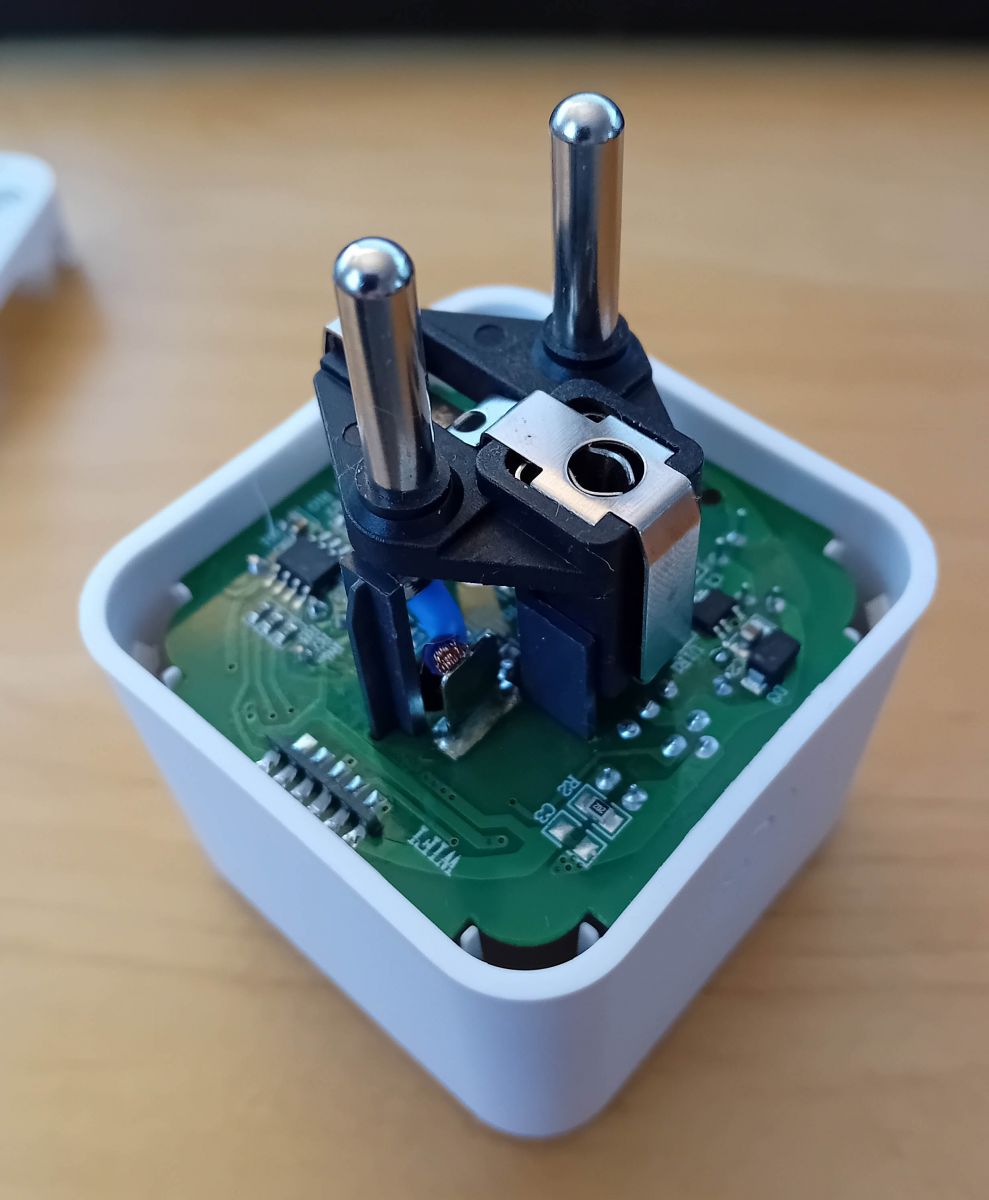
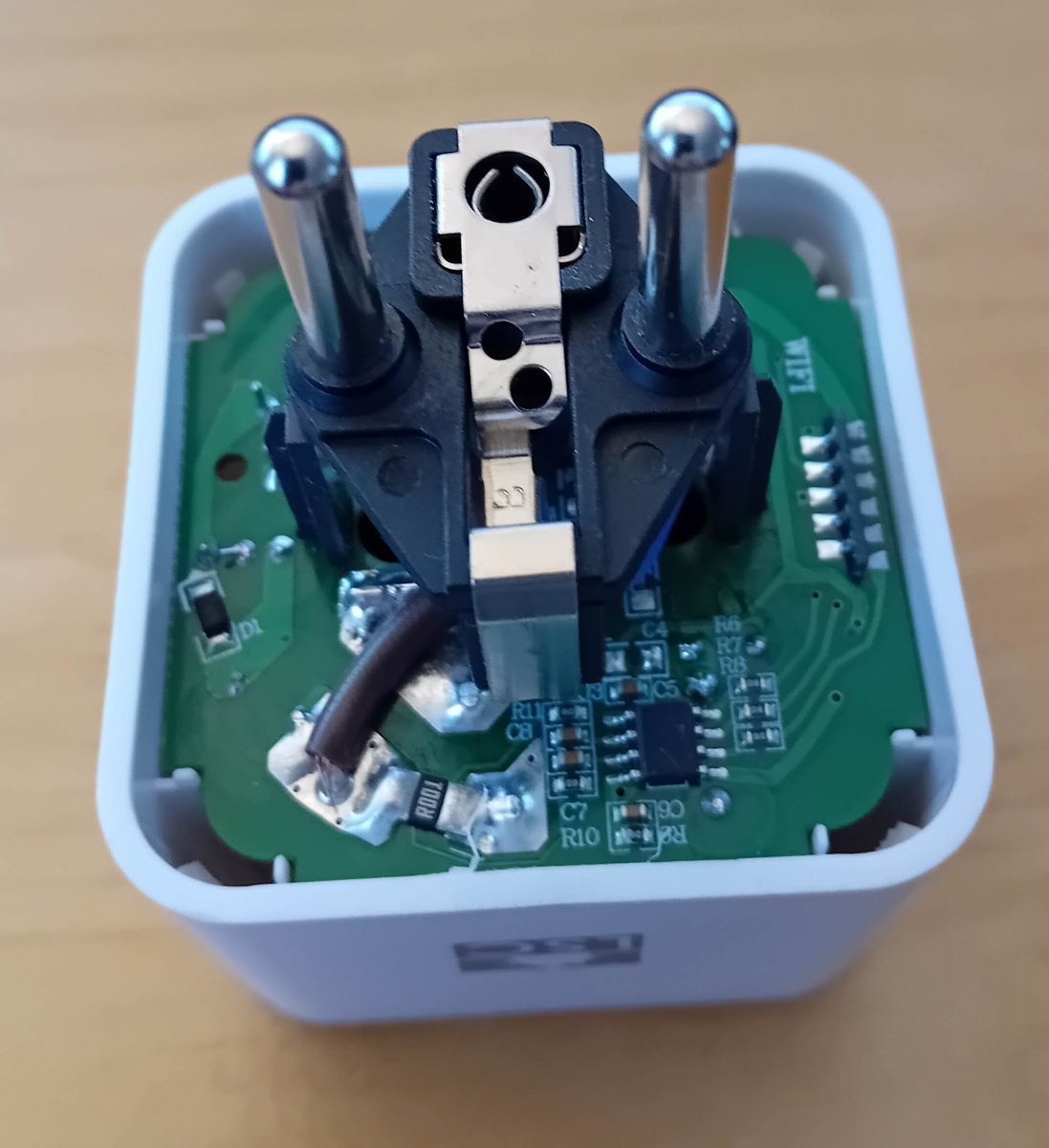
This is how it looks inside:
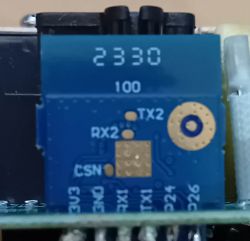
Close-up view of a CB2S PCB with pin type labels on the Beken chip. Interior of a smart plug showing the PCB and components. Interior of a smartplug with components on a PCB Interior of a smart plug featuring BKN7231N chip on PCB WP02GE-F. Interior of a smart plug with a PCB labeled WP02GE-F 2023-08-04. Interior of a smart plug with exposed PCB and electronic components. Opened smart plug showing electronic components on the PCB. Interior view of a smart plug with connected wires.

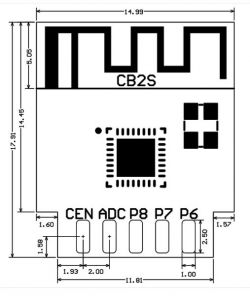
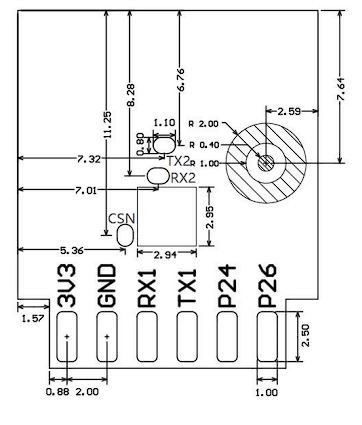
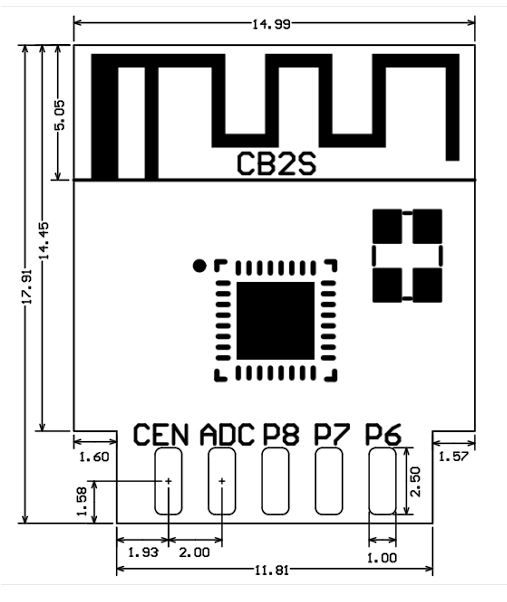
Here's the pinout of the CB2S-Board:
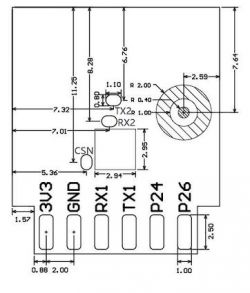
Diagram showing the pin layout on the CB2S board. Diagram of CB2S board with pin labels and dimensions.

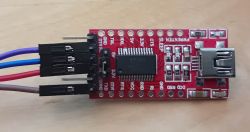
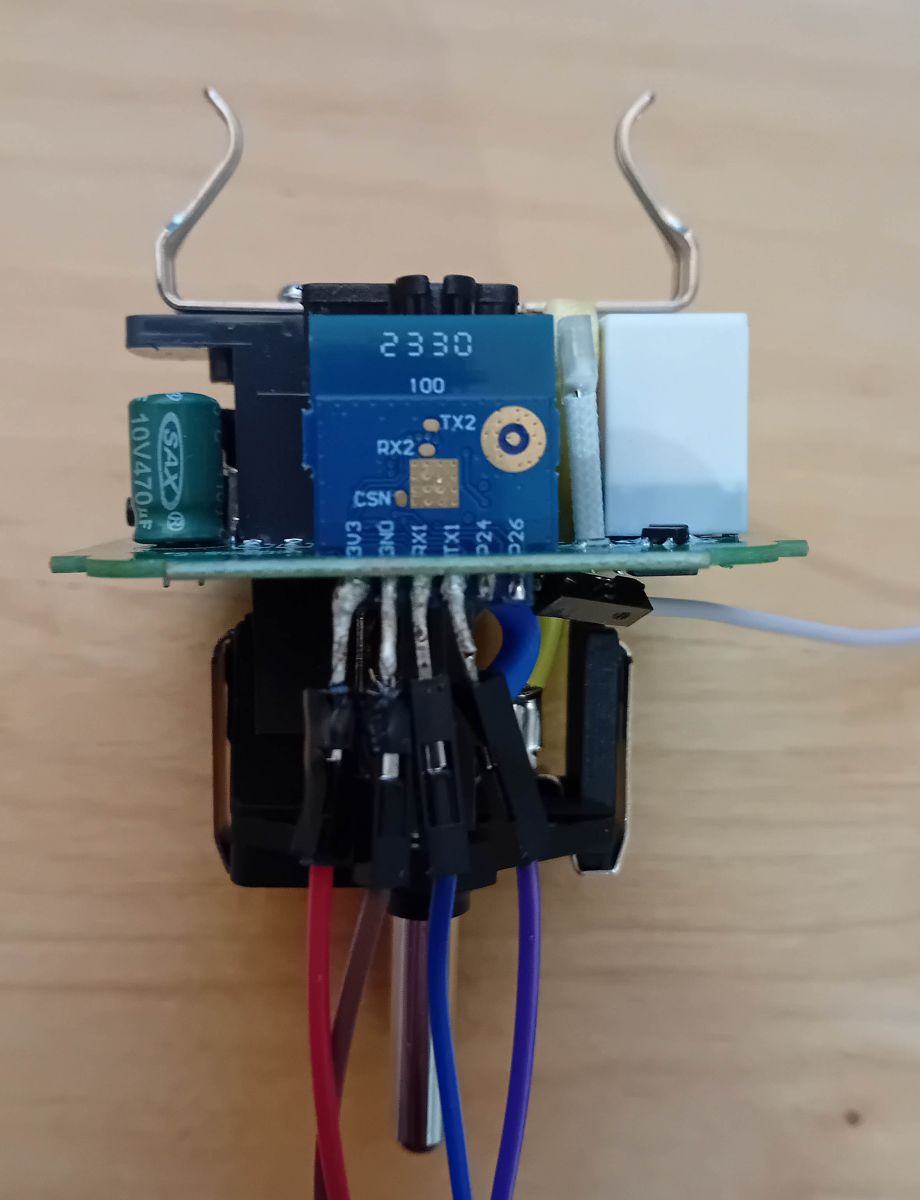
To flash it we need to connect our FTDI-USB-Programmer to the pins 3,3V, GND, RX, TX and a Cable to CEN (so that we can connect that to GND to get into program mode).
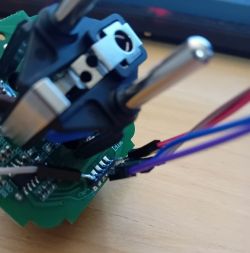
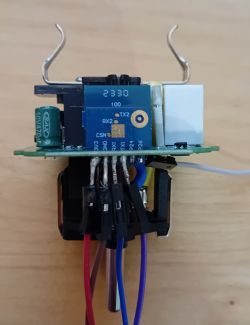
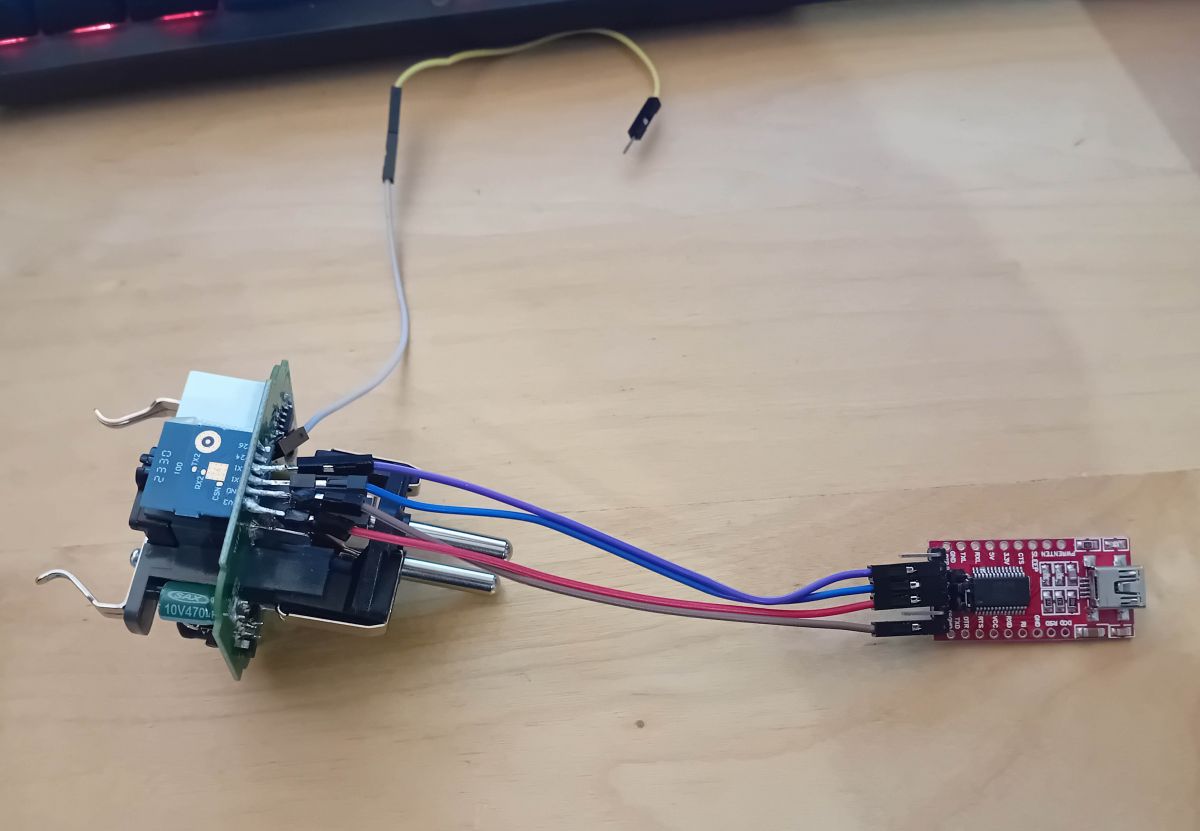
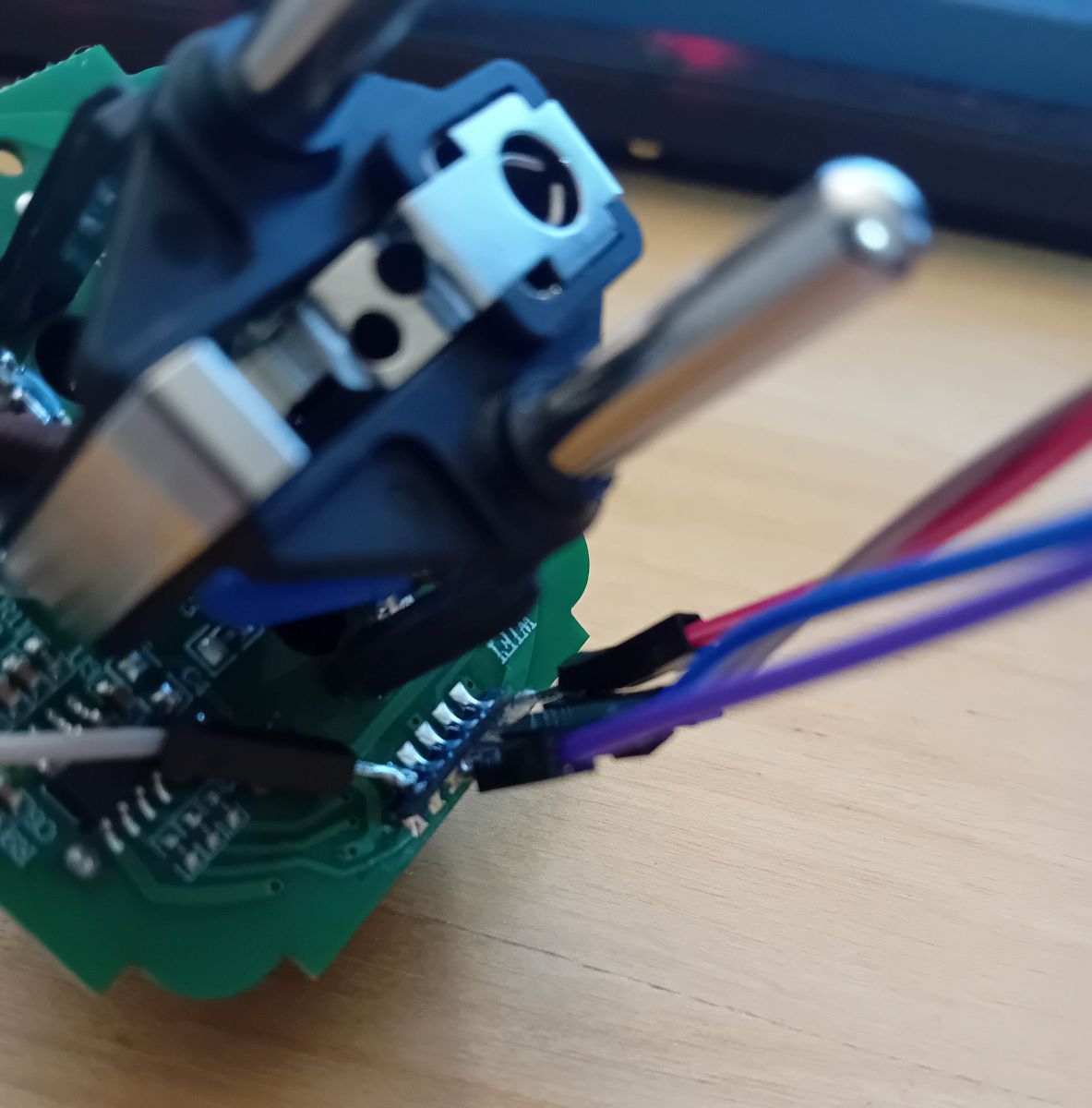
I soldered some Dupont-Cables to these pins, like this:
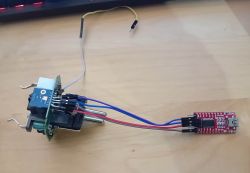
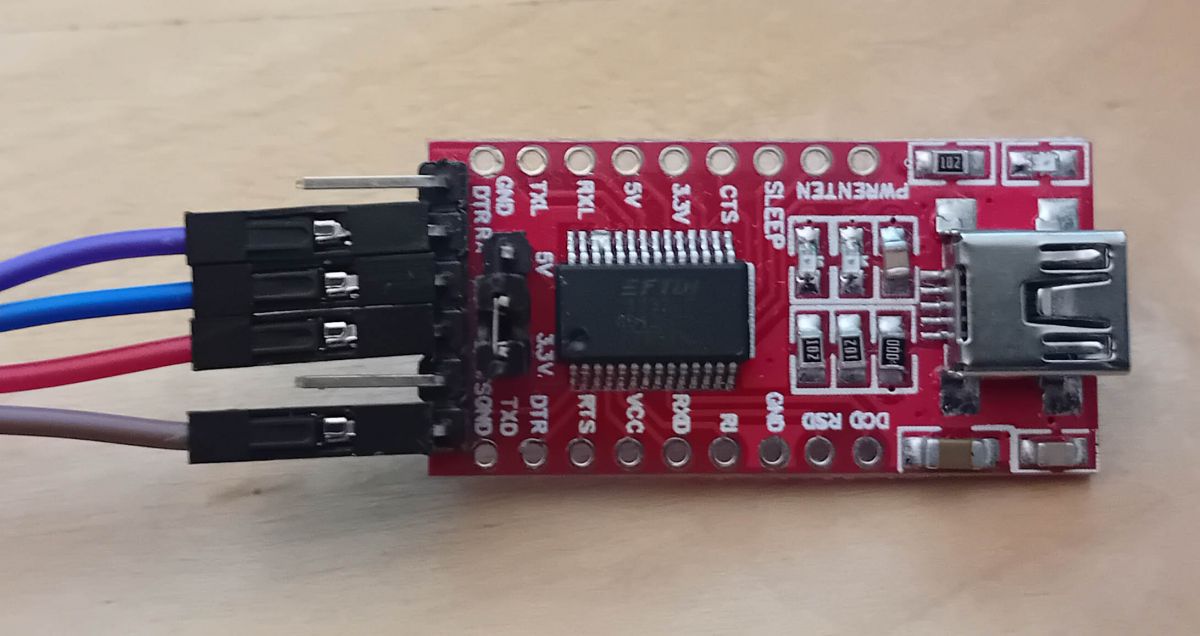
Close-up of a circuit board with cables connected to a programmer. FTDI-USB module with attached Dupont cables. Close-up of the interior of a smart plug with several wires soldered to the pins on the PCB. CB2S motherboard with connected Dupont cables.
It's not pretty but it works and it's just temporary, I desolder these after flashing anyway.


My FTDI-USB-Programmer is set to 3,3V via Jumper and I connected it like this:
FTDI CB2S
VCC 3,3V
GND GND
RX TX
TX RX

and a loose cable to CEN of the CB2S... we need to short it to GND later to start flashing.

I used the GUI BKN-Flashtool from here: https://github.com/openshwprojects/BK7231GUIFlashTool

Connect your FTDI-USB-Programmer to your PC and start the flash-Tool:
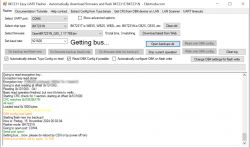
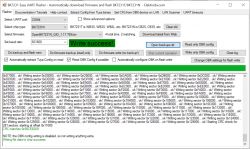
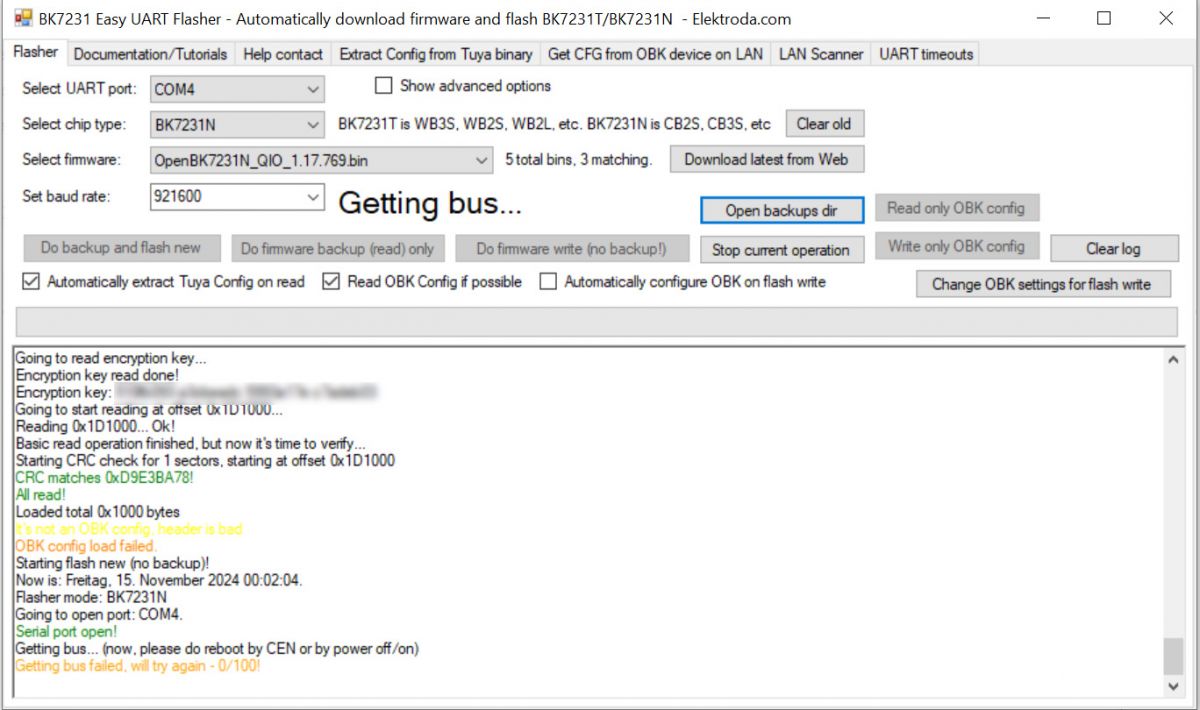
BK7231N flasher tool interface with open log window.
select the following:
- the correct COM-Port, here it is COM4
- the chip type, CB2S uses BK7231N
- the firmware you want to flash, you can download the latest Firmware with the Button "Download latest from Web", which I did ... you can get Firmwares from here too: https://github.com/openshwprojects/OpenBK7231T_App/releases and put them in the firmwares-folder of the flash-Tool
I did not change anything else.

Now you can do a backup of the firmware which I highly recommend because you get the GPIO-pins the plug is using, which need to be configured later for it to work properly !
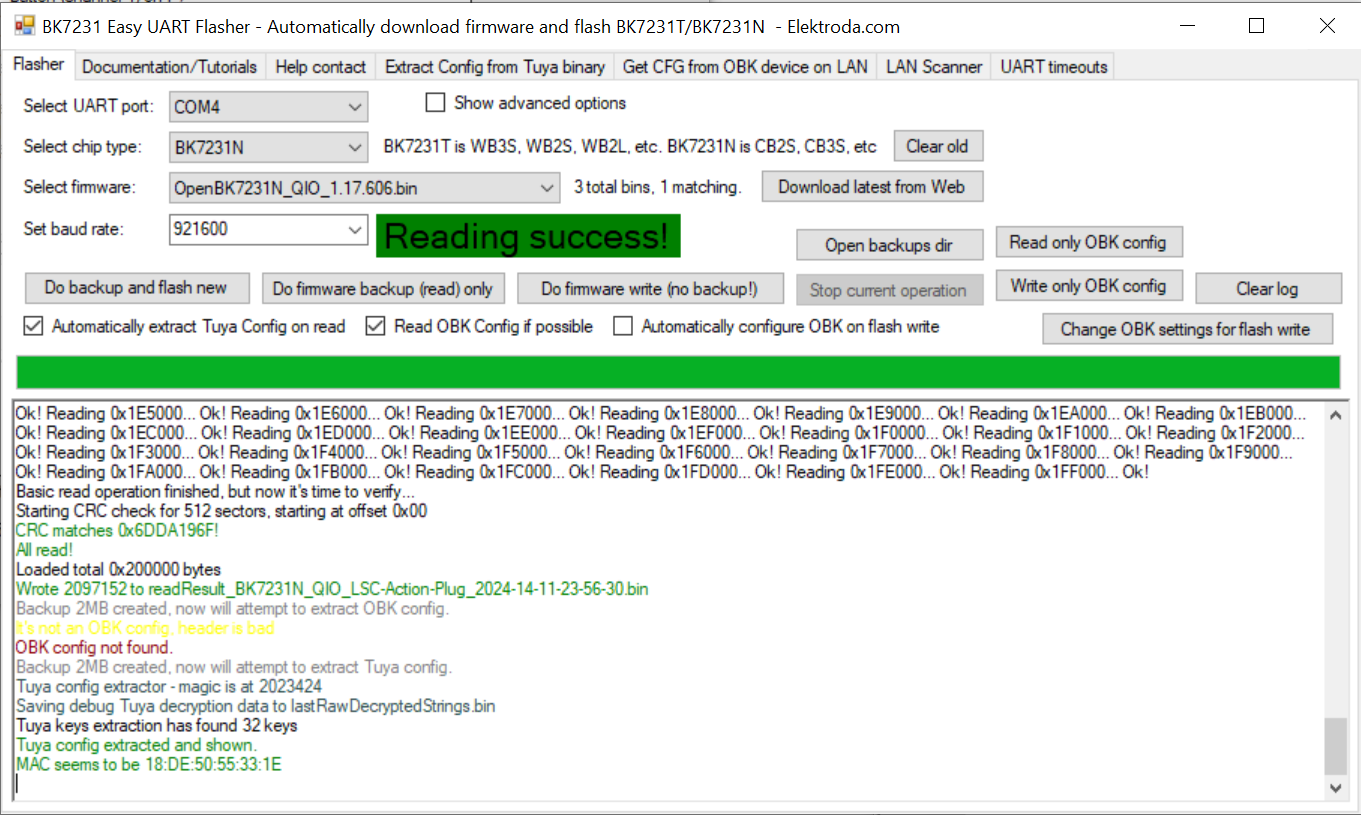
So click "Do firmware backup (read) only"... it looks like in the above screenshot... now touch very briefly the loose cable from CEN to the GND pin and the backup should start, it looks like that:
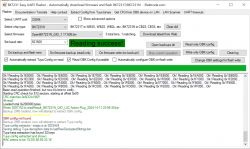
Screenshot of BK7231 Easy UART Flasher showing successful reading.

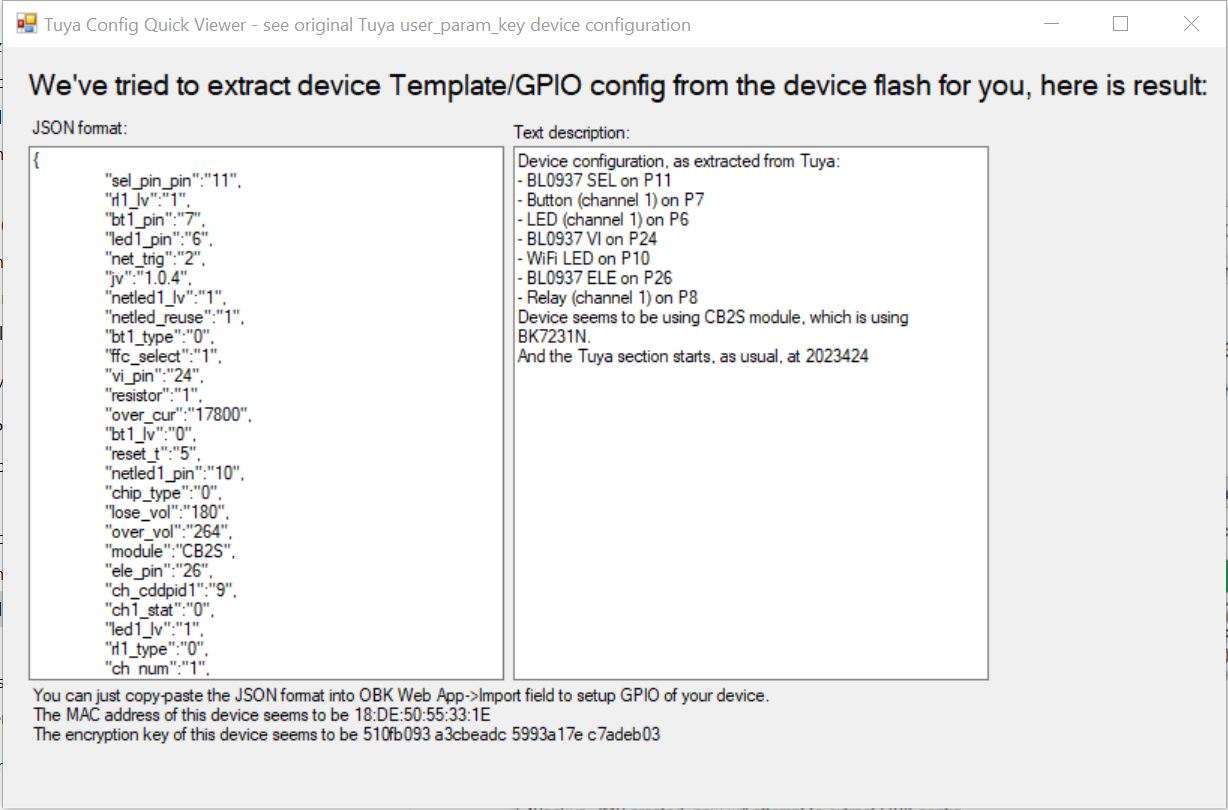
after that is finished successfully you get this window showing the extracted GPIO-config:
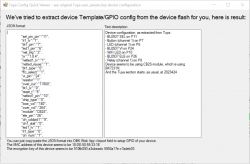
Screenshot of Tuya device GPIO configuration.
Copy and paste this information into a text editor, we need that later !

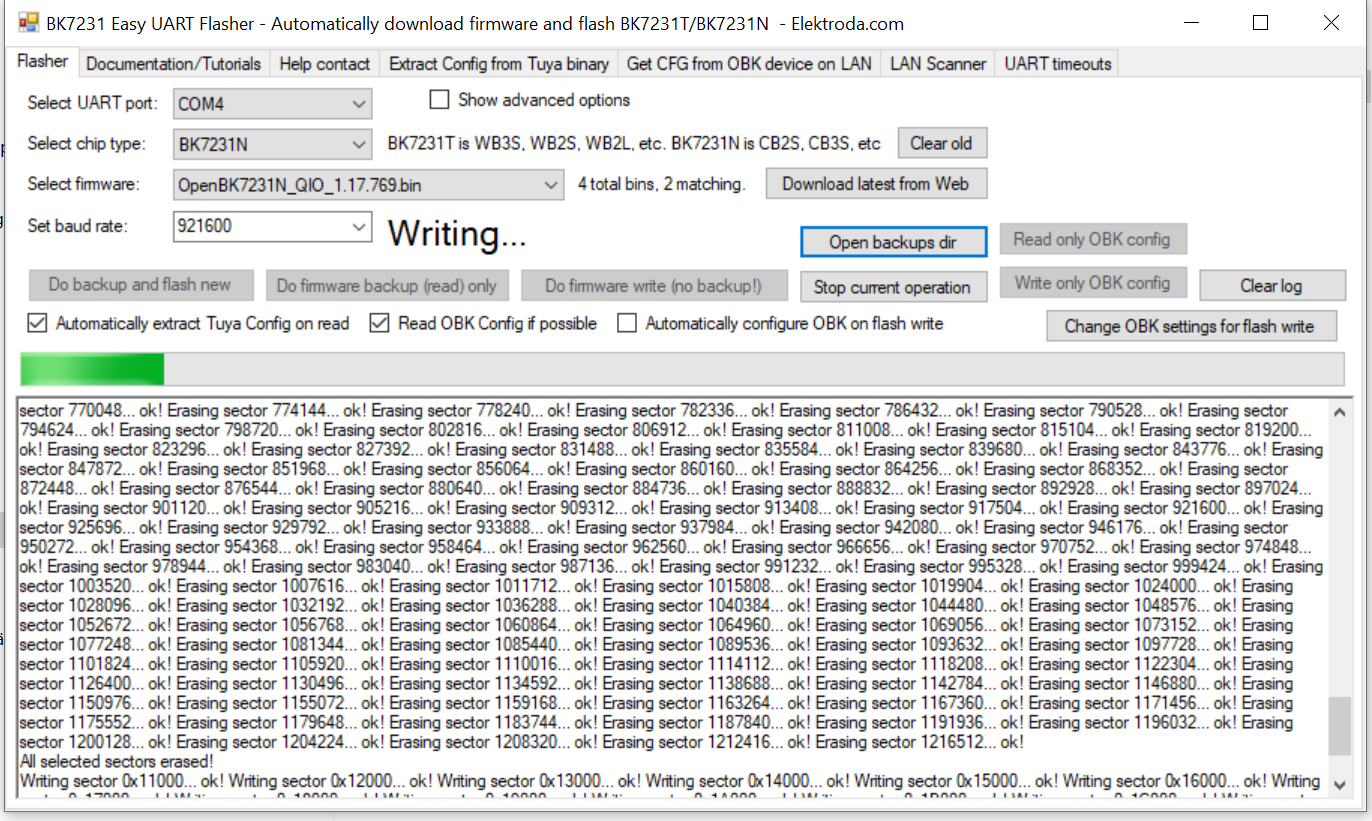
Now we flash the OpenBeken-Firmware, click "Do firmware write (no backup)" ...
now again touch very briefly the loose cable from CEN to the GND pin and it should start flashing:
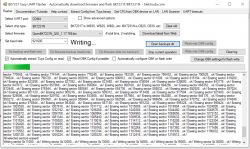
Screenshot of the BK7231 Easy UART Flasher application during firmware flashing.
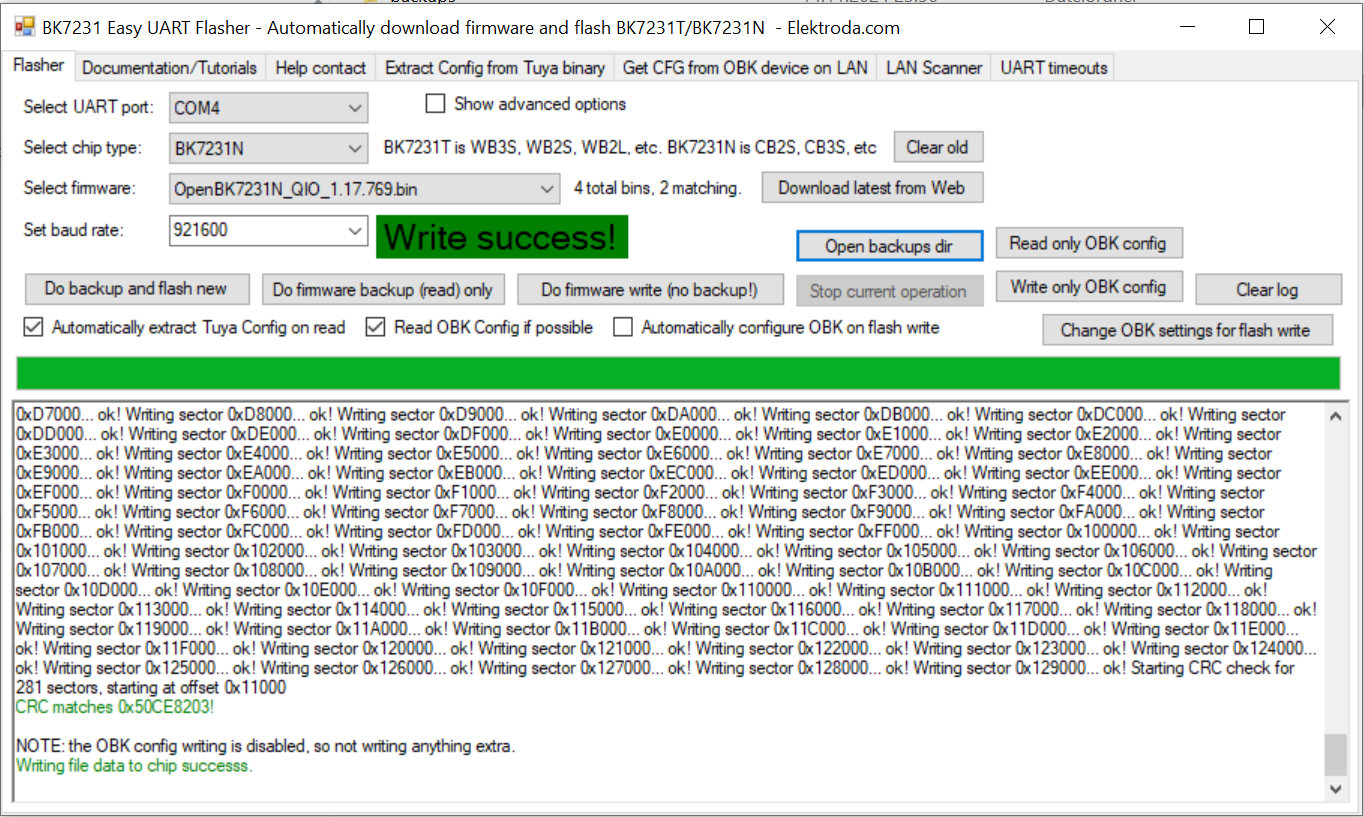
Screenshot of BK7231 Easy UART Flasher tool with Write success! message.

Congrats, we have successfully flashed OpenBeken !

We still power it from th FTDI-Programmer via USB.

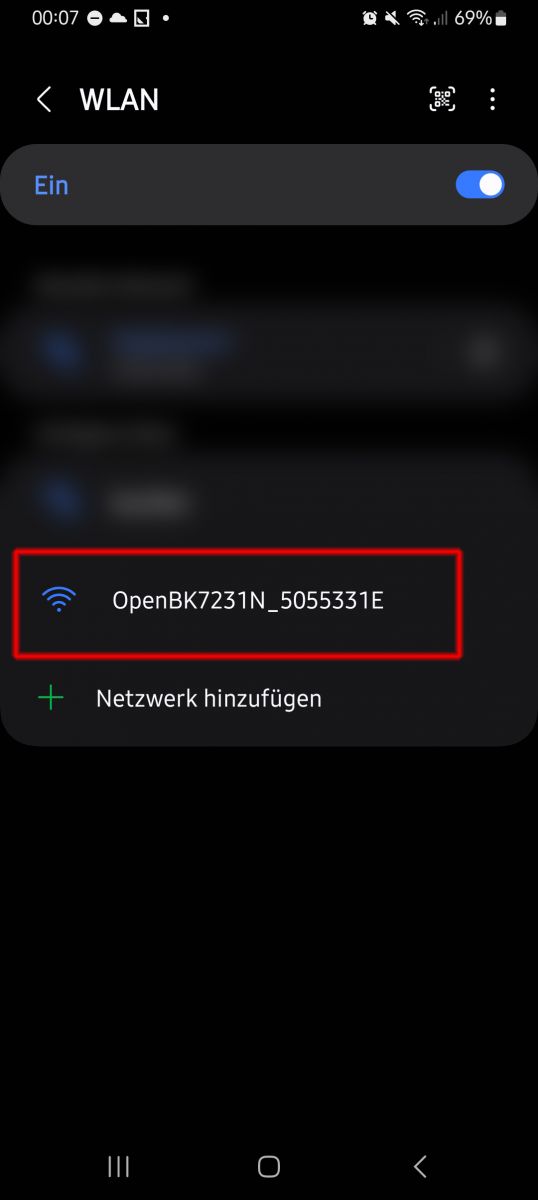
Now connect to the AccessPoint that is created:
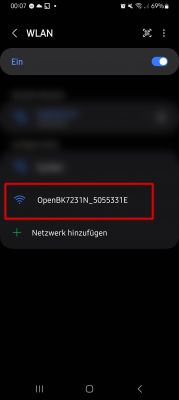
Smartphone screen displaying the OpenBK7231N_5055331E Wi-Fi network.

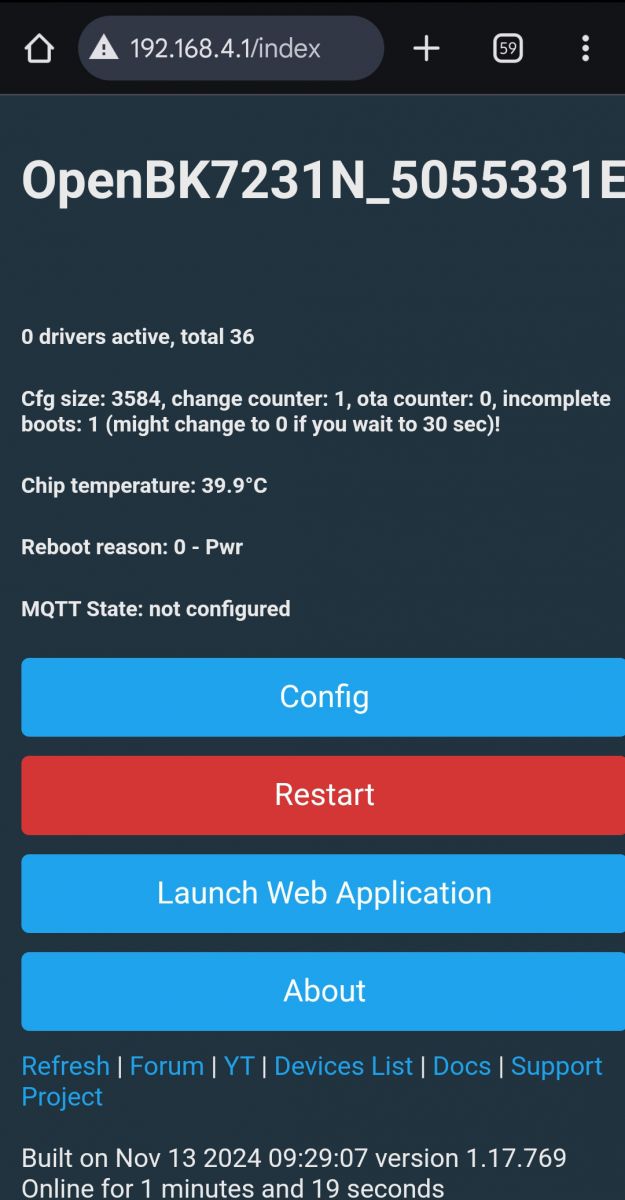
and open 192.168.4.1 in your webrowser to get to the OpenBeken-WebUI:
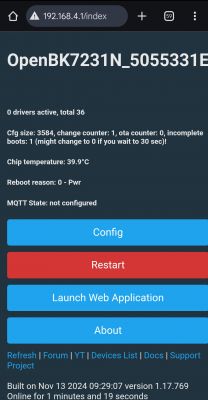
Screenshot of the OpenBK7231N interface on the configuration page.
There is no ON/OFF-Button yet, because we have to configure the correct pins for the relay, butten and led first.

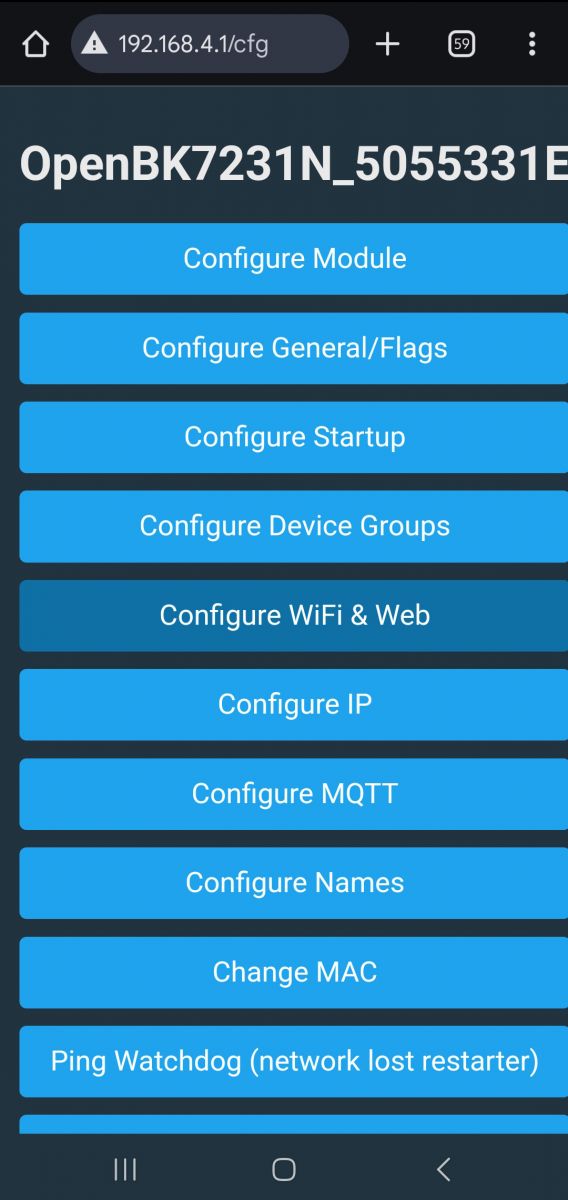
click on "Config" and you get to this page:
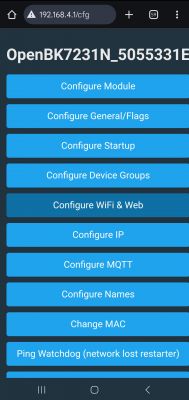
OpenBeken configuration panel on a mobile device

Then click on "Configure WiFi & Web" to connect it to your Wifi-network, should be self explanatory, I won't go into detail here.

After that the chip will connect to your Wifi and get an IP-address via DHCP, so look in your router's WebUI which IP it uses now.
Then connect to your Wifi and open the new IP in your webbrowser.

Now it's time to remove the soldered cables by desoldering them, after that check if your solder connections to the CB2S-board are still good and not shorted or so !
Put everything back into the plug-case and close it correctly by pushing the two halves together again.
You can plug it into mains now and power it from there... reconnect via webbrowser again to finish the configuration...

I switch to my PC now, so the screenshots are bigger from here on...
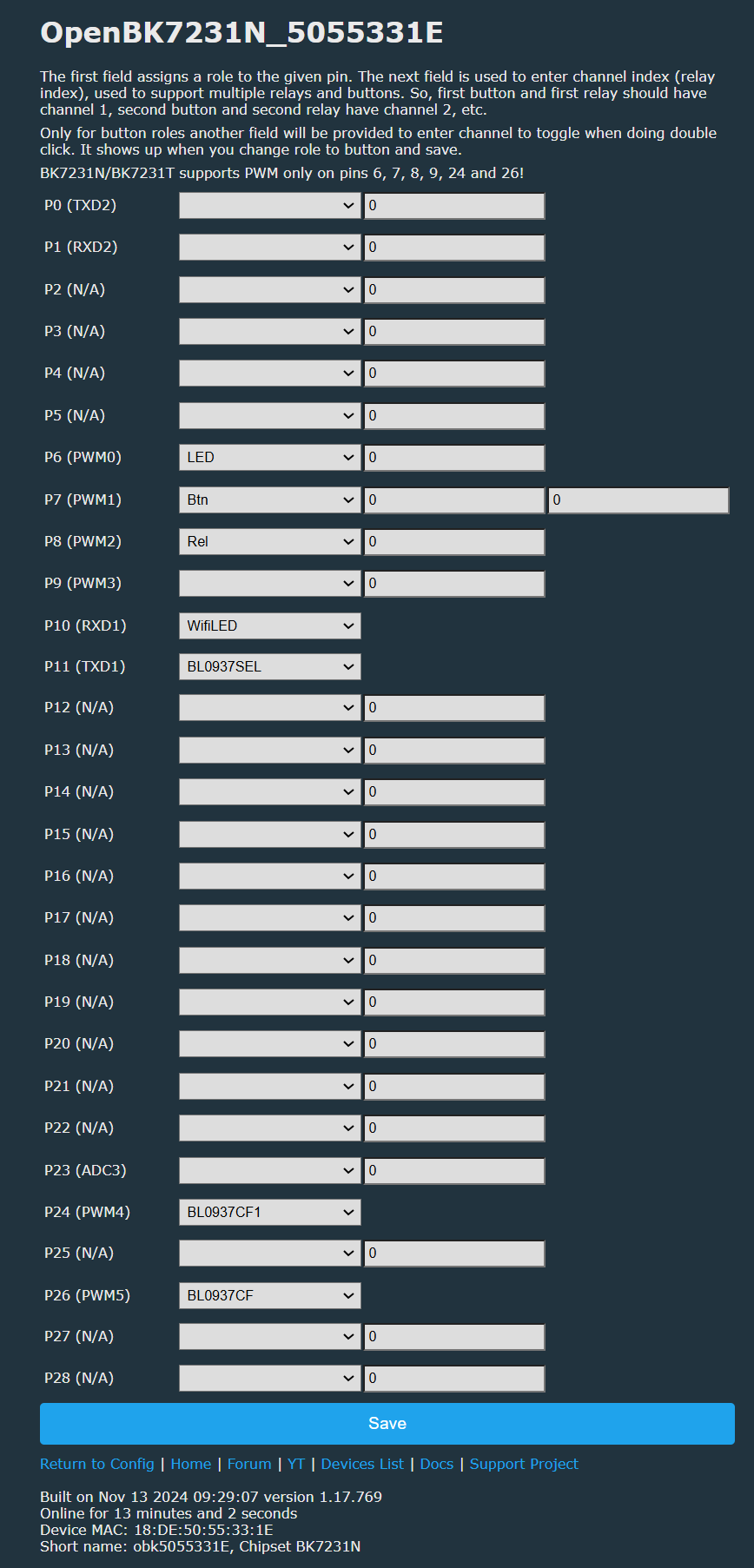
click on "Configure Module" to setup GPIO pins, we got the following info extracted before after doing the backup:
-----------------------
Device configuration, as extracted from Tuya:
- BL0937 SEL on P11
- Button (channel 1) on P7
- LED (channel 1) on P6
- BL0937 VI on P24
- WiFi LED on P10
- BL0937 ELE on P26
- Relay (channel 1) on P8
Device seems to be using CB2S module, which is using BK7231N.
And the Tuya section starts, as usual, at 2023424
-----------------------
That translates to this:
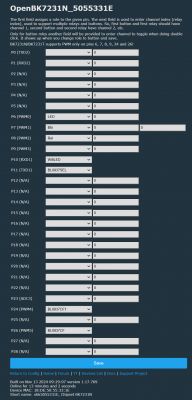
Screenshot of OpenBK7231N interface showing the pin configuration for CB2S.

I gave my plug a better name in "Config" -> "Configure Names", especially to use it in Home Assistant later under that name, I choose f.e. "bkn_lsc_plug1".

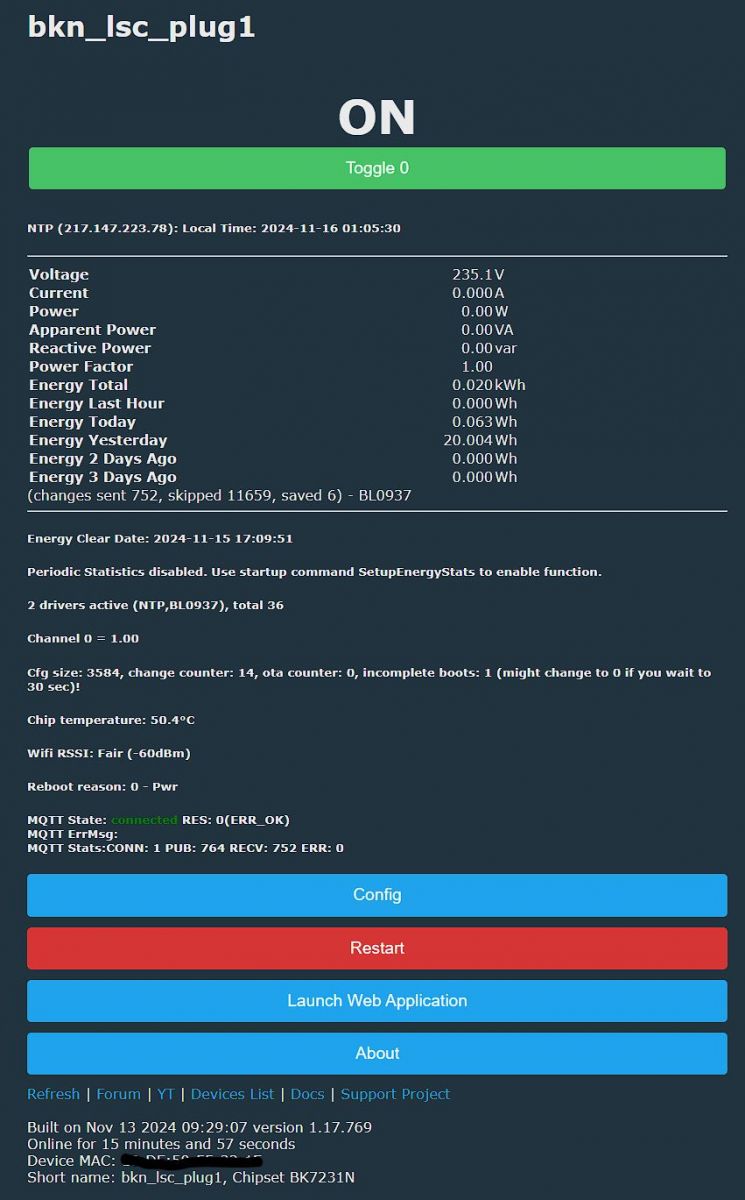
After that you can go back to "home" and you should see a ON/OFF-toggle to switch the plug, hope it works !
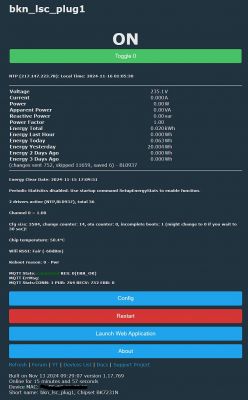
OpenBeken user interface screen displaying information about the bkn_lsc_plug1 plug.

Additional information:
You should see energy metering information too, but that needs to be calibrated first, go to http://<your-ip-address>/app and then "Tools" for that.
See here for more on that: https://www.elektroda.com/rtvforum/topic4030107.html

To get energy statistics you need to add NTP time sync by adding "startDriver NTP" to your autoexec.bat, needs to be created via http://<your-ip-address>/app under "Filesystem".
Do your research how to setup an autoexec.bat-file which gets executed at boottime of the plug, video here: https://www.youtube.com/watch?v=kXi8S12tmC8

Here is my autoexec.bat:

//start NTP driver
startDriver NTP

//timezone +1 (add one hour to UTC time)
ntp_timeZoneOfs 1

// Setting the devices location will allow for calculating sunrise and sunset times
// put your GPS latitude and longitude here with 6 digits after the comma, not sure if more digits work
//ntp_setLatlong <latitude>, <longitude>

//enable powersaving
//PowerSave 1
//EDIT: I disabled PowerSave after this comment from p.kaczmarek2:
//- I advise you to be careful with "PowerSave" with the BL0937, 
//  because the BL0937 requires precise pulse/interrupt counting and potentially "PowerSave" can reduce the precision. 
//  With the BL0942 this problem does not occur.


//wait for NTP to connect
waitFor NTPState 1


Do your research on how to add your Openbeken-device to Home Assistant, here's a video: https://www.youtube.com/watch?v=pkcspey25V4


I hope you enjoy this Teardown and HowTo and that it help some people... have a great day !

btw. I really like OpenBeken, very well done with sooo many options, thank you to the OpenBeken-developers !


EDIT:
Here's my template from the /app-WebUI + some information added:
{
  "vendor": "Action LSC",
  "bDetailed": "0",
  "name": "Action LSC Smartplug",
  "model": "3202087 2023-08-04",
  "chip": "BK7231N",
  "board": "CB2S",
  "flags": "1024",
  "keywords": [
    "lsc",
    "smartplug",
   "energymeter",
   "CB2S",
    "BK7231N"
  ],
  "pins": {
    "6": "LED;0",
    "7": "Btn;0",
    "8": "Rel;0",
    "10": "WifiLED;0",
    "11": "BL0937SEL;0",
    "24": "BL0937CF1;0",
    "26": "BL0937CF;0"
  },
  "command": "",
  "image": "https://obrazki.elektroda.pl/7456543000_1731711564.jpg",
  "wiki": "hhttps://www.elektroda.com/rtvforum/viewtopic.php?p=21305004#21305004"
}

About Author
alvinx wrote 2 posts with rating 10 , helped 1 times. Been with us since 2024 year.

Comments

p.kaczmarek2 16 Nov 2024 11:01

Thank you for the detailed description! I will only add my comments: - I advise you to be careful with "PowerSave" with the BL0937, because the BL0937 requires precise pulse/interrupt counting and potentially... [Read more]

alvinx 16 Nov 2024 16:56

Thank you very much for your knowledge. I will delete PowerSave in my autoexec.bat then. [Read more]

irekhq 03 Dec 2024 10:11

Device as per topic. Firmware uploaded: Build: Built on Dec 1 2024 12:26:58 version 1.17.782 Everything works correctly, only I can not change the version via OTA, it always starts with version 782 ... [Read more]

p.kaczmarek2 03 Dec 2024 10:17

Just to be sure - what file are you giving to the OTA and where? [Read more]

irekhq 03 Dec 2024 10:24

I enter via /app? , I select the OTA tab. From the list "Select remote OTA file to download to PC:", I select for example the latest firmware OpenBK7231N_1.17.788.rbl. In "Select OTA file from disk:",... [Read more]

stanoba 31 Aug 2025 16:41

https://obrazki.elektroda.pl/5313872900_1756651216_thumb.jpg Hello, thanks for all info. If anyone is interested, I've made pogo pins jig for programing smart plug without soldering wires to PCB h... [Read more]

tos18 17 Sep 2025 15:41

Hello Can I ask for the values of C5,C7,C8 and R11 https://obrazki.elektroda.pl/1691462300_1758116361_thumb.jpg . Unfortunately disassembly of the chassis took place with unplanned losses. [Read more]

p.kaczmarek2 17 Sep 2025 16:24

What IC is sitting there? Is it a BL0937 or a power supply chip? [Read more]

jaboto 17 Sep 2025 17:26

Hello, I am new here :) I bough yesterday one of this devices in Action Belgium, came home and started flashing after finding this forum. I cannot make it work. I managed to read the firmware and I... [Read more]

p.kaczmarek2 17 Sep 2025 18:19

Please check debug log at TX2 - baud 115200. Disconnect device from mains first. Power it from reliable 3.3V supply. [Read more]

jaboto 17 Sep 2025 19:23

Thanks for replying @pkaczmarek2 . I have soldered a new terminal to TX2. I used pico to capture this: root@PlaneShift:/home/jaime/Projects/BK7231GUIFlashTool# picocom -b 115200 /dev/ttyUSB0... [Read more]

p.kaczmarek2 17 Sep 2025 20:33

The log stops abtruptly without any visible errors. Did you try to just run it from mains (first disconnect usb to uart converter)? It may a be a power issue. I can't see any good LDO on your USB to... [Read more]

jaboto 17 Sep 2025 22:47

Yes, I have tried it running directly connected to the wall and still nothing. Unfortunately I don't have a 3.3 regulator. Will try to get another device and retry. Thanks in any case for your time [Read more]

jaboto 23 Sep 2025 22:08

This was very helpful. Thanks! [Read more]

p.kaczmarek2 23 Sep 2025 22:23

Hey, have you managed to flash it and get it running? [Read more]

jaboto 23 Sep 2025 23:56

Hey, @pkaczmarek2 . Thanks for checking, actually I bought two more plugs and flashed and got them working quite quickly. The problem came from an issue with the PCB, it seems I am not the best at soldering... [Read more]

p.kaczmarek2 24 Sep 2025 00:00

Interesting, can you show a photo which diode exactly was desoldered? Maybe it's easy to recover. [Read more]

jaboto 24 Sep 2025 23:39

The D1 here seems to have fallen, i couldn't find it anywhere so maybe it was even a faulty device? Never tried before flashing. As a test I decided to solder together (that's the picture actually) and... [Read more]

p.kaczmarek2 25 Sep 2025 00:13

I would need to see a bit more, where exactly is it located. What is the marking of power supply chip? Is it the famous BP2525? https://obrazki.elektroda.pl/4287374000_1758751938_bigthumb.jpg Well,... [Read more]

FAQ

TL;DR: This FAQ helps smart-home tinkerers flash the Action LSC SmartPlug 3202087: use 3.3V on the CB2S, insert a blade about 5 mm, and remember the expert warning: "PowerSave" can hurt BL0937 accuracy. It condenses teardown, pin mapping, flashing, calibration, and failure recovery into one extractable answer set. [#21305004]

Why it matters: This thread turns a low-cost retail smart plug into a documented BK7231N/OpenBeken device with working relay control and energy metering.

Option Main advantage Main risk or limit
In-circuit flashing via CEN, RX, TX Fast, no module removal CEN reset can be problematic
Off-board flashing after desoldering CB2S Cleaner access and control Higher chance of PCB rework damage
BL0937 with PowerSave Lower power use Can reduce metering precision
BL0942 with PowerSave Better tolerance per expert comment Not the chip used in this plug

Key insight: Back up the original firmware before flashing. The extracted Tuya GPIO map gives the exact relay, button, LED, and BL0937 pin assignments needed to make the plug fully usable after OpenBeken installation. [#21305004]

Quick Facts

  • PCB marking is WP02GE-F 2023-08-04; the smart plug uses a BK7231N chip on a CB2S module and includes a BL0937 energy meter. [#21305004]
  • The case is clipped, not screwed. The teardown recommends inserting a thin blade about 5 mm into the seam to pry it open. [#21305004]
  • Flashing uses an FTDI adapter at 3.3 V connected to VCC, GND, RX, TX, plus a temporary wire from CEN to GND to enter programming mode. [#21305004]
  • The extracted GPIO map is: P8 relay, P7 button, P6 LED, P10 WiFi LED, P11 BL0937 SEL, P24 BL0937 CF1, P26 BL0937 CF. [#21305004]
  • Debugging a failed boot uses the TX2 pin at 115200 baud and a stable external 3.3 V supply, because weak USB-UART boards can boot the chip only partially. [#21692923]

How do I open the Action LSC SmartPlug 3202087 with PCB WP02GE-F without damaging the clipped case?

Open it with a thin blade and pry only a short distance into the seam. The thread recommends inserting the blade about 5 mm inside, then gently levering the two clipped halves apart instead of forcing the shell. This matters because this later hardware revision uses clips, not screws, so deep prying raises the chance of cracked plastic or damaged internals. [#21305004]

What is the CB2S module in the Action LSC SmartPlug, and how is it related to the BK7231N chip?

The CB2S is the plug’s Wi‑Fi module, and this unit uses the BK7231N variant on that module. > "CB2S" is a Wi‑Fi module that carries the main Beken microcontroller, exposes programming pins such as 3.3V, GND, RX, TX, and CEN, and acts as the smart plug’s firmware and networking core. In this thread, the extracted device info explicitly identifies CB2S and BK7231N together. [#21305004]

How can I flash OpenBeken onto an Action LSC SmartPlug 3202087 BK7231N/CB2S using BK7231GUIFlashTool and an FTDI adapter?

Use a 3-step process with a 3.3 V FTDI adapter and BK7231GUIFlashTool. 1. Wire VCC→3.3V, GND→GND, RX→TX, TX→RX, and keep a loose wire from CEN to GND. 2. In the tool, select the correct COM port, choose BK7231N, and first run firmware backup. 3. Start firmware write, then briefly short CEN to GND to enter programming mode. After flashing, connect to the OpenBeken AP and open 192.168.4.1. [#21305004]

Which GPIO pins should I configure in OpenBeken for the relay, button, LEDs, and BL0937 energy meter on the WP02GE-F board?

Configure the WP02GE-F board exactly as extracted from the original firmware. Set P8 as relay, P7 as button, P6 as LED, P10 as WiFi LED, P11 as BL0937 SEL, P24 as BL0937 CF1/VI, and P26 as BL0937 CF/ELE. Those assignments were recovered during backup and then translated into the OpenBeken module configuration page. Without this map, the relay and metering will not work correctly. [#21305004]

Why is making a firmware backup before flashing OpenBeken recommended on this LSC smart plug?

A backup is recommended because it reveals the exact Tuya GPIO map for this specific hardware revision. The thread explicitly says to do a backup first and calls it “highly recommend” because the extracted data shows which pins the plug uses for the relay, button, LEDs, and BL0937. That saves time and avoids guesswork on the WP02GE-F 2023-08-04 board. [#21305004]

What is the BL0937 energy metering chip, and what do the SEL, CF1, and CF pins do in OpenBeken?

The BL0937 is the plug’s energy metering IC, and OpenBeken needs its three signal pins mapped correctly. > "BL0937" is an energy metering chip that measures mains-related power data using pulse outputs, with separate pins for channel selection and measurement reporting, and it depends on precise pulse counting for reliable readings. In this plug, the extracted mapping is SEL on P11, CF1 on P24, and CF on P26. [#21305004]

How do I calibrate energy metering on an OpenBeken-flashed Action LSC SmartPlug with BL0937?

Calibrate it from the OpenBeken web app after the plug is already running. The thread says energy data should appear, but it “needs to be calibrated first,” and directs you to open http:///app and then go to Tools. That is the thread’s documented path for BL0937 calibration on this device. [#21305004]

What should I put in autoexec.bat to enable NTP time sync and energy statistics on OpenBeken?

Put the NTP driver start command in autoexec.bat, then set your time zone and wait for sync. A working example in the thread includes startDriver NTP, ntp_timeZoneOfs 1, and waitFor NTPState 1. The same post says you need NTP enabled to get energy statistics, and the file is created from /app under Filesystem. [#21305004]

BL0937 vs BL0942 in OpenBeken smart plugs — which one is more reliable when PowerSave is enabled?

The thread says BL0942 is more reliable when PowerSave is enabled. An expert comment explains that BL0937 depends on precise pulse and interrupt counting, so PowerSave can reduce its accuracy, while “with the BL0942 this problem does not occur.” For this specific LSC plug, that warning matters because the installed metering chip is BL0937, not BL0942. [#21305208]

Why can PowerSave reduce measurement accuracy with the BL0937 on OpenBeken devices?

PowerSave can reduce BL0937 accuracy because the chip relies on precise pulse and interrupt counting. The expert warning in the thread states that BL0937 needs exact timing, so any power-saving behavior that changes interrupt handling can degrade measurement precision. The original poster later removed PowerSave from autoexec.bat after that advice. [#21305208]

What causes an OpenBeken-flashed BK7231N smart plug to show no Wi-Fi AP or LED after flashing even when the write log looks successful?

A hardware or power problem can cause that symptom even when the flash log ends successfully. One user had a successful write and valid boot banner for OpenBK7231N 1.18.175, yet no usable AP appeared. The thread later traced that failure to a board issue caused during soldering: a missing D1 diode and likely insufficient power. That is a key edge case for “successful flash, dead device” reports. [#21698711]

How do I use the TX2 debug log at 115200 baud to troubleshoot a BK7231N/CB2S plug that will not boot after flashing?

Use TX2 at 115200 baud and power the board from a known-good 3.3 V source while it is disconnected from mains. 1. Solder or clip onto TX2. 2. Open a serial terminal at 115200. 3. Reboot the board and watch whether the log stops early, as in the thread’s abrupt boot output. An incomplete log without a clear error points you toward power instability or hardware damage, not necessarily a bad firmware file. [#21692923]

What’s the best way to power a CB2S/BK7231N board during flashing and debugging, and why might a cheap USB-to-UART adapter fail?

Use a stable external 3.3 V supply or a USB-UART adapter with a solid regulator, such as one built around AMS1117-3.3V. The expert reply says the failing setup likely had a power issue and notes he could not see a good LDO on the user’s adapter. In the bad case, the boot log started, printed OpenBK7231N, version 1.18.175, and then stopped abruptly, which is consistent with weak power delivery. [#21693050]

How does off-board flashing by desoldering the CB2S compare with in-circuit flashing through CEN, RX, and TX on this smart plug?

Off-board flashing gives cleaner access, while in-circuit flashing is faster and less invasive. The thread’s main guide uses in-circuit wiring to 3.3V, GND, RX, TX, and CEN, and it works. An expert adds that he personally prefers desoldering the CB2S and flashing it off-board because RESET via CEN can sometimes be problematic. The trade-off is practical: easier signal access versus greater rework risk. [#21305208]

What are the component values for C5, C7, C8, and R11 on the Action LSC SmartPlug WP02GE-F board?

The thread does not provide the values for C5, C7, C8, or R11. A user asked for those parts after “unplanned losses” during disassembly, but no follow-up post in the supplied thread gives numeric capacitor or resistor values. The only reply asked which nearby IC was present, such as BL0937 or the power-supply chip. [#21692789]
Generated by the language model.
%}