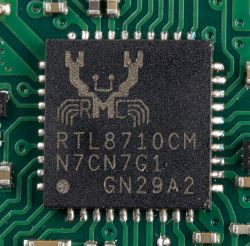
How to flash the RTL8710CM (Ameba Z2) with our Tasmota/ESPHome-style multiplatform firmware? Welcome to this step-by-step guide for the Meross MSS810 Apple Home smart switch.
With this guide, you will be able to regain your privacy and run the device independently of the manufacturer’s servers, fully locally. You’ll also be able to script it however you like, add new sensors, and of course integrate it with Home Assistant.
Before we begin, make sure to check out related guides:
WBR2, WBR3, WBRU, W701-VA2-CG pinout, datasheet, flashing for Home Assistant
[youtube] WBR2/WBR3 - RTL8720CF flashing step by step guide/tutorial - how to solder and flash[/youtube]
Device used for presentation
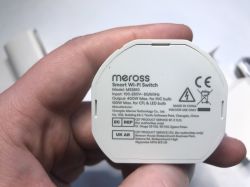
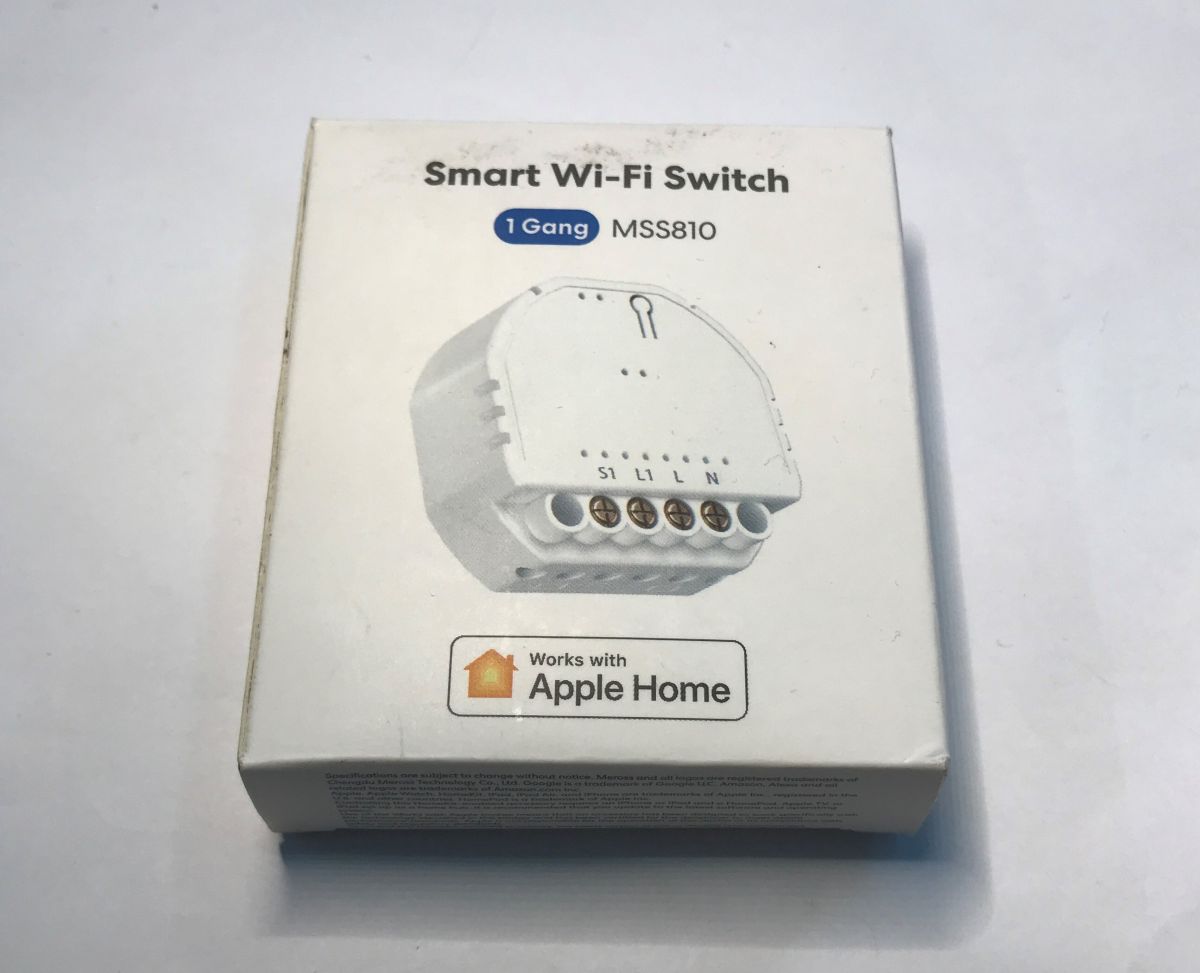
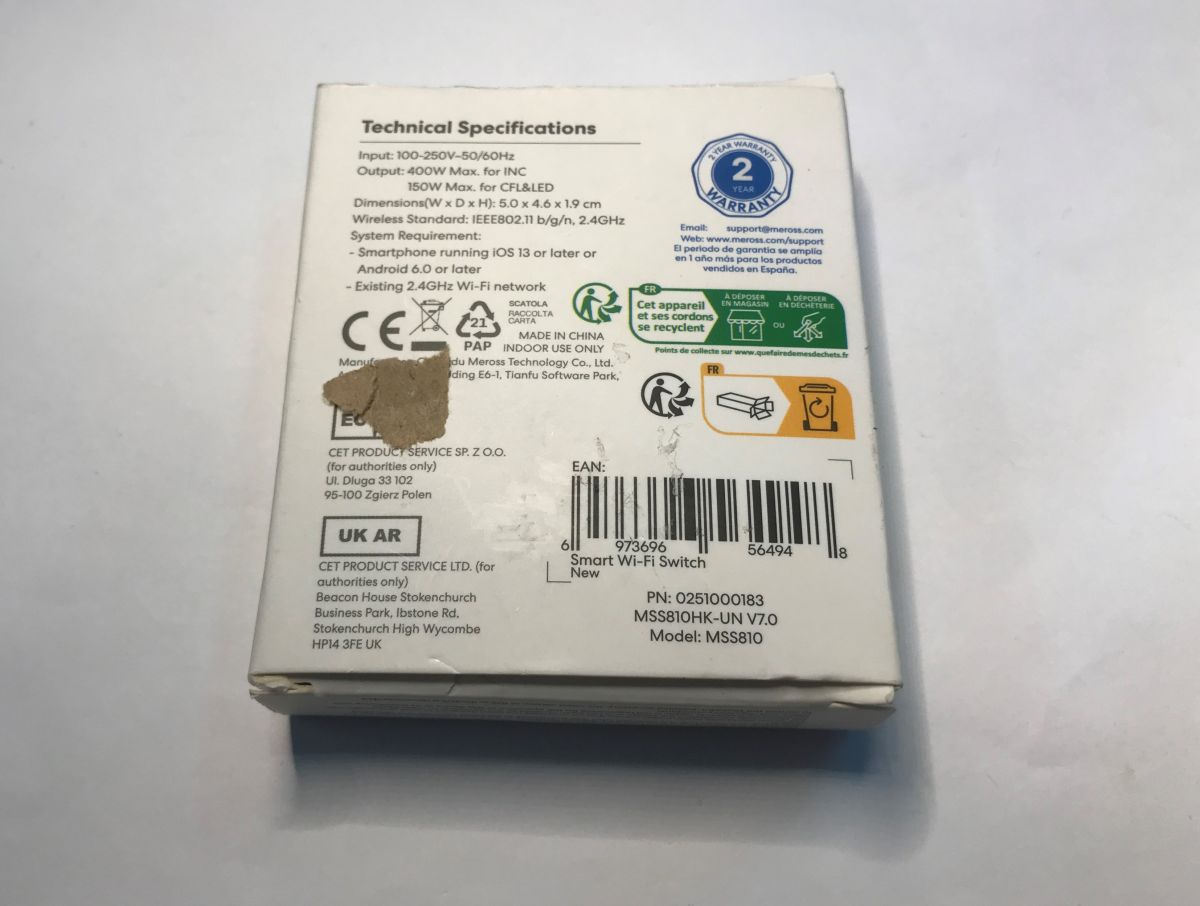
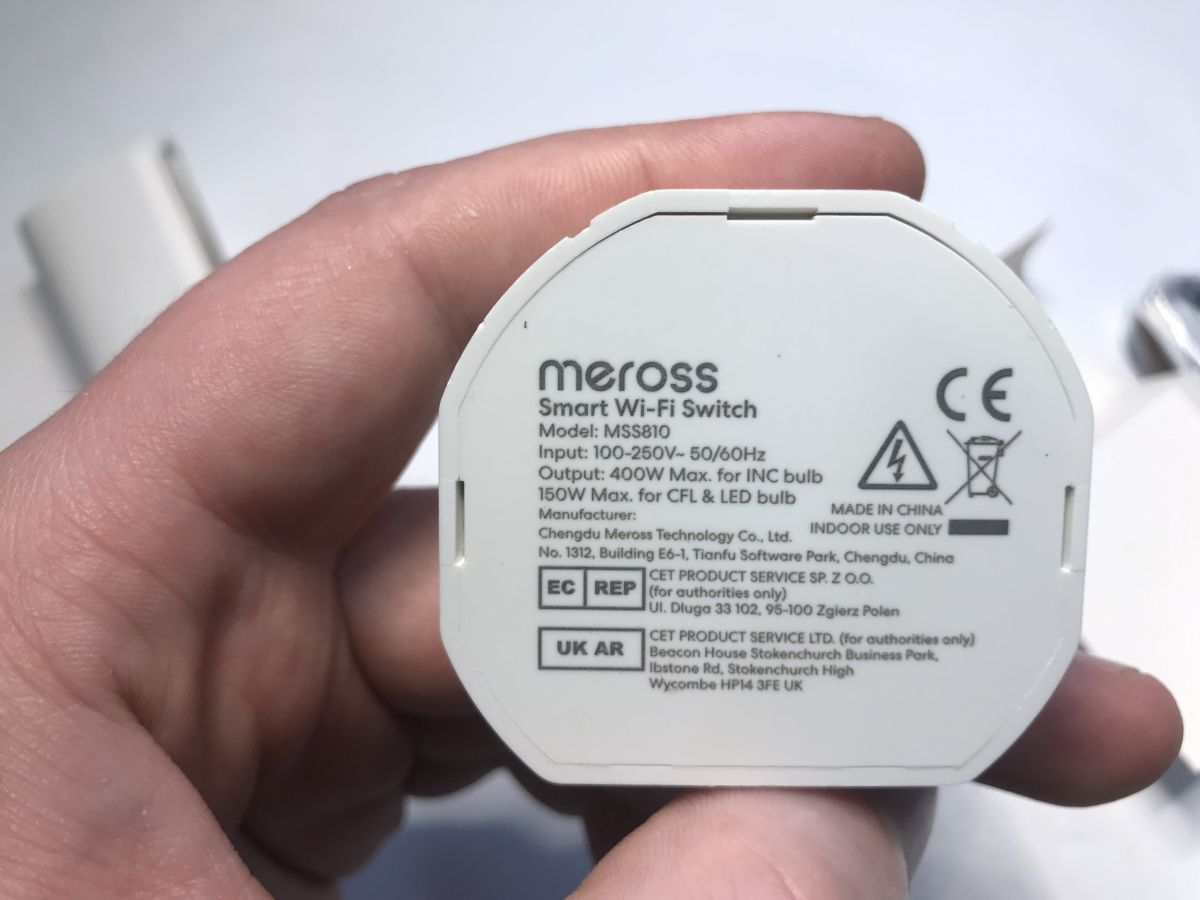
RTL8710CM can be found in various IoT devices, but in this case we'll present a simple smart switch compatible with the Meross app, model MSS810HK-UN V7.0. It can control a single light up to 150 W (for CFL and LED) or up to 400 W (for incandescent lights).
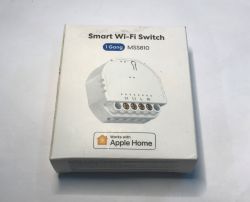
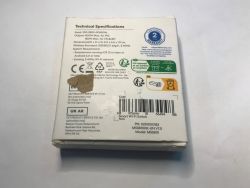
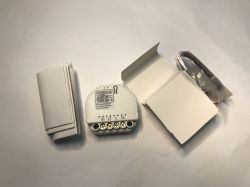
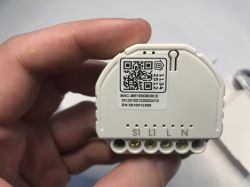
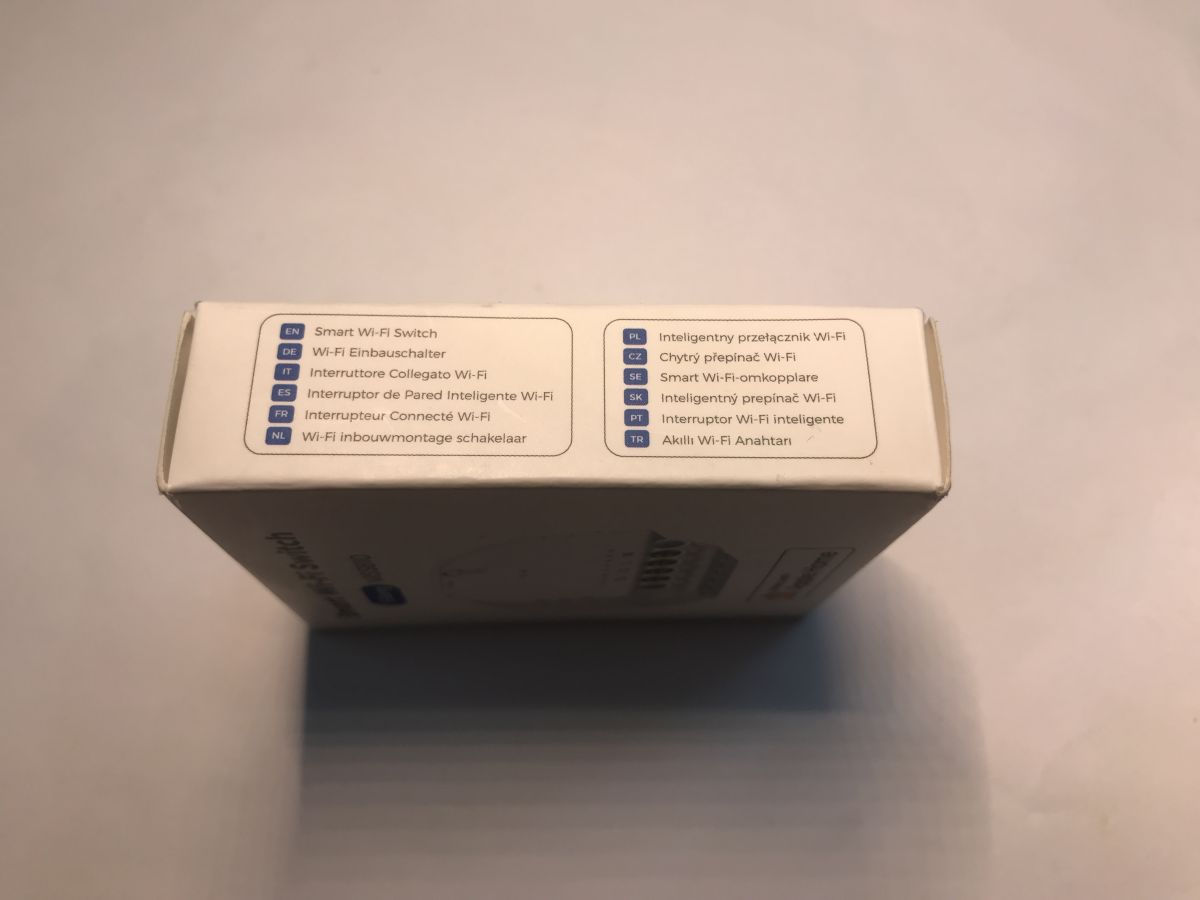
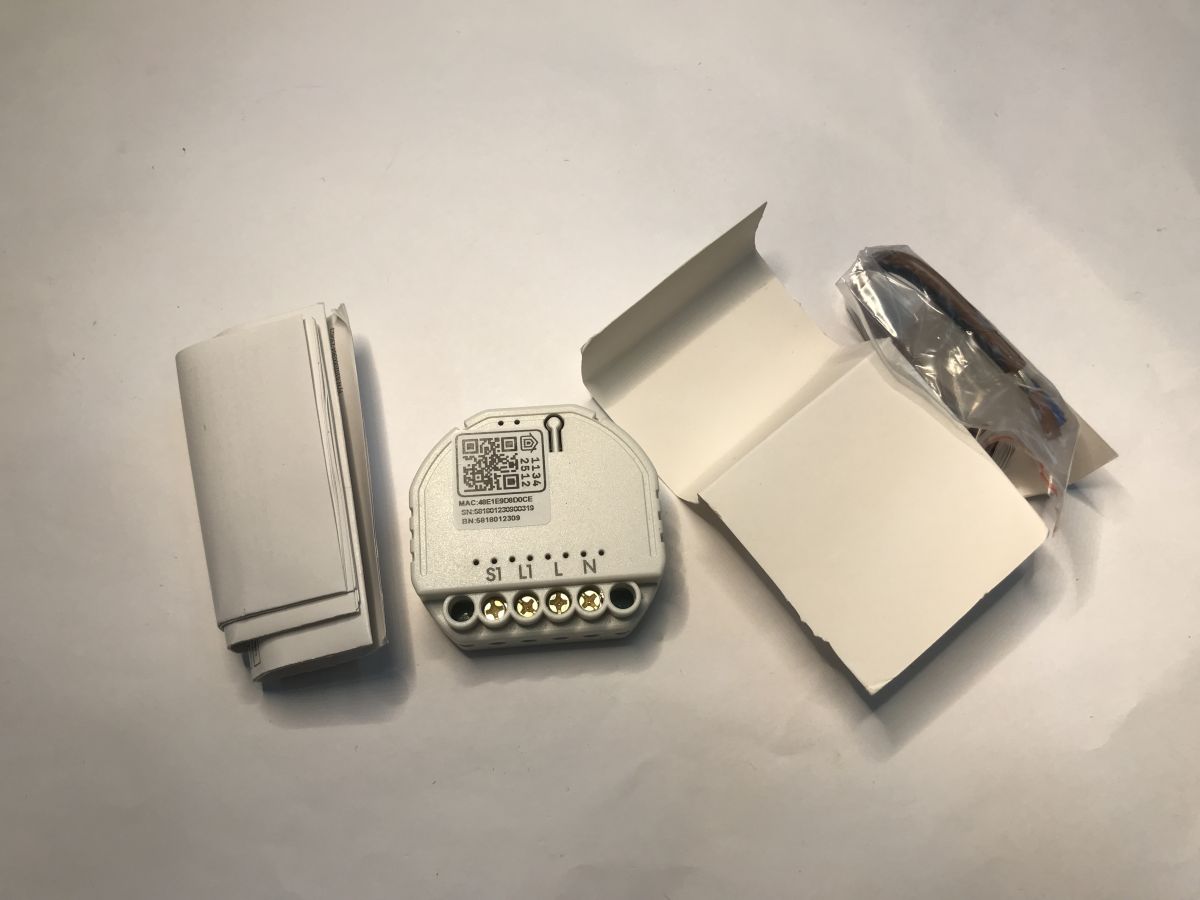
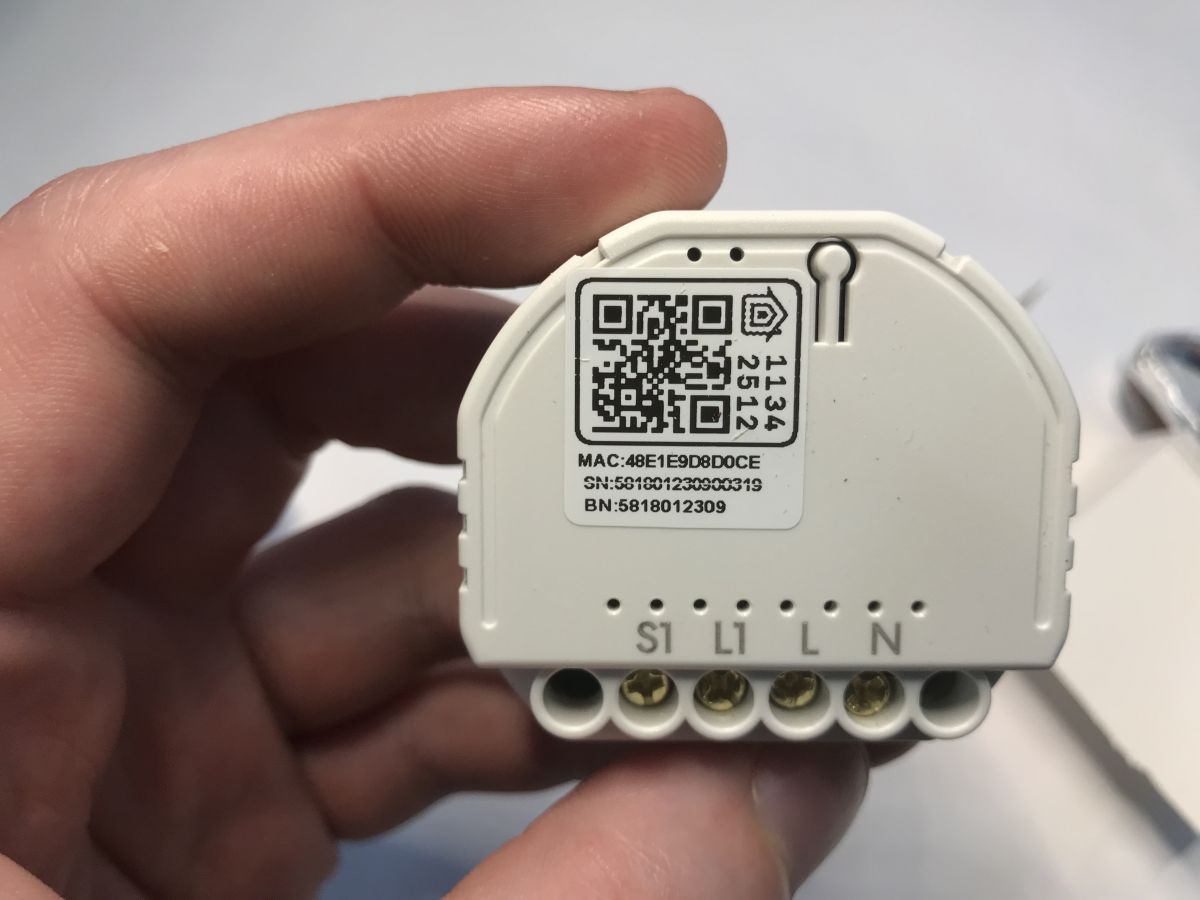
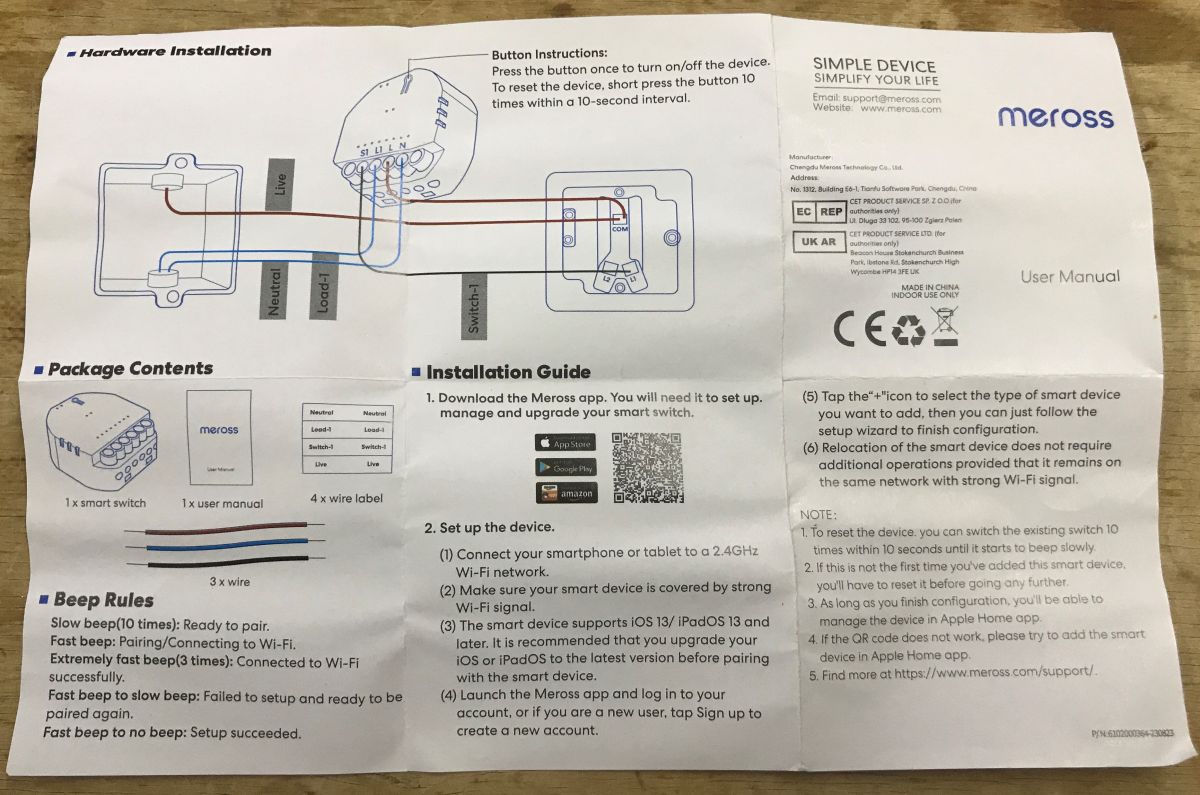
Let's unbox it. The device comes with a set of short wires, which are useful for wiring it behind a classic, non-smart switch. The module itself has manufacturer and app info on the case, so it's not yet another no-name gadget.
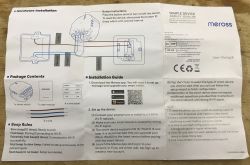
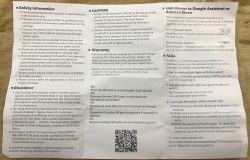
Pairing manual:
 MSS810 teardown
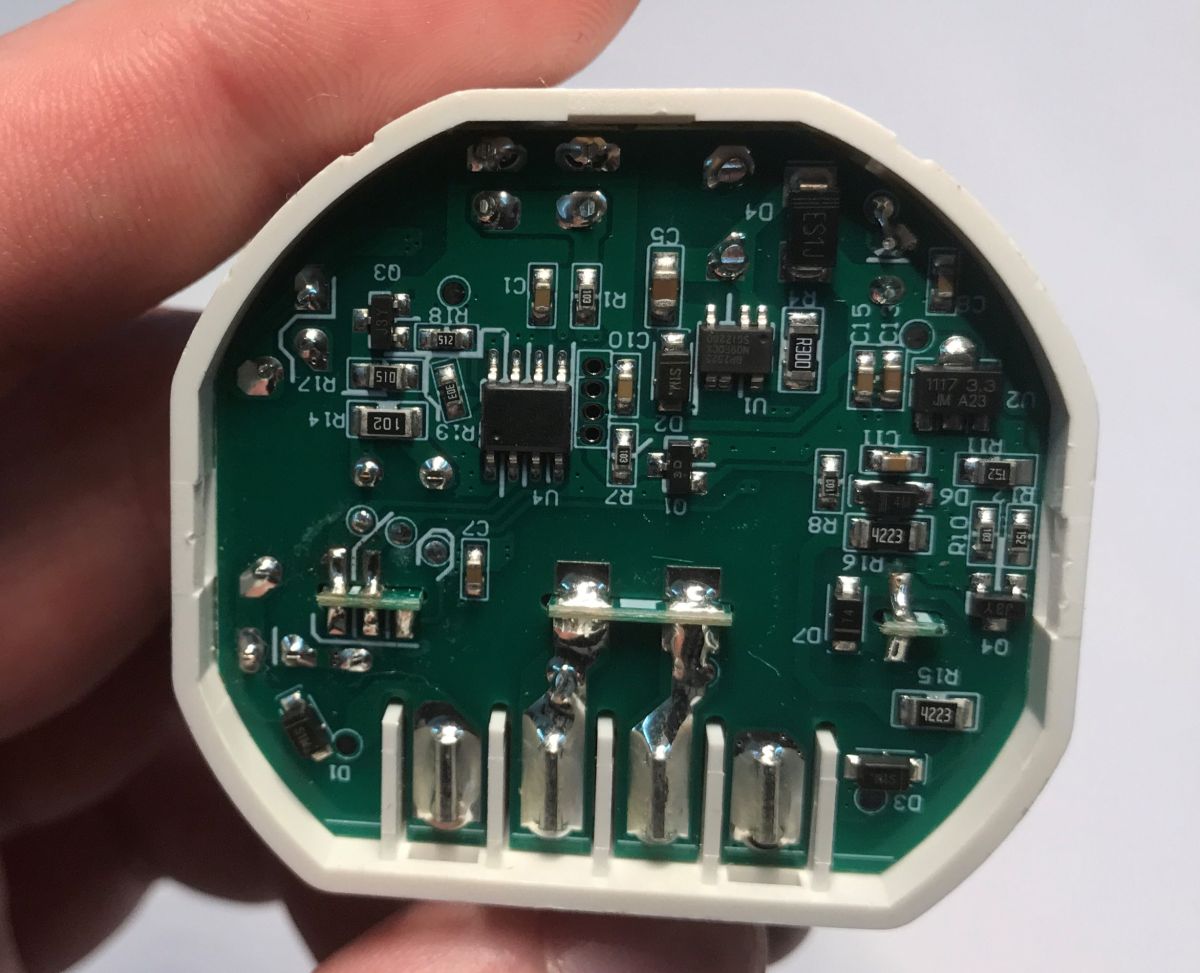
Let's look inside. It's easy to remove the top cover with a flat screwdriver.
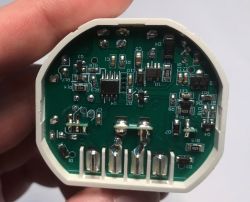
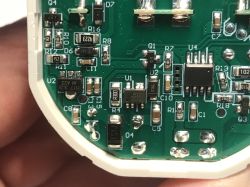
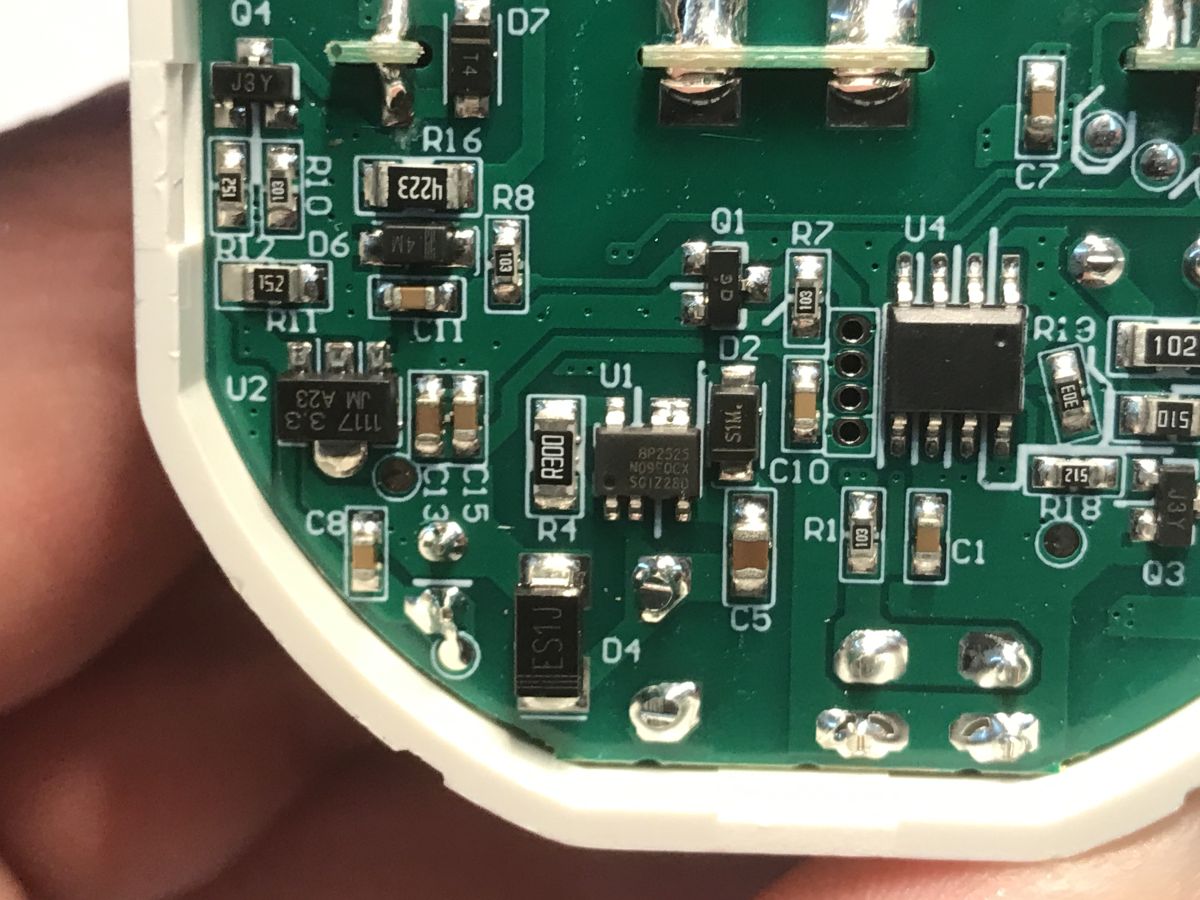
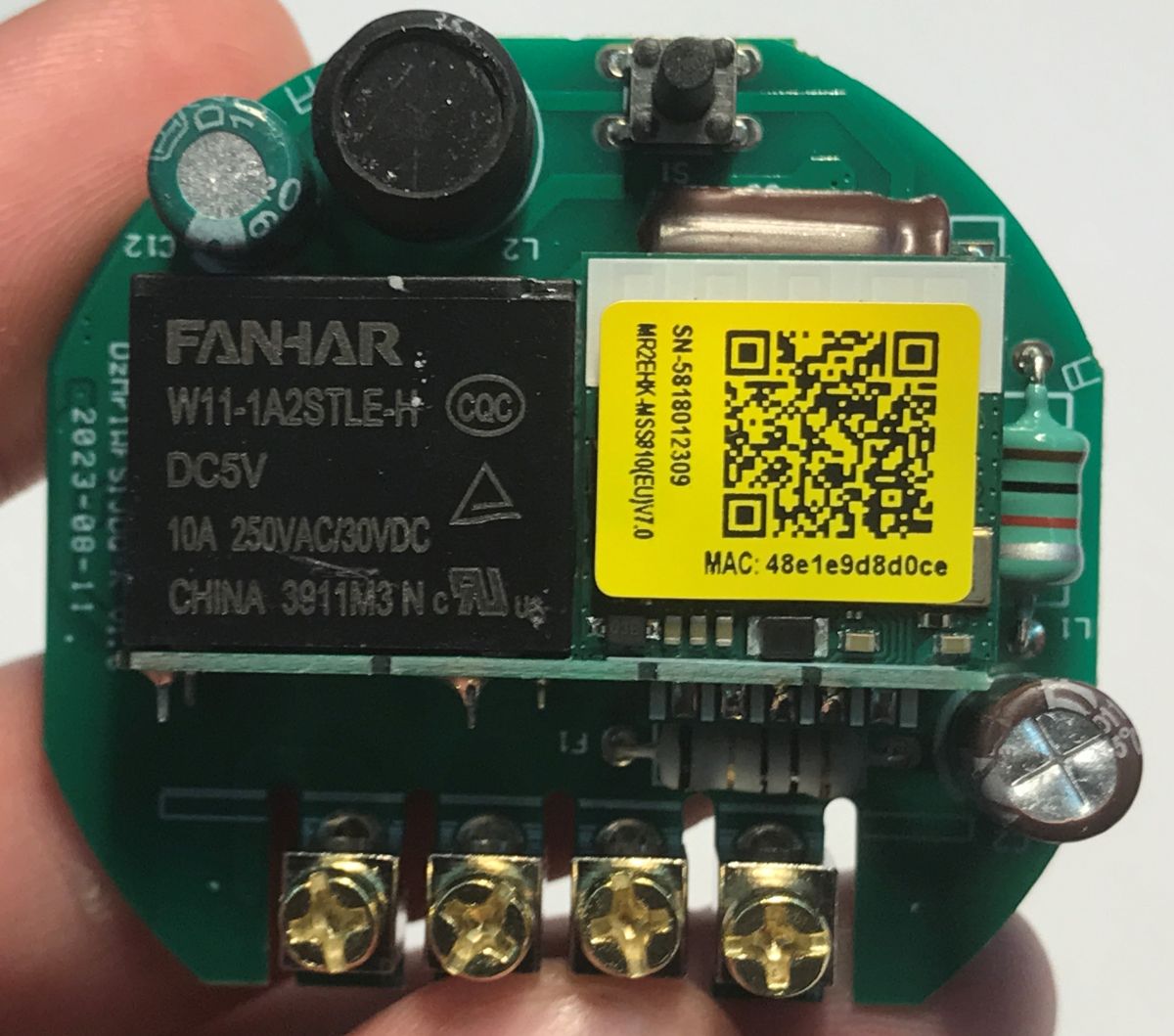
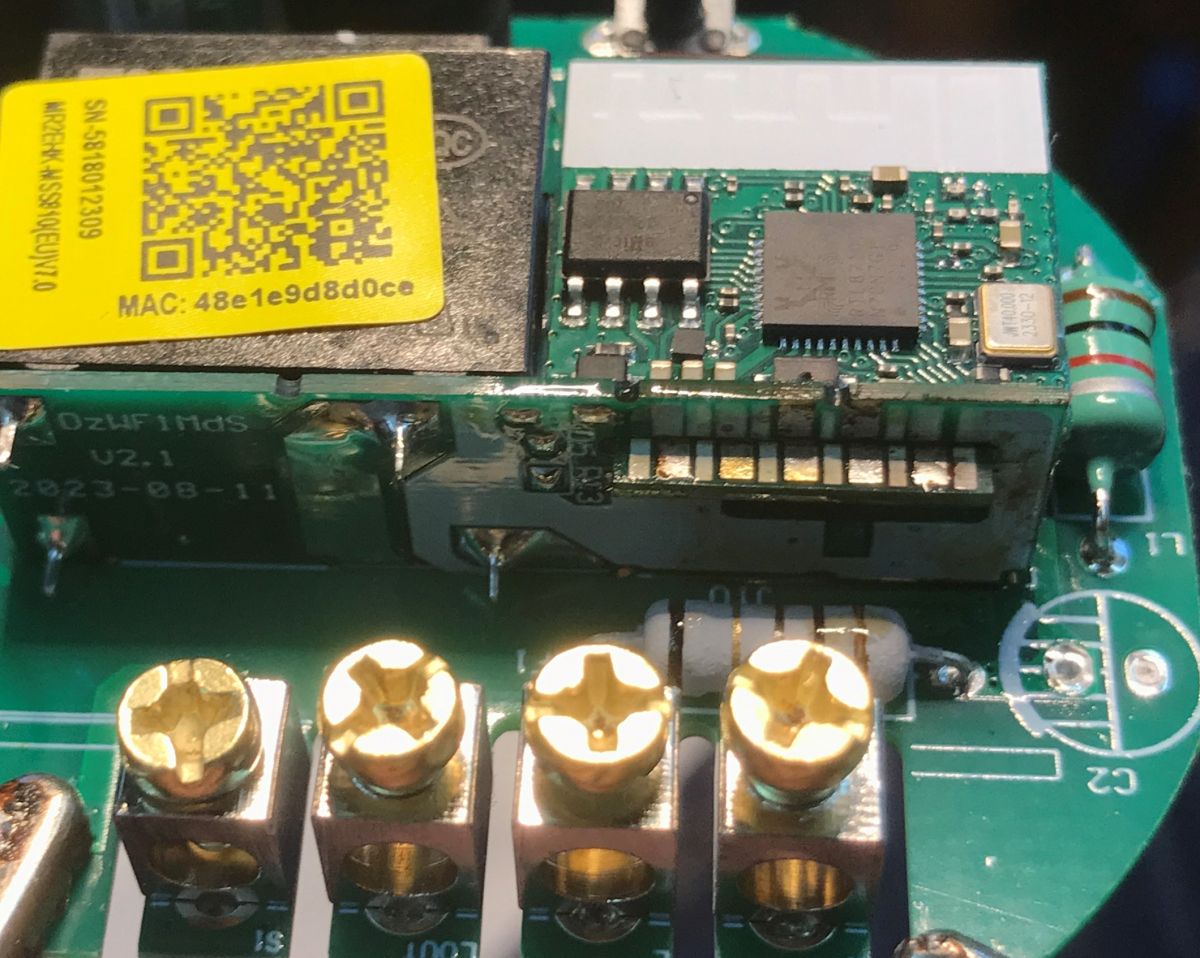
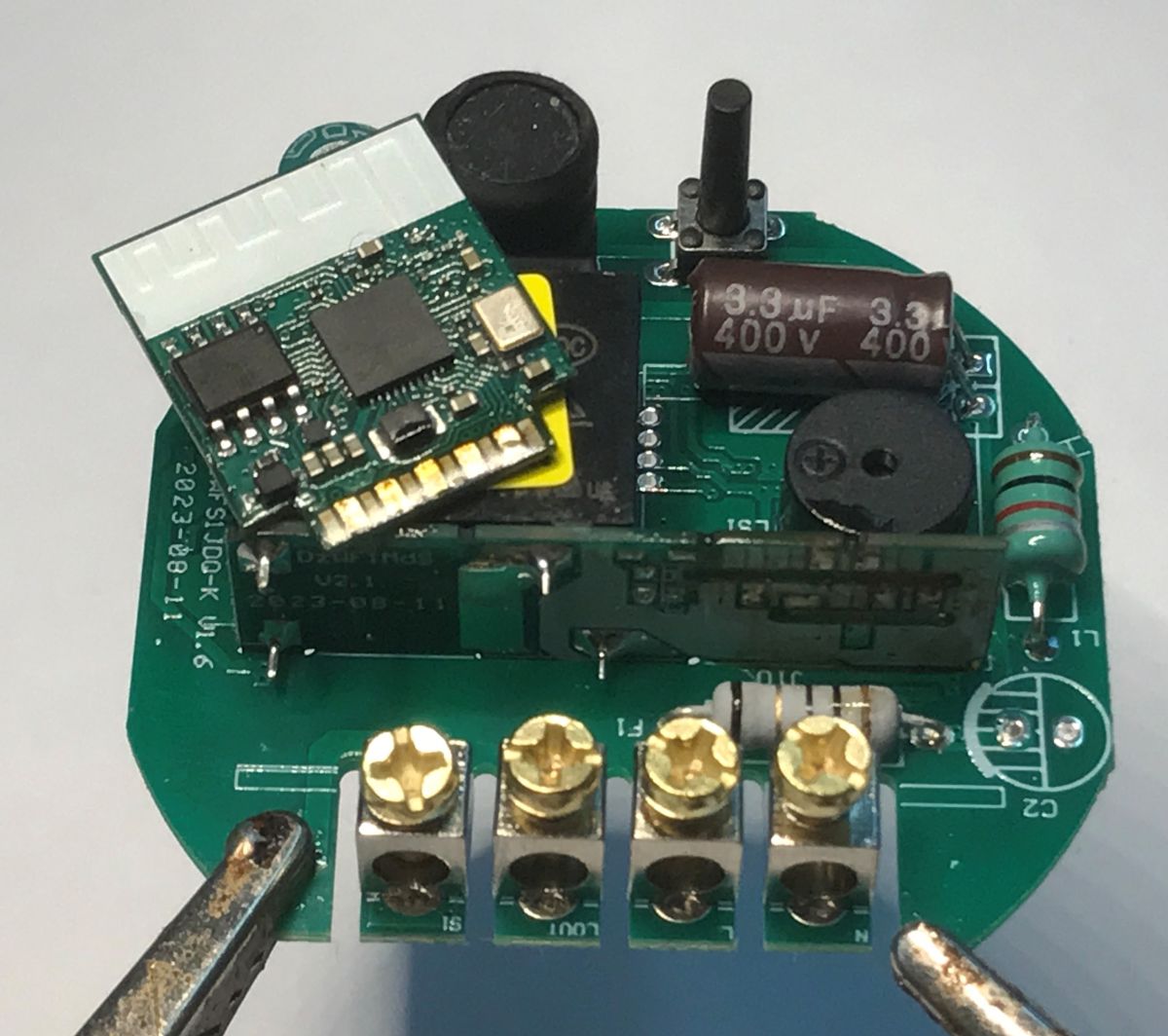
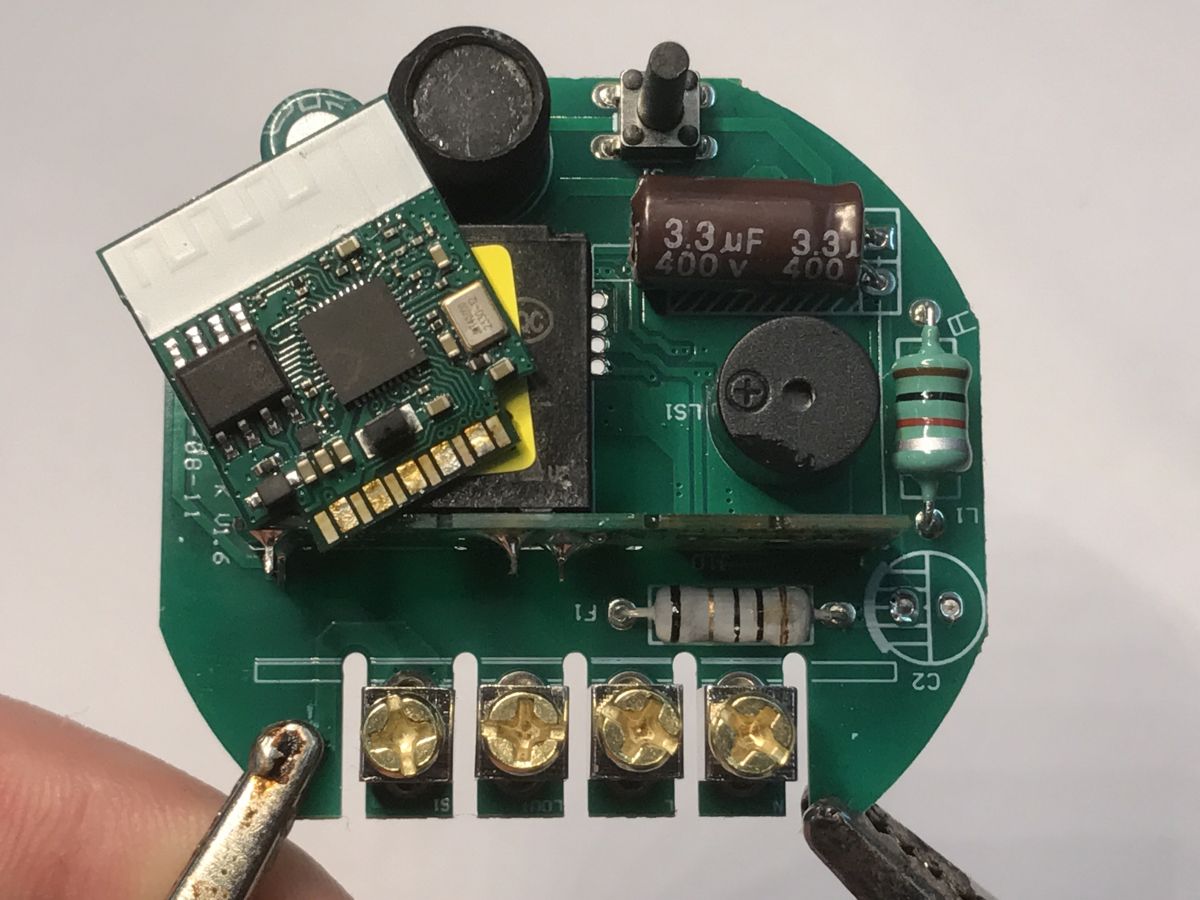
The device is powered by BP2525 step down power supply circuit, it generates 5V from mains. There is also AMS1117-3.3V visible, which provides stable 3.3V for the WiFi module. I didn't identify U4 chip, does anyone know what's its purpose?
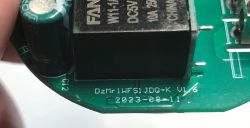
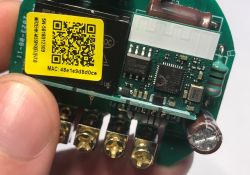
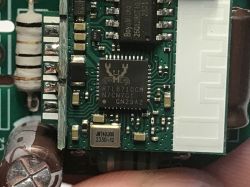
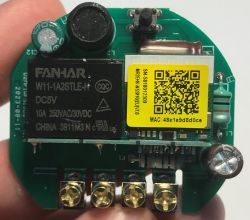
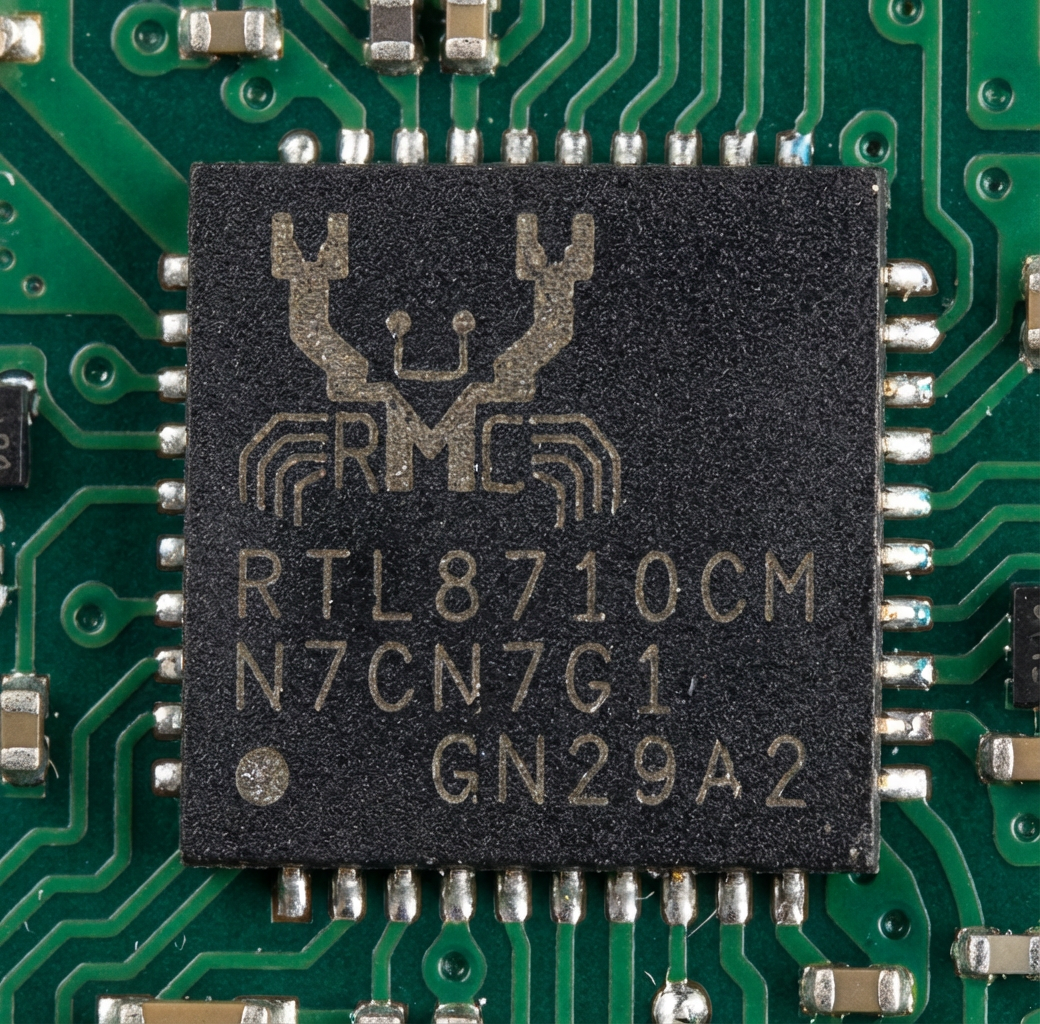
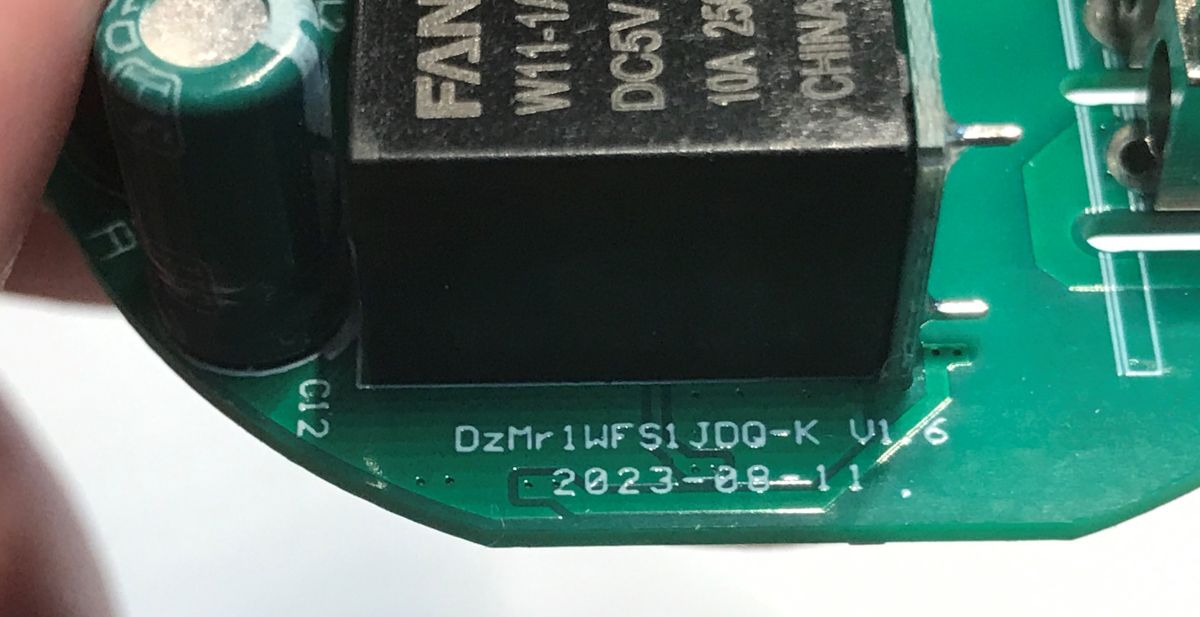
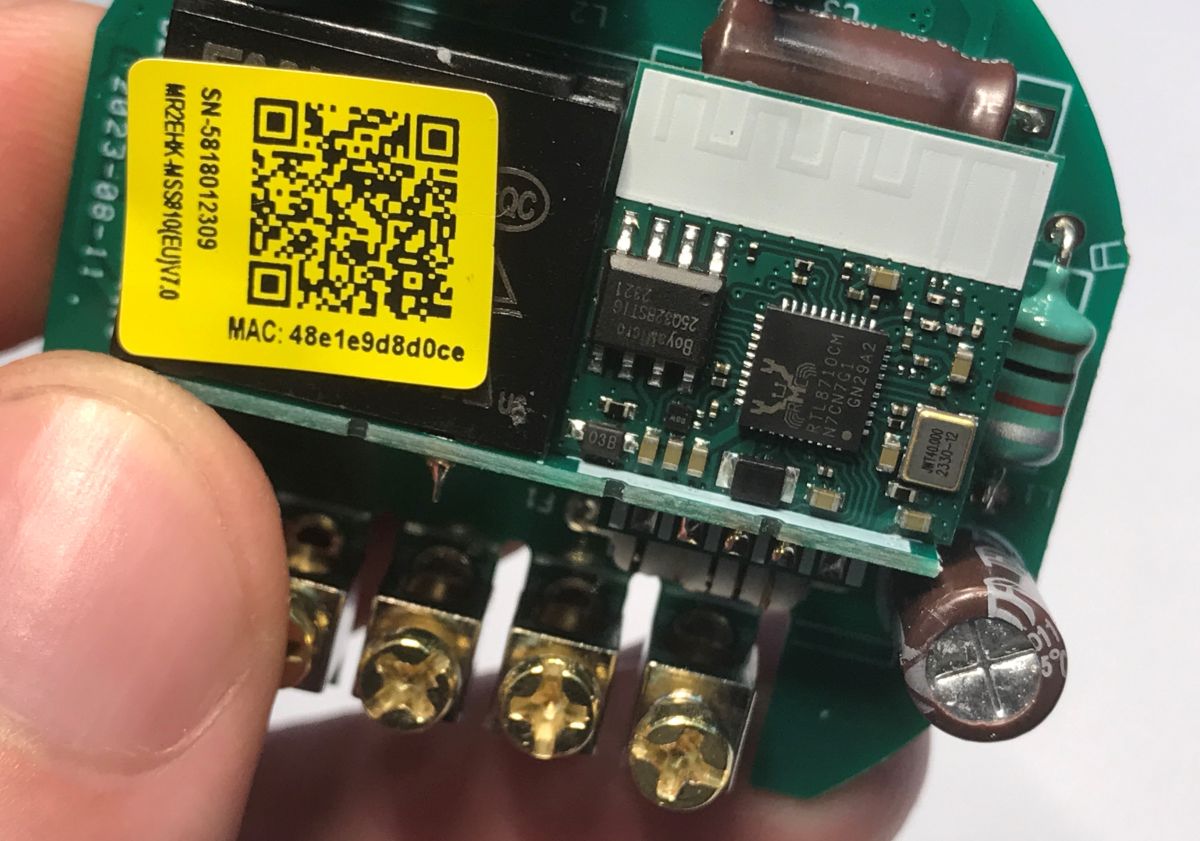
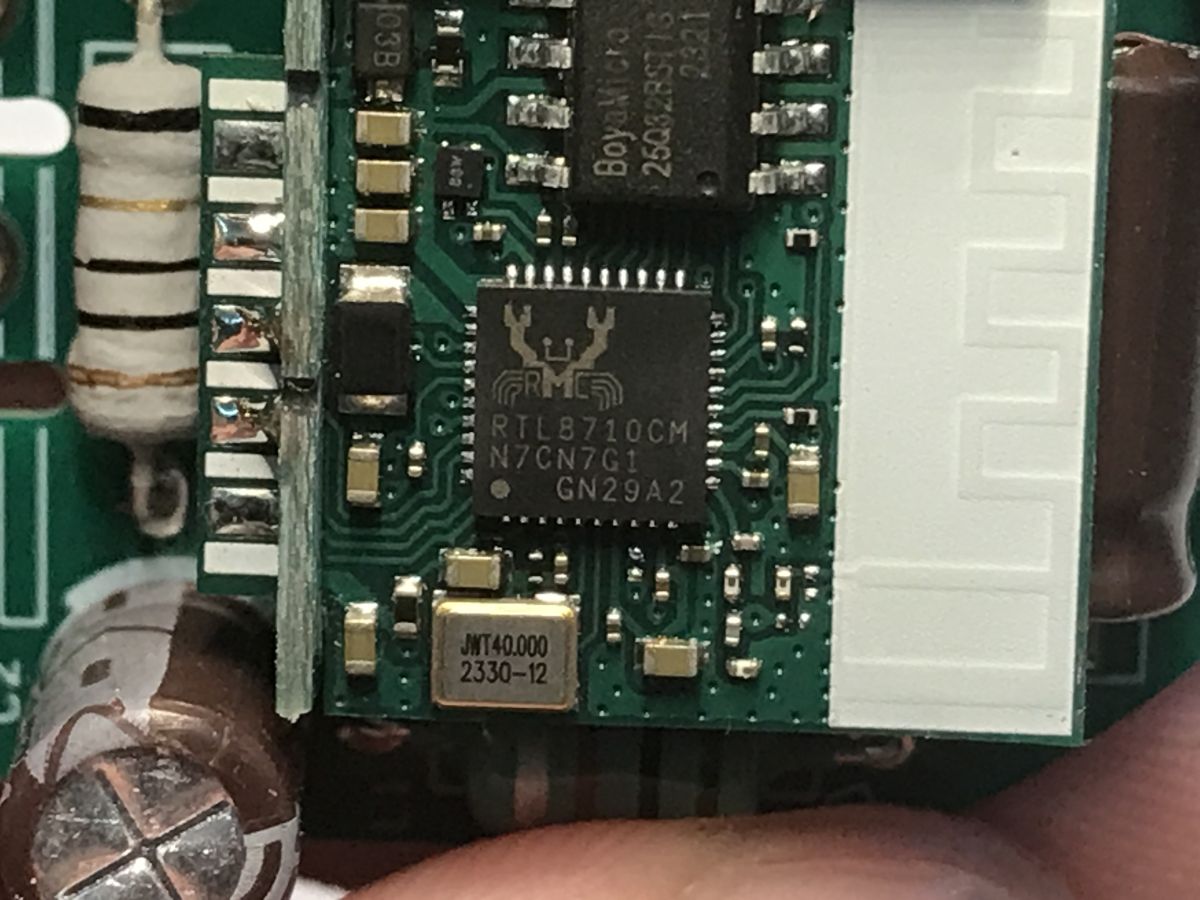
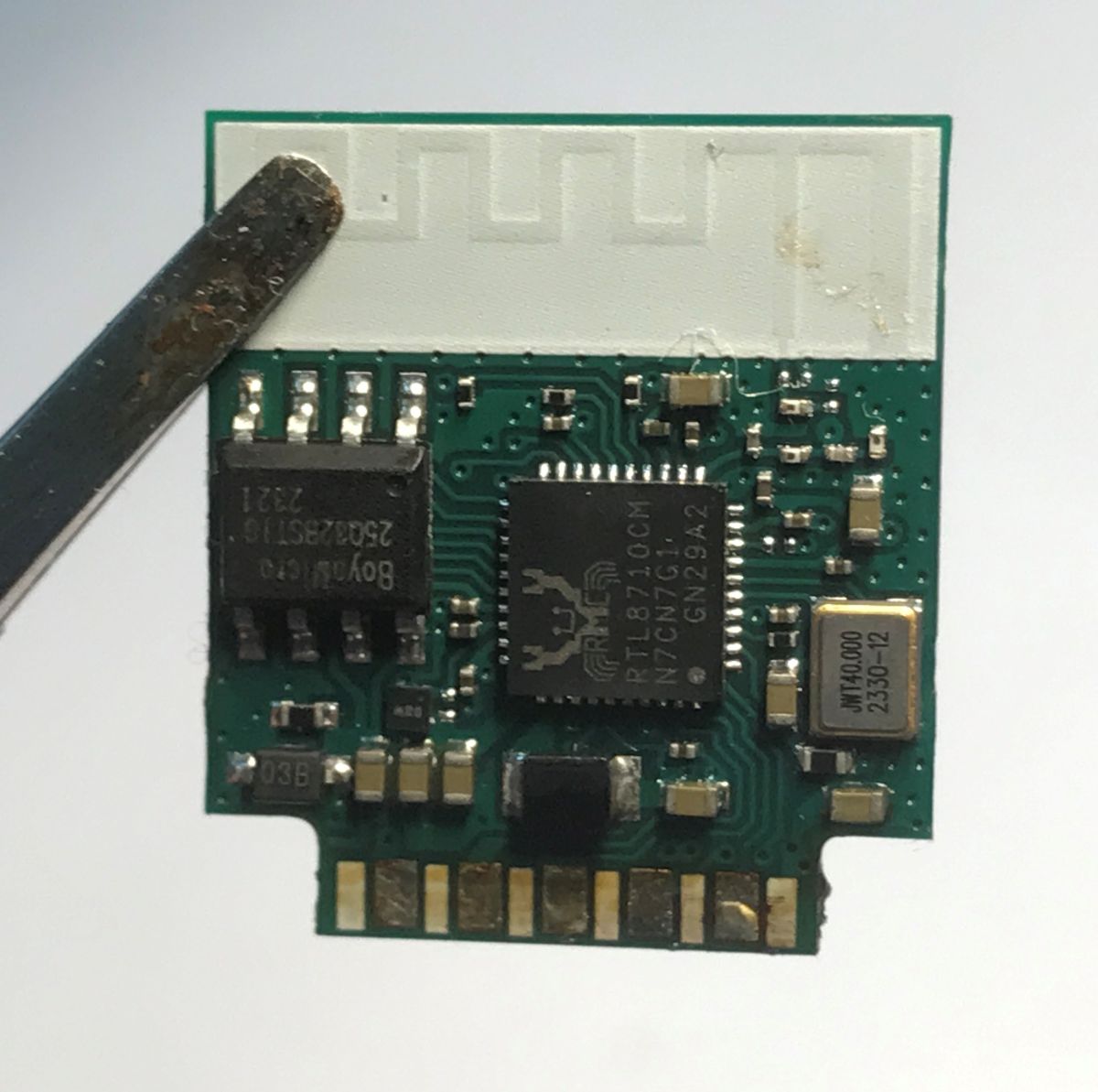
Device board is marked as DzMrWFS1JDQ-K V1.6 2023-08-11, and the WiFi module inside is using RTL8710CM. It also has an onboard flash memory chip, just like some ESP modules do. That's where firmware is stored.
Original firmware bootlog
I've also managed to capture original firmware output at UART TX 115200 baud:
== Rtl8710c IoT Platform ==
Chip VID: 5, Ver: 3
ROM Version: v3.0

== Boot Loader ==
Aug 31 2021:15:42:24
Boot Loader <==

== RAM Start ==
Build @ 14:51:40, Jan  5 2024
$8710c>interface 0 is initialized
interface 1 is initialized
Initializing WIFI ...

WIFI initialized
MRS-WIFI-COUNTR-0069 | set country code: JP, 0x0b

 write mac address success, please reset wifi driver!
init_thread(61), Available heap 0x356308
###############################
####  Meross Smart Things  ####
###############################

reset reason : 0
       model : mss810

Enter INTERACTIVE MODE
#          mac : 48:e1:e9:d8:d0:ce
    chip set : rtl8710cm
      hw_ver : 7.0.0
      fw_ver : 7.3.3
    compiler : gcc 6.5.0
compile time : 2024/01/05-14:51:34

 curr_fw_idx : 1
Login:
I haven't figured out if it's possible to "log in" there.
Desoldering WiFi module
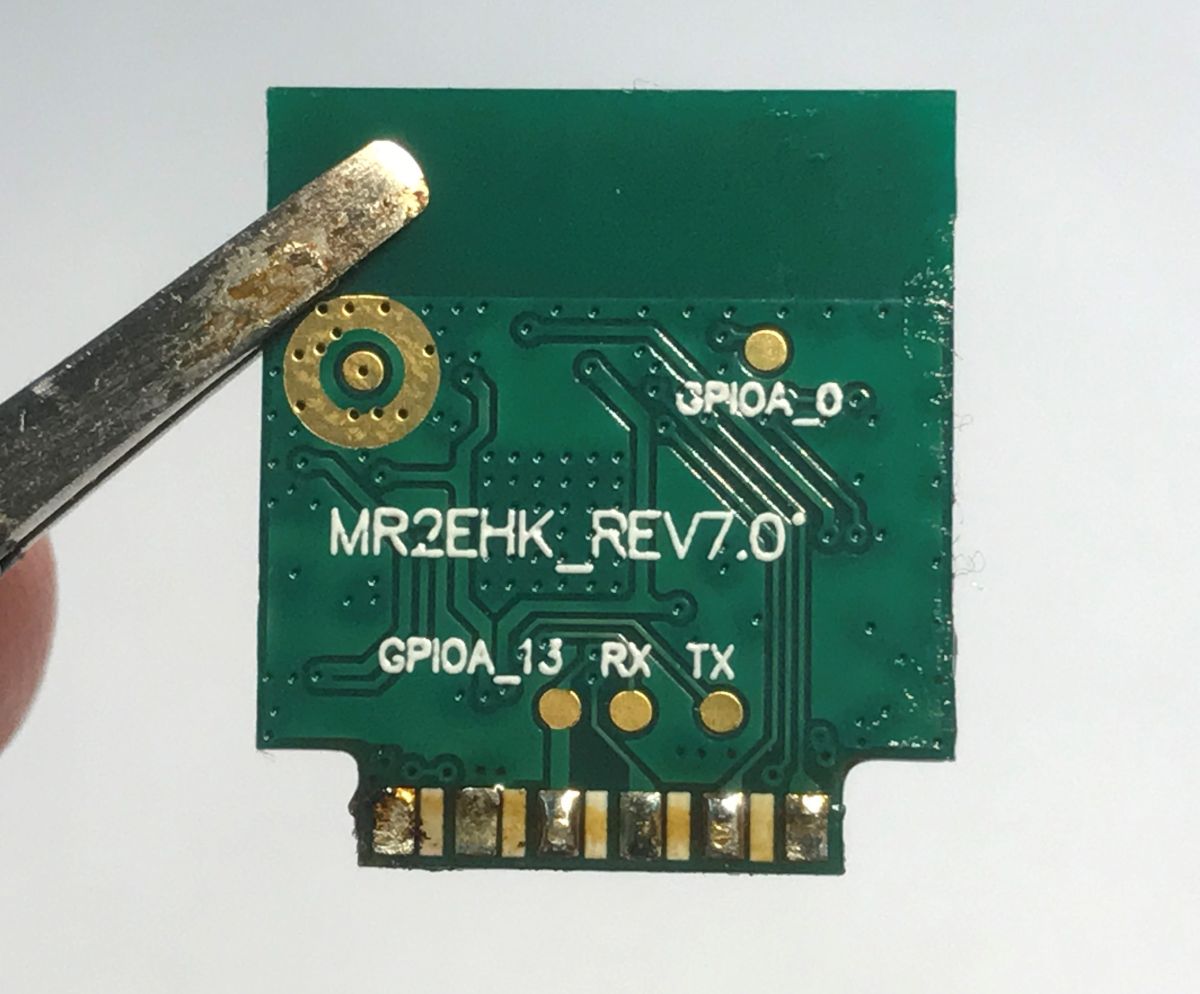
This WiFi module has programming pads on the back, so it's not accessible without desoldering. I had to use some flux and copper wire to clean the pads and remove the module.
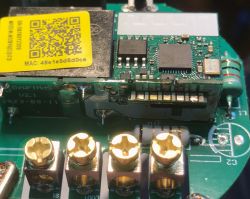
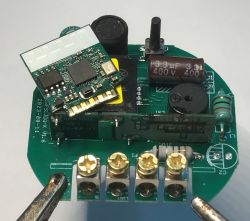
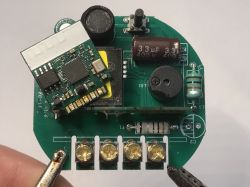
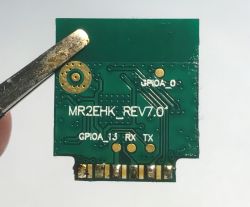
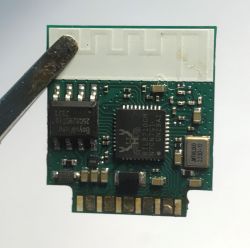
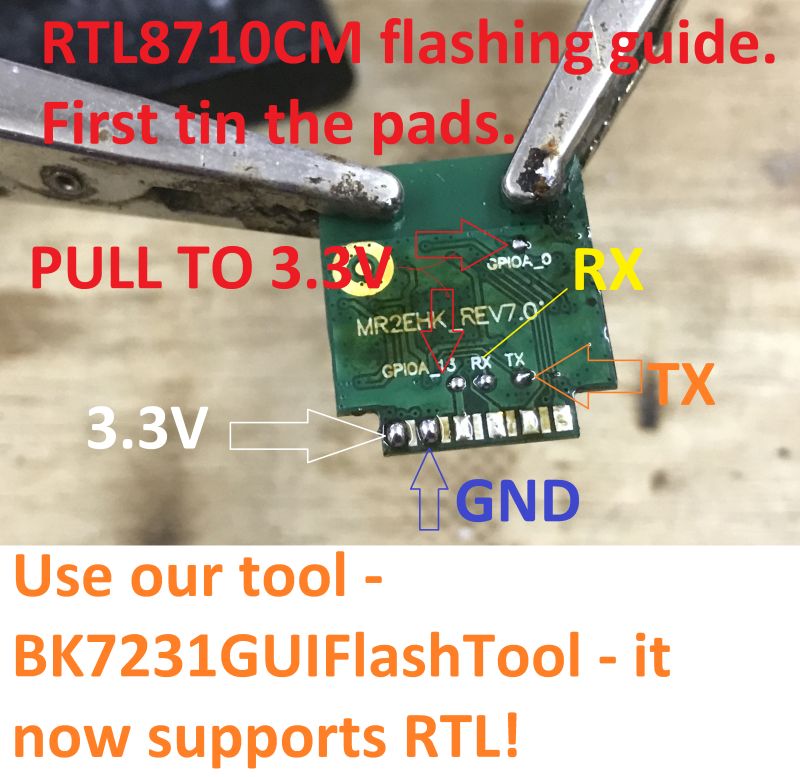
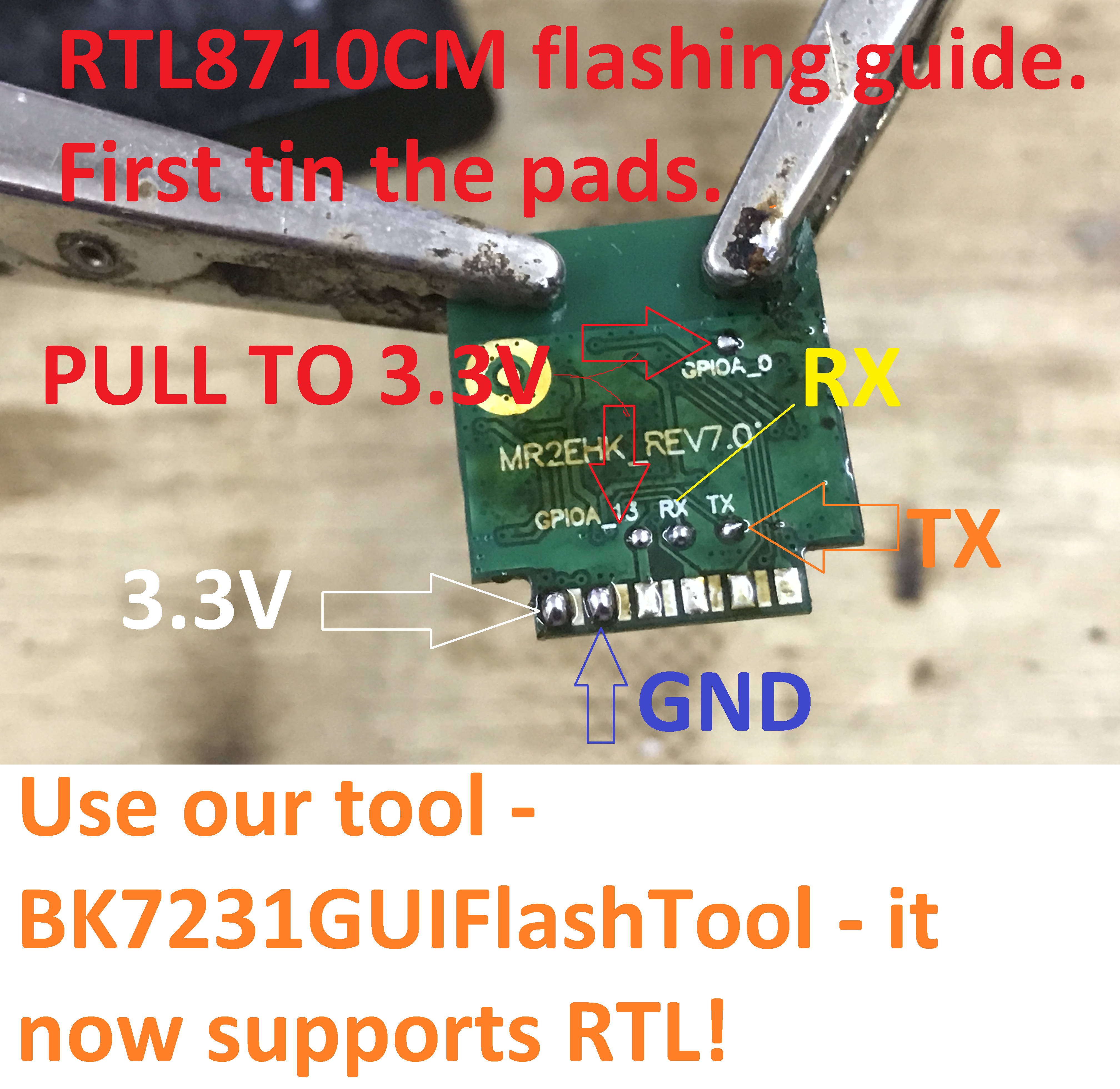
WiFi module is marked as MR2EHK_REV7.0. The four pads on the back are marked as GPIOA_0, GPIOA_13, RX and TX. The bottom pads are not marked.
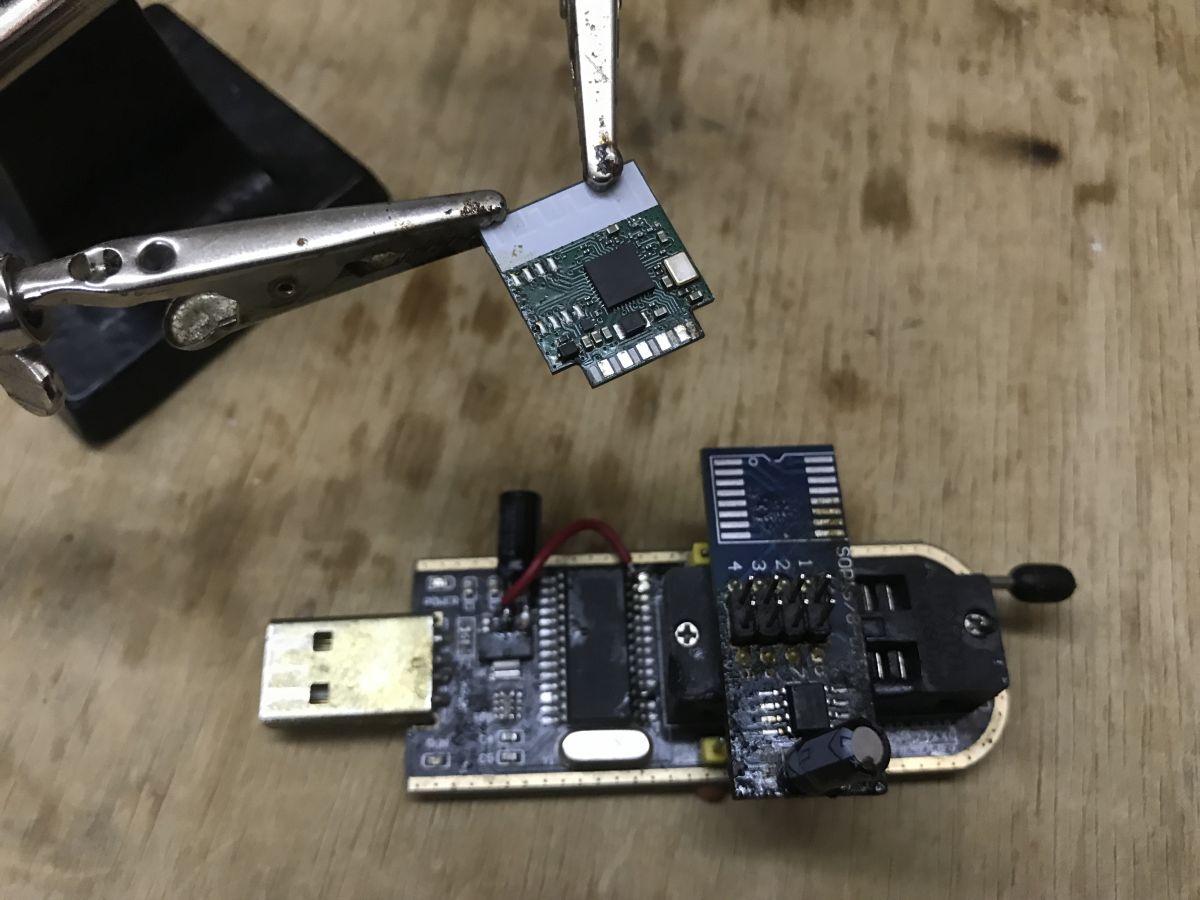
 Flash backup method - CH341
This step is not necessary, as you can back it up via UART, but I will show it here just for reference. BoyaMicro 25Q32BSTIG on the board is a classic flash chip with an SPI interface, it can be read with CH341 in, for example, NeoProgrammer:
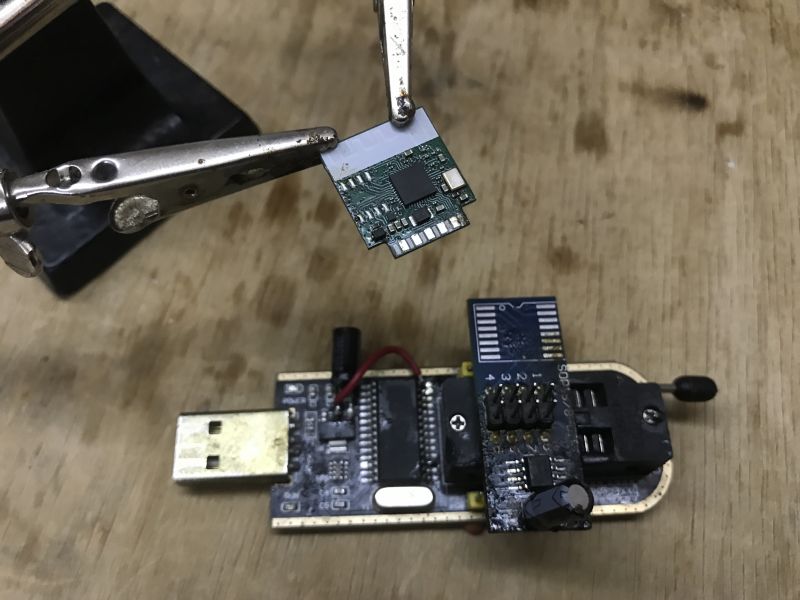
I didn't try flashing firmware that way, as we have an UART solution for that.
Backup existing firmware and flash new with UART
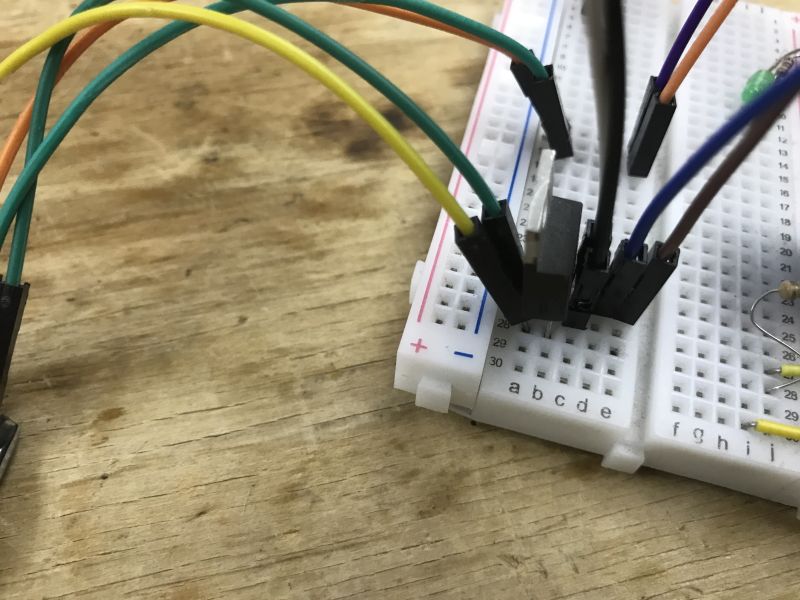
First of all, you need USB-to-UART converter, like CH340, and you need to set it in 3.3V mode by setting a jumper. You also need a reliable 3.3V power supply, I am using AMS1117-3.3V for that. 3.3V from the USB-to-UART converter may not be enough.
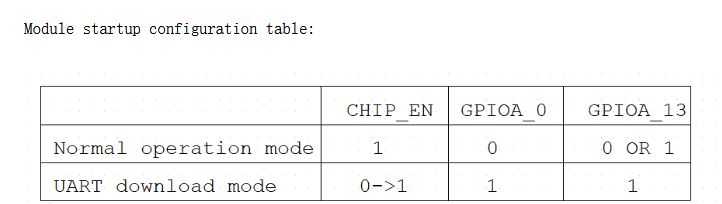
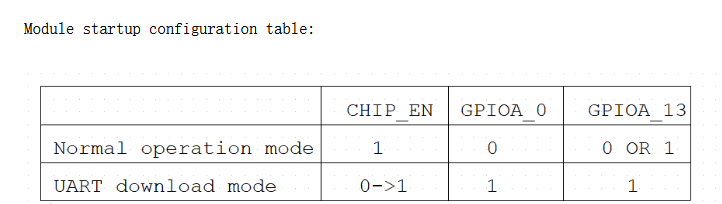
You will also need to pull extra pins high (connect to vdd - 3.3V) to enable bootloader:
Get our flasher tool there:
https://github.com/openshwprojects/BK7231GUIFlashTool
Now, you need to connect wires to the WiFi module. Tin the pads with some solder, don't forget the flux.
This is how the tinned module looks like:
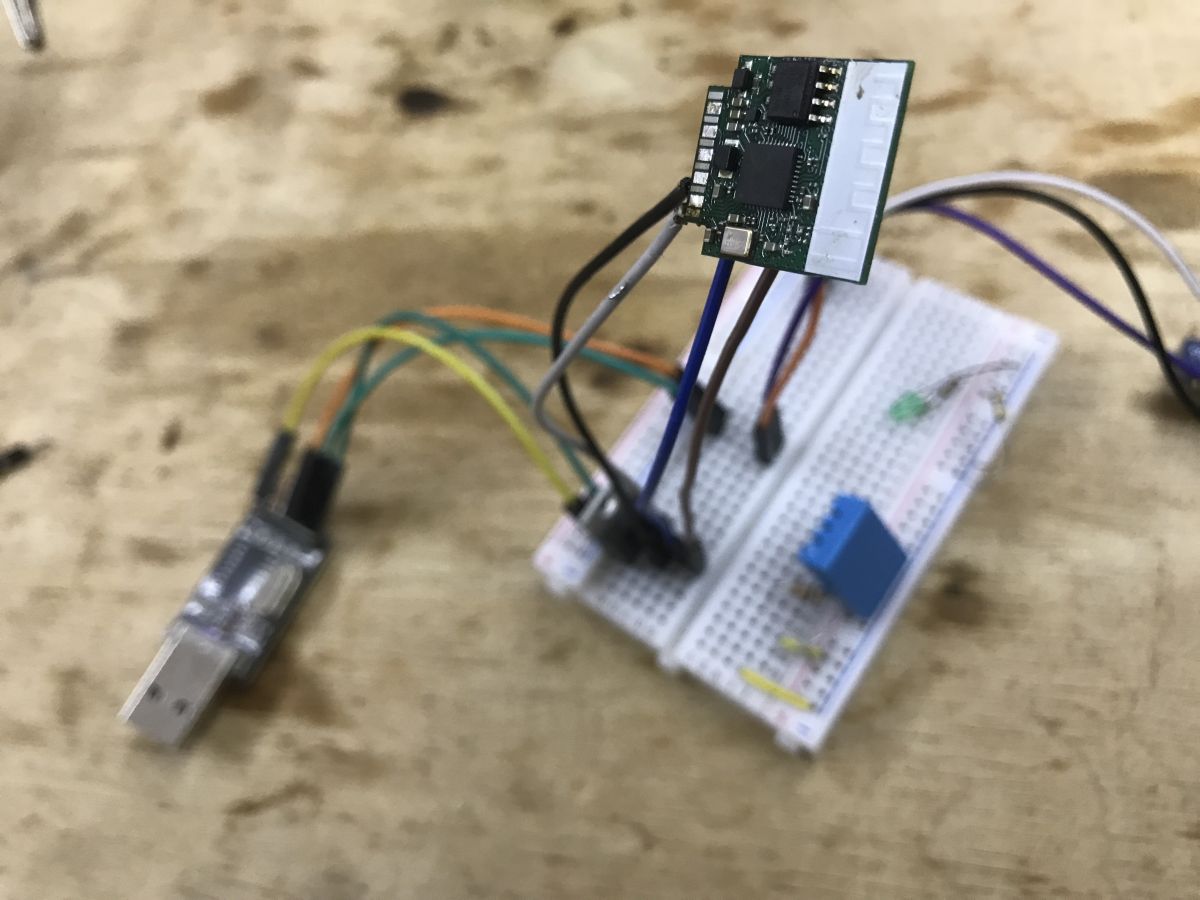
And here is my full setup:
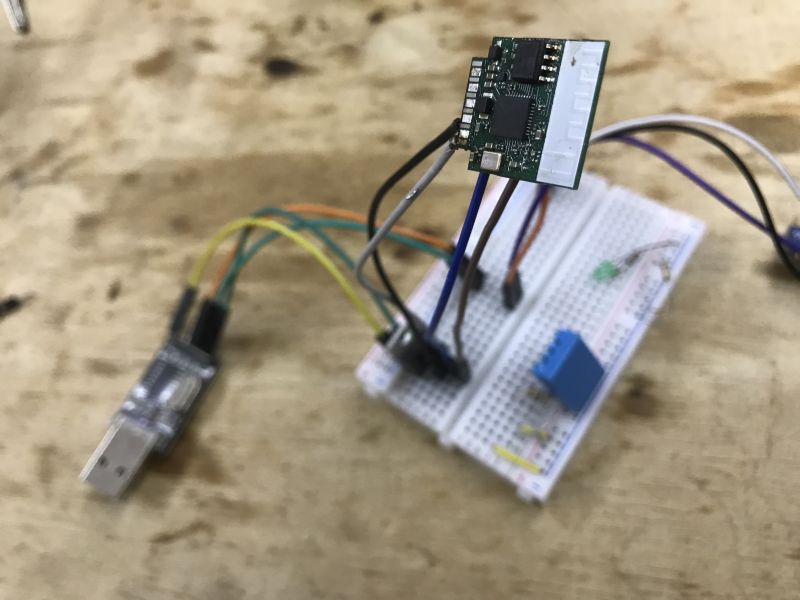
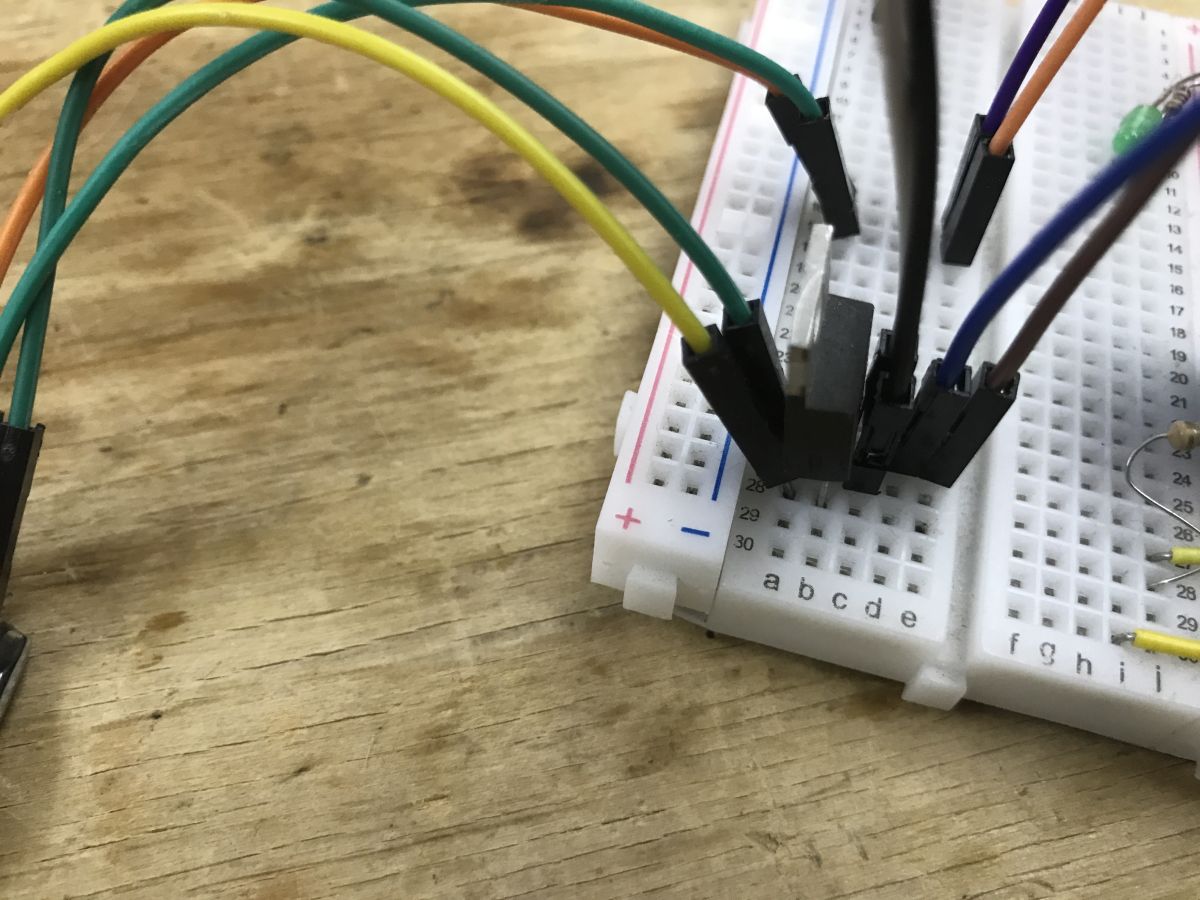
This is the LDO I use (TC1264-3.3V), it can be any LDO for 3.3V. It converts 5V to 3.3V for WiFi module:
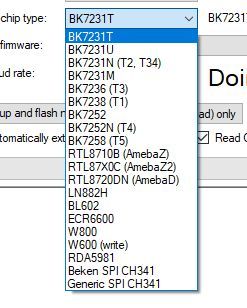
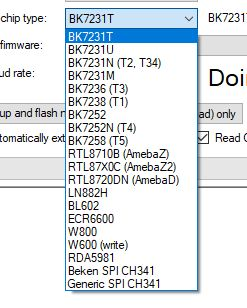
Select the matching family in our flasher - Ameba Z2:
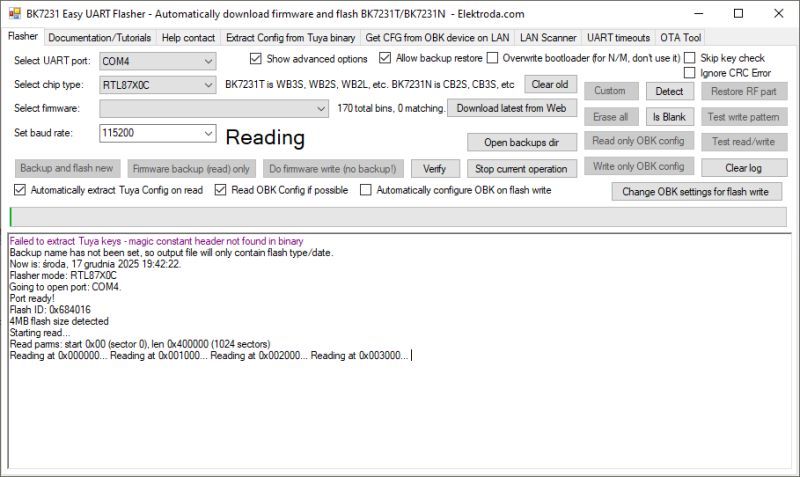
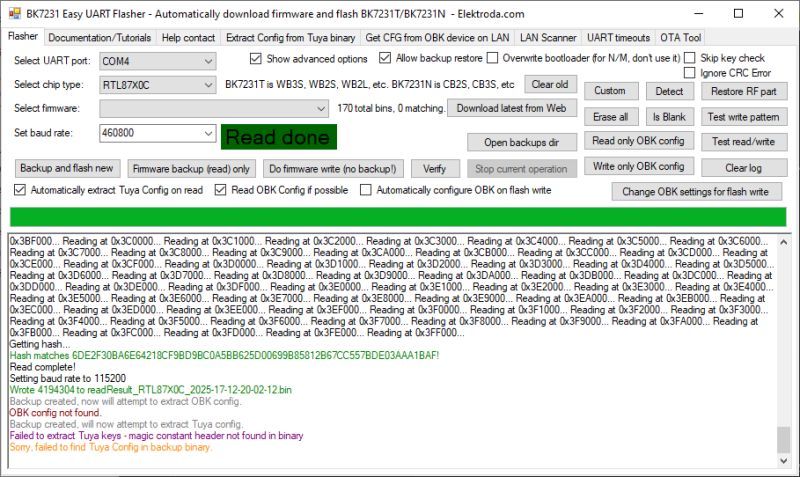
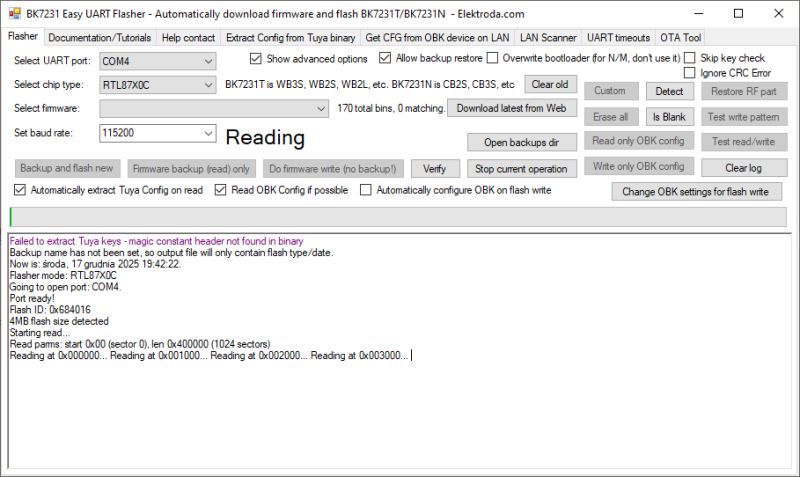
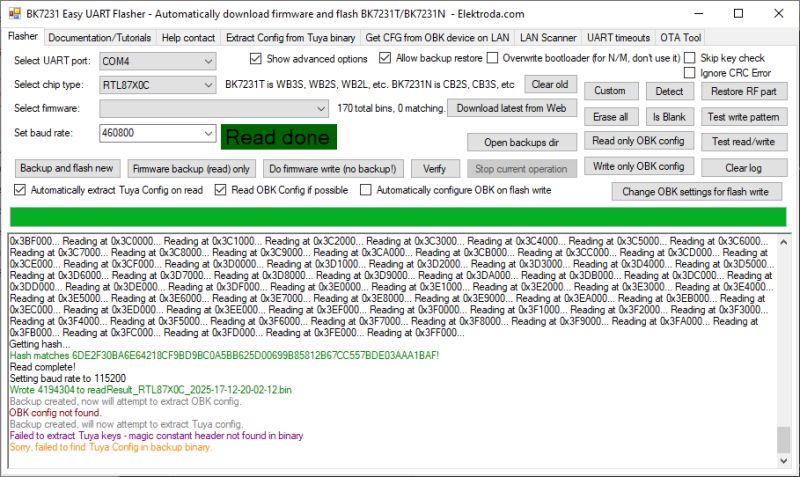
 First, do a flash backup
:
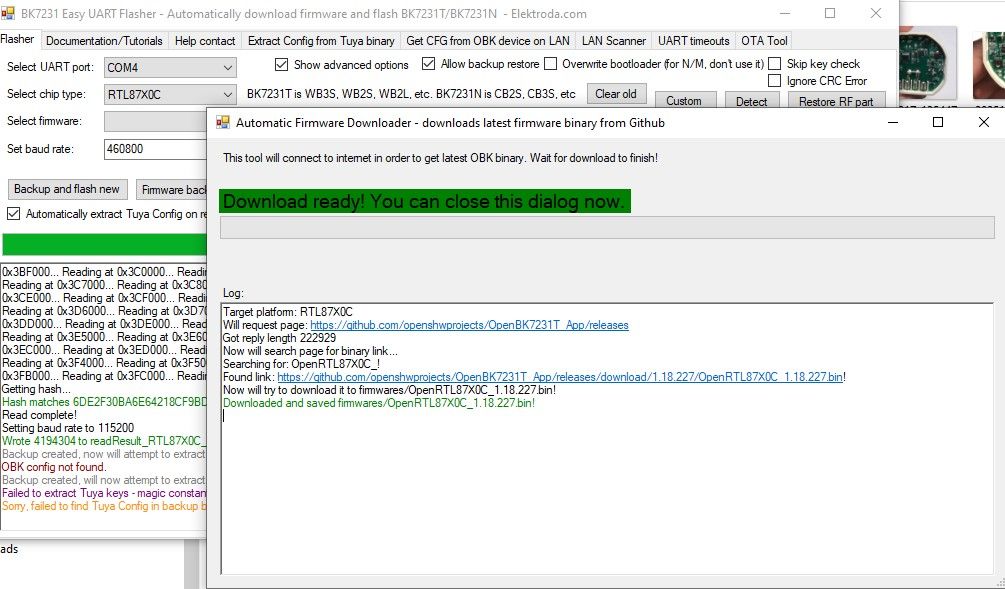
Then, use our flasher to download new firmware:
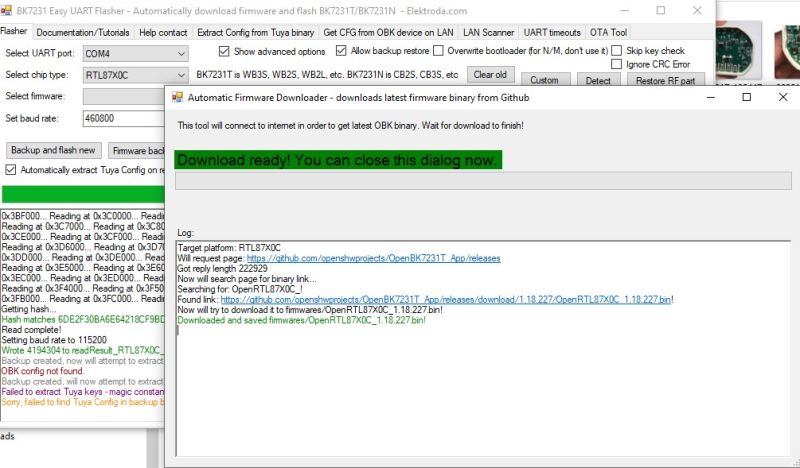
You can also manually get it in Releases tab, here:
https://github.com/openshwprojects/OpenBK7231T_App
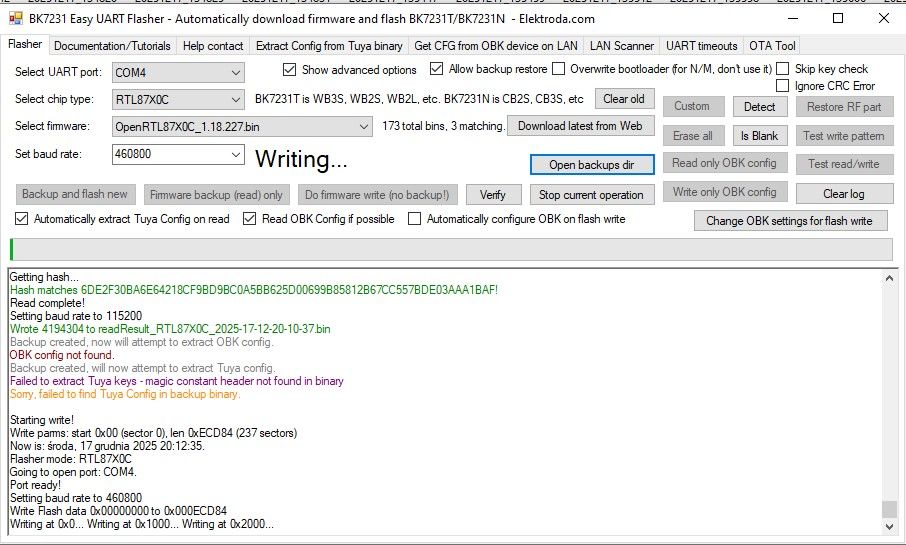
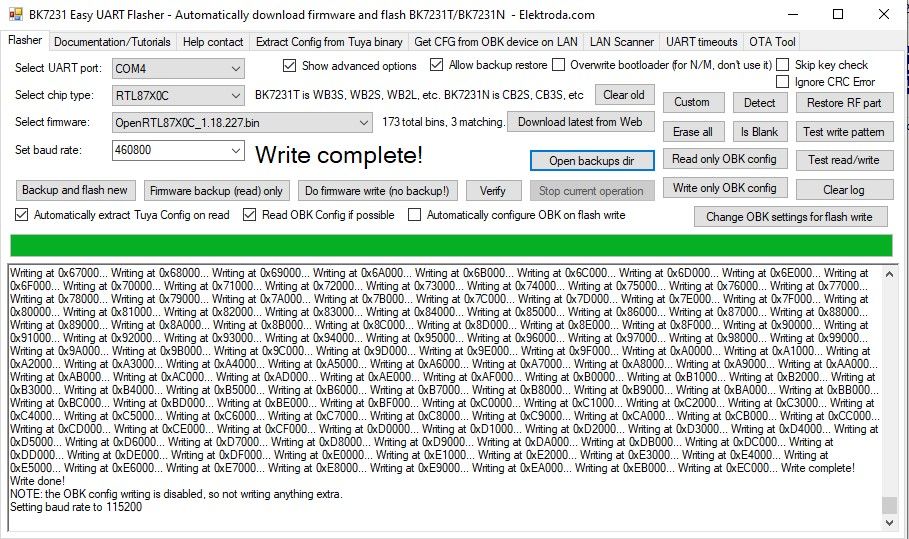
Finally, flash the new binary:
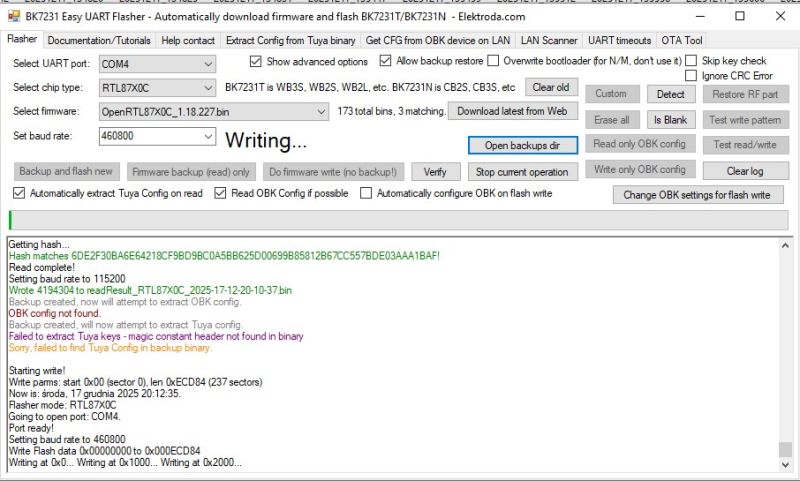
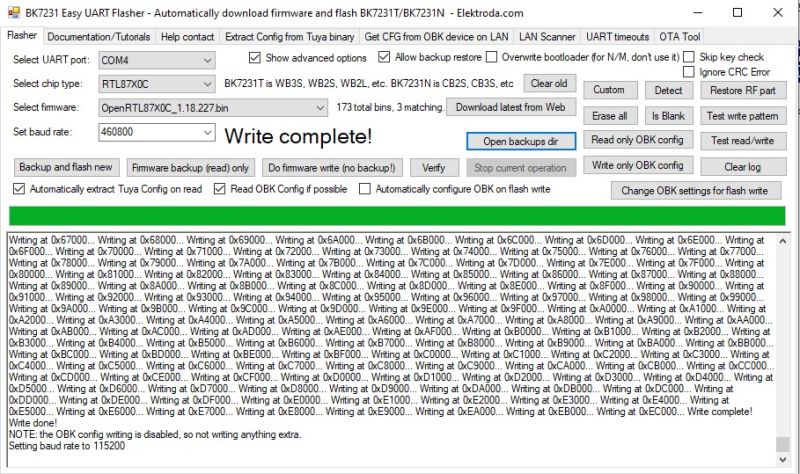
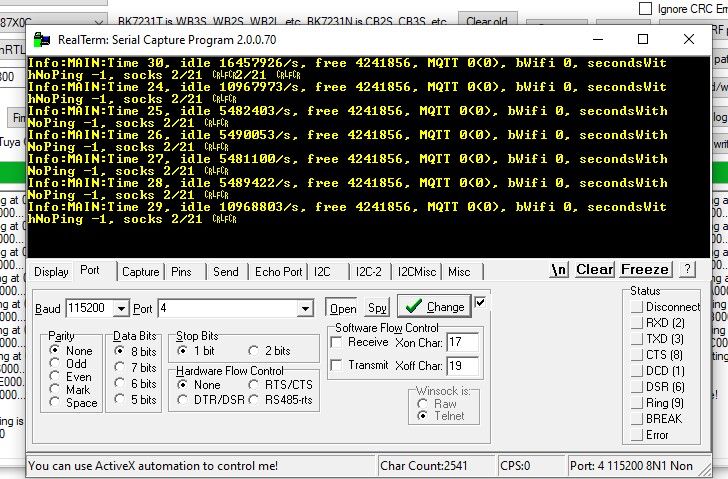
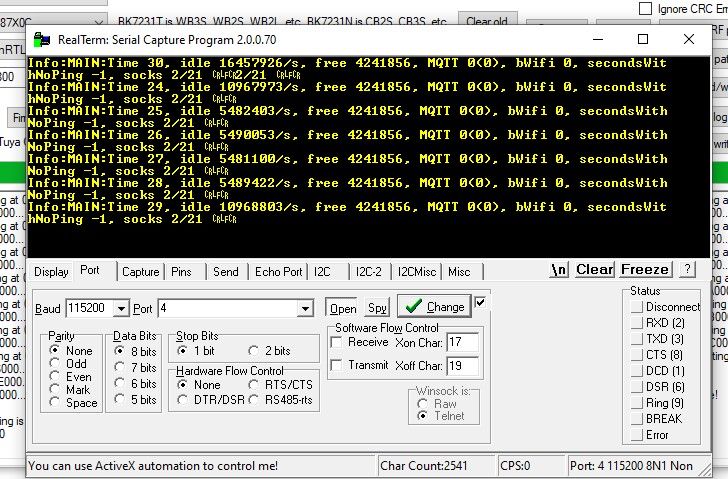
Flashing is now done. You can disconnect extra boot GPIO pins from 3.3V and power cycle the module. Then you should be able to see OBK logs at 115200 at the same UART port you used for flashing:
 Initial setup
Just like with every other
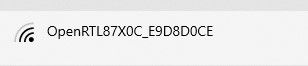
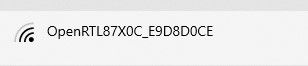
OBK device. Connect to configuration AP:
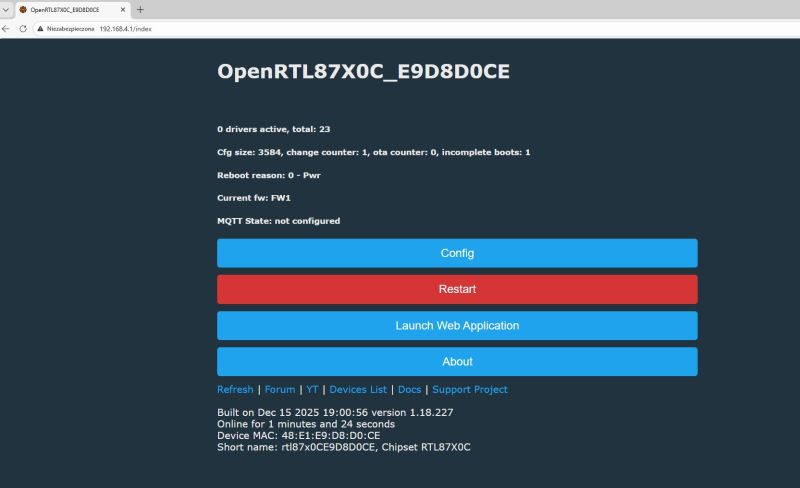
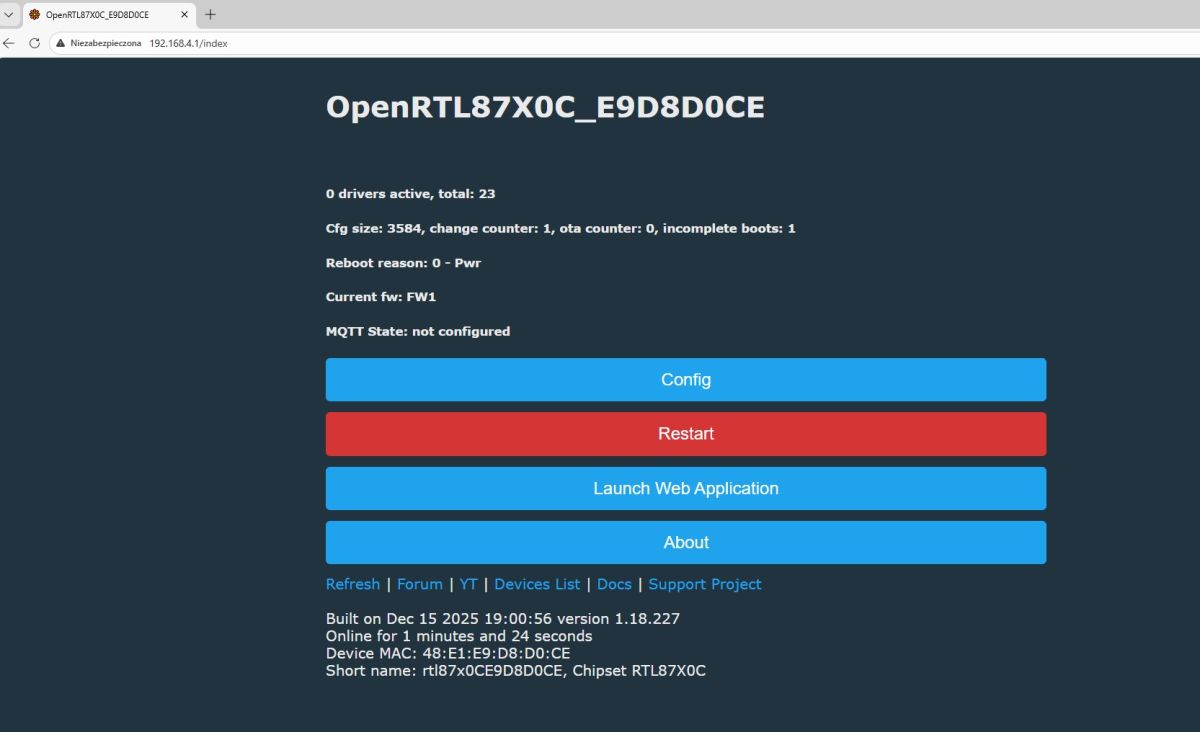
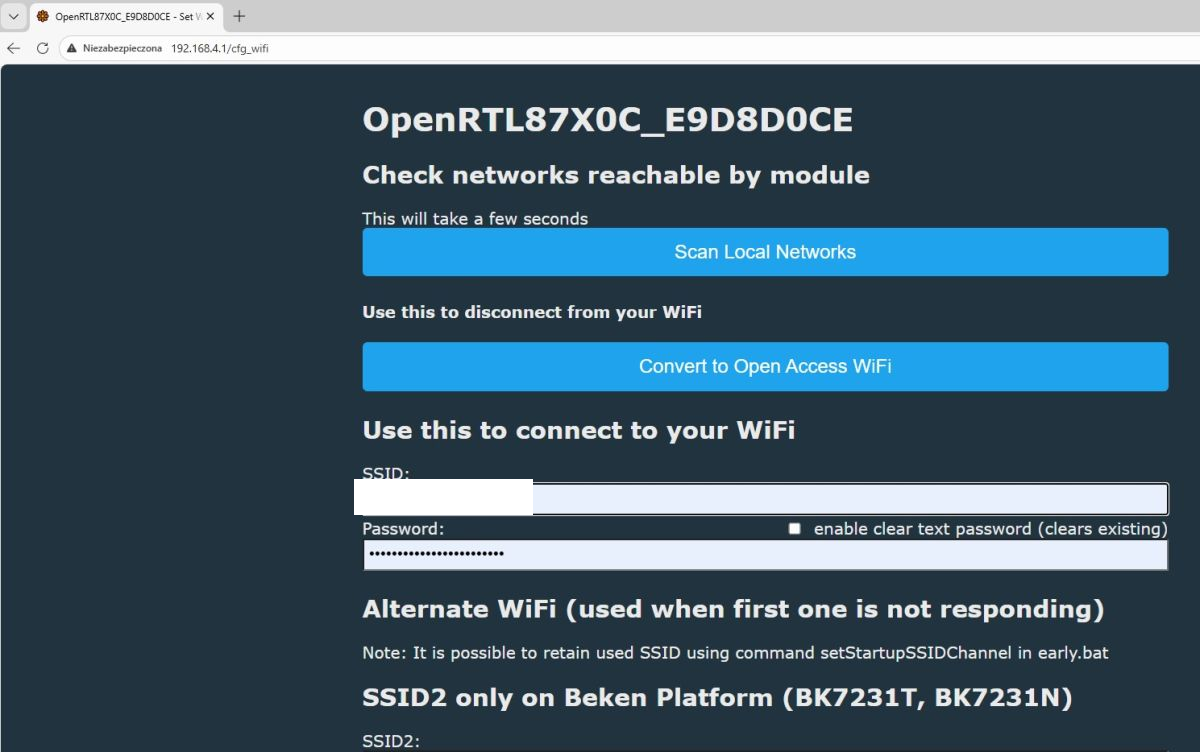
Open the page at 192.168.4.1, configure the WiFi:
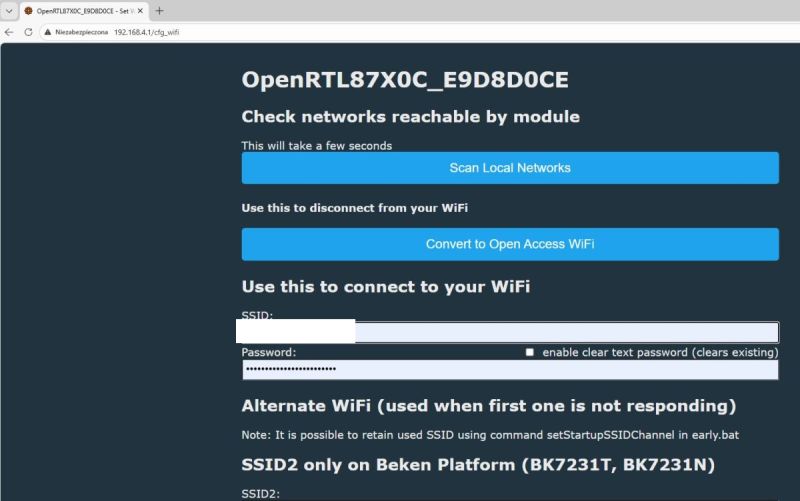
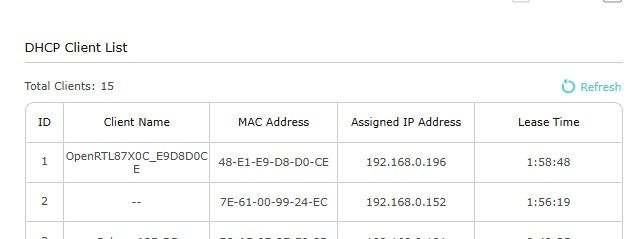
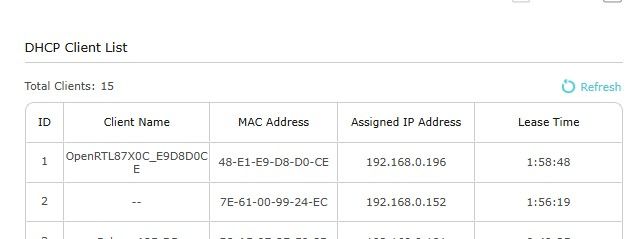
Device should join your network:
Now, if you are sure that it works, solder back the WiFi module to the device, disconnect the whole UART, and power it from mains.
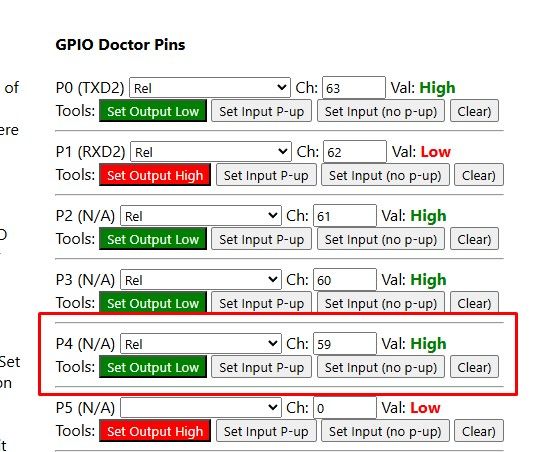
Then you can use GPIO Doctor to figure out GPIO roles:
https://www.elektroda.com/rtvforum/topic3976371.html
GPIODoctor can find a relay pin quickly. Just listen and toggle each pin, you'll hear the relay click:
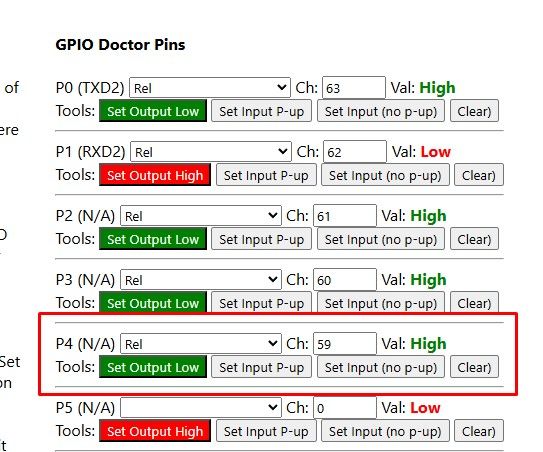
For button, set pin input roles and press button and see what changes:

OBK template:
Pairing with HA
Follow our guide:
Summary
So that's how you can flash RTL8710CM with our
multiplatform open source firmware. No need for third-party flasher tools, just use
our flasher and your device will be ready to go. Then you can configure it easily with GPIO doctor and pair with Home Assistant.
Let us know if you have any questions, we'll do our best to help!
PS: Original firmware backup:
https://github.com/openshwprojects/FlashDumps/commit/049388d70921ee03a60a56b3b969fcba5280a842








Comments