
logo elektroda
logo elektroda
X
logo elektroda

Tutorial mqtt.js, the Javascript MQTT client - how to connect your browser to Home Assistant

p.kaczmarek2 675 2
ADVERTISEMENT
This content has been translated flag-pl » flag-en View the original version here
📢 Listen (AI):
  • Tutorial mqtt.js, the Javascript MQTT client - how to connect your browser to Home Assistant
    Here I will show how to easily establish a connection to an MQTT broker from a web browser. I will use an off-the-shelf MQTT library that connects to the broker via a WebSocket mechanism and demonstrate how it can be used to receive and send data via Mosquitto installed together with Home Assistant.

    Note: This presentation is about JS scripts running on the client side, i.e. in the browser itself. No Node.js or any similar mechanisms are needed here. All you need is a bulk HTML file running without any server, this will even work with static hosting such as GH Pages from GitHub.
    Web browsers do not offer the possibility to establish a direct connection over TCP, so MQTT.js uses a mechanism called WebSocket. Fortunately, Mosquitto from HA used for presentations also supports WebSockets, although you may need to configure this in mosquitto.conf.

    Note - the full code is in the appendix!

    We start the adventure in HTML code - you can help yourself here with AI tools, so that you can quickly assemble the whole thing based on ready-made CSS styles, for example from Bootstrap. However, we are interested in MQTT itself. We include the library first:
    Code: HTML, XML
    Log in, to see the code

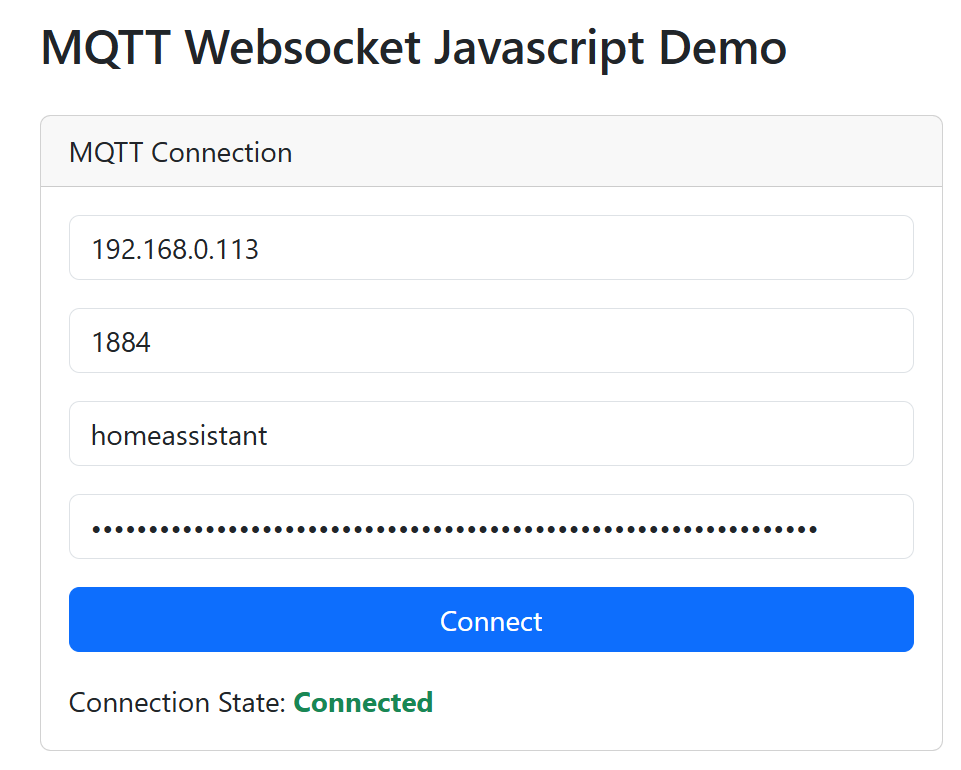
    Here you will need to provide the username and password for our MQTT server. Note that everything will be visible in the page source to the client, so this approach won't work in some situations, but here I don't see it as a problem. I simply gave the user a field to enter their own information:
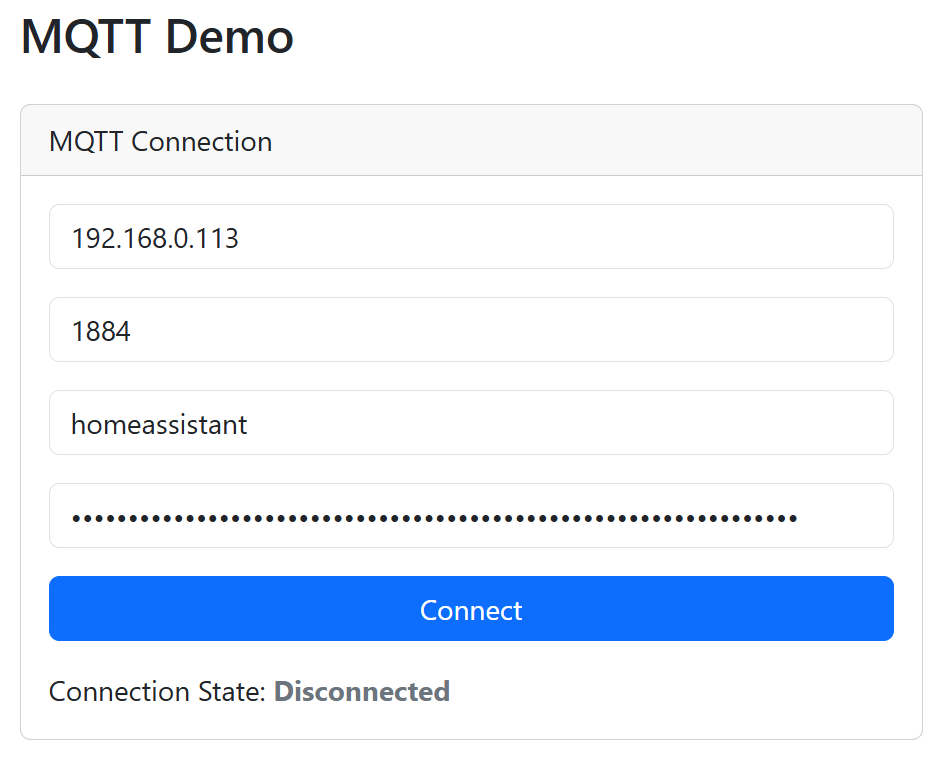
    Tutorial mqtt.js, the Javascript MQTT client - how to connect your browser to Home Assistant
    Now you have to handle the 'Connect' button, i.e. make the connection. The whole thing boils down to retrieving data from the DOM objects at the time of clicking:
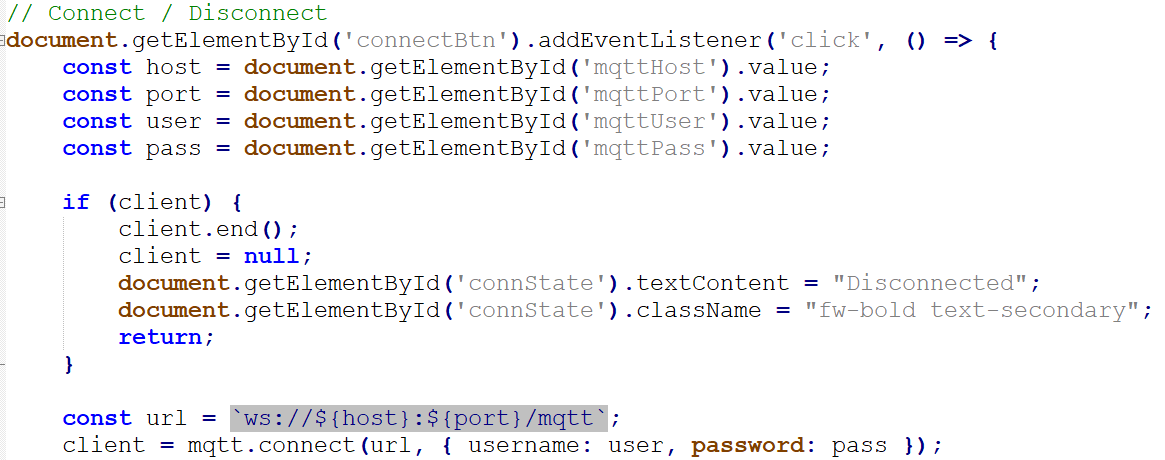
    Tutorial mqtt.js, the Javascript MQTT client - how to connect your browser to Home Assistant
    The link is created with the ws prefix, which is the WebSocket standard. A username and password are given as arguments. Once the connection is initiated (the connect function is non-blocking), callbacks can be set to handle various MQTT events. Here is an example implementation for a demo site:
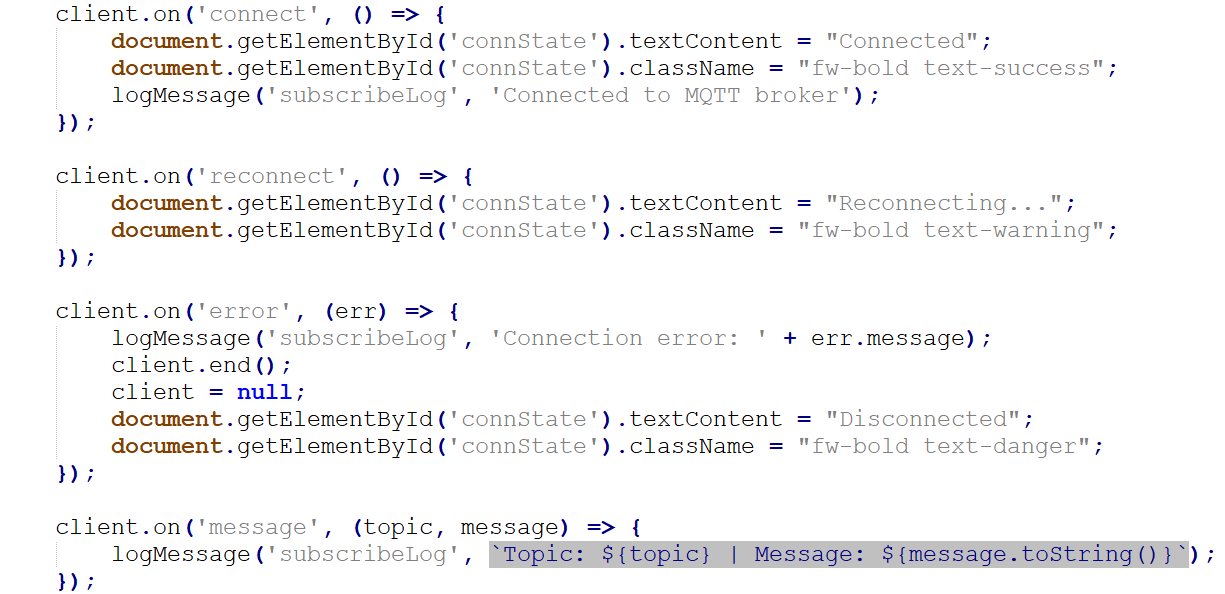
    Tutorial mqtt.js, the Javascript MQTT client - how to connect your browser to Home Assistant
    That leaves two operations that cannot be done via callbacks. First, the subscription for the topic (start listening):
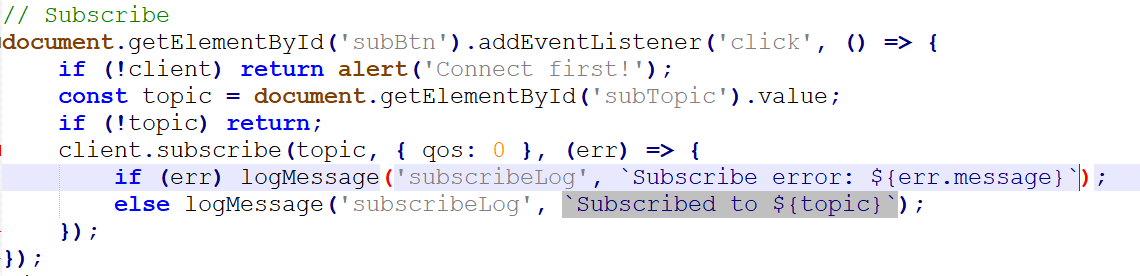
    Tutorial mqtt.js, the Javascript MQTT client - how to connect your browser to Home Assistant
    Then publishing data on the selected topic:
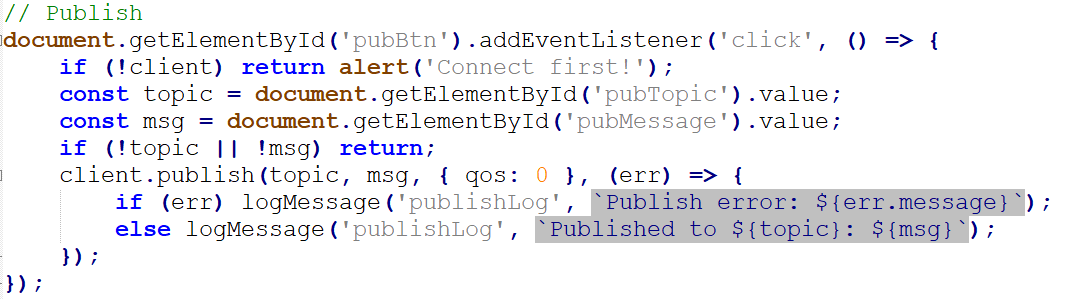
    Tutorial mqtt.js, the Javascript MQTT client - how to connect your browser to Home Assistant
    That's basically all of the implementation.

    Now it's time for demonstrations .
    Firstly the connection - once you have entered the correct details it should all work first time. I didn't have to configure anything in HA, I already had WebSockets support enabled there. I simply specified a port one larger than the one used for MQTT over TCP.
    Tutorial mqtt.js, the Javascript MQTT client - how to connect your browser to Home Assistant
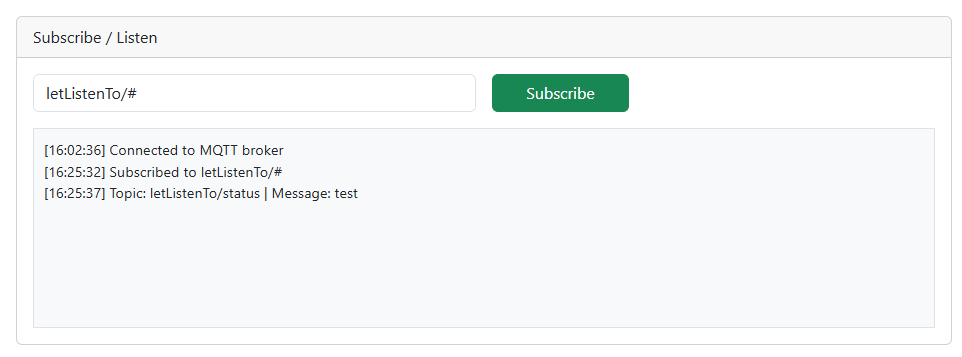
    It is now possible to check that our site can see what Home Assistant publishes:
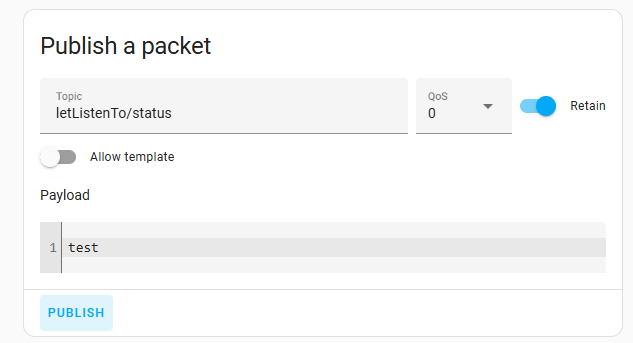
    Tutorial mqtt.js, the Javascript MQTT client - how to connect your browser to Home Assistant
    MQTT subscription interface with topic input and status logs
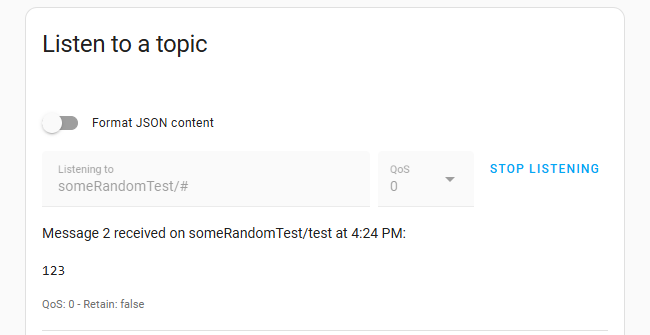
    Then it remains to test the other way - site publishes, HA receives:
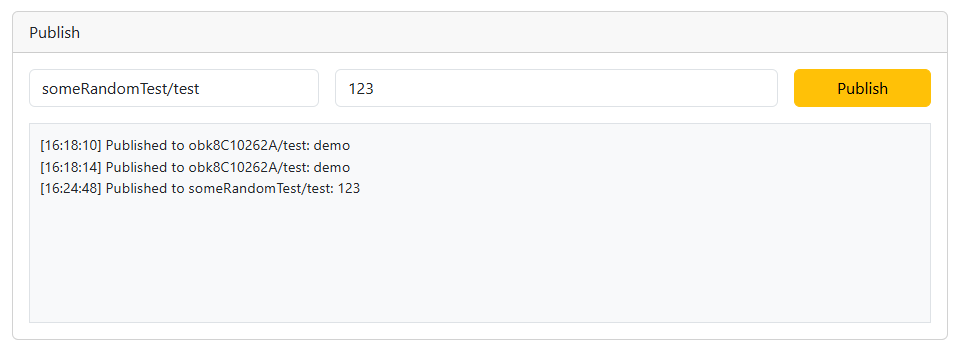
    MQTT publish interface with topic and message fields and a yellow Publish button
    MQTT message received in browser from topic someRandomTest/test

    In summary , the support of the WebSocket standard in MQTT allows us to connect to the broker from a browser. In this way, we obtain full-fledged communication, including the ability to listen and publish data. Executing server-side scripts is then unnecessary - static HTML hosting is sufficient.
    The example shown here could be expanded and made into a full sample device controller, but that's for another time.
    Do you see a use for an MQTT connection established from the browser (client) level?

    Full demo program attached - no server needed, you can download the HTML file and run it loosely from disk, or put it on some static hosting.

    Cool? Ranking DIY
    Helpful post? Buy me a coffee.

    About Author
    p.kaczmarek2
    Moderator Smart Home
    Offline 
    p.kaczmarek2 wrote 13211 posts with rating 11031, helped 611 times. Been with us since 2014 year.
  • ADVERTISEMENT
  • #2 21729640
    krzbor
    Level 28  
    p.kaczmarek2 wrote:
    This will need to include the username and password for our MQTT server. Note that everything will be visible in the page source to the client, so this approach won't work in some situations, but here I don't see it as a problem.

    This is the biggest problem with this solution. It is suitable for testing, but for "production" use even at home it is dangerous. I in my solution used PHP, which is responsible for communicating with the MQTT server. HTML/Javascript only communicate with the PHP script, which hides the login, password and even the Mosquito IP.
  • #3 21729806
    krru
    Level 33  
    >>21729640 a few months ago I rebuilt my weather station, built on malinca from a unified program into a set of three services communicating over MQTT. One of these services is a simple web server - it handles static files and provides 1 endpoint that redirects the mosquitto websocket. The internal communication itself goes directly over the port from MQTT, the websocket is an additional interface that has its own configuration where you can define which messages it can accept and which it can send. This ensures that there is limited access from the outside. In principle a separate websocket server is not necessary because mosquitto itself can share files, but it works poorly.
    The first service reads the sensor, does some elementary averaging and sends the current results every 10 seconds or so. The second reads these results and records min, max, average and creates a history, the third is the web server already described. All logic and display graphics are in web files - HTML, CSS and js.
    I wrote this with a lot of help from Gemini, but made sure it was 'my way'. The programs use mosquitto in different ways: some asynchronously (mosquitto has its own thread) others synchronously on select.
📢 Listen (AI):
ADVERTISEMENT