







Teardown of 3-Pack LSC GU10 Smart LED Bulbs (3208076.1)
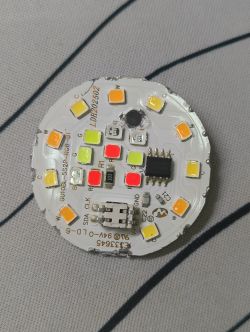
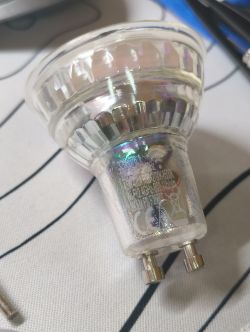
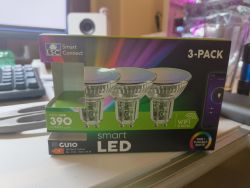
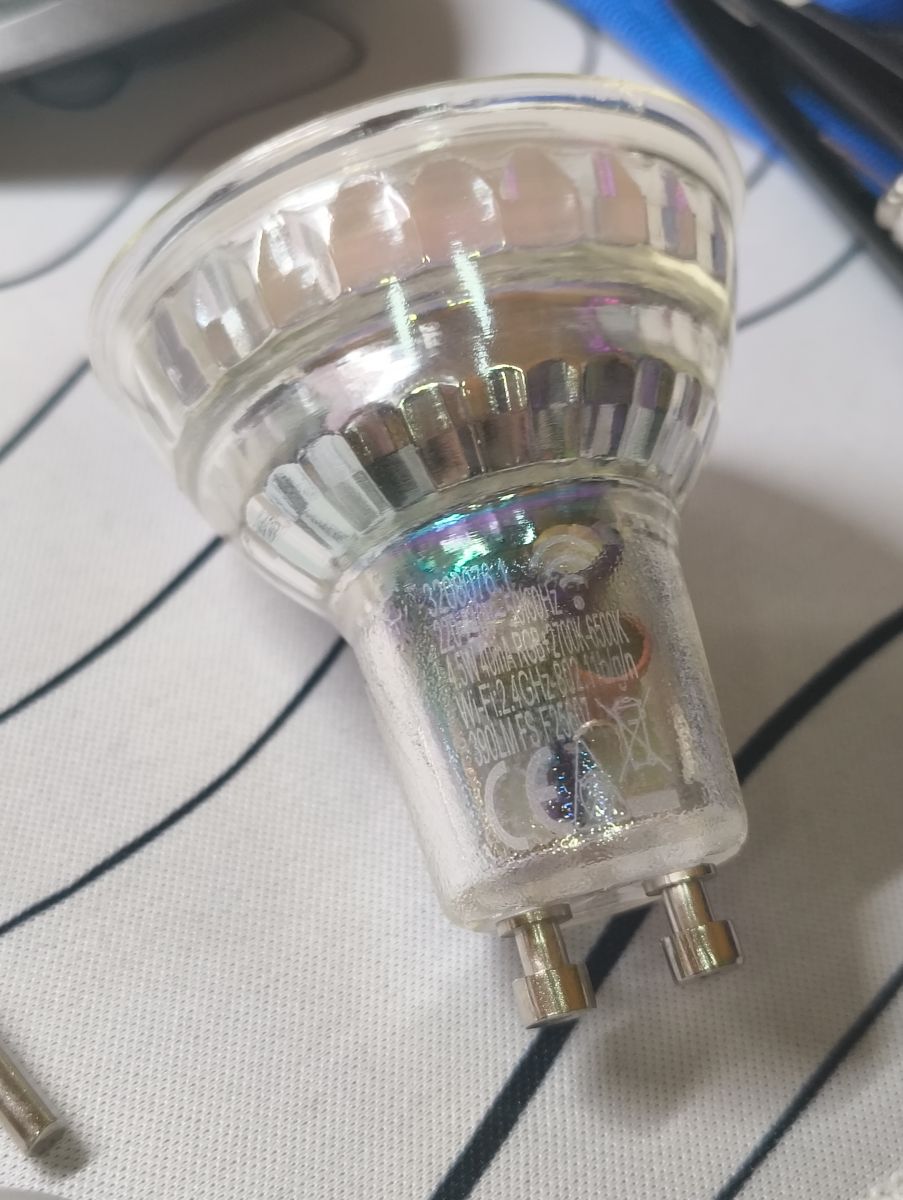
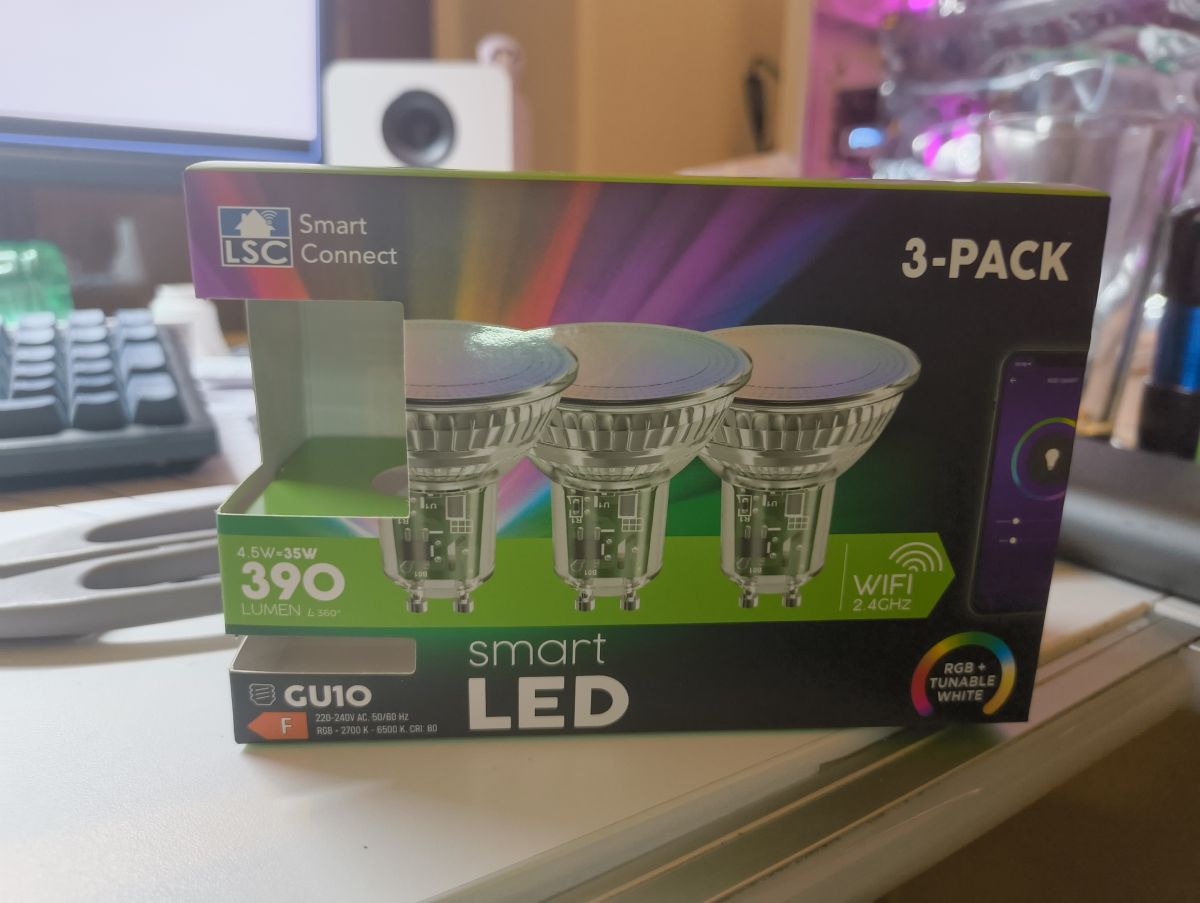
This is a Teardown and some findings on the "new" 3-Pack LSC GU10 bulbs. Also some general findings on LSC bulbs.
!! WARNING !! If you attempt to disassemble these bulbs be aware that it won't be easy. Not only because the whole body of the GU10 bulb is made of glass but also because you have to use excessive force to get the components out of the bulb.
ALSO: Soldering to the T1 and R1 Pads is much much harder as with the "normal" E27 Bulbs from LSC (also 3-Pack) since directly in front of the pads we need to access are multiple capacitors.
Continue at your own risk!
With that said...
If you are wondering why i wrote "new" 3-Pack:
LSC at first sold a lot of smart bulbs in single packs. All of those had different chips and a older firmware vulnerable to cloudcutter.
With time they patched their firmware and started selling 3-Packs of a lot of bulbs which by now follow pretty much the same pattern:
- They come preflashed with Firmware v1.6.0 which is patched against cloudcutter
- They now use the BK7231N Chip
- Also of course they use the famous SM2185N I2C chip which has it's clock wired to P26 and data wired to P24. The clock also runs at 50 kHz which i will show later on how to set in the config (btw there is already a write-up which these new bulbs basically "follow" -> https://www.elektroda.com/news/news4159679.html)
So first of all disassembly:
I will describe what worked best for me. If you find something that is easier feel free to leave a comment under this post
If you want to follow along you will need these things:
- small precision flat head screwdriver
- tweezers (preferably rounded - see images below)
- IPA (isopropyl alcohol) - optional but makes removal of glued in components easier
- UART USB Cable, 3.3V Power Supply and Soldering iron to attach cables and flash custom firmware to the chip
The first thing you will need to remove is the plastic disk covering the LED PCB.
Make sure to enjoy it!
This will be the only easy component to remove in the whole disassembly xD
You should be able to feel the gap between the plastic and the glass edge with your fingernail. Just stick something flat and pointy in this gap (like a small precision flat head screwdriver) and use the glass edge as leverage point. You will have to use a little bit of force since the plastic disk is lightly glued on.
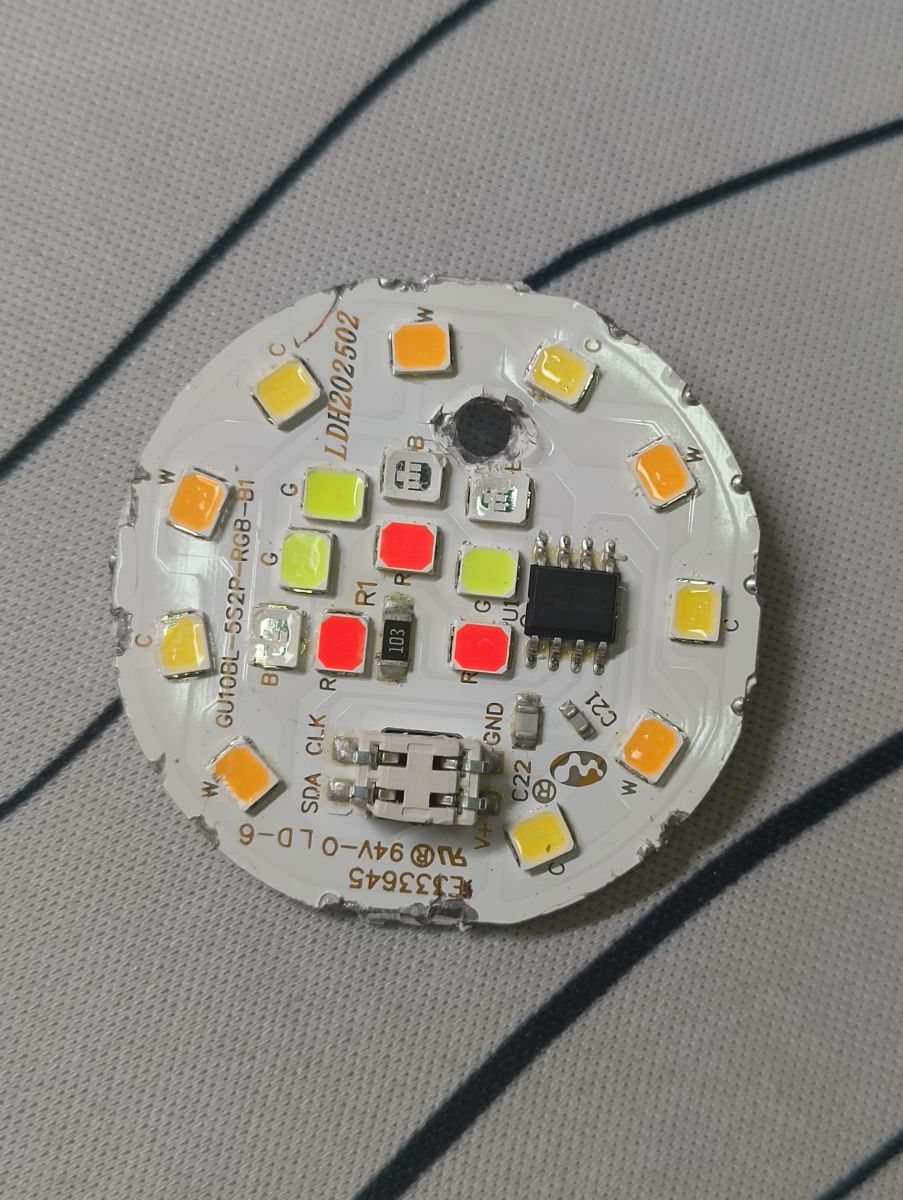
When you done you have this laying in front of you:
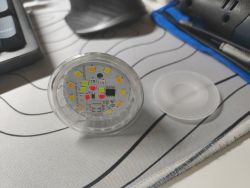
Next step will be the worst:
Getting the LED board out.
This will be really really hard since the LED board is glued onto a 4mm glass lip with silicone.
It will take a lot of time and nerves to get it off.
First of all use something sharp and pointy like some tweezers or a scalpel to scrape around the outside of the LED Board. If you look from the top you can see that there is silicone between the board and the glass wall of the housing which needs to go.
Get as much of as possible by really scraping a couple of times around the board.
The next step is to get the actual board out.
What worked best for me was actually using the flat head screwdriver from before and leveraging the board off BUT sideways!
If you try to leverage the board by basically leaning your screwdriver against the glass you will break the glass your board will still be stuck.
You will need to actually get the screwdriver under your board from the side and leverage it this way.
To explain it a bit better:
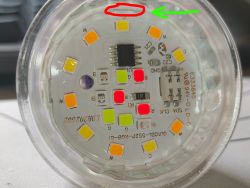
The board has 4 "lips" each facing North, West, South and East.
You need to get your screwdriver under one of those lips from the side (your screwdriver should point the direction of the arrow).
Then once you are under the PCB you can try to slowly leverage it up.
If you are lucky you get it out. If not continue with the one of the other 4 lips.
You will maybe also have more luck if you but a little IPA (isopropyl alcohol) on top of the LED board, hold the bulb at an angle and turn it so the IPA gets to the silicone underneath the board. Let it soak for round about 10 minutes.
Be aware that you probably will damage the LED board a bit on the edge. This is okay since there should be no traces so close to the edge and the better you get your screwdriver under the lip the less likely it is that you break off the lip.
It is also extremely easy to break the glass so be prepared that you will waste one or two bulbs on this.
Now lift the LED board all the way up until its free.
Be careful as it is connected via 4 pins to the main PCB underneath and you don't want to bend them.
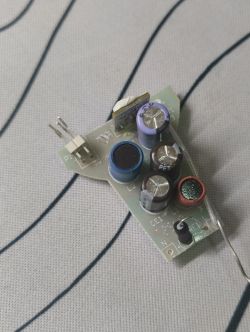
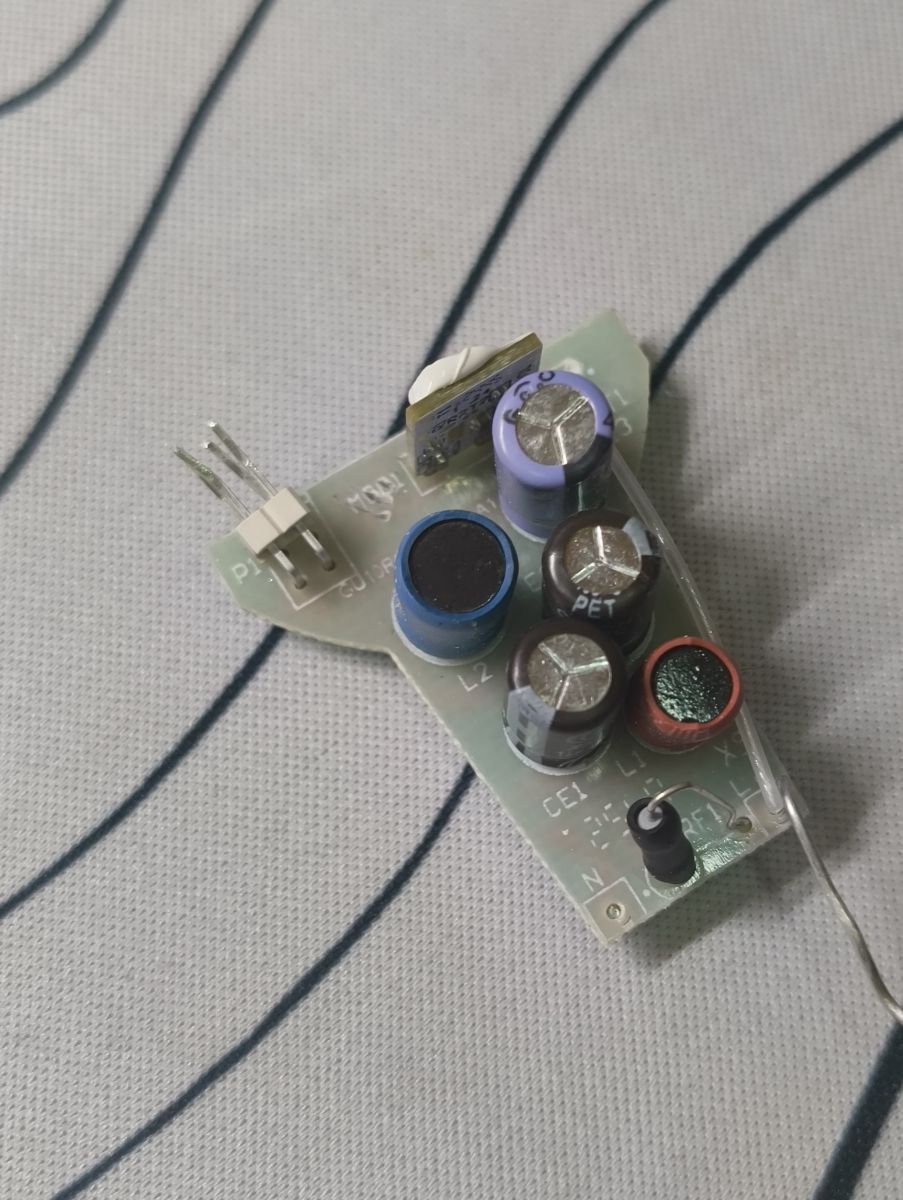
After that you should see the green board with the BK7231N (CBLC5 Module) mounted sideways that is still in the housing.
We actually also need to get this one out since the pads we need to solder to are on the backside xD.
Since the board is somewhat v-shaped you can just use some rounded tweezers to put at the thinner part further down and slowly and carefully wiggle the board out.
It is held in the housing by the two wires at the bottom that connect the board to the terminals. It is quite a tight fit so you will need to be very gentle when pulling them out so you don't damage the board or rip out the wires.
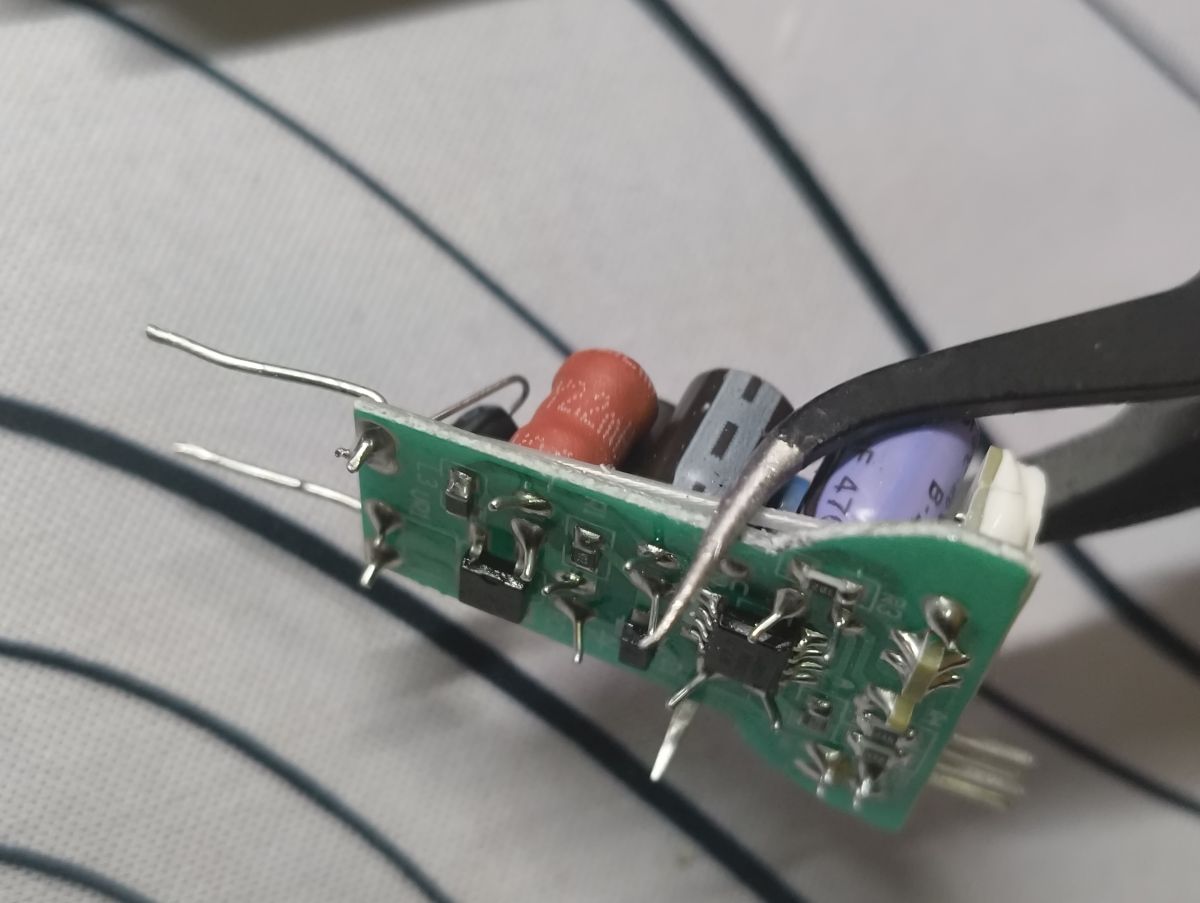
Here you can see the board and how i grab it with my tweezers to get it out of the housing:
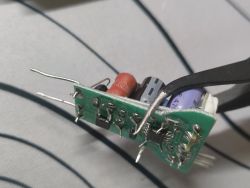
Now the worst part is done. Good job!
Next step: Soldering all the wires we need for UART.
Be aware that the BK7231N Chip only takes 3.3V. Most UART USB Cables output 5V.
Be sure to use a separate power supply that outputs 3.3V and connect the GND Cable of your UART Adapter to it (VCC/5V Cable of the UART Adapter should not be connected to anything!). Connect this shared GND connection to the board as well as the +3.3V from your PSU.
Since the bulb is using the CBLC5 Module you can solder GND and +3.3V according to this schematic from the official Tuya website:
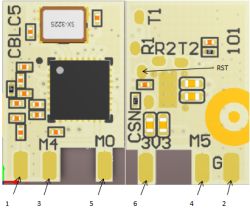
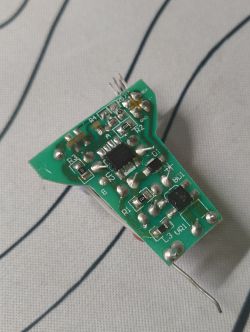
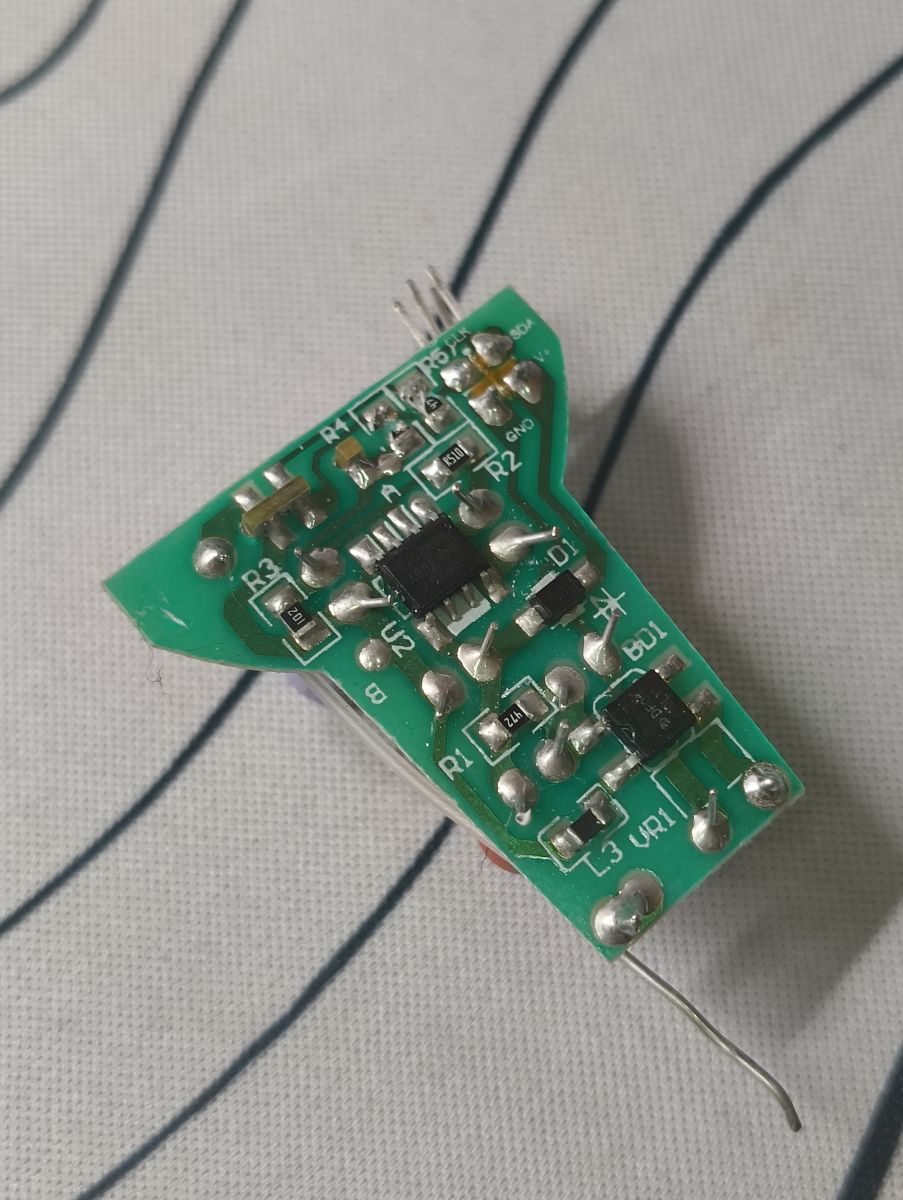
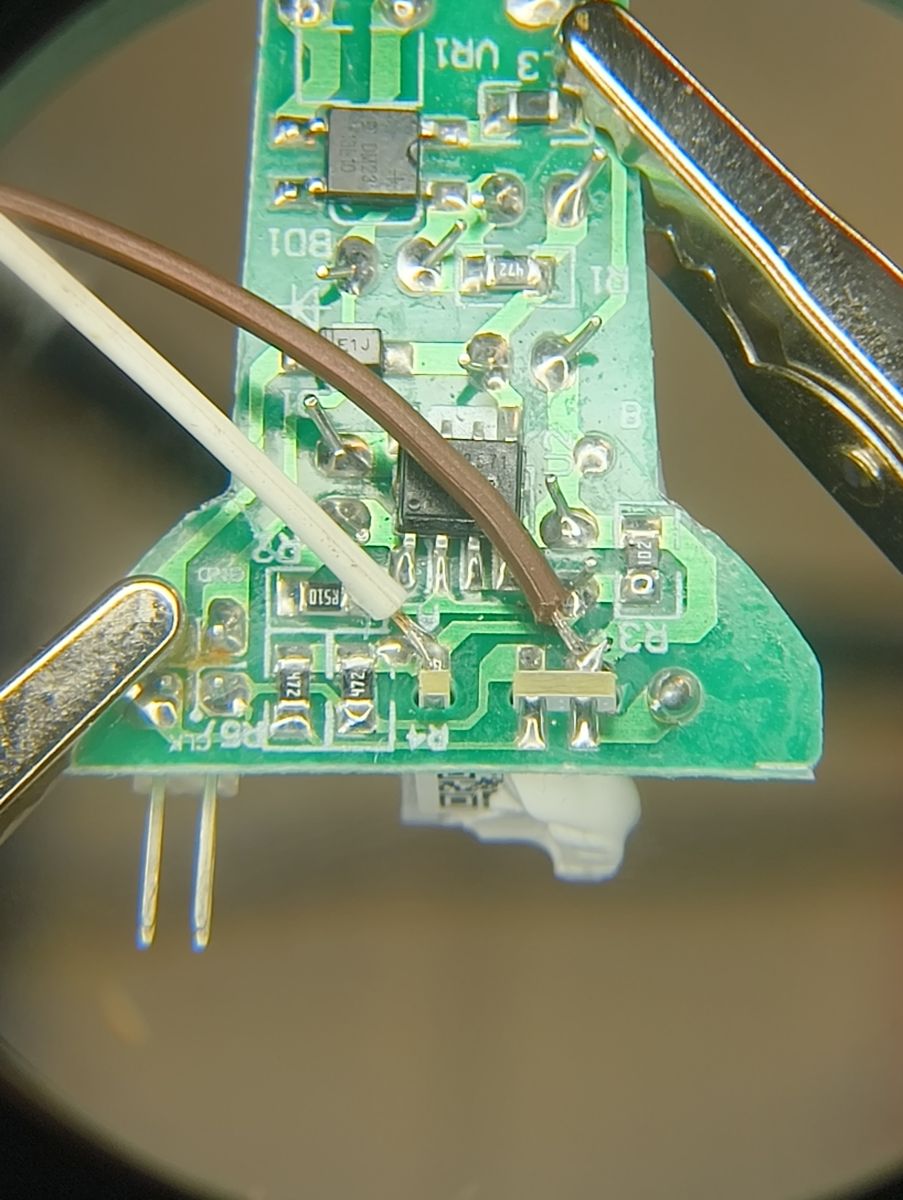
You will find the perfect contact points to solder to on the side that doesn't have capacitors and the CBLC5 Module sticking out (so the flat side is the right side).
Here is a picture:
Brown = GND
White = +3.3V
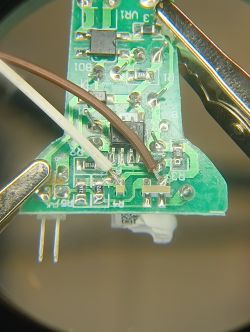
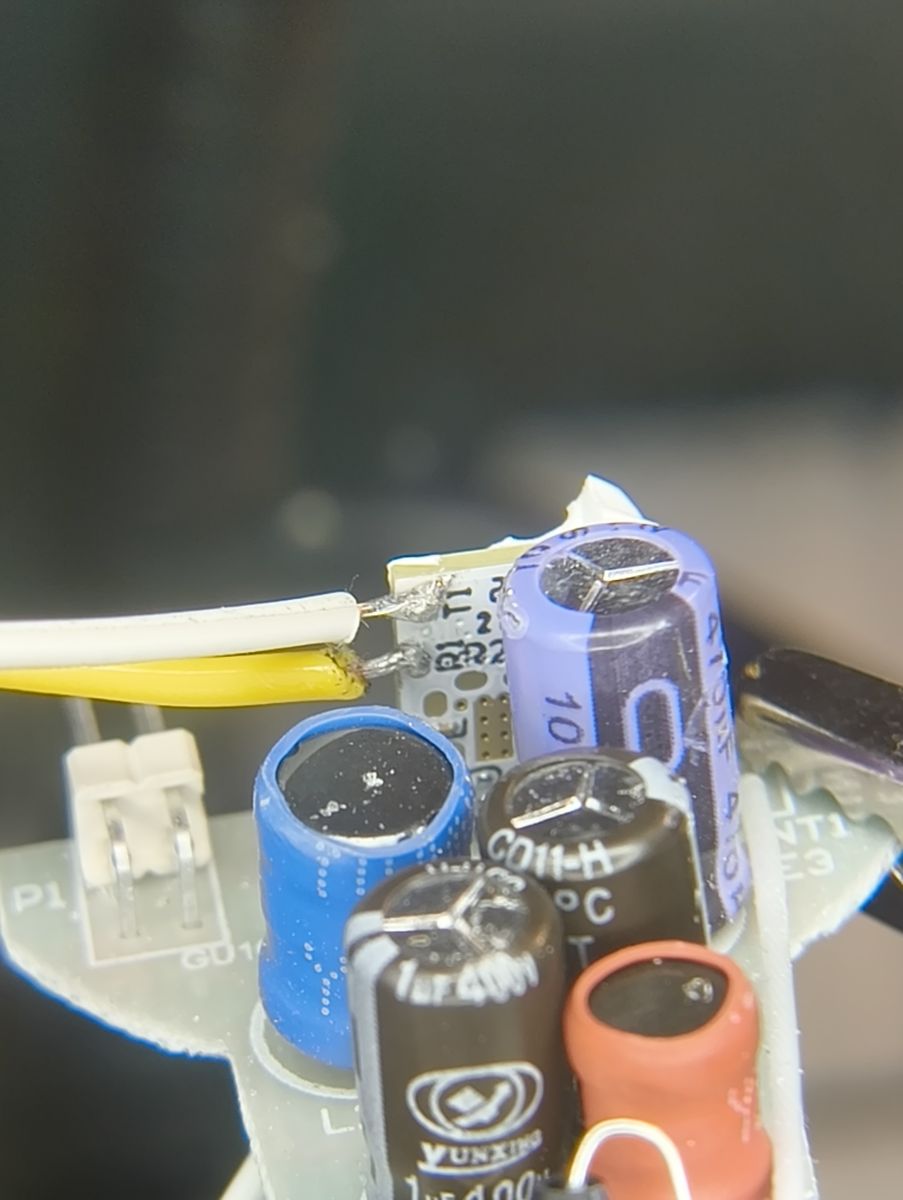
Now on the backside of the CBLC5 Module (white PCB sticking out of the green PCB) hidden by a capacitor you will find T1 (TX) and R1 (RX).
These will be a bit more finicky to solder but not impossible:
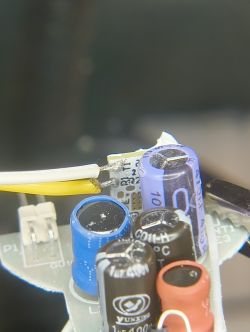
And that's it.
Now flash the board with a tool of your choice. I use BK7231 GUI Flash Tool. If the bulb was fresh out the package you don't need to do anything. It will be able to flash just like that. If somehow it does not you need to take a wire, connect it to ground and touch the other end briefly on the RST pad (pad below R1).
After you are done flashing you need to power off your PSU, unplug the UART cable and disconnect TX and RX.
Then power on your PSU again and log into the WiFi created by your bulb.
After that visit the web app and import following config:
Or do these things:
- Go to Config -> Configure Module -> Set P24 to "SM2235DAT" and P26 to "SM2235CLK" -> Save
- Go to Config -> Change Startup Command Text -> Put in this one then submit:
After that you can turn off your PSU and unsolder all the wires from the board.
Now we would put the green PCB back into the housing. However the holes in the bottom are way to thin for the wires.
The wires could bend easily as we would try to push them back into the terminals.
Because of this what i like to do is actually use a 1.5mm drill bit to make the holes bigger.
Then you can easily push the wires through and just put a little solder on each hole from the outside so they make contact with the terminals.
After that you can put back on the LED board. Make sure the 4 pins align correctly. Then just put the plastic disk back on. It should hold on its own but you can also put a drop of glue on the edge just to be sure.
That's it. Great job and have fun with your new OpenBeken Bulb!
Fun fact:
I took more then one for the team and actually broke a couple of bulbs until i got a good process going. Also the first one because i wanted to see if what was inside was worth my time (chip supported by OpenBeken)
Edit 1:
Corrected the json config, added fields and filled out blank ones.
This is a Teardown and some findings on the "new" 3-Pack LSC GU10 bulbs. Also some general findings on LSC bulbs.
!! WARNING !! If you attempt to disassemble these bulbs be aware that it won't be easy. Not only because the whole body of the GU10 bulb is made of glass but also because you have to use excessive force to get the components out of the bulb.
ALSO: Soldering to the T1 and R1 Pads is much much harder as with the "normal" E27 Bulbs from LSC (also 3-Pack) since directly in front of the pads we need to access are multiple capacitors.
Continue at your own risk!
With that said...
If you are wondering why i wrote "new" 3-Pack:
LSC at first sold a lot of smart bulbs in single packs. All of those had different chips and a older firmware vulnerable to cloudcutter.
With time they patched their firmware and started selling 3-Packs of a lot of bulbs which by now follow pretty much the same pattern:
- They come preflashed with Firmware v1.6.0 which is patched against cloudcutter
- They now use the BK7231N Chip
- Also of course they use the famous SM2185N I2C chip which has it's clock wired to P26 and data wired to P24. The clock also runs at 50 kHz which i will show later on how to set in the config (btw there is already a write-up which these new bulbs basically "follow" -> https://www.elektroda.com/news/news4159679.html)
So first of all disassembly:
I will describe what worked best for me. If you find something that is easier feel free to leave a comment under this post
If you want to follow along you will need these things:
- small precision flat head screwdriver
- tweezers (preferably rounded - see images below)
- IPA (isopropyl alcohol) - optional but makes removal of glued in components easier
- UART USB Cable, 3.3V Power Supply and Soldering iron to attach cables and flash custom firmware to the chip
The first thing you will need to remove is the plastic disk covering the LED PCB.
Make sure to enjoy it!
This will be the only easy component to remove in the whole disassembly xD
You should be able to feel the gap between the plastic and the glass edge with your fingernail. Just stick something flat and pointy in this gap (like a small precision flat head screwdriver) and use the glass edge as leverage point. You will have to use a little bit of force since the plastic disk is lightly glued on.
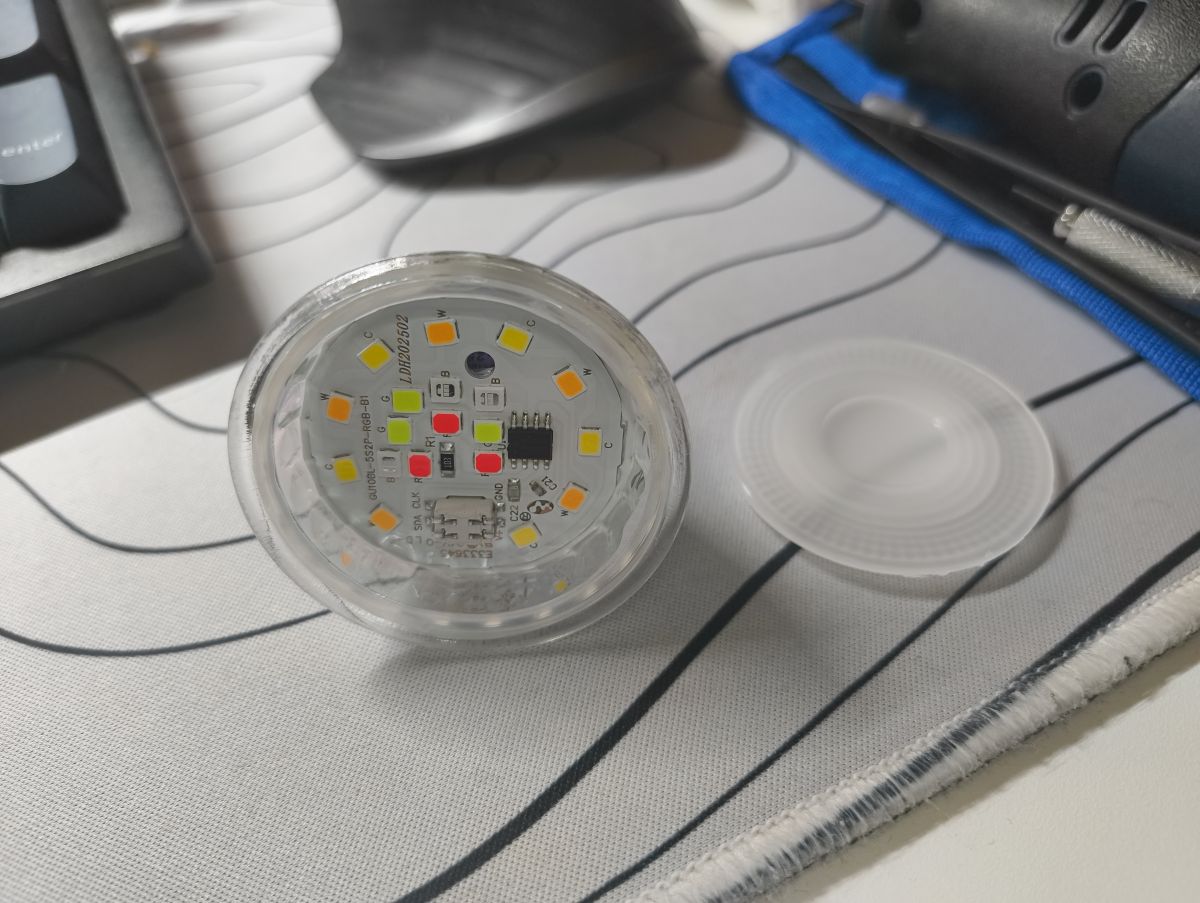
When you done you have this laying in front of you:
Next step will be the worst:
Getting the LED board out.
This will be really really hard since the LED board is glued onto a 4mm glass lip with silicone.
It will take a lot of time and nerves to get it off.
First of all use something sharp and pointy like some tweezers or a scalpel to scrape around the outside of the LED Board. If you look from the top you can see that there is silicone between the board and the glass wall of the housing which needs to go.
Get as much of as possible by really scraping a couple of times around the board.
The next step is to get the actual board out.
What worked best for me was actually using the flat head screwdriver from before and leveraging the board off BUT sideways!
If you try to leverage the board by basically leaning your screwdriver against the glass you will break the glass your board will still be stuck.
You will need to actually get the screwdriver under your board from the side and leverage it this way.
To explain it a bit better:
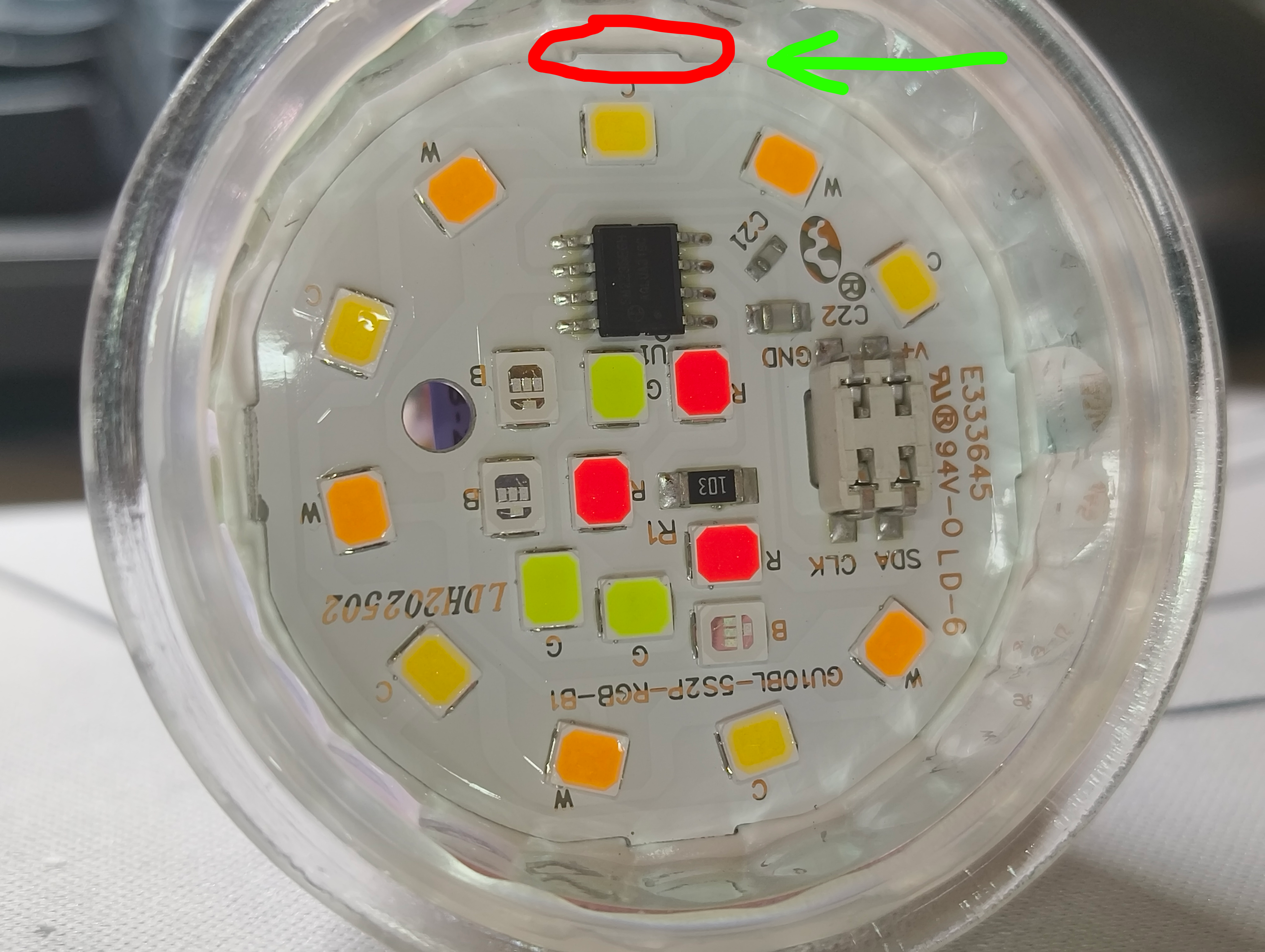
The board has 4 "lips" each facing North, West, South and East.
You need to get your screwdriver under one of those lips from the side (your screwdriver should point the direction of the arrow).
Then once you are under the PCB you can try to slowly leverage it up.
If you are lucky you get it out. If not continue with the one of the other 4 lips.
You will maybe also have more luck if you but a little IPA (isopropyl alcohol) on top of the LED board, hold the bulb at an angle and turn it so the IPA gets to the silicone underneath the board. Let it soak for round about 10 minutes.
Be aware that you probably will damage the LED board a bit on the edge. This is okay since there should be no traces so close to the edge and the better you get your screwdriver under the lip the less likely it is that you break off the lip.
It is also extremely easy to break the glass so be prepared that you will waste one or two bulbs on this.
Now lift the LED board all the way up until its free.
Be careful as it is connected via 4 pins to the main PCB underneath and you don't want to bend them.
After that you should see the green board with the BK7231N (CBLC5 Module) mounted sideways that is still in the housing.
We actually also need to get this one out since the pads we need to solder to are on the backside xD.
Since the board is somewhat v-shaped you can just use some rounded tweezers to put at the thinner part further down and slowly and carefully wiggle the board out.
It is held in the housing by the two wires at the bottom that connect the board to the terminals. It is quite a tight fit so you will need to be very gentle when pulling them out so you don't damage the board or rip out the wires.
Here you can see the board and how i grab it with my tweezers to get it out of the housing:
Now the worst part is done. Good job!
Next step: Soldering all the wires we need for UART.
Be aware that the BK7231N Chip only takes 3.3V. Most UART USB Cables output 5V.
Be sure to use a separate power supply that outputs 3.3V and connect the GND Cable of your UART Adapter to it (VCC/5V Cable of the UART Adapter should not be connected to anything!). Connect this shared GND connection to the board as well as the +3.3V from your PSU.
Since the bulb is using the CBLC5 Module you can solder GND and +3.3V according to this schematic from the official Tuya website:
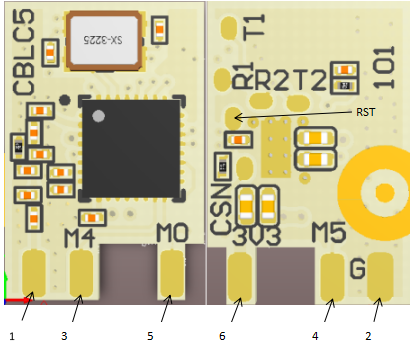
You will find the perfect contact points to solder to on the side that doesn't have capacitors and the CBLC5 Module sticking out (so the flat side is the right side).
Here is a picture:
Brown = GND
White = +3.3V
Now on the backside of the CBLC5 Module (white PCB sticking out of the green PCB) hidden by a capacitor you will find T1 (TX) and R1 (RX).
These will be a bit more finicky to solder but not impossible:
And that's it.
Now flash the board with a tool of your choice. I use BK7231 GUI Flash Tool. If the bulb was fresh out the package you don't need to do anything. It will be able to flash just like that. If somehow it does not you need to take a wire, connect it to ground and touch the other end briefly on the RST pad (pad below R1).
After you are done flashing you need to power off your PSU, unplug the UART cable and disconnect TX and RX.
Then power on your PSU again and log into the WiFi created by your bulb.
After that visit the web app and import following config:
Code: JSON
Or do these things:
- Go to Config -> Configure Module -> Set P24 to "SM2235DAT" and P26 to "SM2235CLK" -> Save
- Go to Config -> Change Startup Command Text -> Put in this one then submit:
Code: Text
After that you can turn off your PSU and unsolder all the wires from the board.
Now we would put the green PCB back into the housing. However the holes in the bottom are way to thin for the wires.
The wires could bend easily as we would try to push them back into the terminals.
Because of this what i like to do is actually use a 1.5mm drill bit to make the holes bigger.
Then you can easily push the wires through and just put a little solder on each hole from the outside so they make contact with the terminals.
After that you can put back on the LED board. Make sure the 4 pins align correctly. Then just put the plastic disk back on. It should hold on its own but you can also put a drop of glue on the edge just to be sure.
That's it. Great job and have fun with your new OpenBeken Bulb!
Fun fact:
I took more then one for the team and actually broke a couple of bulbs until i got a good process going. Also the first one because i wanted to see if what was inside was worth my time (chip supported by OpenBeken)
Edit 1:
Corrected the json config, added fields and filled out blank ones.
Cool? Ranking DIY
