
I'm hoping this post, and the script herein, will be useful to anyone unsure about posting BL602, LN882H, BK7231N, BK7231T etc factory firmware backup/dump binary files anywhere public, eg these forums on Elektroda.
Factory firmware backups can be used to restore devices to their original state. This can be useful when, for example:
- troubleshooting RF issues
- to check if an expected or seemingly erroneous behaviour exhibits with factory firmware
- to confirm normal operational behaviour as intended by manufacturer
- to prepare device for resale
- to capture more bi-directional communication data with TuyaMCU device
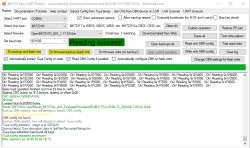
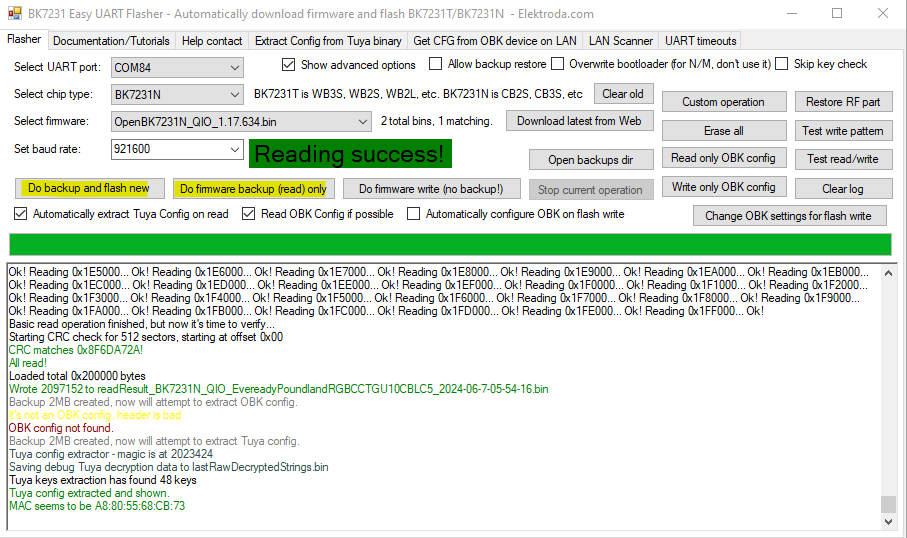
The backup procedure varies depending on the platform, but the easiest and most common (regarding OpenBeken) is with openshwprojects's Easy UART Flasher for Beken BK7321N/BK7231M/BK7231T/T34/BL2028N IoT ICs
Both highlighted buttons in Easy Flasher will create a backup file in the \backups subdirectory of the Easy Flasher root folder.

LN882H and BL602/LF686 backup procedures will, in the vast majority of cases, result in the same 2048KB / 2MB / 2,097,152 bytes sized .bin file.
If the device has already connected to your wifi with an official app, Magic Home, Cozylife, Tuya, Blitzwolf, eWelink etc, then it'll have saved your SSID and wireless password in its memory in order to achieve this. Potentially this data can be read by others if they have access to your firmware backup file.
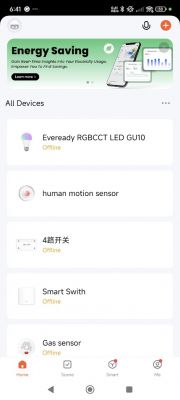
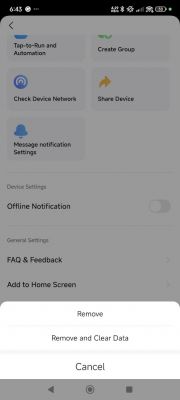
It is sometimes the case that even after factory resetting the device using the Remove Device -> Remove and Clear Data options in the app and/or resetting using the push button reset procedure, that a subsequent firmware backup will contain some identifiable information. I have seen this on a number of occasions. eg https://www.elektroda.com/rtvforum/topic4063490.html
And so, here is how you can check your firmware backups for plain-text credentials in hex. The attached zip file contains a PowerShell script - findstringinbinfiles.ps1 - that can be run to check backups for signs of your wifi SSID or password.
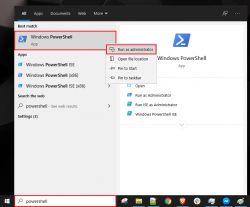
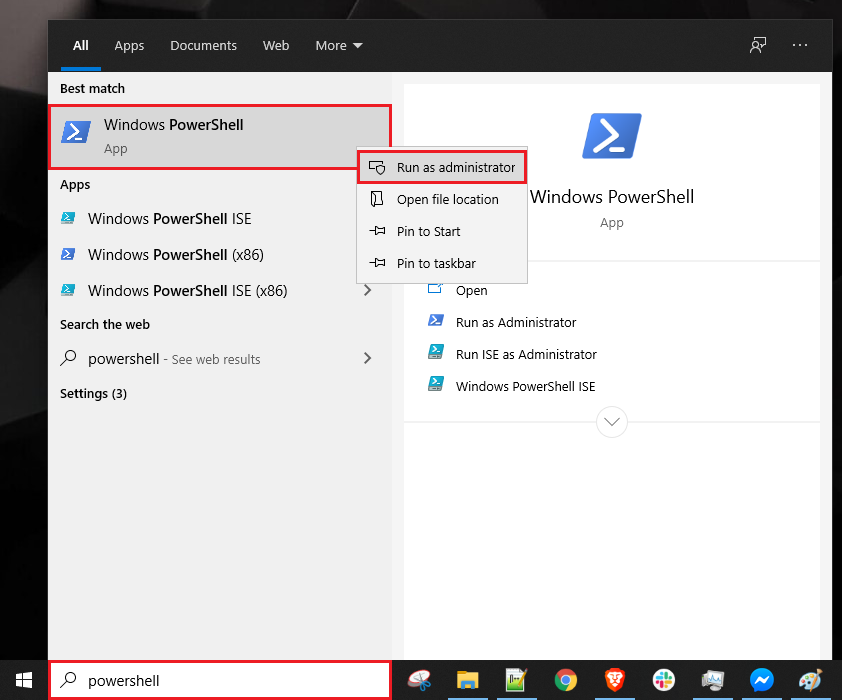
Unzip the PowerShell script to a preferred location, eg c:\scripts. Elevate PowerShell (run as administrator)
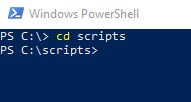
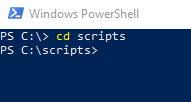
Navigate to where you saved your script
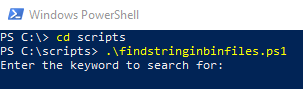
Run the script with command .\findstringinbinfiles.ps1 (or whatever you renamed script to)
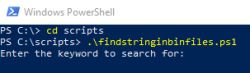
Enter part or whole of SSID or your wifi password used to pair device originally and enter the root folder of your backups when prompted. My test backups are in C:\smartdevices. The search is case-sensitive so enter the exact partial or whole match.

The script will recursively look for all files with extension .bin and return any that contain a match to the keyword entered. My examples:

and now the same with a part-password search

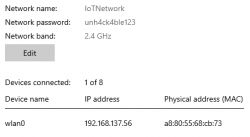
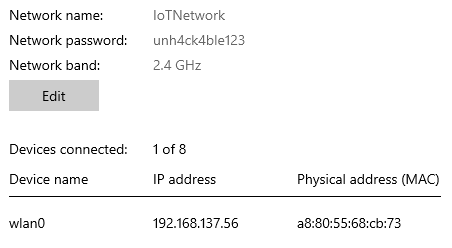
These devices were joined to this test Windows hotspot with the Tuya/MagicHome app before I took a backup
And for a breakdown of how the script works:
#### 1. Function to Convert a Keyword to a Hexadecimal String
- Purpose: This function converts a string (keyword) into its hexadecimal representation.
- Steps:
- Takes an input string.
- Converts the string into an array of bytes using UTF-8 encoding.
- Iterates through each byte, converts it to a two-digit hexadecimal string, and concatenates these hex strings into one final string.
- Returns the complete hexadecimal string.
#### 2. Prompt User for a Keyword
- Purpose: Prompts the user to enter a keyword which will be searched for in the binary files.
#### 3. Convert the Keyword to a Hexadecimal String Pattern
- Purpose: Converts the user-entered keyword into a hexadecimal string pattern.
- Steps:
- Calls the `Convert-StringToHex` function to convert the keyword into a hex string.
- Converts the hex string into a byte array by splitting the string into pairs of hex digits prefixed with `0x`.
#### 4. Prompt User for a Location to Search
- Purpose: Prompts the user to enter the directory location where the search should be conducted. The search will be recursive, meaning it will include all subdirectories.
#### 5. Function to Search for a Byte Pattern Within a File's Byte Array
- Purpose: Checks if a specified byte pattern exists within a file's byte content.
- Steps:
- Takes the file content (as a byte array) and the pattern to search for (also as a byte array).
- Iterates through the file content to find a match for the pattern.
- If the pattern is found, returns `true`; otherwise, returns `false`.
#### 6. Search All .bin Files for the Pattern in the Specified Location
- Purpose: Searches all `.bin` files in the specified directory (and subdirectories) for the byte pattern corresponding to the keyword.
- Steps:
- Retrieves all `.bin` files in the specified location recursively.
- Reads the content of each file into a byte array.
- Uses the `Find-PatternInFile` function to check if the byte pattern is present in the file.
- If the pattern is found, outputs the file path where the pattern was found.
#### 7. Indicate Search Completion
- Purpose: Prints a message indicating that the search process has completed.
### Summary
This script allows the user to search for a specific keyword within `.bin` files in a specified directory. It converts the keyword into a hexadecimal byte pattern and checks each `.bin` file in the directory (and subdirectories) for this pattern. If the pattern is found in a file, it outputs the file's path.
In conclusion, I hope this doesn't stop anyone posting backup files but just raises awareness of what they might contain. I hope this demonstrates it's easy to check for personal information in these backups. It may mean a little more work to re-flash/re-pair to a test network, one where you don't care if the credentials are retrievable by others. Yes, it's also easy to load the bin file into HxD and do a manual search, but if you're like me and have a collection of backups, the script is useful for searching them all at once. It's also good to see which firmwares might contain similar AT commands or other strings when researching capabilities and exploits.
I guess it's all about risk management, maybe no one would care to take the effort to find where your network is broadcasting and travel to the vicinity. But then maybe your wifi password is also a password you use elsewhere...
Factory firmware backups can be used to restore devices to their original state. This can be useful when, for example:
- troubleshooting RF issues
- to check if an expected or seemingly erroneous behaviour exhibits with factory firmware
- to confirm normal operational behaviour as intended by manufacturer
- to prepare device for resale
- to capture more bi-directional communication data with TuyaMCU device
The backup procedure varies depending on the platform, but the easiest and most common (regarding OpenBeken) is with openshwprojects's Easy UART Flasher for Beken BK7321N/BK7231M/BK7231T/T34/BL2028N IoT ICs
Both highlighted buttons in Easy Flasher will create a backup file in the \backups subdirectory of the Easy Flasher root folder.

LN882H and BL602/LF686 backup procedures will, in the vast majority of cases, result in the same 2048KB / 2MB / 2,097,152 bytes sized .bin file.
If the device has already connected to your wifi with an official app, Magic Home, Cozylife, Tuya, Blitzwolf, eWelink etc, then it'll have saved your SSID and wireless password in its memory in order to achieve this. Potentially this data can be read by others if they have access to your firmware backup file.
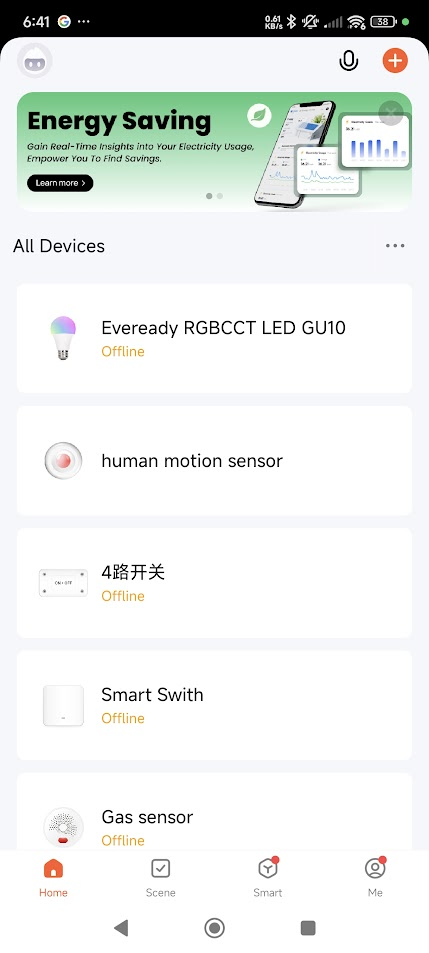
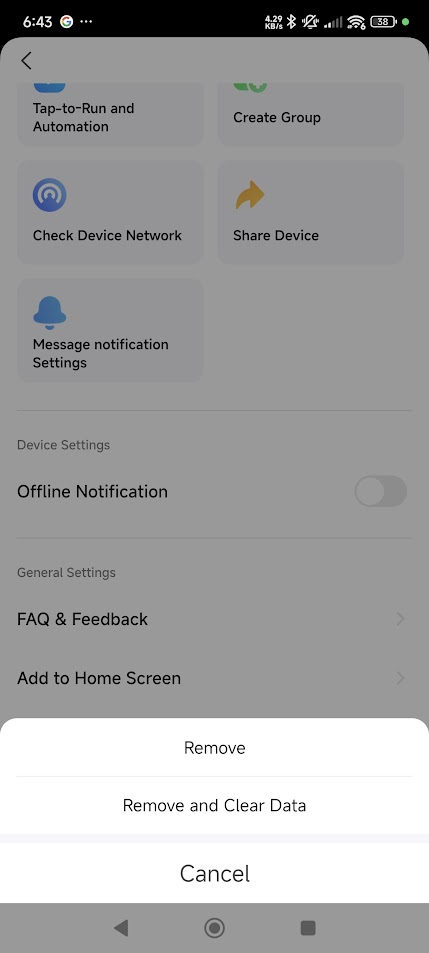
It is sometimes the case that even after factory resetting the device using the Remove Device -> Remove and Clear Data options in the app and/or resetting using the push button reset procedure, that a subsequent firmware backup will contain some identifiable information. I have seen this on a number of occasions. eg https://www.elektroda.com/rtvforum/topic4063490.html
And so, here is how you can check your firmware backups for plain-text credentials in hex. The attached zip file contains a PowerShell script - findstringinbinfiles.ps1 - that can be run to check backups for signs of your wifi SSID or password.
Unzip the PowerShell script to a preferred location, eg c:\scripts. Elevate PowerShell (run as administrator)
Navigate to where you saved your script
Run the script with command .\findstringinbinfiles.ps1 (or whatever you renamed script to)
Enter part or whole of SSID or your wifi password used to pair device originally and enter the root folder of your backups when prompted. My test backups are in C:\smartdevices. The search is case-sensitive so enter the exact partial or whole match.

The script will recursively look for all files with extension .bin and return any that contain a match to the keyword entered. My examples:

and now the same with a part-password search

These devices were joined to this test Windows hotspot with the Tuya/MagicHome app before I took a backup
And for a breakdown of how the script works:
#### 1. Function to Convert a Keyword to a Hexadecimal String
Code: Powershell
- Purpose: This function converts a string (keyword) into its hexadecimal representation.
- Steps:
- Takes an input string.
- Converts the string into an array of bytes using UTF-8 encoding.
- Iterates through each byte, converts it to a two-digit hexadecimal string, and concatenates these hex strings into one final string.
- Returns the complete hexadecimal string.
#### 2. Prompt User for a Keyword
Code: Powershell
- Purpose: Prompts the user to enter a keyword which will be searched for in the binary files.
#### 3. Convert the Keyword to a Hexadecimal String Pattern
Code: Powershell
- Purpose: Converts the user-entered keyword into a hexadecimal string pattern.
- Steps:
- Calls the `Convert-StringToHex` function to convert the keyword into a hex string.
- Converts the hex string into a byte array by splitting the string into pairs of hex digits prefixed with `0x`.
#### 4. Prompt User for a Location to Search
Code: Powershell
- Purpose: Prompts the user to enter the directory location where the search should be conducted. The search will be recursive, meaning it will include all subdirectories.
#### 5. Function to Search for a Byte Pattern Within a File's Byte Array
Code: Powershell
- Purpose: Checks if a specified byte pattern exists within a file's byte content.
- Steps:
- Takes the file content (as a byte array) and the pattern to search for (also as a byte array).
- Iterates through the file content to find a match for the pattern.
- If the pattern is found, returns `true`; otherwise, returns `false`.
#### 6. Search All .bin Files for the Pattern in the Specified Location
Code: Powershell
- Purpose: Searches all `.bin` files in the specified directory (and subdirectories) for the byte pattern corresponding to the keyword.
- Steps:
- Retrieves all `.bin` files in the specified location recursively.
- Reads the content of each file into a byte array.
- Uses the `Find-PatternInFile` function to check if the byte pattern is present in the file.
- If the pattern is found, outputs the file path where the pattern was found.
#### 7. Indicate Search Completion
Code: Powershell
- Purpose: Prints a message indicating that the search process has completed.
### Summary
This script allows the user to search for a specific keyword within `.bin` files in a specified directory. It converts the keyword into a hexadecimal byte pattern and checks each `.bin` file in the directory (and subdirectories) for this pattern. If the pattern is found in a file, it outputs the file's path.
In conclusion, I hope this doesn't stop anyone posting backup files but just raises awareness of what they might contain. I hope this demonstrates it's easy to check for personal information in these backups. It may mean a little more work to re-flash/re-pair to a test network, one where you don't care if the credentials are retrievable by others. Yes, it's also easy to load the bin file into HxD and do a manual search, but if you're like me and have a collection of backups, the script is useful for searching them all at once. It's also good to see which firmwares might contain similar AT commands or other strings when researching capabilities and exploits.
I guess it's all about risk management, maybe no one would care to take the effort to find where your network is broadcasting and travel to the vicinity. But then maybe your wifi password is also a password you use elsewhere...
Cool? Ranking DIY