







This is a teardown and modding guide to OpenBeken of the Smart Plug Sonoff S61TPF which is available at Amazon for 10,99 € in December 2025.
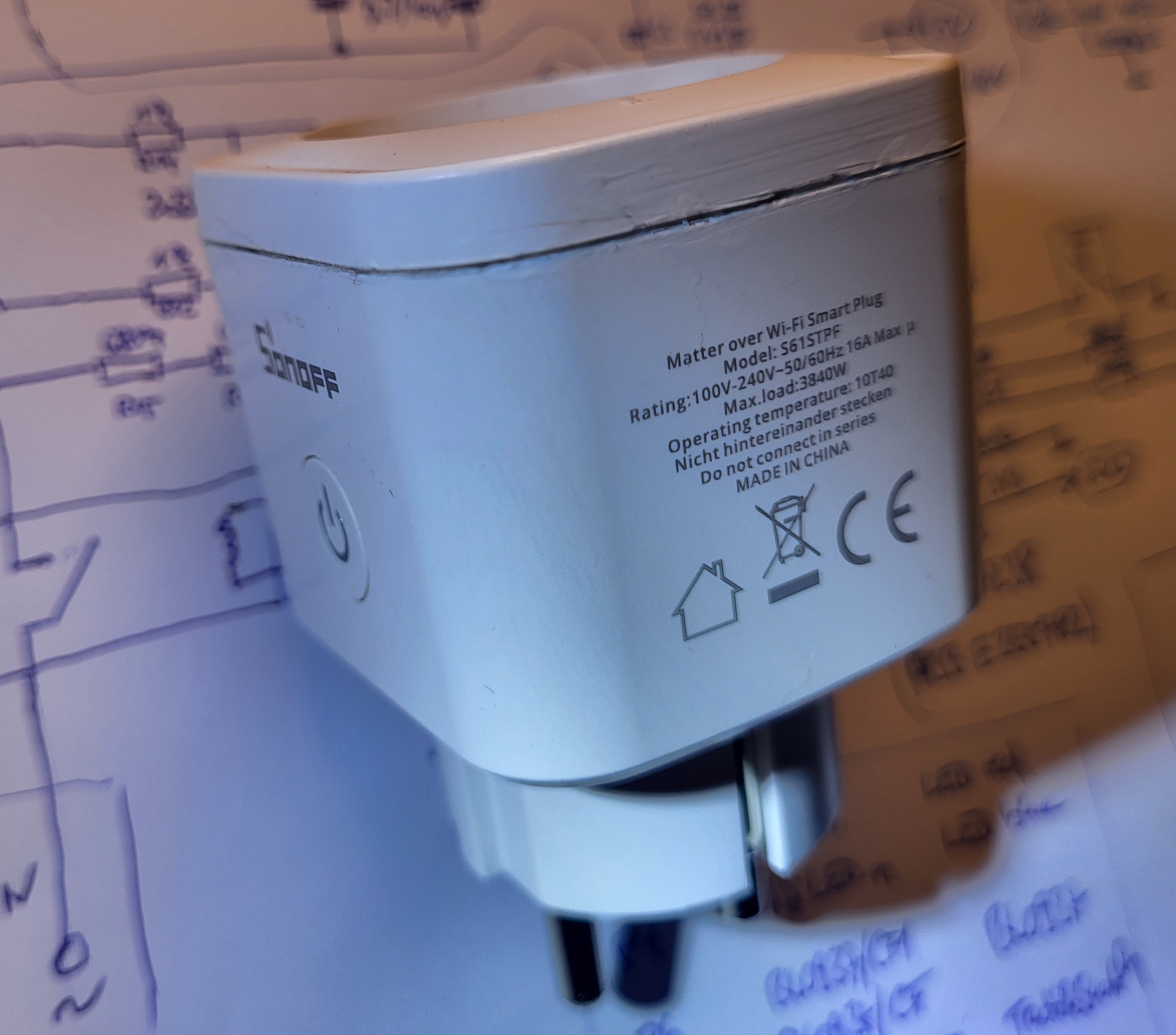
The device looks as follows
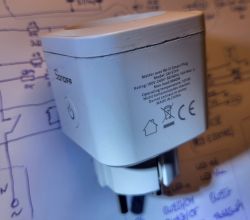
Before starting the teardown: The procedure requires experience in opening plastic housings, soldering, especially desoldering and knowledge about electrical safety. We are handling a power plug for 230 VAC - that is dangerous voltage. Please only open the device if you know, what you do. You should not do it!
Following tools and materials are required:
- a small chisel which you find in smartphone repair tool sets
- a hammer
- a small soldering iron and solder (< 0.7 mm)
- a desoldering pump and some desoldering braid
- a small pliers and a needle-nose pliers
- some cable e.g. 0.14 mm2
- plastic glue for closing the housing
- a breadboard with 3V3 power supply and some patch cables
- a FTDI232 3.3 V USB to serial interface
- the BK7231GUIFlashTool
Ok let's start. For all steps specified you can plan for one hour to complete the conversion of Sonoff's Matter firmware to OpenBeken...
1. Opening the housing
Place the end of the chisel into the slot on the side of the power outlet and give it a short hard hit with the hammer. You should here a crack breaking the glue between power outlet and inlet. Do this in steps around the whole slot of the part. If you feel it cracked several times you can try to use the chisel to leverage it out.
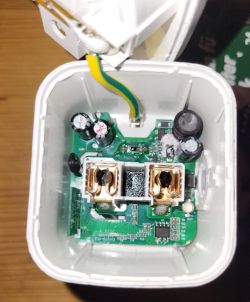
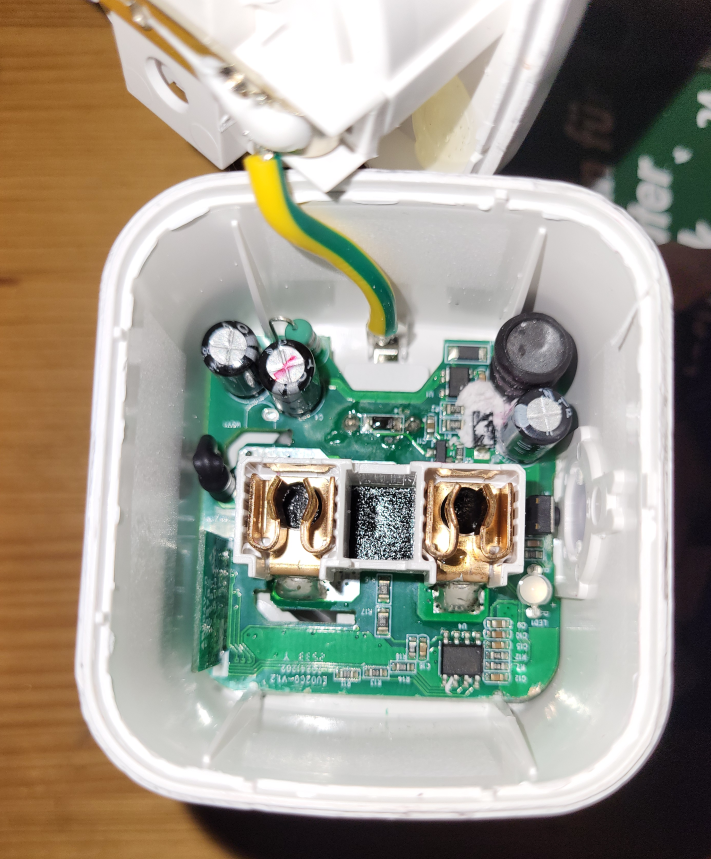
In the open state it looks as following:
2. Removing the socket part
With the help of the soldering iron and a desoldering pump you need to remove the solder from the marked points:
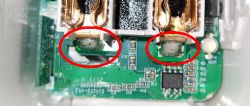
Then grab one side of the socket with the pliers, heat one of the two marked points with the soldering iron, and try to pull out the socket. Once one side has come loose, do the same with the other side.
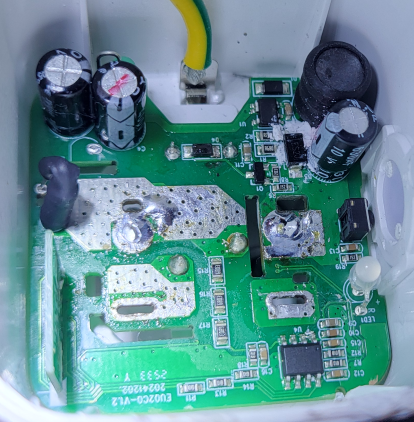
After this it should look as following:
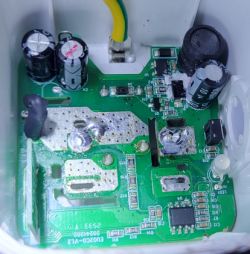
3. Removing the main PCB from the housing
This is the most difficult part - at least it was for me.
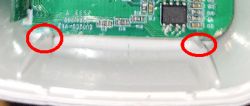
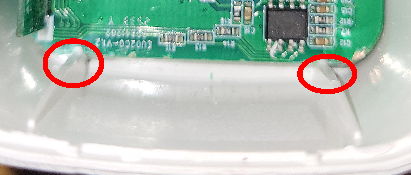
You should start with cutting the two keys on the one side marked to let the PCB being pulled out when loosened the soldering from the plugs pins:
Now remove the solder from the marked locations where the plug pins are soldered into the PCB with the help of the desoldering pump and braid:
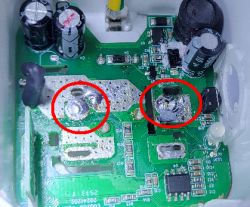
When the solder is sufficiently removed most likely the PCB will still stick to the pins of the plugs. Therefore use the needle-nose pliers to grab the two slotted holes and at the same time heat up the two pin locations with the soldering iron pulling the PCB out. Be careful not to damage the PCB. It needs patience and some force.
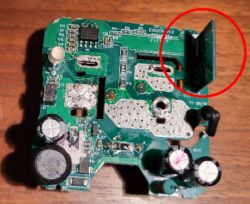
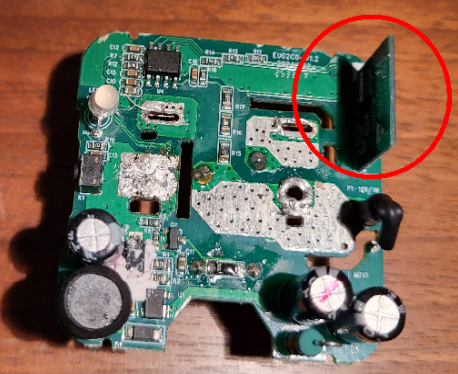
When done you have the full PCB in your hands with the BK7238 microcontroller board marked in following photo:
4. Attaching the programming cables to the microcontroller board
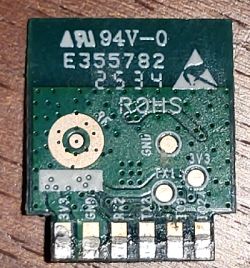
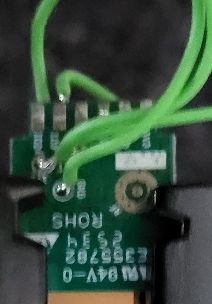
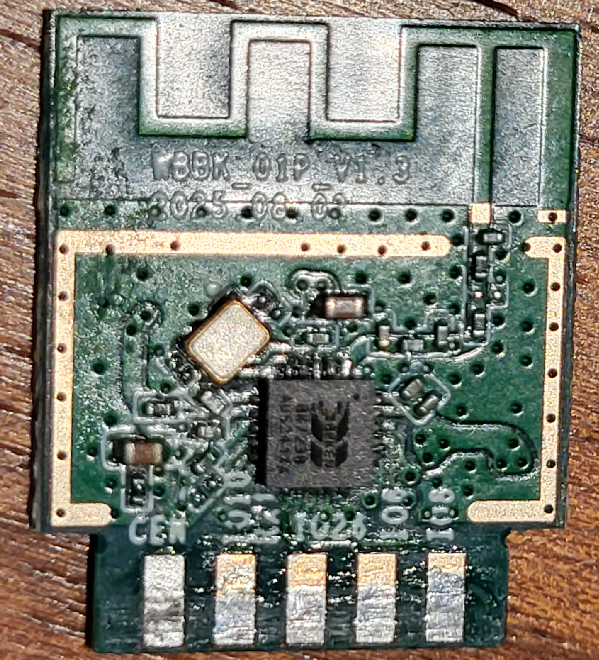
I have removed the microcontroller board - again with soldering iron and the help of desoldering braid - and have attached four appr. 5 cm long cables to the solder eyes marked as GND, 3V3 and TX1 on the one side of the PCB and to RX1 on one of the copper connections.
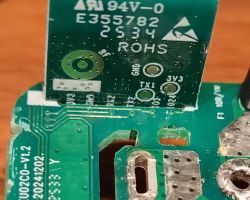
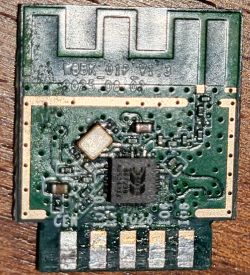
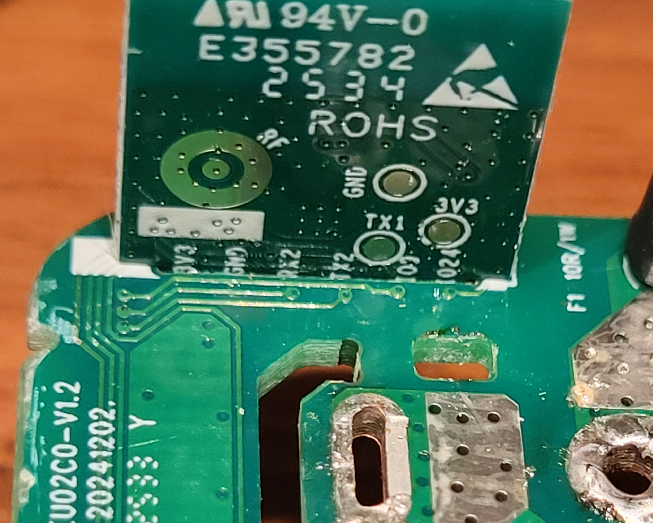
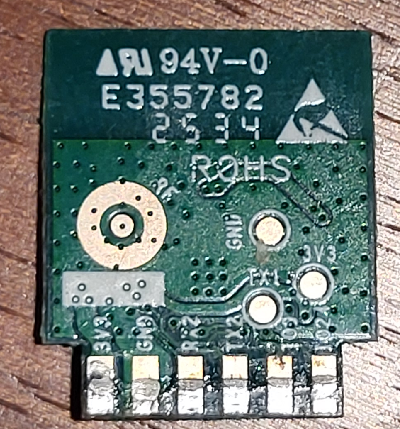
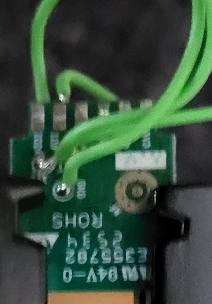
Update after the conversion of the second device: You may leave the microcontroller board soldered to the main board. Just solder the three GND, 3V3 and TX1 cables to the PCB's copper eyes and the one to the RX1 connection on the other side - locate them with the help of the following photos:
5. Flashing OpenBeken
I have used a breadboard with a 3V3 power supply to which I have plugged the microcontroller cables and the FTDI232 and following connections:
[/table:4468996eaf][table:4468996eaf]
Be careful to set the FTDI232 to 3.3V by the use of the correct jumper setting before plugging it to the computer!
- Start the BK7231GUIFlashTool
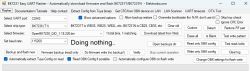
- Select your COM port (normally it auto detects)
- Select chip type BK7238 (T1) and Download latest firmware from web
- Select Backup and flash new
You may need to power cycle the 3.3V power supply before the GUI gets connected with the BK7238.
After this procedure you should have a backup of the original Sonoff firmware and OpenBeken being installed on the device.
6. Re-Solder the microcontroller board
If you have removed the microcontroller board, it's now time to solder it again at its original place.
I have done the following configuration with a 230 V cable being attached to the main board checking all functions during configuration. With the risk that something it is not working it is definiteley safer to assemble everything back to its original state and then doing the configuration!
7. Configuration
When being powered with 3.3V you should be able to "see" the device in your WLAN.
With the help of your smartphone check for this new BK-device and get connected to it to configure your Wifi SSID and password.
After another power cycle the BK7238 should be able to enter your configured WLAN. Check at your router the IP address of the device and use it in your browser to enter the last step of OpenBeken configuration.
This is the template of the OpenBeken configuration:
Update: Meanwhile the template is available on GitHub. Thus, you just retrieve it from the device's Web App template drop down - look for Sonoff S61s....
8. Soldering and mount all components
In the following order you re-assemble everything:
- Solder the microcontroller board to the main board
- Solder mainboard with soldered microcontroller to the plug pins
- Solder the socket to the mainboard
- use the plastic glue and attach the plug back to the housing
Now, you have the smart plug under your full control with the help of OpenBeken. Have fun!
9. Schematics
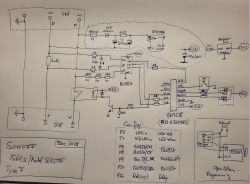
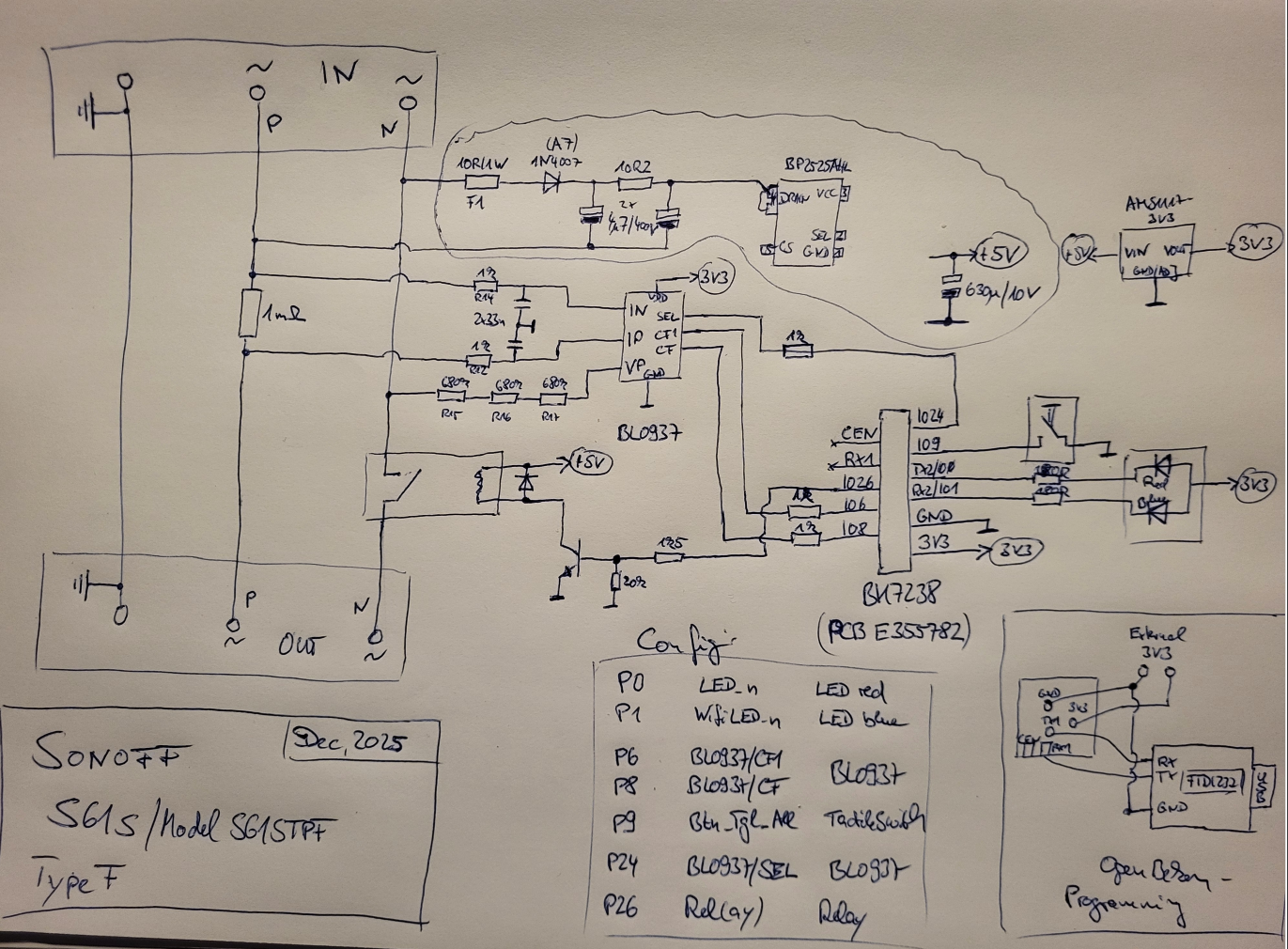
See following schematics which depicts most of the internal wiring - only the 230 VAC to 5 V power supply around the BP2325AHL is not reverse engineered. There is no guarantee for correctness of the other parts! This is just for documenting the status I've got.
The device looks as follows
Before starting the teardown: The procedure requires experience in opening plastic housings, soldering, especially desoldering and knowledge about electrical safety. We are handling a power plug for 230 VAC - that is dangerous voltage. Please only open the device if you know, what you do. You should not do it!
Following tools and materials are required:
- a small chisel which you find in smartphone repair tool sets
- a hammer
- a small soldering iron and solder (< 0.7 mm)
- a desoldering pump and some desoldering braid
- a small pliers and a needle-nose pliers
- some cable e.g. 0.14 mm2
- plastic glue for closing the housing
- a breadboard with 3V3 power supply and some patch cables
- a FTDI232 3.3 V USB to serial interface
- the BK7231GUIFlashTool
Ok let's start. For all steps specified you can plan for one hour to complete the conversion of Sonoff's Matter firmware to OpenBeken...
1. Opening the housing
Place the end of the chisel into the slot on the side of the power outlet and give it a short hard hit with the hammer. You should here a crack breaking the glue between power outlet and inlet. Do this in steps around the whole slot of the part. If you feel it cracked several times you can try to use the chisel to leverage it out.
In the open state it looks as following:
2. Removing the socket part
With the help of the soldering iron and a desoldering pump you need to remove the solder from the marked points:
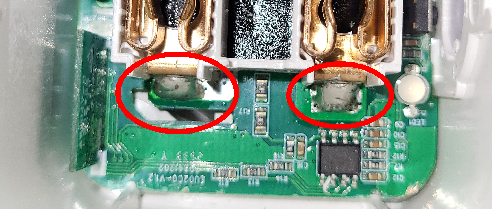
Then grab one side of the socket with the pliers, heat one of the two marked points with the soldering iron, and try to pull out the socket. Once one side has come loose, do the same with the other side.
After this it should look as following:
3. Removing the main PCB from the housing
This is the most difficult part - at least it was for me.
You should start with cutting the two keys on the one side marked to let the PCB being pulled out when loosened the soldering from the plugs pins:
Now remove the solder from the marked locations where the plug pins are soldered into the PCB with the help of the desoldering pump and braid:
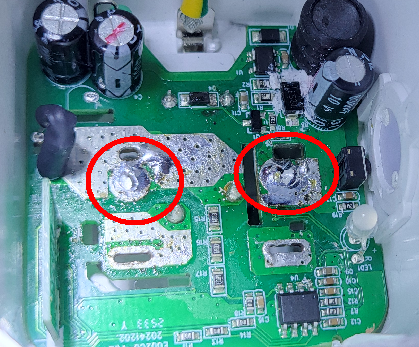
When the solder is sufficiently removed most likely the PCB will still stick to the pins of the plugs. Therefore use the needle-nose pliers to grab the two slotted holes and at the same time heat up the two pin locations with the soldering iron pulling the PCB out. Be careful not to damage the PCB. It needs patience and some force.
When done you have the full PCB in your hands with the BK7238 microcontroller board marked in following photo:
4. Attaching the programming cables to the microcontroller board
I have removed the microcontroller board - again with soldering iron and the help of desoldering braid - and have attached four appr. 5 cm long cables to the solder eyes marked as GND, 3V3 and TX1 on the one side of the PCB and to RX1 on one of the copper connections.
Update after the conversion of the second device: You may leave the microcontroller board soldered to the main board. Just solder the three GND, 3V3 and TX1 cables to the PCB's copper eyes and the one to the RX1 connection on the other side - locate them with the help of the following photos:
5. Flashing OpenBeken
I have used a breadboard with a 3V3 power supply to which I have plugged the microcontroller cables and the FTDI232 and following connections:
| Power Supply 3V3 | BK7238 3V3 | Power Supply GND | BK7238 GND and FTDI232 GND | FTDI232 RX | BK7238 TX1 | FTDI232 TX | BK7238 RX1 |
Be careful to set the FTDI232 to 3.3V by the use of the correct jumper setting before plugging it to the computer!
- Start the BK7231GUIFlashTool
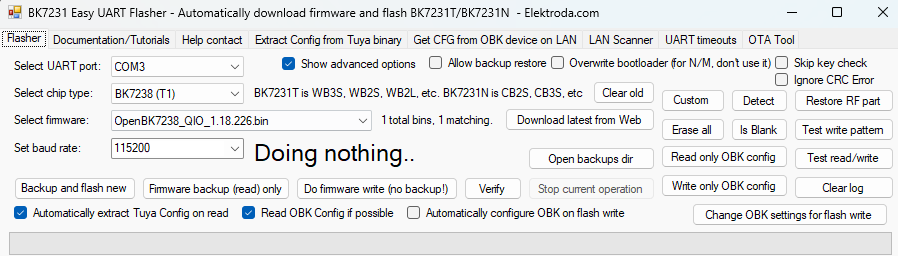
- Select your COM port (normally it auto detects)
- Select chip type BK7238 (T1) and Download latest firmware from web
- Select Backup and flash new
You may need to power cycle the 3.3V power supply before the GUI gets connected with the BK7238.
After this procedure you should have a backup of the original Sonoff firmware and OpenBeken being installed on the device.
6. Re-Solder the microcontroller board
If you have removed the microcontroller board, it's now time to solder it again at its original place.
I have done the following configuration with a 230 V cable being attached to the main board checking all functions during configuration. With the risk that something it is not working it is definiteley safer to assemble everything back to its original state and then doing the configuration!
7. Configuration
When being powered with 3.3V you should be able to "see" the device in your WLAN.
With the help of your smartphone check for this new BK-device and get connected to it to configure your Wifi SSID and password.
After another power cycle the BK7238 should be able to enter your configured WLAN. Check at your router the IP address of the device and use it in your browser to enter the last step of OpenBeken configuration.
This is the template of the OpenBeken configuration:
{
  "vendor": "Sonoff",
  "bDetailed": "0",
  "name": "Sonoff S61s OpenBeken'd",
  "model": "OB S61STPF",
  "chip": "BK7238",
  "board": "E355782",
  "flags": "1024",
  "keywords": [
    "TODO",
    "TODO",
    "TODO"
  ],
  "pins": {
    "0": "LED_n;1",
    "1": "WifiLED_n;2",
    "6": "BL0937CF1;0",
    "8": "BL0937CF;0",
    "9": "Btn_Tgl_All;1",
    "24": "BL0937SEL;0",
    "26": "Rel;1"
  },
  "command": "loglevel 0",
  "image": "https://obrazki.elektroda.pl/3677825100_1766189683.png",
  "wiki": "https://www.elektroda.com/rtvforum/topic_YOUR_TOPIC.html"
}
Update: Meanwhile the template is available on GitHub. Thus, you just retrieve it from the device's Web App template drop down - look for Sonoff S61s....
8. Soldering and mount all components
In the following order you re-assemble everything:
- Solder the microcontroller board to the main board
- Solder mainboard with soldered microcontroller to the plug pins
- Solder the socket to the mainboard
- use the plastic glue and attach the plug back to the housing
Now, you have the smart plug under your full control with the help of OpenBeken. Have fun!
9. Schematics
See following schematics which depicts most of the internal wiring - only the 230 VAC to 5 V power supply around the BP2325AHL is not reverse engineered. There is no guarantee for correctness of the other parts! This is just for documenting the status I've got.
Cool? Ranking DIY
